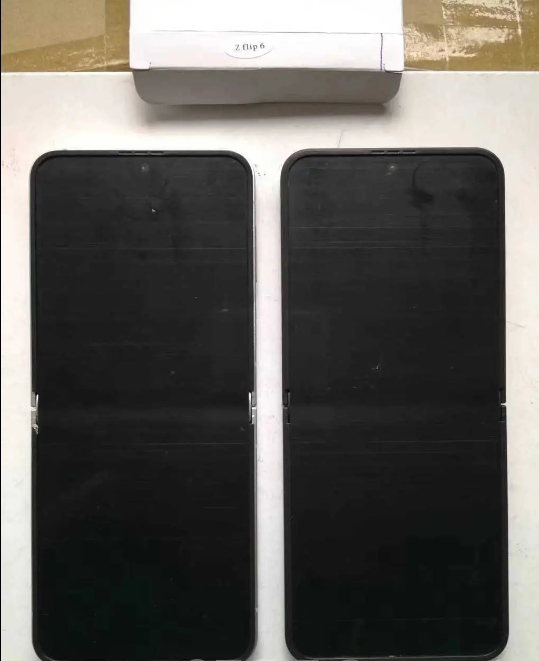
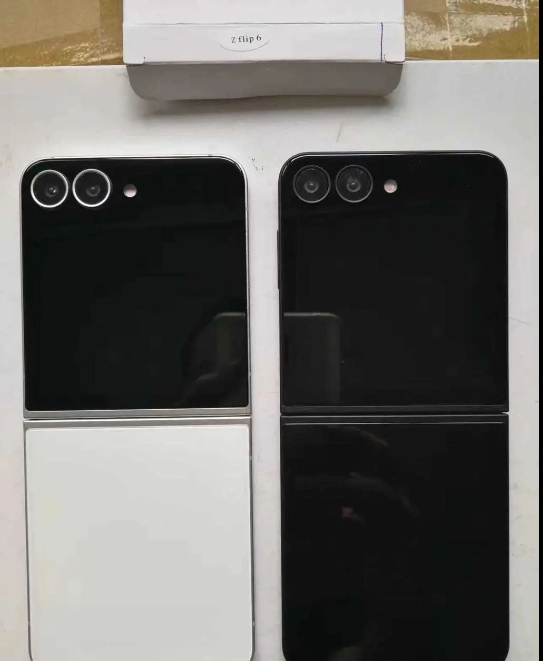
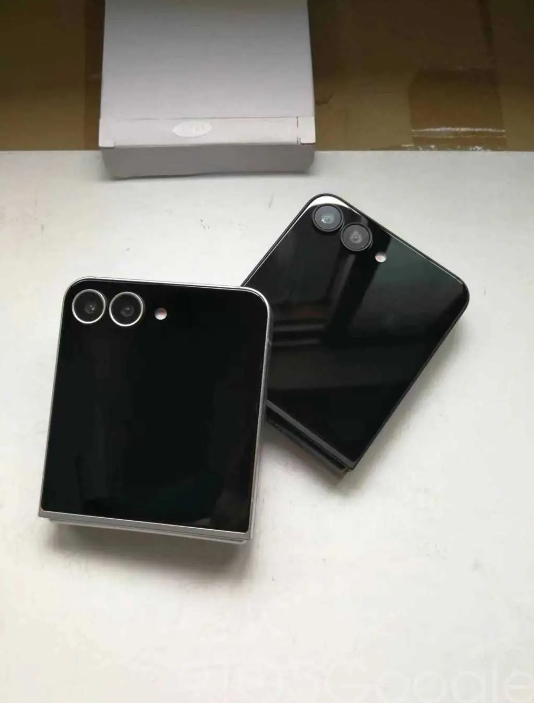
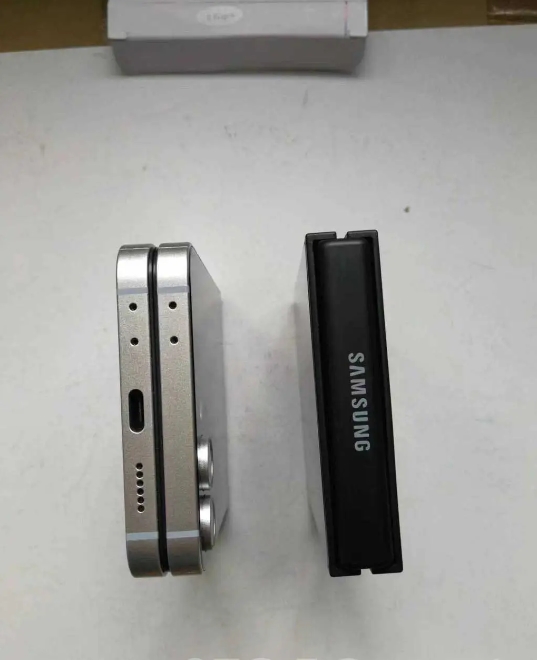
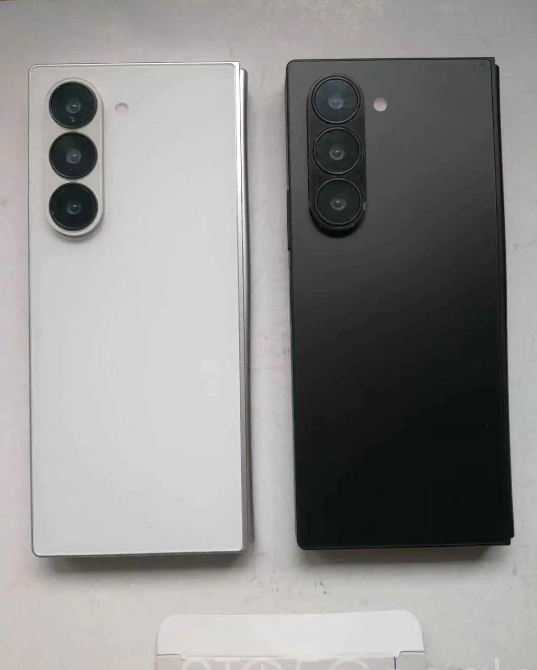
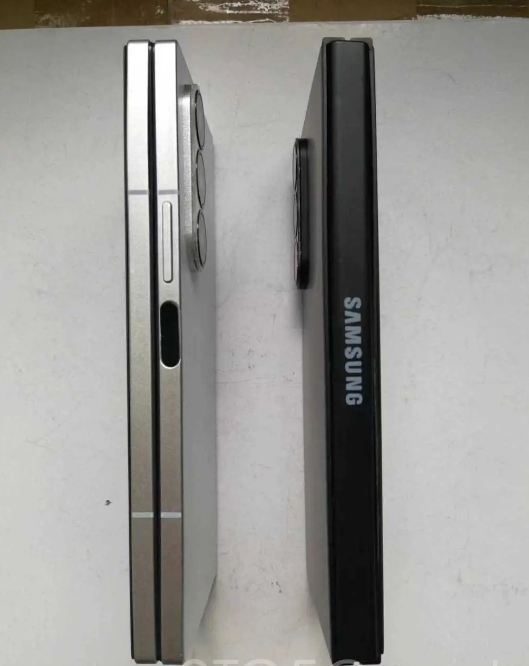
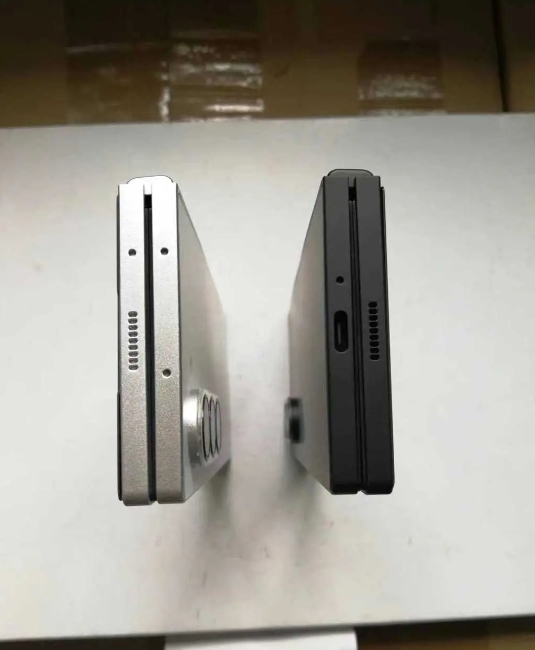
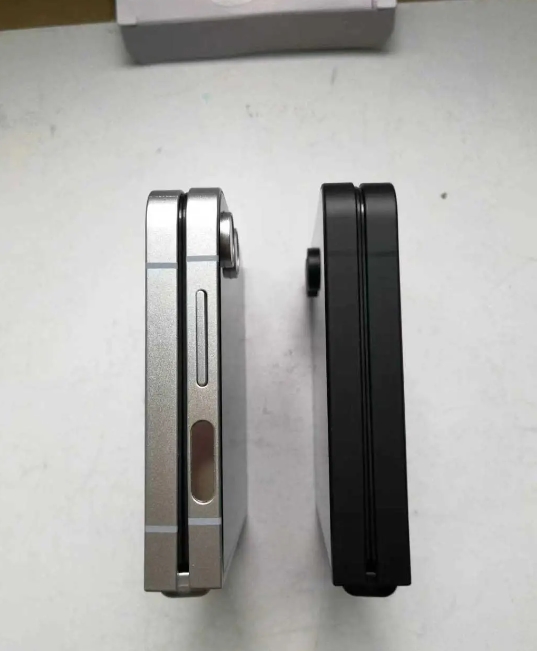
New images of a prototype Galaxy Z Fold 6 and Flip 6 have emerged, showcasing an even deeper look at the Samsung foldable and internal display crease.
Images of prototype Galaxy Z Fold 6 or even Flip 6 units are not new, and we’ve seen almost every angle available through previous leaks. They showcase the entirety of the device, detailing the new boxier design on both foldable, as well as camera array changes this time around.
Photos credited to Sonny Dickson of further Galaxy Z Fold 6 and Flip 6 prototype photos. The images exhibit both the outer and inner displays of each device, and it looks like generation six still carries a significant display crease.
The units in the photos are both prototypes or “dummy” units. Essentially, it means each is subject to extensive changes throughout the design process. These images could be showing off a display that carries a larger seam down the middle than the final version will, or Samsung may have equipped these units with an older display to simply show off the silhouette and overall profile of each phone. Still, users have been hoping for a less significant bend when the Galaxy Z Fold and Galaxy Z Flip are open 180 degrees.
The images also show off a black prototype variant, which has “Samsung” crudely stamped on the hinges of both devices. It’s possible Samsung will ditch the etched logo we’ve seen on past Fold and Flip devices and instead opt for a stamped logo, much like in the images here. The etched logo is the preferable option, giving the $2,000 devices a little touch of quality.
Another small possible detail is the way the hinge protection plate flares out at the top and bottom of the Galaxy Z Fold 6. It’s very hard to see, and the lighting in these images could be playing tricks on our eyes, but it looks like the hinge is a couple of millimeters further from the main phone panels at the ends than it is in the middle, where the Samsung logo is. There is no such angle for the Flip 6.
Besides a couple of small tidbits, Samsung’s design changes can be appreciated in these prototype units. Each phone looks to be carrying a smaller bezel around the internal display, and the overall footprint looks a little nicer than last year’s model.
Samsung is set to announce the Galaxy Z Fold 6 and Galaxy Z Flip 6 on July 10 in Paris.
Android 15 Beta 3 is available today with final system behaviors as part of the Platform Stability milestone.
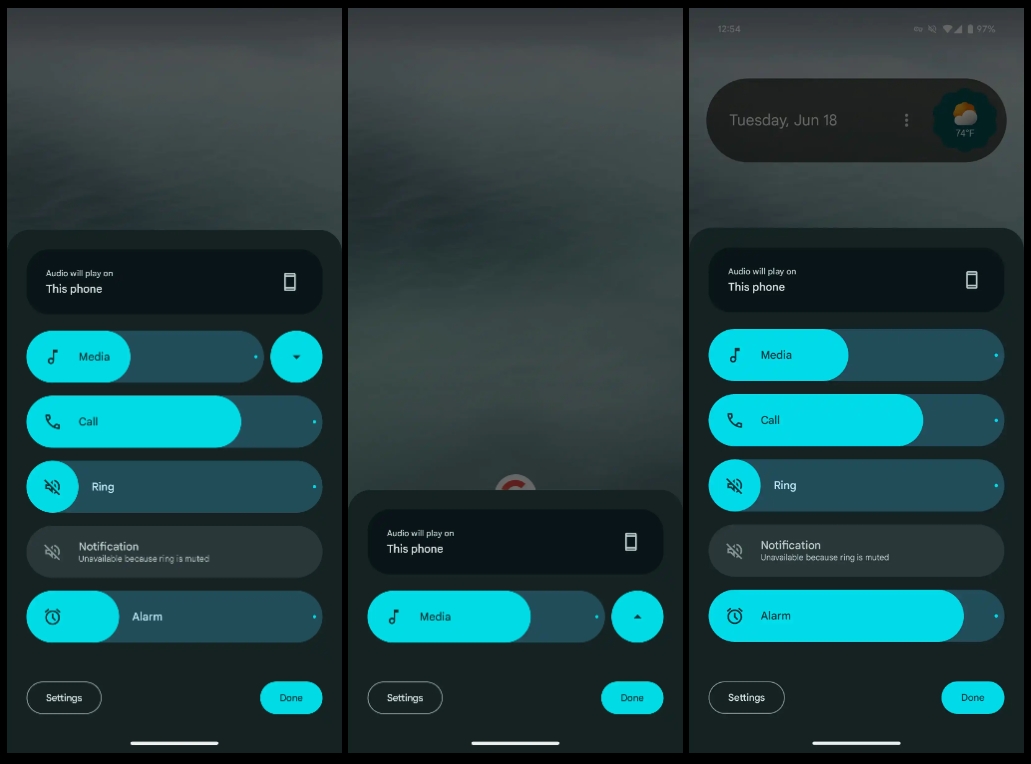
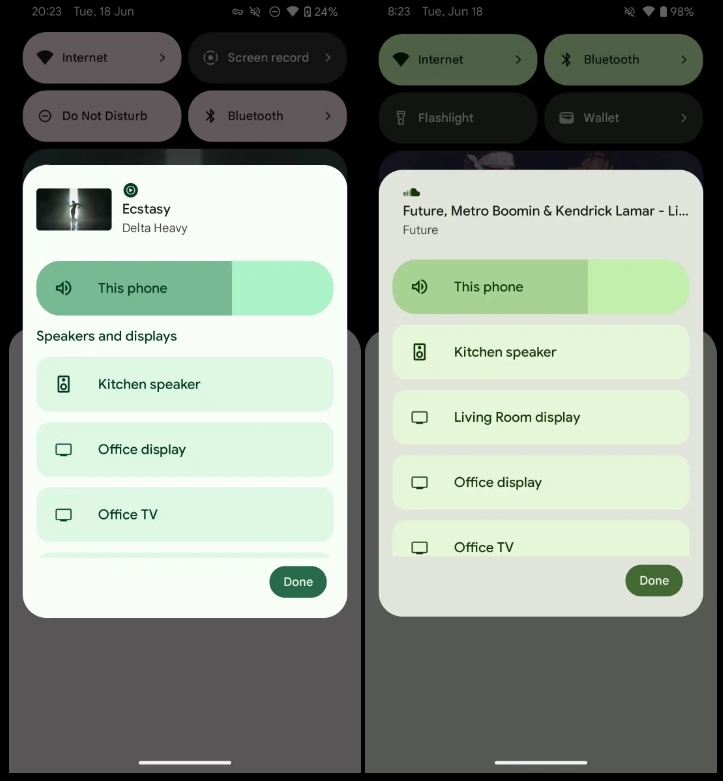
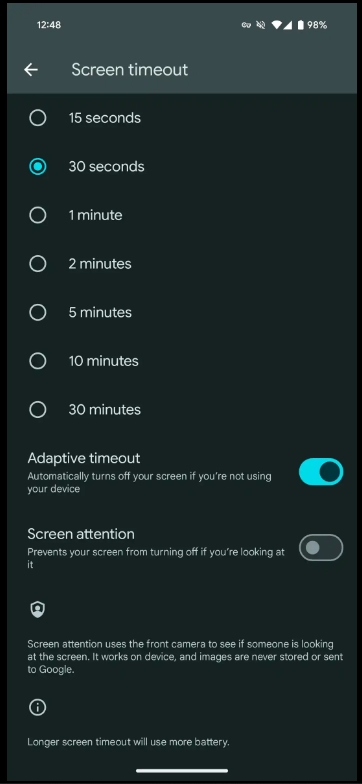
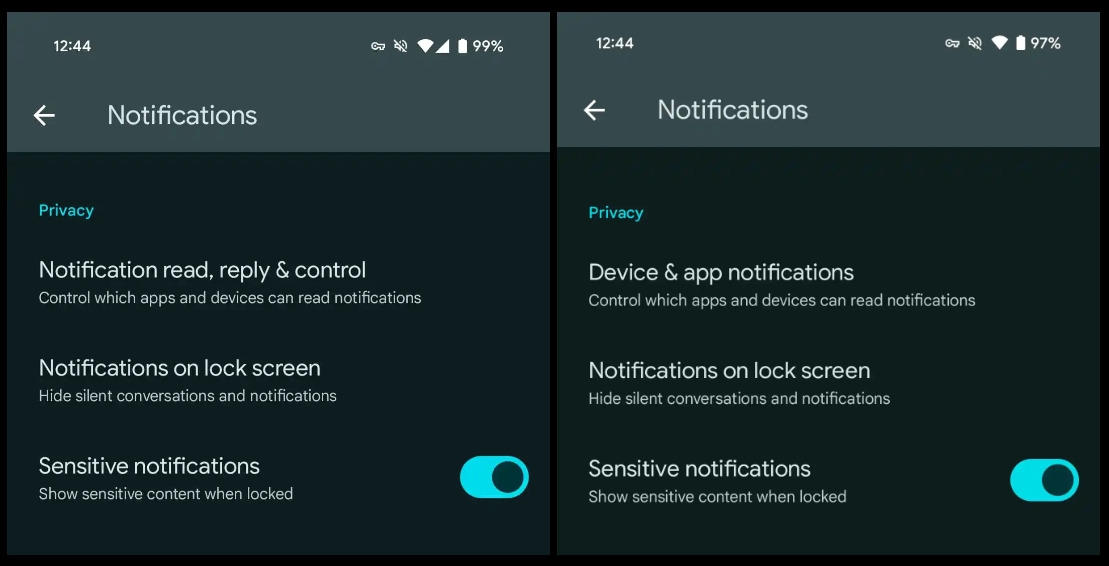
Over the coming hours, we’ll dive into all of Android 15 Beta 3’s new features and every single change. (The newest updates will be at the top of this list. Be sure to check back often and tell us what you find in the comments below.) Android 15 Beta 2 screenshots appear on the left and Beta 3 on the right.
If you want to quickly install Android 15 Beta 2 on your compatible Pixel 6, Pixel 6 Pro, Pixel 6a, Pixel 7, Pixel 7 Pro, Pixel 7a, Pixel Tablet, Pixel Fold, Pixel 8, Pixel 8 Pro, or Pixel 8a, be sure to check out our step-by-step guide.
Volume menu can no longer be minimized
‘Speakers and displays’ label removed
Adaptive timeout
“Automatically turns off your screen if you’re not using your device”
Device & app notifications -> Notification read, reply & control
More prominent Circle to Search off switch
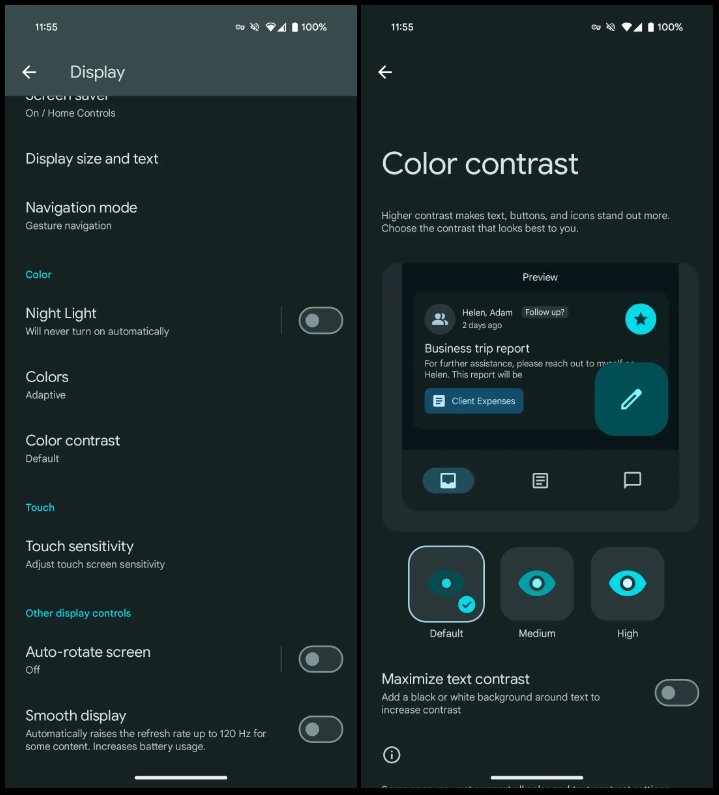
Shortcut to Color contrast preferences in Settings > Display
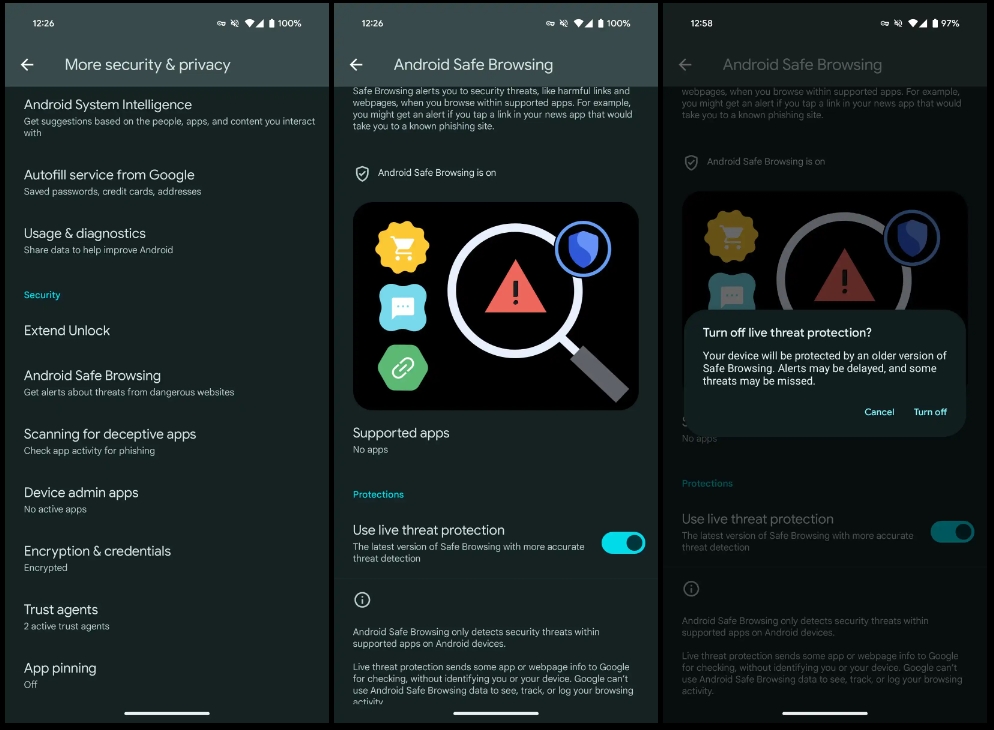
Android Safe Browsing
Settings > Security & privacy > More security & privacy
“Live threat protection sends some app or webpage info to Google for checking, without identifying you or your device. Google can’t use Android Safe Browsing data to see, track, or log your browsing activity.”
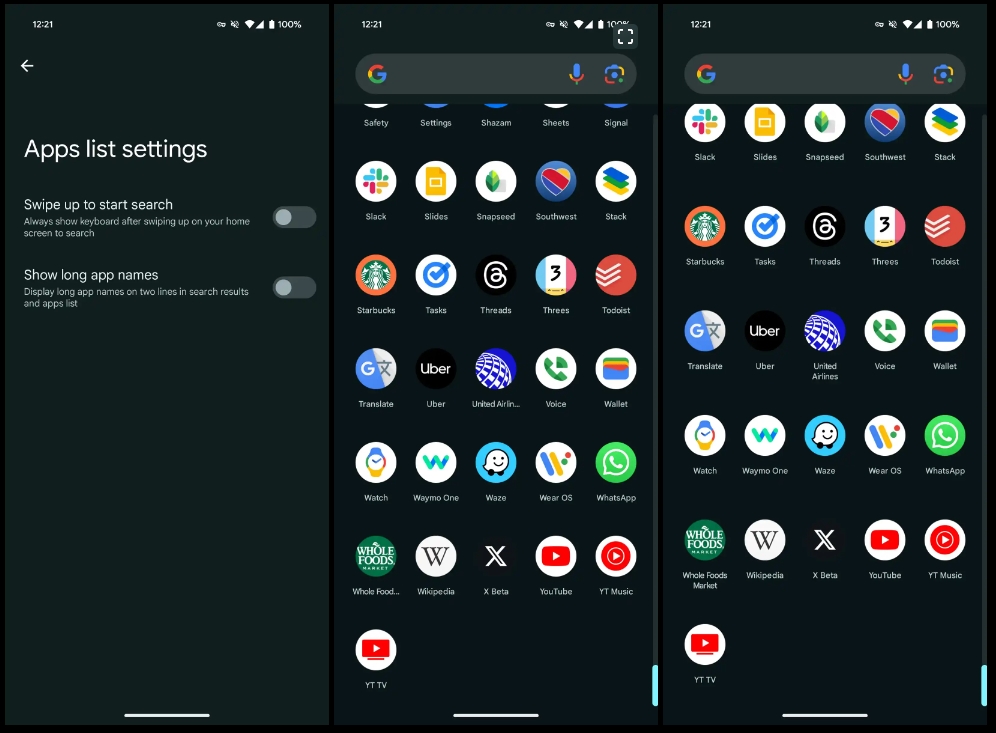
Show long app names
Pixel Launcher Home settings > App list settings
Screenshot 2: Disabled | 3: Enabled
Updated Android 15 system icon
In a nod to the codename (see below), there’s now an ice cream cone in the system icon.
No more VanillaIceCream
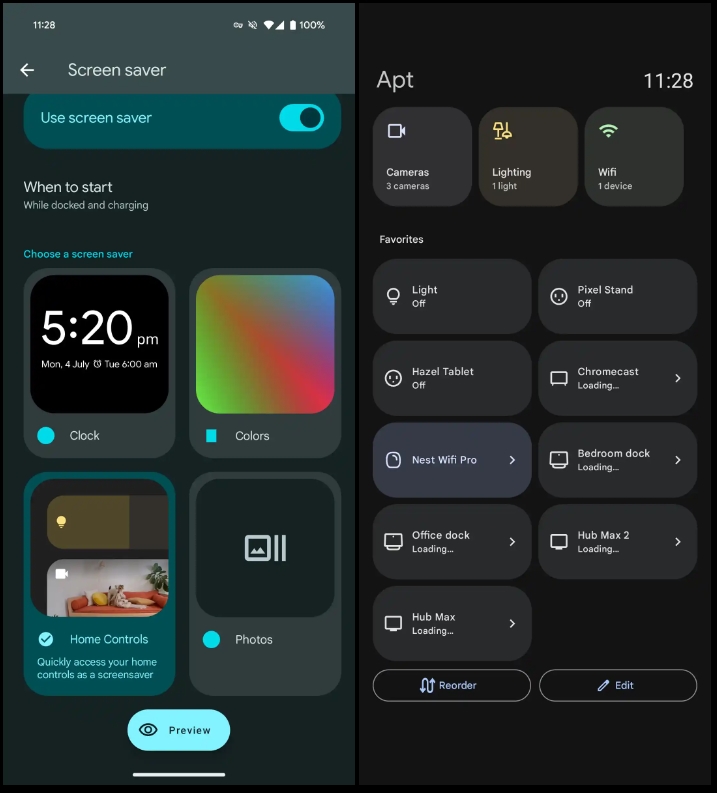
Home Controls screensaver for Pixel Tablet
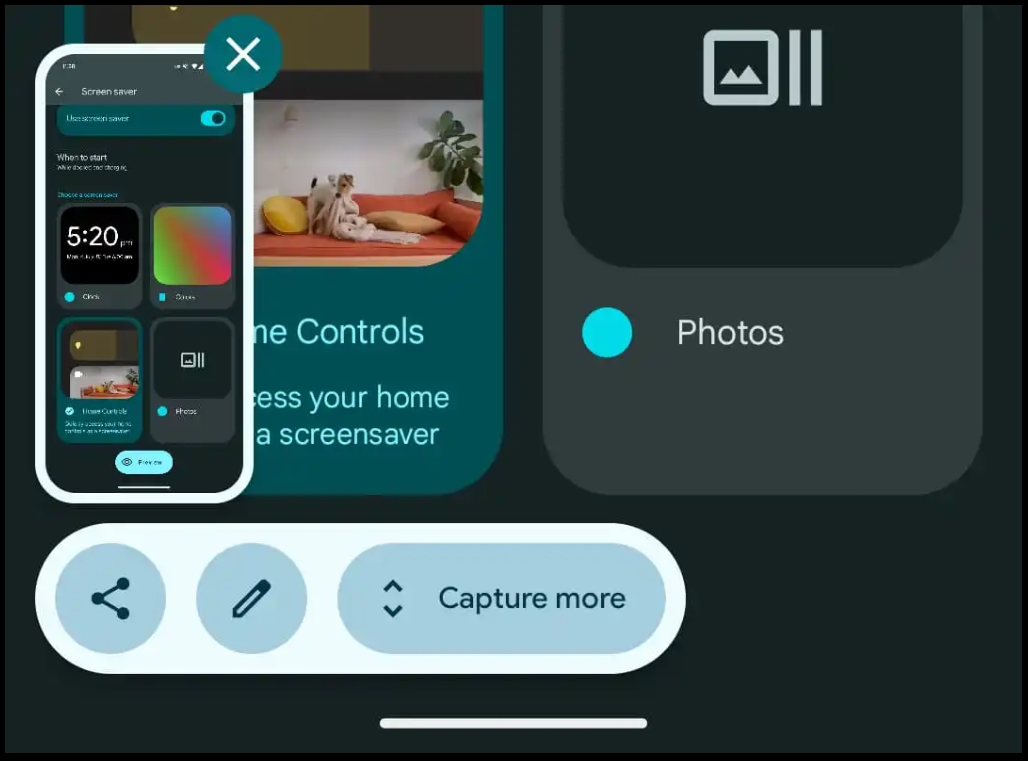
Redesigned screenshot preview
Actions placed below the preview
Looks a bit odd when there are just two actions (Share + Markup)
The June Feature Drop continues to roll out through a series of app updates. Pixel Camera 9.4 brings manual lens section to the Pixel 6/7 Pro and Fold, as well as other tweaks.
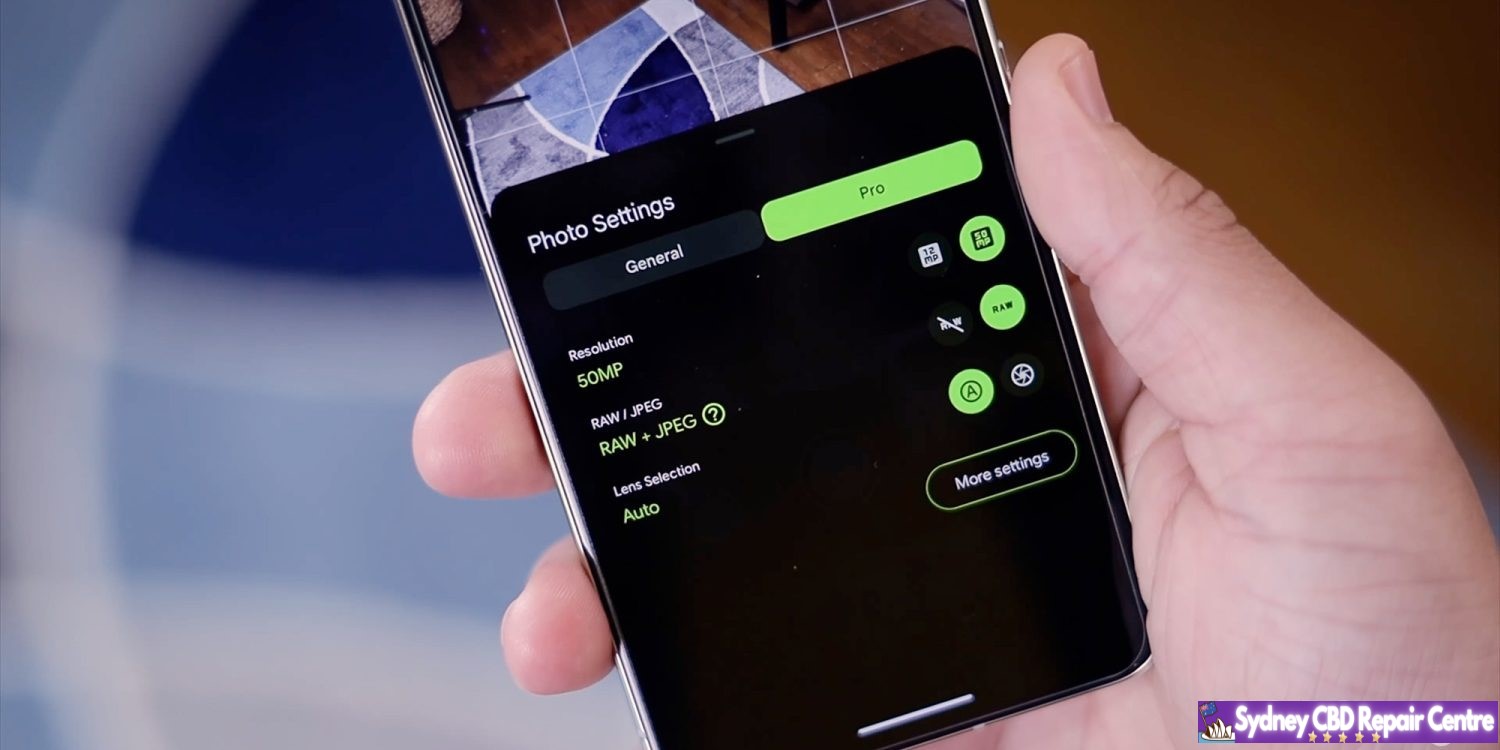
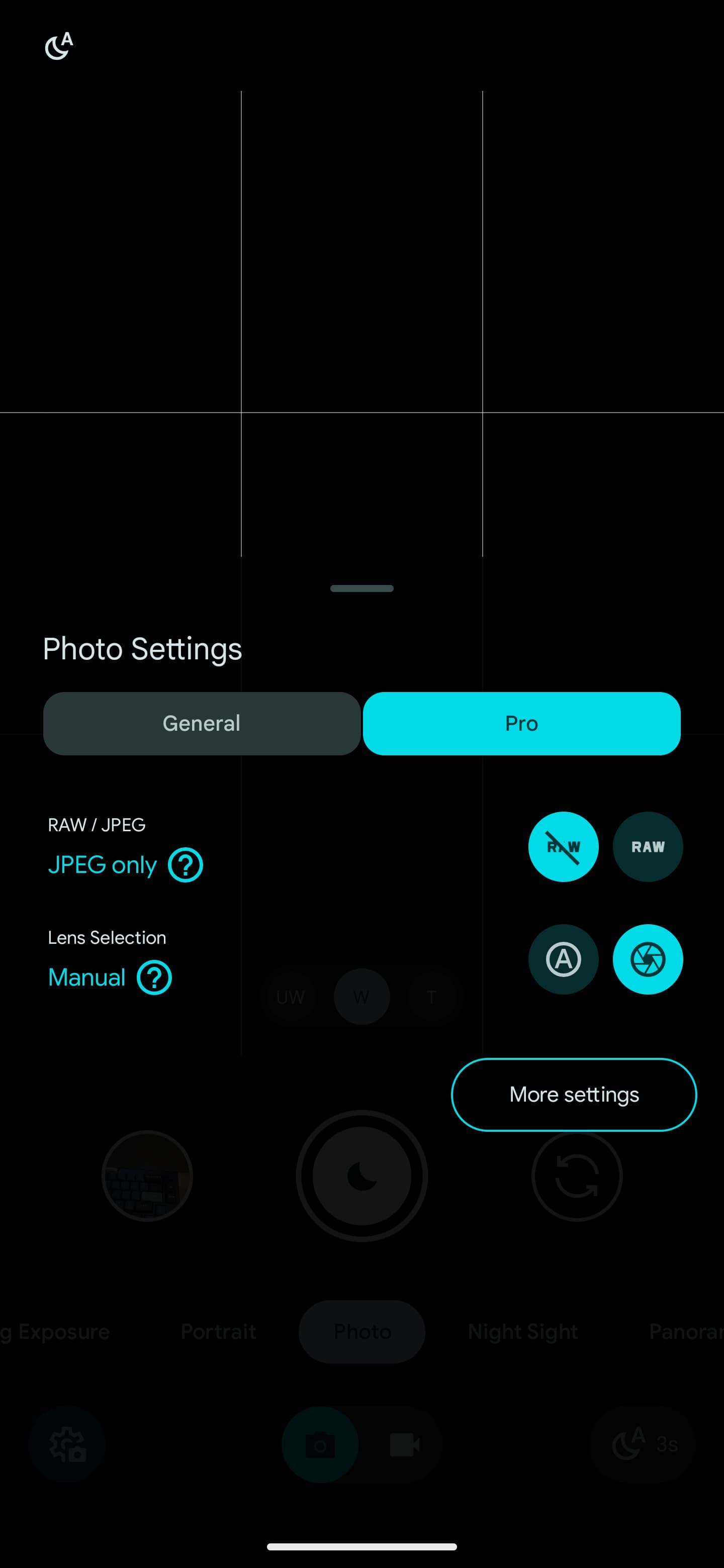
Like on the Pixel 8 Pro, Google’s two other premium phones and foldable now let you choose one of the three rear lenses for a shot. Tap the settings gear in the bottom-left corner (or swipe up) for Photo Settings. You’ll find a new “Pro” tab next to “General” with Lens Selection: Auto or Manual.
(Despite the tab’s name, these aren’t the “Pro controls” introduced on the Pixel 8 Pro that let you adjust Focus, Shutter Speed, and ISO.)
The zoom pill above the shutter button gets replaced by Ultra Wide, Wide, and Telephoto. Pinch in/out to zoom when this manual mode is enabled. Google will default to W when you open the app later.
Another change sees Pixel Camera move the RAW / JPEG picker to the Pro tab. It was previously buried in Settings > Advanced. This makes switching much easier when you want to professionally edit the shot later. Compared to the 8 Pro, you do not get the Resolution preference: 12MP or 50MP.
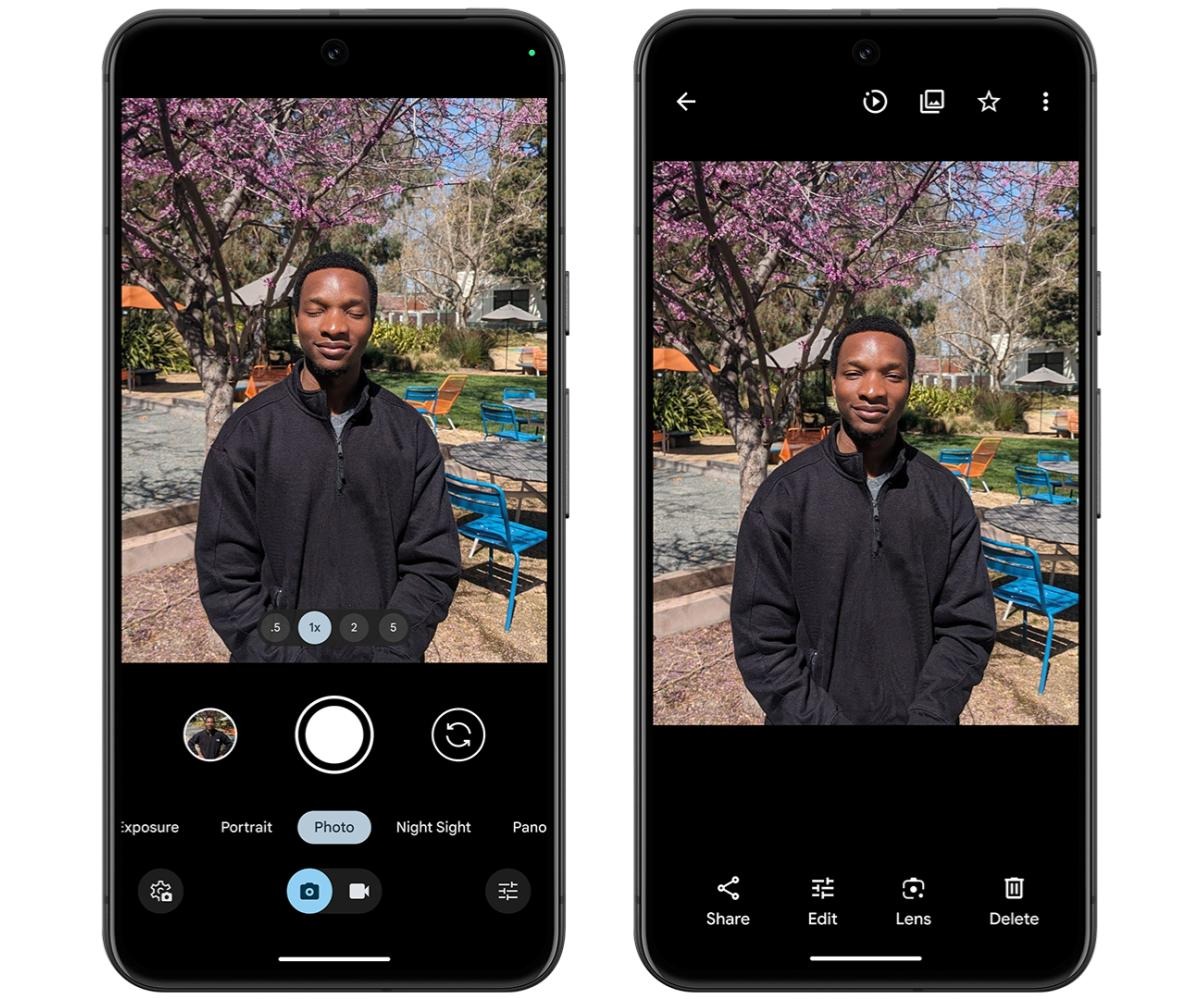
This update presumably brings the HDR+ Improved Frame Selection to the Pixel 6+, including Fold and Tablet:
HDR+ is now better about identifying the best moment from your photo in HDR+ with just a single shutter press. It’s smarter about which base frame it selects to produce the multi-frame merged image, looking at criteria such as open eyes and smiling subjects.
Google Pixel 8a is now available in many markets, be it via the official Google Store or third-party retailers. It looks a lot like the OG Pixel 8; it offers a streamlined feature set and is priced a bit lower. But is it the one you should get? Let’s find out.
The Google Pixel 8a is the next installment in the Pixel ‘a’ series, which many consider to be standing for ‘affordable’. The logic is sound – the design has been simplified, the cameras – less complicated, the connectivity – less premium. And finally – it is cheaper than the Pixel 8 even if not by a large margin.
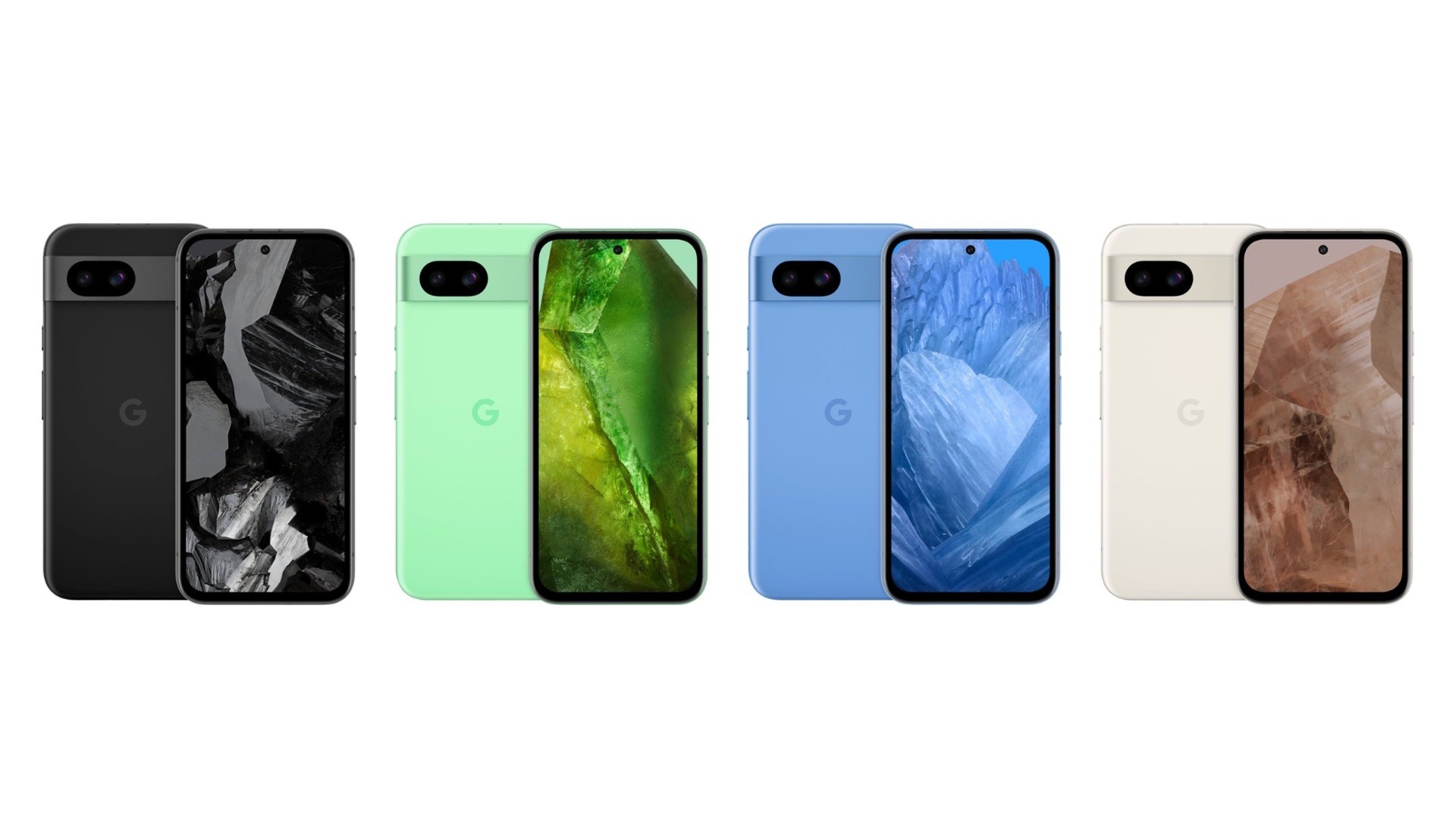
The Pixel 8a has a similar design, but its front glass is an older Gorilla Glass 3 and the rear part is entirely made of plastic, the camera housing included. It is IP67-rated for dust and water resistance, and it is available in familiar colorways – Obsidian, Porcelain, Bay, Aloe.
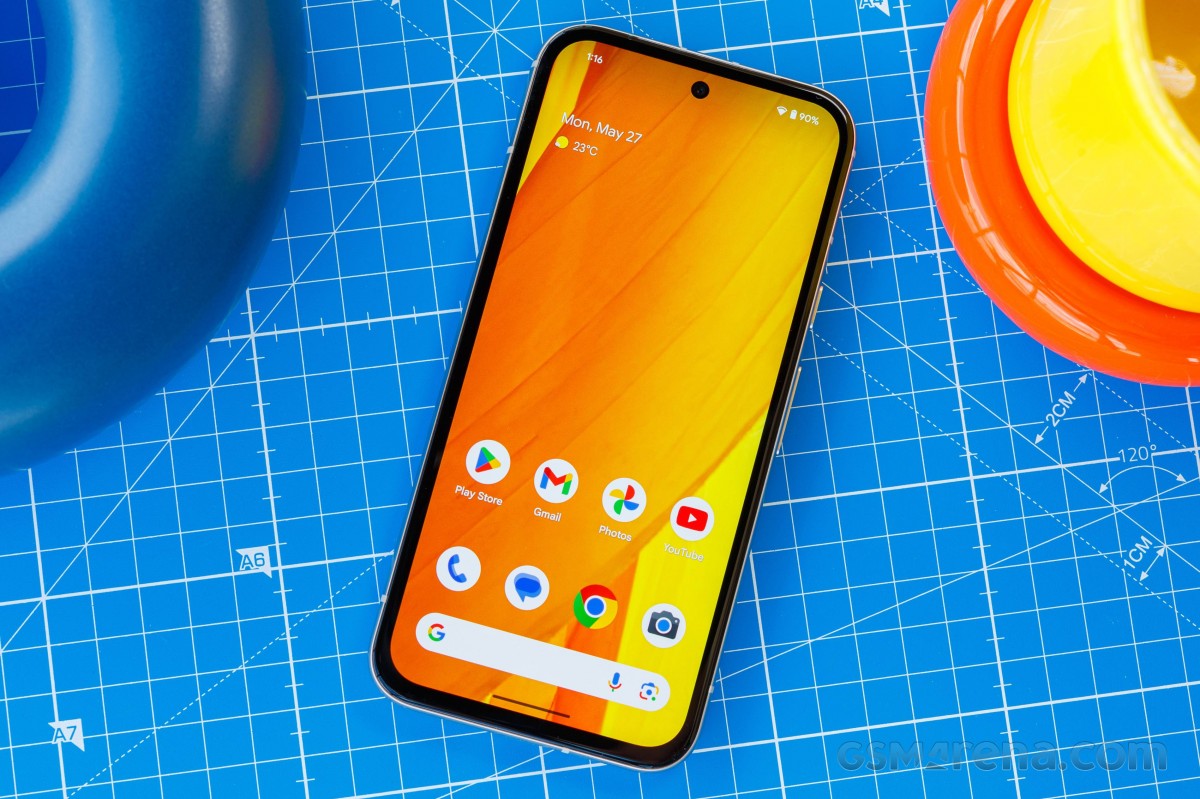
The Pixel 8a employs a bit smaller 6.1-inch OLED screen of extended 1080p resolution and 120Hz refresh rate. It has the same Tensor G3 chip as the Pixel 8 and offers the same memory configuration of 8GB RAM + 128GB UFS storage.
Of course, the camera is what everyone thinks when hearing a Pixel and it will be one of the most discussed aspects about the Pixel 8a. Here we also have a dual-camera setup like on the Pixel 8, but with different sensors – a 64MP OIS primary and a 13MP FF ultrawide. The front camera is also a 13MP, with the same ultrawide lens as on the Pixel 8.
Finally, the Pixel 8a is powered by a 4,492mAh battery capable of up to 30W or so fast wired and up to 7.5W of wireless charging.
Disclaimer. We can not guarantee that the information on this page is 100% correct.
Google Pixel 8a seems like a solid little flagship, one of the very few on the market, and also one that doesn’t cost a thousand dollars/euros. The slow 18W wired charging is a glaring omission on the spec sheet, though.
Unboxing the Pixel 8a
Google was one of the first makers to limit the retail box contents. The Pixel 8a package includes a USB-C cable and a USB-A-to-C adapter.
And that’s it. Still, it’s two accessories more than what Sony would give you in the Xperia retail box so we guess we should not complain.
The competition
The Google Pixel 8a is an excellent compact smartphone – it has a great design, a great OLED screen, a powerful chipset, good battery life and a superb camera experience. It’s the launch price that seems to be standing in its way of greatness, though it has begun to drop shortly after its premiere, which is a good sign.
The Pixel 8a launched at €549, so the “a” doesn’t seem to stand for affordable this time around. Especially considering that the Pixel 8’s price has dropped to €525 at third party sellers, making it the better choice of the two for its more premium design, slimmer bezels, better cameras (in specific use cases), and noticeably faster charging.
The Galaxy S24 is about €90 more expensive, but it will offer a more dynamic display with higher brightness, a much faster and more modern processor, more versatile camera experience, and faster charging.
Xiaomi 14 and iPhone 15 are popular compact alternatives, though they are about €200 more than the Pixel 8a, immediately making them the less attractive options. Sure, the Xiaomi 14 will give a much better screen and a much more powerful CPU and camera kit, but these come at a hefty premium.
Google Pixel 8 • Samsung Galaxy S24 • Xiaomi 14 • Apple iPhone 15
The verdict
The Google Pixel 8a turned out to be an incredibly capable compact smartphone – a rare breed. It aced our screen, battery, and speaker tests, it offers an easily likable and unique design, its performance is alright, and its camera is worthy of the Pixel name.
There are a couple of things to consider – like the thick bezels, the slow charging, and the heavy performance throttling under load.
We would still have liked to recommend the Pixel 8a, but unfortunately, at third-party retailers, its price is ridiculously close to that of the Pixel 8, which is the better phone by all accounts. The price has begun to go down already, so once it settles around the €420 mark and the “a” once again stands for affordable – it’s safe to say the Pixel 8a would be well worth considering.
Pros
Sturdy Pixel design, likable, IP67, compact.
Great OLED, bright, color-accurate, smooth.
Good battery life.
Very good speakers.
Decent performance.
Excellent photo and video quality across all cameras.
In addition to the Feature Drop, Google is rolling out QPR3 to Android 14 with the June 2024 security patch for the latest Pixel devices: 5a, 6, 6 Pro, 6a, 7, 7 Pro, 7a, Tablet, Fold, 8, 8 Pro, and 8a.
As the last major Android 14 update before Android 15, QPR3 is light on user-facing changes. For example, the Suggestions section of the Widgets list now shows app icons.
There are a few tweaks in Settings from the “Passwords, passkeys & autofill” rename to a new Display > Touch sensitivity menu that houses the existing Screen protector mode. Under Sound & vibration > Vibration & haptics, there’s a new “Keyboard vibration” toggle that replaces the Gboard preference.
In Security & privacy > More security & privacy, you’ll find “Allow camera software extensions”: “Enables the default software implementation of advanced camera features, such as Eyes Free videography.”
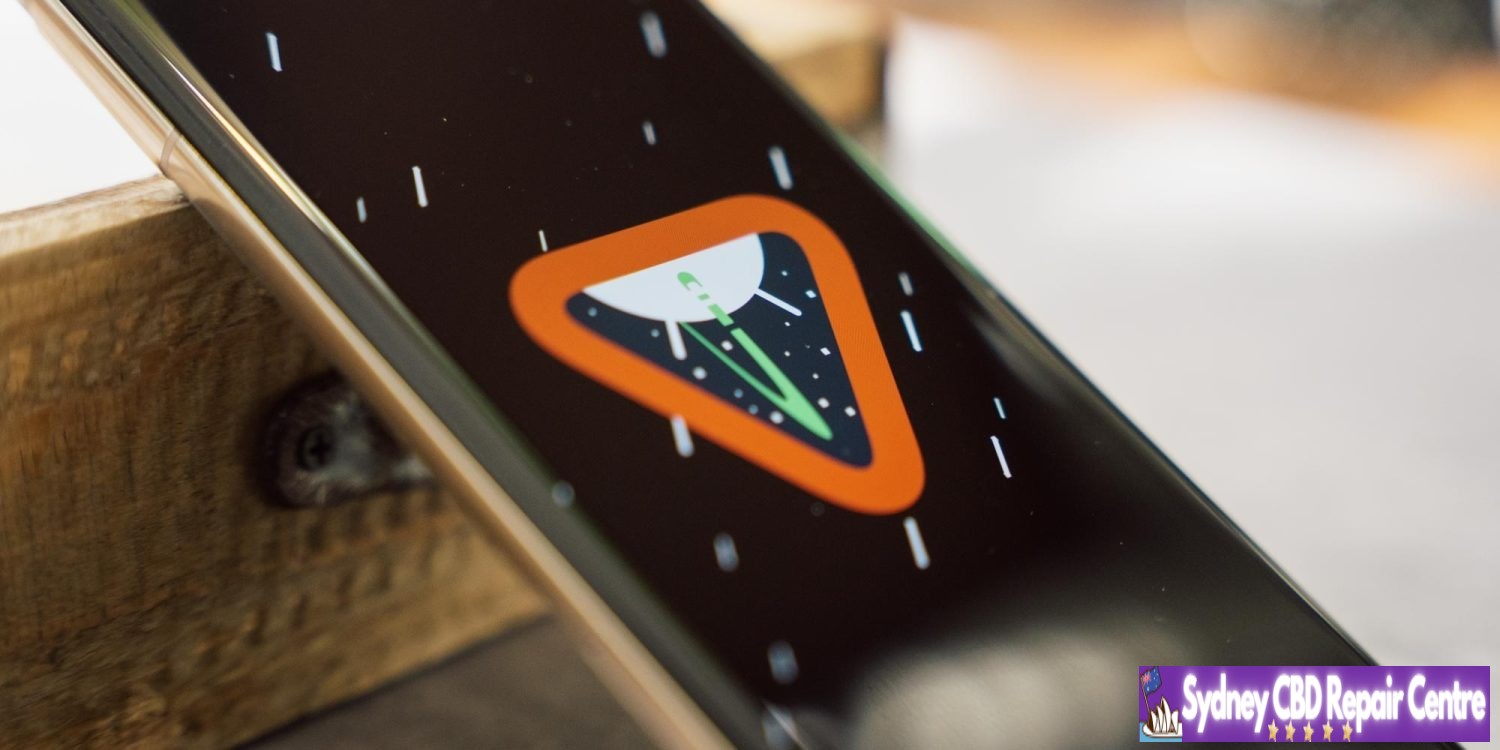
As seen in the cover image, Google has updated the Android 14 easter egg ahead of Android 15 (V).
There are 22 security issues resolved in the Android 14 June patch dated 2024-06-01 and 18 for 2024-06-05. Vulnerabilities range from high to critical.
The dedicated bulletin for Google devices lists additional security fixes.
Following the last patch two weeks ago, Google is rolling out Android 15 Beta 2.2 with several Pixel fixes. Private space should now be fully working, while this update also addresses Wallet/NFC issues.
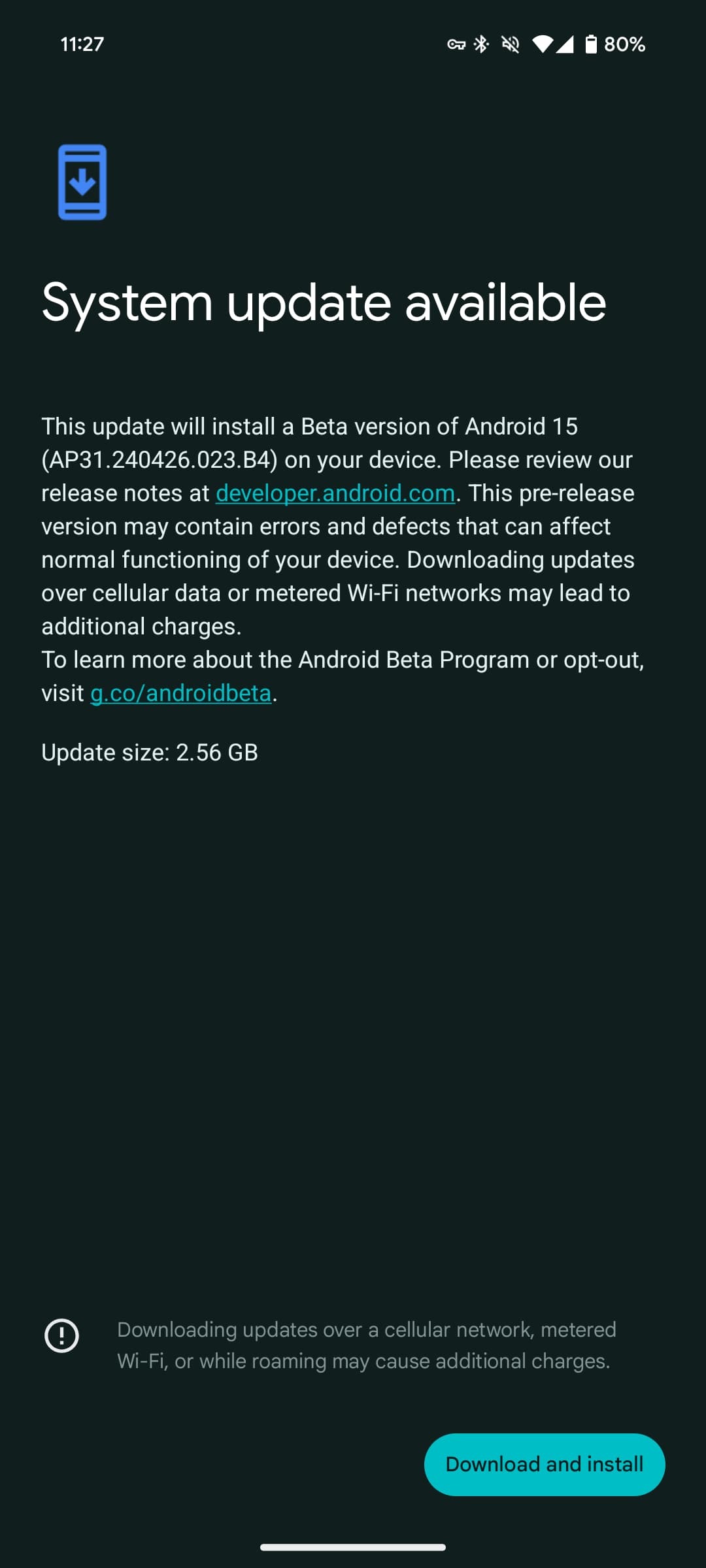
AP31.240426.023.B4 with the May 2024 security patch is available for all supported devices: Pixel 6, Pixel 6 Pro, Pixel 6a, Pixel 7, Pixel 7 Pro, Pixel 7a, Pixel Tablet, Pixel Fold, Pixel 8, Pixel 8 Pro, and Pixel 8a.
It’s a more sizable update than the initial patch that came immediately after I/O 2024. On a Pixel 8 and Tablet, the on-device OTA update size is 2.56 GB. That said, it’s only 55.78 MB on a different Pixel 8 Pro.
At launch, Google offered that full download. If you waited a bit, the smaller (and presumably intended) update was made available.
Fixed remaining issues where creating a private space on a device for the first time removed app icons from the Home screen (or Home screens if more than one Home screen had been added). (Issue #340868295)
Fixed an issue with the Wallet role that prevented NFC payments from functioning in some cases. (Issue #340933949)
Fixed an issue where the app drawer didn’t open when swiping up. (Issue #335798568)
Fixed an issue with NFC observe mode that prevented NFC payments from processing in some cases.
Fixed an issue that sometimes caused videos that were recorded using 10-bit HDR to have a green tint.
Fixed various other issues that were impacting system stability, interactivity, and connectivity.
All eligible devices enrolled in the Android Beta for Pixel program will be offered an over-the-air (OTA) update to Beta 2.2.
Samsung Galaxy owners have noticed that Samsung’s Messages app is crashing frequently as of late, and the culprit seems to be an update to Google Meet, somehow.
Over the past few days, many Galaxy users on Reddit and Samsung’s forums have reported (via SamMobile) that the Samsung Messages app is crashing frequently. On trying to open any conversations, the app simply shuts down.
According to a Samsung moderator, the reason for this is an update to the Google Meet app.
Presumably due to the video calling shortcut in Samsung Messages that routes through Meet, something is causing the Messages app to crash frequently. Rolling back Meet updates seems to fix the problem, though. The exact cause isn’t clear, but it’s very widespread with the latest Messages and Google Meet updates. You can go to an older version of Meet by uninstalling updates to the app through Settings.
The problem can also be solved by moving from the Samsung Messages app to the Google Messages app.
Samsung Messages has actually been replaced by Google Messages on Galaxy devices sold in some regions including the US, but the original app is still used by many today. Hopefully, Google will issue a fix to the Meet app in the coming days.
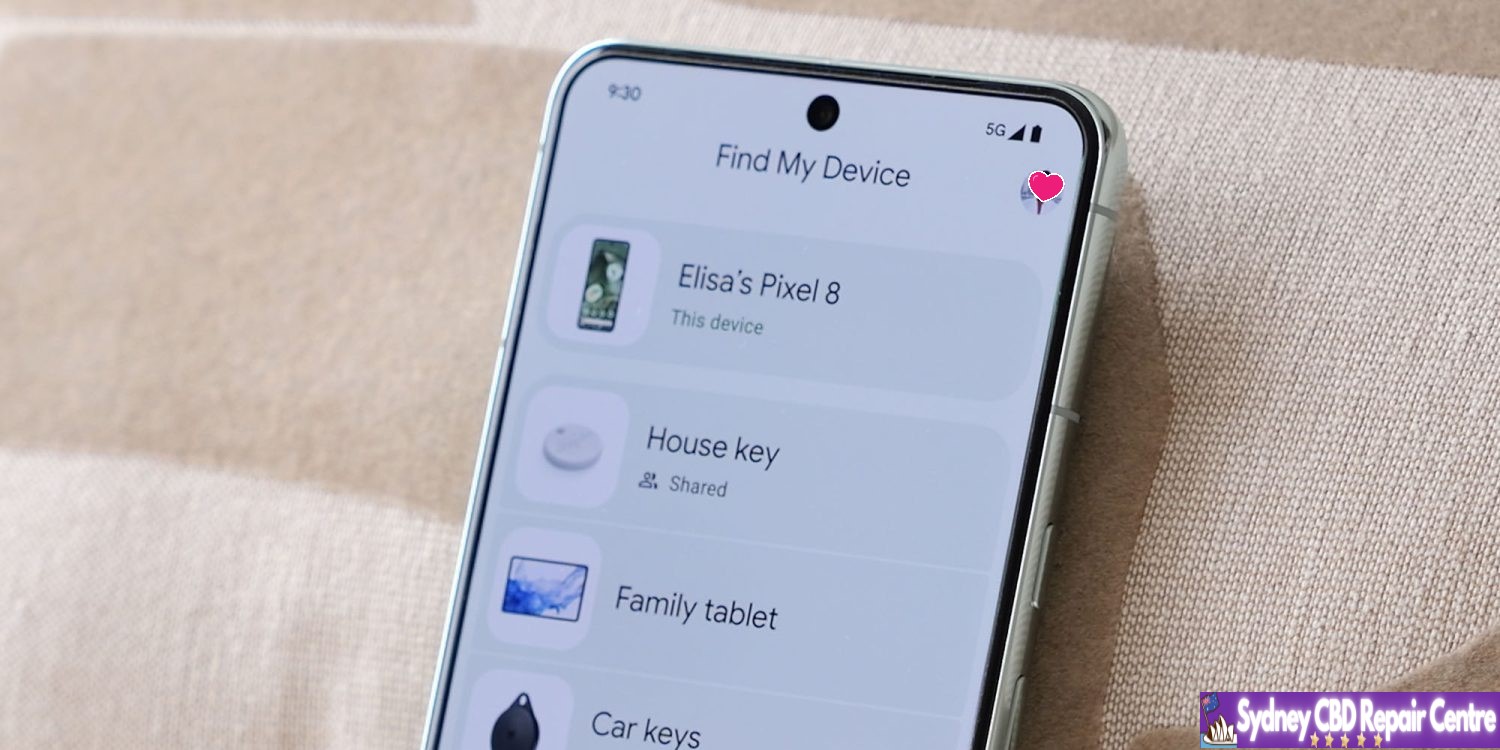
The Android Find My Device app is going to become a whole lot more useful thanks to the arrival of tracker devices, but the app can quickly be filled up with old devices. Here’s how to remove and rename devices that show up in the Find My Device app on Android.
In the Find My Device app on Android, there are currently no controls for the devices within. At least, for the phones and audio devices. You can rename trackers and edit those, but everything else is stuck as-is.
Thankfully, there are a couple of ways to fix this.
Firstly, you can access the Find My Device app through the web.
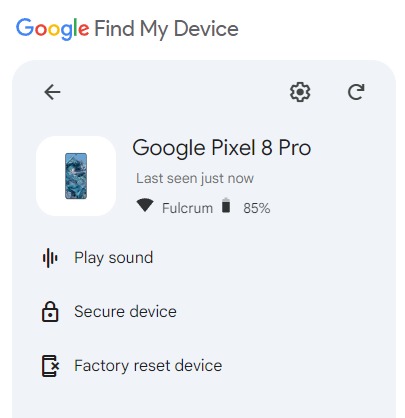
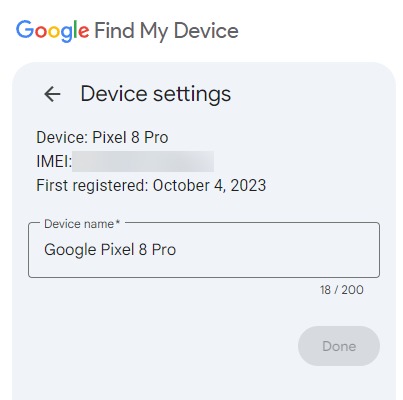
At google.com/android/find you can click through on any device and, under the settings menu, rename the device to whatever you’d like. The default name on most devices will be whatever the product name is, but some will be different and use a model number instead of the actual product name.
Another option is to use the Google Play Store’s “My Device” menu.
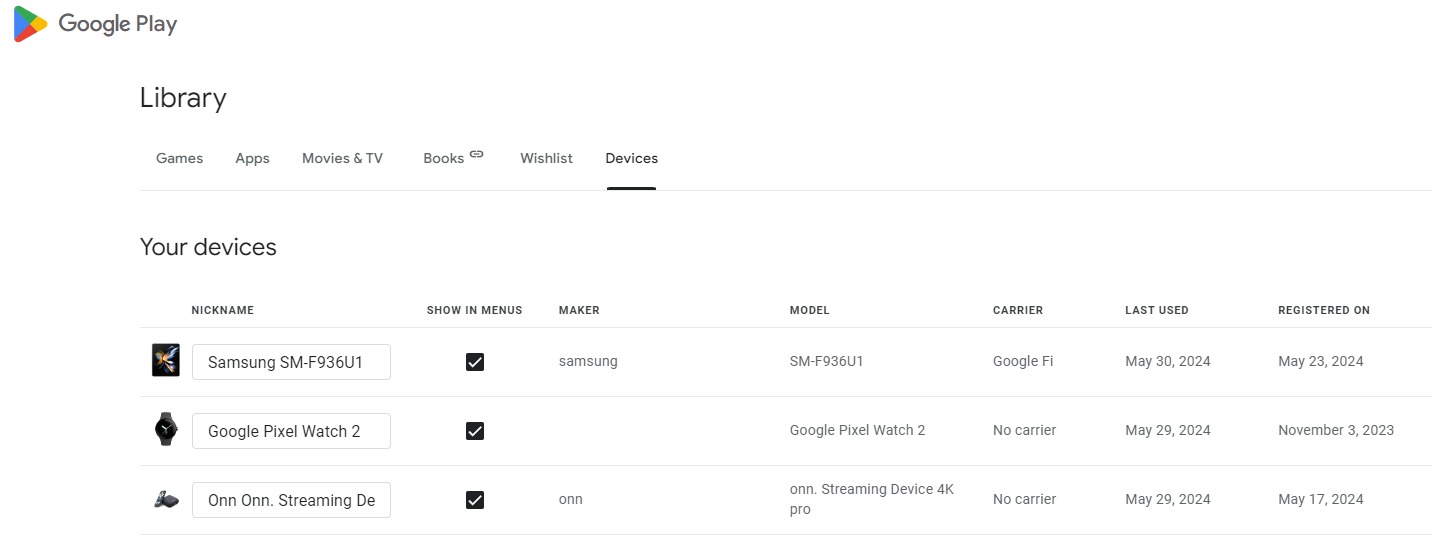
This page, accessible through the web at play.google.com/library/devices, shows a list of any devices you’ve been signed into. This page similarly lets you rename devices, and it also shows TV and Chromebook devices as well. Normally you’d use this page to edit the display name of a device in the Play Store’s web app install tool, but it also syncs to the Find My Device app.
This same page also lets you easily remove devices from Find My Device on Android.
By unchecking the “Show in menus” toggle on any devices you don’t want to appear, they’ll disappear from the Android app in short order. Just keep in mind this also applies to the Play Store’s web client as well.
These changes tend to sync almost immediately, but it can sometimes take a couple of tries or a few minutes of waiting.
The only devices you can’t easily remove from Android’s Find My Device app are Bluetooth audio devices. To remove these, you’ll need to use one of the devices you’ve paired the headphones or speaker to and remove it manually from there.
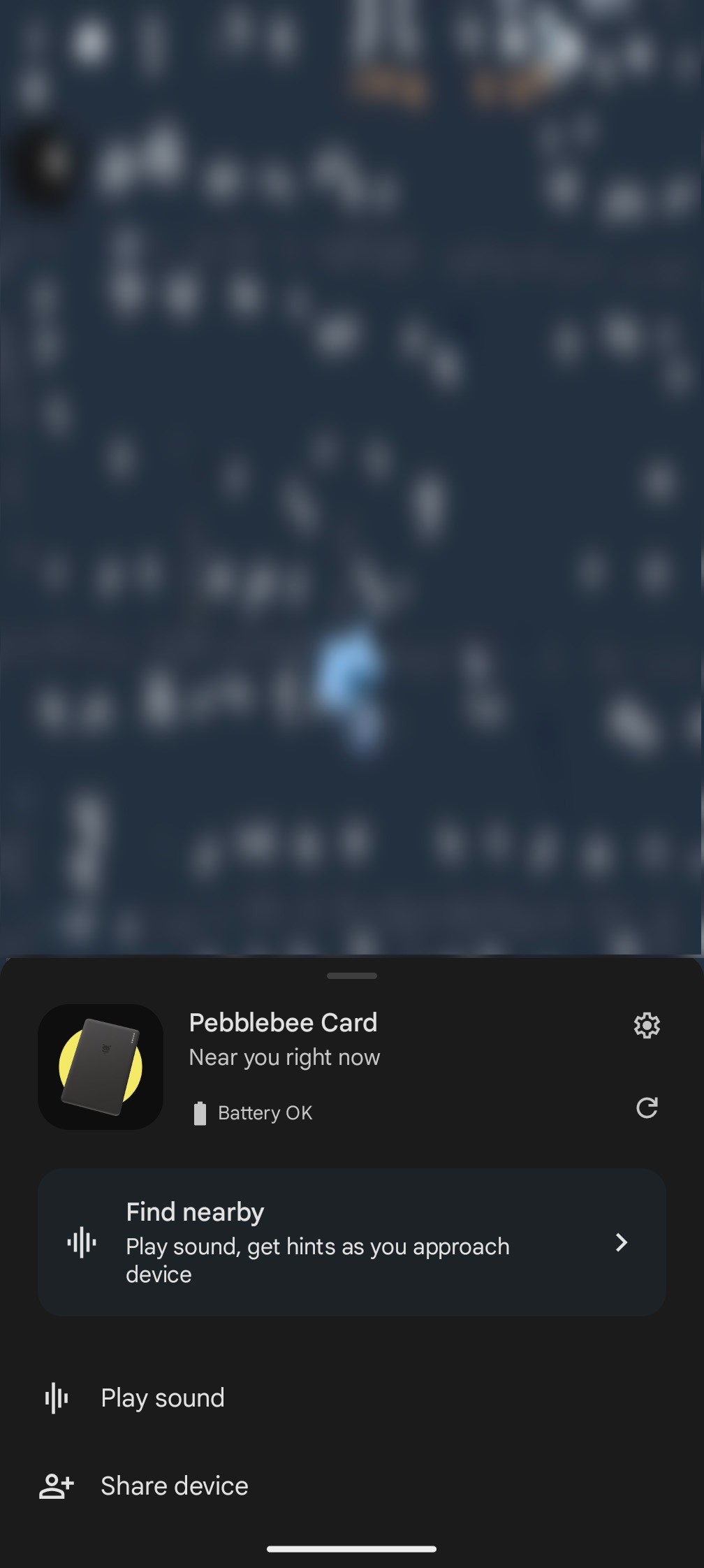
To rename trackers, simply open the tracker in the app, tap settings, and you can rename it and even set its category.
Hopefully, future updates will make this easier, and also make it possible to reorganize the list.
The Motorola Edge 30 is a slim, light, good-looking phone with a great screen and an attractive price tag. Its camera is also competitive, given the phone’s price, and the Edge 30 isn’t too shabby when it comes to performance either, whether thumbing through the interface, browsing the web, or blasting your way through games.
What holds back the Edge 30 from being an across-the-board champ is its battery. It’s smaller than we’d expect from a phone today, and that compromise is no doubt how Motorola achieved the phone’s 6.8mm profile.
The Edge 30’s camera is also noteworthy. It combines a high-resolution 50MP primary camera with OIS, and the ultra-wide camera crams in autofocus. This ensures it captures a range of quality shots – from close-up macro snaps to landscapes, mid-range photos, and more. While Motorola’s photo processing is heavy-handed, at the price, the Edge 30 is still a solid camera phone.
If you’re not a power user who uses your phone non-stop and needs a battery that can keep up, the Motorola Edge 30 is a mighty option. It’s perfect if you’re after a brilliant, big screen, a decent camera mix, and very slender styling.
Disclaimer. We can not guarantee that the information on this page is 100% correct.
MOTOROLA EDGE 30 REVIEW: DESIGN
Exceptionally thin and light
No headphone jack
Water repellent design
The Motorola Edge 30 is nothing short of waif-like. Its skinny profile measures just 6.8mm, and it weighs 155g. For context, an iPhone 14 Pro Max measures 12.03mm when including the camera bump, and weighs 240g. Motorola’s slender contender still sports an ample footprint, thanks to its ample 6.5-inch screen.
When it comes to build quality, the Edge 30 feels about right for a midrange, relatively affordable phone. It’s made of plastic around the sides and back, so definitely isn’t super premium. But still feels relatively special, with a frosted finish around the back and that super-thin body.
The Motorola Edge 30 is splashproof, with a water-repellant design, and the display is protected by Gorilla Glass 3. In the box, you get a case to help add a little extra life-proofing, and thanks to the plastic back, only one side of the phone is likely to smash if you drop it. This all means it probably isn’t as fragile as some glass-on-glass phones like the Nothing Phone 1.
Unsurprisingly for a phone this thin, there’s no headphone jack, and ports are limited to a single USB-C port at the base. On the right side are all the buttons – volume and power, and around the back is a modest camera bump.
Thanks to easy-to-grip, flat sides, we didn’t find the Edge 30 slippery or fiddly to use despite being so thin, and the slightly rounded sides add a pleasant, soft quality to the hold.
So while Motorola’s thin phone isn’t the most premium around, we’d say it strikes the right notes given its price. Could its style be a bit more refined? Absolutely. Does it feel like it’s made of plastic? Definitely. But it also still feels unique, a great balance of life-proof, slender, and fit-for-purpose.
MOTOROLA EDGE 30 REVIEW: SOFTWARE AND PERFORMANCE
Runs Android 12
Basic Motorola Ready For support
Snapdragon 778G+ chipset
In-display fingerprint scanner
With Motorola‘s interface being the same across all its phones, if you’re coming from an old Moto phone, you’ll know what to expect. It’s clean and simple, with much less added software than in rival phones from Xiaomi, Realme, and Samsung. What you might not have seen before, though, is Ready For – a way of pairing the phone to an external display wirelessly via Miracast.
The Ready For feature also enhances the pairing experience with a PC, so your Edge 30 can double up as your webcam, and you can easily manage your mobile life from a Windows device. This worked well in our tests and is a fantastic value add at the price. One point to note, the phone doesn’t support video out via the USB-C port, so Ready For projection can only be fired up via Miracast, or when hooked up to a PC.
There’s a Moto app to turn the handful of Moto extra features on and off, a Motorola Notifications app (this one is largely bloatware), and Dolby Atmos, which is behind the phone’s audio optimization.
What are those extra Moto features? Peek Display, Attentive Display, and Gestures. Peek Display is a custom lock screen that lights up when you pick up the phone while in standby. It shows the time, battery life, and icons, to denote any recently received notifications.
At the heart of the Motorola Edge 30 experience is Google’s Android 12 operating system, and the light approach to software skinning means you get to see the visual changes Google made in this version of the OS. Feature toggles in the drop-down menus sit in colorful blocks, for example, and you can choose the color to alter Android’s personality a bit.
The interface experience isn’t let down by the hardware on the Edge 30, thanks to a Qualcomm Snapdragon 778G+ chipset. This isn’t a speedster when it comes to 3D gaming, but for general day-to-day tasks, it hits the mark. What makes the Edge 30 feel even more premium is its 144Hz screen, which takes UI smoothness to another level.
Anyone who games will probably want to know how the phone benchmarks, and the Motorola Edge 30 scores fairly for the price, with a Geekbench multi-core score of 2677, and a 3D Mark score of 2791 on the Wild Life benchmark.
This all means that while performance is far from flagship – a little worse than top-tier phones from a couple of years ago, it’s still good enough for most apps and games to run smoothly.
Also handy, the phone has an in-display fingerprint scanner, which is not always seen at the price, and it worked quickly for secure unlocking.
MOTOROLA EDGE 30 REVIEW: CAMERA
50MP primary camera with OIS
50MP ultra-wide camera with autofocus
2MP depth sensor
The Motorola Edge 30 has three rear cameras, though only two actually take pictures – the primary and ultra-wide cameras. The third camera is a depth sensor, so should help with cleaning up portrait mode style photos (the ones with blurry backgrounds and sharp foregrounds), but you won’t take pictures using it standalone.
MOTOROLA EDGE 30 REVIEW: BATTERY LIFE
Small 4,020mAh battery
Supports 33W charging
Ships with fast charger
The Moto Edge 30 battery story has wins and woes. The wins come in the form of the charging speeds, times, and the fact you get a fast charger in the box. Powering up at 33W, while the phone isn’t the fastest charger at the price, it powers up in around 45 minutes – great going.
As for the Edge 30’s battery woes – that comes in the form of how long it lasts with intensive use.
One hour of playing a simple 2D game, Marvel Snap, at 60 percent brightness drained the battery by 35 percent – so if you want a long-haul flight gaming phone, pack a charger.
A power-hungry day of being a tourist, roaming, using 5G, photo and video capture, and map usage will likely leave you needing a top-up by the early evening. Moderate use, though, did surprise us. We were able to get through a full day when we used the phone normally. That means Spotify listening on the commute, occasional YouTube watching, messaging, and replying to emails.
If you don’t consider yourself a power user, therefore, and appreciate a sleek profile over the possibility of two-day battery life, the Edge 30’s modest milliamp hours could suffice.
SHOULD I BUY THE MOTOROLA EDGE 30?
Buy it if…
You want a thin phone
There’s nothing on the market at the Motorola Edge 30’s price that’s as thin, feature-packed, and sports such a great display.
You’re a Windows user
Motorola’s Ready For software makes connecting your phone to your PC a mighty experience, with the Edge 30 doubling up as a webcam and more. The feature, however, doesn’t work when the phone’s hooked up to a computer running MacOS.
You want a great screen
Whether you’re watching, scrolling, browsing or gawking – looking at the Edge 30’s screen is fun. Between the zingy colors, smooth motion, great viewing angles and customizable settings, it represents great value.
Don’t buy it if…
You need two-day battery life
It shouldn’t come as any shock that the slender Motorola Edge 30 – a very slim phone, won’t keep you going beyond a day of regular use. After all, its battery has been shaven down to shrink its profile. Still, light to moderate users shouldn’t have trouble getting through a day comfortably with the phone.
If you want wireless charging
There are no new phones in the Edge 30’s price point that pack wireless charging, though the slightly pricier Nothing Phone 1 does, so if you really need that cable-free life, you’ll need to spend more and look further afield.
You’re a 3D game enthusiast
The Qualcomm Snapdragon 780G+ is capable enough to run most games – we enjoyed hours of Marvel Snap, and even Injustice 2 was handled okay. But for the best-looking results, save your pennies and pick up a phone with a mightier processor.
Remember when smartphones were competing to be the thinnest around? The Edge 30 is a throwback to that thin-for-the-win era. It combines sleek styling and a flourish of fancy features – a fantastic-looking screen, a capable camera system, and nippy performance for the price. Its battery won’t blow you away, and may struggle to make it through a busy day – but for casual users, this could be the best, slimmest option around.
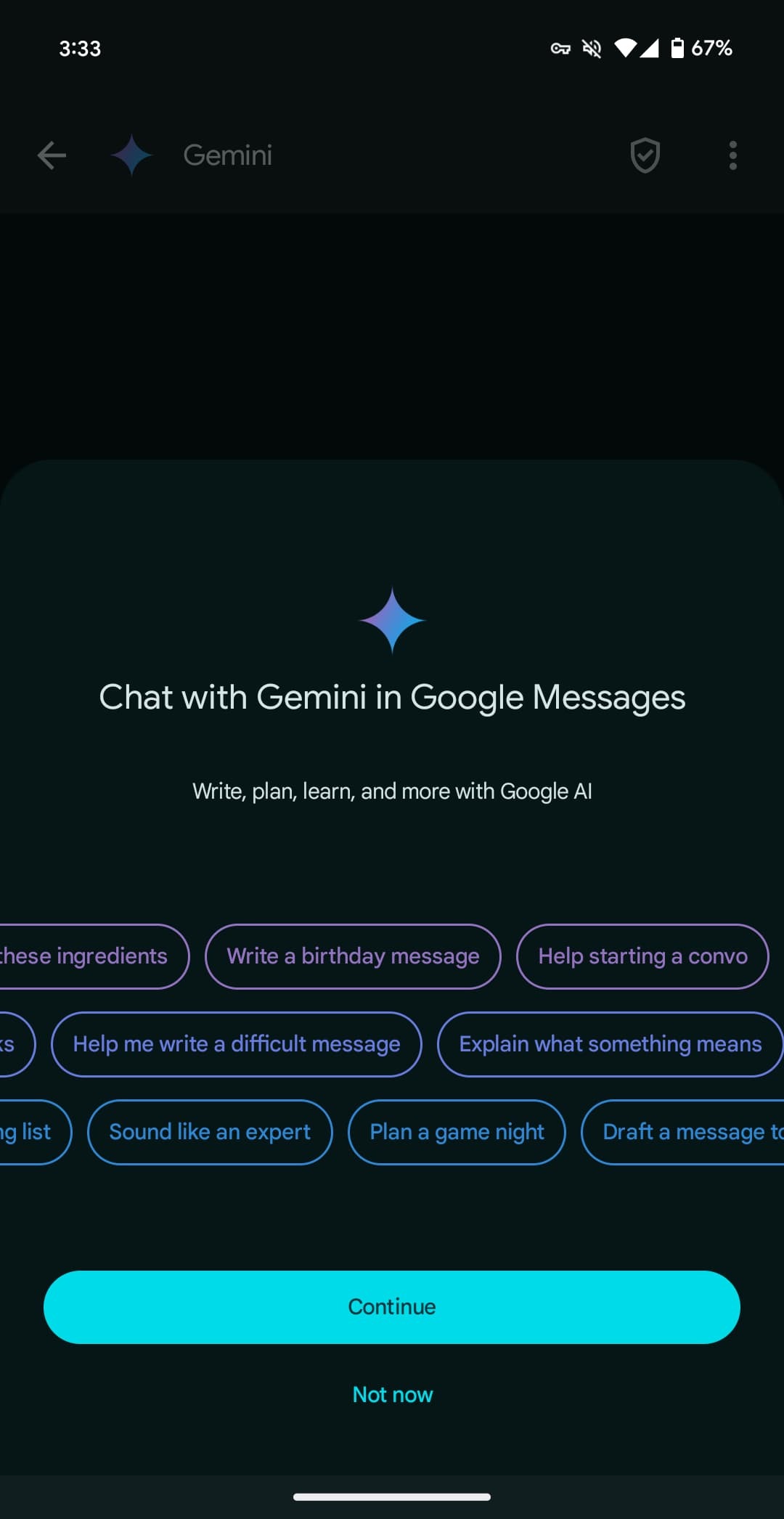
Following the announcement at I/O 2024, Gemini in Google Messages has been widely rolling out to stable users over the past few days. It joins recent launches like Gemini 1.5 Pro in Gemini Advanced and the YouTube Music Gemini Extension.
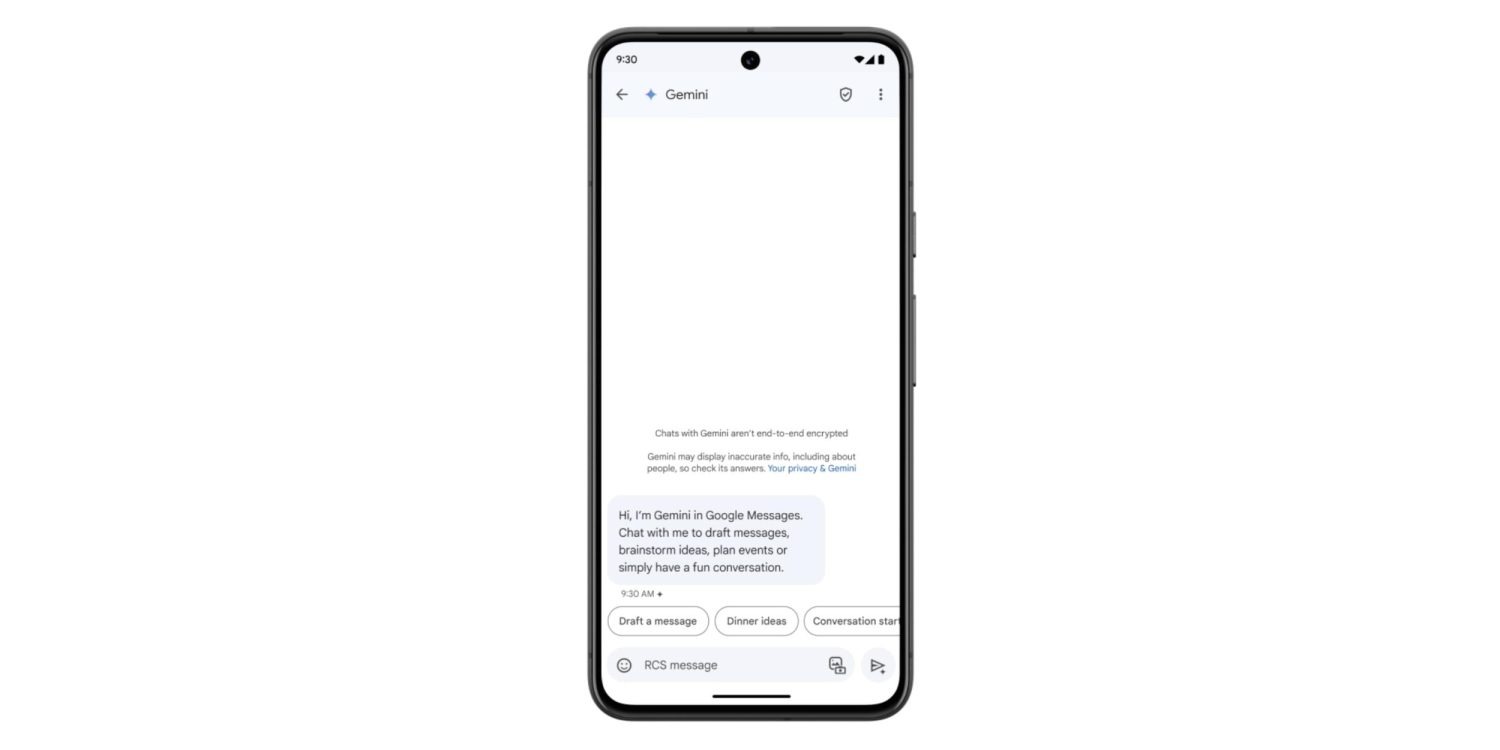
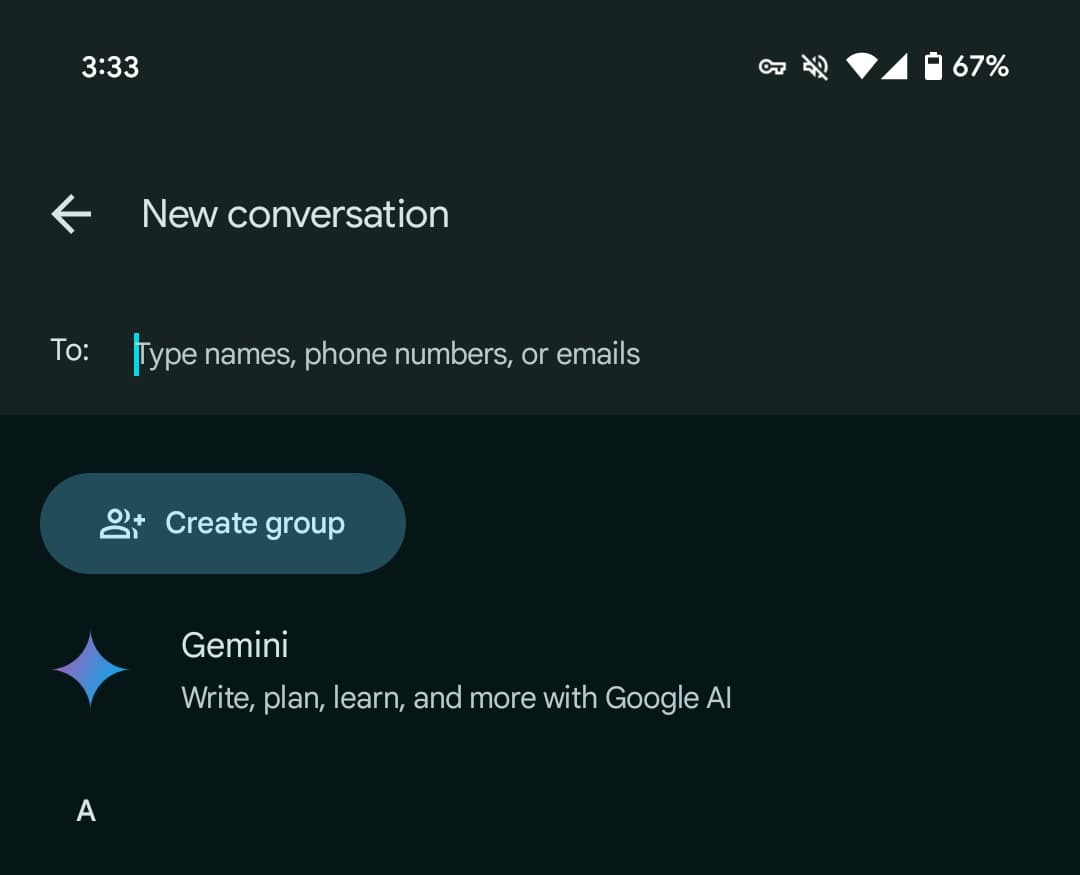
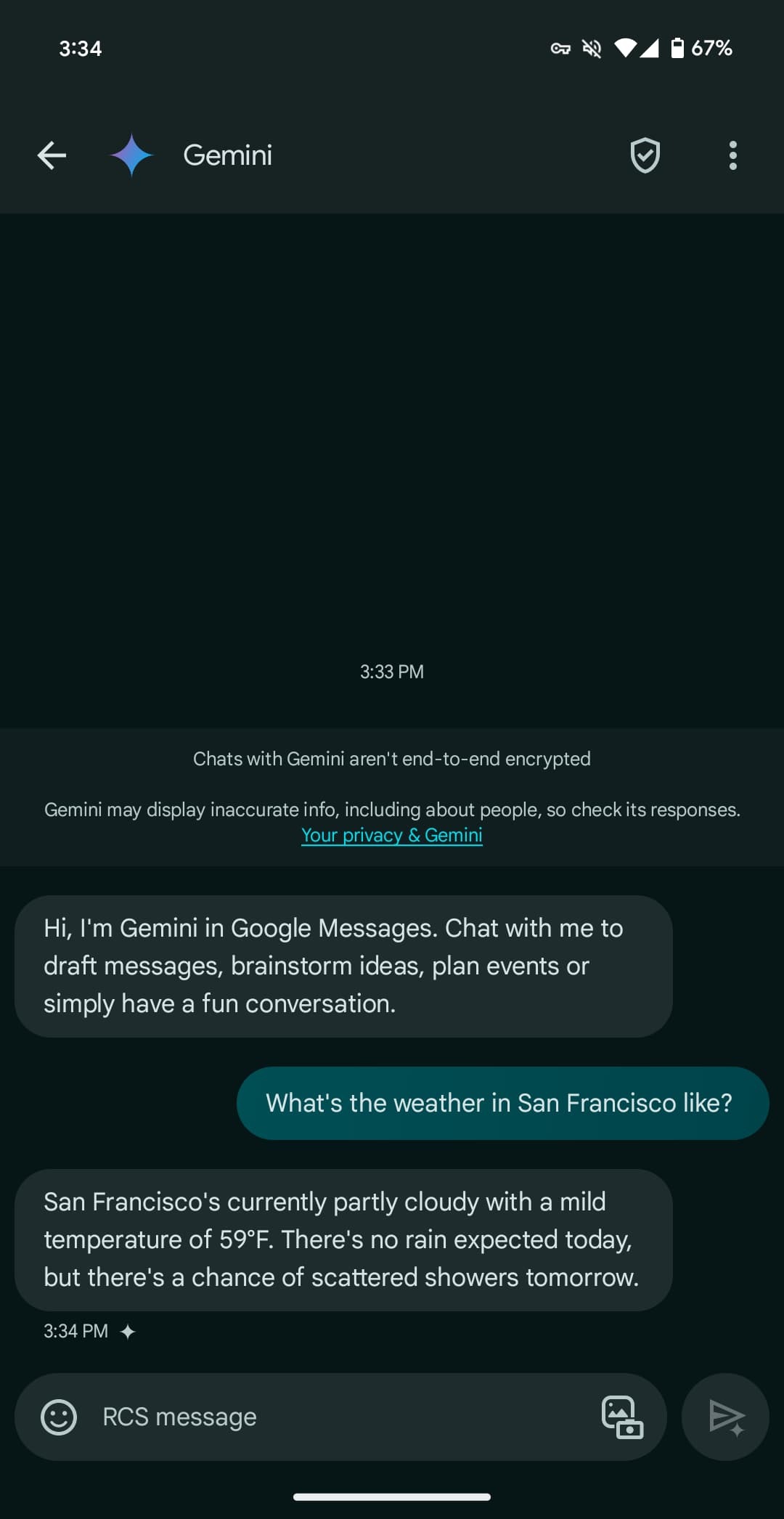
Once available, Gemini will appear as the first contact in the Start chat FAB > New conversation list. After agreeing to some terms, you’re taken to a fairly standard messaging UI. You have emoji and the gallery in the text box, with the ability to upload images for the prompt but not audio memos.
Gemini here can be used to “draft messages, brainstorm ideas, plan events, or simply have a fun conversation.” It has been optimized to deliver more concise responses.
You’re having a direct 1:1 conversation with Gemini, which cannot be pulled into other conversations, like Assistant in Google Allo years ago.
There’s support for Gemini Extensions, like Workspace (@Gmail, etc.), @YouTube, and @GoogleMaps, but the “YouTube Music extension isn’t available in Gemini in Google Messages.”
You can long-press on a response to leave thumbs up/down feedback, with the ability to star and forward also available. Conversations are happening over RCS, which has to be generally enabled, but they are not end-to-end encrypted. Gemini cannot be accessed usingmessages.google.com/web or the Wear OS app (where the chat won’t even appear).
Gemini in Google Messages is rolling out globally — except to the EEA, UK, Switzerland, or India — with support for English and French in Canada. It has been available to betausers since March.