With the latest version of macOS, dubbed Monterey, one of the apps that saw a handful of upgrades was Reminders. A once rather basic task and to-do application, Reminders is now a powerhouse application with new features include Smart List, tags, and more. Head below for a deeper look at these new features.
The new features in Reminders
First off, the Reminders app in macOS Monterey is the first version to support tags. As the name implies, tags allow you to organize and categorize your reminders and tasks. This means you can tag tasks with bits of information to help you keep track of categories, groups, and more.
Tags are a fast and flexible way to organize your reminders. Add one or more tags, like #errands, to your reminders to make them easy to search and filter for across your Reminders lists.
In macOS Monterey, you can add tags to your tasks when you create them. Simply look for the “Add Tags” field when creating a new reminder.
But while tags themselves are a notable addition to the Reminders application, they are really powerful when combined with Smart Lists.
Without a doubt, the biggest new addition to the Reminders app in macOS Monterey is a new feature that Apple is calling Smart Lists. Essentially, Smart Lists are a way to create custom lists that include reminders that meet certain criteria.
Here’s how Apple explains the feature:
Create your own Smart Lists to automatically include reminders that matter most to you by selecting for tags, dates, times, locations, flags, and priority. Choose more than one tag (such as #gardening and #errands) and combine them with other setting filters for more specific lists.
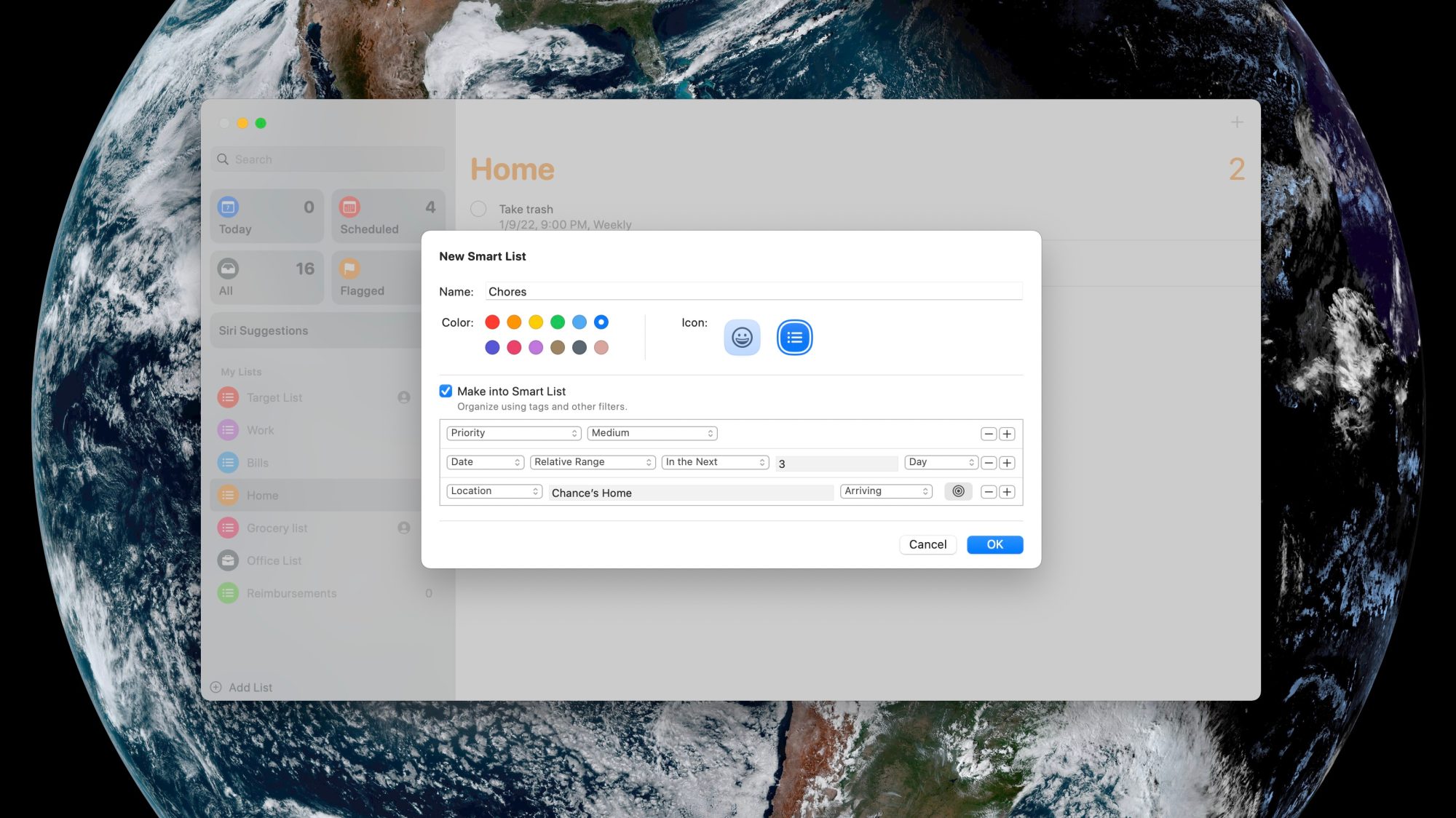
So how does this work in practice? It’s actually not as complex as it might sound. In the Reminders app on your Mac, you can start by clicking the “Add List” button, just like you would for creating any sort of to-do list. While you’re creating your list, look for the “Make into Smart List” checkbox.
Once you select this checkbox, you can select criteria for your Smart List. The criteria can be different tags, the due date for the task, the time, the priority, the location, and whether or not the task is flagged. Once you’ve done this, the Reminders will automatically create a Smart List of the tasks that meet your defined criteria.
Once you’ve created a custom Smart List in the Reminders app, it will sync to your other Apple devices and be added to the app’s sidebar. In the sidebar, it will be denoted with a small gear icon in the bottom-right corner, indicating that it is a Smart List.
And while Smart Lists and tags are the top new features of the Reminders app in macOS Monterey, there’s more to try out:
A Tag Browser in the sidebar lets you click any tag or combination of tags to quickly view tagged reminders.
Access quick options to easily delete your completed reminders.
Choose tags, flags, priority, and people you message with from the Quick Toolbar when creating a reminder.
Type more advanced phrases to create reminder settings. Try something like “Jog every other morning” for a specific, recurring reminder.
Apple has officially unveiled the next-generation Apple Silicon chip. Dubbed the M1 Pro and M1 Max, the Apple says that these chips were created for the next-generation MacBook Pro by scaling up M1’s architecture to create a “far more powerful chip.”
Here are the specs of the M1 Pro, as announced by Apple’s Johnny Srouji during today’s event:
200GB/s memory bandwidth
Up to 32GB of unified memory
ProRes
2x more transistors than M1
70% faster than M1
Up to 10-core CPU
Up to 16-core GPU
Neural Engine
Thunderbolt 4
Support for up to 2 external displays
And for the M1 Max:
400GB/s memory bandwidth
32-core GPU
57 billion transistors
Up to 64GB of unified memory
Up to 70% less power consumption
ProRes
Neural Engine
Thunderbolt 4
Support for up to four external displays
Apple says that these new chips will power the future of the “Pro” lineup among the Mac…still waiting for details on that, though.
Is there an old out-of-date Mac that you desperately miss using? Well, you’re in luck because it’s incredibly easy to install a modern version of Chrome OS on old Intel Macs for free. CloudReady isn’t a new product by any stretch, but I had always been itching to try it out. Just last year, Google acquired Neverware, the company behind CloudReady. This means that Google offers an officially sanctioned way of reviving old computers with Chrome OS. Here’s how to get CloudReady up and running on an old Mac.
I was able to get CloudReady running on a 2014 Mac mini and a 2012 13″ MacBook Pro. Both of these machines have run-of-the-mill specs for their time. Each of these Macs had 4GB of RAM and much older Intel processors. Neither run recent versions of macOS particularly well, and they certainly aren’t good for power-hungry tasks. The MacBook Pro model that I used for this experiment only runs macOS up to Catalina, so it’s already out-of-date. The Mac mini that I used can run Big Sur, but it’s severely underpowered, being seven years old and not physically upgradeable.
You can install CloudReady on virtually any Intel Mac from 2007 on. CloudReady will not work on PowerPC Macs, so sadly, you can’t revive your sunflower iMac G4 or your blueberry iBook. Compatibility with CloudReady technically begins with Macs from 2006, but it’s not recommended. CloudReady has officially only certified 11 Mac models, but it’s likely you’ll be able to get the OS up and running on non-certified Intel machines as well. CloudReady requires at least 2GB of RAM, at least 16GB of storage, and graphics components made during or after 2007. There are a few specific Intel graphics cards that don’t play nicely with CloudReady, including the GMA 500, 600, 3600 and 3650.
MacBook Air 6,1 (13″ Core i5 or Core i7 Mid 2013-Early 2014)
MacBook Pro 5,5 (13″ Core 2 Duo Mid 2009)
MacBook Pro 9,2 (13″ Core i5 or Core i7 Mid 2012)
Macs that should work with CloudReady but aren’t officially certified include:
Any aluminum iMac from mid 2007 with more than 2GB of RAM
Any white or silver Mac mini from mid 2007 with more than 2GB of RAM
Any white or black MacBook from mid 2007 with more than 2GB of RAM
Any non-unibody or unibody MacBook Pro from mid 2007 with more than 2GB of RAM
Any MacBook Air model (all models have at least 2GB of RAM)
Any tower or trash can Mac Pro from mid 2007 with more than 2GB of RAM
What you’ll need
You may need to upgrade the RAM on a particularly old model before installing CloudReady. Luckily that’s quite easy on old Mac models. I upgraded my 2012 MacBook Pro with 8GB of RAM and a new 240GB SSD for around $70. But getting at least 2GB of RAM is quite cheap these days.
Once you’ve got the Mac you want to install CloudReady on, good to go, you’ll need a flash drive with at least 8GB of storage on it. Make sure not to use a Sandisk flash drive; Neverware says that they don’t work properly with the installer.
The application is only around 48MB and will help you turn your flash drive into a CloudReady installer. You can create the physical installer with any computer; it doesn’t have to be the one you plan to put CloudReady on. I built my CloudReady flash drive with a Windows 11 PC, for example.
2. Connect your flash drive to your selected Mac, then press and hold option as you turn it on
Your Mac will ask you which drive you want to boot from. Choose the CloudReady flash drive that you created. It’s likely going to be represented by an orange drive. The name can vary.
3. Boot into CloudReady
Once you select CloudReady, it will boot into the Chrome OS set up system.
4. Install Chrome OS on your Mac
Click on the clock in the lower right corner and select “Install OS” from the menu that pops up. This will launch the installer and allow you to replace your existing system with CloudReady. Keep in mind that if you choose to install CloudReady on your Mac, it will erase macOS and anything else on the drive. If you don’t want to do that, you can run CloudReady off of the flash drive. Just continue through the setup process without installing the operating system.
Once CloudReady is installed on your Mac, you are good to go. You can connect to wifi or ethernet, sign in to your Google account, and you are up and running. Chrome OS runs incredibly well on old Macs and frankly breathes new life into them.
Limitations of Neverware’s version of Chrome OS
Neverware’s variant of Chrome OS has a few limitations that you should keep in mind. It is based on Chromium rather than Chrome. That’s why you’ll see blue icons rather than Googley multi-colored ones. You cannot install Android apps on CloudReady like you can on an official Chrome OS computer. It can only run Chrome apps, progressive web apps, and websites. CloudReady does come with a few other native apps like a simple files app and wallpaper picker, but that’s about it. Another thing to keep in mind is how often you’ll get updates. CloudReady doesn’t get updated in tandem with the shipping version of Chrome OS. However, it does get regular updates and runs a secure version of Chrome OS that supports the modern web.
Using CloudReady
Once you have CloudReady installed, you can use it as you would a Chromebook. You can set a custom wallpaper or choose one from Google’s excellent collection of pre-installed ones. The shelf at the bottom of the screen can be customized with only the apps and sites you use frequently. You can also click on the circle button in the far left corner to see everything installed on your device or search its contents.
You can head over to the Chrome web store to find Chrome apps for your device, although many apps aren’t up-to-date and likely won’t be supported much longer. To get services you want to use installed on your computer, head over to their websites. Let’s say you want to install Slack as an app. Just go to the Slack website, sign in to your workspace, click the three dots in the top right corner of the window, select tools, and then select install or add shortcut. You’ll then get an icon in the launcher that you can add to your shelf. If you right-click the icon, you can change the website to open in a dedicated window rather than a new tab.
Conclusion
There are lots of beloved old Mac models that we’d love to bring back from the dead. CloudReady makes it possible to use old Macs today with modern websites and web apps. It also performs great even on low-powered machines with mediocre specs.
You can ensure your data remains safe through erasure.
One of the most powerful features added years ago to macOS and iOS was Find My iPhone—and iPad and Mac. The iCloud-connected service lets you track an accidentally misplaced item and potentially recover a stolen one. With the service active on a device, you can use Find My for macOS, iOS, or iPadOS or via iCloud.com to erase your computer, phone, or tablet or to queue an erasure signal for the next time the device is on the Internet. iPhones and iPads with a Secure Enclave and Macs with FileVault enabled simply delete the encryption keys for storage. This renders the data irretrievable. (It doesn’t affect your local or iCloud backups, so don’t worry.) On a Mac with a T2 Security Chip or M1 Apple silicon, disk encryption is always enabled even if FileVault isn’t, allowing Secure Enclave to destroy the disk encryption keys instantly even with FileVault disabled. Pre-Secure Enclave iPhones and iPads and Macs that predate the T2 Security chip and have FileVault disabled take longer to delete files, as each byte of data has to be overwritten. If you’re not sure whether your iPhone, iPad, or Intel Mac has a Secure Enclave, consult the list Apple provides here. You can determine if FileVault is enabled by going to the Security & Privacy preference pane’s FileVault tab.
How to erase a device
Apple warns you about the consequences when you’re about to erase your Mac remotely.
Apple’s tweaked the process slightly for its native apps but left iCloud.com virtually untouched for years. In macOS, iOS, or iPadOS, launch the Find My app. Tap the Devices tab and then tap your hardware. (If you have Family Sharing enabled, you can also see the devices of family members.) On an iPhone or iPad, tap Erase This Device and follow the prompts. On a Mac, right-click the device and select Erase This Device.
With iCloud.com, log in to your account and click the Find iPhone link—no “My” in there. Enter your iCloud password again if prompted. Click the All Devices menu and select your hardware:
For a Mac, click Erase Mac and follow prompts; you’ll note the text says it “may take up to a day to complete,” the worst-case example for a hard-drive-equipped Mac without FileVault enabled and neither a T2 nor M1 chip.
For an iPhone or iPad, just click Erase iPhone or Erase iPad.
If the device is connected to the internet via whatever method it has at its disposal—Wi-Fi, cellular, tethering, a…dial-up modem—erasure begins immediately after the Mac receives the signal relayed via Apple’s servers. In the cases noted above, the drive or flash storage almost instantly becomes irretrievable.
The erase command is queued by Apple, so if the device ever is briefly back on the internet, it erases itself. Once your device starts wiping its data, finding its location via Find My is no longer possible.
For devices that ne’er-do-wells have taken offline or put in a metal box, they may never return online to receive an erase command. But for iPhones, iPads, and Macs with a Secure Enclave, the stored data can’t be interacted with unless someone also obtained the password. (For a running Mac, there might be cracks that work, but it’s unlikely; if powered down and FileVault is enabled, effectively impossible.)
Find My lets you see all your devices and select among them for several purposes—including erasure.
It can be wiped, which securely removes your data—and then Activation Lock kicks, a part of Find My. (Macs have a few additional requirements.) Activation Lock prevents an erased device from being set up again without knowing the iCloud password associated with the account that turned on Find My on it.
Criminal groups have apparently figured out ways to bypass Activation Lock in at least some cases, but those methods still require erasing the device, so your data remains inaccessible.
A future of remote erasure?
I can imagine a future in which the Find My Network could be used to trigger erasure, too. Right now, the system is used entirely as a passive relay: an AirTag tracker and most Apple devices can broadcast their position over Bluetooth in a carefully encrypted manner. Nearby Macs, iPhones, and iPads with Find My Network enabled relay this data via Apple so you can get updates about location without the party relaying it knowing who you are or which device is transmitting.
But AirTags point the way to a potential two-way process. If Apple determines an AirTag has been traveling with you and you’re not the owner of it, you’re presented with a dialog on an iPhone or iPad that lets you play a sound. That command is passed via Bluetooth.
An iPhone that spots an unknown AirTag traveling with it over time can send a signal to prompt an action on the AirTag.
that preserves privacy and yet could be turned to device erasure, too. In Apple and Google’s joint notification system, your smartphone recorded all specially formatted Bluetooth signals around you and retained for those a period of time; this is quite similar to the signals emitted for the Find My Network by Apple devices.
If someone who had been near you receives a COVID diagnosis and enters a code into their smartphone provided by their healthcare provider, the encrypted Bluetooth IDs associated would then be uploaded to a database that all devices in your region or country regularly downloaded and compared to stored IDs.
Now, consider this: what if you could report your device as stolen and that you wanted it erased. That signal would then be distributed in encrypted form across all Apple hardware in your area or an expanded region. If any of those devices picked up an encrypted Bluetooth signal that matched, they could transmit a similarly encrypted erasure instruction. Thieves try to disable all the wireless on a device, but Bluetooth is often harder to block than Wi-Fi or cellular.
The safeguards around this would have to be strong, but it’s not far-fetched—just far-reaching!
Following the announcement of the new M1 iPad Pro and M1 iMac on Tuesday, Apple executives John Ternus and Greg Joswiak have sat down with the Independent for an in-depth interview. The two Apple executives spoke in the interview about Apple’s plans for the iPad and Mac, the new features of the 2021 iPad Pro, and more.
On merging the iPad and Mac
The most notable comments during the interview came from Joswiak, who serves as Apple’s senior vice president of worldwide marketing. When asked about the future of the iPad and Mac, as the lines start to blur in terms of power, Joswiak explained that Apple has no plans to merge the two platforms.
“There’s two conflicting stories people like to tell about the iPad and Mac,” says Joz, as he starts on a clarification that will lead him at one point to apologise for his passion. “On the one hand, people say that they are in conflict with each other. That somebody has to decide whether they want a Mac, or they want an iPad.
“Or people say that we’re merging them into one: that there’s really this grand conspiracy we have, to eliminate the two categories and make them one.
“And the reality is neither is true. We’re quite proud of the fact that we work really, really hard to create the best products in their respective category.”
(Joz, however, is reluctant to name the category he’s talking about: he jokes that he “can’t even stand using” the word, because the “iPad is better than tablets”. “I hate to diminish it by calling it the category name,” he says.)
Ternus, who is Apple’s senior vice president of hardware engineering, echoed Joswiak’s sentiment. He explained that Apple does not look at things with the lens limiting what one device can do in order to note “step on the toes” of another device.
“But we’re just going to keep making them better. And we’re not going to get all caught up in, you know, theories around merging or anything like that.”
“We don’t think about well, we’re going to limit what this device can do because we don’t want to step on the toes of this [other] one or anything like that,” he says. “We’re pushing to make the best Mac we can make; we’re pushing to make the best iPad we can make. And people choose.
“A lot of people have run both. And they have workflows that span both – some people, for a particular task, prefer one versus the other.
On the new iPad Pro’s M1 chip
When asked about the M1 processor in the new iPad Pro and the software part of that story, Joswiak explained that Apple has “provided that performance even before the need was there.”
“It needs to exist first, right? You can’t have an app that requires more performance than the system’s capable of – then it doesn’t work. So you need to have the system be ahead of the apps.
Joswiak went on to list examples of powerful third-party apps from companies like Adobe and Affinity, but he wouldn’t say whether Apple was working on its own ways to tap into the new power of the M1:
(When asked again, the morning after the reveal, whether Apple is one of those developers that is planning to take advantage of the extra headroom with its professional app, Joz jokes that he’s not going to let something like that slip out.)
Joswiak also explained that this gives users more headroom and ensures their new iPad Pro purchase “isn’t going to be immediately obsolete.”
On mini-LED in the new iPad Pro
Terns also provided some interesting detail on the mini-LED display in the new 12.9-inch iPad Pro. He explained that one of the biggest undertakings in this process was shrinking the display technology — which is also used in the Pro Display XDR — into the 12.9-inch form factor.
“Shrinking it was a huge undertaking,” says Ternus. “If you just look at the two products, obviously the iPad is a lot thinner than a Pro Display XDR, and the way the architecture works – you have the LED backlight behind the display.
As you shrink it down, you necessarily need to add more LEDs; you need to kind of increase the density, because you don’t have as much room for mixing the light and creating zones.
From the very beginning it was: how do we create a backlight with sufficient density? So we had to design a new LED. We had to to design the process for putting down 10,000 LEDs on this backlight in this incredibly precise manner.”
Ternus and Joswiak also noted that one of the reasons Apple is able to make technological leaps like this is because it develops so much of the technology in-house.
On the new Center Stage front-facing camera technology in the iPad
One of the most interesting new features of the 2021 iPad Pro is something called Center Stage. The new iPad Pros pack a 12MP Ultra Wide camera sensor on the front, and Apple is using this to follow users during video chats to ensure that they are always in the frame.
Ternus explained:
“One of the things that I found really cool about it is – spending all this time in these meetings, you sit a lot,” says Ternus. “And it’s so liberating to be able to just stand up and stay framed in the image, and stretch and move around and sit down,” he says, noting that it is a neat way to still be able to close rings on the Apple Watch.
“And one of the things I found sometimes is in group scenarios – you may be FaceTiming with your family and be able to get the family in the frame, or those kind of things, I think are going to be really, really big and powerful. It’s certainly an amazing technology for the times we’re in.”
Apple has published its 2021 update to its Platform Security guide today along with refreshing the Apple Platform Security landing page. The latest guide goes in-depth on the new and updated security features that have arrived with iOS 14, macOS 11 Big Sur, Apple Silicon Macs, watchOS 7, and more. Apple has also launched an all-new Security Certifications and Compliance Center website and guide.
Apple has long held that secure software necessitates the foundation of security built into hardware. With the shift to using its own custom Apple Silicon in its first three M1 Macs starting last fall, the company has been able to realize that goal across its entire lineup of devices.
2021 Apple Platform Security guide
Device security is a never-ending mission and the latest Apple Platform Security guide details all the effort and changes Apple has implemented over the last year – highlighted by the guide growing 39 pages with this edition to a total of 196.
This documentation provides details about how security technology and features are implemented within Apple platforms. It also helps organizations combine Apple platform security technology and features with their own policies and procedures to meet their specific security needs.
While there a number of security updates that apply to existing/older devices, Apple Silicon has been notable with the M1 Macs allowing Apple to step up security to new levels when it comes to Data Protection via a rebuilt FileVault, System integrity, password protection, and more.
Another notable change in the last year has been the advanced BlastDoor security for iMessage (not specifically mentioned in the new security guide). While it was just recently discovered as present in iOS 14, we’ve learned Apple has built it into macOS Big Sur as well. It’s a totally under the hood change that users won’t notice, but it’s the biggest security improvement to iMessage since the service got end-to-end encryption.
Check out all the new topics added to the Apple Platform Security guide this year:
Memory safe iBoot implementation
Boot process for a Mac with Apple silicon
Boot modes for a Mac with Apple silicon
Startup Disk security policy control for a Mac with Apple silicon
LocalPolicy signing-key creation and management
Contents of a LocalPolicy file for a Mac with Apple silicon
Signed system volume security in macOS
Apple Security Research Device
Password Monitoring
IPv6 security
Car keys security in iOS
And here are all the security topics that have been updated:
Secure Enclave
Hardware microphone disconnect
recoveryOS and diagnostics environments for an Intel-based Mac
Direct memory access protections for Mac computers
Apple released iOS 14.5 beta 1 to developers, and as you’ve no doubt heard, it’s quite the update. Headlined by the ability to unlock your iPhone with Apple Watch while wearing a face mask, iOS 14.5 beta 1 brings forth a number of practical improvements and overall enhancements to iPhone. Watch our hands-on commentary as we discuss the top iOS 14.5 beta 1 changes and features.
What’s new in iOS 14.5 beta 1?
Updated Software Update screens
Both the Software Update page in the Settings app and the Watch app have received more informative details regarding updates. Apple now includes a green check mark to indicate that you’re on the latest version of software, along with a message stating that “Your iPhone is up to date with all of the latest bug fixes and security enhancements.” In addition, iOS 14.5 now displays a time stamp that shows the last time you successfully checked for an update.
Unlock with Apple Watch
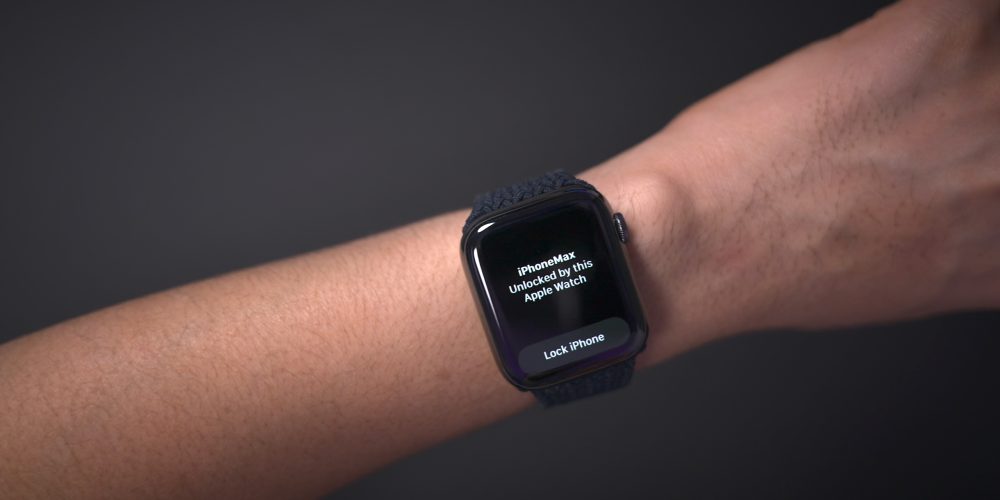
As noted, the biggest feature to come to iOS 14.5 is support for Apple Watch Unlock when Face ID detects a face with a mask. Users must be wearing an unlocked Apple Watch protected by a passcode in order for the feature to work. When attempting to unlock your iPhone using Face ID while wearing a face mask, you’ll feel a vibration on your Apple Watch, along with a notification that your iPhone was unlocked successfully.
Horizontal boot screen iPad
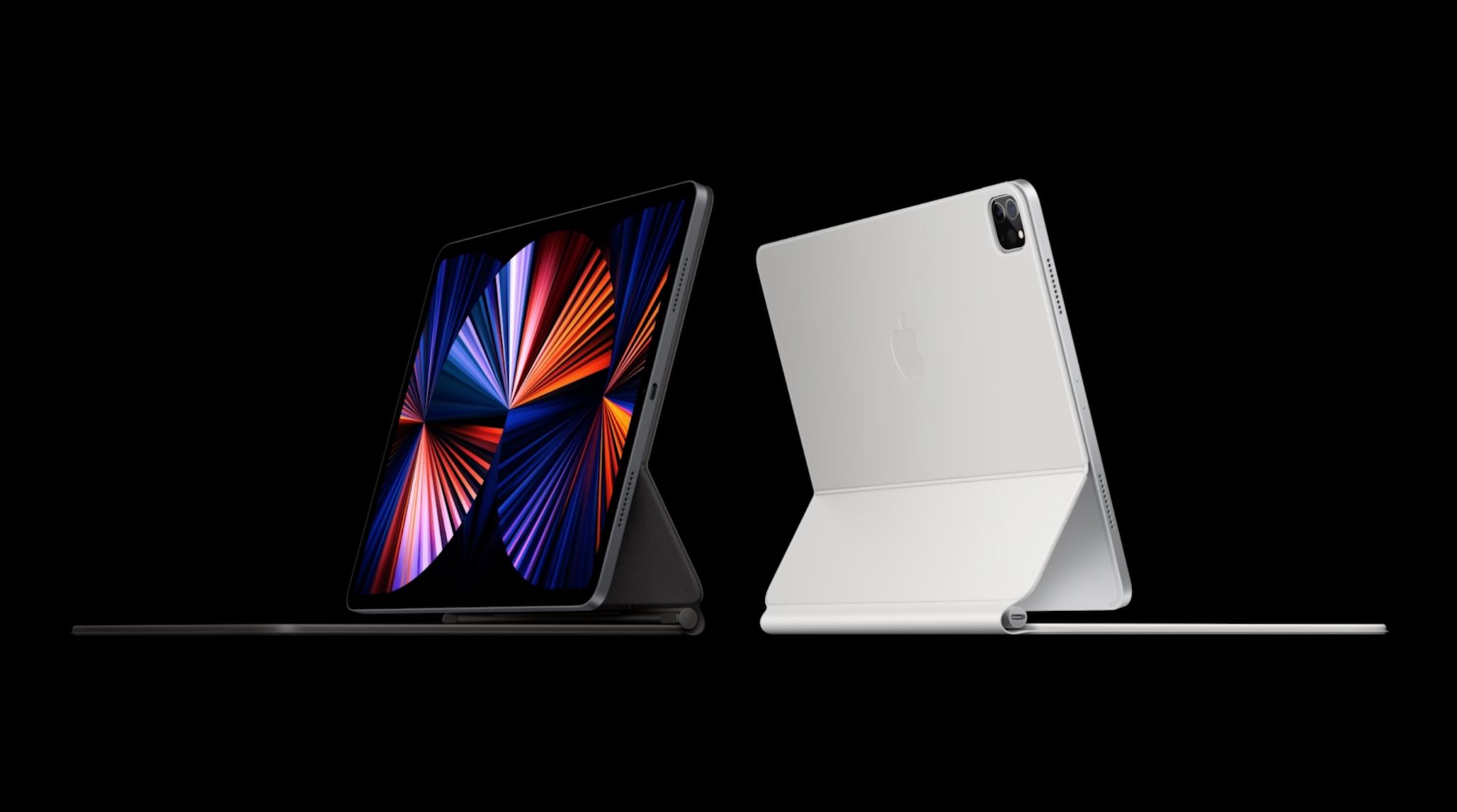
When connected to the Magic Keyboard, iPadOS 14.5 will display the startup Apple logo in horizontal/landscape mode instead of the default portrait orientation. If you restart your iPad when disconnected from the Magic Keyboard, even if you’re holding the device in landscape mode, the startup screen will appear in portrait mode.
As a side note, iPadOS 14.5 now supports emoji search, which iPhone users have been enjoying since iOS 14’s release, but has been inexplicably missing on iPad up until now.
Cellular connectivity updates
One of the biggest changes found in iOS 14.5 is the ability to enable dual SIM functionality while maintaining 5G connectivity. In previous versions of iOS, enabling the iPhone 12’s dual SIM feature would cause cellular connectivity to fall back to standard LTE. With iOS 14.5, users have the option of keeping both connections active simultaneously while still enjoying the benefits of 5G.
In addition to 5G dual SIM support, iOS 14.5 surfaces a new 5G Standalone cellular switch in system settings. Initial 5G implementations piggybacked on existing LTE networks to speed up adoption of 5G, but this method imposes propagation limits based on the LTE limitations. With Standalone (or SA) 5G, the limits of LTE are no longer in play. Keep in mind that your carrier will need to support 5G SA, and Apple warns that enabling SA at this early stage may cause degraded performance.
Apple Music updates
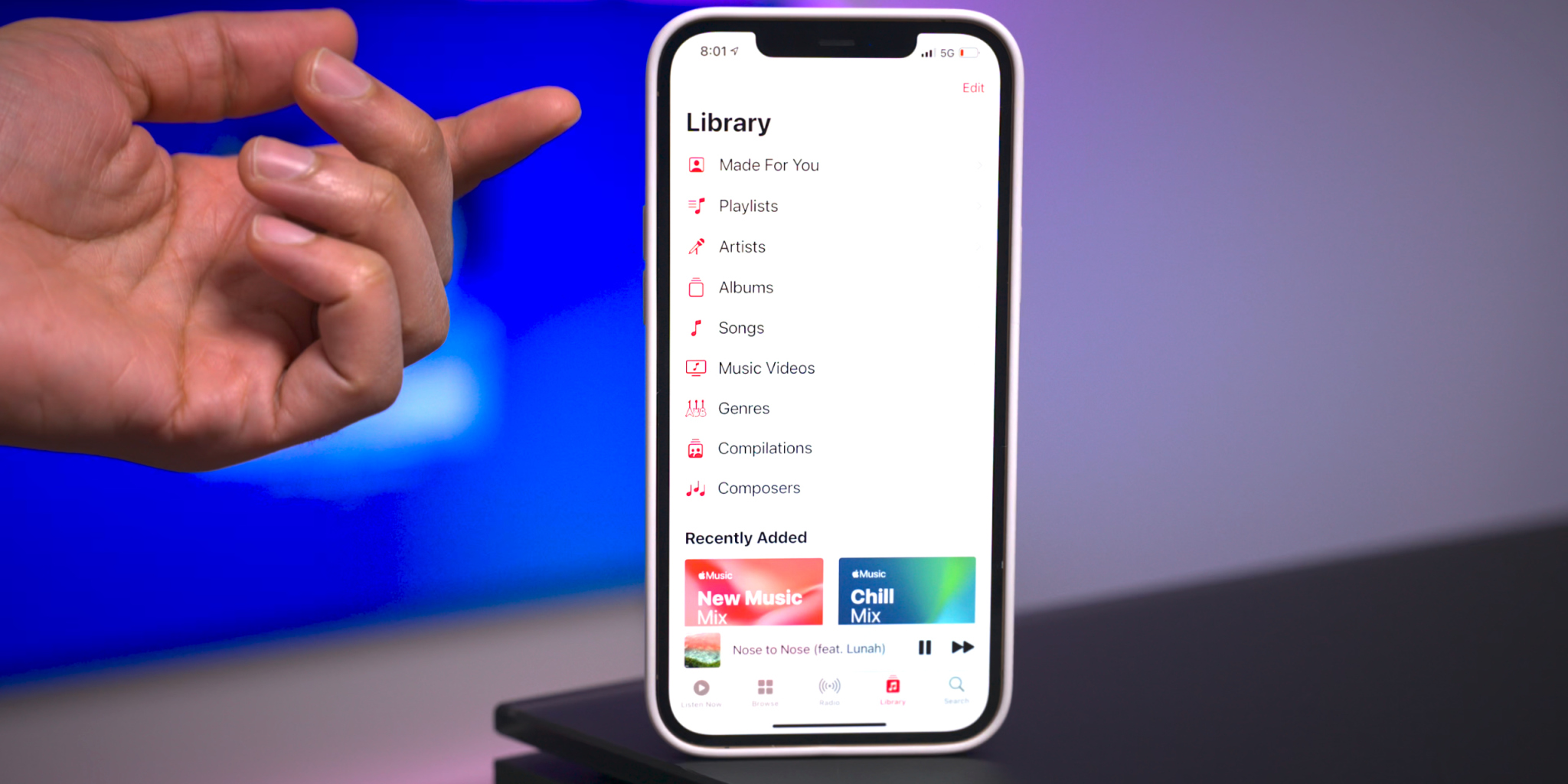
Apple Music gets some noteworthy updates in iOS 14.5, headlined by a new “Made For You” section under the Library tab. Made For You houses all of the algorithmic-curated music suggestions that are normally found within playlists like Favorites Mix, Chill Mix, and New Music Mix within the Listen Now tab.
Another handy feature found in iOS 14.5 is the inclusion of release dates for all music content featured on Apple Music. Prior versions of iOS would showcase release info, but in this latest beta version of iOS, users are treated with the exact release month, day, and year.
Users will also be happy to know that the scrolling metadata view on the Now Playing Lock Screen interface has now returned. This is a big improvement over the truncated metadata view that’s been around in the last few versions.
Reminders app enhancements
It’s crazy that we’ve not been able to sort Reminders based on parameters like modification date or title up until now, but at least we finally receive such features in iOS 14.5. Users can still sort reminder lists manually, but now there are several metadata sorting options, along with ascending and descending preferences.
The ability to directly print a reminders list joins the updated sorting options, allowing users to quickly send a list to a configured AirPrint printer.
Updated Podcast app
The stock Podcasts app gets lots of subtle changes and enhancements alongside a bigger update to the look and feel of the official show page for each podcast. New enhancements include a full-bleed header with color-matched backgrounds and a refreshed Library page with new glyphs.
Apple Fitness+ Workouts AirPlay 2 support
AirPlay 2 compatibility comes to Apple Fitness+ workouts, allowing users to stream workouts directly to an AirPlay 2-compatible set-top box or television. The problem with this method, as opposed to just playing on an Apple TV or iPad, is that you lose on-screen metric support. But that might not be a huge deal since metric details remain readily available on your Apple Watch.
Maps app redesigned guides
Apple has redesigned the Guides feature on the Maps app, which now includes a full-bleed header, redesigned buttons, and beautiful animations when minimizing and maximizing each guide.
PS5 / Xbox Series X controller support
Support for next-generation console controllers, including the Playstation 5 Dual Sense controller and the Xbox Series X controller, is now available in 14.5. Next-gen controller support is a welcome new addition for controller-compatible Apple Arcade games, and for taking advantage of console-centric remote play features.
Dedicated Search tab in News app
Similar to the Search tab in the Music app and TV app, the News app gains a dedicated search interface for quickly finding channels, topics, or stories.
Siri interface updates
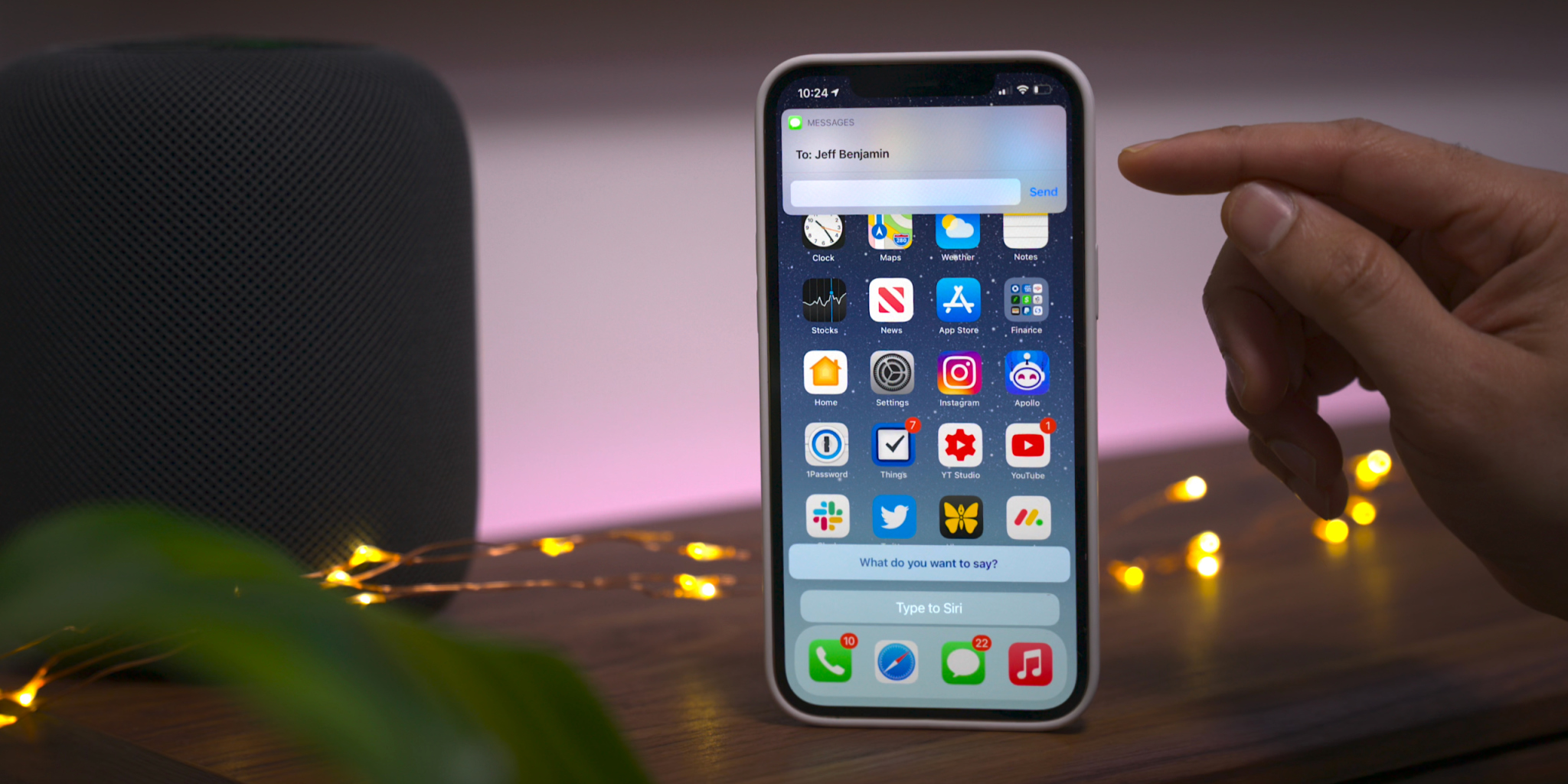
Those using the Type to Siri accessibility option will notice an updated interface that no longer opens to a dedicated Siri screen, allowing the user to maintain context of their current position in iOS. This update is similar to the changes first implemented in iOS 14 when invoking Siri using voice. You’ll also find an updated interface that appears when sending iMessages via Siri.
Apple Card updates
Although these updates are not-yet user facing, we’ve also highlighted a couple of forthcoming changes related to Apple Card:
Apple Card Family feature for multi-user accounts
New financial health features coming to the Wallet app
To commemorate Data Privacy Day, Apple is sharing “A Day in the Life of Your Data,” a report that illustrates how companies track user data.
Data tracking is more widespread than ever. Learn how Apple’s privacy features help users take control over their data
Cupertino, California — January 28 is Data Privacy Day, a time to raise awareness about the importance of protecting people’s personal information online. Apple is commemorating Data Privacy Day by sharing “A Day in the Life of Your Data,” an easy-to-understand report illustrating how companies track user data across websites and apps. The report also shares how privacy features across Apple’s products give users more transparency and control, empowering people with the tools and knowledge to protect their personal information.
“Privacy means peace of mind, it means security, and it means you are in the driver’s seat when it comes to your own data,” said Craig Federighi, Apple’s senior vice president of Software Engineering. “Our goal is to create technology that keeps people’s information safe and protected. We believe privacy is a fundamental human right, and our teams work every day to embed it in everything we make.”
“A Day in the Life of Your Data” helps users better understand how third-party companies track their information across apps and websites, while describing the tools Apple provides to make tracking more transparent and give users more control. The explainer sheds light on how widespread some of these practices have become. On average, apps include six “trackers” from other companies, which have the sole purpose of collecting and tracking people and their personal information.1 Data collected by these trackers is pieced together, shared, aggregated, and monetized, fueling an industry valued at $227 billion per year.
The new privacy nutrition label requires every app — including Apple’s — to give users an easy-to-view summary of the developer’s privacy practices.
Last year, as part of iOS 14 and iPadOS 14, Apple launched a number of important privacy features intended to help users make more informed decisions about their data. Two in particular have the potential to make a big difference in helping users protect their privacy:
With the new privacy information section on App Store product pages, a feature called the privacy nutrition label, Apple is requiring every app — including its own — to give users an easy-to-view summary of the developer’s privacy practices. Every product page on the App Store includes standardized, easy-to-read information based on the developer’s self-reported data practices. The privacy nutrition labels give users key information about how an app uses their data — including whether the data is used to track them, linked to them, or not linked to them.
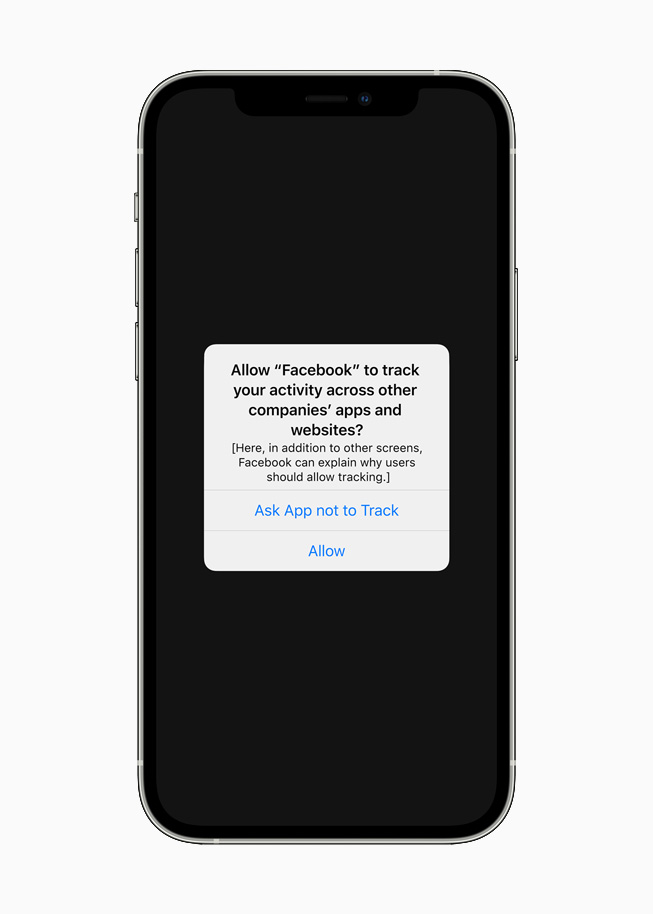
And starting soon, with Apple’s next beta update, App Tracking Transparency will require apps to get the user’s permission before tracking their data across apps or websites owned by other companies. Under Settings, users will be able to see which apps have requested permission to track, and make changes as they see fit. This requirement will roll out broadly in early spring with an upcoming release of iOS 14, iPadOS 14, and tvOS 14, and has already garnered support from privacy advocates around the world.
A new App Tracking Transparency feature across iOS, iPadOS, and tvOS will require apps to get the user’s permission before tracking their data across apps or websites owned by other companies.
Gus Hosein, Privacy International: “PI’s investigations into data brokers and ad tech companies reveal a complex, fast-growing industry that is opaque to the average user. Where there is a lack of transparency, exploitation thrives. Invisible and gratuitous data collection leaves users unable to exercise their rights and protect their privacy. Apple’s nutrition labels require industry to be clear and upfront with consumers, and tools like App Tracking Transparency will help people to assert control over the invisible leakage of their data. With these commendable innovations, industry will finally feel pressure to change. Consumer awareness and technical solutions are important parts of the solution, but in order to prevent a cat-and-mouse game between industry actors, we need substantive, enforceable regulation to stop this exploitation of our data.”
Jeff Chester, Center for Digital Democracy: “Apple’s new data privacy tools ensure that people have greater control over their personal information. Data brokers and online advertisers will now have to act more responsibly when dealing with consumers who use third party applications on Apple devices.”
Michelle Richardson, Center for Democracy and Technology: “Too often, consumers are unknowing participants in a web of data tracking and targeting. These changes will help rebalance the ecosystem so that data collection and sharing is more transparent and tracking is no longer the default. Systemic change of this breadth is a huge leap forward for consumers.”
Tristan Harris, Center for Humane Technology: “Today’s Apple announcement moves the ecosystem further away from the malicious effects of secretive profiling and microtargeting that enable many of the problems outlined in The Social Dilemma.”
Awareness of industry practices like data tracking is only the first step toward a better privacy experience. Users also need the features and controls to decide how their data is used, and by whom. Apple has led the industry by building privacy protections into every one of its products and services.
For years, Apple has introduced dozens of technologies that safeguard user privacy and help keep users’ data safe. For example, Safari was the first browser to block third-party cookies by default as far back as 2005. In iOS 11 and macOS High Sierra, Safari added Intelligent Tracking Prevention to further limit tracking while still enabling websites to function normally. In 2018, Apple introduced protections to prevent companies from fingerprinting Mac — a practice in which third parties try to identify users devices based on data like fonts and plug-ins.
These technologies represent only a small selection of the many privacy features and controls Apple has introduced across its products. For more information, visit Apple’s privacy website at apple.com/privacy.
The new MacBook Air, 13-inch MacBook Pro, and Mac mini are now powered by M1, Apple’s revolutionary chip.
A new MacBook Air, 13-inch MacBook Pro, and Mac mini powered by M1, Apple’s breakthrough chip for the Mac
Cupertino, California — On a momentous day for the Mac, Apple introduced a new MacBook Air, 13-inch MacBook Pro, and Mac mini powered by the revolutionary M1, the first in a family of chips designed by Apple specifically for the Mac. By far the most powerful chip Apple has ever made, M1 transforms the Mac experience. With its industry-leading performance per watt, together with macOS Big Sur, M1 delivers up to 3.5x faster CPU, up to 6x faster GPU, up to 15x faster machine learning (ML) capabilities, and battery life up to 2x longer than before. And with M1 and Big Sur, users get access to the biggest collection of apps ever for Mac. With amazing performance and remarkable new features, the new lineup of M1-powered Macs are an incredible value, and all are available to order today.
“The introduction of three new Macs featuring Apple’s breakthrough M1 chip represents a bold change that was years in the making, and marks a truly historic day for the Mac and for Apple,” said Tim Cook, Apple’s CEO. “M1 is by far the most powerful chip we’ve ever created, and combined with Big Sur, delivers mind-blowing performance, extraordinary battery life, and access to more software and apps than ever before. We can’t wait for our customers to experience this new generation of Mac, and we have no doubt it will help them continue to change the world.”
With M1, the Mac delivers unprecedented levels of performance, extraordinary battery life, and access to more software than ever.
MacBook Air: A Thin and Light Powerhouse
MacBook Air is Apple’s most popular Mac and the world’s best-selling 13-inch notebook. With the M1 chip, MacBook Air speeds through everything from editing family photos to exporting videos for the web. The powerful 8-core CPU performs up to 3.5x faster than the previous generation. With up to an 8-core GPU, graphics are up to 5x faster, the biggest leap ever for MacBook Air, so immersive, graphics-intensive games run at significantly higher frame rates. ML workloads are up to 9x faster, so apps that use ML-based features like face recognition or object detection can do so in a fraction of the time. The M1 chip’s storage controller and latest flash technology deliver up to 2x faster SSD performance, so previewing massive images or importing large files is faster than ever. And in MacBook Air, M1 is faster than the chips in 98 percent of PC laptops sold in the past year.
With the industry-leading power efficiency of M1, MacBook Air also delivers this performance in a fanless design, which means no matter what users are doing, it remains completely silent. And the new MacBook Air features extraordinary battery life, with up to 15 hours of wireless web browsing and up to 18 hours of video playback — the longest battery life ever on a MacBook Air.
MacBook Air with M1 is an absolute powerhouse of performance and thin-and-light portability.
When compared to the previous generation, the M1-powered MacBook Air can:
Export a project for the web with iMovie up to 3x faster.
Integrate 3D effects into video in Final Cut Pro up to 5x faster.
For the first time, play back and edit multiple streams of full-quality, 4K ProRes video in Final Cut Pro without dropping a frame.
Export photos from Lightroom up to twice as fast.
Use ML-based features like Smart Conform in Final Cut Pro to intelligently frame a clip up to 4.3x faster.
Watch more movies and TV shows with up to 18 hours of battery life, the longest ever on MacBook Air.
Extend FaceTime and other video calls for up to twice as long on a single charge.
With M1, MacBook Air users can fly through projects in iMovie, exporting projects up to 3x faster.
With up to 18 hours of battery life, MacBook Air users can watch even more of their favorite movies and TV shows on a single charge.
On the new MacBook Air, FaceTime and video calls can go up to twice as long.
Other new features in MacBook Air include Apple’s latest image signal processor (ISP) in the M1 chip, which improves camera image quality with better noise reduction, greater dynamic range, and improved auto white balance and ML-enhanced face detection so users look their best during video calls. Support for P3 wide color results in an even more vibrant, true-to-life Retina display. The Secure Enclave in M1, combined with Big Sur, delivers best-in-class security with features like Touch ID, which makes it easy to unlock MacBook Air and make secure online purchases using Apple Pay with the touch of a finger. And Wi-Fi 6 delivers faster wireless performance, while two Thunderbolt ports with USB 4 support allow for connectivity to a wide range of peripherals.
With its sleek wedge-shaped design, stunning Retina display, Magic Keyboard, and astonishing level of performance thanks to M1, the new MacBook Air once again redefines what a thin and light notebook can do. And it is still just $999, and $899 for education.
Support for P3 wide color makes the Retina display on MacBook Air even more vibrant and true to life.
13-inch MacBook Pro: Even More Powerful and Even More Pro
The 13-inch MacBook Pro is Apple’s most popular pro notebook. Students use it to power through college, and pros use it to channel their creativity. With the M1 chip and Big Sur, the 13-inch MacBook Pro becomes even more powerful and even more pro. The 8-core CPU, when paired with the MacBook Pro’s active cooling system, is up to 2.8x faster than the previous generation, delivering game-changing performance when compiling code, transcoding video, editing high-resolution photos, and more. The 8-core GPU is up to 5x faster, allowing users to enjoy super smooth graphics performance whether they are designing a graphics-intensive game or a new product. And with M1, the 13-inch MacBook Pro is up to 3x faster than the best-selling Windows laptop in its class. ML is up to 11x faster, and for on-device ML tasks that use the Neural Engine, the new 13-inch MacBook Pro is now the world’s fastest compact pro notebook. With up to 17 hours of wireless web browsing and up to a staggering 20 hours of video playback, MacBook Pro delivers up to twice the battery life of the previous generation and the longest battery life ever on a Mac.
The 13-inch MacBook Pro with M1 delivers game-changing performance and the longest battery life ever on a Mac.
When compared to the previous generation, the M1-powered 13-inch MacBook Pro can:
Build code in Xcode up to 2.8x faster.
Render a complex 3D title in Final Cut Pro up to 5.9x faster.
Fluidly design intricate game scenes in Unity Editor up to 3.5x faster.
Perform ML tasks in Create ML up to 11x faster.
Separate out beats, instrumentals, and vocal tracks from a recording in real time in djay Pro AI, thanks to the amazing performance of the Neural Engine.
Play back full-quality, 8K ProRes video in DaVinci Resolve without dropping a single frame.
Compile four times as much code on a single charge, thanks to the game-changing performance per watt of the M1 chip.
With M1, the 13-inch MacBook Pro is up to 2.8x faster so users can compile code with incredible ease.
With the amazing performance of the M1 chip’s Neural Engine, users can perform machine learning tasks up to 11x faster than before.
The 13-inch MacBook Pro can play back full-quality, 8K ProRes video without dropping a single frame.
Other new features in the new 13-inch MacBook Pro include studio-quality mics for super clear recordings and calls, and Apple’s latest camera ISP in the M1 chip enables sharper images and more detail in shadows and highlights on video calls. The new MacBook Pro also delivers best-in-class security with the Secure Enclave in M1 and Touch ID. And it features two Thunderbolt ports with USB 4 support to connect to more peripherals than ever, including Apple’s Pro Display XDR in full 6K resolution.
With its amazing performance and unbelievable battery life, combined with its gorgeous Retina display, Magic Keyboard, and 3-pound compact design, the new 13-inch MacBook Pro is the ultimate expression of what the M1 chip can do. And it is available for the same starting price of just $1,299, and $1,199 for education.
The new 13-inch MacBook Pro is the ultimate expression of what the M1 chip can do.
Mac mini: Staggering Performance and an Ultracompact Design
Mac mini is Apple’s most versatile computer, and now with M1, it packs a staggering amount of performance and incredible new features in such a compact design. M1 brings an 8-core CPU with up to 3x faster performance than the previous generation, dramatically accelerating demanding workloads, from compiling a million lines of code to building enormous multitrack music projects. An 8-core GPU delivers up to a massive 6x increase in graphics performance, allowing Mac mini to tackle performance-intensive tasks like complex 3D rendering with ease. ML workloads also take a quantum leap forward with up to 15x faster performance over the previous generation. And when compared to the best-selling Windows desktop in its price range, the Mac mini is just one-tenth the size, yet delivers up to 5x faster performance.
The new Mac mini packs a staggering amount of performance into its ultracompact design.
When compared to the previous generation, the M1-powered Mac mini can:
Compile code in Xcode up to 3x faster.
Play a graphics-intensive game like “Shadow of the Tomb Raider” with up to 4x higher frame rates.
Render a complex timeline in Final Cut Pro up to 6x faster.
Take music production to new levels by using up to 3x as many real-time plug-ins in Logic Pro.
Magically increase the resolution of a photo in Pixelmator Pro up to 15x faster.
Utilize ML frameworks like TensorFlow or Create ML, now accelerated by the M1 chip.
With 3x faster performance, Mac mini dramatically accelerates demanding workflows like compiling code in Xcode.
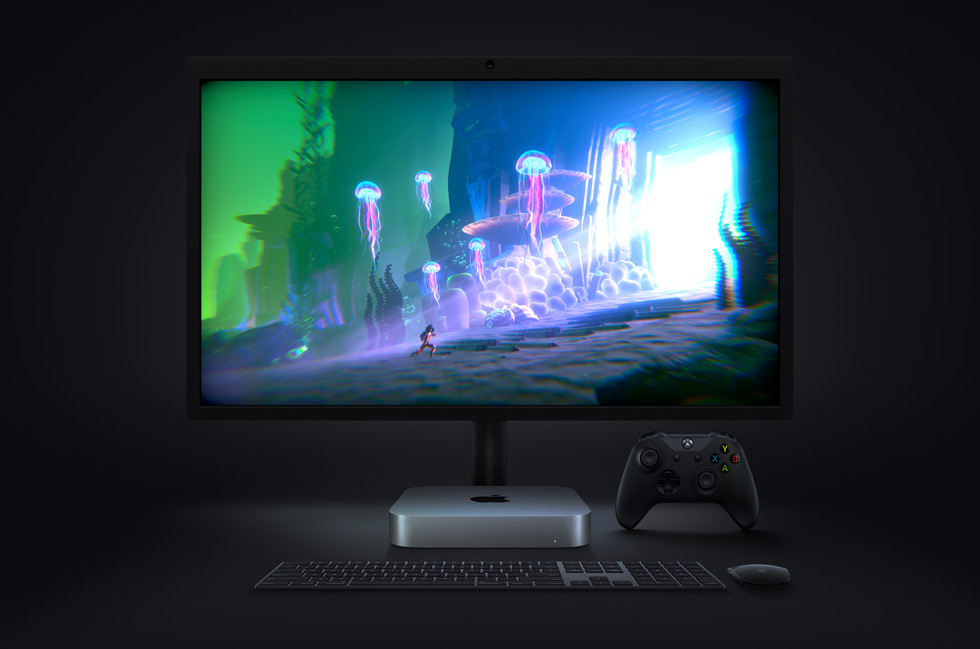
With M1, graphics-intensive gaming on Mac mini is better than ever with up to 4x higher frame rates.
The new Mac mini takes music production to new levels, enabling up to 3x as many real-time plug-ins in Logic Pro.
Mac mini also features an advanced thermal design to sustain its breakthrough performance while staying cool and quiet, support for up to two displays including Apple’s Pro Display XDR in full 6K resolution, and Wi-Fi 6 for faster wireless performance and the Secure Enclave in M1 for best-in-class security.
With M1 and Big Sur, Mac mini represents a massive shift in what an ultrasmall desktop can do. Far more versatile and far more capable than ever, Mac mini is now available for just $699, $100 less than the previous-generation quad-core model.
macOS Big Sur
All new Macs come with Big Sur, the latest version of the world’s most advanced desktop operating system. Big Sur introduces a beautiful redesign that is entirely new yet instantly familiar, and powerful updates to apps including Safari, Messages, and Maps. Big Sur is engineered, down to its core, to take full advantage of all the capability and power of M1, delivering a massive boost in performance, astonishing battery life, and even stronger security protections. With M1, things users do every day feel noticeably faster and smoother. Just like iPhone and iPad, the Mac now instantly wakes from sleep. Browsing with Safari — which is already the world’s fastest browser — is now up to 1.5x speedier at running JavaScript and nearly 2x more responsive.6
With Big Sur and M1, Mac users can run a greater range of apps than ever before. All of Apple’s Mac software is now Universal and runs natively for M1 systems. Existing Mac apps that have not been updated to Universal will run seamlessly with Apple’s Rosetta 2 technology. And iPhone and iPad apps can now run directly on the Mac. Additionally, the foundations of Big Sur are optimized to unlock the power of M1, including developer technologies from Metal for graphics to Core ML for machine learning.
macOS Big Sur is engineered to take full advantage of the M1 chip in the new Mac lineup.
Pricing and Availability
The new MacBook Air, 13-inch MacBook Pro, and Mac mini with M1 are available to order today on apple.com and in the Apple Store app. They will begin arriving to customers and will be in select Apple Store locations and Apple Authorized Resellers starting next week. The new MacBook Air starts at $999 (US), and $899 (US)for education; the new 13-inch MacBook Pro starts at $1,299 (US), and $1,199 (US) for education; and the new Mac mini starts at $699 (US),and $679 (US)for education.
Customers are able to find the same great shopping and support services at apple.com/shop, in the Apple Store app, and at Apple Store locations. Customers can get shopping help from Apple Specialists, choose monthly financing options, trade in eligible devices, and get Support services and no-contact delivery or Apple Store pickup options. Customers are encouraged to check apple.com/retail for more information on the health and safety measures in place, and the services available, at their local store.
Additional technical specifications, configure-to-order options, and accessories are available online at apple.com/mac.
Apple has released a neat new rich resource today to help writers publish their content on its Apple Books platform. The new website walks through writing, publishing, marketing, and looking at analytics with Apple Books and since it’s web-based works with both Mac and Windows.
Apple Books for Authors guides you through every step of your journey as an author, from structuring your story to packaging your digital book and selling it on our store. Even established authors will find valuable resources on how to grow sales and track performance.
The comprehensive guide walks authors through using Pages and iBooks Author apps as well as other popular options like Microsoft Word and Scrivener for the writing process. But there’s much more than that as Apple takes writers through preparing, publishing, audiobooks, marketing, and sales and reporting.
Apple also highlights some benefits to publishing with Apple Books compared to Amazon’s Kindle Direct Publishing like consistent royalty rate at all price points, no delivery fees, no limits on free book offerings, and no third-party ads.