Apple has identified an iOS 17 bug which may affect the iPhone 15 upgrade experience today. During iPhone setup, the Transfer from another iPhone option may fail and leave your new iPhone in a state where it is stuck booting on the Apple logo black screen. Here’s what to do if that happens to you.
The bug affects iPhone 15 and iPhone 15 Pro as these phones ship with iOS 17 preinstalled. However, it may also affect anyone switching phones that are running iOS 17 and use the transfer data option.
If you encounter the bug, during the transfer of apps and data, the new iPhone will get stuck in a boot loop on the Apple logo screen.
To resolve the issue, Apple says that you need to put the device into DFU mode and restore it using a computer.
To do this, connect your iPhone to a PC or Mac using a cable. Press the volume up, press the volume down, and then press and hold the side button. Keep holding the side button while iPhone reboots until it displays an icon on the screen that represents a computer and cable. It will look similar to this:
After you get the iPhone into DFU state, it will then show on your computer through the Finder, or through iTunes if you are connecting to a Windows PC (or older version of macOS). In Finder/iTunes, you will be able to Restore or Update; press the Restore button to reset the phone.
After the phone has been restored, you can start the setup process again. There may be an additional software update available.
Finally, you can try again. If you are upgrading to an iPhone 15 or iPhone 15 Pro, you can set up using transfer data or iCloud backup. The aforementioned software update will have fixed the iOS 17 bug, so you can safely transfer data again and finish new iPhone setup.
However, if you are upgrading to an iPhone model earlier than the 15 series, a fix for the transfer data glitch is not yet available.
So, Apple recommends that you update using iCloud Backup instead. Make sure your previous iPhone has a recent iCloud backup complete (you can force this by going to Settings -> [your name] -> iCloud -> iCloud Backup -> Back Up Now). Then, on your new iPhone, start iPhone set up and choose the ‘From iCloud Backup’ option when it asks how you want to transfer your data to your new phone. Your iPhone should then finish setup successfully.
These steps are described in an Apple support document, which first revealed the existence of this iOS 17 glitch.
You can charge your Apple Watch or AirPods using the new iPhone 15’s USB-C port
The iPhone 15 and iPhone 15 Proditch Apple’s proprietary Lightning connector in favor of USB-C, and that change has a few side effects. Perhaps most notably, you can now use the iPhone 15’s USB-C port to quickly add more juice to your Apple Watch or AirPods.
Apple made a brief mention of this during the “Wonderlust” keynote yesterday. In practice, the feature works exactly as you would expect it to. You can connect your AirPods or Apple Watch to the iPhone 15’s USB-C port, and they’ll instantly start to charge.
This works via a USB-C to Apple Watch charging puck, via a USB-C to USB-C cable for the new AirPods Pro, and via a USB-C to Lightning cable for older AirPods.
Apple has reportedly been working on reverse wireless charging for years, a feature that would let you charge up AirPods and Apple Watch by placing them on the back of your iPhone. This feature still hasn’t seen the light of day, but the support for power-out via the new USB-C port is a great interim solution.
There’s no word on the charging speed provided to AirPods or Apple Watch via the iPhone 15’s USB-C port. It’s important to note that this feature will only work with AirPods and Apple Watch, so you can’t just plug in any device to the USB-C port and expect your iPhone to charge it.
We’ll have to do more testing to see just how big of an impact using your iPhone to charge your AirPods or Apple Watch will have on battery life. AirPods and Apple Watch have smaller batteries in comparison to the iPhone.
Here’s what you can do with the iPhone 15 Pro Action button
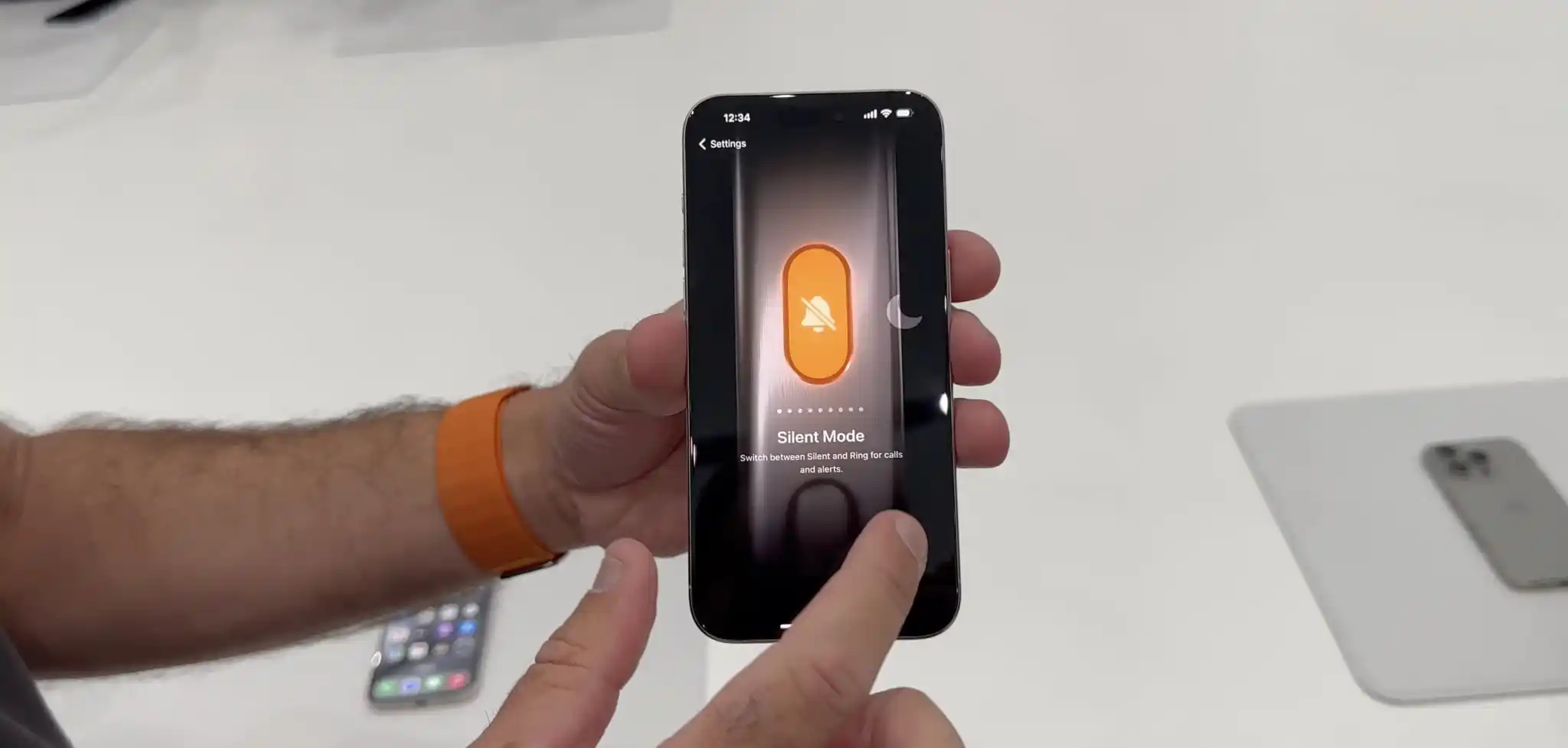
After living its entire life with a side switch, the iPhone has evolved to feature a programmable Action button with the 15 Pro and 15 Pro Max. Here’s a look at all the ways you can customize the iPhone Action button.
Apple Watch Ultra received the Action button last year and this time around it’s the iPhone’s turn with the 15 Pro and Pro Max.
The Action button sits in the same place as the side switch on previous iPhones and is used with a long press.
Apple notes that when you change the Action button to something other than controlling Silent mode, you can head to Control Center or use Focus modes to change your ringer.
Customize the iPhone Action button
In iOS 17, head to Settings > Action button on the iPhone 15 Pro/Pro Max and you can set the Action button to launch:
Silent mode (default)
Focus mode
Camera
Flashlight
Voice Memo
Magnifier and other Accessibility features
Shortcut
Translate (arriving with an update “later this year”)
While there are eight main features the Action button can control, being able to set it to control Accessibility shortcuts or run a custom shortcut from the Shortcuts app is huge. That means the possibilities are pretty much endless.
Some features make use of the Action button once you’re in an app too. For example, if you launch the Camera with the Action button, you can press it again to take pictures. If you launch a Voice Memo recording, you can use the Action button to stop the recording, etc.
PSA: Apple Card financing not available for carrier-free iPhone 15 orders
Last month, Apple discontinued Apple Card financing for iPhones purchased without a carrier connection. Unfortunately, and unsurprisingly, that change applies to the new iPhone 15 and iPhone 15 Pro.
What this means is that in order to use Apple Card Monthly Installments to buy an iPhone 15 or iPhone 15 Pro, you must connect that phone to AT&T, T-Mobile, or Verizon.
Previously, Apple allowed buyers to purchase an iPhone with the “Connect to a carrier later” option. This option means users are free to use the iPhone without a cellular connection or via any carrier of their choosing. For instance, you could connect an iPhone purchased with this option to a carrier such as Mint Mobile or Google Fi.
That “Connect to a carrier later” option is no longer available for iPhones purchased with Apple Card Monthly Installments. Instead, your new iPhone 15 Pro will require you to connect to AT&T, T-Mobile, or Verizon at the time of setup. Note that the iPhones will still be unlocked, but the carrier connection will be required at the time of setup.
Apple points out this new requirement on the purchase page for iPhone 15. “Carrier connection with AT&T, T-Mobile, or Verizon is required to purchase with Apple Card Monthly Installments,” the company explains. “An iPhone purchased with ACMI is always unlocked, so you can switch carriers at any time.”
As said when first wrote about this change in June, it’s a huge bummer for Apple Card users. The ability to finance Apple hardware purchases is one of the biggest selling points of the Apple Card, and this change puts a big restriction on the most popular Apple hardware purchase.
iPhone 15 Pro’s new design, Action button, and more
The iPhone 15 Pro and iPhone 15 Pro Max are now official, and I had the chance to go hands-on with them inside Steve Jobs Theater. The flagship iPhone 15 Pro models pack a new titanium design, upgraded camera hardware, and more. Here are some quick first impressions…
Right off the bat, I was struck by how light the iPhone 15 Pro Max feels due to its new titanium chassis. Here’s how the numbers breakdown on paper:
iPhone 15 Pro – 187 grams (down from 206 grams)
iPhone 15 Pro Max – 221 grams (down from 240 grams)
That’s a pretty big difference on paper, and it’s an even bigger difference in real life. I’ve been using the iPhone 14 Pro Max for the last year, so I’ve grown pretty familiar with its weight. I found the iPhone 15 Pro Max to be significantly lighter and more comfortable to hold. I think this is due to both the reduction in weight as well as the new contoured edges.
The titanium design also means that the iPhone 15 Pro models have a texturized matte finish rather than the previous glossy stainless steel finish. I only spent around 15 minutes with the iPhone 15 Pro today, but I have a feeling this is going to be a very nice change in terms of durability.
The Action button is another standout feature of the iPhone 15 Pro. The interface to customize what the Action button is linked to is in the Settings app, and it’s beautifully designed. The button can be assigned to the following things:
Silent Mode
Focus Mode
Camera
Flashlight
Voice Memos
Accessibility features like Magnifier
Shortcuts
One thing that I didn’t realize until I tried the Action button is that a press and hold is required to trigger the action. You can’t just quickly press the button. This is likely an effort to prevent false triggers, so it makes sense, but it does mean there’s an added step required each time.
I think my primary use of the Action button will be for the camera. You can press and hold to open the Camera app, then press the Action Button again to use it as a shutter in the Camera app. You can see that demoed in my video above.
Speaking of the camera, the iPhone 15 Pro Max also features an upgraded Telephoto lens with up to 5x optical zoom. I’ll have to reserve full judgment on this until I get my hands on an iPhone 15 Pro Max for an extended period of time, but the quick demos I got at Steve Jobs Theater today align with my expectations. The new telephoto lens also enables 25x digital zoom as well.
Other tidbits:
Yes, there’s a USB-C port. Apple wasn’t lying.
The colors look much better than I expected, but they are still pretty boring and there’s not a whole lot of variety.
The smaller bezels are noticeable, but not as noticeable as I thought they would be. At a certain point I suppose you just get used to the black border being there, regardless of its size.
I only got a brief minute with the new FineWoven cases for the iPhone 15 Pro, but I really liked the material and how it felt in my hands. I’m 100% in support of Apple’s move away from leather.
I’ll have much more to say about the iPhone 15 Pro and iPhone 15 Pro Max once I get to spend some more time with them. My first impressions are pretty positive, especially when it comes to the new titanium design and the benefits provided by that change.
iPhone 15 and iPhone 15 Plus in every color
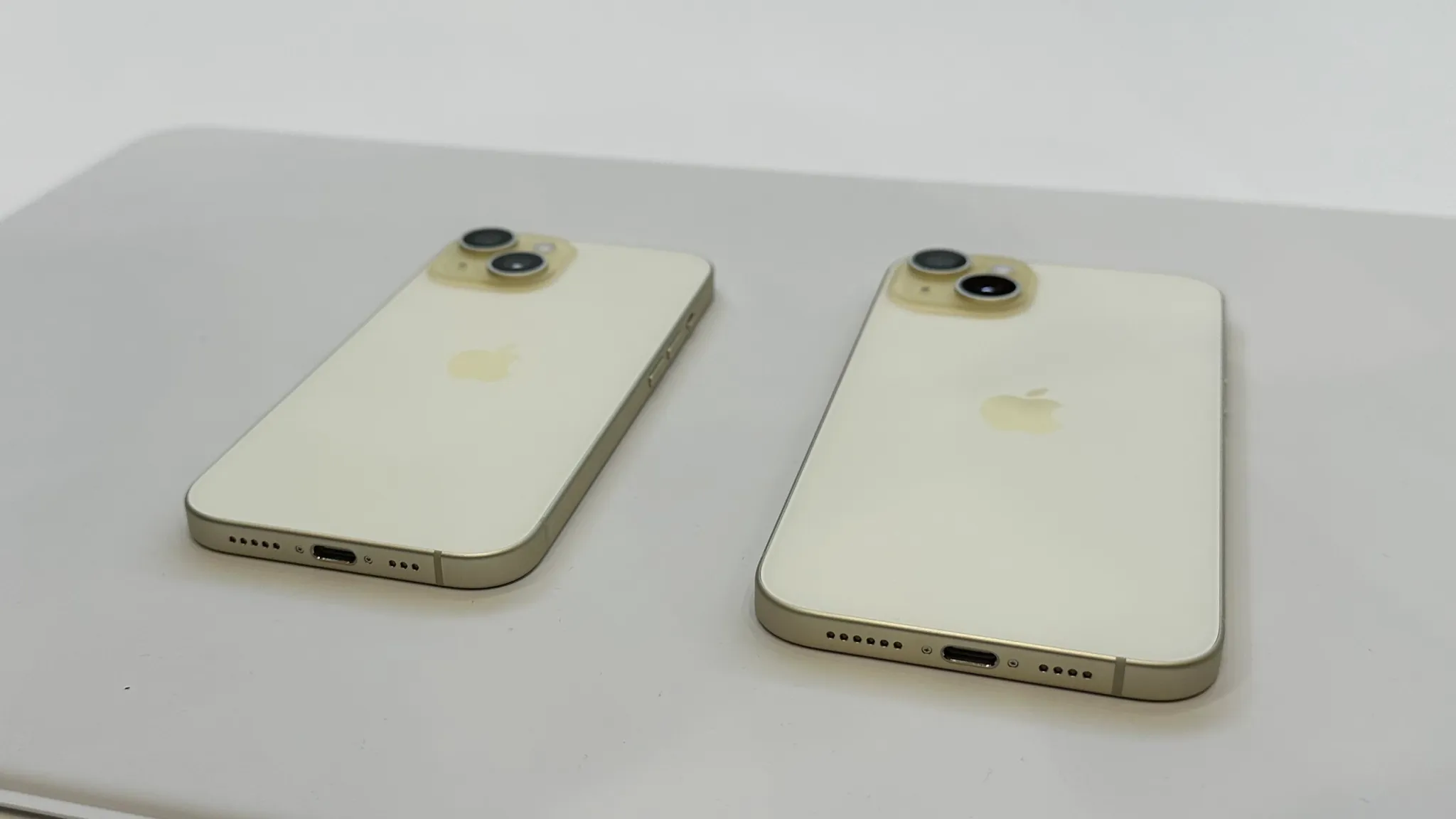
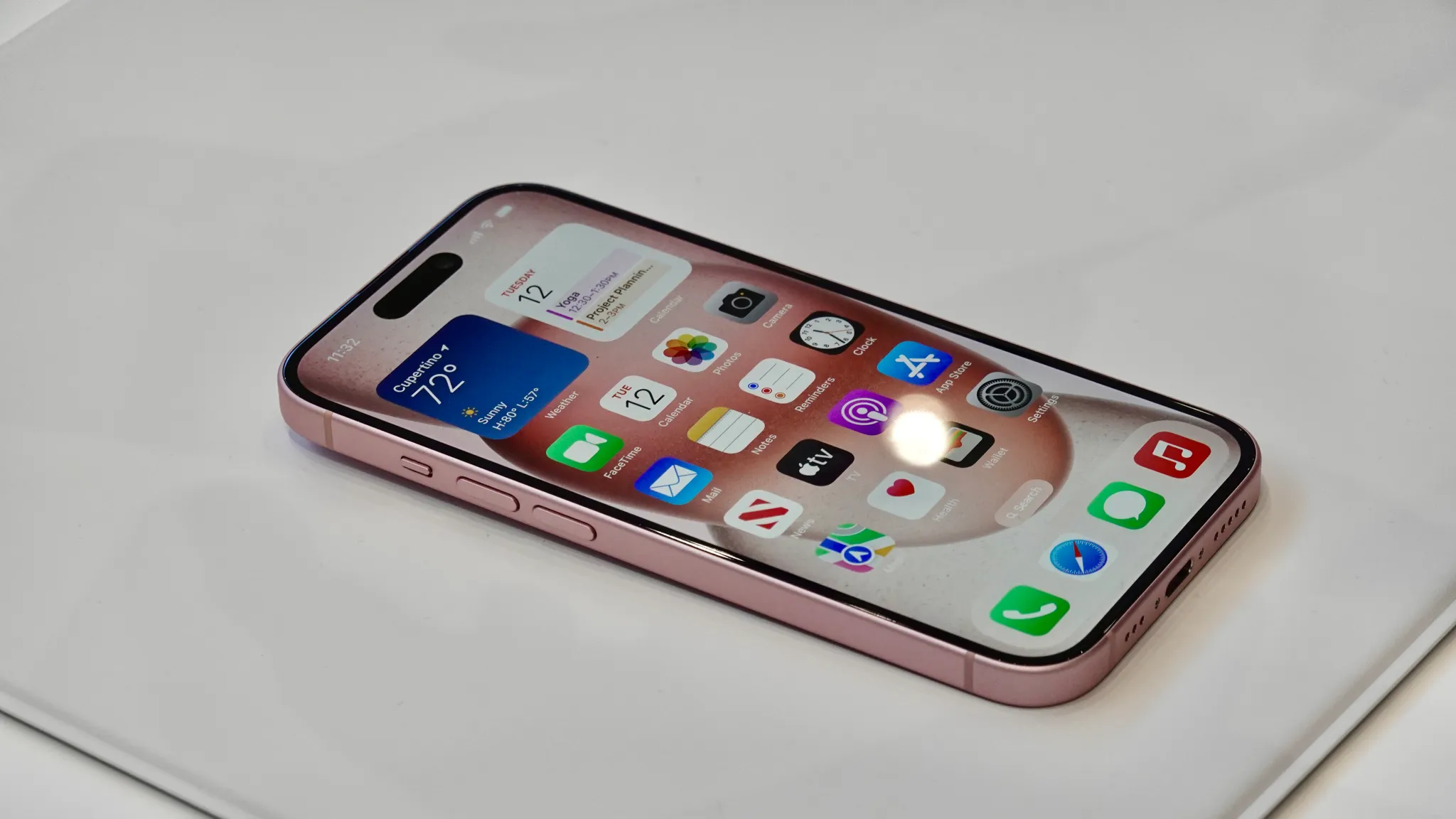
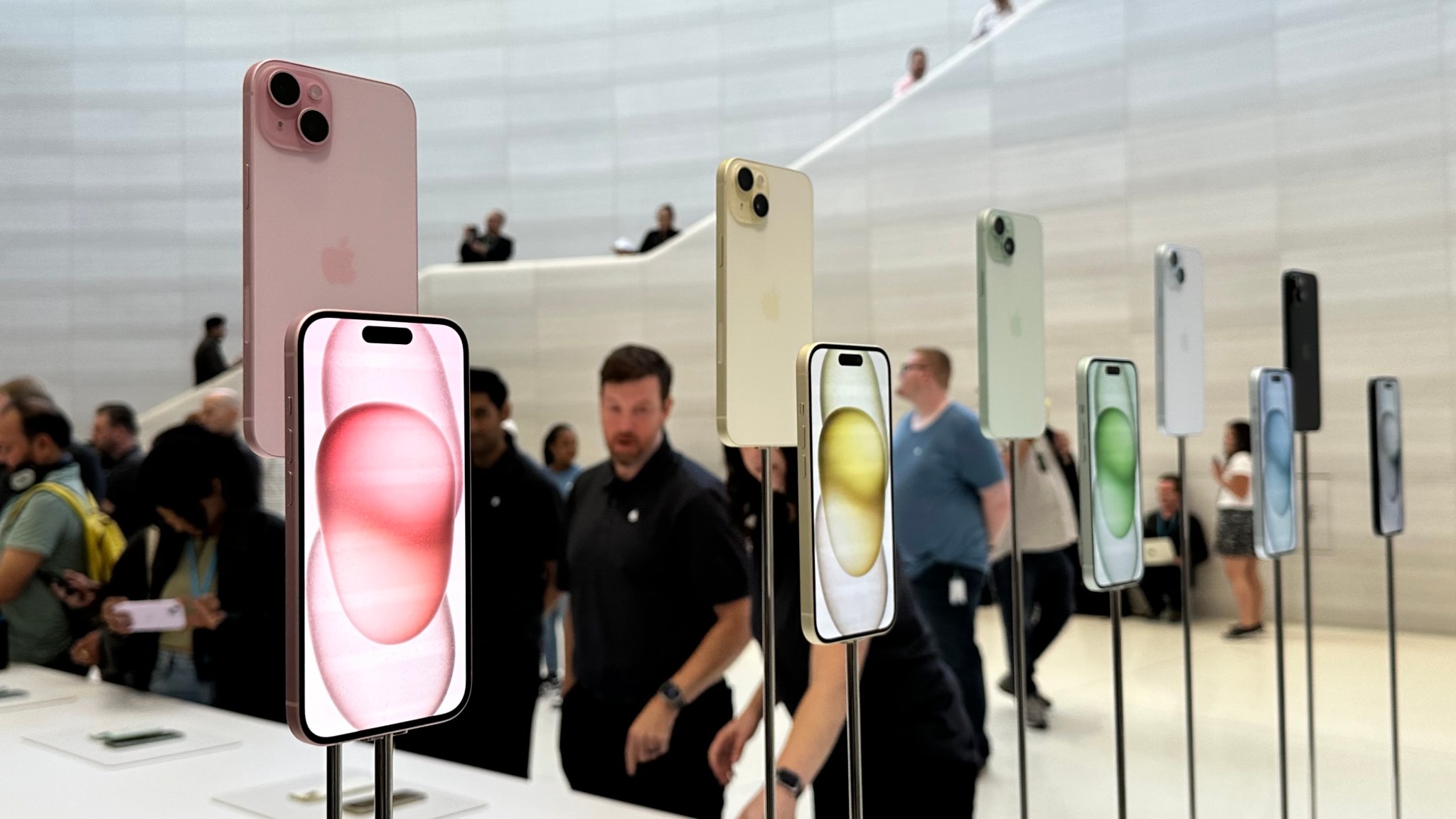
In addition to the iPhone 15 Pro and iPhone 15 Pro Max, Apple also unveiled the entry-level iPhone 15 and iPhone 15 Plus during its “Wonderlust” event today. I got to check them out at Steve Jobs Theater after the keynote today, and I honestly wish I had more to say…
The iPhone 15 and iPhone 15 Plus are great phones. They take the iPhone 14 and do exactly what Apple does: gradually trickle down what were once Pro-exclusive features to the non-Pro phones. The other big change here, of course, is the USB-C port.
The camera changes shouldn’t be overlooked, particularly the new 48MP Main camera that’s moved downstream to the non-Pro phones after first being introduced with the iPhone 14 Pro last year. What’s most notable about this, in my opinion, is that it enables a 2x zoom option in the Camera app. This is done by Apple cropping the 48MP camera down to 24MP, enabling a 2x zoom without having a dedicated Telephoto lens.
The Dynamic Island also now finds itself on the non-Pro models of the iPhone 15 this year. It’s the same Dynamic Island we’ve come to know, just inside a more affordable product.
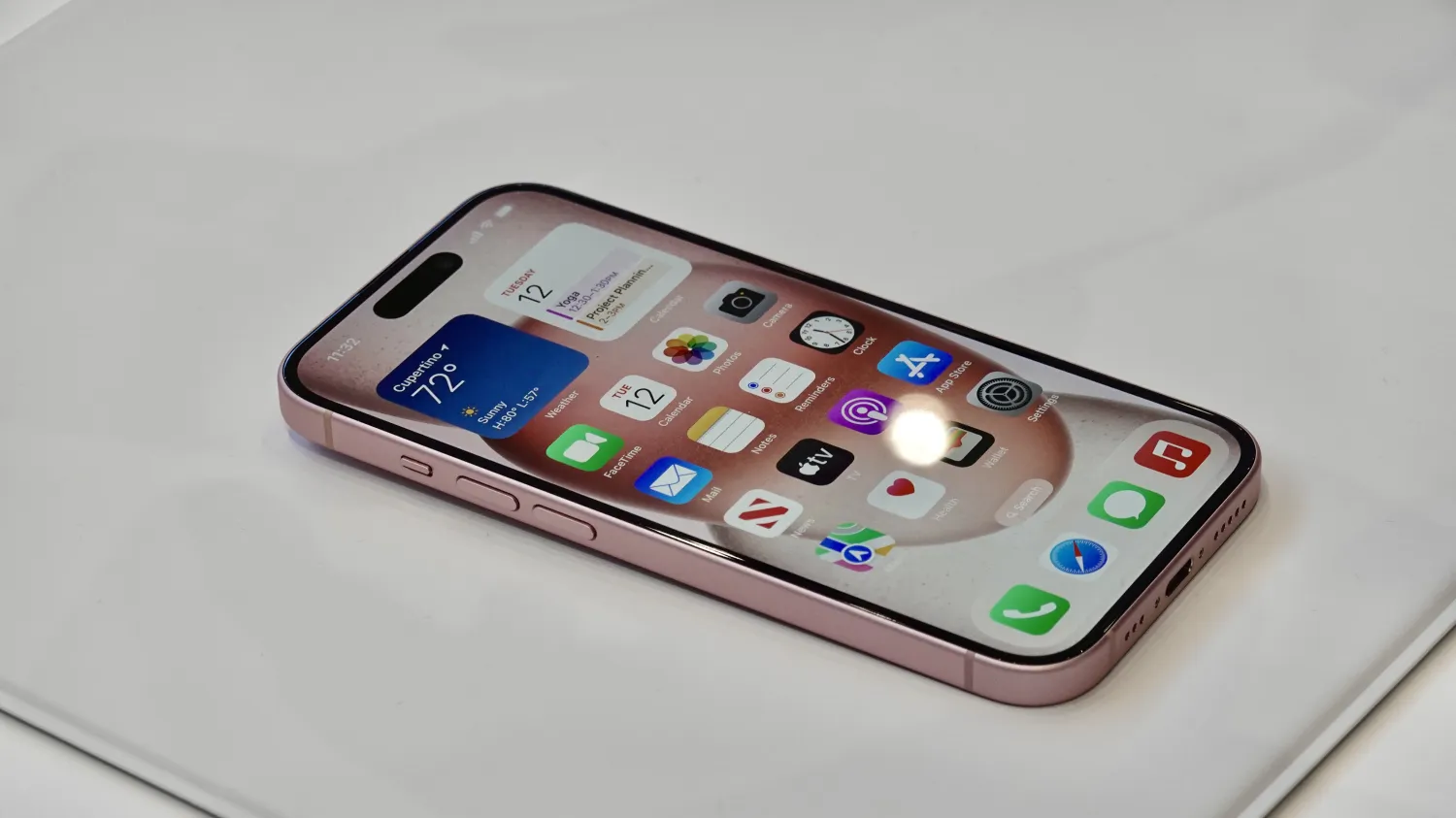
Otherwise, there’s not a whole lot to say about the iPhone 15 and iPhone 15 Plus. The design is about the same as before, aside from the slightly contoured edges. The backs of the phones now feature a matte finish instead of glossy. They are available in five new colors: pink, yellow, blue, green, and black.
I think the pink iPhone 15 is going to sell like hotcakes. And it looks fantastic in real life. It stands out among what are otherwise relatively mundane colors.
Do Not Disturb mode lets you work or have fun without distractions from your iPhone.
When you want to work or watch a movie without distractions, turn on Do Not Disturb on your iPhone. A new Apple video shows how to activate this mode.
The activation process is simple enough that this Apple Support video mostly serves as a reminder that Do Not Disturb is available.
How to turn on Do Not Disturb with a couple of taps
Our iPhones keep us in constant contact with the world, but sometimes what we need from our handsets is peace and quiet. Whether it’s because you’re in a meeting, napping or having a heart-to-heart with a loved one turn on Do Not Disturb mode to hush your iPhone.
Activating it takes only a couple of steps. The button you need is in the Control Center, so start by swiping down from the top-right corner of the screen on iPhone (or iPad).
Open the Control Center and then a couple of taps is all it takes.
Once the Control Center is open, tap on the Focus button, then tap the Do Not Disturb button, which features a moon, to activate the feature immediately.
When you’re finished with your meeting or movie, reopen the Control Center and you’ll see the Focus button has been replaced by the Do Not Disturb button. Tap this to deactivate the mode.
With Do Not Disturb active, all audible alarms are silenced, and your handset won‘t vibrate. Also, the screen won’t come on whenever a notification comes in. Your iPhone is saving all these up for when the mode is deactivated.
Put your iPhone into Do Not Disturb mode and all your other Apple computers switch themselves to the same mode.
Tap on the section with three dots on the Do Not Disturb button to display options for automatically turning the mode off. It can be active for an hour, until evening or — perhaps most usefully — until you leave your current location.
Use Do Not Disturb with Focus on your iPhone or iPad
With Focus in iOS 15 and iPadOS 15 or later, you can use Do Not Disturb to silence calls, alerts, and notifications that you get while your device is locked. You can also schedule Do Not Disturb and allow calls from certain people.
When you have Do Not Disturb turned on, a crescent moon icon appears in the status bar and on your Lock Screen.
Turn on Do Not Disturb
Go to Settings > Focus.
Tap Do Not Disturb.
Under Turn on Automatically, set Do Not Disturb to turn on automatically at a certain time, location, or while using a certain app.
If you don’t want to be disturbed at a certain time, you can set a schedule and change other Do Not Disturb features to help you concentrate.
Go to Settings > Focus.
Tap Do Not Disturb.
You can select allowed or silenced notifications from people and apps, connect your Lock Screen or Home Screen, have this Focus turn on automatically, and add Focus filters.
Here’s how to restore an old iPhone to a new iPhone, recover data from a backup, or go back to an older version of iOS by wiping your iPhone and restoring from a backup.
When you move to a new iPhone you don’t want to spend ages setting everything up from scratch to get the apps, data and settings just the way you like them. That’s why restoring from a backup is so convenient: one quick tap, a bit of a wait, and you’re good to go.
The same is true if a phone malfunctions badly, or is bricked. Knowing you can wipe the iPhone and recover your photos, documents and data easily from an iCloud or a computer backup is reassuring.
A backup is also an insurance that, should your iPhone be lost or stolen, you won’t lose everything on it. It’s easier to replace the device than the memories and other data stored on it.
Yes, backups are an essential part of the modern digital life. But knowing how to restore an iPhone from that backup is just as important.
Step 1: Find your iPhone backup
First things first: make sure you’ve got a backup that you can restore from. Crucially, this backup needs to be recent enough to include the apps and data you want to keep, and/or sufficiently old that it happened before the technical problem if you are trying to fix a faulty iPhone.
There are two places you may find a backup, as long as you are making backups. One is iCloud, to which you may need to subscribe to get enough space. The other method depends on whether you are using a Mac or a PC: on a Mac iPhone backups are made via the Finder (in macOS Catalina and later) and on a PC (and older versions of macOS) they are made via iTunes.
To see iCloud backups follow these steps:
Open Settings on your iPhone or iPad.
Tap your name/face at the top.
Now tap iCloud.
Tap Manage Account Storage.
Tap Backups.
Tap a backup to see when it happened.
Computer backups
To see backups made on a Mac follow these steps:
Plug in your iPhone.
Open the Finder.
Click on your device in the sidebar.
In the General tab click Manage Backups.
If there are any backups you will see them here. (You’ll also see if iCloud backups are being made).
The process is similar in iTunes:
Open iTunes.
Click iTunes in the top bar and select Preferences.
Select the tab labelled Devices. The date and time of each backup is listed.
Should I back up first?
If you are wanting to make a backup that you can recover to a new iPhone, and you’re not sure you’ve got a sufficiently recent backup, play it safe by doing another backup of the old device right now.
If you are hoping to solve an issue with your iPhone that started recently and you have an old iPhone backup you can recover don’t back up your iPhone, the old backup may be your best bet in getting your iPhone working again. This applies if you want to recover your iPhone to a time before you installed a beta version of iOS or even if you want to recover an older version of iOS after experiencing problems with the latest version.
Step 2: Wipe your iPhone
If you are just recovering the backup to a brand-new iPhone, or one that has already been wiped you can skip this step.
However, if you are trying to troubleshoot an issue with your iPhone, want to remove a beta, or if you want to wipe the iPhone you have to pass it on to a new owner, you’ll need to wipe it first. YOu can’t restore an iCloud backup to an iPhone without erasing the contents first.
This process is easier if you are recovering an old back to an iPhone that is running the same version of iOS that you intend to run. It gets a lot harder if you are trying to restore an older version of iOS, especially if you are running a beta version of iOS–in which case you may need to plug it into a Mac, force the iPhone into recovery mode and restore it that way. We discuss cover this here: How to remove an iOS beta from your iPhone.
Normally resetting your iPhone so that you can recover a recent backup is a simple process and hopefully one of these two options will work:
On an iPhone:
Open Settings.
General.
Transfer or Reset iPhone. Erase All Content and Settings.
Erase and then work through the various steps.
Your iPhone should restart with the Welcome screen if this process has worked.
On a Mac:
A second option is to plug your iPhone into your Mac and restore it from the Finder.
Open the Finder.
Click on your iPhone in the left-hand column.
Click on Restore iPhone.
Click on Don’t Back Up.
Click on Restore.
Your iPhone should restart with the Welcome screen if this process has worked.
On a Mac using Recovery Mode:
Here’s how to put your iPhone into recovery mode so you can wipe it (if the above options don’t work):
Plug your iPhone into your Mac.
Open the Finder.
You may see a message that indicates you need to download an update to access the iPhone, in our experience the said software was unavailable from the software update server, so don’t worry about this.
Shut down your iPhone by pressing volume up, volume down, and then press and hold the side button. Unlike a usual restart keep pressing and holding the side button while the phone shuts down and starts up again. If you are successful eventually you will see an image of a Mac and a lightning connector on your iPhone that indicates it is in recovery mode.
On your Mac you should now see a message indicating that there is a problem with the iPhone that requires it to be updated or restored. Click on Restore.
You will see a warning: “Are you sure you want to restore the iPhone…” Click on Restore and Update.
Click Agree on the next screen that details the license agreement.
Just note that there’s only about 15 minutes before your iPhone will exit recovery mode, at which point you will have to enter recovery mode again.
Your iPhone should restart with the Welcome screen if this process has worked.
Step 3: Restore your iPhone from a backup
Now you have wiped your iPhone you can get on with the process of recovering it from your backup. Or, if you have a brand new iPhone, you can follow these steps to set it up as a clone of your old iPhone with all your data just as you left it.
How to recover from an iCloud backup
We’ll start off with how to recover from an iCloud backup:
Swipe up from the Welcome screen.
Tap on English (or your language) and select your country or region.
Click on Set Up Manually.
Work through the various steps until you get to the Transfer Your Apps & Data screen and tap on From iCloud Backup. Check the date to make sure it’s the backup you want.
Log into your Apple ID and wait while your device signs in.
Now choose an iCloud backup from before you downloaded the beta. Click on Show more backups to find an older one if you don’t see it.
Wait while the Restore from iCloud takes place, which could take a while.
The device will need to be connected to Wi-Fi throughout the process, and it can take a while, depending on how much data needs to be restored. It’s also likely that you’ll be asked to log in again so that any purchased items from the App Store or iTunes Music can be downloaded.
When the core elements of the backup are finished you’ll be able to use the handset again, but you might notice that apps and other data continue to install in the background. This is perfectly normal.
How to recover from a Finder/iTunes backup
Whether you are using the Finder on a Mac running macOS Catalina or later, or iTunes on an older macOS or PC, the process for recovering the iPhone backup is similar.
You need to plug it into a Mac or PC.
If you’ve not connected the device to this particular computer before, you’ll see the ‘Welcome to Your New iPhone’ page.
Click continue and then agree to sync your iPhone.
With this completed, you’ll be taken to the device summary page in the Finder/iTunes, which includes various options for backing up and restoring your device.
In the Backups section you’ll see a button marked Restore Backup (as long as you have one). Click this.
If Find My is switched on then you’ll see a message telling you that it needs to be turned off before you can proceed. To do this, open Settings on your iPhone and tap your name/face at the top of the screen, then tap iCloud. Scroll down until you see Find My, tap it, move the toggle switch to off, enter your password to confirm, then return to iTunes on your Mac or PC.
After clicking Restore Backup a popup should appear with the current iterations available. Select the one you want, then click the Restore button.
Now your iPhone will run through its automated restoration process. iTunes will let you know when the update is complete, then you can disconnect the iPhone and go about your business with your data safely on board.
With WWDC now behind us, the next thing on Apple’s schedule for the year is the announcement and release of the iPhone 15 lineup. As of right now, the expectation is that the iPhone 15 and iPhone 15 Pro lineups will come out around the same time as iPhones do every year…
When will the iPhone 15 come out?
Apple is expected to have an all-new lineup of iPhones this year, including the iPhone 15, iPhone 15 Plus, iPhone 15 Pro, and iPhone 15 Pro Max. As you can see below, the iPhone release schedule over the past seven years has been incredibly consistent. The iPhone X is a notable outlier in 2017, as is the iPhone 12 lineup, which was impacted by COVID-19 delays.
Here is a timeline of the latest iPhone release dates:
iPhone 14 Plus: October 7, 2022
iPhone 14: September 16, 2022
iPhone 13: September 23, 2021
iPhone 12: October 23, 2020
iPhone 11: September 20, 2019
iPhone XS: September 21, 2018
iPhone X: November 3, 2017
iPhone 8: September 22, 2017
iPhone 7: September 16, 2016
As we’ve seen in past years, the iPhone is Apple’s most important product release every year. This means the company will prioritize iPhone 15 production over all of its other products. If any supply chain challenges or hiccups were to emerge, Apple would delay other products before it would delay the iPhone 15 release date.
What’s new with iPhone 15?
As a quick refresher, we’re expecting a number of different changes with the iPhone 15 lineup this year. Here’s a brief rundown:
USB-C for charging on all models.
Slimmer bezels across the entire lineup.
The Dynamic Island will expand to the iPhone 15 and iPhone 15 Plus.
A new titanium finish on the iPhone 15 Pro and iPhone 15 Pro Max.
The iPhone 15 Pro and iPhone 15 Pro Max are expected to use a new A17 Bionic chip made using the 3nm production process. This will be the first time Apple has used 3nm production for chips, resulting in improved performance and improved efficiency.
iPhone 15 Pro Max will feature a periscope lens for improved optical zoom for the rear-facing camera.
iPhone 15 is coming, and these features will be worth the wait
Summer can be an awkward time to buy a new iPhone. Apple will release a new iPhone in the fall, but you’re ready to upgrade now. There’s really no bad time to buy an iPhone, but anyone who cares about having the best camera should consider what’s coming this year.
Apple usually unveils new iPhones in early September. There’s nothing wrong with buying in June through August, but try to take advantage of a good carrier promotion if you can.
Another thing to consider is how much of an early adopter you are. If you like iPhone 14 Pro features but prefer the iPhone 14 price, you could get the best of both worlds with the iPhone 15.
Apple is expected to bring Dynamic Island to non-Pro phones this year. iPhone 15 and iPhone 15 Plus might even see the 48 MP camera upgrade that the main camera on the iPhone 14 Pro picked up last fall.
If you care about having the best camera in your pocket, the iPhone 15 Pro Max, in particular, might be especially appealing. After years of rumors, Apple’s most expensive iPhone is expected to adopt a periscope-style lens system for greater optical zoom. I can never get enough optical zoom on my iPhone, so this rumor is my favorite.
Last year, Apple released its most affordable big-screen phone, the iPhone 14 Plus, which also happens to be the lightest big-screen iPhone.
But iPhone 15 Pro and iPhone 15 Pro Max could see a reduction in weight thanks to a change in materials. Apple’s Pro line is expected to switch from stainless steel bands to titanium ones. The lighter material could make Pro phones more appealing to people who care most about the iPhone not feeling heavy.
This year’s key feature for the Pro line is expected to be a change to the mute switch, which could be quite interesting. We expect the existing mute toggle to be replaced with a button that will probably be customizable.
I care a lot about using my iPhone as a camera, so the potential to have a button that can launch the Camera app is high on my list of things to optimistically expect.
There’s one difference that might affect your decision to buy now or hold out. That’s the port situation. The iPhone has used Apple’s Lightning port since 2012. The iPhone 15 line is expected to replace the Lightning port with a USB-C port. That’s great news if you’re already charging every other device with USB-C, but it could be a factor in your buying decision if you prefer Lightning.
And one last thing to note: there’s a chance the iPhone 15 Pro will cost more than the iPhone 14 Pro. This gets rumored every year, but it could happen. Apple will likely discontinue the iPhone 14 Pro once the iPhone 15 Pro is announced, so that’s one more thing to consider. Bang for the buck.
Apple is expected to unveil the iPhone 15 lineup in early September.
USB-C iPhone 15: The latest rumors and what to expect
A USB-C iPhone may have once seemed impossible, but the latest rumors suggest it’s actually coming sooner than you may think. Amid regulatory pushback and limitations of the Lightning connector, the iPhone 15 and iPhone 15 Pro are expected to switch to USB-C this fall. Head below for the latest details on what we know so far.
Regulatory pressure forces Apple’s hand
There are a number of reasons why Apple seems to have shifted its tune on releasing a USB-C iPhone. One thing that’s hard to overlook, however, is looming legislation around the world.
After multiple years of back and forth, the European Union officially reached an agreement for a “common charging port” standard. Starting in 2024, all smartphones sold within the 27 countries of the EU will be required to use USB-C for charging. This includes the iPhone and even peripheral accessories like AirPods.
Apple has pushed back against legislation that would make a USB-C iPhone mandatory. The company argues that such laws stifle innovation and actually lead to more environmental waste.
After the EU agreed on its legislation, lawmakers in the United States voiced their support. Many called on the US to pass something similar. Senator Elizabeth Warren has echoed this call in a post on Twitter, saying:
Consumers shouldn’t have to keep buying new chargers all the time for different devices. We can clear things up with uniform standards—for less expense, less hassle, and less waste.
Consumers shouldn’t have to keep buying new chargers all the time for different devices. We can clear things up with uniform standards—for less expense, less hassle, and less waste.https://t.co/rbxLleahIj
In early October, the legislation in the EU was formally adopted following a full vote of the European Parliament. The law was passed with an overwhelming majority, with 602 votes in favor, 13 against, and 8 abstentions. Under the law, there are exemptions for products that are too small to offer a USB-C port.
Finally, to complete the process, the USB-C law was officially recorded and went into effect on December 27, 2022. Under the law, companies have until December 28, 2024, to comply with the mandate with new smart introductions.
This could technically give Apple until 2025 to formally comply with the USB-C regulations, but the expectation is that it will do so earlier than that.
Will the iPhone 15 use USB-C?
Analyst Ming-Chi Kuo first predicted in 2019 that Apple would release a port-less iPhone as soon as 2021, but that didn’t come to fruition. It’s easy to see why – wireless technologies simply aren’t reliable or powerful enough to completely replace a connector like Lightning or USB-C. Charging speeds aren’t as fast, data transfer is slow and unreliable, and consumer adoption just isn’t there yet.
A port-less iPhone is still in the works and is something being internally tested at Apple, but we wouldn’t expect to see it launch to the public this year or next year.
The Lightning connector is also starting to show its age. When it was first unveiled in 2012 with the iPhone 5, Apple’s Phil Schiller touted that it would be the “modern connector for the next decade.” It’s been a decade since that announcement, and it’s clear that Lightning is falling behind USB-C in things like charging speeds and data transfer speeds.
So that leads us to where we are today. Apple analyst Ming-Chi Kuo predicted last May that the iPhone 15, coming this year, will feature a USB-C port for charging and data transfer. This report was eventually corroborated by Bloomberg, which also said that the iPhone 15 may switch to a USB-C port next year.
In an interview, Apple marketing exec Greg Joswiak even went as far as to say Apple will have no choice but to comply with the EU legislation, effectively confirming that iPhone with USB-C is coming sooner rather than later.
Finally, 9to5Mac has exclusively obtained CAD files of the iPhone 15 and iPhone 15 Pro, confirming that the devices do have a USB-C port instead of Lightning. This has also been corroborated by other iPhone 15 images leaked on Twitter.
But wait…
Interestingly, several reports have said that Apple is looking into ways it could still retain some amount of control over the iPhone’s accessory ecosystem. One report suggested the iPhone 15’s USB-C port could have certain features limited to Apple-certified cables.
In March, reliable Apple analyst Ming-Chi Kuo reported that the switch to USB-C will enable faster charging speeds for the iPhone 15. These faster charging speeds, however, will reportedly limited to USB-C cables certified by Apple. Currently, iPhone 14 and iPhone 14 support up to 20W of maximum charging speed, while Pro models support up to 27W.
The European Union, however, is already pushing back at Apple’s rumored plans to limit the iPhone 15’s USB-C port for non-MFi cables. In response to the rumors, EU Industry Commissioner Thierry Breton wrote a warning to Apple saying that it would be “inadmissible to restrict the interaction with chargers.”
When will the USB-C iPhone 15 be available?
Apple is expected to release the iPhone 15 with USB-C later this fall. As of right now, Apple’s release plans seem to be on schedule. The iPhone 15 and iPhone 15 Pro lineups are expected to be announced and released in September.
USB-C iPhone 15: Wrap up
A USB-C iPhone is sure to make many consumers happy, particularly those who already own an iPad or Mac that also uses USB-C. That being said, with the sheer number of iPhone users, Apple will undoubtedly face criticism for changing the iPhone’s charging connector — even if a switch to USB-C is ultimately the right decision and is long overdue.
Australia’s prime minister has echoed the advice of cybersecurity professionals, in recommending that you turn off your iPhone for five minutes every night.
No, it’s not so you can reduce your daily Screen Time to 23 hours and 55 minutes, but to stop any spyware that may be running in the background on your device …
The idea that you should periodically force-quit apps in order to improve the performance of your iPhone has been one of the persistent myths among non-techies, but rebooting your phone is different. By closing all background processes, it can offer at least some degree of privacy protection against spyware.
The Guardian reports that Australia’s prime minister, Anthony Albanese, offered the advice while announcing a new security appointment.
Albanese, has told residents they should turn their smartphones off and on again once a day as a cybersecurity measure – and tech experts agree.
Albanese said the country needed to be proactive to thwart cyber risks, as he announced the appointment of Australia’s inaugural national cybersecurity coordinator […]
“We all have a responsibility. Simple things, turn your phone off every night for five minutes. For people watching this, do that every 24 hours, do it while you’re brushing your teeth or whatever you’re doing.”
The US National Security Agency (NSA) endorses this advice. It has previously recommended hard-rebooting smartphones at least once a week, for the same reason.
In the case of highly sophisticated spyware like NSO’s Pegasus, it may achieve little: A lot of work is put into exploiting vulnerabilities that allow the malware to relaunch after reboots. But security experts say that it can be worthwhile even then.
Dr Priyadarsi Nanda is a senior lecturer at the University of Technology Sydney who specialises in cybersecurity development.
He said rebooting a phone regularly could minimise risk because it forcibly closes any applications and processes running in the background that could maliciously be monitoring users or collecting data […]
“If there’s a process running from the adversarial side, turning off the phone breaks the chain, even if it’s only for the time the phone is off, it certainly frustrates the potential hacker.
“It may not fully protect you, but [rebooting] can make things more difficult” for hackers, Nanda said.
New South Wales cybersecurity lecturer Dr. Arash Shaghaghi agrees, saying that it puts one additional hurdle in the way of attackers.
Shaghaghi said that with so-called zero click exploits – sophisticated attacks that don’t require an action from a user to give an adversary access – rebooting a smartphone “may challenge the attackers as they may need to find alternative means to exploit the device once powered back on”.
Just last month, Apple alerted Pegasus victims in the first known case of the spyware being used during a military conflict.
Apple alerted Pegasus spyware victims during first known use in a military conflict
Security researchers have documented the first known case of NSO’s Pegasus spyware being used in a military conflict. The hacks relate to the long-running military conflict between Armenia and Azerbaijan, over a region claimed by both countries.
The victims – who included a United Nations official, journalists, human rights advocates, and a former government minister – received alerts from Apple that their iPhones had been hacked …
Pegasus spyware
NSO Group makes spyware called Pegasus, which is sold to government and law enforcement agencies. The company purchases so-called zero-day vulnerabilities (ones that are unknown to Apple) from hackers, and its software is capable of mounting zero-click exploits – where no user interaction is required by the target.
In particular, simply receiving a particular iMessage – without opening it or interacting with it in any way – can allow an iPhone to be compromised, with personal data exposed.
NSO sells Pegasus only to governments, but its customers include countries with extremely poor human rights records – with political opponents and others targeted.
Apple alerts
By the nature of zero-click attacks, it’s only possible to identify and patch the vulnerability after it has already been exploited. However, Apple has come up with ways to spot signs of a compromised iPhone, and it now sends alerts to devices it believes have fallen victim to a Pegasus attack.
Apple has sent these alerts to a range of people, including pro-democracy protestors in Thailand, senior European Union officials, a Polish prosecutor, and US State Department staff.
At least a dozen hacks in Armenia/Azerbaijan conflict
The Guardian reports that at least a dozen people had their iPhones hacked by Pegasus spyware.
Researchers have documented the first known case of NSO Group’s spyware being used in a military conflict after they discovered that journalists, human rights advocates, a United Nations official, and members of civil society in Armenia were hacked by a government using the spyware.
The hacking campaign, which targeted at least a dozen victims from October 2020 to December 2022, appears closely linked to events in the long running military conflict between Armenia and Azerbaijan over the contested Nagorno-Karabakh region.
Apple detected that the devices had been compromised, and sent alerts to victims. These included Anna Naghdalyan, who was an Armenian foreign office spokesperson at the time. Her phone was hacked at least 27 times, according to the report.
Researchers said the timing of the attacks put her “squarely in the most sensitive conversations and negotiations related to the Nagorno-Karabakh crisis”, including the ceasefire mediation attempts by France, Russia, and the US and official visits to Moscow and Karabakh.
Naghdalyan told Access Now that she had “all the information about the developments during the war on [her] phone” at the time of her hacking
All the evidence points to Azerbaijan government
While researchers say that they cannot absolutely determine who carried out the spyware attacks, there is “substantial evidence” that Azerbaijan has a Pegasus contract.
Additionally, the victims selected for the hacks would also point to the Azerbaijan government. Neither government responded to a request for comment.
Pegasus threat remains
The US government banning the use of Pegasus by its own agencies had a severe impact on NSO’s finances, and the fact that Apple is now able to alert victims makes the spyware significantly less useful. Apple also offers a Lockdown Mode, allowing high-risk individuals to harden their iPhones against Pegasus, but at the cost of a great deal of functionality.
However, NSO’s financial struggles potentially make it more dangerous, as it reportedly planned to sell its software to red-flagged countries.
Privacy is a growing concern in today’s world. Follow along with all our coverage related to privacy, security, what Apple and other companies are doing to keep your information safe, and what steps you can take to keep your information private.
On Thursday, Applereleased iOS 16.5 to the public with new wallpaper choices, updates to Apple News, and more. As it turns out, this update also breaks compatibility with Apple’s Lightning to USB 3 Camera Adapter accessory for iPhone and iPad users.
This dongle connects to an iPhone or iPad via Lightning and has a built-in USB-A port that you can use to connect a myriad of accessories to your iPhone or iPad. There’s also a built-in Lightning port for charging the iPhone or iPad. According to users who rely on this accessory, however, iOS 16.5 breaks compatibility with both of those ports.
In posts on Apple’s Support forums, Reddit, and the MacRumors forums, users say that the Lightning and USB-A ports on this accessory are rendered useless after updating to iOS 16.5. The Lightning port does not passthrough power to charge the iPhone and iPad. Connecting an accessory to the adapter via USB-A results in an error message that says the adapter requires too much power to operate.
While Apple bills this as a “camera adapter accessory,” iPhone and iPad users actually rely on it for connecting a range of USB-A products to their devices. This includes things like Ethernet adapters, digital audio converters, and more.
One affected user explains:
iPhone 13 Pro Max here hitting same issue. I’ve been using the official Apple Lightning to USB 3 Camera Adapter for months to send lossless Apple Music to my DAC, and it’s worked flawlessly and charged my phone at the same time. As soon as I updated to iOS 16.5 this morning, the adapter not only doesn’t communicate to the DAC at all, it doesn’t even charge my phone. When I test plugging in an iPad on a previous OS version, it communicates and charges just fine.
This has to be an issue with iOS 16.5, and I hope it’s resolved quickly – very bad look for an official Apple accessory to be rendered inoperable by a step update of iOS.
Apple support has been unable to help the affected customers. The problem is likely software-related, given that it was tied to the release of iOS 16.5. This means Apple will likely have to release iOS 16.5.1 at some point in the near future to fix compatibility with the Lightning to USB 3 Camera Adapter accessory.
Following over a month of beta testing, iOS 16.5 is now available to the general public. This update includes changes to Apple News, the addition of a new “Pride Celebration” wallpaper, and more. Head below for the full release notes with details on bug fixes, new features, and more.
What’s new in iOS 16.5?
Here are Apple’s official release notes on iOS 16.5 new features and bug fixes. The build number for today’s update is 20F66.
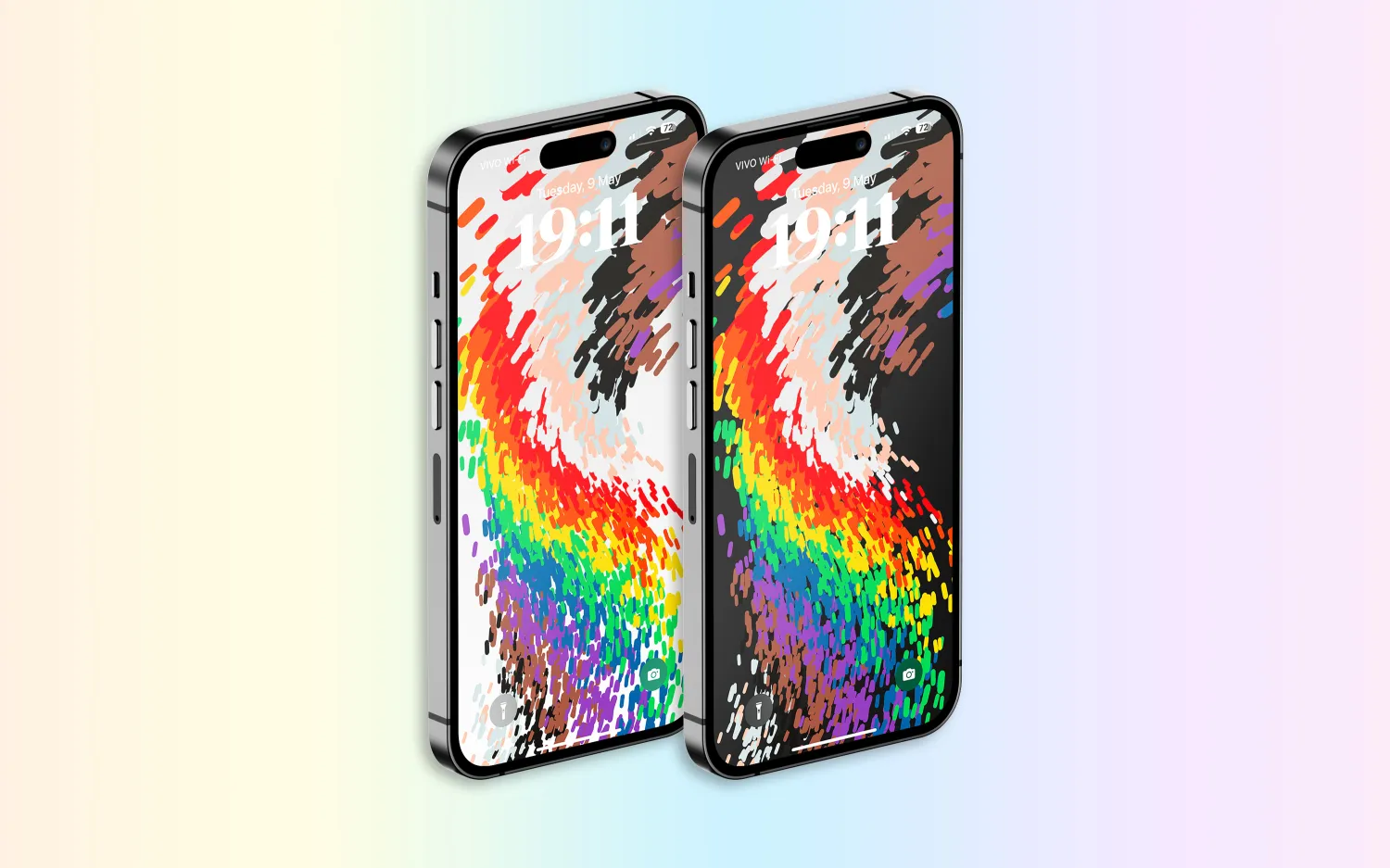
A new Pride Celebration wallpaper for the Lock Screen to honor the LGBTQ+ community and culture
Sports tab in Apple News gives easy access to stories, scores, standings, and more, for the teams and leagues you follow
My Sports score and schedule cards in Apple News take you directly to game pages where you can find additional details about specific games
Fixes an issue where Spotlight may become unresponsive
Addresses an issue where Podcasts in CarPlay may not load content
Fixes an issue where Screen Time settings may reset or not sync across all devices
Earlier iOS 16.5 betas included the addition of a new Siri command for starting and stopping a screen recording. Apple removed this feature in subsequent iOS 16.5 betas, and it’s not included in the final version of the update.
iOS 16.5 will be the final major point-release update to iOS 16 before WWDC in June. This is where Apple will debut iOS 17 and release the first developer betas.
Apple is, however, expected to continue releasing updates to iOS 16 through the summer and likely even alongside iOS 17. iOS 16.6 is expected to enter beta testing soon.
You can update your iPhone by going to the Settings app, choosing General, then choosing Software Update.
watchOS 9.5 debuts with new Pride Celebration watch face
Alongside iOS 16.5, Apple has also released watchOS 9.5 for Apple Watch users today. The headlining change in this update is an all-new Pride Celebration watch face to honor the LGBTQ+ community and culture.
What’s new in watchOS 9.5?
watchOS 9.5 is rolling out now to all users. You can update your Apple Watch by going to Settings, choosing General, then choosing Software Update. You can also install the update via the Apple Watch companion app on your iPhone.
Here are Apple’s release notes for watchOS 9.5:
watchOS 9.5 includes new features, improvements and bug fixes, including a new Pride Celebration watch face to honor the LGBTQ+ community and culture.
And some more details on the new Pride Celebration watch face:
Inspired by multiple pride flags, this new watch face combines colors to represent the strength and mutual support of the LGBTQ+ movement. Mirroring the woven loops of the Sport Loop, each strand of vibrant thread contributes to the overall composition of the watch face. The colorful threads move as the Digital Crown on Apple Watch is rotated, the display is tapped, or the user’s wrist is raised.
The new Pride Celebration face included in watchOS 9.5 pairs with the similarly-designed wallpaper for iPhone users. The new wallpaper is included with iOS 16.5, which is also available starting today.
macOS Ventura 13.4 with new sports-related features
After months of beta testing, Apple has finally released macOS Ventura 13.4 to the public. The update, which is now available for macOS users, comes with new sports-related features, as well as a new system for installing beta software. Read on as we detail what’s new with macOS Ventura 13.4.
One big change coming with macOS Ventura 13.4 is the new system for installing betas that was introduced with iOS 16.4. The operating systems now asks for the Apple ID to show and download beta software updates.
macOS checks whether the account is associated with a developer or user registered in the public beta program. It then shows the beta update available for that program. With this change, regular users will no longer be able to install developer betas, for example.
macOS 13.4 full release notes
Sports feed in the sidebar of Apple News gives easy access to stories, scores, standings, and more, for the teams and leagues you follow
My Sports score and schedule cards in Apple News take you directly to game pages where you can find additional details about specific games
Resolves an issue where Auto Unlock with Apple Watch does not log you into your Mac
Fixes a Bluetooth issue where keyboards connect slowly to Mac after restarting
Addresses a VoiceOver issue with navigating to landmarks on webpages
Fixes an issue where Screen Time settings may reset or not sync across all devices
You can install macOS Ventura 13.4 by going to the Software Update menu in the System Settings app. It may take a while before the update shows up on your computer; make sure that your Mac is compatible with macOS Ventura.
The update build number is XXXXX.
OpenAI launches free ChatGPT for iPhone app with Whisper support and more
OpenAI has announced that it is releasing a dedicated iPhone app for its ChatGPT service. The app, which is available via the App Store, gives users the ability to use ChatGPT through a native app on their iPhone. The app is free to download and includes no ads. It’s currently only available in the United States, but OpenAI says availability will expand “in the coming weeks.”
ChatGPT for iPhone now available
As announced by OpenAI in a blog post, ChatGPT for iPhone will offer the same set of features as the web version of the service. This will include ChatGPT Plus support, which lets users subscribe to pay for more advanced versions of the service.
The app will also sync your ChatGPT history across all your devices, including the web. It also includes support for Whisper, OpenAI’s open-source speech-recognition system. This integration with Whisper enables voice input for the ChatGPT app on iPhone. The ChatGPT app is also completely ad-free.
As ChatGPT has gained popularity over the last six months, a number of copycat and scam apps have surfaced on the App Store. Apple has cracked down on these apps, in part by blocking apps that use “GPT” in their name. By releasing its own version of ChatGPT for iPhone, OpenAI hopes to directly control the experience of using the service on an iPhone.
Additionally, Microsoft’s Bing app for iPhone has seen a major boost in popularity since it added ChatGPT integration.
ChatGPT for iPhone is rolling out starting today to users in the United States. OpenAI availability will “expand to additional countries in the coming weeks.”
As part of a flurry of new accessibility improvements announced by Apple, the company says that Made for iPhone hearing aids can pair directly with Macs for the first time. Previously, pairing was only available with an iPhone, iPad, or iPod Touch.
Compatible products already support pairing with more than one Apple device, so this move should make it much easier for people who use both Macs and iOS devices …
Made for iPhone hearing aids
Made for iPhone (MFi) hearing devices effectively combine the functionality of hearing aids and AirPods. They allow people with hearing impairment to switch seamlessly from listening to their environment, to listening to their devices. Phone calls, FaceTime, Music, Siri, and other content is all supported.
In some cases, MFi hearing aids will switch automatically from ambient listening to your Apple device, such as when you receive an incoming call on your iPhone, or starting to play a movie on an iPad.
Settings allow you to configure your MFi hearing devices on your iPhone, and now on your Mac. This includes choosing an audio preset, adjusting volume levels, and turning on Live Listen.
MFi pairing with Macs
Apple doesn’t provide much detail on this, including just a single bullet point in its accessibility news release:
Deaf or hard-of-hearing users can pair Made for iPhone hearing devices directly to Mac and customize them for their hearing comfort
However, the reference to the “customizing” feature does suggest that connecting to a Mac will allow greater control over the audio experience. While an iPhone allows you to choose between different audio presets, this wording indicates the ability to fine-tune the audio output to your own needs and preferences.
We’ll need to wait for further details on M1 Mac support.
Hearing device compatibility
Around 200 devices are supported, from 40 different brands.
Those marked with an asterisk additionally support bidirectional streaming, which allows users to talk hands-free through their hearing aid microphones. This feature requires iOS 15.2 and later on iPhones and iPads; Macs will require some version of Ventura.
Advance
RIC, RIC LI
SlimRIC
AGXO
FX00*
GX00 S
GX00 SC
Amplifon
Ampli-connect B
Ampli-connect PO*
Ampli-connect R 13
Ampli-connect R 312
Ampli-easy B
Ampli-energy B*
Ampli-energy B R
Ampli-energy I*
Ampli-energy I R WL
Ampli-energy PO*
Ampli-energy R*
Ampli-energy R R
Ampli-energy R R-D
Ampli-mini 312 AS
Ampli-mini PO*
Ampli-mini R 312
Aquitis
AEBB3D
AF2 B
AF2 E
AMBB3D
AMRB2D
AMRR2D
Audibel
A3i
A4i
A4i iQ
Arc AI*
Via*
Via AI*
Via Edge AI*
Audibene
HORIZON ITC-R
HORIZON RIC
HORIZON RIC-R
HORIZON RIC-S
Audifon
Lewi
Risa
Audigy
AGXsevo AI*
AGXsevo AIAGXsp
AGXsliv*
AGXsliv AI*
AGXsliv Edge AI*
AGXsp 2
AGXsp iQ
AGXwE-F2
Audigy AGXwM
B-F2
Audika / Audika France
First
FX00*
GX00
GX00 S
GX00 SC
Legend
PG X0
AudiLab
Aligo*
Altena
Capto
Coral
Audio Service
DUO LI G5
DUO LI G6
Duo G5
ENERGY 4PLUS BLUE
FDH RIC
HP LI G6
Ida BT G5
ITC LI 7
ITE LI 7
Mood G5
Mood G5 Li-Ion
MOOD G6
MOOD LI G6
OZ BTE
OZ RIC
P G5
P LI G6
R LI 7
R S 7
SR LI 7
STILINE BT
Sun G5
AudioSync
A3i
A4i
A4i iQ
Arc AI*
Via*
Via AI*
Via Edge AI*
Audix
Lewi
Risa
Auris
Øre
Beltone
Beltone Amaze
Beltone Boost
Beltone Boost Max
Beltone Boost Plus
Beltone Boost Ultra
Beltone First
Beltone Imagine*
Beltone Legend
Beltone Silk
Beltone Rely
Beltone Trust
Bernafon
Aligo*
Alpha*
Altena
Capto
Coral
Leox
Viron
Viron A
Zerena
Cochlear
Baha 5
Baha 5 Power
Baha 5 SuperPower
Kanso 2 Sound Processor
Nucleus 7 Sound Processor
Cochlear Limited
Kanso 2 Sound Processor
Nucleus 7 Sound Processor
Concept
Complete
Coselgi
Effect EBB3D
Effect F2
Mojo MBR3D
Mojo MRB2D
Mojo MRBB3D
Mojo MRR2D
Danalogic
Ambio Smart
Danavox
Alya
Anthe
Barani
Danavox Aio
Danavox Gala
Danavox Logar
Klar
EarLens
EarLens Processor
EarQ
EarQ
FX0*
GX0
GX0 S
eMeritus
eMeritus
GPL
Aligo*
Altena
Capto
Coral
Grand Audition
GF2 B
GF2 E
HCS
HCS BTE, BTE LI
HCS Custom ITC/HS, ITE
HCS RIC, RIC LI
HCS SR LI
Hearbuy
Vogue E
Hear.com
HORIZON ITC-R
HORIZON RIC
HORIZON RIC-R
HORIZON RIC-S
HearFocus
HearFocus
HHM
FX00*
GX00
GX00 S
GX00 SC
PG X0
PG X0 C
Hoerluchs
ICP BTE
ICP RIC
Hörex
Aligo*
Capto
Coral
Serie 2*
Serie 2+*
Serie 2PLUS X*
Hormann
Natural
Spatial
iBelieve
MOOD LI-ION
Incognito
IC RIC 312
IC RIC LI
Intela-Hear
Atom
Interton
Interton Centro
Interton Ready
Move
Jabra
Enhance Pro
Enhance Pro PM
Kind
KINDakira XD10
KINDakira KD20*
KINDduro KD20*
KINDduro XD10
KINDduro XD20
KINDevo*
KINDnido
KINDvitalo*
KINDvitalo 10*
KINDvitalo 20*
KINDwings
Kirkland Signature
KS 6.0
KS 8.0
KOJ
FX00*
Lisound
Aligo*
Altena
Capto
Coral
Lively
Lively
Lucid
Lucid U series
Maico
Aligo*
Altena
Capto
Coral
Med-EL
AudioStream
MediTrend
Aligo
FX00*
GX00
GX00 S
SoniTon AO*
SoniTon CO
SoniTon CZ
MicroAudio
Aligo*
Altena
Capto
Coral
Microaudio
MicroTech
Kinnect
Kinnect 2
Kinnect iQ
Esentia AI*
Esentia*
Envy AI*
Esentia Edge AI*
Mimitakara
goHearing R1
goHearing R2
goHearing R3
Miracle-Ear
IRHYTHM ME
ME Custom
ME DS BTE
ME DS RIC 13
MECONNECT R 312
MEENERGY B
MEENERGY I
MEENERGY iR
MEENERGY R
MEENERGY RF
MEMINI R 312
MK
MK2 CHARGE NX-M
MK2 CHARGE NX-P
Mosaic
Mosaic M 8C
Mosaic P 8C
MultiOpticas
FX00*
GX00
GX00 S
NationsHearing
Peak Pro 9
Peak 7
NuEar
iSDS
iNOW
iNOW iQ
Circa AI*
Circa*
Circa Edge AI*
Savant AI*
Optima
Deuce
Optimus
INSYNC
INSYNC R
Oticon
FX00*
Opn
Opn S
Opn Play
More*
Play PX*
Ruby
Zircon*
Optim
Siya
Xceed
Xceed Play
Oticon Medical BAHS
Ponto 4
Ponto 5
Sentio 1
Oton
FX00*
GX00
GX00 S
Ouiezen
OZ RIC 312
OZ RIC LI
OZ SLIM
OZ TINI
Persona Medical
Sombra
Philips
HearLink
HearLink 000
HearLink 010
HearLink 020
HearLink 030*
Politec
Aligo
Pro Akustik
Aligo
iPro.5*
iPro.5 AI*
ipro.6 AI*
ipro.7 AI*
pro+2 CO
pro+3 CZ
pro+4 AO*
ReSound
ReSound Cala
ReSound ENZO
ReSound ENZO2
ReSound ENZO 3D
ReSound ENZO Q
ReSound Forte
Resound Key
ReSound Lancio
ReSound LiNX
ReSound LiNX Quattro
ReSound LiNX TS
ReSound LiNX2
ReSound LiNX 3D
ReSound One*
ReSound Preza
ReSound Sola
ReSound SOUSA Fine
ReSound Up Smart
ReSound Vida
Rexton
ADORE
BICORE CUSTOM LI
BICORE R-LI
BICORE R312
BICORE SR
EMERALD M
EMERALD S
M-CORE B-LI
M-CORE R-LI
M-CORE R312
M-CORE SR
MOSAIC M
MOSAIC P
STELLAR M
STELLAR RIC
STERLING ITC
STERLING ITE
SES
FX00*
GX00
GX00 S
GX00 SC
Signia
Active
Active Pro
Insio C&G ITC
Insio C&G ITE
Insio ITC (BT)
Insio ITE (BT)
Motion 13
Motion 13P
Motion C&G
Motion C&G P
Motion C&G SP
Motion CHARGE&GO
Pure Charge&Go Nx
Pure Charge&Go X
Pure 13
Pure 312
Pure C&G
Pure C&G T
Pure Charge&Go
Stretta HP
Stretta M
Stretta M-R
Stretta RIC
Stretta UP-R
Styletto
Styletto Connect
Sonic
Captivate
Enchant
Radiant*
Trek
Soniton
COMF 10
ECO 8
HDO 13 LI
INSIDE
RIC 312 SPIRIT
RIC LI SPIRIT
SLIM LI STIL
Specsavers
Advance
Starkey
Evolv AI*
Halo
Halo 2
Halo iQ
Livio AI*
Livio*
Livio Edge AI*
Sympatico
SYMPATICO DUO
SYMPATICO MOOD
TruHearing
Flyte
Flyte 770
Flyte 990
TH BTE, BTE LI
TH Canal/ITE, ITC/HS/ITE LI
TH RIC, RIC LI
TH SR LI
Udisens
Udisens
Udio Finissimo
Udito Finissimo
VIO
VIO E
VIO E LI
VIO E STYLE
Widex
Beyond Fusion 2
EarQ Beyond Fusion 2
EarQ EBB2D
EarQ EBB3D
EarQ ERB2D
EarQ Fusion 2
EarQ MRB2D
EarQ MRR2D
Effect EBB3D
Enjoy E-F2
Enjoy EBB3D
Enjoy EBB2D
Evoke EBB2D
Evoke EBB3D
Evoke ERB2D
Evoke Fusion 2
Magnify MBR3D
Magnify MRB2D
Magnify MRB3D
Magnify MRR2D
Moment MBB3D
Moment MBR3D
Moment MRB2D
Moment MRR2D
Apple previews iOS 17 accessibility features: Assistive Access, Personal Voice and Live Speech, more
Ahead of WWDC in June, Apple today has announced a range of new accessibility features coming to iPhone and iPad this year. The new features include a new “Assistive Access” interface option, Live Speech, Personal Voice Advance Speech, and more.
The first new feature announced by Apple today is called Assistive Access, and the company says this feature is meant to support users with cognitive disabilities.
Assistive Access uses innovations in design to distill apps and experiences to their essential features in order to lighten cognitive load. The feature reflects feedback from people with cognitive disabilities and their trusted supporters — focusing on the activities they enjoy — and that are foundational to iPhone and iPad: connecting with loved ones, capturing and enjoying photos, and listening to music.
Assistive Access includes a customized experience for Phone and FaceTime, which have been combined into a single Calls app, as well as Messages, Camera, Photos, and Music. The feature offers a distinct interface with high contrast buttons and large text labels, as well as tools to help trusted supporters tailor the experience for the individual they support. For example, for users who prefer communicating visually, Messages includes an emoji-only keyboard and the option to record a video message to share with loved ones. Users and trusted supporters can also choose between a more visual, grid-based layout for their Home Screen and apps, or a row-based layout for users who prefer text.
Next up, Apple has announced a new feature called Live Speech. This allows iPhone, iPad, and Mac users to type what they want to say to have it be spoken out loud during phone and FaceTime calls as well as in-person conversations. Users can also save commonly used phrases to chime in quickly during lively conversation.
There’s also a new component to this feature called Personal Voice for users who are at risk of losing their ability to speak. Apple says that this feature is a “simple and secure way to create a voice that sounds like them.”
For users at risk of losing their ability to speak — such as those with a recent diagnosis of ALS (amyotrophic lateral sclerosis) or other conditions that can progressively impact speaking ability — Personal Voice is a simple and secure way to create a voice that sounds like them.
Users can create a Personal Voice by reading along with a randomized set of text prompts to record 15 minutes of audio on iPhone or iPad. This speech accessibility feature uses on-device machine learning to keep users’ information private and secure and integrates seamlessly with Live Speech so users can speak with their Personal Voice when connecting with loved ones
Apple is also expanding the Detection features in the Magnifier app:
Point and Speak in Magnifier makes it easier for users with vision disabilities to interact with physical objects that have several text labels. For example, while using a household appliance — such as a microwave — Point and Speak combines input from the Camera app, the LiDAR Scanner, and on-device machine learning to announce the text on each button as users move their finger across the keypad.
Point and Speak is built into the Magnifier app on iPhone and iPad, works great with VoiceOver, and can be used with other Magnifier features such as People Detection, Door Detection, and Image Descriptions to help users navigate their physical environment.
Other new Accessibility announcements today from Apple:
Deaf or hard-of-hearing users can pair Made for iPhone hearing devices directly to Mac and customize them for their hearing comfort.
Voice Control adds phonetic suggestions for text editing so users who type with their voice can choose the right word out of several that might sound alike, like “do,” “due,” and “dew.”Additionally, with Voice Control Guide, users can learn tips and tricks about using voice commands as an alternative to touch and typing across iPhone, iPad, and Mac.
Users with physical and motor disabilities who use Switch Control can turn any switch into a virtual game controller to play their favorite games on iPhone and iPad.
For users with low vision, Text Size is now easier to adjust across Mac apps such as Finder, Messages, Mail, Calendar, and Notes.
Users who are sensitive to rapid animations can automatically pause images with moving elements, such as GIFs, in Messages and Safari.
For VoiceOver users, Siri voices sound natural and expressive even at high rates of speech feedback; users can also customize the rate at which Siri speaks to them, with options ranging from 0.8x to 2x.
Apple says that all of these new software features are coming later this year.
How to improve hearing by turning iPhone and AirPods into remote microphones
AirPods are great fully wireless earphones, and they can also be used as a sort of hearing aid device with iPhone as a remote microphone. Follow along for how to improve hearing by turning iPhone and AirPods into remote microphones with the iOS Live Listen feature.
Live Listen support for AirPods came with iOS 12 and even users on the beta software noted how useful the feature is.
Nick Dawson, founder of the Sibley Innovation Hub at Johns Hopkins University, documented his mother’s use of Live Listen on Twitter.
First, she used AirPods while watching a movie. Dawson says the film was at normal volume and he placed an iPhone near the TV speakers while his mother wore AirPods so she could watch and listen with them.
Other valuable use cases can be at the dinner table, or environments with higher levels of ambient noise.
How to improve hearing by turning iPhone and AirPods into remote microphones
Open Settings on your iPhone or iPad
Swipe down and tap Control Center, then Customize Control Center
Now swipe down and tap the + next to Hearing, tap Back and exit Settings
Open Control Center (swipe down from top right corner on iPhone X and later, swipe up from the bottom of your screen on iPhone 8/8 Plus and earlier
Tap the ear icon
Tap Live Listen to turn it on
Here’s how the process looks:
Now open Control Center and tap Live Listen to to turn it on. Place your iPhone closer to the audio source you’d like to hear better.
If you have trouble, turning on the feature like this:
Double check that AirPods are connected in Settings → Bluetooth. It may also help to play audio on AirPods first, then try to turn on Live Listen.














 appears in the status bar and on your Lock Screen.