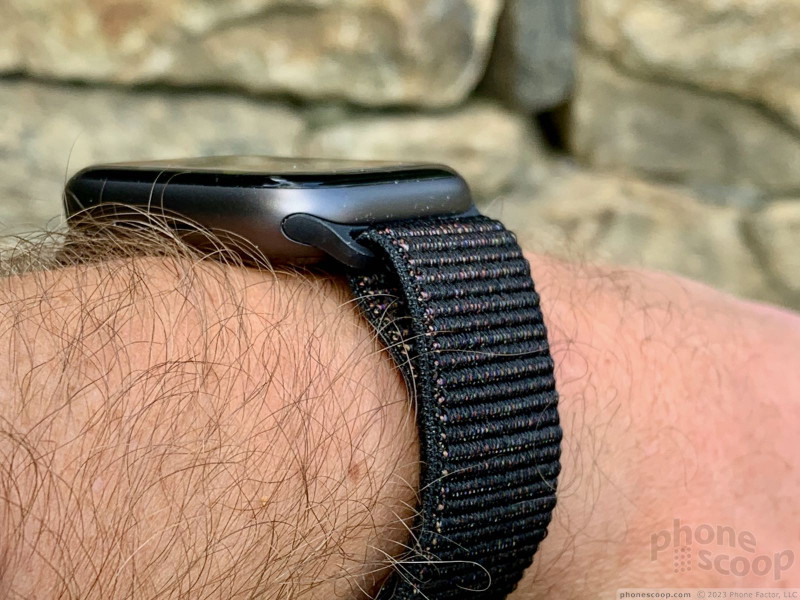
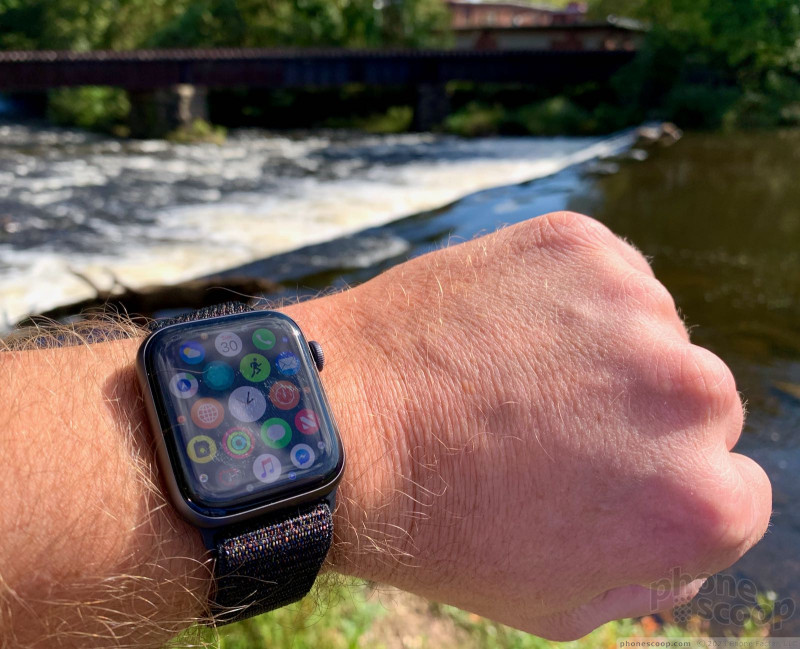
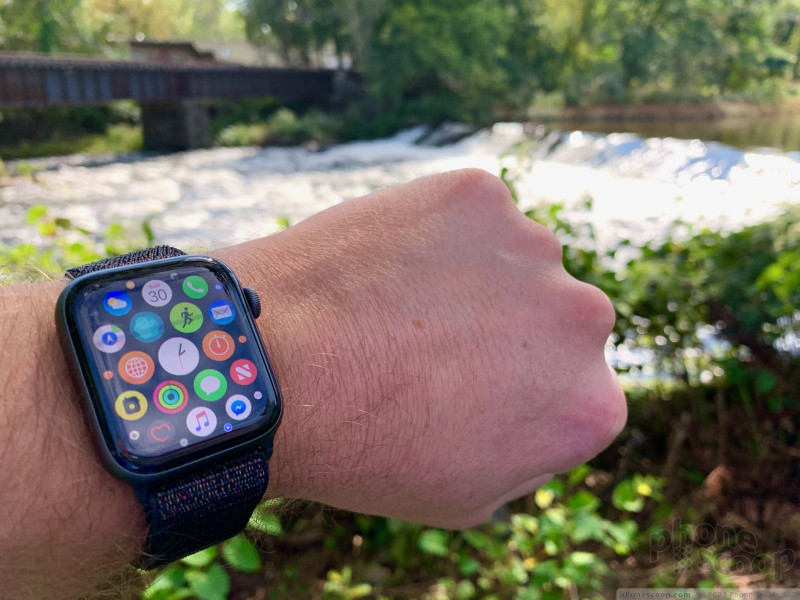
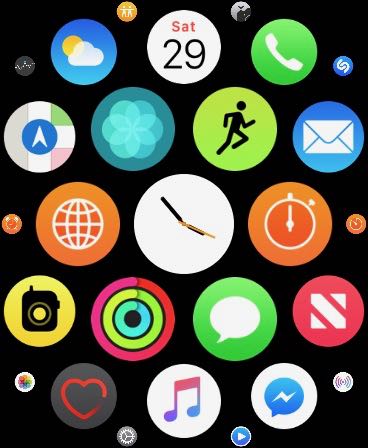
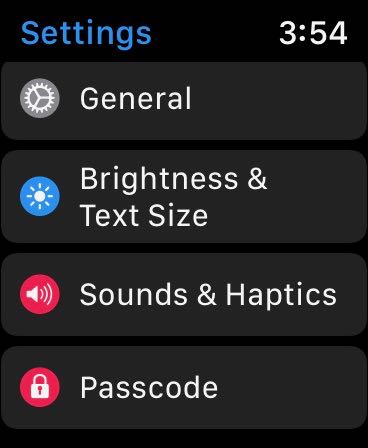
You can adjust the screen brightness on Apple Watch using two different methods. One approach to increasing or decreasing Apple Watch screen brightness uses the device settings directly, while the other approach to changing screen brightness on the Apple Watch relies on using the paired iPhone. You can use either approach, and we’ll show you how to use both methods to change the screen brightness of an Apple Watch.
How to Adjust Screen Brightness on Apple Watch
This method will adjust screen brightness directly from the Apple Watch:
Open the “Settings” app on the Apple Watch, it looks like a gear icon
Tap on “Brightness & Text”
Tap the lower or higher Brightness buttons to lower or increase Apple Watch screen brightness
Alternatively, you can also tap on the brightness slider and use the hardware Digital Crown hardware dial to adjust screen brightness up or down
While in the “Brightness & Text” settings of Apple Watch, you might also want to increase the text size on shown on the Apple Watch display, or turn on the Bold Text option for text, both of which can make screen text on the device easier to read.
How to Change Apple Watch Screen Brightness from iPhone
This approach to changing the Apple Watch display brightness relies on using the paired iPhone instead:
Open the “Apple Watch” app on iPhone
Choose “My Watch”
Choose “Brightness & Text Size”
Adjust the brightness of the Apple Watch as desired
You can use either the direct method to change screen brightness from the Apple Watch itself, or you can use the method of changing screen brightness indirectly through the paired iPhone. Both approaches will achieve the same effect of either increasing or decreasing the Apple Watch display brightness.
Increasing the brightness is often desirable if you’re using the Apple Watch in bright settings like the outdoors in direct sunlight, but some users may also just prefer the brighter setting in general. Note that using the brightest setting on Apple Watch can result in reduced battery life, just like any other device.
Setting the brightness lower can be helpful if you use Apple Watch as an alarm clock or have it placed in Nightstand mode and want it to be dimmer too. And just like how setting brightness higher can reduce battery life, setting the screen brightness lower can help to prolong battery life of Apple Watch by reducing its power consumption.
Want to use your Apple Watch as an alarm clock? Whether you wear your Apple Watch to bed, or use it in nightstand clock mode, you can set your Apple Watch to function as an alarm clock.
There are a few different ways to add alarms to Apple Watch, we’ll show you various methods to setting an alarm using Siri for both repeating alarms and one-off alarms, as well as using the Apple Watch Alarms app to set an alarm.
How to Add Alarm on Apple Watch with Siri
The easiest way to add an alarm to the Apple Watch is by using Siri. To set a one-time alarm on Apple Watch with Siri:
Summon Siri on the Apple Watch (by using Hey Siri, raise-to-Siri, or holding the rotating dial button), then say “Set an alarm for (time)”
For example, to set an alarm for 5:30 am, you’d say “set an alarm for five thirty A M”.
How to Set Repeating Alarm on Apple Watch with Siri
To set a repeating alarm that goes off every day at the same time, use the following syntax:
Summon Siri on the Apple Watch, then say “Set a repeating alarm for six thirty A M”
A repeating alarm will repeat every day at the same time, so if you want a consistent alarm this is a good way to have one.
How to Set Alarm Clock on Apple Watch with Alarms app
You can also set an alarm clock on Apple Watch by using the Alarms app, this requires multiple steps performed on the watch itself:
Open the Alarms app on Apple Watch then tap on “Add Alarm”
Choose whether you want the alarm to be AM or PM
Next tap on the hour and use the rotating dial button on the Apple Watch to select the hour you want the alarm to go off on
Then tap on the minutes and again use the rotating dial to set the minutes
Tap on the “Set” button to set the alarm
To set the alarm to repeat, tap the alarm time to edit the alarm, then tap the “Repeat” option and adjust accordingly
You can set other customizations to the alarm as well, including changing the name, changing the alarm clock time, and whether or not to allow snoozing of the alarm.
How to Snooze & Stop Alarms on Apple Watch
You can snooze the alarm clock on Apple Watch by pressing the rotating dial button.
You can stop and turn off the Apple Watch alarm by pressing the other flat button on the Apple Watch.
How to Easily Check What Alarm is Actively Set on Apple Watch
Aside from going into the Alarms app and looking at which alarms are active there, there’s another convenient way to easily see what alarms are set on Apple Watch.
When the Apple Watch is placed into Nightstand Mode (sideways on a charger), tap on the screen to see the clock and look for the “Alarm (time)” text directly under the main clock. Optionally you can use a knock on the nightstand to wake the Apple Watch screen and see the alarm that way too.
How to Delete Alarms on Apple Watch
Open the Alarms app on Apple Watch
Tap the alarm you want to delete
Scroll to the bottom of the edit alarm list and tap on “Delete” to remove the alarm
You can delete alarms that were set by Siri or alarms that were added manually, removing the alarm is the same regardless of how it was added and set in the first place.
Apple has released an update to Apple Watch that adds significant new health features to the Apple Watch Series 4, including an ECG app and irregular heart rhythm notifications.
The WatchOS 5.1.2 update arrives along with iOS 12.1.1 for iPhone and iPad and MacOS Mojave 10.14.2 for Mac.
Of course watchOS 5.1.2 also includes bug fixes, refinements, and some other capabilities for Apple Watch, but the biggest new feature is the inclusion of the health functions, including the ECG app. The release notes for watchOS 5.1.2 are further below.
Updating to WatchOS 5.1.2
Updating watchOS is done through the paired iPhone:
Open the Apple Watch app on iPhone, then go to “My Watch”
Go to “General” and then to “Software Update”
Install watchOS 5.1.2 when it shows as available
A quick side note; you can use this trick to speed up slow Apple Watch software updates.
Remember, only the Apple Watch Series 4 (or later) will support the ECG and irregular heart rhythm features, so if you have an earlier model then you will not have those features available even if you update to the latest watchOS release. Additionally, the ECG feature is currently limited to the USA, but is likely to roll out to other countries and regions as Apple gets the necessary local approvals to do so.
Setting Up & Using the Apple Watch ECG
After you have updated to watchOS 5.1.2 on an Apple Watch Series 4, then you can use the ECG:
Open the Watch app on iPhone
Go to Health Data, then to “Heart” and choose to setup the ECG app
You can learn more about the ECG and Afib detection features of new Apple Watch models in the Apple press release here.
Apple Watch “Real Stories” Videos
Along with the release of watchOS 5.1.2, Apple has released a handful of powerful and touching stories from real Apple Watch users, where the devices features proved vital to their lives:
The first video is titled “Real Stories” and is roughly four minutes long, covering several different stories where an Apple Watch impacted their lives in various ways. The text accompanying the video on YouTube describes the video as follows:
“People reach out to Apple all the time to share how Apple Watch has become an indispensable part of their lives. Here are some of their stories.”
The second video is titled “Real Stories: Michael” and tells the story of how an individual was alerted to a serious medical condition thanks to Apple Watch. The accompanying descriptive text on YouTube describes the video as so:
“Many people reach out to Apple to share how receiving heart rate notifications on Apple Watch has helped them recognize and react to serious conditions. Here is Michael’s story.”
These compelling stories, combined with the myriad of health features on Apple Watch (and to a lesser extent, iPhone), are sure to increase the popularity of these devices for the health conscious.
watchOS 5.1.2 Release Notes
Release notes for the latest Apple Watch system software as follows:
This update includes new features, improvements and bug fixes:
– New ECG app on Apple Watch Series 4 (US and US territories only)
— Allows you to take an electrocardiogram similar to a single-lead electrocardiogram.
— Can indicate whether your heart rhythm shows signs of atrial fibrillation—a serious form of irregular heart rhythm—or sinus rhythm, which means your heart is beating in a normal pattern.
— Saves ECG waveform, classification and any noted symptoms in a PDF on the Health app on iPhone to share with your doctor.
– Adds the ability to receive an alert if an irregular heart rhythm that appears to be atrial fibrillation is detected (US and US territories only).
– Enables direct access to supported movie tickets, coupons and rewards cards in Wallet when tapped to a contactless reader.
– Receive notifications and animated celebrations when you achieve daily maximum points in a day during an Activity competition.
– New Infograph complications for Mail, Maps, Messages, Find My Friends, Home, News, Phone and Remote.
– Manage your availability for Walkie-Talkie from Control Center.
Spotify has finally released an official app for the Apple Watch.
We know the importance of having music on the go, which is why we’re excited to bring a new Spotify app to our highly mobile users on Apple Watch. With this new app, users can enjoy an improved experience with better control and the ability to seamlessly connect to your speakers or devices. And while we continue to innovate, we have many exciting things coming up —including the ability to listen to your music and podcasts offline.
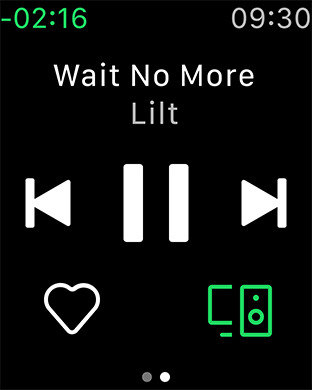
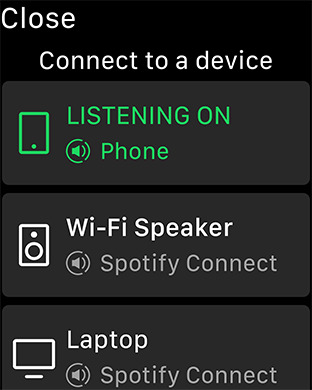
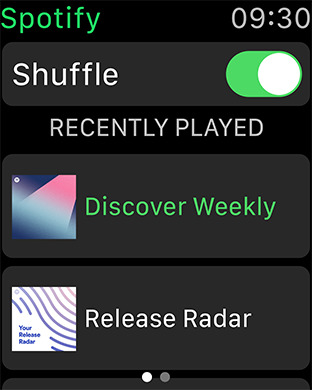
Spotify has officially announced its app for the Apple Watch. The release comes not long after it was rolled out to Spotify beta testers earlier this month, and while the initial app appears limited to providing playback controls, Spotify has acknowledged that the ability to listen to music offline is in the works for a future update. While the standard watchOS “Now Playing” app previously allowed users to pause and resume playback, the Spotify app gives users the ability to start up playback right from their wrists, mark tracks as favourites, and access recently played tracks, as well as connecting to Spotify Connect enabled speakers.
Features:
● More activities—more control
Smartwatches let us access the world with a flick of our wrists. Ready to start your run? Hit play from your Apple Watch without having to wrangle your phone out of its running case. Running into a friend as you head into the grocery store? Tap pause to grab a cart and a chat. Not feeling a slow song during your birthday party? Skipping to the track that matches your mood and activity is now as easy as checking your notifications. Or, while listening to your favorite podcast, easily rewind 15 seconds to catch that detail you missed. It’s all right there on the watch face.
Speaking of parties, easily connect your speakers or devices via Spotify Connect to effortlessly DJ from your watch.
● Easier access—easier discovery
The new integration with Apple Watch makes accessing your recently played songs simple, even with your phone in your pocket. Plus, if you find a new favorite track while on the go, just tap the ♡ icon on your watch screen to save it to your collection—and then feel free to stream it over and over again.
Spotify today updated its iOS app to version 8.4.79, and with the update came an Apple Watch app. With this app, you can play and pause music, skip back and forth between tracks, shuffle, heart songs, control volume, and see how much time is left in a track. You can also control volume with the Apple Watch‘s Digital Crown and send music to a speaker using Spotify Connect, and you can see your recently played music if you want to hear a specific playlist, artist, or album again.
Spotify says that it’s got more features coming to its Apple Watch app, too. These include offline playback, but there’s no word on when that particular feature might arrive.
The Apple Watch doesn’t get as much love from app developers as it used to, so it’s nice to see Spotify launch an app for Apple’s smartwatch. We imagine that a lot of Spotify users would love to have offline playback right out of the gate, so it’s kind of a bummer to see that right now the Spotify app is focused mostly on music controls, but at least Spotify has acknowledged that offline playback is coming.
Apple redesigned its smartwatch this year and the new hardware is a pleasing and powerful update to what was already one of the best wearables available. With its renewed focus on health and safety, is it good enough to upgrade from an older Apple Watch? We find out.
Apple continues to define the smartwatch category. It may have brought the Apple Watch to market long after fitness trackers and Android smartwatches hit store shelves, but Apple quickly surpassed them in function and performance. This year, Apple overhauled its hardware in order to make the Watch a more personal, health-conscious device. Here is Phone Scoop’s review.
Hardware
The Apple Watch comes in so many sizes, finishes, and configurations that it should be no problem for most people to find a combination that works for them. The Apple Watch Series 4 carries over the square-shaped display, rounded metal body, and core controls including the digital crown and action button.
The 38mm and 42mm screen dimensions have been replaced with 40mm and 44mm sizes. The Series 4 is slightly taller and minimally wider than the Series 3, though it is also just a bit thinner (front to back). Most people won’t be able to tell the difference, and it’s just as comfortable to wear. I appreciate the slightly reduced thickness of the Apple Watch, as it makes it less problematic when wearing jackets or long-sleeved shirts.
The Watch is available in space gray, silver, and gold colors, in either the aluminum or stainless steel chassis. If you want a little more flair, you can opt for the Nike+ or Hermes versions, which have different straps. Speaking of straps, basic options include sport plastic or woven nylon. If you want a milanese loop or leather you’ll need to fork over more cash to upgrade. If you want Hermes, you’ll need to fork over several paychecks.
Apple Watch Series 4
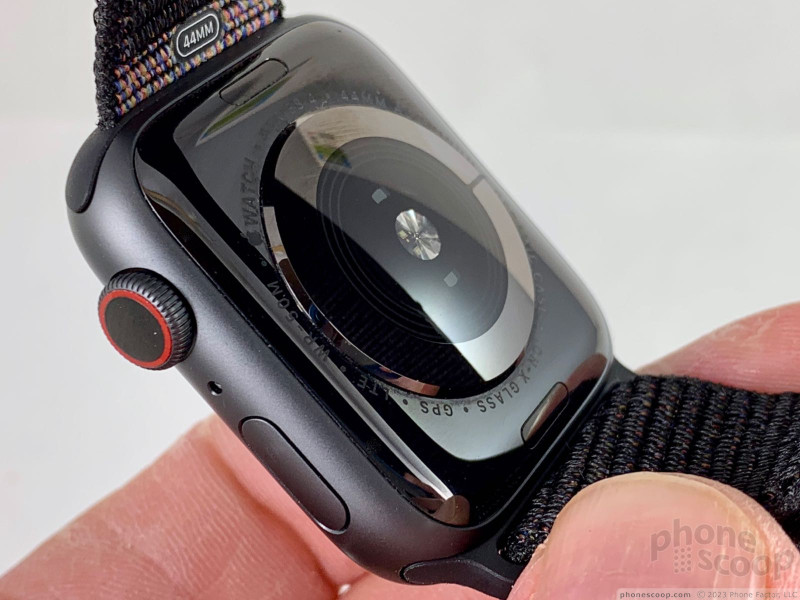
tested a large (44mm) space gray aluminum model with a nylon strap.
The materials, fit, and finish of the Watch are a step above the competition. It is by no means a traditional timepiece, but the chassis is strong, the curved glass is perfectly fitted, and the hardware controls are easy to manipulate.
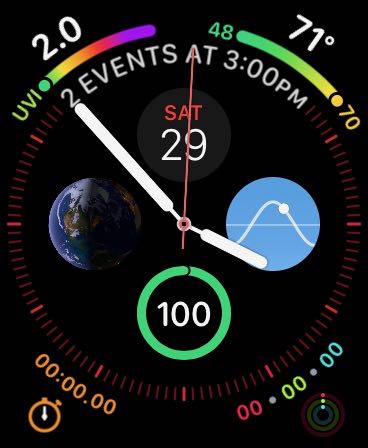
I really like the new screen, which measures 368 pixels by 448 pixels on the 44m size. The OLED display is bright, sharp, and offers plenty of real estate for information. There’s so much space, in fact, that Apple has doubled the number of complications available on some of the watch faces. The new Infograph face, for example, has eight complications. There’s a ton of info on the screen, and it wouldn’t be practical on the old, smaller screens.
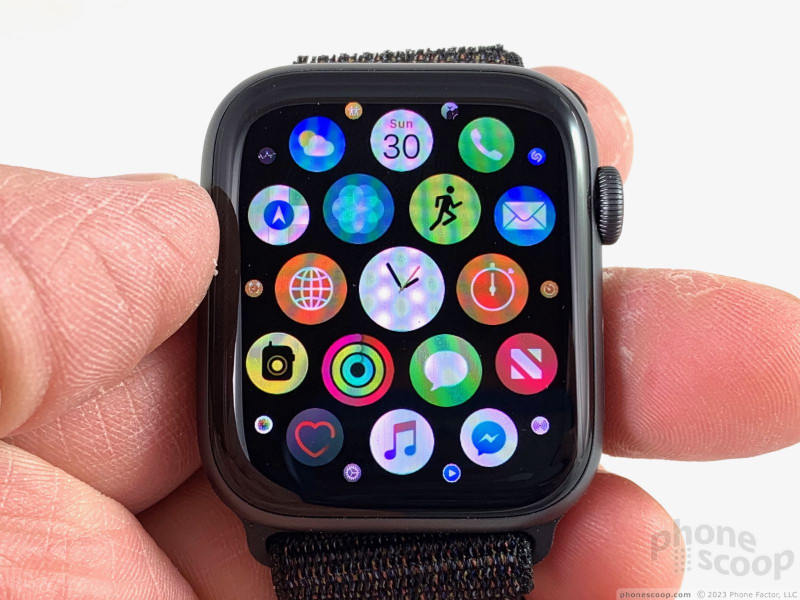
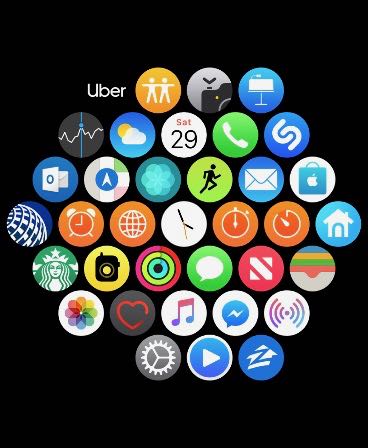
All Apps
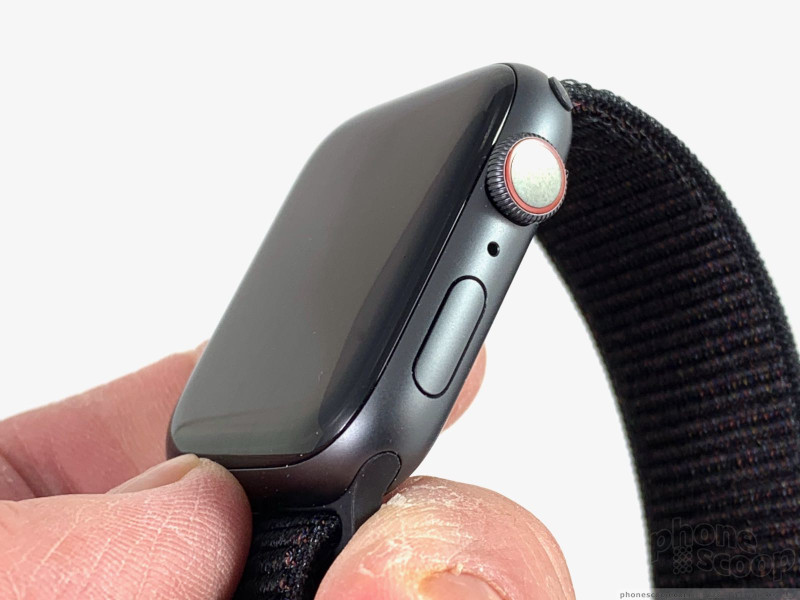
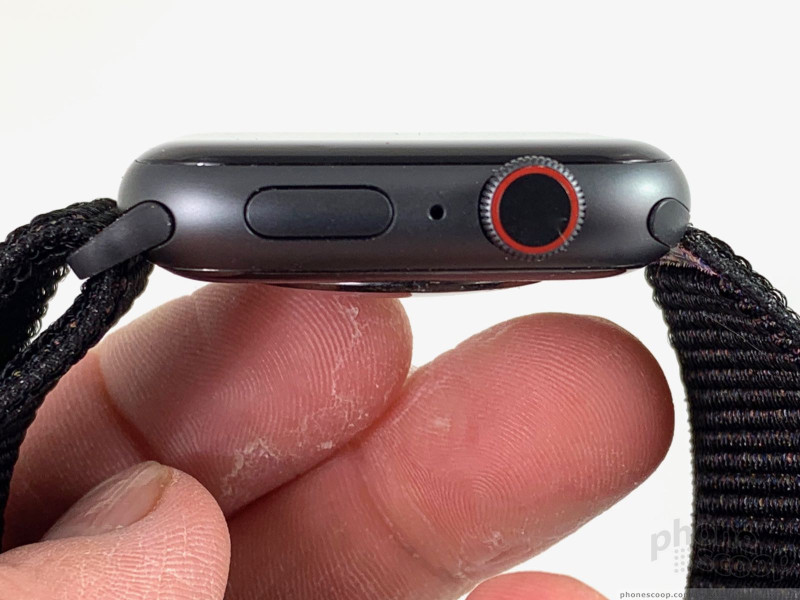
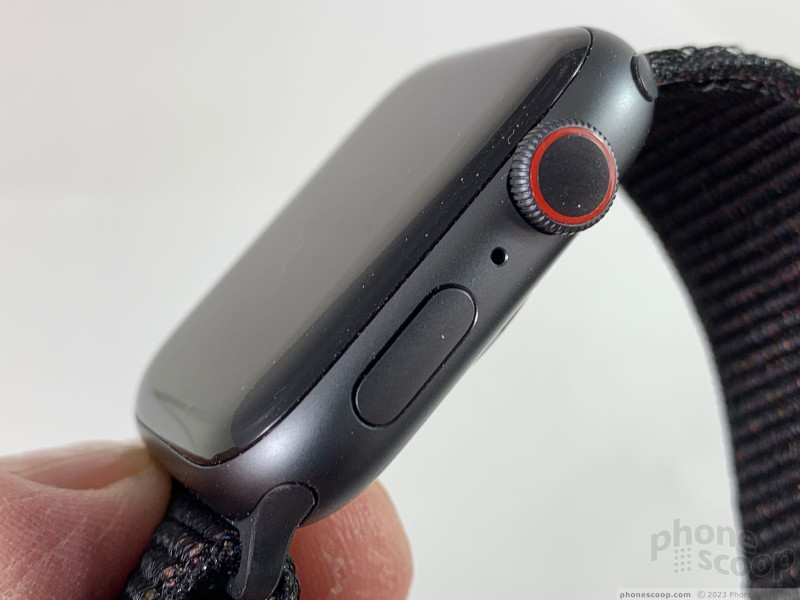
The digital crown on the right side of the watch is a marvel of engineering. You can use it to zoom quickly through on-screen items, or scroll slowly and precisely. A quick press of the crown opens the app menu and a long press opens Siri. (Later, Apple will enable the EKG capturing ability of the crown — something no other wearable offers.)
Digital Crown
The action button on the right of the chassis is flush with the surface and harder to find by feel. You just kind of know where it is. A quick press opens the app dock, a double press opens Apple Pay, and a long press calls up the SOS, medical ID, and power-down options. The button itself works well and delivers good feedback.
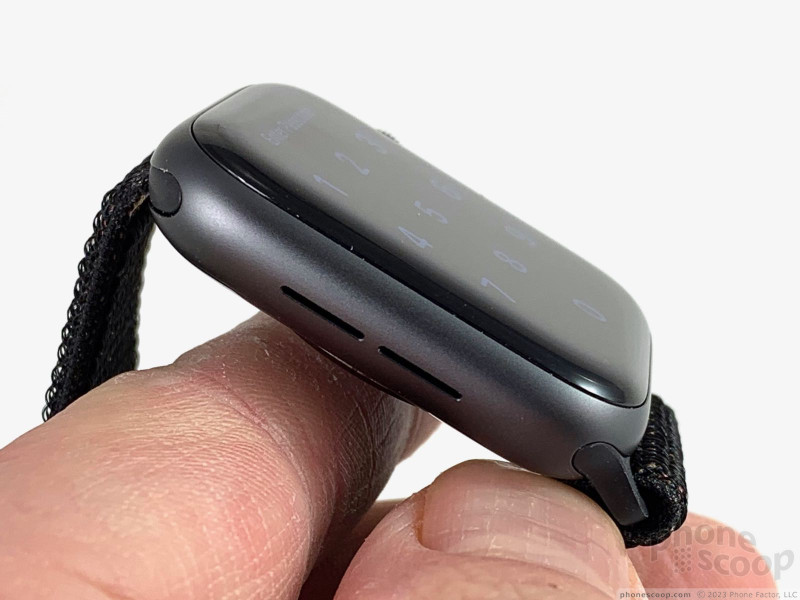
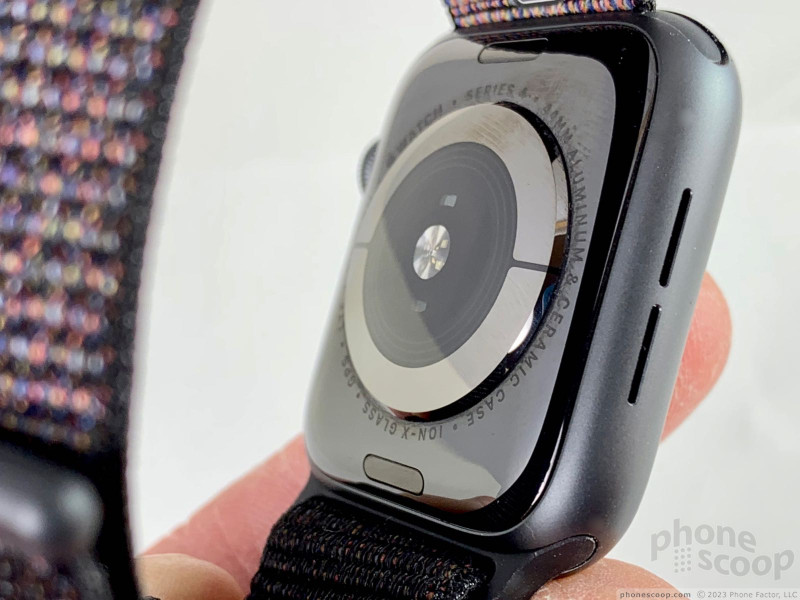
Two slits on the left side of the watch signify the speaker. Apple says it made the speaker louder for the Series 4 Watch and it wasn’t kidding. When compared to my Series 2 Apple Watch, the Series 4 is dramatically louder and clearer.
Apple’s circular cluster of sensors on the bottom of the Watch makes me think of a sci-fi drone or probe of some sort. It’s watching me! Quite literally, the heart rate sensor is beaming light into your skin and looking at the reflection.
Sensors
Apple’s strap design is second to none. Cavities on the top and bottom edges of the Watch accommodate an entire ecosystem of straps from Apple and third parties. These are far easier to deal with than the pins you might encounter with standard watch straps. Apple has ensured that the new 40mm and 44mm watches are compatible with the straps for itd old 38mm and 42mm watches.
Last, the Apple Watch is fully waterproof. It can handle depths up to 50 meters, but Apple says you shouldn’t take it scuba diving. Want to swim in the ocean or a pool? That’s no problem. I wore the watch outside in the pouring rain and it managed just fine.
Out and About
The design may be a bit generic and the Series 4 may not appeal to those who prefer classic round watches, but in the smartwatch category Apple’s hardware is hard to beat.
Software
WatchOS 5, which is what ships on the Series 4, is the best-yet version of Apple’s wearable platform. Notably, the company has honed the operating system to focus on core health-related functions.
App Screen
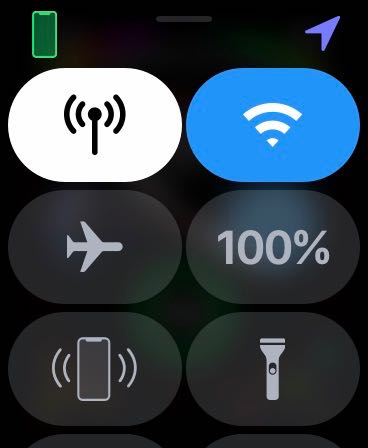
The basic home screen experience will be familiar to anyone who’s owned an older Apple Watch. The main display houses the watch face, of which there are thousands available for customization. Swipe down for notifications, swipe up for action toggles (GPS, airplane mode, etc.), press the digital crown for the full app menu, and press the action button for the dock.
Infograph
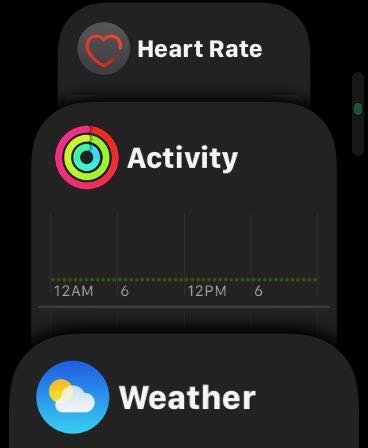
I like that the dock is now arranged in a vertical set of cards that float up and down by swiping on the screen or turning the digital crown. You can customize the order in which apps appear in the dock, or let them sort themselves by most recently used. Either way, this is a fairly quick way to jump back and forth between open apps.
Dock View
Toggles
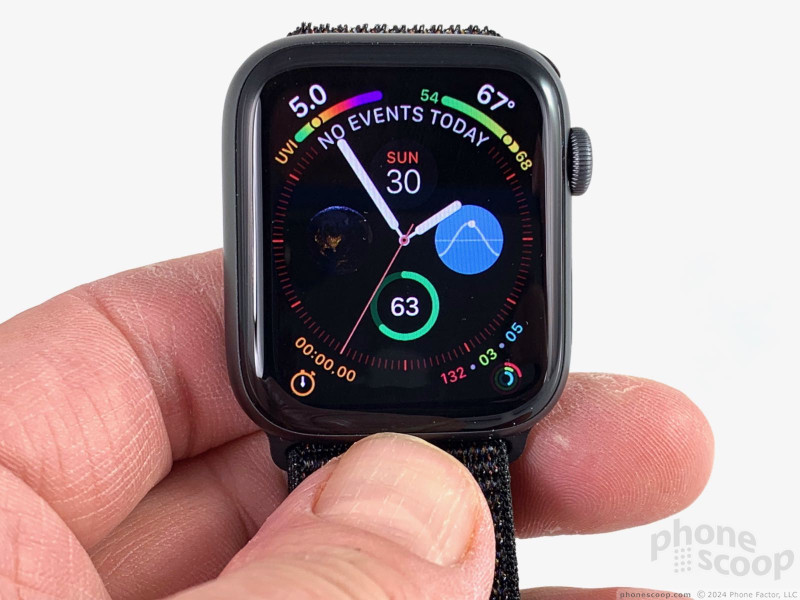
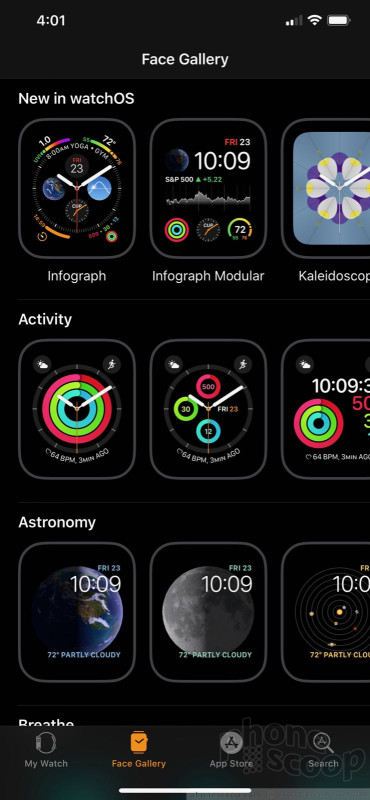
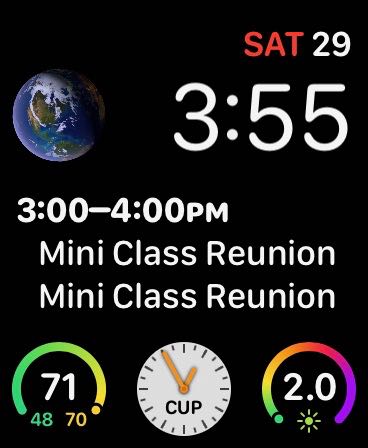
A handful of new watch faces are available that make use of the Series 4‘s larger, denser screen. As noted above, the Infograph can be fully customized with up top eight complications — or alternate info sources. For example, I have it set to include the weather, my next calendar appointment, my activity rings, the phases of the moon, sunrise/sunset, the battery, a stop watch, the UV index, and the date. This may sound like overkill, but once you get used to the layout of the face it is easier to decipher what’s going on. You can turn off the extra complications if you wish, or pick a watch face that simply tells the time.
Watch Faces
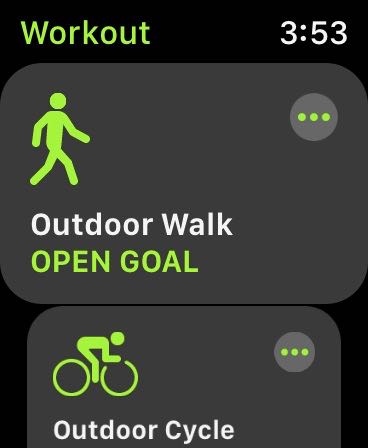
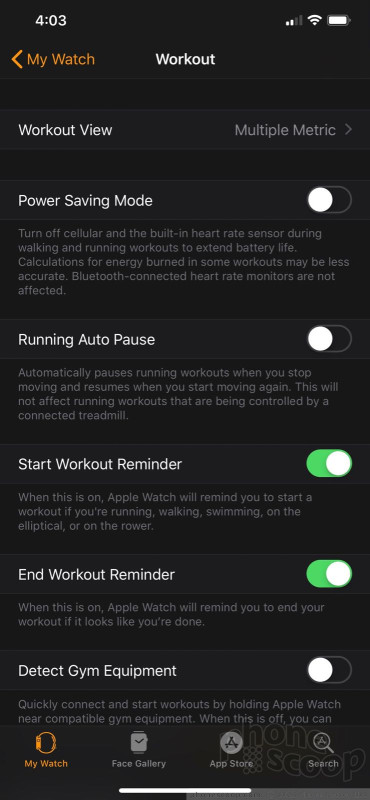
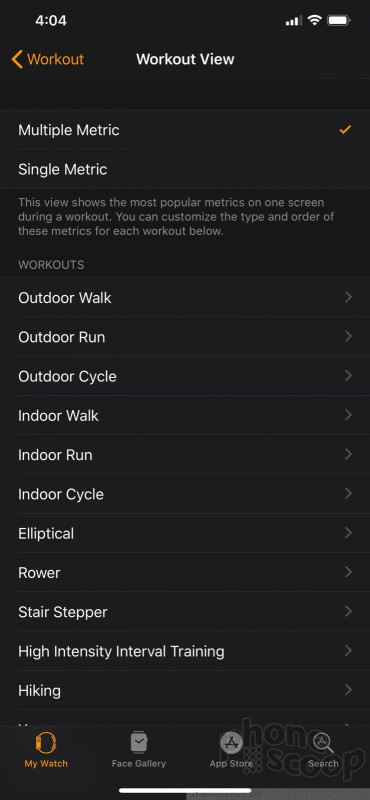
Apple has added tons of workout tools. The best is the auto workout detection. I used this several times to see how well it performed and it surpassed my expectations. For example, I left my house and began a walk. About 11 minutes into the walk, the Series 4 sent me a notification “It looks like you’re taking a walk” and offered to record the walk for me. I simply accepted the offer and it credited me for time walked back to the beginning of my sojourn. The Series 4 sent similar notifications when I went for a hike and a bike ride. This is great for those of us who are forgetful.
Tracking Workouts
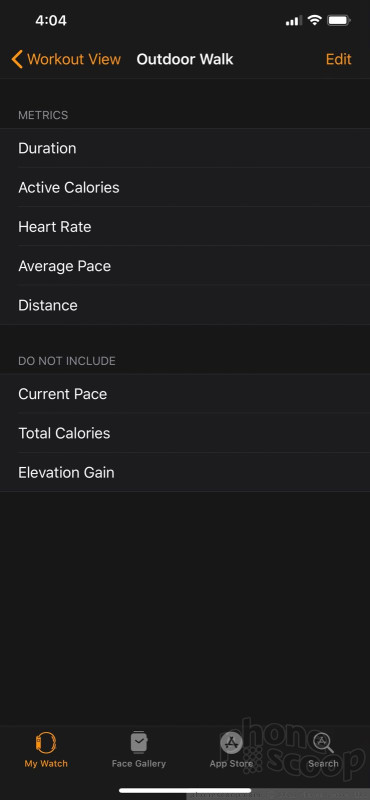
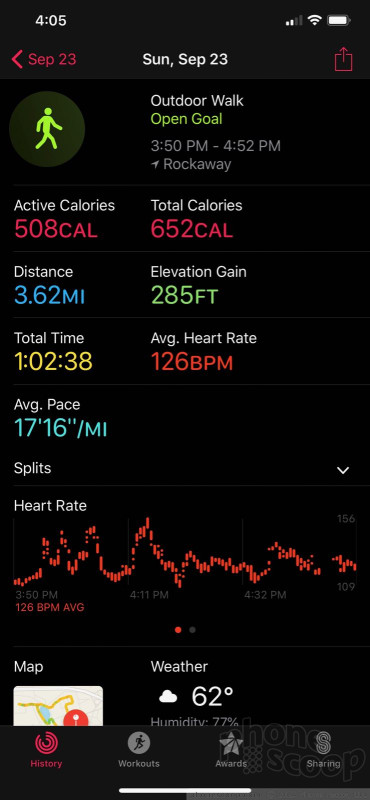
Recorded workouts are a treasure trove of information. For example, the Series 4 captures the temperature, humidity, and air conditions, your elevation changes, step counts, distances traveled (highly accurately, thanks to GPS), calories burned, active calories burned, time, splits, and so on. All of this information is synced back to your iPhone where you can add it to the Apple Health app, if you wish, for sharing with your health providers. Not everyone cares to have this much information, but for those who do, it’s invaluable.
Workouts on iPhone
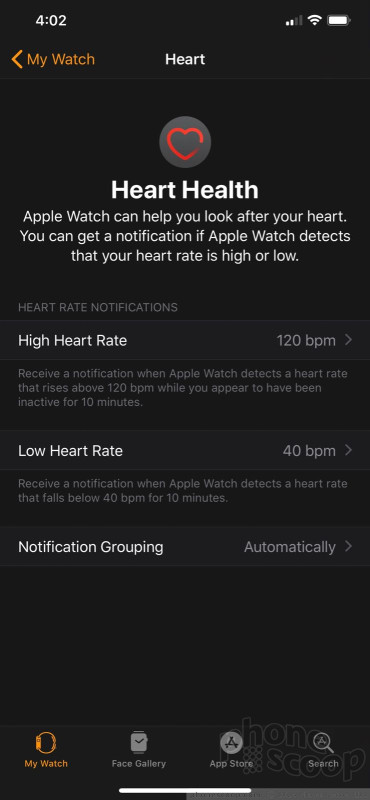
The heart rate monitor can literally be a life saver. Since the Apple Watch‘s debut, dozens of people have been alerted to potential heart issues (such as arrhythmia) and sought medical attention, thereby saving their lives. You can adjust how often the Series 4 takes your pulse and checks for other heart rhythm issues. It determines your resting heart rate, your walking heart rate, and highlights maximum rates achieved during workouts. It then stores the data so it can easily be consumed in charts and graphs.
Heart Settings
Apple stunned everyone when it announced that the Series 4 can capture an EKG, or a reading of your heart’s electrical activity. It does this when users touch the digital crown. The feature isn’t yet available and will be enabled later this fall. For people who need to monitor their heart regularly, this can prevent multiple trips to the doctor’s office for exams that cost real money.
The fall detection feature isn’t ready yet, either, but also may be a life saver. The Series 4 can, when enabled, automatically detect when the wearer has fallen. It knows to pause for a few seconds to see if the person gets up. If he or she doesn’t get up, but asks for help, the Watch will call the owner’s emergency contacts. If he or she doesn’t answer at all, the Watch will automatically dial 911. This suddenly makes the Apple Watch a very interesting option for people who want to ensure their older relatives are safe and taken care of.
WatchOS 5 brings another interesting, long-promised feature: walkie-talkie capability. The app ostensibly allows any two Apple Watches to talk to one another walkie-talkie style. You have to set it up between two watches first, and it requires your watch be connected to the internet, whether that’s via WiFi, or cellular, or your iPhone. Unfortunately, it’s cumbersome and unreliable. When it works, it’s a delight. When it doesn’t, you’ll wonder why you didn’t just pick up the phone.
Phone Calls
This new platform is the icing on the cake that is the Series 4.
With Apple’s W3 radio chip and Bluetooth 5.0 aboard, pairing with an iPhone is the easiest experience possible. It takes all of 5 seconds to get your iPhone and Apple Watch talking. Have a pair of Apple AirPods? If you’ve previously paired them with your iPhone, the AirPods automatically also pair with your Apple Watch.
The Bluetooth bond between Watch and iPhone — and AirPods — never wavered. If you leave the standard 30-foot range of Bluetooth, the Watch so easily reconnects to the iPhone you often never know it was temporarily disconnected.
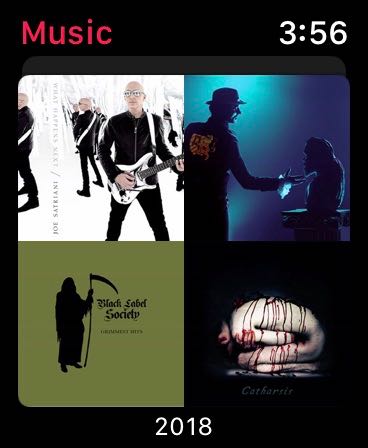
Music I streamed from the Watch to Apple’s AirPods sounded as good as it does when streamed from the iPhone. You can use the Watch and your AirPods together and leave the iPhone at home, without making any sacrifices on your music listening. (By the way, the Series 4 has 16 GB of storage, which is more than enough space for your favorite playlists.)
Music
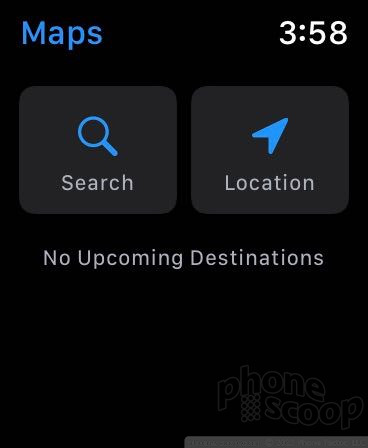
When on jogs, walks, hikes, or other outdoor adventures, the Series 4‘s GPS radio tracks you like a bloodhound. The darned thing knew which side of the street I was walking on.
Maps
The new S4 processor is a marked improvement over Apple’s previous wearable CPUs. The Series 4 performed significantly faster than older watches installing the same system updates. The UI was smooth and uniform throughout. Apps opened quickly and closed quickly. Nearly everything the watch does, it does in a blink. Apple’s revised silicon is superior.
Watch Face
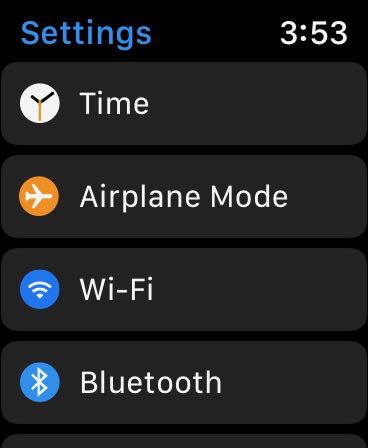
For a wearable, the Series 4‘s battery life doesn’t do too poorly. Third-party teardowns of the Series 4 suggest the battery may actually be smaller than the one found in the Series 3. Even so, the Series 4 will push through an entire day, complete with GPS-based workout tracking, without breaking a sweat. That’s about as far as it gets. I was able to use the watch through the early morning hours on day two, but had to find the charger well before lunch time. It would be really great for a smartwatch to last for at least two full days. The Series 4 does not. This is where you’ll get more mileage from lower-cost devices from companies such as FitBit, which prioritize battery life.
Settings
The haptic engine is perhaps one of Apple’s finest engineering feats. The tiny motor in the watch is able to deliver delicate and precise taps to your wrist that are subtle, yet unmistakable. You can turn the haptic engine off, but I can’t imagine why you’d want to. It’s by far the best way to receive any notification on the Apple Watch.
More Settings
Discussion
iPhone owners do have a selection when it comes to smartwatches and other wearables. None, however, is as complete or as compelling as the Apple Watch Series 4.
The new device from Apple has a great screen, a comfortable form factor, and high-quality materials. The simple hardware controls function as intended and ensure the wearable is easy to operate. I appreciate that Apple kept the new device compatible with its existing range of straps. Toss in the louder speaker, the improved heart rate monitor, fall detection, and the EKG, and you have something no other watch offers.
WatchOS 5 ensures that the Series 4 puts its features to good and effective use. Adjusting watch faces, tracking workouts, triaging notifications, and more is a breeze. I appreciate the new functions, such as the walkie talkie, even if the execution isn’t perfect.
If you have a Series 1 or Series 2 Apple Watch, do not hesitate to upgrade to the Series 4 The huge jump in performance is worth it. If you have a Series 3, the only reason to upgrade to the Series 4 is if you specifically want the larger screen, EKG, and fall detection.
If you own an Apple Watch you’re probably already familiar with the relatively slow process of updating watchOS on an Apple Watch. Some simple updates may install in a reasonable amount of time, but some of the larger watchOS updates can take an hour or much more. As a result, many Apple Watch owners will either postpone software updates indefinitely or install software updates to watchOS overnight, or when they know they won’t need their watch anytime soon.
But there’s another option, and you can actually speed up the watchOS software update process quite a bit by using a little trick.
This is a fairly simple trick, and it involves simply turning off Bluetooth on your iPhone, which in turn forces your Apple Watch to download the watchOS software update over wi-fi (remember, your iPhone is paired via Bluetooth with the Apple Watch). Here’s how it works:
How to Speed Up WatchOS Updates on Apple Watch
Before beginning, make sure the iPhone and Apple Watch are joined on a wi-fi connection, and that the Apple Watch is on the charger, and with at least 50% battery. Then you’re ready to try this out:
Start updating watchOS as usual by going to the Apple “Watch” app on the iPhone, then to “My Watch” > Settings > General > Software Update
Tap on “Download & Install” when a watchOS software update appears
When you see the “time remaining…” estimate appear, return to the Home Screen of the iPhone and then open the normal “Settings” app
Tap on “Bluetooth” and toggle the Bluetooth setting to OFF to completely disable Bluetooth on the iPhone
Return again to the “Watch” app and a message will appear about reconnecting to the Apple Watch, tap on the “Cancel” button at that popup
When the watchOS download finishes, tap on on “Install” in the Watch app to start the installation process over wi-fi
Essentially you’re forcing the iPhone and Apple Watch to use the speedier wi-fi connection to transfer the watchOS package between devices, rather than the much slower Bluetooth.
Note you can’t just toggle Bluetooth in the Control Center because of how the Bluetooth and Wi-Fi Control Center buttons function in modern iOS releases, which just disconnect devices rather than turning off the service – that’s why you have to go to the Settings app to turn off Bluetooth on the iPhone.
This nifty trick comes our way from iDownloadblog, so cheers to them for the helpful tip.
Let’s hope a future version of watchOS or the Apple Watch iPhone app allows users to install updates through wi-fi directly without this workaround, but until (or if ever) that happens, you can simply toggle Bluetooth off on the iPhone and you’ll find the updating process is much quicker.
The Spring collection includes Apple Watch bands for every occasion.
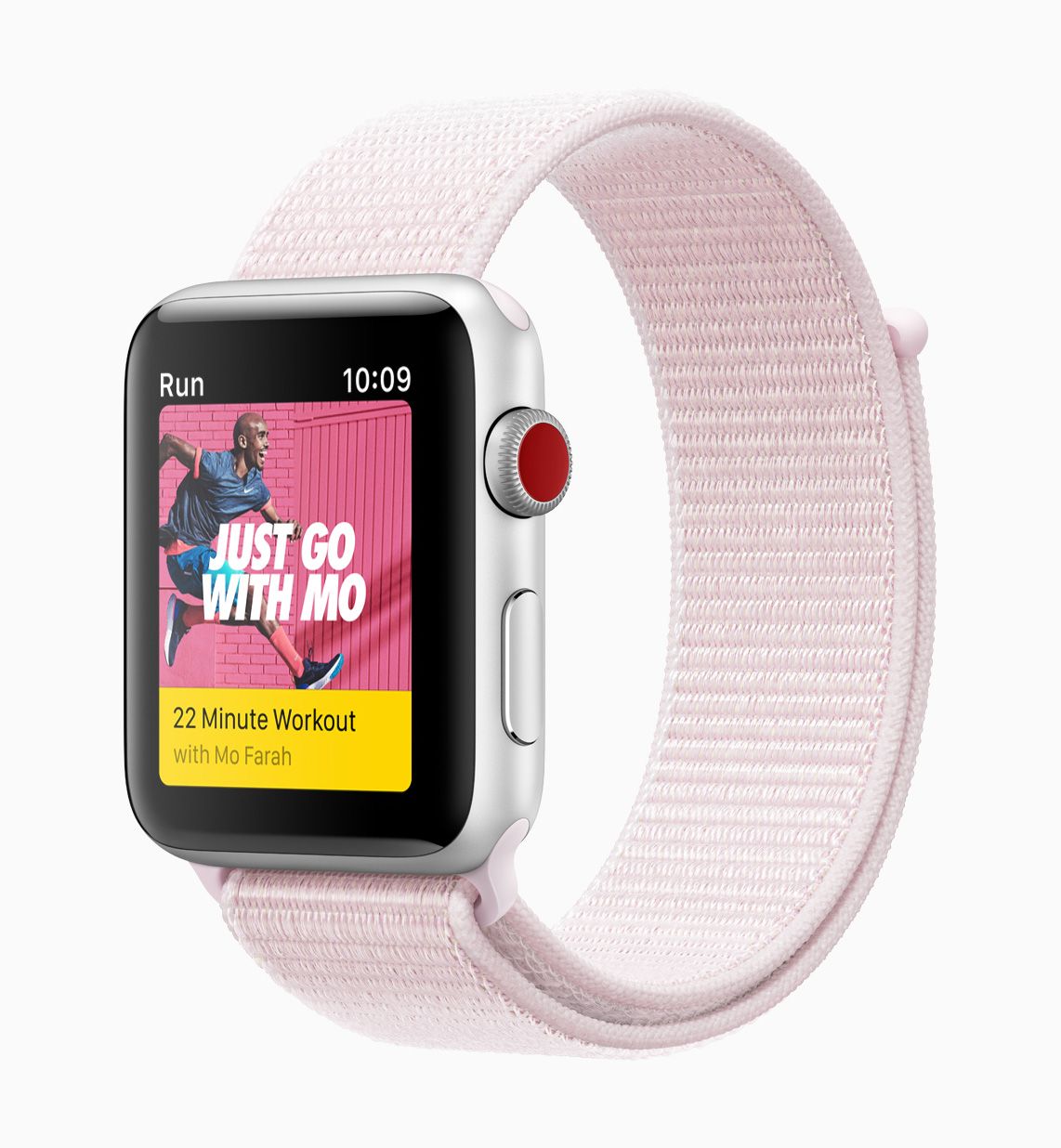
Apple debuts a Spring collection of bands with vibrant colors and unique designs. This season’s updates include Woven Nylon bands with a fresh stripe that alternates white with color for a crisp, clean look, exclusive Nike bands that color-match with the latest Nike running shoes and a striking new edge paint color for Apple Watch Hermès bands. Later this month, all new bands will be available to order from apple.com and for purchase at select Apple Stores, Apple Authorized Resellers and carriers.
Apple Watch
The Woven Nylon bands now include an updated stripe pattern.
Sport Band in Denim Blue, Lemonade and Red Raspberry
Woven Nylon in Black Stripe, Blue Stripe, Gray Stripe and Pink Stripe
Sport Loop in Flash Light, Hot Pink, Marine Green and Tahoe Blue
Classic Buckle in Spring Yellow, Electric Blue and Soft Pink
Apple Watch Series 3 (GPS + Cellular) will include new 38mm and 42mm Space Gray Aluminum Case with Black Sport Loop models.
Apple Watch Nike+
The Nike Sport Loop can be easily adjusted for the perfect fit.
The Nike Sport Loop will now be sold separately, joining new Nike Sport Band colors:
Nike Sport in Barely Rose/Pearl Pink, Black/White and Cargo Khaki/Black
Nike Sport Loop in Black/Pure Platinum, Bright Crimson/Black, Cargo Khaki, Midnight Fog and Pearl Pink
Apple Watch Nike+ (GPS + Cellular) will include new 38mm and 42mm Space Gray Aluminum Case with Midnight Fog Nike Sport Loop models.
Apple Watch Hermès
This season’s Apple Watch Hermès bands feature an accent color.
The Single Tour Rallye and Double Tour bands now display contrasting paint details:
38mm Double Tour in Indigo with rouge H polished edge and rouge H contrasted loop
38mm Double Tour in Blanc with rouge H polished edge and rouge H contrasted loop
42mm Single Tour Rallye in Indigo with rouge H polished edge and rouge H contrasted loop
42mm Single Tour Rallye in Blanc with rouge H polished edge and rouge H contrasted loop
Pricing and Availability
Apple Watch is available in two different case sizes, 38mm and 42mm. Apple Watch Series 1 will be available in silver or space gray aluminum cases paired with a Sport Band and starts at just $249 (US). Apple Watch Series 3 (GPS) will be available in gold, silver or space gray aluminum cases with a Sport Band starting at $329 (US). Apple Watch Series 3 (GPS + Cellular) will be available in gold, silver or space gray aluminum, or silver or space black stainless steel paired with a variety of bands starting at $399 (US); and Apple Watch Edition in gray or white ceramic starts at $1299 (US) from apple.com, Apple Stores and select Apple Authorized Resellers and carriers. For local availability, visit locate.apple.com. Apple Watch Nike+ starts at $329 (US) and Apple Watch Hermès starts at $1149 (US).
New Apple Watch models will be available to order on apple.com later this month in Australia, Canada, China, France, Germany, Hong Kong, Japan, Singapore, Switzerland, the UK and the US.
Apple Watch bands will be available to order on apple.com later this month in Australia, Austria, Belgium, Brazil, Canada, Czech Republic, China, Denmark, Finland, France, Germany, Hong Kong, Hungary, Ireland, Italy, Japan, Luxembourg, Malaysia, Mexico, Netherlands, New Zealand, Norway, Philippines, Poland, Portugal, Puerto Rico, Russia, Singapore, South Korea, Spain, Sweden, Switzerland, Taiwan, Thailand, Turkey, UAE, the UK and the US. The Sport, Sport Loop and Woven Nylon bands are $49 (US) and the Classic Buckle is $149 (US).
New Apple Watch Nike+ models will be available to order on apple.com and nike.comlater this month in Australia, Canada, China, France, Germany, Hong Kong, Japan, Singapore, Switzerland, the UK and the US.
New Nike Sport Bands and Sport Loops will be available to order on apple.com and nike.com later this month in Australia, Austria, Belgium, Brazil, Canada, Czech Republic, China, Denmark, Finland, France, Germany, Hong Kong, Hungary, Ireland, Italy, Japan, Luxembourg, Malaysia, Mexico, Netherlands, New Zealand, Norway, Philippines, Poland, Portugal, Puerto Rico, Russia, Singapore, South Korea, Spain, Sweden, Switzerland, Taiwan, Thailand, Turkey, UAE, the UK and the US. The Nike Sport Band and the Sport Loop are $49 (US).
New Apple Watch Hermès bands will be available to order on apple.com and Hermes.com later this month in Australia, Belgium, Canada, China, France, Germany, Hong Kong, Italy, Japan, Mexico, Russia, Singapore, South Korea, Spain, Switzerland, Taiwan, Turkey, UAE, the UK and the US. The Single Tour Rallye is $439 (US) and the Double Tour is $489 (US).
New Apple Watch, Apple Watch Nike+ and Apple Watch Hermès bands will be available at Apple Galaxy Macau later this month.
Apple Watch Series 3 (GPS + Cellular) requires an iPhone 6 or later with iOS 11 or later. Apple Watch Series 3 (GPS) requires an iPhone 5s or later with iOS 11 or later. Apple Watch Series 1 requires an iPhone 5s or later with iOS 11 or later. Some features are not available in all regions or all languages.
Customers who buy Apple Watch from Apple will be offered free Personal Setup, in-store or online,1 to help set up and personalize their new Apple Watch with calendars, notifications, apps and more.
Anyone who wants to learn the basics or go further with their new Apple Watch can sign up for free sessions at apple.com/today.
Even if the weather isn’t cooperating, Apple is ready for spring with a new slate of Watch bands in bright new colors and designs to chase away the winter blues. Some two dozen new bands will be available later this month either as part of a new Apple Watch purchase or as an add-on accessory.
Apple hasn’t said whether any colors will be retired as a result of the new models, but several of the new colors seem to be variations on ones that are already available. For example, there’s a new Lemonade Sport Band, which looks very much like the current Flash model. All said, there will be 22 new sport, woven nylon, classic buckle, and loop bands that will join the hundreds of band-case combinations that are already available, as well as standalone availability of the Nike Sport Loop and four new Hermes models that now display contrasting accent details.
The entire lineup of new accessories will be:
Sport Band ($49)
Denim Blue
Lemonade
Red Raspberry
Woven Nylon ($49)
Black Stripe
Blue Stripe
Gray Stripe
Pink Stripe
Sport Loop ($49)
Flash Light
Hot Pink
Marine Green
Tahoe Blue
Classic Buckle ($149)
Spring Yellow
Electric Blue
Soft Pink
Nike Sport ($49)
Barely Rose/Pearl Pink
Black/White
Cargo Khaki/Black
Nike Sport Loop ($49)
Black/Pure Platinum
Bright Crimson/Black
Cargo Khaki
Midnight Fog
Pearl Pink
Apple Watch Hermes ($1,299)
38mm Double Tour in Indigo with rouge H polished edge and rouge H contrasted loop
38mm Double Tour in Blanc with rouge H polished edge and rouge H contrasted loop
42mm Single Tour Rallye in Indigo with rouge H polished edge and rouge H contrasted loop
42mm Single Tour Rallye in Blanc with rouge H polished edge and rouge H contrasted loop
Customize your OleksyPrannyk Apple Watch Band with over 10 colors of thread for a one-of-a-kind look.
A wristwatch is so much more than a means to tell time these days. It’s also the opportunity to accessorize and bump up one’s style with a unique, wonderfully constructed strap.
Heeding the call to individual style is OleksynPrannyk’s made-to-order and ultra-sharp Double Tour Apple Watch Band — the reasonably priced alternative to the ridiculously priced Hermès band. The Double Tour and all of OleksynPrannyk’s bands are completely customizable with more than five adapter colors and 14 thread colors from which to choose.
Best yet, the entire collection is available now in Cult of Mac’s Watch Store. Trust me, you will love this band.
The Double Tour in Chestnut with turquoise stitching.
The Double Tour wraps twice around the wrist, offering a totally unique take on the average Apple Watch strap. The band is handcrafted from fine, vegetable-tanned Dublin leather sourced from the Horween Leather Company in Chicago, which has been tanning leathers by hand for more than 100 years. Marked by a high oil content, Dublin leather ages beautifully over time and has a beautiful sheen. Two pieces of this premium leather are held together with meticulous stitching, which makes the strap pop.
OleksynPrannyk is the combined endeavor of Viktor Oleksyn and Pavlo Prannyk, originally from Ukraine. Viktor is the master tailer and has a penchant for creating the perfect, straight seem. He began by crafting a simple pocket wallet — with a straight seam — and sold it the very next day. Selling out at crafts fairs and the like, Viktor found his calling: creating high-quality, handmade leather goods.
Every band is carefully designed and handmade for strength and comfort.
The demand for OleksynPrannyk products was so high, Viktor and his small, close-knit group moved to the U.S., setting up shop in the historic Mooresville Cotton Mills in South Carolina. The team of artisans take pride in creating beautiful leather straps for Apple Watch that are completely made to order and customizable for each wearer.
Choose from 14 different thread colors: black, navy, light brown, gray, light gray, blue, green, lime green, orange, pink, red, sky blue, turquoise and white smoky to complement your strap choice. Then pick your adapter in aluminum, black, stainless steel, gold or rose gold to best match the fittings of your Apple Watch.
The Double Tour Band by OleksynPrannyk also comes in Black, Cream, Brown Nut and Natural, as do its single-tour counterparts.
The made-to-order Double Tour in Black.
Available in short, regular and long wrist sizes for either the 38 mm or 42 mm Apple Watch.
The Double Tour is a gorgeous, modern, fine-leather strap we love and recommend. You won’t be disappointed!
Okay, since you have paired and set up your Apple Watch to a single iPhone, how do you unpair it? Here’s how.
Unpair your Apple Watch and iPhone
In some cases, you might need to unpair your devices. Unpairing also erases your Apple Watch and restores it to the factory settings.
If you’re using your Apple Watch in Japan and have a Suica card in Wallet, before you unpair, make sure that you remove your Suica card.
Disconnect your devices
Keep your Apple Watch and iPhone close together as you unpair them.
Open the Apple Watch app on your iPhone.
Go to the My Watch tab and tap your watch at the top of the screen.
Tap info icon next to the watch that you want to unpair.
Tap Unpair Apple Watch.
For Apple Watch Series 3 (GPS + Cellular), choose to keep or remove your cellular plan.
If you want to pair your Apple Watch and iPhone again, keep your plan.
If you don’t want to pair your Apple Watch and iPhone again, remove your plan. If you aren’t going to pair with a different watch or iPhone, you might need to contact your carrier to cancel your cellular subscription.
Tap again to confirm. You might need to enter your Apple ID password to disable Activation Lock. Before erasing all content and settings on your Apple Watch, your iPhone creates a new backup of your Apple Watch. You can use the backup to restore a new Apple Watch. After your Apple Watch unpairs, you’ll see the Start Pairing message.
Use these steps to set up your Apple Watch again.
Erase your Apple Watch
If you don’t have your iPhone and can’t unpair, you can still erase all content and settings on your Apple Watch:
On your Apple Watch, tap Settings > General > Reset > Erase All Content and Settings.
For Apple Watch Series 3 (GPS + Cellular), choose to keep or remove your cellular plan.
If you want to pair your Apple Watch and iPhone again, keep your plan.
If you don’t want to pair your Apple Watch and iPhone again, remove your plan. If you aren’t going to pair with a different watch or iPhone, you might need to contact your carrier to cancel your cellular subscription.
Tap Erase All to confirm. This resets your Apple Watch to the factory settings.
Apple Watch: How to troubleshoot setup problems with iPhone
You got an iPhone and an Apple Watch but they won’t play nice with one another. They can’t set up and won’t still. Here’s some troubleshooting techniques you can try.
What if my iPhone doesn’t ask if I want to use my Apple Watch during setup
Unpair your Apple Watch from your old iPhone, then pair it with your new iPhone. When asked, restore your Apple Watch from a backup.
What if I transferred my content to my new iPhone using iTunes, but my Health and Activity content is missing?
To back up and restore your Health and Activity content, you need to restore your new iPhone from your previous iPhone’s backup. If you use iTunes, make sure that you encrypt your backup.
If you want to restore your missing Health and Activity content:
If you have your old iPhone and didn’t erase it, make a new iCloud backup or encrypted iTunes backup. Then erase your new iPhone and restore it from the new backup. Remember to pair your Apple Watch and iPhone again.
If you don’t have your old iPhone or you can’t back it up, you can’t recover your Health and Activity content.
What if I didn’t unpair my Apple Watch before setting up my new iPhone?
Your Apple Watch might still be paired with your old iPhone. Use the steps below to pair your devices.
If you have your old iPhone, and you didn’t erase it
Unpair your Apple Watch from your old iPhone. Then choose one of these options depending on when you set up your new iPhone:
If you just restored your new iPhone from a recent backup, pair your devices. When you’re asked, restore from a watch backup. Your recent Activity, Workouts, or settings content might be lost depending on how old the backup is.
If your iPhone backup is several days or weeks old and you want to preserve as much content as possible, erase your new iPhone. Then transfer the content from your old iPhone to your new iPhone. You might lose some of the content on your new iPhone. Remember to pair your Apple Watch and iPhone again.
If you have your old iPhone, but you erased it
You should erase your Apple Watch, then pair it with your new iPhone. If you restored your new iPhone from a backup, you can restore your watch from a backup when you pair. You might lose Activity, Workouts, or settings on your watch that changed between the last backup and now.
If you don’t have your old iPhone or a backup
You should erase your Apple Watch, then pair it with your new iPhone. If you’re asked to restore from a watch backup, select the most recent backup. You will lose Activity, Workouts, or settings on your watch that changed between the last backup and now.
Without an iPhone backup, you’ll need to set up your Apple Watch as new. You will lose any previous Activity, Workouts, or settings, but your other content will sync from the new iPhone to your Apple Watch.