For years, people have been able to run macOS on non-Apple computers thanks to Hackintosh tools. But when it comes to iOS, pretty much no one has been able to run it on other platforms – at least until now. One developer has successfully emulated the first version of the iPhone OS (remember that name?) on a computer using QEMU.
iPhone OS 1.0 emulated without iPhone hardware
Martijn de Vos, also known as devos50, has used a lot of reverse engineering to emulate the very first version of the iPhone OS released for the first-generation iPod touch in 2007, after the iPhone was launched.The project took more than a year to work as the developer had to figure out how to simulate things like multitouch support and other hardware components.
In a blog post, de Vos explains that the tricky part was emulating the hardware components of the iPod touch. This is why the developer chose to emulate the first build of the iPhone OS made for the iPod instead of the iPhone, since making the iPhone version work would require emulating even more components.
At the same time, de Vos also chose iPhone OS 1.0 due to the fact that this version has much fewer security mechanisms than more recent versions of the operating system. “Contemporary Apple devices contain many additional hardware components, such as neural engines, secure enclaves, and a variety of sensors that will make the emulation of such devices much more difficult and time consuming,” the developer explained.
Interestingly, the project only became a reality thanks to OpeniBoot – an open source implementation of Apple’s bootloader. The project was discontinued long ago, but it allowed users to do things like install Android on the first generations of the iPhone and iPod touch.
But is it functional?
Despite a few bugs, the final project seems quite functional, and iPhone OS 1.0 has been successfully emulated with QEMU – an open source virtualization platform.
The system is completely navigable using a mouse and keyboard, and most pre-installed apps work just fine. There are some situations that cause the system to crash, but it’s still impressive to see a version of iOS being emulated on another platform.
The developer notes that this is probably the first time someone has emulated the iPhone operating system using open source tools. Corellium, for example, sells virtual iOS devices, but all tools and code are private. Creating your own virtual machine is not exactly easy, but de Vos has shared all the details in a blog post for those interested in doing so.
For his next project, de Vos wants to emulate a second-generation iPod touch, which was released with iPhone OS 2.1.
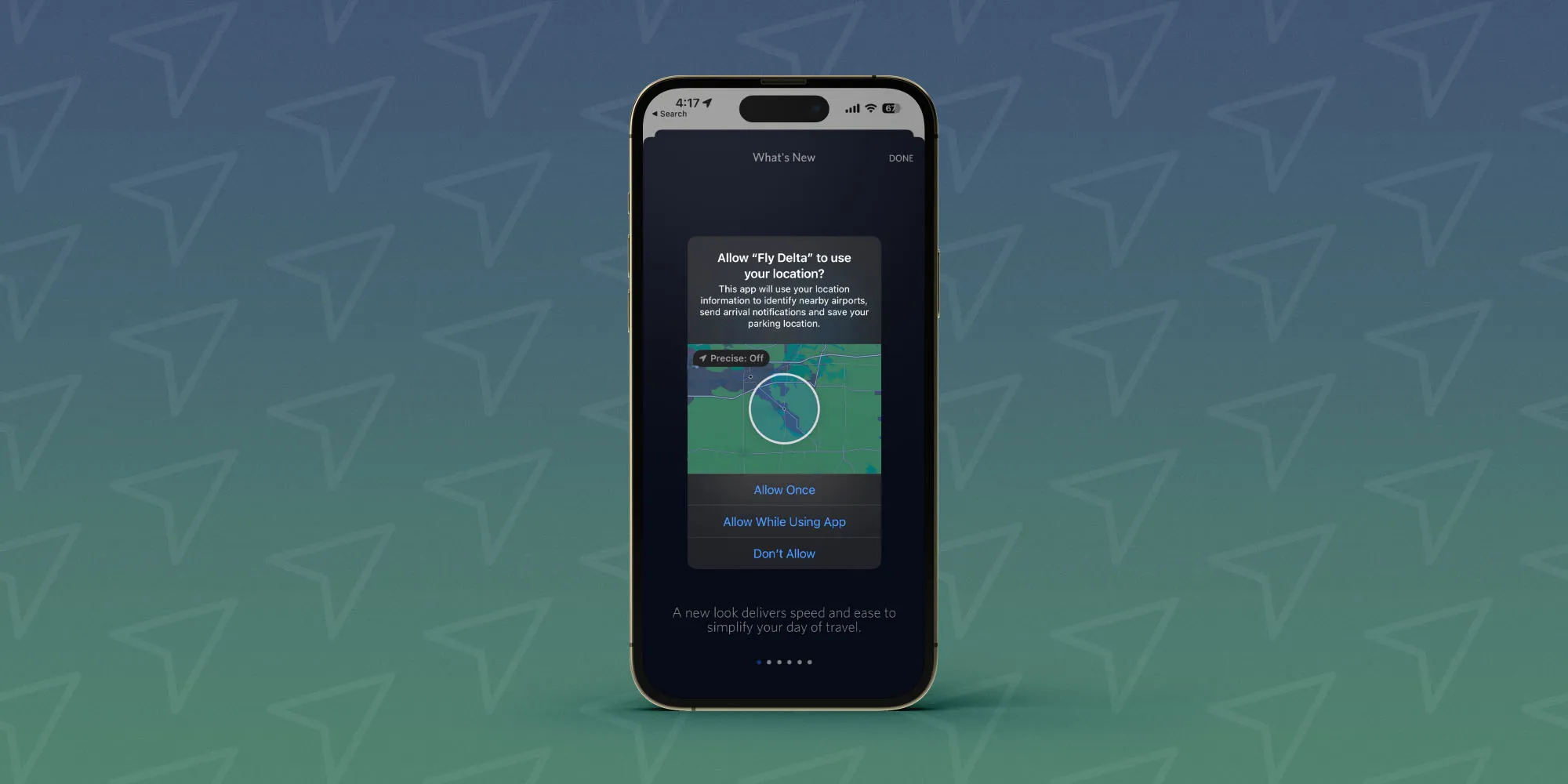
Many iOS apps ask for precise location tracking permission by default the first time you open them. And it can be easy to forget how many or which apps you’ve given permission to. Here’s how to turn off precise iPhone location tracking.
The main choices when the location tracking dialog appears after opening an app for the first time are “Allow Once, “Allow While Using App,” and “Don’t Allow.”
It’s easy to miss that in the top left corner is a “Precise: On.” It’s actually a button that lets you make the choice to keep the precise tracking default enabled or change it to use your approximate location.
The difference is precise can be as accurate as a specific house or building you’re in (within feet) and the approximate iPhone location shows generally what city you’re in (within miles).
Here’s how Apple describes it, “Allows apps to use your specific location. With this setting off, apps can only determine your approximate location.”
How to turn off precise iPhone location tracking for apps
Note: Some apps may not work as intended without precise location tracking enabled
Open the Settings app on your iPhone
Swipe down and choose Privacy & Security
At the top, tap Location Services
Choose an app from the list to see if it’s using your precise location
Look for the toggle next to Precise Location at the bottom, tap to turn it off
Here’s how the process looks to turn off precise iPhone location tracking:
Remember, when you turn off precise tracking, apps can still track your location it’s just not exact. If you want to turn off tracking fully for an app, choose “Never” at the top.
And if you want to turn off all tracking across the board, you’ll need to toggle off the main Location Services switch.
How to check who can see your iPhone location
Apple holds privacy and security as two of its core values and it has detailed resources on how to protect your devices, accounts, and personal safety. Follow along for a look at the recommended steps to check who can see your iPhone location including how to make sure no one can track you.
Apple has a 20-page support guide called “Device and Data Access When Personal Safety is at Risk.” Whether you’ve got personal safety concerns or it’s just time for a privacy and security checkup, the steps below are useful.
Safety Check for iPhone: How to immediately stop sharing location and more in iOS 16
One of the important new features in iOS 16 is Safety Check. Designed as a tool for those at risk for domestic abuse or similar situations, Safety Check for iPhone lets users immediately revoke location access others have – including apps – and also walks through a security review.
Apple is known for its focus on security and privacy, and Safety Check in iOS 16 follows a Personal Safety User Guide that was first published in late 2020 and updated in 2022. It features a number of steps to take to limit iPhone access, limit sharing, and stop iPhone from sharing location data.
Now with iOS 16, instead of needing to go through various sections in the Settings app with multiple steps, users will have a panic button of sorts to immediately disconnect their iPhone from all people, apps, and devices.
Here’s how Apple describes Safety Check for iPhone:
“If circumstances or trust levels change, Safety Check allows you to disconnect from people, apps, and devices you no longer want to be connected to.”
There’s also the option to use Safety Check to manage who you’re sharing with without revoking all access.
And for a very small niche of users, Apple is also going to launch Lockdown Mode, which is different than Safety Check and will help protect against sophisticated cyber attacks.
Safety Check for iPhone: How to use in iOS 16
Running iOS 16, open the Settings app
Swipe down and tap Privacy & Security
Swipe to the bottom and choose Safety Check
Now you can use Emergency Reset or Manage Sharing & Access – Face ID/Touch ID or passcode is required
Emergency Reset will immediately reset access for all people and apps and help you review your account security
Manage Sharing & Access will let you customize which people and apps can access your information and let you review your account security
Here’s how it looks to use Saftey Check for iPhone in iOS 16:
Apple says to use the Emergency Reset Safety Check for iPhone option if you feel “your personal safety is at risk.”
Apple will not notify anyone that you were sharing with that you’ve stopped, but they may notice that sharing has stopped.
You can also tap Cancel or Quick Exit at the top of your screen if you don’t need to use the feature.
Apple Music has gotten dramatically better since its initial release in 2015, but there’s still more that needs to be done. In 2023, there are two long overdue features that I hope Apple adds to Apple Music…both of which are already offered by Spotify.
Crossfade for Apple Music on iPhone and iPad
One of the glaring omissions from Apple Music on the iPhone and iPad is crossfade support. This is a feature that has been offered for years, even dating back to the days of the iPod. For some odd reason, however, crossfade hasn’t yet made its way to the Apple Music experience on the iPhone.
Crossfade, for those unfamiliar, is a feature that allows a song to fade in (gradually increase its volume) while the previous song is fading out. This prevents gaps of silence between songs. In general, apps allow you to adjust how long songs will crossfade for as well. For instance, on the Mac you can set crossfade to anywhere between one second and 12 seconds.
Making the omission even more bizarre is that crossfade for Apple Music is available on the Mac and Android devices. Why hasn’t Apple expanded this feature to the iPhone and iPad? Who knows. I just hope it’s something that finally gets addressed in 2023.
A Spotify Connect-style feature
Spotify Connect is a feature that Spotify has offered for years that lets you use one device to remotely control listening on another. For instance, you can be listening on your Mac and use your iPhone to control playback.
Apple Music offers similar features for HomePod playback, but there’s currently no support for a feature like this on other devices. In an ideal world, you’d be able to control Apple Music on all devices, regardless of where the playback is actually happening.
For instance, I’m imagining a world where you can have Apple Music playing on your Mac, and you could control that playback from your Apple Watch or iPhone. Currently, this isn’t possible. If you’re listening on your Mac, the only way to control that playback is from your Mac.
The groundwork for a feature like this seems to already exist with Apple’s Handoff and AirPlay technologies. Unfortunately, we just haven’t seen this expand to more of the Apple Music experience.
What’s on your Apple Music wishlist?
There are a number of other ways the Apple Music experience needs to improve. Most notably, this includes significant upgrades to the performance, reliability, and navigation of the Music app across all of Apple’s platforms.
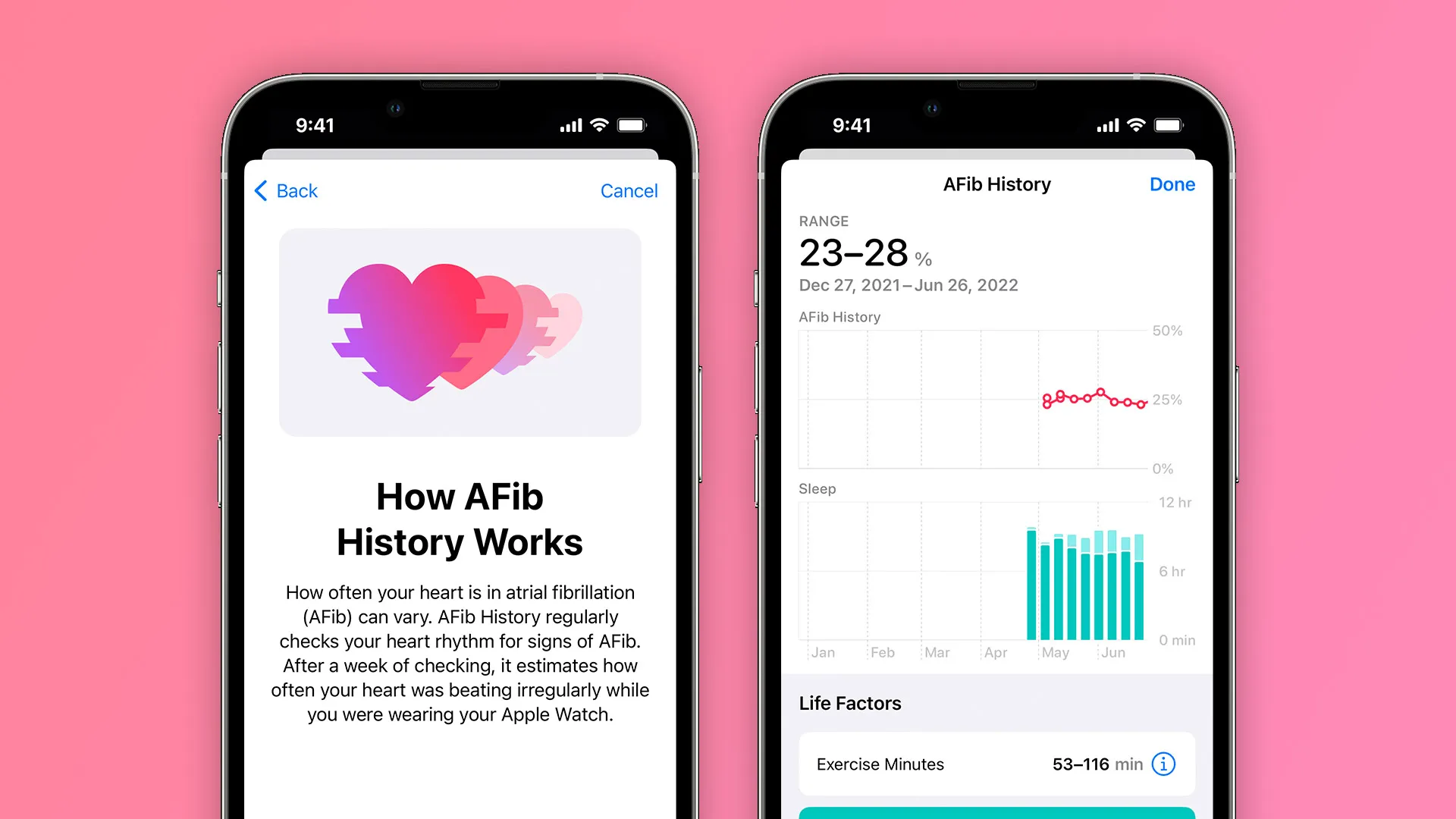
One of the new features introduced with watchOS 9 this year is AFib History, which lets users diagnosed with atrial fibrillation keep records of their heart rhythm data in order to get deeper insights into their condition. Apple has now expanded the availability of AFib History around the world with the watchOS 9.2 update.
When AFib History was announced back at WWDC 2022, it was expected to only launch in the United States as the feature requires approval from local health regulators. With the official launch of watchOS 9 in September, Apple confirmed that the feature had already been approved in over 100 countries, including Canada, Hong Kong, Mexico, South Africa, the UK, and many other countries in Europe.
AFib History coming to more regions with watchOS 9.2
Now with watchOS 9.2, which was released for Apple Watch users earlier this week, the company has quietly enabled the AFib History feature in yet another country. As noted by MacMagazine and also confirmed by 9to5Mac, the feature now works for Apple Watch users in Brazil.
For now, Apple is yet to confirm the expansion of the feature to Brazil, as the country hasn’t yet been added to the official list of supported regions on the company’s website. However, Brazilian users can now enable AFib History through the Health app on the iPhone. According to Apple, these are the requirements for enabling AFib History on the Apple Watch:
You must have a physician diagnosis of AFib.
Update your iPhone to the latest version of iOS and Apple Watch to the latest version of watchOS.
You must wear your Apple Watch at least 12 hours a day for 5 days a week to consistently receive estimates.
Heart Rate and Wrist Detection must be enabled on your Apple Watch.
AFib History is not intended for use by people under 22 years old.
Back in September, Apple had also confirmed that AFib History would become available to Apple Watch users in Australia later this fall. However, it’s still unclear whether the feature has also been enabled there with watchOS 9.2.
watchOS 9.2 some features
Alongside iOS 16.2 and updates for iPad, Apple TV, and Mac, Apple is also rolling out watchOS 9.2 for Apple Watch users today. The update includes a handful of notable changes and new features, including Race Route, Crash Detection improvements, and more. Head below for the full release notes.
watchOS 9.2 is rolling out now to all users. You can update on your Apple Watch by going to Settings, choosing General, then choosing Software Update. You can also install the update via the Apple Watch companion app on your iPhone.
What’s new in watchOS 9.2? Here’s the full rundown from Apple:
Race Route lets you compete against your previous performance in Outdoor Run, Outdoor Cycle and Outdoor Wheelchair Workouts
New custom Kickboxing algorithm in the Workout app for more accurate metrics
Noise app displaying when environmental sound levels are reduced now available with AirPods Pro (1st generation) and AirPods Max when using active noise cancellation
Family Setup users can be invited to the Home app to control HomePod speakers and smart home accessories, and unlock doors with home keys in Wallet
Accessibility support to visualize when Siren is in use on Apple Watch Ultra
Improved response time and accuracy of hand gesture controls for AssistiveTouch and Quick Actions
Crash Detection optimisations on Apple Watch Ultra, Apple Watch Series 8 and Apple Watch SE (2nd generation)
Fix for bug that causes display of incorrect watch time immediately after dismissing an alarm in Sleep Focus
Fix for bug causing interruptions to mindfulness sessions
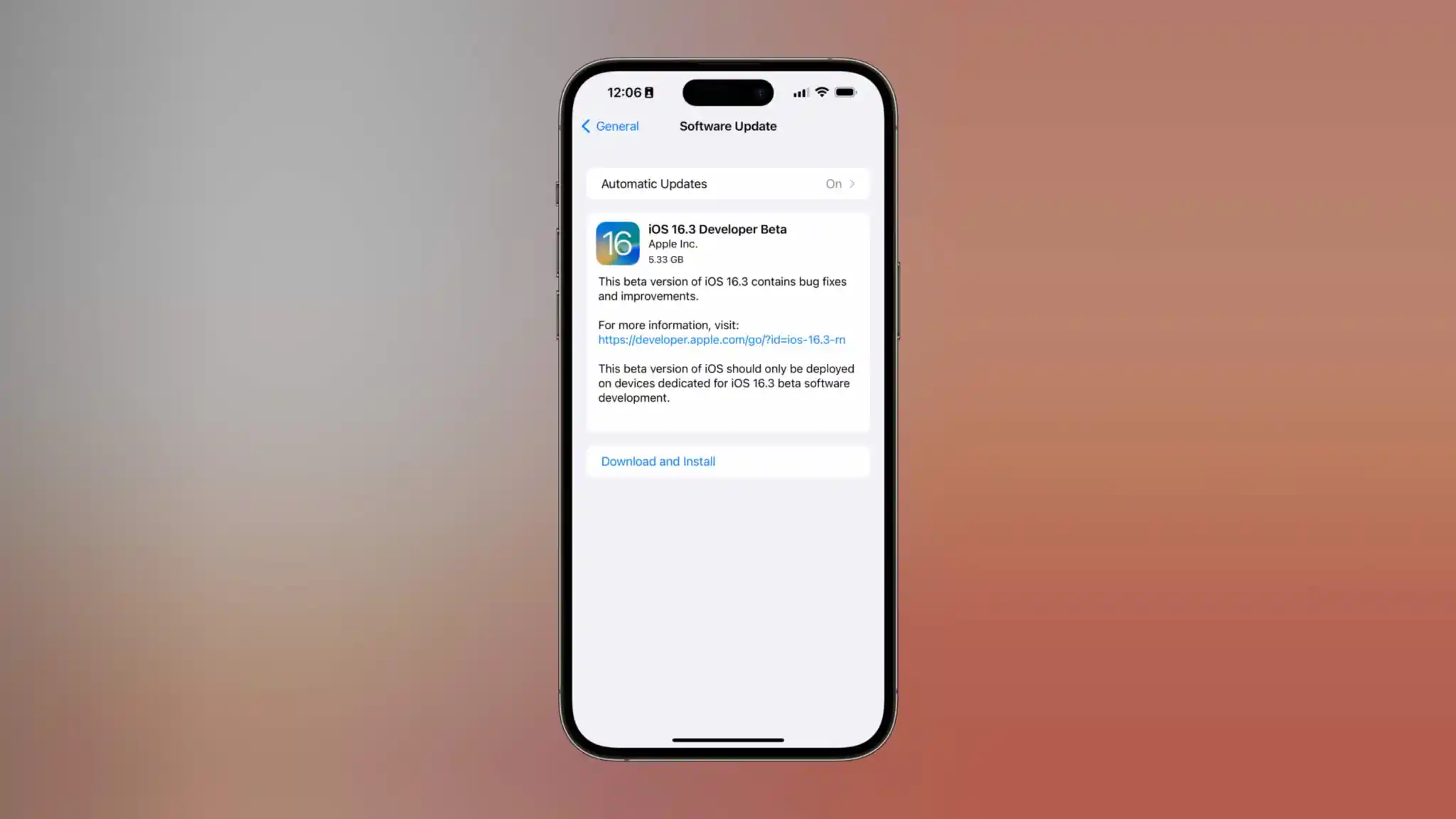
Just one day after the release of iOS 16.2 with a slew of new features, Apple is once again starting the beta testing process. iOS 16.3 beta 1 is rolling out to developers today. We’re still waiting to find out what’s new, but there are a number of features that Apple has already announced, but not yet released.
iOS 16.3 beta 1
iOS 16.3 beta 1 will be available today to registered developer beta testers. As the update rolls out over the air, you’ll be able to install it by going to the Settings app, choosing General, then choosing Software Update. There is no public beta of iOS 16.3 available yet, but we’d expect it to be released later this week or sometime next week.
As for what’s new in iOS 16.3, we aren’t quite sure yet. We’ll have to get the update installed on our devices to dig into the changes. There are, however, a handful of features that Apple has announced but not yet released, as well as features in development under the hood that aren’t yet available.
The highlights include:
Apple Card Savings Account
Apple Pay Later
Security Keys for Apple ID
Apple Music Classical
Custom Accessibility Mode
Advanced Data Protection for iCloud beyond the United States
Alongside iOS 16.3 beta 1, Apple has also released the following updates:
iPadOS 16.3 beta 1
watchOS 9.3 beta 1
macOS 13.2 beta 1
tvOS 16.3 beta 1
Bloomberg’s Mark Gurman has reported that Apple is targeting a release date of sometime in February 2023 or early March 2023. Ahead of today’s release of iOS 16.3 beta 1 to developers
How to enable ‘More Frequent Updates’ for Live Activities in iOS 16.2
A neat under-the-radar feature coming to iPhone with iOS 16.2 is the ability to customize Live Activities for “More Frequent Updates.” But even though the capability is valuable, you may not want it turned on for all available apps, more on that below. Here’s how to enable Live Activities more frequent updates on iPhone.
New Live Activities customization when the initial iOS 16.2 beta was released – which was before the feature showed up in Settings.
Now in the iOS 16.2 RC and public release that’s expected this week, you can find the toggle to turn on Live Activities “More Frequent Updates” on iPhone.
Here’s how Apple describes it: “Allowing more frequent updates lets you see more real time information, but can drain your battery faster.”
How to enable Live Activities more frequent updates on iPhone
Make sure you’re running iOS 16.2 (install the free beta if you don’t want to wait)
Open the Settings app on your iPhone
Swipe down and choose an app with Live Activities support (using the TV app below)
Note: developers need to build support for the feature, so it may take time for the option to show up for third-party apps after the public iOS 16.2 release
Choose Live Activities
Tap the toggle next to More Frequent Updates
Live Activities will need to be allowed to see the new option
Using the feature will drain your battery faster, so you may want to be careful how many apps you turn it on for
Here’s how it looks to find the feature for Apple’s TV app:
While the “More Frequent Updates” Live Activities option is showing up for Apple’s own TV app, I haven’t seen it show up yet for a third-party app. Expect developers to launch support for it over the coming weeks.
Interestingly, in the iOS 16.2 RC, More Frequent Updates is turned on by default for Apple’s TV app.
How to turn on end-to-end encryption for iMessage, iCloud, iPhone backups in iOS 16.2
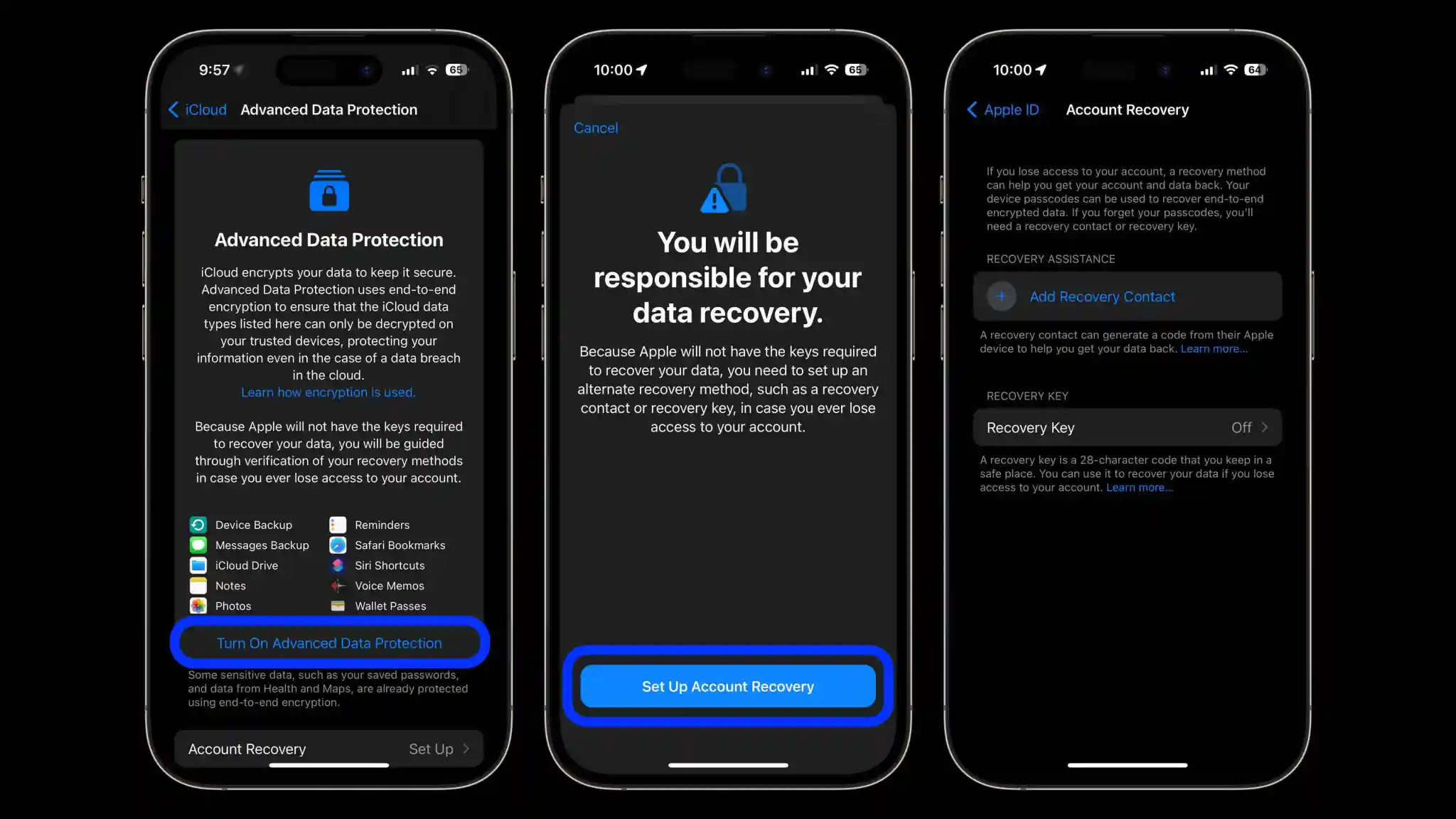
Apple is launching a big security enhancement with iOS 16.2 that brings the long-requested feature of full encryption for iMessage in iCloud, iPhone backups, and eight other apps/categories. As part of the process, you’ll need to set up a recovery contact/key – here’s how to turn on iPhone end-to-end encryption for iMessage, iCloud, device backups, Notes, Safari, Photos, and more.
While end-to-end encryption (E2E) has been already present for Apple’s Messages, iCloud Keychain, Health data, and more, the update brings E2E to your Messages Backup (Messages in iCloud) your iPhone iCloud backup, iCloud Drive, Notes, Photos, Reminders, Safari Bookmarks, Siri Shortcuts, Voice Memos, and Wallet Passes. Read more on the fine details in our full coverage and Apple’s support document.
How to turn on iPhone end-to-encryption for iMessage, iCloud backups
Make sure you’re running iOS 16.2 (install the free beta if you don’t want to wait)
You’ll also need to update your Mac, iPad, HomePods, etc. to the latest update to use the feature
Open the Settings app on your iPhone
Tap your name at the top
Now choose iCloud
Swipe to the bottom and tap Advanced Data Protection
Tap Turn On Advanced Data Protection
If you don’t have a recovery contact or recovery key set up, you’ll be prompted to do that first
If you just finished setting up a recovery contact/key, head back to Settings app > iCloud >Advanced Data Protection and tap Turn On Advanced Data Protection
Follow the prompts
You may be asked to update your other devices signed into your iCloud account before you can enable the end-to-end encryption (E2E)
Alternatively, you can remove devices that are on old software to move forward with the process
Here’s how the process looks to turn on iPhone end-to-end encryption with Advanced Data Protection:
If you don’t have a recovery contact or key set up already, you’ll do that first:
After finishing the recovery contact/key setup, head back to the Advanced Data Protection screen and tap “Turn On Advanced Data Protection”.
One more thing to keep in mind, you may need to update your other Apple devices to the newest release to enable end-to-end encryption – or need to remove them from the main Apple ID screen in the Settings app.
What do you think about end-to-end encryption coming to Messages in iCloud, backups, and more? Will you be turning the feature on? Share your thoughts in the comments!
Hands-on: How to use Apple Music Sing karaoke feature in iOS 16.2
After announcing its fun new karaoke feature yesterday, Apple Music Sing is live with the iOS 16.2 RC build. Follow along for a hands-on look at how to use Apple Music Sing karaoke including adjusting vocal volume, seeing the Duet view, and more.
iOS 16.2 is currently finishing its testing as a developer and public beta. The release candidate was made available today, so it won’t be long until it’s released to the public.
However, if you don’t want to wait for Apple Music Sing and other great features like a customizable always-on display for iPhone 14 Pro, major end-to-end encryption update, and more, you can learn how to install the free public beta in our full explainer:
What Apple Music Sing offers
Adjustable vocals: Users now have control over a song’s vocal levels. They can sing with the original artist vocals, take the lead, or mix it up on millions of songs in the Apple Music catalog.
Real-time lyrics: Users can sing along to their favorite songs with animated lyrics that dance to the rhythm of the vocals.
Background vocals: Vocal lines sung simultaneously can animate independently from the main vocals to make it easier for users to follow.
Duet view: Multiple vocalists show on opposite sides of the screen to make duets or multi-singer tracks easy to sing along to.
How to use Apple Music Sing karaoke feature in iOS 16.2
Make sure you’re running the iOS 16.2 RC
On your iPhone, open Apple Music and find a song you want to listen to
Apple Music Sing is also available on recent iPads and the Apple TV 4K (not on older Apple TV hardware)
Compatible devices include iPhone 11 and later, iPad 9/10, iPad mini 6, iPad Air 4/5, M1 and M2 iPad Pro
After starting a song, tap the lyrics button (quotation mark icon) in the bottom left corner
Now look for the microphone + stars icon (non-compatible songs won’t show the icon)
After tapping the mic, Apple Sing is turned on
Now you can drag to adjust the vocal volume and sing along with the beat-by-beat lyrics
Tap the Sing icon to turn the feature off
Here’s how it looks to use Apple Music Sing:
For songs that include duets, you’ll see the special view automatically kick in with the different parts on the left and right sides of the screen:
What songs work with Apple Music Sing?
Apple hasn’t shared exactly what songs are compatible with Apple Music Sing
But the feature is launching with support for “tens of millions of songs”
For now, you’ll have to listen to a song and tap the lyrics button to see if it works with the Apple Music Sing karaoke feature
The feature is a bit buggy for some users at the moment with the pre-launch in the iOS 16.2 RC – e.g. the button showing up and disappearing for songs
Following the release of iOS 16.1.2 on November 30, Apple has now stopped signing both iOS 16.1 and iOS 16.1.1. This means that iPhone and iPad users can no longer downgrade from iOS 16.1.2 or newer versions of the operating system.
iOS 16.1 and iOS 16.1.1 no longer signed by Apple
iOS 16.1 was released in October with multiple new features and enhancements, such as iCloud Shared Photo Library, Fitness+ for iPhone users, Live Activities, and more. iOS 16.1.1 came in November with bug fixes and security improvements.
Then, on November 30, Apple released iOS 16.1.2 to enhance the iPhone 14’s Crash Detection feature and also improve wireless carrier compatibility. This is the latest version of iOS officially available to users at the moment.
At the same time, Apple is about to release iOS 16.2 to the public in the next few days. The update will add the new Freeform app, improvements to the Home app, new Always-on options for iPhone 14 Pro users, Apple Music Sing, and more.
Reverting to older iOS builds is often used by those who jailbreak their iPhones and iPads. However, there are no signs of any jailbreak tools for iOS 16 being developed at this point. Restoring an Apple device to a previous version of iOS can also sometimes be helpful for users who experience significant bugs after upgrading to the latest version of iOS.
Downgrade from iOS 16 to iOS 15
While you can’t easily revert to iOS 16.1, you still have a chance to downgrade from iOS 16.1.2 to iOS 15. That’s because Apple is still providing security updates to users running iOS 15.7.1. Those who want to downgrade an iPhone or iPad must do so using a Mac or PC.
This is not the first time Apple has offered the option to let users stay on an older version of iOS. Last year, once iOS 15 became available, users could choose to stay on iOS 14 longer while Apple was still releasing security updates for it. However, the company removed this option a few months later.
After released iOS 16 to the public after months of beta testing. While some users have waited long for the new lock screen and other new features coming with the update, some may prefer to wait a little longer before installing iOS 16. This is why Apple is letting users stay on iOS 15, while still getting security updates before upgrading to iOS 16.
While iOS 16 is certainly the big news of the day, Apple also released iOS 15.7 for iPhone users today. The update doesn’t bring any major changes, but it does come with bug fixes and security enhancements, and users running iOS 15 now have the option to install iOS 15.7 or iOS 16.
This is not the first time Apple has offered the option to let users stay on an older version of iOS. Last year, once iOS 15 became available, users could choose to stay on iOS 14 longer while Apple was still releasing security updates for it. However, the company removed this option a few months later.
At the time, Apple claimed that the option was always intended to be temporary, so something similar may happen this year. New iOS releases can cause incompatibilities with certain apps, so it’s normal that some users (especially enterprise users) prefer to wait a few weeks before installing the update.
How to stay on iOS 15.7
When you go to the Software Update menu in the Settings app, your iPhonewill prominently show the iOS 15.7 update. “Upgrade to iOS 16” appears as an alternative option. Just choose the version you want to install and wait until the update process finishes. If you really don’t want to install iOS 16, you can disable automatic updates on your device.
Open the Settings app on your iPhone, iPod, or iPad
Go to the General menu
Tap Software Update
Tap Automatic Updates
Disable the options to automatically download and install iOS updates
Apple Music Sing will allow fans to sing along to their favorite songs and will be available to subscribers worldwide later this month.
Apple Music expands its world-class lyrics experience with a new feature for fans to easily sing along to tens of millions of songs. Apple announced Apple Music Sing, an exciting new feature that allows users to sing along to their favorite songs with adjustable vocals1 and real-time lyrics. Apple Music Sing offers multiple lyric views to help fans take the lead, perform duets, sing backup, and more — all integrated within Apple Music’s unparalleled lyrics experience. Coupled with an ever-expanding catalog that features tens of millions of the world’s most singable songs, Apple Music Sing makes it fun and easy for anyone to participate, however and wherever they choose.
Apple Music Sing will be available later this month to Apple Music subscribers worldwide, and can be enjoyed on iPhone, iPad, and the new Apple TV 4K.
“Apple Music’s lyrics experience is consistently one of the most popular features on our service,”
said Oliver Schusser, Apple’s vice president of Apple Music and Beats. “We already know our users all over the world love to follow along to their favorite songs, so we wanted to evolve this offering even further to enable even more engagement around music through singing. It’s really a lot of fun, our customers are going to love it.”
With adjustable vocals and real-time lyrics, Apple Music Sing gives fans more control and even more precise timing while they sing along to their favorite tunes.
Apple Music Sing includes:
Adjustable vocals: Users now have control over a song’s vocal levels. They can sing with the original artist vocals, take the lead, or mix it up on millions of songs in the Apple Music catalog.
Real-time lyrics: Users can sing along to their favorite songs with animated lyrics that dance to the rhythm of the vocals.
Background vocals: Vocal lines sung simultaneously can animate independently from the main vocals to make it easier for users to follow.
Duet view: Multiple vocalists show on opposite sides of the screen to make duets or multi-singer tracks easy to sing along to.
Apple Music will also be launching a suite of more than 50 dedicated companion playlists featuring all of the epic songs, duets, choruses, and anthems that have been compelling people all around the world to sing — fully optimized for the Apple Music Sing experience.
Availability
Apple Music Sing will be available later this month for Apple Music subscribers worldwide.2
Apple Music Sing will be available on all compatible iPhone and iPad models as well as the new Apple TV 4K.
You can now share your car key in Apple Wallet with Android users,
starting with Google Pixel
If you happen to be an owner of one of the very few cars on the market with Car Key support, you are now able to share that car key credential with non-iPhone users for the first time.
Apple is working with the IETF and industry members to standardize cross-platform car key sharing. The first implementation of this support has landed today for Google Pixel owners. Google is working on rolling out support for all Android 12+ devices soon.
The Car Key feature allows Apple Wallet to treat unlocking your car in the same manner as you can conduct contactless payments with Apple Pay: Walk up to your car and then present your iPhone or Apple Watch to unlock it.
You can share car keys by using the Share button inside the Wallet app. You could previously send the key to other iPhone users. On iOS 16.1 or later, the Wallet app generates keys that also work with other supporting platforms, most notably Android users.
Share using the system share sheet with your favorite app like Messages, Mail, and WhatsApp. You can secure the process using an optional one-time code.
At any later time, you can revoke access to a shared car key. Simply open the Wallet app, select your car key and tap on the People icon to manage the current list of shared keys for that vehicle.
Apple’s partnership with the IETF was first announced at this year’s WWDC. The group is still working on a final specification to make publicly available for adoption by anyone. But for now, only Apple and Google have access to the necessary protocols and are working on the respective implementations privately.
It’s a really cool technology that furthers Apple’s goal to replace the wallet in your pocket, alongside other initiatives like Digital ID and Apple Pay. Hopefully, more Car Key compatible vehicles will be available soon.
Apple releases iOS 16.2 beta 4 to developers ahead of expected launch this month
Following the release of iOS 16.1.2 to iPhone users on Wednesday, Apple released iOS 16.2 beta 4 to developers on Thursday. Along with iOS 16.2, Apple has also been testing new betas for watchOS 9.2, tvOS 16.2, and macOS Ventura 13.1. Read on as we detail what’s new in these updates.
iOS 16.2 and iPadOS 16.2 include some notable changes. The Freeform collaboration app is now available to iPad, iPhone, and Mac users. There are also changes to the Home app, updates to the Weather app, and more.
On November 28, Apple also released a “Rapid Security Response” update for users running iOS 16.2 beta. Once the feature becomes available to everyone, Apple will be able to quickly fix security exploits without having to release a new version of iOS just for this.
In addition to iOS 16.2 beta 4, Apple has also made the following updates available to all developer beta testers:
Apple is continuing to push into health care, this time striking a deal with Epic Systems for a Mac-friendly version of its health records app. As reported by Axios,the deal will see Epic Systems create a version of its health records tool that “is easier to run on Apple devices.”
Apple had reportedly pushed for Epic to create a “native version of the service” for Apple devices, but the two companies settled on this compromise of a version that is “easier to run on Apple devices” instead. Apple hasn’t acknowledged this deal, but Axios says it was confirmed by a “source inside Epic.”
The deal comes despite previous disagreements between Epic and Apple over health records and data sharing, Axios explains. Apple has pushed for easing health record sharing requirements, something that Epic is firmly opposed to. Epic argued that rule changes focused on “interoperability” will be “overly burdensome on our health system and will endanger patient privacy.”
Epic Systems is the largest electronic health records vendor in the United States, with “roughly half the population’s medical records” being stored in a system powered by Epic software and technology. The lack of well-developed Mac, iPad, and iPhone software from Epic has put inhibited Apple’s ability to tap further into the health records industry.
Given the pace at which things in the healthcare industry move — especially around medical records technology — it’ll likely be awhile before we see any results of this new deal. None the less, it could end up being good for the industry and consumers, particularly if it improves data integration with other Apple platforms and services.