As yet another evolutionary device rather than the design revolution some cash-strapped iFans may have expected, the iPhone 8 is unsurprisingly overshadowed by the much sleeker X, despite the latter’s delays and availability concerns.
We’re talking of course about media coverage and apparent consumer interest, because in terms of critical reception, the 8 and especially 8 Plus seem to be doing just fine.
While we continue to cook up our exclusive in-depth reviews, it’s definitely worth highlighting how the smaller iPhone 8 handled JerryRigEverything’s obligatory durability inspection.
In a word, pretty great. In more, let’s start off by noticing Apple’s “most durable glass ever” and sapphire camera lens claims don’t exactly hold up in real life. The iPhone 8 screen is about as resistant to scratches as any high-end Android display around, and the rear-facing shooter appears to cut a few build quality corners.
Still, there’s no denying this is a robust slab of (mostly) glass and (very little) metal, largely impervious to razor blades, coins and keys, and impossible to bend with sheer force of will. It even bravely combats flames… if you somehow feel that information is relevant to the way you typically use your mobile device.
Meanwhile, iFixit’s comprehensive teardown examination concluded in a repairability score of 6 out of a possible 10, which is much better than Samsung’s DIY Galaxy S8 nightmare, but actually one point lower than last year’s iPhone 7 and 7 Plus grades.
As always, you’re advised to not try any of the above, including scratch, flame, bend tests and routine disassembly, at home unless you know precisely what you’re doing or just want to watch the world burn.
The Apple iPhone 8 Plus has a main camera system truly worthy of a flagship phone. Similar to the iPhone 7 Plus, it features two cameras — a wide-angle 12MP main camera, and a 12MP telephoto camera with a slower lens for zooming in on subjects and for special effects such as Portrait mode. Comparing the camera datasheets of the older iPhone 7 Plus and the new iPhone 8 Plus make the two look almost identical; however, under-the-hood upgrades have given the 8 Plus an image quality and camera performance boost in almost every one of our tested categories.
Key camera specifications:
12MP main (wide-angle) camera with BSI sensor, f/1.8 lens
12MP telephoto camera, f/2.8 lens
Optical zoom, with digital zoom up to 10x
Portrait mode
Portrait Lighting (beta)
Optical image stabilization (main camera only)
Quad-LED True Tone flash with Slow sync
Autofocus with focus pixels
Wide-gamut color capture
Body and face detection
AutoHDR
Test summary
The Apple iPhone 8 Plus is the best-performing mobile device camera we have ever tested. Its overall DxOMark Mobile score of 94 sets a new record, beating out the 90 points for both the Google Pixel and the HTC U11, as well as the 92 that its sibling iPhone 8 just scored. Its Photo score of 96 is also a new record, blowing past the Pixel’s 90. For Video, its score of 89 is among our highest, but tied with the HTC U11 and slightly below the Pixel’s 91. Of course, the Pixel is nearly a year old now, so it makes sense that Apple’s new flagship is breaking new ground.
Bright light
Images captured outdoors with the iPhone 8 Plus are generally stunning, with excellent detail preservation, accurate color, and impressive dynamic range. The iPhone 8 Plus builds on the excellent performance of the iPhone 7 family with even better results in bright light. In particular, it has improved exposure calculation, and excellent ability to capture HDR (High Dynamic Range) scenes.
This scene has proved challenging to many of the smartphones we have tested, but the 8 Plus handles it like a champ. If you didn’t know that the image came from a phone, it would it would be very hard to tell.
This scene has proved challenging to many of the smartphones we have tested, but the 8 Plus handles it like a champ. If you didn’t know that the image came from a phone, it would it would be very hard to tell.
iPhone 8 version.
iPhone 8 Plus version.
Google Pixel version.
iPhone 7 Plus version.
Low light and Flash
Low light: Exposures are generally accurate, although there can be some underexposure in very low light. The 8 Plus’s strong performance in low light and with flash, combined with its excellent ability to recognize and properly expose faces, make it a natural for anyone wanting to easily create memories of their indoor events.
Even in tricky mixed-lighting situations, the iPhone 8 Plus does an excellent job of providing an accurate and detailed rendering of indoor scenes.
Flash: Images look good overall, with accurate exposure and white balance; however, there can be a a loss of detail and excessive noise.
Zoom and Bokeh
While the iPhone 8 Plus camera is amazing overall, it is in our new test categories of Zoom and Bokeh where it really stands out. While the technical specifications for the second camera that help make these features possible are very similar to the specs for the second camera on the iPhone 7 Plus on paper, upgrades to the image processing software have raised the 8 Plus’s performance to a new level. Especially important for those looking to capture portraits with their phones, or to create artistic effects in macro and other closeup shots, zoom and bokeh used to require standalone cameras. But phones like the 8 Plus are changing that.
Zoom: The dedicated telephoto camera on the 8 Plus gives it a large advantage over most traditional single-camera designs when it comes to zoom. At 51, it has the highest Zoom sub-score of any mobile device we have measured — a full 5 points better than its predecessor, the iPhone 7 Plus. Here you can see that at 2x (full-frame equivalent of about 56mm), the iPhone 8 Plus does an excellent job of both framing and detail preservation (click on individual images to get a full-size version for easier comparison):
iPhone 8 version
iPhone 8 Plus version.
Google Pixel version of the image.
iPhone 7 Plus version of the image.
Bokeh: Overall, the 8 Plus is the highest-performing phone we’ve tested when it comes to bokeh. Despite the relatively small changes in the actual camera specs, additional development and processing power allow it to beat out the 7 Plus by 5 points, putting it even further ahead of the Google Pixel, with a score of 55 compared to 30.
You can see the improved depth effect on the iPhone 8 Plus compared to the older model, showing that the dual-camera system now does a better job of blurring the foreground like a true optical blur, instead of blurring only the background. The images below also show how the second camera of the 8 Plus provides a much more artistic rendering of the image than the single camera on the iPhone 8 (click on individual images to get a full-size version for easier comparison):
iPhone 8 version.
iPhone 8 Plus version.
Google Pixel version of the image.
iPhone 7 Plus version of the image.
Video
Apple continues to up its game on Video. With a score of 89, the 8 Plus has the best video quality of any Apple device, starting with the best exposure calculation. In particular, exposure is more stable while panning or walking than on previous iPhones. Its HDR capabilities are also very good, but highlights are sometimes blown out. There is still room for improvement, as the iPhone 8 Plus’s Video score of 89 still only ties the HTC U11 and is still behind the Google Pixel’s 91 points. This said, the 8 Plus camera does an excellent job of face tracking when shooting video in bright light.
Photo scores explained
Our Overall Photo Score is a composite of a number of category sub-scores. Here we detail how the 8 Plus performed in each of those categories.
Exposure and Contrast (89)
The 8 Plus does an excellent job of accurately calculating exposure, improving on the performance of the iPhone 7 family. Its ability to represent high-contrast scenes is also improved, probably at least in part due to additional processing power and improved software for combining multiple frames into a single image. Apple’s AutoHDR technology is some of the best on the market for rendering high-dynamic-range scenes. The 8 Plus also does an unusually good job at recognizing and properly exposing faces in an image.
This HDR scene tests the boundaries of what a mobile device camera can capture. The 8 Plus does an excellent job of keeping the highlights visible while still showing detail in the shaded foliage in the foreground.
Color (78)
Color is pleasing both outside and indoors. White balance is also quite good. The 8 Plus improves slightly over the iPhone 8 in its color performance by completely avoiding visible color shading, even in low-light conditions.
The iPhone 8 Plus accurately renders pleasingly colorful outdoor scenes like this one.
Color saturation in iPhone 8 Plus images remains very good, even under low-light conditions. However, in low light and in typical indoor (tungsten) light, 8 Plus images pick up a noticeable color cast that you can see in this chart of test sample patches:
Using the reference patch on the far right, notice that the light gray patch nearly turns peach under very low-light conditions (left-most “H” column, luminosity similar to candlelight).
iPhone 8 Plus version, showing a slight yellow cast
Google Pixel version
Autofocus (74)
Although the 8 Plus doesn’t always focus quickly, once it focuses, it is remarkably accurate. In both our long- and short-delay tests, the 8 Plus was able to repeatably capture an in-focus scene. The sometimes longer delay — which occurred periodically in both bright and low light — can mean that users miss the shot they intended.
Even in bright light, the 8 Plus’s autofocus sometimes hesitated, which can mean missing the shot you want.
Similarly, in our fast trigger tests, the 8 Plus didn’t always refocus right away. However, once the 8 Plus focused, it was on the money. Given a longer interval, the camera focused accurately and quickly every time.
Detail (64)
The 8 Plus does an excellent job of capturing detail under a wide variety of lighting conditions, especially when there is no motion in the scene. That makes it especially good for landscape images. There is a noticeable loss of detail when there is motion, especially in low-light — as you can see in this chart of detail preservation versus light level:
(Our Family score reflects scenes with moving objects, simulating photographing people at events, while the Landscape line is for scenes without subject motion.)
It is easy to forget how far smartphone cameras have come in just a few years. These tight crops of an area in our standard natural test scene demonstrate how much more detail the iPhone 8 Plus captures than previous generations of iPhones:
The images were all taken under very-low light (5 Lux) handheld conditions, showing the improvement in detail preservation and noise suppression in successive iPhone models.
Noise (68)
Similar to its detail score, the 8 Plus features a very low level of noise when capturing static scenes, outperforming every other phone in our database. Even the darkest areas in HDR scenes have very low levels of noise, and blue skies are almost without noise. There is some slight luminance noise indoors and in very low light, but well within acceptable limits. In this indoor test target scene, for example, the 8 Plus is a little further off in exposure than the Google Pixel, but has lower noise:
In very low light, the Pixel does a slightly better job of properly exposing the image (only a small cropped area shown here), but has visible color noise compared to the iPhone 8 Plus (iPhone 8 Plus image crops are on the top row, Google Pixel on the bottom).
This next comparison image is another that shows how quickly smartphone camera technology is advancing. This image was shot with the iPhone 7 Plus and the 8 Plus, both in Portrait mode. The newer model does a much better job of suppressing noise, especially on the model’s face:
iPhone 7 Plus version of the image.
iPhone 8 Plus version, showing better detail and lower noise; note, however, the slight bokeh artifact visible around the hair.
Artifacts (73)
The 8 Plus, like most iPhone models we’ve tested, has very few artifacts in its images, achieving an excellent artifact sub-score as a result. Interestingly, the iPhone 8 outscores the 8 Plus in this area. Slight flare in harsh light and moiré when repeating patterns are present reduced its score somewhat. Some visible ghosting can also occur.
Flash (84)
Flash-only photos with the iPhone 8 Plus feature accurate white balance and good color rendering. With both flash and flash combined with ambient light, there is low noise and good detail preservation. There can be a slight yellow cast when flash is mixed with a low level of ambient light, and exposure and white balance can vary from shot to shot in a sequence.
This portrait, lit with only flash, shows a slight yellow cast.
Zoom (51)
The iPhone 8 Plus sets a new standard for zoom performance in a smartphone, a tribute to its dual camera design, and the image processing improvements Apple has made since the introduction of the 7 Plus. There is still some room for improvement: when shooting several images in a row using zoom, some (but not all) images show artifacts.
Even with the 8 Plus’s stunning Zoom and Portrait mode performance, photographers still need to watch out for possible side effects. For example, these images show that subject motion can detract from an otherwise excellent portrait:
This Portrait mode image is sharp and also blurs the background to help make the subject pop.
However, the same scene with the subject waving his hand shows that the 8 Plus hasn’t addressed the resulting motion blur.
Bokeh (55)
The bokeh effect on the 8 Plus is remarkably reliable, as the 8 Plus is not fooled nearly as often as other smartphone cameras when it makes estimations of depth, even compared to competitors with similar dual-camera systems.
In low light, the iPhone 8 Plus does a much better job of rendering a bokeh effect than the Google Pixel, although at the cost of some noise. Further, the Pixel version of the image has strong artifacts (click on individual images to get a full-size version for easier comparison):
iPhone 8 version.
iPhone 8 Plus version.
Google Pixel version of the image.
iPhone 7 Plus version of the image.
Key to the 8 Plus’s excellent Bokeh score is very good depth estimation and facial recognition. These technologies help ensure that blurs are created naturally and effectively. There is room for improvement, though — in particular, when the subject touches the edges of the frame, the camera can mistake portions of the subject for part of the background, and ends up blurring those portions accordingly.
This type of artifact is visible in the portrait in this review, in which some of the subject’s hair is blurred — an unfortunate and sometimes unpleasant effect on an important part of the portrait.
Video scores explained
The Apple iPhone 8 Plus achieves a total Video score of 89. As with the photo scores, this is calculated from the sub-scores it achieves in a number of categories of tests that help define its overall video capabilities, specifically: Exposure and Contrast (81), Color (87), Autofocus (84), Texture (50), Noise (68), Artifacts (81), and Stabilization (91). Of particular note, stabilization is excellent, color rendering is very accurate, and exposure is greatly improved over previous models. Exceptionally good face tracking also aids in accurate subject exposure. Video suffers from some judder, and a small amount of frame-rate inaccuracy.
One thing the iPhone 8 Plus’s video lacks somewhat is good exposure in low light. As light falls off, the 8 Plus tends to underexpose, as you can see from this chart:
Ideally, the gray patch should expose to about 50. The 8 Plus comes close in bright light, but at low-light levels, it chooses a very dark exposure.
Conclusion: The best smartphone camera we’ve ever tested
Overall, the Apple iPhone 8 Plus is an excellent choice for the needs of nearly every smartphone photographer. It features outstanding image quality, zoom for those needing to get closer to their subjects, and an industry-leading Portrait mode for artistic efforts. It is at the top of our scoring charts in nearly every category — and in particular, its advanced software allows it to do an amazing job of capturing high-dynamic range scenes and images in which it can recognize faces.
We look forward to testing the iPhone X and comparing it against the iPhone 8 Plus, as the X’s wider aperture and its OIS on both cameras should place it on the cutting edge of zoom and portrait performance — enhancing the iPhone shooting experience for memory makers and image lovers even more.
A note about image formats for this review: The iPhone 8 and 8 Plus record photographs in the DCI-P3 colorspace, which their displays also use. DCI-P3 is newer and larger than the sRGB color space that most devices use and most web browsers assume. So to ensure that the images we used in the review display properly on a wide variety of browsers and devices, we converted the originals from DCI-P3 to sRGB using Photoshop (which is why the published test photos show Photoshop as the creator). This can slightly reduce the richness of color in some cases from what you would see when viewing the original images on a DCI-P3-calibrated display with appropriate software. We also captured the original images using the new HEIF (High-Efficiency Image Format), but then converted them to very high-quality JPEGs for viewing in standard browsers and image editing software. (HEIF is very similar to JPEG, but provides better compression for similar image quality, so the conversion makes the sample image file sizes larger than they were when shot.) Please note, however, that unlike our test images, some of the comparison photos used in this review were shot in JPEG and used as-is for illustrative purposes, and were not used to compute scores.
Don’t like iOS 11 on your iPhone or iPad? You can downgrade to iOS 10.3.3 if you act quickly. Maybe you don’t like the update, maybe you find iOS 11 battery life to be poor, or app compatibility to be a problem, or perhaps you think the performance is subpar. Whatever the reason, you can easily downgrade iOS 11 if you need to, but the ability to downgrade is only available for a limited time while Apple continues to sign the prior operating system release of iOS 10.3.3.
We’ll walk through how you can downgrade iOS 11 back to iOS 10 on an iPhone or iPad.
This guide requires iTunes and a computer, internet access, an iOS 10.3.3 ISPW file, and a USB cable. There is no way to downgrade iOS 11 without iTunes and a computer.
Important note: downgrading iOS 11 to iOS 10.3.3 can cause data loss, including the removal of important data or everything on your iPhone or iPad. Thus it is critical to have a backup that is compatible with iOS 10 available before downgrading (one should have been made prior to updating to iOS 11 in the first place), this is because iOS 11 backups are not compatible with iOS 10 or other prior releases. If you only have a backup for iOS 11, then downgrading to iOS 10 may require you to update again to iOS 11 in order to restore from that iOS 11 backup. If you don’t know what you are doing and do not have adequate backups, do not attempt to downgrade or you may experience permanent data loss on the iPhone or iPad.
We’ll cover two ways to downgrade, a simple way that should work for most users, and an approach that requires Recovery Mode if the first downgrade method fails.
How to Downgrade iOS 11 to iOS 10.3.3 the Easy Way
Be sure you have recent backups available of your iOS device to avoid potential data loss. An iOS 11 backup is only able to be restored to an iOS 11 device, thus you would need an iOS 10 backup to restore to iOS 10. Failing to have a compatible backup can lead to permanent data loss.
Using a USB cable, connect the iPhone, iPad, or iPod touch you wish to downgrade to the computer
Select the device in iTunes by clicking on the little device icon in the upper left corner of iTunes
Now under the device summary section of iTunes, click the ‘Update’ button using the appropriate modifier key to begin the downgrade process:
Mac OS: OPTION + click the “Update” button
Windows PC: SHIFT + click the “Update” button
Select the iOS 10.3.3 .ipsw file you downloaded in the first step, and choose to update to that version
The iPhone or iPad screen will turn black as the downgrade begins, rebooting multiple times with a progress bar and Apple logo as the downgrade completes
When the downgrade has finished the device will boot back up into iOS 10, the process can take a while if the device has a large amount of used storage
The downgrade from iOS 11 to iOS 10.3.3 should go without a hitch, assuming you chose the proper iOS 10.3.3 IPSW file for your device, and assuming Apple is still signing the system software. Once Apple stops signing iOS 10.3.3 then downgrading to it from iOS 11 will be impossible.
Some users have reported that sometimes data in iBooks, Notes, Music, and Messages may go missing with the “update” downgrade approach outlined above. If that happens to you, simply restore the device from an iOS 10.3.3 compatible backup once the device is back on iOS 10.3.3.
Note that if you choose “Restore” in the above process and then select IPSW, then the device will be either restored from a backup made compatible with iOS 10.3.3 or setup as new like a standard restore process, which can then be restored with a compatible backup.
If for some reason the above downgrade method fails, you can use the Recovery Mode approach to downgrading iOS 11 detailed next.
How to Downgrade from iOS 11 with Recovery Mode on iPhone and iPad
Rarely, the above downgrade process will fail or get stuck on an Apple logo, or stuck on a black screen. If this happens, you can start the downgrade over again while the iPhone or iPad is in Recovery Mode or DFU mode*
Launch iTunes on the computer
Download the appropriate iOS 10.3.3 IPSW file for your device that you want to downgrade
Put the iPhone or iPad into Recovery Mode using the instructions appropriate for your device:
For iPad, iPhone 6s and earlier with a clickable Home button, and iPod touch: Press and hold both the Power button and Home button at the same time. Continue holding the buttons down until you see a recovery mode iTunes connect screen (this happens after you see the Apple logo, just keep holding the buttons)
For iPhone 7 and iPhone 7 Plus: Press down and hold the Power button and Volume Down button concurrently and continue holding until you see the recovery mode screen, this happens after you see the Apple logo so continue holding the buttons until you see the recovery mode indicator of the iTunes logo
With the iPhone or iPad in Recovery Mode, connect the device to a computer with iTunes
For Mac, OPTION click on “Restore” and for Windows SHIFT click on “Restore” and select the iOS 10.3.3 IPSW file you downloaded in the second step
Restore the device to iOS 10.3.3, when the restore is complete choose to setup as new or restore a backup that is compatible with iOS 10.3.3 (note that iOS 11 backups are not compatible with prior iOS releases)
If you only have a backup from iOS 11, then it will not work with an iOS 10.3.3 device that has been downgraded. Instead, you will need to download the iOS 11 update or update the device to iOS 11 through Setting app, and then restore the iOS 11 backup to the device after it has been updated to a compatible version of system software. There is no way to make an iOS 11 backup compatible with an iOS 10.3.3 device as the iOS backups are not backwards compatible.
Download iOS 11 to open up new augmented reality experiences, boost productivity, take better photos and more.
Starting Tuesday, iPhone and iPad customers around the world will be able to update their devices to iOS 11, a major update to the world’s most advanced mobile operating system and the biggest software release ever for iPad. iOS 11 brings augmented reality to hundreds of millions of iOS devices and new professional capabilities improve images in Photos and Camera. Siri is more natural and useful and a redesigned App Store makes it easier to discover apps and games.
iPad Becomes Even More Powerful
Work with multiple apps at the same time using Slide Over on iPad.
The all-new Dock provides quick access to favorite and frequently used apps and documents from any screen and makes it easier to work with multiple apps with Split View and now Slide Over. Drag and Drop makes moving images, text and files between apps easier than ever using Multi-Touch. And Apple Pencil is more deeply integrated into iPad Pro with support for inline drawing and a new Instant Notes feature that opens Notes from the Lock Screen by simply tapping Apple Pencil on the display.
Files makes it easy to access and organize files from one central place.
The all-new Files app provides a central place to access and organize files no matter where they are located — on iPad or in the cloud with built-in support for iCloud Drive as well as providers, such as Box, Dropbox and others.
Immersive Augmented Reality
With new AR apps, users can place virtual objects in real-world scenes.
Hundreds of millions of people can now experience AR apps on iPhone and iPad and view virtual content on top of real-world scenes for interactive gaming, immersive shopping experiences, industrial design and more. These apps deliver high-quality AR experiences using the built-in camera, powerful processors and motion sensors in iOS devices.
Photos Look Even More Professional
New Loop and Bounce effects create continuous video loops for Live Photos.
The incredibly popular and innovative Portrait mode now uses optical image stabilization, True Tone flash and HDR, so every shot looks even more professional. Loop and Bounce effects create continuous video loops for Live Photos, while Long Exposure creatively captures time and movement. In Photos, Memory Movies are optimized to play in both portrait and landscape orientation, and more memories, such as photos of pets or birthdays, are automatically created.
The All-New App Store
Redesigned App Store makes discovering apps and games easier than ever.
The App Store is redesigned in iOS 11, making discovering apps and games easier than ever before. New in-depth features and interviews will uncover the stories behind iOS developers, and the incredible apps and games they create. App Store for iMessage is also easier to access with a redesigned app drawer.
Siri is More Natural and Useful
Siri now offers translation, an expressive new voice and more proactive intelligence to help you through your day.
New voices are more natural and expressive, adjusting intonation, pitch, emphasis and tempo while speaking, and can translate US English into Mandarin, French, German, Italian or Spanish. Siri uses on-device learning to deliver more personal experiences and offers suggestions based on personal usage of Safari, News, Mail, Messages and more.
Send Money to Friends with Apple Pay this Fall
Coming this fall, easily and securely send and receive money from friends and family with Apple Pay right in Messages, no extra steps or apps needed.
Coming this fall with an update to iOS 11 and watchOS 4, Apple Pay users will be able to send and receive money from friends and family quickly, easily and securely. Pay and get paid right in Messages, or tell Siri to pay someone, using the credit and debit cards they have in Wallet. When users get paid, they receive the money in their new Apple Pay Cash card in Apple Wallet and can use the money instantly.
Stay Focused on the Road
Do Not Disturb while driving is a new way to help drivers stay more focused on the road.
iOS 11 introduces a new way to help drivers stay more focused on the road with Do Not Disturb while driving. iPhone can detect when a user may be driving through vehicle movement or Bluetooth connections, and automatically silences notifications to keep the screen dark. Users have the option of sending an auto reply to their Favorites, contacts or recents to let them know they are driving and cannot respond until they arrive at their destination.
More Ways to Navigate with Apple Maps
Look inside malls and airports with new indoor maps.
Coming this fall, Apple Maps adds indoor maps for shopping centers and airports around the world, including: Amsterdam (AMS), London Heathrow (LHR), Las Vegas (LAS), Los Angeles (LAX), Miami (MIA), Philadelphia (PHL) and San Jose (SJC).
iOS 11 also introduces lane guidance to help users better prepare for the next turn, as well as speed limits to help users stay informed.
Discover New Music with Friends
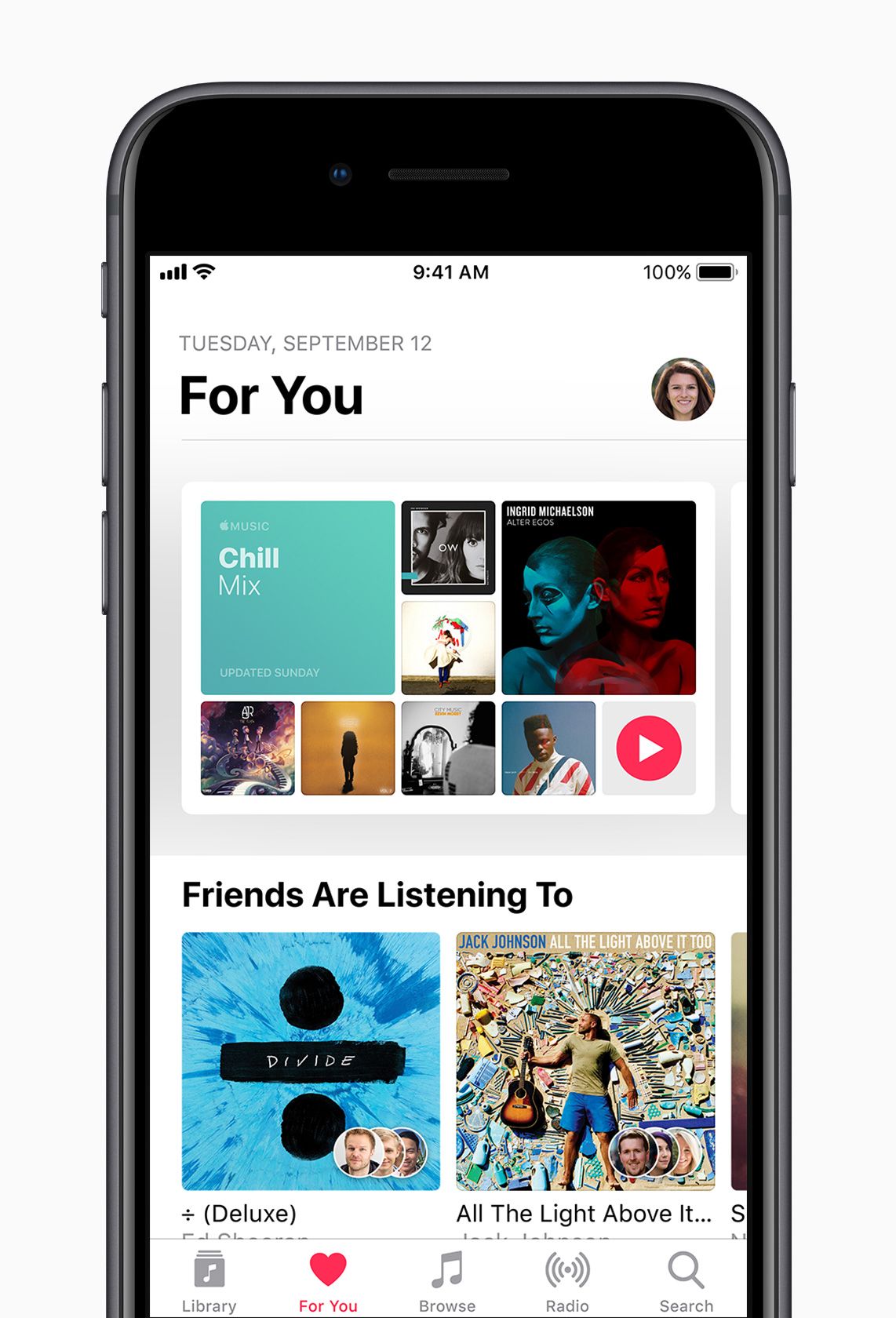
Share Music with friends with new features in Apple Music.
Subscribers can create a profile and follow friends to listen to shared playlists and see the music they listen to most. Apple Music subscribers can also begin receiving notifications when friends follow them, new music is released and more — so they never miss a beat.
To learn more ways to get the most out of iOS 11, users can visit the Tips app on iPhone or iPad. For details on how to update iOS devices, visit Apple Support.
The latest version of iTunes removes the App Store and thus the ability to manage iOS apps on an iPhone or iPad directly through iTunes. Instead, Apple wants users to manage and sync their iOS apps directly on the iOS device itself through the built-in App Store.
The removal of App Store and an Apps section from iTunes has confused some users, and annoyed others. But don’t distress, even if this change can take some adapting, because you can still easily manage apps, sync apps, and redownload apps and access apps through the App Store directly on an iPhone or iPad.
It’ll be helpful to think of the concept of app ‘syncing’ as now more like app re-downloading from the App Store, since syncing apps to and from iTunes is largely gone and instead replaced with redownloading apps if need be over the internet. (I say largely gone because you can still sort of work with .ipa files, more on that below.)
How to Redownload Apps to iPhone or iPad from iOS App Store, Without iTunes
You can download existing and old apps, as well as manage apps directly on the iPhone and iPad by using the App Store Purchased section. The Purchased section of the App Store includes all apps you have ever downloaded or bought before at any time with the Apple ID in use, as long as those apps are still on the App Store. This redownloading iOS app ability has been around for a long time in iOS, but now it is perhaps more important than ever before.
Here is how you can access Purchased and use it to download apps back to your iOS device, note the precise actions are slightly different on iPhone compared to iPad but the general behavior is the same:
Open the App Store app in iOS
Go to the Purchased section of the App Store
For iPhone and iPod touch: Go to “Updates” and then “Purchased”
For iPad: Tap your Apple ID account icon in the corner of the open App Store
On iPad App Store, then tap “Purchased”
Choose the “Not on this device” section
Tap the download icons alongside app names you wish to download to the iPhone, iPad, or iPod touch
This allows you to download and access apps that you have previously downloaded, owned, or purchased at some point, but that are not contained on the current iOS device.
These purchase listings will be different per iOS device, changing from “Not on this iPhone” or “Not on this iPad” depending on what device you are using with the same Apple ID, and depending on what apps are on the active iOS device.
Arranging iOS App Home Screen and Icon Layouts on iPhone and iPad
You can still arrange your iOS home screen as you like it to a custom icon layout, but now it must be done on the iPhone or iPad.
Simply tap and hold on an app icon until all screen icons start to jiggle. Once the icons are jiggling on the iOS screen they can be moved around at will. Use this to arrange the Home Screen of an iPhone or iPad to suit your preferences.
If you drag a jiggling icon to the edge of the screen, continue holding and you can move the app icon to a different Home Screen page.
Removing Unwanted Apps from the iPhone or iPad
Removing apps from an iPhone or iPad is a matter of uninstalling the apps from iOS, the easiest way is by the tap-and-hold and then delete method detailed here.
You can also delete apps from an iOS device through the Settings > General section to manage storage.
Manually Syncing / Copying Apps via IPA Files to iPhone or iPad with iTunes
Interestingly, you can still drag and drop ringtones in .m4r format and iOS apps in .ipa file format into iTunes and to the target iOS device, and they should transfer over to the target iPhone, iPad, or iPod touch.
If you happen to have a .ipa file of an iOS app, you can still manually copy it over to the iPhone or iPad via iTunes by using this drag and drop method. This is sort of like syncing, but it’s really just copying a file over from the local computer to the target iOS device by using iTunes.
Apps stored as .ipa files, if you have any stored on a local computer, can be found within the iTunes Library locations on the Mac and Windows PC and a subfolder for Mobile Applications, typically the path would be as follows for Mac and Windows PC respectively:
IPA file path in Mac OS:
~/Music/iTunes/iTunes Media/Mobile Applications/
IPA file path in Windows 7, Windows 8, and Windows 10:
\My Music\iTunes\iTunes Media\
With an iPhone or iPad connected to the computer via USB, simply drag and drop the IPA file into iTunes onto the iOS device in question through the sidebar.
It’s alway possible this particular IPA file feature will disappear from iTunes in the future with another software update, or that the IPA files stored on a computer will vanish if you don’t copy them elsewhere for backup purposes, so it’s probably wise to not depend on this particular ability too much.
Some users may determine that iTunes 12.7 along with the removal of the App Store and other changes are incompatible with their particular workflow. With a little effort, you can downgrade iTunes 12.7 back to iTunes 12.6 on either a Mac OS computer or Windows PC.
Most people should not downgrade iTunes nor attempt to downgrade, this is really only appropriate for advanced users who must use an earlier version for some particular reason. Before downgrading iTunes 12.7 you should know that you can manage and download apps on iPhone or iPad without iTunes, directly in iOS as detailed here, including manually copying apps to the iPhone or iPad via IPA files.
You should backup your computer before beginning this process. Failure to backup could result in permanent data loss or data removal. Do not skip backing up your computer before beginning.
This process is basically three parts: deleting iTunes, restoring the old iTunes Library file, and then downloading the older version of iTunes and installing it.
How to Downgrade iTunes 12.7 to 12.6 on Mac
Back up your Mac before beginning the iTunes downgrade process. Do not skip backing up your Mac or else you may lose data, apps, music, media, or general functionality.
Back up the Mac if you haven’t done so already
Quit out of iTunes
Now open the Terminal application in Mac OS, found in /Applications/Utilities/ and type the following exactly, then hit return:
cd /Applications/
Now you’ll be in the Applications folder via command line, the next command syntax must be precisely entered to remove iTunes, make sure the syntax is exact:
sudo rm -rf iTunes.app/
Be absolutely certain your syntax reads the same, rm is unforgiving and will delete any file permanently it is pointed at. When certain you are pointing at iTunes.app/ only, hit return and authenticate with an admin password to completely delete iTunes
Now go to the Finder of Mac OS and visit your user ~/Music/iTunes/ folder and locate the file named “iTunes Library.itl” and move it to the Desktop, or another easily found location
Still in ~/Music/iTunes/, now open the folder titled “Previous iTunes Libraries” and find the most recent dated iTunes Library file (these are labeled as whatever date you installed the latest iTunes, for example “iTunes Library 2017-09-12.itl” or similar) and make a copy of that file
Drag the copy of “iTunes Library 2017-09-12.itl” to the ~/Music/iTunes/ folder and rename it to “iTunes Library.itl”
Now go to Apple iTunes Downloads page hereand locate “iTunes 12.6.2” and choose to download that to the Mac
Install iTunes 12.6.2 on the Mac as usual, then launch iTunes once complete
That’s it, you’re now back to the prior version of iTunes.
To avoid downloading iTunes 12.7 again you may want to hide it from the Mac App Store or turn off automatic updates.
How to Downgrade iTunes 12.7 in Windows
Downgrading iTunes 12.7 can be done in Windows as well by uninstalling iTunes and then reinstalling the old version. You’ll still want to restore the old iTunes Library .itl file however.
In Windows, navigate to where your iTunes Media folder is and open “Previous iTunes Libraries” and make a copy of the most recently dated iTunes Library.itl file in that directory
In Windows, open Control Panel > Programs > Programs and Features and go to “Uninstall or change a program”
Choose “iTunes” and choose to Uninstall iTunes 12.7 from the Windows PC
Download and install iTunes 12.6 from Apple using the following links (direct download links to exe files via Apple CDN), get the 32 or 64 bit version appropriate to your Windows installation :
It’s important to not skip the ‘iTunes Library.itl’ file process because if you do not restore the previous iTunes Library file you will get an error message stating “iTunes Library.itl cannot be read because it was created by a newer version of iTunes”. Typically you can override those error messages by rebuilding an iTunes library, but if you can avoid that you may as well.
Packed with Innovative Features Including a Super Retina Display, TrueDepth Camera System, Face ID and A11 Bionic Chip with Neural Engine
iPhone X is the future of the smartphone in a gorgeous all-glass design with a beautiful 5.8-inch Super Retina display.
Cupertino, California — Apple today announced iPhone X, the future of the smartphone, in a gorgeous all-glass design with a beautiful 5.8-inch Super Retina display, A11 Bionic chip, wireless charging and an improved rear camera with dual optical image stabilization. iPhone X delivers an innovative and secure new way for customers to unlock, authenticate and pay using Face ID, enabled by the new TrueDepth camera. iPhone X will be available for pre-order beginning Friday, October 27 in more than 55 countries and territories, and in stores beginning Friday, November 3.
The device is the display on iPhone X, featuring the first OLED screen that rises to the standards of iPhone.
“For more than a decade, our intention has been to create an iPhone that is all display. The iPhone X is the realization of that vision,” said Jony Ive, Apple’s chief design officer. “With the introduction of iPhone ten years ago, we revolutionized the mobile phone with Multi-Touch. iPhone X marks a new era for iPhone— one in which the device disappears into the experience.”
The all-glass front and back on iPhone X feature the most durable glass ever in a smartphone in two beautiful colors, silver and space gray.
“iPhone X is the future of the smartphone. It is packed with incredible new technologies, like the innovative TrueDepth camera system, beautiful Super Retina display and super fast A11 Bionic chip with neural engine,” said Philip Schiller, Apple’s senior vice president of Worldwide Marketing. “iPhone X enables fluid new user experiences — from unlocking your iPhone with Face ID, to playing immersive AR games, to sharing Animoji in Messages — it is the beginning of the next ten years for iPhone.”
Gorgeous All-Screen Design
The Super Retina display employs new techniques and technology to precisely follow the curves of the design, all the way to the elegantly rounded corners.
iPhone X introduces a revolutionary design with a stunning all-screen display that precisely follows the curve of the device, clear to the elegantly rounded corners. The all-glass front and back feature the most durable glass ever in a smartphone in silver or space gray, while a highly polished, surgical-grade stainless steel band seamlessly wraps around and reinforces iPhone X. A seven-layer color process allows for precise color hues and opacity on the glass finish, and a reflective optical layer enhances the rich colors, making the design as elegant as it is durable, while maintaining water and dust resistance.
iPhone X is as elegant as it is durable while maintaining water and dust resistance.
Remarkable Super Retina Display
The beautiful 5.8-inch Super Retina display2 is the first OLED panel that rises to the standards of iPhone, with stunning colors, true blacks, a million-to-one contrast ratio and wide color support with the best system-wide color management in a smartphone. The HDR display supports Dolby Vision and HDR10, which together make photo and video content look even more amazing. The addition of True Tone dynamically adjusts the white balance of the display to match the surrounding light for a more natural, paper-like viewing experience.
Familiar gestures allow customers to naturally and intuitively navigate iPhone X.
iOS 11 is redesigned to take full advantage of the Super Retina display and replaces the Home button with fast and fluid gestures, allowing customers to naturally and intuitively navigate iPhone X. Simply swipe up from the bottom to go home from anywhere.
Face ID, a Powerful and Secure Authentication System
Face ID on iPhone X introduces a revolutionary new way to securely unlock, authenticate and pay.
Face ID revolutionizes authentication on iPhone X, using a state-of-the-art TrueDepth camera system made up of a dot projector, infrared camera and flood illuminator, and is powered by A11 Bionic to accurately map and recognize a face. These advanced depth-sensing technologies work together to securely unlock iPhone, enable Apple Pay, gain access to secure apps and many more new features.
Face ID projects more than 30,000 invisible IR dots. The IR image and dot pattern are pushed through neural networks to create a mathematical model of your face and send the data to the secure enclave to confirm a match, while adapting to physical changes in appearance over time. All saved facial information is protected by the secure enclave to keep data extremely secure, while all of the processing is done on-device and not in the cloud to protect user privacy. Face ID only unlocks iPhone X when customers look at it and is designed to prevent spoofing by photos or masks.
Reinvented Front and Back Cameras Featuring Portrait Lighting
iPhone X features the 7MP TrueDepth camera and a redesigned 12MP rear camera with dual OIS.
The new 7-megapixel TrueDepth camera that enables Face ID features wide color capture, auto image stabilization and precise exposure control, and brings Portrait mode to the front camera for stunning selfies with a depth-of-field effect.
iPhone X also features a redesigned dual 12-megapixel rear camera system with dual optical image stabilization. The ƒ/1.8 aperture on the wide-angle camera joins an improved ƒ/2.4 aperture on the telephoto camera for better photos and videos. A new color filter, deeper pixels and an improved Apple-designed image signal processor delivers advanced pixel processing, wide color capture, faster autofocus in low light and better HDR photos. A new quad LED True Tone Flash offers twice the uniformity of light and includes Slow Sync, resulting in more uniformly lit backgrounds and foregrounds.
The new camera in iPhone X features a larger and faster sensor, new color filter, deeper pixels and OIS for capturing vibrant photos and videos with more detail.
The cameras on iPhone X are custom tuned for the ultimate AR experience. Each camera is individually calibrated, with new gyroscopes and accelerometers for accurate motion tracking. The A11 Bionic CPU handles world tracking, scene recognition and the GPU enables incredible graphics at 60fps, while the image signal processor does real-time lighting estimation. With ARKit, iOS developers can take advantage of the TrueDepth camera and the rear cameras to create games and apps offering fantastically immersive and fluid experiences that go far beyond the screen.
The new camera also delivers the highest quality video capture ever in a smartphone, with better video stabilization, 4K video up to 60fps and 1080p slo-mo up to 240fps. The Apple-designed video encoder provides real-time image and motion analysis for optimal quality video.
Portrait mode with Portrait Lighting on both the front and rear cameras brings dramatic studio lighting effects to iPhone and allows customers to capture stunning portraits with a shallow depth-of-field effect in five different lighting styles.
With iOS 11, iPhone X supports HEIF and HEVC for up to two times compression and storage for twice the photos and videos.
Animoji Brings Emoji to Life
iPhone X users can record and send Animoji messages that mirror their facial expressions.
The TrueDepth camera brings emoji to life in a fun new way with Animoji. Working with A11 Bionic, the TrueDepth camera captures and analyzes over 50 different facial muscle movements, then animates those expressions in a dozen different Animoji, including a panda, unicorn and robot. Available as an iMessage app pre-installed on iPhone X, customers can record and send Animoji messages with their voice that can smile, frown and more.
Using the TrueDepth camera, iPhone X brings emoji to life in a fun new way with Animoji
Introducing A11 Bionic
A11 Bionic, the most powerful and smartest chip ever in a smartphone, features a six-core CPU design with two performance cores that are 25 percent faster and four efficiency cores that are 70 percent faster than the A10 Fusion, offering industry-leading performance and energy efficiency. A new, second-generation performance controller can harness all six cores simultaneously, delivering up to 70 percent greater performance for multi-threaded workloads, giving customers more power while lasting two hours longer than iPhone 7. A11 Bionic also integrates an Apple-designed GPU with a three-core design that delivers up to 30 percent faster graphics performance than the previous generation. All this power enables incredible new machine learning, AR apps and immersive 3D games.
The neural engine in A11 Bionic is purpose-built for machine learning, augmented reality apps and immersive 3D games.
The new A11 Bionic neural engine is a dual-core design and performs up to 600 billion operations per second for real-time processing. A11 Bionic neural engine is designed for specific machine learning algorithms and enables Face ID, Animoji and other features.
Designed for a Wireless Future
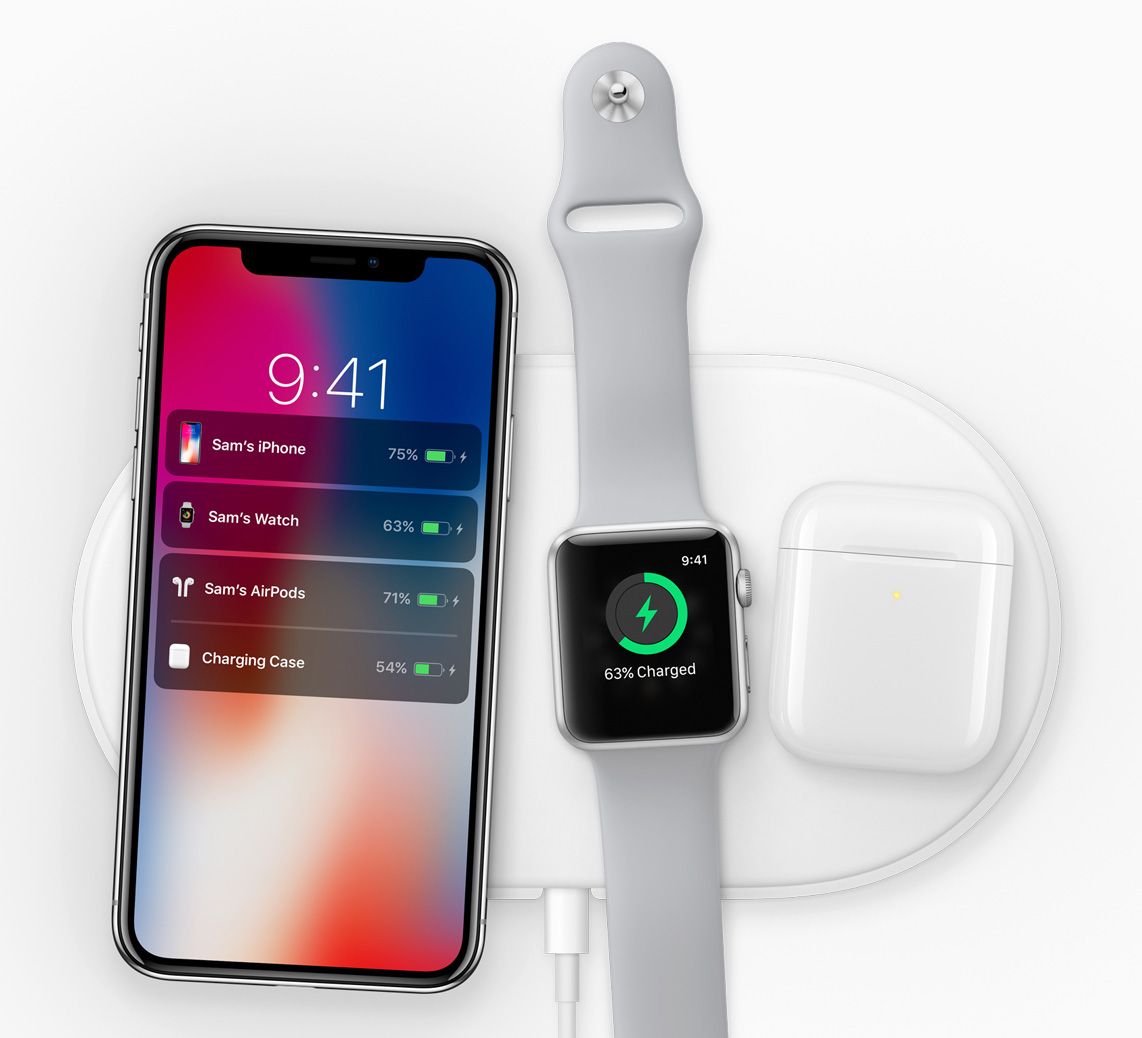
The new Apple-designed AirPower mat, coming in 2018, can charge iPhone, Apple Watch and AirPods simultaneously.
The glass back design enables a world-class wireless charging solution. Wireless charging works with the established Qi ecosystem, including two new wireless charging mats from Belkin and mophie, available from apple.com and Apple Stores.
The glass back design on iPhone X enables a world-class wireless charging solution.
Apple gave a sneak peek of AirPower, an Apple-designed wireless charging accessory coming in 2018, which offers a generous active charging area that will allow iPhone 8, iPhone 8 Plus or iPhone X customers to simultaneously charge up to three devices, including Apple Watch Series 3 and a new optional wireless charging case for AirPods.
Pricing and Availability
iPhone X will be available in silver and space gray in 64GB and 256GB models starting at $999 (US) from apple.com and Apple Stores and is also available through Apple Authorized Resellers and carriers (prices may vary).
Through Apple’s iPhone Upgrade Program, customers in the US can get iPhone X, with the protection of AppleCare+, choose their carrier (no multiyear service contract required) and have the opportunity to upgrade to a new iPhone every year. The iPhone Upgrade Program is available for iPhone X at apple.com and Apple Stores in the US with monthly payments starting at $49.91.4
Customers will be able to order iPhone X beginning Friday, October 27, with availability beginning Friday, November 3, in Andorra, Australia, Austria, Bahrain, Belgium, Bulgaria, Canada, China, Croatia, Cyprus, Czech Republic, Denmark, Estonia, Finland, France, Germany, Greece, Greenland, Guernsey, Hong Kong, Hungary, Iceland, India, Ireland, Isle of Man, Italy, Japan, Jersey, Kuwait, Latvia, Liechtenstein, Lithuania, Luxembourg, Malta, Mexico, Monaco, Netherlands, New Zealand, Norway, Poland, Portugal, Puerto Rico, Qatar, Romania, Russia, Saudi Arabia, Singapore, Slovakia, Slovenia, Spain, Sweden, Switzerland, Taiwan, UAE, the UK, the US and US Virgin Islands.
Apple-designed accessories including leather and silicone cases in a range of colors will be available starting at $35 (US), while a new iPhone X Leather Folio will be available for $99 (US). Lightning Docks in color-matching metallic finishes will also be available for $49 (US), prices may vary.
Every customer who buys iPhone X from Apple will be offered free Personal Setup in-store or online to help them customize their iPhone by setting up email, showing them new apps from the App Store and more.5
Anyone who wants to start with the basics or go further with iPhone X or iOS 11 can sign up for free Today at Apple sessions at apple.com/today.
Apple revolutionized personal technology with the introduction of the Macintosh in 1984. Today, Apple leads the world in innovation with iPhone, iPad, Mac, Apple Watch and Apple TV. Apple’s four software platforms — iOS, macOS, watchOS and tvOS — provide seamless experiences across all Apple devices and empower people with breakthrough services including the App Store, Apple Music, Apple Pay and iCloud. Apple’s more than 100,000 employees are dedicated to making the best products on earth, and to leaving the world better than we found it.
1 iPhone X is splash, water and dust resistant, and was tested under controlled laboratory conditions with a rating of IP67 under IEC standard 60529. Splash, water and dust resistance are not permanent conditions, and resistance might decrease as a result of normal wear. Do not attempt to charge a wet iPhone; refer to the user guide for cleaning and drying instructions. Liquid damage not covered under warranty. 2 The iPhone X display has rounded corners that follow a beautiful curved design, and these corners are within a standard rectangle. When measured as a standard rectangular shape, the screen is 5.85 inches diagonally (actual viewable area is less). 3 Portrait Lighting launches in beta. 4 Based on a 24-month installment loan; full terms and conditions apply. 5 In most countries.
iPhone X has not been authorized as required by the rules of the Federal Communications Commission. This device is not, and may not be, offered for sale or lease, or sold or leased, until authorization is obtained.
A new public beta, which has the same features as the developer-only iOS 11 beta 10 release, is also out for members of the Apple Beta Software Program. The new software has arrived six days following iOS 11 beta 9 and 24 hours following a tenth beta of tvOS 11 for Apple TV.
To install the update on your iOS device with an appropriate configuration profile (available for download through Dev Center), use Apple’s Software Update mechanism in the Settings app.
Here’s Andrew’s hands-on walkthrough of the changes in the previous beta.
Originally released as a developer-only preview at WWDC in June, iOS 11 packs in a surprising number of new features, under-the-hood enhancements and user interface refinements.
Some of them include a customizable Control Center, a redesigned App Store, brand new multitasking features on iPad with the interactive Dock and drag and drop, a dedicated Files app, AirPlay 2 with multi-room audio, new Siri capabilities and more.
As we get closer and closer to Apple’s event next Tuesday, we’re most likely approaching a Gold Master build that should release before the next iPhone launches later in September.
Another privacy issue for Apple as allegations on Messages logging all your contacts reached by the app seems to be messed up. Is it all true?
Messages, Apple\’s SMS proprietary app have many great features and gimmicks like the overlays and stickers. It was brought bundled with the new iOS 10. However, you may want to reconsider using this app if you want a completely discreet chats with your contact list.
Previously known as iMessages, Messages is said to be used by Apple to log contacts reached using this app. This apparently allows the company and law enforcement agencies to get into who you have texted in the past. Now, that\’s a shocker.
The report is based on a document provided to The Intercept by the Florida Department of Law Enforcement\’s Electronic Surveillance Support Team, which details to law enforcement what kind of information can be successfully subpoenaed from a suspect\’s iPhone.
On the more positive side, these logged information won\’t contain and won\’t be extracted with the contents of the messages. However, it will still show the phone numbers that Messages attempted to get in touch with. Not only that, also the time and date of the messages and most probably the location using the IP address.
Why do Apple have this feature?
Apple seems to be using this feature (which we didn\’t know existed until now) to check if an SMS or chat is sent to another Messages user. If this is the case, Messages will enable special features of the app. The difference can be seen through various colors sported by chat bubbles inside Messages. Blue means both users use Messages, green means normal SMS apps and services are used.
Apple says these logs are deleted after 30 days, though any repeated interaction with new members in your contacts list – or any other iOS app with similar access to the servers – may refresh the saved information.
Is it legal?
It is very normal for phone carriers to record contact information of all its users and they can surrender information to law enforcers who have proper warrants to do so.
Maybe we can take Apple\’s word on privacy from last year while they are promoting Messages as a more advanced option compared to conventional SMS texting. However, if you are unsure of this news and wants more updates, you still have other options you can use: Whatsapp, Facebook Messenger, and Allo. You choose.
Local iPhone backups are easier to crack in iOS 10
Though it may not involve iCloud storage, it seems that it is best to wait for the new iOS 10 security updates to back up your iPhone.
It seems that Applehave a problem with the new iOS 10 update that makes security on iPhones weaker. This could lead to a potential breach and unauthorized access to local backups.
This comes from a Russian firm, Elcomsoft, that makes tools to break into iPhones. They discovered this as they are updating their phone breaking tool software. They found out that local backups made to a user’s computer when they update to iOS 10 uses a new verification system that omits some security checks. In short, it’s easier to get inside these local files.
Why would you care?
If you have updated to iOS 10 using your computer, then you should be wary of attacks due to these weaker security mechanisms. Password-protected backups made by iOS 10 are primary targets. If an attacker can get hold of a copy of these backups, Elcomsoft’s new software would allow it to crack the encryption 2500 time faster to the old security mechanism used in iOS 9.
Through this statistics, they can process 2400 passwords per second in iOS 9 while 6 million passwords per second in iOS 10. Pretty huge difference.
The iTunes backups’ weakness may well be a weak link for iPhone security, for iOS 10 users of course. Elcomsoft said that breaking into the physical phone or even iCloud accounts have been more difficult lately, however, an access to a backup stored locally inside a computer allows for some direct access. Forcing an iPhone or an iPad to produce an offline backup and analyze the resulting data are the very few options available for devices running iOS 10.
Apple’s Response
According to a statement provided to Forbes, Appleis aware of the issue and is working to correct it:
“We’re aware of an issue that affects the encryption strength for backups of devices on iOS 10 when backing up to iTunes on the Mac or PC. We are addressing this issue in an upcoming security update. This does not affect iCloud backups,” a spokesperson said. “We recommend users ensure their Mac or PC are protected with strong passwords and can only be accessed by authorized users. Additional security is also available with FileVault whole disk encryption.”
Our suggestion, wait till the next stable update for iOS 10 before backing up your iPhone.