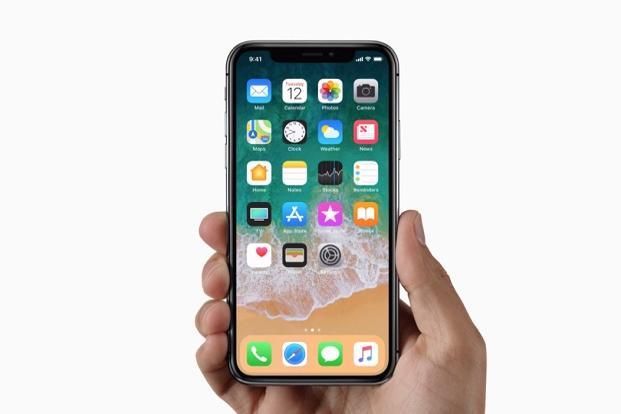
Want to quit apps on iPhone X? Maybe an app is misbehaving or draining your battery, or maybe you don’t want to updating or doing things in the background. If you need to quit running apps on iPhone X, you may have noticed that the traditional swipe up gesture does not work to close the app and instead sends you back to the home screen.
Instead, iPhone X has a new method of quitting apps that uses a two part method composed of both a gesture and then a tap and hold. It may take a little bit of getting used to, but the end result is the same; you can close out of running iOS apps.
How to Quit Apps on iPhone X
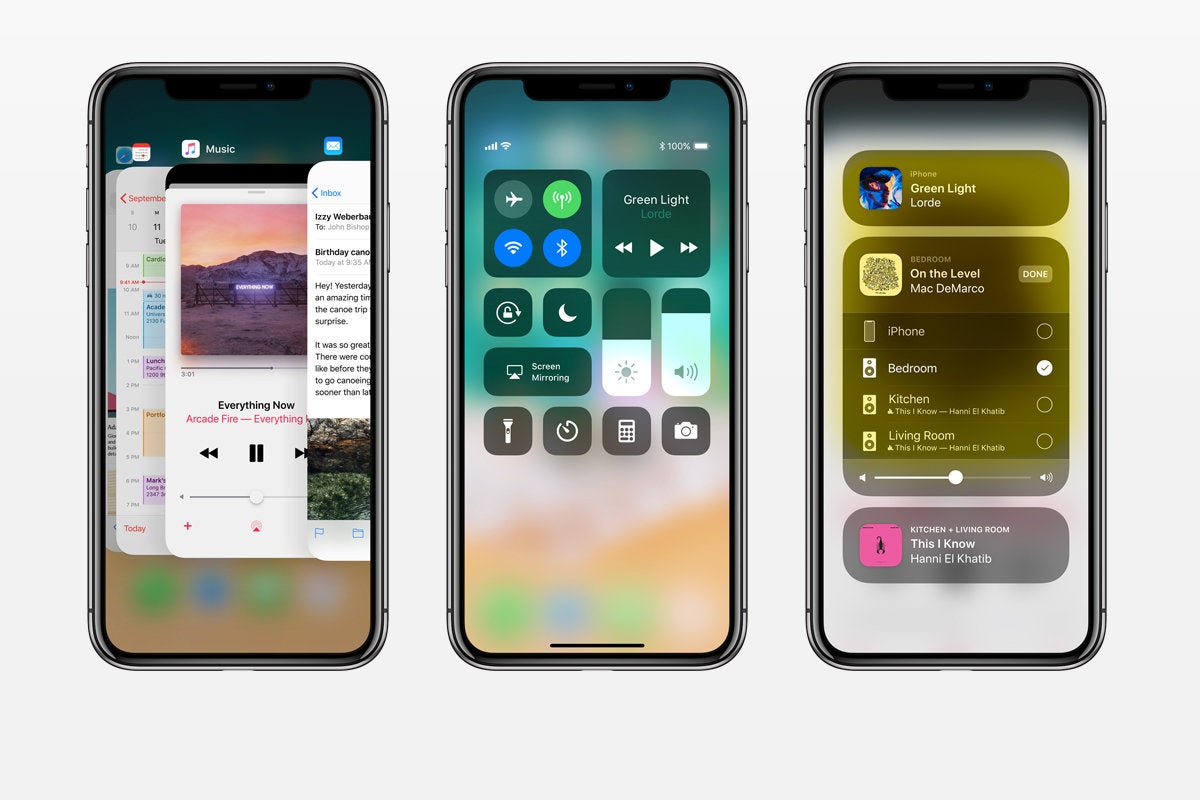
Swipe up from the bottom of the screen and pause for a moment to access the application switcher on iPhone X
Now tap and hold on any app preview card until the red “(-)” minus symbol appears in the corner of each app preview card
Tap the red “(-)” minus symbol to quit the app *
Swipe over to other app(s) and tap the red minus (-) button on those to quit as well, if desired
Swipe up again from the very bottom of the screen to exit out of the multitasking screen on iPhone X
* Once the red buttons appear, you can then swipe up on the preview cards to quit the apps. You can also tap multiple red minus buttons concurrently to quit multiple apps at the same time on iPhone X.
That’s it, just swipe up to access the multitasking screen, then tap and hold, then tap the red button to quit apps on iPhone X. Or, tap and hold, then swipe up once you see the red buttons appear on the app previews. The tap and hold action is a bit like what you use to delete iOS apps quickly from the Home Screen too, so it should be familiar to iOS users. Of course here we’re just quitting the app rather than deleting it, however.
The video below shows how this works, starting from the swipe and pause gesture, then tapping and holding to quit apps on iPhone X multitasking screen:
Note that if you simply swipe up on an app preview card, like how you quit apps on prior iOS devices, you’ll wind up back at the home screen of the iPhone X. But, you can swipe up after the red minus buttons appear on the app preview cards, that will close the apps as well.
Did you get a new iPhone X and now you want to migrate all of your data and stuff from an older iPhone to the new iPhone X? It’s easy to migrate everything from an old iPhone to a brand new iPhone X and transfer all of your data with you. This walkthrough will show how to get all data over from an old iPhone to the new iPhone X in the fastest manner possible.
It’s worth mentioning there are actually a few ways to transfer data from an old iPhone to a new iPhone X, each method requires making a backup of the old device which is then restore to the new iPhone X. While you can use iCloud backups and restore if you’d like to, our focus here is going to be on using iTunes backups and iTunes restore, because for many users it will be the fastest way to get a new iPhone X setup successfully with all of their old data onto the new phone.
How to Migrate All Data to New iPhone X from an Old iPhone
The tutorial here is going to walk through migrating all data from an iPhone 7 Plus to a new iPhone X by using iTunes and a computer. This is demonstrated on a Mac with iTunes, but the process is identical on a Windows PC with iTunes.
Connect the old iPhone to a computer with a USB cable
Launch iTunes on the computer and then select the connected old iPhone by clicking on the tiny iPhone button near the top of the iTunes window
Under the Summary section, select “This Computer” and click on “Encrypt iPhone Backup”*, then choose to “Back Up Now” **
Let the backup process of the old iPhone to iTunes complete
Now pick up your brand new iPhone X and go through the onscreen setup steps on the device
When you get to the “Apps & Data” screen, choose “Restore from iTunes Backup” and then connect the new iPhone X to the computer with iTunes
At the iTunes “Welcome to Your New iPhone” screen, choose “Restore from this backup:” and select the backup you just made of the old iPhone to iTunes, then click “Continue”
Let the Restoring iPhone from backup process complete, it may take a while – in the example here a 128GB iPhone with nearly full storage took about an hour to restore from an iTunes backup
When restoration from backup is complete, pickup the iPhone X and complete the setup steps
Note that new versions of iTunes (from 12.7 onward) will not restore apps from iTunes, and instead will download the apps again from the App Store during the restore process. You can get around that by using an alternate version of iTunes with App Store support, but it seems inevitable for Apple to do away with app support in iTunes in the near future.
That’s it. You’re ready to use your new iPhone X, the new iPhone X will have everything your old iPhone had on it. All contacts, files, photos, movies, pictures, gifs, messages, apps, app data, health data, step counts and mileage tracking, everything will have successfully migrated over, assuming you completed the steps properly.
* It’s important to choose to “Encrypt iPhone backup” when the backup is made to the computer via iTunes so that passwords, logins, health data, email login details, account data, and other info are backed up as well. iCloud backups are always encrypted by default. Do not forget the iTunes encrypted backup password, otherwise your backups will be inaccessible.
* You can backup the old iPhone with iCloud instead if you’d like to, but if you have a very large backup or tons of pictures, movies, then using iTunes with a USB connection between iPhone and a computer is going to be much faster for both backing up and restoring. There are some exceptions to this with those who have access to true first-world quality ultrafast broadband internet service, but if you are using one of the notoriously sluggish monopoly internet providers that are pervasive in the USA then it will take you a genuinely absurd amount of time to both make a large backup to iCloud and restore a large backup using iCloud. Just use iTunes, it will be much faster.
What about migrating data to the new iPhone X using iCloud?
You can absolutely use a fresh iCloud backup and iCloud restore to migrate everything from an old iPhone to a new iPhone X, the process is basically the same as the above method except you will choose to backup to iCloud, and then restore iPhone X from that iCloud backup.
Using iCloud to migrate rather than iTunes is entirely up to you, but perhaps the most important factor when using iCloud is the speed and reliability of your internet connection. iCloud Restore works very well, but to complete in a reasonable time frame requires either a relatively small device backup, or an extraordinarily fast and reliable internet connection.
Be aware that using the iCloud restore process can take an unreasonable amount of time to complete however. For example, using iCloud to restore my old 128 GB iPhone Plus backup to the new iPhone X was estimated to take a whopping 45 hours using a standard American broadband connection (despite creating the internet, the USA has notoriously slow and expensive broadband compared to the developed world, hooray). If you’re in a major US tech hub with lightning speed fiber broadband, using iCloud may be a reasonable option for you. For me personally, the decision to wait 1 hour by using iTunes restore versus 45 hours by using iCloud restore when setting up new iPhone X was not exactly a challenging decision to make; iTunes it is.
Sidenote: The iPhone X also has a new optional “Quick Start” setup and transfer process which uses iCloud backups and requires both devices be on iOS 11.0 or later, but as discussed already, the iTunes method is typically the fastest way to get a new device restored with your old iPhone data, which is why we’re focusing on iTunes.
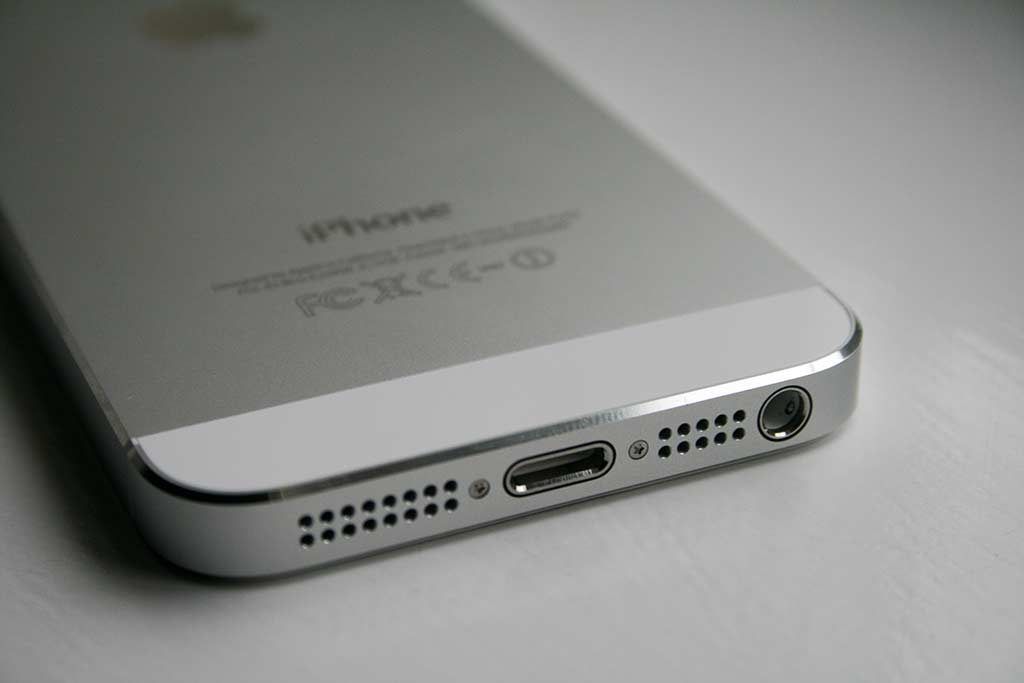
Is your iPhone getting problems recharging correctly? No problems with the charger and the cable? Then maybe it’s time for a lightning port replacement.
The iPhone lightning port is a revolutionary port. It can work on either side unlike the micro USB type B found on older Android smartphones. Though the industry has long since moved on to USB-C, the lightning port will always be regarded as the iconic ports for premium Apple devices.
Lightning ports are nothing without it’s flaws.
It’s not as perfect as it can also succumb to wear and tear of daily use.
Most common reasons why the lightning charger port fail:
Dust and dirt. Yes, being an open port underneath your iPhone, the lightning port can accumulate lints, dust and pet hairs inside it.
Mishaps. A perfect example is when the charging cable is attached firmly in the port and suddenly you fell asleep squishing your iPhone underneath the pillow. As a result, a snapped iPhone charging cable and a lesser tight port. You can still fix or prevent frayed iPhone cables.
Wear and tear. Unfortunately, Apple will claim that a normal lightning charging port can last after a couple of engagements until it totally fails. So if you consumed these number of engagements it will most likely fail.
When any of your good lightning cables won’t recharge your iPhone. You’ve connected all sorts of working lightning cables but your iPhone is still not showing that battery icon. If this happens, then it’s clear that your lightning port is damaged and needs replacing.
When your iPhone stops recharging intermittently. You’ve successfully got the battery icon, your iPhone is recharging, you’ve left it in peace. After a few minutes, you’ve noticed that it’s not even 20% up. It’s not consistently giving power to the battery to fully recharge it. This can be a hassle and will definitely be remedied with a new charging port.
When your iPhone heats up than usual during recharging. Yes, it’s not normal for an iPhone to heat up when recharging it. If this is the case for you every single time, then your lightning port module needs an overhaul and a replacement.
What do we suggest you do when you need iPhone charging port replacement?
Due to the complexity of this operation, we don’t recommend you do iPhone charging port replacement on your own. Seek professional advice and service as to the status of your device.
We repeat. Get professional advice. Sydney CBD Repair Centre offers the best rates to replace your iPhone charging port.
For all we know, your iPhone charging port may not just be the problem; or it may not be the problem in the first place.
Sydney CBD Repair Centre can do iPhone charging port replacement for the best prices.
SYDNEY CBD REPAIR CENTRE IS OPEN 6 DAYS A WEEK Weekdays: 10am – 6pm Saturday: 10am – 6pm Sunday : Closed
After Business Hours, By Appointment only.
CALL 8011 4119 or 043 777 4119 ask@SydneyCBDrepairCentre.com.au
People also ask
How do you clean the charging port on iPhone?
How do I charge my phone if my charger port is broken?
How much does it cost to fix the charging port on an iPhone 6?
Can you replace the charging port on an iPhone 5?
Why my Iphone is not charging?
Why is my Iphone 6 Not Charging?
Why is my phone charging so slow?
Why my phone is not charging?
Why is my Iphone so slow to charge?
How do I get my phone to charge faster?
How do I make my phone charge faster?
How do I get my phone to charge faster?
How can you charge your phone without electricity?
iPhone Battery Replacements: Which battery do you need
Have you ever suspected that your iPhone battery is slowly degrading and losing power? Well, you can change it yourself. That is, if you know what battery to get.
If you’re a DIY kind of person and loves electronics with the barest concepts to get you by, then you might have once wondered if you could just swap out your old iPhone battery for a new one.
But why on earth would you do an iPhone battery replacement yourself?
Well, it can be that you want to save some money by avoiding professional replacement cost.
Or just for fun or experimentation. You’re a tinkerer after all.
WAIT! Whatever your reason is, it’s best to know that:
Batteries are not created equal. Never try iPhone batteries that are not designed for a certain device. Avoid fake, unproven batteries if you can.
Batteries are not equally powerful. Nevery try iPhone batteries if it’s not of the same capacity and voltage.
Batteries are dangerous. If in the event of puncture or shock, an iPhone Li-ion battery can explode and cause fire.
This is what it looks like if a Lithium-ion batteries like in iPhones explode due to mishandling.
How can you tell which iPhone replacement battery you should get?
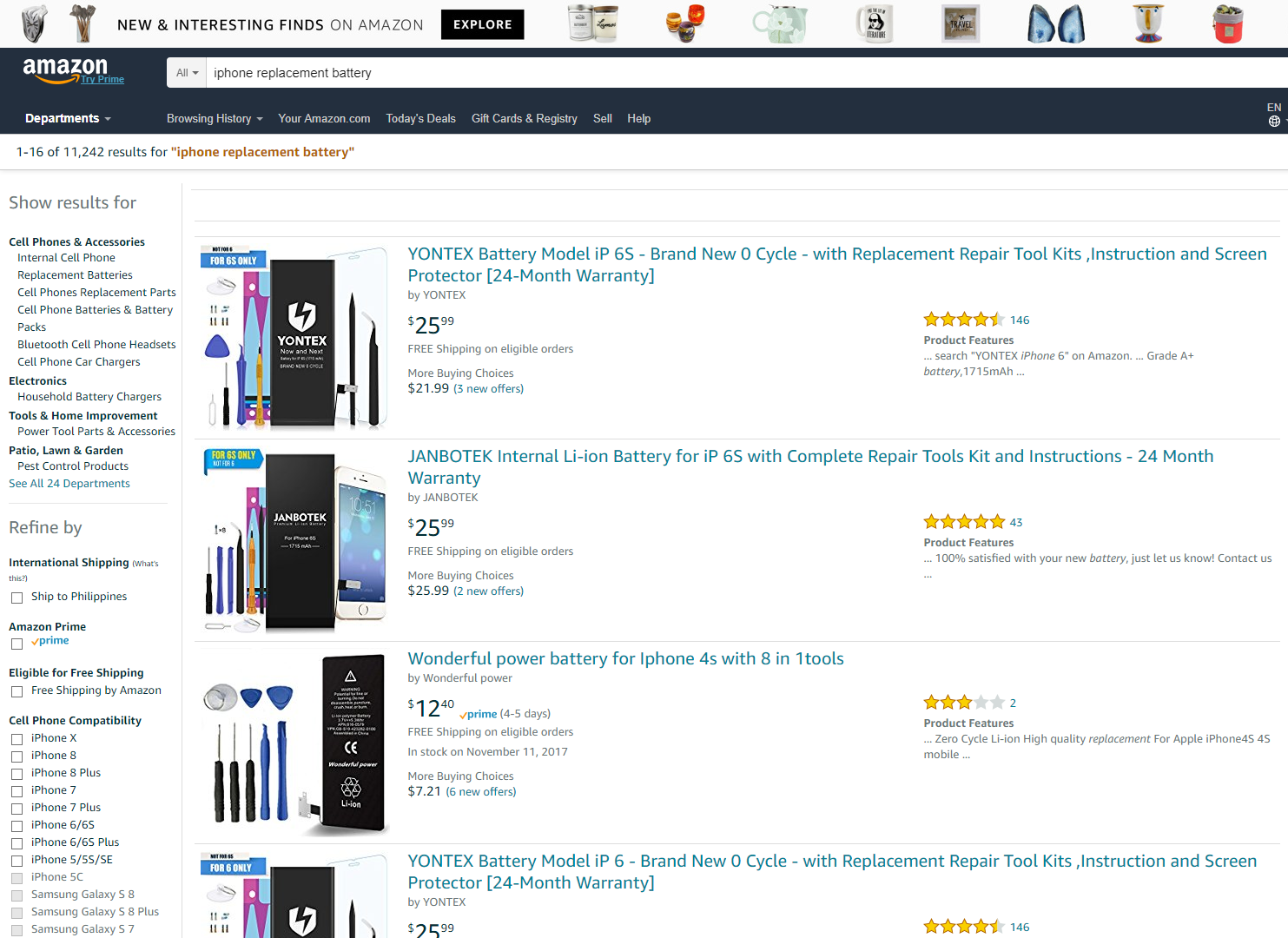
Research, research, research. As a modern human constantly connected to the rest of the world, this would be the first option. Go to your browser and search for the best iPhone replacement battery you can buy. Usually, it’s gonna be spoonfed to you by Amazon or eBay as to the exact iPhone model it is compatible with.
iPhone replacement batteries comes pretty cheap and with freebies like hex screws and plastic prying tools for a complete DIY action.
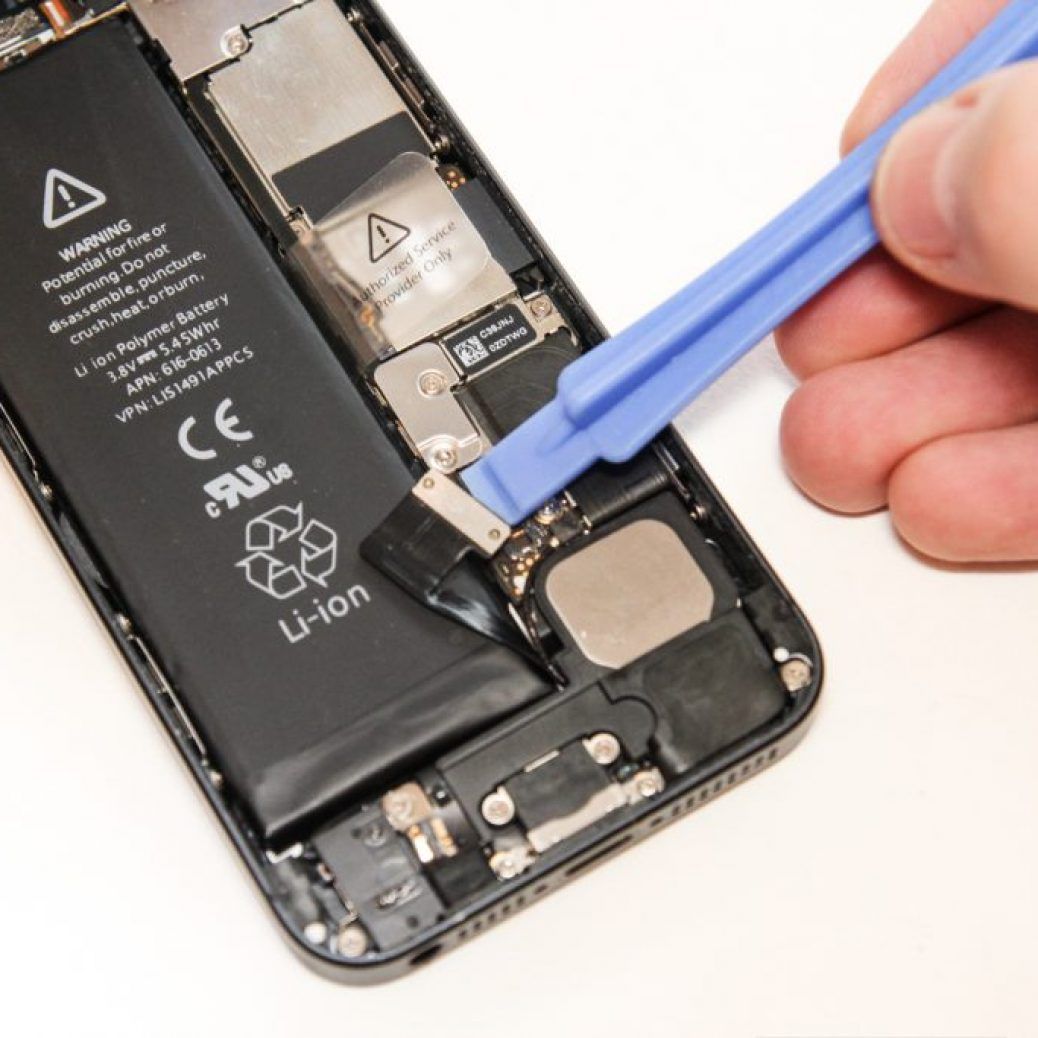
Open up your iPhone first. If you don’t trust the internet, you can pry your iPhone open first and then read what’s written on your iPhone battery. Take some measurements like the wattage and size plus the connector design that attaches to the logic board. This will take some advanced skill but if you’re a rebel who want to do it the hard way, then go ahead, cowboy.
The iPhone battery will explicitly tell you the voltage of your iPhone’s battery and as what you can see, also the connector that will be unique to each iPhone model.
Bonus: Alternatives on replacing your iPhone battery
Let the pros do it. Okay, we are not gonna force you if you don’t want to but when it comes to the point when you need to seek professional help, don’t hesitate. If your DIY plans on replacing your iPhone battery failed miserably, there’s no shame in admitting that you can’t do it after all. You’ve tried to pry your iPhone open, you’ve done your part of research but just let professional technicians do it for you.You’ll spend some money as a consequence but just avoid the hassle of spending more if you happen to crack your iPhone LCD display. Trust us, we’ve been there once. You can even have charging port replacement for your iPhone 5.
Sydney CBD Repair Centre is one of Australia’s prolific iPhone repair centres.
New smartphone? You’ll go through the hassle of looking around for replacement batteries and the operation on doing it. But have you asked yourself if it’s really worth it? If yes, then maybe it’s gonna rejuvenate your old iPhone by giving it a longer battery life. If not, then maybe a new smartphone or iPhone is a more logical investment in the future.
That new iPhone smell.
SYDNEY CBD REPAIR CENTRE IS OPEN 6 DAYS A WEEK Weekdays: 10am – 6pm Saturday: 10am – 6pm Sunday : Closed
After Business Hours, By Appointment only.
CALL 8011 4119 or 043 777 4119 ask@SydneyCBDrepairCentre.com.au
If iPhone X is the future, then iOS is the vehicle to get us there. Apple’s latest iPhone introduces all sorts of little changes to iOS that compensate for the lack of Home button and the camera notch, but for the most part, iOS on iPhone X isn’t all that different than it is on the iPhone 8.
In fact, if iPhone X shows us anything, it’s that iOS is a little behind the times. Apple has done well to freshen it up with new gestures and animations, but compared to the sleek curves and OLED screen on iPhone X, iOS feels less modern than ever. And if iPhone X is truly going to lead Apple over the next 10 years, then iOS is going to need to be three steps ahead of it. Here are 10 ways iOS 12 can get the ball rolling:
1. Give us a dark mode
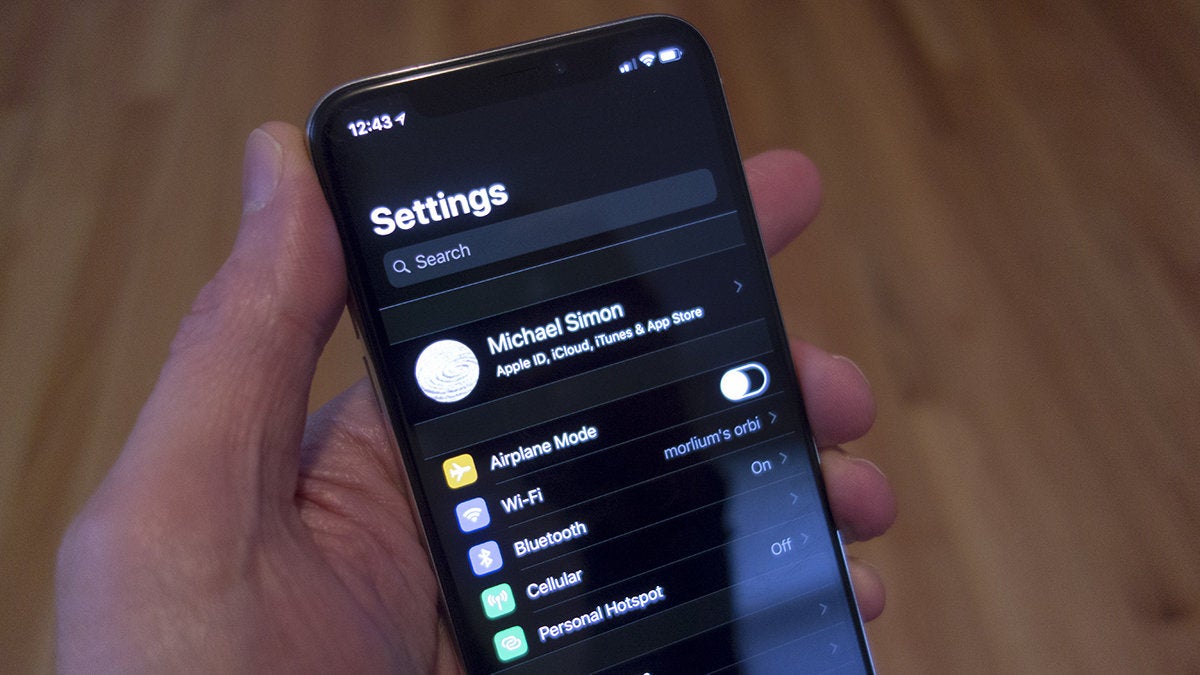
iPhone X would be stunning with a true iOS dark mode.
As we can see on Apple Watch, a dark OS theme takes full advantage of OLED, blurring the lines between the glass and the screen, and giving the illusion of an infinite screen. Apple might tout iPhone X as being “all screen,” but in reality it actually has a pretty thick bezel. We can kind of simulate it with the Invert colors toggle in the Accessibility settings (as seen in the picture above), but a true dark mode in iOS would eliminate the visual barrier between the screen and the bezel and make it seem like you’re holding a edge-to-edge piece of glass.
2. Expand Face ID’s reach
Face ID is very impressive on iPhone X, but it’s not quite perfect. Much like Touch ID’s debut on the iPhone 5s, Face ID is very much a work in progress, and Apple is surely going to improve the speed and reliability of it on future iPhones. Two things we’d like to see, though: greater angles of recognition so we don’t have to focus so intently on the screen while unlocking, and the ability to add a second face. With Touch ID, our spouses and kids had fingerprints registered so they could use our phones without asking for our passcode (or our fingers), and we’d like to do the same with Face ID.
3. Go all in on the notch
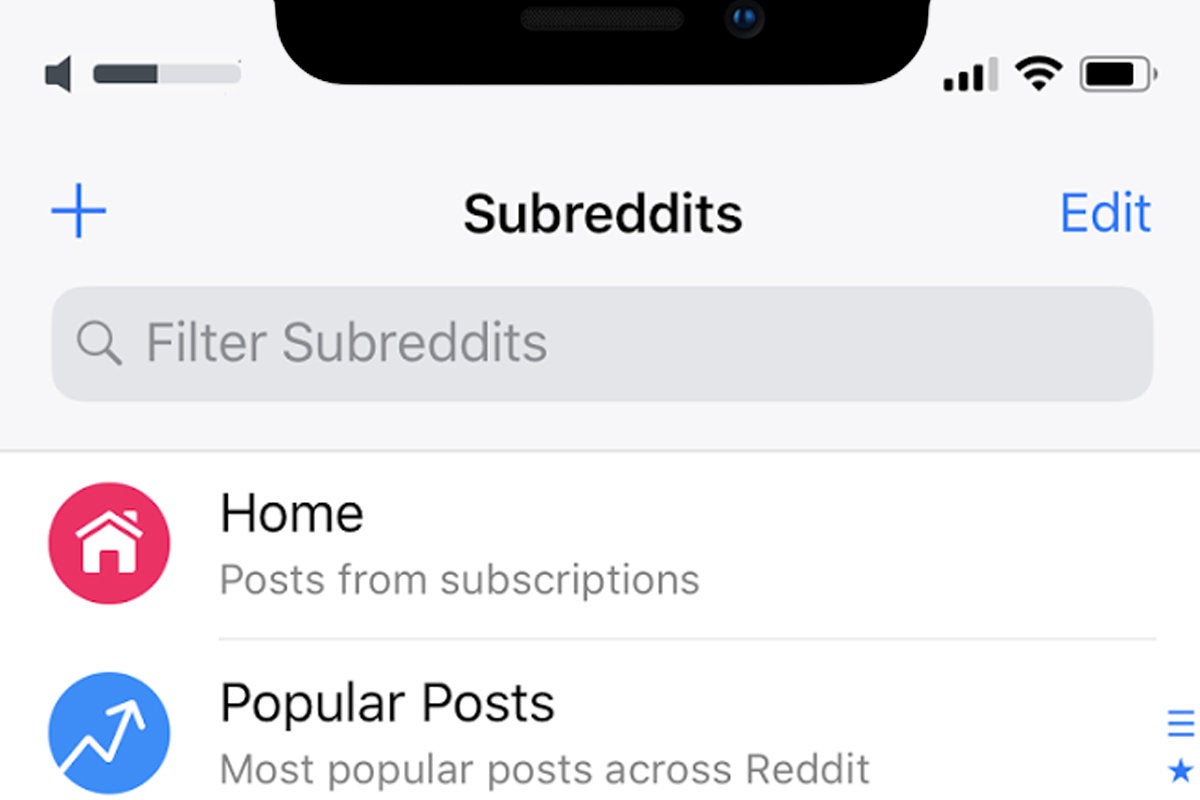
Apple should use the notch for more than just static icons.
The camera notch isn’t nearly as bad as we thought it would be. While it still looks a little silly in pictures, in practice it’s not all that distracting, and in the right instances, it’s actually kind of cool. But one thing is for sure: It’s not going away anytime soon. So, if that’s the case, we’d like Apple to add even more functionality to the spaces around the notch, turning the status bar into a fully interactive space that eliminated the need to open the Control Center so often. For example, tapping the battery icon could show how much percentage is remaining or tapping the time could toggle between it and the date. And here’s a really cool one: Reddit app Apollo (seen above) uses the top right space to show sound adjustments so your view isn’t obstructed just because you want to raise the volume.
4. Let us swipe anywhere to unlock
There’s no doubt that at some point in the future our iPhones will automatically jump to the home screen as soon as we look at them, but until that day arrives, we still need to swipe up. The problem is, you need to swipe from the very bottom of the screen where the home indicator is. And we often forget, meaning we have to swipe twice to unlock. Much like Apple removed the bar in iOS 7 and let us slide anywhere to get to the passcode screen, the ability to swipe up in the center of the screen would save literally hundreds of seconds each day.
5. Build an always-on display
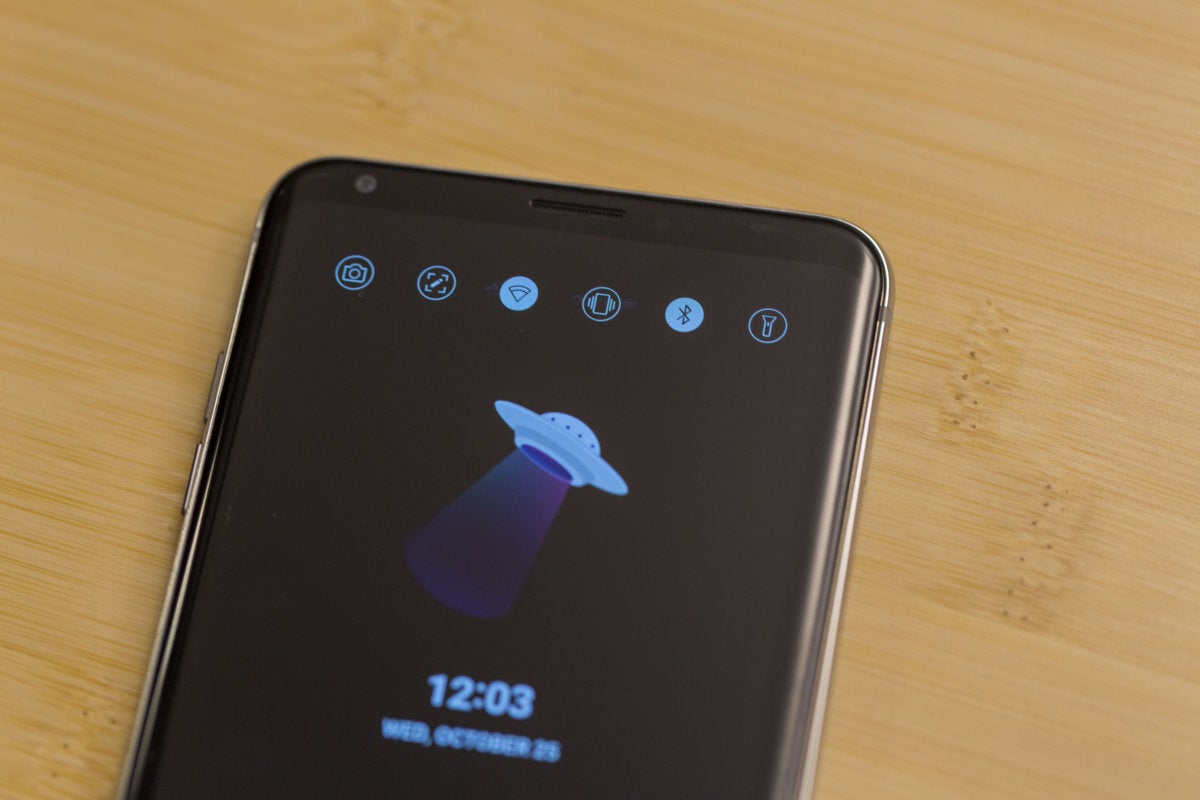
Always-on displays are out of this world on Android phones..
Now that Apple is finally using OLED in an iPhone and can take advantage of its power-saving benefits, the time is ripe for an always-on display. A staple of Android flagships for years, it’s an incredible useful feature, showing things like time, battery percentage, and notifications without needing to do more than glance at your phone. We’d love to see what an always-on display would look like on iPhone X, but mostly it would be nice if our phones didn’t light up every time they need to alert us that a notification has arrived.
6. Add a double-tap to sleep gesture
Without the Home button, the only way to turn on the iPhone X’s screen is to press the side power button, so Apple gave us a cool gesture: tap to wake. But it only works when the display is off. To turn off the display, we still need to press the power button. On LG phones, you can double-tap on the home screen to put it to sleep, and it would be incredible useful on iPhone X too.
7. Put the apps in a drawer
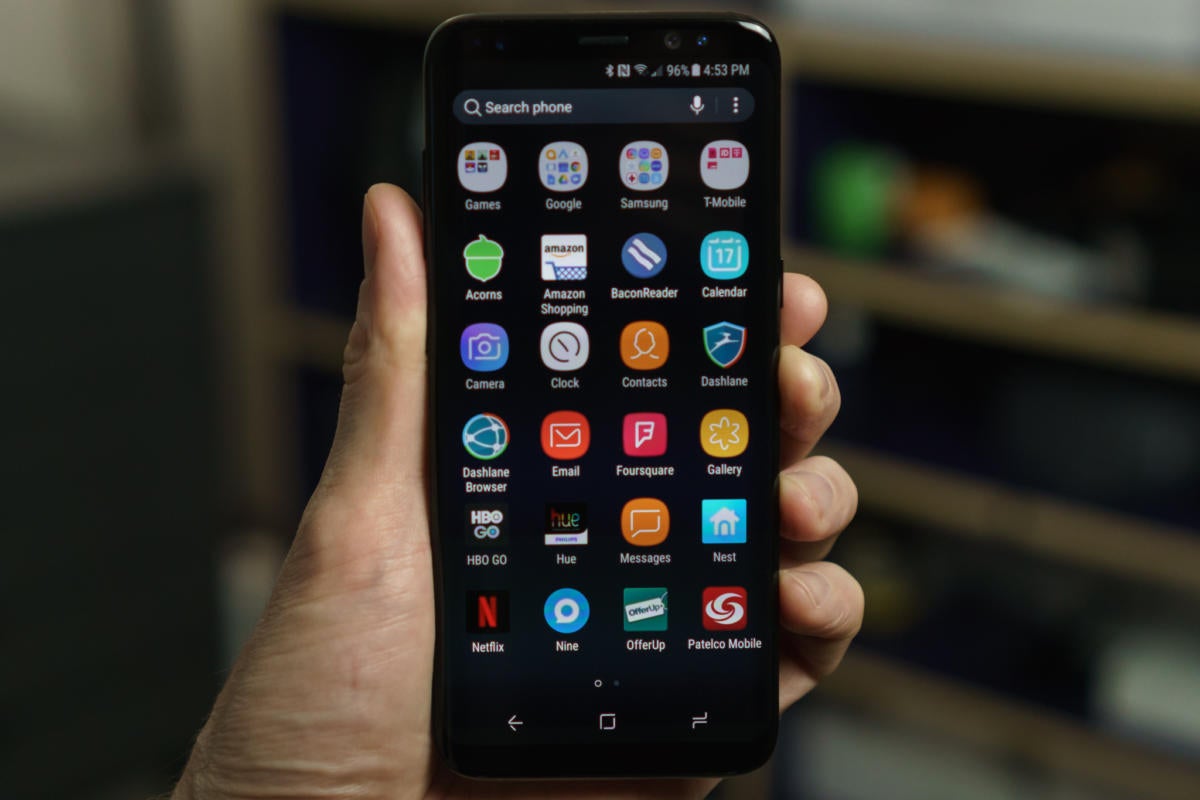
It sure would be nice if we could tuck our apps away into a drawer in iOS 12.
We’ve been hating on the icon grid for years, but on iPhone X it’s downright criminal. With such a brilliant screen, we want to see our entire home screen image, but Apple still forces us to clutter our screen with icons. It’s time Apple gave us the option to keep them hidden a la Android’s app drawer, showcasing the iPhone X screen in all its glory.
8. Make unlocking smarter
We can debate the merits of Face ID over Touch ID all day long, but the bottom line is we shouldn’t need to unlock our phones every time we want to use them. On Android phones, you can keep your phone unlocked when you’re connected to trusted Wi-Fi networks or using certain Bluetooth devices, and a similar feature would be awesome in iOS. How great would it be if you didn’t even need to use Face ID to unlock your iPhone X once you strapped an Apple Watch onto your wrist?
9. Fix the keyboard
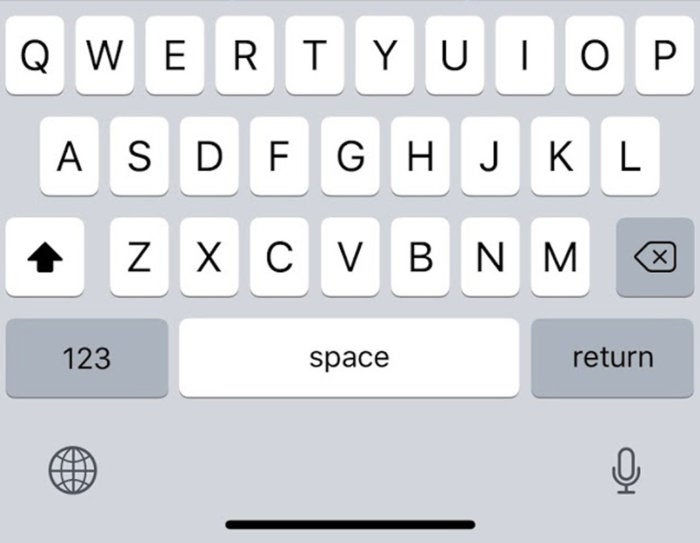
The Phone X keyboard has an awful lot of wasted space.
iPhone X may give us more screen to work with, but when you’re typing a message or email, you don’t actually get any space benefits over the iPhone 8 Plus. That’s because Apple has opted to position the keyboard with a sizable bit of space below it so as to not interfere with the home indicator. Fair enough, but at the moment, it’s pretty much wasted. Apple has put the dictation and keyboard switcher buttons down there, but why not add a Touch Bar-style row of favorite emoji too? Or at least let third-party developers customize it with their own buttons? Every pixel on iPhone X is valuable, and it’s a shame to have so much blank space.
10. Bring over iPad-style multitasking
iOS 10 brought some serious multitasking abilities to the iPad, but it needn’t be relegated to tablets anymore. Now that the iPhone X screen is nearly six inches, we should be able to run two apps comfortably at the same time. Or use a PIP window and drag and drop. iPhone X’s giant screen and gesture-based navigation opens it up to a whole array of multitasking possibilities, and iOS 12 needs to get on board.
Have you been trying to type “i” but it’s replacing itself with “A [?]” constantly on your iPhone or iPad? This is because iOS 11.1introduced a curious bug for many iPhone, iPad, and iPod touch users that causes the letter “i” to autocorrect to the letter “A” usually followed by a square symbol with a question mark in it, looking something like this: “A [?]”
Apple is aware of this curious bug and will apparently offer a bug fix software update to resolve the problem. But in the meantime, Apple also offers a workaround solution using the text replacement feature of iOS.
How to Stop the “i” Autocorrect “A [?]” Bug in iOS 11.1
Open the “Settings” app and go to “General” then to “Keyboard”
Choose “Text Replacement”
Tap the “+” Plus button in the corner
Under “Phrase” type an upper-case “I”
For “Shortcut” type a lower case “i”
Choose “Save” and exit out of Settings
Now when you type “i” it should actually type “i” rather than the A box character curiosity.
This solution, which is very much a workaround, is what Applesuggests as a fix for the problem until a future software update resolves the bug.
This is a strange bug and it does not impact every iPhone or iPad user with the iOS 11.1 release. Nonetheless we can expect a software update to fix the problem fairly shortly, perhaps as a small update like iOS 11.1.1 or similar.
If you’re impacted by this bug, use the text replacement workaround for the time being, and be sure to update your iOS version when a new release comes out.
Facing fierce competition, Essential Phone drops price to $500
From the $800 original price tag, is the Essential Phone now a worthy buy. Remember, no headphone jack on this one.
It seems that the iPhone killer, in terms of looks, is finally giving in to the pressure of its competition. From a new company, the Essential Phone was a bold move to even go head to head against the giant companies like Samsung and Apple to the smartphone game. Priced originally at $800, the smartphone is now sold at $500. In Canada, this even goes with phone plans for $0.
The ceramic back and titanium side of the Essential Phone was jaw droppingly gorgeous. The lip on top of the display for the camera is better looking when put side by side with the iPhone X. There’s a lot more to love with this pure Android smartphone.
One of it’s pitfalls is the poor, poor camera output. The photos look worse than a mid-range phone. The slots at the back is ready for the 360 camera attachment. This attachment, however, is yet to become available. Well, probably the worst of Essential’s mistake is leaving the pretty “essential” headphone jack. With more and more haters, hating this move from various companies, this smartphone should have prioritized the “jack” first than some gimmick 360 camera attachment.
Oh, the irony. But hey, at least it’s much cheaper now.
SYDNEY CBD REPAIR CENTRE IS OPEN 6 DAYS A WEEK Weekdays: 10am – 6pm Saturday: 10am – 6pm Sunday : Closed
After Business Hours, By Appointment only.
CALL 8011 4119 or 043 777 4119 ask@SydneyCBDrepairCentre.com.au
Tips on optimizing your Super Retina OLED display – for iPhone X
How to do basic care of your iPhone X Super Retina display? The secret may be in software. Here’s some tips to optimize these AMOLED screen.
Get the most out of the Super Retina display
With iOS 11, iPhone X is specially designed to minimize the effects of long-term use and extend the viewing life of the Super Retina display. Here are some additional things you can do to get the most out of your Super Retina display:
Update your iPhone X to the latest version of iOS. When a new update is available, you’ll see a prompt to update. You can also check for updates in Settings > General > Software Update.
Use Auto-Brightness to automatically adjust the brightness of your display based on the ambient light in your location. This setting is on by default. To check this setting, go to Settings > General > Accessibility > Display Accommodations.
Set your iPhone X to turn off the display when you aren’t using it. Choosing a shorter time is recommended. To adjust this setting, go to Settings > Display & Brightness > Auto Lock.
Avoid displaying static images at maximum brightness for long periods of time. If you have an app that keeps your display on when you aren’t actively using your iPhone X, you can temporarily reduce the brightness level using Control Center.
SYDNEY CBD REPAIR CENTRE IS OPEN 6 DAYS A WEEK Weekdays: 10am – 6pm Saturday: 10am – 6pm Sunday : Closed
After Business Hours, By Appointment only.
CALL 8011 4119 or 043 777 4119 ask@SydneyCBDrepairCentre.com.au
One of the biggest surprises this fall happens to be the LG V30, a refined product that has been highly praised by critics as the no-bull smartphone – offering a wealth of uncompromising features. Meanwhile, the hype surrounding Apple’s latest device, the 10th anniversary iPhone X, is in full swing as buyers packed stores and shops to pick it up recently. Apple’s reputation isn’t necessarily on the spot, given how its iPhones are continually popular amongst consumers, but for LG, they’re on the upswing after last year’s sour performance, so it’ll be interesting to see if the V30 can remain relevant now that the iPhone X is here.
Design
When you stack these two titans next to one another, it’s apparent that there’s no shortage of premium qualities with their designs. It’s so blatantly rampant, as the two phones share almost the same philosophies – a metal meets glass construction. However, the stainless-steel bands of the iPhone X combined with its slightly heavier weight does give it a more substantial feel in the hand. In terms of size, the iPhone X is slightly more manageable, since it’s shorter and narrower than the V30. But at the end of the day, it’s clear that the two phones simply look stunning!
What we like about the V30‘s design over the iPhone X is that it features a slightly more water-resistant construction; an IP68 rating versus the iPhone X‘s IP67. Furthermore, it packs the ever-so-useful 3.5mm headphone jack and a fingerprint sensor. The latter has been omitted with the iPhone X, replaced instead by its new Face ID technology, but we still certainly appreciate this alternative form of security.
Display
Apple might’ve moved beyond 1080p resolution with the iPhone X, which flaunts a 5.8-inch 1125 x 2436 Super Retina Display that leverage OLED technology, but the V30 is still technically more pixel packed with its larger 6-inch 1440 x 2880 FullVision P-OLED display. Not surprisingly, they hopped on the trend of boasting that near bezel-less look with their fancy looking new displays, so they’re more than equipped for all of your multimedia consumption.
Briefly comparing the two, it’s tough to make enough of an assertive affirmation about which one is more superior, but we can definitely say that the viewing angles on the iPhone X‘s display is better. For now, we’ll be reserved before making a final judgement – that’s until we can fully test out the qualities of the iPhone X’s new Super Retina Display. With the V30, it has already established itself as a strong contender with its strong brightness output and high contrast.
User Interface
Apple’s iOS versus Google’s Android, this is a battle we’ve seen countless times before. With LG‘s skin on the V30, it manages to retain a faithful experience to stock Android, but there are some useful additions thrown into the experience that enhance the experience, like its always-accessible floating bar. As for the iPhone X and its latest iOS experience, there are some new tweaks and tricks up its sleeve, like its new Animoji feature, but the core stuff continues to favor simplicity and straightforwardness.
Honestly, the two competing platforms have grown so much since their inceptions, so either can suffice for all sorts of needs. Android clearly continues to offer more customization and control by the user, but Apple’s control has been lessened. That new Animoji feature with the iPhone X is intriguing, providing users with a new form of interacting through messages, but knowing how the two platforms eventually adopt ideas from each other, it shouldn’t surprise us if and when a similar feature comes out for Android.
Processor and Memory
Just for specs sake, the LG V30 is powered by the Qualcomm Snapdragon 835 SoC accompanied with 4GB of RAM – whereas the iPhone X leverages Apple’s new A11 Bionic with 3GB of RAM. Until we can properly put the iPhone X through our barrage of testing, we’ll just mention our quick takeaways with their performances during our initial look. And with that, it’s just unbelievable how snappy the iPhone X runs. We’ve been using the V30 for quite some time now, exhibiting the tight responses you’d expect from a high-caliber phone, but it blows us away the noticeable difference in how the iPhone X performs with simple navigation around the interface!
Both handsets start with base storage capacities of 64GB, but there’s also an iPhone X with a 256GB capacity as well. That’s surely nice and all, but it can’t take away from the storage expansion of the V30 courtesy of its microSD card slot.
Camera
Dual-camera systems have been the trend amongst top-tiered smartphones this year, but even though these two prized smartphones offer them, their purposes are totally different. With the iPhone X and its dual 12MP cameras, it’s meant to deliver those creamy looking portrait shots as your subject is surrounded by beautiful bokeh. Oppositely, though, the LG V30‘s combo of having a main 16MP camera and a 13MP wide-angle one, is meant more to deliver a wider capture with compositions.
The intent of each camera system is definitely on the opposite ends of the spectrum, as the iPhone X seems to be the kind of camera for those who want simplicity in capturing shots, with an attention to portraits and those blown out backgrounds. Those wishing for more control, the V30‘s implementation offers a rich set of tools for content creators, especially on the video side. Then again, the iPhone X is notable for offering 4K capture at 60 FPS.
Regardless, we’re eager to compare the two and uncover who is going to deliver the better end result quality – both stills and videos, of course.
Battery
The LG V30, with its 3300 mAh battery cell, has already proven its endurance in delivering solid battery performance. It’s not the longest lasting thing we’ve tested, but it’s definitely up there still. Oppositely, though, the iPhone X‘s 2716 mAh battery will be scrutinized moreover not only for the fact that the capacity is a little bit underwhelming, but it makes us wonder how it’ll perform with that new, higher resolution display.
Thanks in part to their glass surfaces, the two are endowed with wireless charging technologies, which is always a nice complement to find in a high-end phone.
Expectations
What makes the LG V30 so compelling is that unlike its contemporaries (iPhone X included), it’s not priced so exorbitantly that it would make it unreachable to mere mortals. Although, based on the craziness and demand from consumers on launch day for the iPhone X, it seems people are willing to enter this new threshold for a smartphone.
Starting at roughly $829.99 at most retailers and carriers, the LG V30 seems like a value rich option in comparison to the $1,000 cost of the iPhone X. For the additional $130 you’re required to fork over for the iPhone X, it makes us wonder how much more you’re getting from Apple’s latest gadget. Still, we can’t stress enough how we appreciate some of the design cues found with the LG V30, like its headphone jack, in addition to how it’s a great option for video content creators.
The iPhone X, on the other hand, has a lot to prove to consumers at $1,000.
Apple has released iOS 11.1 to the general public. The new version of iOS includes a variety of bug fixes, feature enhancements, security improvements, and other additions to the mobile operating system, making iOS 11.1 a recommended update for iPhone and iPad users running a prior version of iOS 11.
Separately, Apple also released the final version of macOS High Sierra 10.13.1 for Macs, security updates to prior Mac OS releases, watchOS 4.1 for Apple Watch, and tvOS 11.1 for Apple TV.
iOS 11.1 includes over 70 new emoji icons, including dinosaurs, pie, broccoli, bearded people, breastfeeding person, gender neutral characters, wizard, pixies, zebra, scarf, brain, vampires, and a variety of other characters.
Users can download iOS 11.1 now through the Software Update mechanism on their devices, or through iTunes. The easiest way is through the OTA update available on the device in the Settings app.
Back up your iPhone or iPad before installing iOS 11.1 update.
Open the “Settings” app on the iPhone or iPad
Go to “General” and then to “Software Update”
Choose “Download and Install” when iOS 11.1 becomes available
The delta update is around 180mb if you’re coming from a prior iOS 11 build.
Users can also choose to download and update to iOS 11.1 via iTunes by connecting an iPhone, iPad, or iPod touch to their computer, launching iTunes, and installing the update when requested.
Be sure to save the IPSW file with a .ipsw file extension, otherwise iTunes may not recognize it.
iOS 11.1 Release Notes
iOS 11.1 introduces over 70 new emoji and includes bug fixes and improvements.
Emoji
Over 70 new emoji characters including new food types, animals, mythical creatures, clothing options, more expressive smiley faces, gender-neutral characters and more
Photos -Resolves an issue that could cause some photos to appear blurry -Addresses an issue that could cause Live Photo effects to playback slowly -Fixes an issue that could cause some photos to not display in the People album when restoring from an iCloud Backup -Fixes an issue that could impact performance when swiping between screenshots
Accessibility -Improves braille support for Grade 2 input -Improves VoiceOver access to multi-page PDFs -Improves VoiceOver rotor actions for announcing incoming notifications -Improves VoiceOver rotor actions menu when removing an app from the App Switcher -Fixes an issue for some users where alternative keys would not display when using VoiceOver with Touch Typing -Fixes an issue where VoiceOver rotor would always return to default action in Mail -Fixes an issue where VoiceOver rotor would not delete messages
Other improvements and fixes -Adds back support for accessing the app switcher by pressing on edge of display with 3D Touch -Fixes an issue that caused cleared Mail notifications to reappear on Lock screen -Fixes an issue in enterprise environments that prevented data from being moved between managed apps -Fixes an issue with some 3rd-party GPS accessories that caused inaccuracies in location data -Resolves an issue where settings for Heart Rate notifications were appearing in Apple Watch app (1st generation) -Fixes an issue where app icons were not appearing in notifications on Apple Watch
Separately, Mac users will find a 10.1macOS High Sierr3.1 along with security updates to El Capitan and Sierra. Apple Watch users will find watchOS 4.1 available, and tvOS 11.1 is available to download for Apple TV as well. A minor update to iTunes, versioned as 12.7.1, is also available for Mac and Windows PC.