Microsoft is preparing more and more new features for Phone Link, its connection between Windows and Android. That includes, soon, putting Phone Link directly into the Windows 11 Start Menu.
In a post today, Microsoft has announced that it will integrate Phone Link into the Windows 11 Start Menu. This will put your phone’s status as well as shortcuts to key tools alongside your list of apps. Currently, it’s required that you open the Phone Link app manually to access these options.
So, for instance, if you want to start a text message through Phone Link, you would now be able to access this more quickly through the Start Menu.
Microsoft also adds that users would be able to access recent activities from their phone via the Start Menu.
Access your phone messages, calls, and photos directly from Start, ensuring you never miss an important update or moment.
Pick up where you left off with the latest activities from your phone, all seamlessly integrated into your Start menu experience.
This will only work with Android for the time being, with iOS support coming “later.” It’s rolling out now in beta using Phone Link version 1.24052.124.0 and Windows 11 Insider Preview Build 22635.3790. As for when this will be available to all users, it remains unclear.
We learned late last year that a Microsoft iOS app store was in the works, and the company has now announced that this will launch in July.
Initially, it will be limited to Microsoft’s own games, but will later open up to other iPhone game developers, giving them an alternative outlet to Apple’s official App Store …
Background
The EU’s Digital Markets Act (DMA) requires Apple to allow third-party app stores on the iPhone, and the company responded by announcing its compliance plans.
It’s as yet unclear whether or not these plans actually meet the requirements of the antitrust law, but it does at least pave the way for third-party iOS app stores.
Altstore is one of the first of these – making the switch from unofficial to official status – and Microsoft also revealed back in December of last year that it would launch its own mobile games app store.
Microsoft iOS app store launches in July
At the time, the company declined to say when its own app store would launch, but Bloomberg reports that Microsoft has now revealed that it will open for business in July.
Also new is the announcement that the app store will take the form of a website, rather than an app.
Microsoft Corp. will launch its own online store for mobile-game consumables in July, creating an alternative to Apple Inc. and Google’s app stores and their fees.
The browser-based store will debut with Microsoft’s own games, offering discounts on in-game items associated with titles like Candy Crush Saga. Xbox President Sarah Bond announced the move Thursday at the Bloomberg Technology Summit. Later, Microsoft will open the store to other publishers.
The Candy Crush franchise was originally created by King Digital and later acquired by Activision Blizzard, which was subsequently bought by Microsoft.
The company made the decision to go with a website, as that allows it to offer games for all platforms from the same place.
Microsoft saw an opportunity to create a store that “goes truly across devices — where who you are, your library, your identity, your rewards travel with you versus being locked to a single ecosystem,” Bond said. The company’s intention is to facilitate gaming across consoles, computers and mobile devices.
This leveraged the Amazon Appstore, with Android applications integrated into the Windows experience, including the Start menu, taskbar, and windowing options. After a long testing and preview period, it officially launched in October of 2022 in 31 markets with over 50,000 Android apps touted.
Since then, WSA has seen updates to Android 12.1 and Android 13, as well as more features that apps can take advantage of. That said, the last major update was in June of 2023.
As of March 06, 2025, Windows 11 users “will not be able to search for Amazon Appstore or associated apps from the Microsoft Store.” Developers can still update their apps, but won’t be able to submit new ones.
Existing apps already on your PC will continue to work until March 5, 2025.
Meanwhile, Amazon today said its “Appstore will continue to be available and supported on other surfaces, including Fire TV, Fire Tablet, and Android devices.” Looking at the landscape, ChromeOS offers more Android apps via the Play Store on Chromebooks, while iOS apps can run on the Mac.
It was confirmed back in September that Apple will need to comply with antitrust requirements relating to app sales, and it seems most likely this will require the company to allow third-party app stores on iPhones. Microsoft has now indicated its intention to run one of these.
One key driver for the plan is likely Microsoft’s $69 billion acquisition of mobile gaming giant Activision Blizzard …
The App Store is officially a monopoly
Currently, the only place you can buy and download iOS apps is from the App Store. Apple had argued that consumers and developers were free to buy and sell Android versions of apps, therefore it didn’t have a monopoly on mobile apps as a whole – but the European Union rejected this as irrelevant, as Apple has an undeniable monopoly on the sale of iPhone and iPad apps.
Apple eventually conceded the point, and the matter was finally settled in September. The EU named the companies which will be subject to the Digital Markets Act (DMA) antitrust law, with the iPhone maker on the list.
Apple will likely have to allow third-party app stores
We still don’t know for certain what action Apple will have to take to comply with the DMA.
As a minimum, Apple must allow developers to use third-party payment platforms for European app sales, and in-app purchases. However, it seems more likely that it will need to permit third-party app stores to fully comply.
All indications are that Apple has reluctantly accepted this. The company has for some time had a senior team working on permitting third-party app stores.
This work is being spearheaded by Andreas Wendker, a software engineering vice president within Apple. Wendker reports directly to Craig Federighi. In addition to the engineering teams, Apple’s services team is also involved. Jeff Robbin, Apple’s “top engineering manager for its services,” is leading the effort on that side. Robbin reports to Eddy Cue.
Apple has until March 6 2024 to comply.
It’s not known whether the company will limit the changes to EU countries, or make the change globally. Apple faces similar antitrust pressures in the US and elsewhere, so may decide it’s best to bite the bullet and make one change worldwide.
Microsoft plans to offer an app store for games
Bloomberg reports that Microsoft has confirmed reports that it plans to offer an iOS app store for games.
Microsoft Corp. is talking to partners to help launch a mobile gaming store that will take on Apple Inc. and Google’s dominant position in the business, according to Phil Spencer, who leads the company’s Xbox video-game division.
“It’s an important part of our strategy and something we are actively working on today not only alone, but talking to other partners who’d also like to see more choice for how they can monetize on the phone,’’ Spencer said in an interview in Sao Paulo during the CCXP comics and entertainment convention.
Earlier reports said that it plans to launch the store next year, and the company more-or-less confirmed this.
The executive declined to give a specific date for a launch of the online store, which earlier reports suggested could be next year. “I don’t think this is multiple years away, I think this is sooner than that,’’ he said.
What does this mean for iPhone users?
What will likely happen is that you’ll be able to go to Apple’s App Store, and download apps for third-party app stores, like the planned Microsoft one.
If you do, you’ll then be able to choose where to buy your apps – either from the official App Store, or from any of the third-party ones.
You may pay the same price or different ones; that will be up to developers. However, the most likely outcome is that third-party stores will offer lower commissions to developers, and they will pass on at least some of the savings or offer other incentives to encourage you to use the stores which charge them the lowest commissions.
But most iPhone owners likely to stick to Apple
However, while the law will give you the option of buying apps from other stores, the choice will be yours. We’d expect most iPhone owners to stick to Apple’s own store, for three reasons.
First, interia. The average iPhone user probably won’t even know that third-party app stores exist, and even those who do will likely continue to use the App Store out of habit.
Second, comfort with Apple. If you need a refund, or want to cancel a subscription, you know that Apple will take care of that for you. If you buy elsewhere, you’d be dependent on the third-party store to handle those issues.
Third, security. Apple has long argued that it does more than other app stores to exclude scam apps. Even if that might be a somewhat questionable claim, people may be less inclined to trust Microsoft.
Announced at CES 2022, Google has now launched Nearby Share for Windows as a beta app to transfer files between your Android device and PC.
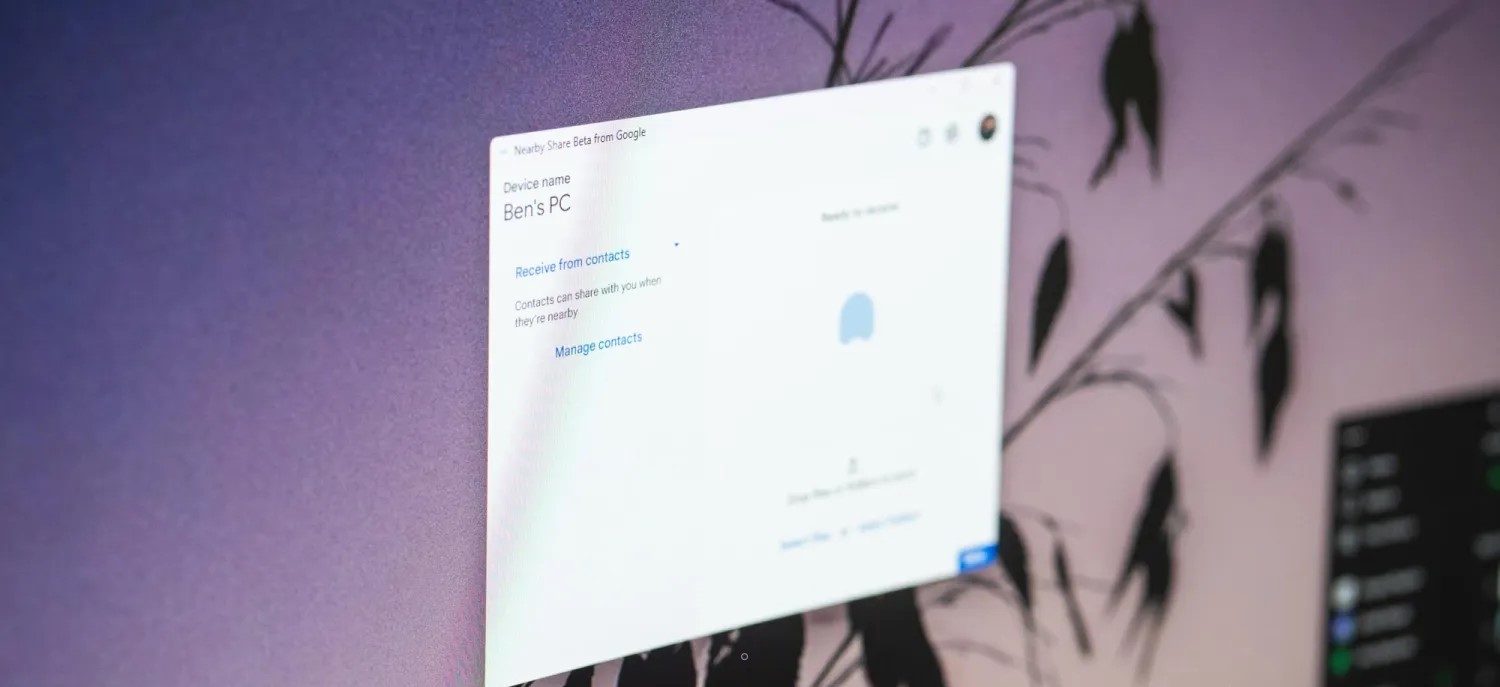
The Nearby Share Beta for Windows app is available as a direct download from android.com for Windows 10 and newer (64-bit version) with “ARM devices not supported.” Bluetooth and Wi-Fi have to be enabled on your PC, with Google mentioning a 16-foot (5-meter) transfer proximity between devices.
It lets you “quickly transfer photos, videos, documents, audio files or entire folders between your Android device and Windows PCs.” Google positions it as being useful when you want to “edit your photos on a larger screen or organize your digital folders.”
After installing, you’re prompted to sign in to your Google Account to customize sharing preferences, “like only allowing your contacts to share with you.” However, there’s a “Use without account” option too.
Nearby Share Beta works with your Windows PC whether the app is open on the desktop or running in the background.
With a Material 3 design for the window (and blue accent), you can send via drag-and-drop, or right clicking on a file and selecting “Send with Nearby Share.” A blue double helix is used as the app icon.
Nearby Share on Windows features the same device visibility controls as Android: Everyone, Contacts, Your devices, and No one.
Sending files to your own devices is even faster. As long as both devices are logged into your Google account, file transfers are automatically accepted — even if your screen is off.
When you receive a transfer, you have the ability to Open or Dismiss. Google says “all Nearby Share transfers are protected by E2E encryption.”
According to Google, this beta is “rolling out in the U.S. and select regions globally.” Currently, only sharing between Android (smartphones + tablets) and Windows PCs is supported. Google says it will “expand official support to share content with other Google ecosystem devices” in the future.
Nearby Share Beta for Windows PCs is not currently supported within the following regions: Austria, Belgium, Bulgaria, Croatia, Cyprus, Czechia, Denmark, Donbass, Estonia, Finland, France, Germany, Greece, Hungary, Ireland, Italy, Latvia, Lithuania, Luxembourg, Malta, Netherlands, Poland, Portugal, Romania, Slovakia, Slovenia, Spain and Sweden.
We’re seeing the download live in the US, but users in Europe (or at least France) are not being offered the website option. That said, once you get the file, there are no install limitations.
Hands on: Android’s Nearby Share for Windows just works
One of the tools that I’ve always been a little envious of from Apple’s ecosystem has been AirDrop. While it’s not something I want to use constantly, being able to throw a file from my phone to my computer or vice versa is compelling. Now, that’s finally possible on Android and Windows, as Google has released Nearby Share for the Microsoft-owned platform, and it’s wonderful.
Nearby Share was announced for Windows PCs in early 2022, but Google was pretty much silent about the feature in the following months. Even at CES 2023 this year, a full year after Google had announced the feature, there was still nothing to share.
Now, Google has finally launched Nearby Share for Windows in beta. The app launched on Friday, and as our Abner Li noted, it’s limited by region but not by device. You’ll need a modern computer with Wi-Fi, Bluetooth, and a 64-bit OS (Windows 10 or 11), but that’s not exactly a high bar to clear in 2023. It’s also quite different from what was originally envisioned. When Google announced Nearby Share for Windows in 2022, the company implied it would be limited to partnerships with HP and other brands. At the time, I was quite worried my custom-built PC would never see Nearby Share, so I was certainly happy to see last week that Google is just opening the floodgates to everyone.
But how does Nearby Share for Windows actually work in practice? Really, it just works.
Installing the app is as simple as installing the executable file, and the installer will feel quite familiar if you’ve ever installed Google Chrome on Windows. From there, you’ll be prompted to link your Google account and then set up your privacy preferences. Like on Android, you can set Nearby Share to only be visible to contacts, just your other devices, or to anyone. You’ll also set a name for your computer to be seen on Android devices. (Chromebooks are not supported right now.)
At that point, you’re kind of done. Nearby Share then works just like it does on any other device.
Pick the file you want to share (either by using the upload button and File Explorer or by using drag and drop) and then the device you want to send it to. I found this to be a little slow with my Pixel 7 Pro, not in the speed of the file transfer but in the time it took for my Pixel to appear as a sharing target. Part of this boils down to Nearby Share requiring that your phone is unlocked before it can appear. This was a bit annoying for quick workflows, but it makes sense.
As for incoming files, Nearby Share for Windows defaults to the Downloads folder, but you can redirect that anywhere you’d like. That’s the only real setting, though, as the only other things you can adjust are your PC’s name seen by other Nearby Share devices and visibility settings. I don’t really see that as a problem, though, as the current setup gets the job done very well.
File transfer speeds have been, for me, quite quick.
Sending a 500 MB video from my Pixel 7 Pro to my PC took less than 30 seconds, with a transfer rate of over 60-70 MB/s. And like on Android and ChromeOS, you can send multiple files at once.
However, your results may vary here. As seen in the video below seeing transfer speeds in mere KB/s, which he found may be attributed to using a Google Workspace account.
Nearby Share for Windows also supports sending files from the right-click dialogue of the OS. This is super useful, as it saves a few clicks in opening up the app itself. You’ll also get notifications for incoming files through native Windows notifications.
What does the future hold in store for Nearby Share on Windows? Frankly, I can’t see a whole lot changing in terms of functionality. This works, and it works really well. If Google had just thrown this out the door as a final product, I’d have believed it. I can only assume this is still a beta release to give Google time to work out any quiet bugs hiding behind the scenes, as well as optimize it for other regions.
Microsoft is working to make your and your family’s online experience safer. Today the company is launching its new Defender security dashboard for 365 subscribers. Users on iPhone, Mac, Windows, and Android devices have access to the Microsoft Defender security app that utilizes existing antivirus software or other protections.
Microsoft Defender is simplified online security that meets you and your family where you are by bringing multiple protections together into a single dashboard. It provides online protection across the devices you and your family use. It offers tips and recommendations to strengthen your protection further. And, as you grow your digital footprint by adding family members and devices, Defender grows with you and keeps your defenses up-to-date using trusted technology.
According to The Verge, Microsoft Defender’s features will vary by which platform. For instance, on iPhone and iPad, Microsoft Defender users won’t have antivirus protection. However, they’ll have some phishing protections alongside their dashboard that features alerts for their other devices.
Additionally, the new app includes security alerts for your devices to ensure maximum protection. While not on iPhone, you can also view Microsoft Defender’s cybersecurity tips on your Mac or Windows computer.
This is just the start. As we look forward, we will continue to bring more protections together under a single dashboard, including features like identity theft protection and secure online connection. Microsoft Defender is simplified online security that grows with you and your family to help keep you safe.
Windows are releasing Windows 11 Insider Preview Build 22000.71 to everyone in the Dev Channel!
Changes and Improvements
We’re introducing a new entertainment widget! The entertainment widget allows you to see new and featured movie titles available in the Microsoft Store. Selecting a movie will direct you to the Microsoft Store to see more information about that title. Just open widgets and click or tap on the “Add widgets” button and choose the entertainment widget. [UPDATE] The entertainment widget is available for Insiders in the following countries: US, UK, CA, DE, FR, AU, JP.
The new entertainment widget gives you quick access to featured moved titles in the Microsoft Store.
The new context menus and other right-click menus have been updated to use acrylic material.
The new Windows 11 context menus before acrylic and after.
We are testing the usability of a SplitButton for making new folders and files in the File Explorer command bar.
The Taskbar previews (when you mouse-over open apps on the Taskbar) have been updated to reflect the new visual design of Windows 11.
Taskbar previews with rounded corners!
Fixes
Taskbar:
We fixed an issue where if you drag app icons on the Taskbar to rearrange them, it was making the apps launch or minimize when you released the icon.
Using a long press with touch on an app icon in the Taskbar to open the jump list should now work.
After right-clicking the Start icon in the Taskbar, clicking somewhere else should now dismiss the menu more reliably.
Shift + Right-click on an app icon in the Taskbar will now bring up the window menu like it used to and not the jump list.
We’ve addressed an issue that was making your mouse move slowly when hovering over the Taskbar previews.
We’ve included the fix for an issue when using multiple Desktops where an app icon in the taskbar might give the appearance of multiple windows being open when that wasn’t the case on that Desktop.
When using the Amharic IME you should no longer see an unexpected X next to the IME icon in the taskbar.
The issue where if you click on the input indicator on the Taskbar and it would unexpectedly highlighted Quick Settings has been fixed.
When you hover over Task View, the preview flyout for your Desktops will no longer pop back up after using Esc to dismiss them.
We made a fix to address an issue where explorer.exe might crash after hovering over the Task View icon in the Taskbar.
We fixed an issue where the selected date in the calendar flyout was out of sync with the date in the Taskbar.
We made an update to address a scenario resulting in some Insiders not seeing the lunar calendar text in the calendar flyout when enabled in Settings.
This flight addressed an issue that could unexpectedly make the Taskbar background transparent.
Right-clicking the focus assist icon in the taskbar should now show a context menu.
The issue from the previous flight where icons in the taskbar corner were getting crushed against the top of the Taskbar has been addressed.
The tooltip for the location in use icon in the Taskbar should no longer appear blank sometimes.
Settings:
We fixed an issue making Settings crash on launch periodically.
Using the volume mixer sliders in Sound Settings should be more responsive now, as well as the page responsiveness as a whole.
We fixed an issue resulting in Disk and Volumes Settings’ change size option being clipped.
There was a non-functional verify link under Backup Settings – this has been fixed.
The Power and Battery Settings page should no longer be reporting that battery saver is engaged in it’s not.
The Power and Battery Settings page should also now not crash when launched from Quick Settings.
We fixed a grammatical error in the Sign-in Settings text.
The “I forgot my PIN” link was unexpectedly missing in Sign-in Settings when a PIN was set up and has now been returned.
The issue where the Move option under Apps & Features in Settings wasn’t working reliably should be addressed in this build.
We’ve mitigated a problem where some of the colors in Settings weren’t updating after switching between dark and light mode, leaving unreadable text.
We’ve done some work to help improve the performance of Settings when switching between light and dark mode.
We addressed an issue where some of the elements of the Themes page in Settings would end up crowded together when the window size was small.
We resolved an issue where the Pen menu toggle under Taskbar Settings was not in sync with the actual state of the feature.
Changes made to “Dismiss notification after this amount of time” in Accessibility Settings should now persist.
Some of the icons you could enable in Taskbar Settings were erroneously labeled Windows Explorer even though that’s not what they were – this should now be fixed.
The Connect text in Quick Settings has been updated to say Cast.
File Explorer:
Clicking the command bar button twice should now close any dropdown that appeared.
The new command bar should now appear when “Open folders in a separate process” is enabled under File Explorer Options > View.
This build addresses an issue where right clicking a file and selecting Open With > Choose another app might launch the file in the default app rather than opening the Open With dialog.
Fixed an issue the desktop and File Explorer context menu would stop launching.
Search:
We fixed an issue where the option to verify your account in Search wasn’t working.
Hovering over the Search icon on a secondary monitor will now show the flyout on the correct monitor.
Search should now work if you open Start and start typing after having gone to the apps list and back.
Widgets:
When using the Outlook client with a Microsoft account, Calendar, and To Do updates should sync faster down to the widgets.
We addressed an issue where if you added multiple widgets quickly from the widgets settings, it could result in some of the widgets not being visible on the board.
We fixed a bug where widgets could all become stuck in a loading state (blank squares in the window).
The traffic widget should now follow the Windows mode (light or dark).
The title of the sports widget should no longer mismatch with the content of the widget.
Other:
This build addresses an issue where ALT + Tab was getting stuck open sometimes after you released the keys and had to be manually dismissed.
We made a fix for an issue where Narrator focus wasn’t ending up on the emoji panel after using the keyboard shortcut to open it.
Magnifier’s lens view has been updated so the lens now has rounded corners.
We found an issue that was noticeably impacting Start launch reliability for some Insiders, and have addressed it with this flight.
We’ve updated the “Most Used” text in the Start menu’s app list so it should no longer be getting clipped.
Using the semantic zoom in Start’s app list should no longer result in the list being pushed down and to the right off the edge of the window.
We fixed an issue where if you pressed WIN + Z you would need to press Tab before you could use the arrow key to navigate through the snap layouts.
We addressed an issue where an acrylic area could get left on the screen after repeatedly snapping and unsnapping a window with touch.
We’ve done some work to mitigate an unexpected flash when moving a snapped window with touch.
We made a change to help window borders have a little more contrast when “Show accent color on title bars and windows borders” was turned off.
Known issues
[REMINDER] When upgrading to Windows 11 from Windows 10 or when installing an update to Windows 11, some features may be deprecated or removed. See details here.
Start:
In some cases, you might be unable to enter text when using Search from Start or the Taskbar. If you experience the issue, press WIN + R on the keyboard to launch the Run dialog box, then close it.
Based on feedback, we are working on adding access keys to WIN + X so that you can do things like “WIN + X M” to launch Device Manager. Insiders may see this functionality in this build, however we are currently investigating an issue in which sometimes the option is unexpectedly unavailable.
Taskbar:
There is an issue in this build where Explorer.exe will crash when the date and time button on the Taskbar is clicked to access new notifications with Focus Assist turned off. The workaround for this is to enable Focus assist to priority or alarms mode. Note that when focus assist is turned on, notification popups won’t appear, but they will be in the notification center when opened.
The Taskbar will sometimes flicker when switching input methods.
Taskbar previews may draw partially offscreen.
Settings:
When launching the Settings app, a brief green flash may appear.
When using Quick Settings to modify Accessibility settings, the settings UI may not save the selected state.
The button to rename your PC doesn’t work in this build. If needed, this can be done using sysdm.cpl.
Settings will crash when clicking “Facial recognition (Windows Hello)” under Sign-in Settings if Windows Hello is already set up.
Reset this PC and Go back buttons in Settings > System > Recovery do not function. Reset and roll back can be accessed from the Windows Recovery Environment by selecting System > Recovery > Advanced startup, and pressing Restart now. Once in Windows Recovery, choose Troubleshoot.
Choose Reset this PC to perform a reset.
Choose Advanced options > Uninstall Updates > Uninstall latest feature update to perform a rollback.
File Explorer:
Explorer.exe crashes in a loop for Insiders using the Turkish display language when battery charge is at 100%.
When right clicking the desktop or File Explorer, the resulting context menu and submenus may appear partially off screen.
Clicking a desktop icon or context menu entry may result in the wrong item being selected.
Search:
After clicking the Search icon on the Taskbar, the Search panel may not open. If this occurs, restart the “Windows Explorer” process, and open the search panel again.
When you hover your mouse over the Search icon on the Taskbar, recent searches may not be displayed. To work around the issue, restart your PC.
Search panel might appear as black and not display any content below the search box.
Widgets:
Widgets board may appear empty. To work around the issue, you can sign out and then sign back in again.
Launching links from the widgets board may not invoke apps to the foreground.
Widgets may be displayed in the wrong size on external monitors. If you encounter this, you can launch the widgets via touch or WIN + W shortcut on your actual PC display first and then launch on your secondary monitors.
Store:
The install button might not be functional yet in some limited scenarios.
Rating and reviews are not available for some apps.
Windows Security:
Device Security is unexpectedly saying “Standard hardware security not supported” for Insiders with supported hardware.
“Automatic sample submission” is unexpectedly turned off when you restart your PC.
Localization:
There is an issue where some Insiders may be missing some translations from their user experience for a small subset of languages running the latest Insider Preview builds. To confirm if you have been impacted, please visit this Answers forum postand follow the steps for remediation.
For developers
You can download the latest Windows Insider SDK at aka.ms/windowsinsidersdk. The Windows Insider SDK will be continuously flighting with corresponding Windows 11 Insider Preview builds, and the latest Windows Insider SDK for Build 22000.71 is now available.
Beginning with Windows Insider SDK version 22000.71 and the latest .NET 5 update, we have also added support for .NET 5 developers who want to target the Windows Insider SDK and access these new APIs. For more details on this support, refer to the Windows Insider SDK download page.
Important Insider Links
You can check out our Windows Insider Program documentation here, including a list of all the new features and updates released in builds so far. Are you not seeing any of the features listed for this build? Check your Windows Insider Settings to make sure you’re in the Dev Channel. Submit feedback here to let us know if things weren’t working the way you expected.
If you want a complete look at what build is in which Insider channel, head over to Flight Hub. Please note, there will be a slight delay between when a build is flighted and when Flight Hub is updated.
When Microsoft said that it was going to announce the next version of Windows on June 24, it was only a matter of time before the leaks started coming. The first Windows 11 build leaked today, first offering up some screenshots on Baidu. Now, the full build is here.
First of all, we should be clear that this is very much a new version of Windows 10. It has a big visual redesign, but under the hood, this is the same OS. Microsoft wanted to build excitement around it, so that’s why we’re getting the new branding. Because of this, the first thing you’ll see when booting up this leaked build is a very familiar out-of-box experience.
Indeed, all of the different Windows 11 versions are the same as they were for Windows 10, including Home, Pro, Enterprise, and more. Once you get past that part where you choose your edition, decide how to partition your drive, and it actually installs the bits, that’s where the OOBE takes a left turn from what’s familiar.
The questions are the same, and at this point, you might have realized that this looks a lot like Windows 10X. That’s because it is. Windows 10X promised a lot of under-the-hood changes, such as running apps in containers so they couldn’t access the rest of the file system. That’s not happening here.
What’s happening here is that Microsoft is pretty much bringing over the Windows 10X shell on top of Windows 10, and calling it Windows 11.
You also may have spotted a new Windows logo, which is a blue Microsoft logo. It’s replacing the trapezoidal logo that we had before and flattening it out into a square. This is likely a big part of the Redmond firm’s move to make things more Microsoft-branded instead of Windows-branded. We’ve seen various references to Microsoft Server in Windows Server.
Another thing that you’ll surely notice, and it’s a big part of the Sun Valley design refresh, is rounded corners. While Microsoft has included sharp corners since the days of Windows 8, it’s finally scaling that back.
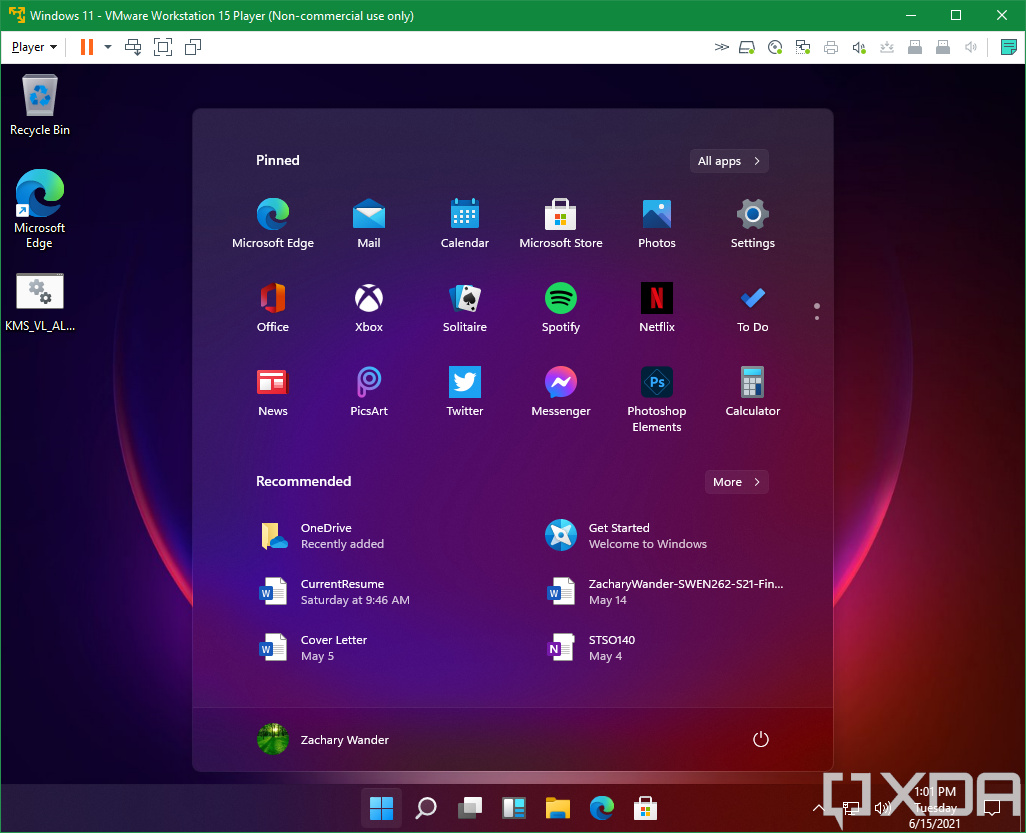
The Start Menu is exactly what you’d expect. The taskbar is centered, and if it wasn’t for the new rectangular logo, you’d absolutely think that this screenshot was fresh out of Windows 10X. But the Windows 11 logo gives it away.
Windows Search is getting an entirely new look here. This seems to be a trend with the new Sun Valley UX, with these floating, centered fly-outs like this. As you can see from the image, you can filter down results by apps, documents, settings, and more.
If you take a look at the File Explorer, there are no surprises there. Sure, coming from Windows 10, all of the icons look visually different. All of that is already in preview though. If you’re a Windows Insider on the Dev channel, you’ve seen the new Windows 11 icons.
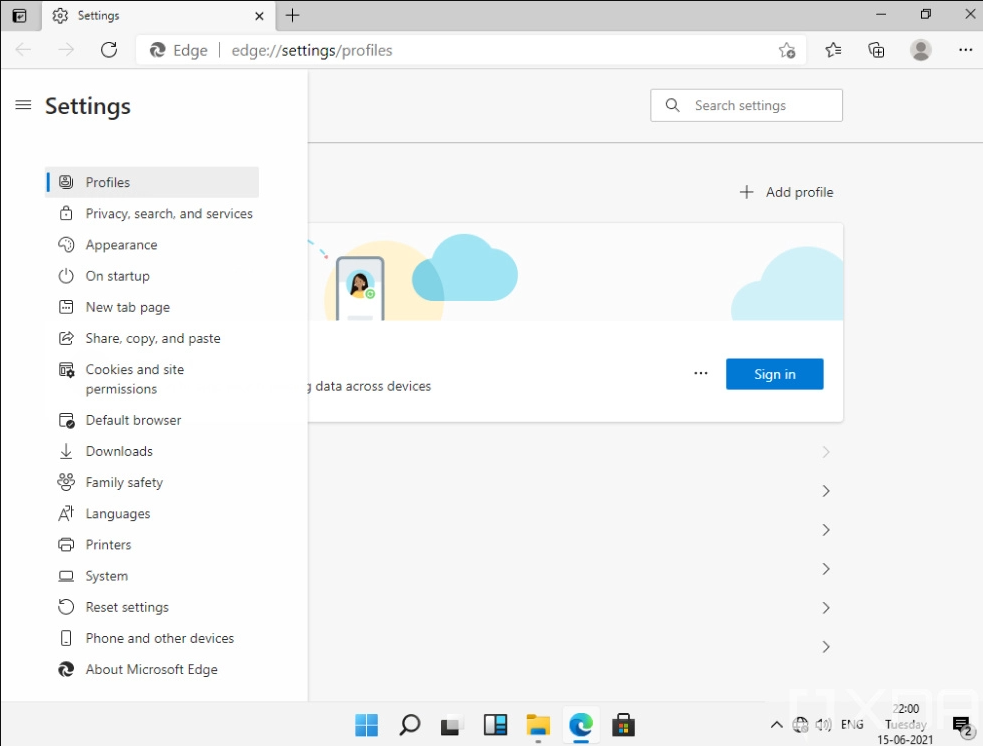
Nothing is changing in the Microsoft Edge browser. It’s worth noting that as far as apps go, nothing is really changing. These things still exist across Windows 11 and Windows 10, and in the case of Edge, older versions too. This is independent of the OS.
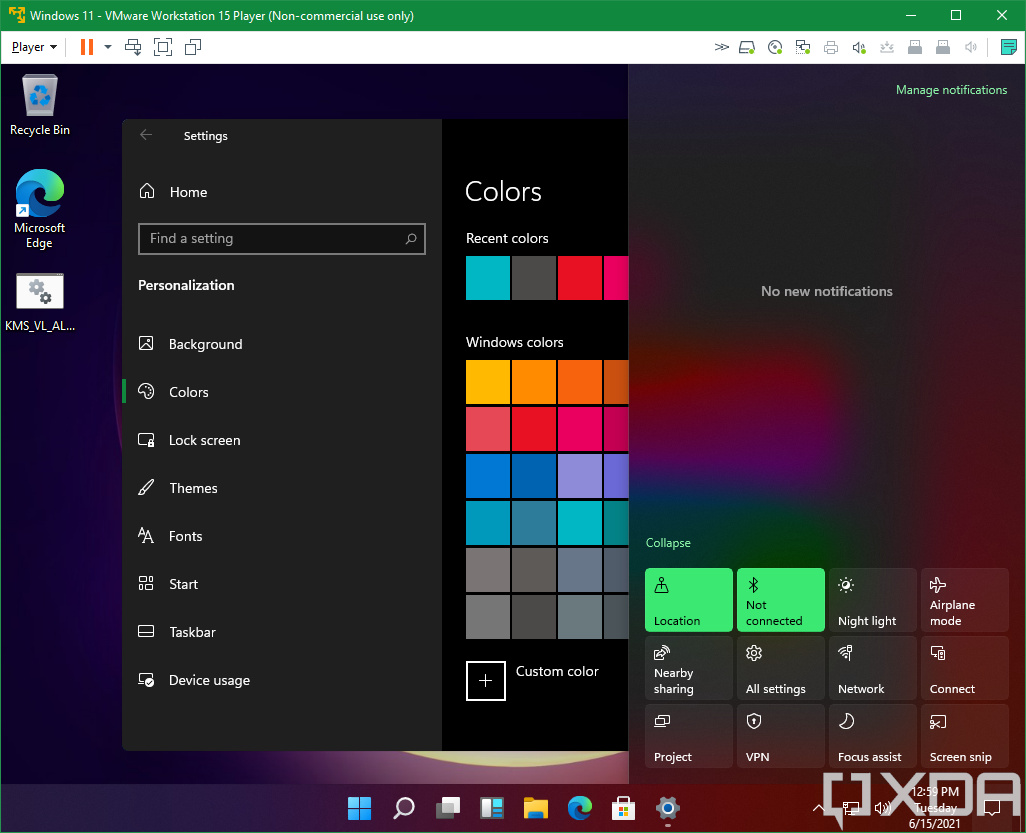
Settings doesn’t seem to have changed either, despite some earlier leaks. This was the same as it is in Windows 10 and was in Windows 10X leaks. It’s also possible that Microsoft may update this before it goes public. The same goes for other inbox apps.
There are some new settings though. There are a bunch of customization options for the taskbar, including an option to align the taskbar, and as we continue to look through this build, we’re sure to find more.
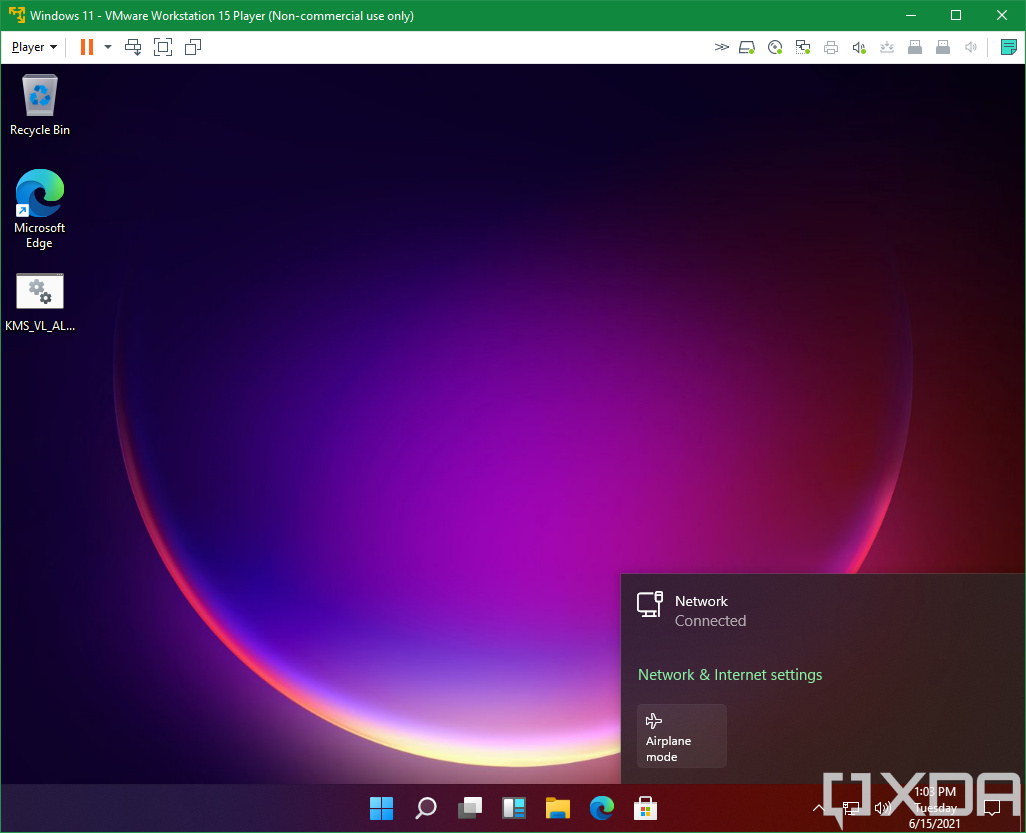
Virtual desktops are in the same place, but this might be a good time to mention that there’s a new stock wallpaper. The one you’re seeing is for light theme, but there’s another one that has a dark background. There are several wallpapers like this, and one thing you won’t find is something with a Windows logo with light shining through it, like we saw with the Windows 10 hero image.
There’s a new option right next to that called widgets. This is exactly the same as it is on macOS, and it’s presumably taking the place of Live Tiles. Live Tiles tried to be a widget and a shortcut all at once. Now, those things are being separated like they are on every other operating system. The widgets look differently in light and dark modes.
Here are some more examples of what Windows 11 looks like in dark mode. It’s pretty, and also what you’d expect.
At first glance, the keyboard looks the same. But as was teased a lot in Windows 10X, there’s a bar above it that you can open to insert GIFs, emojis, and more. Again, Windows 11 really comes down to putting the Windows 10X shell on top of Windows 10.
You’ll be able to unpin things like Task View and Windows Search from the taskbar. That means that you won’t have to just hide them anymore.
Another thing that’s new is that you can easily set different split view options, right from the maximize button in any app. You can choose split view, or views with three or four apps on the screen at once. It makes things a lot easier than the standard side-by-side view that we get now.
Besides that, there’s not a whole lot else to show. Windows 11 is set to ship later on this year, but we’re just a week away from Microsoft’s big announcement.
Microsoft has already revealed that the successor of Windows 10 will be unveiled on June 24th. However, the support page for Windows 10 was also recently updated to reflect some of the upcoming changes, including the date when Microsoft will officially end support for Windows 10 Home and Pro versions.
Spotted by Thurrot, the company has announced the news in a support page update. The page displays all of the version numbers and the releases, as well as the support date. In this case, Windows 10 Home and Pro versions will be updated until October 24th, 2025.
There’s also an important note displayed at the top of the page:
“Microsoft will continue to support at least one Windows 10 Semi-Annual Channel until October 14, 2025.”
This isn’t necessarily bad news, we were expecting some big changes, including some form of a redesign, although it will be significantly smaller then what we’ve seen back in the day with Windows 7 and 8. Windows 11 – it may be called something else – will likely feature rounded corners, a more refined user interface and hopefully some meaningful changes to the search and other core parts of the OS, as well as it will likely get rid of the legacy UI, pop-ups that were still present in Windows 10.
The new version of Windows will be revealed next week on June 24th.
Six months after announcing Immersive View, Zoom is finally launching the feature, which introduces a “more engaging and collaborative way to meet.”
Immersive View resembles Microsoft Teams’ Together Mode, where users in a meeting can appear in a classroom, old-fashioned boardroom, etc.
Announced at Zoomtopia 2020, Immersive View allows hosts to arrange video participants and webinar panelists into a single virtual background, bringing people together into one scene to connect and collaborate in a cohesive virtual meeting space.
It’s possible to use the Immersive View feature with up to 25 participants, creating a classroom ambient, boardroom, conference auditorium, or your favorite place to catch up with friends.
Meeting and webinar hosts can select Zoom’s Immersive View in the same way they would select the Speaker or Gallery View. Hosts will have the option to automatically or manually place participants into a virtual scene of their choosing.
When a host wants to share their screen, the Immersive View feature will end and be replaced by the shared screen. When sharing stops, the Immersive View will begin again with the same positions as before.
This feature is available in the web and macOS apps with Zoom’s version 5.6.3 or higher and is enabled by default for all Free and single Pro accounts.