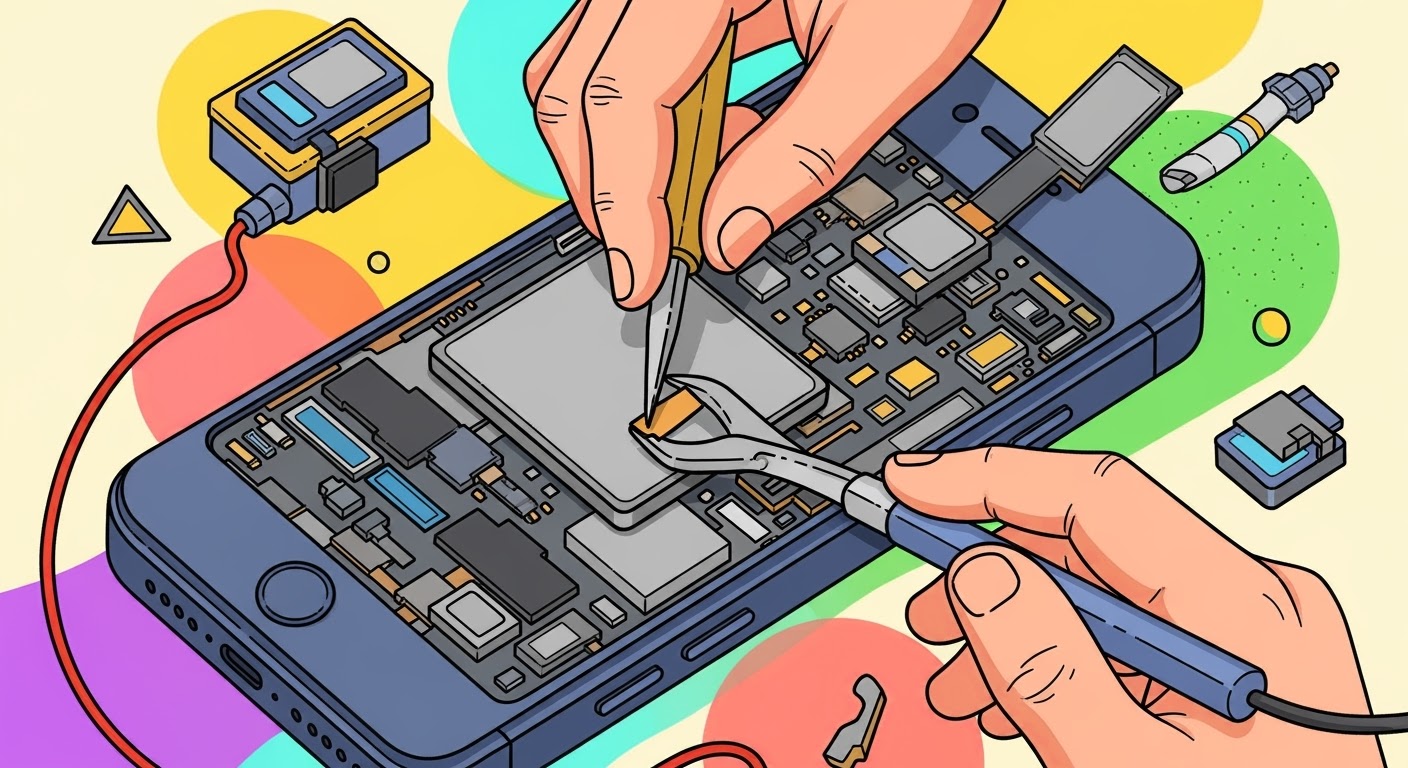
From Dead to Done: 7 Proven Steps to Factory Resetting a Non-Responsive Phone
Understanding Why Phones Become Non-Responsive
In today’s digital age, our smartphones are lifelines. When they freeze or become non-responsive, it’s not just frustrating—it can halt our entire day. A non-responsive phone can happen to anyone, regardless of brand or model. Common causes include:
Software glitches: Temporary bugs or conflicts can freeze the system.
App overload: Too many apps running simultaneously can crash the device.
Battery issues: Low or faulty batteries may prevent proper startup.
OS updates gone wrong: Failed updates can leave your phone stuck on a black or frozen screen.
Hardware damage: Physical damage, such as a water leak or internal component failure, can mimic software freezes.
Recognizing these causes helps determine if a factory reset is necessary. Often, non-responsive phones need a hard reset to restore functionality.
Resetting a phone can save it from permanent software damage, but it comes with risks:
Data loss: A factory reset erases all personal data.
Battery check: Ensure your device has at least 50% battery to avoid interruption.
Secure backup: Use iCloud, Google Drive, or local storage to save contacts, photos, and documents.
Stable environment: Perform the reset in a safe area with no power interruptions.
Following these precautions ensures the process is smooth and reduces the chance of turning a temporary issue into a permanent loss.
Preparing for a Factory Reset
Preparation is key. You’ll need:
A charged phone or connected power source
Stable Wi-Fi for cloud backup and software updates
Knowledge of your device model and OS version
Optional tools: PC/laptop with iTunes or ADB installed
Backup Your Data
Even if your phone is non-responsive, sometimes partial backups are possible:
iOS: Use iCloud or connect to iTunes for a backup.
Android: Google Drive backups, Samsung Smart Switch, or local SD card storage.
Manual transfer: For accessible phones, connect via USB to copy essential files.
Charge Your Phone and Check Connectivity
Ensure your phone has adequate power. Factory resets on low batteries risk boot failure. Connect to Wi-Fi for device verification and restore processes after the reset.
Step-by-Step Guide for Factory Resetting
Android Devices: Hard Reset via Recovery Mode
Power off the device.
Press and hold Volume Up + Power buttons (model-specific).
Navigate using volume keys to “Wipe Data/Factory Reset”.
Confirm with the power button.
Reboot system after completion.
Android Devices: Using ADB Commands
Enable USB Debugging (if accessible).
Connect the device to PC.
Open terminal/command prompt.
Enter: adb reboot recovery then adb shell recovery --wipe_data.
Wait for process completion.
iOS Devices: Recovery Mode Reset
Connect iPhone to PC/Mac.
Open iTunes/Finder.
Force restart (volume up + volume down + power button depending on model).
Select Restore when prompted.
Wait for software installation and device restart.
Using Manufacturer’s Software Tools
Samsung Smart Switch: Provides official reset and firmware recovery.
Huawei HiSuite: Similar for Huawei devices.
Google Factory Reset Tool: For Pixel devices.
Official tools reduce the risk of bricking your device and ensure compatibility.
Troubleshooting When Reset Fails
Sometimes, resets don’t work due to:
Bootloader issues
Corrupted system partitions
Hardware failures
Solutions:
Attempt soft reset (reboot without data wipe)
Retry factory reset in recovery mode
Contact authorized service centers for advanced recovery
Soft Reset vs Hard Reset
Soft reset: Simple restart, no data loss.
Hard reset (factory reset): Wipes all data, restores system.
Soft resets are first-line solutions; hard resets are last-resort but effective.
Post-Reset Setup and Optimization
Once reset:
Reinstall apps from official stores.
Restore backup from iCloud or Google Drive.
Update system firmware to latest version.
Optimize storage, remove unnecessary apps.
Preventive Measures to Avoid Future Freezes
Keep your OS updated.
Avoid installing unverified apps.
Clear cache and unnecessary files regularly.
Maintain battery health and avoid sudden power losses.
FAQs
Q1: Will a factory reset fix a physically damaged phone?
A: No. Hardware damage requires professional repair, though a reset can solve software glitches.
Q2: How long does a factory reset take?
A: Typically 10–30 minutes depending on device and data size.
Q3: Can I recover data after a factory reset?
A: Only if a backup exists. Otherwise, data recovery is unlikely.
Q4: Is it safe to reset my phone at home?
A: Yes, if you follow instructions carefully and ensure sufficient battery power.
Q5: Will my warranty be affected?
A: Factory resets do not void warranties, but rooting/jailbreaking does.
Q6: How often should I perform a factory reset?
A: Only when necessary, such as severe freezes or before selling your device.
A non-responsive phone doesn’t mean the end. With careful preparation and following step-by-step procedures, you can bring your device from dead to done efficiently. Always back up data, use official tools when possible, and consider preventive measures to maintain device health.
Your phone can feel like new again—and with these tips, you’ll avoid future freezes.
David from Sydney CBD Repair Centre – The Best place to fix mobile phones as 7 Years In A Row! Top Mobile Phone Repair In Sydney. More than 2000 Positive Reviews on Google and Same Day Repairs.
We take pride in delivering exceptional repair services for all major phone brands including Apple, Samsung, Google, and more. Our expert technicians use only genuine parts and offer 90days warranty on repairs. Located in the heart of Sydney CBD, we’re your one-stop solution for all mobile device repairs.
Visit us for:
✓ Same Day Express Repairs
✓ Genuine Parts Guarantee
✓ Professional Technicians
✓ Competitive Pricing
✓ 2000+ 5-Star Google Reviews
✓ 7-Time Award Winner for Best Phone Repairs
Dead Phone, No Reset: The Charger Port Repair That Brings It Back – Powerful Fix in 7 Proven Steps
## Introduction: When a Phone Won’t Charge and Panic Sets In
Few things feel more frustrating than a phone that suddenly goes dark and refuses to charge. One moment, everything’s fine. The next, your screen is black, notifications are silent, and no amount of cable swapping seems to help. Naturally, many people jump straight to panic mode. They try a reset. Then another. Still nothing.
Here’s the good news: in many cases, your phone isn’t truly dead. The issue often comes down to a charger port repair, a focused hardware fix that can bring a lifeless device back to full power without wiping your data or replacing the entire phone.
At first glance, a non-charging phone feels catastrophic. After all, power is everything. Without it, you can’t access contacts, photos, apps, or even emergency calls. However, charger port problems are among the most common — and most fixable — smartphone issues today.
This article breaks down exactly how charger port repair works, why resets don’t help, and how professionals safely restore power. Along the way, we’ll share expert insights, practical tips, and realistic expectations so you can make an informed decision with confidence.
The charger port is far more than just a hole where your cable plugs in. It’s a complex component that acts as the gateway between your phone and its power source. Through this port, electricity flows into the battery while data signals communicate with the phone’s internal circuits.
Modern phones pack charger ports tightly with other components, including microphones, antennas, and sensors. Because of this compact design, even minor damage can disrupt charging entirely. When the port fails, the battery may be perfectly healthy — it simply can’t receive power.
That’s why charger port repair focuses on restoring that critical connection rather than replacing unrelated parts.
### Common Causes of Charger Port Damage
Charger ports don’t usually fail overnight. Instead, damage builds up gradually. Common causes include:
Dust and lint buildup from pockets and bags
Liquid exposure, even from light splashes
Bent or broken pins caused by forcing cables
Wear and tear from frequent charging
Using cheap or incompatible chargers
Over time, these issues weaken the internal contacts. Eventually, the phone stops charging altogether, making it appear “dead” when it’s actually recoverable.
Most phones give subtle hints before charging fails completely. Paying attention early can save time and money. Watch for:
Charging only at certain angles
Loose or wobbly cable connections
Slow or inconsistent charging
Phone heating near the port
These symptoms often mean the charger port is struggling but not yet beyond repair.
### Total Power Failure Scenarios
Sometimes, the phone crosses a tipping point. It won’t charge at all, no matter the cable or outlet. The screen stays black, and resets do nothing. At this stage, many users assume the phone is beyond saving.
In reality, a professional charger port repair can often revive devices even after complete power loss — provided the battery and motherboard are still intact.
## Why Resetting a Dead Phone Rarely Works
### Software vs Hardware Problems
Resets are helpful when software glitches cause charging issues. For example, a frozen operating system might prevent power recognition. However, when the charger port itself is damaged, no reset can fix a broken physical connection.
Think of it like a light bulb with a broken socket. Flipping the switch repeatedly won’t help. The hardware needs attention.
This is why technicians always test the charger port before recommending battery or motherboard replacements. In many cases, charger port repair is the simplest and most effective solution.
## The Charger Port Repair Process Explained
### Diagnostic Testing
Professional repair starts with diagnostics. Technicians test:
Power flow through the port
Battery health
Charging IC functionality
This step ensures the problem truly lies with the charger port and not elsewhere. Accurate diagnosis is critical for cost-effective repairs.
### Cleaning vs Full Replacement
Not all charger port repairs require replacement. Sometimes, a deep professional cleaning removes corrosion or debris blocking the contacts. However, if pins are bent or solder points are damaged, replacement is necessary.
A full charger port repair involves removing the faulty port and installing a new one that matches the phone’s exact specifications.
### Micro-Soldering and Precision Work
Modern phones require micro-soldering, a highly skilled process performed under magnification. Technicians carefully detach the damaged port and solder the new one onto the logic board.
This isn’t a brute-force job. It demands steady hands, specialized tools, and experience. When done correctly, the phone charges like new again.
## DIY vs Professional Charger Port Repair
### Risks of DIY Repairs
Online tutorials make charger port repair look easy. In practice, DIY attempts often cause more harm than good. Common risks include:
Damaging the motherboard
Overheating internal components
Breaking nearby connectors
One small mistake can turn a simple repair into an expensive replacement.
### Benefits of Certified Technicians
Professional technicians bring training, tools, and accountability. Reputable repair centers offer warranties, genuine parts, and data-safe procedures. With expert charger port repair, you get peace of mind along with restored power.
For authoritative guidance on safe charging practices, Apple’s official support documentation is a reliable reference .
## Cost, Time, and Data Safety Considerations
### Repair Timeframes
Most charger port repairs are completed the same day, often within a few hours. Compared to ordering a new phone or transferring data, it’s a fast solution.
### Will You Lose Your Data?
In nearly all cases, no. Charger port repair doesn’t touch internal storage. Your photos, messages, and apps remain intact, which is a huge relief for most users.
## Preventing Future Charger Port Damage
### Daily Habits That Extend Port Life
Prevention goes a long way. Simple habits can protect your charger port:
Use certified chargers
Avoid charging in dusty environments
Don’t force cables
Keep ports dry
These small steps reduce the chance of needing another charger port repair down the road.
## FAQs: Charger Port Repair Questions Answered
1. Can a charger port repair really fix a dead phone?
Yes. If the battery and motherboard are functional, charger port repair often restores full power.
2. How long does charger port repair take?
Most repairs are completed within a few hours, depending on the phone model.
3. Is charger port repair cheaper than replacing the phone?
Absolutely. It’s usually a fraction of the cost of a new device.
4. Will my phone be as good as new after repair?
In terms of charging, yes. A properly installed port performs like the original.
5. Can water damage affect the charger port?
Yes. Moisture often corrodes charging contacts, making charger port repair necessary.
6. How do I know if I need charger port repair or a new battery?
A professional diagnostic test can quickly determine the real issue.
## Conclusion: Bringing a “Dead” Phone Back to Life
A phone that won’t charge feels like the end of the road. However, as we’ve seen, many “dead” phones aren’t dead at all. They’re simply cut off from power due to a damaged charging port.
With expert charger port repair, devices regain life, data stays safe, and users avoid unnecessary replacements. It’s a practical, affordable, and sustainable solution that makes sense both financially and environmentally.
Before giving up on your phone, consider the possibility that it just needs the right fix — not a reset, not a replacement, but a precise repair that reconnects it to power and brings it back to life.
David from Sydney CBD Repair Centre – The Best place to fix mobile phones as 7 Years In A Row! Top Mobile Phone Repair In Sydney. More than 2000 Positive Reviews on Google and Same Day Repairs.
We take pride in delivering exceptional repair services for all major phone brands including Apple, Samsung, Google, and more. Our expert technicians use only genuine parts and offer 90days warranty on repairs. Located in the heart of Sydney CBD, we’re your one-stop solution for all mobile device repairs.
Our commitment to excellence has earned us the trust of thousands of satisfied customers. Whether it’s a cracked screen, battery replacement, or water damage repair, we handle it all with professional care and expertise. Walk in today and experience why we’re Sydney’s #1 choice for mobile phone repairs.
Visit us for:
✓ Same Day Express Repairs
✓ Genuine Parts Guarantee
✓ Professional Technicians
✓ Competitive Pricing
✓ 2000+ 5-Star Google Reviews
✓ 7-Time Award Winner for Best Phone Repairs
Is Your Samsung Note 20 Ultra Dead? 10 Proven Fixes to Bring It Back to Life
Introduction: When Your Note 20 Ultra Refuses to Turn On
It’s every smartphone owner’s nightmare — you press the power button on your Samsung Note 20 Ultra, and nothing happens. No vibration, no screen light, no response. Before you panic or rush to replace your phone, it’s important to understand that a “dead” device doesn’t always mean a permanently broken one.
Many users have revived their Note 20 Ultra using simple troubleshooting techniques. Whether it’s a battery failure, a software crash, or hardware damage, there’s often a fix available — especially when guided by experienced technicians like those at Sydney CBD Repair Centre, Sydney’s #1 mobile repair shop six years in a row.
Even premium devices like the Note 20 Ultra can face issues after months or years of use. Let’s explore the most common causes:
1. Drained or Faulty Battery
If your phone hasn’t been charging properly, the battery may have completely drained or deteriorated. A completely dead lithium battery often shows no signs of life until it’s replaced or charged correctly.
2. Damaged Charging Cable or Adapter
A faulty cable or charger can prevent power from reaching the device. Samsung recommends using genuine charging accessories to avoid voltage irregularities that can damage internal circuits.
3. Software Crash or Boot Loop
Sometimes, the Android system crashes, leaving your phone stuck on a black screen. A forced restart can usually fix this issue without data loss.
4. Hardware Damage (Screen, Motherboard, etc.)
If your phone suffered a drop, shock, or exposure to heat, internal components might be damaged — leading to a non-responsive screen even if the phone is on.
5. Water or Moisture Exposure
Even though the Note 20 Ultra is IP68-rated, long exposure to moisture or saltwater can corrode internal parts. This often results in delayed or partial boot failures.
Let’s dive into 10 proven fixes that can bring your device back to life.
1. Perform a Forced Restart
Hold down the Volume Down and Power buttons simultaneously for 10–15 seconds. This forces the phone to reboot even if the system is unresponsive.
2. Check and Replace Charging Accessories
Try using another Samsung-certified charger and cable. Avoid third-party accessories that may not deliver stable power.
3. Clean the Charging Port Properly
Dust and debris can block the connection between the cable and charging pins. Use a soft brush or compressed air to gently clean the port.
4. Try Safe Mode Boot
To rule out software conflicts:
Hold the Power button until the Samsung logo appears.
When you see it, release the Power button and immediately press Volume Down until it boots into Safe Mode.
If the phone powers on in Safe Mode, a third-party app is likely causing the issue.
5. Charge Using a Wireless Charger
If the charging port is damaged, wireless charging can still work. Place your phone on a Qi-compatible wireless charger for at least 30 minutes.
6. Connect to a Computer and Check for Recognition
Plug the Note 20 Ultra into a PC using a USB cable. If the device is recognized, it may indicate a screen or display issue rather than a power failure.
7. Wipe Cache Partition from Recovery Mode
If your phone boots but behaves abnormally:
Hold Volume Up + Power + Bixby.
Use the volume buttons to navigate to Wipe Cache Partition.
Confirm with the Power button.
This removes temporary system files without deleting data.
8. Flash Official Firmware Using Odin (Advanced Users)
If software corruption is severe, you can reinstall Samsung firmware using Odin. This requires downloading the correct ROM and following Samsung’s guidelines. (Learn more on Samsung’s official support page here.)
9. Replace the Battery Professionally
Over time, the Note 20 Ultra’s battery capacity naturally declines. If charging doesn’t revive it, the battery might need replacement.
At Sydney CBD Repair Centre, technicians replace Samsung batteries with genuine parts and offer a 90-day warranty.
10. Visit Sydney CBD Repair Centre for Expert Assistance
When DIY fixes fail, professional diagnostics are the safest option. Sydney CBD Repair Centre has over 2000+ 5-star Google reviews and has been awarded six years in a row for excellence.
They specialize in:
Preventive Tips to Avoid a Dead Samsung Note 20 Ultra
Use only Samsung-certified chargers.
Avoid using your phone while charging.
Keep your device dry and clean.
Perform regular software updates.
Replace your battery every 2–3 years.
Avoid full discharges; recharge at 20%.
These habits can significantly extend your phone’s lifespan.
FAQs: Samsung Note 20 Ultra Dead Fixes
1. How do I know if my Samsung Note 20 Ultra battery is completely dead?
If there’s no LED light, vibration, or charging icon even after 30 minutes, your battery might be fully drained or defective.
2. Can I fix my Note 20 Ultra at home?
Basic issues like software crashes or cable faults can be fixed at home. However, hardware repairs should always be done by professionals.
3. Will a wireless charger work if my phone is completely dead?
Yes — but only if the wireless charging system inside your phone is still functional.
4. How long should I charge a dead Samsung Note 20 Ultra before it turns on?
Charge it continuously for at least 30 to 60 minutes before attempting to power it on again.
5. What if my phone only vibrates but doesn’t show anything on screen?
This usually indicates a display issue. Professional screen replacement may be required.
6. Is it worth repairing a dead Samsung Note 20 Ultra?
Absolutely. Repairs are often cheaper than buying a new phone — especially at Sydney CBD Repair Centre, where genuine parts and expert service ensure lasting results.
Conclusion: Bring Your Note 20 Ultra Back to Life Today
A dead Samsung Note 20 Ultra doesn’t always mean it’s beyond repair. With the right steps — from simple reboots to professional servicing — your device can be restored to full functionality.
If you’re in Sydney, Sydney CBD Repair Centre is your trusted destination for fast, reliable, and affordable phone repairs. With over 2000 5-star reviews and same-day repair services, they’ve earned the title of Sydney’s best phone repair shop — six years in a row.
Sydney CBD Repair Centre – Where Quality Meets Reliability.
David from Sydney CBD Repair Centre – The Best place to fix mobile phones as 6 Years In A Row! Top Mobile Phone Repair In Sydney. More than 2000 Positive Reviews on Google and Same Day Repairs.
📍 Visit us today for:
✓ Same Day Express Repairs
✓ Genuine Parts Guarantee
✓ Professional Technicians
✓ Competitive Pricing
✓ 2000+ 5-Star Google Reviews
✓ 6-Time Award Winner for Best Phone Repairs
Fixing a Dead Pixel Phone with No Power: 10 Expert Tips to Revive Your Device
Understanding Dead Pixels and Power Issues
Smartphones are a vital part of everyday life, so when your device suddenly develops dead pixels and won’t power on, it can be frustrating and even alarming. These issues can be minor or a sign of deeper hardware failure. To properly fix them, you’ll need to understand what they are, why they happen, and the possible repair paths available.
What is a Dead Pixel?
A dead pixel is a tiny defect on your phone’s screen where one or more sub-pixels stop functioning. Instead of displaying color, the pixel may appear black, white, or stuck on one color. Although a single dead pixel may not affect usability, multiple dead pixels can make the screen hard to read or completely unusable.
Dead pixels occur due to:
Manufacturing defects – Common in older LCD panels.
Physical damage – Pressure, drops, or scratches may damage display layers.
Aging hardware – Screens degrade over time, especially OLED displays.
Why Do Phones Lose Power Suddenly?
A phone refusing to power on may point to:
Battery failure – Batteries lose efficiency after hundreds of charge cycles.
Charging port issues – Dirt, dust, or loose connections may stop charging.
Software crashes – Corrupt firmware or system files can cause boot loops.
Motherboard damage – Liquid exposure, overheating, or impact damage may disable power circuits.
Understanding these problems is the first step toward reviving your device.
When both issues occur simultaneously—dead pixels and power failure—it often signals a more severe problem than just a cosmetic defect.
Hardware Malfunctions
Faulty display assembly
Burnt-out circuits on the motherboard
Loose flex cables connecting screen and board
Software Glitches
Sometimes, the phone powers on but the display doesn’t light up correctly. In such cases, a firmware update or reinstall may restore normal function.
Battery-Related Issues
Phones with swollen or degraded batteries may refuse to boot, tricking users into thinking the device is completely dead.
Step-by-Step Troubleshooting Guide
Before rushing to a repair shop, try these troubleshooting steps:
Step 1: Visual Pixel Test
Shine a flashlight on the display while pressing the power button. If faint images appear, the phone is on, but the backlight or screen may have failed.
Step 2: Soft Reset Your Device
Hold the power button + volume down for 10–15 seconds.
Many phones will restart even if the screen seems unresponsive.
Step 3: Safe Mode Boot
If the device powers on but displays glitches, boot into safe mode. This disables third-party apps and may reveal if software is the culprit.
Step 4: External Charging Solutions
Try:
A wireless charger (if supported)
A different wall adapter and USB cable
Cleaning the charging port with compressed air
Step 5: Pixel Reviving Apps
For phones that still display faint or partial images, apps like Dead Pixel Detect and Fix can cycle colors rapidly to “unstick” defective pixels.
Advanced Repair Techniques
If the steps above don’t work, professional intervention may be necessary.
Screen Replacement
A dead pixel cluster often requires replacing the full display assembly. High-end models like Samsung Galaxy Z Fold or iPhone OLED panels can be costly but restore functionality.
Motherboard Diagnosis
Trained technicians can test logic boards for short circuits or damaged IC chips. This is often the case if the phone won’t power on at all.
Professional Data Recovery
Even if the phone can’t be revived, professional repair shops can often recover important files, photos, and contacts by bypassing the display.
Cons: Risk of damaging delicate parts, voiding warranty, lack of proper tools.
When to Seek Professional Help
If the issue involves:
Battery replacement in non-removable models
Micro-soldering repairs
Water-damaged devices
…it’s best to seek a professional repair service.
Tools and Equipment Needed for Repairs
Precision screwdriver set
Plastic prying tools
Heat gun or hairdryer
Anti-static gloves
Replacement parts (OEM recommended)
Preventive Measures for Future Issues
Protecting Your Screen
Use a tempered glass protector and sturdy case to minimize impact damage.
Extending Battery Life
Avoid overnight charging
Keep your phone between 20%–80% charge
Limit exposure to high heat
Regular Software Updates
Keeping your OS updated prevents bugs and improves hardware compatibility.
Cost of Fixing Dead Pixel Phone with No Power
Repair Type
Estimated Cost (AUD)
Screen Replacement
$150–$450
Battery Replacement
$80–$180
Motherboard Repair
$200–$600
Professional Diagnosis
Often free or $50–$100
Costs vary depending on brand, model, and service provider.
FAQs
Q1: Can dead pixels spread across my phone’s screen?
Dead pixels don’t usually spread, but screen pressure or heat can cause new ones.
Q2: Is it safe to use apps that claim to fix dead pixels?
Yes, they can work for stuck pixels but not for permanently dead ones.
Q3: How do I know if it’s a screen issue or motherboard issue?
If the phone vibrates or makes sounds but doesn’t show an image, it’s likely the display. No response at all points to the motherboard.
Q4: Can I fix my phone at home if it has no power?
Basic resets and battery swaps are possible, but advanced fixes require professional tools.
Q5: Is it worth fixing a phone with both dead pixels and no power?
If it’s a premium model, yes. For budget devices, replacement may be more cost-effective.
Q6: Where can I get reliable phone repairs in Sydney?
Sydney CBD Repair Centre is a trusted name, offering genuine parts, same-day service, and expert technicians. Learn more here.
Conclusion
Fixing a dead pixel phone with no power can be challenging, but with the right troubleshooting steps, many devices can be revived without costly repairs. Start with simple resets and charging checks, then move toward advanced fixes if needed.
When all else fails, professional repair services like Sydney CBD Repair Centre provide trusted solutions. With over 2000 positive reviews, genuine parts, and same-day repairs, they remain Sydney’s #1 choice for phone repairs.
David from Sydney CBD Repair Centre – The Best place to fix mobile phones as 6 Years In A Row! Top Mobile Phone Repair In Sydney. More than 2000 Positive Reviews on Google and Same Day Repairs.
We take pride in delivering exceptional repair services for all major phone brands including Apple, Samsung, Google, and more. Our expert technicians use only genuine parts and offer 90days warranty on repairs. Located in the heart of Sydney CBD, we’re your one-stop solution for all mobile device repairs.
Our commitment to excellence has earned us the trust of thousands of satisfied customers. Whether it’s a cracked screen, battery replacement, or water damage repair, we handle it all with professional care and expertise. Walk in today and experience why we’re Sydney’s #1 choice for mobile phone repairs.
Visit us for:
✓ Same Day Express Repairs
✓ Genuine Parts Guarantee
✓ Professional Technicians
✓ Competitive Pricing
✓ 2000+ 5-Star Google Reviews
✓ 6-Time Award Winner for Best Phone Repairs
✅ Introduction: The Power of DIY Smartphone Repair
In a world where smartphones are essential, even a minor issue can throw your whole day off. But here’s the good news: you don’t always need to rush to a technician for a fix. Many common smartphone problems can be solved right at home with the right tools, guidance, and patience.
Whether your phone’s screen is cracked, the battery is draining faster than ever, or your apps are constantly crashing, this comprehensive DIY repair tutorial will walk you through every major issue—and help you decide when it’s time to get expert help.
Let’s dive into 15 of the most frequent smartphone issues, learn how to troubleshoot them like a pro, and take control of your mobile life again.
Cracked screens are the most common smartphone repair issue worldwide. Whether it’s a minor scratch or a full spiderweb across your screen, dealing with screen damage promptly is crucial—not only for aesthetics but also to prevent internal component damage and injury.
⚠️ Safety First: Handling Broken Glass
Before attempting any repair, make sure to protect yourself:
Turn off the device to avoid short-circuiting.
Use gloves to prevent cuts from shards of glass.
Apply packing tape or a screen protector over the cracks if you’re delaying the repair.
🧰 Tools Needed for Screen Replacement
You’ll need a few essentials:
A heat gun or hairdryer (to loosen adhesive)
Plastic spudger or opening tools
Small Phillips and pentalobe screwdrivers
Suction cup
Replacement screen (make sure it’s compatible with your exact model)
ESD-safe tweezers and gloves
Pro Tip: Always opt for genuine parts to avoid touchscreen sensitivity issues and compatibility errors.
🛠 Step-by-Step DIY Screen Replacement
Follow these general steps. Exact procedures vary by model (e.g., iPhones differ from Samsungs), so check a model-specific video tutorial first.
Power off your phone.
Heat the screen edges gently with a heat gun.
Use a suction cup to lift the screen, then slide a plastic spudger around the edge to loosen the adhesive.
Disconnect battery cable first after removing the backplate or display.
Carefully detach display connectors.
Install the new screen, reconnect cables, and test functionality before sealing it.
Reapply adhesive, close the device, and power on.
Note: If you’re unsure about your skills, seek professional repair. Poor installation can result in a non-functional device or void warranties.
If you’re based in Sydney, check out Sydney CBD Repair Centre — experts in screen replacements using genuine parts and same-day service.
If all else fails, your best bet is a diagnostic test from a certified technician. For Sydney locals, David and his expert team at Sydney CBD Repair Centre offer precise diagnostics and same-day power issue repairs.
🔋 3. Battery Draining Too Fast? Here’s Why
Short battery life is a daily frustration for many users. While some degradation is natural over time, excessive battery drain can be fixed.
🔄 Calibrating Your Battery
Battery calibration helps your phone measure remaining power more accurately.
Use your phone’s Battery Usage settings to spot offenders and limit their background activity.
🔁 When to Replace Your Battery
Look out for these signs:
Swollen battery
Sudden power drops (e.g., 40% to 5%)
Overheating while charging
You can replace most smartphone batteries yourself with the right tools, though newer models make it tricky. If you’re not confident, trust a repair centre like Sydney CBD Repair Centre, which uses original batteries and provides a 90-day warranty.
🔥 4. Phone Overheating – How to Cool It Down
A hot phone isn’t just annoying—it can damage components and reduce battery life. Here’s how to keep it cool.
🔍 Identifying Heat Sources
Common culprits include:
Heavy gaming or video streaming
Charging while using device
Hot environments
App glitches or malware
❄️ Cooling Techniques for Android and iPhone
Close all background apps.
Switch to Airplane Mode to cut down processing.
Remove phone case to let heat escape.
Turn off Bluetooth, GPS, and NFC if not in use.
🛡 Preventative Measures
Avoid long gaming sessions in hot environments.
Keep your software updated.
Avoid third-party chargers and cables.
Don’t leave your phone in direct sunlight (e.g., car dashboards).
If overheating continues, it might be due to internal hardware faults. Professional diagnostics may be necessary.
🐢 5. Slow Performance and Lag Fixes
Nothing’s more frustrating than a slow smartphone—especially when you’ve invested a lot in it. Whether it’s laggy scrolling, delayed app launches, or freezing, these issues are often easy to fix with a few tweaks.
🧹 Clearing Cache and Bloatware
First things first—your phone needs a digital cleanup.
Clear cached data from apps via your phone’s storage settings.
Uninstall or disable bloatware—preinstalled apps you don’t use.
Use tools like Google Files or CCleaner (Android) for regular cleanup.
iPhone users can offload unused apps while retaining their data via Settings > iPhone Storage.
🔄 Software Updates & Factory Reset Tips
An outdated OS can cause compatibility issues, so ensure:
You’re running the latest system version.
You regularly update your apps.
Still lagging? Try a factory reset, but back up your data first:
Android: Settings > System > Reset > Factory data reset
iPhone: Settings > General > Transfer or Reset > Erase All Content and Settings
A reset can eliminate hidden bugs or malware causing sluggishness.
🧠 Upgrading Internal Storage or RAM (for some models)
If your phone allows expandable storage (like many Android models):
Move photos and apps to an SD card.
Delete old backups and files.
For rooted devices, some users opt for virtual RAM increase, but this isn’t for beginners.
For newer flagship devices with non-expandable memory, freeing up space and managing background apps is your best option.
💥 6. Apps Crashing? How to Stop It
Apps crashing randomly? You’re not alone. App instability can stem from various reasons, including bad updates, corrupted cache, or even insufficient memory.
🔄 App Conflicts and Compatibility Issues
If crashes began after installing a new app, there may be a conflict. Try:
Uninstalling the most recent apps.
Disabling unnecessary background apps.
Apps may also misbehave if your OS is outdated or if the app isn’t fully compatible with your phone model.
🔧 Update or Reinstall Troublesome Apps
A quick fix that works:
Go to App Settings > Storage > Clear Cache & Data.
Uninstall and reinstall the app from Google Play or App Store.
This often solves issues caused by corrupted app data.
📲 OS Compatibility Check
Make sure both your app and OS are updated. Developers push updates to match new Android or iOS versions. If your phone is too old, some newer apps may not run properly.
If you’re unsure, a technician at Sydney CBD Repair Centre can help determine if your phone needs a system update or full reset.
🌐 7. Wi-Fi or Data Connection Problems
Struggling with unstable connections or mobile data? It’s a common problem, but often very fixable without heading to a technician.
🧪 Diagnosing Network Settings
Check these first:
Airplane Mode isn’t enabled.
Wi-Fi and Data are turned on.
Router is working (try another device on the same network).
Then:
Forget the network and reconnect.
Restart your phone and router.
🔁 Resetting Network Configurations
For a deeper fix:
Android: Settings > System > Reset > Reset Network Settings
iPhone: Settings > General > Reset > Reset Network Settings
This clears saved Wi-Fi passwords and cellular settings, so have those on hand.
📶 Router vs. Phone Issue
Test with a different Wi-Fi or SIM. If other devices work fine on the same network, it’s your phone. If none do—it’s the router or signal provider.
🔇 8. No Sound or Microphone Not Working
Whether during calls or media playback, sound issues usually stem from hardware blockage or software misconfiguration.
🧼 Cleaning Speaker and Mic Ports
Dust and lint clogging the mic/speaker grill are surprisingly common.
Use a soft toothbrush or compressed air.
Avoid sticking metal objects inside ports.
Pro Tip: If water got in, don’t blow air forcefully—it might push liquid deeper. Let it dry thoroughly first.
⚙️ Software Troubleshooting
Ensure Do Not Disturb isn’t enabled.
Try Safe Mode to see if third-party apps are interfering.
Test mic/speaker via Voice Recorder app or YouTube.
🧩 Replacing Audio Components
If the issue persists after cleaning and software resets, the speaker or mic might be damaged.
Replacement parts are inexpensive.
Many models allow DIY mic/speaker swaps.
Seek expert help for soldered or glued-down components—Sydney CBD Repair Centre offers mic and speaker repair with OEM parts.
📸 9. Camera Not Working or Blurry Images
A smartphone’s camera is one of its most-used features, so any issue here is frustrating. Whether it’s not focusing, crashing, or showing a black screen, here’s how to fix it.
✨ DIY Lens Cleaning Tips
First, clean the lens gently using:
A microfiber cloth
A small dab of lens cleaner
Avoid paper towels or rubbing alcohol (they can scratch)
Sometimes it’s just smudges causing blurriness.
🔧 Resetting Camera App Settings
Go to App Settings > Camera > Clear Cache & Data
Reopen the app and try again
On iPhones, resetting settings via Settings > General > Reset > Reset All Settings can help too.
📷 Replacing Camera Modules
Still blurry or no image?
The camera module may be loose or damaged.
DIY camera replacements are possible on many Android models using a toolkit and YouTube guide.
iPhones require more care due to Face ID and TrueDepth sensors.
Pro Tip: Only trust genuine camera modules—cheap parts often fail quickly.
🖐️ 10. Touchscreen Not Responding? Here’s What to Check
A frozen or unresponsive touchscreen can render your phone almost useless. Luckily, there are several ways to troubleshoot before resorting to a screen replacement.
🧪 Screen Calibration and Sensitivity Settings
For Android:
Use apps like Touchscreen Repair or MultiTouch Tester.
Navigate to Settings > Display > Touch Sensitivity (on supported models).
For iPhone:
Restart the device.
Update iOS to the latest version.
Remove screen protectors or cases that might interfere with touch recognition.
📦 Removing Case or Screen Protector
Sometimes, screen protectors or rugged cases reduce touch sensitivity. Try:
Removing any tempered glass or plastic screen guard.
Testing touch response afterward.
🛠 When to Replace the Digitizer
If none of the above works:
Your digitizer (touch sensor) may be damaged.
This component often comes fused with the display—meaning you may need a full screen replacement.
For safe, same-day service with OEM parts, consider Sydney CBD Repair Centre. Their expert team ensures your touchscreen functions like new.
💧 11. Water Damage Recovery Steps
Water and electronics don’t mix. If your smartphone takes a dive into the sink, toilet, or pool, time is of the essence.
⏱ Immediate Actions After Exposure
Turn off the phone immediately.
Don’t press any buttons—this could push water deeper.
Remove the SIM, SD card, and battery (if removable).
Wipe it dry with a lint-free cloth.
Place the device in a sealed bag with silica gel packets for at least 24–48 hours.
Avoid rice—it’s less effective and can introduce dust or starch particles.
🧰 Disassembling for Drying
If you’re confident:
Open the back cover and unscrew internal components.
Disconnect the battery.
Use isopropyl alcohol (90%+) and a soft brush to clean corrosion.
Let it dry fully before reassembling.
🔧 What Parts May Need Replacing
Common casualties of water damage include:
Battery
Screen/digitizer
Motherboard or charging port
Speakers or mic
Sydney CBD Repair Centre specializes in water-damaged devices and can professionally diagnose and repair these components—with a high success rate.
🧲 12. Charging Port Issues and Fixes
Is your phone not charging properly or showing “Accessory Not Supported”? Your charging port might be dirty, damaged, or loose.
🧼 Cleaning the Port Safely
Turn off your phone.
Use a toothpick or ESD-safe brush to gently remove lint or dust.
Avoid using metal objects or blowing forcefully into the port.
⚙️ Software vs. Hardware Charging Faults
If cleaning doesn’t help:
Test with a new cable and adapter.
Try wireless charging if supported.
Boot in Safe Mode to rule out rogue apps.
If still no charge, your port may be physically worn out or disconnected internally.
🔧 When to Replace the Charging Port
Charging ports wear out over time due to daily plugging/unplugging. For many phones, it’s a standalone module and can be replaced easily. iPhones and USB-C Android phones often require:
Micro-soldering (for integrated ports)
Precision parts alignment
For a reliable and fast fix, Sydney CBD Repair Centre replaces charging ports using original-grade replacements—often within 1–2 hours.
📵 13. SIM Card Not Detected
A “No SIM” or “Invalid SIM” error is common and usually easy to resolve.
🔄 Cleaning and Re-inserting SIM
Power off your device.
Remove the SIM card.
Gently clean it with a microfiber cloth.
Re-insert it properly and restart the device.
🧰 Software Fixes
Try:
Airplane Mode toggle
Network settings reset
Carrier settings update (iPhone)
Still no luck? Try another SIM. If it works, the issue is with your card—not your phone.
🔧 SIM Tray or Reader Replacement
If the SIM reader pins are bent or the tray is damaged, professional repair is needed.
Sydney CBD Repair Centre offers quick SIM tray and reader replacements—restoring full signal functionality without hassle.
⚠️ 14. Error Messages and Boot Loops
Stuck on the Apple logo or Android boot screen? These software errors can often be solved without hardware repair.
🛠 Common Errors and What They Mean
iPhone: “Support.apple.com/iphone/restore” – typically iOS corruption
Android: “No command” or “System UI has stopped” – system crash
🔄 Safe Mode and Recovery Options
iPhone:
Use iTunes or Finder to force restore
Try DFU Mode for deeper-level repair
Android:
Enter Recovery Mode and wipe cache partition
Use ADB (Android Debug Bridge) for advanced troubleshooting
⚙️ When to Flash New Firmware
If system files are corrupt, reinstalling the firmware may help. This requires:
OEM software tools (e.g., Odin for Samsung)
Backup of your data (as it will be erased)
Or, let Sydney CBD Repair Centre handle it for you with data preservation and clean firmware flashing.
🆙 15. Software Update Failed
Failed updates are more than annoying—they can leave your device unusable.
🧰 Identifying the Problem
Common reasons include:
Insufficient storage
Low battery during update
Poor Wi-Fi or interrupted download
Jailbroken/rooted device
🔧 iOS vs. Android Update Fixes
iPhone:
Use iTunes or Finder to restore or update
Clear space by deleting unused apps or media
Android:
Use recovery mode to apply update from ADB or SD card
Flash firmware using tools like Odin (Samsung) or SP Flash Tool (MediaTek)
🧩 Tips for Successful Updates
Charge to 100% before starting
Ensure Wi-Fi is strong and stable
Clear space (at least 5–10 GB recommended)
Avoid jailbreaking or rooting for smoother updates
❓ FAQs
1. Is it safe to repair a phone at home?
Yes, basic repairs like battery or screen replacement are safe if you follow instructions, use the correct tools, and power down your device. However, repairs involving micro-soldering or motherboard components are best left to professionals.
2. What’s the most common smartphone issue?
Cracked screens and battery degradation are the most common. They account for over 50% of repairs handled by shops like Sydney CBD Repair Centre.
3. How long does a typical phone repair take?
It depends on the repair type. Screen and battery replacements take 30–90 minutes. Water damage diagnostics may require up to 48 hours.
4. Does DIY repair void my warranty?
If your phone is under manufacturer warranty, DIY repairs can void it. Using authorized repair services or those that use OEM parts—like Sydney CBD Repair Centre—can protect your device and warranty.
5. What’s the best way to protect my phone?
Use a shock-absorbent case, apply a tempered glass screen protector, avoid overcharging, and handle software updates promptly.
6. My phone has multiple issues. Should I still repair it?
Yes, a professional technician can often bundle repairs. At Sydney CBD Repair Centre, you can get discounted pricing for multiple issues repaired in one visit.
✅ Conclusion: Don’t Panic—Most Smartphone Issues Are Fixable!
Modern smartphones are robust, but not immune to damage. Whether you’re dealing with cracked glass, power issues, water damage, or performance slowdowns—there’s almost always a fix.
DIY repairs can save you money if done right, but for complex issues or guaranteed results, trust experts who have the right tools, parts, and experience.
🔧 Need Reliable Smartphone Repairs in Sydney?
David from Sydney CBD Repair Centre and his expert team have been the trusted choice in mobile repairs six years in a row!
We take pride in delivering exceptional repair services for all major phone brands including Apple, Samsung, Google, and more. Our expert technicians use only genuine parts and offer a 90-day warranty on repairs. Located in the heart of Sydney CBD, we’re your one-stop solution for all mobile device repairs.
Visit us for:
✓ Same Day Express Repairs
✓ Genuine Parts Guarantee
✓ Professional Technicians
✓ Competitive Pricing
✓ 2000+ 5-Star Google Reviews
✓ 6-Time Award Winner for Best Phone Repairs