Apple has always stood for privacy as a “human right” while the company has never liked the idea of having advertisements on its platforms. But as the App Store is now getting new ad placements, some people have become concerned about how the company’s policies may change. To add more fuel to the fire, developers have discovered that Apple may keep track of everything you tap while browsing the App Store.
Apple knows everything you tap on the App Store
Two developers and security researchers who identify themselves as “Mysk” have raised privacy concerns about the App Store getting more ads. More specifically, the developers revealed that iOS sends Apple a detailed log of how users interact with the App Store.
As shown in a brief video, the usage data includes details about where the user taps on the screen. This information is sent in real time to Apple via a JSON file.
According to developers, the company has been tracking users’ actions within the App Store since the release of iOS 14.6 in May 2021. Interestingly, as noted by BGR’s José Adorno, the company introduced the App Tracking Transparency feature a month earlier with iOS 14.5.
There’s no official explanation as to how Apple uses this data, but it seems that the company is still tracking users as they browse the App Store. It’s worth noting that since Apple started offering ads on the App Store, developers have access to some statistics about how their ads are performing – so such data may be related to this.
Even though Apple may claim that the collected data is not shared with third parties, this sounds quite controversial since Apple has been creating barriers to make it harder for third parties to track iOS users, which has affected ad platforms from Google and Meta. And according to Mysk, App Store data is sent to Apple even when the Personalized Ads option is turned off.
🧵 1/5 The recent changes that Apple has made to App Store ads should raise many #privacy concerns. It seems that the #AppStore app on iOS 14.6 sends every tap you make in the app to Apple.👇This data is sent in one request: (data usage & personalized ads are off)#CyberSecuritypic.twitter.com/1pYqdagi4e
Apple last month introduced new ad placements to the App Store. While previously developers could only promote their apps in App Store Search, now they can also pay to show their apps on app pages and in the Today tab.
Soon after the new ad placements were made available, many users criticized them for showing irrelevant or ethically questionable content, such as casino and dating apps. The company then temporarily suspended ads for these apps, but it’s unclear what will happen next.
According to rumors, Apple plans to push even more ads to its users in the future. At the same time, the company makes it more difficult for competitors to reach iOS users with advertisements, which could eventually lead to a new antitrust investigation.
Meta has issued a Facebook security warning to around one million users that their login credentials may have been stolen by scam apps.
While most of the apps were Android ones, 47 of them were iOS apps found in Apple’s App Store …
Many apps and websites offer third-party login options, with the most common ones being:
Login with Facebook
Login with Google
Login with Apple
The intention behind these login methods is to make it quicker and easier to start using an app, by skipping the need to register an account. However, a bad actor can also use this approach to steal your credentials.
Engadget reports that this is what a whole bunch of scam apps have done with the “Login with Facebook” option.
Meta is warning 1 million Facebook users that their account information may have been compromised by third-party apps from Apple or Google’s stores. In a new report, the company’s security researchers say that in the last year they’ve identified more than 400 scammy apps designed to hijack users’ Facebook account credentials.
According to the company, the apps are disguised as “fun or useful” services, like photo editors, camera apps, VPN services, horoscope apps, and fitness tracking tools. The apps often require users to “Log In with Facebook” before they can access the promised features. But these login features are merely a means of stealing Facebook users’ account info. And Meta’s Director of Threat Disruption, David Agranovich, noted that many of the apps Meta identified were barely functional.
Facebook security warning
If you have used one of the known scam apps, Meta will push a message to you in the Facebook app:
A security notice from Meta
You may have logged into Facebook from a malicious app designed to steal your Facebook account information.
To protect your information we recommend you secure your account immediately.
The site says that the iOS apps identified mostly appeared to be targeting business users, with names like Meta Business, FB Analytic, and so on.
Meta has provided the full list of apps to both Apple and Google, so that they can be removed from their respective app stores.
Apple of course argues that its app review process keeps users safe from scams, and this is why it shouldn’t be obliged by antitrust concerns to allow third-party app stores or sideloading of iOS apps.
This latest revelation could be said to provide ammunition to both sides of the debate. On the one hand, dozens of scam apps made it through app review despite the fact that (a) they were stealing credentials and (b) scarcely worked. On the other, there were far fewer of these apps in the App Store than in Google’s Play Store.
Few days from now, Apple will unveil the next generation of smartphones with the iPhone 14 series. While much has been rumored over this year, the week that precedes the Apple event is always full of rumors and last-minute leaks. Here’s everything that we heard about the upcoming iPhone 14 before its release.
Hole-punch + pill cutout will actually be a long pill design
For months other publications have been reporting the new hole-punch + pill cutout for the iPhone 14 Pro series, but a new leak suggests Apple will use a software tweak to make a long pill design. Between Face ID sensors and the front-facing camera, the company is rumored to add privacy labels.
When you’re on a FaceTime call, if Instagram asks for your location, or if someone video calls you on WhatsApp, the iPhone already displays a green, orange, or blue light. These indicators are on the right corner of the iPhone notch. Now it appears they will be between the Face ID and front-facing camera sensors.
iPhone 14 Pro will have a Camera app revamp, thanks to the new design
The Camera app will also have a few tweaks as Apple is planning to redesign the app, where most of the controls will be moved to the top portion of the screen.
Controls such as the flash button and Live Photo button are now positioned in the status bar, while more granular photo and video settings are directly below the display cutouts. This change will give users a larger view of the camera preview by shifting the controls upward and moving some of them into the status bar.
The images above show these changes. They are mock-ups based on the information from our source.
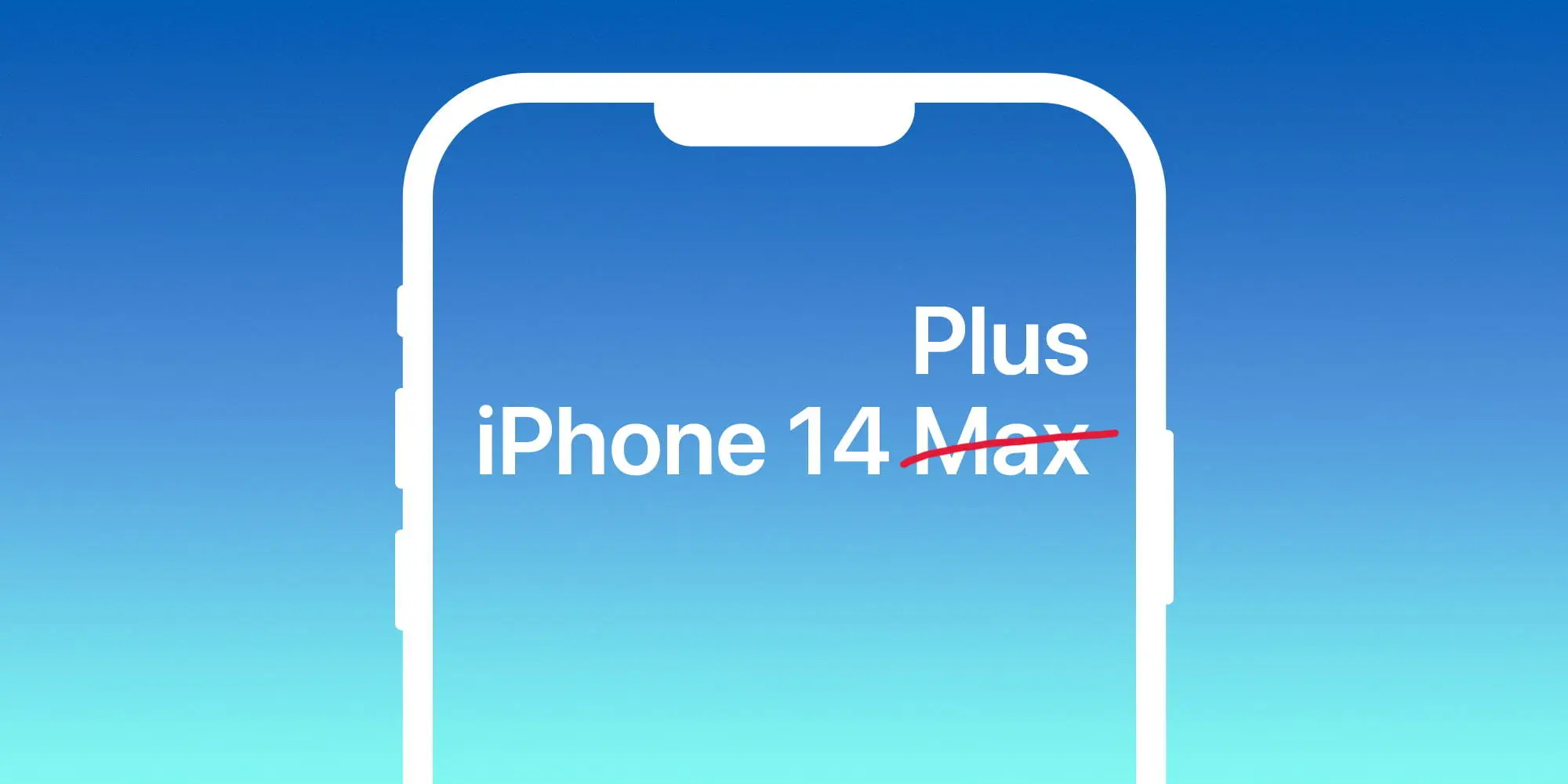
Larger regular iPhone to be called 14 Plus, not Max
Apple is said to ditch the iPhone mini model for a larger version of the regular model. While debates over whether it would be called iPhone 14 Plus or 14 Max, 9to5Mac sources familiar with the matter claimed the name will actually be iPhone 14 Plus.
In addition, at least since July, iPhone case makers have been told to not use the brand iPhone 14 Max as it won’t be the actual name of the product. Plus, 9to5Mac sources corroborated that the regular iPhone 13 case will fit the regular iPhone 14 model. Last but not least, we’ve been told that Apple will push its new 35W adapter as the go-to charger for the iPhone 14 Pro.
Classic battery indicator is making a comeback with iPhone 14 Pro series
According to information shared with MacRumors in its forum, an anonymous leaker claimed that the iPhone 14 Pro with iOS 16 will bring back the classic battery indicator on the status bar. They also shared information as to what this smartphone will look like with the new Always-on Display technology.
With iOS 16 beta 5, Apple added the iPhone’s battery percentage inside the battery icon. While many iPhone models will be able to take advantage of this new look, it seems Apple could be aiming for an exclusive design for the iPhone 14 Pro series by bringing back the classic status bar.
With that, Apple would bring the carrier signal bar to the left while bringing the location toggle and the full battery information on the right (icon and percentage). If this turns out to be true, this would be the first time since the iPhone 8 – apart from the SE series – that Apple adopts this classic design.
iPhone 14 price increase expected, but not as much as we thought
As of now, it seems clear that Apple will increase iPhone 14 prices. With the upcoming recession combined with supply chain constraints, the war, and new technologies, Apple seems to be aiming for new prices for these upcoming smartphones.
A report by TrendForce from this week said that, in the light of a tough economy and a declining smartphone market, it expects Apple to play it safe with smaller increases.
Upgrades such as initial starting memory capacity increasing to LPDDR5 6GB and 256GB, primary camera moving up to 48 million, Face ID Design changes, etc., are expected to raise starting prices. However, under pressure from rising global inflation and foreign exchange rates, Apple is expected to adopt a more cautious pricing strategy so as not to affect its sales performance.
The firm, therefore, predicts more modest iPhone 14 price increases, with starting prices of:
14: $749
14 Max: $849
14 Pro: $1,049
14 Pro Max: $1,149
All iPhone models to have 6GB of RAM, Pro models to start with 256GB of storage
TrendForce analysts are the ones predicting that the iPhone 14 Pro will start with 256GB of storage, which could explain why Apple is aiming for a higher price point for these iPhones. In addition, the publication also expects 6GB of RAM on these models.
Twitter user and leaker ShrimpApplePro shared a Weibo post that said the same. All four models will feature 6GB of RAM. For context, the iPhone 13 and iPhone 13 mini have 4GB of RAM, while the iPhone 13 Pro and iPhone 13 Pro Max have 6GB of RAM. So, if this leak is to be believed, the iPhone 14 will offer more RAM than the iPhone 13, while the 14 Pro will stick with 6GB.
This would mark the third year in a row that the “Pro” model iPhones have had 6GB of RAM. A previous leak suggested that the 14 Pro would jump to 8GB, but the consensus has since settled on 6GB instead.
Microsoft is working to make your and your family’s online experience safer. Today the company is launching its new Defender security dashboard for 365 subscribers. Users on iPhone, Mac, Windows, and Android devices have access to the Microsoft Defender security app that utilizes existing antivirus software or other protections.
Microsoft Defender is simplified online security that meets you and your family where you are by bringing multiple protections together into a single dashboard. It provides online protection across the devices you and your family use. It offers tips and recommendations to strengthen your protection further. And, as you grow your digital footprint by adding family members and devices, Defender grows with you and keeps your defenses up-to-date using trusted technology.
According to The Verge, Microsoft Defender’s features will vary by which platform. For instance, on iPhone and iPad, Microsoft Defender users won’t have antivirus protection. However, they’ll have some phishing protections alongside their dashboard that features alerts for their other devices.
Additionally, the new app includes security alerts for your devices to ensure maximum protection. While not on iPhone, you can also view Microsoft Defender’s cybersecurity tips on your Mac or Windows computer.
This is just the start. As we look forward, we will continue to bring more protections together under a single dashboard, including features like identity theft protection and secure online connection. Microsoft Defender is simplified online security that grows with you and your family to help keep you safe.
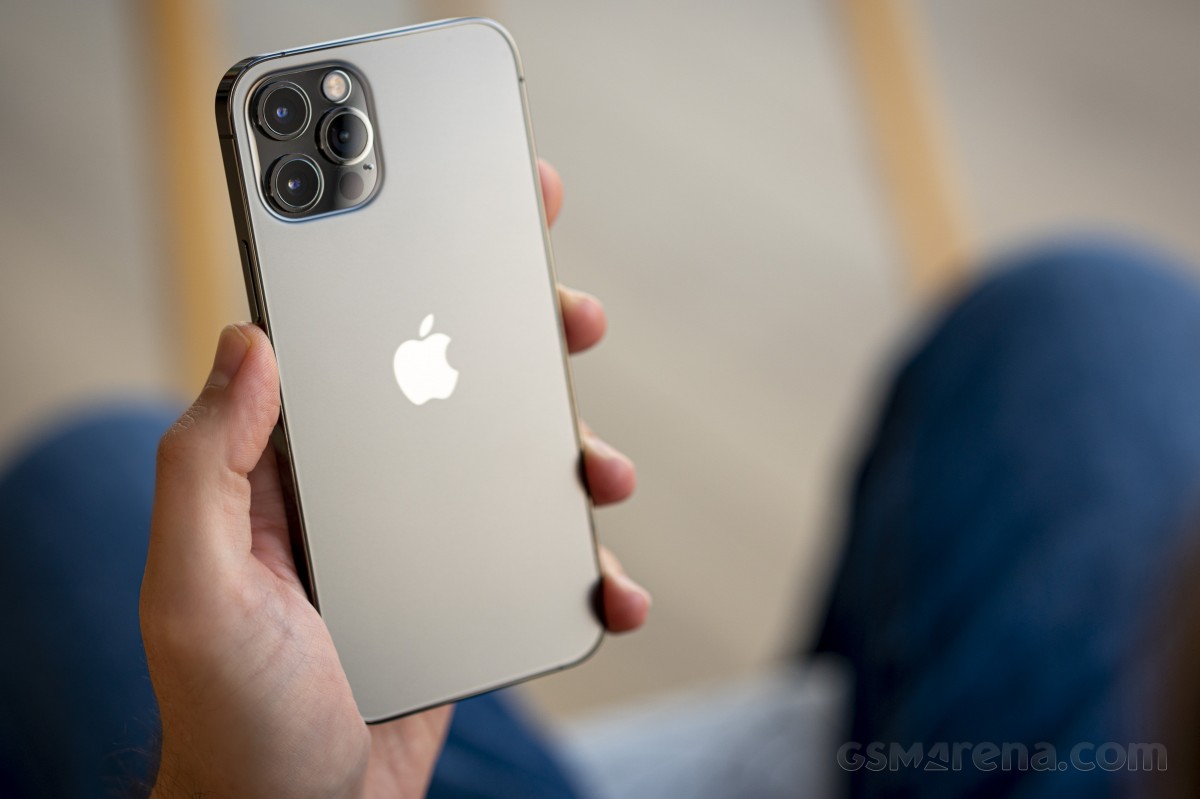
Apple is giving potential buyers more choice than ever. We already reviewed the iPhone 12, and now it’s time for the 12 Pro. Besides having double the storage, a stainless steel frame, and different colors than the 12, the 12 Pro upgrades are mostly camera-related. It’s got a proper telephoto camera with 2x optical zoom, a LiDAR Scanner for AR applications and low-light focusing, and it can take portrait shots with Night mode. This is not the longest list of upgrades we’ve seen, so choosing between these two iPhones is going to be a tough one.
At least compared to the iPhone 11 Pro, the list of new features is longer. There is a faster processor, 5G connectivity, a larger screen with better shatter resistance, Night mode for the UW camera, Dolby Vision video recording, MagSafe support, and the new LiDAR.
But most importantly, there is also the new design that Apple is introducing with the 12th Series, and it instantaneously makes all previous iPhones look less modern.
Apple iPhone 12 Pro specs:
Body: Stainless-steel frame with glossy finish, Ceramic Shield front with oleophobic coating, Glass back with frosted finish, IP68 certified for water and dust resistance. Silver, Graphite, Gold, Pacific Blue color options. 146.7 x 71.5 x 7.4 mm, 189 g.
Display: 6.1″ Retina XDR OLED screen of 1170 x 2532 px resolution, 460ppi, 600 nits, 120Hz touch sensing. HDR10, Dolby Vision support, wide color gamut. True Tone.
Chipset: Apple A14 Bionic chip (5nm) – Hexa-core (2×3.1 GHz Firestorm + 4×1.8 GHz Icestorm with 3.1GHz Turboboost) Apple CPU, four-core Apple GPU, 16-core Apple NPU 4-gen
Memory: 6GB of RAM; 128/256/512GB of internal storage
Rear camera: Triple 12MP camera: 26mm main wide-angle, f/1.6, OIS, Dual Pixel AF; 13mm ultrawide-angle, f/2.4, 120-degree field of view; 52mm telephoto, f/2.0, OIS, 2x optical zoom; dual-LED flash with slow sync. Night Mode, Smart HDR 3, Deep Fusion.
Video recording: 2160p@60/30fps, 1080p@30/60/120/240fps video recording with wider dynamic range and spatial sound, OIS + EIS, Dolby Vision
Front camera: Dual camera – 23mm 12MP f/2.2 front-facing camera with HDR mode + 3D TOF camera; Night Mode, Smart HDR 3, Deep Fusion. 2160p@60/30fps, 1080p@30/60/120fps video recording with wider dynamic range and spatial sound, EIS.
Connectivity: Dual SIM, 5G, 4G; Wi-Fi a/b/g/n/ac/6; Bluetooth 5.0; Lightning port; GPS with A-GPS, GLONASS, GALILEO, QZSS; NFC; Apple U1 chip ultrawideband
Battery: 2,815 mAh battery, 20W fast charging, 15 Qi wireless charging (MagSafe)
Misc: Face ID through dedicated TrueDepth camera, stereo speakers, Taptic Engine
While we could hardly wait to see the iPhones with this new design, we can’t say Apple has checked off all points on our wishlist. The iPhone 12 Pro was supposed to premiere with a new 120Hz ProMotion display, but unfortunately, that didn’t happen. Rumor has it that for some reason, Apple had to choose between 5G and HRR OLED (we think it’s battery life). Well, we all know how that went down – with our without carrier support – Apple’s homepage now proudly carries a huge 5G logo. We can’t deny the iPhone UI looks fast and fluid but forgoing the high-refresh-rate screen for yet another year is a flagrant omission in our books.
Also, Apple’s questionable decision to keep the camera hardware upgrades only to the iPhone 12 Pro Max further takes away some of the appeal of the 12 Pro. Not everyone will want a big phone, and Apple is making it impossible to get the new 12MP sensor with larger pixels and sensor-shift stabilization without going for the 12 Pro Max. In our minds, the iPhone 12 Pro deserved to have the same level of camera hardware instead of relying on the last year’s camera tech.
Unboxing the Apple iPhone 12 Pro
Finally, in one of the most controversial moves in the industry, Apple announced they are no longer bundling a charger or headphones with this phone that costs more than a thousand bucks.
This year, the iPhone 12 Pro comes in one of the slimmest smartphone boxes we have ever opened. Inside, you’ll find only the phone itself and a USB-C/Lightning cable. No charger or headphones here. Apple expects you to already have these or, better yet, buy them separately.
Inside the box, there is also a small sleeve, where you’d find the SIM ejection PIN and an Apple logo sticker. Apple should have saved the hassle of including those – after all, we all have those already, right? Come to think of it, nobody needs a box either – just ship the iPhone 13 in bubble wrap.
Okay, we’re a bit salty, but so is the iPhone 12 Pro pricing. Let’s see what it has to offer for our hard-earned money on the following pages.
Alternatives
The iPhone 12 Pro is a well-balanced smartphone, which offers many upgrades over the iPhone 11 Pro and a moderate list of added features compared to the standard iPhone 12.
The most notable differences between the iPhone 12 Pro and the iPhone 12 are in the camera department. The 12 Pro has an additional telephoto camera on the back, it can shoot Dolby Vision videos in 60fps, it will eventually support capturing in Apple Pro RAW, and has the LiDAR Scanner that helps for better AR and portraits. The 128GB iPhone 12 Pro is $120/€200 more expensive than the 128GB iPhone 12, and it’s up to you to decide whether you need these camera features. If not – the iPhone 12 already offers the most important core new features of Series 12.
If you want to get the best Apple has to offer in 2020, then there is the iPhone 12 Pro Max that goes for €100 over the iPhone 12 Pro. The Max has the largest screen and battery among the iPhone 12s and is the only one to actually have a meaningfully upgraded camera hardware. It has a larger 12MP sensor for its main camera with the (phone) industry’s first sensor-shift stabilization. It also features an improved 12MP telephoto camera – it now offers 2.5x zoom thanks to a new 65mm f/2.2 lens and is promised even better portraits.
The iPhone 12 Pro Max indeed offers the most significant upgrades when it comes to hardware this year, and it appears it makes more sense as a purchase compared to the iPhone 12 Pro. In fact, if you own an iPhone 11 Pro and you don’t care about the new design, 5G, or MagSafe support, you should skip the 12 Pro and wait for next year’s model.
Apple iPhone 12 • Apple iPhone 12 Pro Max
Our verdict
The Apple iPhone 12 Pro is a very good smartphone, but it doesn’t make much sense as an upgrade to the iPhone 11 Pro. Better stick with your iPhone 11 Pro, or if you are a sucker for the latest Apple tech – just spend more and get the Max.
However, logic doesn’t always matter when it comes to new iPhones. Many people buy them just because they are the new iPhones, and they want to stay in the loop, few for the actual new features and even fewer get them as it is time to replace their 3-4-5 years old phone.
If you are among those users upgrading from an older model, say XS or earlier, you should be delighted with the iPhone 12 Pro – it offers a massive amount of upgrades over the older-gen iPhones. You just need to buy a charger, but hey – welcome to the future!
We expected more from the iPhone 12 Pro, but it turned out a recycled iPhone 11 Pro. Not that Apple is forcing us to upgrade, but still. The new camera tech being a Pro Max exclusive and the lack of ProMotion screen, while failing to deliver meaningful improvements elsewhere, makes things really easy for us to make a call.
We can’t recommend the iPhone 12 Pro over its siblings – the iPhone 12 or iPhone 12 Pro Max.
Pros
Attractive design with exquisite fit and premium finish
Excellent OLED screen, very bright
Loud stereo speakers, superb audio quality
The fastest smartphone chip on the planet, 5G, too
Good photo quality across the board, day and night
LiDAR Scanner has varied applications and use cases (albeit quite niche)
Consistently good video quality
Apple iOS 14 is fast and easy to use, 5 years of guaranteed major updates
MagSafe is a promising accessory concept
Cons
No charger or headphones in the box
No high refresh rate screen
Shorter battery life than the iPhone 11 Pro
iOS needs better file management
We miss TouchID as FaceID does not work with a mask on
The best camera tech is exclusive to iPhone 12 Pro Max
Few meaningful upgrades over iPhone 11 Pro and even fewer over iPhone 12
iMovie 3.0 makes it easier than ever for anyone to share their stories with video
Apple today introduced a new version of iMovie with features that make it easier than ever to create beautiful edited videos on iPhone and iPad. Storyboards helps aspiring content creators and moviemakers learn to edit and improve their video storytelling skills with pre-made templates for popular types of videos shared on social, with colleagues, or with classmates — videos like DIYs, cooking tutorials, product reviews, science experiments, and more. Storyboards makes it easy to get started with flexible shot lists and step-by-step guidance on which clips to capture for each video type. For those who want to create a video even faster, Magic Movie instantly creates a polished video from the clips and photos a user selects, automatically adding transitions, effects, and music to the edit. Both new features include a range of styles to help personalize the final look and feel of a video, including titles, filters, transitions, color palettes, and music, all designed to work together.
“iMovie has empowered millions of people around the world to create and share their stories through video,” said Bob Borchers, Apple’s vice president of Worldwide Product Marketing. “This latest version of iMovie, featuring Storyboards and Magic Movie, simplifies video creation even further, and we think it will continue to inspire the next wave of video creators to dive in and get started.”
iMovie 3.0 introduces Storyboards and Magic Movie to make it even easier to create polished videos.
Learn and Improve Video Storytelling with Storyboards
Storyboards gives users a major head start in the video creation process, helping beginners learn to edit and improve their storytelling skills. Instead of starting with a blank timeline, creators can choose from 20 different storyboards featuring a variety of popular video types, including cooking tutorials, Q&As, product reviews, news reports, and more. Each storyboard has a shot list that organizes clips to tell a specific narrative. Each placeholder also includes an illustrative thumbnail, along with a tip that asks a question or makes a suggestion for how to shoot that clip to make it more interesting. For added customization, shots can be added, reordered, and deleted from a storyboard as needed.
Creators can choose from 20 different storyboard types based on popular video genres to get started.
Unique pre-made video styles can be added to mix up the look and feel of a project.
Creators can experiment by applying different video styles that include titles and transitions, as well as options for title layouts, fonts, filters, and color palettes. Music tracks dynamically adjust to fit the length of a project, and users can refine each clip with intuitive editing tools like trim, split, clip speed, and clip volume.
Completed Storyboard videos are easily shared from iMovie through Messages, Mail, and across social media platforms.
Create Videos Instantly with Magic Movie
Magic Movie brings photos and videos to life in just a few taps.
Magic Movie helps create beautiful custom videos — complete with titles, transitions, and music — in just a few taps. To create a Magic Movie, a user simply selects an album, or any group of photos or images from their library, and Magic Movie instantly identifies the best parts of the footage and creates the project. Creators can easily put their own spin on a Magic Movie by rearranging or deleting clips in the simplified Magic Movie shot list, or by editing the project further. Styles can be added to change up the look and feel of the entire video. Like Storyboard videos, Magic Movies can be shared from iMovie via Messages, Mail, and on social media.
Users can create a beautiful video from their Photo albums automatically with Magic Movie.
Availability
iMovie 3.0, including the new Storyboards and Magic Movie features, is available today as a free update on the App Store for devices running iOS 15.2 or later and iPadOS 15.2 or later.
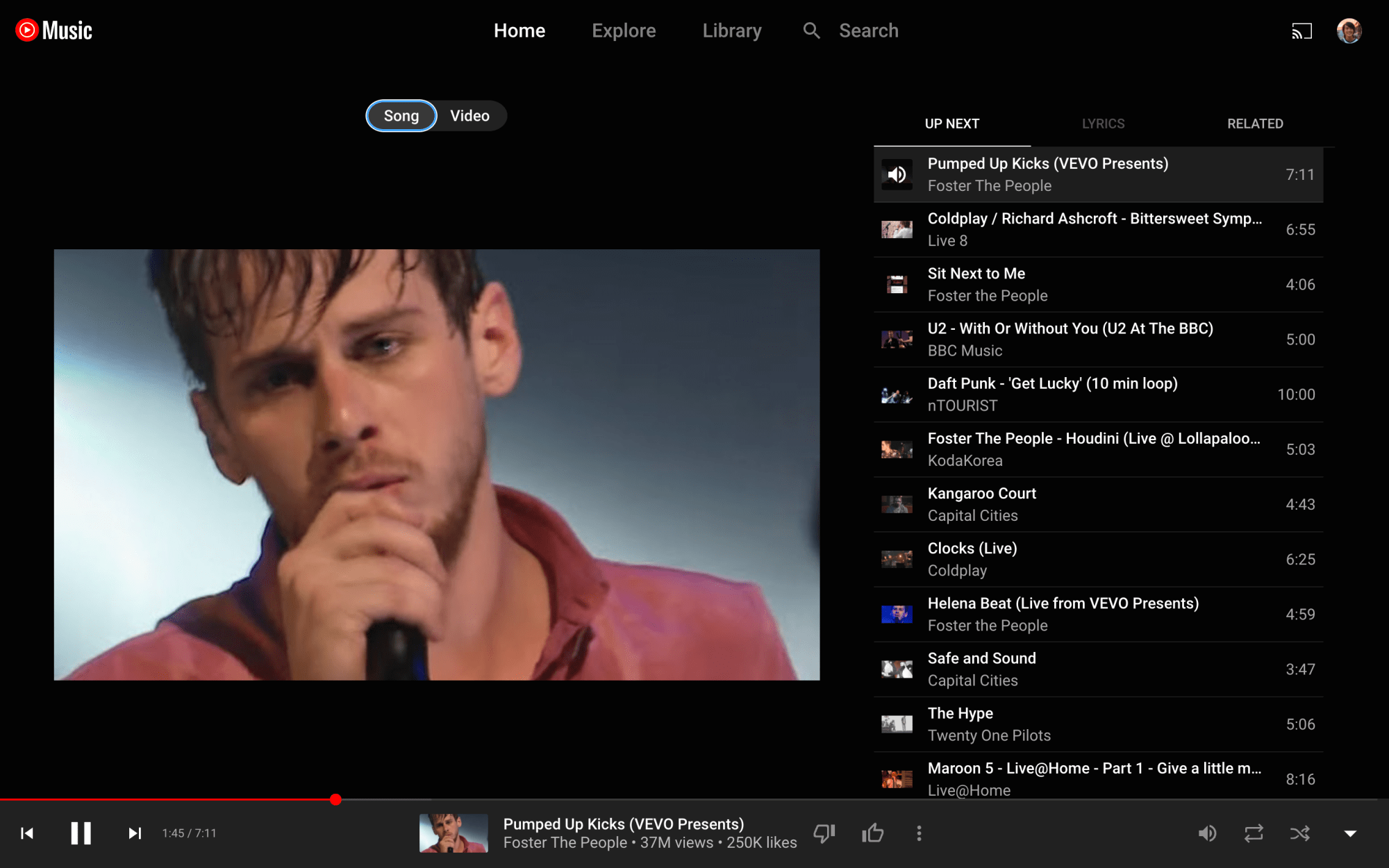
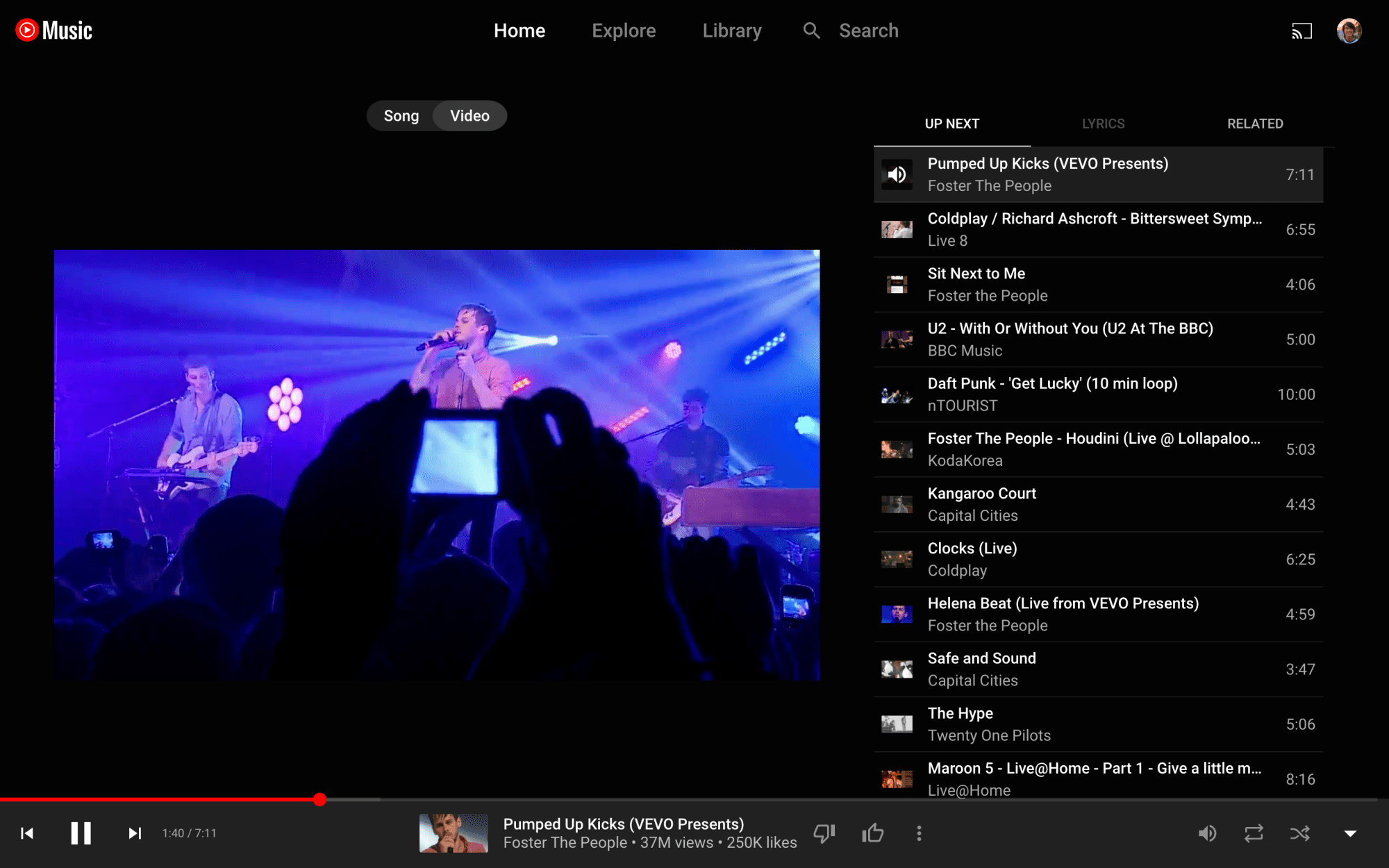
After testing for some time, YouTube Music is finally bringing the song/video switcher to the Now Playing UI of the web client.
Just above cover art is the Song and Video switcher that has been a staple of the Now Playing screen on Android and iOS.
There are two primary use cases for this switcher. The first is switching between the official music video and the album version of a song, as evidenced by cover art appearing in the latter instance. Your playback position is retained when switching. The switcher appears grayed out when songs aren’t available as videos.
The other use is disabling the video aspect of a live recording, which just uses the thumbnail as cover art. It’s useful for those that just want to listen to audio, with users previously resorting to minimizing Now Playing at the expense of being able to see the Up Next queue.
YouTube Music has been testing the switcher for some time on the desktop, but it looks to be widely rolled out today. It’s another example of the web client getting feature parity with the mobile apps, while the Related tab was introduced in recent months.
Google should also theme the background of Now Playing to album art instead of defaulting to just a dark background. This was previously spotted but never widely rolled out.
YouTube Music artist pages now list songs and albums ‘From your library,’ like Play Music
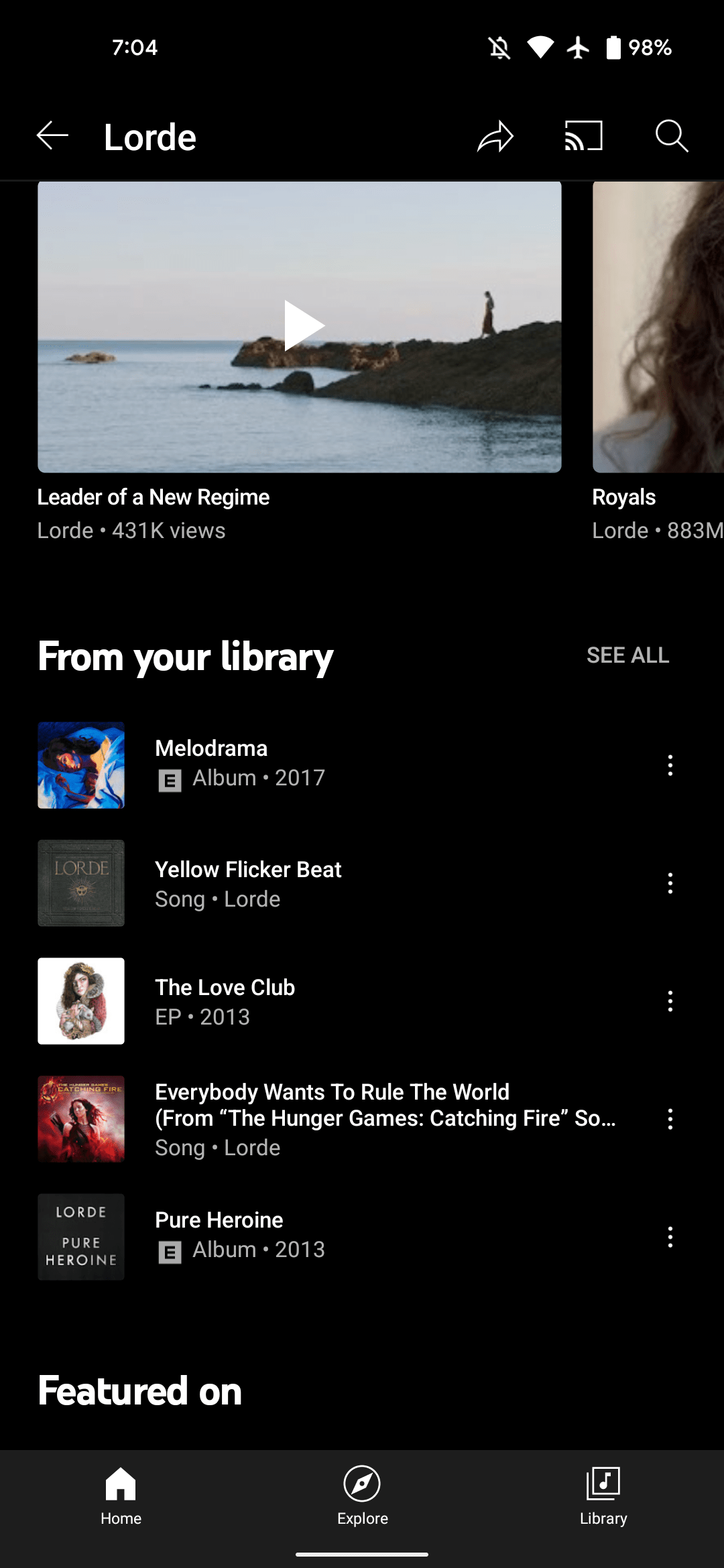
After rolling out a redesigned “Add to playlist” UI, YouTube Music is adding a “From your library” section to artist pages that is similar to something that was found in Google Play Music.
It’s third from the bottom and just below the “Videos” carousel. Up to five songs or albums are listed with “See all” in the top-right corner. That button takes you to a list of just tracks. There’s a convenient “Shuffle all” button, while sort options include Release date, Recently added, A to Z, and Z to A.
YouTube Music’s Library essentially lets you save media for quicker access, but it does not include songs you’ve manually uploaded. This new grouping joins the Albums, Songs, and Artists views, while “From your library” also exists as a carousel in the Home tab.
The From your library section in artist pages is widely rolled out today on YouTube Music for Android and iOS. However, it’s not currently found on the web, and would ideally be ranked higher up in the page. In all, this new feature is similar to “My Library” in Google Play Music.
On the surface, Gmail seems like a basic email platform for simple sending and receiving. Under the hood, there are tons of functions you can make use of – schedule send, label organization, theme changes, and even Google’s Gmail chat. Read along to find out how each of these useful features works.
How to schedule send in Gmail
There are plenty of times when you have an idea, something to say, or a picture to send, but it’s way too early or late at night to do so. That’s when Gmail’s scheduled send really comes in handy. This feature allows you to delay sending an email until a preferred time in the future.
You can schedule an email to send well over a year in advance if you really want to. In fact, there doesn’t seem to be a limit on how far out you can schedule an email.
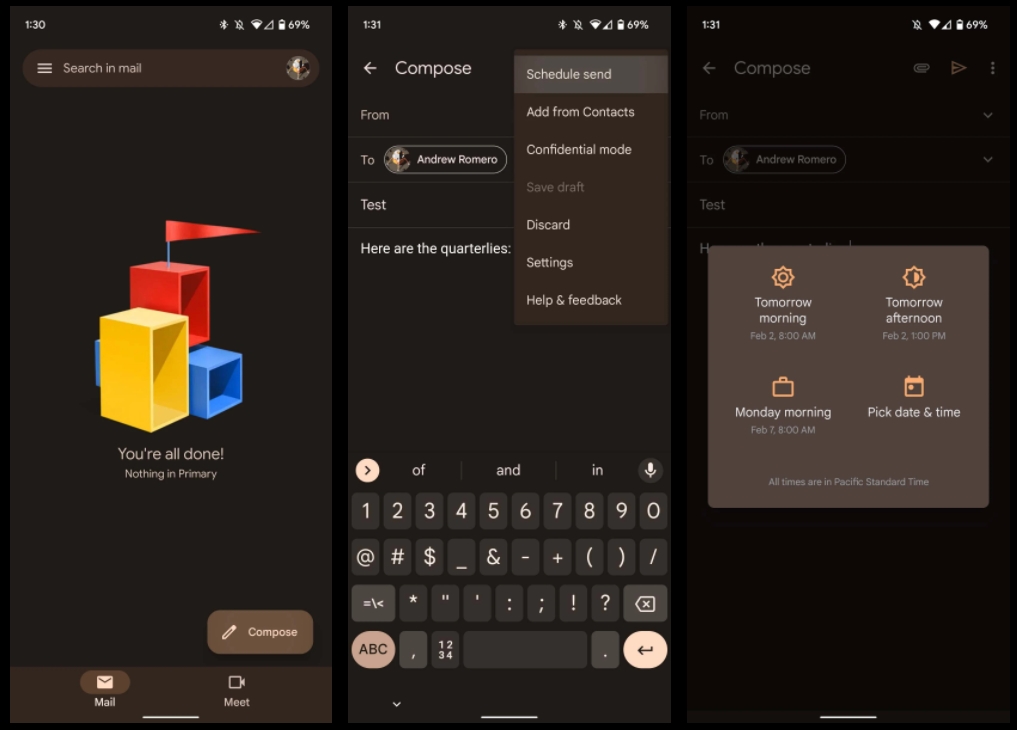
Find the Compose email button on the lower right side of your screen, and tap it.
Compose an email like you would normally.
When you’re done composing, tap the three-dot menu at the top right of the screen.
Tap Schedule send, and select your time.
You can choose between Google’s presets, or you can define your own timeframe by hitting Pick date & time.
Hit Schedule send to confirm and finalize your email.
Web
Head to gmail.com on your preferred browser, and sign in.
Look for the compose button. It should be located toward the top left of your browser screen. Click it.
Write out your email like normal. When you’re finished, click the dropdown arrow next to the Send button.
Click Schedule send.
Just like on mobile, you can choose a Google preset time, or pick your own time by hitting Pick date & time.
Click Schedule send to finish the email.
Both on mobile and web, you can cancel any email that you schedule in two different ways. First, you’ll notice a small notification at the bottom of the screen after you schedule an email. This notification has an Undo button on it. By hitting this, your email will cancel and revert to draft form so you can edit and try again.
The other way to cancel the email is to head into your Scheduled folder in Gmail, which appears after scheduling an email on web but is constantly there on mobile. Here, you can find your scheduled email and choose to delete it or cancel it by opening it and tapping Cancel send. Schedule send in Gmail can come in handy pretty often, so it’s a good function to know how to use.
Organizing by changing label colors in Gmail
Labels in Gmail act sort of like dynamic folders for the emails you want to organize and sort. You can add rules for new emails coming in to automatically sort into labels and change the color of the label in order to easily manage them. Changing the color is relatively easy to do and can liven up your inbox a little more. While this feature is only available on Gmail for web, it’s still an extremely useful organizational tool. Here’s how to change label colors in Gmail:
In the sidebar menu to the left of your screen, find a label you’ve created.
Note: If you don’t have any labels created, you can do so by scrolling down in the sidebar menu and clicking Create new label.
When hovering over a label with your mouse, you’ll see a three-dot menu appear. Click it.
Click Label color and choose among the preset colors Gmail has to offer, or create your own.
Automatically organizing emails
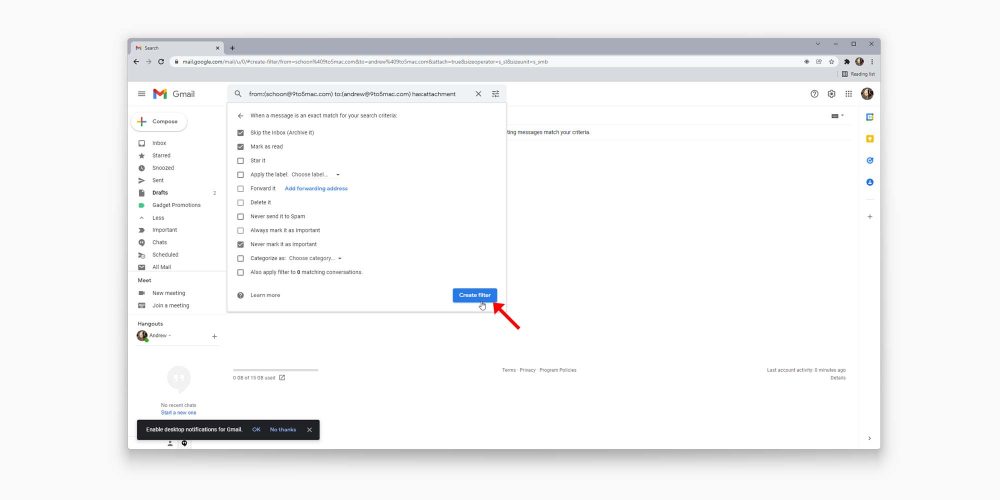
You can also create rules for emails in your Gmail inbox to automatically add labels. For instance, tax-related documents and receipts can be siphoned into one label for easy management. Not only that, but emails can automatically be forwarded, deleted, archived, and much more. Here’s how you can create incoming email rules:
At the top of the page, click the adjustment icon in the search bar.
Fill out the parameters to your liking.
Note: Here, you can define a set of emails from certain senders as well as define emails including certain terms. This form can be filled out in a lot of different ways, and not all boxes need to be filled. You can test out your parameters by clicking Search to see what sort of emails come up.
Once you fill out the information to your liking, click Create filter.
Choose what happens to those emails.
Note: Here you can choose whether these emails get immediately deleted, starred, or moved into an existing or new label.
Once you’re done, hit Create filter again.
Creating rules for incoming emails is a Gmail feature that can help you stay organized a lot more easily. Play around with different rules to see what helps you out the most as this tool can be used a thousand different ways.
Unread message icon in Chrome
Another nifty little feature you can enable is the unread message icon. This icon will appear as a number in your Google Chrome tab icon, showing you exactly how many emails you haven’t read yet. Here’s how to enable it:
Look for and click the settings cog at the top right of the page, then click See all settings.
Find and click the Advanced section.
Scroll to the bottom, and find the Unread message icon. Click it.
Click Save changes.
Gmail will refresh after hitting Save changes. You’ll notice a small number appears on the Chrome tab if you have unread emails.
Gmail viewing modes
Whether you like your inbox to look condensed so all your information is right where you need it or spaced out, Gmail has you covered. By going into Settings, you can change Gmail’s density. There are three options:
Default
Comfortable
Compact
Play around with these different viewing densities, and choose one that fits your needs. Personally, I like default, since it allows the most information at a glance.
Changing your Gmail theme
Some Gmail features are purely there as quality-of-life settings. Themes fit right into that category. Rather than a dull white or black Gmail, you can develop or choose a theme that represents you a little better, or just lightens up your mood when replying to monotonous emails all day.
Gmail allows you to choose between preset photos, colors, and even your own Google Photos images to use. Here’s how to change your Gmail theme:
Look for the settings cog at the top right of the page and click it.
Look for the Theme section. You can choose from these few photos, or you can hit View all to choose from even more.
Once you hit View all, scroll through the page and find what really speaks to you. If nothing does, click My photos at the bottom left.
Choose between Featured, My photos, and Recently selected if you’re wanting to revert to a previous photo.
Note: If an image is over 20MB, you won’t be able to use it for your theme.
Once you find the photo you want, select it, and hit Save.
Once you save, you should see your new theme appear in the background of Gmail. There’s no limit on how many times you can change your theme, so go nuts.
Turning off Google Chat/Meet in Gmail
Some settings are fantastic when enabled, others are even better when disabled. One example is Google Chat and Meet. While these optional chat platforms can be useful for communication, it tends to clutter up Gmail, which is already prone to clutter.
Whether you should disable Google Chat and Meet is completely up to you and how you use Gmail. In case you never use these features and want to clean up your Gmail experience, here’s how to disable Chat and Meet:
Look for the settings cog at the top right of your screen.
Tap See all settings.
Look for and click the Chat and Meet section.
Next to Chat, select Off.
Next to Meet select Hide the Meet section in the main menu.
Click Save changes.
You don’t have to disable Google Chat and Meet in Gmail or even either of them. It all depends on your preferences for using Gmail. Once you hit Save changes, Gmail will refresh, and your changes will be reflected. Suddenly, you’ll find that the side menu is much less cluttered and easier to navigate.
These are just a few things you may not have realized you can do to change your Gmail experience. Whether you want to implement all of them or none of them is up to you. Either way, Gmail is a great tool and even greater when you know how to organize labels, change their color, and disable certain features.
While many iOS users default to Safari for their browsing needs, Google Chrome is ready for cross-platform syncing and more. However, an update rolling out over the past few days is causing issues for Google Chrome users on iOS that result in the app freezing entirely.
Over the past 24 hours, dozens of Chrome users on iOS have reported on Google’sforums and Reddit that the Chrome app is freezing and completely inoperable. Many report that reboots, reinstalling the app, and other troubleshooting methods don’t work, and the issue seems to be happening across multiple iPhone models.
We’ve since been able to replicate the issue on an iPhone running iOS 15.3. The freezing issue only occurred following an update to Chrome for iOS to version 97, which hit the App Store about three days ago. Older app versions on the same device worked without any issues. However, on another iPhone running iOS 15.2 and the same Chrome version, the freezing issue didn’t occur. On a completely fresh install, we found that the issue also didn’t occur.
When the freezing issue affects an iPhone, users are unable to browse webpages or even set up the app if they’ve not already done so. The issue freezes all functionality in just a matter of seconds.
Some users do report that a fix for this issue seems to be clearing the app’s cache, but on iOS this requires going through the app’s own settings. Unfortunately, that’s something some found impossible, as the app froze before he was able to reach that setting.
Most likely, this issue will require Google’s intervention. In the meantime, we’d recommend that you do not install Google Chrome for iOS if you’ve not already done so.
A year after Apple Music first became available on GoogleNest and Home devices, the streaming service is now supported in five more countries.
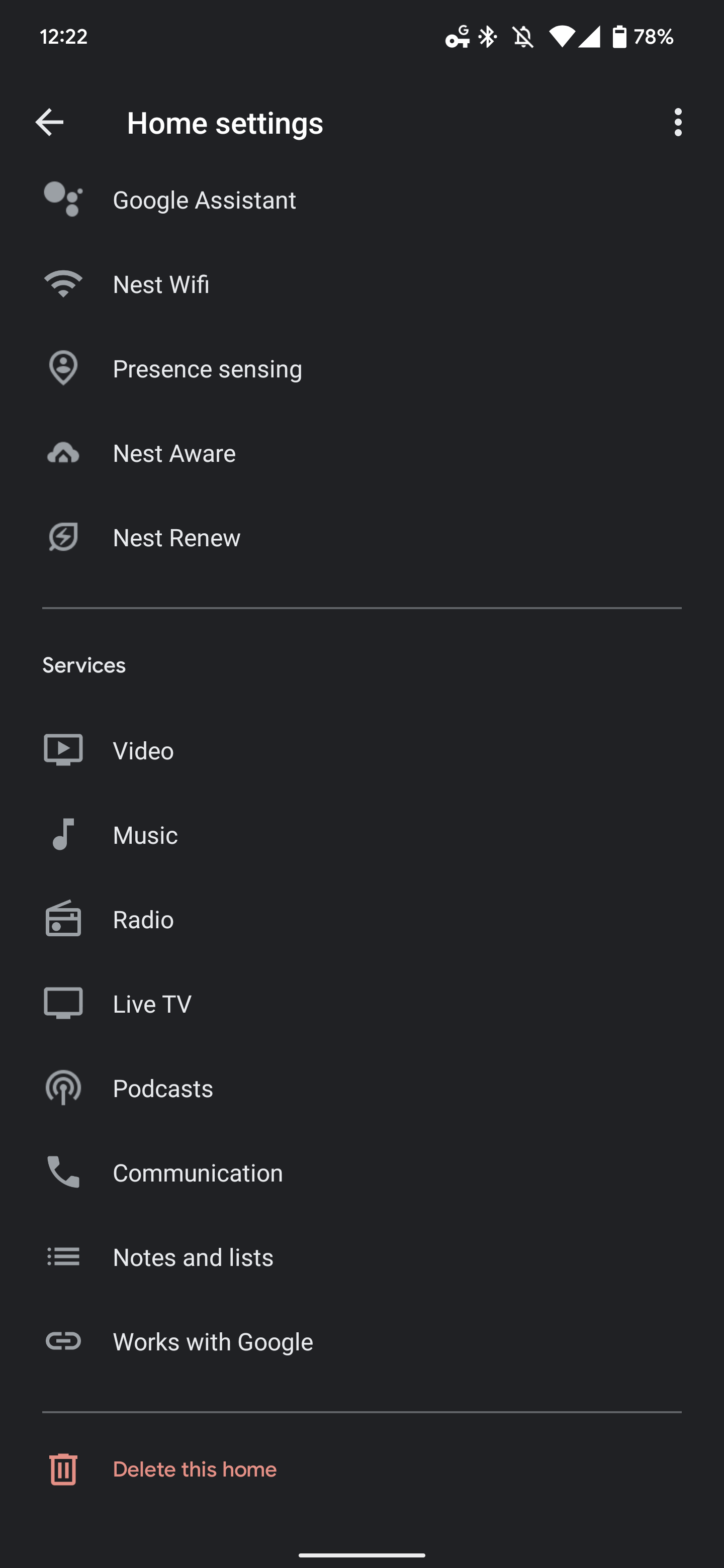
Australia, Canada, India, Mexico, and South Korea join the US, UK, France, Germany, and Japan. To enable Apple Music, open the Google Home app (Android or iOS) > the Settings gear > (under Services at the bottom) “Music.” You can also open Google Assistant settings and scroll down to “Music.”
Tap the blue link/chain icon next to “Apple Music” and agree to “Link Account.” You’ll be sent to an Apple website where you can enter Apple ID credentials. Once complete, requests to Google Assistant for songs and albums will automatically play in Apple Music.
After it is set up, you can easily queue up your favorite playlist, artist, or any of the award-winning Apple Music Radio stations live streaming today’s hits, classics, and country to play over your connected device.
Stateside, supported streaming services include YouTube Music, Spotify, Apple Music, Pandora, Deezer, and iHeartRadio. Apple’s Android app also supports Casting, while there’s still no TV+ app to watch original content despite the presence of an Android TV client.