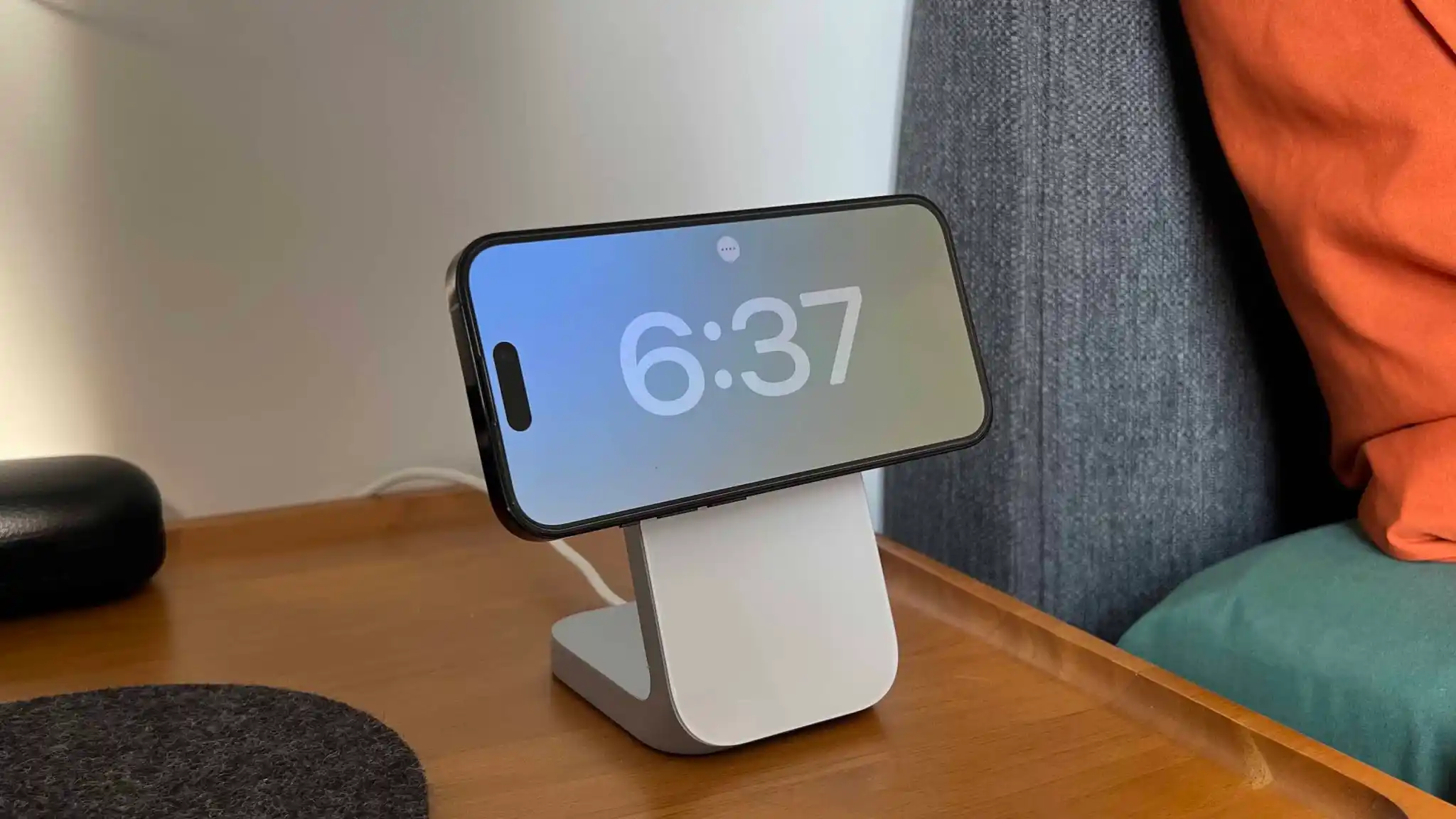
Apple on Wednesday began rolling out the second betas of iOS 17.3, macOS Sonoma 14.3 and other software updates to developers. The first betas of these versions were released on December 14, before the holiday break. The company is now resuming the beta program – and we’re about to find out what’s new in today’s updates.
iOS 17.3 beta brings Secure Device Protection and more
iOS 17.3 is a major update. The first beta introduced Secure Device Protection, which is an “additional layer of security” that protects users’ data in case someone steals their phone and gets their password. When Secure Device Protection is enabled, you can only access saved passwords using Face ID or Touch ID, for example.
This feature also makes it harder for crooks to change the Apple ID password of the owner of that device. There’s also a delay in removing Find My from an iPhone with Secure Device Protection enabled. In addition to this feature, iOS 17.3 also re-enables collaborative Apple Music playlists, now with emoji reactions.
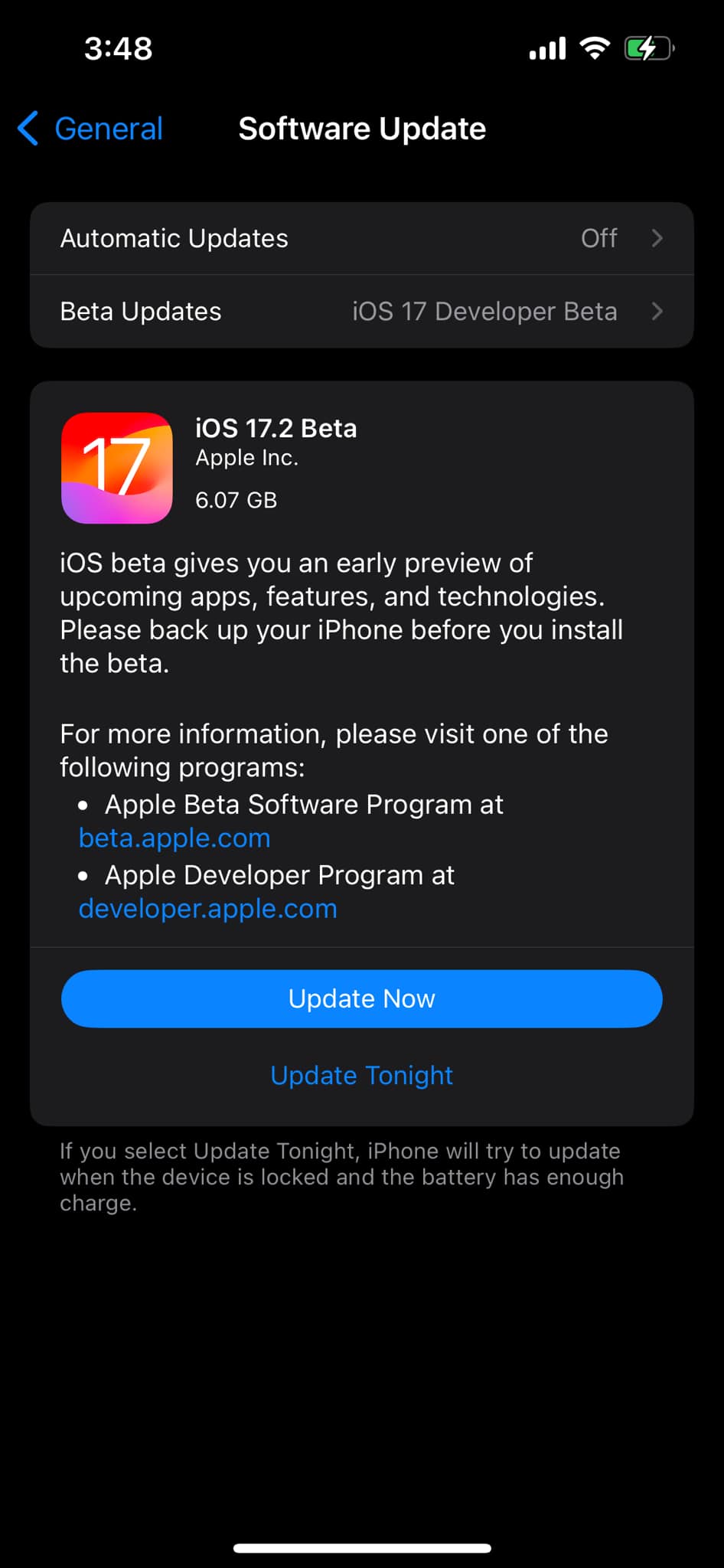
Today’s build number is 21D5036c, compared to the number 21D5026f of the first build. Developers can update their devices by going to Settings > General > Software Update.
It’s worth noting that although iPadOS 17.3 is also available for iPads, Secure Device Protection is an exclusive feature for iPhones at this point.
macOS 14.3 and more
In addition to iOS 17.3 beta 2, the second betas of macOS 14.3, watchOS 10.3, and tvOS 17.3 are now available to developers. The first beta of these updates had no significant changes apart from potential bug fixes.
After the release of iOS 17.1 in October, Apple is hard at work on iOS 17.2 with a collection of new features and changes. iOS 17.2 is currently in beta testing with developers and public beta users. Here’s everything new so far.
When will iOS 17.2 be released?
Thus far, Apple has released four betas of iOS 17.2. This leads us to believe that the update will be released to the public sometime within the next several weeks. The update will almost certainly be released before the end of 2023.
Last year, iOS 16.2 was released on December 13 with major new features like Apple Music Sing and the all-new Freeform app.
What’s new in iOS 17.2?
Journal app
The headlining change in iOS 17.2 is the addition of the new Journal app, which Apple first unveiled at WWDC in June. Apple describes the new Journal app as an “all-new way to appreciate life’s moments and preserve your memories.”
At launch, the Journal app is only available on iPhones. There’s no word on when or if Apple plans to expand it to the iPad and Mac.
Collaborative playlists in Apple Music (maybe?)
The first three betas of iOS 17.2 included the ability to create collaborative playlists in Apple Music. This feature was announced by Apple at WWDC in June and teased as coming sometime later this year.
iOS 17.2 beta 4, however, removes the ability to create collaborative Apple Music playlists. Whether or not Apple adds the feature back before iOS 17.2 is released to everyone remains to be seen.
More changes to Apple Music
Also in iOS 17.2, there is a new default playlist called “Favorite Songs” that is automatically generated based on songs you’ve “favorited.” This builds upon the “Favorites” feature that was first introduced in iOS 17.1.
iOS 17.2 can now automatically add songs to your music library when you favorite them. You can find this option by going to the Settings app and then choosing “Music.”
Finally, iOS 17.2 adds the ability to disable Apple Music Listening History when a Focus Mode is on. “Choose if music played will influence recommendations and mixes, appear in Recently Played, or be shown to others on Apple Music,” Apple explains.
This means that when you have a particular Focus mode enabled, you can toggle on the Apple Music Focus Filter to prevent any songs played from affecting your listening data.
Spatial Video recording
With iOS 17.2, iPhone 15 Pro and iPhone 15 Pro Max users can record spatial video for Vision Pro. You can enable the new spatial video toggle by going to the Settings app, choosing the Camera menu, then choosing Formats and toggling the “Spatial Video for Apple Vision Pro” option.
Spatial video is recorded in 1080p resolution at 30 frames per second. Apple estimates that one minute of spatial video takes up around 130MB of storage space.
iOS 17.2 beta 2 enables Vision Pro spatial video capture on iPhone 15 Pro
Apple has allowed some press to view their own spatial videos in Vision Pro, Final Cut gaining editing ability next year
Default notification sounds
At long last, iOS 17.2 adds the ability to change the default notification sound. This comes after iOS 17 changed the default notification sound from “Tri-tone” to “Rebound,” which has proven to be a controversial decision.
In iOS 17.2, you can go to the Settings app and choose “Sounds & Haptics” to find a new “Default Alerts” option. Here, you can change the default sound and haptic feedback for alerts.
Reactions in Messages
Another feature coming with iOS 17.2 is the ability to react to messages using any sticker or emoji in the Messages app. This is done by long-pressing on a message and choosing the new “Add Sticker” option.
Action Button adds “Translate” option
With iOS 17.2, iPhone 15 Pro users can assign their Action button to a new “Translate” option. With this enabled, pressing the Action button initiates an automatic voice-to-text translation between two languages.
Although this capability was first introduced during the announcement of the iPhone 15 Pro in September, it wasn’t added until iOS 17.2.
New widgets
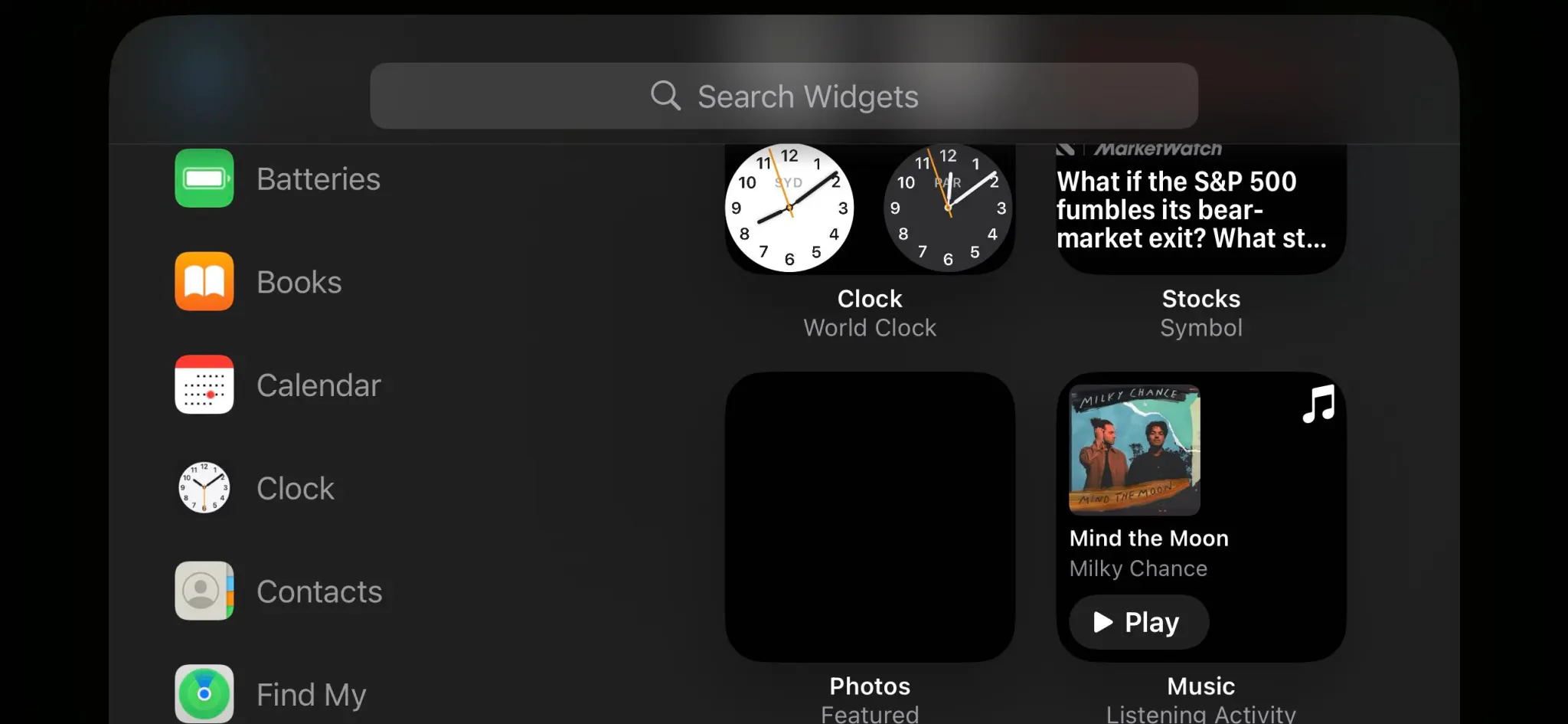
Apple has added three new widgets for the Weather app:
Details: See the chance of precipitation, UV index, wind, and more.
Daily forecast: See the current weather conditions and daily forecast for a location.
Sunrise and sunset: See the upcoming sunrise and sunset information for your location.
For the Clock app, there’s a new “Clock Digital” widget that displays the current time in a digital format rather than analog. This is the first digital clock widget Apple has offered.
‘Local Awareness’ for Emergency Alerts
iOS 17.2 includes a new “Local Awareness” option for Emergency Alerts. “Apple can use your approximate location to improve the timeliness, accuracy, and reliability of emergency,” Apple says.
To enable this option, go to the Settings app, head to Notifications, then choose Emergency Alerts and look for the new “Local Awareness” toggle.
Contact Key Verification
A year ago, Apple unveiled a feature called Contact Key Verification to enhance the security of iMessage. This feature has now been added with iOS 17.2.
Contact Key Verification enables users of iMessage to ensure that their messages are reaching only the intended recipients.
iOS 17.2 adds a new “AirPlay Receiver” option for Vision Pro. “Stream or share content from Apple Vision Pro to your iPhone,” Apple explains.
Vision Pro is currently expected to be released sometime in “early 2024.” The new toggle is in the Settings app under the AirPlay menu.
iTunes Store changes
Bloomberg has reported that Apple plans to phase the dedicated iTunes movie and TV show apps in favor of the TV app. iOS 17.2 lays the groundwork for these changes, including new messaging that redirects users to the TV app.
Software update feature
iOS 17.2 also lays the groundwork for a new feature that will allow iPhones to be updated even if they are still sealed in the box.
For instance, Apple retail employees will be able to update iPhones without taking them out of the box. Currently, iPhones are shipped from the factory with whatever build of iOS was available at that time. This means millions of iPhones out there ship with software that is multiple updates old by the time that phone arrives to the customer.
More changes in iOS 17.2
The new “Sensitive Content Warning” feature in iOS 17 is expanding to stickers in the Messages app and Contact Posters in the Contacts app.
Siri can now tell you your ETA when using Apple Maps and tell you your current altitude.
iOS 17.2 lets users disable inline text predictions without turning off predictive text.
Apple says that iOS 17.2 fixes Wi-Fi slowdowns and connectivity issues.
In the App Store’s “Apps” and “Games” sections, there are new sub-categories that appear along the top for additional filtering options.
There’s a new rainbow text option when designing a Contact Poster in iOS 17.2.
The Apple Books app has added a new “Fast Fade” option for page turning.
Apple has been under pressure in the European Union as the Digital Markets Act antitrust legislation requires the company to allow users to sideload apps outside the App Store to increase competition. The iOS 17.2 beta code that the company is indeed moving towards enabling sideloading on iOS devices.
Update: Apple has published new documentation for the ManagedAppDistribution API on its website confirming that it is primarily intended as an MDM solution. As we suggested in our report, it could still be used for other purposes. You can read the original article below.
What is sideloading
For those unfamiliar, the sideloading process consists of installing apps obtained from third-party sources instead of an official source. When it comes to iOS, the official source (and the only one available to iPhone and iPad users) is the App Store. Apple has never allowed sideloading on iOS, as this would allow apps to bypass the App Store guidelines.
However, the European Union last year passed the Digital Markets Act, or DMA, a new piece of antitrust legislation aimed at big tech companies so that they don’t use their advantages to undermine competition. One of the requirements of the DMA is that users can install any apps they want from third-party sources.
Previous reports revealed that Apple had been doing under-the-hood work on iOS 17 to prepare the system for sideloading in Europe. With the iOS 17.2 beta, internal code suggests this is true.
iOS 17.2 seems ready to allow alternative app stores
iOS 17.2 has a new public framework called “Managed App Distribution.” While our first thought was that this API would be related to MDM solutions for installing enterprise apps (which is already possible on iOS), it seems that Apple has been working on something more significant than that.
By analyzing the new API, we’ve learned that it has an extension endpoint declared in the system, which means that other apps can create extensions of this type. Digging even further, we found a new, unused entitlement that will give third-party apps permission to install other apps. In other words, this would allow developers to create their own app stores.
The API has basic controls for downloading, installing, and even updating apps from external sources. It can also check whether an app is compatible with a specific device or iOS version, which the App Store already does. Again, this could easily be used to modernize MDM solutions, but here’s another thing.
We also found references to a region lock in this API, which suggests that Apple could restrict it to specific countries. This wouldn’t make sense for MDM solutions, but it does make sense for enabling sideloading in particular countries only when required by authorities – such as in the European Union.
When will this happen?
In theory, Apple is required to comply with DMA legislation by March 2024. The company has even admitted in a Form 10-K filing that it expects to make changes that will impact the App Store’s business model.
At the same time, Apple will also appeal to the European Union about including the App Store in the Digital Markets Act, which is no surprise. Apple will likely try everything to preserve the iOS App Store. But ultimately, iOS 17 will be ready for sideloading.
Apple has released iOS 17.1.1 for iPhone. The software update includes fixes for wireless charging and the recently discovered snow glitch. The update follows the iOS 17.1 update from October 25 which introduced new AirDrop and Apple Music features. Apple is also working on iOS 17.2 and the new Journal app for iPhone.
Release notes
This update provides bug fixes for your iPhone including:
In rare circumstances, Apple Pay and other NFC features may become unavailable on iPhone 15 models after wireless charging in certain cars
Weather Lock Screen widget may not correctly display snow
It’s not just you: Apple Weather widget is showing a file icon instead of snow
Apple released a watchOS update that fixed an annoying bug affecting the Weather app complication, which had been broken for months since the watchOS 10 beta. But it seems that Apple still has other bugs to fix in its Weather app, as some users have been seeing a random file icon in the Lock Screen widget instead of a representation of snow.
Apple Weather widget can’t handle snow
As noticed by many users on the web and also by the 9to5Mac staff, the Apple Weather Lock Screen widget has been showing a generic file icon. Interestingly, this only happens when the weather forecast for the set location is snow and doesn’t seem to affect any other weather conditions shown by the widget.
On X (formerly Twitter), iPhone users have been making jokes about the fact that the Apple Weather widget isn’t ready for snow. The “iPhone weather widget apparently can no longer handle snow (neither can I, but that’s a different story),” a user posted on the social network. “The snow image isn’t even loading on my weather widget. It’s too soon for this,” said another user.
The snow image isn’t even loading on my weather widget. It’s too soon for this. pic.twitter.com/BMWP7A2ls3
It is unclear whether the bug is caused by something that can be fixed remotely on the Apple Weather servers or if it’s a more serious glitch that will require an iOS update. Either way, Apple hasn’t had much luck when it comes to its Weather app.
Back in 2020, the company acquired the weather app Dark Sky and has since implemented some of its features right into the Apple Weather app. However, it’s been a while since users began complaining about its lack of accuracy when it comes to weather alerts and forecasts.
Earlier this month, Bloomberg’s Mark Gurman reported that Apple has been developing a new system that will allow its employees to install software updates on sealed iPhones without taking them out of the box.
Apple can now wirelessly update sealed iPhones
According to Gurman, the new system is being developed so that Apple can wirelessly update sealed iPhones to deliver them to customers with the latest software available. The company reportedly decided to invest in this system after being forced to release a day-one update for iPhone 15 models to fix a major bug during setup.
Interestingly, the iOS 17.2 beta SDK that comes with the latest Xcode 15.1 beta pretty much corroborates this report. There are three new internal frameworks named FactoryOTALogger, FactoryOTANetworkUtils, and FactoryOTAWifiUtils that enable wireless OTA firmware updates by using a special external device.
This is in line with what Gurman reported, as the journalist described the system as a “proprietary pad-like device that the store can place boxes of iPhones on top of.” The feature is not intended for end users and is clearly marked as internal in the codes seen by 9to5Mac. In the future, this will allow Apple to avoid major day-one bugs by installing iOS updates on sealed iPhones.
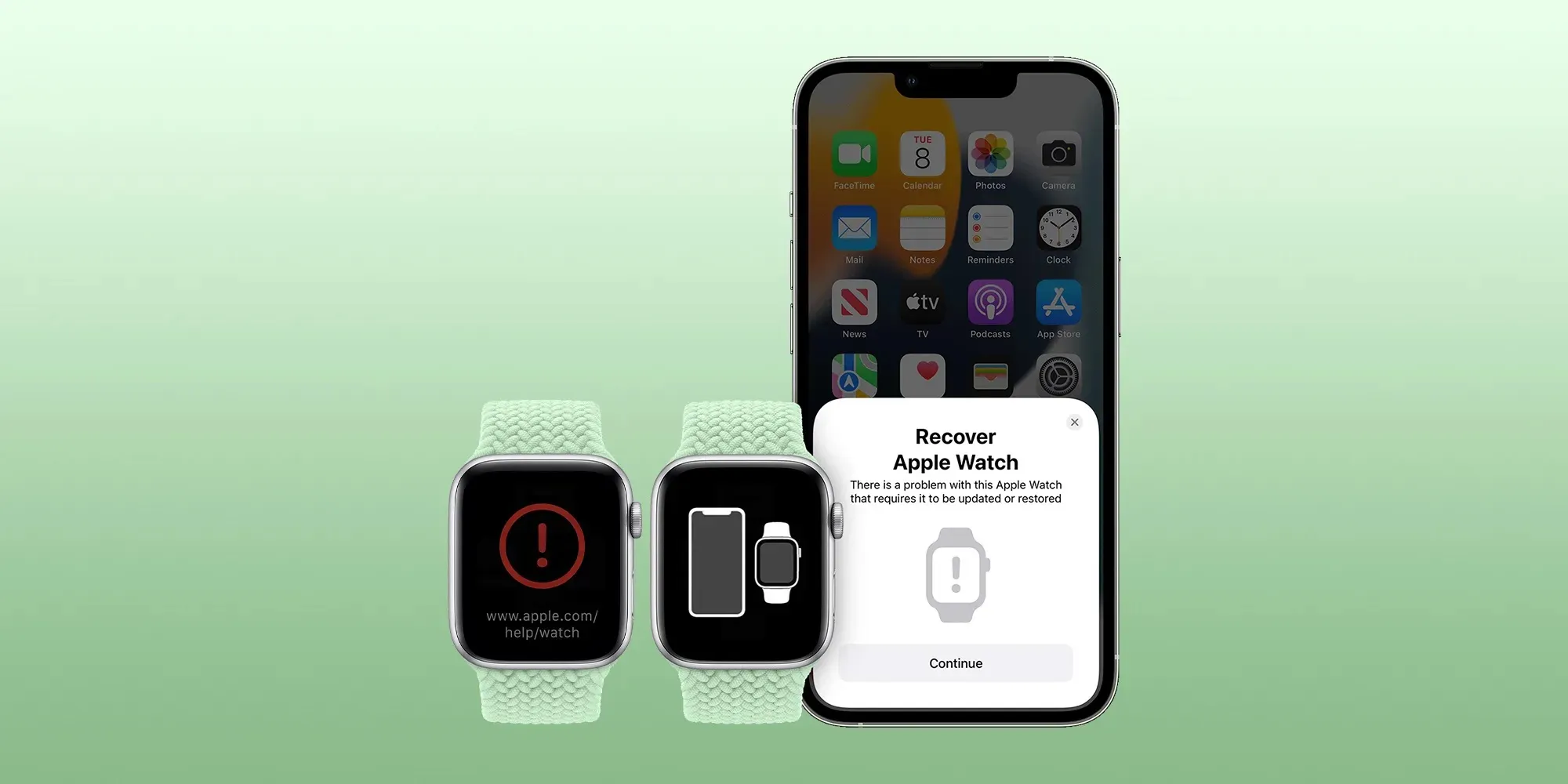
This system could also be useful in helping Apple to restore the firmware of iOS devices without the need for a cable. In recent years, Apple has been working on new technologies to help users restore devices such as the Apple Watch and Apple TV when they get stuck since these devices can’t be connected to a computer.
More about iOS 17.2
iOS 17.2 brings some new features for Apple Music subscribers, such as collaborative playlists and a new “Favorites” playlist that is automatically generated based on the songs you’ve marked as favorites. In addition, the update comes with the Journal app, a new Translate option for the Action Button, and some new Home Screen widgets.
The update is now available as a beta to developers and is expected to be released to the public by the end of the year.
iOS 17.2 adds one more function to the Action button on iPhone 15 Pro
When Apple unveiled the iPhone 15 Pro, it shared 10 customization options for the new Action button. One of those options, however, was described as coming later. With iOS 17.2, it has arrived.
Starting with iOS 17.2, iPhone 15 Pro and iPhone 15 Pro Max lets you assign Translate as the Action button task. The new option slots in between Voice Memo and Magnifier in the Action button section of the Settings app.
When assigned to Translate, pressing the Action button invokes a translation session from the Dynamic Island. No need to launch the Translate app.
Apple introduced its built-in Translate app as part of iOS 14 in 2020. Translation on iOS relies on the iPhone’s Neutral Engine to keep everything on-device. That means translations can work offline and do not need to rely on a network connection or server.
iOS 17.2 now includes these 10 options for the Action button on iPhone 15 Pro and later:
Silent mode: Turn Silent mode on or off.
Focus: Turn a specific Focus on or off.
Camera: Open the Camera app to quickly take a photo, selfie, video, portrait, or portrait selfie.
Flashlight: Turn the flashlight on or off.
Voice Memo: Start or stop recording a voice memo.
Translate: Translate phrases or have a conversation with someone in another language.
Magnifier: Open the Magnifier app.
Shortcut: Open an app or run your favorite shortcut.
Accessibility: Quickly access your favorite accessibility feature.
No action: Do nothing.
Apple debuts iMessage Contact Key Verification with iOS 17.2 beta
Apple has enabled the testing of a new security feature with the first iOS 17.2 beta. For use with iMessage, Contact Key Verification gives users more certainty they’re messaging with the people they’re intending.
Apple detailed the new iMessage Contact Key Verification feature in the release notes for iOS 17.2 beta 1. As it happens, there are three levels for how to verify contacts. Here’s the first:
With iMessage Contact Key Verification, users can choose to further verify that they are messaging only with the people they intend. Contact Key Verification uses Key Transparency to enable automatic verification that the iMessage key distribution service returns device keys that have been logged to a verifiable and auditable map. When a user enables Contact Key Verification, they will be notified about any validation errors directly in the Messages conversation transcript and Apple ID Settings.
However, for those in situations where stricter security is needed, iMessage Contact Key Verification can be used “in person, on FaceTime, or a through another secure call.”
Apple highlights users can also “choose to create or edit a contact and save a public key to turn on CKV with that person.”
To test out iMessage Contact Key Verification, you’ll need to have all devices connected to your iCloud account updated to the iOS 17.2 Beta, macOS 17.2 Beta, or watchOS 17.2 Beta or “sign out of iMessage on these devices in order to enable contact key verification.”
Then you can head to iPhone Settings > your name > Contact Key Verification (very bottom) > toggle it on.
While Apple has never seen an attack like this, Contact Key Verification is another security feature that will give peace of mind to those who may be highly targeted individuals.
Even though a very small percentage of iPhone users may need security of this level, the neat part is turning it on doesn’t reduce the functionality of your iPhone or iMessage – so it could end up being more widely used than something like Lockdown Mode.
Apple has launched its first major update for all users since debuting iOS 17 in September. iOS 17.1 comes with a range of security patches and none of them were identified as exploited in the wild ahead of the fixes.
Per usual, Apple shared the details of the latest vulnerability fixes on its security page.
Patches range from fixing security bugs in Contacts, Find My, Kernel, Passkeys, Photos, Siri, Weather, WebKit, and more.
Fortunately, there were no known reports of any of the security flaws being actively exploited ahead of Apple releasing the fixes.
Here are the full security fix notes for iOS 17.1:
Contacts
Available for: iPhone XS and later, iPad Pro 12.9-inch 2nd generation and later, iPad Pro 10.5-inch, iPad Pro 11-inch 1st generation and later, iPad Air 3rd generation and later, iPad 6th generation and later, and iPad mini 5th generation and later
Impact: An app may be able to access sensitive user data
Description: A privacy issue was addressed with improved private data redaction for log entries.
CVE-2023-41072: Wojciech Regula of SecuRing (wojciechregula.blog) and Csaba Fitzl (@theevilbit) of Offensive Security
CVE-2023-42857: Noah Roskin-Frazee and Prof. J. (ZeroClicks.ai Lab)
CoreAnimation
Available for: iPhone XS and later, iPad Pro 12.9-inch 2nd generation and later, iPad Pro 10.5-inch, iPad Pro 11-inch 1st generation and later, iPad Air 3rd generation and later, iPad 6th generation and later, and iPad mini 5th generation and later
Impact: An app may be able to cause a denial-of-service
Description: The issue was addressed with improved memory handling.
CVE-2023-40449: Tomi Tokics (@tomitokics) of iTomsn0w
Find My
Available for: iPhone XS and later, iPad Pro 12.9-inch 2nd generation and later, iPad Pro 10.5-inch, iPad Pro 11-inch 1st generation and later, iPad Air 3rd generation and later, iPad 6th generation and later, and iPad mini 5th generation and later
Impact: An app may be able to read sensitive location information
Description: The issue was addressed with improved handling of caches.
CVE-2023-40413: Adam M.
ImageIO
Available for: iPhone XS and later, iPad Pro 12.9-inch 2nd generation and later, iPad Pro 10.5-inch, iPad Pro 11-inch 1st generation and later, iPad Air 3rd generation and later, iPad 6th generation and later, and iPad mini 5th generation and later
Impact: Processing an image may result in disclosure of process memory
Description: The issue was addressed with improved memory handling.
CVE-2023-40416: JZ
IOTextEncryptionFamily
Available for: iPhone XS and later, iPad Pro 12.9-inch 2nd generation and later, iPad Pro 10.5-inch, iPad Pro 11-inch 1st generation and later, iPad Air 3rd generation and later, iPad 6th generation and later, and iPad mini 5th generation and later
Impact: An app may be able to execute arbitrary code with kernel privileges
Description: The issue was addressed with improved memory handling.
CVE-2023-40423: an anonymous researcher
Kernel
Available for: iPhone XS and later, iPad Pro 12.9-inch 2nd generation and later, iPad Pro 10.5-inch, iPad Pro 11-inch 1st generation and later, iPad Air 3rd generation and later, iPad 6th generation and later, and iPad mini 5th generation and later
Impact: An attacker that has already achieved kernel code execution may be able to bypass kernel memory mitigations
Description: The issue was addressed with improved memory handling.
CVE-2023-42849: Linus Henze of Pinauten GmbH (pinauten.de)
Mail Drafts
Available for: iPhone XS and later, iPad Pro 12.9-inch 2nd generation and later, iPad Pro 10.5-inch, iPad Pro 11-inch 1st generation and later, iPad Air 3rd generation and later, iPad 6th generation and later, and iPad mini 5th generation and later
Impact: Hide My Email may be deactivated unexpectedly
Description: An inconsistent user interface issue was addressed with improved state management.
CVE-2023-40408: Grzegorz Riegel
mDNSResponder
Available for: iPhone XS and later, iPad Pro 12.9-inch 2nd generation and later, iPad Pro 10.5-inch, iPad Pro 11-inch 1st generation and later, iPad Air 3rd generation and later, iPad 6th generation and later, and iPad mini 5th generation and later
Impact: A device may be passively tracked by its Wi-Fi MAC address
Description: This issue was addressed by removing the vulnerable code.
CVE-2023-42846: Talal Haj Bakry and Tommy Mysk of Mysk Inc. @mysk_co
Passkeys
Available for: iPhone XS and later, iPad Pro 12.9-inch 2nd generation and later, iPad Pro 10.5-inch, iPad Pro 11-inch 1st generation and later, iPad Air 3rd generation and later, iPad 6th generation and later, and iPad mini 5th generation and later
Impact: An attacker may be able to access passkeys without authentication
Description: A logic issue was addressed with improved checks.
CVE-2023-42847: an anonymous researcher
Photos
Available for: iPhone XS and later, iPad Pro 12.9-inch 2nd generation and later, iPad Pro 10.5-inch, iPad Pro 11-inch 1st generation and later, iPad Air 3rd generation and later, iPad 6th generation and later, and iPad mini 5th generation and later
Impact: Photos in the Hidden Photos Album may be viewed without authentication
Description: An authentication issue was addressed with improved state management.
CVE-2023-42845: Bistrit Dahla
Pro Res
Available for: iPhone XS and later, iPad Pro 12.9-inch 2nd generation and later, iPad Pro 10.5-inch, iPad Pro 11-inch 1st generation and later, iPad Air 3rd generation and later, iPad 6th generation and later, and iPad mini 5th generation and later
Impact: An app may be able to execute arbitrary code with kernel privileges
Description: The issue was addressed with improved memory handling.
CVE-2023-42841: Mingxuan Yang (@PPPF00L), happybabywu and Guang Gong of 360 Vulnerability Research Institute
Siri
Available for: iPhone XS and later, iPad Pro 12.9-inch 2nd generation and later, iPad Pro 10.5-inch, iPad Pro 11-inch 1st generation and later, iPad Air 3rd generation and later, iPad 6th generation and later, and iPad mini 5th generation and later
Impact: An attacker with physical access may be able to use Siri to access sensitive user data
Description: This issue was addressed by restricting options offered on a locked device.
CVE-2023-41982: Bistrit Dahla
CVE-2023-41997: Bistrit Dahla
CVE-2023-41988: Bistrit Dahla
Status Bar
Available for: iPhone XS and later, iPad Pro 12.9-inch 2nd generation and later, iPad Pro 10.5-inch, iPad Pro 11-inch 1st generation and later, iPad Air 3rd generation and later, iPad 6th generation and later, and iPad mini 5th generation and later
Impact: A device may persistently fail to lock
Description: The issue was addressed with improved UI handling.
CVE-2023-40445: Ting Ding, James Mancz, Omar Shibli, an anonymous researcher, Lorenzo Cavallaro, and Harry Lewandowski
Weather
Available for: iPhone XS and later, iPad Pro 12.9-inch 2nd generation and later, iPad Pro 10.5-inch, iPad Pro 11-inch 1st generation and later, iPad Air 3rd generation and later, iPad 6th generation and later, and iPad mini 5th generation and later
Impact: An app may be able to access sensitive user data
Description: A privacy issue was addressed with improved private data redaction for log entries.
CVE-2023-41254: Cristian Dinca of “Tudor Vianu” National High School of Computer Science, Romania
WebKit
Available for: iPhone XS and later, iPad Pro 12.9-inch 2nd generation and later, iPad Pro 10.5-inch, iPad Pro 11-inch 1st generation and later, iPad Air 3rd generation and later, iPad 6th generation and later, and iPad mini 5th generation and later
Impact: Processing web content may lead to arbitrary code execution
Description: The issue was addressed with improved memory handling.
WebKit Bugzilla: 259836
CVE-2023-40447: 이준성(Junsung Lee) of Cross Republic
WebKit
Available for: iPhone XS and later, iPad Pro 12.9-inch 2nd generation and later, iPad Pro 10.5-inch, iPad Pro 11-inch 1st generation and later, iPad Air 3rd generation and later, iPad 6th generation and later, and iPad mini 5th generation and later
Impact: Processing web content may lead to arbitrary code execution
Description: A use-after-free issue was addressed with improved memory management.
Available for: iPhone XS and later, iPad Pro 12.9-inch 2nd generation and later, iPad Pro 10.5-inch, iPad Pro 11-inch 1st generation and later, iPad Air 3rd generation and later, iPad 6th generation and later, and iPad mini 5th generation and later
Impact: Processing web content may lead to arbitrary code execution
Description: A logic issue was addressed with improved checks.
WebKit Bugzilla: 260173
CVE-2023-42852: an anonymous researcher
WebKit Process Model
Available for: iPhone XS and later, iPad Pro 12.9-inch 2nd generation and later, iPad Pro 10.5-inch, iPad Pro 11-inch 1st generation and later, iPad Air 3rd generation and later, iPad 6th generation and later, and iPad mini 5th generation and later
Impact: Processing web content may lead to a denial-of-service
Description: The issue was addressed with improved memory handling.
We would like to acknowledge Bahaa Naamneh for their assistance.
libxml2
We would like to acknowledge OSS-Fuzz, Ned Williamson of Google Project Zero for their assistance.
Power Manager
We would like to acknowledge Xia0o0o0o (@Nyaaaaa_ovo) of University of California, San Diego for their assistance.
VoiceOver
We would like to acknowledge Abhay Kailasia (@abhay_kailasia) of Lakshmi Narain College Of Technology Bhopal India for their assistance.
WebKit
We would like to acknowledge an anonymous researcher for their assistance.
Information about products not manufactured by Apple, or independent websites not controlled or tested by Apple, is provided without recommendation or endorsement. Apple assumes no responsibility with regard to the selection, performance, or use of third-party websites or products. Apple makes no representations regarding third-party website accuracy or reliability. Contact the vendor for additional information.
Apple on October 17, 2023 released iOS 17.1 RC (Release Candidate) to both developers and beta testers. The update brings some new features, including AirDrop over the internet and new options for Apple Music users. But according to Apple, the update also makes the keyboard snappier and more responsive while fixing a bug that could cause image retention on the iPhone.
iOS 17.1 comes with multiple bug fixes
Since the first betas of iOS 17, there have been a number of users complaining about how the keyboard became unresponsive after the update, especially on older iPhone models. Still, some users reported having issues with the keyboard, even with the latest iPhone 15 Pro models when typing long text messages.
The release notes for iOS 17.1 acknowledge this problem and say that the bug has been fixed with the update. “Fixes an issue that may cause the keyboard to be less responsive,” Apple said.
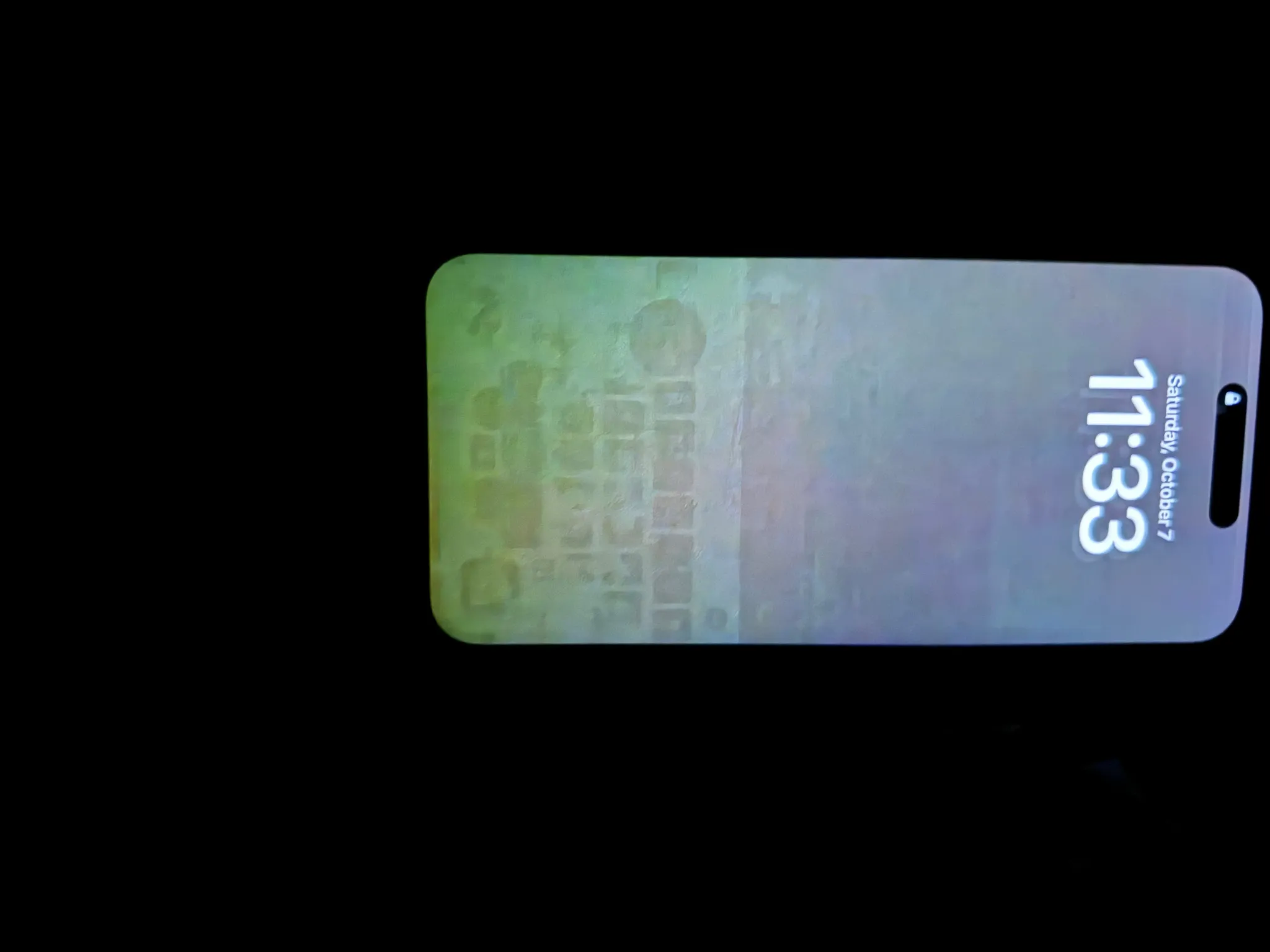
There was another bug affecting many iPhone 15 Pro and iPhone 15 Pro Max users (and we’re not talking about the overheating issues). It’s easy to find reports on Reddit and Apple Discussions forums about burn-in and image retention on these models, even though they were launched only a month ago.
Apple also acknowledged that there was a problem that “may cause display image persistence” on iPhone and that it has now been fixed with iOS 17.1.
New features
When it comes to new features, iOS 17.1 will allow users to finish sending files via AirDrop using the internet connection when you or another person leaves AirDrop’s range. The file will be silently uploaded to Apple’s servers and then downloaded to the other person’s device.
Apple Music subscribers will find a new button to favourite songs, albums, and playlists so that they can then filter these contents in the library. There are also song suggestions at the bottom of each playlist and a new way to create artwork for your personal playlists.
iOS 17.1 is expected to be released to the public next week, on October 24. For those running the beta version, the RC build is now available for download.
iOS 17.1 finally lets you pick the album to use for the Photo Shuffle lock screen
Last year, iOS 16 introduced a whole new world of dynamic lock screens to personalize your iPhone experience.
One of these options was the Photo Shuffle lock screen, which randomly cycled through images from your photo library. However, it was missing a critical point of customization that made it hard to use for most people. But thankfully, this functionality gap has now been filled with iOS 17.1 …
Since the launch of iOS 16, the Photo Shuffle wallpaper let you choose from several categories, based on the types of images detected in your Photos app library and camera roll. You could choose to shuffle images of People, Nature or Pets.
The problem was these automatic collections were often incomplete, and could not be edited – you couldn’t add or remove photos other than filtering out particular detected faces altogether in the People collection. This made the lock screen often useless as it would surface images that weren’t necessarily relevant or interesting, and no real way to fine tune it.
As of iOS 17.1, there’s a new option when you create a Photo Shuffle lock screen: the ability to choose a specific album. This gives you the control to choose what images you want to see on your lock screen, by curating a specific album or simply using the Favorites album.
The iOS system will still analyze the content of the album to find the most suitable pictures, such as portraits to apply the overlapping subject over the time effect. But it means you will only ever see the photos that you want to see. Point it at a hand-crafted album of holiday or baby pictures and it will now dutifully oblige.
iOS 17.1 is currently in developer and public beta. It will be available as a free update for all iPhone and iPad users later this month.
How to create a Photo Shuffle lock screen
Long-press on your current lock screen to open the gallery view.
Press the blue ‘Add’ button at the bottom of the screen.
Press Photo Shuffle at the top of the Add New Wallpaper panel.
Press the new Album option and choose your album.
Select Shuffle Frequency to customize how frequently you will see a different photo.
Press ‘Use Album’ button to confirm and optionally choose a color filter by swiping side-to-side, like black and white.
Finally, press Add button in the top-right corner of the screen to start using your new lock screen.
iOS 17.1 changes how the Action Button behaves when iPhone 15 Pro is in your pocket
iPhone 15 Pro and iPhone 15 Pro Max come with a new Action Button, which lets users set things like muting the phone, turning on the flashlight, and even running shortcuts when the button is pressed. Users can press the Action Button even when the screen isn’t on, but now with iOS 17.1, Apple is changing how the button behaves when the iPhone is in your pocket.
Action Button has a new behaviour with iOS 17.1
Code in the third beta of iOS 17.1, which was released on Tuesday to developers, reveals that Apple is tweaking how the Action Button on the iPhone 15 Pro behaves in some specific situations.
The update introduces a new feature that basically detects when the iPhone is in the user’s pocket (using the proximity sensors) to change the behaviour of the Action Button. In this case, users will need to press the button for longer to trigger the action. The idea is to avoid unintentional triggers when the phone is in your pocket.
The whole feature works invisibly to users, and there are no settings for it. Still, the feature seems to be enabled for everyone who has installed the latest beta of iOS 17.1 on an iPhone 15 Pro or iPhone 15 Pro Max.
More about iOS 17.1
iOS 17.1 brings some new features to the iPhone. Apple Music users will notice a new button to favorite songs, as well as options to customize the artwork of a playlist. The update also adds a new option to turn off the display in StandBy mode after 20 seconds. There’s also a new toggle in Settings that lets you opt to use cellular data to complete these AirDrop transfers.
According to Apple, iOS 17.1 is expected to be released to the public later this month, although a specific date is yet to be announced.
Developers can install the beta by going to Settings > General > Software Update on their iPhone. iOS 17.1 is also available for devices enrolled in the Apple Beta Software Program.
iOS 17.1 brings Dynamic Island flashlight indicator to iPhone 14 Pro and iPhone 15
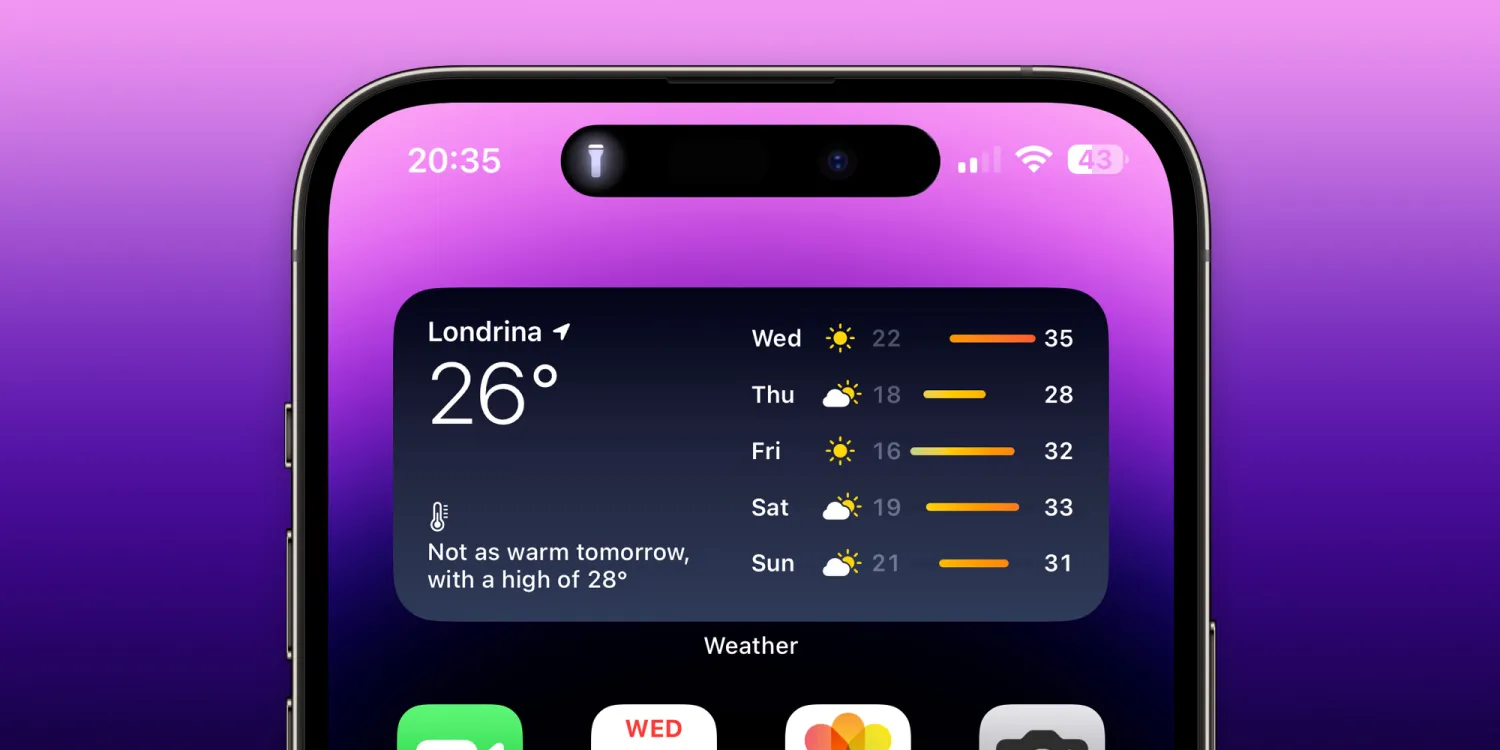
On Wednesday, Apple released the first beta of iOS 17.1 to developers, as the company promised to bring some new features later this year. We’ve already covered most of what’s new in the iOS 17.1 beta here, but there’s another interesting change. With the update, Apple is bringing the flashlight indicator that appears on Dynamic Island to the iPhone 14 Pro and iPhone 15.
Flashlight indicator on the iPhone’s Dynamic Island
If you have no idea what this flashlight indicator is, it’s something that Apple has added to the new iPhone 15 Pro and iPhone 15 Pro Max. For some reason, only these models show an indicator on the Dynamic Island to tell you when the flashlight is on. This is very useful when you forget to turn off the flashlight after using it or when you accidentally press the flashlight button.
There didn’t seem to be any technical reason for Apple to keep this indicator exclusive to the new 15 Pro models, and now we know that to be true. With iOS 17.1 beta 1, every iPhone model with Dynamic Island will show the flashlight indicator when appropriate.
This means the feature is now coming to the iPhone 14 Pro, iPhone 14 Pro Max, iPhone 15, and iPhone 15 Plus. Previous iPhone models will have no indicator other than the button on the Lock Screen, as they don’t have Dynamic Island. Although unusual, this is not the first time that a software update has brought features from a new iPhone to previous ones.
Last year, with iOS 16, Apple added a battery percentage indicator for iPhone X and later. However, the iPhone mini and iPhone models with an LCD display were left out. With iOS 16.1, Apple decided to enable the battery percentage indicator on all iPhone models compatible with the update.
Apple added the flashlight to the Dynamic Island for all devices in iOS 17.1! 🔦
Some cool features are coming with iOS 17.1. Users can now favorite songs and albums in Apple Music, and the app will generate playlists with those songs. There’s also a new option to create artwork for your playlists right from the Apple Music app.
iOS 17.1 also enables AirDrop via cellular data when the other device moves out of Wi-Fi range. Plus, it shows the balance and full transaction history of bank accounts in the Wallet app for users in the UK. The update will be released to the public in October.
new features, it fixes a bug that had been causing some iPhone models (especially the iPhone 15 Pro) to overheat more than usual. However, iOS 17.0.3 also comes with two important security fixes, including a fix for a breach that had been actively exploited.
iOS 17.0.3 patches two exploits
According to a document published by Apple on its website, iOS 17.0.3 and iPadOS 17.0.3 fix a Kernel exploit found in versions prior to iOS 16.6. The company explains that an attacker with access to the device could elevate their privileges to run malicious code. “The issue was addressed with improved checks,” Apple details.
But that’s not the only exploit fixed by today’s update. It also fixes a WebRTC exploit where attackers could use a buffer overflow to execute code arbitrarily. The discovery of the exploit was attributed to Bugzilla, a bug monitoring platform developed by the Mozilla Project.
iOS 17.0.3 and iPadOS 17.0.3 are available for every iPhone and iPad model compatible with iOS 17 and iPadOS 17. This includes iPhone XR and later, and every iPad with an A10X chip or later. Keeping your device up-to-date is important to keep it safe from hackers and malware.
Here’s how to update your iPhone or iPad:
Open the Settings app
Tap the General menu
Select Software Update
Wait until the update shows up and tap Update Now
We recommend backing up your device before installing software updates.
Along with the new Action button on the iPhone 15 Pro comes an interesting addition to the status bar – a silence mode icon next to the time. Fortunately, Apple has included a way to hide silent bell icon on iPhone 15 Pro and Pro Max, here’s how.
The Action button sits in the same place as the side switch on previous iPhone models and works with a long press.
The default is set to turn silent mode on and off. But even if you customize the Action button to control something else, a new silent bell icon shows in the iPhone 15 Pro status bar right next to the time.
Spotted by MKBHD, the good news is there’s a quick fix in Settings to remove the silent mode icon.
PSA for everyone who leaves their phones on silent and is about to get an iPhone 15 Pro: You can turn off the annoying permanent silent indicator in settings. You’re welcome pic.twitter.com/FcOT8mnQMT
Open the Settings app on your iPhone 15 Pro or Pro Max
Choose Sounds & Haptics near the top
Tap the second toggle down next to Show in Status Bar to hide silent bell
Here’s how it looks to hide the silent bell icon on iPhone 15 Pro:
And if you haven’t customized your Action button yet, navigate to Settings > Action button. Here are the options for the new button:
Silent mode (default)
Focus mode
Camera
Flashlight
Voice Memo
Shortcut
Accessibility features like magnifier and more
No Action
Translate will arrive with an update “later this year”
If you change the Action button to activate something other than silent mode, you can turn silent on/off from Control Center or Settings > Sounds & Haptics.
iOS 17 iPhone StandBy: How to use and customize the smart display feature
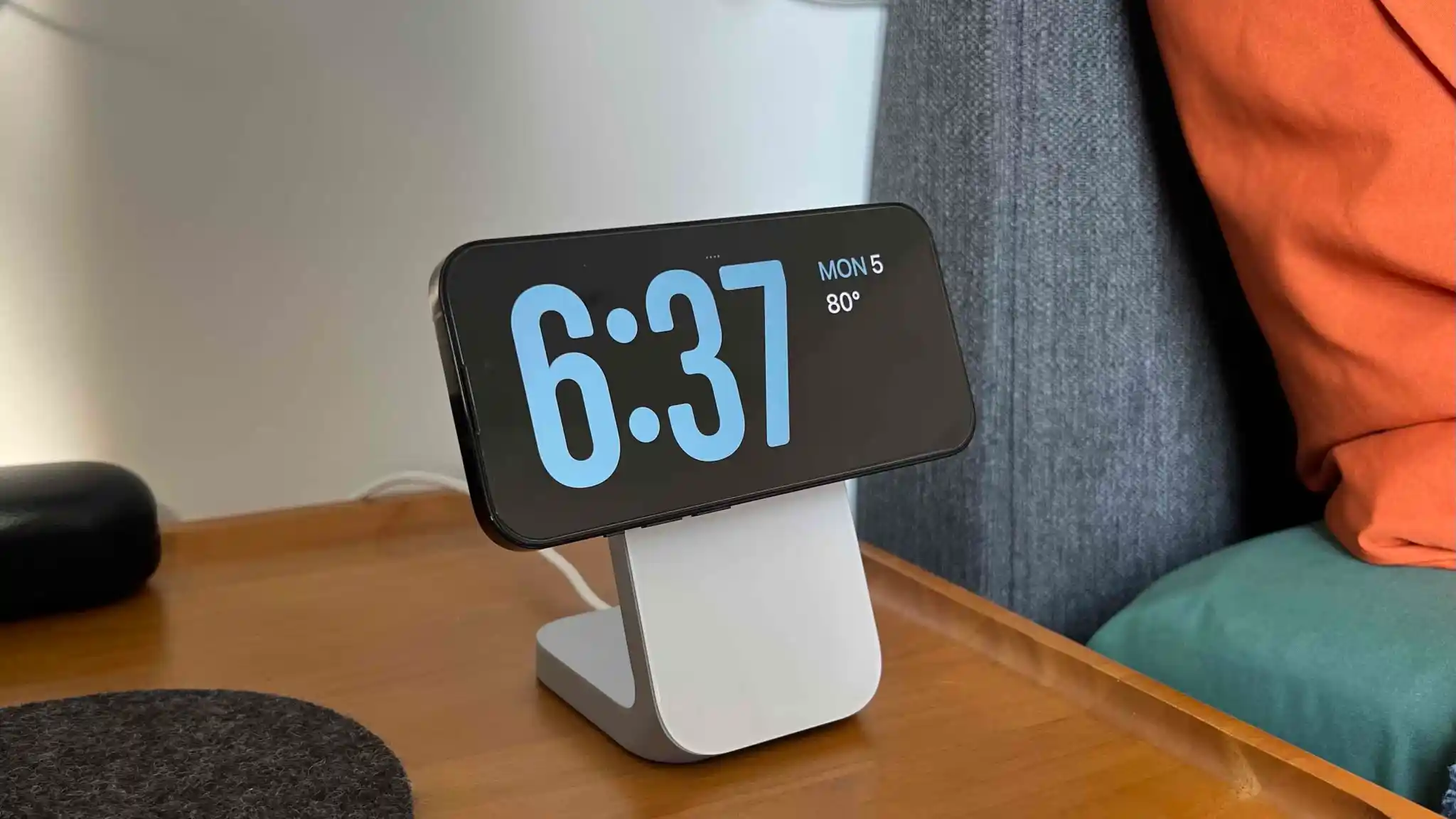
One of the headlining new features with iOS 17 is a smart landscape display mode for iPhone when it’s charging. Coming with different clock faces, widgets, access to photos, and more, here’s how to use and customize the iOS 17 iPhone Standby display.
iOS 17 comes with a number of changes across Messages, FaceTime, the Phone experience, and much more.
But one of the most attention-grabbing features will likely be the new iPhone StandBy view that turns the smartphone into a mini smart display.
Here’s how StandBy works.
iOS 17 iPhone StandBy: How to use and customize
Make sure you’re running iOS 17
With your iPhone screen locked, place it in landscape on an upright charger (the mode won’t work on flat or low-angle chargers or when your screen is unlocked – and it must be charging)
iPhone StandBy will automatically appear – the feature is enabled by default
StandBy works on any iPhone that can run iOS 17 but you’ll need to tap the screen to see the clock, widgets, photos, etc. – iPhone 14/15 Pro/Pro Max with always-on will always show the StandBy display
The classic analog clock plus calendar widget on the right is the default StandBy view, swipe up on either to change them
Press and hold on either one to add or remove widgets
On the first StandBy view, do a big swipe from right to left to change views
Press and hold on the other StandBy views to customize them
iOS 17 iPhone StandBy supports Live Activities, Siri, incoming calls, and larger notifications
StandBy remembers your “preferred view” and dims to red and night
You can tweak StandBy settings by heading to Settings > StandBy
Check out our round-up of the latest third-party apps to include StandBy widget support
Here’s how iOS 17 iPhone StandBy looks in use:
The first time you place your locked iPhone horizontally on an upright charger, you’ll see a welcome splash screen.
Now you’ll see this as the default StandBy view:
Swipe up on either the clock face or calendar to get more options (the calendar is a smart stack suggestion by default):
To customize this StandBy screen further, press and hold on the left or right widget. Now you can remove options or tap the + icon in the top left to add widgets:
From the first StandBy clock/widget view, you can swipe from right to left to get to the Photos StandBy view:
And swipe again to get different the last view that features different customizable clock faces:
iPhone StandBy on Nomad Stand One MagSafe Charger
Press and hold on any of these to customize their color schemes but you can’t add widgets to these clock faces.
But you can tap the “….” icon in the top center to access music at any time which presents a nice media UI:
And so it doesn’t disturb sleep, iPhone StandBy for those with always-on displays will automatically dim to red at night: