If you have an Apple TV and iPhone or iPad, you can easily mirror the iPhone or iPad display to the TV screen that is connected to Apple TV. This offers by far the simplest way to wirelessly connect an iPhone or iPad to a TV, and it allows you to show off whatever is on an iPhone or iPad screen on a much bigger TV display. This capability is commonly used in presentations, meetings, schools, homes, and for much more, as the uses cases are myriad.
To get started using wireless display mirroring, you will need an Apple TV connected to a TV, an iPhone or iPad, and all of the devices must be on the same wi-fi network, and running modern iOS or ipadOS system software. The rest is quite simple, as you’ll quickly see in this tutorial that demonstrates connecting an iPhone to an Apple TV and mirroring the display.
How to Connect iPhone / iPad to Apple TV Wirelessly with AirPlay Screen Mirroring
Make sure that all devices are connected to the same wi-fi network before beginning.
Turn on the TV and Apple TV if you have not done so already
On the iPhone or iPad, open Control Center (on newer iPhone X and later and iPad with iOS 12 or later, swipe down from the top right corner to access Control Center. For iPhone 8 or iOS 11 or earlier, swipe up from the bottom of the screen to access Control Center)
Tap on “Screen Mirroring”
Select the Apple TV from the list of available devices and tap on it
If you haven’t connected the devices before, an AirPlay passcode will appear on the Apple TV display and you must enter that on the device to connect
The iPhone or iPad screen will now be mirrored on TV display via Apple TV AirPlay, exit from Control Center and open whatever you want displayed on the TV
Now anything you do, use, or show on the iPhone or iPad display will show mirrored on the TV screen live in a wireless screencast.
This is so useful for many obvious reasons, and it’s an excellent feature that is impressively easy to use.
The mirrored display will reflect the aspect ratio of what you’re viewing on the iPhone or iPad. So for example if you use the iPhone and have the Home Screen in vertical orientation, the sides of the iPhone mirrored display on screen will show black bars.
The same thing happens on iPad but to a much lesser extent particularly if it’s viewed in the horizontal orientation.
You can rotate the screen orientation with many apps, watch a video, zoom into the display, and each of those actions will fill more of the TV screen as the aspect ratio of the mirrored device will be more likely to fit to the TV display.
This method of mirroring the display obviously uses wi-fi and Apple TV, but if you don’t have AirPlay compatible TV or an Apple TV and still want to connect an iPhone or iPad to a TV you can do that with HDMI cables as shown here, though you will still need a special adapter for your device to do so.
Gamers should also enjoy this feature, since you can easily use a PS4 controller with iPhone or iPad or use an Xbox One controller too, allowing you to play games on the iPhone or iPad with a game controller on a bigger screen. Of course some games also have native Apple TV versions which also allow for controller use, but that’s a different matter.
How to Disconnect iPhone / iPad from Apple TV Screen Mirroring
Stopping screen mirroring is just as easy as starting it:
Turn on the TV and Apple TV if you have not done so already
On the iPhone or iPad, open Control Center (on newer iPhone X and later and iPad with iOS 12 or later, swipe down from the top right corner to access Control Center. For iPhone 8 or iOS 11 or earlier, swipe up from the bottom of the screen to access Control Center)
Tap on “Screen Mirroring”
Tap on “Stop Mirroring” to stop the iPhone or iPad display from showing on the TV / Apple TV
Exit from Control Center as usual
Screen mirroring ends the moment you tap to confirm “Stop Mirroring” and whatever is on the iPhone or iPad display will no longer show up on the TV screen.
The instructions shown here are for modern iOS and iPadOS versions and anything from iOS 12, iOS 13, iPadOS 13, or later should be have exactly as shown. Additionally, this article assumes you’re using those devices along with a modern Apple TV (or AirPlay compatible TV models). Earlier versions of hardware do support the same mirroring capability, but access is different as is usability. If you have a much older set of devices running older system software you can learn about how it all works on older iOS versions. How it all works and how Mirroring is accessed has evolved a bit over time, but nonetheless it’s arguably becoming more useful now than ever before.
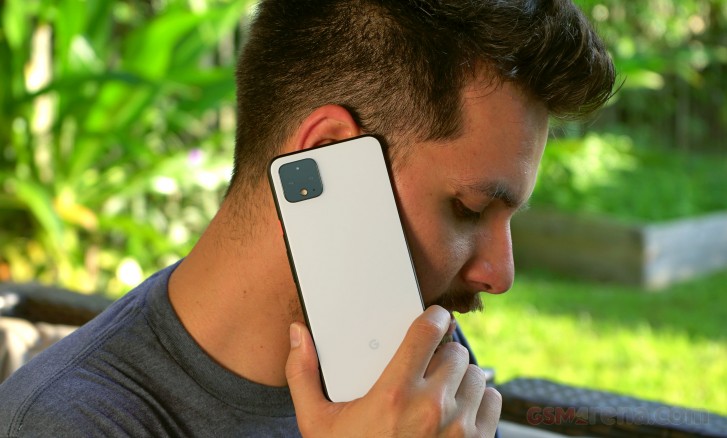
The Google Pixel 4 duo was not Google’s best-kept secret. We saw pictures of the phone weeks before the event, and we even learned about Face unlock while Google teased the Motion Sense features ahead of its event. The Google Pixel 4 XL represents everything that Google has learned in the first four iterations of the Google Pixel, including a mid-cycle and mid-range Pixel 3a which was very well received.
The Pixel 4 XL improves the camera even further, adding a new Astrophotography shooting mode and a viewfinder that will preview the HDR+ effect before you shoot the picture. There’s also a new telephoto camera that, when combined with Super Res Zoom, can capture images from far away.
Google first introduced the fingerprint scanner on its final generation of Nexus devices, the 6P and 5X. With the Pixel 4 and 4 XL, Google is replacing its “Pixel Imprint” with Face unlock. It works similarly to Apple’s Face unlock and is a whole new concept for Google-branded devices.
Google Pixel 4 XL Specs
Body: Texture-coated aluminum frame with very soft-touch Gorilla Glass 5 backside
Misc: Face unlock; radar-based Motion Sense; dual stereo loudspeakers;
Google also added a unique radar-based motion-sensing technology aptly called ‘Motion Sense.’ It detects when the user makes wave gestures over the phone, and it can wake the display as the user reaches for it. It can also be used to switch songs with supported apps.
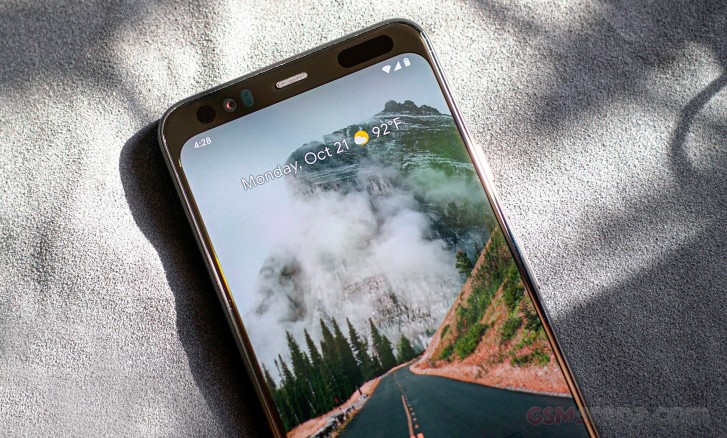
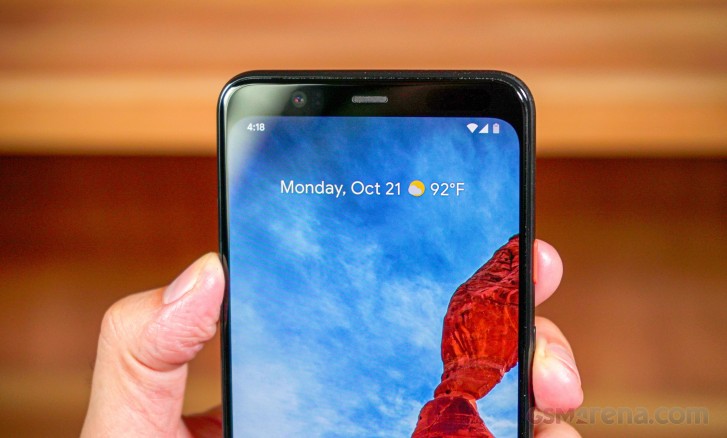
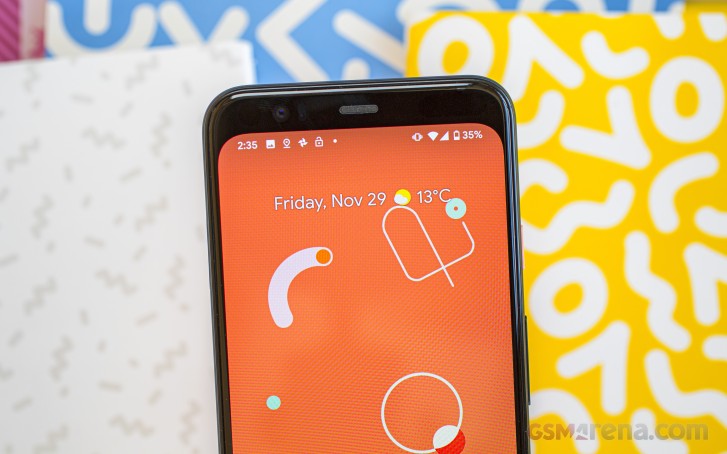
Then there’s the design, which Google has slowly molded over the years. We’re glad to see there’s no longer a ‘bathtub’ notch (as it was once dubbed) from the Pixel 3 XL. Instead, there’s a sizable forehead that houses all the Face unlock and Motion Sense hardware without breaking the display’s continuity.
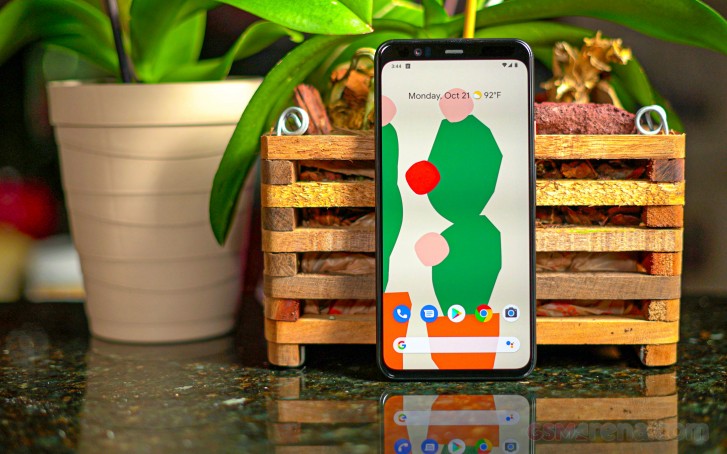
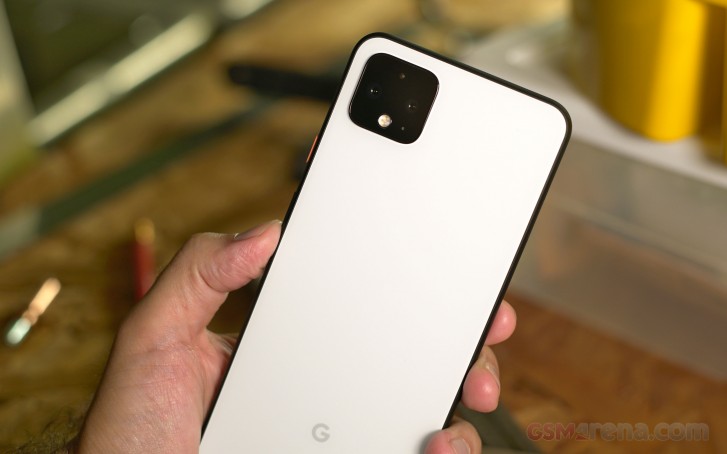
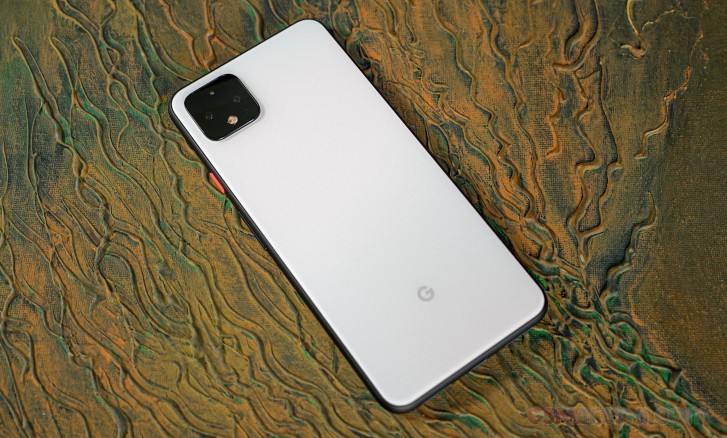
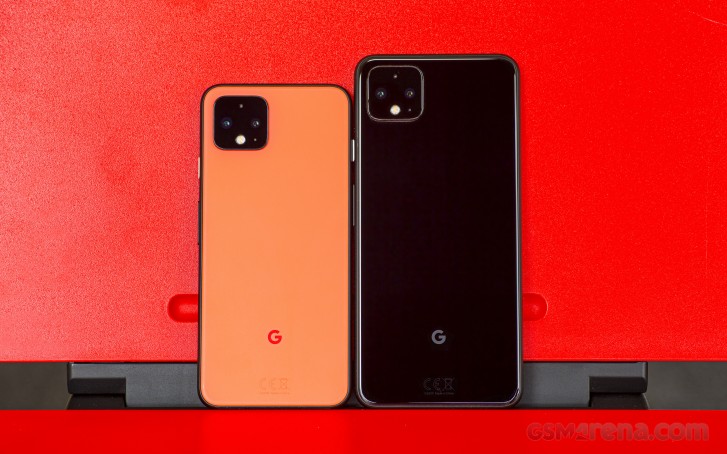
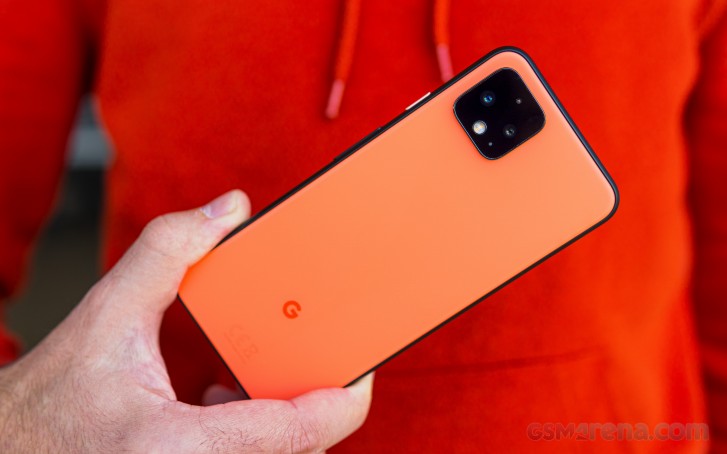
The dual-tone textured window is no longer a thing, as the softened glass texture now covers the whole backside of the phone. This soft-touch glass is on the ‘Clearly White’ and ‘Oh So Orange’ models and is both comfortable and tasteful. The Just Black is the only model that comes in regular shiny glass.
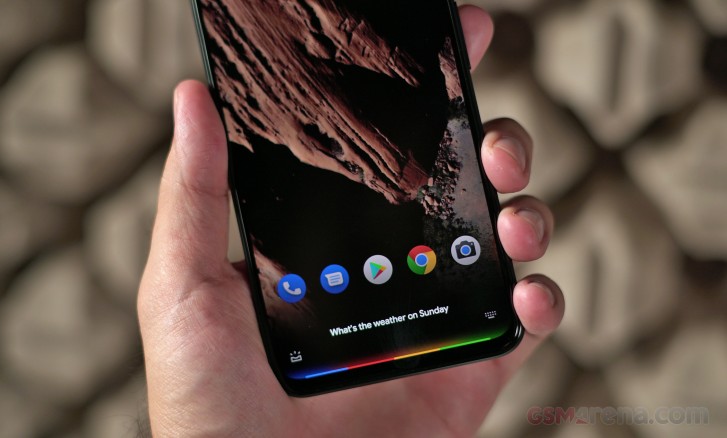
With Android 10, Google adds more granular control over Notifications and App access to permissions – in today’s climate where privacy is constantly thrown in the spotlight, these are welcome features. We also get gesture controls done better, and Google Assistant is more responsive than ever.
The Pixel 4 and 4 XL both have the same starting price and base storage as the Pixel 3 and 3 XL, has Google done enough to justify keeping the same retail pricing on the new Pixels? And the more important question: is it worth upgrading if you have an older Pixel? Let’s unbox the phone and find out.
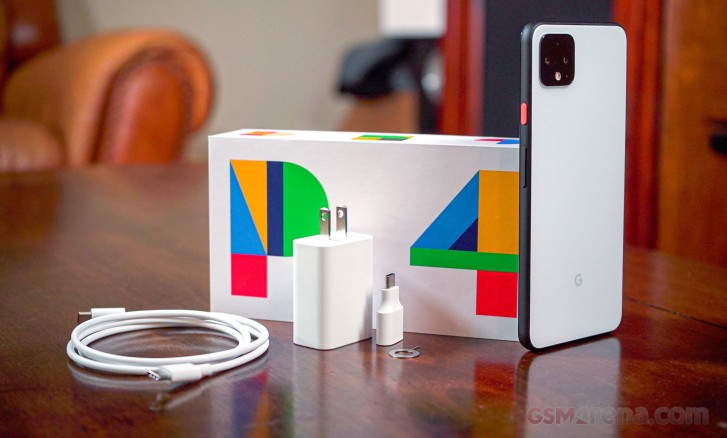
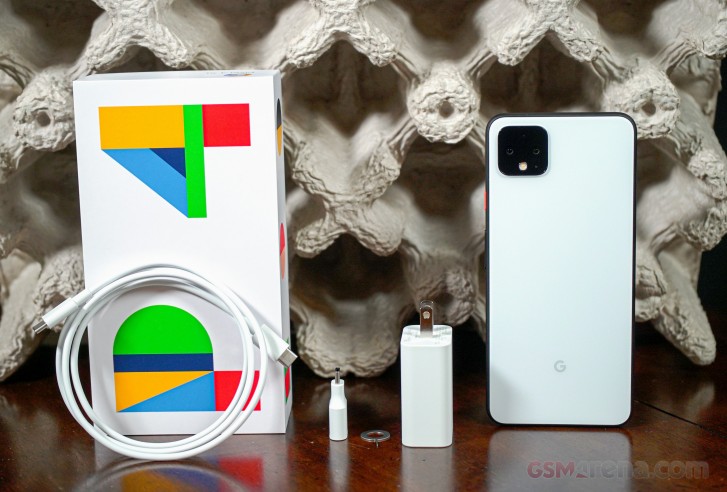
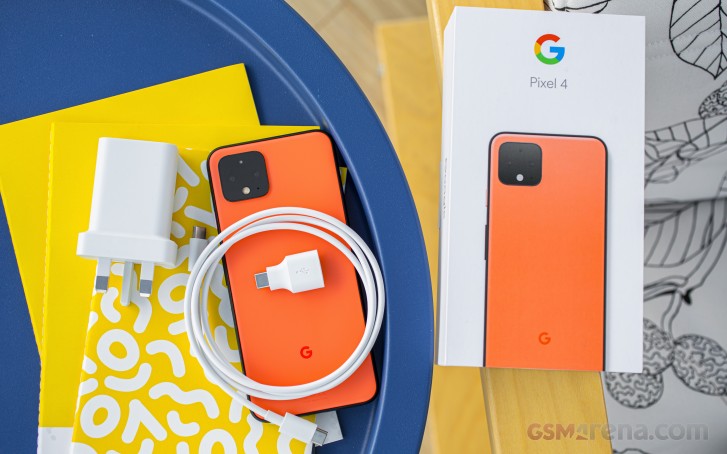
The new Pixel 4 XL comes in minimally labeled packaging. A colorfully designed “P4” adorns the front of the box. Although we received the Pixel 4 in the standard retail packaging, some of the first ones to pre-order the phone had them delivered in Google-fied cereal boxes.
After lifting the lid on the box, the phone is presented face down with its plastic wrapper. Under the phone is a pack of documents, which contained a round SIM tool. At the bottom of the box is a USB-C Power Delivery adapter (up to 18W), USB-C cable, and USB-C to USB-A adapter – useful for transferring data from an old device.
The Pixel 4 comes with neither earbuds nor a USB-C to 3.5mm headphone adapter. We wonder why Google decided to introduce bundled earbuds with the Pixel 3, only to scrap them this year. We’d maybe understand if Google did it so customers would buy the new Pixel Buds, but they aren’t even coming until next year. Now we’re led to believe Google stopped including these Pixel earbuds to save money.
Now that we’ve seen what’s inside (and what’s missing), let’s take a closer look at the Pixel 4 XL‘s unique design.
Design
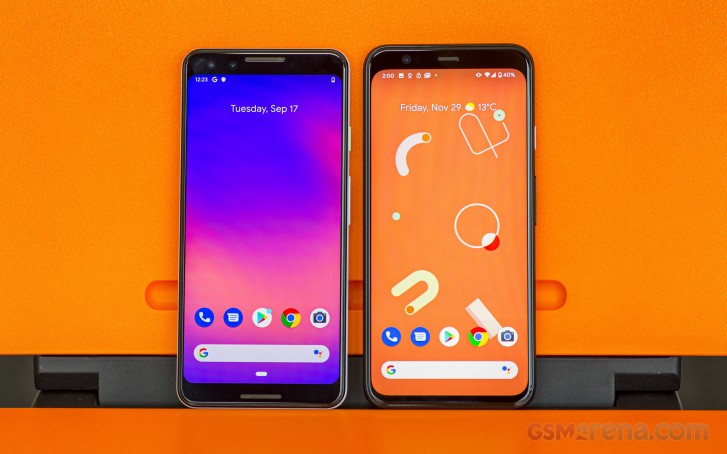
Throughout its lifetime, the Pixel hasn’t exactly led design trends, but it did manage to put the world’s largest notch on the Google Pixel 3 XL last year. Even with the 4 XL, Google isn’t pushing any limits or trying to maximize the screen-to-body ratio. The Pixel 4 XL is probably what many wish the Pixel 3 XL looked like, without the fat notch.
Imagine if Google took the Pixel 3 XL’s display and shifted it lower, then filled in the notch with more pixels. That’s what the Pixel 4 XL feels like, and the resulting design is still asymmetrical and not as pleasing to look at as other competitors from Samsung and even OnePlus.
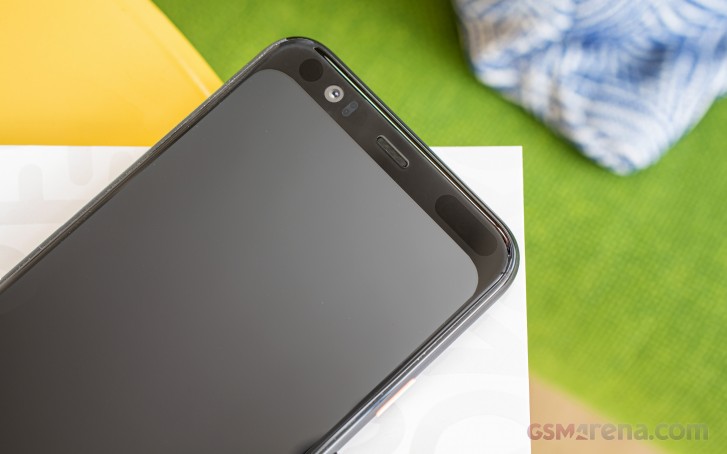
The Pixel 4 XL has a large upper bezel to accommodate for a bunch of new hardware, including new Radar-based motion sensors and 3d facial recognition hardware in addition to a selfie camera. More on that in the User Interface section. Otherwise, this is undoubtedly a large bezel for a 2019 flagship, so the Motion Sense tradeoff needs to be worth this asymmetrical design choice.
Google has also moved the lower front-facing speaker back to the bottom – in the same style as the original Pixel XL – and this resulted in a much smaller (but still there) lower bezel.
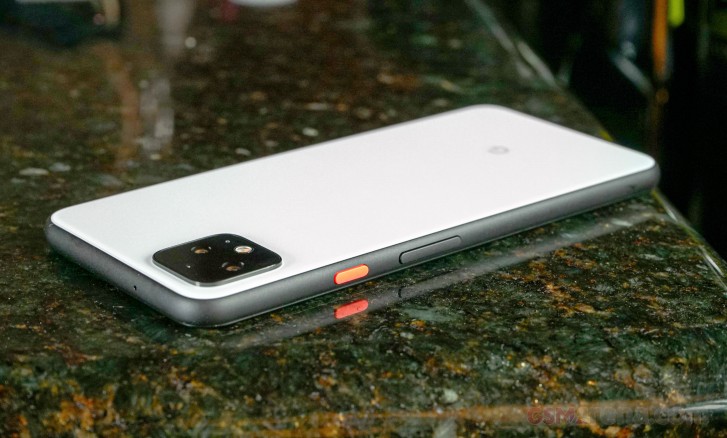
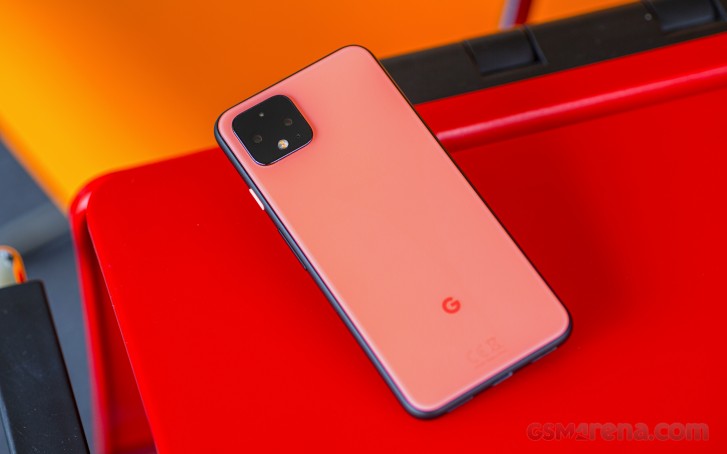
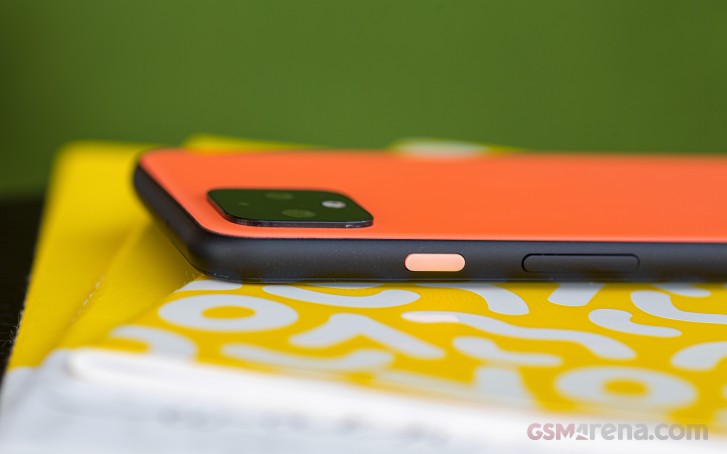
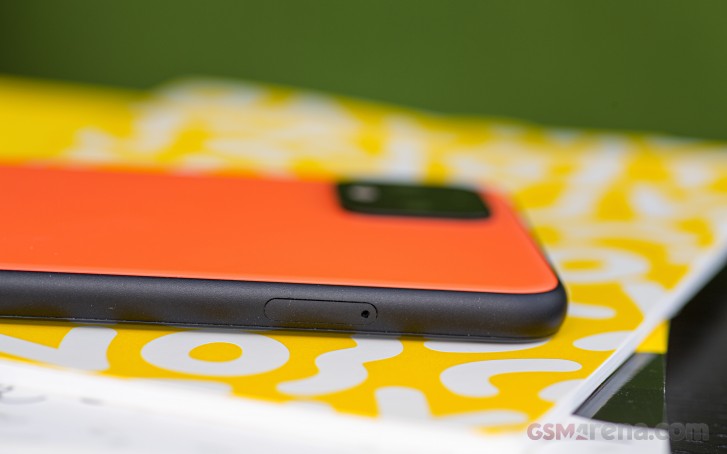
The frame that wraps around the 4 XL is coated in a fine-grit soft-touch texture. Our Clearly White review unit has a black frame and white rear Gorilla Glass 5 panel. The Oh So Orange gets the same powder glass and soft-touch frame, but the Just Black model has regular shiny glass on the back. Our unit has an orange accented power key.
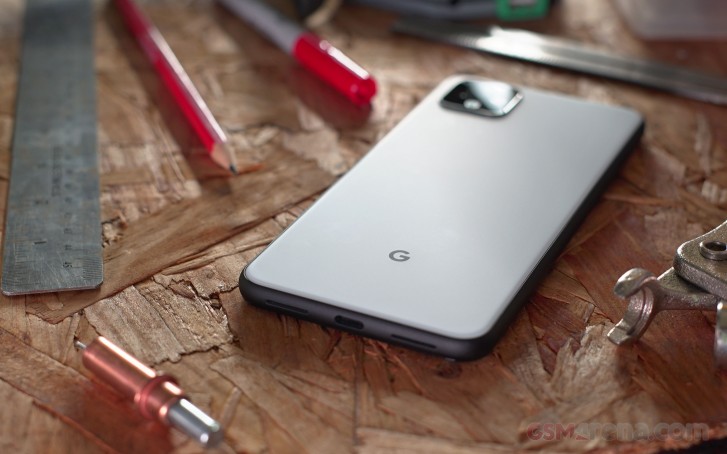
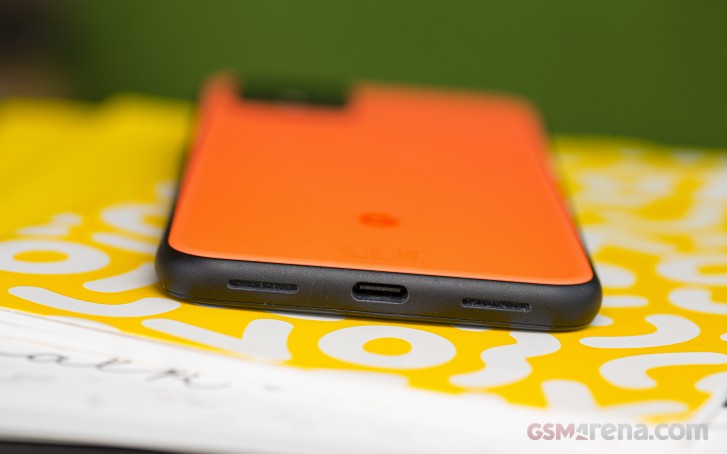
The volume and power keys are on the right side of the handset while the SIM tray lives opposite the power key. There’s a single mic hole at the top edge, and at the bottom is a USB-C port and dual audio ports. The left port is a microphone, and the right one is a loudspeaker. There is no headphone jack on either Pixel 4 model.
Although it doesn’t feel like glass, the rear panel of the phone feels like a sheet of polished metal if you were to sprinkle some fine powder over it. The “G” logo at the bottom is the only thing left of the original appearance of the glass. The G was screened out of the glass-softening process, and the effect is almost three-dimensional.
Since the softened glass is porous, it’s less prone to showing fingerprints and looking greasy, but fingerprints are still collecting on the glass. This surface makes it harder to see smudges. The same goes for the frame, but the camera square is still regular glass, so expect to wipe it down occasionally.
The Pixel 3 had a glass “window” that was kept from the original Pixel’s design, but with the Pixel 4, Google went ahead and softened the entire glass panel. The Pixel design is evolving, but we’d say it still has some refining to do on the front.
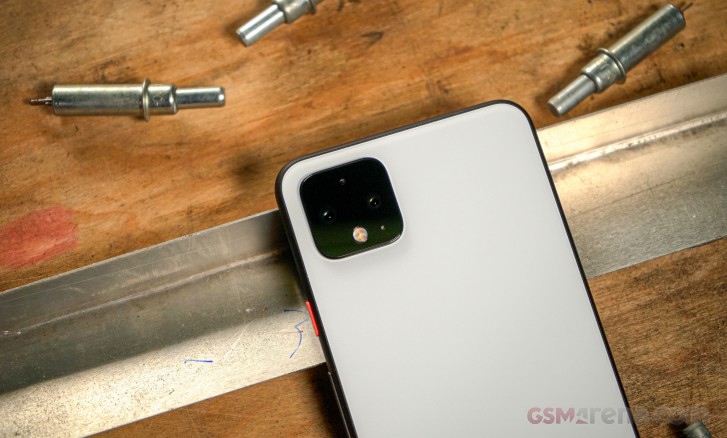
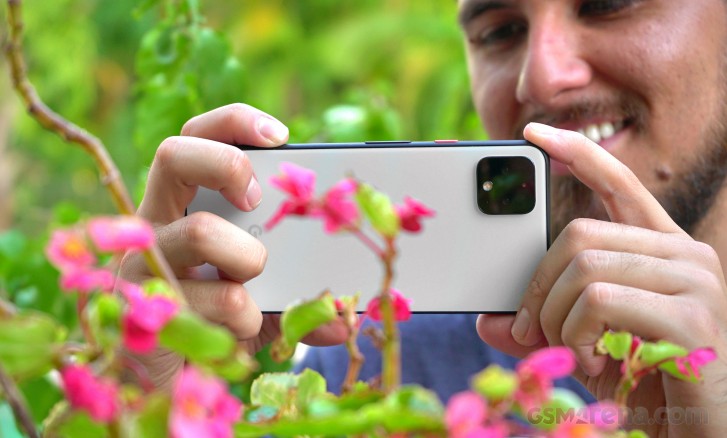
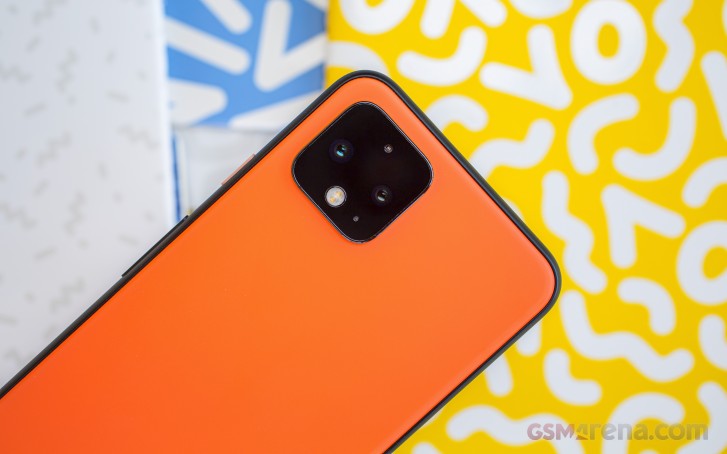
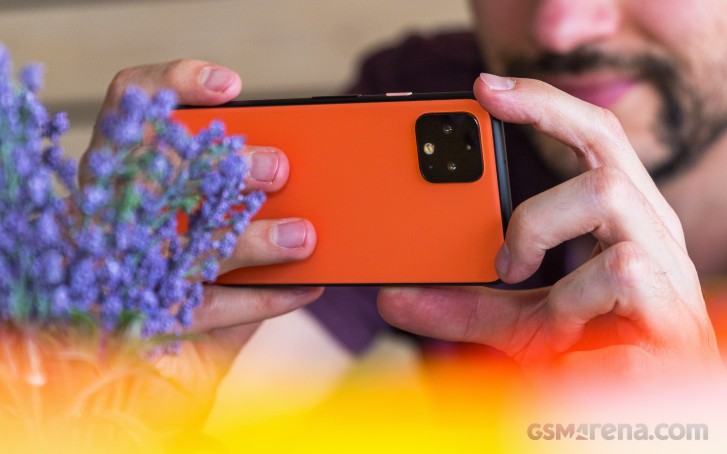
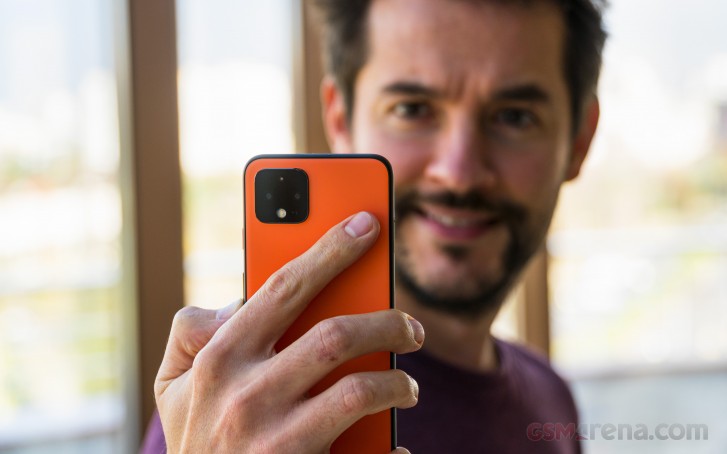
This is the first time that Google adds a second main camera to any Nexus or Pixel phone, and it chose to go with a square island to house them. Google once claimed it didn’t need more than one camera to take portrait photos, and Super Res Zoom made up for the lack of a telephoto camera. Things have changed this year, and we’ll let you know if the telephoto camera is indeed an improvement.
Many will compare the Pixel 4 XL‘s dual cameras to the iPhone’s stove-top camera square, but the Pixel’s is blacked out. Its placement is coincidentally too similar. The square does protrude a bit from the body, but its location won’t rock the phone on a table very much.
The Pixel 4 XL measures 160.4 x 75.1 x 8.2 mm and weighs 193g. This makes the phone only barely taller and heavier than its predecessor. The new display is also slightly taller due to the 19:9 aspect ratio (the 3 XL has 18.5:9). Otherwise, the 4 XL maintains the same IP68 water resistance rating as the 3 XL.
Display
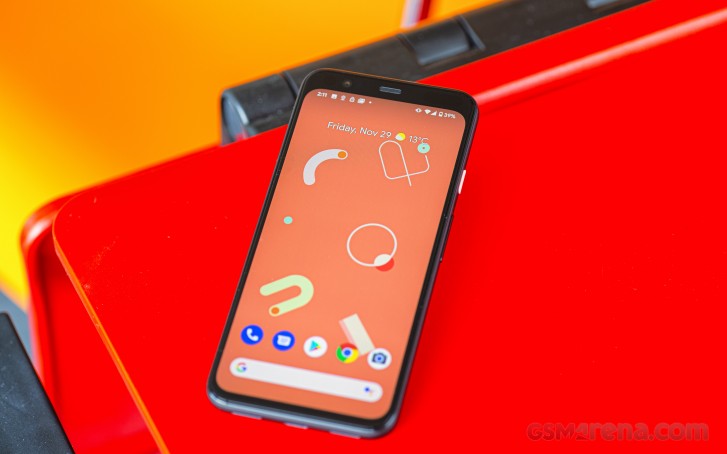
While other manufacturers keep pushing screen sizes bigger and bigger, Google kept the larger Pixel 4 XL at 6.3-inches. This is the same size as the 3 XL, only the 4 XL‘s slightly taller 19:9 aspect ratio makes it a teeny bit narrower. With more competitors using higher-refresh-rate displays, Google decided to join in and go with 90Hz displays on both sizes of the Pixel 4.
The 90Hz Smooth Display isn’t at all necessary, but it improves the fluidness and amplifies the fluidness of the phone’s operation when scrolling or swiping through feeds. The animations are also displayed at higher frame rates. Otherwise, supported games will be able to push past 60fps for a more immersive experience.
The Pixel 4 XL has a 6.3-inch OLED display, and we’re happy that the notch is gone, keeping continuity with the screen’s content and simplifying the UI. If you want the sharpest image, the 4 XL gets about 537ppi with its QHD+ 1440 x 3040 px resolution. A layer of Gorilla Glass 5 protects the screen and like the Pixel 3 XL, the 4 XL is rated for HDR playback of 1440p video @ 60fps.
New to the Pixel 4 is a new “Ambient EQ” feature that tunes the display’s colors to your surroundings. The display will adjust its color balance a touch warmer if you’re hanging out around a warmly lit restaurant, for example. It’s intended to tune images to look more natural based on the surrounding light, and a good idea considering the Pixel’s camera always leaned towards cooler tones.
The feature is enabled by default, and it’s one of those comfort features that you don’t have to think about. This isn’t entirely new to the smartphone space, though. Apple has used True Tone on its phones since the iPhone 8.
In our brightness tests, the 4 XL peaked at 436 nits with no additional brightness boost. Those raw numbers aren’t exactly class-leading, but the phone is still easily visible in direct sunlight. It isn’t too much brighter than the Pixel 3 XL and barely reached the Pixel 3a XL’s 451 nits. You can see that other flagships from Samsung and Apple are reaching past 700 nits.
Display test
100% brightness
Black, cd/m2
White, cd/m2
Contrast ratio
Apple iPhone 11 Pro Max
0
820
∞
Samsung Galaxy S10e (Max Auto)
0
803
∞
Samsung Galaxy Note10+ (Max Auto)
0
794
∞
Samsung Galaxy S10+ (Max Auto)
0
793
∞
Huawei Mate 30 Pro (Max Auto)
0.028
683
24393
Apple iPhone 11
0.428
644
1505
Asus ROG Phone II (Max Auto)
0
626
∞
OnePlus 7T Pro (Max Auto)
0
596
∞
Asus ROG Phone II
0
479
∞
Huawei Mate 30 Pro
0
464
∞
Google Pixel 3a XL
0
451
∞
Google Pixel 4 XL
0
436
∞
OnePlus 7T Pro
0
429
∞
Google Pixel 3
0
426
∞
Samsung Galaxy S10e
0
389
∞
Samsung Galaxy S10+
0
385
∞
Samsung Galaxy Note10+
0
381
∞
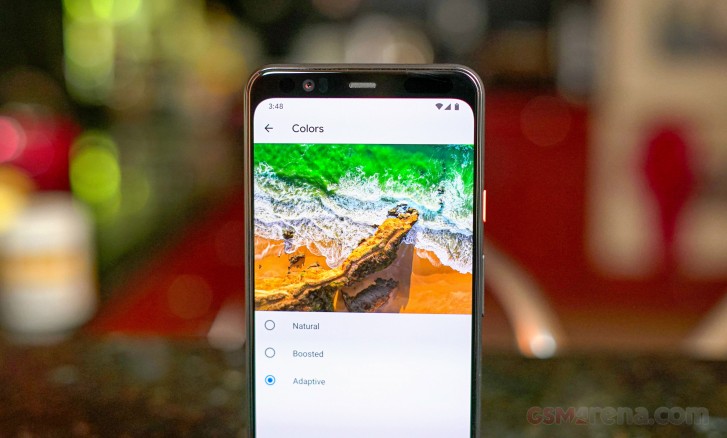
The Adaptive profile is set as the default, and it isn’t overbearingly saturated. Colors are pleasant and vibrant, but not too punchy. In this profile, we saw an average deltaE of 3.5 with a maximum of 7 for greens. Whites are well within 2 deltaE, so they are indistinguishable to the naked eye.
Natural is the most color-accurate profile with an average deltaE of 1.9 and a maximum of 3.1. Meanwhile, the Boosted profile falls somewhere between the Natural and Adaptive profiles and has an average deltaE of 2.8. Whites are consistent across all color profiles with only the colors changing in tones and intensity.
Unlike other OEMs, Google keeps color options very simple. There is no individual color tuning or possibility for customized color calibration.
The 90Hz Smooth Display feature is a variable setting. This means that the software will switch 90Hz off wherever it doesn’t need it. Currently, it reverts from 90Hz when the phone is in battery saver mode or when watching a video.
Shortly after the phone’s release date, it was discovered that the 90Hz refresh rate only ever kicked in when the phone’s display was above 75%. Following these reports, Google stated it would update the Pixel 4 “in the coming weeks that include enabling 90Hz in more brightness conditions”.
The reason for doing this, as discovered via source code notes, is to prevent users from seeing flicker that can occur at lower brightness when the display is switching to and from its 90Hz mode. The flicker is attributed to a slight difference in color calibrations between refresh rates since the Pixel’s display doesn’t support a true dynamic refresh rate.
Google intended to fix this via a software update, but it’s really something they should have refined before launching the darn thing.
Luckily, there’s an option to force the display to run at 90Hz at all times, but its buried in the lengthy list of developer options. The setting does warn that battery life may decrease when forcing 90Hz so expect to need a charger an hour or two earlier than you normally would.
Finally, Google added a “Screen attention” option to on stock Android for the first time. This isn’t a new concept – Samsung has had this kind of feature since the Galaxy S4 and other manufacturers have it on their phoens too but it’s good that it’s now part of Android.
Battery life
Flagship devices have been getting much better at battery consumption in the most recent years. For some reason, Google tends to take a more conservative approach with its own line of smartphones. The Pixel 4 XL comes with a 3,700 mAh battery, which is admittedly a bump in battery size from 3,450 on the Pixel 3 XL but the 4 XL has the same size battery as the much cheaper Pixel 3a XL.
As far as battery endurance goes, the phone didn’t perform as well as we’d hoped. The Pixel 4 XL managed a score of 73h of endurance which quite meh!, especially coming in a year where most manufacturers are focusing a lot on providing longer battery life.
The phone yielded a call endurance of 23:32h, which is about the same as the 3a XL did with the same size battery. Meanwhile, the browsing and video playback scores were 10:49h and 11:29h, respectively.
The score below shows the Pixel 4 XL‘s score with the 90Hz Smooth display enabled. When we disabled the 90Hz feature, we saw the Pixel 4 XL score a couple of hours higher on the web browsing test, but it may not translate to a significant difference in battery life.
Although disabling both the 90Hz Smooth display and Motion sense may let you squeeze a little more juice out of the Pixel 4 XL, it defeats the purpose of having the technology in the first place. With how far we’ve come in optimization and battery technology, Google knew exactly what it was doing by using a 3,700 mAh battery here – and that’s why we’re a little salty.
If its any consolation, there’s more than one way to recharge the battery. With the included 18W USB-C Power Delivery adapter, the Pixel 4 XL recharged to 44% in 30 minutes, reaching 77% after an hour and it finally reached a full charge at about an hour and 20 minutes. Although competitors can achieve much better charging speeds, they require proprietary chargers to work.
The Pixel 4 XL supports Qi Wireless charging, but Google quietly updated its capacity to 11W. With the Pixel 3 and 3 XL, 10W charging was only achievable with Google’s own $80 Pixel Stand charger, and defaulted to 5W when used with a regular Qi charger.
Loudspeaker
Stereo speakers are the standard with the Google Pixel. With Pixel 4, the loudspeaker hardware has shifted around a bit. Where the Pixel 2 and 3 both had dual front-facing loudspeakers, the Pixel 4 has traded them in for a setup like the Pixel 3a’s. The lower front-facing speaker has been replaced with a downward-firing speaker.
Speakerphone test
Voice, dB
Pink noise/ Music, dB
Ringing phone, dB
Overall score
vivo NEX 3 5G
70.3
73.5
72.6
Good
Apple iPhone 11
70.8
72.3
76.0
Very Good
Apple iPhone 11 Pro
71.2
73.8
80.7
Very Good
Samsung Galaxy Note10+
68.4
73.7
86.3
Excellent
Samsung Galaxy Note10
70.1
72.8
85.7
Excellent
Google Pixel 3
77.5
71.7
81.1
Excellent
Samsung Galaxy S10+
74.4
74.2
83.6
Excellent
Huawei Mate 30 Pro
78.4
74.4
79.9
Excellent
Asus Zenfone 6
77.0
75.9
81.2
Excellent
Samsung Galaxy S10
82.2
74.9
85.5
Excellent
Google Pixel 4 XL
80.1
78.1
88.1
Excellent
Google Pixel 3a XL
79.3
77.1
91.1
Excellent
OnePlus 7T Pro
90.4
75.3
82.4
Excellent
OnePlus 7T
79.8
77.4
91.6
Excellent
The speakers are quite loud and yielded excellent loudness across the board. In fullness, however, we preferred the sound of the OnePlus 7T’s dual speakers. The Pixel 4 XL can sound tinny by comparison, after all, both the upper and lower speakers have smaller ports than previous generations.
Audio quality
The Google Pixel 4 XL did excellently in the active external amplifier part of our test. It delivered the expected perfect accuracy at very high volume levels.
Headphones did cause a rather big spike in stereo crosstalk and caused a tiny amount of intermodulation distortion. The other readings were barely affected though and loudness remained high, so it’s a solid performance overall. Particularly, if you compare it to the Pixel 3, which was one of the poorest phones we’ve tested.
Test
Frequency response
Noise level
Dynamic range
THD
IMD + Noise
Stereo crosstalk
Google Pixel 4 XL
+0.02, -0.19
-93.9
93.9
0.0018
0.0084
-94.1
Google Pixel 4 XL (headphones)
+0.17, -0.12
-94.0
94.0
0.0042
0.104
-53.1
Google Pixel 3
+0.02, -0.12
-71.7
83.2
0.0031
0.032
-70.1
Google Pixel 3 (headphones)
+0.15, -0.15
-68.4
80.2
0.0066
0.193
-61.1
OnePlus 7T Pro
+0.03, -0.01
-93.7
93.6
0.0010
0.0073
-91.0
OnePlus 7T Pro (headphones)
+0.13, -0.03
-93.1
92.9
0.0018
0.087
-75.9
Apple iPhone 11 Pro Max
+0.05, -0.16
-94.3
93.9
0.0016
0.016
-81.5
Apple iPhone 11 Pro Max (headphones)
+0.14, -0.04
-94.4
94.0
0.0010
0.018
-76.8
Samsung Galaxy Note10+
+0.03, -0.06
-94.0
94.0
0.0011
0.012
-95.1
Samsung Galaxy Note10+ (headphones)
+0.03, -0.06
-93.9
93.9
0.0027
0.023
-69.9
Sony Xperia 1
+0.02, -0.01
-93.6
93.5
0.0010
0.007
-85.2
Sony Xperia 1 (headphones)
+0.31, -0.26
-92.1
91.9
0.0060
0.302
-55.1
Android 10 by the book
We have already reviewed a handful of Android smartphones that came with Android 10 out of the box. With the Pixel 4 XL, we’re now able to see how Google envisions the presentation and execution of its own operating system.
Major changes to the interface include a new Face unlock system, overhauled gesture navigation, and a new appearance for Google Assistant. At the event, Google also demonstrated that it could process vocal queries much quicker as it can store voice-to-speech transcription locally on the device in a much smaller database.
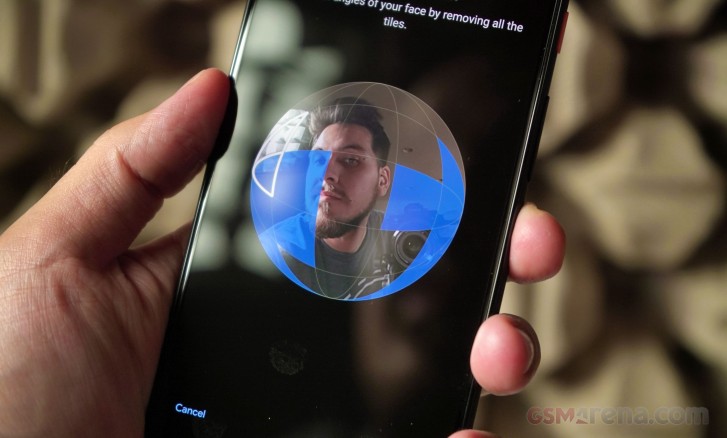
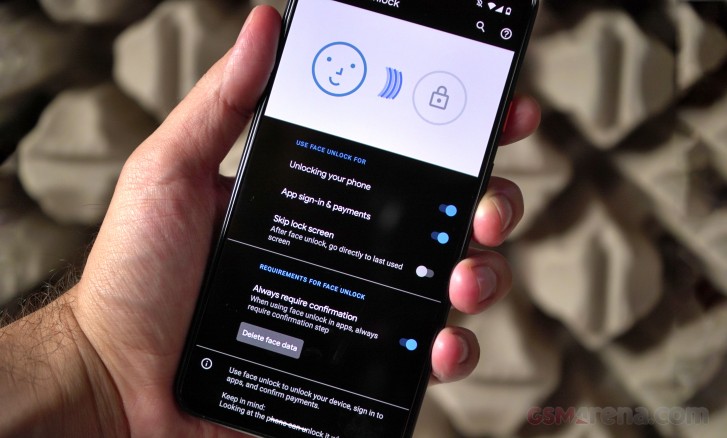
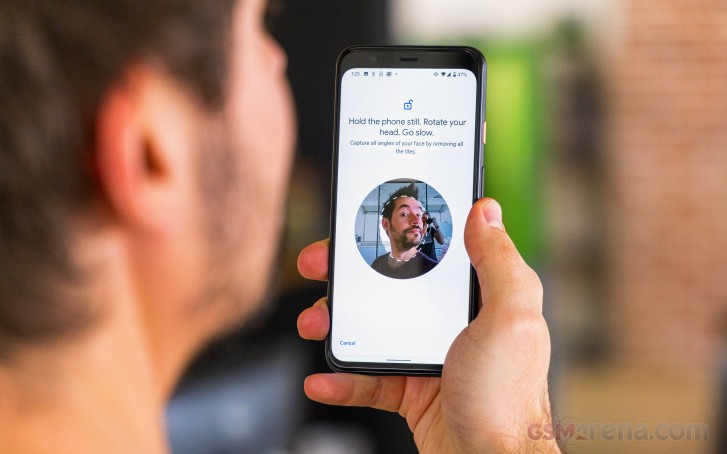
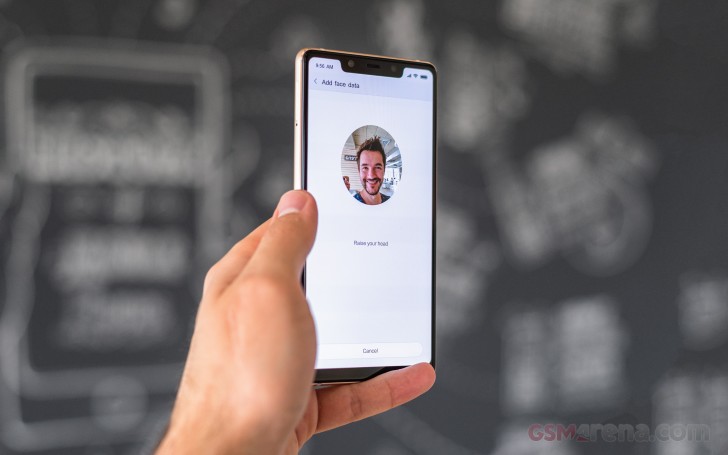
When first starting it up, you are prompted to register your face for security. At this point, you might realize there is no longer a fingerprint scanner, and this is because Google replaced Pixel Imprint in favor of the more generically named” Face unlock.”
This was a significant change back when Apple dumped Touch ID for Face ID, and it’s a significant change for Google now. Both use IR dot projectors and an IR camera to create and detect a depth map of the user’s face.
In practice, Face unlocking works accurately and quickly. With the Motion Sense feature, it wakes the phone and triggers face detection while reaching for your phone so you can get in quickly. Just like any other phone with face unlock, it’s more difficult to unlock while it’s laying on a table. On the upside, Face unlock works from any angle, even upside down.
Soon after setting up and using Face unlock on the Pixel 4 XL, we noticed it would authenticate and unlock even with our eyes closed. This is a security gap that Google must have expected as its own support page suggested using a passcode would be more secure. Google has since confirmed it will patch this bug “in the coming weeks,” but that doesn’t seem soon enough.
Another hurdle with Face unlock is support from banking institutions. It took years before fingerprint authentication could be used with baking and payment apps, among others. Currently, Google Pay works with Face authentication, but banking apps that once supported fingerprint to log in need to be updated to support Face unlock. Right now, only a handful of apps support Face unlock, but they are mostly password management apps.
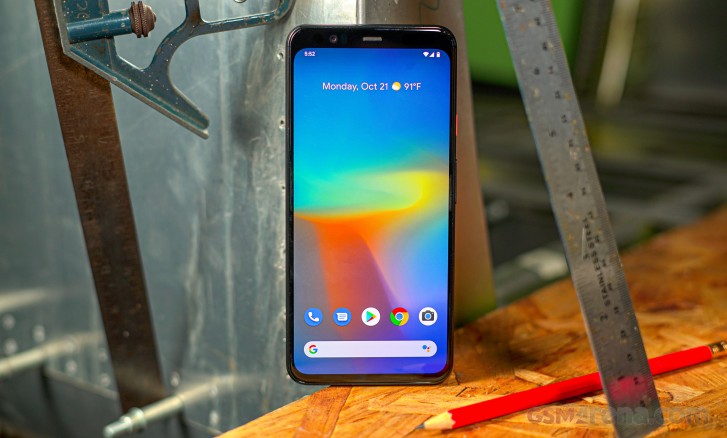
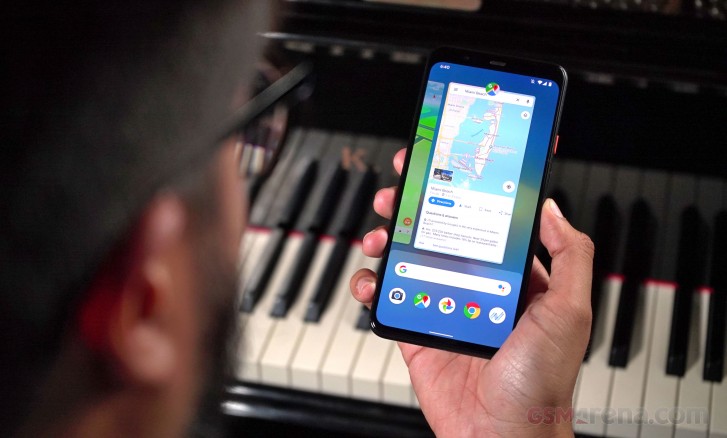
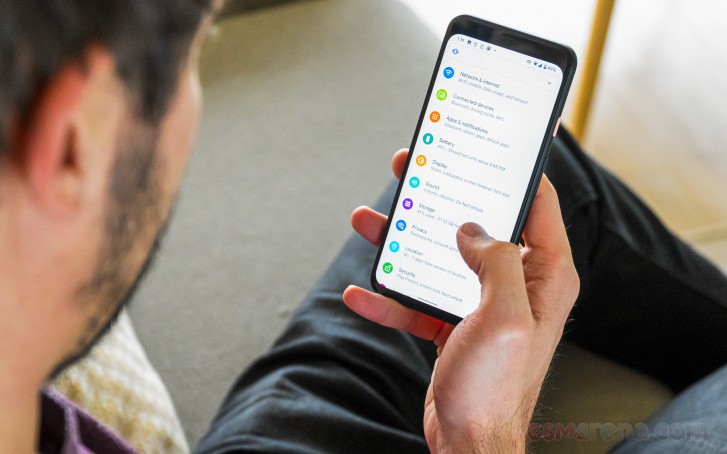
After setting up Face unlock, the setup will quickly teach you how to use Android 10’s new gesture controls. Google’s 2-button nav gestures are gone (and we’re glad), and the nav bar has been replaced with a slimmer home bar, much like a new iPhone. You can summon Google Assistant by giving the Pixel a squeeze.
Swiping up will go Home, swiping in from the edge will go Back, and swiping up from either corner will open Google Assistant. Multitasking is done by swiping up and holding, but you can easily switch between apps by swiping horizontally on the home bar.
Since there’s no longer a fingerprint scanner to pull down the notification shade, you can now swipe down from any part of any home screen will pull the notification shade down, so there’s no longer a need to reach up to the top edge.
The homescreens are what we’ve come to expect from a Pixel. Swiping up gets you to the app drawer with the top-most row dedicated to the five frequently used apps.
Apart from wallpapers, the Pixel launcher now allows for more customization in the settings. The Style tab in the wallpapers menu lets you change the shape and color scheme of both app and quick setting icons. You can also set a system-wide accent color and font.
There is a new category of live wallpapers labeled “Come Alive,” and they all subtly respond to hand gestures over the Motion Sense detector. There’s even a Pokemon wallpaper designed to promote Nintendo’s Pokemon Sword and Shield game titles.
When Project Soli was first announced back in 2015, it was presented as a breakthrough in motion-sensing technology with the ability to detect and interpret precise hand motions like sliding a finger and thumb to scroll through settings and then tapping the fingers together to select.
Motion Sense is Google’s first implementation of Project Soli in a major consumer product and the result feels both half-baked and gimmicky.
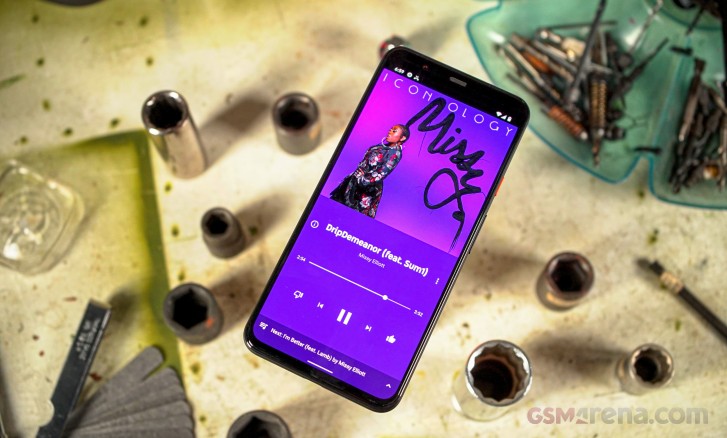
There are only a handful of useful things you can do with Motion Sense. Several music apps are supported to skip back and forward between tracks, even when music is playing in the background or if the display is turned off. You can also snooze alarms or silence timers and incoming calls by waving over the screen. That’s about it for useful features and nothing like the initial promo video for Project Soli.
Motion sense can detect when you’re reaching for the phone and fire up the Face unlock hardware to swiftly detect the user’s face and unlock the phone. We noticed it often triggers when its placed on a computer desk, in proximity to someone actively working with a mouse and keyboard. If you decide to turn this feature off (you might save some battery by doing so), you can still double-tap the display to quickly glance at the time and notifications, and you can still ‘lift to wake’ it.
By default, you’ll skip seeing the lockscreen entirely if you enable Face unlock, but there is an option to disable that so you can glance at your notifications and manually swipe in.
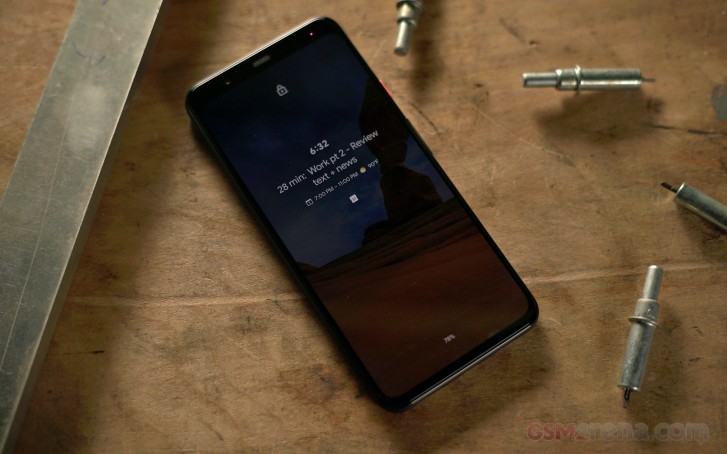
The Always On Display feature is enabled by default. This screen will display icons for missed notifications, a small weather widget, the time, battery percentage left, and a couple of lines are dedicated to contextual information such as anticipated traffic or upcoming calendar events.
With Android 10, both permissions and notifications offer finer and more transparent control. Starting with Notifications, the pull-down shade’s order is priority-based. For example, if you receive notifications from a messaging app, they are a high priority, and a little bell icon appears. Otherwise, when you get notifications from less important apps like games or persistent app notifications, they’ll show up as “Silent notifications” and take up less space.
Android 10 now shows you an average of the daily and weekly number of times an app triggers notifications in a dedicated Notifications menu. This gives users the information needed to decide which apps are inundating them with useless pings and prioritize more important notifications.
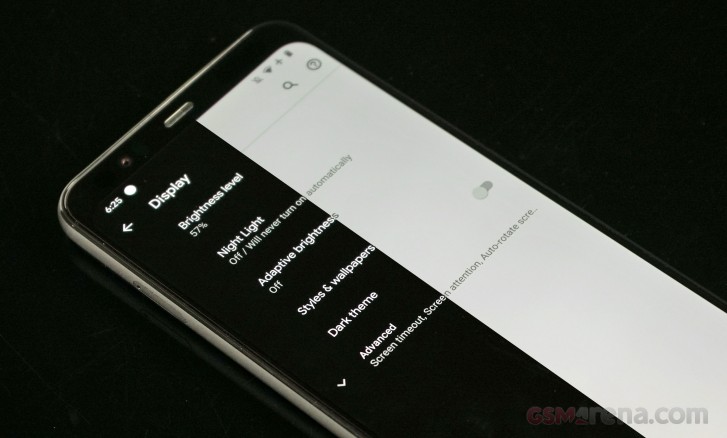
Android 10 brings the much-hyped “Dark theme,” and it can be accessed from the Display settings. It darkens all menus, pop-up windows, Google Assistant, and even the Google Search Bar. Some apps will also automatically switch to their respective dark scheme, as long as the app is supports following the system-wide setting.
There are two new applications debuting on the Pixel 4 XL. The first one is a new application that organizes the emergency features of the new Pixels. The app lets you organize and fill out your medical information and assign emergency contacts in an emergency.
Finally, thanks to Google’s new transcription app, it enabled a new voice recorder app from Google that can transcribe voice notes in real-time, and it doesn’t require an internet connection. This app debuts on the Pixel 4 and 4 XL, and it enables a new way to keep track of voice recordings.
The app can transcribe your voice notes as you record them, making it much easier to search through recorded meetings or lectures.
Synthetic Benchmarks
Google isn’t technically on the cutting edge of technology with the Pixel 4 duo. Both the Pixel 4 and 4 XL are running the Qualcomm Snapdragon 855 chipset, and they only come with 6GB of RAM. Google missed out on integrating the latest Snapdragon 855+ chipset – which is technically the same silicon, but with slightly overclocked CPU and GPU. This is a similar situation to Google’s decision to use an underclocked Snapdragon 845 on Pixel 3. If OnePlus can develop and launch a refreshed 7T with the 855+ at a super competitive price point, why can’t Google?
The Snapdragon 855 used in the Pixel 4’s is built on the 7nm process and features an octa-core CPU. One quad-core low-power Kryo 485 cluster is clocked at 1.78 GHz. The second cluster has three Kryo cores clocked at 2.42 GHz and one high-power one at 2.84 GHz.
Even if not the latest and greatest, the 855 is no slouch. It’s difficult to notice a difference between the Snapdragon 855 and 855+.
On the upside, Google has finally updated the amount of RAM to 6GB. One complaint we had with the Pixel 3 was that apps were getting knocked out of the system memory too early. It’s nice to finally get some extra RAM, but 6GB isn’t even competitive anymore with higher-end Chinese phones coming with 8GB by standard and upwards of 12GB when maxed out.
Anyway, let’s get into these numbers.
Single core performance is shy of other devices running the same processor. It finds itself in its own level below the other Snapdragon 855 and 855+ devices while the Kirin 990, Exynos 9825, and Apple A13 all exceed in single-core scores.
Although the Snapdragon 855 has already been succeeded by the 855+, the performance difference between the two is almost negligible. The 855 on the Pixel 4 XL, however, is not the best performer among other OEMs. We’ve witnessed the same thing last year with the Pixel 3 and the same with Pixel 2 before that. It seems that Google is purposefully limiting the max performance of the CPUs they use.
As a result, if you’re looking for the very best device to play lots of games on, the Pixel 4 XL may not be for you. There are plenty of other devices (mostly made by Chinese OEMs) that offer a bunch of game-specific features like a gaming mode or software optimizer for getting the very best performance out of games. The Pixel 4XL is also limited to a single configuration of 6 GB RAM, so you’re better off with the much cheaper OnePlus for gaming.
One positive is the phone doesn’t warm up under moderate use. Even when playing games, the Pixel 4 XL only may get comfortably warm under high usage.
Double the HDR+
The Pixel was one of the only smartphone brands that continued to equip its phones with a single camera and Google claimed it only needed one camera to take great photos and portraits. The passing of time always tends to make things change, especially in the tech industry, because this year, Google added a second camera to the mix.
Alongside an optically stabilized 12.2MP main camera with large 1.4-micron pixels and f/1.7 aperture is a 16MP telephoto camera (also stabilized) with 1.0-micron pixels and an f/2.4 aperture lens, which allows the Pixel 4 XL to shoot 2X zoom photos. Google’s Super Res Zoom allows it to go comfortably beyond that zoom level too. Also both cameras benefit from Google’s HDR+ algorithms for improving image quality.
The industry has already moved past dual cameras and are already established with triple cameras, including the latest iPhone 11 Pro. So Google’s decision to go with a telephoto camera instead of an ultra-wide – which many OEMs have been adding to the mix – raised many eyebrows. This depends on personal preference and the kinds of environments people tend to shoot, but Google believes that the average consumer is more likely to take zoomed photos over ultra-widened snapshots. We are not going to take a side here in favor of one type of camera or the other, but we’d just say that many manufacturers are happy to provide all three without the need for compromise.
Google has introduced a few new features on the Pixel’s camera. The first is Live HDR+, which should show you what your final image was going to look like in the viewfinder after it processes it. Before that, especially in more demanding situations, the live viewfinder was only really used to compose your shots, then you’d only see the resulting HDR+ photo in the camera roll. We’re glad to see this change implemented as it makes a huge difference in the picture taking process.
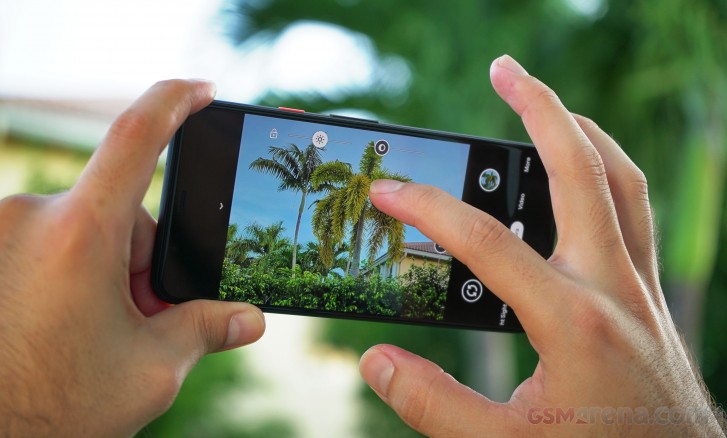
Another new feature is dual exposure controls – baked right into the camera UI.
What’s more, now you can manually adjust the shadows and highlights as you are composing a shot, useful if you want to get a more artistic photo like the silhouette of a person against a bright background. Since Google doesn’t offer fully manual controls on the Pixel, this is a welcome feature. The feature combines well with Live HDR+ so you see the photo’s exposure before you hit capture.
Apart from improvements in Night Sight and portrait mode – thanks to the second camera, “learning-based automatic white balance” is available in all shooting modes where it was previously only used in Night Sight.
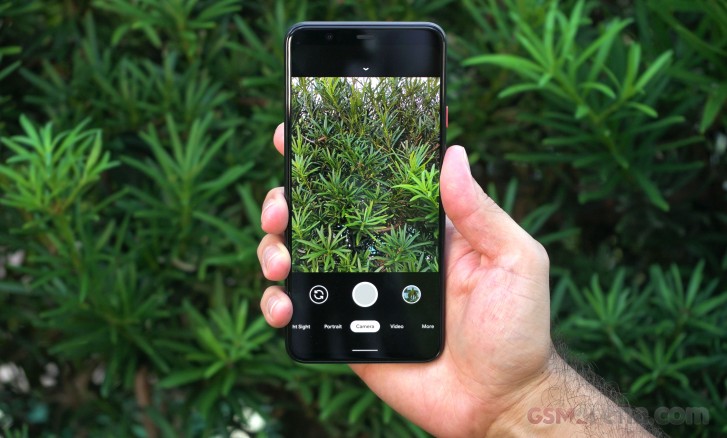
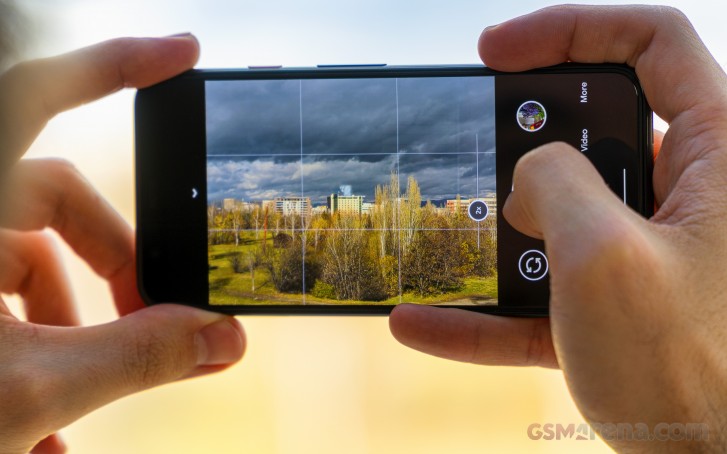
The camera interface is mostly unchanged from the Pixel 3. You can swipe between shooting modes and the most important ones are easily accessible: Night Sight, Portrait, Camera, Video, and a More tab containing Panorama, Photo Sphere, Slow Motion, Time Lapse, Playground, and Lens.
To make the viewfinder less cluttered, Google put the flash, timer, and Motion settings in a drawer, opposite the shutter button. It’s an extra step to reach the Flash settings, but Google did mention at its presentation that it hopes you never need to use the Flash. Still, the drawer makes it easier to focus on the viewfinder.
Even with the drawer open, you can still hit the shutter key, so you don’t miss the shot. Hitting the shutter does hide the drawer so you can keep snapping away.
Image quality
Image quality on the Pixel 4 is slightly improved over the Pixel 3. Google has cleaned up the noisy remnants we used to often see on the Pixel 3. Exposure is excellent and well-balanced thanks to HDR+. Colors are almost always true-to-life and white balance leans to cool – which gives the photos their signature Google Pixel look.
Where colors aren’t true to life is mostly when the camera is trying to compensate for strong highlights. For instance, the photo of the tree barrier in front of the rope fence is a perfect example. This was a very demanding shot, as the sun was just peeking behind the hotel building and during golden hour. The photo was exposed well, but colors were washed out as a result. You can also see lots of noise where there was an attempt to capture more details.
Capturing details in the high-contrast areas of a scene is where the Pixel excels, but if you take away the high-contrast, like if you try to shoot photos in the shade, you’ll start to see some noise.
Comparing some of the shots to the OnePlus 7T, we surprisingly preferred some of the shots it took over the Pixel. Although the Pixel managed to grab more details, OnePlus did a really good job with HDR mode (which kicks in automatically on the 7T) and here, we thought the Pixel’s colors were a little dull by comparison. This is shaping up to be a very interesting comparison.
2X telephoto
Next up is the telephoto camera, which is new on the Pixel 4 XL. We expected samples to look a little different since the cameras’ apertures don’t match. Although the telephoto camera has a 16MP sensor, it outputs images in 12.2MP, just like the main camera.
The truth is, photos shot with the telephoto are indistinguishable from the main camera, at least at first glance. Pixel peeping will reveal slightly more noise and, naturally, a slight loss of detail. The only time you might notice a more significant difference is in lower light conditions. After all, it does have a dimmer aperture.
The telephoto’s camera performance is strong, and especially so when comparing it back to the OnePlus 7T.
In stark contrast to the shots from the main camera, the OnePlus 7T’s telephoto shots are nowhere near as nice in detail and colors. Fine details are mostly, if not completely, lost when switching to the telephoto camera.
Super Res Zoom was Google’s solution to the Pixel 3’s lack of a second telephoto camera, so its nice that Google included the feature on the telephoto camera as well so you can shoot photos from even further away.
Once you get past 2X zoom on the telephoto, 4X images are decent and there isn’t even too much noise. There is however, a good amount of pixelation happening as a result of the moving waters of the Atlantic. Even from the distance, we can still make out the container ship that’s anchored further out.
We’ve seen some incredible zoom shots from Chinese makers like Huawei with the P30 Pro and Oppo with the Reno 10X Zoom, so if you’re someone who wants to shoot birds or subjects from afar, we’d nudge you away from the Pixel.
Portrait
Moving on, let’s look at some portrait photos. Thanks to the second telephoto camera, Google can capture more depth information to synthesize a bokeh effect that more closely resembles that of a DSLR.
Portrait photos are among the best we’ve seen from a smartphone. The subject line is near-perfect and the resulting bokeh, especially in the second shot in front of the green hedges, is exactly how we’d expect a DSLR camera to blur an image. Whatever Google did, we’re really impressed with the result.
Night Sight
Night Sight was first introduced last year with the Google Pixel 3 and 3 XL. Before that, the Pixel was regarded as one of the best cameras in low light, but in the span of the last two or three years, most OEMs now have some form of a long-exposure shooting mode that stacks images without needing a tripod.
We tested Night Sight in very demanding lighting situations. Let’s see how the Pixel 4 does with low light images and then compare them to the same scene with the Night Sight mode enabled.
Naturally, low-lit photos are noisy and lack details while some can’t even focus properly. The photos look just fine overall but quality really sinks when you zoom into the pictures.
With Night Sight, images are instantly better and more usable. They have more detail, albeit still with a bit of noise due to the processing. Although Google mentioned that learning-based AWB (automatic white balance) is present in all shooting modes, we didn’t find white balance to be consistent between the regular shooting mode and Night Sight.
Of course, some of these images are extreme lighting situations like the beach, which was solely lit by the dim lights of the boardwalk and nearby buildings. Let’s compare these night photos to the Nightscape ones shot with the OnePlus 7T.
Both the 7T and Pixel 4 XL were able to improve the night scene by using their respective dedicated low-light modes. Both had similar tonal reproduction and were quite similar in the boosting of shadows and highlights. However, we found the OnePlus 7T to produce sharper images.
We prefer the 7T’s Nightscape shot of the purply lit hotel with the swimming pool. Details are better preserved on the 7T and the image has applied better sharpening. Of course, too much sharpening can sometimes be a bad thing – you’ll notice excess noise if you pixel peep at the top areas of the hotel building in the 7T’s Nightscape shot.
Resulting photos aren’t very good, and that’s likely due to the f/2.4 aperture. Although we expected the camera wouldn’t take as good of Night Sight photos, at least the Pixel 4 XL gives you the option, Nightscape photos with the 7T’s telephoto camera is not possible, and it’s probably for the best.
Astrophotography mode
A new feature is an Astrophotography mode. Since there is no fully manual operation of the camera, it was previously not possible to capture long-exposure shots with 20-second exposure. Now, thanks to the magic of image stacking and software, Astrophotography can capture starry skyscapes.
To enter the mode, all you need to do is open Night Sight and then stabilize the Pixel 4 XL against something or put it on a tripod. Once stable, you’ll see an Astrophotography label on the viewfinder, and then all you need to do is hit the shutter key. Then the camera decides how long it should capture on its own, based on the amount of light available. It takes anywhere between one to four minutes to capture something.
We do admit the images are impressive, and the mere fact that a smartphone captured them is awesome. These images are mostly processed by Google’s algorithms, so you may see some light noise as a result, but nothing that distracts at all.
Whatever you manage to capture in the scene also has a lot of detail if its exposed enough. If you inspec the last shot closely, you can see the texture of the paint on the pillar of the balcony. Of course, this one did take almost four minutes to capture.
While this is a cool feature, not everyone will be able to use it. You’ll have to travel outside of brightly lit cities and find a dark sky to shoot. While its not a mode that people will use frequently, it’s certainly a cool niche feature.
8MP Selfie camera
The front-facing camera no longer has the same dual-setup like on the Pixel 3 and 3 XL, but the 8MP selfie camera is paired with a 3D ToF sensor to keep up with portrait depth with the front camera.
To switch between the front and rear cameras on the Pixel, you can make a double-twist gesture right from the viewfinder.
Although the second selfie camera is gone, the Pixel 4 XL has a wide field-of-view than some other flagships. At a 35mm equivalent length of 22mm (90° field of view), which sits somewhere between the 19mm ultra-wide and 28mm lenses on each of the Pixel 3’s dual selfie cameras.
Selfies have well-balanced exposures both in the foreground and way in the background. Skin tones are well reproduced, and you can spot details in the shadows. Let’s look at portrait selfies now.
We’re not as content with these selfie portraits. In the first image, there’s a strange halo around the subject line, although we can give it a pass since the sun is directly behind our reviewer Ricky. Otherwise, the synthesized bokeh line is not as well refined as the main camera’s was.
There’s a significant difference in the amount of details and softness from the 7T. Pixels have always been more about capturing details (sometimes too many details) in the face while most other OEMs would prefer to soften features – this makes for a more flattering image. Between these samples, we prefer the selfie portraits from the 7T.
Most selfie cameras don’t play well in lower light, but the Pixel 4 XL‘s is surprisingly good at capturing selfies and exposing everything else properly. Though the background (and sometimes foreground) can appear noisy at times, its nothing compared to taking a selfie that you can’t use because its too dark to see anything.
Video
Although much attention was given to the fact that the Pixel 4 XL cannot record in 4K @ 60fps, we can’t say many of us at the office record 60fps video at all, much less 60fps in 4K. With that out of the way, the Pixel 4 XL can still record 4K video at 30fps, and 1080p video in both 30 fps and 60 fps. You can also capture any of the modes mentioned with the telephoto camera.
1080p videos pack great detail and minimal noise. Exposures and colors are spot on. You may notice some fuzziness in the foliage, but that’s because these samples were all shot handheld. On that note, the Pixel 4 XL‘s stabilization is quite good.
Details in 60 fps video are about as good at their 30fps counterparts. In the areas of foliage, you can see a bit more noise because of the faster frame rate. Otherwise, colors, dynamic range, and exposure are consistent with standard 30fps video.
We’ve seen many smartphone cameras have issues with exposure metering when shooting in 60 fps, but there was no such hiccup with the Pixel 4 XL.
4K video packs pleasant details and colors. Although the scene is lit by a setting sun, we are happy with the way the scene was exposed. We can still see what’s in the shadows of the scene while we also get the warmth of the sun shining on the palm trees. You can see slight fluctuation of noise in the grass, but again, that’s due to the handheld nature of the video.
The competition
The Pixel 4 XL starts at $899 in the US. At this level, it is $100 below the iPhone 11 Pro and $200 more than the entry-level iPhone 11. All these phones start at 64GB of base storage and are non-expandable. This year, we have seen killer camera performance from the new iPhones. Both cameras are great and each one performs better than the other in key areas.
This year, all iPhones have excellent battery life, but we can’t say the same about the new Pixels. While Google was busy adding a telephoto camera to its lineup, Apple added an ultra-wide-angle camera to each new iPhone this year. If you’re looking for a polished software experience with an excellently balanced camera setup, great battery, and software, look no further than this year’s iPhones.
Earlier this year, Google received much praise for the Pixel 3a duo. It offered a smooth software experience along with power-efficient hardware and excellent battery endurance. If you’re after a Pixel that can keep up with you all day and you are not necessarily in need of extra horsepower for games, and an exceptionally great camera for the price, the Pixel 3a XL is the perfect budget alternative.
If you’re looking something with many more features and customization, take a look at the Samsung Galaxy Note10 and Note10+. Samsung’s flagship duo is packed with camera features, new shooting modes, an S Pen, and attractive-looking hardware. The Google Pixel can seem overpriced by comparison.
If you’re looking for better value, perhaps a Samsung Galaxy S10+ could be of interest. It has the same size display, but Samsung’s displays are second to none with excellent image, comfortable visibility in direct sunlight, and longer battery life.
Given the 90Hz display feature on the Google Pixel, it will inevitably be compared to the OnePlus 7T and 7T Pro. All phones have 90Hz screens, but the smoothness in display and hardware is seemingly more apparent on OnePlus devices. It’s a little ironic that an OEM can create a better UI for Android than Google itself.
OnePlus’ cameras have come a long way, and they have shown great potential and can probably match the Pixel in daylight photography. Otherwise, Google’s cameras are well-executed with an excellent image quality, but what’s missing is a well-executed 90Hz display.
The verdict
The Pixel 4 duo is off to a rocky start. Reports of the company’s shortcomings have been making headlines in tech news. The 90Hz display doesn’t always render at 90fps while Google’s new Face unlock works with the user’s eyes closed when it shouldn’t. These features have one thing in common – they are going to be addressed in a future update.
However, these are things that should have been addressed before launching the phone in the first place. Motion Sense is also a dud, it feels unfinished, and it’s a shame that Google believed that this would be worth hyping up in its current state. As much as Google upsold the Motion Sense feature for “getting stuff done”, we don’t believe they add up to the value of the phone.
Face unlocking, although quick, reliable, and arguably more convenient than a rear-mounted fingerprint scanner, is no longer supported by the same apps that supported Pixel Imprint. We don’t believe a new technology is worth temporarily inconveniencing the customer for the sake of having said technology.
The Google Pixel is supposed to be Google’s own interpretation of Android. Given the state of incohesive features, poor battery life, and half-baked Motion Sense, perhaps this is how Google feels about its own platform: It needs other OEMs to make its own platform better.
Google has been taking note of what others have been doing. With Pixel 4, it has added more layers to the software like more advanced customization of icons and colors, as well as well-improved gesture control, and Google Assistant’s voice commands feel near-instantaneous. The instant-transcription voice recording app was a nice addition, but we were left wanting more.
The Google Pixel really excels in the camera department, but Google doesn’t seem too worried about the competition when it should be. It feels like Google is relying solely on its camera prowess to push sales of the Pixel 4 and 4 XL while merely getting by in other aspects like display technology (we want a brighter AMOLED display) but more specifically, battery life.
The Pixel 4 XL is the best that Google has to offer and if you don’t mind paying a premium price and overlooking a couple of shortcomings at launch, then you’ll be a happy camper with Google’s new phone. If you’d rather get the most out of your $899, you might want to consider getting something else or wait until the phone is discounted (which usually happens around Black Friday).
To avoid ending this review on a low note, we will say that we really like the new design of the phone. The soft-touch glass feels amazing, the textured metal frame is great, and the Pixel’s display is better than ever. The Google Pixel’s camera is amazing and its tendency to capture every range of exposure with detail makes it a joy to shoot with.
Pros
Gorgeous, color-accurate display.
Unique textured design.
Quick and reliable Face unlock.
Great camera performance.
Cons
Wonky 90Hz display execution at launch.
Half-baked Motion Sense features.
Below average battery endurance.
We’re missing the ultra-wide camera.
No fingerprint reader while the competition has already gone through a few generations of under-display readers.
Face unlock can be triggered with eyes closed and it’s not yet supported by banking apps.
No bundled cable earbuds or an adapter.
Limited market availability (even more so due to the Motion Sense radar).
It wasn’t with much excitement that we met the reveal of the Pixel 4 duo – Google’s lack of effort to contain early leaks meant that not only were the specs unremarkable, but we also knew them in advance. We already had the 4 XL for review and we have more than a general idea of this gen’s pros and cons, but now we set out to discover how the small Pixel 4 performs and how it stands in the context of its own specific competitors.
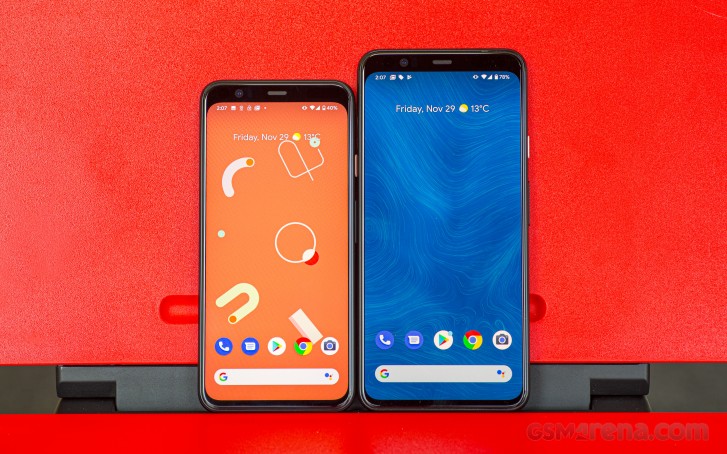
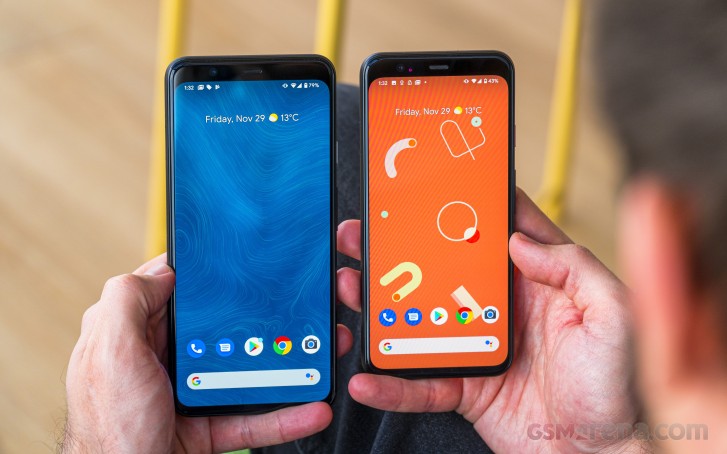
The Pixel 4 is essentially the same phone as the 4 XL, only scaled down in a couple of ways – display and battery. Where the XL packs a 6.3-inch QHD+ panel, the small phone stays at 5.7 inches (FullHD+ resolution, but that’s fine at this size). Both are OLEDs too. Then there’s battery – if the XL’s 3,700mAh capacity sounded on the meh side of okay, the 2,800mAh figure in the Pixel 4 specsheet is downright worrisome.
The rest is all the same. The soon-to-be-replaced springtime Qualcomm top-dog of a chipset, the lowest amount of RAM of any current flagship, with low base storage and low maximum storage – it sure sounds exactly like Google’s way of doing phones. That also means Android 10 in a flavor no one else has and if you’re looking at a Pixel, you clearly enjoy that.
This generation of Pixels come with radar-based Motion Sense for gestures and a front ToF camera for 3D depth mapping, but is missing a fingerprint reader of any sort. It’s got no ultra wide-angle camera either, but conversely, the small Pixel is one of the more affordable ways to get a telephoto from one of the big names – neither the iPhone 11 nor the Galaxy S10e has one.
Google Pixel 4 specs
Body: Texture-coated aluminum frame; Gorilla Glass 5 back (soft texture on the Clearly White and Oh So Orange color schemes, glossy on the Just Black); 147.1×68.8×8.2mm, 162g.
Misc: Face unlock; radar-based Motion Sense; stereo loudspeakers.
The Pixel 4 that arrived at headquarters has a more conventional package with the phone printed on it as opposed to the colorful ‘P 4’ markings on our US-bound XL unit. The contents are all the same, however.
You’re getting an 18W USB Power Delivery adaptor, essentially the same one that shipped with the original Pixel (1), and a USB-C-to-C cable to go with it. There’s also a USB-C-to-A adapter for plugging in thumb drives. There is no USB-C-to-3.5mm dongle, so if you want to hook up conventional wired headphones, you’d need to provide your own. And, speaking of headphones, there aren’t any in the box.
Pixels have never exactly been good-looking phones. Perhaps the lowest point was last year, when the 3 XL had the mother of all notches, though the small Pixel 3 remained a non-hideous alternative. With the fourth generation, the notch on the big one is gone and the two sizes look very similar.
One of the Pixel 4‘s defining design traits is the forehead. Housing a whole bunch of stuff other than a mere selfie cam, the Pixel 4‘s has a distinctly top-heavy look – you’ve sort of been conditioned to seeing phones with chins more than foreheads.
Left to right, the cutouts are home to a 3D ToF camera, the regular selfie camera, the ambient light and proximity sensors, the earpiece/second speaker and, lastly, the radar tech for the Motion Sense gestures.
Now, if we have to scrutinize the Pixel 4‘s bezels, well, it’s not a flagship look. It’s not bad, strictly speaking, it’s just that we’ve been spoiled by more recent Galaxies, for example, and the Pixel’s meatier display outlines are a bit unimpressive. Having said that, an iPhone 11 is hardly superior in terms of bezels (plus, that notch), and a Galaxy S10e has an unsightly cutout in its top right-hand corner, so it’s not like the Pixel 4 is necessarily uglier than its immediate competition.
The Pixel 4 does have some nice design quirks that make it stand out. Key among those is the accented power button – Oh so orange Pixels 4s like our review unit have a pinkish power buttons, the Clearly white back goes with an orange-red accent, and the Just black color scheme has it in a contrasting white.
Mind you, the black version comes with a glossy back, while the other two have a frosted matte finish. The black version is where fingerprints go to stay, while the matte options are not at all prone to smudge retention, though they are remarkably slippery. Neither is ideal, but while we’re debating which is better (matte is), we can’t help but wonder why they couldn’t all have the same finish.
Matte or gloss, the glass panel on the Pixel 4‘s back is Gorilla Glass 5, as is the sheet on top of the OLED display up front. All glued up nice and tight, the phone is IP68 rated for dust and water protection.
Another of the signature design choices is the square block of a camera assembly on the back. We’re not saying it’s pretty, it’s just recognizable. The two camera modules are placed side by side, a dual LED flash under them and a spectral/flicker sensor above. An extra mic is also around these quarters.
All three color options (that are the same across both sizes) do come with the same matte black aluminum frame. All hail the return of the panda – the Clearly White color scheme with the white back and the black frame is a throwback to the Pixel 2 XL’s two tone paintjob, now available on the size S model as well.
As has been the case with all previous Pixels, the fourth generation has a button layout that’s somewhat different than most other phones – both the power button and the volume rocker are on the right side, with the power button above the volume rocker. If you’re coming from an older Pixel, you’ll be instantly familiar, otherwise it might require a brief adjustment period.
With the reassessment of the bezel situation from 3 to 4, the new Pixel has its bottom speaker relocated – it’s no longer facing forward, but is ported on the bottom instead. There is a slit on each side of the USB-C port, but only the right one has a speaker behind it, the left one is for the primary mic and is only as big as the other one for symmetry.
The SIM card slot is high on the left side of the phone, a small tray only accepting a single nano SIM. Technically, you can have a dual SIM Pixel 4, but your carrier needs to support eSIM – the phone only accepts one physical card. There’s no microSD slot either, nor has there ever been on a Pixel.
Up top, a pinhole for the secondary mic is the one thing breaking the frame’s continuity.
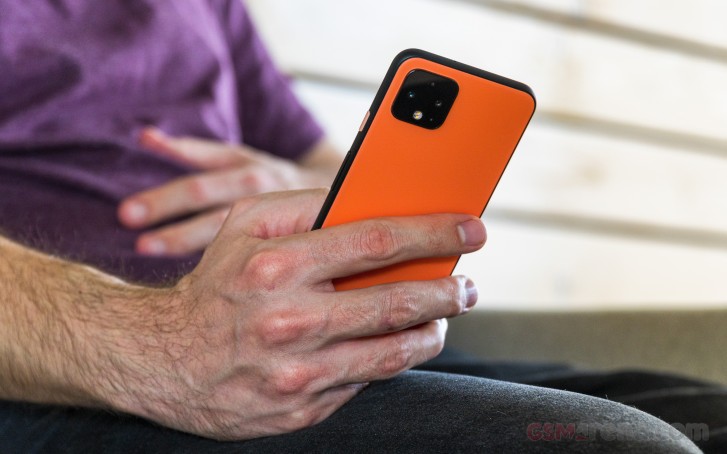
The Pixel 4 measures 147.1×68.8×8.2mm making it one of the more compact high-end phones you can buy. If we count the Galaxy S10e as a main competitor, the two feel very similar in the hand, but the iPhone 11 is massive in comparison, both in footprint and weight. Meanwhile, an Xperia 5 is about the same width and thickness as the Pixel 4, but is a full centimeter taller.
The Google Pixel 4 is equipped with a 5.7-inch display that has a 1080x2280px resolution in a 19:9 aspect ratio. Pixel density then works out to 444ppi – more than enough, but not quite the 4 XL’s 537ppi of its QHD+ 6.3-inch panel.
Both Pixel 4 phones use P-OLED panels, the ‘P’ standing for plastic. That is, the substrate below the display is plastic as opposed to glass. In that sense, a P-OLED is no different from a Samsung AMOLED which also has a plastic underlying layer (both are also active-matrix, the ‘AM’ in AMOLED).
That minor detour dealt with, we measured a maximum brightness of 423nits on the Pixel 4, a dozen nits lower than the XL and marginally lower than the Pixel 3 as well. As with other Pixels, the 4 lacks an auto (‘Adaptive’) brightness boost that you’d find on most other brands of phones, whether they use OLED panels or not. As a result, the Pixel 4can’t get as bright as a Galaxy S10, LG G8X, Xperia 5, or a OnePlus 7T. That last one can be 100nits brighter than the Pixel even when adjusting the slider by hand, while the iPhone 11 Pro reaches as high as 800nits in manual mode. Even so, the Pixel 4‘s screen poses no usability issues when viewing outdoors, though it’s not as good under direct sunlight as a Galaxy S10, for example.
Display test
100% brightness
Black, cd/m2
White, cd/m2
Contrast ratio
Google Pixel 4 XL
0
436
∞
Google Pixel 4
0
423
∞
Google Pixel 3
0
426
∞
Google Pixel 3a XL
0
451
∞
Samsung Galaxy S10
0
396
∞
Samsung Galaxy S10 (Max Auto)
0
820
∞
Samsung Galaxy S10e
0
389
∞
Samsung Galaxy S10e (Max Auto)
0
803
∞
Apple iPhone 11 Pro
0
805
∞
Apple iPhone 11
0.428
644
1505
Xiaomi Mi 9
0
428
∞
Xiaomi Mi 9 (Max Auto)
0
620
∞
LG G8X ThinQ
0
330
∞
LG G8X ThinQ (Max Auto)
0
603
∞
OnePlus 7T
0
525
∞
OnePlus 7T (Max Auto)
0
743
∞
Sony Xperia 5
0
353
∞
Sony Xperia 5 (Max Auto)
0
574
∞
The Pixel 4 has a two-way approach to handling color reproduction. The baseline is set by the display mode, where you can select between Natural, Boosted, and Adaptive modes, the default being Adaptive. Then there’s the Ambient EQ, which adapts the colors to the ambient light – think Apple’s True Tone.
With Ambient EQ disabled, we explored the different color modes, comparing the output against the usual target color spaces. Expectedly, ‘Natural’ mode got us very close to the true reproduction of sRGB content – we measured an average DeltaE of 2.3 and a maximum of 3.9 – a pretty good showing, marred slightly by the fact that the 3.9 is for point white. The Boosted mode is there for your DCI-P3 content, and it’s accurate to within an average DeltaE of 2.4 (4.5 maximum goes to Cyan), while in Adaptive we measured a 2.6 average for DCI-P3.
The Pixel 4‘s display is HDR capable, and YouTube and Netflix happily stream HDR content.
Google Pixel 4 battery life
One of our main concerns about the Pixel 4‘s overall performance as a smartphone stemmed from its battery capacity – the 2,800mAh number is tiiiny, while similarly sized Galaxy S10e and Xperia 5 have cells in the 3,100mAh ballpark.
Our testing proved that our concerns were well-founded. The Pixel 4 couldn’t make it to the 10-hour mark in web browsing and lasted us a little over 11 hours of looping videos. The S10e can do an hour and a half longer on the web and 4 hours more, while the Xperia adds even more minutes on top. The iPhone 11, on the other hand, clocked a whopping 15:29 of running our web script and 18:43h of video playback. In all fairness, we did run the Pixel 4 in its 90Hz mode, though it does have its own concepts of when to kick in and when not to.
Anyway, the Pixel 4 was also good for almost 21 hours of 3G voice calls – as much as the s10e, 3 hours more than the iPhone, and about 8 hours short of the Xperia’s time. Adding the standby draw into the mix, we calculated an overall Endurance rating of 62 hours for the Google Pixel 4 – far from impressive.
Topping up the Pixel 4‘s battery with the included 18W USB Power Delivery adapter took us 1:27h with 49% showing in the battery indicator at the half-hour mark. It’s not the best of results, particularly when accounting for the small capacity and the comparatively low endurance that you’d get out of the 49% that a half-hour charging session will get you.
Loudspeaker
The Google Pixel 4 has a stereo speaker configuration, in which there is a main loudspeaker on the bottom and the earpiece doubles as the second channel. As far as such setups go, the Pixel 4‘s is among the least disbalanced when it comes to the two speakers tonal range and loudness – while the earpiece isn’t quite as loud as the speaker on the bottom, it does punch harder than competitors’ earpieces.
In our testing, the 4 couldn’t quite match the 4XL’s numbers for loudness, but was more than loud enough, easily placing in the Excellent bowl after our three sample tracks. It beat the iPhone 11 and 11 Pro and S10e (but not the S10), though it couldn’t threaten the OnePlus 7T for loudness. The 7T does also sound a bit better, but the Pixel 4 still does output full and balanced tunes.
Speakerphone test
Voice, dB
Pink noise/ Music, dB
Ringing phone, dB
Overall score
Apple iPhone 11
70.8
72.3
76.0
Very Good
Sony Xperia 5
68.1
73.8
79.5
Very Good
Apple iPhone 11 Pro
71.2
73.8
80.7
Very Good
Xiaomi Mi 9
70.1
74.2
81.6
Very Good
LG G8X ThinQ
69.8
73.2
83.7
Very Good
Samsung Galaxy S10e
71.2
76.8
80.6
Excellent
Google Pixel 3
77.5
71.7
81.1
Excellent
Google Pixel 4
79.1
71.8
83.9
Excellent
Samsung Galaxy S10
82.2
74.9
85.5
Excellent
Google Pixel 4 XL
80.1
78.1
88.1
Excellent
Google Pixel 3a XL
79.3
77.1
91.1
Excellent
OnePlus 7T
79.8
77.4
91.6
Excellent
Audio quality
We now move on to testing the Google Pixel 4 audio performance via its audio jack. With it lacking a dedicated 3.5mm jack, we had to resort to a USB-C-to-3.5mm adapter for the test. Since Google doesn’t even supply one in the retail package, we used the official adapter than the company is selling. So fair warning – your mileage might vary if you use a different adapter.
When hooked to an active external amplifier the Pixel 4 came somewhat short of our expectations for a 2019 smartphone, let alone a flagship. Its signal-to-noise ratio was disappointing, and so were its stereo separation and general volume level.
Headphones caused a small spike in intermodulation distortion and a further increase in stereo crosstalk – no big deal on its own, but when you are starting as low as the Pixel 4, this means a mediocre overall score. Oh, and loudness dropped further, so don’t even think of hooking your high impedance headphones to this one.
Test
Frequency response
Noise level
Dynamic range
THD
IMD + Noise
Stereo crosstalk
Google Pixel 4
+0.02, -0.12
-71.5
83.0
0.0024
0.029
-69.8
Google Pixel 4 (headphones)
+0.06, -0.24
-69.2
80.8
0.0058
0.163
-52.2
Google Pixel 4 XL
+0.02, -0.19
-93.9
93.9
0.0018
0.0084
-94.1
Google Pixel 4 XL (headphones)
+0.17, -0.12
-94.0
94.0
0.0042
0.104
-53.1
Google Pixel 3
+0.02, -0.12
-71.7
83.2
0.0031
0.032
-70.1
Google Pixel 3 (headphones)
+0.15, -0.15
-68.4
80.2
0.0066
0.193
-61.1
Sony Xperia 5
+0.02, -0.02
-93.0
92.8
0.0012
0.007
-89.4
Sony Xperia 5 (headphones)
+0.25, -0.30
-91.8
91.7
0.0045
0.312
-57.3
Samsung Galaxy S10e
+0.03, -0.04
-92.9
92.7
0.0015
0.0074
-89.4
Samsung Galaxy S10e (headphones)
+0.05, -0.05
-92.7
92.5
0.0017
0.037
-73.0
Google’s own Android 10
While we’ve seen several phones with Android 10 out of the box, it’s the Pixels that showcase Google’s vision of what the OS should look like and how it should behave. We did experience that already on the XL, and the small Pixel 4 is barely any different.
Major changes to the interface in this version include a new Face unlock system, overhauled gesture navigation, and a new appearance for Google Assistant. At the event, Google also demonstrated that it could process vocal queries much quicker as it can store voice-to-speech transcription locally on the device in a much smaller database.
When first starting it up, you are prompted to register your face for security. At this point, you might realize there is no longer a fingerprint scanner, and this is because Google replaced Pixel Imprint in favor of the more generically named “Face unlock.”
This was a significant change back when Apple dumped Touch ID for Face ID, and it’s a significant change for Google now. Both use IR dot projectors and an IR camera to create and detect a depth map of the user’s face.
In practice, Face unlocking works accurately and quickly. With the Motion Sense feature, it wakes the phone and triggers face detection while you’re reaching for your phone so you can get in quickly. Just like any other phone with face unlock, it’s more difficult to unlock while it’s laying on a table. On the upside, Face unlock works from any angle, even upside down.
As Google has noted in the Face unlock intro screen, the phone will authenticate and unlock even with our eyes closed. Google has since confirmed it will update the feature to not be such a liability, but that update is still not here on our units.
Another hurdle with Face unlock is support from banking institutions. It took years before fingerprint authentication could be used with banking and payment apps, among others. Currently, Google Pay works with Face authentication, but banking apps that once supported fingerprint to log in need to be updated to support Face unlock. Right now, only a handful of apps support Face unlock, but they are mostly password management apps.
After setting up Face unlock, the setup will quickly teach you how to use Android 10’s new gesture controls. Google’s 2-button nav gestures are gone (and we’re glad), and the nav bar has been replaced with a slimmer home bar, much like a new iPhone. You can summon Google Assistant by giving the Pixel a squeeze.
Swiping up will go Home, swiping in from the edge will go Back, and swiping up from either corner will open Google Assistant. Multitasking is done by swiping up and holding, but you can easily switch between apps by swiping horizontally on the home bar.
Since there’s no longer a fingerprint scanner to pull down the notification shade, you can now swipe down from any part of any home screen will pull the notification shade down, so there’s no longer a need to reach up to the top edge. Not that having a fingerprint reader in itself meant the swipe on homescreen action couldn’t be implemented, but never mind.
The homescreens are what we’ve come to expect from a Pixel. Swiping up gets you to the app drawer with the top-most row dedicated to the five frequently used apps.
Apart from wallpapers, the Pixel launcher now allows for more customization in the settings. The Style tab in the wallpapers menu lets you change the shape and color scheme of both app and quick setting icons. You can also set a system-wide accent color and font.
There is a new category of live wallpapers labeled “Come Alive,” and they all subtly respond to hand gestures over the Motion Sense detector. There’s even a Pokemon wallpaper designed to promote Nintendo’s Pokemon Sword and Shield game titles.
When Project Soli was first announced back in 2015, it was presented as a breakthrough in motion-sensing technology with the ability to detect and interpret precise hand motions like sliding a finger and thumb to scroll through settings and then tapping the fingers together to select.
Motion Sense is Google’s first implementation of Project Soli in a major consumer product and the result feels both half-baked and gimmicky.
There are only a handful of useful things you can do with Motion Sense. Several music apps are supported to skip back and forward between tracks, even when music is playing in the background or if the display is turned off. You can also snooze alarms or silence timers and incoming calls by waving over the screen. That’s about it for useful features and nothing like the initial promo video for Project Soli.
Motion sense can detect when you’re reaching for the phone and fire up the Face unlock hardware to swiftly detect the user’s face and unlock the phone. We noticed it often triggers when its placed on a computer desk, in proximity to someone actively working with a mouse and keyboard. If you decide to turn this feature off (you might save some battery by doing so), you can still double-tap the display to quickly glance at the time and notifications, and you can still ‘lift to wake’ it.
By default, you’ll skip seeing the lockscreen entirely if you enable Face unlock, but there is an option to disable that so you can glance at your notifications and manually swipe in.
The Always On Display feature is enabled by default. This screen will display icons for missed notifications, a small weather widget, the time, battery percentage left, and a couple of lines are dedicated to contextual information such as anticipated traffic or upcoming calendar events.
With Android 10, both permissions and notifications offer finer and more transparent control. Starting with Notifications, the pull-down shade’s order is priority-based. For example, if you receive notifications from a messaging app, they are a high priority, and a little bell icon appears. Otherwise, when you get notifications from less important apps like games or persistent app notifications, they’ll show up as “Silent notifications” and take up less space.
Android 10 now shows you an average of the daily and weekly number of times an app triggers notifications in a dedicated Notifications menu. This gives users the information needed to decide which apps are inundating them with useless pings and prioritize more important notifications.
Android 10 brings the much-hyped “Dark theme,” and it can be accessed from the Display settings. It darkens all menus, pop-up windows, Google Assistant, and even the Google Search Bar. Some apps will also automatically switch to their respective dark scheme, as long as the app supports following the system-wide setting.
Two new applications are debuting on Pixel 4. The first one is the Safety app that organizes the emergency features of the new Pixels. The app lets you organize and fill out your medical information and assign emergency contacts in an emergency.
Finally, thanks to Google’s new transcription app, it enabled a new voice recorder app from Google that can transcribe voice notes in real-time, and it doesn’t require an internet connection. This app debuts on the Pixel 4 and 4 XL, and it enables a new way to keep track of voice recordings.
Synthetic benchmarks
The Pixel 4 is powered by the Qualcomm Snapdragon 855, a chip that was hot when it launched but that was in early Spring. Most of the Fall releases have at least opted for the slightly higher-clocked 855+, but not the Pixels. There’s the added concern that a new chipset is coming in a few months, but after all, with Google and Qualcomm’s release schedules arranged like that, the Pixels are always going to be in a less than ideal position in terms of silicon. That’s not to say the Snapdragon 855 isn’t powerful enough; it’s more of a sour feeling that you’re paying top-dollar and superior hardware is around the corner.
The Pixel 4 comes with just 6GB of RAM, and there are no other options when it comes to that. Android flagships typically have at least 8GB these days, though the Galaxy S10e does come with 6 gigs in its base trim (8GB version is still available, though). The Pixel’s 64GB base storage is too little in our option and so is the 128GB maximum if you decide you do want to spend extra to have more.
There’s another peculiarity when it comes to Pixels, and it’s that they tend to perform a notch below competitors for the given hardware. That’s mostly the case with the Pixel 4 as well. It’s towards the bottom of the pack under both single-core and multi-core loads in GeekBench 5, with a Note being the only phone on this shortlist to fall behind the Pixel in multi-core, and the Realme X2 Pro oddly dropping the ball in single-core applications despite having the superior S855+ inside.
Wide and tele, ultra wide missing
Google has been stubbornly fitting a single cam on the back of its Pixel amidts the recent multi-cam craze that the past couple of years have been but has finally given in and equipped the Pixel 4 with a telephoto next to the regular cam. What is still missing is the ultra wide-angle module.
The setup of the Pixel 4 is identical to that of the 4 XL – alongside an optically stabilized 12.2MP main camera with large 1.4-micron pixels, and f/1.7 aperture is a 16MP telephoto camera (also stabilized) with 1.0-micron pixels and an f/2.4 aperture lens. Technically, the two lenses don’t have a 2x ratio in their focal lengths (28mm and 45mm equivalents, if you go by the FoV angles Google specifies vs. 27mm and 43mm if you trust the EXIF data) but since the tele starts off with 16MP and produces 12MP images, they just about pull off the 2x zoom.
There is, of course, Google’s Super Res Zoom, which the company claimed was good enough on its own on the Pixel 3, negating the need for a telephoto back then. Also, both cameras benefit from Google’s HDR+ algorithms for improving image quality.
The industry has already moved past dual cameras and are already established with triple cameras, including the latest iPhone 11 Pro. So Google’s decision to go with a telephoto camera instead of an ultra-wide – which many makers have been adding to the mix – raised many eyebrows. This depends on personal preference, and the kinds of environments people tend to shoot, but Google believes that the average consumer is more likely to take zoomed photos over ultra-widened snapshots. We are not going to take a side here in favor of one type of camera or the other, but we’d just say that many manufacturers are happy to provide all three without the need for compromise.
Having said all that, while the Pixel 4 XL is indeed underequipped compared to its all-out flagship competitors, the small Pixel 4 is in a bit of a different position. Going by the assumption that it competes against the iPhone 11 and the Galaxy S10e, the most affordable high-end offers from the two main rivals, the Pixel 4 offers a different setup, not an inferior one. End of philosophical musings.
Google has introduced a few new features on the Pixel’s camera this generation. The first is Live HDR+, which aims to show you what your final image is going to look like in the viewfinder before you’ve taken the shot and the phone has finished processing it.
Before that, especially in more demanding situations, the live viewfinder was only really used to compose your shots, then you’d only see the resulting HDR+ photo in the camera roll. We’re glad to see this change implemented as it makes a huge difference in the picture-taking process.
Another new feature is dual exposure controls – baked right into the camera UI. Now you can manually adjust the shadows and highlights as you are composing a shot, useful if you want to get a more artistic photo like the silhouette of a person against a bright background. Or you know, if you want to alleviate to some extent the Pixel’s slight tendency towards dark shadows and brighten them up a bit.
Since Google doesn’t offer full manual controls on the Pixel, this is a welcome feature. It combines well with Live HDR+, so you see the photo’s exposure before you hit capture.
Apart from improvements in Night Sight and portrait mode – thanks to the second camera, “learning-based automatic white balance” is available in all shooting modes where it was previously only used in Night Sight.
The camera interface is mostly unchanged from the Pixel 3. You can swipe between shooting modes, and the most important ones are easily accessible: Night Sight, Portrait, Camera, Video, and a More tab containing Panorama, Photo Sphere, Slow Motion, Time Lapse, Playground, and Lens.
To make the viewfinder less cluttered, Google put the flash, timer, and Motion settings in a drawer, opposite the shutter button. It’s an extra step to reach the Flash settings, but Google did mention at its presentation that it hopes you never need to use the Flash. Still, the drawer makes it easier to focus on the viewfinder.
Even with the drawer open, you can still hit the shutter key, so you don’t miss the shot. Hitting the shutter does hide the drawer so you can keep snapping away.
Daylight image quality
We found daylight image quality out of the main camera of the Pixel 4 to be a slight improvement over the previous generation mostly due to marginally better noise handling. The Pixel 4 still takes recognizably ‘Pixel’ photos with wide dynamic range, particularly in the highlights – that’s where HDR+ prioritizes its efforts. If you want to liven up the dark-ish shadows, the sliders we mentioned in the software section are the way to go.
Color rendition is generally spot-on, which means the Pixel takes slightly cooler and not quite as saturated photos as, say, a Galaxy. Again, that’s the Pixel ‘look.’
The telephoto camera does take ‘2x’ shots even though its lens’ focal length isn’t strictly ‘2x’ – the coverage matches the 50-ish millimeter equivalent of the iPhone and Galaxy’s 2x teles. Telephoto shots come out with slightly warmer color reproduction and are missing some of that finest micro contrast when you zoom in up close. That’s mostly nitpicking, however, and we really like the Pixel 4‘s 2x shots – dynamic range is nice and wide, and the detail is there too.
Low-light
Low light photos out of the Pixel 4 are already great without going into Night Sight, unless it’s too dark when it doesn’t expose brightly enough. They do end up a little noisy, more so than what you’d get out of a Samsung phone. Additionally, on occasion, you may get blurry shots if it’s too dark and the phone isn’t comfortable with the ISO needed to get a fast enough shutter speed.
Night Sight does make a considerable difference in a lot of ways. It recovers highlights somewhat, but more importantly, lifts the shadows in a more dramatic way, particularly in dark settings. Indoor shots with a lot of colorful lights specifically benefit immensely from Night Sight.
Another characteristic Night Sight trait that Google’s kept is the overall bleaching of photos with certain warm light sources
Unlike competitors, if the Pixel 4 is set at ‘2x’, it’s using the actual tele camera, and that’s that – there’s no light threshold below which it’ll switch to a zoomed-in view from the main one. Zoom shots in low light are okay – not spectacular, but not bad either. They are noisy, but no more than ordinary, and they’re reasonably well detailed, plus colors are preserved nicely. Night Sight takes away some of the saturation of warmly-lit scenes but does make for overall superior images.
Portraits
Portraits are nothing short of amazing coming out of the Pixel 4. Subject isolation is very proficient, and the algorithms do an excellent job of blurring areas both behind and in front of the subject, just as a real camera would.
The processing works just as well on non-human subjects letting you isolate and bring the viewer’s attention to just the thing you want in the frame.
Mind you, the Pixel 4 has two main zoom levels it can take portraits in. The 1x gives you a moderately zoomed-in the image compared to the main cam’s usual perspective, same as the Pixel 3 did, while the 1.3x matches the FoV of the telephoto cam but still uses the main module. Either mode outputs 12MP shots as if there’s no trickery going on. The 1.3x magnification mode has a particularly upscaled look to it, though still reasonably detailed. The 1x shots are better in per-pixel detail. Aside from keeping a comfortable distance away from your subject, we’re not seeing the point behind this 1.3x mode.
8MP Selfie camera
Google’s been doing a weird back and forth with its selfie cams and after fitting a couple on last year’s Pixels, it’s back down to one on the Pixel 4. Only now, there’s a ToF module too to help with depth mapping. The actual camera is an 8MP unit with an f/2.0 aperture lens that sadly doesn’t have autofocus – another step back from the AF-ing primary selfie cam of yesteryear.
The Pixel 4 may only have a single cam on the front, but it offers a wider than most field of view – the 90 degrees correspond to about a 22mm equivalent, placing it in between last year’s 28mm and 19mm snappers. It’s marginally wider than the iPhone 11’s 23mm unit and more noticeably so than the 26mm module of the current Galaxies.
Selfies have nice colors and wide dynamic range. Detail is good too, but it’s just that we’ve been spoiled by higher pixel-count selfies and these are merely okay.
That’s about what we can say of the Pixel 4‘s selfie portraits. They do come in with a slight crop, like the ones from the main cam, but google has somehow managed to mess up the processing/depth mapping and we often got imperfections along the border between subject and background.
Video
Admittedly, not many of us around here record video at 4K in 60fps, so the fact that the Pixel 4 is missing that mode isn’t hurting us, personally. That said, if every other high-end phone can do 4K60, the Pixel 4 should as well. The phone does have the rest of the important modes covered – 4K at 30fps and 1080p at both 30 and 60fps, and it does so with both cameras. Electronic video stabilization is available across the board too.
Video quality out of the main cam in 4K is quite good. The Pixel 4 captures a lot of detail, though there’s also a fair bit of noise in the footage. We are noticing some excessive sharpening halos around high-contrast details – it’s not a very natural look. Colors are on point, however. 1080p footage has essentially the same properties, be it in 30fps or 60fps, with perhaps a touch less noise in 30fps.
The telephoto camera’s 4K footage is slightly softer, like its photos, and is also a little warmer and more saturated than what you’d get out of the main module. The processing is quite different too, and… we’re inclined to like the telephoto’s laid back approach to sharpening better. 1080p is okay too, the 60fps mode noticeably softer and less detailed than 30fps.
What the Pixel 4 excels at is stabilization. There’s no discernible difference in its greatness regardless of mode when you’re shooting with the main cam – it’ll iron out walking induced shake, and it starts and stops just right when you’re panning. Meanwhile, the telephoto will stay planted in the direction you’re pointing it at, though it does have slightly weird behavior at the beginning and end of a pan.
Competition
We’ve been less than excited about the Pixel 4 duo since day one (or day minus 120, if you count the early leaks), but after spending a few days with the small version and devoting a bit of time to deliberation, a case could be made for its existence. Okay, maybe not strictly at its launch price of $800/€750/£670, but Pixel discounts do pop up often, and they’re often better than most other discounts.
Apple, on the other hand, doesn’t do discounts and whether it’s launch day, Black Friday, or Christmas, the iPhone 11 runs for $700/€800/£730 – so the ‘budget’ Pixel is cheaper than the ‘budget’ iPhone even at list price unless you’re in the US. The Google phone scores some points for its higher-res, higher refresh rate OLED display next to the iPhone’s notched LCD, but the 11 does have the upper hand in battery endurance. And just as the OSes will have buyers divided, so too will the cameras – do you want a tele (Pixel), or do you want an ultra-wide (iPhone)?
It’s the same dilemma if you pit the Pixel 4 against the ‘budget’ Galaxy. Admittedly, the S10e is much more competitively priced, being some 8 months old now, and things aren’t looking good for the Pixel 4 at its MSRP. Aside from the camera conundrum, the Galaxy has battery life going for it, and a display which, while not 90Hz, is generally superior to the Pixel’s. The S10e is also available across the globe, but every Pixel across the globe will get Android 11 and 12 the moment these are out, which isn’t quite guaranteed on the Galaxy.
Mind you, for the Pixel 4‘s list price you could grab a galaxy S10 proper, and then you’ll get all the cameras and a higher-res display.
The OnePlus 7T retails comfortably below Pixel money ($600/€600/£550), yet it offers most of the Google phone’s advantages, and then some. A no-compromise 90Hz display, battery life to spare, superior performance, twice the storage at base price, and best of all – a trio of cameras. It’s missing an official IP rating and, recognizable as OnePlus may have become across the world, the brand is no Apple or Samsung.
Verdict
We know that deep down you feel disappointed by the Pixel 4 – it’s the prevalent sentiment around the office too. There’s little excuse for the poor battery life, the one-camera-short attitude that Google is sticking with, the only-sometimes-90Hz display, things like that. Plus, the Pixel 4 isn’t exactly priced to sell, and much better deals are available, even from the big names.
Having said that, Pixels get discounted, heavily so. At the right price (say $200 below MSRP), Pixel 4 makes a lot of sense – the 90Hz display is great, whether it’s at 90Hz or 60, and no iPhones or Galaxies offer a high refresh rate yet anyway. Their most affordable high-end offers don’t have telephotos either, so that’s another one in favor of the Pixel 4, plus the specific way Google does image processing might be just your thing.
To sum it all up, if you happen to see the Pixel 4‘s price slashed at a time when you’re looking for a phone, by all means, get one. But pursue it at all costs.
Pros
Google’s showcase of how Android should look and feel.
90Hz display among 60Hz competitors.
Telephoto camera while others have ultra wides and no telephoto.
Overall great picture quality, superb portraits, okay selfies.
Spectacular video stabilization.
Cons
No fingerprint, thus biometric authorization not available in some apps, gimmicky radar-based gestures.
Odd limitations in the 90Hz display behaviour.
Battery life is at the bottom of the charts in the class.
Benchmark performance on the low end of the spectrum for the hardware.
Well, no ultra wide angle camera while others have them.
No bundled cable earbuds or an adapter.
Limited market availability (even more so due to the Motion Sense radar).
The iPhone and iPad automatically switch the orientation from Portrait to Landscape upon rotating the device. This could be frustrating at times when you’re not in an upright position, as the screen switches orientation even if the device is just slightly tilted. And since we don’t always use our iPhone and iPad in an upright position, whether we’re laying on our beds while we’re browsing the internet or scrolling through our e-mails, the screen can rotate sometimes when you don’t want it to. This is exactly where the screen orientation lock comes in, as it allows the user to lock the orientation of the device screen to Portrait mode, so they don’t have to worry about holding the iPhone or iPad at a certain angle.
Do you want to stop your iPhone or iPad from switching to landscape mode automatically? Then you’ve come to the right place. In this article, we’ll be discussing how you can lock screen orientation on your iPhone and iPad within a matter of seconds. So, without further ado, let’s take a look at the procedure.
How to Lock Screen Orientation on iPhone & iPad
Screen orientation lock has been available to iOS users as an option within Control Center for years now. However, depending on the device you own, accessing Control Center might slightly vary. Simply follow the steps below according to your specific device to avoid any sort of confusion.
• If you’re using an iPad, or a relatively new iPhone that lacks a home button like the iPhone X or later, you can head over to the Control Center by swiping down from the rop-right edge of the screen.
• If you’re using an iPhone or supported iPod Touch that feature a home button like the iPhone 8 or older, simply swipe up from the bottom of the screen to access the Control Center.
Now simply tap on the “lock” icon located right below the network settings card, as shown in the screenshot below.
Now, you’ll notice the icon / toggle has turned red, ensuring that Portrait Orientation Lock is enabled on your iPhone or iPad.
If you want to turn off the lock at any point, simply tap the Orientation Lock toggle again within Control Center.
That’s all there is to it. From now on, you don’t have to hold your iPhone or iPad straight to stop it from switching orientation on its own.
With Portrait Orientation Lock turned on, you can even lay on your side and browse through Safari or watch YouTube without the device going to landscape mode.
This is not the kind of feature that you’d probably want to permanently turn on, so it makes sense why Apple has added this functionality as a toggle within Control Center instead of burying it deep in settings.
Regardless of what app you’re using, you can quickly enable or disable the orientation lock with just a swipe and a tap. Note there’s no landscape orientation lock for iPhone users who want to use their devices in landscape mode regardless of their posture, as of now, though you can lock an iPad into landscape mode if desired. However, that could change at some point down the line with a software update to iOS and iPadOS, as features often change and evolve over time.
Obviously this applies to the latest iOS and iPadOS releases with iOS 13 and later, but orientation lock is available on prior system software versions as well for iPhone, iPad, and iPod touch. If you’re running an earlier release, you can learn how to use the feature for those versions too. You may even have an older iPad device with a physical button that could work as orientation lock or mute, but that was removed from later iPad hardware.
Rarely, sometimes orientation lock gets stuck and you’ll have to toggle the feature on and off again, quit apps, physically rotate the device, or even reboot to resolve that issue, but that shouldn’t happen too often.
We don’t always listen to music on a single device. Depending on what we’re doing, we often switch between our smartphones, tablets, computers and even smart speakers. This is why popular music streaming services offer apps on a variety of different devices. If you’re an iPhone or iPad user, there’s a pretty good chance you utilize Apple Music to listen to all your favorite songs while you’re on the go.
In addition to streaming music that’s available on the platform, Apple Music unlocks a nifty feature called iCloud Music Library, which as the name suggests, allows you to sync your music across all your supported Apple devices, including iPhone, iPad, iPod touch, Mac, and iTunes on Windows.
Are you an Apple Music subscriber who’s interested in taking advantage of this functionality? Then read on. In this article, we’ll be discussing exactly how you can enable iCloud Music Library on your iPhone or iPad.
How to Enable iCloud Music Library on iPhone & iPad
In order to turn on this feature on your iPhone or iPad, you need to be subscribed to Apple Music as mentioned earlier. Simply follow the steps below in order to sync your Apple Music content to iCloud, for access on other devices like your Mac, PC or even HomePod.
Open “Settings” app from the home screen of your iPhone or iPad.
In the Settings menu, scroll down and tap on “Music” to head over to your Apple Music settings.
Here, you’ll notice an option called “Sync Library” which used to be called “iCloud Music Library” until the recent iOS software update. Simply tap the toggle to turn this feature on, as shown in the screenshot below.
That’s pretty much all you need to do in order to start taking advantage of iCloud Music Library.
Your purchased music and the content you add from Apple Music will automatically be synced across other devices with the help of Apple’s iCloud service.
In addition to this, the songs that you import to iTunes on your PC or Mac will also be available on your iPhone, iPad and other supported devices. This means, you don’t have to manually transfer your local music files to your iPhone or iPad by syncing it with iTunes.
Although you need an Apple Music subscription to take full advantage of iCloud Music Library, you’re not completely out of luck if you haven’t subscribed to the service. If you’re looking to sync music content on your PC or Mac across your iPhone, iPad or HomePod, you could pay a yearly fee to get access to iTunes Match, which lets you store up to 100,000 songs on iCloud. However, it’s worth noting that you won’t be able to stream Apple Music content with iTunes Match.
The ability to store music on the cloud and accessing it from whatever Apple device you own is extremely useful, as it eliminates the need to manually transfer your songs to other devices. It saves plenty of time and brings a lot of convenience to the table. Remember the time when we had to connect our iPhones to computers using a USB cable to sync content with iTunes? Well, that’s no longer necessary with this feature, and for many users they certainly don’t want to go back to doing hardware syncs again.
Did you know AirPods can be used as hearing aids of sorts? Thanks to a handy and little-known accessibility feature called “Live Listen”, you can use AirPods as hearing aids to boost the audio volume of sounds around you.
Apple’s AirPods have become the best selling wireless headphones worldwide in no time, they’re wildly popular and you see them frequently throughout daily life (you can grab a pair yourself on Amazon). You could take a walk down the street and you’d probably spot several people wearing them to listen to music, podcasts, talk on the phone, or interact with Siri. Their convenience and integration in the Apple ecosystem is hard to beat, as the seamless connectivity it brings to the table across Apple devices is what makes these pair of earbuds extra special. However, listening to music and audio is not the only thing AirPods can do, and there are some other really interesting tricks up their sleeve, and the Live Listen feature functioning as hearing aids is just one of them.
If you wanted to try this feature out for yourself with your pair of AirPods or AirPods Pro, you’ve come to the right place. In this article, we’ll be discussing how to use your AirPods as hearing aids using the Live Listen feature that’s built into your Apple device. Without further ado, let’s take a look at the procedure.
How to Use AirPods as Hearing Aids Using Live Listen
The Live Listen feature in iOS is an option that can be turned on and off right from the Control Center. However, this handy option is not immediately available by default, and therefore it needs to be added to the Control Center first. Simply follow the steps below to add this feature to your AirPods synced iPhone or iPad:
Open Settings app, then scroll a little bit down and tap on “Control Center”.
Now, tap on “Customize Controls” to go to the dedicate menu that allows you to add and remove controls.
Scroll down a little and you’ll notice an option called “Hearing” with the icon of an ear. Simply tap on the “+” icon right next to it in order to add Live Listen to the Control Center.
Go to the Control Center by swiping down from the top-right edge of the screen if you’re using an iPhone X or later. If you’re using anything older, just swipe up from the bottom of the screen to access it. Now, you’ll notice the Live Listen icon at the bottom as shown in the screenshot below. Simply tap on the “ear” icon.
Make sure your AirPods are connected to your device and tap on “Live Listen” to turn the functionality on.
Once Live Listen is on, you may feel like the ambient noise is sort of amplified and it might throw you off at first, especially if you’re in a loud environment as it boosts the surrounding volume.
You can turn the Live Listen functionality off at any time by simply tapping on “Live Listen” again through Control Center on the iPhone or iPad.
That’s all there is to it, you can now feel like you have super-hearing capabilities just by wearing AirPods or AirPods Pro.
This is pretty much an accessibility feature that utilizes your devices microphone to listen to the environment and sends the amplified sound to your AirPods. So, if a user has trouble hearing people or certain things, simply place your iPhone next to whatever it is that you may want to hear, in order to listen to the boosted audio via your wireless earbuds from across the room.
With all of this being said, Apple has pointed out that AirPods are in no way trying to replace hearing aids, and they have advised users to consult a doctor if they have a serious difficulty when it comes to hearing. So while this feature may be useful and have many applications, don’t expect it to stand in for dedicated hearing devices.
If you’re using this Live Listen feature on AirPods Pro, you’ll want to be sure you already went through the AirPods Pro fit test to ensure the best physical fit. AirPods Pro have other unique and interesting features that standard AirPods don’t have, including noise cancellation and transparency modes, while most standard AirPods features exist on both the Pro and standard models, like using Siri, adjusting music and audio, or this Live Listen feature.
Technically speaking, this feature has actually been around since 2014, which allowed the iPhone and iPad to act as remote microphones for MFi-compatible hearing aids, but the feature was made available for AirPods much more recently.
Wondering how to force restart a new MacBook Air 2019 or 2018 model? As you may have noticed there is no obvious power button like there used to be on old Macs, so the old approach to force restarting a Mac seems like it doesn’t apply to the newer MacBook Air 2019 and 2018 models.
Not to worry though, if you have a frozen MacBook Air and need to hard restart the machine you will find that force rebooting the new models of MacBook Air is really quite simple.
How to Force Restart MacBook Air (2019, 2018)
Press and hold down the Touch ID button / power button until the MacBook Air screen turns black
Wait a few seconds, then press and hold down the Touch ID / power button on the MacBook Air again until you see the Apple logo on screen
When you see the Apple logo on the screen you can let go of the Power button again, as this indicates the computer is booting up.
That’s all there is to it. Force restarting the new model MacBook Air is really quite simple.
The MacBook Air will boot up as usual.
Forcing a reboot of the Mac is really something you should only do if the MacBook Air is frozen, and not as a regular method of shutting down or restarting a Mac.
A similar approach can be used to force reboot other frozen Macs too, particularly on any machine where the old Control + Command + Power button keyboard shortcut doesn’t initiate a forced reboot.
Sometimes you’ll hear forced rebooting and forced restarting referred to as a “hard reboot” or “hard restart” which are synonymous, and sometimes you’ll erroneously hear it referred to as “hard reset” but it should be clear this is not aiming to reset anything, it just forcibly turns the MacBook Air off and back on again to restart it.
You really shouldn’t need to do this often (if ever at all), only when something is totally frozen and unresponsive on the MacBook Air.
If you’re initiating forced restarts for troubleshooting purposes, you may also want to know how to reset SMC on MacBook Air with Touch ID power buttons which is different from prior models, though resetting PRAM remains the same.
Presumably this will carry forward for as long as the Touch ID button is also the Power button on MacBook Air models, so until that changes it’s reasonable to assume that MacBook Air from 2020 onward will have the same force restarting mechanism.
Have you ever accidentally deleted an email within the stock mail app on your iPhone or iPad? Most of us have been there at some point. There’s even a good chance that if you’re reading this, you’re panicked because you couldn’t immediately figure out how to recover an email you either accidentally deleted, or intentionally deleted but now want back.
Well, don’t worry, because this tutorial will help you with that. As most of you may know already, there are plenty of email service providers to choose from today, like Gmail, Yahoo, iCloud, Outlook and more. The default iOS Mail application that comes preinstalled with your iPhone and iPad allows users to connect just about any email account they have regardless of the service they use. The Mail app is good enough where most iPhone and iPad users don’t even bother installing the other email apps of their respective providers from the App Store, and instead stick to Mail app that’s pre-installed on their device’s home screen.
In this article, we provide you with step-by-step instructions on how to recover the emails that you may have unintentionally deleted on iPhone or iPad, as well as provide you with additional tips and tricks to make sure you could avoid a similar situation in the near future. This might be particularly useful for users who find themselves accidentally deleting emails on the iPhone recently.
The stock Mail app, just like any other mail application lets users delete as well as archive their mails. More importantly, the apps are designed in such a way that it’s usually a lot more easier to archive a mail rather than just straight up deleting it. Therefore, we’ve decided to cover steps on how to recover both deleted and archived emails.
How to Recover Deleted Emails on iPhone & iPad
The steps that we’re gonna discuss here are going to be fairly similar regardless of the email service provider you use within the Mail app. However, depending on the service, the deleted emails may or may not be stored under a different folder name. Here, we’ve opted to use Gmail as it’s the most popular email service today with a user-base of nearly 2 billion.
Open the “Mail” app on your iPhone or iPad home screen and tap on “Mailboxes”.
Now, tap on “Trash” (or “Bin”, depending on your region settings). If you’re using any other email service provider like Hotmail, you might not necessarily find Bin, but rather a different name let’s say Trash or Junk. So, make sure you check those two folders as well.
As you might have guessed, your deleted emails are stored here in the Trash folder. Emphasizing this is deleted emails, because they’re totally different from archived emails and those are stored elsewhere. Once you’re in the Trash / Bin folder, tap on “Edit”.
Here, you’ll be able to select all the emails that you’d want to recover. Once you’ve selected them, tap on “Move”.
In the next menu, you’ll be able to choose where you want to move your recovered emails to. If you accidentally deleted the emails from your inbox, just tap on “Inbox”. If not, choose “Drafts” or “Sent” depending on your preference.
That’s all you need to do to get back and restore your lost or deleted emails. Once recovered, you’ll find them exactly where they once used to be.
Note that if you wait too long to attempt to recover a deleted email, they may be gone for good. This time can vary per email provider, so basically if you know you deleted an email and you want it recovered, you should try to restore it sooner than later.
How to Recover Archived Emails on iPhone & iPad
Archiving emails within the Mail app is a whole lot easier than deleting, so we wouldn’t be surprised if you accidentally archived some of your mails while you were trying to swipe through them. These emails are stored in a completely different location though, so make sure you follow these step-by-step instructions.
As you can see in the screenshot below, all it takes is an accidental swipe to the left and the mail would get archived immediately without requiring any further confirmation. To find them, simply tap on “Mailboxes” at the top-left corner of your screen.
If you’re using Gmail like me, tap on “All Mail” as shown in the screenshot below. However, depending on the email service provider that you’re using, you may have a dedicated “Archived” section. Tap on this section if you can see it.
Here, you’ll find all your archived emails mixed along with your other emails, especially if you’re using Gmail. This can be a little confusing with some email providers, but depending on the different email providers it may give you a dedicated Archived mails section where you’ll be able to easily find them. Once you find one of the archived mail that you want to recover, swipe left on it and tap on “More”. Now tap on “Other Mailbox” as displayed in the screenshot below.
In this menu, you’ll be able to choose where you want to recover the archived email to. Let’s say you want to move it back to the inbox. You simply need to tap on “Inbox” and you’ll find it right where it used to belong.
Those are all the steps you needed to follow to recover and restore your archived emails right where it used to be. However, we’re not done with the article yet, as we want to make sure you don’t end up in a similar situation and go through a hassle again, so next up is a quick trick to undo an accidental move in the Mail app on iPhone and iPad.
Instantly Undo & Recover Deleted Emails
The next time you unintentionally swipe and delete/archive an email, you don’t really have to go through all these steps again. Thanks to this nifty iOS gesture that you may or may not have heard of, you’ll be able to instantly recover a deleted mail within a second or two. When you’ve accidentally deleted or archived any mail, simply shake your iPhone or iPad once for an “Undo Delete” option to pop up on screen. Just tap on “Undo” to confirm and recover the deleted email and you’re good to go.
It’s worth noting that you can only use this gesture to recover a deleted mail as long as you haven’t closed the Mail app. So, make sure you aren’t too late or you’ll have to go through all the previously mentioned steps again, which is a hassle you wouldn’t want to deal with. That being said, we hope this tutorial helped you to recover plenty of emails today.
iCloud can be used on a Windows PC, which is particularly helpful to iPhone and iPad users who have a PC but not a Mac, or Mac users who have installed Windows 10 in Boot Camp, or even to those who have both Mac and Windows computers, and want to be able to access all of their iCloud content through the PC as well as their other Apple devices. This includes the ability to access iCloud Drive, iCloud Photos, iCloud data syncing like contacts, emails, and bookmarks, and more.
This article will walk through you how to download, install, and setup iCloud for Windows.
iCloud requires an Apple ID as the two are associated together, so we’re assuming you already have an Apple ID ready to use and that it matches the same Apple ID and iCloud login in use on the iPhone, iPad, or iPod touch as well. If for some reason you don’t have one yet, you can learn how to create a new Apple ID.
How to Install & Setup iCloud for Windows PC
Using iCloud for Windows is available for Windows 7 and Windows 10 or later, so if the Windows version is much earlier then it likely won’t be compatible with iCloud.
First, download the iCloudSetup.exe for Windows installer. For Windows 10 and later, you can download it directly from Microsoft Store here for free, otherwise you can get it from Apple here
If the iCloudSetup.exe file doesn’t launch automatically to install, locate the iCloudSetup.exe file through Windows File Explorer and launch it directly
Go through the process of installing iCloud for Windows on the PC, then reboot the computer when it is finished
iCloud for Windows should be open automatically upon reboot, if not go to the Start menu then choose Apps / Programs > iCloud
Login with your Apple ID to sign into iCloud on Windows
Select the iCloud features you want to enable (iCloud Drive, iCloud Photos, Mail, Contacts, & Calendar, Bookmarks, Notes, etc), then click Apply
Now you have iCloud setup and installed in Windows, and you’ll be able to access the iCloud features you enabled and plan on using on the Windows PC.
If you’re an iPhone owner with a Windows PC, it’s highly recommended to go through the process of installing iCloud on the PC as you’ll gain access to syncing features like iCloud Drive and iCloud Photos that wouldn’t be available otherwise in Windows (though you can always download photos from iCloud with these instructions on Mac or PC by using the iCloud.com web interface).
Of course if you’re an iPhone or iPad owner with a Windows PC, or running Windows in Boot Camp on a Mac, you’ll also want to make sure the computer has the latest version of iTunes installed on it too, and keep that app up to date so that you can always sync your device with Windows at any time.
While iCloud features are built-in to MacOS, in the Windows world you’ll need to download, install, and setup iCloud for PC separately as shown here. But aside from that initial setup difference, many of the features are available to Windows users as they are to Mac, so don’t ignore a Windows PC as it works just fine with iPhone and iPad. And similarly if you have a Mac with Boot Camp, it can be a nice feature to have iCloud available in the Windows side of things there too.
The Xiaomi Mi 8 Explorer edition clearly and quite justifiably soaked up all the spotlight within Xiaomi‘s latest flagship lineup. However, as the smoke clears, the value Mi 8 SE is the one gathering fan gazes, left and right. Indeed, on paper, it offers quite the package, without breaking the bank. In some ways, it’s almost too good to be true.
Whether you like Xiaomi or not, it’s hard to deny the Chinese OEM’s rise to prominence over its relatively short eight-year lifespan. As far as celebrations go, the number-skipping Mi 8 lineup is pretty impressive, for more than a few reasons.
The top-tier Explorer edition, with its under-display fingerprint reader and advanced laser facial scanning tech, sadly hasn’t made a visit to the office, thus far. Still, we got to review its vanilla Mi 8 sibling, which left a pretty good overall impression.
Enter the Mi 8 SE – the proverbial “Lite” variant in the lineup, with a pretty heavy punch.
Xiaomi Mi 8 SE specs
Body: Metal frame, Corning Gorilla Glass 5 on front and back; 147.3×73.1×7.5mm, 164g.
Display: 5.88″ Super AMOLED, 2,244×1,080px resolution, 18.7:9 aspect ratio, 423ppi; HDR 10 and DCI-P3 compliant.
Memory: 4GB/6GB of RAM; 64GB storage; no microSD slot.
Battery: 3,120mAh Li-Po (sealed); QuickCharge 3.0 fast charging.
Connectivity:Dual-SIM; LTE-A, Cat.15/13 (800Mbps/150Mbps); USB-C; Wi-Fi a/b/g/n/ac; GPS; Bluetooth 5.0, IR blaster
Misc: Rear-mounted fingerprint reader; single down-firing speaker; no 3.5mm jack.
Ticking away, under the hood, is Qualcomm’s new Snapdragon 710 chipset – the first in a new lineup of silicon, positioned right below the flagship 800 series and above the 600 one, while heavily borrowing connectivity and advanced features from the former. This is the first time we are seeing this chip in action and initial performance results already have us pretty hyped for its potential. With little to no obvious hardware omissions, modern features and plenty of performance to go around, for all intents and purposes, the Snapdragon 710 can deliver a flagship-level experience, aimed at the masses.
The same goes for the rest of the Mi 8 SE package. Sure, some cutback have been made, to step down from the regular Mi 8 and the Explorer edition, but what is left can still easily qualify as flagship-grade. The trendy, extra-tall, notched panel is present, even if a bit shrunken down, at 5.88 inches. Never the less, its of the Super AMOLED variety, even complete with HDR10 support.
The primary camera has also seen a bit of a downgrade. You still get a pair of snappers, but the second 5MP one has a purely supplementary role, for depth sensing in portraits. The fancy new dual-band GPS radio is notably absent, as well. To be perfectly frank, however, that’s still a Mi 8 exclusive feature, at this point, s owe can’t really be sore form its absence on the Mi 8 SE.
All things considered, the Mi 8 SE offers an amazing package, complete with Xiaomi‘s exciting new trendy design and an equally exciting fresh chipset setup. All this and more, without breaking the bank, at an MSRP of just around $350.
Obviously, there is a lot of ground to cover with the new Mi 8 SE, so let’s dig right in, starting with the retail box and its contents.
Unboxing
Xiaomi‘s retail box of choice is quite simplistic, in a very Apple-esque way. That is, white all around, with the exception of a sizeable eight figure on the front, in all colors of the rainbow. We can only imagine Xiaomi liked Apple’s approach to bringing some attention to the punchy AMOLED color pallet of its device.
Anyway, the box is a standard two-piece affair. Nicely thick and really durable, which is all we really look in a container. Inside – a proper plastic cradle, to keep the MI 8 SE that little bit more secure. Also, a fairly rich accessory package, including a very compact 18W wall charger, certified for Quick Charge 3, just like the phone itself. Also, a Type-A to Type-C USB cable and a type-C to 3.5mm audio dongle.
Yes, not even the Mi 8 SE was spared the “courageous” treatment. Not really a surprise, though, looking back at the Mi 6. At lest, unlike its siblings, the MI 8 SE did have enough room left to fit in an IR blaster.
Also inside the box, a pretty nifty soft silicon case, so you can start using the Mi 8 SE right away, with some extra piece of mind.
Design and 360-degree spin
As you can probably imagine, the Mi 8 SE borrows a lot of its design from the vanilla Mi 8 and the Explorer edition. However, it’s more than a simple scaled-down version. The overall build follows the conventions of the day – a metal frame, inside a glass sandwich.
The most notable difference in the profile of the Mi 8 SE seems to be the chamfered edges along the metal frame. Those definitely add a little bit of flair to the design, somewhat setting the 8 SE apart from its siblings.
That very same chamfer comes with another, somewhat adverse, visual effect. Even though the bezels around the display are comparable in scale to the ones on the vanilla Mi 8, they somehow appear bigger. Since we tend to associate notched panels with the latest wave of bezel-free devices, the extra perceived thickness from the chamfers looks like we have a permanent case on the phone with its added visual bulk. Of course, bulky this phone definitely isn’t.
The design of the Mi 8 SE definitely strikes us as modern. The choice of materials also doesn’t seem to disappoint. Xiaomi has used Gorilla Glass 5 on both the front and the back of the device. It should be durable enough for everyday use even without a case.
While on the topic, we have to mention the back feels incredibly slippery and it’s a fingerprint magnet. Still, that’s hardly news about any glass surface. Xiaomi‘s choice of color deserves a mention. Our review unit is technically marketed as Gold, but the best way to describe the particular shade of the back panel is “creamy pink”. It’s a pretty interesting look.
The rounded fingerprint reader blends in nicely with its surrounding. Keeping up with its solid track record, Xiaomi made sure the biometric sensor is snappy and reliable. Good news, given the lack of an advanced laser face scanner, to play around with instead. At least, Xiaomi fitted a notification LED inside the notch.
The metal frame is matte and really clean on all sides. Unless you dent it, that is. Unlike the regular Mi 8, there’s no 7000 series aluminum here, so a little bit more care and attention are required.
On the right side you will find a textured power button and a volume rocker, both metal.
On the right – a dual nano-SIM card slot. Sadly, no micro SD cradle in sight. You are stuck with the on-board memory. For now, Xiaomi only offers a 64GB version, so keep that in mind, if you like to carry around a lot of multimedia.
The top and bottom sides both have a pair of small antenna inlays. These share the color of the back of the device and don’t really blend in much. Perhaps, hiding them would have been a better design route to explore.
Anyway – the two grills on the bottom hold the main microphone and the speaker.
On the opposite end – the secondary mic and an IR blaster. The latter is becoming harder and harder to find on a modern device, so we appreciate the extra convenience it offers.
Extra-tall, notched OLED panel
Chopping a flagship phone down to a more modest price bracket in a “Lite” version is no easy task. The display is usually, pretty high up on manufacturer lists, as one of the first and easiest things to get a downgrade treatment and cut back on costs. The Mi 8 SE proves it can, in fact, be done quite sensibly.
We appreciate that Xiaomi turned to Samsung again to source the 5.88-inch screen. This must have brought the costs up, but the OLED panel benefits are numerous and Samsung’s models are typically the best around. The one in the Mi 8 SE makes no exception.
Display test
100% brightness
Black, cd/m2
White, cd/m2
Contrast ratio
Motorola Moto G6 Plus (Max Auto)
0.564
776
1376
Nokia 8
0.382
703
1840
Motorola Moto G6 Plus
0.418
610
1459
LG G6 max auto
0.277
564
2036
Samsung Galaxy A5 (2017) max auto
0
559
∞
Huawei P Smart
0.356
531
1492
Xiaomi Redmi Note 5 AI Dual Camera
0.28
530
1893
HTC U Ultra (max auto)
0.564
507
899
Huawei P20 Lite
0.27
482
1785
Samsung Galaxy J7 (2017) Max Auto
0
482
∞
Samsung Galaxy A6 (2018) (Max Auto)
0
482
∞
Huawei Mate 10 Lite
0.257
476
1852
LG G6
0.228
468
2053
Huawei Honor 7X
0.236
458
1941
Xiaomi Mi 8 SE
0
455
∞
HTC U Ultra
0.539
428
794
Samsung Galaxy A5 (2017)
0
413
∞
Motorola Moto Z2 Force
0
376
∞
Samsung Galaxy J7 (2017)
0
348
∞
Samsung Galaxy A6 (2018)
0
336
∞
As far as brightness goes, we have little to complain. The panel in the Mi 8 SE performs about as expected from a Samsung OLED. Xiaomi did, however, skipped on brightness overdrive mode in Auto. Instead, it apparently elected to push the regular brightness ceiling further and set 100% on the slider a bit higher than most competing Galaxy devices.
Still, that’s a rather small omission, which doesn’t really take away that much from the overall legibility of the panel. Sure, you might want to avoid blinding sunlight, but, otherwise, the Mi 8 SE does just fine outdoors.
Color reproduction and accuracy is really great on the Mi 8 SE. The Samsung panel at hand is certified for HDR10, as well as DCI-P3. Indeed, running our standard color checker tests shows the Mi 8 SE is really accurate in Standard contrast mode, with a maximum deltaE of 4.6, in the white and average of only 2.7. Both numbers are low enough to consider the display color calibrated.
A few small adjustments to the white point could potentially bring those values down even further. Unfortunately, the Mi 8 SE only supports custom white point in Adaptive contrast mode. That one, however, sets various display parameters dynamically, based on external lighting conditions. Not really what we are after.
In this default Adaptive contrast mode, the reds, and greens tend to be very overblown. All the while, the blues are left a bit low, in comparison. The look you end up with is rather odd – a bit too warm, if that makes any sense. If vibrant, punchy AMOLED colors is what you want, just go for the Increased contrast mode and probably skip the adaptive one altogether.
Battery life
The Xiaomi Mi 8 SE packs a 3,120 mAh battery – a little less than the vanilla Mi 8 and a little bit more than the Mi 8 Explorer edition, with all its extra hardware. While not spectacular in pure number terms, this is still a very decent capacity on a fairly compact device (147.3 x 73.1 x 7.5 mm).
And then, there is the energy-efficient Super AMOLED panel, which should, pretty much, sip power. But most interestingly of all – there is the new Snapdragon 710 chipset on board. Looking past the performance aspect of things (spoiler alert, it beats out the Snapdragon 660), the SD710 is well geared for providing excellent battery efficiency. Just like the flagship 800 series chips, it is based on a 10nm fabrication process while packing lower power cores. In this particular case, the arrangement is rather odd – six, efficient 1.7 GHz Kryo 360 Silver (Cortex-A55 based) ones and only a pair of 2.2GHz Kryo 360 Gold ones (Cortex-A75 based).
This arrangement should lower the overall power consumption, compared to a symmetrical 4 + 4 arrangement. And that’s without even considering the improvements to the CPU cores themselves. Or the fact that the current Snapdragon 600 and 400 series efficient/mid-ranger chips are almost exclusively based on a 14nm process. Using the extra wiggle room the ongoing minification provides from efficiency, rather than raw power is a godsend for battery endurance. A bonus, we still believe average users care a lot more about than number-crunching potential.
The X15 LTE modem, inside the Snapdragon 710 is a newcomer as well. The standby numbers were quite respectable. Call time is a bit more impressive, especially compared to Snapdragon 660 devices, with a bigger battery, like the Nokia 7 Plus. Still, nothing ground-breaking.
We did experience some odd issues with the default video player and our pretty generic h.264 mp4 test video. For some reason, the clip just choked the player on occasion and actually crashed the app. This looks like a software bug – one, which Xiaomi will hopefully address quickly. Hence, we were forced to resort to using an external third-party video player to get our battery life measurements.
Even so, at just over 9 hours, it still seems to be the weakest link in the endurance chain. In contrast, the web browsing, with the default browser managed an impressive 15 hours+. 86 hours, overall, is a pretty good showing, especially considering the battery pack capacity.
Loudspeaker
The Xiaomi Mi 8 SE only has a single, bottom-firing speaker at its disposal. It can get really loud.
Speakerphone test
Voice, dB
Pink noise/ Music, dB
Ringing phone, dB
Overall score
LG G6
66.8
68.8
74.5
Good
Samsung Galaxy A5 (2017)
66.4
66.2
78.0
Good
Huawei Honor View 10
68.6
69.9
77.8
Good
Oppo R15 Pro
69.7
73.5
76.6
Very Good
HTC U Ultra (Theater)
67.3
73.1
80.6
Very Good
HTC U Ultra (Music)
61.7
73.1
86.7
Very Good
Samsung Galaxy J7 (2017)
67.8
71.2
83.1
Very Good
Huawei P Smart
65.9
70.8
85.8
Very Good
Xiaomi Mi 8
68.1
72.3
82.2
Very Good
Huawei Honor 7X
66.4
71.1
85.1
Very Good
Huawei P20 Lite
66.3
71.5
84.9
Very Good
Huawei Mate 10 Lite
67.8
71.0
84.5
Very Good
Lenovo Moto Z2 Force
68.2
70.2
86.1
Very Good
Xiaomi Redmi Note 5 AI Dual Camera
68.4
71.6
84.8
Very Good
Honor 10
69.3
72.6
87.3
Excellent
Xiaomi Mi 8 SE
70.5
74.1
85.2
Excellent
Samsung Galaxy A6+ (2018)
76.3
73.4
81.1
Excellent
Meizu 15
77.6
74.5
80.7
Excellent
Xiaomi Mi A1
74.0
73.9
90.4
Excellent
Samsung Galaxy A6 (2018)
76.4
72.1
91.6
Excellent
Motorola Moto G6 Plus
82.2
76.1
86.8
Excellent
Nokia 8
88.0
77.1
81.4
Excellent
Unfortunately, sound quality is another story. There is quite a bit of distortion, especially in higher-pitched sounds. It’s serviceable, but not really great for anything beyond a ring tone.
Audio quality
The Xiaomi Mi 8 SE had high volume when hooked to an active external amplifier, but its output was plagued by high distortion, which is rather disappointing for a flagship these days, even a Lite version such as the one we are dealing with here.
The headphones somewhat alleviated the distortion issues, but caused a rather big drop in loudness – all the way to below average. They also made the stereo quality rather average and caused slight shakiness in the frequency response. A mediocre overall showing if we ever saw one.
Test
Frequency response
Noise level
Dynamic range
THD
IMD + Noise
Stereo crosstalk
Xiaomi Mi 8 SE
+0.06, -0.02
-96.0
96.0
3.266
0.980
-95.9
Xiaomi Mi 8 SE (headphones)
+0.30, -0.32
-95.4
95.3
0.016
0.473
-56.4
Samsung Galaxy A6+ (2018)
+0.07, -0.03
-89.7
89.9
0.0060
0.201
-91.7
Samsung Galaxy A6+ (2018) (headphones)
+0.22, -0.21
-91.6
91.0
0.016
0.305
-56.2
Oppo F7
+0.01, -0.10
-92.5
92.7
0.0019
0.0077
-91.2
Oppo F7 (headphones)
+0.50, -0.20
-91.4
91.8
0.0079
0.402
-51.5
Honor View 10 (headphones)
+0.17, -0.03
-92.0
92.1
0.0023
0.092
-52.8
Nokia 7 Plus
+0.02, -0.31
-38.8
81.7
0.0013
4.690
-95.9
Nokia 7 Plus (headphones)
+0.25, -0.23
-93.3
90.4
0.0045
0.227
-53.9
MIUI 9.5, on top of Android 8.1
Just like its siblings, the Mi 8 SE ships, running the latest Android 8.1 OS, complete with MIUI on top. For now, that’s MIUI 9.5, but MIUI 10 is right around the corner and the Mi 8 SE is on the official waiting list. Overall, Xiaomi‘s popular UI offers a pretty consistent experience across devices, as well as versions. It’s a very successful and deliberate way of hiding away the Google core and building a recognizable OS experience.
That being said, however, it is worth noting that Xiaomi is pretty liberal when it comes to modifications and flavors of MIUI. Some major retailers take it upon themselves to translate and tweak Chinese ROMs, primarily to ship to international clients, prior to a proper Global release of a given device.
Our review unit is one such case. Functionally, it’s perfect, since it’s based on current Chinese MIUI builds. You do have to go through an automated installer to get Google Play Services, but that’s not really a major issue. Plus, it leaves you with the option to try and live your life without them and save on some battery.
The only real issue with such a ROM is that it is often left stuck on an infrequently updated software branch. Thankfully, Xiaomi offers the option to unlock your phone’s bootloader and there are pretty convenient tools for hopping over to an official OS branch. If you are importing the Mi 8 SE from China, it’s an important consideration you need to keep all this in mind, so as not to miss out on future updates. But, we digress.
Moving on to the actual OS, there are some new features, like an always-on display, with a clock, date, and notifications. You don’t get anything in the way of settings for different styles – it is what it is. You do get the option to schedule when it turns on and off, or keep it on all the time.
There’s an entire Full screen display menu where you get options for gesture navigation. Effectively, you can replace the navigation bar with a set of swipe actions – swipe up from the bottom for Home, swipe up and hold for the task switcher, and swipe in from either edge to go back. And if you think that last bit would interfere with apps that use the swipe in gesture to access a drawer menu, it doesn’t – just swipe in a little higher and you’ll get the drawer.
There’s a lot less going on within the top notch of the MI 8 SE than the regular Mi 8. The facial recognition system has been stripped down even more. The more expensive regular Mi 8 gets an infrared illuminator along with the camera. The Mi 8 SE only has the latter to work with. Still, even in its basic form, the facial recognition works well enough in good light. Naturally, accuracy and speed deteriorate with low light.
The Mi 8 SE‘s face recognition isn’t as secure as fingerprint recognition, so it’s a good thing then that the phone has that too. The sensor is on the back, enrollment is quick, and unlocking is nearly instantaneous.
Once you unlock the Mi 8, you go to the homescreen, which is where all your apps are – MIUI adopts a home-screen only approach to Android, opting out of the app drawer. The quick toggles and notification area have remained unchanged in MIUI for quite some time, unlike Google’s own which get a redesign for every version. Recent apps look very much like the iOS app switcher. Apps are aligned next to each other and you flick them up to close them. The split-screen toggle resides here as well.
A swipe to the right reveals the App vault pane (also called Guide) with shortcuts to frequently used apps and a peek at Mi Notes and upcoming calendar events. According to MIUI forums, this page can only be disabled on the Chinese version of the ROM. Since ours is the Chinese version, a bunch of the default cards is rather… foreign to us. Translations aren’t great overall in this part of MIUI, but we are happy to report that this is an isolated occurrence.
The Security app is a hub that offers you options to scan your phone for malware, manage your blacklist, manage or restrict your data usage, configure battery behavior, and free up some RAM. It can also manage the permissions of your installed apps and allows you to define the battery behavior of selected apps and applies restrictions only to the apps you choose. It’s all pretty in-depth, yet quite convenient. We particularly appreciate the shortcuts to the app, positioned within the settings menu.
The only battery-related feature that isn’t conveniently accessible from multiple locations seems to be the Smart scenes menu, Currently, it only has an optional Sleep mode, which is reminiscent of Android’s deep sleep functionality. We can only assume, it works on top of that.
Some other advanced features, include second space, as well as dual apps, depending on whether you need a whole other environment or just a second instance of an app. App lock is pretty self-explanatory. There is also a MIUI lab menu for testing certain features that are not necessarily ready for prime time just yet.
MIUI also offers proprietary Gallery, Music, and Video player. If you are running on a Chinese ROM, then the Music and Video app will also allow access to local (paid) streaming services. A ton of handy apps come pre-loaded too – voice/screen recorders, barcode/document scanner, compass/level, file manager, notes.
Synthetic benchmarks
We already mentioned on several occasions, that the new Snapdragon 710 has us pretty excited and with good reason. It is the he ambassador, of sorts, to Qualcomm’s fresh lineup of 700 series chips, unveiled back in February.
Among other things, this new chip family is marketed for advanced AI capabilities. However, for true AR gains, we might have to wait for the rumored the Snapdragon 730. It will likely be based on a Samsung 8nm LPP manufacturing process, use different cores and even feature a dedicated NPU 120 chip for on-device machine learning tasks. It looks like a different beast altogether and is unlikely to show up before the end of 2018. For now, we only have the Snapdragon 710 to explore and the Xiaomi Mi 8 SE is first, of what will likely be many, to actually bring the chip to market.
First, some specs are in order. The Snapdragon 710 Mobile Platform, as Qualcomm calls it, sits above the Snapdragon 660 and below the Snapdragon 835 and 845, aiming to trickle flagship functionality down to midrangers. Some of those advanced features, in question, include a Spectra 250 image signal processor that can perform multi-frame noise reduction in images and has some depth-sensing AI smarts, baked right in.
There is also the new X15 LTE modem, which delivers 4X4 MIMO and nearly gigabit (800 Mbs actually) downlink speeds. Also, it comes with QuickCharge 4+ support, which should make for really snappy top-offs once those chargers really start showing up in stores.
It’s pretty clear that the Snapdragon 710 brings a lot more bells and whistles to the table than the 600 series, top-dog Snapdragon 660. But, rocking a rather unconventional CPU core setup, comprised of pretty new ARM cores, it’s pretty interesting to see just where it sits in the mobile food chain.
The Snapdragon 710 is a 10nm chip, just like the 835 and 845 flagships. However, it uses new Kryo 360 cores, separated into two clusters and designated as Gold and Silver, according to their overall performance. These are not your typical symmetrical clusters, but rather a two, plus six arrangement. 2 + 6 Octa-core (2.2 GHz Kryo 360 Gold – Cortex-A75 derivative + 1.7 GHz Kryo 360 Silver – Cortex-A55 derivative).
This, combined with the improved tech in the Kryo cores themselves, has facilitated Qualcomm’s claims of 30% power efficiency on the Snapdragon 710, compared to the Snapdragon 660.
We kick things off with some pure CPU loads and GeekBench. Just to get the best possible picture, we made sure to include a wide selection of alternative chips in the chart. These go as far up as the ex-flagship Snapdragon 835, the Huawei’s Kirin 970 and even the Snapdragon 845 and the Exynos 9810. Also, some interesting current mid-rangers, like the popular Kirin 659, and various Snapdragon SoCs, like the Snapdragon 660, 630, 625 and even the Snapdragon 450 and the Exynos 7880 and 7870. We even threw in the dated Snapdragon 821 in the mix.
Plus, for the sake of ultimate thoroughness, we also ran all the benchmarks on the Mi 8 SE with an active cooling solution and included the results as well. Speaking of which, this is a great time to commend Xiaomi on the excellent cooling job it did on the Mi 8 SE. There was no sign of any thermal-related CPU \throttling even after repeated runs of the benchmarks.
CPU-wise, it is clear that the new Kryo 360 cores can’t keep up with the beefier and higher-clocked, even if older Kryo 280 units in the Snapdragon 835. However, the Kryo 260 cores inside the Snapdragon 660 fall short, despite their overall higher clock rates. It is particularly interesting to see the Snapdragon 710 come out ahead, ever so slightly, in multi-threaded workloads, where one could naturally assume that having only two higher-tier cores would be a handicap. Turns out it’s not.
Over at team Huawei, we find the Kirin 970 churning out just enough power to match the Snapdragon 835 in single-thread tests. Interestingly enough, the Snapdragon 710 and its new Cortex-A75-based units are on par as well, despite their lower clock speed. As for the Helio P60 – it clearly lags behind in single-core tests, but does make up quite a bit of ground with multi-threaded loads.
Moving on to some more compound benchmarks, and AnTuTu, in particular, paints a pretty flattering picture for the MI 8 SE. Apparently, its overall hardware setup is potent enough to noticeably outperform the likes of upper mid-range offers, like the Oppo R15 Pro, or the Meizu 15. It still doesn’t really have what it takes to match flagship devices, like the Mi 8, the Galaxy S9+ or even ones with the older Snapdragon 835. Not in raw power, at least. In terms of feature sets, they are all pretty close. It seems the Snapdragon 710 really is filling in a niche, left behind by the rapid recent advances in ARM performance.
Basemark OS 2.0 appears even more generous towards the Snapdragon 710. Still, the middle ground standing, we mentioned earlier is clearly visible.
Moving on to graphics, Qualcomm managed to position the graphical prowess of the Adreno 616 inside the Snapdragon 710 quite neatly in-between the Adreno 512 (Snapdragon 660) and the Adreno 540 (Snapdragon 835). Once again, filling the same performance niche between mid-range and flagship chips.
Looking at the off-screen rendering results (since we don’t want any pesky native resolution differences, getting in the way), we clearly see the Adreno 616 outperform lower-end offers from the previous generation, like the Adreno 512. However, much like on the desktop GPU scene, a powerful platform, like the Adreno 540, inside the Snapdragon 835 and even the Adreno 530, in the Snapdragon 821, remain potent and competitive.
That being said, the Adreno 616 does have the benefit of a newer, more efficient design, as well as cutting-edge APIs. Thus, making it a potentially more sensible investment in futureproofing, compared to an older flagship chipset.
As for some real-world impressions from the MI 8 SE, it handled any game we threw at it with ease. In fact, any heavy load in general, was no task for the Snapdragon 710 and perfectly adequate 4GB of RAM, in our review unit.
Frankly, on a specs comparison basis alone, without looking synthetic loads, the Mi 8 SE could easily pass for a true flagship offer.
Qualcomm set out to create a new middle-ground offer, sitting between the power-houses of the day and the popular mid-range silicon and accomplished the mission with flying colors with the Snapdragon 710. It’s a great performer that takes proper advantage of new ARM technologies and efficient manufacturing processes. All while borrowing most advanced features and connectivity options from the top-tier Snapdragon 800 series.
Judging by the Xiaomi Mi 8 SE, the pricing strategy for the SoC appears to be exactly on point as well. Could this be the basis of a whole new breed of affordable almost-flagship devices? The industry seems to already be showing a lot of interest towards the new 700 series chip: There is the vivo NEX A – the already announced little brother to the popular NEX S. A Nokia might already be on its way too. And perhaps even a Google Pixel device. This all makes us even more interested in the Snapdragon 710. We’ll keep a close eye on things, but we definitely like what we’ve seen so far.
Toned-down dual camera setup
We’ve been raving on about the flagship nature of the Mi 8 SE, for a less than flagship price, pretty hard, thus far. However, as you can imagine, Xiaomi didn’t manage to break the economy of smartphone manufacturing in some mysterious way. Corners had to be cut to get to the $350 price point. Noteworthy among these is the main camera setup – a noticeable step down from the regular Mi 8.
Instead of a symmetrical dual camera setup with optical zoom capabilities, the Mi 8 SE gets a 12MP main shooter, accompanied by a much simpler 5MP, f/2.0, 1.12µm secondary camera, dedicated to depth sensing alone. Still, the main camera is not all that bad and has a few extra perks. For one, it is positioned behind a decently bright f/1.9 lens and has a pixel size of 1.4µm. It is quite reminiscent of the Xiaomi Redmi Note 5 AI Dual Camera’s setup, but with a gyro-EIS for stabilization added on top.
The camera has the modes arranged side by side for you to change by swiping left and right. Sadly, swiping up/down doesn’t switch between front and rear camera – there’s a button for that. There are toggles for flash mode, HDR, and AI (sigh…), a set of filters and a hamburger shortcut to the settings.
A manual mode is at your disposal too, and in here you can adjust white balance (presets and light temperature), pick a shutter speed (1/1000s to 16s) and ISO (100-1600). You can also set your own focus (in 1-100 ‘units’ between close-up and infinity). Unfortunately, focus peaking is oddly missing on the Mi 8 SE, whereas the regular Mi 8 has it.
Image quality
Judging photo and video capture quality on mid-rangers is probably one of the hardest tasks nowadays. Generally speaking, “potato cameras” are thankfully a thing of the past and most phones, even budget ones, produce serviceable results – which are good enough for social media purposes. That being said, the Mi 8 SE captures perfectly satisfactory stills – definitely good enough for the average user and just about what can be expected at its reasonable value price point.
As for some particular issues we have with the samples – noise is a bit too much, even in good lighting conditions. You can clearly see the suppression algorithms working over-time and while they appear to be doing a generally good job, the overall amount of corrections, needed across the frame, leaves to soft photos.
The Mi 8 SE also has some issues with properly determining and maintaining a consistent white balance from frame to frame, even when there are no changes to the outside lighting conditions. Most colors come out a bit over-saturated to our eye. The dynamic range is also pretty limited. HDR does help with that quite a bit, but we have a few grudges with the way it works.
While there is an HDR Auto mode, it rarely triggers when it’s needed. You could go ahead and use the manual mode instead. However, there might be a better option – AI camera. The way it works is by analyzing the scene and then tweaking quite a few camera settings accordingly. We aren’t sure how many “scenes” Xiaomi‘s AI officially recognizes, but clouds, foliage, pets, flower, and scenery are definitely in there, so the basics are covered. You can tell that the AI has stepped in when the AI icon in the camera UI gets replaced by a different icon indicating the recognized scene.
The best part in our books, however, is that AI camera appears to be toggling HDR on and off as well and doing a distinctly better job than the Auto HDR mode. In fact, in 90% of the cases, AI mode managed to improve our shot, so we would just advise you to leave it on constantly.
Low light shots came out fine, but not really impressive in any way. Like you have probably guessed, the general noise issues with the Mi 8 SE are even worse in these conditions. AI mode does appear to help a bit, even if through a slightly higher exposure and color saturation, on average.
Low-light photos are a bit on the noisy side as well. Without any OIS at its disposal, the Mi 8 SE does need a slightly steadier hand, to avoid blurry shots – every second shot or so was blurry due to camera shake.
AI mode seems to be your best bet for auto HDR and other corrections in low light, as well.
Panoramas are a mixed bag. On the one hand, the resolution is plenty and the level of detail is OK. However, stitching is pretty lackluster.
Once you’re done looking at our real-life samples, be sure to check out how the Mi 8 SE renders are test posters in the studio. We chose the vanilla Xiaomi Mi 8 and the Nokia 7 plus, as initial competitors, but feel free to browse the extensive camera database.
Portraits
The Mi 8 SE takes pretty decent portrait shots. The effect is convincing enough, but not really as precise and consistent to merit a second, dedicated camera. To be fair, Google definitely set the bar very high with its single-camera, software-only portrait implementation. Still, since the tech is definitely out there, we don’t think it’s an unreasonably high bar to set.
Frankly, the biggest issue we had with the MI 8 SE and portraits has to do with inconsistent face detection. Any slight alteration to the framing or a manual exposure tap on the user’s end can ruin the placement of the effect. Your best bet is to be persistent enough and to convince the subject to stay still for a few shots.
Selfies
Just like its vanilla sibling, the Mi 8 SE has a pretty nice 20MP, f/2.0 selfie snapper at its disposal. Oddly enough, this one is even rocking slightly larger 1.0µm pixels. Not that that really helps much in low-light conditions.
Before you get too excited and run off to pick up a Mi 8 SE exclusively for Instagram selfie use, it is still a fixed-focus camera. If you do manage to position yourself within the fairly generous focus place, however, the resulting shots are very sharp and detailed, with realistic colors.
There are plenty of beauty filters in the selfie mode, as well. The AI option seems to do a fairly decent job, if you are into that sort of thing. If not, be sure to go in and disable it, since it is on by default. Beyond that, you can also fiddle with the strength of the enhancements to your facials shape, skin and eyes. Nothing too over the top, even when you crank the filers to the max.
The selfie cam can take portrait shots as well and pretty decent ones at that.
Video recording
The Xiaomi Mi 8 SE can capture videos at either 4K@30fps or 1080p@30fps. Unfortunately, there is no 60fps mode, regardless of resolution. We can’t really expect the former from a mid-ranger, but the latter would have been a nice addition.
4K clips have a standard AVC plus stereo AAC stream configuration, inside an MP4 container. You can choose between the older and more compatible h.264 encoder and the more efficient h.265 one. The former outputs a video stream of just over 41 Mb/s and a framerate hovering pretty close to the 30 mark. 1080p gets recorded with around half the overall bit rate, which was more was still enough for Xiaomi to shine, even at FullHD.
That’s an area that often gets neglected on modern, 4K-capable handsets. With the Mi 8 SE, you still get plenty of detail and good dynamic range, even at FullHD.
Naturally, things only get better at 4K resolution. A lot more fine detail makes it into the final video. The only real criticism we have towards the two samples has to do with the slightly over-saturated color pallet. Still, many people do prefer that punchy look. And it definitely showcases the Super AMOLED panel on the Mi 8 SE.
Other than that, the Mi 8 SE captures flagship-grade video. Well, minus the optical stabilization of its bigger sibling, that is. Unfortunately, that also got stripped out in the pursuit of cost-saving. Xiaomi did leave in EIS.
While it works really well in 1080p, toggling it in 4K appears to have absolutely no effect. The frame doesn’t get cropped at all and the clips objectively don’t become any smoother. Yet, the Mi 8 SE does leave the EIS toggle available at both resolution settings. The vanilla Mi 8 had the same issue when we reviewed it, so, perhaps, its a shared software bug, or rather omission on Xiaomi‘s part.
As usual, we’re providing you with unedited short samples to download and examine. There’s one shot in 2160p (10s, 52MB), as well as a 1080p one (10s, 26MB).
Finally, be sure to check out how the Mi 8 SE‘s rendition of our studio charts compares to that of other phones we’ve tested.
Competition
The Xiaomi Mi 8 SE definitely checks a lot of boxes. Better yet, it does so at a pretty affordable price point. It is also first out the gate with Qualcomm’s new Snapdragon 710 chipset, so far. This all makes the task of finding direct competitors to match the Mi 8 SE pretty difficult.
It is not entirely impossible, though you need to get your specs priorities straight to keep things in the budget realm. If the crispy Super AMOLED panel is high up on your list, then there’s no better place to look than straight at the source. The new Samsung Galaxy A6+ (2018) instantly springs to mind, but since it is a bit pricier than the Mi 8 SE, the regular Galaxy A6 is your next best bet. That being said, you will be sacrificing quite a bit in the way of performance, from the dated Exynos 7870 chipset. Also, the 720p native panel resolution isn’t as crisp as FullHD. And if you are looking to save a few bucks, why not consider the Galaxy J7 (2017), oddly based on the same chipset.
Browsing through online listings, we couldn’t help but notice a steep dip in the price of the Motorola Moto Z2 Force. We realize it is a rather niche product by nature, with its shatterproof but not much scratch-proof front and relatively small battery. Still, for a few bucks more than the Mi 8 SE, you are getting the comparably powerful Snapdragon 835, and a high-resolution P-OLED display. Not to mention access to the Moto Mods ecosystem. While on the topic of Motorola, if the Z2 Force is a bit small for your taste. The G6 Plus might be worth considering.
Huawei and especially the related/unrelated (depending on who you ask) Honor brand seem to have quite a few models in around the $350 price point. A “few” might be an understatement on our end. Even upon first look, there are the Huawei Honor 7X, Huawei P20 lite, Huawei Honor 9 Lite, Huawei P smart, Huawei Mate 10 Lite, Huawei Honor View 10 and Huawei Honor 10. Now, some of these won’t be available everywhere worldwide. Prices will also vary from market to market. Most of these are based on the same Kirin 659 chipset and only vary slightly in display and camera setups. If we have to choose one form each brand, these would probably be the Huawei Honor 10 and the Huawei P20 lite.
Then there are a couple of other interesting ex-flagship options, that might be worth considering as well – the LG G6 and HTC U Ultra. Both have spacious 5.7-inch displays and are based on the older, but still potent Snapdragon 821 chipset. Opting for one or the other could net you some interesting bonus features, like MIL-STD-810G, Dolby Vision/HDR10 compliance or a secondary ticker display. If you can stretch your budget a bit, there are the Oppo R15 Pro and Meizu 15 Plus to explore, as well, both rocking spacious AMOLED panels.
Verdict
Categorizing the Xiaomi Mi 8 SE turned out to be a particularly daunting task. It’s not exactly a flagship offering. At least, no by current standards. Yet, it is only a few feature cut-backs away from one and can outperform top models from only a few months ago. Its price point screams mind-ranger, yet, it easily outperforms most of its peers. After spending quite some time with the Mi 8 SE and the brand new Snapdragon 710 chipset, our best assessment is that Xiaomi‘s “Lite” flagship is just first to the party. An initial taste of the kind of upper mid-range offers we can expect to see in the upcoming months – handsets that reflect the rapid recent improvements in ARM performance, combined with an increasingly competitive 2018 smartphone market scene, continually pushing value boundaries.
Pros
Excellent Super AMOLED display, with HDR support
Long battery life, fast charging
The new Snapdragon 710 is a great performer, comparable to the ex-flagship Snapdragon 835 in CPU
Solid, if not amazing, camera experience
MIUI is feature rich and has a good update track history (MIUI 10 should be around the corner)
Cons
No 3.5mm jack, no microSD slot
Audio output is loud, but unimpressive
Slight issue with video playback and battery efficiency in current MIUI build
4K video recording lacks EIS, despite what the menu claims. Auto HDR mode is kind of broken. Stills are a bit noisier than we would have liked.
Marketing analysis and future predictions aside, the Xiaomi Mi 8 SE is an excellent device. Even if it is an ambassador, of sorts, there is nothing uncertain, unfinished or unpolished about it. Xiaomi did a wonderful job of reaping the benefits from a new generation of mobile chips and wrapped that in a thoughtfully picked out package of appealing hardware components. Not the best money can buy, but a great value selection. The cherry on top – the company’s popular and highly-regarded MIUI environment and the thriving ecosystem and community that come with it.
If you can get your hands on the Mi 8 SE for a reasonable price and especially with a Global ROM, we recommend picking it up wholeheartedly.