Many Siri interactions and requests submit anonymized audio recordings to Apple servers in order to process, review, and to ascertain for accuracy and quality. For example, if you ask Siri on iPhone for the weather, that request may be recorded as audio and processed on Apple servers. While this data is anonymized from an Apple ID, it is apparently associated with a specific iPhone or iPad.
Some users may wish to delete any stored Siri audio history and dictation history that is associated with their devices, whether for personal, professional, or privacy reasons, and that’s what this article will show you how to do.
How to Delete Siri Audio History from Apple Servers for iPhone & iPad
Because this feature is device specific, you may want to repeat the same removal process with other iPhone and iPad hardware that you have used Siri with. Here’s how the Siri data removal process works :
Open the “Settings” app on iPhone or iPad
Go to “Siri & Search”
Choose “Siri & Dictation History”
Choose “Delete Siri & Dictation History”
Confirm that you want to remove all Siri and Dictation data associated with that device from Apple servers by choosing “Delete Siri & Dictation History”
You’ll then get an alert stating that the request was received and that your Siri and Dictation history data will be removed from Apple servers.
Note that deleting Siri Audio History has absolutely no impact on the ability of Siri commands and tricks to work, it only removes any recordings that are made from Siri and that particular device.
Remember you can also disable Siri completely on iPhone and iPad, and turn it off on Mac too, if you find yourself either never using the feature, or for any other reason.
The ability to delete Siri audio recordings is available in iOS 13.2 or later and iPadOS 13.2 or later, earlier versions of system software do not contain this ability.
This data removal and privacy feature may be in response to a Guardian story, which claimed:
“Apple contractors regularly hear confidential medical information, drug deals, and recordings of couples having sex, as part of their job providing quality control, or “grading”, the company’s Siri voice assistant, the Guardian has learned.”
In response to that Guardian article, Apple told the Guardian:
“A small portion of Siri requests are analysed to improve Siri and dictation. User requests are not associated with the user’s Apple ID. Siri responses are analysed in secure facilities and all reviewers are under the obligation to adhere to Apple’s strict confidentiality requirements.”
Since Apple promotes data privacy as a feature, the company introducing a new feature to allow users to delete any of these Siri audio recordings from Apple servers makes sense as it gives users more control over their personal data.
Another separate and new feature in the latest iOS and iPadOS versions allows you to opt out of Siri audio recordings storage and review in general. That setting can be accessed through Settings > Privacy > Analytics & Improvements > turn off “Improve Siri & Dictation”
Some iPhone 11, iPhone 11 Pro, and iPhone 11 Pro Max users have discovered that iTunes does not recognize the new iPhone connected to a Mac. Instead, launching iTunes with iPhone 11 or iPhone 11 Pro connected via USB cable does nothing, and the iPhone does not show up in iTunes, it does not sync, backup, or appear to exist at all within iTunes. This is understandably frustrating if you rely on iTunes for device management, backing up, and syncing iPhone 11 or iPhone 11 Pro to a computer, so this walkthrough will aim to show you how to fix this problem on a Mac.
This guide is aimed at iPhone 11 and iPhone 11 Pro not showing up in iTunes on MacOS Mojave or MacOS High Sierra. This issue should not appear in MacOS Catalina or later because iTunes no longer exists in those versions of macOS.
How to Get iTunes Working with iPhone 11, iPhone 11 Pro, iPhone 11 Pro Max on Mac
Quit out of iTunes, which is not showing iPhone 11 / Pro / Pro Max
Update iTunes to the latest version by going to the Apple menu and to “System Preferences” and then to “Software Update” and install any available Software Updates for iTunes and MacOS Mojave *
Relaunch iTunes on the Mac
Connect iPhone 11, iPhone 11 Pro, iPhone 11 Pro Max to the Mac with a USB cable as usual
Unlock the iPhone 11 and choose to “Trust” the Mac
Option 1: A pop-up message stating “A software update is required to connect to iPhone – would you like to download and install this update now?” may appear on the screen, if so click on “Install” and skip to step #9
Option 2: If the pop-up message asking to install a software update does NOT appear on screen, go to the Finder then pull down the “Go” menu and choose “Go To Folder” and enter the following folder path exactly:
Launch the application named “MobileDeviceUpdater.app” in that directory
Agree to “Install” when the alert says pop-up message stating “A software update is required to connect to iPhone – would you like to download and install this update now?”
Quit and relaunch iTunes when prompted to finish the update by choosing “Close Application and Install”
iTunes will relaunch and iPhone 11, iPhone 11 Pro, iPhone 11 Pro Max will now be available to backup, sync, and connect to as usual in iTunes
It’s notable that the iTunes software update required is not available in the typical Software Update sections of macOS.
Additionally, the necessary software update prompt does not always appear in iTunes on its own, or it may be hidden behind the primary iTunes screen, or even on another display or Space if you use multiple screens and desktops on the Mac. Nonetheless, it is necessary to install this software update to iTunes in order for the Mac and iTunes to recognize, use, and connect to iPhone 11, iPhone 11 Pro, iPhone 11 Pro Max.
* Recall that you can ignore MacOS Catalina software update if you don’t want to install that system software version on the Mac.
You can also manually download a new version of iTunes from Apple here but you will still need to update it manually through Software Update or the App Store to the latest version, and then run through the same process outlined above to download and install the auxiliary update to get iTunes to recognize the new iPhones, including iPhone 11, iPhone 11 Pro, and iPhone 11 Pro Max.
For what it’s worth, a similar problem can exist in Windows iTunes for trying to get iPhone 11, iPhone 11 Pro, iPhone 11 Pro Max to show up, connect, and sync in iTunes for Windows PC.
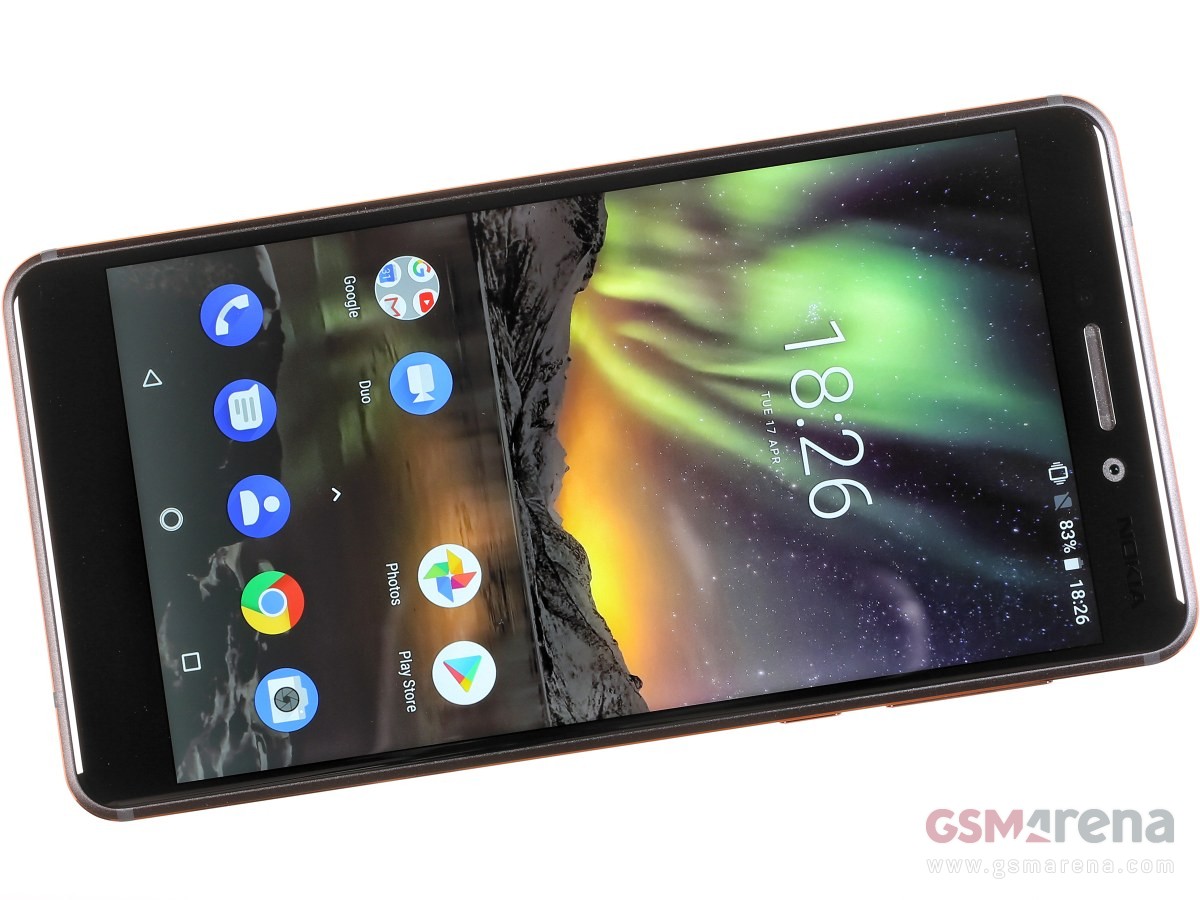
Nowadays, most smartphones are sequels to once successful headliners and, in an unsurprising turn of events, HMD opted to continue the Nokia 6 series. It was a no-brainer decision though as the 2017 model reportedly sold in more than 10 million units so HMD is wise to make the best of this opportunity.
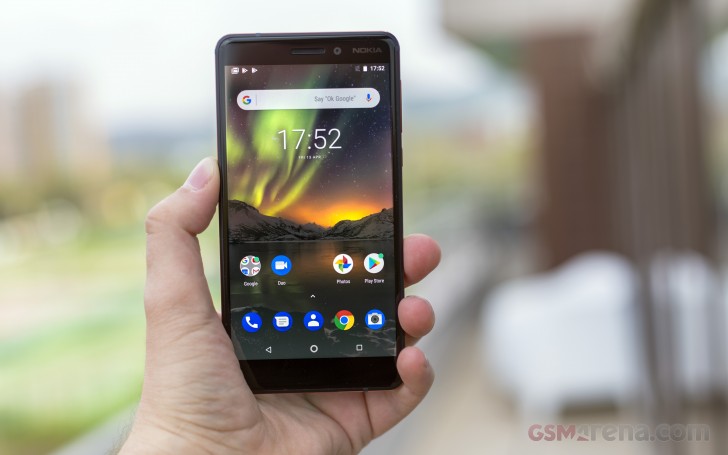
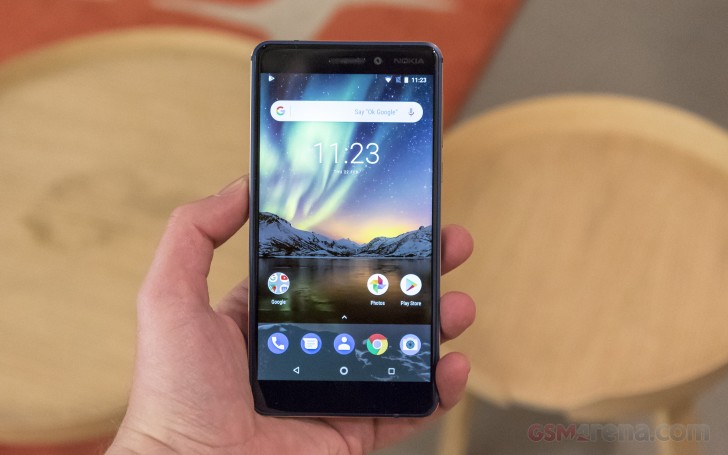
The new Nokia 6.1, has its screen bezels trimmed and employs a modern and much more powerful Snapdragon 630 chip. The main camera benefits from a new Zeiss lens and it can now do 4K videos.
The upgrade list continues with high-quality audio recording, newer Bluetooth 5.0, and the latest Android 8.1 Oreo in its stock form as the phone is now part of the Android One program.
Memory: 3/4GB RAM, 32/64GB, dedicated microSD slot for up to 256GB expansion
OS: Android 8.1 Oreo
Battery: 3,000mAh, Turbo Charge 18W
Connectivity: Optional Dual SIM (4G), Bluetooth 5.0, GPS/GLONASS/BEIDOU, Dual-band Wi-Fi a/b/g/n, FM radio, USB Type-C port
Misc: Fingerprint reader on the back
A few things were left untouched since the first Nokia 6.1 – the storage and RAM options, the 3,000 mAh battery and the camera sensors on both front and rear snappers. But the Nokia 6.1 (2018) has seen enough changes already and if done right – there is no reason why the new 6 shouldn’t surpass the old one in sales.
Unboxing the Nokia 6.1 (2018)
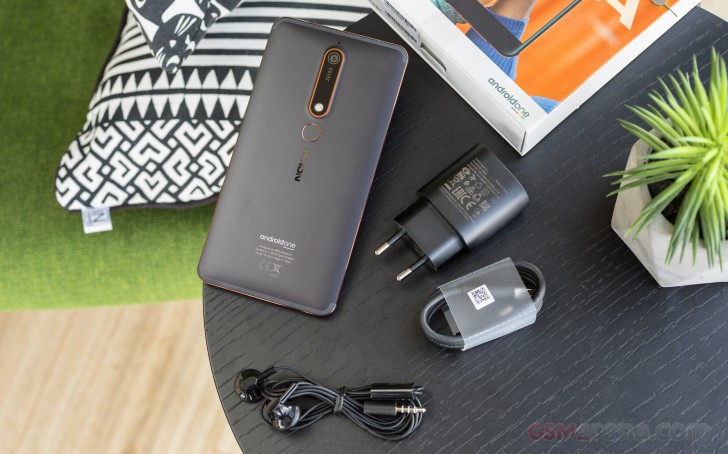
The Nokia 6.1 (2018) price might be hinting for basic bundled accessories, but that’s exactly what the bundle is not. Inside the paper box, we found an 18W wall plug for fast charging, a regular USB Type-C cable, and a pair of earbuds with an integrated mic. Granted, the headset is more basic than the one the Nokia 7 Plus gets, but at least, we have all bases covered with the included stuff. Okay, perhaps without a complimentary phone case, but we are really pushing it.
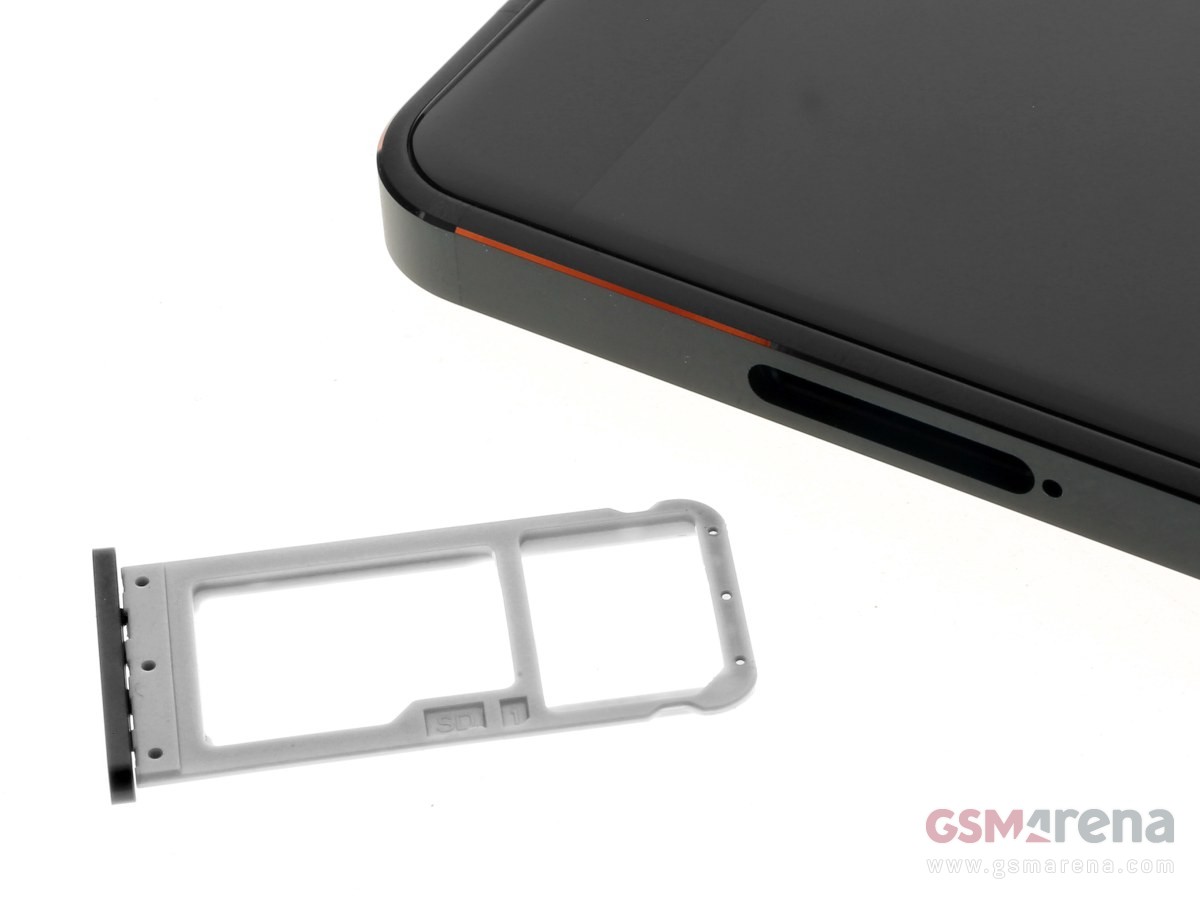
Some paperwork and a SIM ejection pin complete the Nokia 6.1 (2018) box contents.
Design
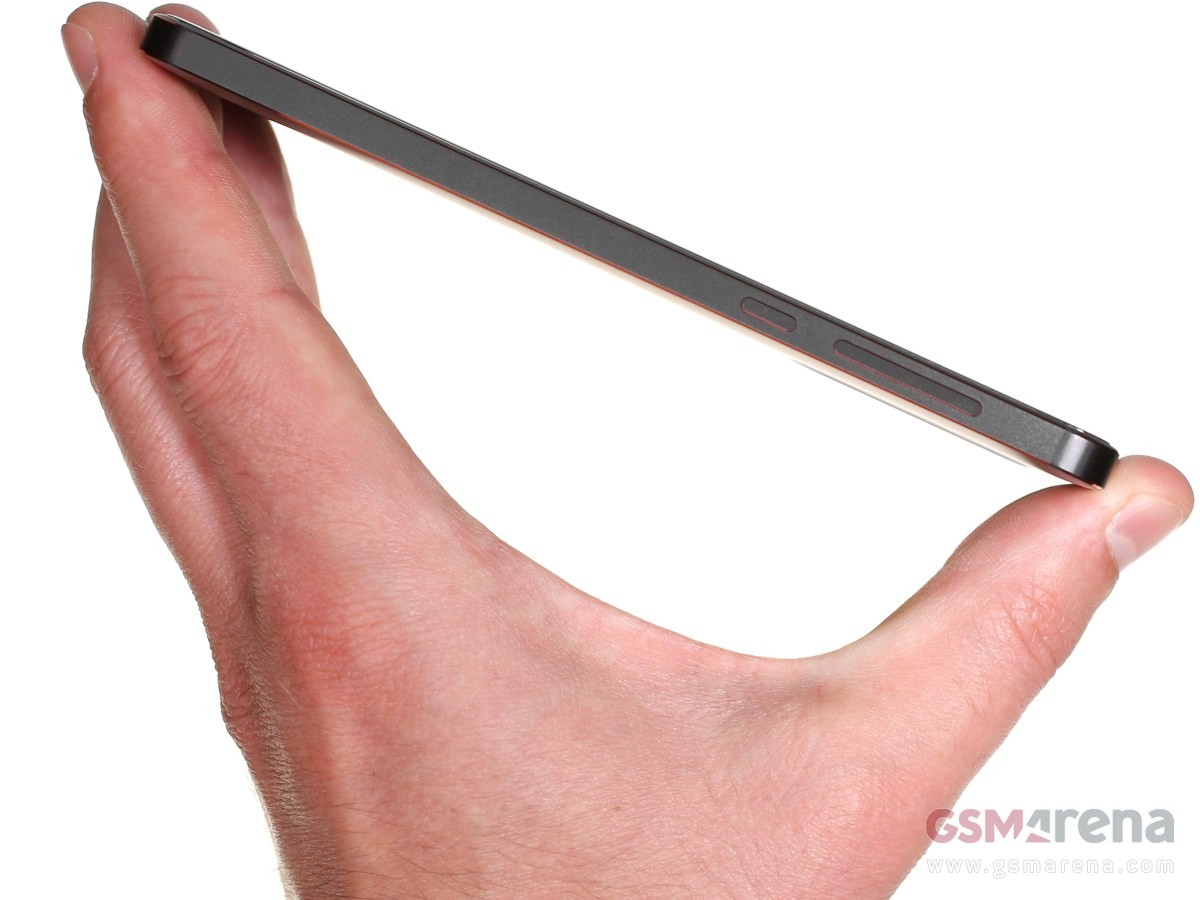
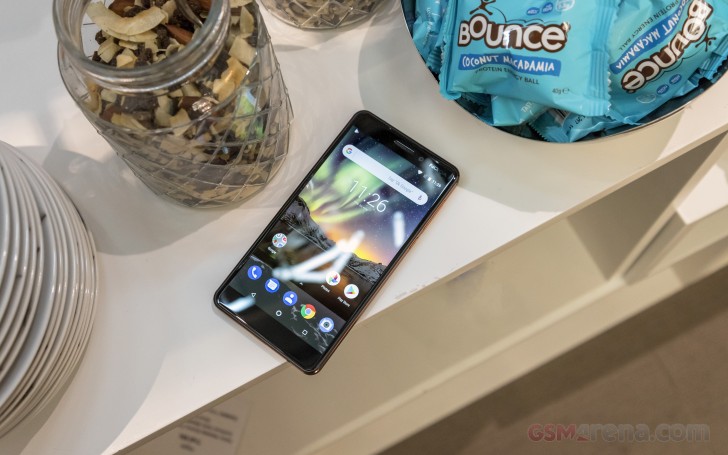
There is nothing fancy about the Nokia 6.1 (2018) design. HMD kept it basic, comfortable, and user-friendly. But there is beauty in simplicity and the no-nonsense design arguably gives off a stylish vibe that’s nowhere to be found on the Redmis.
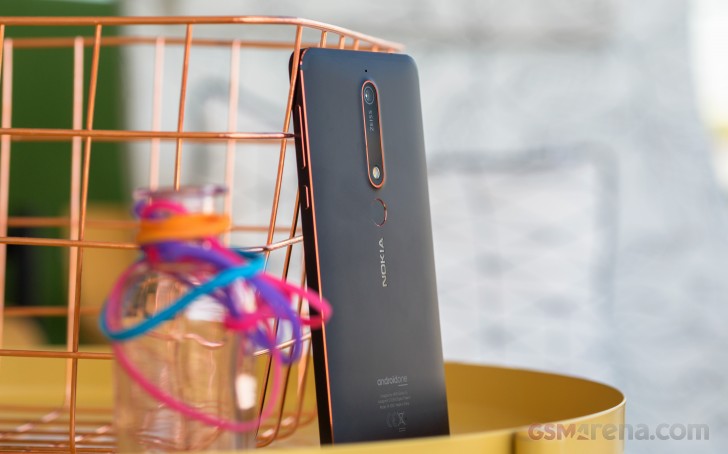
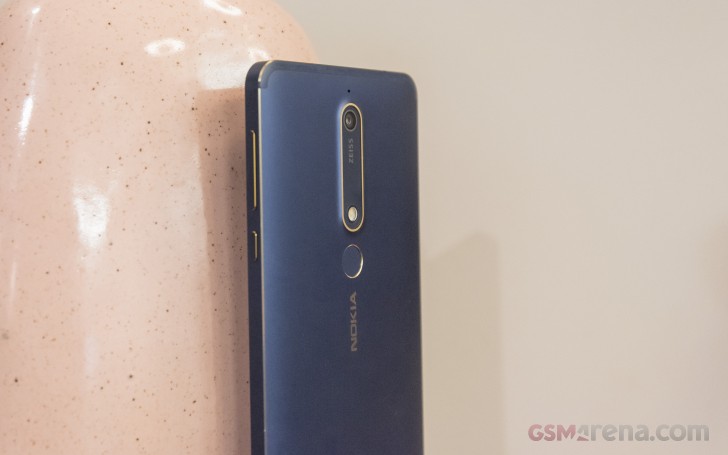
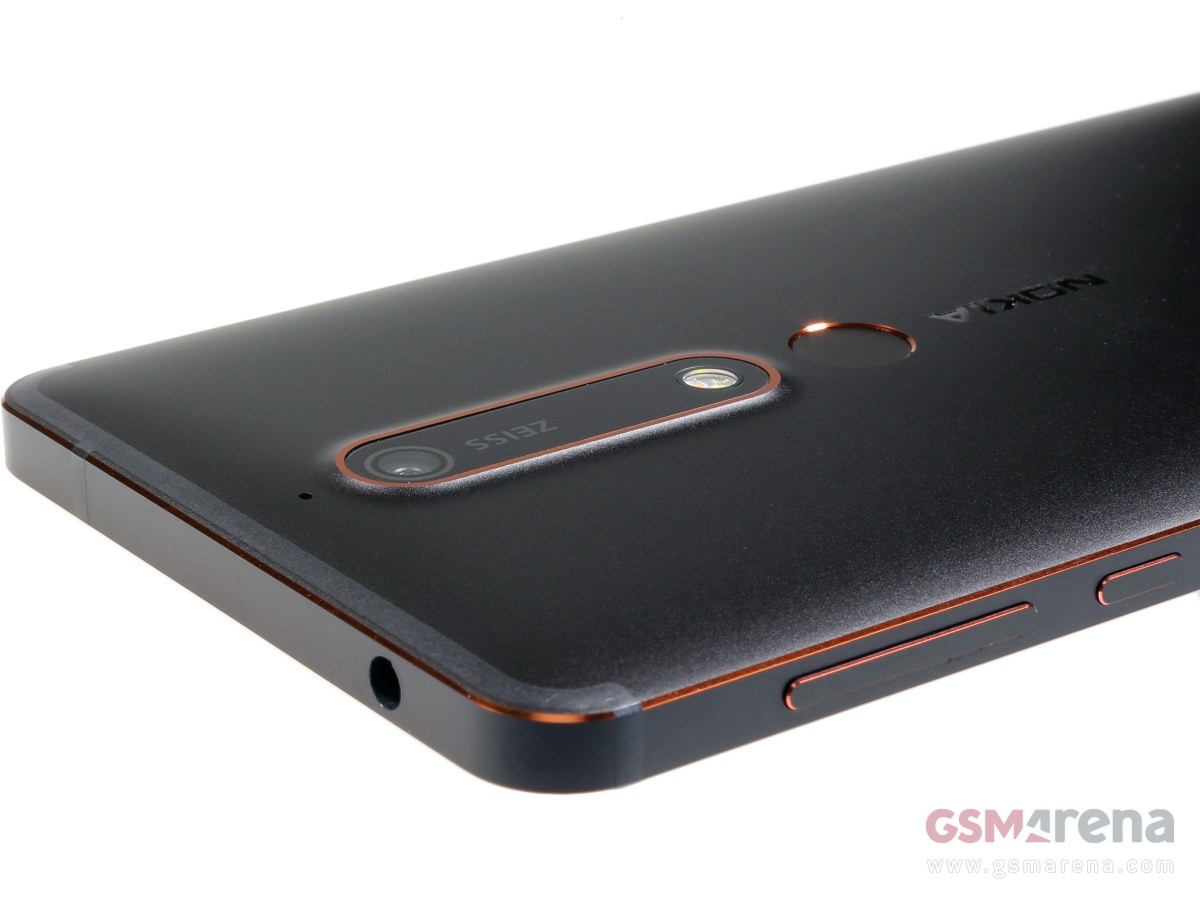
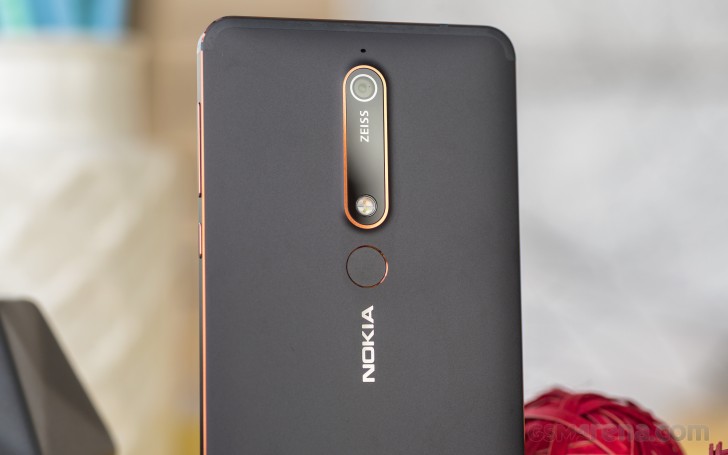
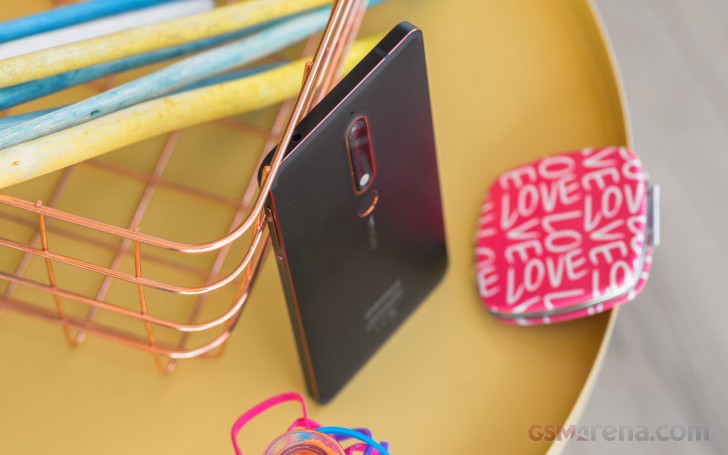
HMD also sneaked these cool paint accents around the frame and the camera glass that even in such small quantities make for a huge design booster.
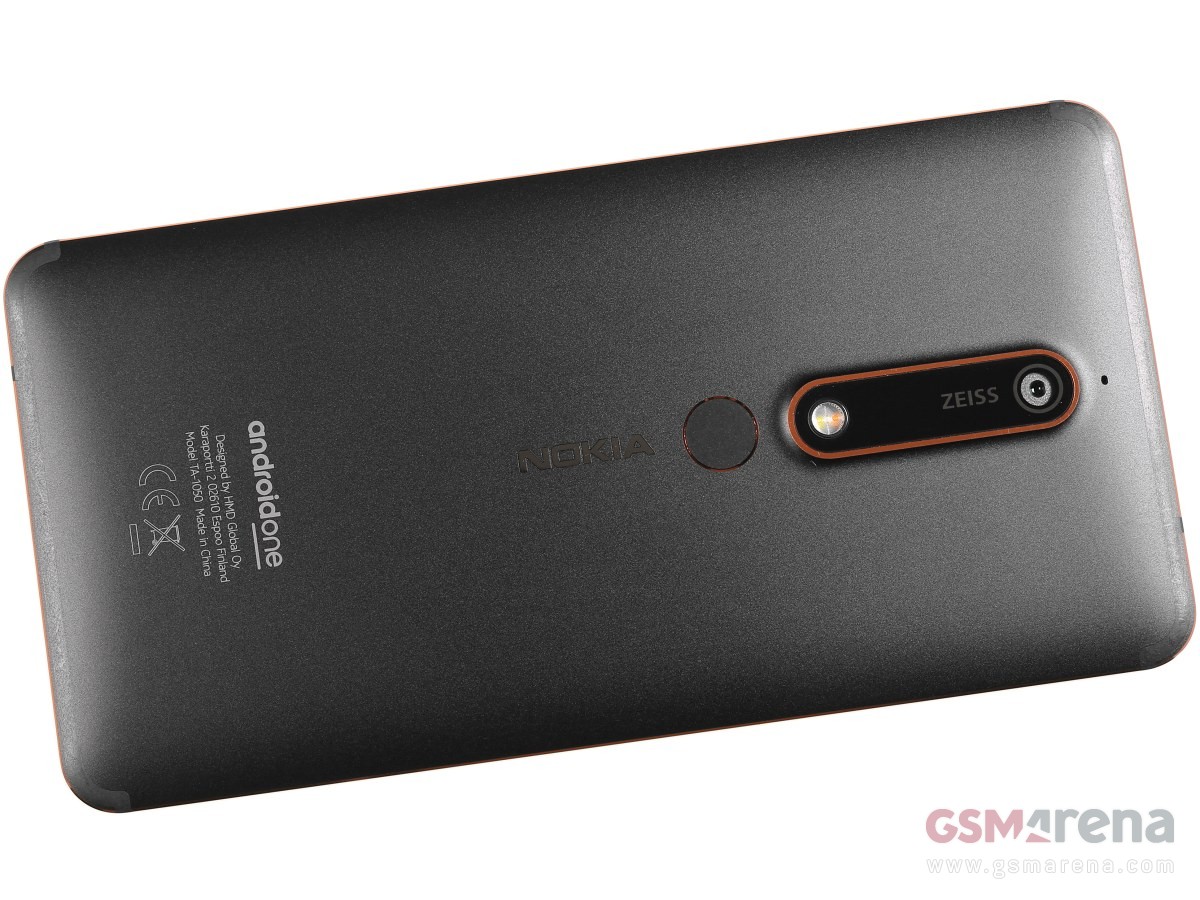
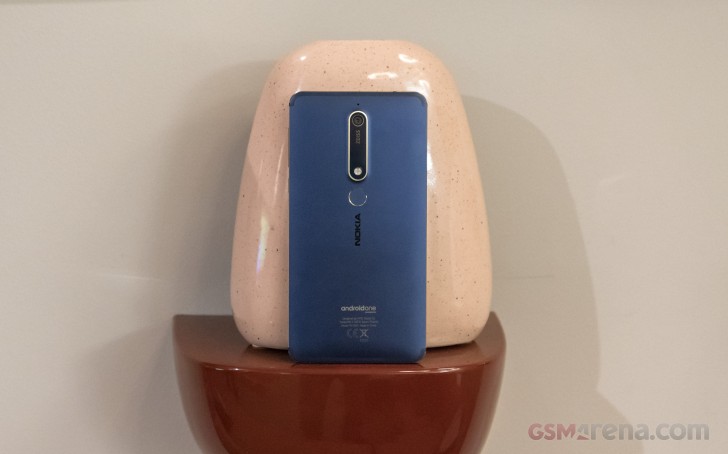
So, the anodized aluminum body is back, almost flush at the back, and perfectly flat around the sides. The tiny chamfers are painted in copper on the black model, iron on the white, and gold on the blue version.
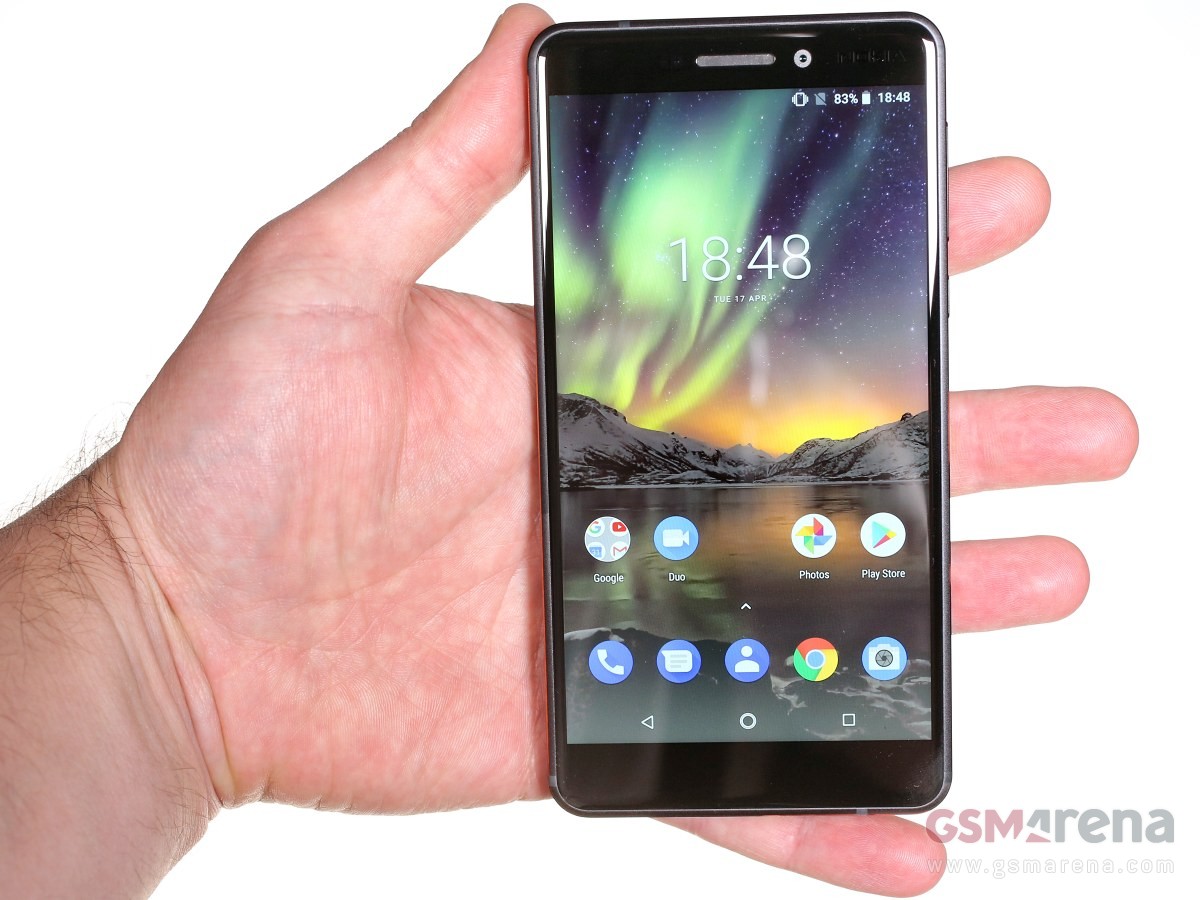
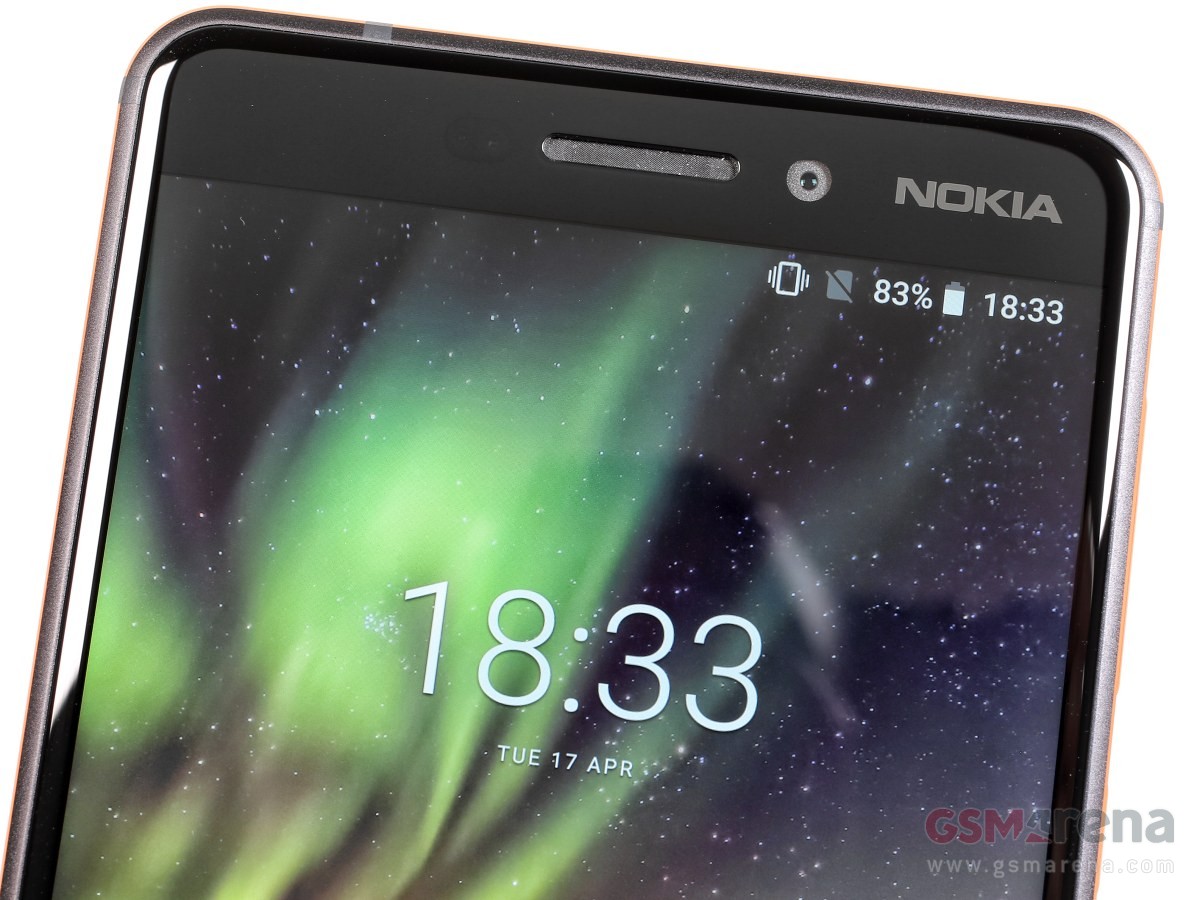
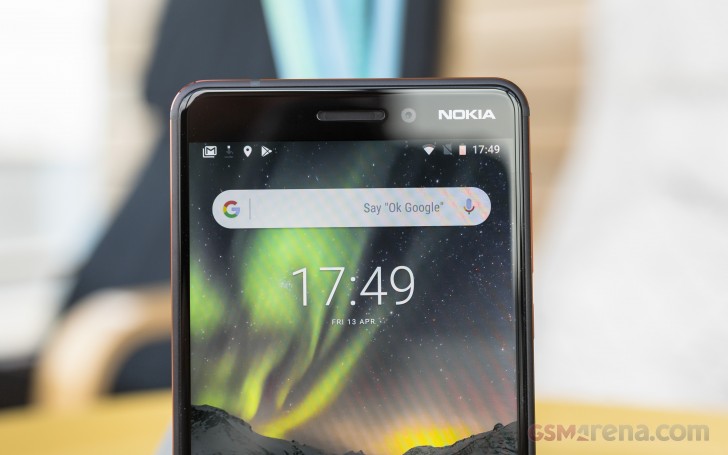
The Nokia 6.1 (2018) has the same 5.5″ 1080p screen of the old 6, but HMD has trimmed the bezels by moving the fingerprint scanner on the back and thus getting rid of the whole capacitive control deck. The new Nokia 6.1 spreads at 148.8 x 75.8 x 8.2 mm – that’s some impressive half a centimeter shorter.
The entire front is covered by a large piece of Gorilla Glass 3, 2.5D-finished as usual. The third edition might be a bit old, but it’s the one we usually prefer – more resilient to scratches at the expense of being relatively more susceptible to shattering when dropped (compared to GG5).
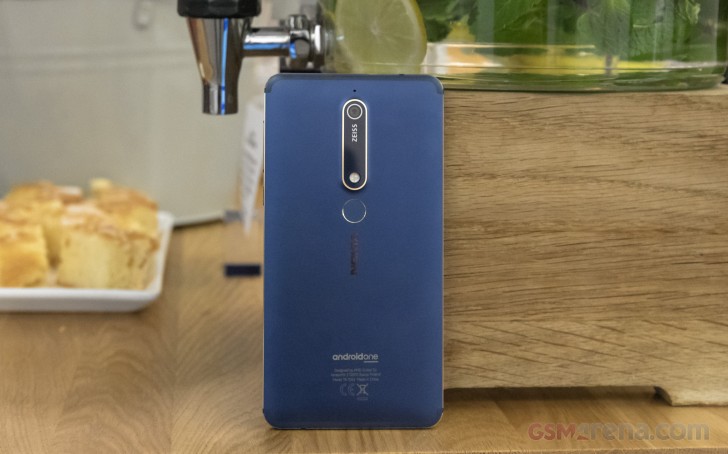
It takes some time to notice the antenna strips on the back, but they are there – running along the top and bottom edges.
The camera glass now has this big ZEISS logo, and the fingerprint sensor found a new home just below the camera (last year it was on the front). The scanner is always-on, accurate and reliable.
We are fans of the flat frame and its tiny chamfers – those boost the overall grip by a mile and the Nokia 6.1is one of the few phones we’ve felt absolutely secure in hand.
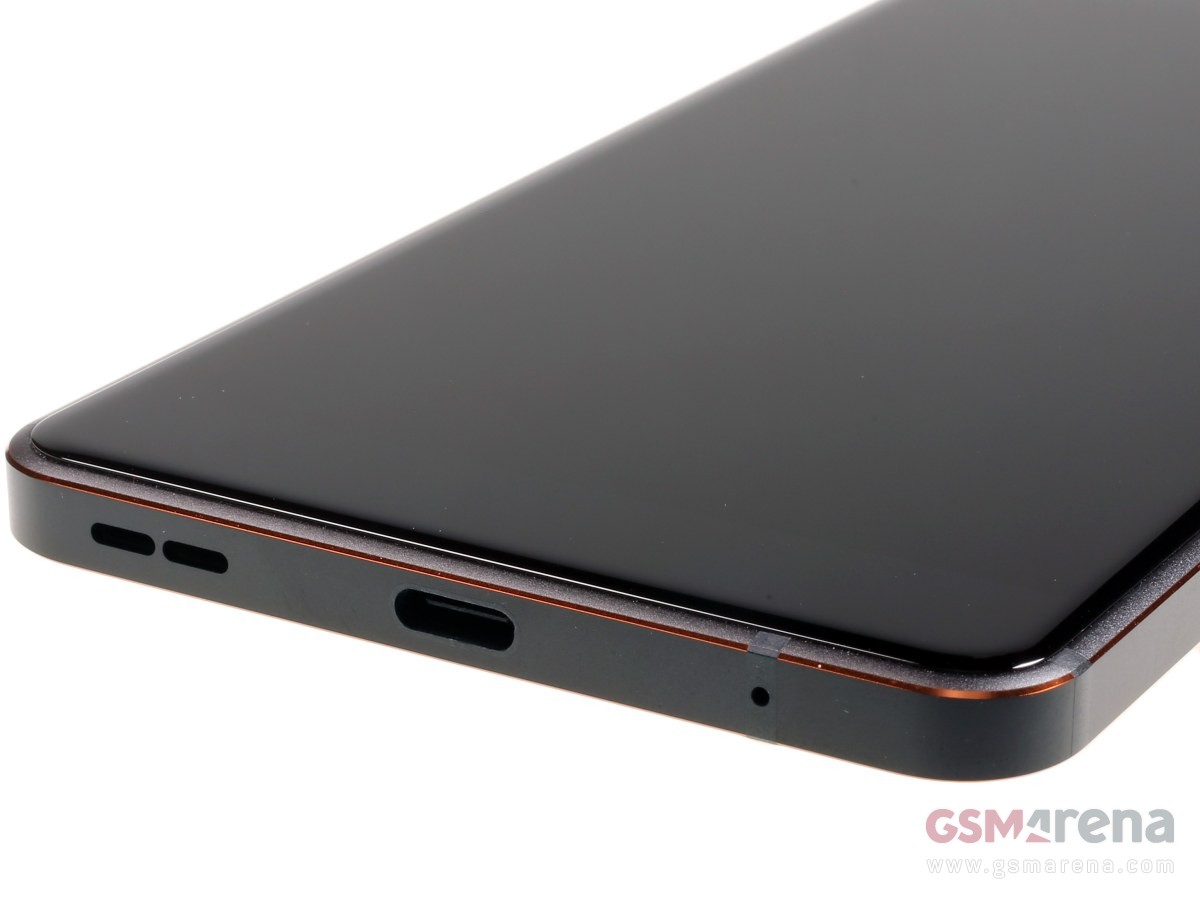
While the Nokia 6.1 (2018) has kept all popular ports intact, including the analogue audio one, the earpiece is no longer doubling as a second speaker. HMD decided to use just one speaker for the new Nokia 6.1 – and it’s at the bottom behind a small grille.
We already mentioned the secure grip, but we also want to acknowledge the overall positive impressions from when handling the Nokia 6.1. It feels great in hand, and although it’s a tad bigger than we’d prefer for a 5.5-incher, we are still fond of the overall feeling of security and sturdiness. The black model is all matte, but it still attracts some smudges. The blue and white ones don’t have such issues, though.
No matter which model you get – Black/Copper, White/Iron, or Blue/Gold – we’re sure you won’t be disappointed by the looks, grip or handling.
Display
The new Nokia 6.1 (2018) has a screen identical in size and resolution to the previous model – it’s a 5.5″ IPS LCD panel with 1,920 x 1,080 pixels (403ppi). There is no notch, no unusual screen aspect.
We captured similar black levels, brightness, and contrast to the ones by the screen on last year’s Nokia 6. The max brightness is alright for an LCD at 470 nits, but nothing extraordinary. The blacks are reasonably deep, and thus we calculated a great contrast ratio of 1278:1.
Display test
100% brightness
Black, cd/m2
White, cd/m2
Contrast ratio
Nokia 6 (Global version)
0.364
484
1330
Nokia 6 (2018)
0.367
469
1278
Xiaomi Mi A1
0.351
551
1570
Sony Xperia XA2
0.401
532
1327
Xiaomi Redmi 5 Plus
0.548
555
1013
HTC U11 Life
0.357
546
1529
Motorola Moto X4
0.297
431
1451
Huawei Mate 10 Lite
0.257
476
1852
Huawei P Smart
0.356
531
1492
Samsung Galaxy A5 (2017)
0
413
∞
Samsung Galaxy A5 (2017) max auto
0
559
∞
One thing that received a massive boost since the previous version is the sunlight legibility. With a sunlight contrast ratio of 4.052, the LCD on Nokia 6.1 (2018) has one of the best scores we have measured so far, even beating most of the OLEDs!
Finally, the color accuracy won’t impress anyone. We measured an average DeltaE of 7.3 with a maximum of 13.8 for white – white is strongly shifted towards cyan. There are no display color options on the international Nokia 6.1, so you are stuck with this presentation only.
Battery life
The Nokia 6.1 (2018) is powered by a 3,000 mAh battery – the same as on the previous model. The phone supports fast charging and the provided charger will fills up to 38% of the depleted battery in half an hour.
HMD chose a modern Snapdragon 630 SoC (14nm) for the second-gen Nokia 6.1 and we’ve already seen some pretty good scores on other Android One phones with the same chip – the HTC U11 Life and Moto X4. Well, the Nokia 6.1 didn’t disappoint – it posted good numbers on the standalone tests, and with a slightly above average standby consumption, the final endurance rating turned out 76 hours.
Loudspeaker
The one thing the new Nokia 6.1 lost in the upgrade process was the stereo speakers setup. While the first generation used the earpiece as a second speaker, the new (2018) model relies only on the bottom-firing loudspeaker.
The good news, however, is that the sound going out of that speaker on the Nokia 6.1 is much improved. It’s louder, with richer sound, and it earned a Very Good mark in our loudspeaker test – only 1dB short of Excellent.
Speakerphone test
Voice, dB
Pink noise/ Music, dB
Ringing phone, dB
Overall score
Nokia 2
66.7
70.6
75.0
Good
Nokia 6 (Global version)
63.1
70.9
82.5
Good
Motorola Moto X4
67.2
71.1
80.7
Good
Huawei P Smart
65.9
70.8
85.8
Very Good
Huawei Mate 10 Lite
67.8
71.0
84.5
Very Good
Nokia 6 (2018)
67.1
74.0
85.3
Very Good
Xiaomi Redmi 5 Plus
71.1
72.7
87.7
Excellent
HTC U11 Life
70.9
75.3
88.0
Excellent
Xiaomi Mi A1
74.0
73.9
90.4
Excellent
Audio quality
Unfortunately, the Nokia 6.1 (2018) performance in the active external amplifier part of our test fell as short as that of its Nokia 7 Plus sibling. Its intermodulation distortion was too high and its signal-to-noise ratio was nowhere near what we’ve come to expect from modern smartphones. On the positive side, its volume was nicely high, but the overall results left a lot to be desired.
Good thing is the clarity with headphones was much better – the stereo crosstalk spike wasn’t too bad and the rest of the readings were excellent. Volume went from high to just above average, but the Nokia 6.1 (2018) still does solidly here.
Test
Frequency response
Noise level
Dynamic range
THD
IMD + Noise
Stereo crosstalk
Nokia 6 (2018)
+0.10, -0.20
-37.5
80.4
0.0018
4.735
-93.3
Nokia 6 (2018) (headphones)
+0.05, -0.03
-94.3
90.2
0.0027
0.019
-58.6
Nokia 7 Plus
+0.02, -0.31
-38.8
81.7
0.0013
4.690
-95.9
Nokia 7 Plus (headphones)
+0.25, -0.23
-93.3
90.4
0.0045
0.227
-53.9
Honor View 10
+0.02, -0.01
-92.6
92.6
0.0021
0.012
-94.4
Honor View 10 (headphones)
+0.17, -0.03
-92.0
92.1
0.0023
0.092
-52.8
Samsung Galaxy A8 (2018)
+0.01, -0.03
-92.1
92.2
0.0038
0.0085
-90.0
Samsung Galaxy A8 (2018) (headphones)
+0.30, -0.07
-91.7
91.8
0.022
0.206
-72.4
Oppo R11s
+0.02, -0.02
-93.4
93.2
0.0025
0.012
-90.8
Oppo R11s (headphones)
+0.20, -0.37
-93.4
93.0
0.015
0.320
-55.7
OnePlus 5T
+0.01, -0.03
-94.0
94.0
0.0018
0.011
-93.7
Clean Android Oreo
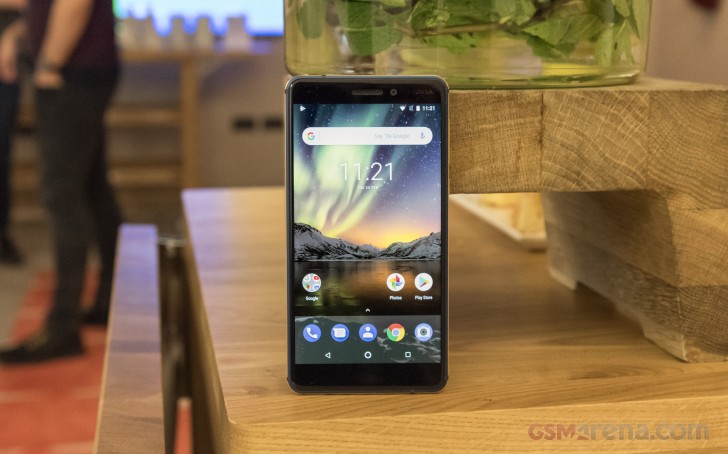
The Nokia 6.1 (2018) is part of the Android One program – meaning it gets pure Android as seen on the Pixels but on the cheap. Indeed, the OS updates are timely and the unit we got for review is running Oreo 8.1 with the most recent April security patch.
Android as Google intended shows up when you wake up the phone – clock, notification cards, two shortcuts on the bottom. Ambient display will show you a clock and notifications when you pick up the phone even without waking it up but be sure to enable this feature first.
Fingerprint enrollment uses the standard Oreo interface. Unlocking works as advertised and is quick and reliable.
Past that is the standard Android 8 homescreen with a pull-up app drawer.
The quick toggles and notifications shade changes color depending on the wallpaper – white for lighter ones, black for darker ones. The task switcher is the usual rolodex, and wouldn’t it be great if Google put the ‘clear all’ button on the bottom instead of up top? Anyway, multi-window is supported natively since Nougat.
There are several gestures like double pressing the power button to launch the camera and a swiping across the fingerprint scanner to bring down the notifications.
As for multimedia, it’s all in the hands of Google’s default apps. Photos is in charge of gallery-related tasks and video playback, while Google Play Music is the audio player. There’s a file manager with batch actions and Google Drive sync, and Google’s Calendar is Nokia‘s calendar of choice.
Benchmarks and performance
The Nokia 6.1 (2018) employs Qualcomm’s Snapdragon 630 chipset – the new rising star in the mid-range midst. It’s a worthy upgrade over the previously widespread Snapdragon 625 with a more powerful CPU and a great graphics boost, but also a massive performance jump over the Snapdragon 430 chip powering the first Nokia 6.
The Snapdragon 630 chip offers a classic octa-core Cortex-A53 processor clocked at 2.2GHz. The GPU in charge of graphics is Adreno 508 and noticeably improves on the average gaming performance of its predecessor.
Just like the original Nokia 6, the 6.1 comes with either 3 or 4 gigs of RAM depending on the model you get – with 32 or 64 GB storage.
GeekBench is the best place for CPU prowess comparison. Here, the Nokia 6.1 (2018) scored the same as the rest of the S630 gang – the Xperia XA2, U11 Life and Moto X4. The Redmi 5 Pro and Galaxy A8 (2018) do better in the single-core tests as those two pack much more powerful Kryo 260 and Cortex-A73 cores.
The Nokia 6.1 (2018) earned some excellent marks for the class on the benchmark tests. In real life it will never disappoint – the cle,an Android runs flawlessly, while even demanding games are handled smoothly.
The metal body of the Nokia 6.1 (2018) gets warm under pressure, but not unpleasantly hot. We observed no throttling or stuttering, though.
The same 16MP camera
The Nokia 6.1 (2018) comes with the same camera specs as on the first Nokia 6. It’s a 16MP sensor with 1.0µm pixels sitting behind a 27mm-equivalent lens with an f/2.0 aperture – so nothing extraordinary here. Focusing is handled by phase detection, and there’s a dual LED dual-tone flash to help in the dark.
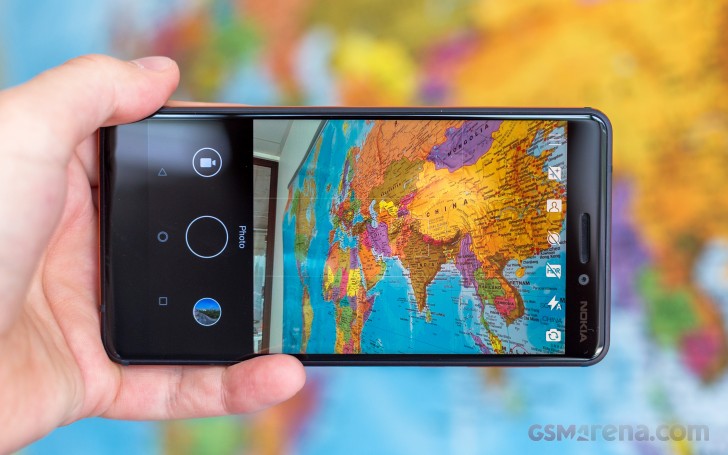
The interface is simple – shutter release at the bottom, a switch to video mode next to it and a shortcut to the gallery on the other side. A tiny mode selector next to the shutter release gives you the option to choose Regular photo, Panorama, or ‘Touch up’ mode (another word for ‘Beautification’).
On the opposite end of the viewfinder there are switches for beautification, picture-in-picture, flash (on/off/auto), HDR (on/off/auto), self-timer (off/3s/10s), and front/rear camera toggle. There’s a hamburger button too, for access to settings and additional modes (panorama and pro).
Image Quality
The 16MP samples we shot in broad daylight with the Nokia 6.1 (2018) turned out rich in detail, contrasty, with accurate colors and white balance. The only letdown was the grass presentation, which is mostly smudgy.
The dynamic range is average, but there is Auto HDR setting and we suggest keeping it on – the Nokia 6.1 recognizes successfully most of the HDR-needy occasions and triggers it.
Using the manual HDR mode will fully restore the blown highlights, especially the skies, while keep the shadows almost intact. The contrast gets a small boost – probably to keep the HDR images look as natural as possible.
The low-light images are nothing much to talk about – blurry, dark, and with lots of noise.
The camera app has a dedicated Pro mode, which allows for shutter speed as long as 4 seconds. We snapped two 4sec photos, and while those have plenty of detail and could have been great, the luminance noise gets in the way of, well, everything.
The Nokia (2018) captures some great panoramic shots with a vertical resolution around 3,100px. Stitching is flawless, and there are no issues with varying exposure. The dynamic range is decent, while the resolved detail is quite impressive for the class.
Feel free to pixel peep in our Photo compare tool – we’ve pre-selected a couple of phones we found relevant, but those can easily be replaced in the drop-down menus.
Selfies
The Nokia 6.1 (2018) has an 8MP selfie camera with fixed focus.There is no LED flash but we didn’t expect one.
The selfies turned out excellent – sharp, with lots of detail, good colors and great contrast.
Video recording
One notable upgrade over the first Nokia 6 is the addition of 4K video capturing. The Nokia 6.1 (2018) can record 4K and Full HD clips at 30 fps. The 4K footage is captured at 42.2 Mbps bitrate, while 1080p is about half that – 20 Mbps. Audio is always recorded stereo at 256 Kbps.
The video quality on both 2160p and 1080p clips is great – the image is detailed and sharp, even the foliage looks nice, and the noise levels are kept low. The dynamic range is decent, colors are spot on, and the contrast is great.
As usual, we’ve provided unedited samples straight out of the camera for you to download – 2160p@30fps (9s, 50MB), and 1080@30fps (9s, 24MB).
You can also head over to our Video compare tool and see how the Nokia 6.1 (2018) stacks up against the competition.
Competition
The Nokia 6.1 (2018) ticks many checkboxes, but the competition has some tricks left in the bag, too. While HMD has a broader market reach, the second-gen Nokia 6.1 will be a tough sell next to a recent Xiaomi.
The Mi A1, for example, is also part of the Android One program and as such is available in lots of markets. The A1 has a slightly inferior chipset, but its dual-camera on the back offers telephoto snaps and portraits with bokeh – some of the trendiest features lately.
The Redmi 5 Plus, also known as Redmi Note 5, is pretty much the Mi A1 on steroids – it comes with a taller 6″ display, a larger 4,000 mAh battery, but it has just one camera on the back and runs on MIUI, for better or worse. Both Xiaomi phones are about €80 cheaper than the Nokia 6.1, so they are worth a consideration.
The Moto X4 costs as much as the Nokia 6.1, and it’s also a part of the Android One program in some markets. It even runs on the same Snapdragon 630 chip. The X4 has a smaller screen but makes up for that with a beautiful glass body and a very capable dual-camera on the back. Oh, and it’s water-tight!
HTC U11 Life is another Snapdragon 630 device that’s part of Android One. It has a 5.2″ 1080p display and packs a similar 16MP camera on the back but it has two notable features the Nokia 6.1 lacks – water resistance and Edge Sense (squeezable frame and various gestures). The U11 Life price equals Nokia 6‘s, so it’s up to the brand loyalty we guess. If it were up to us, well, we’d choose water resistance any time.
Finally, we want to mention the all-metal Huawei Mate 10 Lite, also priced around the €260 that the Nokia goes for. The chipset is inferior, yes, but its tall 5.9″ screen and four cameras (two at the back, two at the front) are quite tempting, especially if you fancy those bokeh shots.
The Verdict
The Nokia 6.1 (2018) is a worthy improvement over its predecessor with a much better chipset and smaller body. Its 5.5″ screen turned out great, and so did the performance. The camera is not much of an upgrade but at least the selfie shooter saves face (even literally) with its good image quality.
Being part of the Android One initiative guarantees a lightweight Android OS, the latest edition at that, with on-time updates for the next 24 months.
Pros
Stylish all metal design
Modern and snappy Snapdragon 630 chipset
Latest Android OS with on-time updates thanks to Android One
Very good 16MP snaps in daylight, impressive 4K videos
At this point, Samsung has already established that its 2019 A-series of smartphones will represent its entry-level and mid-range offerings. One of them is the Galaxy A20. Priced at under $200, is this worth considering given the competition. Find out in our full review.
Design and Construction
As stated in my hand-on and first impressions, the Galaxy A20 shares the design language of its other A-series siblings. The glossy polycarbonate material which Samsung calls Glastic (a plastic material which looks like glass) looks premium and classy, especially with its black color. If you don’t like black, it comes in red and blue as well.
At the front, we get a notch design that the company calls the Infinity-V display. This component houses the 8MP front camera while on top is the call speaker. Unfortunately, there’s no LED notification light here so you’ll have to check your phone now and then manually. Looking at the 6.4-inch screen, we get a pretty slim top and side bezels which look sexy; however, any thinner than that will not allow us to hold the phone more securely.
The right side houses the typical volume rocker and power button which are both clicky. Its placement is also just proper for my thumb to reach which is a plus.
Looking to the left will show you the lone tray that houses the Dual-SIM card slots and a dedicated micro SD card slot.
On top is the noise-canceling microphone while at the bottom are the 3.5mm audio port, primary microphone, loudspeaker, and a USB Type-C port. Props to Samsung for equipping the Galaxy A20 with a Type-C port as this delivers faster file transfer speeds than micro USB ones.
At the back are the dual 13MP and 5MP shooters with LED notification light. Right on the middle is an oblong-shaped fingerprint scanner with silver accents which always looks premium.
Holding the Galaxy A20 feels like you’re carrying any other Galaxy A-series smartphones thanks to its design, weight, and thickness. Just as any Glastic designs, it is always a problem for me when a phone has a glossy back since it is prone to fingerprint marks and smudges. Overall, it feels premium and durable, even for an entry-level device.
Display and Multimedia
This phone, despite its big size and Super AMOLED panel, only has an HD+ resolution which made me quite disappointed. I’m pretty used to the 1080p displays, so I know that looking at it is not the same as with other phones. Add to the fact that it only has a 269-pixel density which is relatively low.
Regardless, the viewing experience is still lovely with punchy colors, decent viewing angles, and slim bezels. I can also use the Galaxy A20 even under direct sunlight even at 80% brightness, so that’s a plus. Playing videos on Youtube and Netflix can only go up to 720p, so that’s a bummer.
Its audio is substandard which is pretty standard for smartphones given that it doesn’t have any bass. Don’t get me wrong though, it has loud and crisp sounds, but the main problem is the whole listening experience, so I suggest that you use earphones or any Bluetooth speakers as this device has a built-in Dolby Atmos feature.
OS, UI, and Apps
Running the Galaxy A20’s OS department is the Samsung OneUI based on Android 9 Pie. I like this interface more than the discontinued Samsung Experience UI mainly due to its simplicity. By default, it would look like that it has no app drawer; however, swiping up or down the home screen will reveal it. Pre-installed apps include the Samsung apps like the Galaxy Store, Samsung Notes, and Samsung Health. The device also has Spotify, Netflix, Office Mobile, OneDrive, LinkedIn, Samsung Members, Samsung 321, Smart Tutor, Facebook, and the default Google applications.
Out of its 32GB storage, this phone gets 23.1GB of free space which is plenty if you are an average user that regularly stores files like videos, music, documents, photos, and even games.
Camera
Running the camera department are the 13MP + 5MP dual rear cameras and a single 8MP front shooter. The interface is simple and pretty straightforward with the Settings, Flash, Timer, Resolution, and Effects located at the top while the modes such as Panorama, Pro, Live Focus, Photo, and Video (for the rear) placed below the display. You can also see that under Photo and Video, you can shoot with a great wide-angle lens.
First, the rear shooter provides an excellent quality of photos with decent sharpness and good color accuracy under sufficient natural lighting. For low-light shots, I find the images usable as the lights were not blown out with minimal noise. I advise that you shouldn’t use the wide-angle lens at night time as photos will be grainy and muddy.
For the selfie shooter, I can’t help but feel like the photos are too artificial in terms of the highlights even on right lighting conditions. At night time, the front lens finds it hard to recognize the details on my face like the redness of my nose and pimples.
The Galaxy A20 can record videos up to 1080p 30fps. I’m quite satisfied with the details and color accuracy of the video; however, it doesn’t have stabilization, so I suggest using a tripod when you want to shoot using this phone.
Performance and Benchmarks
Running the performance department is a Samsung Exynos 7884 chipset with a Mali-G71 MP2 GPU and 3GB of RAM. At first, I thought it was just a typo for the Exynos 7885 in which the Galaxy A8 (2018) series used, but it’s not. The performance is not that bad, but not great either. It’s smooth on basic navigations and quick when loading apps. However, I felt some delays and lags with its performance especially when I’m trying to search for something in its settings or the Google PlayStore. There are no significant issues like the phone stalling, so overall, it’s still decent. I also noticed that the fingerprint scanner is slow to unlock if the Galaxy A20’s display isn’t turned on. It would take approximately 1 to 2 seconds before it recognizes my fingerprint whereas when you press the power button first and do a scan, it will unlock at around 0.5 seconds.
Here are its benchmark scores:
Antutu v7 – 95,945
3D Mark – 520 (SSE – OpenGL ES 3.1), 599 (SSE – Vulkan)
Playing games such as Mobile Legends or PUBG Mobile are a breeze as it runs smoothly even at the highest settings. My problem with the former; however, is that it doesn’t have a high fps mode, so that’s quite a bummer. The phone builds up temperature around the camera area as you play for longer durations, but it won’t reach to uncomfortable levels.
Connectivity and Battery Life
The Galaxy A20 has the basic connectivity features such as 4G LTE, dual-SIM support, WiFi, Bluetooth, and NFC. Checking out it sensors, though, shows that it doesn’t have a Light Sensor which helps in adapting the brightness level of the screen according to the external environment.
The phone carries a 4,000mAh battery with a 15W fast charging which is significant given that most of the smartphones under this price point don’t have this technology. Testing its battery life on PC Mark’s battery test yielded a time of 12 Hours and 16 Minutes while our video loop test (1080p movie, 50% sound, 50% brightness, airplane mode, w/ earphones) got around 23 Hours of playback which is excellent. When it comes to charging, it reached 100% in 1 Hour and 45 Minutes from 20% which is faster than other smartphones with the same or higher battery capacity.
Conclusion
The Samsung Galaxy A20 is a capable entry-level smartphone overall. It has a large display with decent performance, large RAM, great cameras, long battery life, and it also comes with a USB Type-C port with fast charging technology. In the end, I don’t like its fingerprint and smudge magnet design and HD+ resolution. It also has a weird fingerprint unlocking when the display is turned off, but, if you don’t mind these cons, then you can opt for this phone.
One big problem is that Samsung may have a hard time selling this device especially in terms of overall performance. Phones like the Realme 3 and Redmi Note 7 already dominates the below $200 price segment. With the Galaxy A20 sitting at under $200, the only fighting chance that it will have is its cameras and battery life. In the end, I won’t be suggesting this phone unless you are picky on the brand or if you are more into longer battery life and viewing experience.
Samsung Galaxy A20 specs :
6.4-inch HD+ (1560 x 720) Super AMOLED Infinity-V display, 268ppi
Apple Card is a credit card offered by Apple and Goldman Sachs that offers daily cash back, in-app data about your purchases and spending habits, and other benefits, and you can use it directly from iPhone in the Wallet app. You’ll get a physical Apple Card too, which is crafted out of a fancy metal material, making the physical card somewhat similar in appearance to other notoriously high end credit cards like the AmEx Centurion or JP Morgan Reserve card. But unlike those other high-end credit cards, the Apple Card is much more broadly accessible and without the same requirements to obtain.
If you like to use credit cards for cash back and the convenience they offer, and you have an iPhone, applying for Apple Card may be something you’re interested in.
How to Apply & Sign Up for Apple Card from iPhone
Note that you must have an iPhone to be able to apply for the Apple Card:
Open the “Wallet” app on your iPhone
Click on ‘Apply’ on the Apple Card promo, or click the “+” plus button to add an Apple Card
Click continue and through the signup process
Confirm your Apple ID, name, address, and other personal information as required by Apple Card
Agree to the terms after reviewing interest rate and charges
You’ll either be immediately approved for Apple Card and shown your credit limit and details to which you can approve and accept, or asked to submit additional documentation like taking a photo of your ID
If you are granted immediate approval than you can use the Apple Card right away with your iPhone and Apple Pay. If you have to submit additional documentation there will be a delay until you’re either approved, or denied.
The credit limits and interest rates vary on the individual persons credit scores and other details, and there seems to be a large range of numbers for both. If you’re not happy with what is offered to you, you can always reject the card, or close it.
Like all other credit cards, Apple Card charges interest (and at varying rates depending on your credit), so it’s best to use the credit card responsibly. Paying the card balance off in full before any interest is accumulated is one way to do that.
After you’re signed up, managing your Apple Card is also done through the Wallet app, and you can also have a live chat with customer service if needed, or call a phone number of course too.
While you’re in the Wallet app, you might also find it worthwhile to add other credit cards to Apple Pay on the iPhone too.
Note that if you’ve never setup Apple Pay you will need to do that as well in order to apply for and use Apple Card.
You can easily add filters to your videos captured on iPhone or iPad, a new ability that has been introduced in the latest versions of iOS and iPadOS.
We’ve been able to apply filters to photos via the Photos app for years, but being able to do the same to video via the Photos app is something new. And it looks and works exactly how you would expect it to.
How to Apply Filters to Video on iPhone and iPad
Let’s get started with understanding how filters can be applied to videos:
Open the Photos app and make sure the video you want to apply a filter to is selected and active on the screen
Tap the “Edit” button.
Tap the Filters icon. It looks a little like a Venn diagram but it’s also pointed out in our screenshot, too.
There are nine different filters to choose from – Vivid, Vivid Warm, Vivid Cool, Dramatic, Dramatic Warm, Dramatic Cool, Mono, Silvertone, and Noir. Swipe through them to select the one you want. You’ll also see the filter previewed.
A new slider will appear – below the filters on iPhone, beside on iPad. Slide it to change how dramatic the applied filter will be. Again, this is previewed so you can make the selection that’s right for the content you’re editing.
Tap “Done” when you have everything set as you’d like it.
The edits are then made and the video saved. That might take a while depending on the length of the video and the iPhone or iPad you’re using. You can leave the Photos app to do its thing, though. No need to watch it render.
Any changers you make will also be synced via iCloud if you’re using iCloud Photo Library. They’ll be pushed to all of your other devices, too.
The ability to apply filters to videos is new to iOS 13 and iPadOS 13.1 and later, previous versions of the Photos app did not have this capability. Accordingly, if you don’t have the filter options for videos, it’s likely that you’re not running a newer iOS or ipadOS release.
The improved Photos app is great for applying filters and making simple changes but if you want to make more advanced edits, like cropping videos, then iMovie is what you’re looking for. You can download the iMovie app free from the App Store if it isn’t already on your device, too.
Wondering how to save photos, pictures, and videos from Messages in iOS 13 and iPadOS 13? If you’re perplexed you may not be alone, as some users have discovered the changes to the photo and video saving mechanism in Messages app to be more confusing than before, leading some people to think the ability to save photos and movies from messages is no longer an option. Rest assured you can still easily save pictures and videos from Messages in iOS 13 and iPadOS 13, but it’s a bit different and the ‘save’ option may not be immediately visible to you depending on your device.
This article will show you how to save photos and videos in the Messages app on iPhone and iPad running iOS 13, iPadOS 13, and later.
How to Save Photos & Videos from Messages to iPhone & iPad with iOS 13 / iPadOS 13
Open the Messages app and navigate to the message conversation with the picture or video you wish to save
Tap on the photo or video so that it’s in the forefront, then tap on the Share icon (it looks like a box with an arrow flying out of the top of it)
Scroll down at the Share Sheet screen *
Choose “Save Image” after scrolling down in the sharing section to save the picture or video to the iPhone or iPad
The saved picture or video will appear in the Photos app at the very bottom of the Albums > Recents view (what was called Camera Roll).
* This is where things are typically confusing for users, where on many iPhone models they have to scroll down in the sharing screen to access the “Save Image” and “Save Video” options. In prior versions of iOS, saving a message was a matter of tapping on the share sheet and then choosing the obvious “Save Image” button. Now however with iOS 13 and iPadOS 13 and later, you may need to scroll down to select a different looking “Save Image” button from the sharing menu.
You can also continue to quickly save a photo or video with a tap-and-hold move, similar to how you go about forwarding a picture message on iPhone to another user. That action and behavior has not changed in the latest iOS and iPadOS versions.
If you have attempted to use a MacOS installer application recently, you may discover an error message stating something like “This copy of the Install macOS Mojave.app application is damaged, and can’t be used to install macOS.” This prevents the installer of macOS from working and running, and essentially makes the installer applications useless.
The cause of this error is an expired certificate, and because the certificate is expired the “Install macOS” app for Mojave, Sierra, and High Sierra will not run. Fortunately, there is a fairly simple solution to the “damaged” installer problem.
Resolving “Install MacOS Application is Damaged, Can’t be Used to Install MacOS” Error Messages with Mac OS System Installers
The easiest way to resolve the “This copy of the Install macOS .app application is damaged, and can’t be used to install macOS.” is to re-download the installer again from Apple, which contains a new fresh certificate that is not expired. The links below point to Apple resources where you can find or download the updated macOS installers for Mojave, High Sierra, and Sierra :
You may need to reboot the Mac after you have downloaded the new (and valid certificate) installer application, particularly if you had already launched a version that showed the application damaged error message.
If you do not download new versions of these macOS installer applications, you are likely to encounter the error messages for each release if you attempt to open or use the MacOS installer, or even a USB boot drive created with one of the expired installers:
“This copy of the Install macOS Mojave.app application is damaged, and can’t be used to install macOS.”
“This copy of the Install macOS High Sierra.app application is damaged, and can’t be used to install macOS.”
“This copy of the Install macOS Sierra.app application is damaged, and can’t be used to install macOS.”
If you want to see specifics and the expired certificate itself, you can investigate .pkg components of the MacOS Installer with tools like Suspicious Package and pkgutil, which can show the expired certificate that causes the error message :
Similar issues have happened with various Mac OS installers in the past. Aside from re-downloading the installer, another option that some users have reported to work that gets around these sort of error messages for installers (and sometimes apps too) is setting the Macs clock back in time (in this case, before October 2019 when the certificate expired rendering the installer application unusable), but that apparently doesn’t work all the time with the Install MacOS Mojave app. It’s also not always a practical solution to adjust clocks particularly if you plan on widely deploying, using, and archiving the installer apps for various MacOS releases and on different hardware. Instead, just re-download the new versions of “Install macOS.app” that you require, and keep those around instead.
Many Mac users like to maintain a repository of MacOS installer packages for older versions of system software. For example, I have a collection of MacOS installers including for Mac OS X Snow Leopard, Mac OS X Mavericks, MacOS High Sierra, macOS Sierra, macOS Mojave, and MacOS Catalina. These can be used to build USB boot installers, restore systems, troubleshoot, perform clean installations of the various system software versions, perform upgrades to specific system software releases, and serve many other purposes. If you have a similar installer archive, it’s probably a good time to replace those installers with the new versions that won’t be expired.
Wondering how to stop Spotify from playing music videos automatically? You’re probably not alone. Fortunately it’s easy to turn the visual loop and music video feature off with Spotify on iPhone, iPad, and Android.
The latest versions of Spotify on iPhone, iPad, and Android default to automatically playing short clips of music videos with many songs. Those music video clips play in a constant loop while the song is playing too. But if you don’t want Spotify to automatically play music videos of many songs, you can turn this feature off. Here’s how to do it.
How to Stop Spotify Playing Music Video Loops on Songs
Open the Spotify app on iPhone, iPad, or Android if you have not done so already
Go to “Your Library”
Choose the Gear icon to access Settings in the corner
Choose “Playback” from Settings
Scroll down and locate the “Canvas” setting, turn that to the OFF position to disable playing the music video loops on songs
With this setting turned off, the Spotify app will show just the album art of any playing song or music, rather than a clip of a music video or other looping visual.
Now you can enjoy listening to your music on Spotify without any videos playing to the music. This may desirable for many reasons, whether you find the videos to be annoying or distracting, or if you mostly use Spotify to stream from iPhone to Sonos or some other speaker and never seen the screen anyway, or just out of personal preference.
This will turn off Spotify video playing on all songs whether it’s a full album, a single downloaded song from Spotify, or anything streamed.
You can also turn off the “Behind the Lyrics” feature of Spotify if interested while you’re in the Spotify Settings.
Of course you can re-enable the auto playing music videos and music visuals in Spotify if you want to at any time. Just go back to Spotify Settings > Playback > and turn the Canvas feature back on again.
Want to stop MacOS Catalina showing up in Software Updates on a Mac? Don’t plan on updating to MacOS Catalina anytime soon? Still up in the air about whether or not to update to MacOS Catalina 10.15?
If you don’t want the “MacOS Catalina” update to show as available to download in the Software Update section of macOS, you can use a terminal command to block and hide the software update from showing as available. This can be helpful if you’re avoiding installing MacOS Catalina for whatever, whether to avoid potential problems, or if you just don’t want to deal with updating to it anytime soon.
How to Stop MacOS Catalina Showing in Software Update on Mac
Quit out of System Preferences
Launch the Terminal application on the Mac, found in /Applications/Utilities/ folder
Enter the following command at the Terminal command line:
sudo softwareupdate --ignore "macOS Catalina"
Hit return then enter the admin password * and hit return again to execute the command with super user privileges
Re-open System Preferences, the “MacOS Catalina” update will no longer show as available
Now MacOS Catalina update will remain hidden from Software Update on the Mac until this setting has been changed, which we’ll discuss further below.
With MacOS Catalina no longer taking up the primary “Software Update” screen, you’ll continue to be informed of incoming software updates for Security Updates, Safari Updates, iTunes updates, and any other software releases for the currently running MacOS version.
If you have ignored the MacOS Catalina upgrade you can also continue to selectively install specific software updates via Mac Software Update.
Any future software updates that are not Catalina will continue to be available, or install automatically if you have that feature enabled.
Note you may wish to download MacOS Catalina installer before ignoring the software update, for convenience, if you plan on installing it down the road, or onto another computer, or making a USB boot drive, or whatever else. Of course you can also make the upgrade show as available in Software Update again if you’d like to, as we’ll cover next.
How to Make MacOS Catalina Upgrade Available in Software Update Again
To unhide MacOS Catalina and make the MacOS 10.15 update available again, you can do one of two things. One is to start the process of downloading MacOS Catalina from the Mac App Store, but since we used the command line to ignore the update the best approach is to return to the Terminal.
To make MacOS Catalina upgrade show up in Software Update again, return to the command line and clear and reset the ignored software updates list with the following command line syntax:
sudo softwareupdate --reset-ignored
Again authenticate with the admin password and hit return.
Relaunching System Preferences and returning to Software Update will make MacOS Catalina show as available again, just like any other system software update in modern MacOS versions like Mojave (or Catalina).