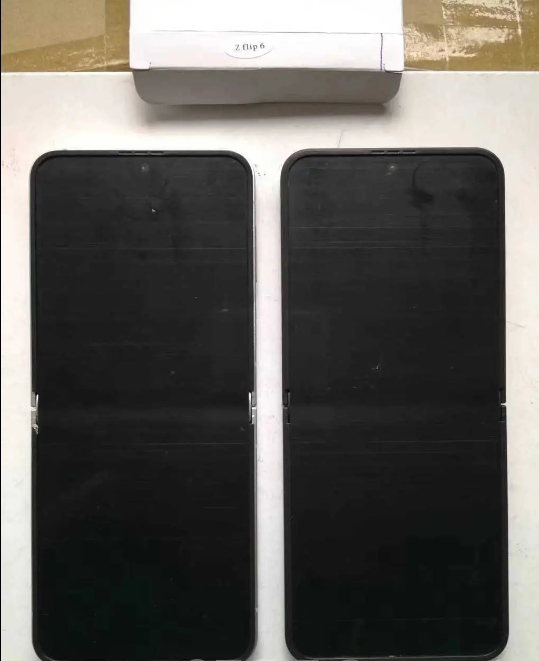
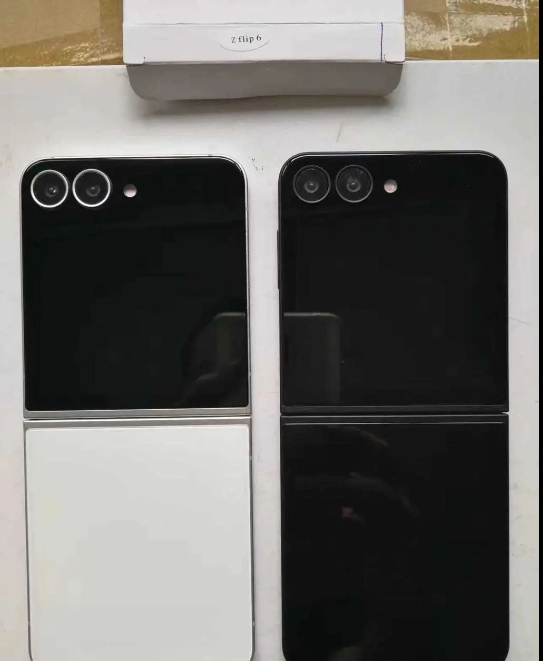
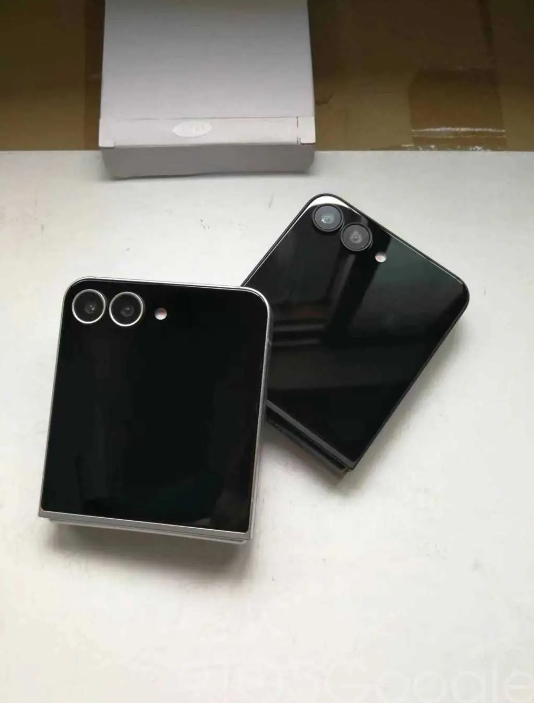
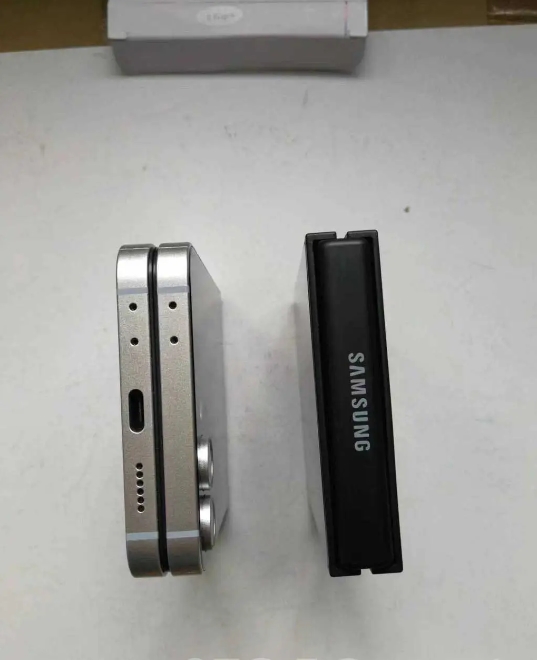
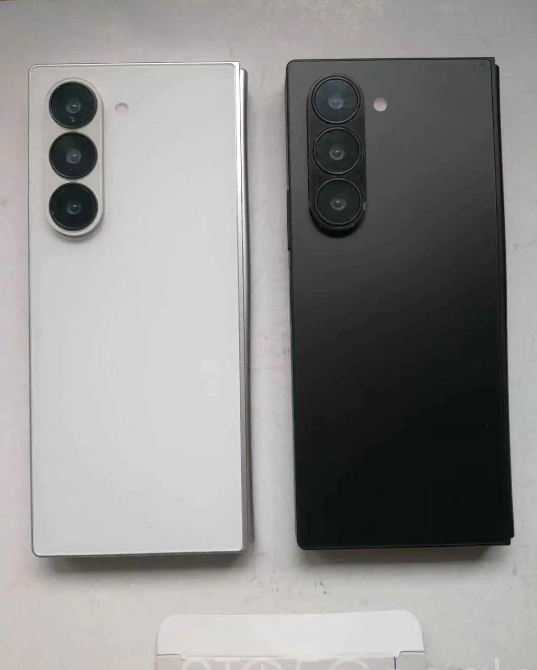
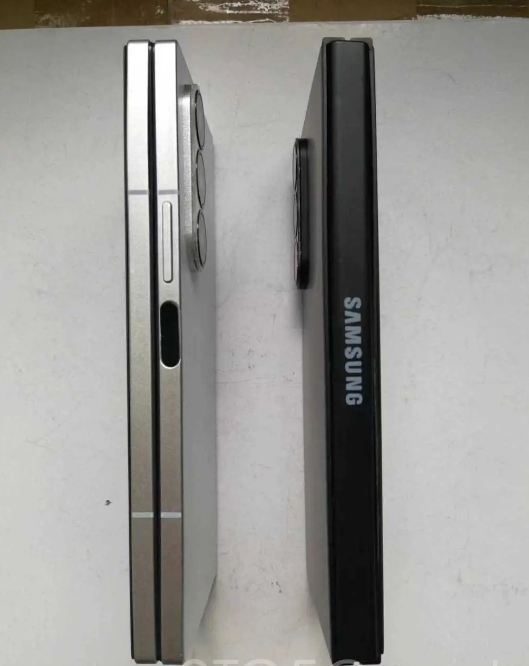
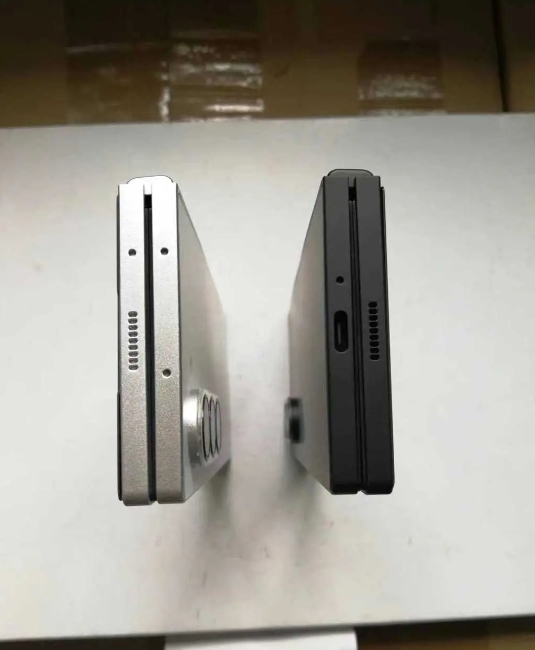
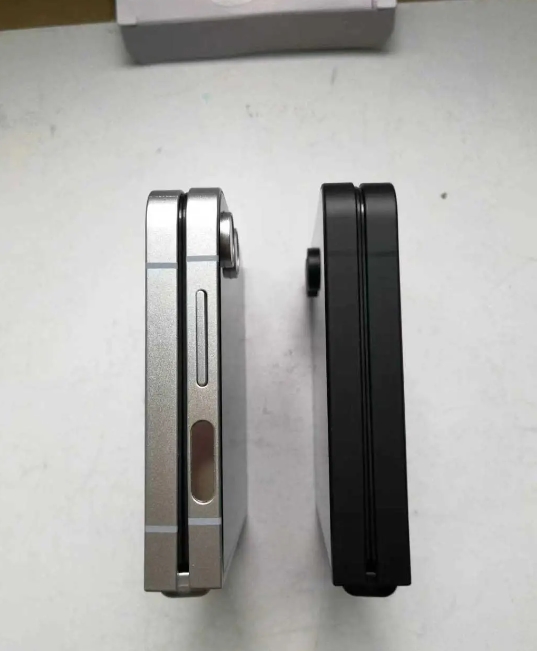
New images of a prototype Galaxy Z Fold 6 and Flip 6 have emerged, showcasing an even deeper look at the Samsung foldable and internal display crease.
Images of prototype Galaxy Z Fold 6 or even Flip 6 units are not new, and we’ve seen almost every angle available through previous leaks. They showcase the entirety of the device, detailing the new boxier design on both foldable, as well as camera array changes this time around.
Photos credited to Sonny Dickson of further Galaxy Z Fold 6 and Flip 6 prototype photos. The images exhibit both the outer and inner displays of each device, and it looks like generation six still carries a significant display crease.
The units in the photos are both prototypes or “dummy” units. Essentially, it means each is subject to extensive changes throughout the design process. These images could be showing off a display that carries a larger seam down the middle than the final version will, or Samsung may have equipped these units with an older display to simply show off the silhouette and overall profile of each phone. Still, users have been hoping for a less significant bend when the Galaxy Z Fold and Galaxy Z Flip are open 180 degrees.
The images also show off a black prototype variant, which has “Samsung” crudely stamped on the hinges of both devices. It’s possible Samsung will ditch the etched logo we’ve seen on past Fold and Flip devices and instead opt for a stamped logo, much like in the images here. The etched logo is the preferable option, giving the $2,000 devices a little touch of quality.
Another small possible detail is the way the hinge protection plate flares out at the top and bottom of the Galaxy Z Fold 6. It’s very hard to see, and the lighting in these images could be playing tricks on our eyes, but it looks like the hinge is a couple of millimeters further from the main phone panels at the ends than it is in the middle, where the Samsung logo is. There is no such angle for the Flip 6.
Besides a couple of small tidbits, Samsung’s design changes can be appreciated in these prototype units. Each phone looks to be carrying a smaller bezel around the internal display, and the overall footprint looks a little nicer than last year’s model.
Samsung is set to announce the Galaxy Z Fold 6 and Galaxy Z Flip 6 on July 10 in Paris.
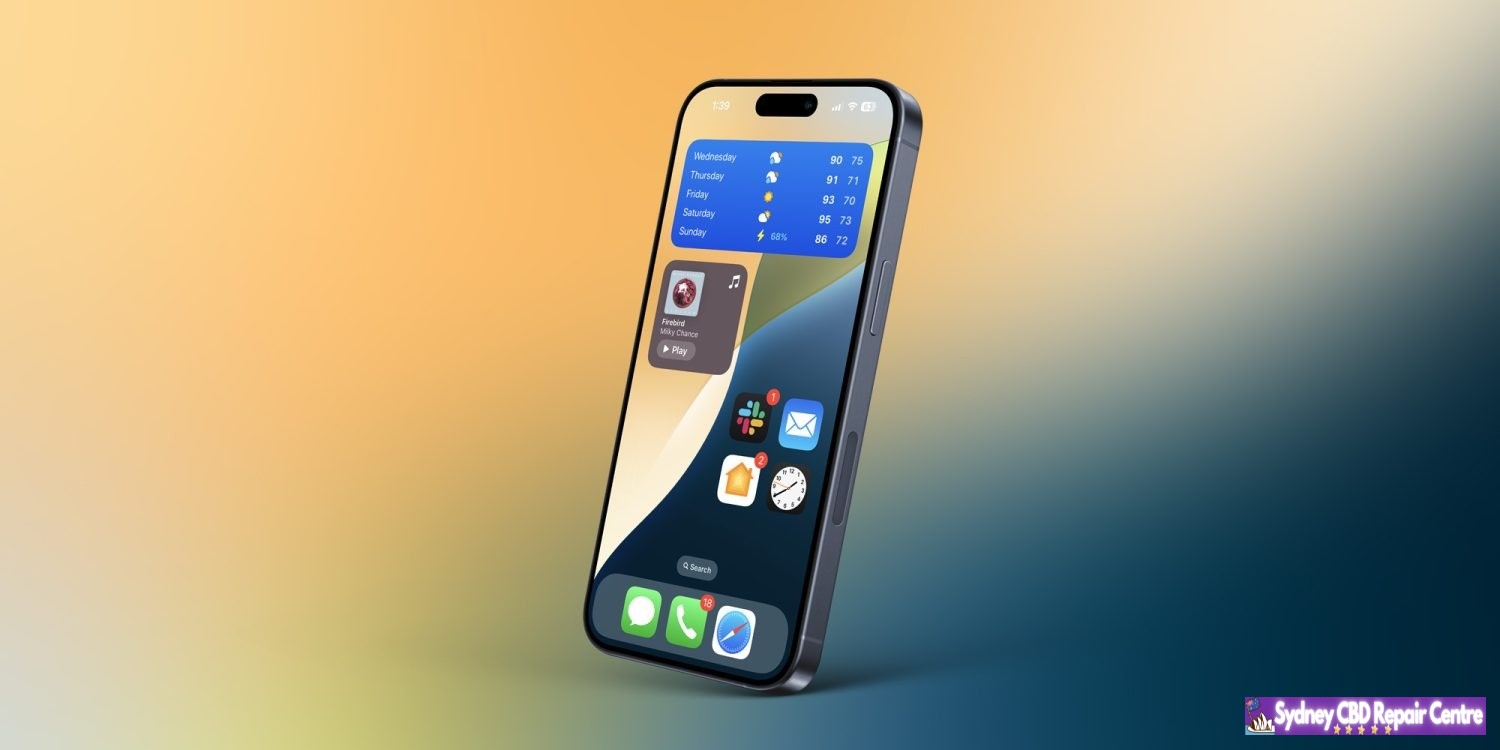
Along with letting users customize app colors, organize them anywhere, and more natively, iOS 18 brings a subtle new feature that cleans up the Home Screen. Here’s how to hide app names on iPhone in iOS 18.
iOS 18 takes iPhone customization further with new options to natively create a theme, a more robust and versatile Control Center, and more.
And joining the ability to place apps and widgets anywhere on your screen, you can create a more minimal aesthetic by choosing to hide app names on your Home Screen which also apply to widgets and folders.
Apple first hid names for apps in the Dock starting with iOS 11. But now you can have all apps, widgets, and folders with the same minimal look no matter where they’re placed.
How to hide app names on iPhone with iOS 18
Make sure you’re running the iOS 18 beta on your iPhone.
Long-press on a blank space on your Home Screen
Tap Edit in the top left corner
Choose Customize
Now tap Large
Tap on the screen to leave the Customize menu
That’s it!
There doesn’t appear to be a way to hide app names while keeping the default small icon size for now. But we’ll be keeping our eye out.
Here’s how it looks to hide app names on iPhone:
After you tap Edit and Customize, look at the bottom of your iPhone.
Tap the Large button (just above the app color buttons):
Do you think you’ll hide app names in iOS 18 or are you already? Or do you prefer to keep them?
Android 15 Beta 3 is available today with final system behaviors as part of the Platform Stability milestone.
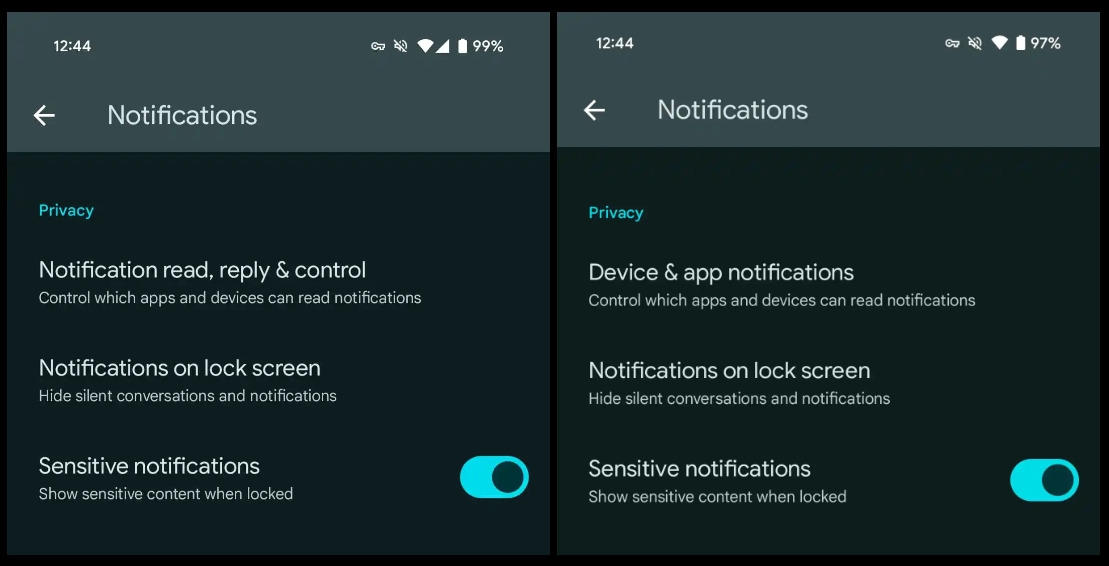
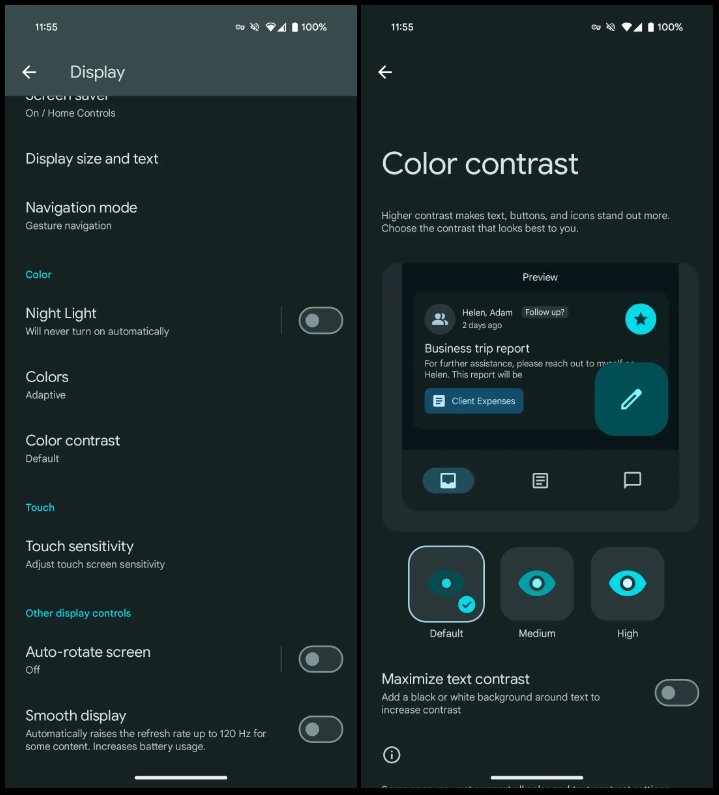
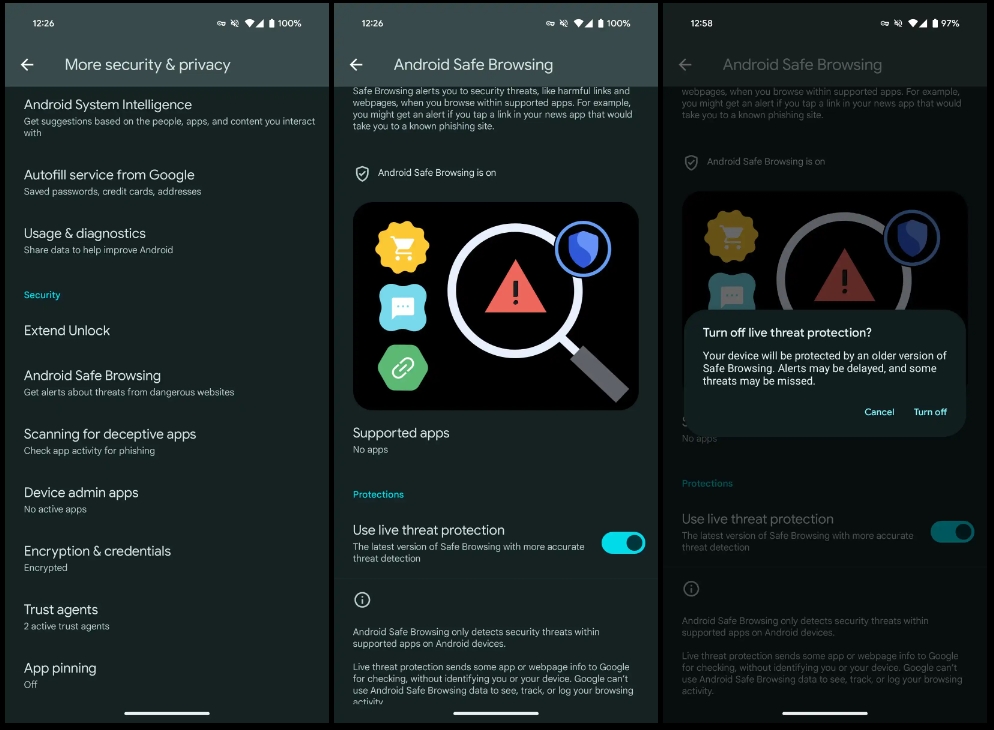
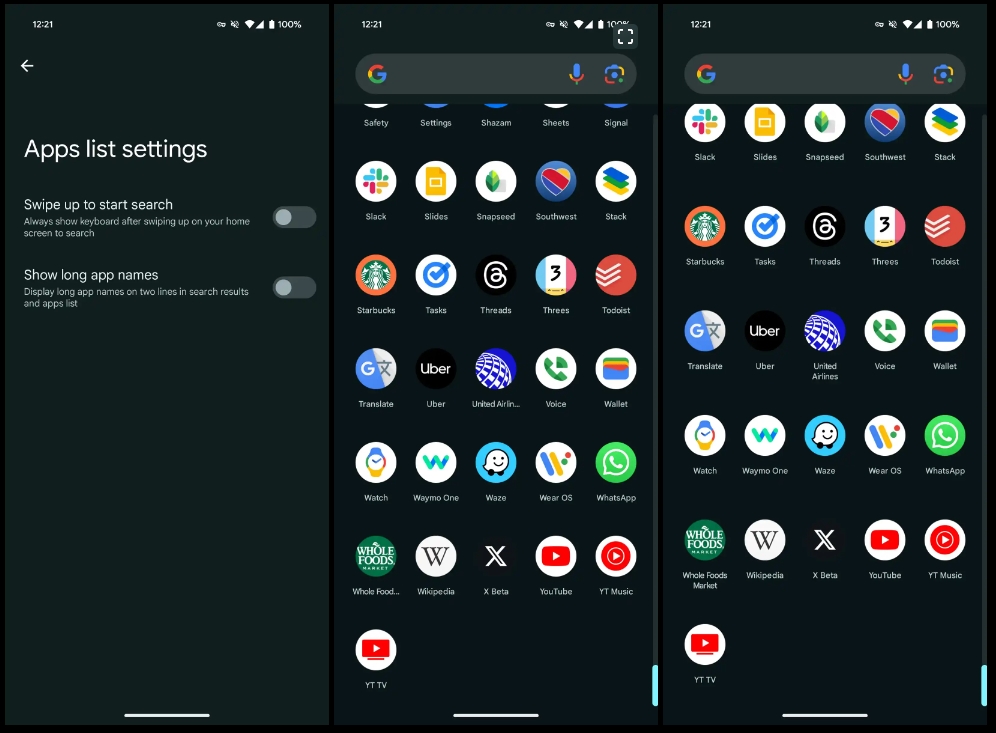
Over the coming hours, we’ll dive into all of Android 15 Beta 3’s new features and every single change. (The newest updates will be at the top of this list. Be sure to check back often and tell us what you find in the comments below.) Android 15 Beta 2 screenshots appear on the left and Beta 3 on the right.
If you want to quickly install Android 15 Beta 2 on your compatible Pixel 6, Pixel 6 Pro, Pixel 6a, Pixel 7, Pixel 7 Pro, Pixel 7a, Pixel Tablet, Pixel Fold, Pixel 8, Pixel 8 Pro, or Pixel 8a, be sure to check out our step-by-step guide.
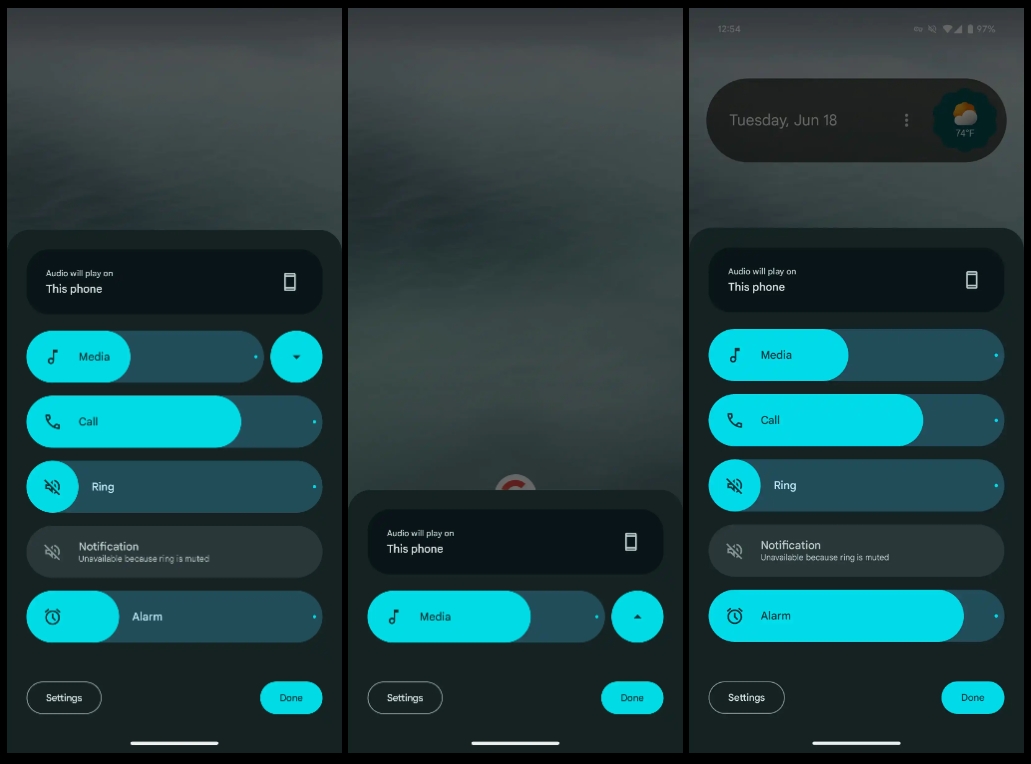
Volume menu can no longer be minimized
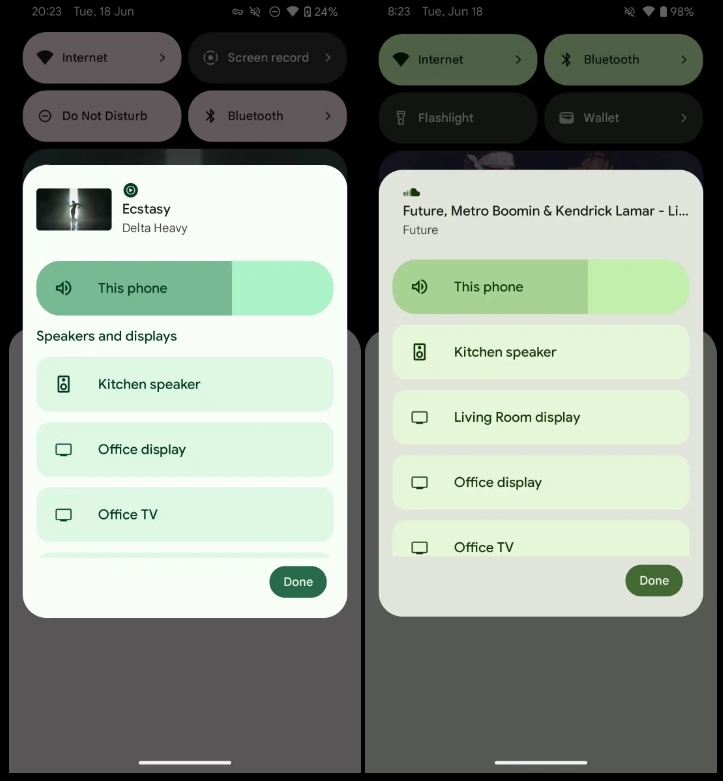
‘Speakers and displays’ label removed
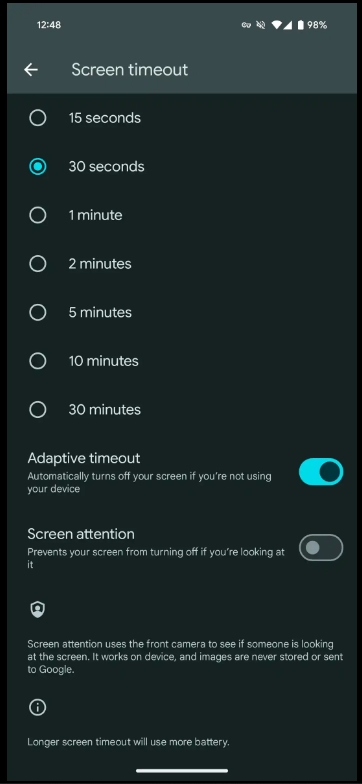
Adaptive timeout
“Automatically turns off your screen if you’re not using your device”
Device & app notifications -> Notification read, reply & control
More prominent Circle to Search off switch
Shortcut to Color contrast preferences in Settings > Display
Android Safe Browsing
Settings > Security & privacy > More security & privacy
“Live threat protection sends some app or webpage info to Google for checking, without identifying you or your device. Google can’t use Android Safe Browsing data to see, track, or log your browsing activity.”
Show long app names
Pixel Launcher Home settings > App list settings
Screenshot 2: Disabled | 3: Enabled
Updated Android 15 system icon
In a nod to the codename (see below), there’s now an ice cream cone in the system icon.
No more VanillaIceCream
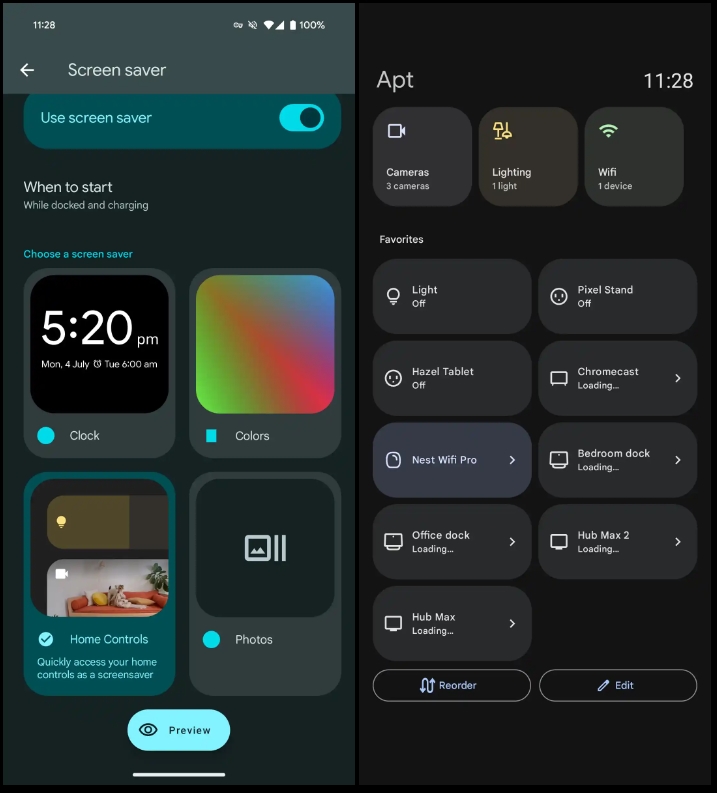
Home Controls screensaver for Pixel Tablet
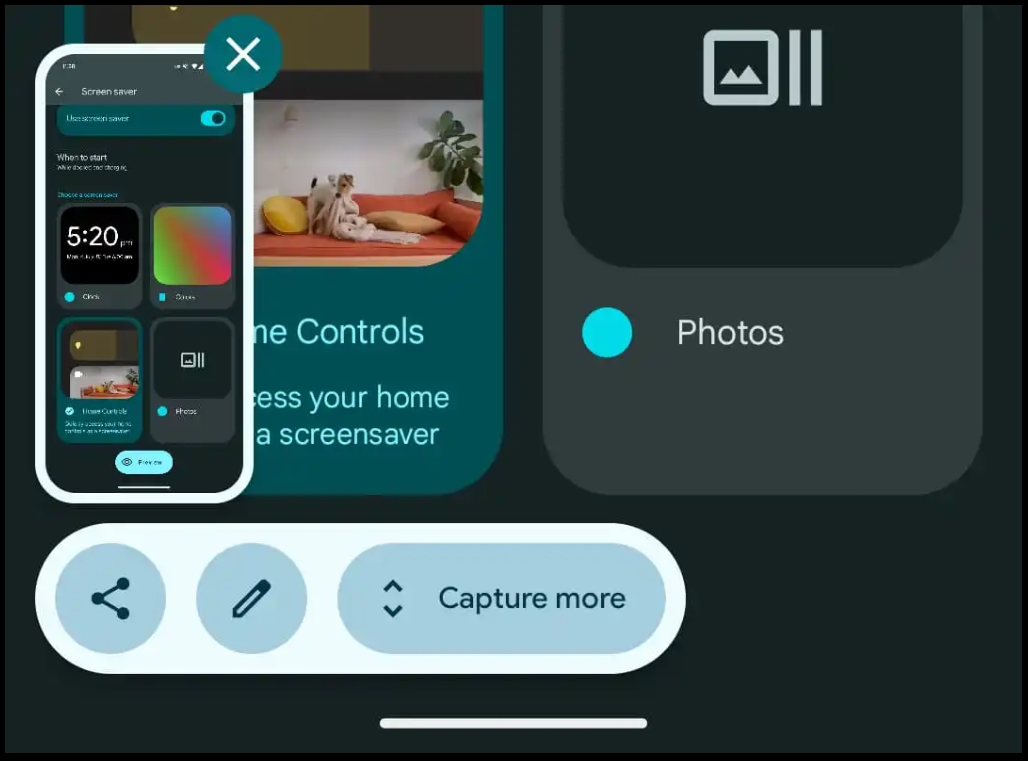
Redesigned screenshot preview
Actions placed below the preview
Looks a bit odd when there are just two actions (Share + Markup)
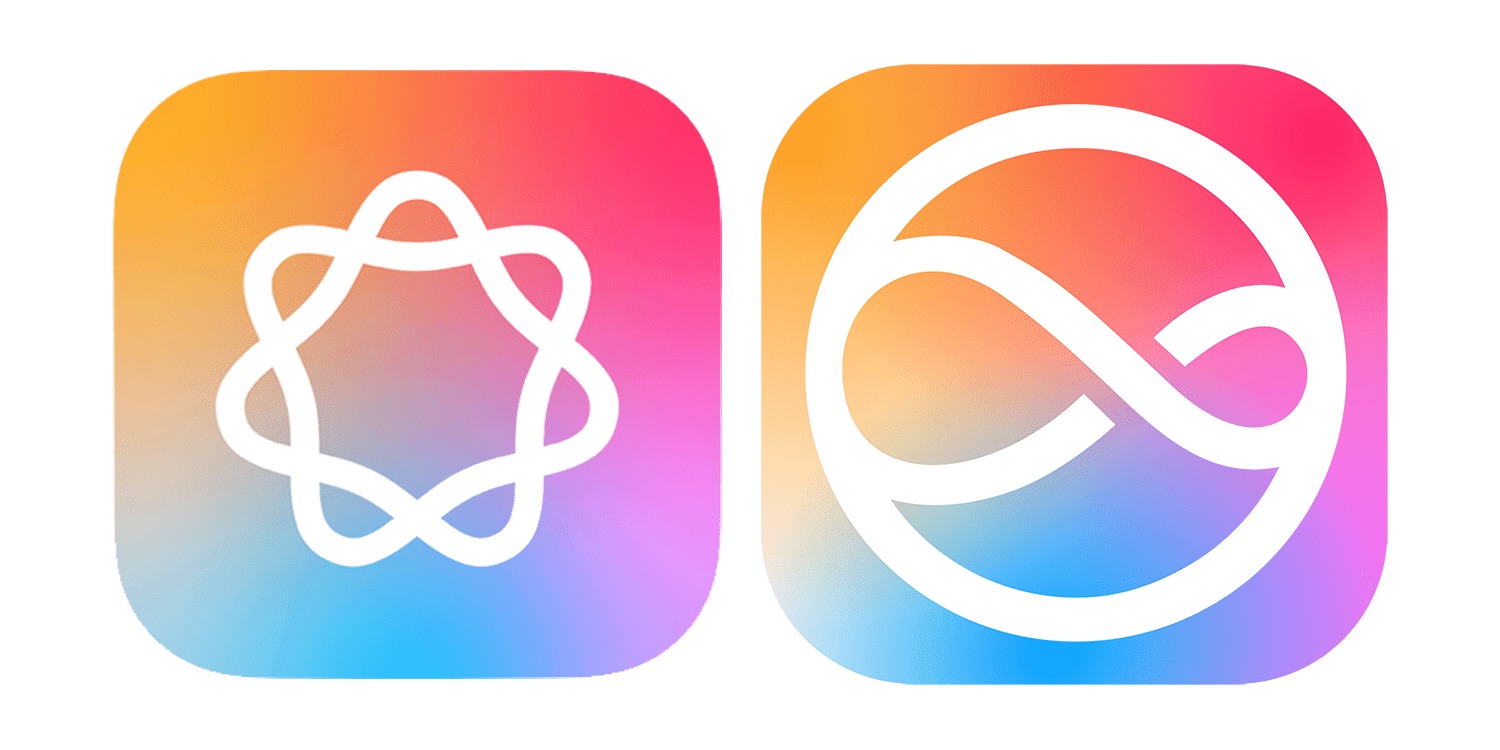
An interesting piece suggests that Apple’s AI logo* – along with the new Siri icon – is intended to look friendly, unthreatening, and is deliberately non-anthropomorphic.
*Yeah, that could be Apple Artificial Intelligence, or Apple Apple Intelligence. Thanks, Tim.
Other companies appear to have set themselves the same goals with their AI offerings, hence all the simple, colorful graphics …
Apple unveiled two logos as part of its WWDC presentation: One for Apple Intelligence, the other for the new AI-powered Siri.
I was somewhat surprised by the decision. Since Siri is how we’ll access most AI features, I’m not entirely sure why Apple felt it needed two different logos – though they are very clearly part of the same family.
TechCrunch’s Devin Coldeway points to other AI logos, and notes that most have the same characteristics.
Although approaches differ to branding this purportedly all-seeing, all-knowing, all-doing intelligence, they have coalesced around the idea that the avatar of AI should be non-threatening, abstract, but relatively simple and non-anthropomorphic […]
Notice how four of the six (five of seven if you count Apple twice, and why shouldn’t we) use pleasant candy colors: colors that mean nothing but are cheery and approachable, leaning toward the feminine (as such things are considered in design language) or even the childlike. Soft gradients into pink, purple and turquoise; pastels, not hard colors; four are soft, never-ending shapes; Perplexity and Google have sharp edges, but the former suggests an endless book while the latter is a happy, symmetrical star with welcoming concavities.
Coldeway rejects potential accusations of over-thinking.
Think I’m overanalyzing? How many pages do you think the design treatment documents ran for each of these logos — over or under 20 pages? My money would be on the former. Companies obsess over these things.
His argument makes sense to me, especially the careful avoidance of anything suggestive of a person or a robot. OpenAI may have thought it was a good idea to reference Her during its recent presentation, but companies have mostly carefully avoided going down this route.
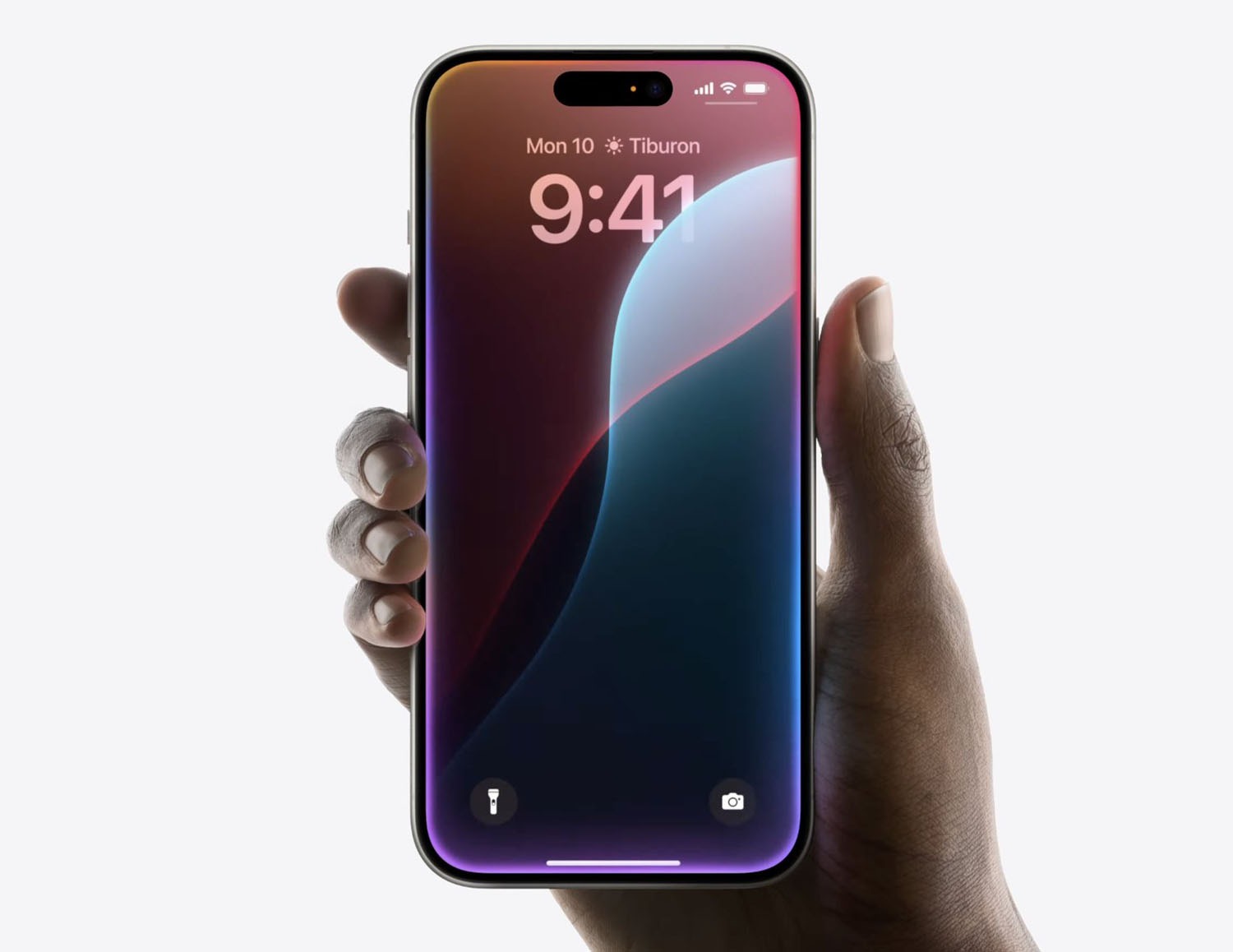
Absolutely adore the upcoming ‘colorful frame’ Siri animation!
The June Feature Drop continues to roll out through a series of app updates. Pixel Camera 9.4 brings manual lens section to the Pixel 6/7 Pro and Fold, as well as other tweaks.
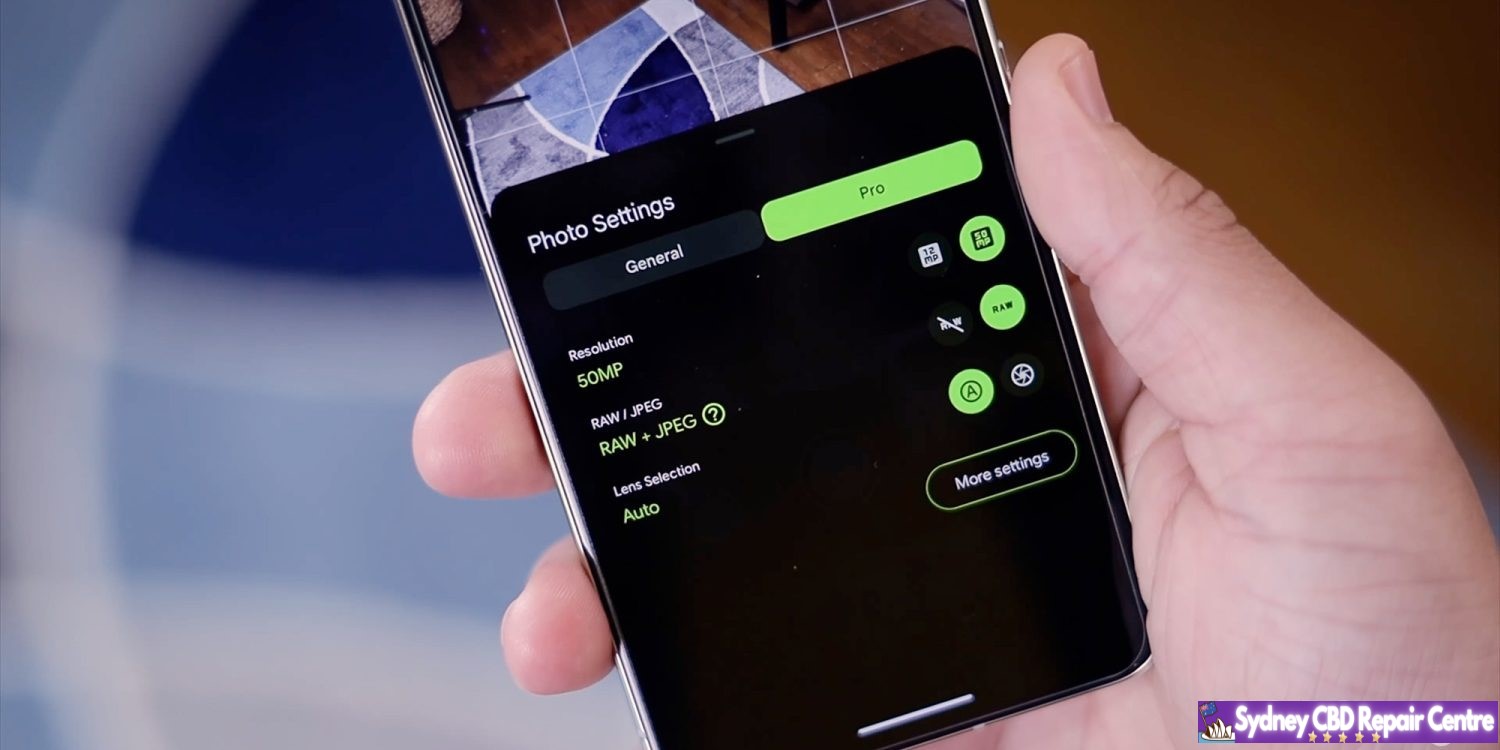
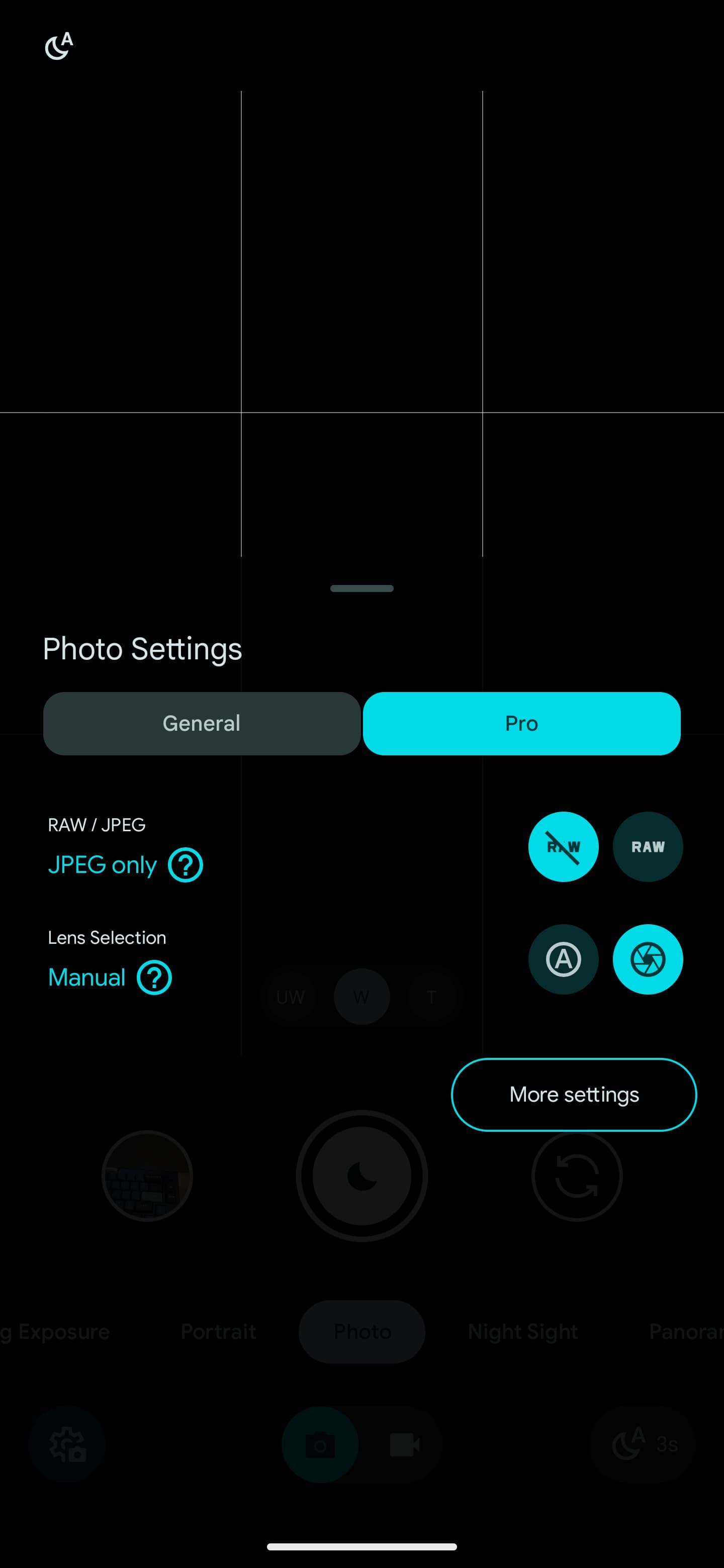
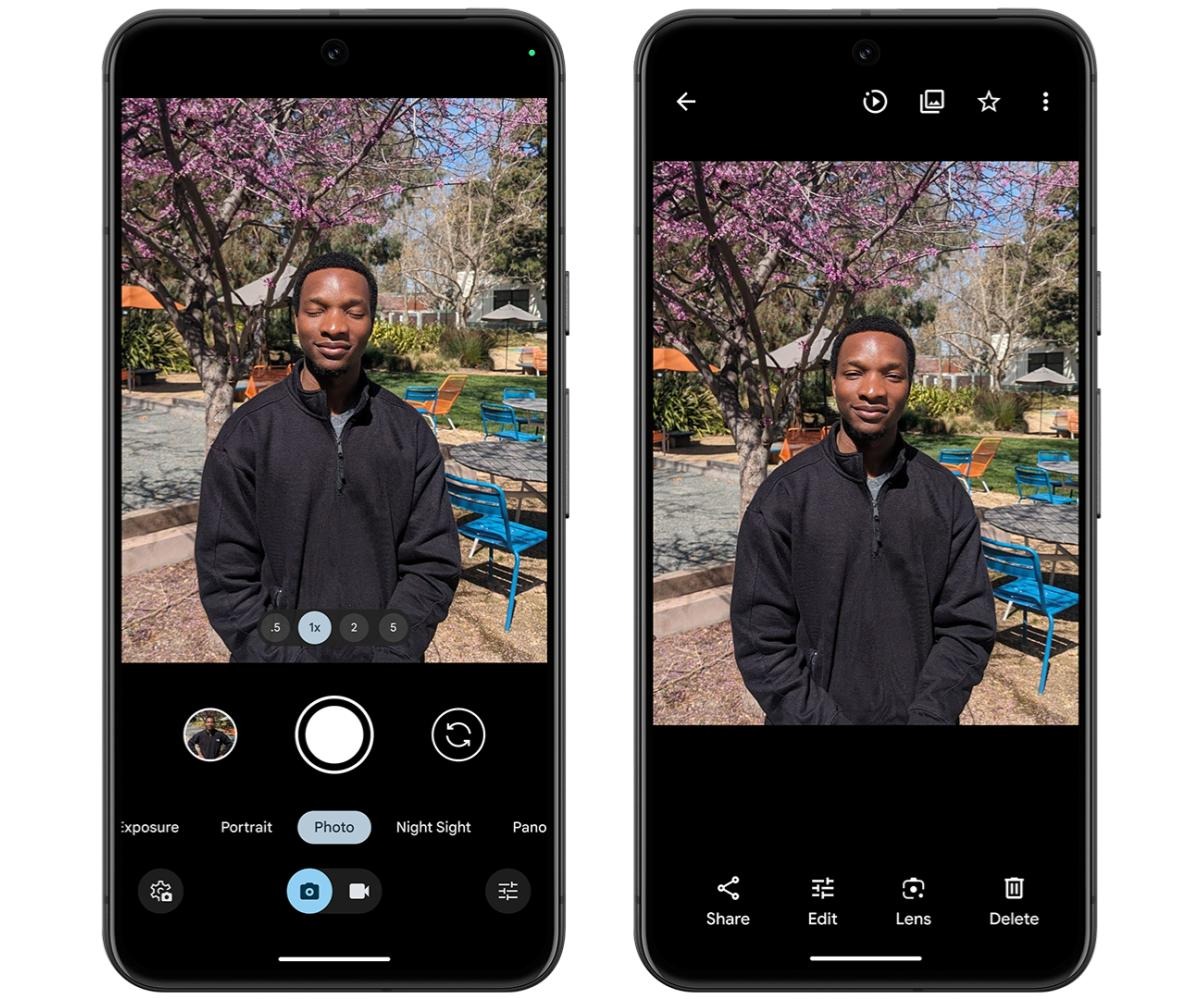
Like on the Pixel 8 Pro, Google’s two other premium phones and foldable now let you choose one of the three rear lenses for a shot. Tap the settings gear in the bottom-left corner (or swipe up) for Photo Settings. You’ll find a new “Pro” tab next to “General” with Lens Selection: Auto or Manual.
(Despite the tab’s name, these aren’t the “Pro controls” introduced on the Pixel 8 Pro that let you adjust Focus, Shutter Speed, and ISO.)
The zoom pill above the shutter button gets replaced by Ultra Wide, Wide, and Telephoto. Pinch in/out to zoom when this manual mode is enabled. Google will default to W when you open the app later.
Another change sees Pixel Camera move the RAW / JPEG picker to the Pro tab. It was previously buried in Settings > Advanced. This makes switching much easier when you want to professionally edit the shot later. Compared to the 8 Pro, you do not get the Resolution preference: 12MP or 50MP.
This update presumably brings the HDR+ Improved Frame Selection to the Pixel 6+, including Fold and Tablet:
HDR+ is now better about identifying the best moment from your photo in HDR+ with just a single shutter press. It’s smarter about which base frame it selects to produce the multi-frame merged image, looking at criteria such as open eyes and smiling subjects.
WWDC this year was packed with new features for Apple’s suite of software platforms. The company introduced a lot of enhancements coming this fall in iOS 18, visionOS 2, macOS Sequoia, and more.
Apple also showcased features that are not coming this fall. But it wasn’t always clear what will arrive in 18.0, and what’s being saved for later this year or even some time in 2025.
Here’s the full list of features we know won’t arrive until iOS 18.1 or later.
New Siri’s on-screen awareness and in-app actions
Apple Intelligence’s fall arrival will bring with it a new Siri interface and select new capabilities, but some of the most powerful Siri upgrades will be added some time over the coming year.
Siri abilities coming later include having on-screen awareness of what you’re doing at any given time so that you can say, for example, “Use this as their contact photo” and it will understand the context and perform the action accordingly.
Similarly, Siri’s deeper knowledge of in-app functions and ability to, say, play the podcast that your significant other sent you, won’t arrive until some time in the year ahead.
Apple Mail upgrades
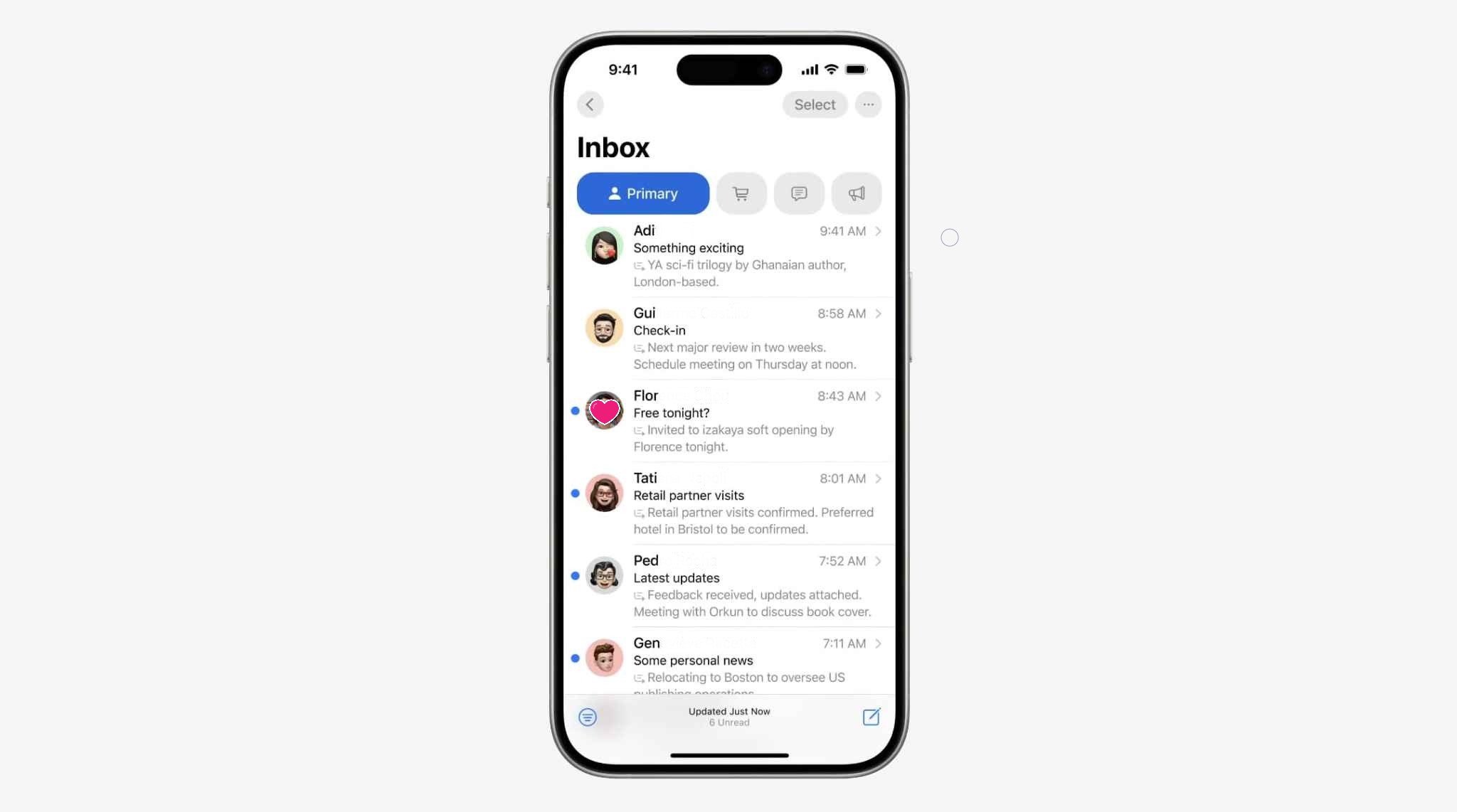
Apple has big updates coming for popular apps like Notes and Messages this fall. Another core app getting some nice upgrades is Mail, with new features like the auto-categorization of messages in your inbox. Unlike those other apps though, Mail’s improvements won’t arrive until later in the year.
Vision Pro enhancements including Mac Virtual Display
This one shouldn’t be too surprising, since the Vision Pro first launched just a few months ago, but some of the best visionOS 2 features won’t arrive until later this year.
Here are the features coming in visionOS 2.1 or 2.2:
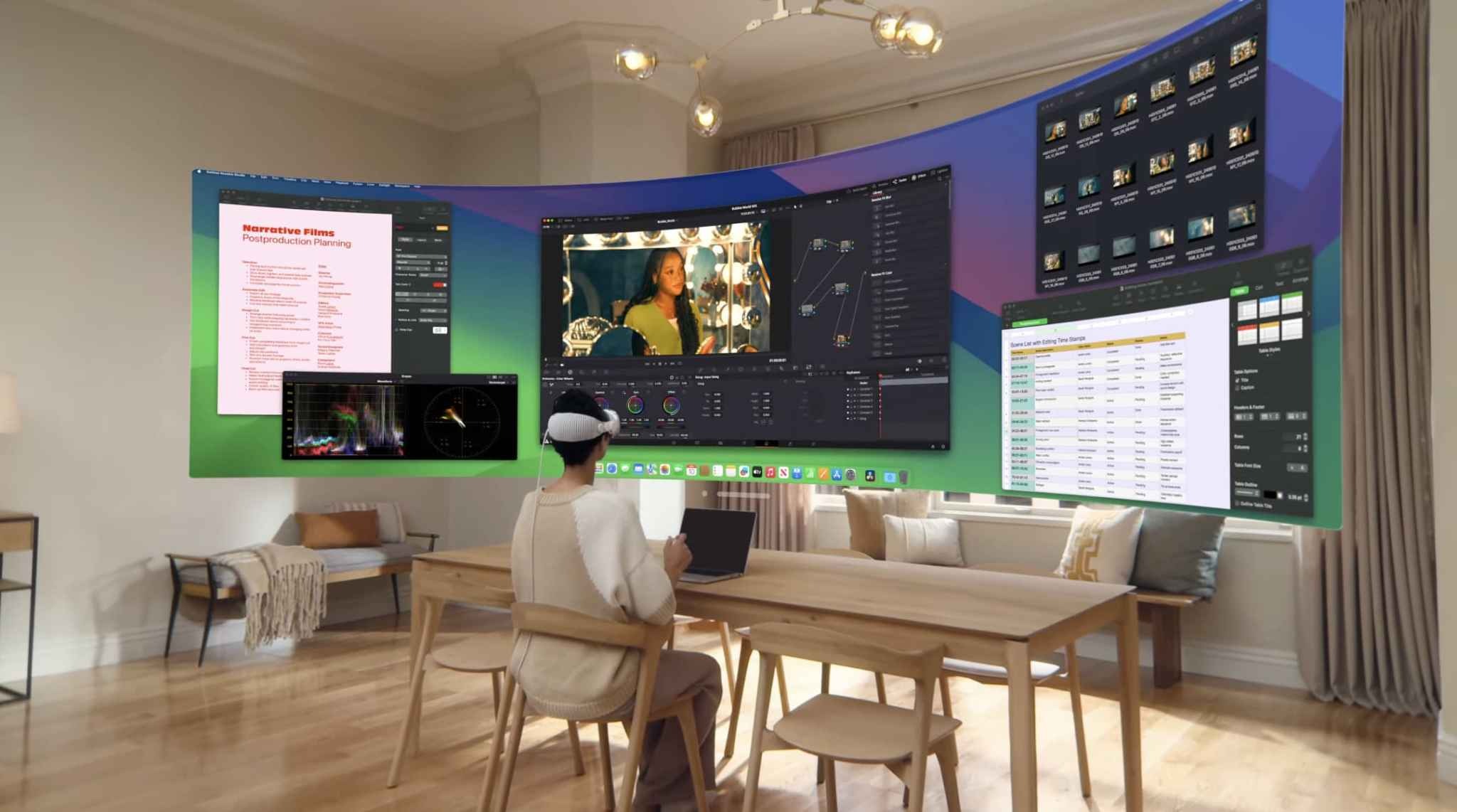
Upgraded Mac Virtual Display: A fan favorite feature, Mac Virtual Display is getting better with the ability to have an Ultrawide view that provides the equivalent of having two 4K displays side by side.
Multiview: Sports fans will be able to watch up to five different games at the same time using the Apple TV app, each with their own dedicated view.
Spatial video editing: This is partially a macOS feature, but the ability to import your spatial video to the Mac, edit it there in Final Cut Pro, and export it back to your Vision Pro won’t arrive until late 2024.
New emoji, including the best exhausted face
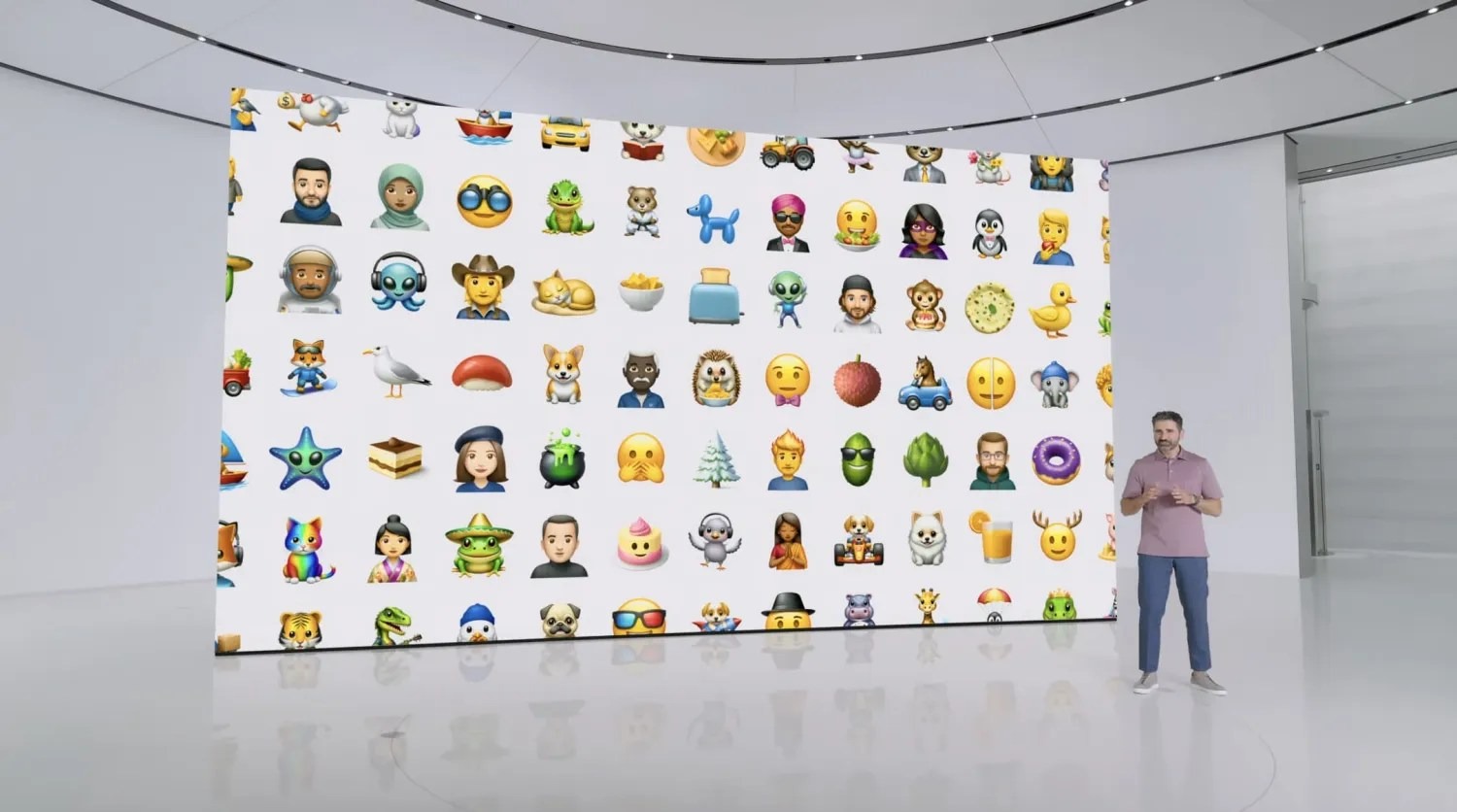
Compatible devices will be able to create custom emoji (Apple calls them Genmoji) when iOS 18 debuts in the fall. But every year there is a set of new built-in emoji added to iOS, and this year’s additions were recently previewed but they won’t arrive on your devices until later in 2024 or early in 2025.
Non-beta versions of Apple Intelligence
The biggest news for Apple’s software this year is Apple Intelligence. While the core Apple Intelligence features are set to arrive this fall as part of iOS 18 and more, it’s important to know that Apple is labeling this initial AI release as a beta feature. So expect issues and inconsistencies to get worked out in the weeks and months following the fall release.
Drag and drop from your iPhone to Mac, and vice versa
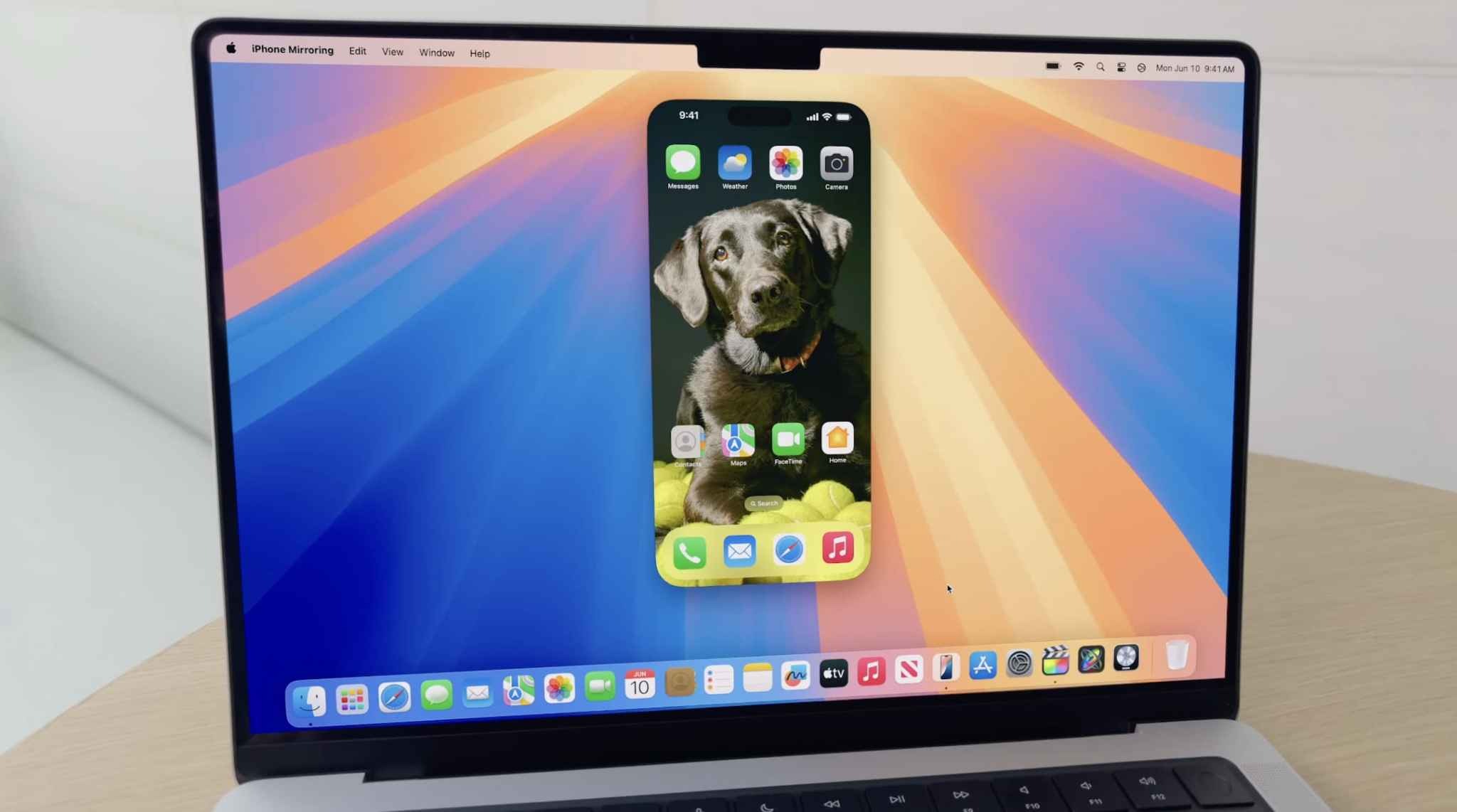
A tentpole feature of macOS Sequoia is the ability to mirror your iPhone on your Mac and interact with it there. But one feature of this new ability won’t arrive until later: the ability to seamlessly drag and drop files and photos between your two devices. Once it debuts, this feature is set to be an even quicker way to transfer files than AirDrop is, but we’ll have to wait just a bit longer.
Home app improvements
The Home app in iOS 18 is getting some nice upgrades, but most of them won’t arrive until later. The two main features coming later this year are support for adding robot vacuum cleaners as compatible devices, and the ability to view your home electricity use inside the app.
Google Pixel 8a is now available in many markets, be it via the official Google Store or third-party retailers. It looks a lot like the OG Pixel 8; it offers a streamlined feature set and is priced a bit lower. But is it the one you should get? Let’s find out.
The Google Pixel 8a is the next installment in the Pixel ‘a’ series, which many consider to be standing for ‘affordable’. The logic is sound – the design has been simplified, the cameras – less complicated, the connectivity – less premium. And finally – it is cheaper than the Pixel 8 even if not by a large margin.
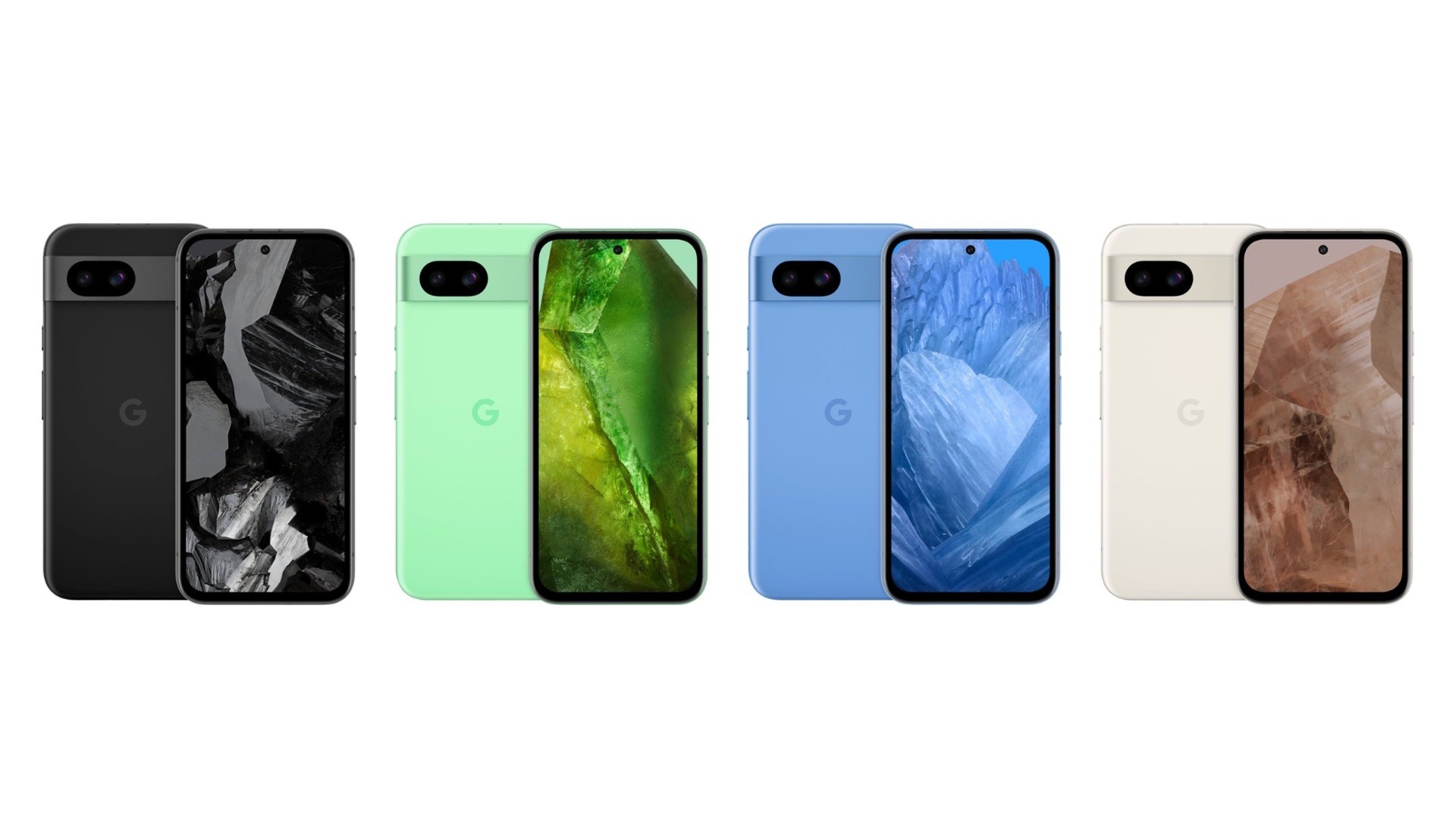
The Pixel 8a has a similar design, but its front glass is an older Gorilla Glass 3 and the rear part is entirely made of plastic, the camera housing included. It is IP67-rated for dust and water resistance, and it is available in familiar colorways – Obsidian, Porcelain, Bay, Aloe.
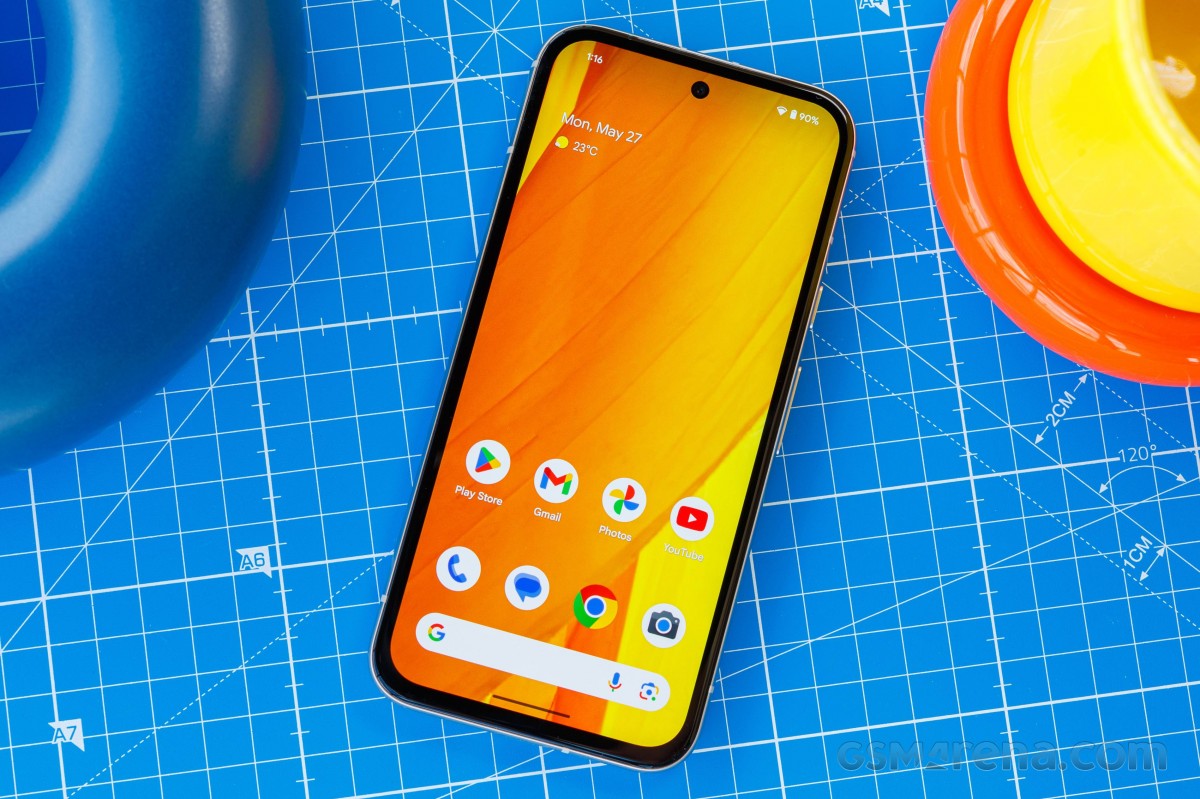
The Pixel 8a employs a bit smaller 6.1-inch OLED screen of extended 1080p resolution and 120Hz refresh rate. It has the same Tensor G3 chip as the Pixel 8 and offers the same memory configuration of 8GB RAM + 128GB UFS storage.
Of course, the camera is what everyone thinks when hearing a Pixel and it will be one of the most discussed aspects about the Pixel 8a. Here we also have a dual-camera setup like on the Pixel 8, but with different sensors – a 64MP OIS primary and a 13MP FF ultrawide. The front camera is also a 13MP, with the same ultrawide lens as on the Pixel 8.
Finally, the Pixel 8a is powered by a 4,492mAh battery capable of up to 30W or so fast wired and up to 7.5W of wireless charging.
Disclaimer. We can not guarantee that the information on this page is 100% correct.
Google Pixel 8a seems like a solid little flagship, one of the very few on the market, and also one that doesn’t cost a thousand dollars/euros. The slow 18W wired charging is a glaring omission on the spec sheet, though.
Unboxing the Pixel 8a
Google was one of the first makers to limit the retail box contents. The Pixel 8a package includes a USB-C cable and a USB-A-to-C adapter.
And that’s it. Still, it’s two accessories more than what Sony would give you in the Xperia retail box so we guess we should not complain.
The competition
The Google Pixel 8a is an excellent compact smartphone – it has a great design, a great OLED screen, a powerful chipset, good battery life and a superb camera experience. It’s the launch price that seems to be standing in its way of greatness, though it has begun to drop shortly after its premiere, which is a good sign.
The Pixel 8a launched at €549, so the “a” doesn’t seem to stand for affordable this time around. Especially considering that the Pixel 8’s price has dropped to €525 at third party sellers, making it the better choice of the two for its more premium design, slimmer bezels, better cameras (in specific use cases), and noticeably faster charging.
The Galaxy S24 is about €90 more expensive, but it will offer a more dynamic display with higher brightness, a much faster and more modern processor, more versatile camera experience, and faster charging.
Xiaomi 14 and iPhone 15 are popular compact alternatives, though they are about €200 more than the Pixel 8a, immediately making them the less attractive options. Sure, the Xiaomi 14 will give a much better screen and a much more powerful CPU and camera kit, but these come at a hefty premium.
Google Pixel 8 • Samsung Galaxy S24 • Xiaomi 14 • Apple iPhone 15
The verdict
The Google Pixel 8a turned out to be an incredibly capable compact smartphone – a rare breed. It aced our screen, battery, and speaker tests, it offers an easily likable and unique design, its performance is alright, and its camera is worthy of the Pixel name.
There are a couple of things to consider – like the thick bezels, the slow charging, and the heavy performance throttling under load.
We would still have liked to recommend the Pixel 8a, but unfortunately, at third-party retailers, its price is ridiculously close to that of the Pixel 8, which is the better phone by all accounts. The price has begun to go down already, so once it settles around the €420 mark and the “a” once again stands for affordable – it’s safe to say the Pixel 8a would be well worth considering.
Pros
Sturdy Pixel design, likable, IP67, compact.
Great OLED, bright, color-accurate, smooth.
Good battery life.
Very good speakers.
Decent performance.
Excellent photo and video quality across all cameras.
In addition to the Feature Drop, Google is rolling out QPR3 to Android 14 with the June 2024 security patch for the latest Pixel devices: 5a, 6, 6 Pro, 6a, 7, 7 Pro, 7a, Tablet, Fold, 8, 8 Pro, and 8a.
As the last major Android 14 update before Android 15, QPR3 is light on user-facing changes. For example, the Suggestions section of the Widgets list now shows app icons.
There are a few tweaks in Settings from the “Passwords, passkeys & autofill” rename to a new Display > Touch sensitivity menu that houses the existing Screen protector mode. Under Sound & vibration > Vibration & haptics, there’s a new “Keyboard vibration” toggle that replaces the Gboard preference.
In Security & privacy > More security & privacy, you’ll find “Allow camera software extensions”: “Enables the default software implementation of advanced camera features, such as Eyes Free videography.”
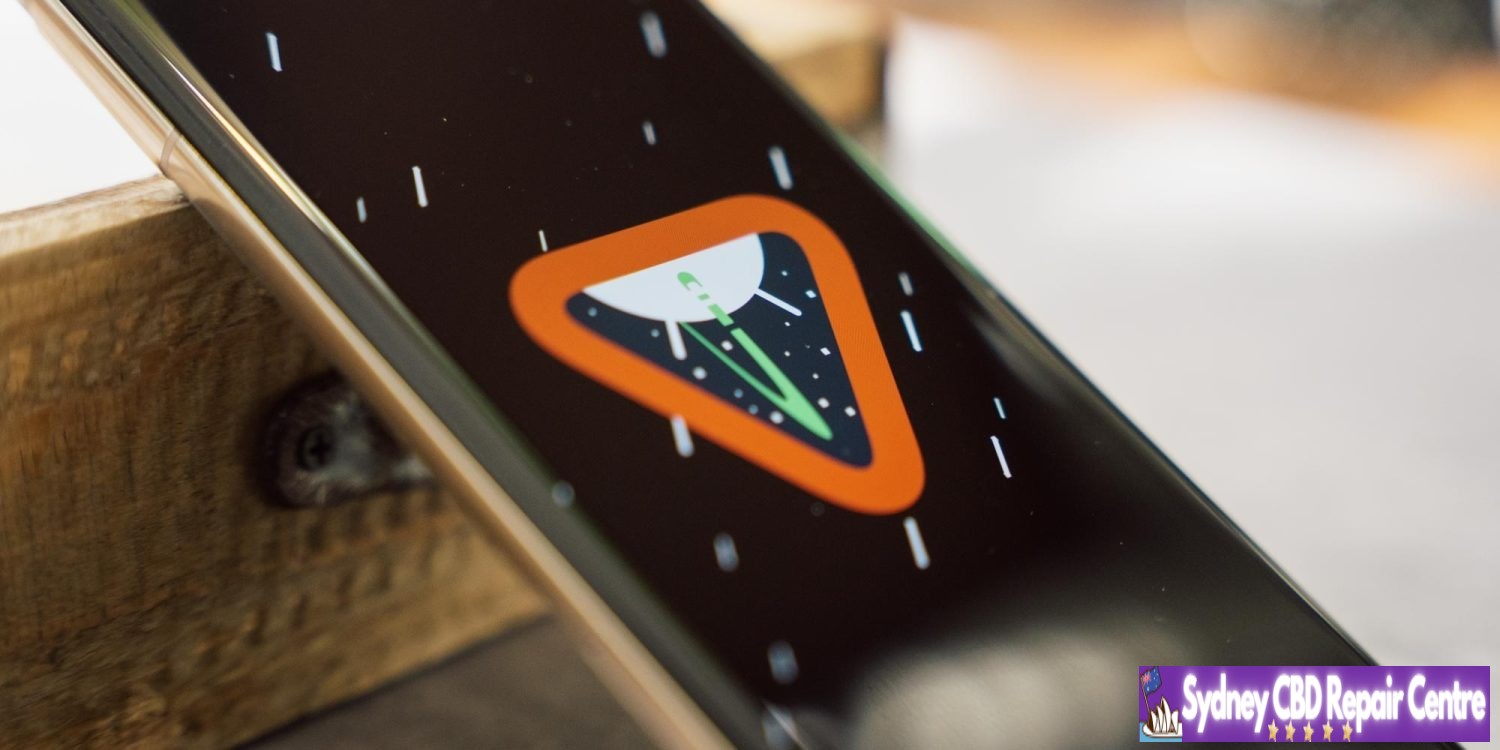
As seen in the cover image, Google has updated the Android 14 easter egg ahead of Android 15 (V).
There are 22 security issues resolved in the Android 14 June patch dated 2024-06-01 and 18 for 2024-06-05. Vulnerabilities range from high to critical.
The dedicated bulletin for Google devices lists additional security fixes.
The open source app was submitted to the store, given the recent rule change that allows retro game console emulators, like Delta or Folium. App Review rejected UTM, deciding that a “PC is not a console”. What is more surprising, is the fact that UTM says that Apple is also blocking the app from being listed in third-party app stores in the EU.
As written in the App Review Guidelines, Rule 4.7 covers “mini apps, mini games, streaming games, chatbots, plug-ins and game emulators”.
UTM says Apple refused to notarize the app because of the violation of rule 4.7, as that is included in Notarization Review Guidelines. However, the App Review Guidelines page disagrees. It does not annotate rule 4.7 as being part of the Notarization Review Guidelines. Indeed, if you select the “Show Notarization Review Guidelines Only” toggle, rule 4.7 is greyed out as not being applicable.
It’s therefore unclear if the Apple reviewers for UTM were incorrect in asserting the application was not suitable for distribution by third-party app stores in the EU.
However, as it stands, UTM is not proceeding to contest the ruling. As apps distributed on iOS cannot use a JIT compiler (other than specially entitled alternative browser engines), the functionality and performance of the emulators running through UTM SE, the version submitted for review that had JIT disabled, was significantly impaired. UTM says getting UTM SE approved “isn’t worth fighting for”.
UTM for iOS will continue to be available using older ‘grey market’ sideloading methods for open source software, such as compiling and installing the app manually via Xcode. UTM for Mac is available in the Mac App Store.
After being announced at WWDC 2024 Yesterday, Apple has released the first beta of iOS 18 and iPadOS 18 to developers. The update includes new home screen features, upgrades to the Messages app, and much more.
Apple will release a public beta of iOS 18 and iPadOS 18 in July. For now, the update is only available to developers for beta testing. iOS 18 is supported on all the same iPhone models as iOS 17.
New home screen features and more
Apple’s new software version won’t be complete until the fall, at which point it will be released to the general public. Testers should still expect performance and stability issues when running the iOS 18 public beta on primary devices for the time being.
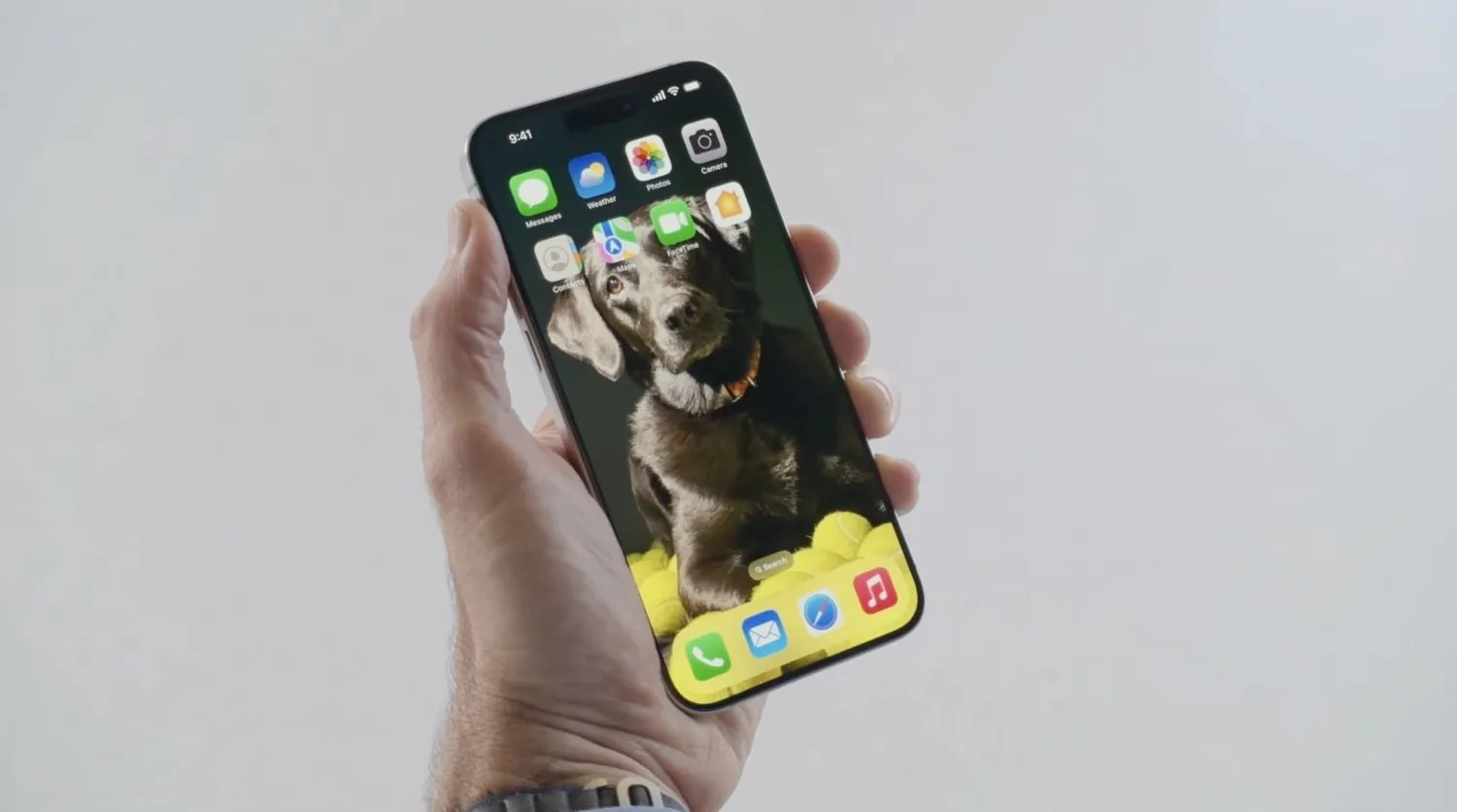
Some of the biggest changes in iOS 18 are for the home screen, which is now more customizable than ever. You can place app icons freely on the grid, tint app icons, customize Control Center, and much more. Keep in mind, many of the new Apple Intelligence features – including ChatGPT integration – won’t be available until later this year.
iOS 18: Here’s the list of iPhone models compatible with the update
After many rumors, Apple finally announced iOS 18 at WWDC 2024 on Monday. The new version of the iPhone operating system comes with a new Home Screen that lets users customize the icons, as well as a redesigned Photos app, Apple Intelligence, and much more. And if you’re wondering whether your iPhone is compatible with iOS 18, we have the answer.
“Apple today previewed iOS 18, a major release that features more customization options, the biggest redesign ever of the Photos app, new ways for users to manage their inbox in Mail, Messages over satellite, and so much more,” the company said in a press release.
iOS 18 compatibility
iOS 18 is compatible with the following iPhone models:
iPhone XR
iPhone XS and XS Max
iPhone 11
iPhone 11 Pro and 11 Pro Max
iPhone 12 and 12 mini
iPhone 12 Pro and 12 Pro Max
iPhone 13 and 13 mini
iPhone 13 Pro and 13 Pro Max
iPhone 14 and 14 Plus
iPhone 14 Pro and 14 Pro Max
iPhone 15 and 15 Plus
iPhone 15 Pro and 15 Pro Max
iPhone SE (2nd gen)
iPhone SE (3rd gen)
As you can see, all the same iPhones running iOS 17 can be updated to iOS 18. However, there’s a catch. According to Apple, only the iPhone 15 Pro and iPhone 15 Pro Max are compatible with the new AI, or Apple Intelligence, features. This is because these features require the A17 Pro or M1 chip or later.
The first beta of iOS 18 will be released to developers later today. A public beta is coming next month, while the official launch is set for this fall.
Apple will support RCS with iOS 18, improving messaging experience between iPhone and Android
Apple confirmed today that it will support RCS messaging with iOS 18, releasing this fall. RCS will enable a richer experience when communicating with Android users.
RCS will give your green bubble chats many of the best of features of iMessage, like high-resolution image and video attachments, typing indicators, read receipts and more.
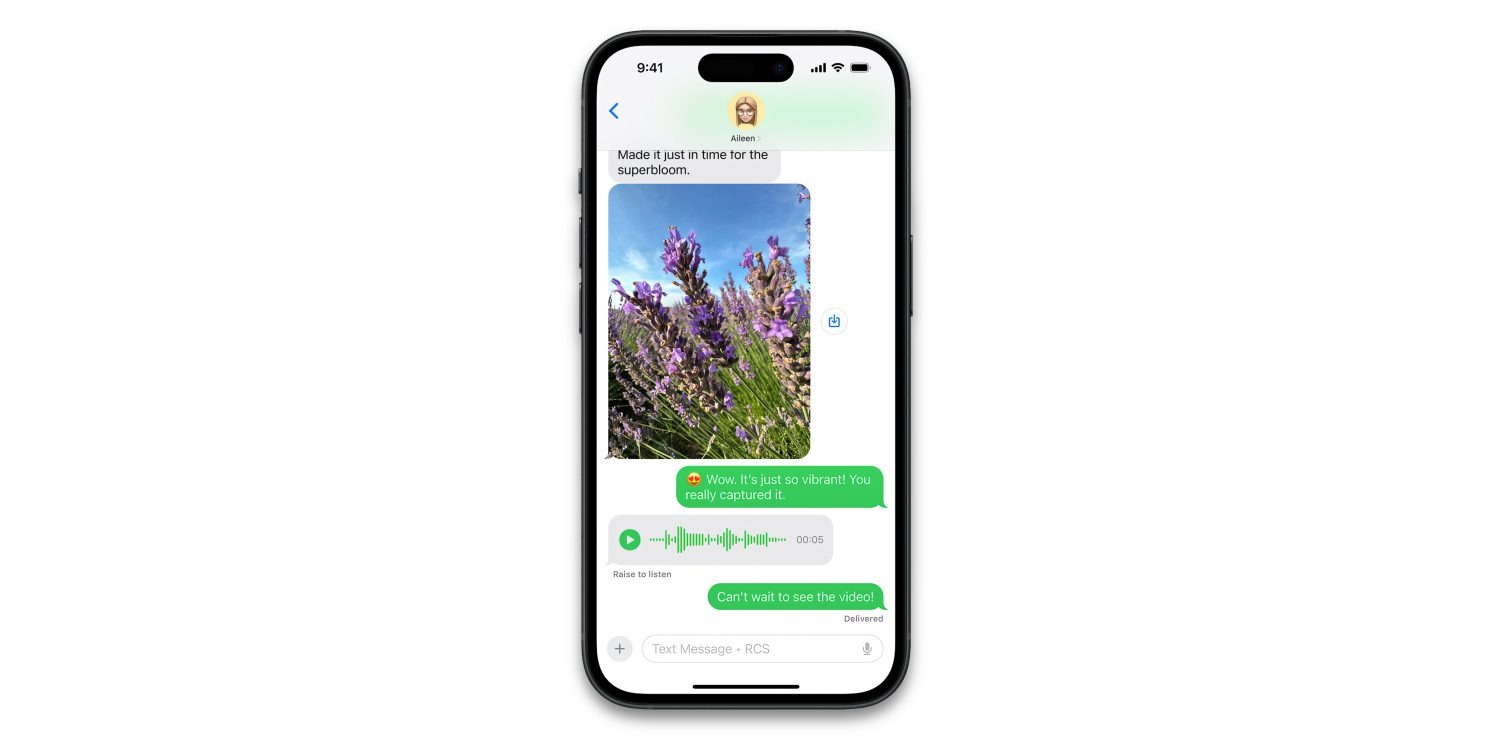
As shown today in the first ever screenshot of the feature in action, the iOS 18 Messages app will still distinguish RCS conversations with green bubbles.
However, the text field will include the label “Text Message • RCS” so users know they will get an upgraded texting experience, compared to traditional SMS.
The most significant difference will be the increase in file size for media. SMS enforces very small file sizes when sending photos or videos, so traditionally texting a picture to an Android user would not be a great experience as the image would be severely compressed. However, over RCS, images and video messages can transfer in much higher quality.
iPhone to iPhone communication will still offer the best experience, through iMessage. iMessage has richer integration with the Apple ecosystem, and offers the highest standards of privacy with end-to-encryption for all communication. iMessage will also continue to offer exclusive communication features like the new text effects.
However, the biggest pain points of SMS are resolved by RCS. As long as both members of the conversation are using devices that support RCS, conversations will take place over the newer standard automatically.
iOS 18 will be available as a free update to all iPhone users in the fall.
There’s an emoji for that: meet Genmoji, Apple’s AI-powered emoji generation feature in iOS 18
Today amidst a host of Apple Intelligence features debuted at WWDC, Apple shared a new feature that will enable you to create an emoji for any occasion. Apple calls this AI-powered feature Genmoji.
Despite the growing array of emoji included in iOS each year, we’ve all surely run into that occasion when we wanted an emoji for something, only to find it didn’t exist.
Apple has made that a problem of the past thanks to iOS 18.
Genmoji is an Apple Intelligence-powered feature that enables you to have new emoji created for your use. All you have to do is type in what you’re looking for, and iOS 18 will present you with a newly-created emoji for your use.
Since emojis are actually unicode characters that work cross-platform, Apple’s Genmoji won’t technically work the same way as other emoji, since if they were, they wouldn’t display properly on non-Apple devices. Instead, Apple creates Genmoji as images. This won’t make much difference to users, but it’s a technical detail worth noting.
Genmoji will be great for expressing a variety of emotions that emoji don’t quite cover right now. Personally though, I’ll be making an iPad emoji first.
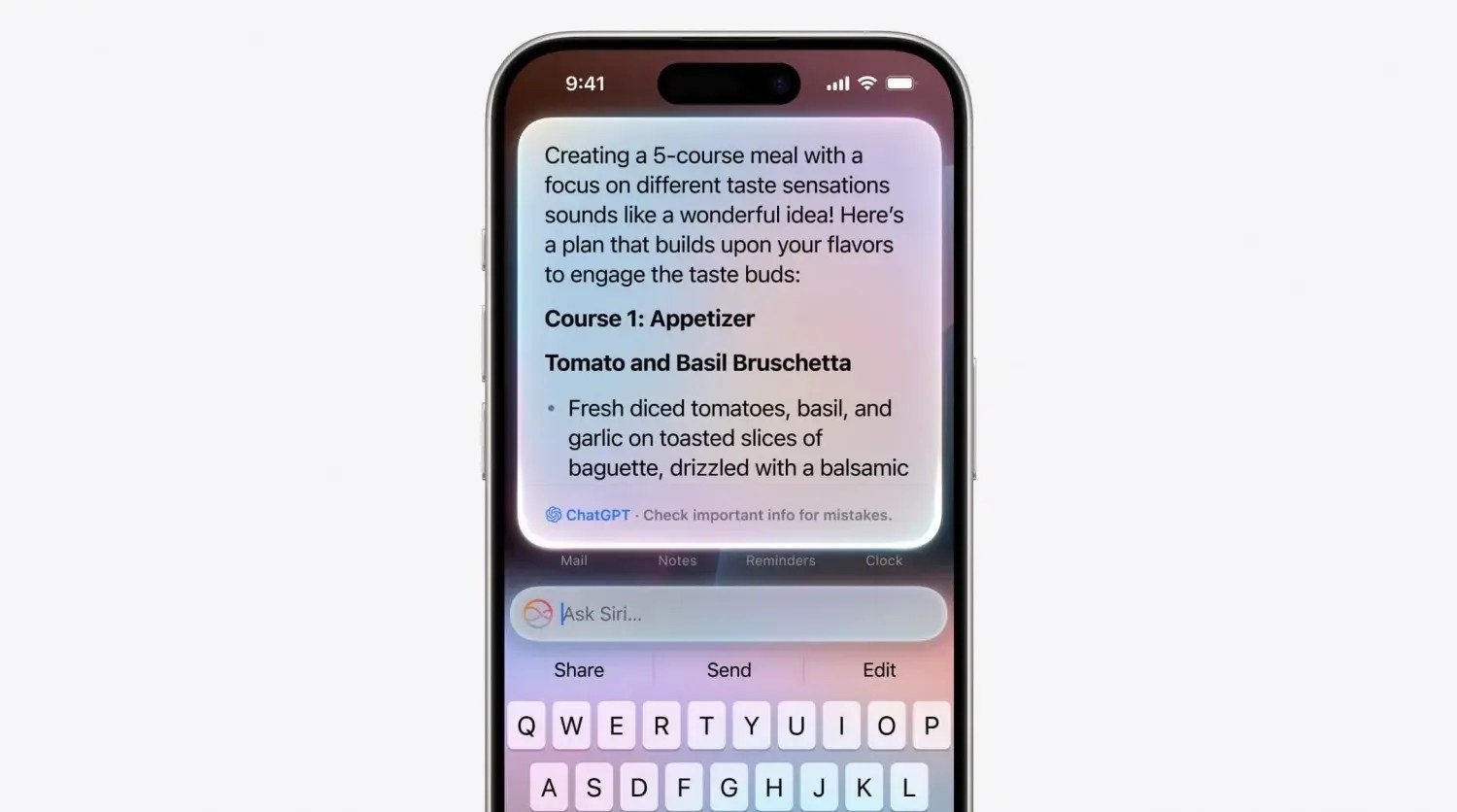
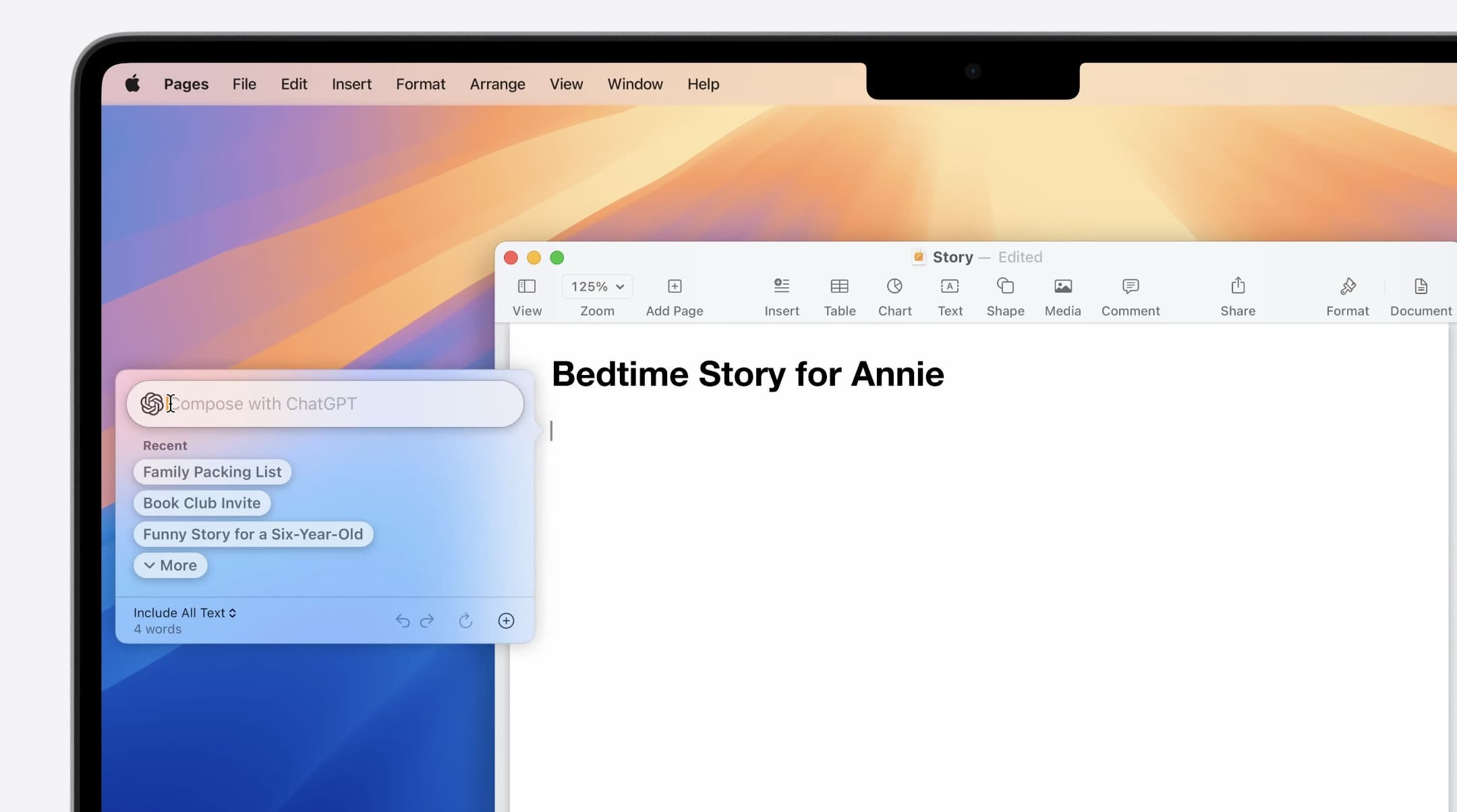
Apple integrates ChatGPT deeply into iOS 18
Apple Intelligence is the core of generative AI features in iOS 18, but Apple will also let users sign in with their OpenAI account and use ChatGPT models as well.
Once connected, users can select ChatGPT as their model to use inside Siri and as part of the new intelligent writing tools and other features across iOS 18, iPadOS 18 and macOS Sequoia.
The ChatGPT integration extends the free Apple Intelligence functionality built into the OS. For example, if you ask Siri a question that it can’t answer, it could hand off to ChatGPT instead to respond to the query.
Users can take advantage of the usual free quotas for ChatGPT usage, or connect their paid subscriptions to use their ChatGPT Plus benefits instead.
Apple indicated that it is working on partnerships with other AI model makers to give users more options in the future. So, although OpenAI’s ChatGPT will be the only option to start, you can expect Google Gemini and other models to be offered in the future.
iOS 18 lets you replace the Lock screen’s flashlight and camera buttons with controls of your choosing
Today as part of its iOS 18 unveiling during the WWDC keynote, Apple shared that the upcoming software release provides a feature users have long asked for: the ability to replace the flashlight and camera buttons on the iPhone’s Lock screen with controls of your own choosing.
Here’s how that works.
Customizing your Lock screen
In iOS 18, Apple is making Control Center more customizable than ever. As part of that change, it’s taking many of those same controls and making them available on your iPhone’s Lock screen in place of the existing flashlight and camera buttons.
The nice thing about the feature is that it takes advantage of the existing Lock screen customization features, and enables you to set different Lock screen buttons with different wallpaper/widget combos.
To set your own custom Lock screen controls in iOS 18:
Long-press on your Lock screen to pull up edit mode
Swipe to the wallpaper that you want to edit and hit ‘Customize’
Tap in the lower-left or lower-right corner on the existing buttons
Choose which controls you want to replace the flashlight and/or camera
The full list of available controls
When iOS 18 launches this fall, third-party apps will be able to offer their own controls for use on the Lock screen. For now though, only Apple options are available.
Currently in iOS 18 developer beta 1, you have the following control options for your Lock screen across a variety of categories:
Accessibility
Assistive Access
Live Speech
Capture
Camera
Scan Code
Magnifier
Clock
Alarm
Timer
Stopwatch
Connectivity
Airplane Mode
Cellular Data
Personal Hotspot
Display & Brightness
Dark Mode
Hearing Accessibility
Music Haptics
Left-Right Stereo Balance
Live Captions
Home
Home
Monitor Accessibility
Switch Control
Voice Control
Full Keyboard Access
AssistiveTouch
Apple Watch Mirroring
Control Nearby Devices
Remote
Remote
Shortcuts
Shortcuts
Open App
Sounds
Silent Mode
Recognize Music
Translate
Translate
Utilities
Flashlight
Calculator
Vision Accessibility
Classic Invert
Color Filters
Live Recognition
Increase Contrast
Reduce Motion
Reduce Transparency
Reduce White Point
Smart Invert
VoiceOver
Zoom
Speak Screen
Dim Flashing Lights
Hover Text
Hover Typing
Voice Memos
Voice Memo
Wallet
Wallet
Tap to Cash
Watch
Ping My Watch
iOS 18 lets you change widget sizes right from your home screen
In addition to major new home screen customization options in iOS 18, Apple has also made it easier to rearrange your home screen. Most notably, you can now adjust widget sizes right from your iPhone’s home screen.
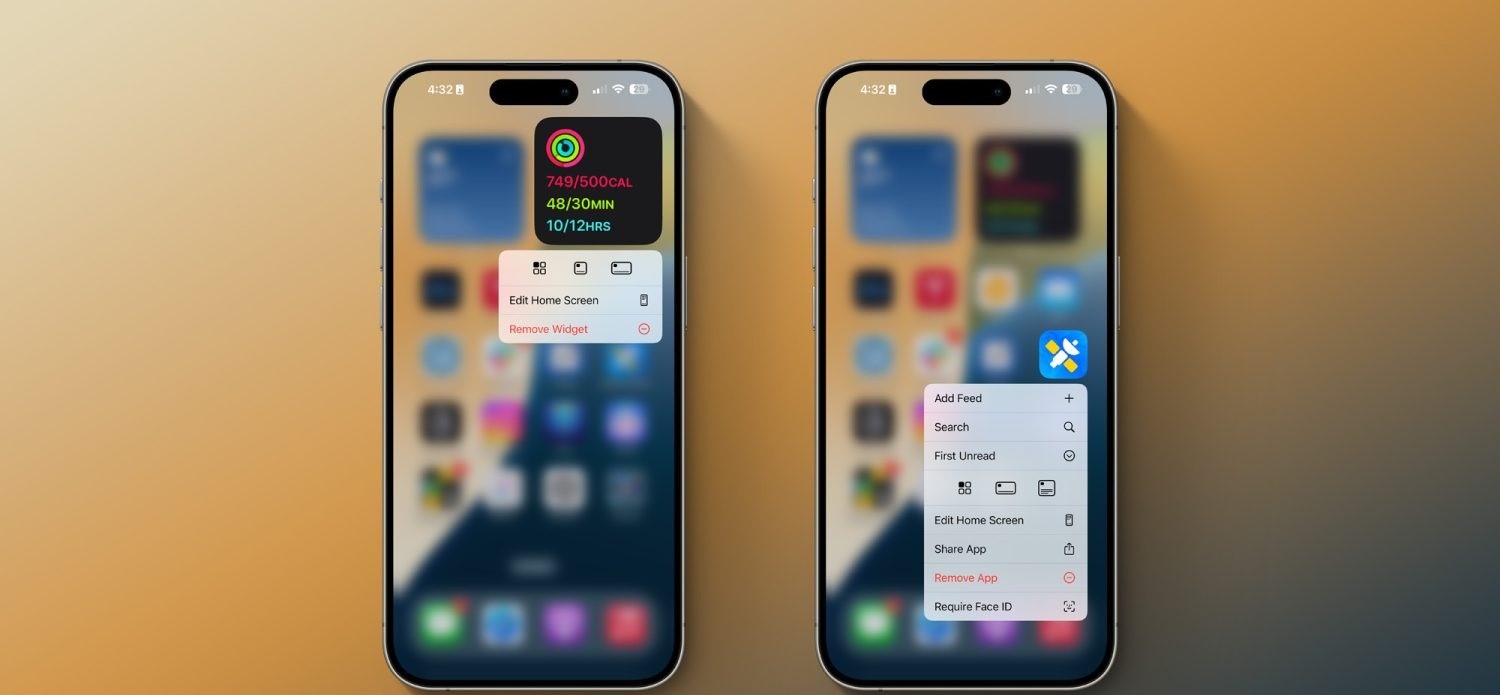
The ability to adjust widget sizes directly from the home screen was previously available only on iPadOS. With iOS 18, however, it has expanded to the iPhone as well. When you put the home screen into “jiggle mode,” you’ll see a new handle in the lower-right corner. You can then drag that handle and your widget will get bigger or smaller.
Alternatively, you can long-press on a widget, and you’ll see multiple different widget sizes you can choose from with a single tap. In this same menu, you can choose to convert a widget to an app icon as well. Finally, you can also long-press on an app icon, and (as long as that app offers home screen widgets), instantly convert the icon into a widget.
Everything new coming to Messages in iOS 18
Apple has some major feature upgrades coming to the Messages app in iOS 18.
As announced earlier today during the WWDC keynote, Messages is receiving big enhancements to tapbacks, a new scheduled send feature, the ability to format text with bold and italics, new effects, RCS support, and more.
Here’s everything coming to Messages in iOS 18.
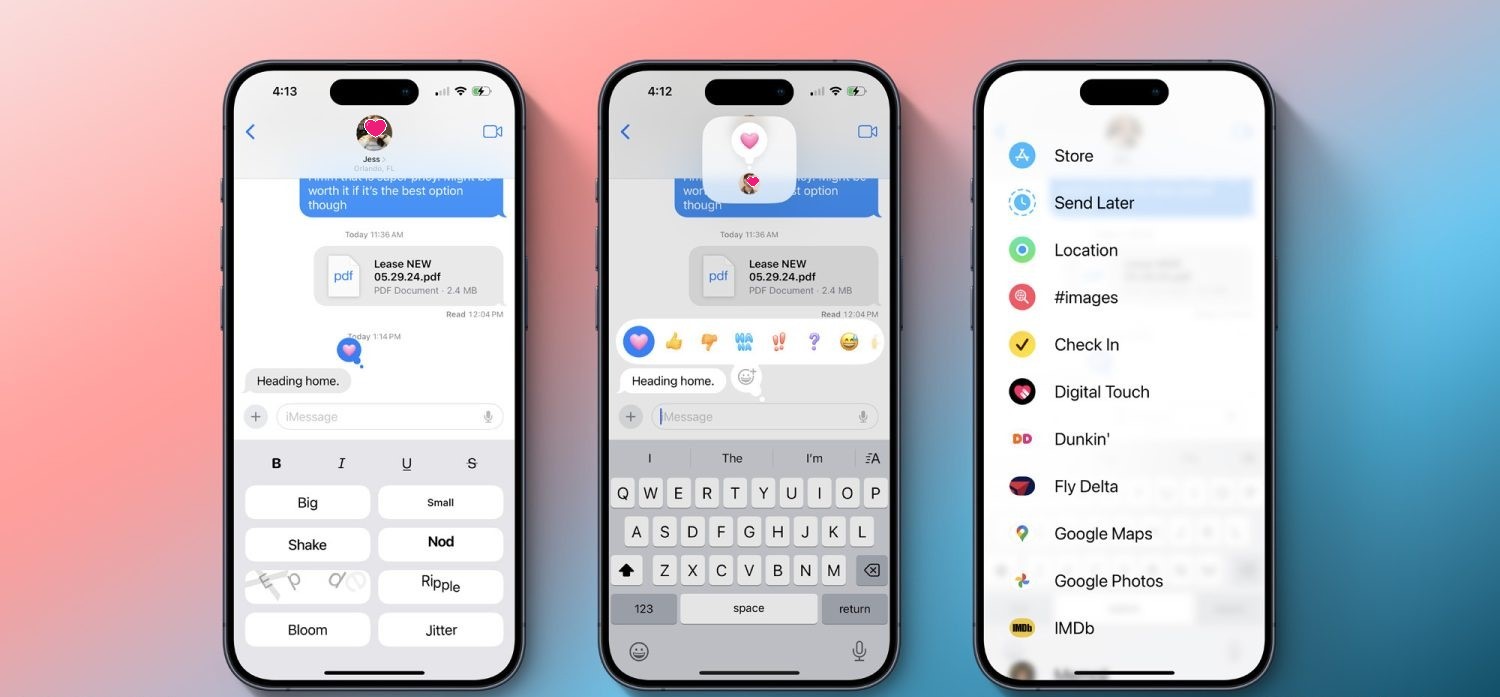
Emoji tapbacks and new tapback designs
Tapbacks have gone unchanged on the iPhone for years, but in iOS 18 they’re finally getting some big improvements.
For starters, you’ll be able to send any emoji as a message tapback. Gone are the days of being limited to a handful of tapback reactions. Now you can send a tapback with the eyes-looking emoji, or barf emoji, or anything else that fits the occasion. If emoji options aren’t enough, you can also use stickers as tapbacks.
Your most commonly used emoji and stickers will be accessible with a swipe left on the initial set of tapback options that appear, sliding those default options out of the way to present your most used emoji and stickers.
Speaking of those default options, they’re getting a facelift in iOS 18. The classic thumbs up, heart, and more are being splashed with full color and new designs that will make them fit in better among the wider array of new tapback options.
Schedule messages for later
We’ve all had an occasion where we wanted to send a message later. In iOS 18, that will finally be possible. No more need to ask Siri to remind you to send something later, you can simply schedule it yourself.
Prep a message in iOS or iPadOS 18 and, if you don’t want to send it right away, you can choose a later day and time for it to automatically go out. The option is available by pressing the + button on the left side of the screen and selecting the new Send Later option.
Text formatting and special effects
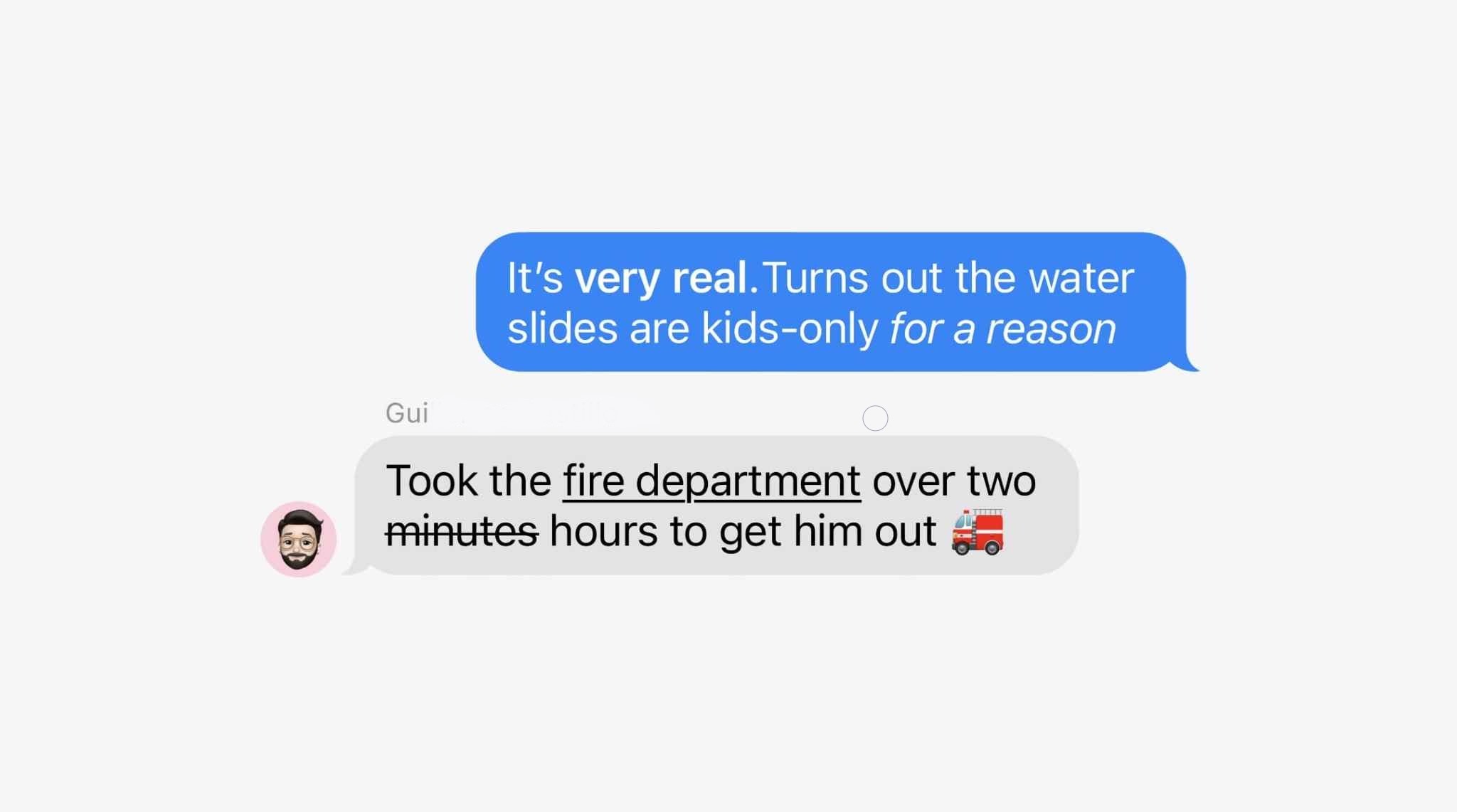
Messages was the last major Apple app that supports text input but never supported rich text formatting options like bold and italics. That changes in iOS 18, where you can customize the formatting of words in your message to implement the standard four formatting styles:
Bold
Italics
Underline
Strikethrough
Joining these options are eight neat special effects that can also be applied on a per-character basis:
Big
Small
Shake
Nod
Explode
Ripple
Bloom
Jitter
I’m not exactly sure which messaging occasions will call for some of these effects, but they’re nice options to have nonetheless.
RCS support
Apple had previously announced that it would support RCS in 2024, but it was great to see confirmation of that today.
RCS is a newer, more capable text message protocol that serves as a successor to SMS and MMS. Essentially, by adding RCS support in iOS 18, Apple will make your conversations with Android users more reliable than before.
When communicating over iMessage, everything will stay as-is. Your blue bubble conversations don’t change. But in those situations when, say, you’re in a group chat that includes a green bubble friend, RCS should make the experience better for everyone.
Everything else
Genmoji: Though not exclusive to Messages, the place you’re bound to use Genmoji most is in your conversations with friends and family. These AI-generated emoji will provide endless potential for future emoji communications.
Image Playground: Similarly, the new Image Playground tools for creating AI images in a variety of styles will be a useful option to have baked into the Messages app when it launches later this year alongside other Apple Intelligence features.
Messages via Satellite: Messages in iOS 18 also includes support for a new Messages via Satellite feature that’s designed to help you out in situations where you don’t have access to a Wi-Fi or cellular connection.
Wrap-up
Messages in iOS 18 provides a variety of new tools and features that are bound to get a lot of use. Though the core of the app is remaining the same, Apple has provided enhancements that I personally expect to benefit from a lot.