If you frequently use the screen recorder on iPhone and iPad you might appreciate knowing this easy tip that allows you to quickly stop a screen recording from anywhere, without having to access Control Center.
Once Screen Recording is active on any iPhone, iPad, or iPod touch, if you want to immediately stop the screen recording then simply tap on the red bar at the top of the screen.
Depending on which iPhone or iPad model you have the red stop bar can look different, or even be a button or an icon.
For example on iPhone 11 Pro, 11, 11 Pro Max, XS, XS Max, XR, and X, the clock turns red and tapping on that will stop the screen recording.
Meanwhile on any iPhone without a screen notch like the iPhone 8 Plus, iPhone 8, iPhone 7 Plus, 7, 6s, 6, and SE, and the iPod touch series, the entire top of the screen turns red and tapping on that will stop the screen recording.
And on any iPad the top of the screen shows a little recording icon, and tapping on that will stop the screen recording for any iPad quickly.
Regardless of what device you’re using screen recording on, tapping on the red item in the status bar at the top of the screen will stop that screen recording, and you’ll quickly get a notification stating the video of that screen recording has been saved to the Photos app.
Of course you can still stop (and start) screen recordings at any time through Control Center on iPhone, iPad, and iPod touch as well, but this handy tip may be faster for many users.
If you have an Apple TV and iPhone or iPad, you can easily mirror the iPhone or iPad display to the TV screen that is connected to Apple TV. This offers by far the simplest way to wirelessly connect an iPhone or iPad to a TV, and it allows you to show off whatever is on an iPhone or iPad screen on a much bigger TV display. This capability is commonly used in presentations, meetings, schools, homes, and for much more, as the uses cases are myriad.
To get started using wireless display mirroring, you will need an Apple TV connected to a TV, an iPhone or iPad, and all of the devices must be on the same wi-fi network, and running modern iOS or ipadOS system software. The rest is quite simple, as you’ll quickly see in this tutorial that demonstrates connecting an iPhone to an Apple TV and mirroring the display.
How to Connect iPhone / iPad to Apple TV Wirelessly with AirPlay Screen Mirroring
Make sure that all devices are connected to the same wi-fi network before beginning.
Turn on the TV and Apple TV if you have not done so already
On the iPhone or iPad, open Control Center (on newer iPhone X and later and iPad with iOS 12 or later, swipe down from the top right corner to access Control Center. For iPhone 8 or iOS 11 or earlier, swipe up from the bottom of the screen to access Control Center)
Tap on “Screen Mirroring”
Select the Apple TV from the list of available devices and tap on it
If you haven’t connected the devices before, an AirPlay passcode will appear on the Apple TV display and you must enter that on the device to connect
The iPhone or iPad screen will now be mirrored on TV display via Apple TV AirPlay, exit from Control Center and open whatever you want displayed on the TV
Now anything you do, use, or show on the iPhone or iPad display will show mirrored on the TV screen live in a wireless screencast.
This is so useful for many obvious reasons, and it’s an excellent feature that is impressively easy to use.
The mirrored display will reflect the aspect ratio of what you’re viewing on the iPhone or iPad. So for example if you use the iPhone and have the Home Screen in vertical orientation, the sides of the iPhone mirrored display on screen will show black bars.
The same thing happens on iPad but to a much lesser extent particularly if it’s viewed in the horizontal orientation.
You can rotate the screen orientation with many apps, watch a video, zoom into the display, and each of those actions will fill more of the TV screen as the aspect ratio of the mirrored device will be more likely to fit to the TV display.
This method of mirroring the display obviously uses wi-fi and Apple TV, but if you don’t have AirPlay compatible TV or an Apple TV and still want to connect an iPhone or iPad to a TV you can do that with HDMI cables as shown here, though you will still need a special adapter for your device to do so.
Gamers should also enjoy this feature, since you can easily use a PS4 controller with iPhone or iPad or use an Xbox One controller too, allowing you to play games on the iPhone or iPad with a game controller on a bigger screen. Of course some games also have native Apple TV versions which also allow for controller use, but that’s a different matter.
How to Disconnect iPhone / iPad from Apple TV Screen Mirroring
Stopping screen mirroring is just as easy as starting it:
Turn on the TV and Apple TV if you have not done so already
On the iPhone or iPad, open Control Center (on newer iPhone X and later and iPad with iOS 12 or later, swipe down from the top right corner to access Control Center. For iPhone 8 or iOS 11 or earlier, swipe up from the bottom of the screen to access Control Center)
Tap on “Screen Mirroring”
Tap on “Stop Mirroring” to stop the iPhone or iPad display from showing on the TV / Apple TV
Exit from Control Center as usual
Screen mirroring ends the moment you tap to confirm “Stop Mirroring” and whatever is on the iPhone or iPad display will no longer show up on the TV screen.
The instructions shown here are for modern iOS and iPadOS versions and anything from iOS 12, iOS 13, iPadOS 13, or later should be have exactly as shown. Additionally, this article assumes you’re using those devices along with a modern Apple TV (or AirPlay compatible TV models). Earlier versions of hardware do support the same mirroring capability, but access is different as is usability. If you have a much older set of devices running older system software you can learn about how it all works on older iOS versions. How it all works and how Mirroring is accessed has evolved a bit over time, but nonetheless it’s arguably becoming more useful now than ever before.
The iPhone and iPad automatically switch the orientation from Portrait to Landscape upon rotating the device. This could be frustrating at times when you’re not in an upright position, as the screen switches orientation even if the device is just slightly tilted. And since we don’t always use our iPhone and iPad in an upright position, whether we’re laying on our beds while we’re browsing the internet or scrolling through our e-mails, the screen can rotate sometimes when you don’t want it to. This is exactly where the screen orientation lock comes in, as it allows the user to lock the orientation of the device screen to Portrait mode, so they don’t have to worry about holding the iPhone or iPad at a certain angle.
Do you want to stop your iPhone or iPad from switching to landscape mode automatically? Then you’ve come to the right place. In this article, we’ll be discussing how you can lock screen orientation on your iPhone and iPad within a matter of seconds. So, without further ado, let’s take a look at the procedure.
How to Lock Screen Orientation on iPhone & iPad
Screen orientation lock has been available to iOS users as an option within Control Center for years now. However, depending on the device you own, accessing Control Center might slightly vary. Simply follow the steps below according to your specific device to avoid any sort of confusion.
• If you’re using an iPad, or a relatively new iPhone that lacks a home button like the iPhone X or later, you can head over to the Control Center by swiping down from the rop-right edge of the screen.
• If you’re using an iPhone or supported iPod Touch that feature a home button like the iPhone 8 or older, simply swipe up from the bottom of the screen to access the Control Center.
Now simply tap on the “lock” icon located right below the network settings card, as shown in the screenshot below.
Now, you’ll notice the icon / toggle has turned red, ensuring that Portrait Orientation Lock is enabled on your iPhone or iPad.
If you want to turn off the lock at any point, simply tap the Orientation Lock toggle again within Control Center.
That’s all there is to it. From now on, you don’t have to hold your iPhone or iPad straight to stop it from switching orientation on its own.
With Portrait Orientation Lock turned on, you can even lay on your side and browse through Safari or watch YouTube without the device going to landscape mode.
This is not the kind of feature that you’d probably want to permanently turn on, so it makes sense why Apple has added this functionality as a toggle within Control Center instead of burying it deep in settings.
Regardless of what app you’re using, you can quickly enable or disable the orientation lock with just a swipe and a tap. Note there’s no landscape orientation lock for iPhone users who want to use their devices in landscape mode regardless of their posture, as of now, though you can lock an iPad into landscape mode if desired. However, that could change at some point down the line with a software update to iOS and iPadOS, as features often change and evolve over time.
Obviously this applies to the latest iOS and iPadOS releases with iOS 13 and later, but orientation lock is available on prior system software versions as well for iPhone, iPad, and iPod touch. If you’re running an earlier release, you can learn how to use the feature for those versions too. You may even have an older iPad device with a physical button that could work as orientation lock or mute, but that was removed from later iPad hardware.
Rarely, sometimes orientation lock gets stuck and you’ll have to toggle the feature on and off again, quit apps, physically rotate the device, or even reboot to resolve that issue, but that shouldn’t happen too often.
Now that iOS 13 is available to download and install for iPhone and iPod touch, you might be wondering what the best features and tricks for the latest and greatest iOS release are. We’ve rounded up a handful of the most useful features in iOS 13 for iPhone for you to check out, so whether you’ve already installed iOS 13 or are still readying to prepare iPhone for iOS 13, you’ll be able to enjoy some of the best new features available right away.
(Note that some of these iOS 13 features coexist on iPadOS 13 as well, but the focus on this article is iOS 13 on iPhone and iPod touch)
1: Use Dark Mode
Dark Mode is really nice, particularly in the evening hours or if you’re using your iPhone in the dark. When you’re first setting up iOS 13 you’ll go through an option to enable Dark Mode, but you can also turn the feature on at any time through Settings:
Go to “Settings” > “Display & Brightness” > choose “Dark”
Perhaps even more useful is to set Dark Mode to be automatically enabled from Sunset to Sunrise, which is configurable in the same settings screen.
2: Use the New “Swipe to Type” Keyboard Option
The new Swipe to Type keyboard is quite useful for typing quickly, particularly once you get the hang of it. To turn on the new swipe keyboard:
Go to Settings > General > Keyboards > toggle on “Slide to Type”
Then the next time you’re at a place on iPhone where the keyboard is available, try swiping across the keyboard to spell the word you want to type, without lifting your finger. For example if you want to type “taco” then swipe from t, to a, to c, to o, then let go, and “taco” will type all at once. This uses a variety of tricks including predictive text and autocorrect to get the words right and it’s pretty accurate, and seems to get better the more you use it too.
Earlier versions of iOS supported third party keyboards with this feature, and Android has had it for a long time too, but now the swipe gesture keyboard is native on iPhone as well.
3: Reduce Spam Calls with Silence Unknown Callers
Tired of the nonstop spam calls ringing and buzzing on your iphone? Then try the new Silence Unknown Callers feature, which will automatically mute any call from someone not in your Contacts list (this is sort of like a feature version of this workaround approach to block unknown callers which). The callers will still be able to leave a voicemail and will appear in your Recent Calls list, but they won’t bug your phone.
Go to “Settings” > “Phone” > turn ON “Silence Unknown Callers”
Combined with blocking calls and contacts and you should have a lot fewer junk calls coming to your iPhone.
4: Improved & Powerful Photo Editing Abilities
There are many new and powerful photo editing abilities available directly in the Photos app of iOS 13.
Just find a photo you want to apply some edits and adjustments to and tap on Edit to get started.
5: Use Cellular Low Data Mode
Low data Mode helps to reduce data usage on the iPhone, which can be helpful if you’re near your bandwidth allotment for the month or have surpassed the cellular data quota of your data plan.
Go to Settings > Cellular > Cellular Data > and turn on “Low Data Mode”
Note that not all apps will obey this setting, so if you’re trying to conserve bandwidth and cellular data usage you’ll still want to take an active roll in that and not entirely rely on this toggle.
6: Enjoy Quick Wi-Fi Network Changes from Control Center
Want to change wi-fi networks quickly? You don’t need to go to Settings anymore, now you can do it directly from Control Center.
Simply swipe to access Control Center as usual, then tap and hold on the Wi-Fi toggle to access a drop-down menu of available wi-fi networks, which you can then tap to select which to join.
7: Access External Storage via Files App
The Files app now supports external storage devices, like USB hard drives and flash drives. Just connect a USB storage device to the iPhone and you’ll find it available in the Files app.
You’ll need to use a Lightning port to USB adapter to gain access to this ability, but it’s a wonderful functionality to have that many power users have long asked for.
8: Announce Messages with Siri on AirPods
Have AirPods with your iPhone? Then you’ll likely appreciate this new feature which lets Siri announce new messages while your AirPods are being worn.
The first time you setup iOS 13 on iPhone with AirPods you will likely see a notification about this, but if you don’t you can make the change anytime directly by doing the following:
Go to Settings > Notifications > tap “Announce Messages with Siri” > toggle the switch ON to enable
You can even customize who to announce messages from if you don’t want every message to be announced by your Siri virtual assistant.
Bonus Tip: Learn How to Update Apps Again
Many users installed iOS 13 to find the Updates section is missing from the App Store on their iPhone, and some have figured this is a bug or an error – but it’s not. Instead, you may need to relearn how to update apps in iOS 13, which is different from before.
From the App Store, click on your profile picture in the upper right corner, then scroll down to the Updates section. There you can update your iPhone apps in iOS 13 and later.
iPhone Tips: How to downgrade your iPhone to older iOS versions
Did an iOS update made your iPhone sluggish? Or you just want to revert back to an older iOS version? Whatever the case, here’s a solution for you.
We know that sometimes our older iPhones would get notifications that we can update to a newer iOS versions just like the latest iPhones. After doing that, the update proved to be too much for our aging iPhones. It’s now slower and not even close to usable.
How to undo an iPhone update
Plug the larger end of the USB cable into the bottom of your phone. Insert the smaller end into the port on your computer. Your computer will automatically recognize your iPhone.
Browse to the “iPhone Software Updates” folder to locate your previous version of iOS. In Mac OS X, open your “Library” folder, then “iTunes,” then “iPhone Software Updates.” In Windows, open the “Start” menu and type “%appdata%Apple ComputeriTunesiPhone Software Updates” into the “Search” box.
Turn off your iPhone by holding the “Power” button at the top right corner of the phone for several seconds. Slide the arrow on your touch screen to power down the phone. Leave it off for five seconds.
Press and hold the “Power” and “Home” button, located at the bottom center on the face of the phone, for 10 seconds. Release the “Power” button after this time, but continue holding the “Home” button to enter Recovery Mode.
Open iTunes if it is not already open. The software will recognize that your phone has entered Recovery Mode and will prompt you to restore it.
Click “iPhone” beneath the “Devices” heading in the left sidebar of iTunes. Press and hold the “Shift” key, then click the “Restore” button in the bottom right of the window to choose which iOS file you want to restore with.
Select the file for your previous iOS version from the “iPhone Software Updates” folder you accessed in Step 2. The file will have a “.ipsw” extension.
Allow the installation to complete. This usually takes about 10 minutes. You will see a confirmation window once installation has finished.
Download and install RecBoot (see Resources). This utility will allow you to quickly end Recovery Mode on your phone and finalize the installation of your previous iOS software.
Open RecBoot and click the “Exit Recovery Mode” button.
You’re connected to the internet, you’ve got enough memory to download updates but why can’t your iPhone update itself? Here’s the fix you can try.
If one of these situation is true to you, you need iTunes to recover and update your iPhone.
iTunes doesn’t recognize your device or says it’s in recovery mode.
If your screen is stuck on the Apple logo for several minutes with no progress bar.
You see the connect to iTunes screen.
Put your device in recovery mode and set it up again
Make sure that you’re using the latest version of iTunes.
If iTunes is already open, close it. Connect your device to your computer and open iTunes. If you don’t have a computer, borrow one from a friend or go to an Apple Retail Store or Apple Authorized Service Provider for help.
While your device is connected, force restart it with these steps, but don’t release the buttons when you see the Apple logo, wait until the connect to iTunes screen appears:
On an iPhone X, iPhone 8, or iPhone 8 Plus: Press and quickly release the Volume Up button. Press and quickly release the Volume Down button. Then, press and hold the Side button until you see the connect to iTunes screen.
On an iPhone 7 or iPhone 7 Plus: Press and hold the Side and Volume Down buttons at the same time. Keep holding them until you see connect to iTunes screen.
On an iPhone 6s and earlier, iPad, or iPod touch: Press and hold both the Home and the Top (or Side) buttons at the same time. Keep holding them until you see the connect to iTunes screen.
When you see the option to Restore or Update, choose Update. iTunes will try to reinstall iOS without erasing your data. Wait while iTunes downloads the software for your device. If the download takes more than 15 minutes and your device exits the connect to iTunes screen, let the download finish, then repeat step 3.
After the Update or Restore completes, set up your device.
iPhone Tips: Fix for touchscreen that’s not working
You want to swipe but your iPhone touchcreen isn’t responding. Your screen isn’t cracked, it’s just not working as expected. Here’s how to remedy that.
Do a Forced Reboot on the iPhone
Next you should try a force reboot of the iPhone, this works to resolve an unresponsive touch screen, and many other issues, for the vast majority of cases:
Hold down the Home button and Power button simultaneously.
Continue holding both buttons until you see the Apple logo appear on the screen then release.
When the iPhone boots back up, hopefully the touch screen will no longer be unresponsive.
Restore the iPhone from a Backup
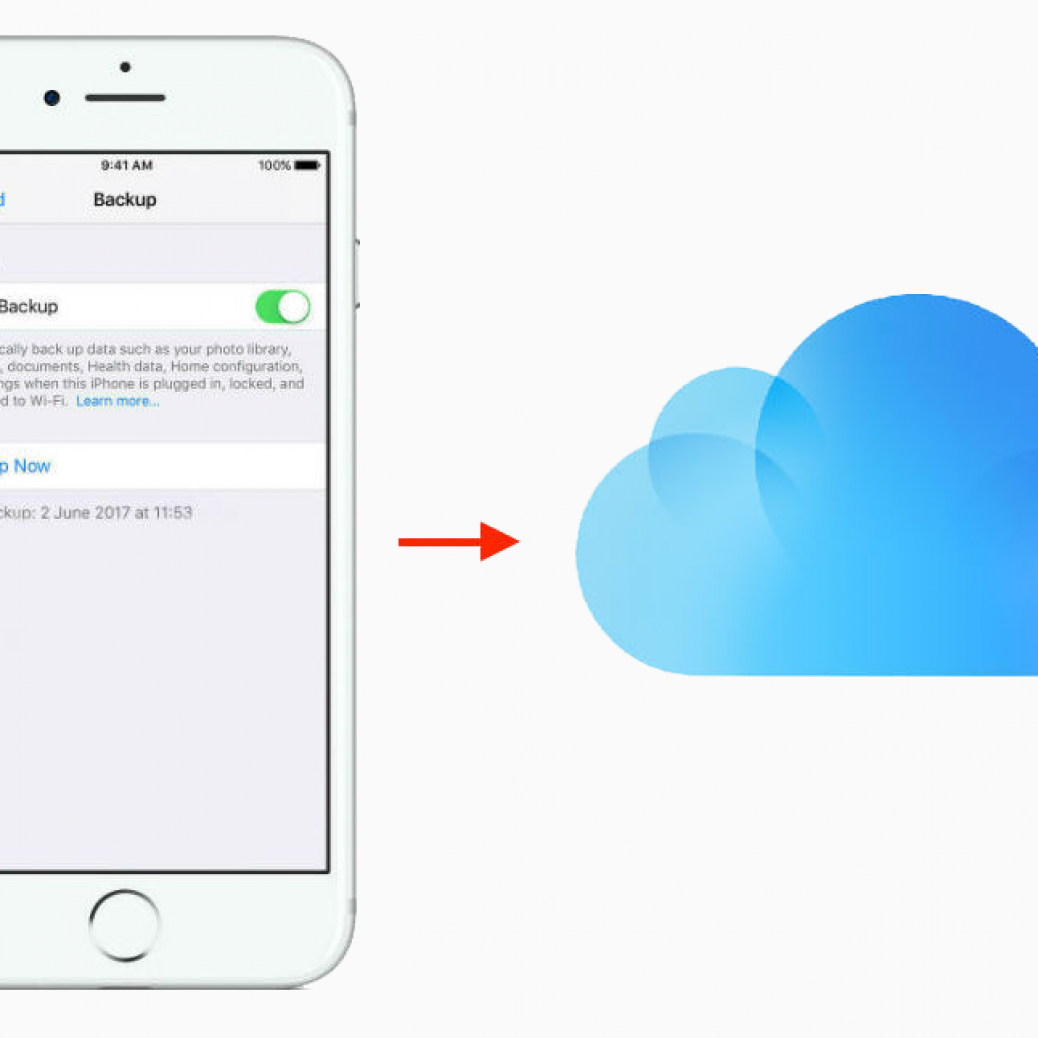
This requires a computer and USB cable, you’ll be first making a backup to iTunes, then restoring with that backup.
Connect the iPhone to a computer with iTunes
Choose to “Encrypt backup” if you haven’t done so yet, and choose to “Back up to this computer”
Choose “Back up now” and let the process complete, this can take a while
When finished, click on the “Restore” button, choose the backup you just made to restore to
Let the backup restore to the iPhone and try using it as normal
If the iPhone screen continues to exhibit strange freezing and unresponsive touch behavior, your next step is to erase it and set it up as new.
Set Up the iPhone as New with an Erase & Factory Reset
NOTE: Do not do this if you have not made a recent backup. You will lose data if you do this, this erases the iPhone and deletes everything from the iPhone, resetting it to a factory state.
Once the iPhone has been setup as new, don’t restore from a backup quite yet, try to use the iPhone as if it was brand new. If the iPhone works and the touchscreen is responsive as it should be, it suggests there could be a problem with the backup you used to restore earlier.
Contact Apple Support – Last Resort
If you’ve forcibly rebooted the iPhone, you’ve restored from a backup, and you’ve setup the iPhone as new, and the touch screen is still unresponsive, it’s time to call Apple official support or visit a genius bar at an Apple Store.
Any new iPhone is under warranty for a year, and the iPhone 6s and iPhone 6s Plus are new enough that there is no question as to warranty coverage for a potentially defective product. Typically in these situations, if an iPhone is determined to be not functioning properly after all software resets and restores have been attempted, Apple will provide you with a new replacement iPhone, assuming it has not been damaged and otherwise falls within their warranty.
Can’t take a photo because your iPhone’s storage is full? Have you tried using an external USB stick to offload your old photos so you can take new ones?
Using SanDisk’s iXpand, iPhones can now release unnecessary photos and files off the device for new uses.
iXpand Lightning USB Stick allows you to:
Automatically syncs photos and videos from camera roll when connected.
Transfer photos and videos from the camera roll to the drive to free up iPhone/iPad memory.
Watch popular-format movies directly from the drive.
Encrypts files across iPhone, iPad, and computers for secure transfer.
It works with:
iPhone 5
iPhone 5C
iPhone 5S
iPhone 6
iPhone 6 Plus
iPad Air
iPad mini
iPad with Retina display and newer (iOS 7.1+)
Windows vista®
Windows 7
Windows 8
Mac OS X v10.6+
You first have to install the app
When you’ve connected the drive to your iPhone or iPad, you’ll be prompted to install the companion iXpand Sync app.
Camera Roll Sync
You can back up your camera roll to the iXpand Flash Drive by setting up auto-sync or manually syncing as needed.
Automatic Sync
Set-up once and transfer your camera roll to the drive automatically each time the drive is connected.
To set-up:
Connect the iXpand Flash Drive to the iPhone/iPad.
On the app, go to Menu Camera Sync.
Turn on the “Automatic Sync” option on the camera sync screen.
Syncing may take longer than normal the 1st time. Once set up, only newly added files will be copied to the drive.
Manual Sync
Sync your camera roll with the drive as needed using manual sync.
To sync:
Connect the iXpand Flash Drive to your iPhone/iPad.
Go to Menu Camera Sync.
To change the destination of the synced files on the drive, select the “Sync Destination” as a folder on the drive.
Select “Sync Now”.
All the files in your Camera Roll will be copied to the drive in the folder specified
as the Sync Destination.
Syncing may take longer than normal the 1st time. Once set up, only newly added files will be copied to the drive.
File Management
Use your iXpand Flash Drive and iXpand sync app to transfer and manage files between your iPhone, iPad, PC and Mac computer.
Transfer files from your iPhone to the drive
Connect the iXpand Flash Drive to your iPhone/iPad.
Select the add file button “+”.
When prompted to “select files”, choose the files you want to transfer from iPhone/iPad to the drive.
“Select Destination” to specify where to store the files on your drive.
You can choose “New Folder” option to create a new folder as the destination of the file transfer on the drive.
Transfer files from drive to iPhone/iPad
Connect the iXpand Flash Drive to your iPhone/iPad.
Press “Select” button to choose the files from the drive.
Press at the bottom of the screen.
Choose “Save to My Downloads” or, if you’re copying iOS-supported photos and videos only, choose “Save Images/Videos” to save them to the Camera Roll.
The selected files will be saved to your phone.
Files downloaded to My Downloads are accessible using the iXpand sync app even when drive is not connected.
iPhone Tips: How to add more iPhone storage using iCloud
Whether you like it or not; whether you think it’s secure enough, iCloud is the most seamless way to add more storage to your iPhone. Here’s how you do it.
How does iCloud subscription works
Firstly, you can choose from a total of:
50GB
200GB
2TB
You can even share the 200GB and 2TB plans with your family. Your storage is upgraded immediately, and your monthly payment date reflects the purchase date for your plan. If you upgrade from one paid plan to another, we’ll cancel your existing plan and charge you the prorated cost* of your new, larger plan.
You’re billed every month for your storage plan unless you downgrade your plan. Each month you’ll get an email to remind you of your upcoming payment.
How to upgrade your iCloud storage from any device
Whether you’re on an iPhone, iPad, iPod touch, Mac, or PC, upgrading your iCloud storage is simple. Choose your device below and upgrade in just a few quick steps.
Upgrade using your iPhone
Go to Settings > [your name] > iCloud > Manage Storage or iCloud Storage. If you’re using iOS 10.2 or earlier, go to Settings > iCloud > Storage.
Tap Buy More Storage or Change Storage Plan.
Choose a plan.
Tap Buy and follow the onscreen instructions.
Upgrade using your Mac
Choose Apple menu > System Preferences, then click iCloud.
The bane of modern technology: a draining battery. Speaking of iPhone’s battery, this is even more true. Here are tricks on how to extend its battery life.
Identify problematic apps
First, you’ll want to figure out which apps are sucking away your battery life most. Apple has added a new tool in iOS 8 that gives a percentage breakdown of the biggest drainers. To identify which apps you should close when not in use, visit Settings > General > Usage > Battery Usage. You can then close out of these apps or just delete them, if they can be spared.
Reduce Background App Refresh
Just like with iOS 7, the latest Apple software comes with Background App Refresh set to “on.” The feature lets apps run in the background while you multitask and continually refreshes content when running on Wi-Fi or a cellular network. It’s handy for constant refreshing, but certainly not worth the battery life it drains along the way.
To disable this feature, visit Settings > General > Background App Refresh. You can pick whether you want to turn off the function in general or via an app by app basis.
Cool it with notification widgets
iOS 8 finally has widgets that you can access from Notification Center — just pull down from the top of the screen and customize your Today view. These widgets can offer up sports scores, weather updates, transit information and more. The only downside is that some of these widgets poll data frequently and that can be taxing on your battery. The good news is you can select which widgets you want to enable (and which ones you want to keep at bay) by tapping the “Edit” menu at the bottom of the Today screen.
Shut down parallax
Some people like how Apple’s parallax feature makes it seem like the wallpaper can move behind the apps; others think it’s dizzying. Either way, it’s one of the biggest offenders of battery life for iOS 8. To turn it off, visit Settings > General > Accessibility and switch Reduce Motion to “on.”
Stop location-tracking apps
Location-tracking apps can be great for when you need GPS directions or even if you want to keep a geo-log of where you take your pictures, but the constant monitoring is eating away precious hours of device life. You can turn off Location Services completely (Settings > Privacy > Location Services) or disable certain apps one by one. We recommend the latter option, so you can still leave on key location-based functions such as Find My iPhone if it’s ever lost.
There’s more, too. Selecting the System Services option under Location Services will reveal a collection of other app features that are stealing away battery life, including “Popular Near Me” and “Frequent Locations.”
Turn down the brightness
This may seem obvious, but your display is draining your battery, and there’s no need to have it shine any brighter than necessary. Use the Control Center or visit Settings > Wallpapers & Brightness and disable Auto-Brightness and decrease the setting manually.
Don’t fetch emails
We understand the constant need to be connected and not miss emails, but the fetch function — which pushes email notifications to your homescreen — is always looking for new mail and exhausts the battery along the way. Give it a rest and check your email manually via the Mail app instead. To turn off the feature, visit Settings > Mail, Contacts, Calendars > Fetch New Data.
Although these little steps may seem like, well, little steps, they’ll be able to take your mobile device’s daily lifespan a long way.