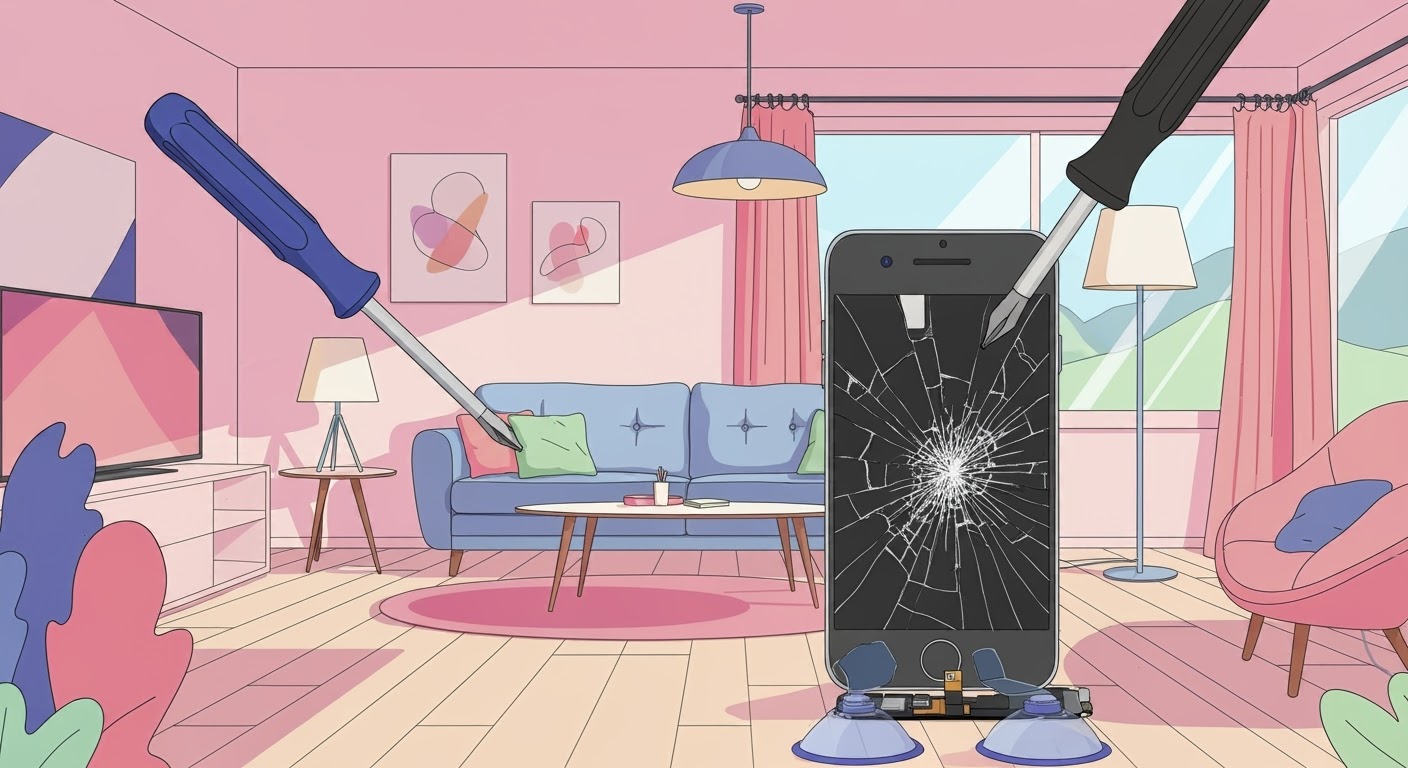
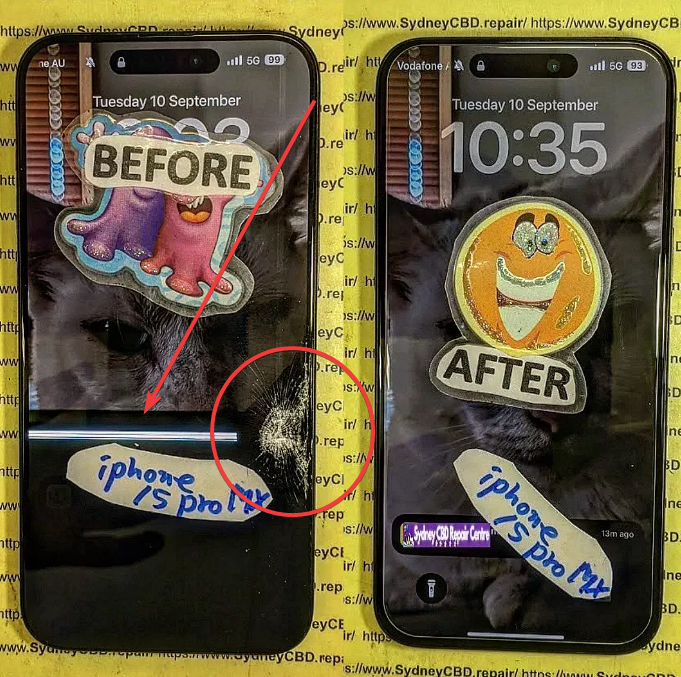
Why your “fixed” screen isn’t working: DIY troubleshooting guide

Why Your “Fixed” Screen Isn’t Working: DIY Troubleshooting Guide + 7 Pro Tips
Introduction
Getting your phone screen repaired is supposed to bring relief—no more cracks, unresponsive touch, or flickering displays. But what happens when your “fixed” screen still doesn’t work properly? It can be frustrating, confusing, and sometimes expensive to deal with repeated issues. Post-repair problems like ghost touches, flickering, or color distortion are more common than many realize, even when you trust a professional repair service.
This comprehensive guide is designed to help you understand why your “fixed” screen isn’t working, how to troubleshoot it safely at home, and when it’s time to seek professional assistance. We’ll walk you through practical DIY steps, advanced solutions, and preventive measures, ensuring you can get your device back in perfect working order. Whether you’re a tech-savvy user or just looking for clear, step-by-step guidance, this article has everything you need to tackle post-repair screen issues confidently.
By the end, you’ll not only know how to solve most common screen problems but also how to prevent them in the future—saving you time, money, and frustration.
If you recently got your phone screen repaired but still face issues like unresponsiveness, flickering, or ghost touches, you’re not alone. Even after a “successful” repair, many users encounter post-repair problems. This guide will walk you through why your “fixed” screen isn’t working and what you can do to troubleshoot it yourself before seeking professional help.

Understanding the Problem
Repairing a phone screen isn’t always foolproof. While repair centers aim for perfection, several factors can cause issues even after the screen has been replaced. Understanding these factors helps you identify whether the problem is minor, fixable at home, or requires professional attention.
Types of Screen Issues
After a screen repair, common issues include:
- Unresponsive touch: The touch doesn’t register consistently.
- Flickering screen: Random flashes or brightness changes.
- Ghost touches: Screen reacts without input.
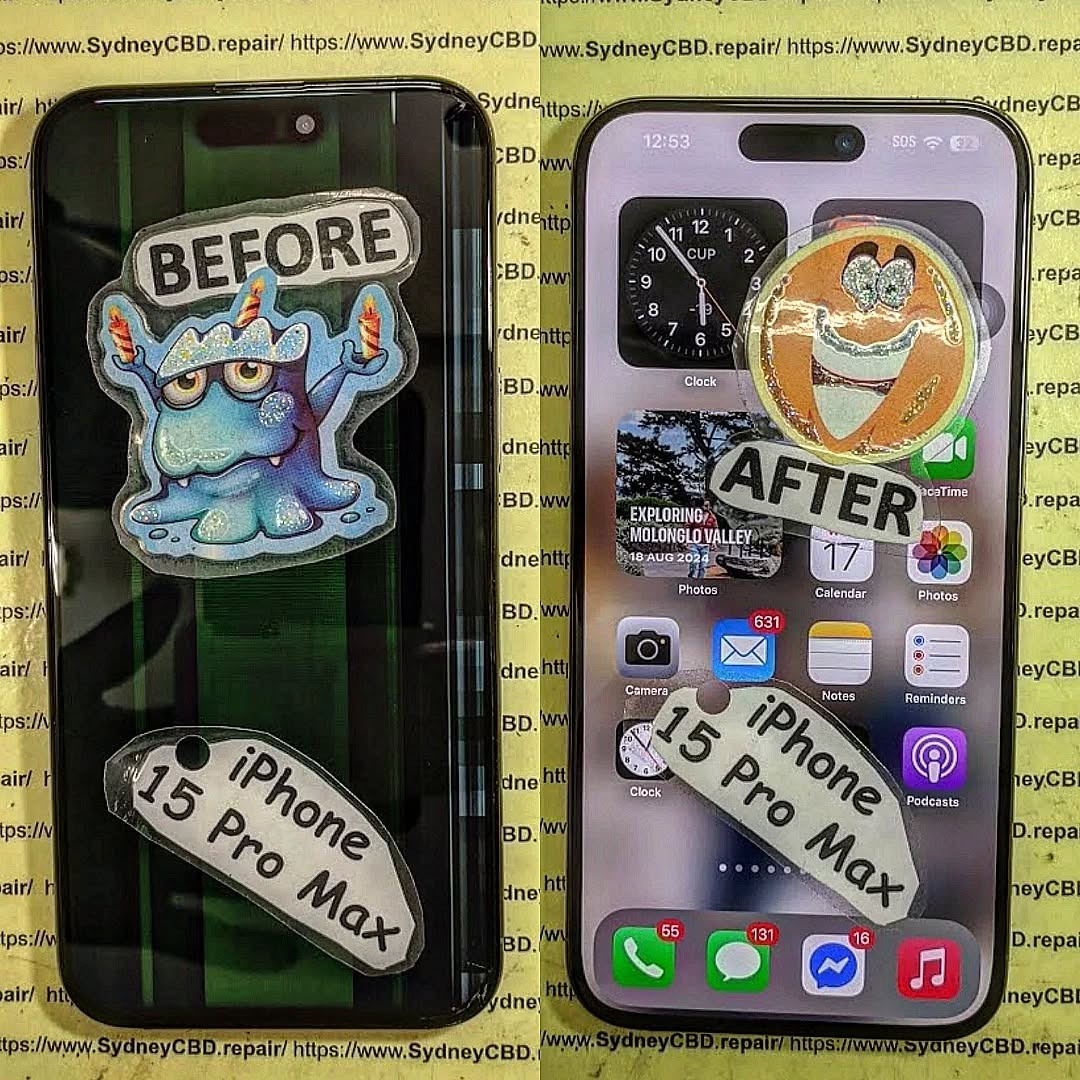
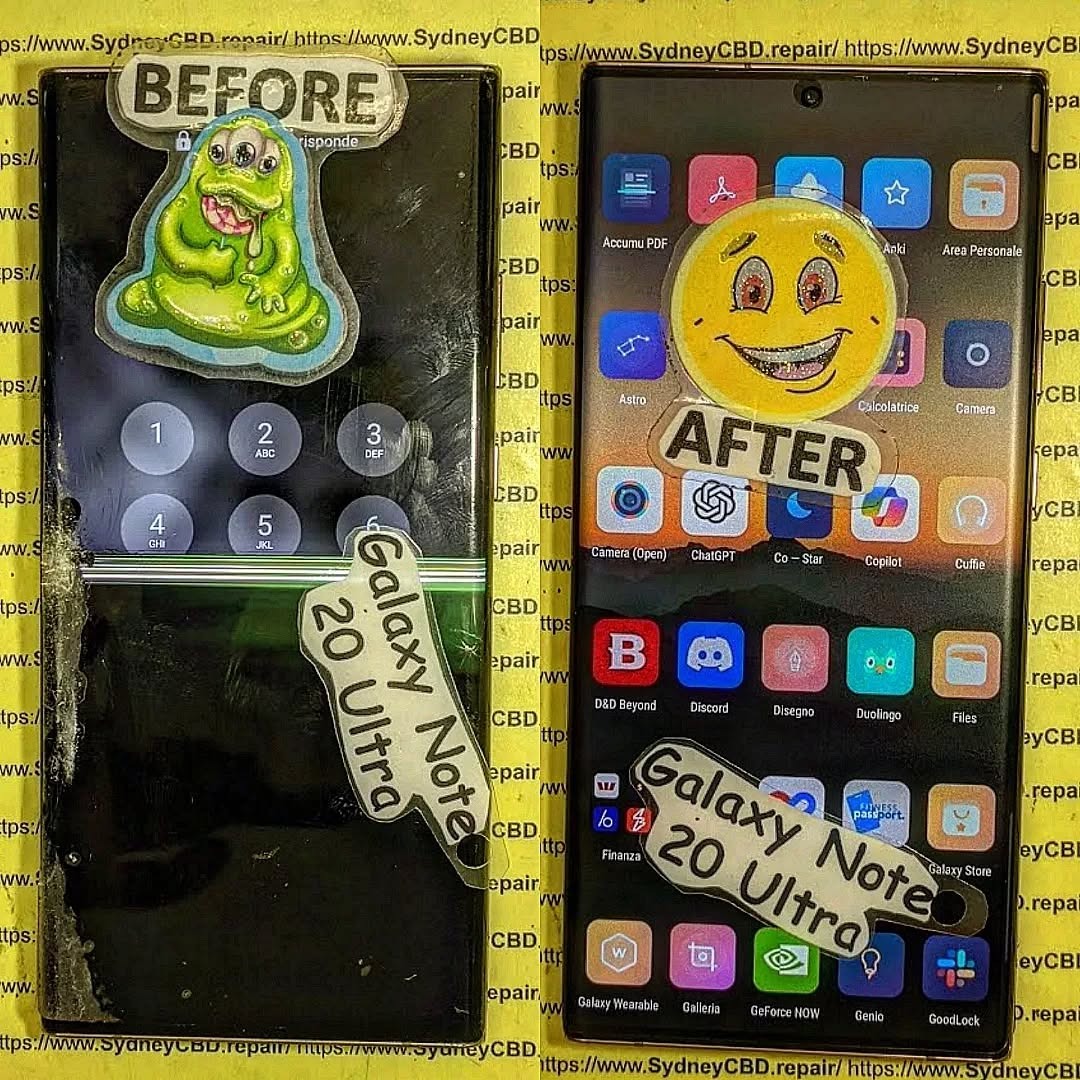
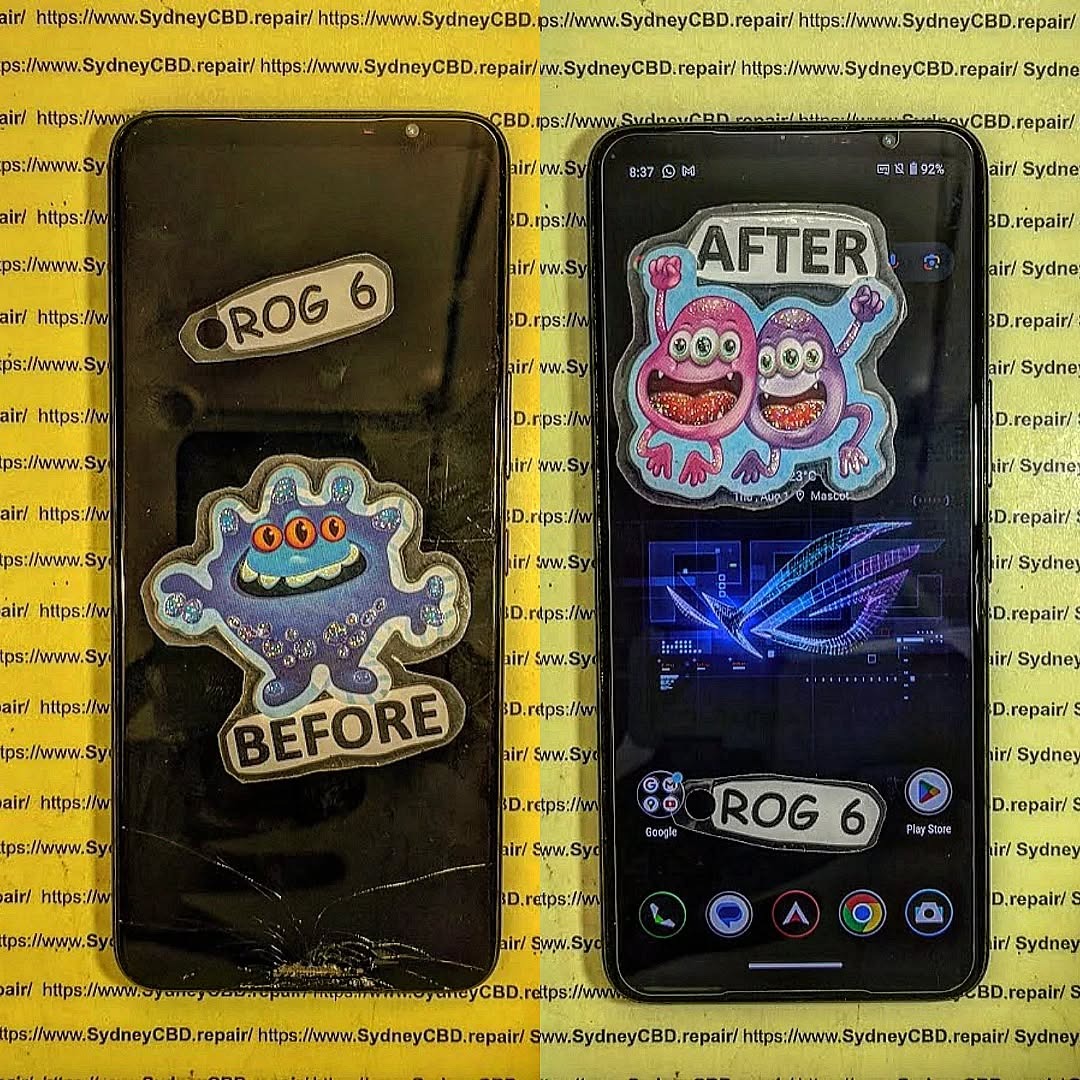
- Black spots or lines: Dead pixels or LCD damage.
- Screen not turning on: Device powers up, but display remains blank.
- Color distortion: Incorrect hues, washed-out colors, or strange tints.
These problems may appear immediately or days after a repair.
Common Causes of Screen Failure After Repair
Several reasons explain why your “fixed” screen might misbehave:
- Poor installation: Misaligned cables or connectors can cause erratic behavior.
- Defective replacement parts: Low-quality or non-genuine screens may fail quickly.
- Software conflicts: Operating system bugs or incompatible apps may prevent proper screen functionality.
- Battery or power issues: Low voltage or poor connections affect touchscreen performance.
- Physical damage during installation: Accidental bending or stress can damage components.
DIY Troubleshooting Steps Before Visiting a Repair Shop
Before rushing to a repair center, try these practical DIY steps. They often solve minor issues without professional intervention.
Inspect for Physical Damage
Start with a careful physical inspection:
- Check for loose connectors by gently pressing around the edges.
- Look for moisture or dirt trapped between the screen and frame.
- Examine the screen for cracks or scratches that may impact touch sensitivity.
Software Checks
Sometimes the issue is software-related rather than hardware:
- Restart your phone to refresh system processes.
- Update your OS to ensure compatibility with the new screen.
- Reset settings if touch responsiveness is inconsistent.
- Safe Mode test: Boot your phone in safe mode to detect app conflicts.
Battery & Power Connection Checks
Touchscreen responsiveness can be affected by inconsistent power:
- Ensure the battery is properly seated and fully charged.
- Avoid using third-party chargers during testing.
- Check for signs of battery swelling, which can press against the screen internally.
Advanced DIY Solutions
If basic troubleshooting doesn’t work, more technical solutions might help. Proceed with caution—incorrect handling may worsen the problem.
Reconnecting Display Cables
Loose or improperly seated display connectors are a common cause of post-repair issues:
- Power off the device completely.
- Remove the back cover and locate the display connectors.
- Gently disconnect and reconnect each connector, ensuring a firm click.
- Test the screen before fully reassembling.
Tip: Use an anti-static wrist strap to avoid damaging sensitive components.
Testing With Diagnostic Apps
Several apps can help identify display issues:
- Touchscreen Test: Detects dead zones and ghost touches.
- Screen Color Test: Reveals color accuracy and dead pixels.
- System Info Apps: Check for sensor and component malfunctions.
These tools can indicate whether the problem is hardware- or software-related.
Calibrating Your Screen
If your touch input seems off:
- Go to Settings > Display > Touch Calibration (varies by device).
- Follow on-screen instructions to adjust responsiveness.
- Repeat calibration after a restart for best results.
Proper calibration can fix minor alignment and sensitivity issues.
When to Seek Professional Help
If DIY methods don’t resolve the problem, it’s time to consult a professional. Some issues require expert tools or replacement components.
Warranty Considerations
- Check if your repair is still under warranty.
- Avoid opening the device unnecessarily, as it may void the warranty.
- Choose repair centers that offer guarantees on work and parts.
Choosing a Reliable Repair Shop
Tips for selecting a trustworthy technician:
- Look for certified repair centers like Sydney CBD Repair Centre.
- Check reviews and ratings online.
- Ask about genuine parts and warranty.
- Prefer technicians with experience in your specific phone brand.
External Reference: Apple’s official repair guide
Preventing Future Screen Issues
Post-repair screen issues can often be avoided with proper care and maintenance.
Using Quality Parts
- Always insist on genuine replacement screens.
- Avoid cheap third-party alternatives that may fail quickly.
Proper Installation Techniques
- Ensure connectors are fully seated and secured.
- Avoid over-tightening screws that can warp the screen.
Regular Maintenance Tips
- Keep your screen clean and dry.
- Update your OS regularly to prevent software conflicts.
- Use a protective case and tempered glass to reduce physical damage.
FAQs
1. Why is my new screen not responding to touch?
This is often due to loose connectors, defective screens, or software conflicts. Rebooting, safe mode testing, or reconnecting the display may fix it.
2. Can software updates fix screen flickering?
Yes. Some flickering issues are software-related. Updating your OS can resolve compatibility problems.
3. Are cheap replacement screens worth it?
Cheap screens may save money initially but often fail sooner, have poor color reproduction, or cause touch issues.
4. How do I know if my repair is under warranty?
Most reputable repair centers provide written proof or receipts indicating warranty terms. Always ask before repair.
5. What is ghost touch and how do I fix it?
Ghost touch occurs when the screen registers input without contact. Reconnecting the display or calibration can sometimes fix it.
6. Can a battery problem affect my touchscreen?
Yes. Inconsistent power can cause unresponsive or erratic touch behavior. Ensure battery connections are secure.
Conclusion

A “fixed” screen that still misbehaves can be frustrating, but many issues are manageable with careful troubleshooting. Start with simple inspections and software checks, then move to advanced DIY solutions if needed. Always prioritize genuine parts and proper handling to avoid recurring problems. When in doubt, professional technicians like those at Sydney CBD Repair Centre can provide reliable solutions with genuine parts and a warranty-backed service.
By understanding common causes, troubleshooting effectively, and maintaining your device properly, you can extend the life of your phone screen and avoid repeated repairs.
David from Sydney CBD Repair Centre – The Best place to fix mobile phones as 7 Years In A Row! Top Mobile Phone Repair In Sydney. More than 2000 Positive Reviews on Google and Same Day Repairs.
We take pride in delivering exceptional repair services for all major phone brands including Apple, Samsung, Google, and more. Our expert technicians use only genuine parts and offer 90 days warranty on repairs. Located in the heart of Sydney CBD, we’re your one-stop solution for all mobile device repairs.
Visit us for:
✓ Same Day Express Repairs
✓ Genuine Parts Guarantee
✓ Professional Technicians
✓ Competitive Pricing
✓ 2000+ 5-Star Google Reviews
✓ 7-Time Award Winner for Best Phone Repairs
Sydney CBD Repair Centre – Where Quality Meets Reliability.
Call : +61280114119
Website: https://SydneyCBD.repair/locate-us