Does my Apple Watch really need to be paired to my iPhone for it to work? Not necessarily. Here’s some tips on what you can do with only your Apple Watch.
How to use your Apple Watch without your iPhone nearby
If you don’t have your iPhone with you, learn what you can still do with your Apple Watch.
If you have Apple Watch Series 3 (GPS + Cellular)
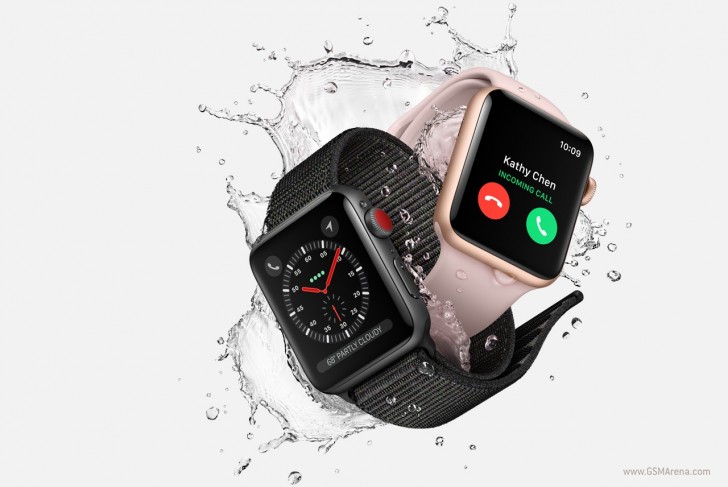
If your iPhone and Apple Watch Series 3 (GPS + Cellular) are both connected to a cellular network, your watch can do everything that it normally does, even if your iPhone isn’t with you.1 When your watch connects to a cellular network, Green dots icon appears in the Control Center.
If your watch is connected to a cellular network, but your iPhone isn’t nearby, your watch can do the same things that it can when using Wi-Fi.
If you have a Wi-Fi connection
When your iPhone is off or out of range, your Apple Watch can use Wi-Fi networks that you’ve connected to previously on your iPhone. When you connect to one of these Wi-Fi networks, Wi-Fi icon appears in Control Center. You can still do these things.
Use Siri to get directions, send iMessages, and more.
Send and receive messages.
Make and receive phone calls.
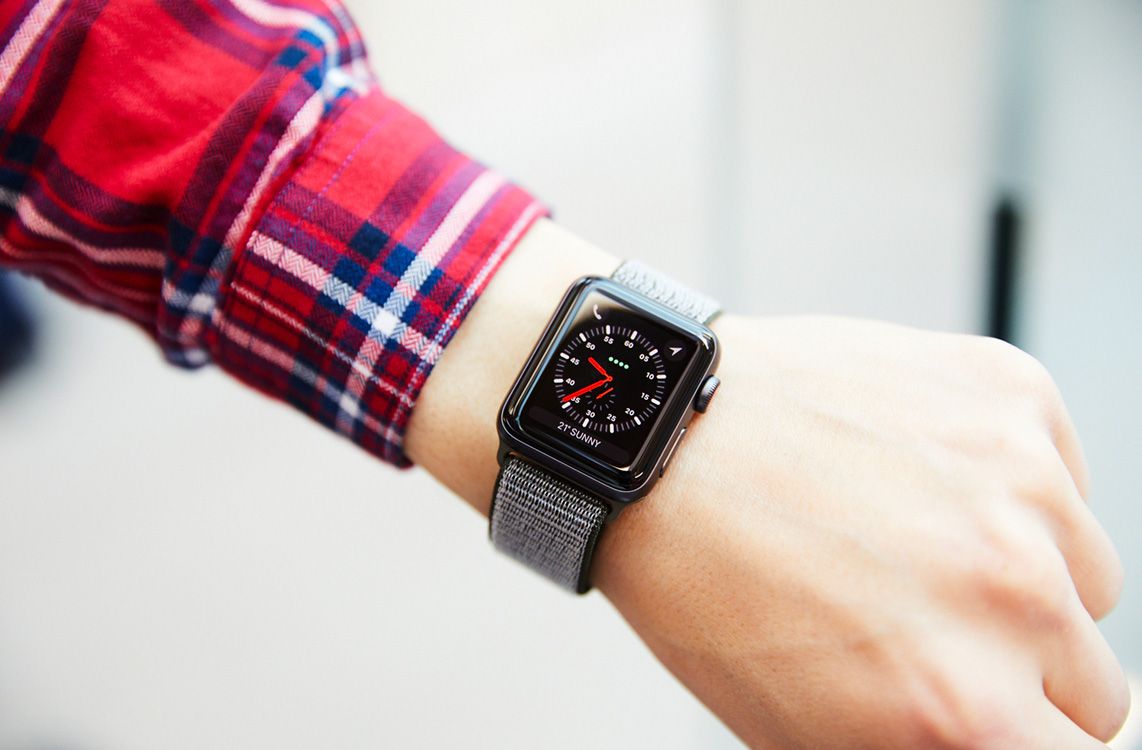
Check the current weather.
Track your stocks.
Control your home.
Use apps that support Wi-Fi.
If you can’t connect to Wi-Fi, cellular, or your iPhone
When your Apple Watch is disconnected, you can still do these things. For example, you might be hiking in an area without Wi-Fi or cellular signal or your iPhone might be off.
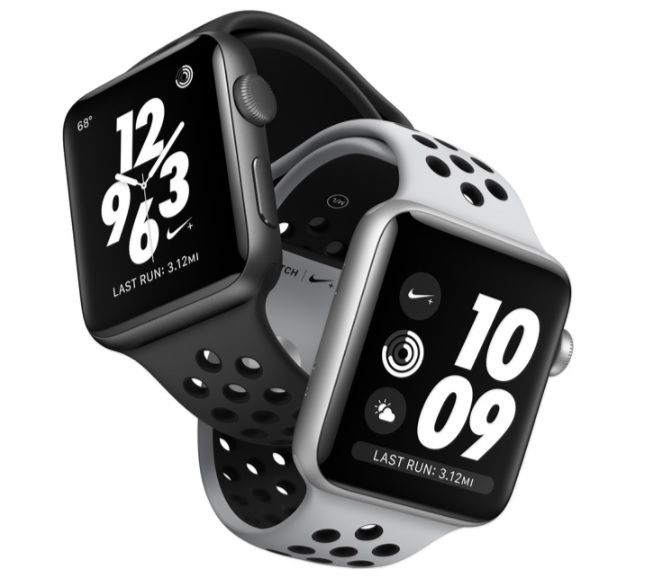
Track your workouts with the Workout app.
Track your goals with the Activity app.
See the time and use the Alarm, Timer, and Stopwatch apps.
Apple Watch: How to restart and force restart Apple Watch
If you think your Apple Watch has some issues that needs a restart to be fixed, here’s a quick tip to force restart your Apple Watch.
How to restart your Apple Watch
Learn how to turn your Apple Watch on and off, even if it isn’t responding.
Restart your Apple Watch
Press and hold the side button until you see the Power Off slider. Drag the slider to turn off your device. After your watch turns off, press and hold the side button again until you see the Apple logo. If your Apple Watch is charging, take it off the charger first. When your watch is charging, you can’t restart it.
Force restart your Apple Watch
Don’t force restart your Apple Watch if you’re updating watchOS. After you see the Apple logo and progress wheel on your Apple Watch, leave your Apple Watch alone until the update finishes.
You should force restart your device as a last resort and only if it’s not responding. To force restart your Apple Watch, press and hold both the side button and Digital Crown for at least 10 seconds, then release both buttons when you see the Apple logo.
Don’t freak out just yet, you can still save your Apple Watch if it won’t turn on. Here’s some tips to troubleshoot a non-responsive Apple Watch.
If your Apple Watch won‘t charge or it won‘t turn on
Try the steps below if you need help or can’t charge your Apple Watch.
See if your Apple Watch is charging
When you connect your Apple Watch to its charging cable and power, you should see green lightning bolt on the screen.
If you need to charge your watch, red lightning bolt appears on the screen. (You might need to click the side button to see the watch face.) When your watch is charging, red lightning bolt changes to green lightning bolt. If your screen is blank or you see the Apple Magnetic Charging Cable icon and red lightning bolt on the screen, charge your watch for up to 30 minutes.
Get help
If your Apple Watch won’t charge or you see a message on your watch that charging with this accessory isn’t supported:
Make sure that you plug the Apple Magnetic Charging Cable all the way into the USB Power Adapter, then make sure that you plug the adapter all the way into a power outlet.
Make sure that you’re using the Apple Magnetic Charging Cable and the USB Power Adapter that came with your Apple Watch.
Completely remove any plastic wrap from both sides of the charger.
Make sure that the back of your Apple Watch and the magnetic charger are clean.
Position the back of your Apple Watch on the charger. The charger’s magnets align your Apple Watch, and you should see green lightning bolt on the watch face.
If your Apple Watch still won’t charge, force it to restart. Press and hold both the side button and Digital Crown for at least 10 seconds, or until you see the Apple logo.
Try a different Apple Watch Magnetic Charging Cable and a different USB Power Adapter. If your Apple Watch is out of power, you might need to wait a few minutes for green lightning bolt to appear after you start charging your device.
Have you docked and plugged it in? Does it charge? No? Then you’re doing it wrong, Apple says. Here’s how you do it properly.
Check your battery and charge your Apple Watch
Check your battery at a glance and learn how to charge your Apple Watch.
Check your battery charge
Swipe up on the watch face to open Control Center and see the battery percentage.
Tap the battery percentage to use power reserve or check the battery charge for your AirPods when they’re connected to your Apple Watch and iPhone.
On some watch faces, you can add a complication to show the current battery charge.
On your iPhone, you can edit your Today View, so you can check your watch’s battery charge from your iPhone.
Charge your Apple Watch
If your battery power is low, you’ll see Red lightning bolt on the screen of your Apple Watch. Be sure to handle your Apple Watch and accessories safely, and always take off your watch before charging it.
To charge your Apple Watch:
Plug the Apple Magnetic Charging Cable, Apple Watch Magnetic Charging Case, or Apple Watch Magnetic Charging Dock into its USB power adapter.
Plug the adapter into a power outlet. You can also plug the charging cable into a USB port.
Position the back of your Apple Watch on the charger. The charger’s magnets align your Apple Watch, and you’ll see a charging symbol on the watch face.
Give your Apple Watch time to charge. While your device is charging, you’ll see green lightning bolt on the screen of your Apple Watch. Get help if your Apple Watch won’t charge.
Use Power Reserve
Power Reserve lets you see the time on your Apple Watch while preserving your battery life. In Power Reserve, press the side button to show the current time in a 24-hour format. While your Apple Watch is in Power Reserve, your Apple Watch and iPhone won’t communicate, and you can’t access other watch features.
Turn on Power Reserve
When your battery charge drops to 10 percent, your Apple Watch alerts you and asks if you want to use Power Reserve. When the battery gets too low, your watch automatically enters Power Reserve, and red lightning bolt appears next to the time. Learn how to maximize your battery life and lifespan.
To turn on Power Reserve:
Swipe up on the watch face to open Control Center.
Tap the battery percentage.
Swipe right on the Power Reserve slider, then tap Proceed.
Turn off Power Reserve
To turn off Power Reserve:
Press and hold the side button until you see the Apple logo.
Wait for your Apple Watch to restart. You might need to charge your Apple Watch first.
You know you got an update for your Apple Watch but yours seem not to update on its own. Here’s how you should fix it.
How to update your Apple Watch
Use your iPhone to update the software on your Apple Watch.
Before you begin
Update your iPhone to the latest version of iOS.
Make sure that your Apple Watch is on its charger and is at least 50 percent charged.
Connect your iPhone to Wi-Fi.
Keep your iPhone next to your Apple Watch, so that they’re in range.
Update your Apple Watch
Keep your Apple Watch on its charger until the update completes.
On your iPhone, open the Apple Watch app, then tap the My Watch tab.
Tap General > Software Update.
Download the update. If asked for your iPhone passcode or Apple Watch passcode, enter it.
Wait for the progress wheel to appear on your Apple Watch. It could take from several minutes to an hour for the update to complete.
Note: Leave your Apple Watch on its charger while the update completes. Don’t restart your iPhone or Apple Watch, and don’t quit the Apple Watch app. When the update completes, your Apple Watch will restart on its own.
If you need help updating
Try these steps:
Make sure that your Apple Watch connects to its charger.
Restart your Apple Watch. Press and hold the side button until you see Power Off, then drag the slider. To turn your watch on again, press and hold the side button.
Restart your paired iPhone. Press and hold the Sleep/Wake button until the red slider appears, then drag the slider. To turn your iPhone on again, press and hold the Sleep/Wake button.
Try to start the update again.
If the update won’t start, open the Apple Watch app on your iPhone, tap General > Usage > Software Update, then delete the update file. After you delete the file, try to download and install watchOS again.
If you installed an iOS or watchOS beta or developer seed
Before you update, remove the beta profile from your device. To view and remove profiles:
Open the Apple Watch app on your iPhone, tap the My Watch tab, then go to General > Profiles. Tap the beta profile that you want to remove, then tap Delete Profile. Enter your iPhone passcode if requested.
Open the Settings app on your iPhone, then tap General > Profiles & Device Management. Tap the beta profile that you want to remove, then tap Delete profile. Enter your iPhone passcode if requested.
After you remove the profiles, restart both devices and check for the update again.
To continue using the public beta of iOS, you can install the beta profile again.
Apple Watch: Why is my Apple Watch not connecting to my iPhone
Here’s how fix the pairing problem between your iPhone and your Apple Watch.
If your Apple Watch isn‘t connected or paired with your iPhone
If you see a red iPhone icon on your Apple Watch, or you’re trying to pair and can’t find the i icon, try to connect your devices again.
Check your Apple Watch connection
If you don’t get notifications, messages, or calls on your Apple Watch, your Apple Watch and iPhone might not be connected. When your devices disconnect, Red iPhone icon with diagonal line or X icon appears on your watch face. You can also check your connection in Control Center. When your Apple Watch connects again, Connected to iPhone icon appears.
If you need help, try the steps below. After each step, see if your devices can connect.
Try to connect your Apple Watch and iPhone again
Keep your Apple Watch and paired iPhone close together to make sure that they’re in range.
On your iPhone, make sure that Airplane Mode is off and that Wi-Fi and Bluetooth are on. To check, swipe up to open Control Center.
If you see airplane on your watch face, Airplane Mode is on. Swipe up to open Control Center, then turn Airplane Mode off.
Restart your Apple Watch and iPhone.
Unpair your devices, then pair them again
If your Apple Watch still can’t connect, unpair your devices, then pair them again:
On your Apple Watch, tap Settings > General > Reset > Erase All Content and Settings.
On your iPhone, open the Apple Watch app, tap the My Watch tab, then tap your watch at the top of the screen. Tap info icon next to the watch that you want to unpair, then tap Unpair Apple Watch. Tap again to confirm.
Apple is promoting the Apple Watch Series 3 as a holiday gift idea in a new series of ads shared this afternoon on its YouTube channel. Entitled “The Gift of Go,” each of the four videos focuses on the Apple Watch Series 3 being used during a specific activity.
The ads focus on snowboarding, soccer, working out, and swimming, with each one showing off a different Apple Watch Series 3 feature. Soccer and snowboarding, for example, demonstrate phone calls over cellular and text messaging.
Workout highlights Apple Music, and Swim focuses on the Workout app. All of the ads share the same general style – a quick look at a feature that shifts to a multi-object view that then transforms into wrapping paper over an Apple Watch Series 3 box.
These videos are just about 15 seconds in length, which is the video length that Apple uses for social media ads on sites like Instagram.
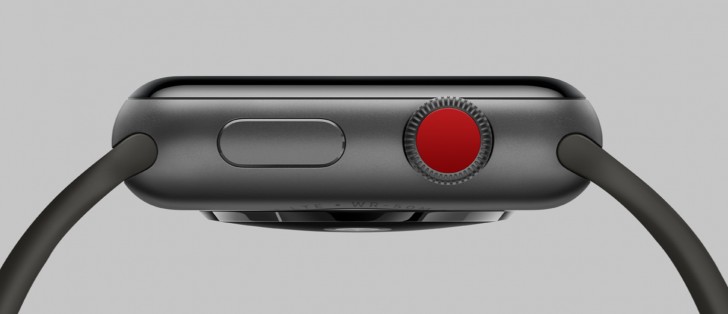
All of the videos focus on the aluminum Apple Watch Series 3 models that have LTE capabilities, with the red Digital Crown clearly visible in each one.
While these are the first short videos featuring the Apple Watch Series 3 that Apple has shared, the company has been running several Apple Watch ads that debuted when the device was first announced in September.
Apple Watch Series 3 models are likely to be a popular holiday gift. Pricing on the Series 3 models with LTE begins at $399, while non-LTE models are priced at $329.
You may have heard that Apple‘s first LTE-enabled Apple Watch was having issues with unsecured Wi-Fi networks, which prevented the smartwatch from using its LTE connection. When out of known Wi-Fi coverage the Apple Watch Series 3 with LTE would latch onto public networks that require a browser sign-in to work. Given that the watch lacks a browser it would connect to the network but not have internet.
Now Apple has fixed the issue in its latest watchOS update – watchOS 4.0.1.
All you need to do in order to get the fix is download iOS 11.0.2 on your iPhone and then update the Apple Watch Series 3.
It’s been an unusually bumpy introduction for the cellular Apple Watch. Outside of the aforementioned issues users in the UK have reported difficulties activating the eSIM in the new Apple Watch.
Here’s hoping it’s smooth sailing from here on out.
On September 22, Apple Watch Series 3 with built-in cellular and Apple Watch Series 3 with GPS went on sale around the world at 8 a.m. local time. The new Watches add powerful health and fitness enhancements, a faster dual-core processor, a new wireless chip and watchOS 4.
Apple Union Square, San Francisco
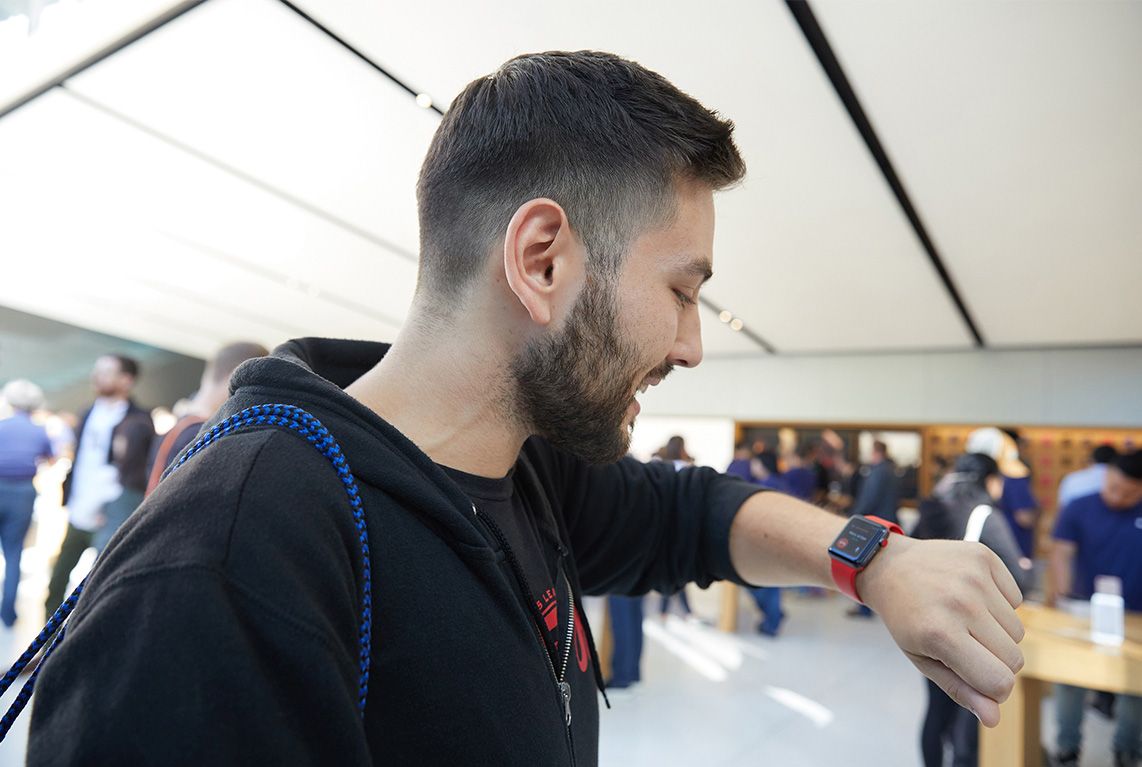
A customer uses Apple Watch Series 3 to call his mother from Apple Union Square in San Francisco.
This week Apple released watchOS 4, the fourth major update to its flagship wearable device in the two years since it’s been available. While the Apple Watch had a fairly basic start with the first iteration of its operating system, Apple provided more frequent updates, with watchOS 2 redefining the experience and watchOS 3 significantly increasing performance and interactivity. With watchOS 3 having finally established a solid foundation for the wearable user experience, watchOS 4 seems to begin an era of more iterative improvements that refine, rather than redefine, the user interface.
Installing the Update
As with prior watchOS updates, you’ll need to start the update process from the Watch app on your iPhone, and you’ll need to already have iOS 11 installed to do so. You can check for new updates by opening the Watch app and choosing General, Software Update.
The installation process will first download the update to the Apple Watch, and then — providing your Apple Watch has at least a 50 percent charge and is connected to power — proceed to install the update from there. Note that this one takes a while; in our experience it was about a 30 minute install, and some users have reported it taking even longer than that, likely depending on how busy Apple’s servers are.
System Changes
While watchOS 3 made some major changes to the Apple Watch user interface — introducing the Dock and Control Center and completely eliminating “glances” from the original design — watchOS 4 focuses more on adding polish in those areas. Everything remains where it was before, however Apple has redesigned the Dock with a vertical “stacked cards” style interface. Swiping to the left on an individual app in the Dock displays a “Remove” button that can be used to cast that app out of the Dock.
Unlike before, where the Dock combined recently used and favourite apps, watchOS 4 also now requires you to choose one or the other from the Dock settings in the iPhone Watch app. Selecting “Recents” will include only those apps in the Dock that you’ve recently used, ordered by when they were last opened. “Favorites” lets you specify which apps are included in the Dock, in which case only the single most recently used app will be included at the top, with a “Keep in Dock” button below to allow you to add it permanently to the Dock right from your watch.
Users who aren’t fans of the now-traditional app launcher on the Apple Watch will also appreciate that Apple has finally added an option to display your apps in a simple list view. This is accessed by pressing down on the app launcher screen and selecting “List View.” The Apple Watch will remember the last setting as your default, so if you prefer the list view, you can stick with it. Sadly, the list view is fixed to an alphabetical order with no visible way to customize it, although it will remain at the last-used position each time you return to it.
A new “flashlight” option has also been added to the Control Center, which turns the watch face into an LED light, with three modes available — simple white light, a flashing white light, and a red light.
Watch Faces
No Apple Watch update would be complete without a selection of new Watch Faces, and this year’s release doesn’t disappoint.
Siri Face
The Siri face attempts to bring Siri’s “proactive assistant” to your wrist, displaying relevant data such as reminders, calendar appointments, weather, and alarms, as a series of vertical cards. It can be a useful option for those who are always on the go, but right now the data sources are limited to Apple’s own built-in apps,
The Siri faces only offers two complication slots, one of which is used by default to trigger Siri, and customizability is limited to choosing which data sources will be included.
Toy Story Faces
Last year’s update gave us Mickey and Minnie Mouse, and with watchOS 4 this year, we get the cast from Toy Story. Four new faces are available, featuring Buzz Lightyear, Jessie, Woody, and all three as the main faces, which will change slightly each time you look at your watch, and are each also backed by a set of unique animations that can be accessed by tapping on the watch face. Unlike Mickey and Minnie, these don’t announce the time — or play any other sounds — but they’re cute and fun nonetheless, and add a bit of personality to your Apple Watch.
Kaleidoscope Face
The new kaleidoscope face leans more to the artistic side, allowing you to choose from one of seven photos — or your own custom photo — and three patterns to create a round kaleidoscope background behind an analog watch. Turning the Digital Crown will rotate through the kaleidoscope patterns.
Activity
The Activity app has been enhanced to get a little bit more personal and proactive, with additional notifications that provide a bit more encouragement and coaching, and include full-screen “ring of fire” animations when you close your rings.
New monthly challenges have also been added that are customized based on your previous activity levels, and can include things like setting a new daily average move goal or daily average exercise goal, rather than simply hitting set milestones.
Workout
The Workout app has also gotten a nice redesign, with quick start “Open Goal” options for each workout type, and a menu button in the top-right corner to choose specific goals such as distance, calories, or time.
Workout controls can now be accessed from a workout by swiping over to the screen on the left, and music controls can be found on the screen to the right of the main workout status display. On the Apple Watch Series 1 or later you can also now automatically start a synced playlist when beginning a workout. A new option under Do Not Disturb settings in the iPhone Watch app also allows you to automatically enable Do Not Disturb during your workouts, although unfortunately this cannot be customized based on workout type.
watchOS 4 also adds a new High Intensity Interval Training (HIIT) workout mode, and updates Pool Swim workouts with auto sets to track distance for each stroke type and pace for each set.
Heart Rate
The Heart Rate app now includes visual graphs that chart your heart rate throughout the day, as well as your heart rate during workouts and walks, and recovery time. Users with an Apple Watch Series 1 or later also get a resting rate chart.
A new option in the Notifications section of the iPhone Watch app lets you enable alerts if your heart rate suddenly rises to a user-specified threshold while you appear to have been inactive for ten minutes or more.
The Health app on the iPhone also now tracks additional heart rate details, such as Heart Rate Variability (HRV) and VO2 Max.
Music
The Music app probably represents the most significant change in watchOS 4, with a complete redesign that basically takes it from what it was before — basically a combination of an iPod shuffle and iPhone remote — into a standalone Music app in its own right.
You can now sync multiple playlists — as well as whole albums, artists, genres, and compilations — to your Apple Watch, and Apple Music subscribers can automatically add their curated playlists. Music syncs when the Apple Watch is charging, and is stored locally on the Apple Watch so it doesn’t need to be in range of your iPhone to listen to your music, although of course you’ll still need to use Bluetooth headphones with the Apple Watch.
Unfortunately, with these advances the Music app also loses the ability to start music playback directly on your iPhone, so you’ll only be able to search for and play music that’s on your Apple Watch — although Apple Music subscribers will soon gain the ability to stream any content directly from Apple Music, that feature hasn’t yet been rolled out, and it’s unclear whether it will be limited to the new cellular-capable Apple Watch Series 3 or available on older Apple Watch models.
Although the Apple Watch can’t directly access your iPhone’s music library, the “Now Playing” app still retains the ability to control music that’s already playing on your iPhone. “Now Playing” will come up automatically by default on your watch whenever you begin playing anything from the iPhone Music app, however you can turn this off by going your iPhone Watch app and toggling off “Auto-launch Audio Apps” under General, Wake Screen. The Now Playing app can also always be found in the Dock whenever music is playing on your iPhone.
Mail
The Mail app in watchOS 4 gains the ability to compose messages directly from your wrist. You can address messages by dictating a name to Siri or choosing one from your contacts, and fill in the subject and body using any of the usual watchOS data entry techniques — canned messages, Siri dictation, scribbles, or emoji.
Additional left and right swipe gestures in the Mail app also provide options for trash, flag, and mark as unread. Sadly, like the macOS Mail app, these options are fixed rather than customizable as they are in iOS.
Conclusions
Unlike last year’s watchOS 3 update, we wouldn’t say that watchOS 4 breathes new life into older Apple Watch models; it’s a mostly iterative update that adds some nice improvements to the experience, particularly for health and fitness users. It also makes the Apple Watch into a more usable portable music player. The good news, however, is that even if you’re still wearing an original first-generation Apple Watch, you’ll find that watchOS 4 still performs very well and offers a host of new benefits, with only a few relatively minor features limited to the newer models. While most users won’t find themselves in a rush to update to watchOS 4, we can’t find any reasons to avoid the update either. It’s a solid update regardless of which model of Apple Watch you own.