Need to open a VMDK file in VirtualBox? This article will show you how to setup and use a VMDK virtual machine file with VirtualBox. This particular tutorial is demonstrated on a Mac, but using a VMDK with VirtualBox this way should work the same on Windows and Linux too.
VMDK is short for Virtual Machine Disk, and VMDK files can be created by VMWare, VirtualBox, Parallels, and other virtualization software. You may have noticed that you can’t simply open a VMDK virtual machine file directly with VirtualBox, nor can you drag and drop it to launch. Instead you’ll create a new virtual machine and use that as the disk, using the steps outlined below.
How to Open a VMDK File with VirtualBox on Mac, Windows, Linux
Open the VirtualBox application, then choose “New” to create a new virtual machine
Give the new virtual machine a name and set the type, OS version, RAM, and then click to choose “Use an existing virtual hard disk file” and click the folder icon to navigate the file system
Click “Add” to add a virtual hard disk file
Navigate to and select the VMDK file and choose “Open”
Confirm the VMDK drive is selected then select “Choose”
Now choose “Create” to create the new virtual machine using the VMDK file
Click “Start” at the VirtualBox Manager screen to boot the VMDK virtual machine
Once you click Start the virtual machine will boot using the VMDK file you selected as the virtual hard disk file.
VMDK files can be made of just about any operating system, including Windows, Linux, MacOS and/or Mac OS X. The VMDK virtual machine files are often made available or transferred around as pre-built configurations of operating systems, making it easy to use or test the same setup on multiple machines or by multiple people.
This is probably somewhat obvious, but if you move the location of the VMDK file the VirtualBox machine will no longer boot until the VMDK file is located again.
If you’re finished using the VMDK file and the related virtual machine, you can delete that VM from VirtualBox like removing any other VM.
You might be wondering if it’s possible to convert a VMDK file to VHD or VDI or another virtual machine disk format, and the answer is yes though it’s not nearly as easy as converting an ISO to VDI, and instead you’ll have to rely on this free tool from Microsoft that runs in Windows.
Photography is anything but a simple task. Getting good results is part composure, part experience, and part hardware. The mobile phone space has been blowing up over the past few years with fewer and fewer people buying dedicated point and shoot cameras and instead relying on their smartphone. Honor has risen to the task though with the Honor 20 lineup and today we are going to talk about how to get the best out of the Honor 20 Pro and its many camera sensors, techniques to get the best shot, and how Honors Master AI system helps meet that challenge.
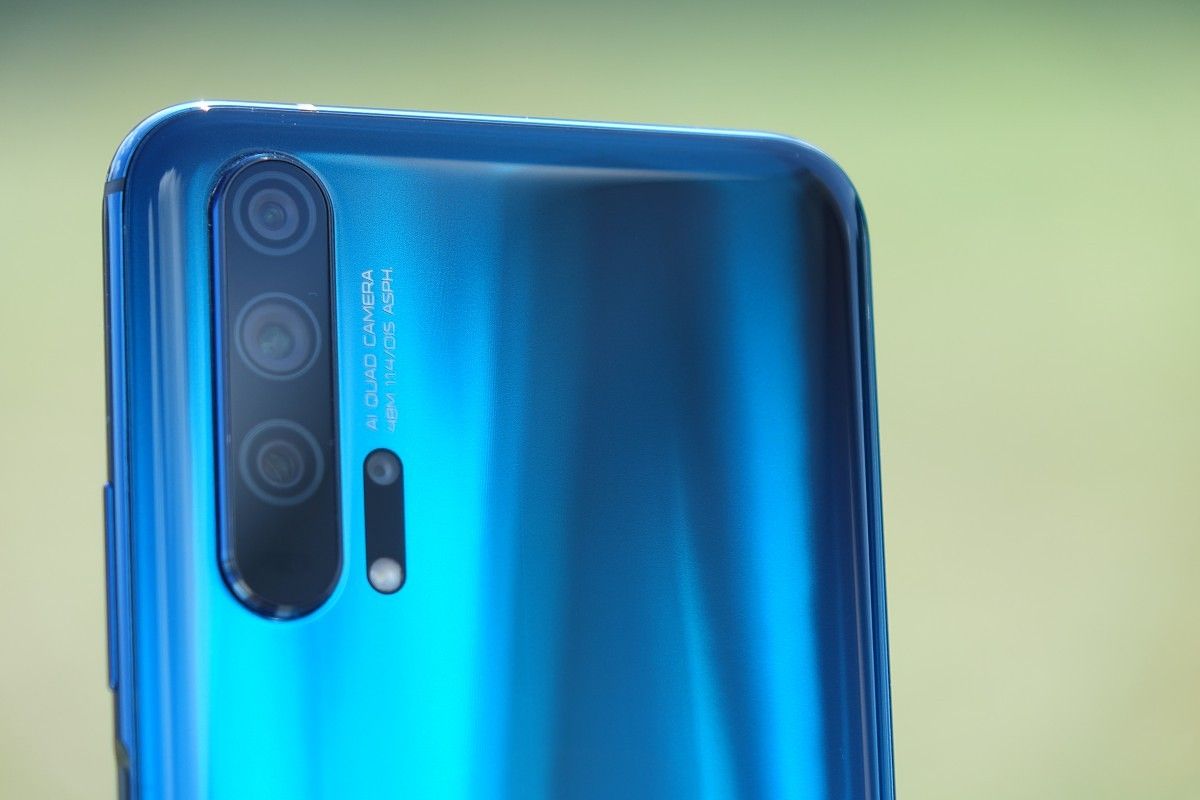
If you aren’t familiar with the Honor 20 Pro’s cameras, here is a quick rundown of all the specs. The main sensor is a 48MP Sony IMX586 with Phase Detect and Laser autofocus, Optical and Electronic Image Stabilization, and a bokeh enabling f1.4 lens that brings in significantly more light than competitors F1.8 or F2.0 lens. The second camera is a 3x 80mm f2.4 telephoto lens that also features Phase Detect and Laser autofocus. The third is an ultra-wide 16MP camera and the fourth is an industry-first dedicated Macro camera. The Honor 20 Pro has a vast array of cameras for every situation, so let’s go over some of those common scenarios and how the Honor 20 Pro helps you get your best result
AI Master On vs AI Master Off
The Honor 20 Pro features MagicUI’s AI Master mode to automatically identify and adjust the shot settings for whatever scenario you are in. Take the below examples for instance and see how AI Master has its advantages and disadvantages.
Honor 20 Pro – AI On
Honor 20 Pro – AI Off
Depending on what your desired end result is, you first have to decide if you want to have AI Master enabled or disabled. The above images reflect the changes that AI on and AI off make. While the second image is closer to reality, the AI Master mode does make the flower pop a lot more and adds more yellows and greens. This type of shot would be ideal for Instagram.
Honor 20 Pro – AI On
Honor 20 Pro – AI Off
This second image taken with the wide-angle sensor shows how much more of a difference the AI Master mode makes on panoramic shots. Each of the colors is well beyond what they are in real life, but it does make for a photo you won’t need to retouch for Social Media sharing and does have a WOW-factor.
Honor 20 Pro – AI On
Honor 20 Pro – AI Off
In this final test of AI Master, you can see that it keeps everything very realistic and just applies normal HDR settings to the shot.
Regular and Zoom Vs Macro
As we have discussed, the Honor 20 Pro features both a 3X zoom sensor and a dedicated Macro sensor. Sometimes you might want to get super close on an image and you have a choice, should you use the Macro sensor or get right up and close with the primary one. What about the zoom lens, could you just zoom in on it? See how the below image perspective and feel is changed depending on what lens you use.
Honor 20 Pro – AI On
Honor 20 Pro – 3X
Honor 20 Pro – Macro
The Primary sensor clearly delivers the best all-around shot, but the 3X sensor does a really good job as well. While its colors could use some tuning, thanks to the narrower field of view you get a larger than life feel from the zoomed-in shot. The final image taken with the Macro sensor shows its advantages and disadvantages. You can really get super close on an object and see things you normally couldn’t, but it also doesn’t have the quality of the larger sensors and at 2MP you will not be able to blow up this image to print or see on a larger screen for more details.
Honor 20 Pro – Macro
Honor 20 Pro – Primary
This image though shows the benefits of using the Macro sensor. I could get very close to my subject and still have it in focus whereas the primary sensor could not focus at this close range.
48 Megapixel Ultra Clarity Mode Uses
We’ve already discussed in previous articles the benefits to using the AI Ultra Clarity mode available on the Honor 20 Pro. It is great for large panoramas and areas with little movement. Below you can see a less than ideal scenario where leaving the camera in the 12MP mode is superior.
Honor 20 Pro – 48MP Ultra Clarity
Honor 20 Pro – 12MP
The image on the left was taken using the 48MP Ultra Clarity mode and resized for uploading to the site. You can see that the benefits from stacking the images for the 12MP image are in the detailed shadows and overall image exposure. The 48MP photo does have more detail, but you can see that there is less detail on any moving objects. 48MP Ultra Clarity takes about 6 seconds to shoot and process, so any moving subjects could have blurring due to the process. While this mode is ideal for landscape shots, you won’t want to use it for closeups or objects that are moving.
Honor 20 Pro – Regular
When to Use the Ultra-Wide Angle
One of the most common questions I see asked is when to use the normal wide-angle camera versus the ultra-wide-angle camera. The answer is whenever you want a super wide or tall shot and you are not taking a portrait of a person. The neat thing about wide-angle shots is that you can take them in both landscape and portrait for some neat angles and interesting shots.
Honor 20 Pro – Ultra-Wide
Honor 20 Pro – Regular
Honor 20 Pro – Ultra-Wide
Honor 20 Pro – Regular
Night Mode vs Pro Mode and Regular Mode
The Honor 20 Pro features Honor’s excellent night mode, and that is what we are comparing next. One of the downsides of the night mode is the time to shoot. It can take up to 6 seconds to capture the scene, so you need to have steady hands and no moving objects for the best result. With the last image, I decided to put the phone into night mode, lower the ISO to 400, and shutter speed to 1/10 to capture a really cool nightscape with very little noise.
Honor 20 Pro – Regular Mode
Honor 20 Pro – Night Mode
Honor 20 Pro – Pro Mode
The Honor 20 Pro has one of the most versatile setups available today, and we hope these tips will help you to master the camera and its various settings!
At some point in time you may have installed the popular Malwarebytes tool on a Mac to scan for malware, spyware, ransomware, junkware, and other garbage threats on a Mac, but at some point you may decide you want to uninstall Malwarebytes from the Mac and remove the utility from a computer.
Whether you’re using the free or paid version of Malwarebytes you’ll find that uninstalling it is fairly easy. We’ll cover two methods to remove Malwarebytes from a Mac.
How to Uninstall Malwarebytes from Mac OS the Easy Way
The simplest way to uninstall Malwarebytes from a Mac is to use the apps built-in uninstaller:
Open the Malwarebytes app on the Mac, found in the /Applications folder
Pull down the “Help” menu and choose “Uninstall Malwarebytes”
Choose “Yes” when asked if you want to completely remove Malwarebytes from the Mac
Authenticate with the admin password to uninstall Malwarebytes
How to Remove & Uninstall Malwarebytes by Script (if the Application is Missing, Doesn’t Work, etc)
If for some reason the above easy approach to uninstalling Malwarebytes does not work, or perhaps you already deleted the primary Malwarebytes application and so you no longer have the capability to use the built-in uninstaller function, another is available using a free removal script from Malwarebytes. Here’s how that works:
Launch the “Uninstall MWB” tool from the Downloads folder
Choose “Yes” when asked if you wish to remove all components of Malwarebytes from the Mac
This is the preferred method to remove Malwarebytes from a Mac. It’s easy and it’s relatively fast, and it should remove every component of Malwarebytes from the computer without having to do anything else.
Nonetheless there are other options which may be necessary if the primary application has already been removed, but other Malwarebytes components remain on the system.
When finished, Malwarebytes will have been deleted and all components uninstalled from the Mac.
Many of the components of the app remained which is often the case when simply dragging an app to the Trash does not uninstall everything related to the application. If you’re aiming to remove Malwarebytes from a Mac you can use either approach, but if the application is missing with the built-in uninstall tool then using the uninstaller script will still remove remaining Malwarebytes components from the Mac.
These uninstall methods should work on any semi-modern Mac running any modern version of Mac OS or Mac OS X, though the uninstaller script is valid for 10.10 and later only.
Technically speaking you could also manually remove Malwarebytes but that process is much more cumbersome than simply using the uninstaller tool offered in the application itself, or the uninstaller script available as a download from Malwarebytes. If you do want to manually remove the Malwarebytes app, you’ll be digging around in various user and system folders and searching system files for a variety of plists, extensions, and other components of the app, and other stuff. That’s really only appropriate for very advanced users, and there is little purpose to do so when there are easier uninstall methods.
To be clear, this is not a suggestion, this is simply a tutorial demonstrating how to uninstall Malwarebytes from MacOS. If you use Malwarebytes and find it useful, there’s no reason to stop using it or to remove it from a Mac. And remember that if you remove it because you’re finished using it for now, you can always install Malwarebytes again later if you want to.
As we mentioned before, Malwarebytes is a popular Mac utility and even the free download version will work for scanning and removing malware and junkware from a Mac, but whether or not you use it, or want to remove it, is entirely up to you. It’s generally well regarded and doesn’t carry some of the baggage (and bad headlines) that some other scanning and cleaning utilities out there, so if you’re interested in an malware scanner and removal tool on the Mac it’s a good choice even at the free level. If you are going to install a malware removal tool on the Mac, it’s best to pick just one and don’t overlap them to avoid any issues.
Malwarebytes for Mac is a popular and respected anti-malware tool for Mac that can help to clear a Mac of malware, ransomware, and viruses. While users can follow some simple tips to protect a Mac from viruses and trojans, and MacOS is fairly secure as-is from malware, junk ware, and adware, many Mac users often ask how they can scan their Mac for adware or for viruses. For those who have some concerns about malware on a Mac, using the Malwarebytes app to scan and clear a Mac can offer some additional peace of mind.
This article will show you how to install Malwarebytes on a Mac, and how to use the free version to scan and clean a Mac of any threats.
Note this tutorial will use the free level of the Malwarebytes app, which has the ability to scan and clean any discovered infections from a Mac. If you feel like you want or need enhanced security to proactively protect a Mac from further threats, then you’re welcome to try the paid version on your own.
How to Install Malwarebytes Malware Scanner on Mac to Clean Malware, Viruses, Adware, etc
Go to the user Downloads folder and open the “Malwarebytes” package installer
At the Malwarebytes installer screen, choose Continue and read through the release notes and license terms
Select the drive you wish to install Malwarebytes onto, this is likely the primary boot drive named “Macintosh HD”
Authenticate the installer to let Malwarebytes complete installation
In a moment you’ll be presented with a screen asking where you’re installing Malwarebytes, either Personal / Home or Work
At the next screen, choose “No thanks, I just want to scan” (or sign up for the 14 day free trial if you want to try out the full paid version)
At the Malwarebytes application screen, choose “Scan” to scan the Mac right away for any threats
If any threats or junk is found, Malwarebytes will report it to you on the next screen, otherwise you’ll see a screen saying the Mac is clean and clear
As mentioned before, we’re using the free version here to simply scan and clean a Mac (assuming any malware, bad junk, or unwanted stuff is found), but you’re certainly free to try out the 14 day full protection trial, or sign-up for the complete paid service and unlock the other features of the Malwarebytes app.
If you’re satisfied with the Mac being cleaned and scanned, you can quickly uninstall Malwarebytes from the Mac just by opening the app and pulling down the “Help” menu and choosing to “Uninstall Malwarebytes” and following the steps on screen.
To be perfectly clear, this is not any particular recommendation and we do not have any relationship with Malwarebytes, we just use the tool ourselves to scan Macs for scanning for junkware if the need arises either on our own hardware or someone elses (even back when the app was called AdwareMedic).
“how can I scan my Mac for viruses and malware?” and “how can I clean my Mac from adware or a virus?”,
so these questions are common. Generally speaking, a well secured Mac that has regularly updated system software and apps, and some savviness from the user like not downloading sketchy stuff from untrustworthy dubious websites and not installing browser plugins – is enough to prevent Macs from finding any malware, junkware, adware, ransomeware, or any other nefarious stuff on their Mac, but nonetheless infections can still happen.
Need to convert a Numbers file to an Excel spreadsheet file from iPad or iPhone? This is a common task for many work and educational environments where Excel is commonly used, and fortunately this process is easy to accomplish thanks to the Numbers app Export features.
This article will show you how to convert a Numbers document to an Excel spreadsheet file using an iPad or iPhone, the end result will be an Excel file in XLS / XLSX file format.
Note this is specifically for iPhone and iPad, but if you’re on a desktop or laptop then you can learn how to convert a Numbers file to Excel spreadsheet on Mac too.
How to Convert a Numbers File to Excel File on iPhone & iPad
Open the Numbers app on iPad or iPhone, then open the Numbers file or spreadsheet document you wish to convert
Tap on the (…) three dots button in the top right corner of the screen
Select on “Export” from the menu
Choose to export the file as “Excel” from the export options
Select the method you wish to save or share the converted Excel file as: save to Files app, iCloud Drive, send with AirDrop, send with Email, share with Messages, etc
Repeat this process with other Numbers files to convert them to Excel files as needed
The resulting exported Excel file can be opened by any app that opens Excel documents, whether that’s Microsoft Excel, Google Docs, LibreOffice, StarOffice, or Numbers on iPad, iPhone, or Mac.
Note that if you share the file directly from the Numbers app, say by exporting it as an Excel document and emailing it to someone, the original file will stay in the Numbers app in the Numbers file format. If you want to have physical access to an Excel file on iPad or iPhone, you’ll need to save it locally to the Files app or to iCloud Drive.
As mentioned earlier, if you’re on a Macintosh then you can also convert Numbers files to Excel spreadsheets in Mac OS too using a similar export process. You can even use iCloud.com to convert these documents too, but that’s a topic for another article entirely.
Galaxy Tab S6 enriches the mobile experience by enabling people to express their ideas and get more done.
Samsung Electronics today announced Galaxy Tab S6 – a new tablet that allows people to create and connect, enjoy immersive entertainment, and accomplish their goals wherever they go. Built for those who need to satisfy their curiosity and express their creative flair, the Galaxy Tab S6 lets users do more than they could on any tablet before.
“Today’s inspiration comes at a moment’s notice and creatives and professionals need a device able to keep up with insatiable imaginations while complementing their busy, on-the-go lifestyles,” said DJ Koh, President and CEO of IT & Mobile Communications Division at Samsung Electronics. “Galaxy Tab S6 enables consumers to unlock their creativity, while delivering the top-quality productivity features and advanced technology they have come to expect from Samsung tablets.”
Samsung has unveiled its newest flagship tablet under the Tab S series, the Galaxy Tab S6, that comes with new and updated features.
The Galaxy Tab S6 sports a 10.5-inch WQXGA Super AMOLED display, Qualcomm Snapdragon 8150 chipset, 6GB or 8GB of RAM, 128GB or 256GB of storage, 13MP + 5MP dual rear cameras, 8MP front camera, and 7,040mAh battery.
The device also comes with AKG speakers w/ Dolby Atmos, a built-in magnet case for the new S-Pen that has a built-in BLE remote control, Air Gestures, 10 hours of battery life with 10 minutes of charge time.
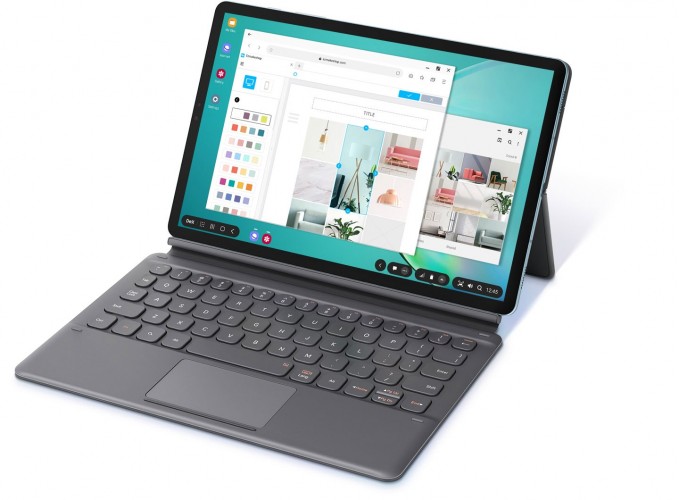
You can also dock it in the new version of the Samsung DeX or put a Book Cover keyboard for typing purposes.
The Samsung Galaxy Tab S6 is priced at USD 649 for the 6GB + 128GB variant while the 8GB + 256GB costs USD 729
Redesigned S Pen Boosts Creativity and Productivity
Samsung’s signature S Pen began as an instrument for writing and drawing, but it has evolved to become the ultimate creativity and productivity partner. Now with remote control functionality and wireless charging capabilities, S Pen on Galaxy Tab S6 puts even more power and control in users’ hands. With built-in BLE remote control features1 including a gesture function called S Pen Air actions, S Pen lets you intuitively take selfies and videos, or control the multimedia content you create even when the tablet is not in your hands. Plus, S Pen features wireless charging that delivers up to 10 hours of battery life2 after just ten minutes’ charge time.
Galaxy Tab S6 makes taking notes with S Pen a breeze. Handwritten Samsung Notes can be converted to digital text and exported to formats like Microsoft Word with just one click. You can also jot down quick notes or sketches while watching a video on the same screen by adjusting the Samsung Notes’ window transparency—perfect for effortless multitasking.
A new-and-improved version of Samsung DeX3 is also packed into the Galaxy Tab S6, enabling you to seamlessly transition to a PC-like experience, so you can easily multitask and optimize your viewing experience. With a DeX function key added to the Galaxy Tab S6’s new dedicated Book Cover Keyboard, you can launch and close DeX with the tap of a key. The keyboard has been fine-tuned for better functionality, including an S Pen holder, free angle stand, touch pad and new function keys.
Advanced Technology for Everyday Convenience
Galaxy Tab S6 packs new enhancements to its camera, including Samsung’s first dual camera with Ultra Wide camera on a tablet, within a compact 5.7mm slim body that is both lighter and more portable. The Ultra Wide camera allows users to capture the scenery and landscapes just as they see them with a 123-degree field of view, as wide as the human eye. Meanwhile, the Neural Processing Unit lets you take professional photos through enhanced effects to your subjects, so your photos look like they were taken by a pro.
Samsung is also bringing the on-screen Fingerprint Scanner to its tablet for the first time with Galaxy Tab S6, so that accessing your tablet is more convenient than ever. This ease and convenience are further protected by Samsung Knox, Samsung’s defense-grade security platform. Additionally, you can easily wake your Galaxy Tab S6 by tapping on the screen twice, allowing you to log in and start your day quickly.
As a part of Samsung’s Galaxy Ecosystem, the Galaxy Tab S6 becomes a hub of your connected experience to manage your appliances with SmartThings. Together with Bixby, you can easily control your devices via voice commands.
Uncompromised Entertainment
Whether you are enjoying a new game or binge-watching your favorite TV show, Galaxy Tab S6 delivers an amazing viewing experience. Its 10.5” Super AMOLED display, paired with quad speakers sound by AKG and Dolby Atmos®, keeps you immersed in the action.
Galaxy Tab S6 enables high-quality, captivating gaming through a combination of graphics, sounds, and intelligent hardware and software, bolstered by partnerships with leading game platforms like Unity and Unreal Engine. A powerful processor and Game Booster with AI capabilities enhance the gaming experience on Galaxy Tab S6 through optimized FPS, screen lag, loading time and more.
With Galaxy Tab S6, you can enjoy more of your favorite content. You can easily browse Netflix content on the device’s Finder, enjoy your favorite music on Spotify with three months of free Spotify Premium, or watch your favorite YouTube videos ad-free, offline, and on-the-go with four free months of YouTube Premium4.
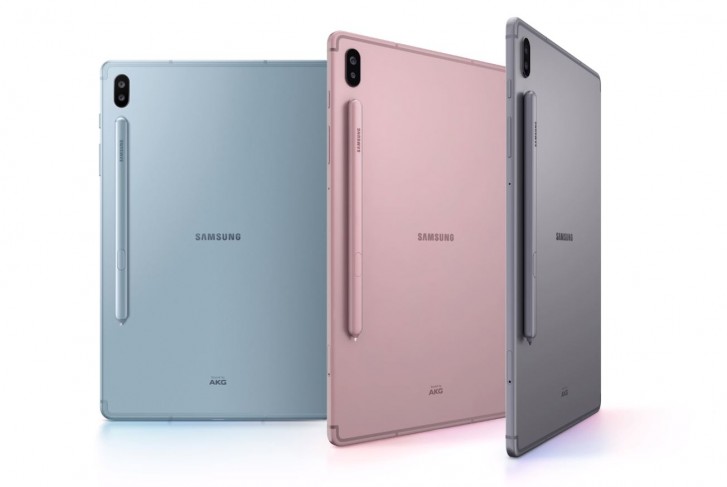
Galaxy Tab S6 comes in Mountain Gray, Cloud Blue and Rose Blush colors. It will be available in stores and online beginning late August in select markets.
Do you want to turn off the screenshot thumbnails that show up on the Mac screen? You may have noticed that if you take a screenshot on Mac a little screenshot thumbnail preview pops up in the bottom right corner of the display and floats there for a few seconds. You can interact with that little thumbnail to quickly markup a screenshot, but showing those screenshot thumbnails also appears too slow down how long it takes for the actual screen shot file to generate and be available to the file system.
If you want to disable the screenshot thumbnail preview in Mac OS, this article will show you how to do that.
How to Turn Off Screenshot Preview Thumbnails on Mac
From the Finder of Mac OS, go to the /Applications/ folder and then to /Utilities/ and open the “Screenshot.app” application
Click on the “Options” menu in the screenshot toolbar
Uncheck the option for “Show Floating Thumbnail” to disable the screenshot preview
Exit out of Screenshot app when finished
With ‘Show Floating Thumbnail’ disabled, the screenshot previews will no longer appear, and the screenshot that has been snapped will be created and appear almost instantly in the Finder, much like in earlier MacOS versions.
For those who are wondering, the Mac ‘Screenshot’ application takes the place of the “Grab” app in modern MacOS versions, and it has other handy features too that make it easy to change some screenshot options that used to require the Terminal and defaults commands. For example you no longer have to use a defaults write command to change the screenshot file save location, and you can also set a timer and mouse pointer option for screenshots too just like you could in the Grab app. You will still need to use a defaults write command to change the screenshot image file format or screenshot file names however.
How to Re-Enable Screenshot Thumbnail Previews on Mac
Open the “Screenshot.app” application from Spotlight or the Applications/Utilities/ folder
Click the “Options” menu and check the option for “Show Floating Thumbnail” to enable the screenshot preview
Exit out of Screenshot app
With the floating thumbnail option re-enabled, screenshot previews will show up again, and there will be a delay before screenshot files appear in the Finder and to the file system again.
You may have noticed a similar screenshot preview on iPhone and iPad as well, but in the iOS / iPadOS side of things there is currently no method to disable that screenshot preview, as this option remains only on the Mac. Instead on the iPhone and iPad you can simply swipe or push the thumbnail aside to dismiss it, a trick that also works to dismiss the screenshot floating preview on Mac as well.
If you use Waze to navigate you may appreciate having the Waze app be front and center on CarPlay while you’re driving with iPhone. You might even be interested in replacing Apple Maps with Waze if you use the Waze app more than Apple Maps on your CarPlay vehicle.
This article will show you how to use Waze on Apple CarPlay with iPhone as your mapping and driving navigation app.
Requirements for using Waze on CarPlay: the car must have CarPlay compatibility, the iPhone must be running iOS 12 or later, you must have iPhone setup with CarPlay, and the Waze app must be updated to a recent version.
If you don’t yet have the Waze app on iPhone you can download it from the App Store here.
How to Use Waze on CarPlay Instead of Apple Maps
Connect iPhone to CarPlay if you haven’t done so already
Open “Settings” app on iPhone
Go to “General” and then choose “CarPlay”
Select the car with CarPlay
Locate Waze and then tap and hold on the Waze icon to drag it to the primary CarPlay Home screen for fast access
Optional: replace Apple Maps with Waze on CarPlay, by moving the Apple Maps icon to another screen to make Waze icon more prominent on CarPlay display
Exit out of CarPlay settings on iPhone for changes to take effect
Use Waze on CarPlay in the vehicle as usual by tapping on the Waze app on the CarPlay display
With Waze prominently on the CarPlay display, you can easily launch Waze and use it as your preferred mapping application in your vehicle.
If you want multiple maps options to use with CarPlay, you can also use Google Maps with CarPlay, and you can also always use the built-in Apple Maps application.
You might be wondering if it’s possible to make Waze the default maps application on CarPlay or with iPhone, but that is not currently available as a feature. Instead, you’ll have to launch Waze and use it through CarPlay that way.
ou can also ask Siri to find you directions somewhere with Waze by summoning Siri and then saying “Get me directions to Apple Store with Waze” or a similar command, of course specifying your intended destination.
Wondering how to switch back to a mobile site after requesting a desktop site in Safari for iPhone? You may have noticed there’s not a “Request Mobile Site” option in Safari on iPhone and iPod touch, but changing back to the mobile version of a desktop site is quite simple on iPhone with Safari as we’ll show you in this tutorial.
As you likely know, many websites serve a mobile-specific version to smaller screened devices like the iPhone or iPod touch. But sometimes users will use the “Request Desktop Site” feature in Safari for iPhone to view the full version of a website rather than a mobile site. But how do you switch back to the mobile site again? That’s easy, here is all you need to do :
How to Switch from Desktop Site Back to Mobile Site with Safari for iPhone
Returning to the mobile version of a website in Safari on iPhone is simply a matter of closing the tab and opening the website again :
From Safari on iPhone, go to the desktop webpage that you want to view the Mobile Site for
Tap on the Tabs button in Safari and then close that webpages tab while it’s still in Desktop Site view (optionally, you may want to copy the URL first for easy retrieval)
Now open a new Safari tab and go back to the website URL you just closed, it will load automatically in Mobile Site view
Simply closing the Safari tab on iPhone and re-opening the webpage will switch it back to the Mobile Site default view.
Alternatively, you can also delete the specific sites website data in Safari Settings on iPhone and then refresh the website to accomplish the same thing. Doing that will also refresh the webpage into Mobile Site from Desktop Site, as the default user agent on iPhone is for a mobile device.
While we’re obviously focusing on iPhone here, this process is the same on iPod touch and iPad too, though most websites will show an iPad the full desktop version of a website rather than the mobile site anyway.
Currently this is how you switch from the desktop site back to a mobile site, and while it would make a lot of sense for the iOS “Request Desktop Site” option to switch to a “Request Mobile Site” option in the Sharing action menu, for now that feature does not exist. Instead, you’ll want to just close the tab and then open it again to achieve the same result.
This is probably mostly relevant for web workers, but sometimes regular users find themselves having to switch between desktop sites and mobile sites too.
Want to disable Camera access for an app on iPhone or iPad? At any time, you can easily revoke camera access for any application on an iPhone, iPad, or iPod touch. By turning off camera access for an app, that app will no longer be able to use either the front or rear cameras on an iPhone or iPad.
How to Stop Apps from Using Camera on iPhone & iPad
You can prevent apps from being able to access and use the camera on your device by going through the following steps:
Open the “Settings” app on iPhone or iPad
Go to “Privacy” in the settings
Choose “Camera” from the privacy settings list
Locate the app(s) you want to disable camera access for and toggle the setting corresponding to their name OFF to disable camera for that app
Repeat with other apps to turn off camera ability as desired
All apps that have requested camera access on the iPhone or iPad will appear in this list. If an app does not appear in this list, the app has not requested camera access before (or yet).
Obviously some apps will require camera access to function properly, like a video chat app, so be mindful about what apps you disable camera access for and which you allow.
On the other hand, there are many apps that don’t need to access the camera for the app to work at all, they just request camera access for some other reason, and turning off those apps camera access may be beneficial to privacy or security. Think logically about what an app is and what the apps purpose is when deciding what apps to grant camera access to. Does a camera app need camera access? Probably. Does a social network need camera access? Maybe, or maybe not. Does a game need camera access? Probably not. If you never use the camera in a particular app, you can likely turn it off without consequence to that apps functionality. Be discerning!
Similarly, you can also control what apps have microphone access on iPhone and iPad. If you’re going through and auditing app access to camera for privacy or security purposes, you’d probably want to do the same for the microphone too.
Of course once you have taken pictures with the camera, there are apps that also want to access the photos on your iPhone or iPad too. Accordingly, separate from controlling camera access for apps you can also control what apps can access Photos on iPhone and iPad too. You’ll often find apps that want to have photos access that simply don’t need it.
It’s worth mentioning this is not the only time you can manage what apps have camera access on an iPhone or iPad. Usually when you first launch an app that wants to use the camera, a pop-up screen appears on the iPhone or iPad that says the app is requesting camera access. For example if you freshly install Instagram or another camera app you will find this request when you launch the app for the first time. Whether you choose “Allow” or “Disallow” at that screen will control access for that particular circumstance, but beyond that you can always find the apps which have requested camera access in this privacy list within the device Settings. And of course you can then adjust each app individually as to whether you want that app to have access to the device camera or not.
This obviously allows you to manage what apps can access and use the camera on an iPhone or iPad, but you can go further if you’d like to and disable the Camera app itself as well.