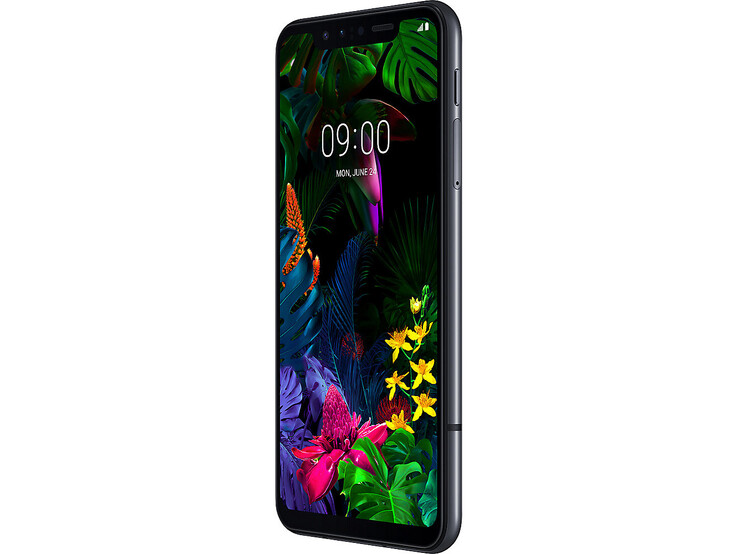
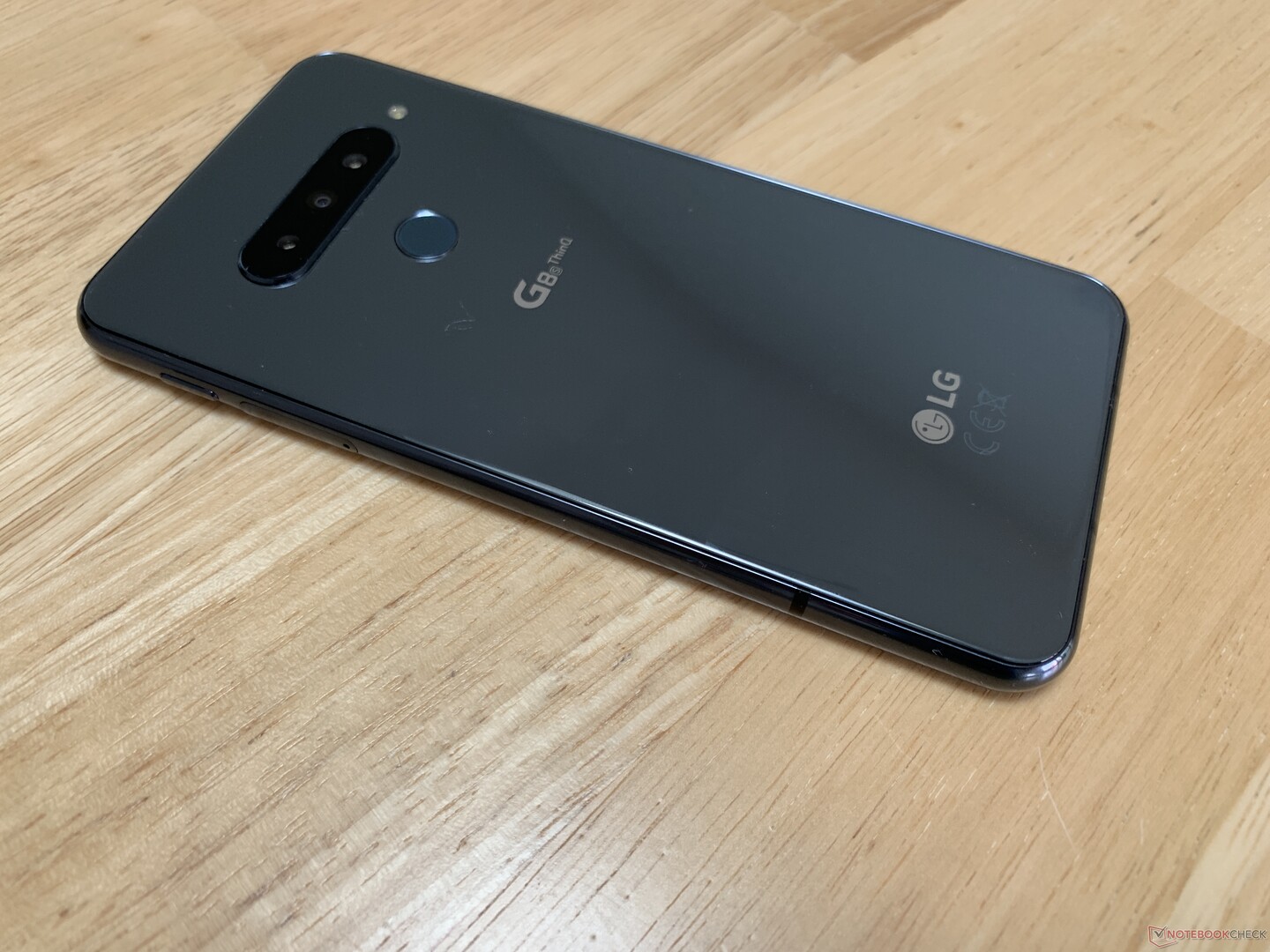
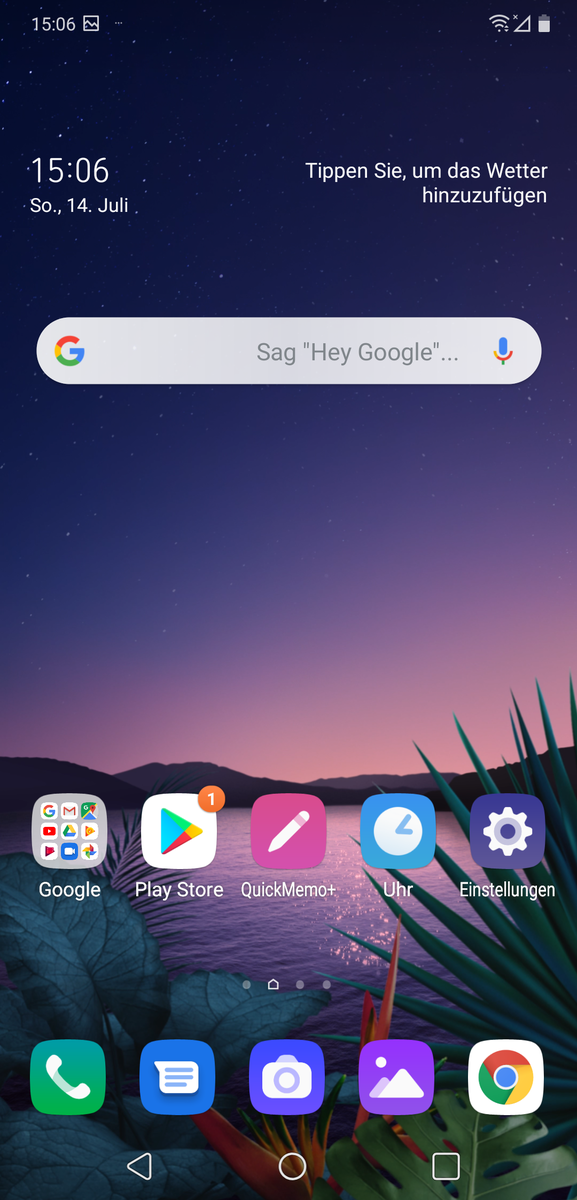
LG Electronics (LG) is bringing the exceptional user experience of the G series to customers in more regions with the introduction of the LG G8SThinQ. The LG G8SThinQ is the perfect choice for consumers seeking a premium smartphone, offering many of the stand-out features and technologies applied to the flagship LG G8ThinQ with unique touches that are popular with target consumers. The latest LTE addition to the G series will be available starting this month in select markets in Europe, Latin America, Africa, and the Middle East, among others.
Introduced for the first time on the LG G8ThinQ, the Z Camera utilizes Time-of-Flight (ToF) sensor technology to bring LG G8SThinQ users a choice of convenient and secure biometric recognition options. Hand ID uses the Z Camera’s ability to scan a user’s unique circulatory pattern using infrared light making unlocking the phone in the dark just as accurate as during the day. The same technology comes into play in Face Unlock, which is also extremely accurate and fast due to the Z Camera’s use of infrared light and 3D point clouds to accurately trace the contours and features of the face. The third new feature that utilizes Z Camera is Air Motion, a touchless command interface that allow users to perform various actions without touching the screen.
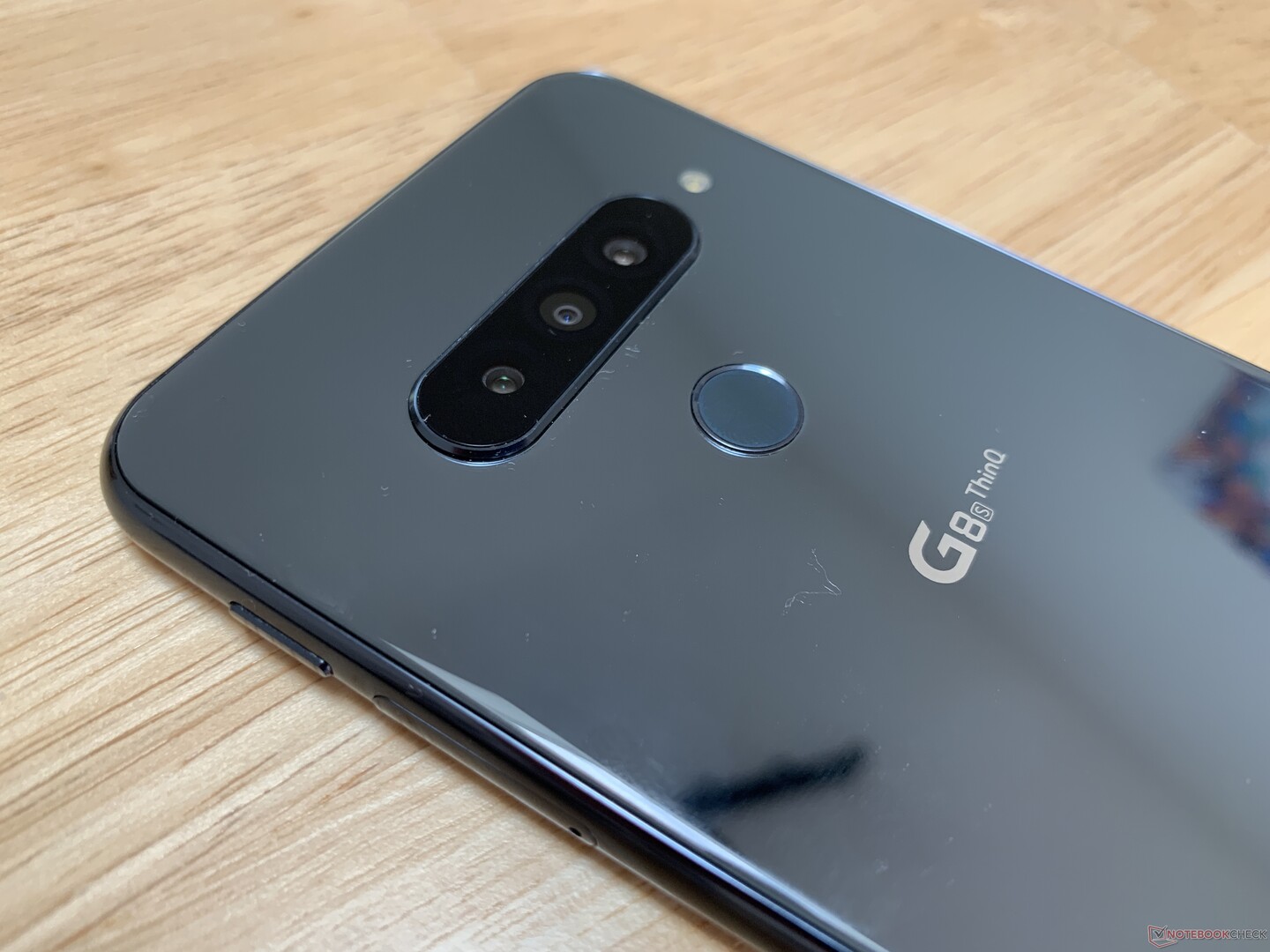
As the first smartphone manufacturer to offer a triple-lens camera setup with a wide angle lens, LG continues this now widely emulated design with the LG G8SThinQ. The improved camera – with the widest field of view to date at 137˚ – allows users to enjoy continuous zoom capability without any lag or color distortion. The exception camera performance of the G8SThinQ was even recognized by VCX-Forum, a Germany-based ratings organization, which ranked the LG device best among the industry’s current smartphones. On the front the device sports a standard lens and the Z Camera, which supports features such as Portrait and Spotlight to help users raise their selfie game. The addition of the Z Camera’s ability to quickly measure distances helps produce portraits with more depth and feel. Spotlight detects the user’s facial curvature and simulates studio lighting to bring a professional quality and dramatic edge to selfies. With Video Depth Control, videos shot on the LG G8SThinQ benefit from a beautiful bokeh effect that puts the subject in sharp focus against a soft, blurred background. And for users tired of shaky video footage, LG G8SThinQ comes ready with Steady Cam which delivers smooth, clear videos without the use of a gimbal.
Equipped with Qualcomm® Snapdragon™ 855 Mobile Platform and a vivid 6.2-inch FHD+ FullVision OLED display (2248 x 1080), the LG G8SThinQ is a multimedia powerhouse. The handset also continues LG’s legacy of superior mobile audio, fitted with stereo speakers that deliver a rich, textured performance and immersive surround sound. The LG G8SThinQ continues the company’s tradition of audio excellence with the inclusion of a 3.5mm headphone jack and DAC.
The design of the LG G8SThinQ is all about the user: the stylish, ergonomic smartphone provides easy one-handed operation and oozes understated elegance, features popular with customers in Europe, Latin America, Africa and the Middle East. Complete with 2.5D Corning Gorilla Glass, it has a polished, seamless finish that is both strong and sophisticated and guarantees a comfortable grip. Standard out of the box are 6G RAM, 128GB storage, MIL-STD 810G compliance and IP68 water and dust resistance. The LG G8SThinQwill be available in three compelling colors: sleek and modern Mirror Black, eye-catching Mirror Teal, and alluring Mirror White.
Pricing and details of availability of the LG G8SThinQ will be announced locally.
Key Specifications:
Chipset: Qualcomm® Snapdragon™ 855 Mobile Platform
Display: 6.2-inch 18.7:9 FHD+ OLED FullVision (2248 x 1080)
Memory: 6GB RAM / 128GB
Camera:
– Rear: 13MP Super Wide (F2.4 / 1.0μm / 137˚) / 12MP Standard (F1.8 / 1.4μm / 78˚) / 12MP Telephoto (F2.6 / 1.0μm / 48˚)
– Front: 8MP Standard (F1.9 / 1.12μm / 80˚) / Z Camera (ToF Technology)
Battery: 3550mAh
Operating System: Android 9.0 Pie
Size: 155.3 x 76.6 x 7.99mm
Weight: 181g
Network: 3G / 4G LTE-A
Connectivity: Wi-Fi 802.11 a, b, g, n, ac / Bluetooth 5 / NFC / USB Type-C (USB 3.1 Compatible)
Biometrics: Hand ID / Face Unlock / Fingerprint Sensor
Colors: Mirror Black, Mirror Teal, Mirror White
Other: Air Motion / Stereo Speakers / AI CAM / Google Lens / Google Assistant / IP68 Water and Dust Resistance / HDR10 / Qualcomm® Quick Charge™ 3.0 Technology / MIL-STD 810G Compliance
A notch too far. The LG G8S ThinQ has arrived late to the party, but it still brings a flagship SoC, a large OLED display, a ToF camera and a 3,550 mAh battery. The G8S ThinQ may have fancy camera tech, but it is otherwise a fairly run-of-the-mill flagship. However, read on to find out why we still think highly of LG’s latest attempt to disrupt the established order.
LG announced the G8S ThinQ alongside the G8 ThinQ at MWC 2019 in Barcelona back in February. The two devices initially caused a stir because of their innovative time of flight (ToF) cameras, which use infrared to analyse and collect depth-of-field information from a scene before relaying it to the main camera. This can help create more accurate augmented reality (AR) and potentially richer photos. Inexplicably, LG decided against releasing the G8 ThinQ in Europe and has taken until now to bring the G8S ThinQ to market, almost five months after it was originally announced.
So here it is; LG’s flagship G series device for 2019 in Europe. The G8S ThinQ ticks all the basics for a 2019 flagship with its Qualcomm Snapdragon 855 SoC, 6.2-inch OLED screen, several cameras, current LTE and Wi-Fi standards, along with stereo speakers. Oh, and a notch. A huge notch.
The G8S ThinQ is comparatively reasonably priced at launch, with an MSRP of 769 Euros (~US$867). This is more expensive than the Huawei P30, the entry-level OnePlus 7 Pro and the Samsung Galaxy S10e. The latter is pitched as an affordable flagship, underlining just how good value for money the G8S ThinQ is in 2019. Apple’s cheapest smartphone of last year, the iPhone XR, is more expensive than the G8S ThinQ though, as is the Sony Xperia 1. Prices have already started dropping just a few weeks after launch, making the G8S ThinQ even better value for money. We shall compare our review unit against all those devices and its predecessor, the G7 ThinQ.
Case
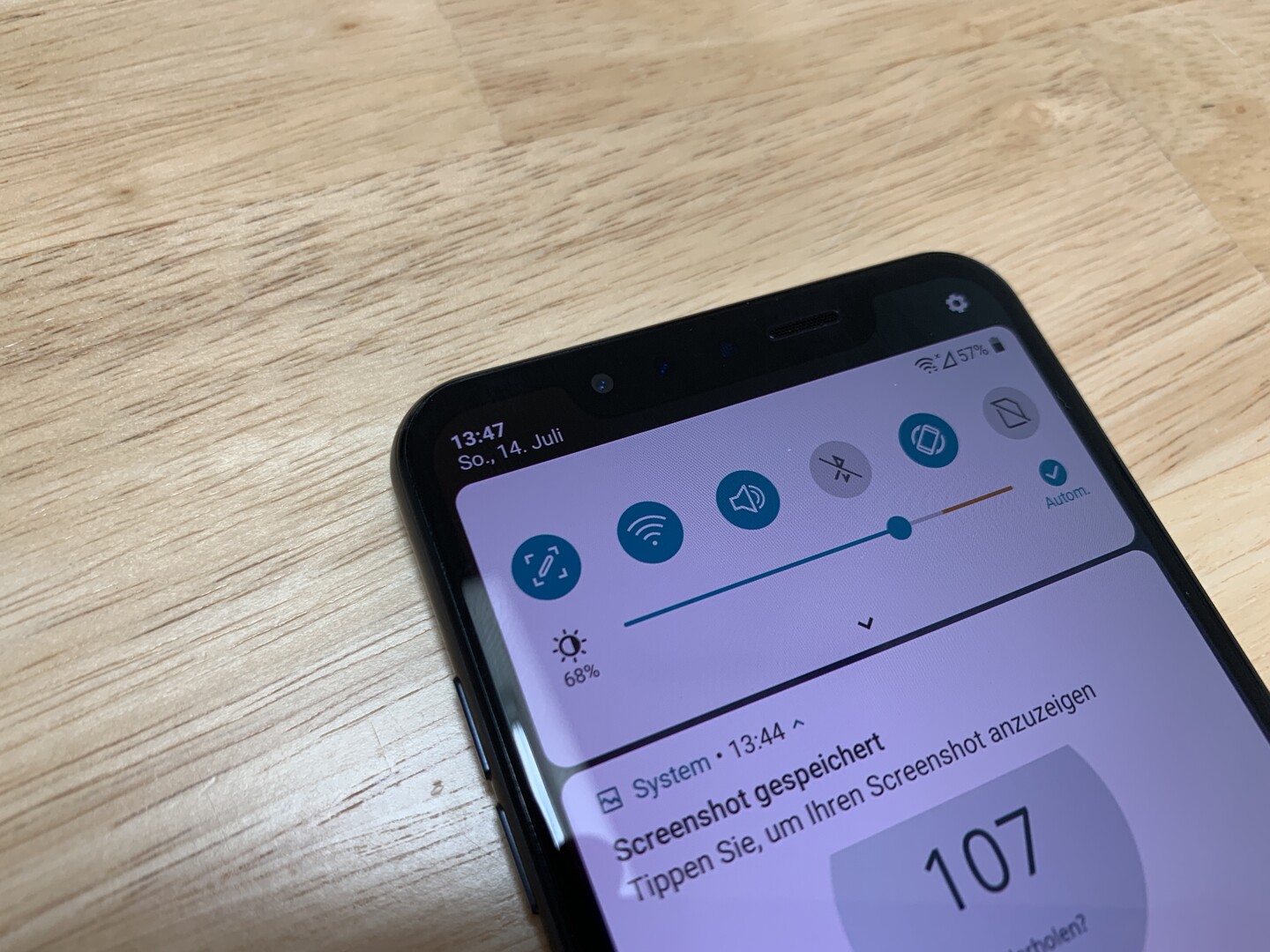
One of the first things that you may notice about the G8S ThinQ is its huge notch. It is not as thick as the one Google opted for with the Pixel 3 XL, but it makes the G8S ThinQ look antiquated next to something like the OnePlus 7 Pro. The notch houses the ToF camera though, so it is not all for show, and the G8S ThinQ still manages an over 80% screen-to-body ratio. It has narrow side bezels too.
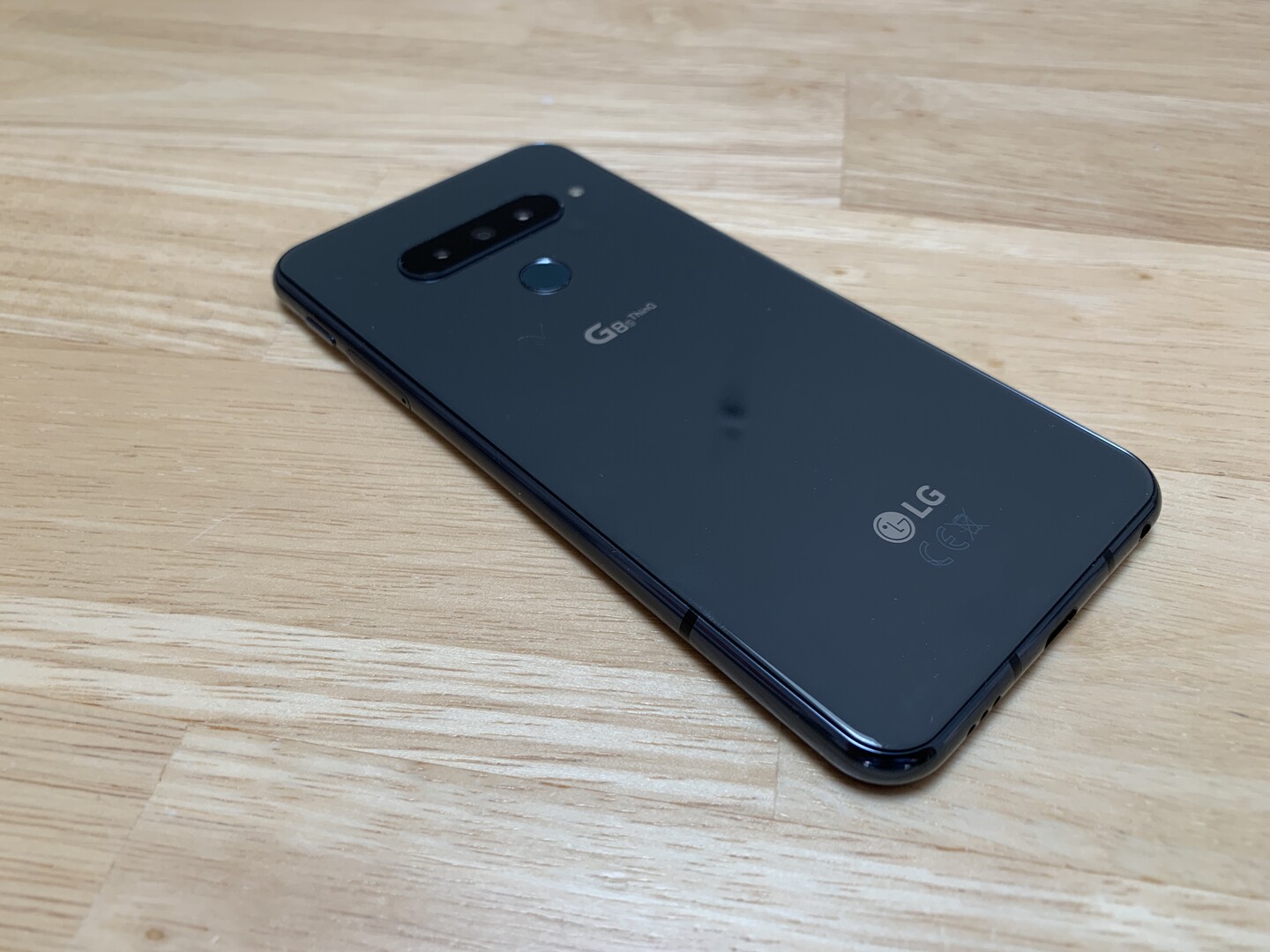
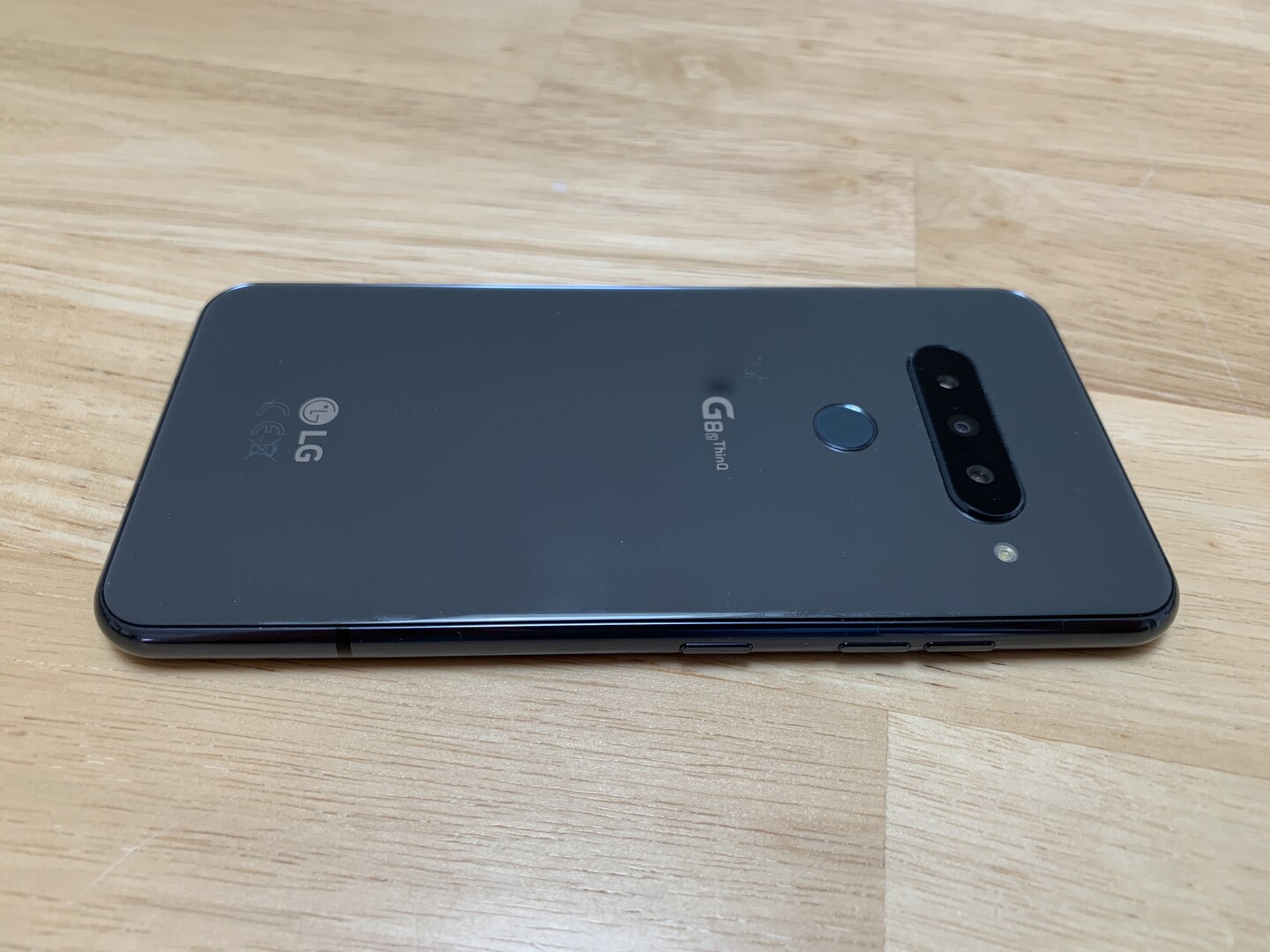
The back of the device has a glossy glass design like many modern flagships, which does not impede the various antennas like a metal back would. The G8S ThinQ does not distinguish itself from other flagships in regard to design, with it being a metal and glass sandwich, but it still looks nice. Currently, LG only sells the device in what it calls Mirror Black, which looks more like a bluish grey than black to our eyes. It will eventually start selling a white version too.
The footprint and weight of the G8S ThinQ puts the device squarely in the middle of our comparison devices. It is not especially compact, thin or light, but it is a nice compromise if you want a phone with a large display but without being as long as the Xperia 1.
Our review unit is well-built, with it withstanding all attempts at bending or twisting. The device is IP68-certified too, meaning that it is dust-tight and water-resistant. It is also MIL-STD-810 compliant, which means it must have successfully passed 14 environmental and climatic tests. However, no independent organisation or agency certifies MIL-STD-810 compliance, so the conditions under which LG tested it are unclear.
Connectivity
The G8S ThinQ comes with 128 GB of UFS 2.1 flash storage and 6 GB of RAM, although you can add up to a 2 TB microSD card should you need more space. The device supports all modern file systems including exFAT, meaning that it can read files that are larger than 4 GB. The G8S ThinQ is a dual-SIM device too, but its second card slot is a hybrid one, forcing you to choose between dual-SIM functionality and microSD card expansion. Moreover, microSD cards can only be formatted as external storage, restricting apps and data to only the 128 GB of internal storage.
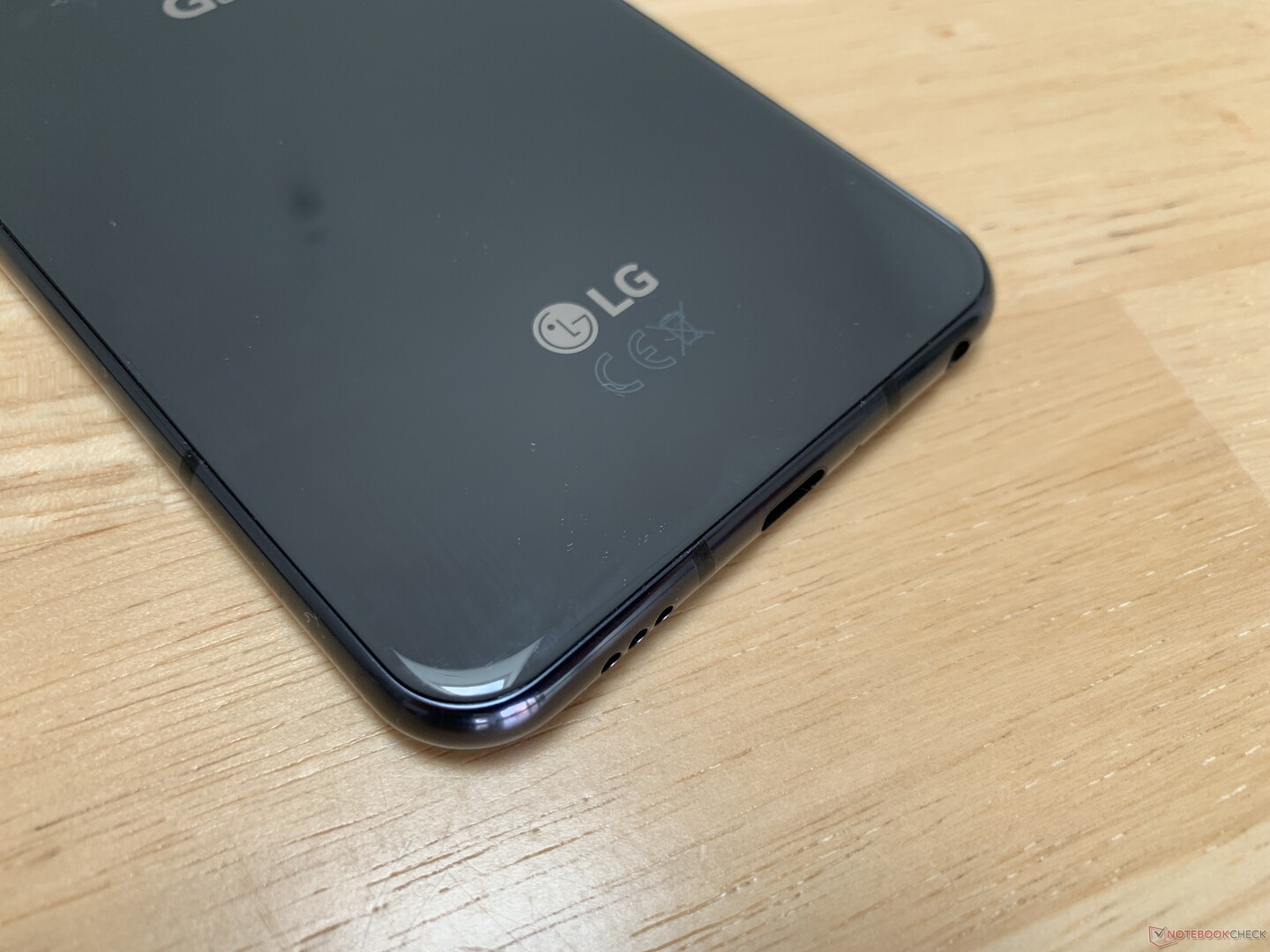
Naturally, the G8S ThinQ supports Bluetooth 5.0 and NFC. The 3.5 mm headphone jack makes a return too, calling into question why other OEMs have chosen to omit it from their recent flagship devices.
Software
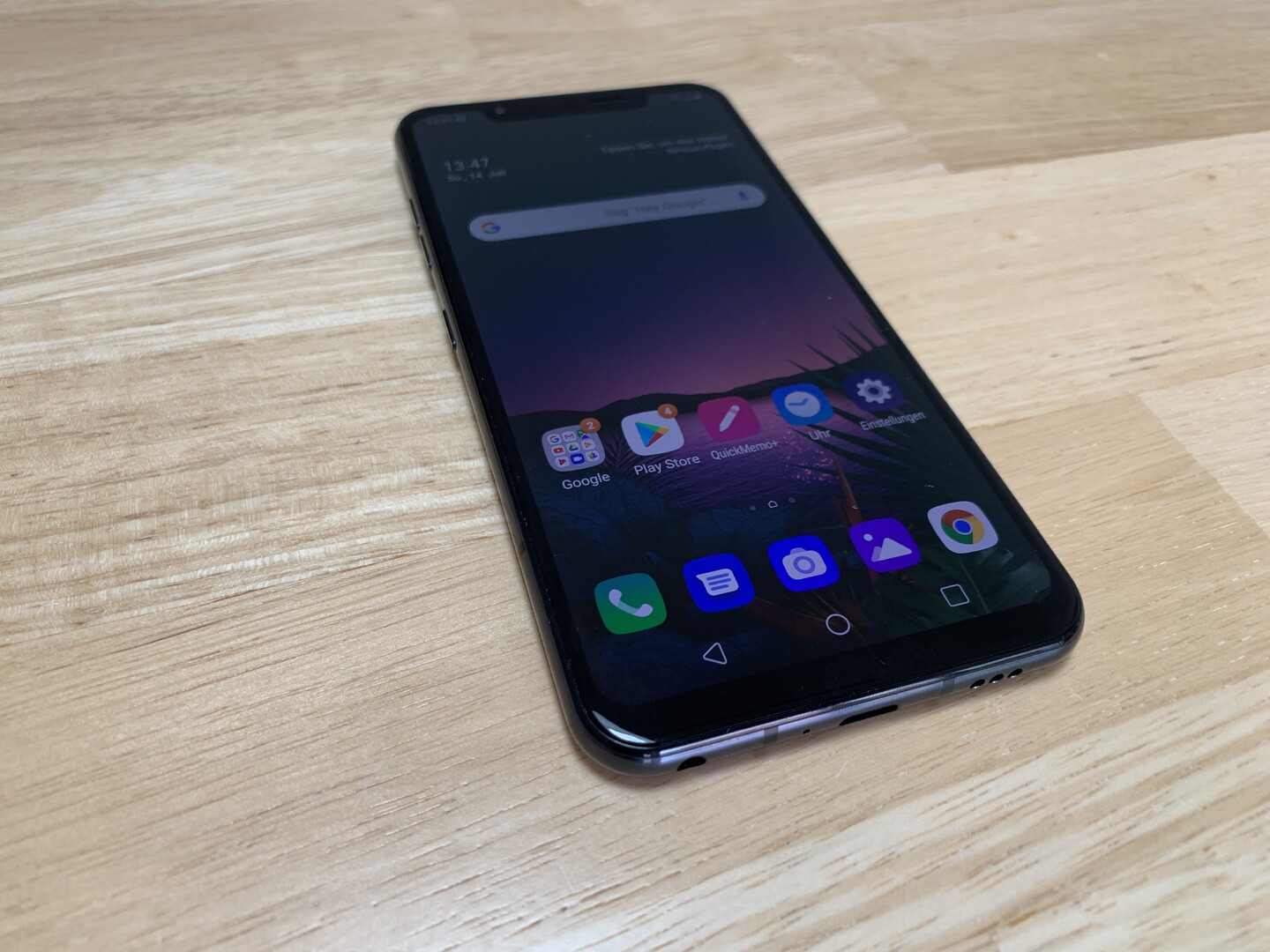
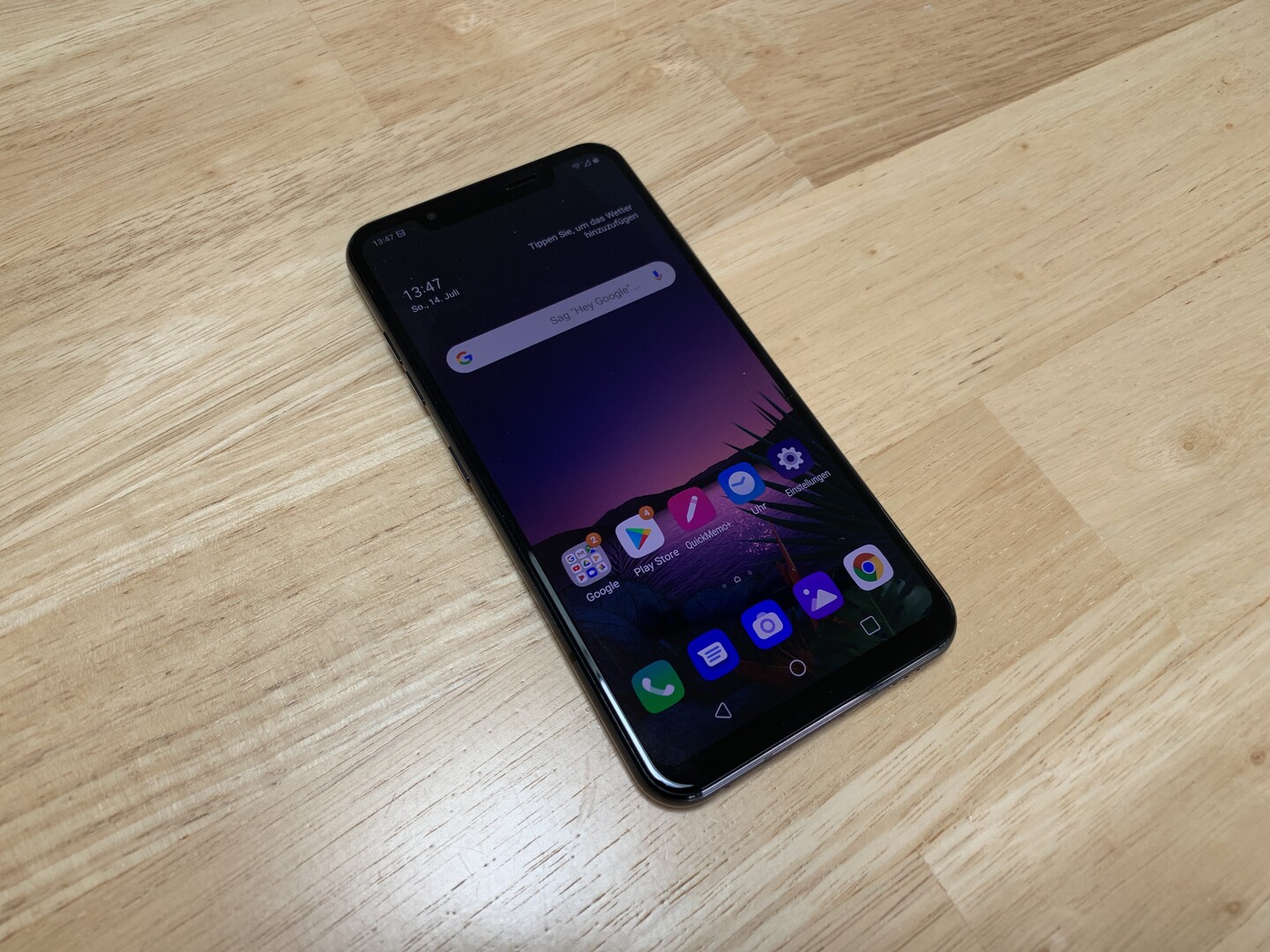
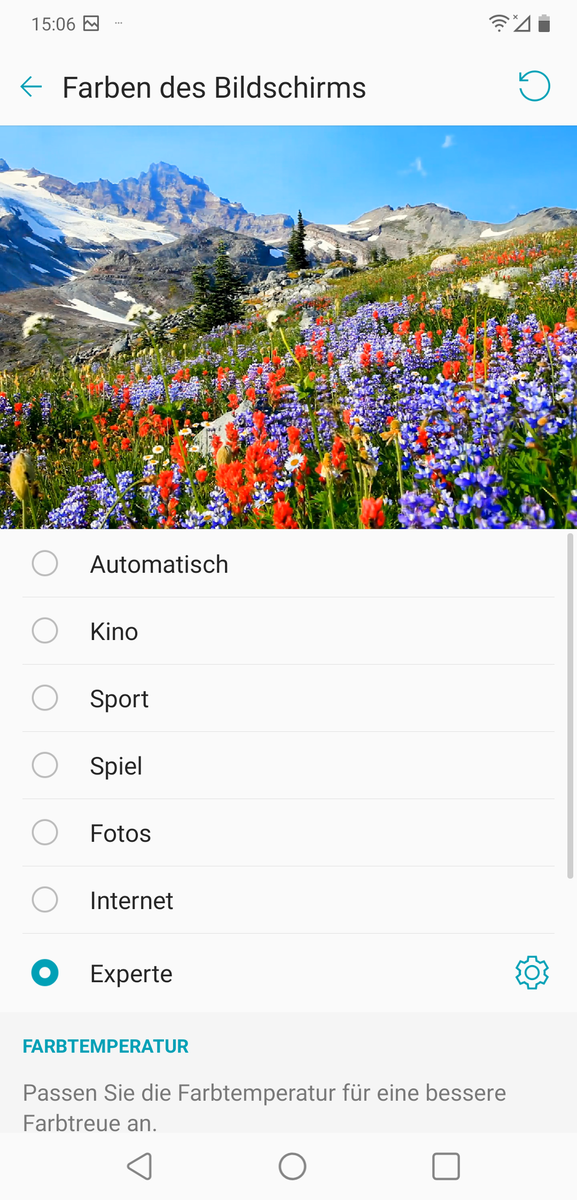
The G8S ThinQ ships with Android 9.0 Pie, atop of which LG adds its skin. The company has made a few minor UI adjustments compared to stock Android and included a few additional settings. We like that LG has put a brightness slider in Quick Settings by default, allowing you to manually adjust the brightness without diving into the settings menu. Incidentally, LG has done a good job at organising Settings, having added some practical options like display colour options.
The G8S ThinQ comes with the standard set of Google apps along with several in-house ones like Smart Doctor and Games Launcher. Unfortunately, we can only disable and not uninstall the preinstalled Amazon Assistant app.
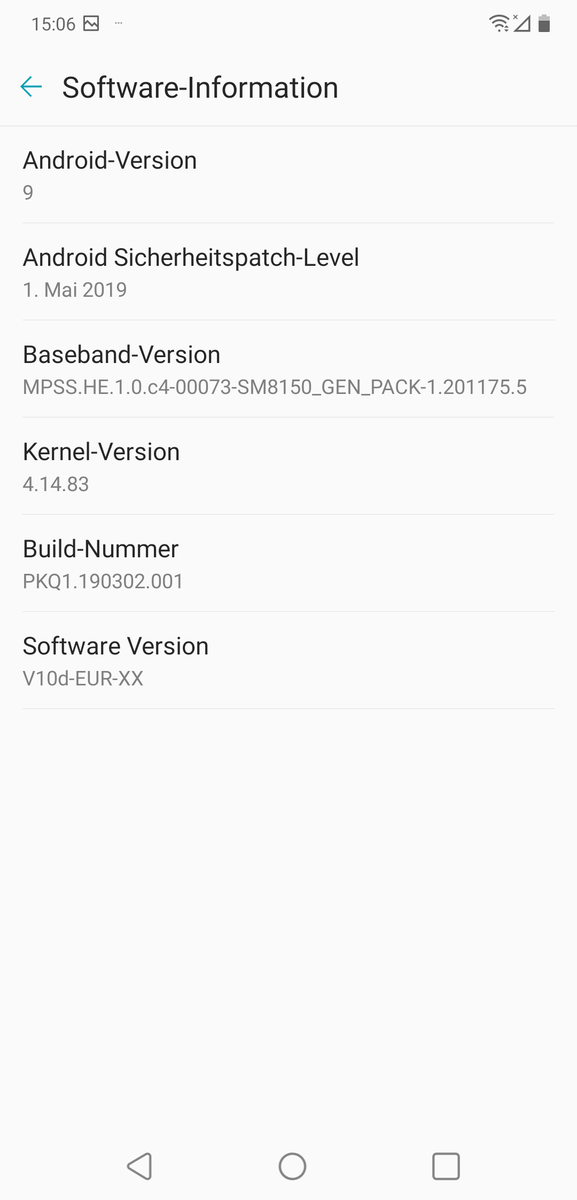
LG had pushed out the May 2019 security patch to our review unit at the time of testing, which was relatively up to date. However, we hope that the company rolls out a new one soon.
Software information
Display colour options
Default home screen
Communication & GPS
The G8S ThinQ supports all modern Wi-Fi standards up to 802.11ac, although some flagships like the Galaxy S10 series support the newer ax standard, also known as Wi-Fi 6. Our review unit fell short of its predecessor in our iperf3 Client Wi-Fi tests with our Linksys EA8500 reference router, but it still averaged over 500 Mb/s with a few fluctuations.
The G8S ThinQ supports plenty of LTE bands too, making it capable of being used on intercontinental trips. The device supports LTE Cat. 20 for up to 2 Gb/s download speeds and 75 Mb/s upload speeds. The former is mighty impressive, although few carriers currently support these speeds. The G8S ThinQ’s upload speeds are rather slow by modern flagship standards though. Our review unit also maintained decent network reception during our tests in a built-up urban area.
The G8S ThinQ uses BeiDou, Galileo, GLONASS and GPS, including A-GPS navigation for location services. Our review unit can maintain a satellite fix with up to four metres accuracy outdoors, which is on par with other modern flagships. Disappointingly, it could not find us indoors even when we stood next to a window, something that even some midrange devices can do.
We also took the G8S ThinQ on a bike ride to compare its location accuracy against our reference bike computer, the Garmin Edge 520. Impressively, our review unit proved more accurate than the Garmin in certain sections of our 14 km bike ride, with it plotting one of the most accurate routes we have ever seen. In short, the G8S ThinQ could replace most consumer-grade navigation devices; it is that accurate.
Telephone Features & Call Quality
LG preinstalls its in-house suite of telephony apps. The apps work well and function like the endless alternatives, although the Phone app opens to the dialler rather than your call history as the Google app does. The Phone app divides call history, contacts and favourites into tabs though, with it also being possible to create contact groups should you wish to do so.
Our review unit has decent, albeit not outstanding call quality. Our test calls never sounded crystal clear, with our call partner sounding better over speakerphone than using just the earpiece. The microphone transmitted our voice well though.
Cameras
LG equips the G8S ThinQ with three rear-facing cameras, with a 12 MP main sensor being supported by a 13 MP wide-angle sensor and a 12 MP telephoto lens. The latter supports optical zoom, while the default camera software allows you to combine shots from all three sensors into one GIF, should you find that useful.
The main rear-facing camera has an f/1.8 aperture and a large pixel diameter of 1.4 microns, theoretically allowing it to process plenty of light even in poorly lit scenes. Our test shots are richly detailed and look excellent in good light, with the 12 MP sensor able to keep up with the flagships like the iPhone XS Max. The main sensor lacks the light sensitivity of its peers though, with bright sunlight looking overexposed and the roof edges in scene 2 coming out a little overshadowed. Overall, the iPhone XS Max takes a much more rounded picture, in our opinion. The sensor retains plenty of details in low light too, while objects also look sharp. However, the scene looks noticeably underexposed, which is a shame. Incidentally, the telephoto and wide-angle lenses also take good pictures.
These cameras are complemented by an unspectacular 8 MP front-facing sensor and a ToF camera, the latter of which being one of the biggest selling points of the G8S ThinQ. As mentioned earlier, the ToF camera uses infrared to create a 3D model of a scene and capture more depth-of-field information than a conventional camera sensor can. Apple uses a different technology for its face recognition and AR emojis, but companies like Tesla use ToF to allow their self-driving cars to map out their surrounding environment. By contrast, the G8S ThinQ uses its ToF camera to help create more accurate bokeh effects, although the differences between the ones captured by our review unit and something like the Pixel 3 XL are minimal. We will also cover the other applications of the ToF camera in the Input Devices & Operation section of this review.
The G8S ThinQ can also record videos in up to 4K at 60 FPS, although the device cannot use its optical image stabilisation (OIS) at these settings. Unfortunately, you must drop the frame rate to 30 FPS if you want to shoot in 4K. The image quality of videos is just as good as photos, and we like that the default camera app can switch between focal lengths while recording. Unfortunately, this looks rather abrupt in recordings, with there being no smooth transition between cameras.
Accessories & Warranty
The G8S ThinQ comes with a pair of headphones, a charger, charging cable and a SIM tool. There is also a silicone case and a cleaning cloth. Currently, LG does not sell any G8S ThinQ specific accessories, but you can buy screen protectors and cases from third-party retailers.
The G8S ThinQ comes with a 24-month limited manufacturer’s warranty. Please see Guarantees, Return Policies and Warranties FAQ for country-specific information. LG preinstalls a remote access app too, which allows its support teams to analyse your device before sending it in for a warranty repair. You must enable this before you can use it though, as it does not come enabled by default.
Input Devices & Operation
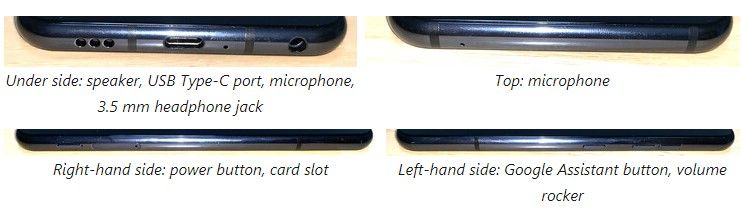
The G8S ThinQ comes with an accurate touchscreen, with there also being hardware buttons for volume control and power like almost every smartphone. LG has also included a dedicated Google Assistant button, which cannot be assigned to a different app or command.
The ToF camera can be used to perform air-motion gestures, examples of which you may have seen in G8 ThinQ reviews. We found them intuitive and innovative, but they can be tricky to get right. Basically, you hold your hand a little away from the camera, with a small illuminated bar appearing once the ToF camera has detected your hand. You can then switch tracks, change the volume and take photos, all of which sound great in theory. While it offers a glimpse into the future, the area within which the ToF camera recognises gestures is small, often leading to the device not recognising the movement that you have performed. In short, air-motion gestures are currently a gimmick, but they could eventually revolutionise how people interact with their smartphones.
LG has included a fingerprint sensor on the back of the G8S ThinQ too, which reliably and quickly unlocks our review unit. You can even use the pattern of your veins in your hand to unlock your device, but this does not work as well as the fingerprint scanner does. The G8S ThinQ has facial authentication too, which works better than the vein recognition does. However, it is also slower than the fingerprint scanner at unlocking the device, leaving the latter as the fastest and most reliable way of unlocking the G8S ThinQ.
Display
A major leap for the LG G series is the transition from IPS to OLED screens. The G8S ThinQ has an OLED panel like many modern flagships, which offers better colour accuracy and contrast than the IPS equivalent in the G7 ThinQ.
The change in display technology does have its downsides though. The G8S ThinQ operates natively at 2248×1080, a lower resolution than the 3120×1440 display in the G7 ThinQ. Moreover, our review unit has an average maximum luminosity of 556 cd/m² and is 88% evenly lit, both of which fall far short of the G7 ThinQ. The G8S ThinQ still gets bright by modern flagship standards, but it cannot compete with the G7 ThinQ and its 975 cd/m² bright display.
Another downside of OLED panels is that they use pulse-width modulation (PWM) to regulate their brightness, which can cause eye strain and headaches for some people. The display in our review unit flickers at 235 Hz, a frequency that is low enough to cause health issues for those who are PWM sensitive.
OLED panels can switch off pixels individually though, giving devices like the G8S ThinQ a theoretically infinite contrast ratio and a 0 cd/m² black value. LG has included various presets for adjusting the colour reproduction of the display too, which is a nice touch. You can even set the white balance manually too, should you wish to tinker with how colours look. We included a screenshot of the display options in the Software section of this review, of which Cinema mode is the most colour accurate. CalMAN is not completely reliable at measuring colour spaces, but it does show that the G8S ThinQ comfortably covers all of sRGB and a large portion of DCI-P3.
The G8S ThinQ is easy to use outdoors, with its brightness sensor reacting quickly to changing lighting conditions. The display has a highly reflective finish though, which can impede readability in bright sunlight. Positively, the OLED panel has stable viewing angles, with there being only minor colour distortions at acute angles.
Performance
The G8S ThinQ features a Qualcomm Snapdragon 855 SoC, a staple of 2019 flagships. Our review unit falls short of the OnePlus 7 Pro and Xperia 1 in synthetic benchmarks, but it still holds its own against the Galaxy S10e, the Huawei P30, and its predecessor, the G7 ThinQ. We shall cover why the G8S ThinQ performs worse than its Snapdragon 855-powered contemporaries in the Emissions section of this review.
Overall, the G8S ThinQ has flagship-level performance, and you shouldn’t notice any slowdowns in daily use. System benchmark results like PCMark for Android underline this, with the G8S ThinQ finishing second to the OnePlus 7 Pro in our comparison table.
LG equips the G8S ThinQ with UFS 2.1 flash storage, another staple of modern flagships. Some OEMs like OnePlus have moved onto the faster UFS 3.0 standard, but you will probably only notice the difference in synthetic benchmarks. Our review unit boots and loads apps quickly, with there being no obvious delays or lags in daily use.
The G8S ThinQ has a comparatively slow microSD card reader though, with our Toshiba Exceria Pro M501 reference card only able to average 67.53 MB/s read speeds and 46.7 MB/s write speeds. Only the Xperia 1 has a slower card reader of our comparison devices, with the others averaging at least 60 MB/s in read and write benchmarks.
Games
The Adreno 640 is a capable gaming GPU, as we have covered in our OnePlus 7 Pro, Xiaomi Mi 9 and Xperia 1 reviews. The G8S ThinQ can play most modern games at 60 FPS on high graphics, with Arena of Valor fluctuating between 53 FPS and 61 FPS during our gaming tests. Asphalt 9: Legends only runs at 30 FPS, with our review unit averaging 27.9 FPS on graphics. In short, the Adreno 640 should be sufficiently future-proof for the next few years, especially as it supports a slew of modern APIs.
We also encountered no issues with the touch screen or accelerometer during our gaming tests. Fast-paced games like Temple Run 2 ran smoothly, with there being no input delays even during challenging sections.
Emissions
Temperature
The G8S ThinQ will never feel cool to the touch, with surface temperature on our review unit averaging around 32 °C at idle. However, the device only heats up to 35 °C under load, with only two areas reaching 38 °C.
In short, the G8S ThinQ should not feel uncomfortable in your pocket after a prolonged gaming session.
The low surface temperatures come with their costs though, namely SoC throttling. Frame rates quickly dropped by almost a third during a GFXBench 3.1 battery benchmark, which is extreme throttling by Snapdragon 855 standards.
Speakers
LG equips the G8S ThinQ with true stereo speakers, with the device using its earpiece as a secondary speaker. The speakers reached a maximum of 83.6 dB(A) during our tests, although trebles sound over-emphasised at this volume. Audio sounded noticeably more balanced when we lowered the volume slightly. The G8S ThinQ manages to reproduce a wider range of deep mid tones than its predecessor and even some bass frequencies, which make audio sound pleasantly warm.
The G8S ThinQ also has a 3.5 mm headphone jack, something which sets the device apart from other modern flagships. You could connect external audio equipment via Bluetooth too, with the G8S ThinQ supporting the modern 5.0 standard. Both worked perfectly during our tests and delivered clean-sounding audio.
Power Management
Power Consumption
There are more economical devices than the G8S ThinQ, but our review unit does not embarrass itself compared to its peers. The device consumes between 1.2 W and 2 W at idle, which is not especially concerning. However, we measured the G8S ThinQ consuming between 5 W and 10 W under load, which is about 10% more than we would have expected from a Snapdragon 855-powered device. Only the Galaxy S10e consumes more of our comparison devices, with the G8S ThinQ consuming between 15% and 43% more than its contemporaries.
Battery Life
One saving grace of the G8S ThinQ here may be its battery capacity, which is larger than all but that of the OnePlus 7 Pro and Huawei P30 of our comparison devices. Its 3,550 mAh battery does not last long under sustained load, with the iPhone XR and G7 ThinQ offering over an hour longer between charges if you are pushing the devices hard.
The G8S ThinQ still managed a respectable 11:33 hours in our practical Wi-Fi tests, which suggests that it should easily survive a workday of intensive use and perhaps even two if you use it sparingly. Its quick-charging functionality means that you should need less than 2 hours before having 100% charge again too.
Just as the X6 and X5 became the Nokia 6.1 Plus and Nokia 5.1 Plus globally, the X7 became official globally as the Nokia 8.1. Just like its Chinese counterpart, the Nokia 8.1 boasts of a 6.18-inch PureDisplay Full HD+ panel, along with a Snapdragon 710 processor and dual Zeiss rear cameras. Specs are very identical, except that the Nokia 8.1 is available only in a 6GB/64GB variant, and that it comes with Android Pie out of the box. Being an Android One like all global models, the Nokia 8.1 is guaranteed for two major updates and three years of security updates.
Design and Construction
Sized at 6.1 inches, the Nokia 8.1 is constructed with glass and comes with a frame crafted from Series 6000 aluminum. Due to the glass construction, it does feel premium and sleek when held. The device sits in the mid-range level, but with its Iron Steel colorway, it looks a little more sophisticated than that. The curved edges also allow the device to rest comfortably against the palm.
Up front, the smartphone has a seemingly outdated bar notch. It’s pretty thick, compared to other devices that have been designing their notches to become smaller and smaller. Situated in the bar notch are the front camera, call speaker, and sensors.
Over the rear are the dual cameras, stacked vertically and raised from the back of the phone. With the protruding cameras, the 8.1 definitely won’t lay flat on surfaces. Below the cameras is a fingerprint scanner that’s pretty easy to reach.
On the right side, one can find the power button and the volume rocker. They’re all clicky and are reachable even with small hands.
Located on the left is the SIM card tray. The 8.1 employs a hybrid dual SIM slot; one can use two SIMs or a single SIM card and a micro SD card to expand the device’s storage.
A 3.5mm headphone jack can be found at the top.
The USB-C charging port, speaker grilles, and the microphone can all be found at the bottom.
Display and Multimedia
Nokia has fitted the 8.1 with PureDisplay, something that can also be found on older Nokia smartphones such as the 7.1. According to Nokia, PureDisplay provides higher contrast and has HDR10 support. The PureDisplay technology does give the device’s 6.18-inch screen with a bit of flair; the panel is bright and the viewing angles are great. Color saturation is present as well, although it’s not as excellent as what an AMOLED display would provide. As the 8.1 does have a rather bright display, using it under direct sunlight isn’t an issue at all.
When it comes to audio, the 8.1’s speaker certainly gets loud and fills the room. Surprisingly, audio at the highest level doesn’t sound distorted nor does it sound tinny and eardrum-splitting. The sound is balanced, and one can hear the mids and lows coming through from time to time. A downside though is that the speaker grille is positioned where your palm could cover it easily.
Camera
Located in the bar notch up front is a 20MP shooter, while a set of 12MP + 13MP shooters with ZEISS optics sit on the rear. As mentioned, the rear cameras protrude slightly from the back of the smartphone. Let’s take a closer look into their capabilities.
The ZEISS lenses employed by the 8.1 deliver sharp images, with details and accurate color reproduction in settings with ample lighting. Vibrancy is present as well, and the 8.1 seems to have an automatic scene/subject detection mode in it. This is shown through a small notification right below the camera settings. The detection works fairly well and is able to identify whether you’re taking pictures of plants, people, indoors, outdoors, and such. When it comes to portrait shots, edge detection is modest but it produces detailed images; the smartphone will also notify you if you’re too close or at the perfect amount of distance from the subject.
As for selfies, the images produced using the standard photo mode are good to use on social media. However, there’s a slightly artificial look to the selfies, whether or not the Beauty mode is enabled. Strangely enough, taking selfies using the Portrait mode results in less-vibrant, saturated colors. The edge detection separates the subject from the background nicely, though.
The 8.1 can record up to 720p, Full HD, and UHD 4K video. Video quality is decent, and it offers stabilization as well.
OS, UI, and Apps
The 8.1 runs on Android One, which is a stock version of the Android operating system. Here’s a short explainer if you’d like to know more about Android One. The device has Android 9 straight out of the box. While the device runs on a no-frills Android operating system, we found the UI to be confusing at times. Once you’ve installed a couple of apps, you can swipe right on the home screen to see their respective icons. For a user to see pre-loaded apps and other functionalities of the smartphone, they’d have to draw up the center navigation button.
If you don’t pull up the center button all the way to the top, the screen will first display all the currently active apps. You’d have to pull up the center navigation once more to see every app and functionality installed in the smartphone. User interfaces should always be designed with ease of use in mind; the 8.1’s UI shows the exact opposite of that. Despite the frustrating interface, having stock Android means that the 8.1 doesn’t have bloatware or third-party apps in it.
Performance and Benchmarks
Snapdragon 710 powers up the Nokia 8.1, coupled with Adreno 616 GPU. RAM variants of the smartphone include 4GB or 6GB, with our unit on hand here possessing 6GB. We ran the device through a couple of benchmarks, and here are the results:
The device is definitely capable of handling productivity tasks, multi-tasking, gaming, and the like, running them through in a smooth manner. We tested out Asphalt 9 and PUBG to see the smartphone’s gaming capabilities and we can say that it does not disappoint. Initial gaming didn’t give us any lags or frame drops, but they will happen through an extended gaming session. Still, it’s a pretty decent enough device to game on.
Connectivity and Battery Life
The usual connectivity features such a 4G LTE, Wi-Fi, and Bluetooth are present in the 8.1. GPS is fairly accurate as well and didn’t give us any issues when pinning locations or using the map. AR games are also possible to play using this device. The phone has support for NFC as well, allowing users to pay virtually.
A 3,500mAh battery comes with the 8.1, and support for 18W Fast Charge. PC Mark rated the battery life at 12 hours and 7 minutes. Strangely enough, It takes about 2 hours for the device to get fully charged.
Conclusion
the Nokia 8.1 is a competent smartphone that has the guts to go up against other devices in the mid-range section. It has an impressive display, speedy CPU performance unmarred by lags, modest audio quality, Stock Android, and decent camera quality. Despite the fact that it has an outdated bar notch design, poor speaker location, a frustrating user interface, and seemingly artificial-looking selfies, it can be overlooked when you’ve got a solid performer in your hands.
Priced at $387.85, the Nokia 8.1 is definitely a smartphone that you should go for if you’re looking for a smartphone that has excellent performance and won’t drain your bank account.
Want to use your Apple Watch as an alarm clock? Whether you wear your Apple Watch to bed, or use it in nightstand clock mode, you can set your Apple Watch to function as an alarm clock.
There are a few different ways to add alarms to Apple Watch, we’ll show you various methods to setting an alarm using Siri for both repeating alarms and one-off alarms, as well as using the Apple Watch Alarms app to set an alarm.
How to Add Alarm on Apple Watch with Siri
The easiest way to add an alarm to the Apple Watch is by using Siri. To set a one-time alarm on Apple Watch with Siri:
Summon Siri on the Apple Watch (by using Hey Siri, raise-to-Siri, or holding the rotating dial button), then say “Set an alarm for (time)”
For example, to set an alarm for 5:30 am, you’d say “set an alarm for five thirty A M”.
How to Set Repeating Alarm on Apple Watch with Siri
To set a repeating alarm that goes off every day at the same time, use the following syntax:
Summon Siri on the Apple Watch, then say “Set a repeating alarm for six thirty A M”
A repeating alarm will repeat every day at the same time, so if you want a consistent alarm this is a good way to have one.
How to Set Alarm Clock on Apple Watch with Alarms app
You can also set an alarm clock on Apple Watch by using the Alarms app, this requires multiple steps performed on the watch itself:
Open the Alarms app on Apple Watch then tap on “Add Alarm”
Choose whether you want the alarm to be AM or PM
Next tap on the hour and use the rotating dial button on the Apple Watch to select the hour you want the alarm to go off on
Then tap on the minutes and again use the rotating dial to set the minutes
Tap on the “Set” button to set the alarm
To set the alarm to repeat, tap the alarm time to edit the alarm, then tap the “Repeat” option and adjust accordingly
You can set other customizations to the alarm as well, including changing the name, changing the alarm clock time, and whether or not to allow snoozing of the alarm.
How to Snooze & Stop Alarms on Apple Watch
You can snooze the alarm clock on Apple Watch by pressing the rotating dial button.
You can stop and turn off the Apple Watch alarm by pressing the other flat button on the Apple Watch.
How to Easily Check What Alarm is Actively Set on Apple Watch
Aside from going into the Alarms app and looking at which alarms are active there, there’s another convenient way to easily see what alarms are set on Apple Watch.
When the Apple Watch is placed into Nightstand Mode (sideways on a charger), tap on the screen to see the clock and look for the “Alarm (time)” text directly under the main clock. Optionally you can use a knock on the nightstand to wake the Apple Watch screen and see the alarm that way too.
How to Delete Alarms on Apple Watch
Open the Alarms app on Apple Watch
Tap the alarm you want to delete
Scroll to the bottom of the edit alarm list and tap on “Delete” to remove the alarm
You can delete alarms that were set by Siri or alarms that were added manually, removing the alarm is the same regardless of how it was added and set in the first place.
Need to archive an iTunes backup of an iPhone or iPad for safe-keeping? Creating an archived backup in iTunes is helpful because it allows you to preserve a specific device backup while still allowing for backing up to iTunes on Mac or PC, without those new backups overwriting the archived backup.
Creating routine backups of iPhone and iPad are important in general, but if you ever plan to try a beta release of system software like iOS public beta or iPadOS public beta, you’ll want to go a step further and archive an iTunes backup as well, since it makes it easier to revert to a prior release (like downgrading iOS 13) if necessary.
How to Archive iTunes Backup of iPhone or iPad on Mac & Windows
This obviously focuses on archiving backups in iTunes, but in MacOS Catalina these same actions are performed in the Finder, where device management occurs, rather than in iTunes.
Open the iTunes application if you have not done so already on Mac or Windows
Optionally, start and complete a new encrypted backup to iTunes if you wish to create a fresh backup to archive then proceed when finished
Pull down the iTunes menu and choose “Preferences”
Go to the “Devices” tab in iTunes Preferences
Under the Device Backups list locate the device backup you want to archive, then right-click on that backup and choose “Archive”
Ensure that the iPhone or iPad backup has been archived by checking for the lock icon and date stamp on the backup name, when finished click on “OK” to exit out of iTunes Preferences
Archiving a backup essentially locks that backup so that it is not overwritten by subsequent device backups made to iTunes.
Again, iCloud has no impact on backups in iTunes. You can backup to both iCloud and iTunes if desired.
Identifying Archived Backups in iTunes
In the device list this is easy to identify because there is a lock icon and a time and date stamp on when the backup was archived.
You can un-archive a backup by right-clicking on it from within the same Devices settings list, and of course you can also delete backups from iTunes there as well.
Remember that in iTunes it’s important to encrypt backups so that all Health data and sensitive data is also backed up, because without the backup encryption feature enabled that data will not be backed up to iTunes. Backing up iPhone or iPad to iCloud is encrypted by default and does not require the manual encryption setting.
Note you can not currently archive iCloud backups, so if you wish to preserve an iPhone or iPad backup you must use iTunes and archive the backup there, or a Mac with at least Catalina and archive the backup there.
One of 2017’s major smartphone trends has been the move to 18:9 extra-tall displays that take up most of a device’s body. While Samsung and LG were the trailblazers with their 2017 flagships, the rest of the industry has followed suit. Huawei is no exception, but it’s brought these newfangled screens to a surprisingly low price point with the Nova 2i : $499.
Key specifications for the Nova 2i include a 5.9-inch display running at 2160×1080, a Huawei-made Kirin 659 eight-core processor, 4GB of RAM, 64GB of expandable storage, a rear-facing fingerprint reader, and a 3340mAh battery. It runs EMUI 5.1 based on Android Nougat.
The Nova 2i is also known as the Huawei Mate 10 Lite in some markets. Other than a slightly different name, the two are essentially identical (with the exception of minor regional differences such as antenna band configurations).
The phone comes with a 5.50-inch touchscreen display with a resolution of 1080×2160 pixels and an aspect ratio of 18:9.
Huawei Nova 2i is powered by a 1.7GHz octa-core HiSilicon Kirin 659 processor. It comes with 4GB of RAM.
The Huawei Nova 2i runs Android 7.0 and is powered by a 3,340mAh non-removable battery.
As far as the cameras are concerned, the Huawei Nova 2i on the rear packs a 16-megapixel primary camera and a second 2-megapixel camera. On the front, the Huawei Nova 2i packs a 13-megapixel primary camera and a second 2-megapixel camera.
The Huawei Nova 2i runs EMUI 5.1 based on Android 7.0 and packs 64GB of inbuilt storage that can be expanded via microSD card (up to 256GB). The Huawei Nova 2i is a dual-SIM (GSM and GSM) smartphone that accepts Nano-SIM and Nano-SIM cards.
Connectivity options on the Huawei Nova 2i include Wi-Fi 802.11 a/b/g/n/ac, GPS, Bluetooth v4.20, NFC, USB OTG, FM radio, 3G, and 4G (with support for Band 40 used by some LTE networks in India). Sensors on the phone include accelerometer, ambient light sensor, gyroscope, proximity sensor, and compass/ magnetometer.
The Huawei Nova 2i measures 156.20 x 75.00 x 7.50mm (height x width x thickness) and weighs 164.00 grams. It was launched in Black, Blue, and Gold colours. It bears a metal body.
What’s good about the Huawei Nova 2i?
The Nova 2i is – physically and aesthetically – an impressive package; Huawei has managed to squeeze a 5.9-inch display into a body that’s almost identical in size to 5.5-inch devices like the OnePlus 5 and OPPO R11, and a touch smaller than iPhone 8 Plus.
For a $499, it’s a little nuts. The display itself isn’t quite edge-to-edge – there’s still a noticeable frame on the left and right of the phone, which is something Huawei has managed to reduce almost entirely on the Mate 10 – but this is also the case with pricier devices.
While the Nova 2i‘s screen runs at 1080p+ rather than Quad HD+ as found in the majority of other extra tall phones, it doesn’t really make much of a difference unless you’re shoving the device right up against your eyeballs. It’s still a high quality screen that’s bright, works alright in sun for the most part, and has great viewing angles; it ticks all of the boxes you’d expect.
As novel as 18:9 displays are, they aren’t without their challenges. Since they’re still quite new, not all apps are optimised for them. This means you’ll end up with a black bar between the Nova 2i‘s software buttons and your unoptimised app. This bar gives you the option to run the app in “full screen” mode, but this mode can obscure parts of an app’s interface. Frustratingly, the button asking you whether you want to run an app in full screen never disappears, and looks especially awkward in landscape.
App compatibility issues aside – which will almost certainly be worked out in time, given the entire industry’s pivot – the extra tall display does make reaching to the top of your phone a little bit awkward, especially if you’re trying to get things done with one hand. This also affects the reachability of Nova 2i‘s volume rocker, but that’s more of a minor quarrel. To be honest, we wouldn’t have cared if Huawei made the Nova 2i a 16:9 phone with minimal bezel.
There’s more to the Nova 2i than its futuristic display – the overall build has a very polished feel to it. Aluminum might be considered the bare minimum for a phone these days, but the Nova 2i still impresses thanks to a slender yet solid frame with a seamless join between glass and its body. A microUSB port is the only feature that lets you know the Nova 2i isn’t a pricier phone.
The Nova 2i is fast and smooth for the most part, especially when it comes to day to day tasks. It can get a little sluggish with games, but it’s far from unusable, even when it comes to the more demanding apps. In terms of battery, you’ll easily get a full day of usage with a comfortable buffer, but two is probably out of the question. We typically found we had around 35% left at the end of the day.
64GB of storage at $499 is a nice bonus too.
What’s not so good about the Huawei Nova 2i?
Quality tends to be more important than quantity, and the Nova 2i proves this with its cameras. While the phone has four – two on the front, two on the back – they’re easily its biggest shortcoming. Both the front-facing and rear-facing cameras have been paired with a secondary lens that’s solely used to capture extra information to simulate depth of field – there’s no option to use them individually as on the latest iPhones.
The depth effect – essentially blurring the background behind your subject – works best when it comes to portraits, results tend to be very inconsistent when dealing with other objects. Extremities such as ears can get a little lost, but the effect is reasonably convincing provided you don’t dial it up too high (or look too close). You can however adjust the amount of blur after you’ve taken a photo, which can help get it just right.
While the Nova 2i can take good photos in a lot of conditions, it struggles in lowlight and sharp daylight. While hit-and-miss lowlight performance (and the motion blur that entails) is the norm in this price range, struggling with bright sunlight isn’t. We found that the Nova 2i could overexpose photos taken on sunny days, potentially leading to blowout and reduced contrast. This won’t necessarily ruin an image in the way poor lowlight performance will, but it’s nonetheless worth mentioning.
Huawei is known for being quite liberal when it comes to customising Android, and its take on Google’s operating system – EMUI – won’t be to everyone’s liking. EMUI has certainly gotten better over the years, but you can still find yourself going up against a couple of quirks.
The most egregious has been a reoccurring notification about “essential” apps you should install, which is tantamount to an ad. Once is fine, but it’s not great when it pops up multiple times in a day.
I’m not the biggest fan of the Huawei’s default iconography; the gradient heavy icons contrast heavily with Android’s flatter aesthetic. Some of the pre-installed themes let you tone this down, and you can always replace the Huawei launcher with the Google Now launcher, the Google Pixel launcher (which you’ll need to get through an APK mirror), or another third party solution. I went as far as replacing any app with an “ugly” icon with something else. Yes, I know I sound like a wanker, and I’m guessing you’re probably not going to be as bothered by any of this as much as I am.
Android purists won’t dig EMUI, but Huawei’s gotten much better at not letting software modifications get in the way of the user experience for the most part.
The $499 price tag means the Nova 2i makes a couple of omissions; the most notable missing features are NFC and water-resistance. Water-resistance is still far from common when it comes to midrange devices, but the lack of NFC means you can can’t use the Nova 2i for services like Android Pay.
Huawei Nova 2i camera samples
Who’s the Huawei Nova 2i for?
If you’re after a $499 phone that looks a $1,000 phone, the Nova 2i is for you. Slim bezels, an 18:9 display, and a seamless unibody mean Huawei’s latest midrange smartphone feels more like a flagship. You’ll make some compromises on camera quality, but the Huawei Nova 2i offers the best look and feel of any budget smartphone around.
Huawei Nova 2i Full Specifications
General
Brand
Huawei
Model
Nova 2i
Release date
October 2017
Form factor
Touchscreen
Body type
Metal
Dimensions (mm)
156.20 x 75.00 x 7.50
Weight (g)
164.00
Battery capacity (mAh)
3340
Removable battery
No
Colours
Black, Blue, Gold
Display
Screen size (inches)
5.50
Touchscreen
Yes
Resolution
1080×2160 pixels
Aspect ratio
18:9
Hardware
Processor
1.7GHz octa-core
Processor make
HiSilicon Kirin 659
RAM
4GB
Internal storage
64GB
Expandable storage
Yes
Expandable storage type
microSD
Expandable storage up to (GB)
256
Camera
Rear camera
16-megapixel + 2-megapixel
Rear flash
Dual LED
Front camera
13-megapixel + 2-megapixel
Software
Operating system
Android 7.0
Skin
EMUI 5.1
Connectivity
Wi-Fi
Yes
Wi-Fi standards supported
802.11 a/b/g/n/ac
GPS
Yes
Bluetooth
Yes, v 4.20
NFC
Yes
Infrared
No
USB OTG
Yes
Headphones
3.5mm
FM
Yes
Number of SIMs
2
SIM 1
SIM Type
Nano-SIM
GSM/CDMA
GSM
3G
Yes
4G/ LTE
Yes
Supports 4G in India (Band 40)
Yes
SIM 2
SIM Type
Nano-SIM
GSM/CDMA
GSM
3G
Yes
4G/ LTE
Yes
Supports 4G in India (Band 40)
Yes
Sensors
Compass/ Magnetometer
Yes
Proximity sensor
Yes
Accelerometer
Yes
Ambient light sensor
Yes
Gyroscope
Yes
Barometer
No
Temperature sensor
No
The Nova 2i is a smartphone that pushes the envelope forward on what you should expect from an “affordable” device. The screen wouldn’t look out of place on a phone twice its price, and neither would the build quality. Camera quality can be inconsistent, but for the money, the Nova 2i is a top handset.
Want to watch MKV videos stored in the Files app on an iPad? You can do that easily once you learn how. This makes it simple to keep locally stored MKV movies on iPad within the Files app to be able to watch directly on the device.
If you have an MKV video file in the Files app of iPad that you want to watch, you may have noticed that by default the Files app is not able to play mkv video files. But not to worry, with the help of a free app you can easily watch any MKV movie that is located in the Files app of an iPad.
Open the Files app on the iPad and navigate to the MKV movie file you want to watch
Tap on the MKV video and then tap on the Share button, it looks like a box with an arrow flying out of the top
Choose “Open in VLC” to open the MKV movie file into the VLC app*
Watch your MKV video in VLC, you can play, pause, fast forward, rewind, and perform all other expected video watching capabilities in VLC on iPad
*Sometimes you must first choose to “Copy to VLC” from the Sharing menu, then tap out of the Share sheet, wait a moment or two, and then open the Sharing screen again to choose “Open in VLC”.
Note that every time you wish to watch the MKV video in VLC you will need to manually choose to do so through the same Sharing menu within Files app.
With iPadOS 13 (and later) you can even use this same trick to watch MKV video files from the Files app that are on a local network share, so if you have an SMB file server you can access that through Files app and then load any mkv movies directly into VLC too.
If for some reason this method doesn’t work from playing the MKV video file directly from Files app on iPad or iPhone, you can also use the wi-fi upload method to VLC to watch MKV, AVI, and other videos on iPhone and iPad, which basically copies the movie file directly to the VLC app storage on the device.
Need to save a webpage as a PDF file on a Mac? Safari on the Mac makes saving webpages as a PDF very easy. Exporting a webpage in PDF format is useful for many purposes, whether you want to access an offline version of a webpage or article, to transmit information on a webpage as PDF format like a health record, call record, bill, or statement, for records keeping purposes, to send to someone else or a print shop, and so much more.
This tutorial will show you how to easily save a webpage as a PDF file using the Safari web browser on a Mac.
Note if you’re using an iPhone or iPad, you can save webpages as PDF on iPhone or iPad with these instructionsinstead.
How to Save Webpages as PDF on Mac with Safari
Open Safari on the Mac, then navigate to the webpage you want to save as a PDF file
Pull down the “File” menu in Safari
Choose “Export as PDF” from the File menu
Set the file name and choose a file destination and choose “Save” to save the webpage as a PDF
The PDF file of the saved webpage will be wherever you saved the file to, whether that was your user Documents folder, the Desktop, Downloads folder, or elsewhere.
The resulting webpage PDF can be used just like any other PDF file, you can email it, share it, upload it, or whatever else just like any other PDF document.
If for some reason this doesn’t work for you, or if you’re using a different web browser on a Mac that doesn’t support the direct ‘Export as PDF’ option, you can still easily save a webpage as a PDF by simply using Print to PDF on the Mac, which is available on every Mac OS release. If you find yourself using that feature often enough you can even set a “Save as PDF” keyboard shortcut for use on the Mac to be able to quickly perform that function.
Obviously this covers saving a webpage as a PDF file on Mac OS with Safari, but iPhone and iPad can save webpages as PDF too using an equally simple and direct feature.
Huawei‘s newest mid-range phone arrived in China. It’s called the Nova 4 with an all-screen display and a new design to boot. Does the beauty run skin deep and is deemed worthy for a successor?
Design and Construction
If you’ve seen the Nova 3, then the new Nova 4 sports the very same aesthetic, save for noticeable design changes.
Huawei got rid of the notch, and it’s now an all-screen with a cut-out hole at the top-left corner for the 25-megapixel front camera. No call speaker grill here, if you see it from this view. If you’re not down with a hole on your screen, there’s an option to hide it via the settings menu.
The device’s front panel is still a bit flat and is assisted by the arched metal sides and curved glass back for a better hand grip. At the bottom of the phone is the USB Type-C port, a speaker grille, a microphone hole, and two lines that aid in signal reception.
The call speaker grill sits at the topmost edge of the front display, and you’d probably see it better if you look at it from the top. Herein also lies the IR blaster, another microphone hole for noise cancellation, and the 3.5mm audio port. When laid on a flat surface, the protruding rear camera gets in the way.
At the right side of the device are the volume rockers and the power/lock button. Pressing any of these feel well-built and relatively silent. The left side, of the device, on the other hand, houses a dual SIM card tray setup which could be a bummer for some. Sorry folks, no microSD card slot here.
When looked at the back, the phone will remind you of a Nova 3 with the cameras at the corner. This time, a triple module setup of a 20-megapixel, 16-megapixel, and a 2.2-megapixel shooter for depth-of-field, along with the accompanying LED Flash. The fingerprint scanner sits right at the center while the Huawei wordmark is at the lower left part. While it bears an Aurora blue gradient finish, it is a lot lighter in hue compared to the Nova 3 and resembles the one on the Y9 2019.
The glossy finish may leave a few fingerprint smudges and grime from time to time, but its gradient back does a decent job at hiding this. You’d typically enjoy holding an enormous, all-screen phone, but I sometimes find myself uneasy with one-hand operation and use two hands to navigate the device most of the time. The phone also bears a good grip, but its smooth finish may leave one the need to buy some protective gear.
Display and Multimedia
The Nova 4 sports a 6.4-inch Full HD+ IPS display with a 19.25:9 display aspect ratio, amounting to around 398 pixels per inch. While it’s packing a good density, the quality is inconsistent when viewed at different angles. While there are manual options for choosing the color and temperature, it feels a bit lacking compared to what we saw in other Huawei phones with IPS screens.
The punch hole camera sitting at the top-left corner can be a bit distracting at first, especially if you love to watch videos in full screen. If that is the case, you can get it out of the way by enabling the black bar to hide the punch hole.
When it comes to audio, the speaker can fill up a small, quiet room with its 76dB average loudness, and the details are crisp with decent tones and a hint of bass. The included headphones in the package are decent at its best for casual listeners.
Camera
This Nova 4 we have for review has a triple camera setup consisting of the 20MP sensor with f/1.8 aperture for low-light shots, a 16MP secondary, and a 2MP as a third lens. The software offers AI scene detection, 480fps slow motion, a night mode, a portrait mode similar to Apple’s new camera mode, AR lens, 3D panorama, and even light painting, to name a few. The camera can digitally zoom up to 10 times, and also offers ultra-wide angle mode at the rear camera.
Colors are vivid and punchy, images are all sharp, we get a decent amount of brightness and contrast, and its dynamic range is quite okay. You may find yourself struggling a bit with low-light and night photography, though, as shots may tend to work slower than the usual since the built-in AI compiles consecutive shots to create a brighter image.
Videos, on the other hand, offer good details and colors, and its gyro-EIS enables the device to record clips with fewer shakes than the usual. Here’s a sample clip.
The Nova 4’s cameras are good for an upper mid-range phone but are nowhere as good as what you could have with its P or Mate series of phones.
OS, UI, and Apps
As with other Huawei devices, the Nova 4 comes with EMUI 9 based on Android 9 Pie inside. The absence of app drawers makes the smartphone use more straightforward, and constant app organization into home screen folders is a must if you want to keep it clutter-free. As we mentioned in our unboxing video, one thing we liked about the Nova 4 is the more simplified way to record what’s on your screen. A two-knock by a single knuckle instantly captures what’s on your screen, while knocking twice with two activates the phone’s video screen recording function.
The company’s homebrew features are also here. Party Mode lets you join more Nova 4s for an amplified loudspeaker experience, while a mirror app allows you have, well, a mirror with a fancy border — think of it as a more fancied version of the phone’s front camera preview.
With a 128GB internal storage built in, would you need more? The Nova 4 has around 113GB of free space left when we first opened the device, that’s just enough for casual phone users who download a few massive games while upping their selfie game.
Performance and Benchmarks
For a smartphone sporting a 2017-released HiSilicon Kirin 970 chip coupled with 8GB of RAM, we expected a lot. True enough, we played a lot using games such as Tekken 7 and Asphalt 8, and we barely noticed any lags or hiccups during our gameplay. Multitasking is also a breeze, but noticeable warmth is felt at the upper left part when heavily used for prolonged periods.
We tested the Nova 4 with our standard benchmark tests, and here are the scores we got:
For a smartphone packed with such beefy hardware, we’re surprised to know that the device’s AnTuTu score ranks even lower than what the Nova 3 could offer. The score also is at not that far when compared to mid-range smartphones bearing Snapdragon 660 or even Helio P60 chips.
Call Quality, Connectivity, and Battery Life
Calls made on the Nova 4 were great. The noise-canceling microphone at the top aids well in effectively eliminating background noise, while the actual microphone at the bottom relays speech audibly and clearly. Connectivity was not an issue — WiFi connects strongly to approved routers, Bluetooth connects quickly, and mobile Internet connection is excellent with 4G LTE.
Security add-ons are also helpful. The fingerprint scanner can accommodate up to five registered fingerprints and reads them well when used to unlock the phone. Face ID is also okay with recognition well-received on brightly-lit environments, while it struggles in low light.
The phone’s battery life was great, thanks to its 3,750mAh battery. Daily use lasted almost 20 hours with moderate calls, texts, and online activities both via WiFi and 4G. It scored 11 hours and 22 minutes in our PCMark battery test, while our video loop test yielded 14 hours and 16 minutes of playback.
Conclusion
The Huawei Nova 4, coined as the successor to the much-favored Nova 3, is a smartphone that we can say could be an all-screen twin of its predecessor. We sure got an all-screen device with an innovative punch-hole camera, triple camera setup, and long battery life. Those, though, does not justify the fact that we’ve seen more significant downsides than that.
For a smartphone line deemed by many as bang-for-the-buck, this specific Nova phone does not meet the performance expectations at CNY 3,099 or roughly PHP 23,100 when converted. While its daily performance is actually good, the benchmark scores do not sit well for a device that features 8GB of RAM and a 2017 flagship chip. The Nova 3, equipped with the same chipset and a slightly smaller RAM, excelled more if we’re talking about that. I can’t call it a worthy successor myself because the upgrades we’ve seen are just incremental.
Huawei Nova 4 specs:
Specification
Huawei Nova 4
Display
6.4-inch Full HD+ 19.25:9 display @ 2310 x 1080px, ~398 ppi
CPU
HiSilicon Kirin 970 octa-core (4x Cortex A73 2.36GHz + 4x Cortex A53 1.8GHz) CPU
As our mobile devices move towards thinner and more elegant form factors, we lose track of a lot of the aspects the really matter in a phone. Battery life. Durability. These have been falling by the wayside since the days of the flip phone. When was the last time you didn’t worry about your phone’s battery or looked down terrified when you dropped your phone without a bulky case?
This isn’t a top-tier Android device. It doesn’t have the most impressive spec sheet, and you’re not going to get Note 8-level performance out of this thing. This phone is made for a special kind of user, who values ruggedness and battery life over everything else.
How does the S41 fare as an ultra-rugged piece of technology? Let’s find out.
Design
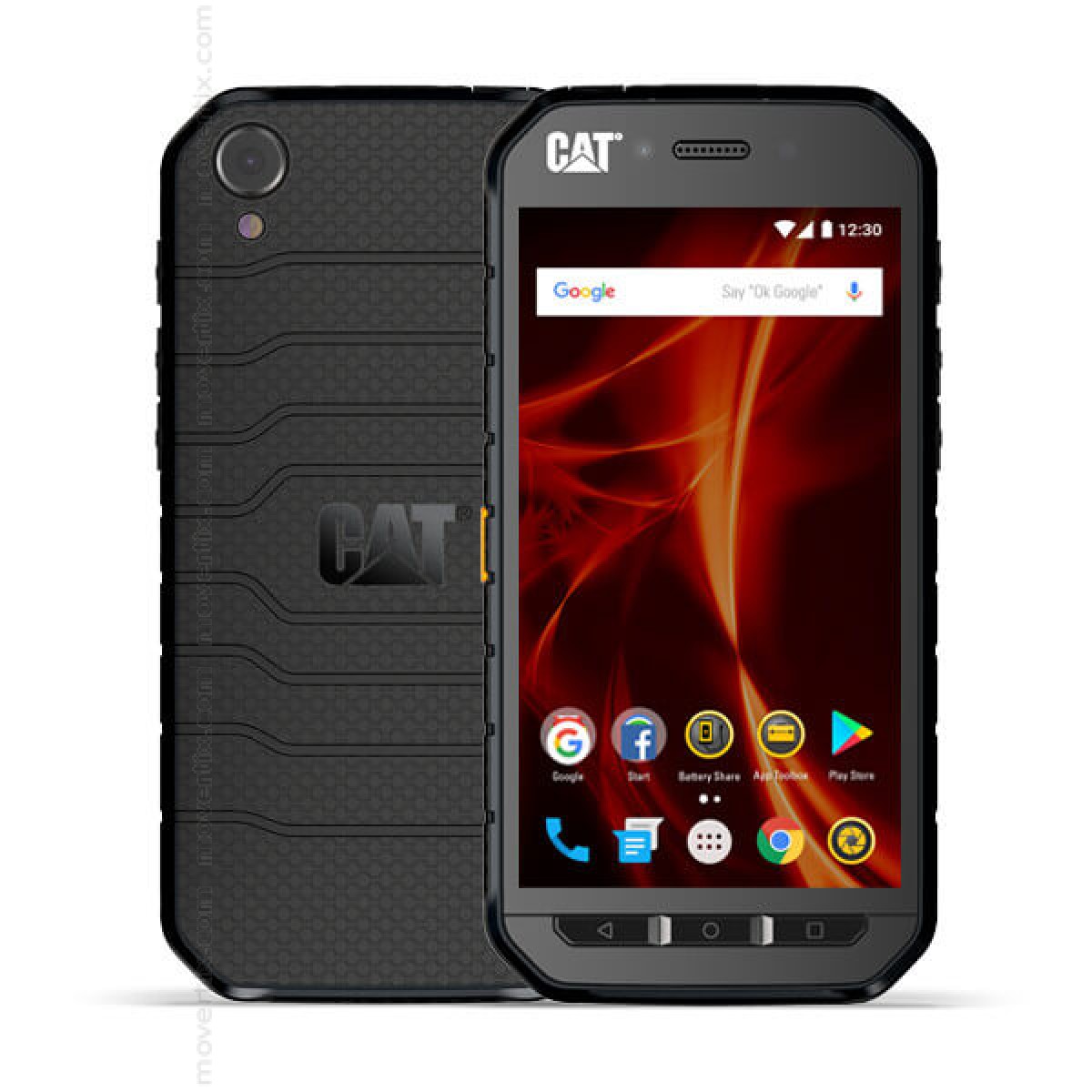
Are you tired of using a bulky case on your phone? What if your phone was a bulky case? That’s what the CAT S41 feels like. It’s made of a thick, rubberized material reminiscent of a tire — fitting for a device from a company that makes construction equipment.
The shell raises from the screen a bit, which will keep it from taking too much damage from unexpected drops. Think about the design like an Otterbox Defender case built into the device. This might be a great option for those who value durability above all else.
This rugged design continues throughout other aspects of the phone, such as the physical navigation keys. This was pretty nostalgic for me, since I haven’t had physical keys on a device since the Droid Charge (shudder). They are very tactile and responsive, which is important to me as a keyboard critic and enthusiast (don’t hate). Double-tapping the home key turns the screen on, which is nice for those who don’t want to shift their hand position.
The phone’s got a microSD and SIM card tray, power and volume keys, a headphone jack, a microUSB charging port, and a bright orange “Push to talk” key. Each ports is covered by a flap made of the same material as the shell, and shields the ports from water, dust, and more. It’s IP68 rated, so you could theoretically drop it from 1.8 meters or submerge it in two meters of water for up to 60 minutes.
The “Push to talk” key is the real indicator of who this device is for. A group of CAT S41 users would be able to rapidly exchange information when close together. This will be most useful on construction sites for coordinating workers doing separate tasks. If you’re not a construction worker, you can also remap the button to execute different actions via short or long presses. This isn’t the Bixby button — you can use the key for pretty much anything.
The button also has an underwater mode, which locks the screen and allows you to take photos under water. I’m not sure why you would want to submerge this thing on purpose, but it’s nice to have.
Display
The CAT S41 sports a 5.0-inch Full HD IPS LCD display with Gorilla Glass 5. Overall, I feel very mixed about it. The color is fine. It has a respectable pixel density, at 441 PPI. But the bezels make the display feel more encased in the device than other options. Compared to something like the Razer Phone, which has large bezels that house front-facing speakers, the CAT phone’s display feels outdated. It has more bezels within the screen portion itself too.
For general use and web browsing, the screen performs quite well. Colors are quite saturated (though not as technically accurate as something like the Pixel 2), which makes for a pretty satisfying experience overall.
The CAT S41 can be used with gloves on, which is pretty rare. This adds to the construction-friendly nature of this device, since many hard labor workers will be wearing gloves while working.
Performance & hardware
Performance might be one of the CAT S41’s weakest spots. I noticed plenty of lag and stuttering around all areas of the OS, even when moving around the home screens. It’s not huge, but the stuttering can be annoying, and it detracts from the experience of the device quite a bit. These caveats probably won’t be all that noticeable on the job, though. It might be slower than their primary device, but as a work phone this should work just fine.
This lag is likely due to the device’s sub-par MediaTek Helio P20 processor. This mid-range chip was released over a year ago, so obviously you’re going to see some substantial performance differences between it and new chips in 2017. The SoC features a Mali T880 GPU, which is also decidedly mid-range, as is apparent during heavy gaming sessions.
Where the processing of this phone drop the ball, other features lift it back up. The S41 comes with an absolutely enormous 5,000 mAh battery which makes it last an incredibly long time. I was able to go a full two days of consistent use. It will last even longer if you’re a light user with a lot of standby time. The closest flagship we could compare this device to is the Razer Phone, which lasted a respectably long time with it’s 4,000 mAh battery. We ran our own battery test software on this device as well, and it beat out even the best ranking phone from our Best of Android battery test by miles, coming in at 23 hours and 18 minutes. That is extremely good.
It great to see a headphone jack present in this phone, but I wish it used USB Type-C instead of microUSB. Every device has trade-offs, but for the price it would have been nice if the S41’s specs were just a bit better.
One thing to note about the CAT S41 is its MIL-STD-810G certification. This certification was established by the United States military to test equipment and ensure it is up to their standards — it can cover a number of different environmental conditions such as temperature, explosive atmosphere, and salt fog, among other thing. Most consumer electronics certified with the standard are rated specifically for shock. That said, CAT specifically stated the S41 is certified for thermal shocks and salt mist spray.
Because the anticipated consumer for this device is a construction or hard labor worker, this certification is very important. If you want to read more about the MIL-STD-810G certification, check out the Wikipedia entry.
Cameras
It’s hard to put it any other way — the CAT S41 cameras are bad. The 13 MP rear shooter is incredibly soft in anything but the most ideal lighting situations, and the front-facing 8 MP camera streaks when exposed to any significant light source. The front camera actually seems to do slightly better than the rear in many situations, which is pretty strange. Don’t use this phone as your main imaging device.
The rear camera tends to oversaturate photos more than any other smartphone camera we’ve tested. Images in standard look like the saturation slider was pulled a bit too far to the right in editing software. There is an interesting settings menu here that allows you to tweak aspects of the camera to your liking, but they didn’t seem to do much.
One interesting feature this phone has is the ability to take “Picture-in-Picture” shots, which takes an image with the rear and front camera at the same time, allowing you to pin the second image anywhere on the screen. I’m not really sure how this feature would be useful, but I’m also not a construction worker, so I’ll have to defer to those guys on this one.
The video mode is capable of 1080p video at 30 fps, but it suffers from the same saturation and softness issues as the photo mode. Another weird feature Caterpillar decided to include is the ability to record using filters like Negative, Aqua, and Sepia. I can’t see why you would want to use these modes in, well, any circumstance, but the option is there for those who want it.
Software
The CAT S41 is running Android 7.0 Nougat, which, at time of writing, is a 17-month-old build of Android. We do not expect new devices to launch with 7.0 Nougat at this point. Newer, more secure builds of Android have been out for months. The target buyers of this phone probably won’t care as much about timely software updates, but the fact that it runs such an old version of Android makes us feel like it might not ever receive one.
The S41 features CAT’s extremely light user interface. It feels mostly stock, with a few small UI tweaks like some custom icons, which make the phone feel more like a Caterpillar device. There’s a registration app, FM Radio, App toolbox, and a “Catphones” app which is just a link to the online support page. The most useful app built into the phone out of the box is the “Share” app, which allows you to charge other devices with the massive 5,000 mAh battery packed in this thing. You can usually only do this with devices using USB Type-C, so it’s nice to see this feature available, especially since it has one of the biggest batteries on the market.
If you’ve used a Nexus or Pixel device, the software essentially reflects what you would see on one of those devices. I’m always happy to see a built-in FM radio, but you will need to use some wired headphones as an antenna for this to work. Still, it’s very nice to have.
Specs
Caterpillar S41
Display
5.0-inch IPS LCD
1,920 x 1,080 resolution
401 ppi
16:9 aspect ratio
Corning Gorilla Glass 5
When I discovered that Google was deprecating Android Beam in Android Q, I was surprised to see how many people were upset by the news. The file transfer service used NFC to transfer files between devices, and although it was slow and rarely used, it still had its fans because of how widely available it was. Every Android device supported Android Beam, as a matter of fact. Now, in order to share files, you have to use other methods that aren’t guaranteed to work on every device. Google has pushed users toward the Files by Google app, but it now appears that the company is working on a new file-sharing tool. The tool, called Fast Share, is part of the Nearby service in Google Play Services, and it looks to be not only an Android Beam replacement but also an Apple AirDrop competitor.
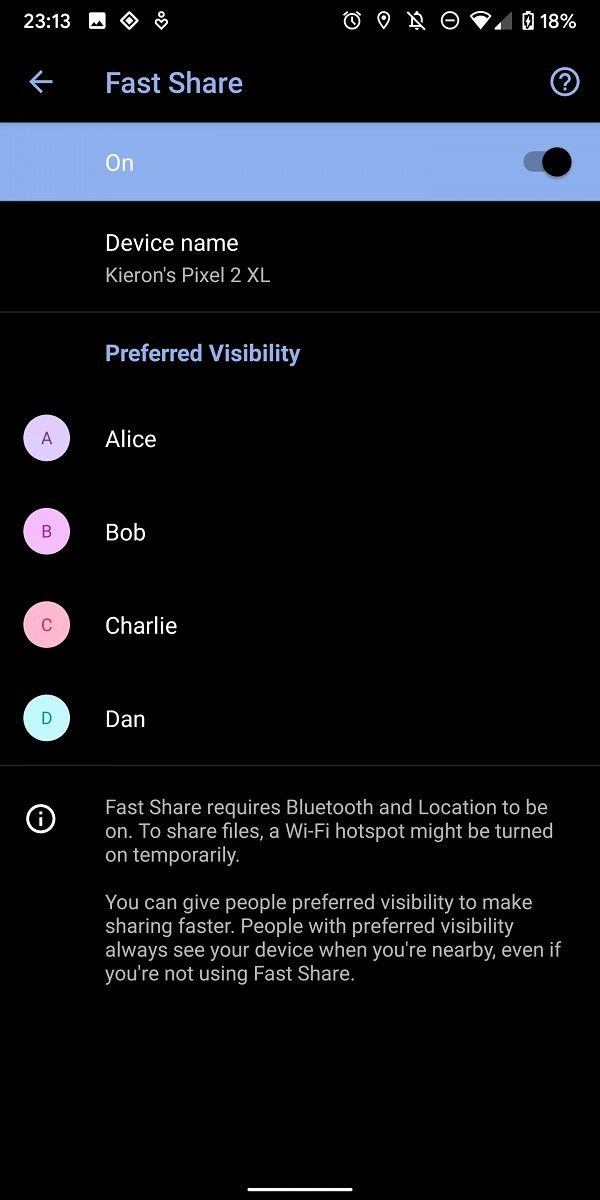
Fast Share was first spotted by 9to5Google earlier today, but we quickly figured out how to access it for ourselves to share the below screenshots. We also thank XDA Recognized Developer Quinny899 for his assistance in getting some of these screenshots. The screenshots show that the new file-sharing tool will let you “share to nearby devices without Internet,” much like Android Beam once did. Rather than NFC, the service uses Bluetooth to initiate a handshake and then subsequently transfers files over a direct Wi-Fi connection. This will allow for larger files to be transferred much more quickly than Android Beam. Fast Share even allows you to give your device “Preferred Visibility” to nearby devices, which lets those devices “always see your device when you’re nearby, even if you’re not using Fast Share.”
The share flow seems similar to Apple’s AirDrop file sharing service, which Android users have wanted for years. You can send one or more files to another device by selecting the files you want and picking the “Fast Share” option in the share sheet menu. Then, you can pick which device you want to send to once the devices appear in the scanning menu. The activity currently shows generic share targets, including a Chromebook, a Google Pixel 3, an iPhone, and a smartwatch. Hopefully, the service will actually support sending files to Chrome OS devices, Apple iOS devices, and Wear OS smartwatches once it goes live, but we can’t say for sure just based on the presence of these generic share targets.
What we can be sure of is that the service will support sending and receiving files to and from other Android devices with Google Play Services installed. Whether Fast Share will require a specific Android OS version is something we’re not sure of, though. I would imagine that it’ll support most modern Android releases given that it only requires Bluetooth and Wi-Fi Direct support.
We’ll keep an eye out on this file sharing service and will let you know if or when it goes live. It looks like it’ll be a decent competitor to Apple’s AirDrop, but given its reliance on Google Play Services, some will be disappointed that it won’t be as ubiquitous as Android Beam. Google is known to rip services out of AOSP and put them into Google Play Services, so this move shouldn’t come as a surprise. Still, given how many Certified Android devices are on the market, you’ll likely have a hard time finding a device that won’t support this new file sharing tool once it’s available.