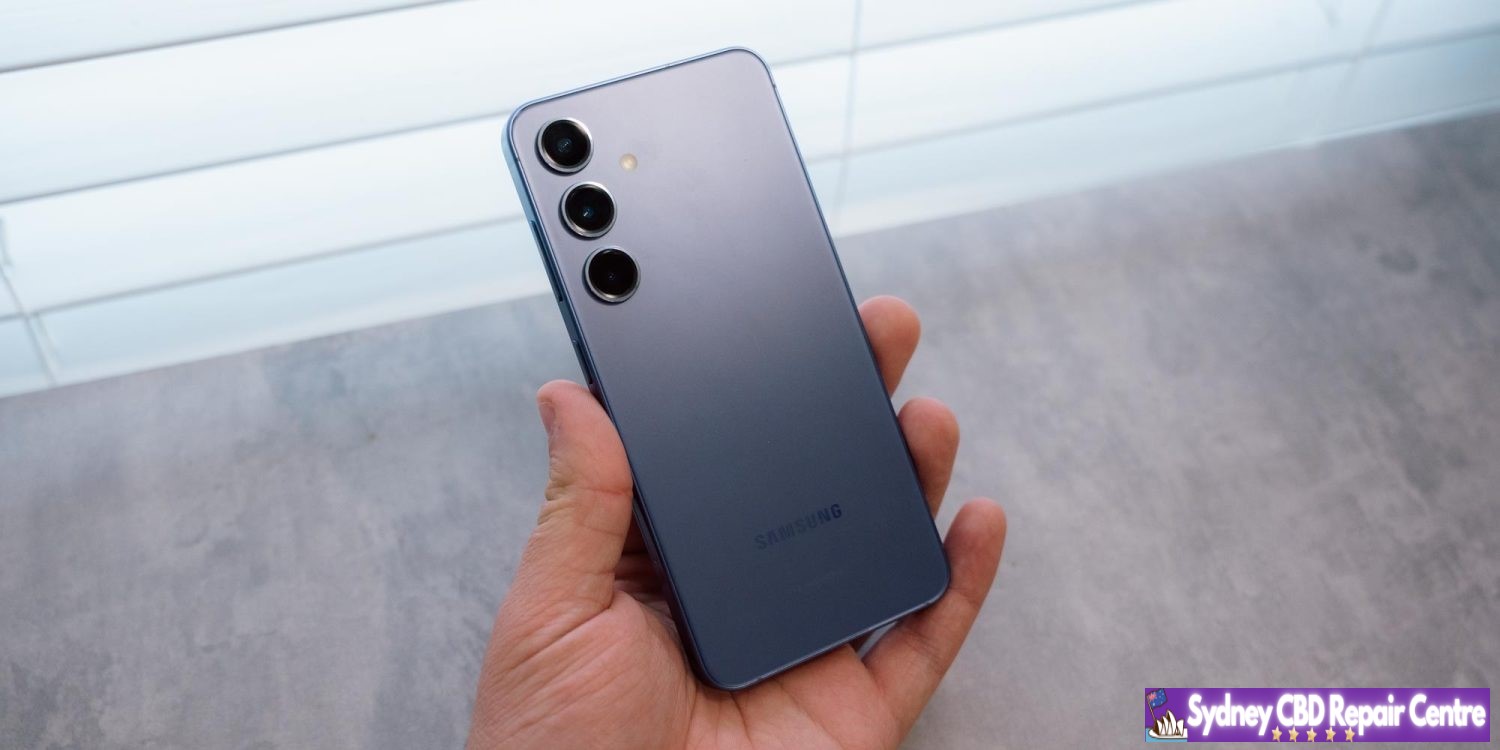
In addition to the Feature Drop, Google is rolling out QPR3 to Android 14 with the June 2024 security patch for the latest Pixel devices: 5a, 6, 6 Pro, 6a, 7, 7 Pro, 7a, Tablet, Fold, 8, 8 Pro, and 8a.
As the last major Android 14 update before Android 15, QPR3 is light on user-facing changes. For example, the Suggestions section of the Widgets list now shows app icons.
There are a few tweaks in Settings from the “Passwords, passkeys & autofill” rename to a new Display > Touch sensitivity menu that houses the existing Screen protector mode. Under Sound & vibration > Vibration & haptics, there’s a new “Keyboard vibration” toggle that replaces the Gboard preference.
In Security & privacy > More security & privacy, you’ll find “Allow camera software extensions”: “Enables the default software implementation of advanced camera features, such as Eyes Free videography.”
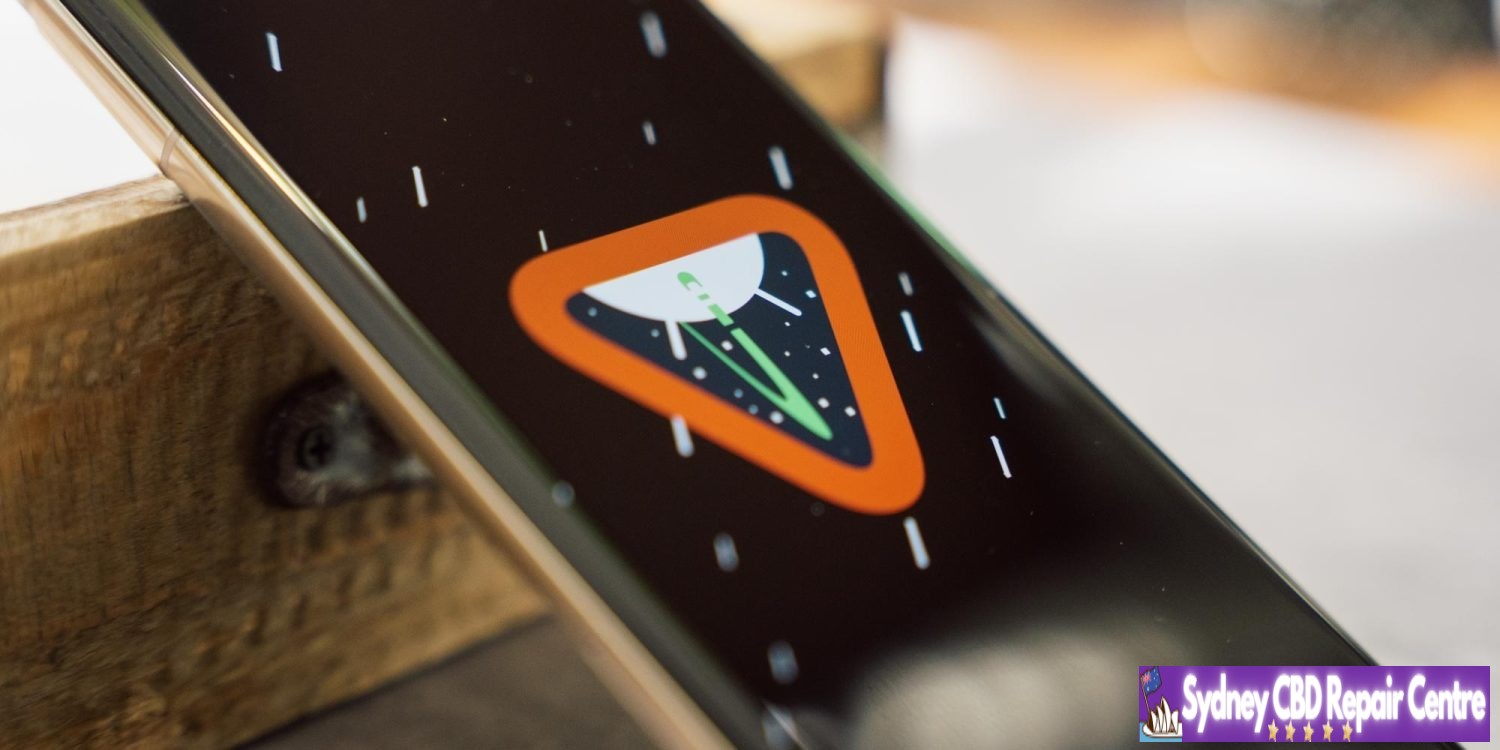
As seen in the cover image, Google has updated the Android 14 easter egg ahead of Android 15 (V).
There are 22 security issues resolved in the Android 14 June patch dated 2024-06-01 and 18 for 2024-06-05. Vulnerabilities range from high to critical.
The dedicated bulletin for Google devices lists additional security fixes.
The open source app was submitted to the store, given the recent rule change that allows retro game console emulators, like Delta or Folium. App Review rejected UTM, deciding that a “PC is not a console”. What is more surprising, is the fact that UTM says that Apple is also blocking the app from being listed in third-party app stores in the EU.
As written in the App Review Guidelines, Rule 4.7 covers “mini apps, mini games, streaming games, chatbots, plug-ins and game emulators”.
UTM says Apple refused to notarize the app because of the violation of rule 4.7, as that is included in Notarization Review Guidelines. However, the App Review Guidelines page disagrees. It does not annotate rule 4.7 as being part of the Notarization Review Guidelines. Indeed, if you select the “Show Notarization Review Guidelines Only” toggle, rule 4.7 is greyed out as not being applicable.
It’s therefore unclear if the Apple reviewers for UTM were incorrect in asserting the application was not suitable for distribution by third-party app stores in the EU.
However, as it stands, UTM is not proceeding to contest the ruling. As apps distributed on iOS cannot use a JIT compiler (other than specially entitled alternative browser engines), the functionality and performance of the emulators running through UTM SE, the version submitted for review that had JIT disabled, was significantly impaired. UTM says getting UTM SE approved “isn’t worth fighting for”.
UTM for iOS will continue to be available using older ‘grey market’ sideloading methods for open source software, such as compiling and installing the app manually via Xcode. UTM for Mac is available in the Mac App Store.
After being announced at WWDC 2024 Yesterday, Apple has released the first beta of iOS 18 and iPadOS 18 to developers. The update includes new home screen features, upgrades to the Messages app, and much more.
Apple will release a public beta of iOS 18 and iPadOS 18 in July. For now, the update is only available to developers for beta testing. iOS 18 is supported on all the same iPhone models as iOS 17.
New home screen features and more
Apple’s new software version won’t be complete until the fall, at which point it will be released to the general public. Testers should still expect performance and stability issues when running the iOS 18 public beta on primary devices for the time being.
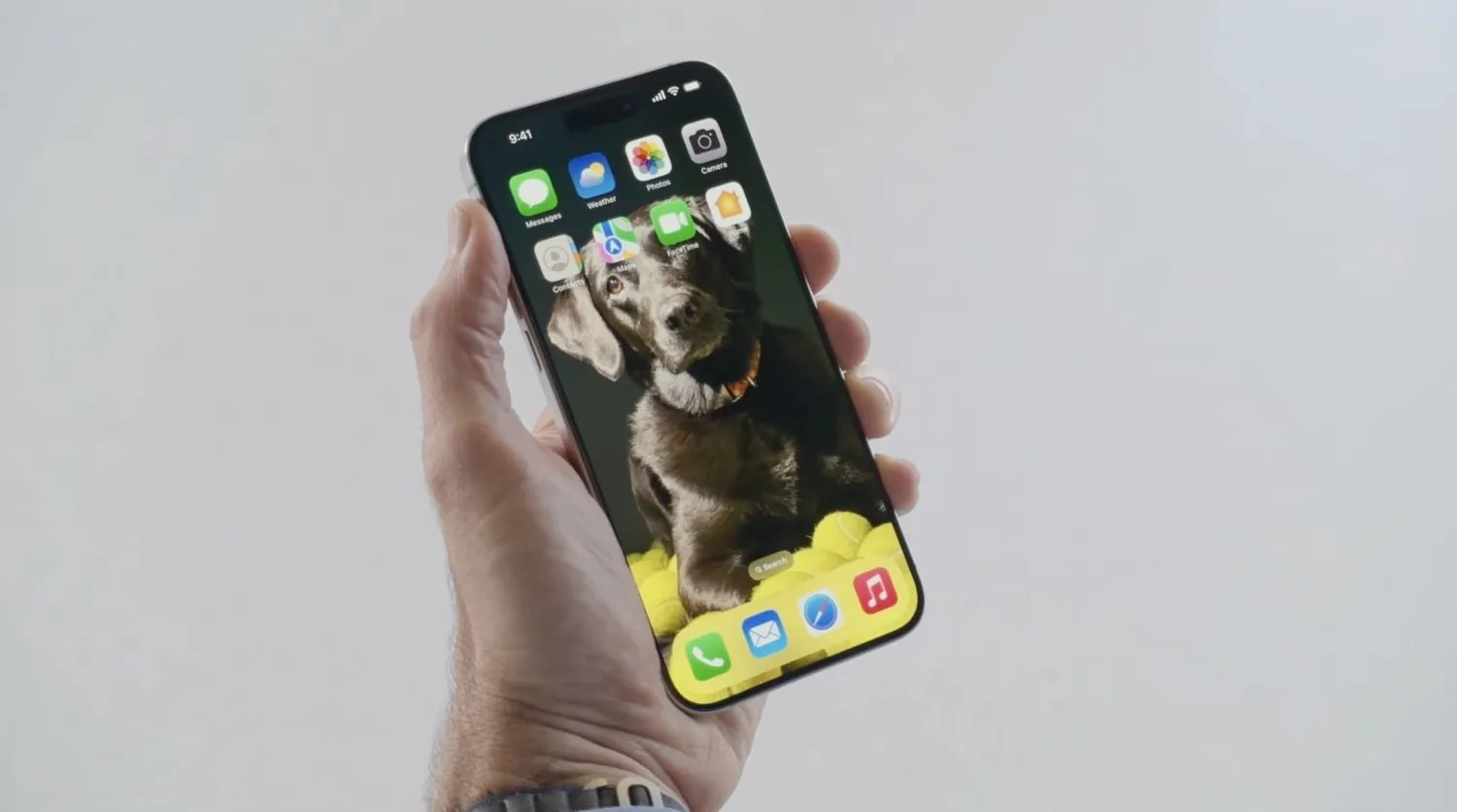
Some of the biggest changes in iOS 18 are for the home screen, which is now more customizable than ever. You can place app icons freely on the grid, tint app icons, customize Control Center, and much more. Keep in mind, many of the new Apple Intelligence features – including ChatGPT integration – won’t be available until later this year.
iOS 18: Here’s the list of iPhone models compatible with the update
After many rumors, Apple finally announced iOS 18 at WWDC 2024 on Monday. The new version of the iPhone operating system comes with a new Home Screen that lets users customize the icons, as well as a redesigned Photos app, Apple Intelligence, and much more. And if you’re wondering whether your iPhone is compatible with iOS 18, we have the answer.
“Apple today previewed iOS 18, a major release that features more customization options, the biggest redesign ever of the Photos app, new ways for users to manage their inbox in Mail, Messages over satellite, and so much more,” the company said in a press release.
iOS 18 compatibility
iOS 18 is compatible with the following iPhone models:
iPhone XR
iPhone XS and XS Max
iPhone 11
iPhone 11 Pro and 11 Pro Max
iPhone 12 and 12 mini
iPhone 12 Pro and 12 Pro Max
iPhone 13 and 13 mini
iPhone 13 Pro and 13 Pro Max
iPhone 14 and 14 Plus
iPhone 14 Pro and 14 Pro Max
iPhone 15 and 15 Plus
iPhone 15 Pro and 15 Pro Max
iPhone SE (2nd gen)
iPhone SE (3rd gen)
As you can see, all the same iPhones running iOS 17 can be updated to iOS 18. However, there’s a catch. According to Apple, only the iPhone 15 Pro and iPhone 15 Pro Max are compatible with the new AI, or Apple Intelligence, features. This is because these features require the A17 Pro or M1 chip or later.
The first beta of iOS 18 will be released to developers later today. A public beta is coming next month, while the official launch is set for this fall.
Apple will support RCS with iOS 18, improving messaging experience between iPhone and Android
Apple confirmed today that it will support RCS messaging with iOS 18, releasing this fall. RCS will enable a richer experience when communicating with Android users.
RCS will give your green bubble chats many of the best of features of iMessage, like high-resolution image and video attachments, typing indicators, read receipts and more.
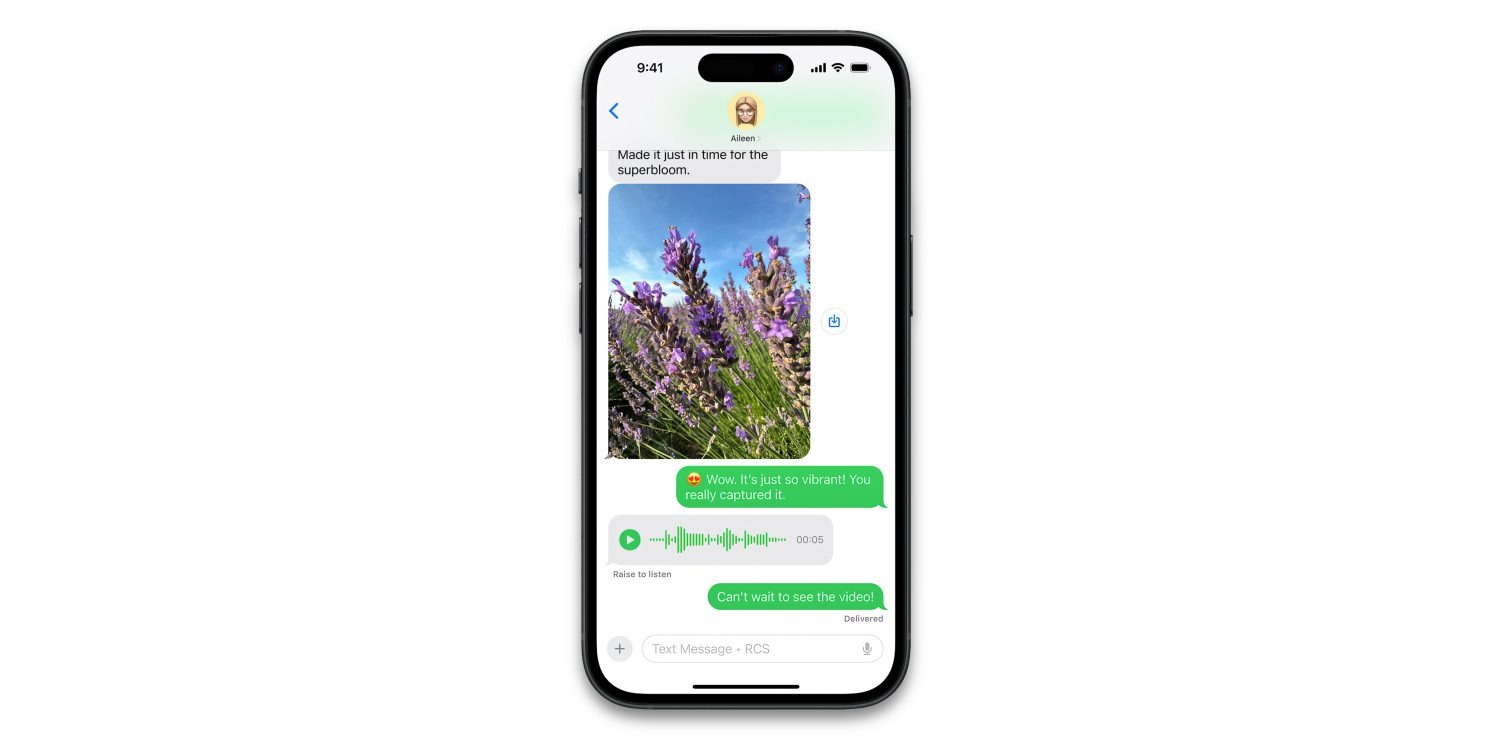
As shown today in the first ever screenshot of the feature in action, the iOS 18 Messages app will still distinguish RCS conversations with green bubbles.
However, the text field will include the label “Text Message • RCS” so users know they will get an upgraded texting experience, compared to traditional SMS.
The most significant difference will be the increase in file size for media. SMS enforces very small file sizes when sending photos or videos, so traditionally texting a picture to an Android user would not be a great experience as the image would be severely compressed. However, over RCS, images and video messages can transfer in much higher quality.
iPhone to iPhone communication will still offer the best experience, through iMessage. iMessage has richer integration with the Apple ecosystem, and offers the highest standards of privacy with end-to-encryption for all communication. iMessage will also continue to offer exclusive communication features like the new text effects.
However, the biggest pain points of SMS are resolved by RCS. As long as both members of the conversation are using devices that support RCS, conversations will take place over the newer standard automatically.
iOS 18 will be available as a free update to all iPhone users in the fall.
There’s an emoji for that: meet Genmoji, Apple’s AI-powered emoji generation feature in iOS 18
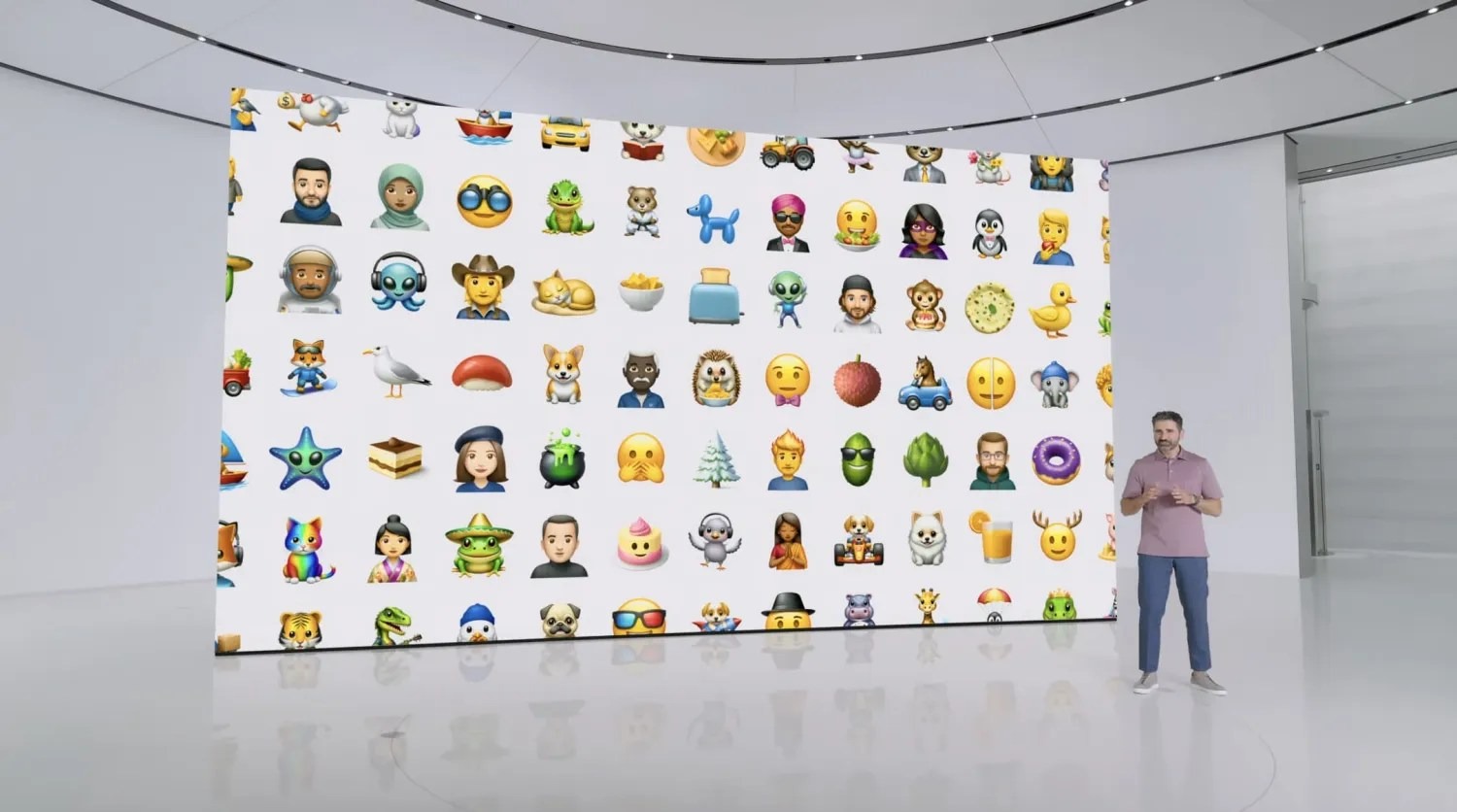
Today amidst a host of Apple Intelligence features debuted at WWDC, Apple shared a new feature that will enable you to create an emoji for any occasion. Apple calls this AI-powered feature Genmoji.
Despite the growing array of emoji included in iOS each year, we’ve all surely run into that occasion when we wanted an emoji for something, only to find it didn’t exist.
Apple has made that a problem of the past thanks to iOS 18.
Genmoji is an Apple Intelligence-powered feature that enables you to have new emoji created for your use. All you have to do is type in what you’re looking for, and iOS 18 will present you with a newly-created emoji for your use.
Since emojis are actually unicode characters that work cross-platform, Apple’s Genmoji won’t technically work the same way as other emoji, since if they were, they wouldn’t display properly on non-Apple devices. Instead, Apple creates Genmoji as images. This won’t make much difference to users, but it’s a technical detail worth noting.
Genmoji will be great for expressing a variety of emotions that emoji don’t quite cover right now. Personally though, I’ll be making an iPad emoji first.
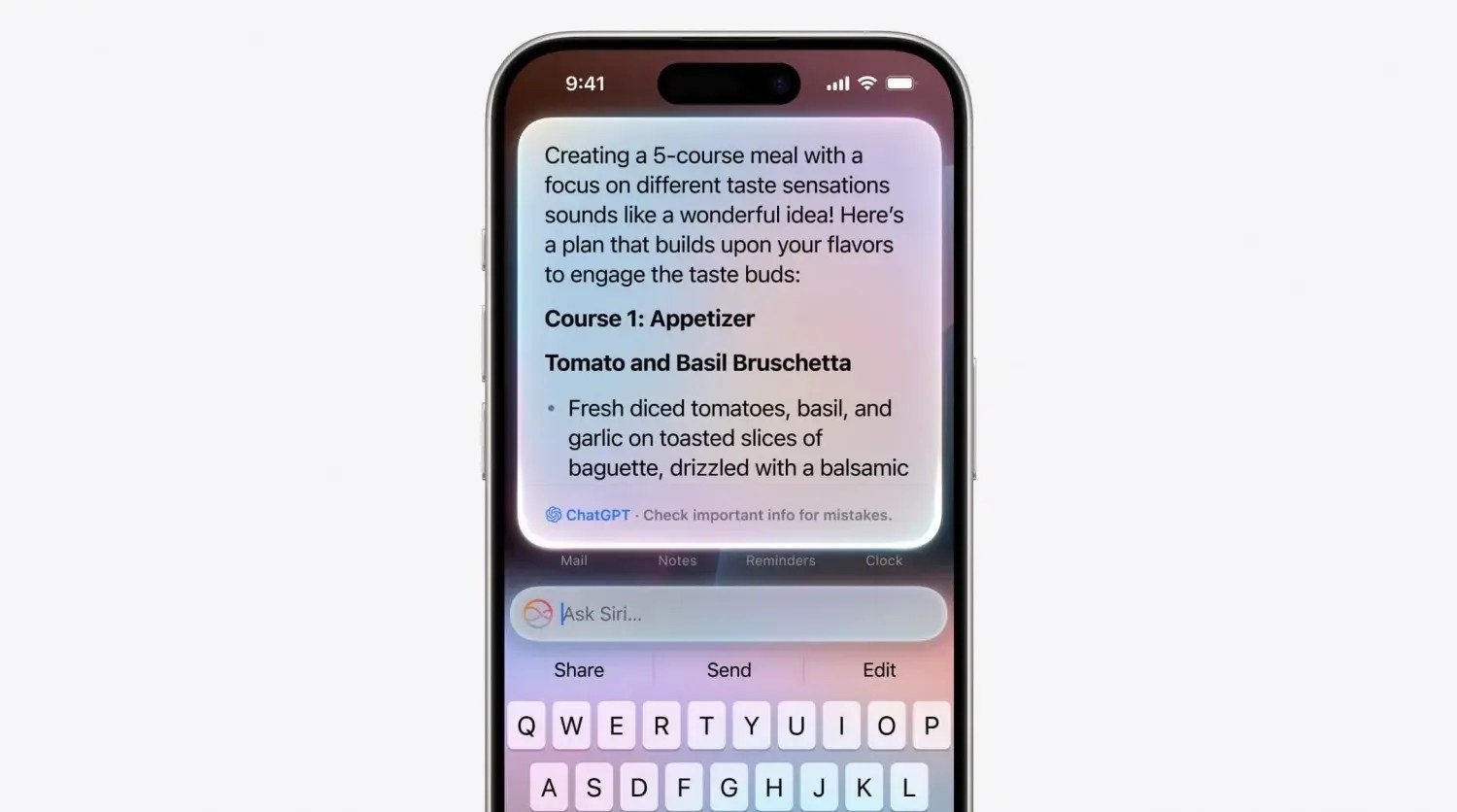
Apple integrates ChatGPT deeply into iOS 18
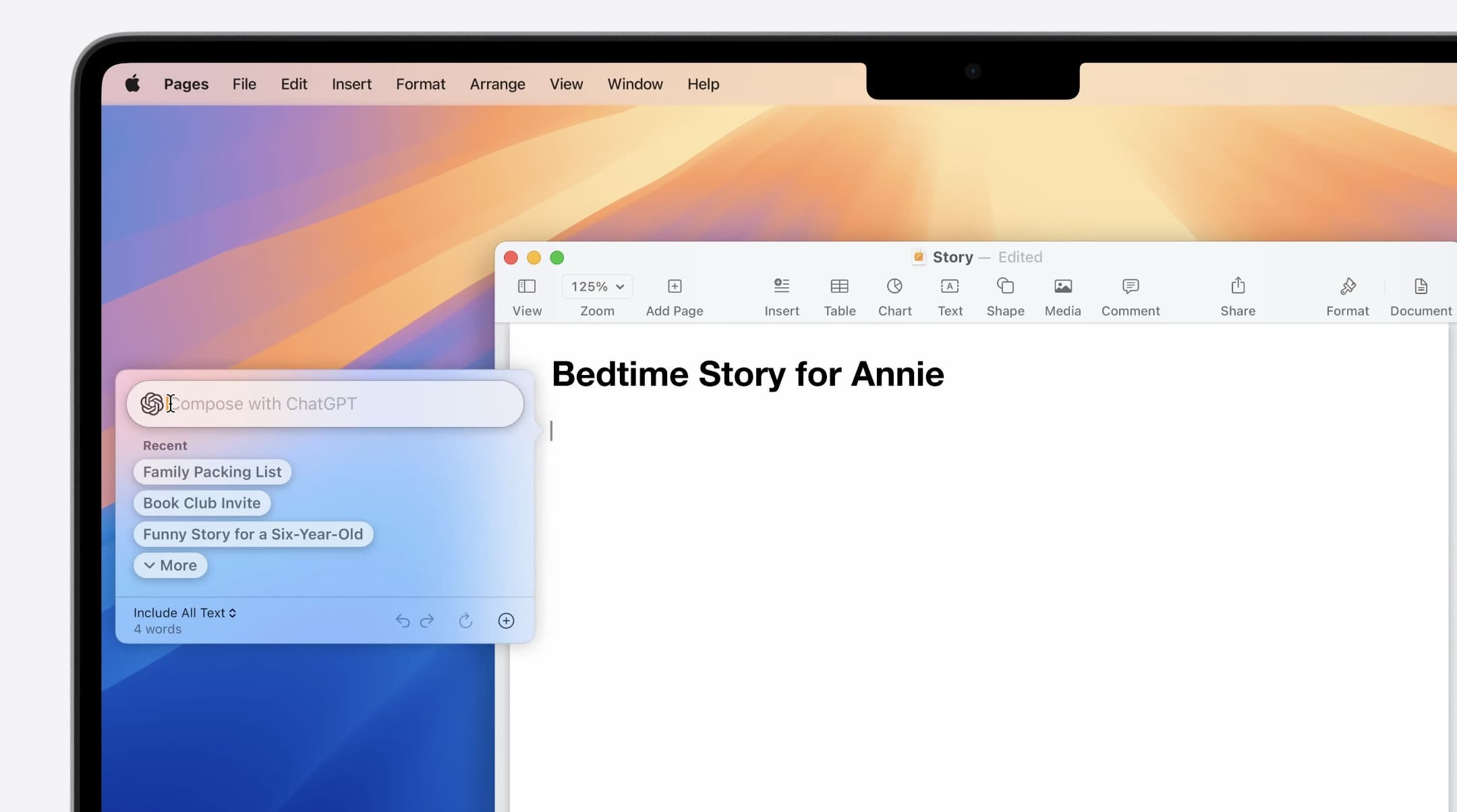
Apple Intelligence is the core of generative AI features in iOS 18, but Apple will also let users sign in with their OpenAI account and use ChatGPT models as well.
Once connected, users can select ChatGPT as their model to use inside Siri and as part of the new intelligent writing tools and other features across iOS 18, iPadOS 18 and macOS Sequoia.
The ChatGPT integration extends the free Apple Intelligence functionality built into the OS. For example, if you ask Siri a question that it can’t answer, it could hand off to ChatGPT instead to respond to the query.
Users can take advantage of the usual free quotas for ChatGPT usage, or connect their paid subscriptions to use their ChatGPT Plus benefits instead.
Apple indicated that it is working on partnerships with other AI model makers to give users more options in the future. So, although OpenAI’s ChatGPT will be the only option to start, you can expect Google Gemini and other models to be offered in the future.
iOS 18 lets you replace the Lock screen’s flashlight and camera buttons with controls of your choosing
Today as part of its iOS 18 unveiling during the WWDC keynote, Apple shared that the upcoming software release provides a feature users have long asked for: the ability to replace the flashlight and camera buttons on the iPhone’s Lock screen with controls of your own choosing.
Here’s how that works.
Customizing your Lock screen
In iOS 18, Apple is making Control Center more customizable than ever. As part of that change, it’s taking many of those same controls and making them available on your iPhone’s Lock screen in place of the existing flashlight and camera buttons.
The nice thing about the feature is that it takes advantage of the existing Lock screen customization features, and enables you to set different Lock screen buttons with different wallpaper/widget combos.
To set your own custom Lock screen controls in iOS 18:
Long-press on your Lock screen to pull up edit mode
Swipe to the wallpaper that you want to edit and hit ‘Customize’
Tap in the lower-left or lower-right corner on the existing buttons
Choose which controls you want to replace the flashlight and/or camera
The full list of available controls
When iOS 18 launches this fall, third-party apps will be able to offer their own controls for use on the Lock screen. For now though, only Apple options are available.
Currently in iOS 18 developer beta 1, you have the following control options for your Lock screen across a variety of categories:
Accessibility
Assistive Access
Live Speech
Capture
Camera
Scan Code
Magnifier
Clock
Alarm
Timer
Stopwatch
Connectivity
Airplane Mode
Cellular Data
Personal Hotspot
Display & Brightness
Dark Mode
Hearing Accessibility
Music Haptics
Left-Right Stereo Balance
Live Captions
Home
Home
Monitor Accessibility
Switch Control
Voice Control
Full Keyboard Access
AssistiveTouch
Apple Watch Mirroring
Control Nearby Devices
Remote
Remote
Shortcuts
Shortcuts
Open App
Sounds
Silent Mode
Recognize Music
Translate
Translate
Utilities
Flashlight
Calculator
Vision Accessibility
Classic Invert
Color Filters
Live Recognition
Increase Contrast
Reduce Motion
Reduce Transparency
Reduce White Point
Smart Invert
VoiceOver
Zoom
Speak Screen
Dim Flashing Lights
Hover Text
Hover Typing
Voice Memos
Voice Memo
Wallet
Wallet
Tap to Cash
Watch
Ping My Watch
iOS 18 lets you change widget sizes right from your home screen
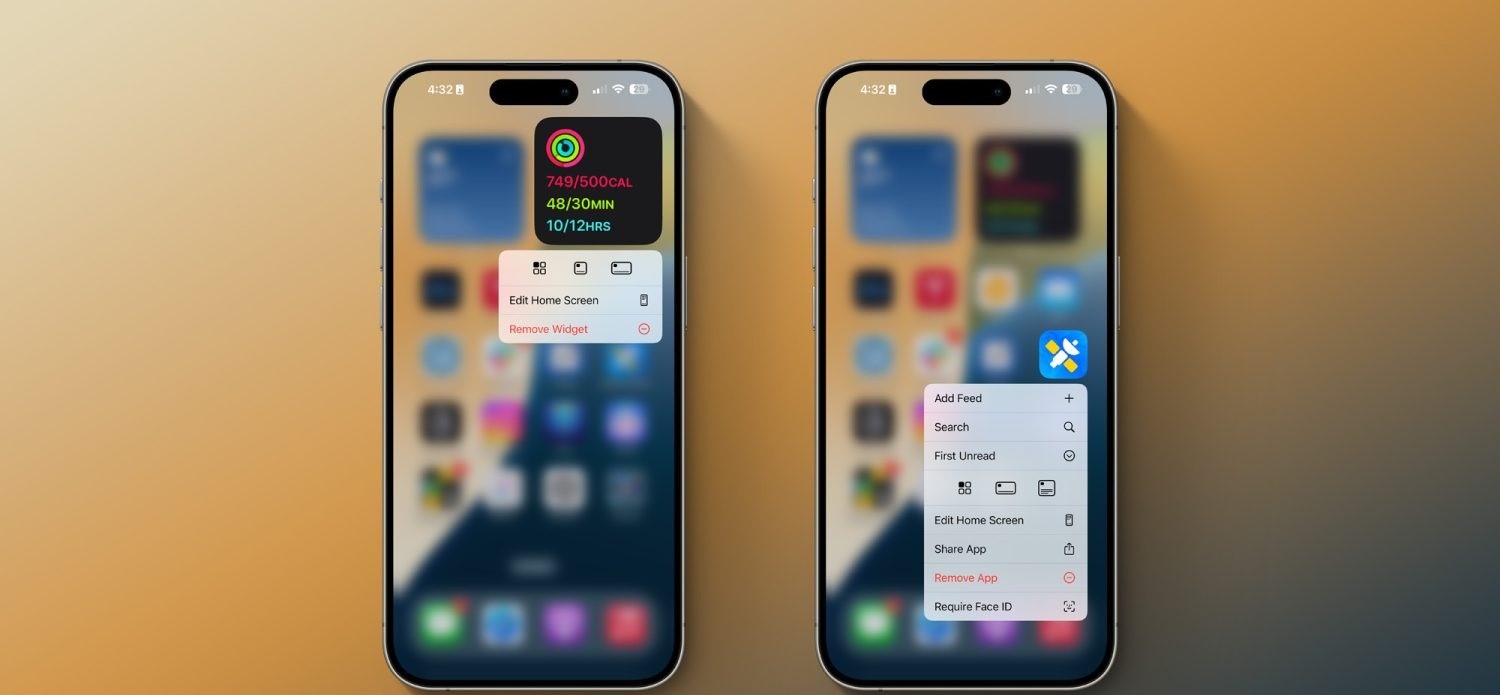
In addition to major new home screen customization options in iOS 18, Apple has also made it easier to rearrange your home screen. Most notably, you can now adjust widget sizes right from your iPhone’s home screen.
The ability to adjust widget sizes directly from the home screen was previously available only on iPadOS. With iOS 18, however, it has expanded to the iPhone as well. When you put the home screen into “jiggle mode,” you’ll see a new handle in the lower-right corner. You can then drag that handle and your widget will get bigger or smaller.
Alternatively, you can long-press on a widget, and you’ll see multiple different widget sizes you can choose from with a single tap. In this same menu, you can choose to convert a widget to an app icon as well. Finally, you can also long-press on an app icon, and (as long as that app offers home screen widgets), instantly convert the icon into a widget.
Everything new coming to Messages in iOS 18
Apple has some major feature upgrades coming to the Messages app in iOS 18.
As announced earlier today during the WWDC keynote, Messages is receiving big enhancements to tapbacks, a new scheduled send feature, the ability to format text with bold and italics, new effects, RCS support, and more.
Here’s everything coming to Messages in iOS 18.
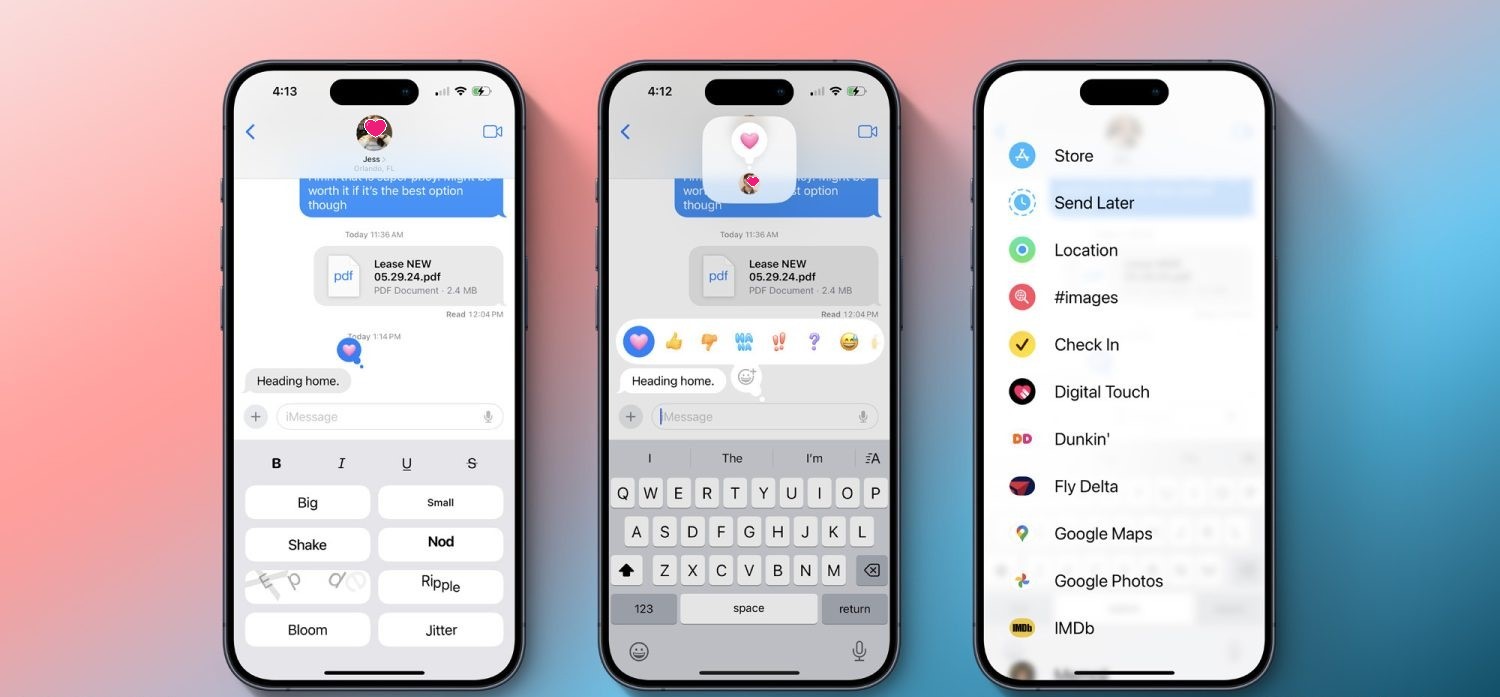
Emoji tapbacks and new tapback designs
Tapbacks have gone unchanged on the iPhone for years, but in iOS 18 they’re finally getting some big improvements.
For starters, you’ll be able to send any emoji as a message tapback. Gone are the days of being limited to a handful of tapback reactions. Now you can send a tapback with the eyes-looking emoji, or barf emoji, or anything else that fits the occasion. If emoji options aren’t enough, you can also use stickers as tapbacks.
Your most commonly used emoji and stickers will be accessible with a swipe left on the initial set of tapback options that appear, sliding those default options out of the way to present your most used emoji and stickers.
Speaking of those default options, they’re getting a facelift in iOS 18. The classic thumbs up, heart, and more are being splashed with full color and new designs that will make them fit in better among the wider array of new tapback options.
Schedule messages for later
We’ve all had an occasion where we wanted to send a message later. In iOS 18, that will finally be possible. No more need to ask Siri to remind you to send something later, you can simply schedule it yourself.
Prep a message in iOS or iPadOS 18 and, if you don’t want to send it right away, you can choose a later day and time for it to automatically go out. The option is available by pressing the + button on the left side of the screen and selecting the new Send Later option.
Text formatting and special effects
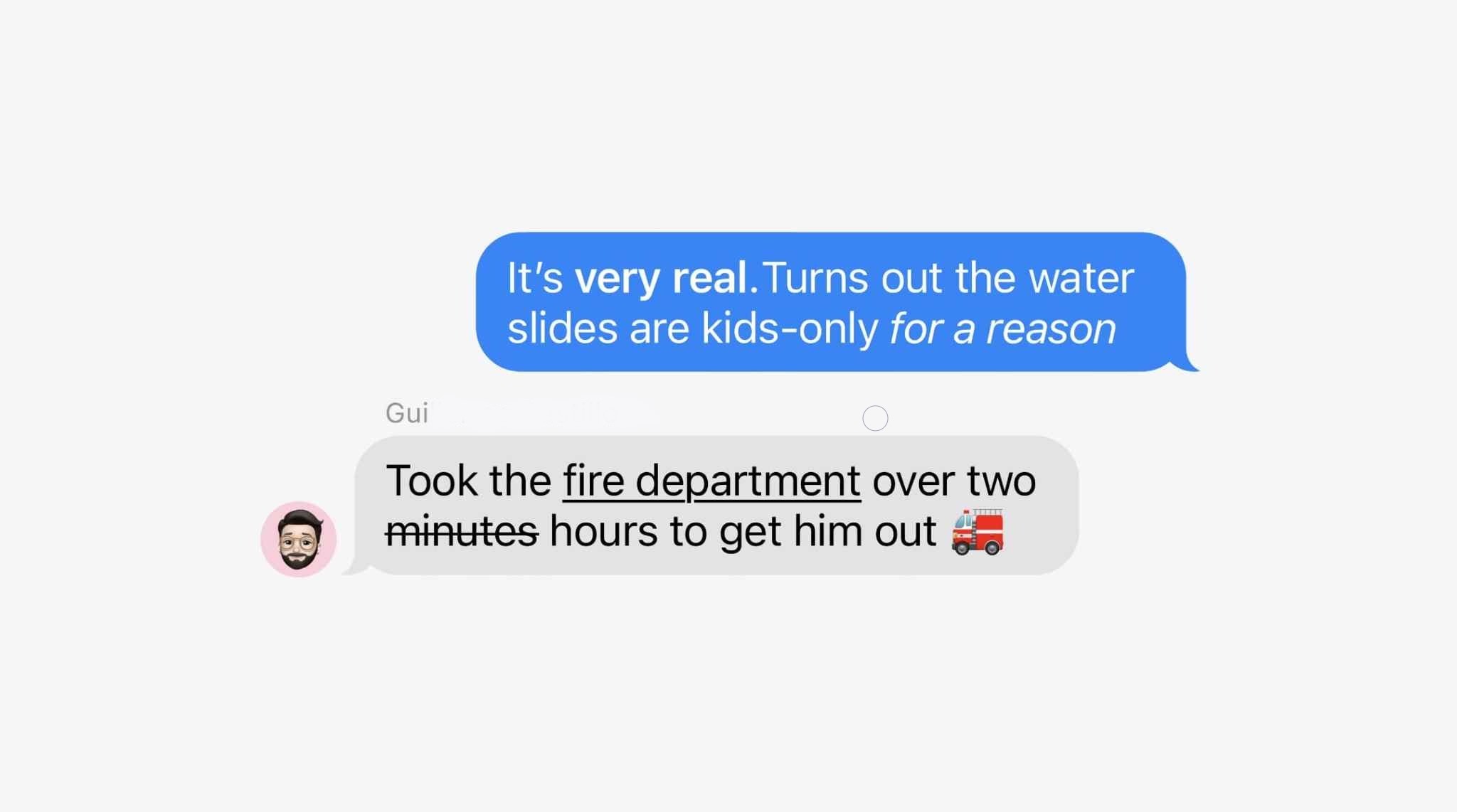
Messages was the last major Apple app that supports text input but never supported rich text formatting options like bold and italics. That changes in iOS 18, where you can customize the formatting of words in your message to implement the standard four formatting styles:
Bold
Italics
Underline
Strikethrough
Joining these options are eight neat special effects that can also be applied on a per-character basis:
Big
Small
Shake
Nod
Explode
Ripple
Bloom
Jitter
I’m not exactly sure which messaging occasions will call for some of these effects, but they’re nice options to have nonetheless.
RCS support
Apple had previously announced that it would support RCS in 2024, but it was great to see confirmation of that today.
RCS is a newer, more capable text message protocol that serves as a successor to SMS and MMS. Essentially, by adding RCS support in iOS 18, Apple will make your conversations with Android users more reliable than before.
When communicating over iMessage, everything will stay as-is. Your blue bubble conversations don’t change. But in those situations when, say, you’re in a group chat that includes a green bubble friend, RCS should make the experience better for everyone.
Everything else
Genmoji: Though not exclusive to Messages, the place you’re bound to use Genmoji most is in your conversations with friends and family. These AI-generated emoji will provide endless potential for future emoji communications.
Image Playground: Similarly, the new Image Playground tools for creating AI images in a variety of styles will be a useful option to have baked into the Messages app when it launches later this year alongside other Apple Intelligence features.
Messages via Satellite: Messages in iOS 18 also includes support for a new Messages via Satellite feature that’s designed to help you out in situations where you don’t have access to a Wi-Fi or cellular connection.
Wrap-up
Messages in iOS 18 provides a variety of new tools and features that are bound to get a lot of use. Though the core of the app is remaining the same, Apple has provided enhancements that I personally expect to benefit from a lot.
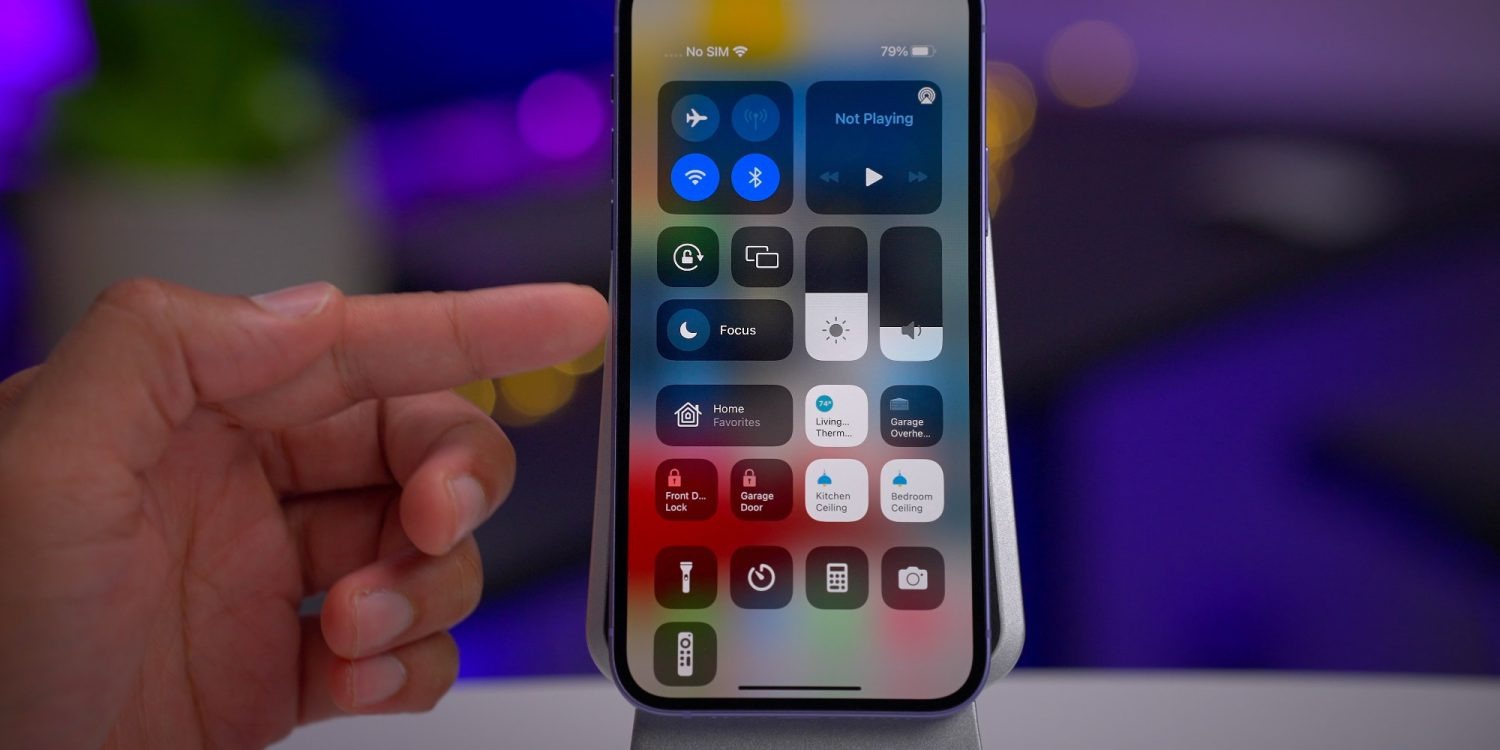
New Control Center in iOS 18 will have multiple pages, here’s what that means for you
iOS 18will be fully unveiled today at the WWDC keynote. According to one of the late breaking rumors, the iPhone update will introduce a redesigned Control Center.
One core feature of the new Control Center is the ability to place controls on multiple separate pages, rather than the single-page view currently available. Here’s what that means for you.
Control Center…will get an updated interface that allows shortcut buttons to be rearranged within the Control Center view itself and placed across multiple pages. It will also have a new music widget and an updated interface for controlling smart home appliances.
All the way back in iOS 10, Apple introduced a version of Control Center that spanned multiple pages. You could swipe between three different sets of controls. Unfortunately, those controls were not at all customizable.
What Apple has planned for iOS 18 will, in a small way, harken back to that long-forgotten design. Mostly though, it will be a brand new thing that’s more powerful than ever.
Creating your own multi-page Control Center in iOS 18
Currently in iOS 17, Control Center has some customization options. You can open Settings ⇾ Control Center and modify which particular controls show up in Control Center. But certain controls can’t be adjusted—elements like the Now Playing, Focus, and connectivity controls are all static. Their location can’t be changed, and they can’t be removed.
In iOS 18, reports like Gurman’s indicate that a lot more customization power is coming to users.
Consider what Apple has done with the iOS widget system over the past few years. Widgets can be placed and organized on your Home screen and Lock screen to provide exactly the controls you care about most.
It sounds like something similar is coming to Control Center.
Like when you enter ‘jiggle mode’ on the iPhone’s Home screen, in iOS 18 you will be able to rearrange, add, and delete controls right from the Control Center interface. No more going into Settings first.
A core component of this newfound freedom will be the ability to create multiple pages of controls. Unlike the static options in iOS 10’s design, with iOS 18 you should be able to create fully customizable pages that suit your needs—just like you can with Home screen pages using apps and widgets.
This additional screen real estate should pair nicely with the reported changes to the Now Playing and Home controls, which could take up more space than before. Apple could also stop hiding extra control layers behind a long-press. This would benefit not only the Now Playing and Home controls, but also Focus, volume controls, and more.
Will third-party apps be able to tap into Control Center?
This may be a bit radical, but it would be amazing to see Apple open Control Center up to third-party developers, too, so apps can offer up their own custom controls there.
Building on the foundation established by widgets, enabling third-party controls makes a ton of sense. It’s very much in line with what the company has done in recent years with widgets.
Wrap-up
I’m really excited about the possibilities for Control Center in iOS 18.
Apple could promote this newly capable, redesigned Control Center as part of a broader push toward greater customization options for iPhone users. You’ll be able to customize your Home screens in more ways than ever in iOS 18, so why not Control Center too?
Report: iOS 18 will tint iPhone app icons in dark mode, allow users to lock apps behind Face ID
On the day before WWDC, we have a couple more reports about some non AI-related iPhone software, which Apple will officially announce tomorrow as part of iOS 18.
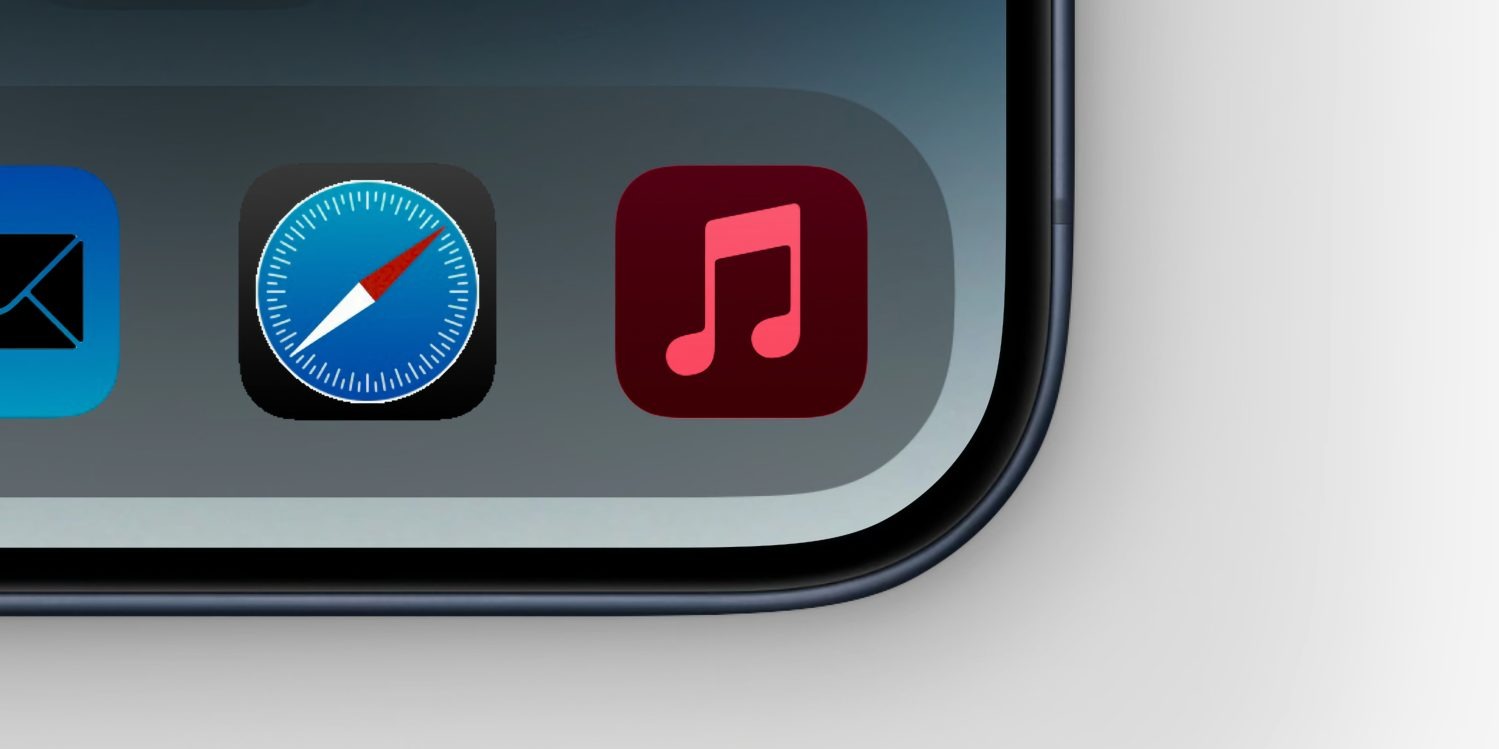
MacRumors reports that app icons will change color in Dark Mode for the first time, with a dark tint to match the darkened system chrome. The site also reports that the system will gain the ability to lock access to apps behind Face ID or Touch ID biometrics, on every app launch.
The idea of recoloring app icons has already been rumored for iOS 18, in the context of it being presented to the user as an option to personalize their device, as part of wider some screen layout changes.
What MacRumors suggests is that apps may also be able to opt-in to automatically changing their icon when the phone is in its Dark Mode appearance. The exact implementation method is not known. Perhaps developers will be able to choose a light icon and a dark icon, and the OS automatically switches when the system Appearance setting changes. Or, maybe the OS uses the single asset and renders a dark theme tint to it programatically, like changing the white background on many app icons to black.
MacRumors talks about the feature in the context of Apple’s app like Music and Mail, but presumably there would also be a way for third-party developers to support the feature as well.
Locking apps behind biometrics authentication or a passcode has been a feature on Android for a long time. It allows people to hand off their unlocked phones to others — perhaps to show them a website or a photo they just took — without fear of prying eyes.
Up to now, Apple has implemented this concept in select apps. For instance, with iOS 17, Private Browsing mode in Safari can prompt for Face ID authentication to access, as well as the ‘Recently Deleted’ and ‘Hidden’ album in the Photos app. Individual notes in Notes can also be locked with biometrics/passcode.
For iOS 18, it sounds like Apple will move on from this piecemeal approach to instead offering a system feature that allows users to choose which apps will require an additional authentication step before they will open. It’s currently unclear if this feature will only work with the built-in Apple apps, or if third-party apps from the App Store will also be able to be locked down.
We’ll know for sure today, when Apple’s WWDC keynote event kicks off at 10 AM Pacific Time ( 3:00 AM Monday, in Sydney NSW, Australia ). Expect iOS 18, watchOS 11, tvOS 18, visionOS 2 and a new version of macOS to be unveiled. A big theme of the event will be AI, with Apple launching a combination of on-device and cloud-powered artificial intelligence features under the collective brand of ‘Apple Intelligence‘.
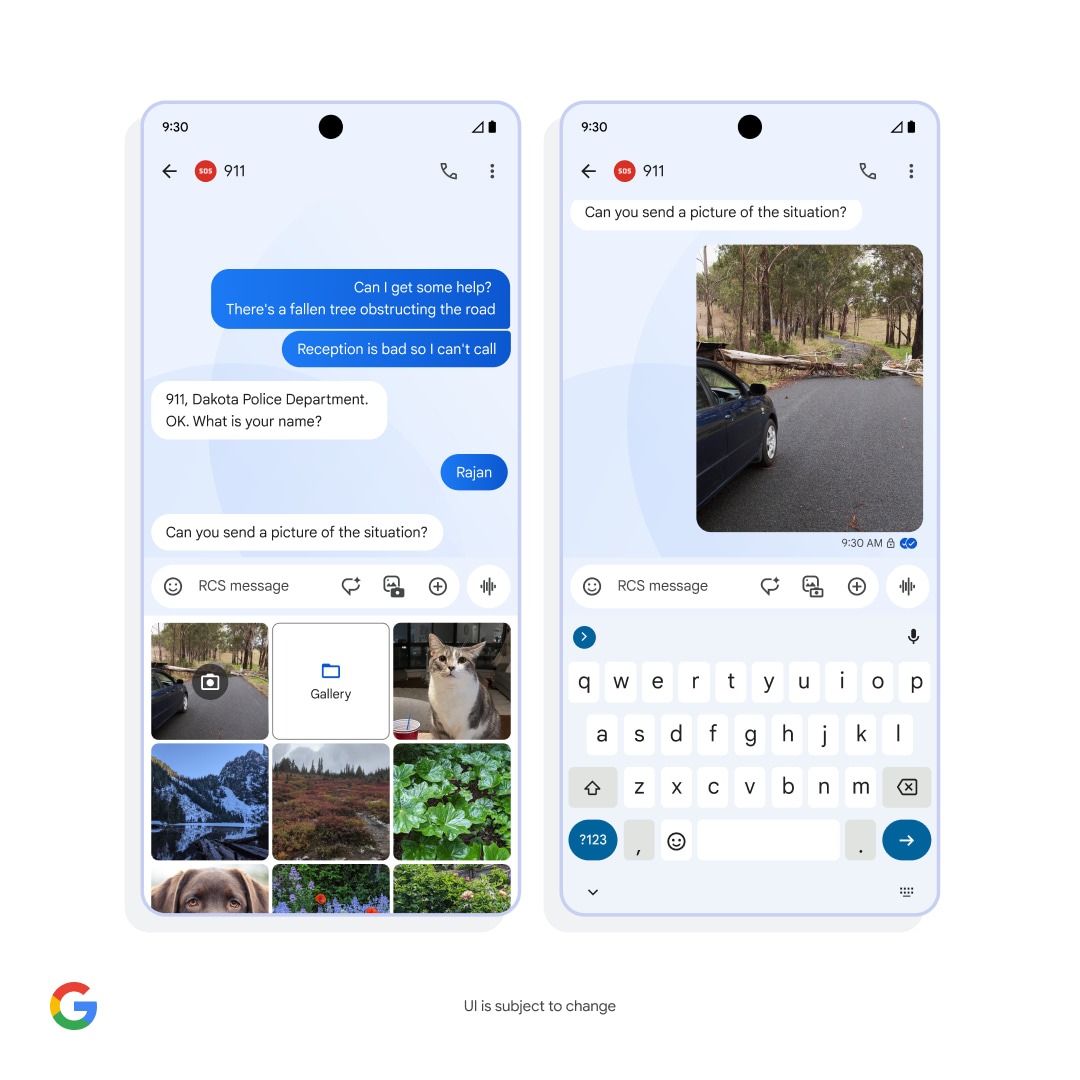
On June 06,20204 Googleannounced a partnership that will allow Android users to message 911 through RCS. The capability is set to start rolling out this winter.
Communicating with 911 over SMS is possible in “some locations” today, but it’s not widespread. In fact, it’s “only available for around 53% of U.S. emergency responder call centers.”
Using Google Messages, those on Android will be able to text 911 using Rich Communication Services. This will let you see read receipts and typing indicators from emergency responders, thus eliminating the “uncertainty of waiting to see if your messages went through.”
Compared to SMS, RCS will allow you to send pictures and videos. Google says high-resolution media could “aid a faster and more effective response from emergency service providers.”
The last benefit is the ability to “share your precise location and additional information automatically through Android Emergency Location Service.” This can include your “language settings and opt-in Medical Information, so emergency responders know exactly where to go and can get helpful details from you even if you’re unable to reply.”
Google is partnering with emergency technology company RapidSOS on this launch. RCS support will “gradually roll out” to “emergency call centers across the U.S. starting this winter.” RapidSOS says that “Google’s RCS to 911 service will be made available at no cost to every 911 agency in the United States.”
More broadly, Google has a goal of making “RCS the standard for emergency services texting everywhere.”
As part of our commitment to user safety, we’re actively working with partners across the industry to expand access to emergency services through RCS.
On a different note, look at the tweaked media gallery in that “UI is subject to change” mockup. Instead of a large camera card, you get a consistent grid for the live preview, Gallery/Folders, and seven other images. You get to see more of your camera roll before having to scroll.
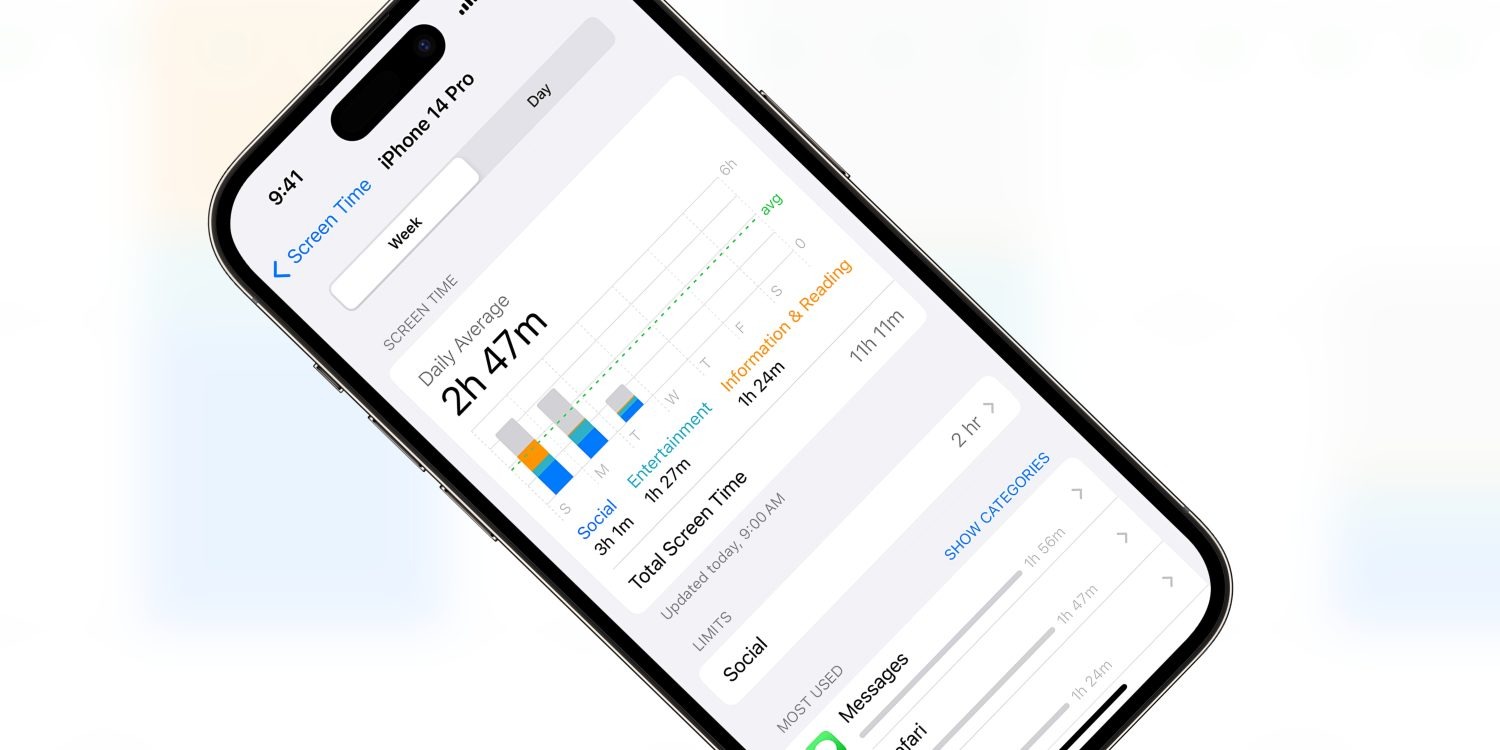
Screen Time promises to allow parents to restrict access to various apps, website and content on their children’s devices. However, ever since Screen Time launched with iOS 12, Apple has been playing whack-a-mole as users discovered new workarounds to avoid the enforced restrictions.
As reported by the Wall Street Journal, Apple will be fixing yet another one of these bugs in the next iOS software update. Security researchers had reported this particular bug to Apple multiple times over the last three years, but Apple had rebuffed or ignored them until now.
In the wake of the Wall Street Journal investigation by Joanna Stern, Apple has now committed to fixing the issue. In a statement, the company said it “takes reports of issues regarding Screen Time very seriously and have been consistently making improvements”, including “substantial Screen Time fixes” in the latest iOS 17.5 release.
However, the fact that Apple has left this escape hatch unaddressed for so long reinforces concerns that Apple does not take Screen Time seriously. For many parents, the features of Screen Time are simply too unreliable to trust in them.
In this particular case, the workaround allowed users to evade web browsing content restrictions, if they had been set. The trick involved typing a series of special characters into the Safari browser URL. It doesn’t seem like this particular trick was well known, unlike some other Screen Time exploits that have blown up on social media sites as children look for ways around their device lockdowns.
Nevertheless, parents who want to enable these restrictions going forward should explore the various Screen Time settings panes in the Settings app.
To manage content restrictions, open ‘Screen Time’ and select ‘Content & Privacy Restrictions’. You can choose preferences for apps, websites and system features like access to location services or the photo library. For web content, devices can be denied access to adult content based on an automatic filter, or choose an explicitly specified list of approved websites.
Following the last patch two weeks ago, Google is rolling out Android 15 Beta 2.2 with several Pixel fixes. Private space should now be fully working, while this update also addresses Wallet/NFC issues.
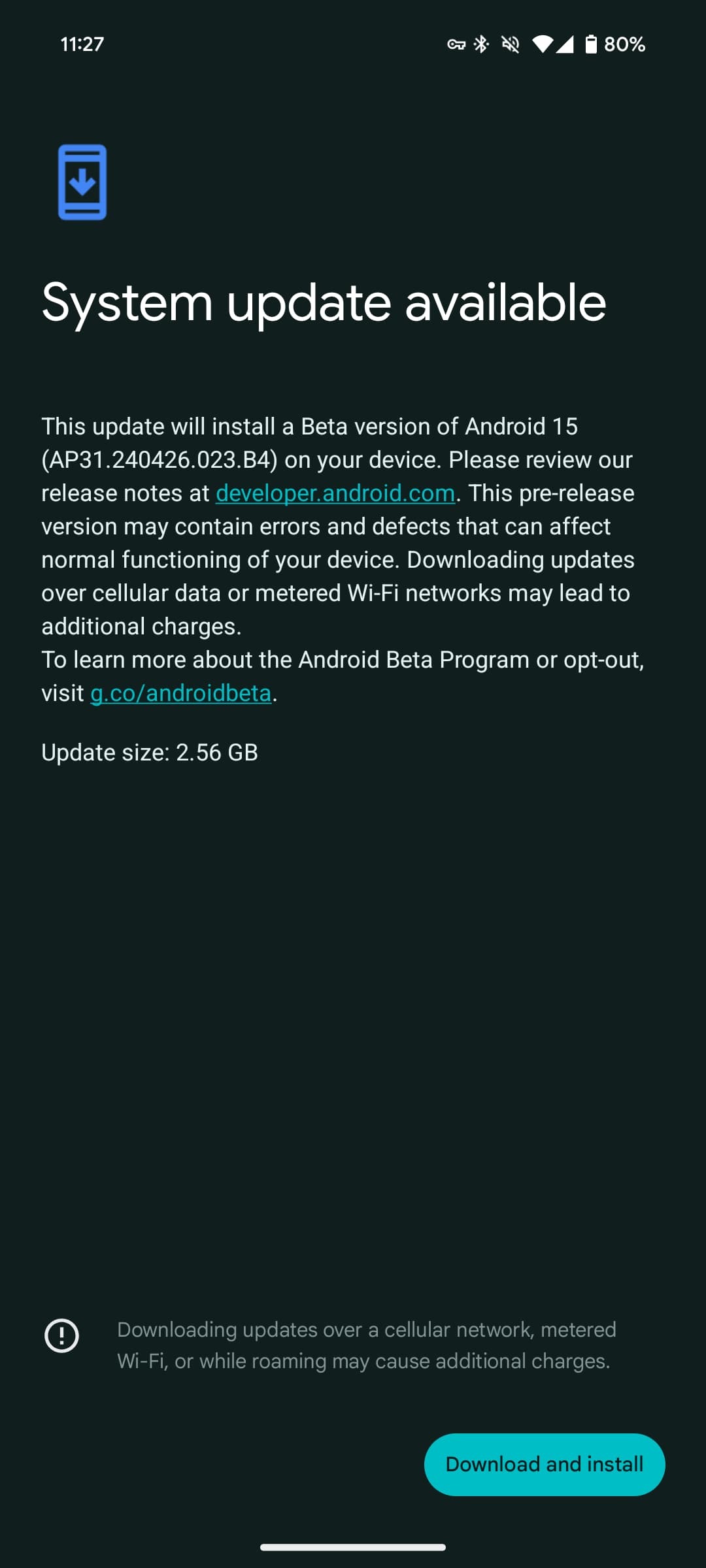
AP31.240426.023.B4 with the May 2024 security patch is available for all supported devices: Pixel 6, Pixel 6 Pro, Pixel 6a, Pixel 7, Pixel 7 Pro, Pixel 7a, Pixel Tablet, Pixel Fold, Pixel 8, Pixel 8 Pro, and Pixel 8a.
It’s a more sizable update than the initial patch that came immediately after I/O 2024. On a Pixel 8 and Tablet, the on-device OTA update size is 2.56 GB. That said, it’s only 55.78 MB on a different Pixel 8 Pro.
At launch, Google offered that full download. If you waited a bit, the smaller (and presumably intended) update was made available.
Fixed remaining issues where creating a private space on a device for the first time removed app icons from the Home screen (or Home screens if more than one Home screen had been added). (Issue #340868295)
Fixed an issue with the Wallet role that prevented NFC payments from functioning in some cases. (Issue #340933949)
Fixed an issue where the app drawer didn’t open when swiping up. (Issue #335798568)
Fixed an issue with NFC observe mode that prevented NFC payments from processing in some cases.
Fixed an issue that sometimes caused videos that were recorded using 10-bit HDR to have a green tint.
Fixed various other issues that were impacting system stability, interactivity, and connectivity.
All eligible devices enrolled in the Android Beta for Pixel program will be offered an over-the-air (OTA) update to Beta 2.2.
WWDC 2024 is just a week away, as Apple has set the conference’s opening event for Monday, June 10. Ahead of the event, the company has now confirmed that it will stream the WWDC 2024 opening keynote on YouTube alongside livestreams on its website and Apple TV app.
Watch WWDC 2024 live on YouTube
Of course, while the live streaming page is already up on Apple’s YouTube channel, you won’t be able to watch it until next Monday. “Join the worldwide developer community for a week of technology, community and creativity. Set a reminder now, and we’ll notify you before showtime,” the description of the live event on YouTube reads.
It’s been a while since Apple has been broadcasting its special events on YouTube in addition to its own platforms. This year, Apple will also share WWDC sessions on YouTube via the new Apple Developer channel.
Since 2020, all Apple events have been pre-recorded – so it’s likely that the WWDC 2024 opening keynote will follow suit. During the event, the company is expected to announce iOS 18, iPadOS 18, macOS 15, visionOS 2, and more with a huge focus on artificial intelligence (AI). No new hardware is expected for this year’s conference.
The keynote will take place at 10 a.m. PDT ( 3 a.m. AEST ) and be streamed live on apple.com, the Apple Developer app, the Apple TV app, and the Apple YouTube channel. Apple invited the press and some developers to watch the event from Apple Park.
Throughout the week, developers will have access to experts at Apple who are available to assist with implementing all the latest features and technologies of the coming software platforms into their apps.
Samsung Galaxy owners have noticed that Samsung’s Messages app is crashing frequently as of late, and the culprit seems to be an update to Google Meet, somehow.
Over the past few days, many Galaxy users on Reddit and Samsung’s forums have reported (via SamMobile) that the Samsung Messages app is crashing frequently. On trying to open any conversations, the app simply shuts down.
According to a Samsung moderator, the reason for this is an update to the Google Meet app.
Presumably due to the video calling shortcut in Samsung Messages that routes through Meet, something is causing the Messages app to crash frequently. Rolling back Meet updates seems to fix the problem, though. The exact cause isn’t clear, but it’s very widespread with the latest Messages and Google Meet updates. You can go to an older version of Meet by uninstalling updates to the app through Settings.
The problem can also be solved by moving from the Samsung Messages app to the Google Messages app.
Samsung Messages has actually been replaced by Google Messages on Galaxy devices sold in some regions including the US, but the original app is still used by many today. Hopefully, Google will issue a fix to the Meet app in the coming days.
All of the hype around WWDC this year has centred around two letters: AI.
Even though a large portion of Apple’s keynote is expected to highlight AI-related features, there will certainly be a variety of other improvements on deck for iOS 18, visionOS 2, and Apple’s other software platforms.
Mark Gurman reports that one such change will be a redesigned Settings app across the iPhone, iPad, and Mac.
New cross-platform design for Settings app
Last week reported on an expected redesign coming to macOS 15’s System Settings app, but Mark Gurman has confirmed on X that the revision will also impact the Settings app on iPhone and iPad.
A lot of people using macOS 15 and iOS 18 keep mentioning the revamp to Settings. Obviously not a huge deal, but it’s getting a new UI with a reorganized, cleaner layout that’s more simple to navigate. It also has much improved search. There are also updates to Control Center.
Details are scarce, but it sounds like Settings will receive a UI refresh on all platforms, improved search, and perhaps most significantly, a reorganization of its various settings categories.
These updates should ultimately provide a more consistent experience across iOS 18, iPadOS 18, and macOS 15.
Verdict
The biggest change at stake here is how Apple’s Settings app organizes its various categories. On that front, We have a hard time seeing how Apple can create an ideal setup that pleases everyone. We all interact with settings differently based on our different device habits.
As a result, it wouldn’t surprise us if Apple bakes some intelligence into Settings’ layout, offering up certain suggested categories based on your personal use patterns. There’s a lot the system could infer, too, from what you were doing right before opening Settings. For example, if we were using the Music app before opening Settings, there’s a decent chance we want to tweak Music’s settings. Or if we get a pop-up in an app saying Cellular is disabled for that app, surfacing that toggle in the Settings app would be great.