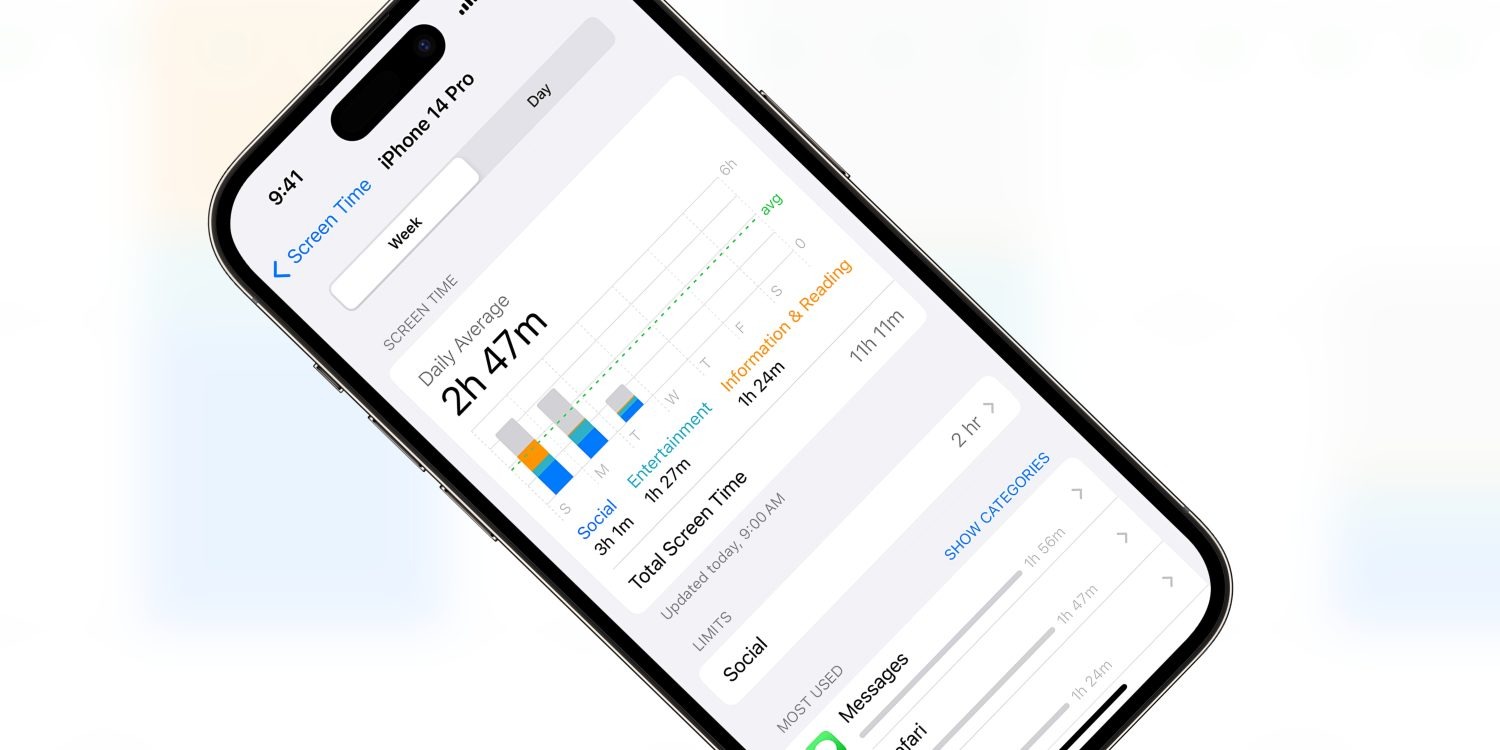
Screen Time promises to allow parents to restrict access to various apps, website and content on their children’s devices. However, ever since Screen Time launched with iOS 12, Apple has been playing whack-a-mole as users discovered new workarounds to avoid the enforced restrictions.
As reported by the Wall Street Journal, Apple will be fixing yet another one of these bugs in the next iOS software update. Security researchers had reported this particular bug to Apple multiple times over the last three years, but Apple had rebuffed or ignored them until now.
In the wake of the Wall Street Journal investigation by Joanna Stern, Apple has now committed to fixing the issue. In a statement, the company said it “takes reports of issues regarding Screen Time very seriously and have been consistently making improvements”, including “substantial Screen Time fixes” in the latest iOS 17.5 release.
However, the fact that Apple has left this escape hatch unaddressed for so long reinforces concerns that Apple does not take Screen Time seriously. For many parents, the features of Screen Time are simply too unreliable to trust in them.
In this particular case, the workaround allowed users to evade web browsing content restrictions, if they had been set. The trick involved typing a series of special characters into the Safari browser URL. It doesn’t seem like this particular trick was well known, unlike some other Screen Time exploits that have blown up on social media sites as children look for ways around their device lockdowns.
Nevertheless, parents who want to enable these restrictions going forward should explore the various Screen Time settings panes in the Settings app.
To manage content restrictions, open ‘Screen Time’ and select ‘Content & Privacy Restrictions’. You can choose preferences for apps, websites and system features like access to location services or the photo library. For web content, devices can be denied access to adult content based on an automatic filter, or choose an explicitly specified list of approved websites.
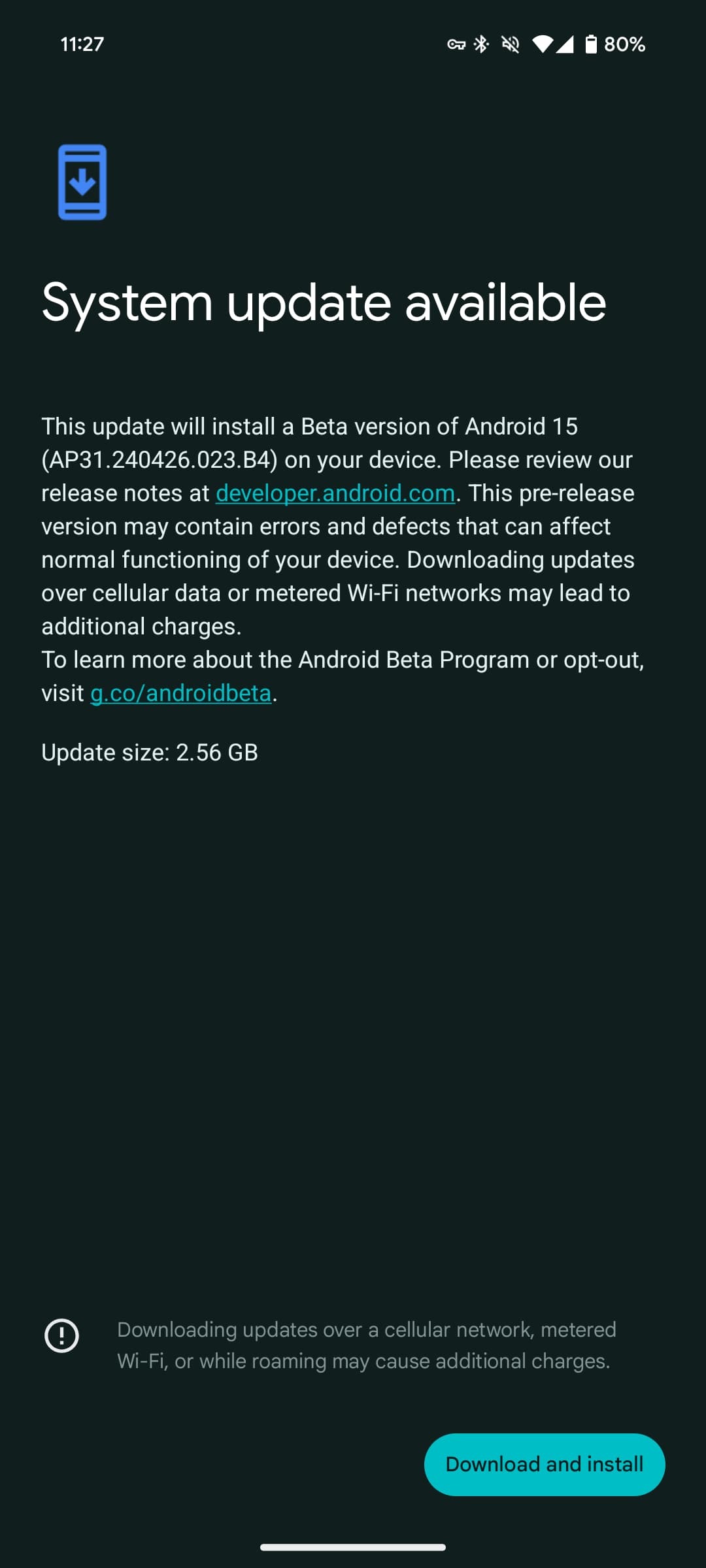
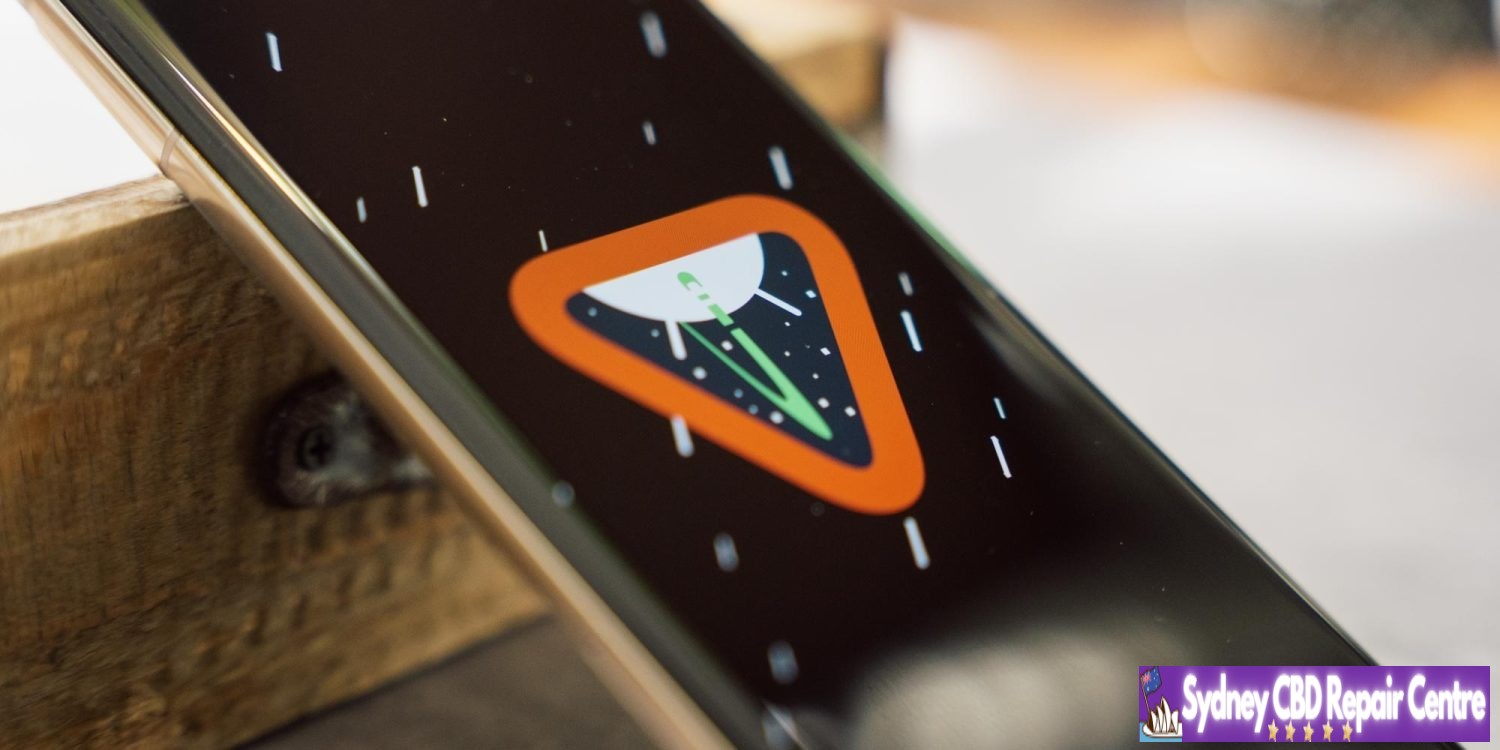
Following the last patch two weeks ago, Google is rolling out Android 15 Beta 2.2 with several Pixel fixes. Private space should now be fully working, while this update also addresses Wallet/NFC issues.
AP31.240426.023.B4 with the May 2024 security patch is available for all supported devices: Pixel 6, Pixel 6 Pro, Pixel 6a, Pixel 7, Pixel 7 Pro, Pixel 7a, Pixel Tablet, Pixel Fold, Pixel 8, Pixel 8 Pro, and Pixel 8a.
It’s a more sizable update than the initial patch that came immediately after I/O 2024. On a Pixel 8 and Tablet, the on-device OTA update size is 2.56 GB. That said, it’s only 55.78 MB on a different Pixel 8 Pro.
At launch, Google offered that full download. If you waited a bit, the smaller (and presumably intended) update was made available.
Fixed remaining issues where creating a private space on a device for the first time removed app icons from the Home screen (or Home screens if more than one Home screen had been added). (Issue #340868295)
Fixed an issue with the Wallet role that prevented NFC payments from functioning in some cases. (Issue #340933949)
Fixed an issue where the app drawer didn’t open when swiping up. (Issue #335798568)
Fixed an issue with NFC observe mode that prevented NFC payments from processing in some cases.
Fixed an issue that sometimes caused videos that were recorded using 10-bit HDR to have a green tint.
Fixed various other issues that were impacting system stability, interactivity, and connectivity.
All eligible devices enrolled in the Android Beta for Pixel program will be offered an over-the-air (OTA) update to Beta 2.2.
Samsung Galaxy owners have noticed that Samsung’s Messages app is crashing frequently as of late, and the culprit seems to be an update to Google Meet, somehow.
Over the past few days, many Galaxy users on Reddit and Samsung’s forums have reported (via SamMobile) that the Samsung Messages app is crashing frequently. On trying to open any conversations, the app simply shuts down.
According to a Samsung moderator, the reason for this is an update to the Google Meet app.
Presumably due to the video calling shortcut in Samsung Messages that routes through Meet, something is causing the Messages app to crash frequently. Rolling back Meet updates seems to fix the problem, though. The exact cause isn’t clear, but it’s very widespread with the latest Messages and Google Meet updates. You can go to an older version of Meet by uninstalling updates to the app through Settings.
The problem can also be solved by moving from the Samsung Messages app to the Google Messages app.
Samsung Messages has actually been replaced by Google Messages on Galaxy devices sold in some regions including the US, but the original app is still used by many today. Hopefully, Google will issue a fix to the Meet app in the coming days.
All of the hype around WWDC this year has centred around two letters: AI.
Even though a large portion of Apple’s keynote is expected to highlight AI-related features, there will certainly be a variety of other improvements on deck for iOS 18, visionOS 2, and Apple’s other software platforms.
Mark Gurman reports that one such change will be a redesigned Settings app across the iPhone, iPad, and Mac.
New cross-platform design for Settings app
Last week reported on an expected redesign coming to macOS 15’s System Settings app, but Mark Gurman has confirmed on X that the revision will also impact the Settings app on iPhone and iPad.
A lot of people using macOS 15 and iOS 18 keep mentioning the revamp to Settings. Obviously not a huge deal, but it’s getting a new UI with a reorganized, cleaner layout that’s more simple to navigate. It also has much improved search. There are also updates to Control Center.
Details are scarce, but it sounds like Settings will receive a UI refresh on all platforms, improved search, and perhaps most significantly, a reorganization of its various settings categories.
These updates should ultimately provide a more consistent experience across iOS 18, iPadOS 18, and macOS 15.
Verdict
The biggest change at stake here is how Apple’s Settings app organizes its various categories. On that front, We have a hard time seeing how Apple can create an ideal setup that pleases everyone. We all interact with settings differently based on our different device habits.
As a result, it wouldn’t surprise us if Apple bakes some intelligence into Settings’ layout, offering up certain suggested categories based on your personal use patterns. There’s a lot the system could infer, too, from what you were doing right before opening Settings. For example, if we were using the Music app before opening Settings, there’s a decent chance we want to tweak Music’s settings. Or if we get a pop-up in an app saying Cellular is disabled for that app, surfacing that toggle in the Settings app would be great.
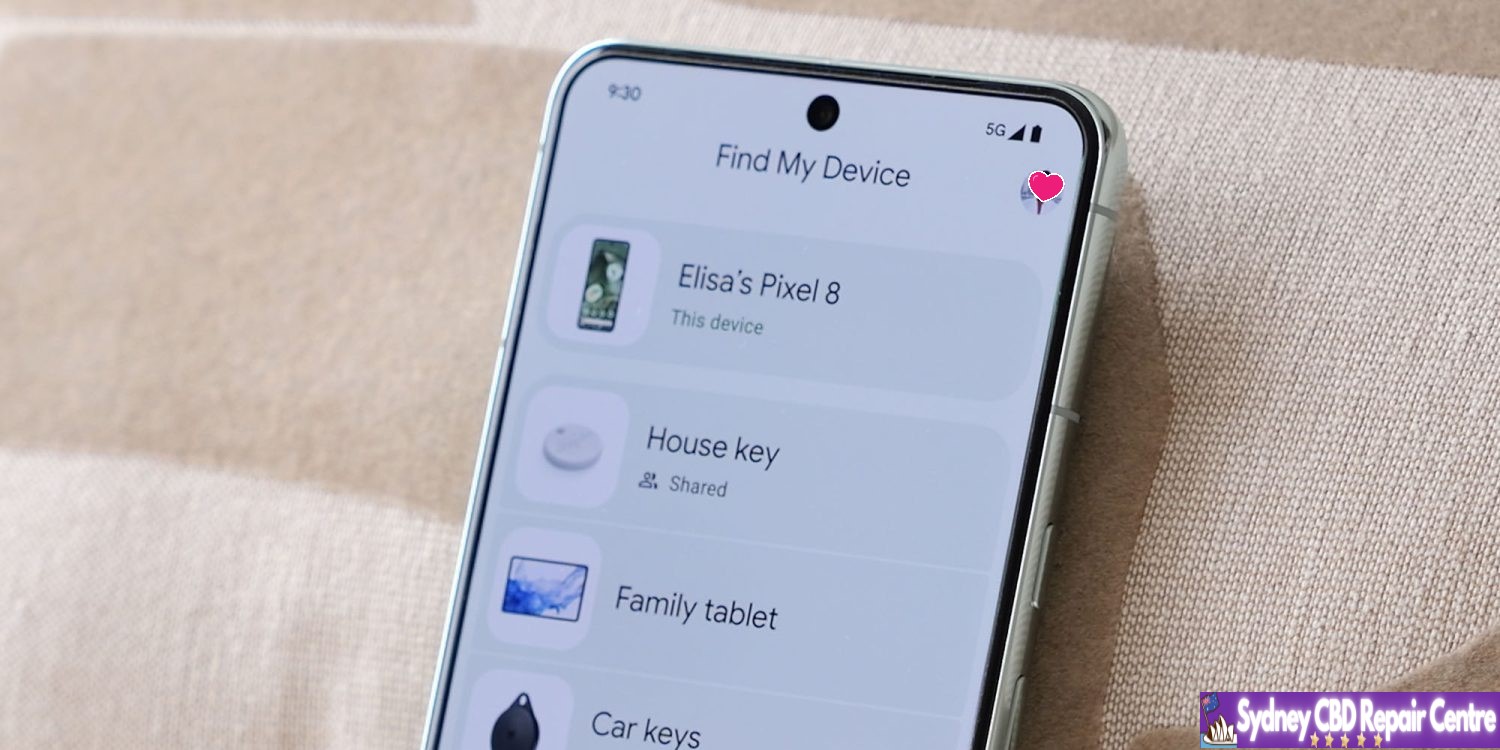
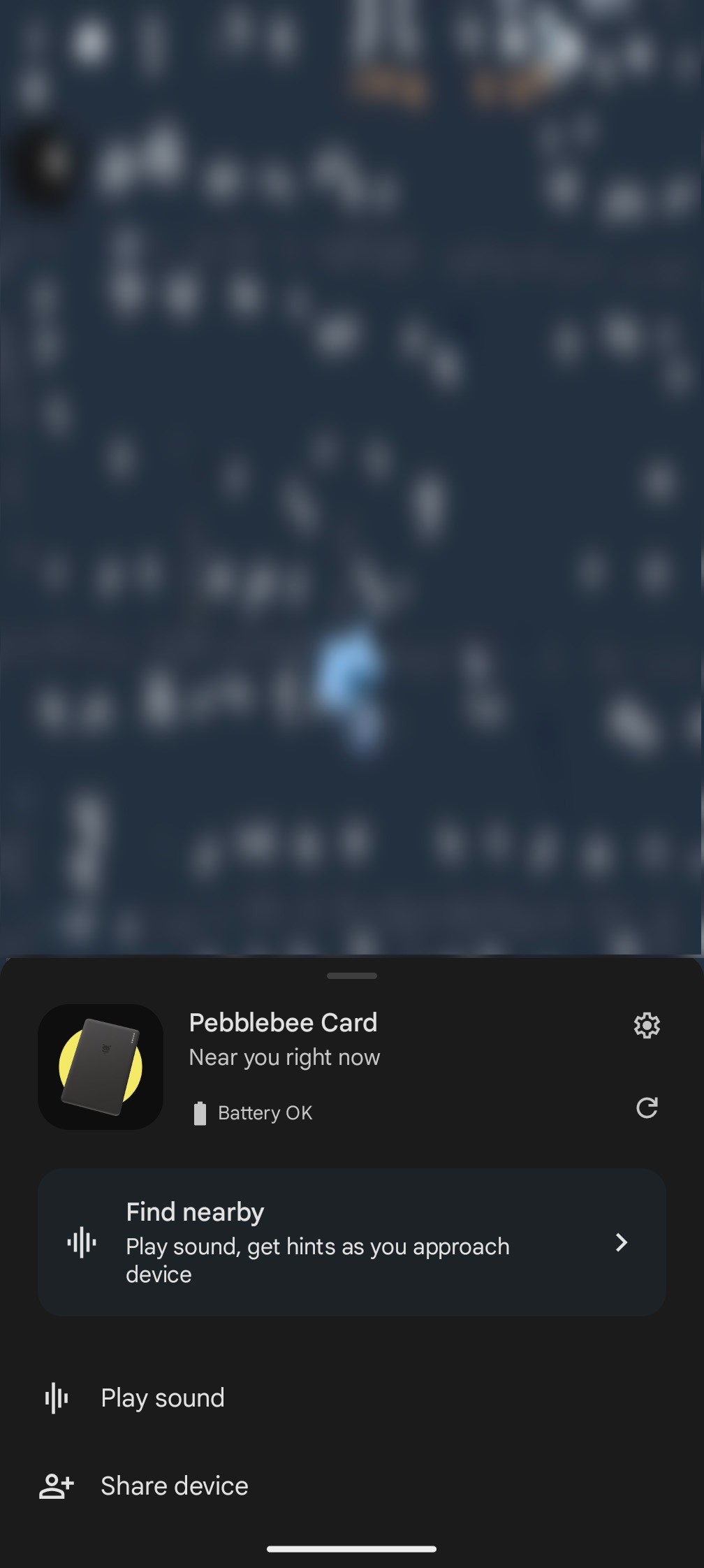
The Android Find My Device app is going to become a whole lot more useful thanks to the arrival of tracker devices, but the app can quickly be filled up with old devices. Here’s how to remove and rename devices that show up in the Find My Device app on Android.
In the Find My Device app on Android, there are currently no controls for the devices within. At least, for the phones and audio devices. You can rename trackers and edit those, but everything else is stuck as-is.
Thankfully, there are a couple of ways to fix this.
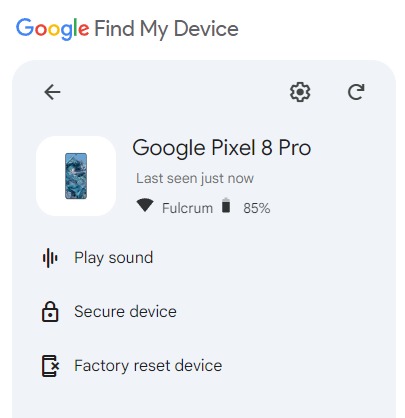
Firstly, you can access the Find My Device app through the web.
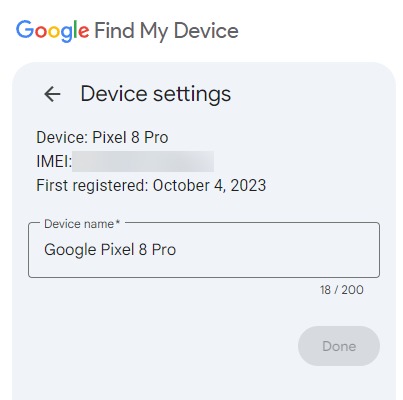
At google.com/android/find you can click through on any device and, under the settings menu, rename the device to whatever you’d like. The default name on most devices will be whatever the product name is, but some will be different and use a model number instead of the actual product name.
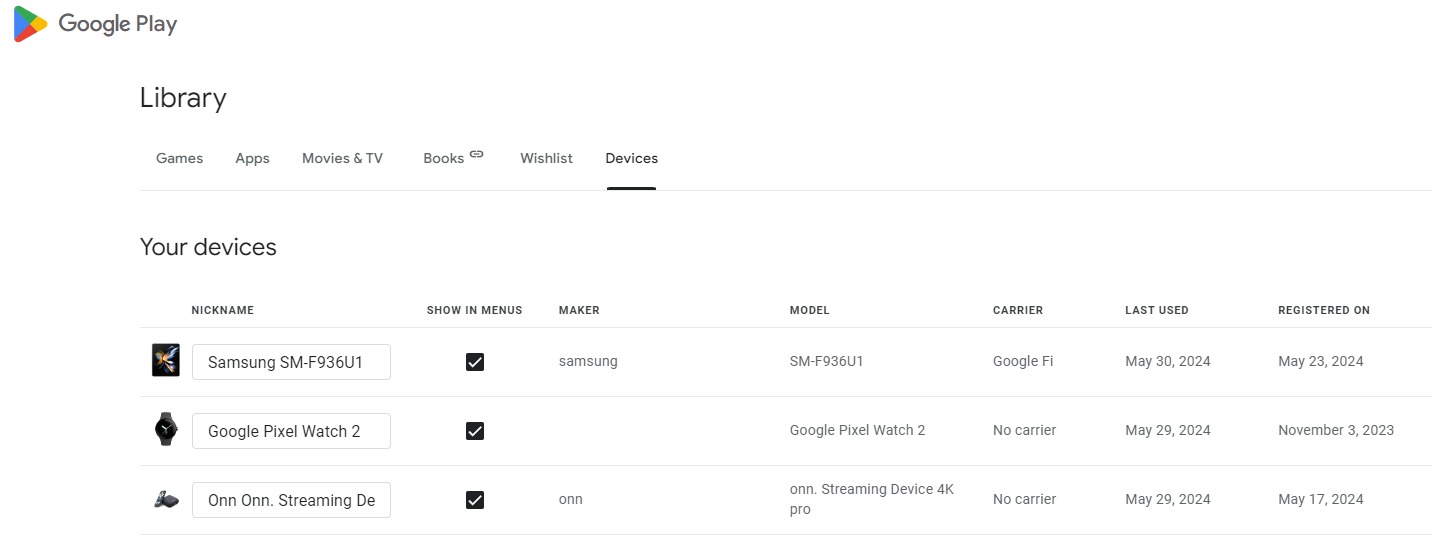
Another option is to use the Google Play Store’s “My Device” menu.
This page, accessible through the web at play.google.com/library/devices, shows a list of any devices you’ve been signed into. This page similarly lets you rename devices, and it also shows TV and Chromebook devices as well. Normally you’d use this page to edit the display name of a device in the Play Store’s web app install tool, but it also syncs to the Find My Device app.
This same page also lets you easily remove devices from Find My Device on Android.
By unchecking the “Show in menus” toggle on any devices you don’t want to appear, they’ll disappear from the Android app in short order. Just keep in mind this also applies to the Play Store’s web client as well.
These changes tend to sync almost immediately, but it can sometimes take a couple of tries or a few minutes of waiting.
The only devices you can’t easily remove from Android’s Find My Device app are Bluetooth audio devices. To remove these, you’ll need to use one of the devices you’ve paired the headphones or speaker to and remove it manually from there.
To rename trackers, simply open the tracker in the app, tap settings, and you can rename it and even set its category.
Hopefully, future updates will make this easier, and also make it possible to reorganize the list.
The Motorola Edge 30 is a slim, light, good-looking phone with a great screen and an attractive price tag. Its camera is also competitive, given the phone’s price, and the Edge 30 isn’t too shabby when it comes to performance either, whether thumbing through the interface, browsing the web, or blasting your way through games.
What holds back the Edge 30 from being an across-the-board champ is its battery. It’s smaller than we’d expect from a phone today, and that compromise is no doubt how Motorola achieved the phone’s 6.8mm profile.
The Edge 30’s camera is also noteworthy. It combines a high-resolution 50MP primary camera with OIS, and the ultra-wide camera crams in autofocus. This ensures it captures a range of quality shots – from close-up macro snaps to landscapes, mid-range photos, and more. While Motorola’s photo processing is heavy-handed, at the price, the Edge 30 is still a solid camera phone.
If you’re not a power user who uses your phone non-stop and needs a battery that can keep up, the Motorola Edge 30 is a mighty option. It’s perfect if you’re after a brilliant, big screen, a decent camera mix, and very slender styling.
Disclaimer. We can not guarantee that the information on this page is 100% correct.
MOTOROLA EDGE 30 REVIEW: DESIGN
Exceptionally thin and light
No headphone jack
Water repellent design
The Motorola Edge 30 is nothing short of waif-like. Its skinny profile measures just 6.8mm, and it weighs 155g. For context, an iPhone 14 Pro Max measures 12.03mm when including the camera bump, and weighs 240g. Motorola’s slender contender still sports an ample footprint, thanks to its ample 6.5-inch screen.
When it comes to build quality, the Edge 30 feels about right for a midrange, relatively affordable phone. It’s made of plastic around the sides and back, so definitely isn’t super premium. But still feels relatively special, with a frosted finish around the back and that super-thin body.
The Motorola Edge 30 is splashproof, with a water-repellant design, and the display is protected by Gorilla Glass 3. In the box, you get a case to help add a little extra life-proofing, and thanks to the plastic back, only one side of the phone is likely to smash if you drop it. This all means it probably isn’t as fragile as some glass-on-glass phones like the Nothing Phone 1.
Unsurprisingly for a phone this thin, there’s no headphone jack, and ports are limited to a single USB-C port at the base. On the right side are all the buttons – volume and power, and around the back is a modest camera bump.
Thanks to easy-to-grip, flat sides, we didn’t find the Edge 30 slippery or fiddly to use despite being so thin, and the slightly rounded sides add a pleasant, soft quality to the hold.
So while Motorola’s thin phone isn’t the most premium around, we’d say it strikes the right notes given its price. Could its style be a bit more refined? Absolutely. Does it feel like it’s made of plastic? Definitely. But it also still feels unique, a great balance of life-proof, slender, and fit-for-purpose.
MOTOROLA EDGE 30 REVIEW: SOFTWARE AND PERFORMANCE
Runs Android 12
Basic Motorola Ready For support
Snapdragon 778G+ chipset
In-display fingerprint scanner
With Motorola‘s interface being the same across all its phones, if you’re coming from an old Moto phone, you’ll know what to expect. It’s clean and simple, with much less added software than in rival phones from Xiaomi, Realme, and Samsung. What you might not have seen before, though, is Ready For – a way of pairing the phone to an external display wirelessly via Miracast.
The Ready For feature also enhances the pairing experience with a PC, so your Edge 30 can double up as your webcam, and you can easily manage your mobile life from a Windows device. This worked well in our tests and is a fantastic value add at the price. One point to note, the phone doesn’t support video out via the USB-C port, so Ready For projection can only be fired up via Miracast, or when hooked up to a PC.
There’s a Moto app to turn the handful of Moto extra features on and off, a Motorola Notifications app (this one is largely bloatware), and Dolby Atmos, which is behind the phone’s audio optimization.
What are those extra Moto features? Peek Display, Attentive Display, and Gestures. Peek Display is a custom lock screen that lights up when you pick up the phone while in standby. It shows the time, battery life, and icons, to denote any recently received notifications.
At the heart of the Motorola Edge 30 experience is Google’s Android 12 operating system, and the light approach to software skinning means you get to see the visual changes Google made in this version of the OS. Feature toggles in the drop-down menus sit in colorful blocks, for example, and you can choose the color to alter Android’s personality a bit.
The interface experience isn’t let down by the hardware on the Edge 30, thanks to a Qualcomm Snapdragon 778G+ chipset. This isn’t a speedster when it comes to 3D gaming, but for general day-to-day tasks, it hits the mark. What makes the Edge 30 feel even more premium is its 144Hz screen, which takes UI smoothness to another level.
Anyone who games will probably want to know how the phone benchmarks, and the Motorola Edge 30 scores fairly for the price, with a Geekbench multi-core score of 2677, and a 3D Mark score of 2791 on the Wild Life benchmark.
This all means that while performance is far from flagship – a little worse than top-tier phones from a couple of years ago, it’s still good enough for most apps and games to run smoothly.
Also handy, the phone has an in-display fingerprint scanner, which is not always seen at the price, and it worked quickly for secure unlocking.
MOTOROLA EDGE 30 REVIEW: CAMERA
50MP primary camera with OIS
50MP ultra-wide camera with autofocus
2MP depth sensor
The Motorola Edge 30 has three rear cameras, though only two actually take pictures – the primary and ultra-wide cameras. The third camera is a depth sensor, so should help with cleaning up portrait mode style photos (the ones with blurry backgrounds and sharp foregrounds), but you won’t take pictures using it standalone.
MOTOROLA EDGE 30 REVIEW: BATTERY LIFE
Small 4,020mAh battery
Supports 33W charging
Ships with fast charger
The Moto Edge 30 battery story has wins and woes. The wins come in the form of the charging speeds, times, and the fact you get a fast charger in the box. Powering up at 33W, while the phone isn’t the fastest charger at the price, it powers up in around 45 minutes – great going.
As for the Edge 30’s battery woes – that comes in the form of how long it lasts with intensive use.
One hour of playing a simple 2D game, Marvel Snap, at 60 percent brightness drained the battery by 35 percent – so if you want a long-haul flight gaming phone, pack a charger.
A power-hungry day of being a tourist, roaming, using 5G, photo and video capture, and map usage will likely leave you needing a top-up by the early evening. Moderate use, though, did surprise us. We were able to get through a full day when we used the phone normally. That means Spotify listening on the commute, occasional YouTube watching, messaging, and replying to emails.
If you don’t consider yourself a power user, therefore, and appreciate a sleek profile over the possibility of two-day battery life, the Edge 30’s modest milliamp hours could suffice.
SHOULD I BUY THE MOTOROLA EDGE 30?
Buy it if…
You want a thin phone
There’s nothing on the market at the Motorola Edge 30’s price that’s as thin, feature-packed, and sports such a great display.
You’re a Windows user
Motorola’s Ready For software makes connecting your phone to your PC a mighty experience, with the Edge 30 doubling up as a webcam and more. The feature, however, doesn’t work when the phone’s hooked up to a computer running MacOS.
You want a great screen
Whether you’re watching, scrolling, browsing or gawking – looking at the Edge 30’s screen is fun. Between the zingy colors, smooth motion, great viewing angles and customizable settings, it represents great value.
Don’t buy it if…
You need two-day battery life
It shouldn’t come as any shock that the slender Motorola Edge 30 – a very slim phone, won’t keep you going beyond a day of regular use. After all, its battery has been shaven down to shrink its profile. Still, light to moderate users shouldn’t have trouble getting through a day comfortably with the phone.
If you want wireless charging
There are no new phones in the Edge 30’s price point that pack wireless charging, though the slightly pricier Nothing Phone 1 does, so if you really need that cable-free life, you’ll need to spend more and look further afield.
You’re a 3D game enthusiast
The Qualcomm Snapdragon 780G+ is capable enough to run most games – we enjoyed hours of Marvel Snap, and even Injustice 2 was handled okay. But for the best-looking results, save your pennies and pick up a phone with a mightier processor.
Remember when smartphones were competing to be the thinnest around? The Edge 30 is a throwback to that thin-for-the-win era. It combines sleek styling and a flourish of fancy features – a fantastic-looking screen, a capable camera system, and nippy performance for the price. Its battery won’t blow you away, and may struggle to make it through a busy day – but for casual users, this could be the best, slimmest option around.
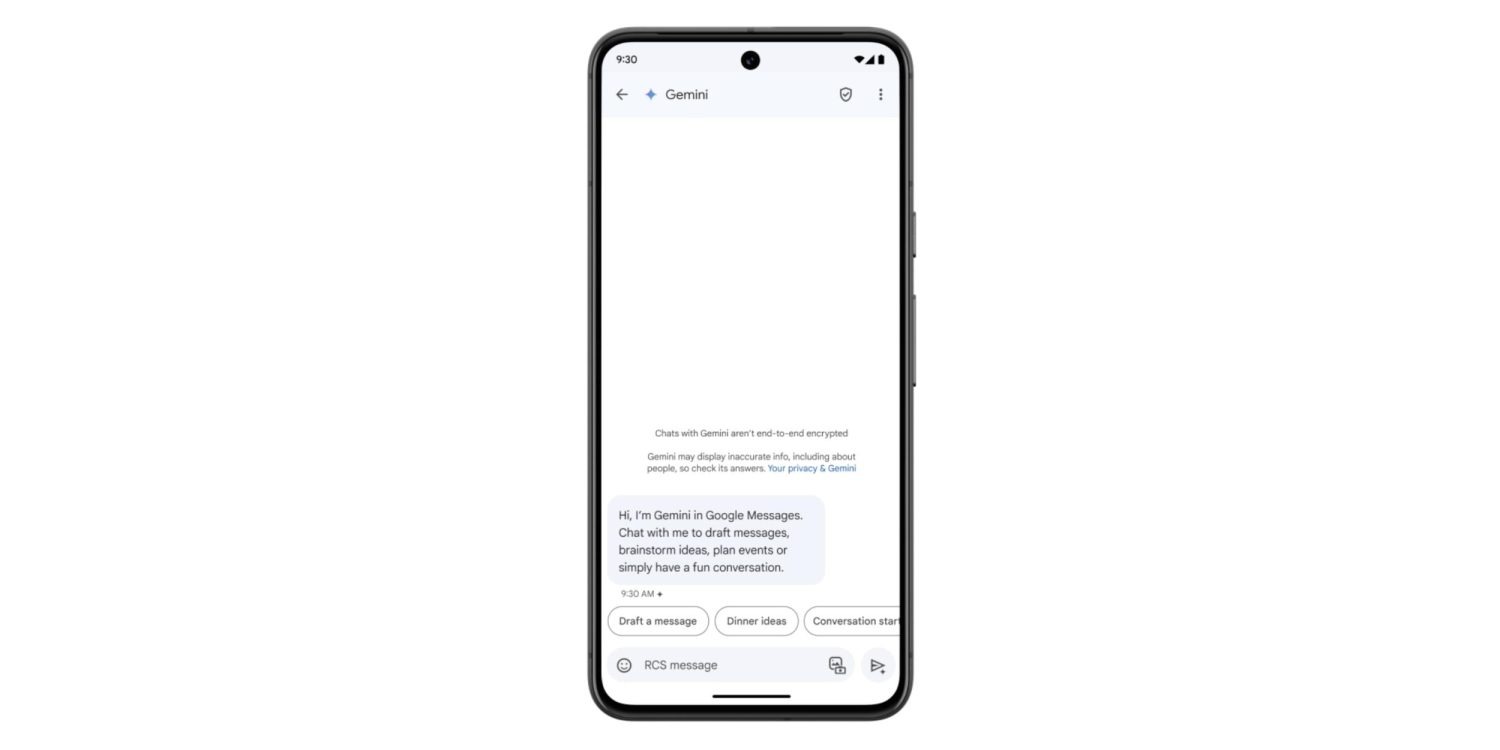
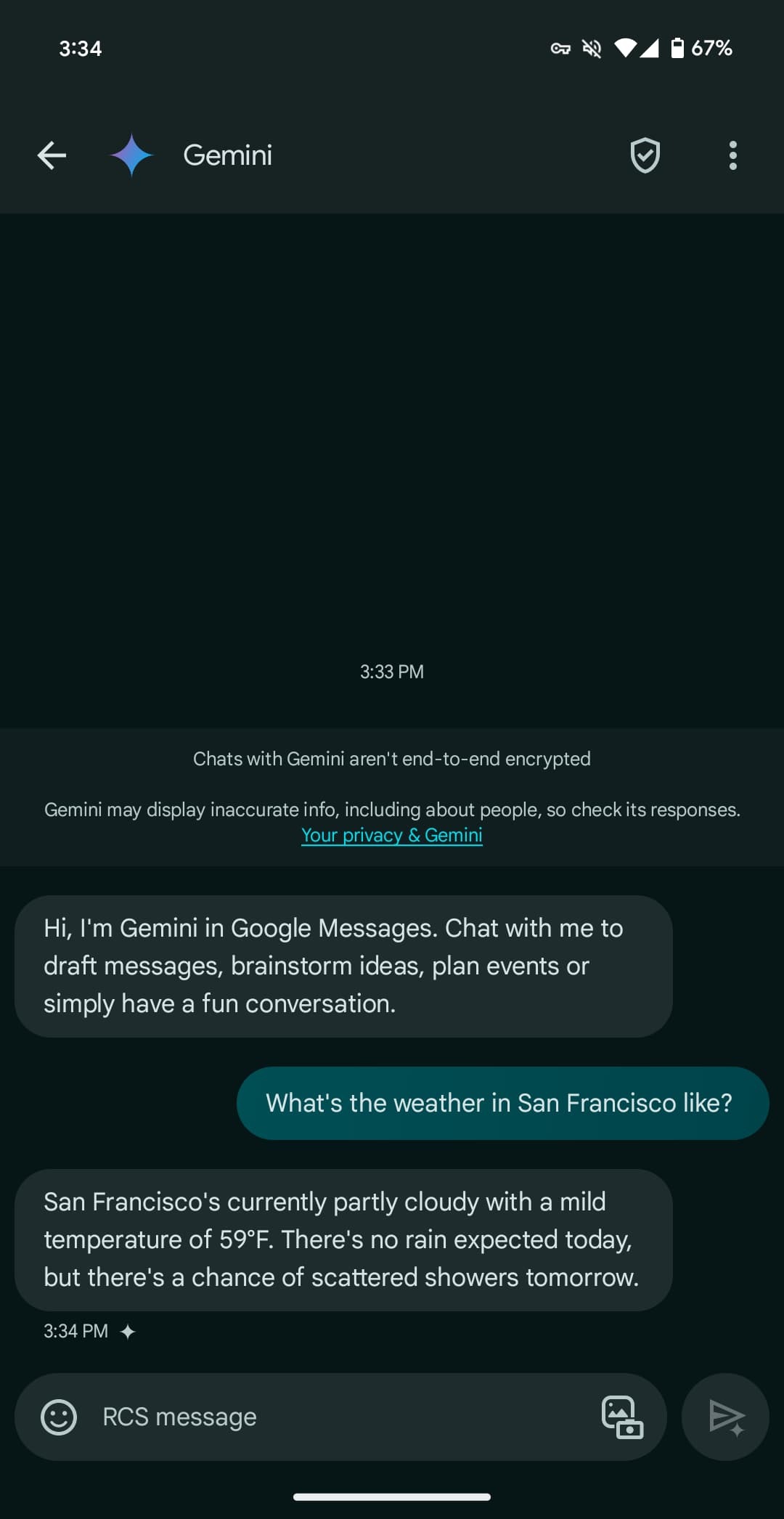
Following the announcement at I/O 2024, Gemini in Google Messages has been widely rolling out to stable users over the past few days. It joins recent launches like Gemini 1.5 Pro in Gemini Advanced and the YouTube Music Gemini Extension.
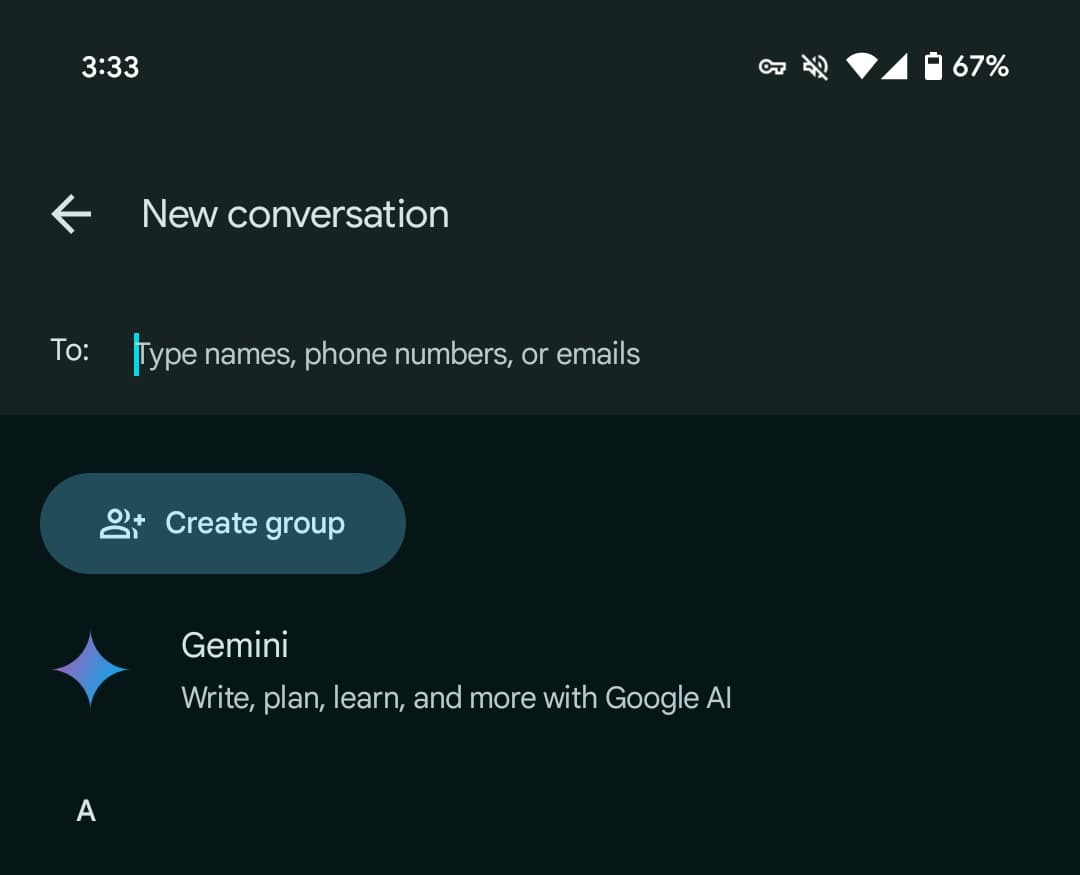
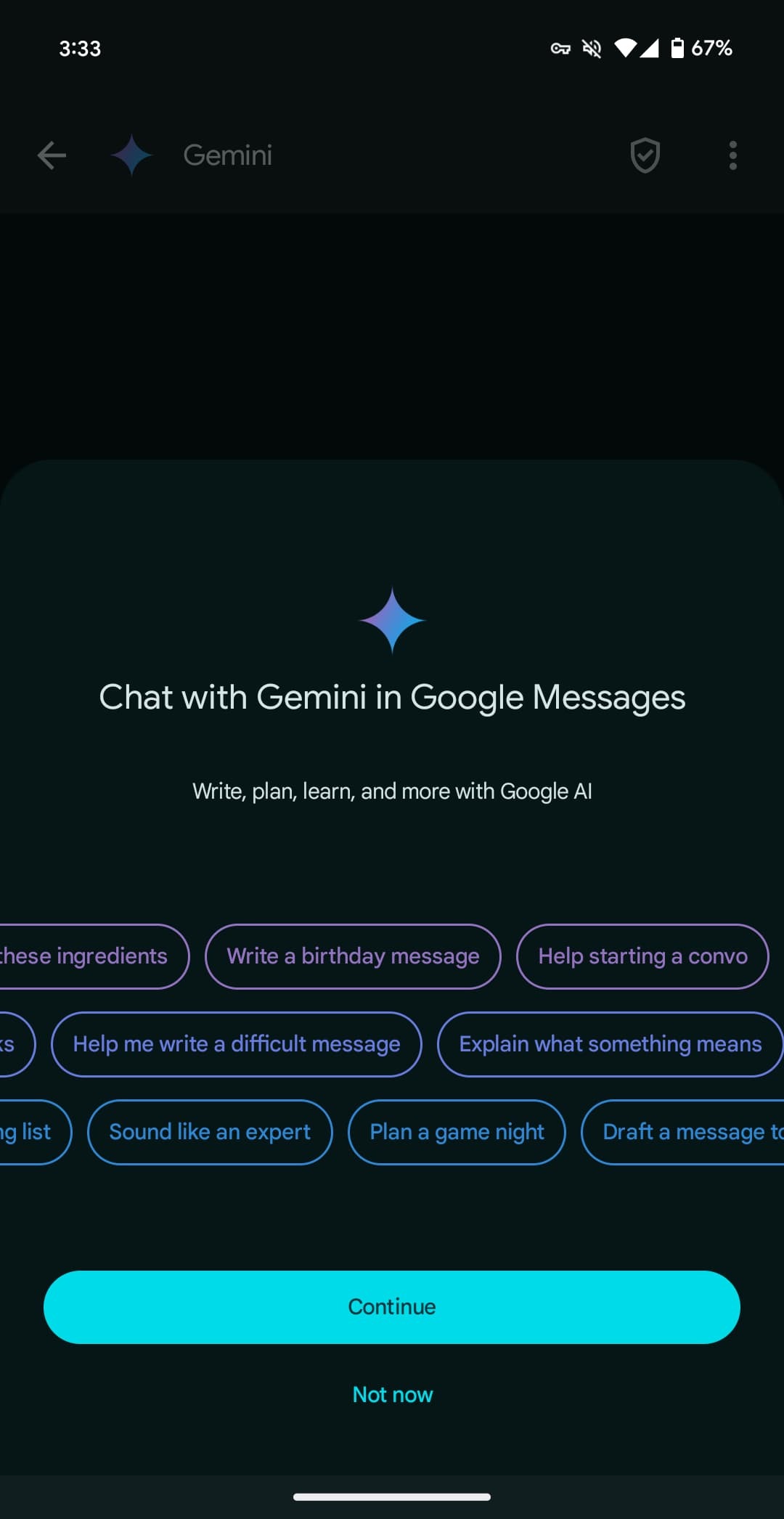
Once available, Gemini will appear as the first contact in the Start chat FAB > New conversation list. After agreeing to some terms, you’re taken to a fairly standard messaging UI. You have emoji and the gallery in the text box, with the ability to upload images for the prompt but not audio memos.
Gemini here can be used to “draft messages, brainstorm ideas, plan events, or simply have a fun conversation.” It has been optimized to deliver more concise responses.
You’re having a direct 1:1 conversation with Gemini, which cannot be pulled into other conversations, like Assistant in Google Allo years ago.
There’s support for Gemini Extensions, like Workspace (@Gmail, etc.), @YouTube, and @GoogleMaps, but the “YouTube Music extension isn’t available in Gemini in Google Messages.”
You can long-press on a response to leave thumbs up/down feedback, with the ability to star and forward also available. Conversations are happening over RCS, which has to be generally enabled, but they are not end-to-end encrypted. Gemini cannot be accessed usingmessages.google.com/web or the Wear OS app (where the chat won’t even appear).
Gemini in Google Messages is rolling out globally — except to the EEA, UK, Switzerland, or India — with support for English and French in Canada. It has been available to betausers since March.
Earlier last week, Apple released iOS 17.5.1 to address a rare problem where deleted photos would reappear on a user’s device after installing iOS 17.5. In the release notes, Apple said this was caused by “database corruption.”
iCloud’s involvement
One question many people had is how images from dates as far back as 2010 resurfaced because of this problem. After all, most people aren’t still using the same devices now as they were in 2010. Apple confirmed to me that iCloud Photos is not to be blamed for this. Instead, it all boils to the corrupt database entry that existed on the device’s file system itself.
According to Apple, the photos that did not fully delete from a user’s device were not synced to iCloud Photos. Those files were only on the device itself. However, the files could have persisted from one device to another when restoring from a backup, performing a device-to-device transfer, or when restoring from an iCloud Backup but not using iCloud Photos.
Photos reappearing on sold devices? Nope.
In a now-deleted post, a Reddit user last week alleged that their photos reappeared on an iPad they sold to a friend, despite them having erased the content of that iPad prior to selling it. Apple tells me that this claim was false.
The company says that after a device has been completely erased using the steps below, all files and content are permanently deleted.
Open “Settings”
Choose “General”
Choose “Transfer or Reset”
Choose “Erase All Content and Settings”
Following these steps, everything is permanently deleted from the user’s device and there is no chance of old photos resurfacing down the line. In the Reddit user’s situation, they likely didn’t follow the correct steps when resetting their device before selling it … or they fabricated the situation hoping to earn some Reddit karma.
A rare problem
Top comment
Liked by 2 people
I actually intended to install iOS 17.5 just want to trigger this bug. I have an old 2018 iPad Pro, never factory reset during my 5 years of use. Used to have some photos that I either deleted or exported but lost forever. Last week I transferred data directly from that 2018 iPad to the new M4 iPad Pro that runs iOS 17.5. Haven’t seen anything yet.
Maybe I should try update my 2018 iPad Pro to 17.5 as well, but according to this article, if the bug appears, the old photos should appear on my new iPad as well.
Apple repeatedly emphasizes that this problem was rare and affected a small number of users and a small number of photos. The company did not and does not access a user’s photos or video.
This is still a disconcerting issue, but there is comfort to be taken in the fact that the photos in question were not stored in iCloud and could not have resurfaced on a device after it was properly erased and sold.
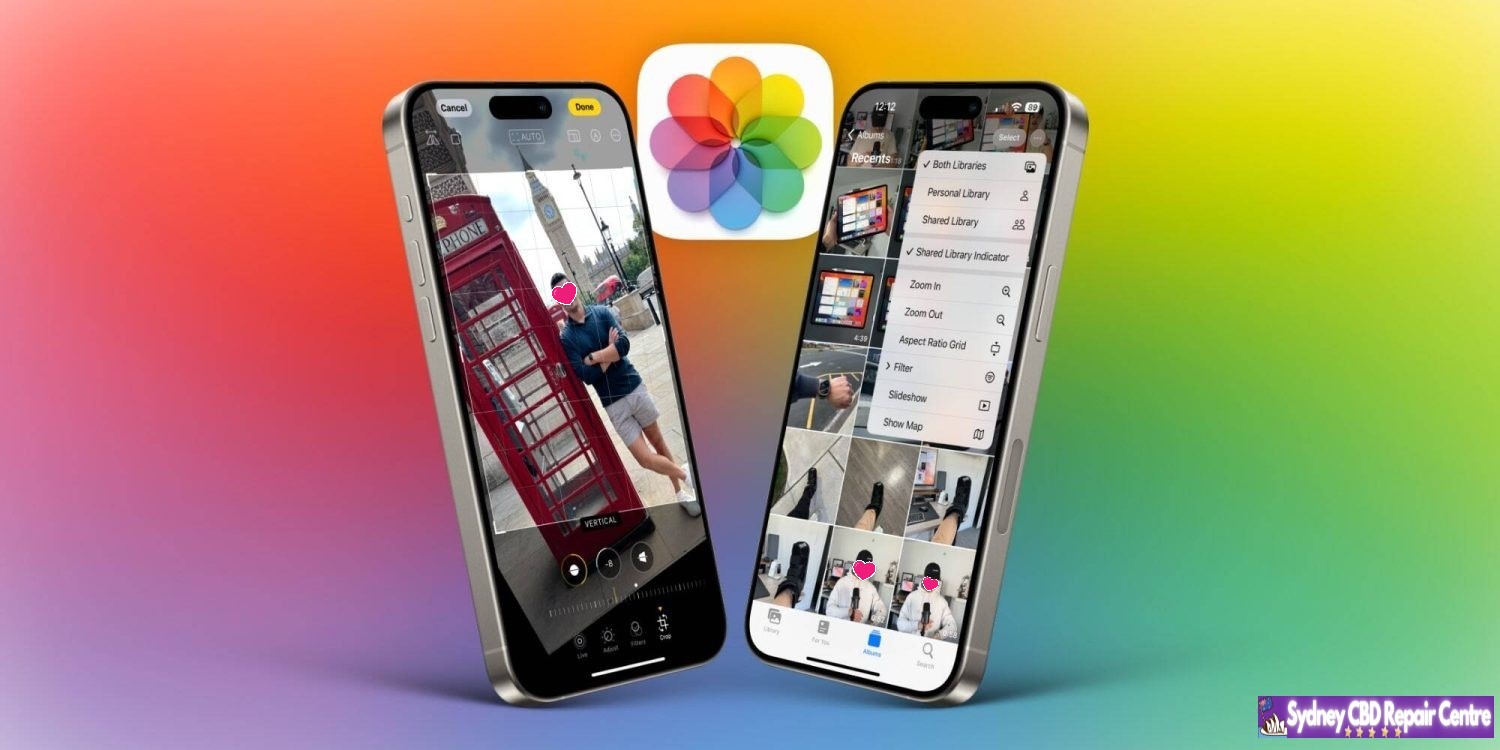
Also to note: iOS 17.5.1 doesn’t automatically re-delete photos that reappeared after updating to iOS 17.5. If you were affected by this problem, you’ll need to go to the Photos app and manually delete those images. The images will then be moved to the “Recently Deleted” album in the Photos app, where they will remain for 30 days. You can choose to immediately delete those images by choosing “Delete from All Devices” in the “Recently Deleted” album.
For those not on Android 15, Google has released Android 14 QPR3 Beta 2.2 for Pixel on May 23, 2024. It comes nearly two months after the last release of this track. A stable 14 QPR3 release is expected at the start of June.
AP21.240305.006 with the May — from March — 2024 security patch is available for supported devices: Pixel 5a, Pixel 6, Pixel 6 Pro, Pixel 6a, Pixel 7, Pixel 7 Pro, Pixel 7a, Pixel Tablet, Pixel Fold, Pixel 8, and Pixel 8 Pro.
There’s no Pixel 8a build, and only factory images are offered for manual install given an OTA sideloading issue.
Fixed various other issues that were impacting system stability and connectivity.
Back in April, Google said you could ignore Android 15 Beta 1 if you wanted to remain on the Android 14 Beta Program to “receive minor .x updates until the final stable QPR3 release” (in June). The on-device OTA is 18.06 MB update on the Pixel 8 Pro and 40.83MB for the Pixel 7 Pro.
All eligible devices enrolled in the Android Beta for Pixel program that haven’t taken an update to Android 15 Beta will be offered an over-the-air (OTA) update to Beta 2.2.
Last May 22,2024 the Unicode Consortium previewed the new emoji that are expected to be added to Apple’s upcoming OS updates, including iOS and iPadOS 18, watchOS 11, and more. Though the list isn’t finalized yet, it’s likely that everything outlined will be approved and added to the official set of emoji that platform owners like Apple and Google will adopt.
One standout from the list is a new ‘face with bags under eyes’ emoji that makes me feel truly seen. It’s undoubtedly bound to be one of the most popular additions. Other new emoji include a shovel, fingerprint, beet, and more.
New emoji up for approval
Here is the full list of new emoji expected to come to iOS 18:
face with bags under eyes
fingerprint
leafless tree
root vegetable
harp
shovel
splatter
With emoji that represent exhaustion, a barren tree, and a shovel, there seems to be a fairly bleak common theme here.
One important thing to note is that the images above are not representative of what Apple’s finalized emoji art will look like. Unicode creates its own representations of the emoji, but it will be up to Apple’s design team to fashion their own emoji art that’s most consistent with the other emoji on its platforms.
Timeline of emoji being available to users
Apple typically adds new sets of approved emojis to their new release of iOS, so it’s unlikely we’ll see any of these additions in September’s initial iOS 18 release. However, perhaps with 18.2 later in the year, or 18.3 or 18.4 early next year we’ll finally get our hands on the exhausted emoji we all deserve.
For reference, iOS 17.4 was the release that brought the last batch of new emoji.