One of the big new features coming in iOS 17 is the addition of offline maps to Apple Maps, which lets you download a map region ahead of time and navigate without Wi-Fi or cell service.
Although several years behind Google Maps, the Apple Maps implementation of offline maps is very well done. In fact, it is even intelligent enough to remind you to download an offline map in advance, if you are getting directions to an area with poor reception.
When planning a route on an iPhone running iOS 17, Apple Maps will look ahead and check to see the cell service of your route. If it knows that the cell service will be poor before you get to your destination, the route options screen will automatically include a link to download a map that covers your route.
That means you won’t be caught lost once you set off, due to a lack of network connectivity. At this stage, it is a bit unclear how Apple Maps determines whether to show the ‘limited service’ warning. Perhaps, it is based on telemetry collected by other Apple Maps users. It may also be region limited; we could only make it appear for US national parks, but it is possible it rolls out more widely over time.
Once downloaded, you can manage your collection of offline maps by tapping on your profile picture inside the Maps app. Automatic updates means that Apple Maps periodically updates your downloaded maps with the latest POI and cartography, on your behalf. This means the maps never go out of date.
Downloaded maps are also browsable on your Apple Watch, if the paired iPhone is nearby.
Other improvements to Apple Maps with iOS 17 include an upgrade to the experience for EV owners. Maps can now integrate real-time availability information for charging spaces with support for Tesla Supercharger network, Chargepoint, Electrify America and more.
iOS 17 adds real-time charging availability info for EV drivers
With iOS 17 this year, Apple is further expanding on its set of features in Apple Maps for electric car owners. Starting this year, Apple Maps will show real-time charging availability information and let drivers choose a preferred charging network.
Apple first announced support for EV routing in Apple Maps back at WWDC 2020. The feature eventually debuted for Ford Mustang Mach-E drivers last year, followed by Porsche Taycan drivers earlier this year.
With iOS 17 installed on your iPhone, Apple Maps will prompt you to set up your preferred charging networks for your EV. You can choose from a long list of options, including Electrify America, Chargepoint, Tesla’s Supercharger network, and more.
Once you choose your preferred networks, Apple Maps will intelligently present you with real-time charging availability information. For instance, this will show the number of total stalls available at a specific charging station and how many of those are currently occupied.
Based on the electric car you drive, Apple Maps will only show you charging options that are compatible with the charging connector used by your car. In iOS 17 beta 1, the feature still appears to be a work in progress and is missing some of the necessary data.
“When driving an electric vehicle, you can now choose a preferred charging network and see real-time charging station availability,” Apple explains.
As of right now, it appears that this feature is only available to cars that support Apple Maps EV routing, which is only the Mach-E and Taycan. Still, we expect more EV makers to adopt the feature in the future, and this is a great improvement to have – especially when using CarPlay.
iOS 17: How to download and use offline maps with Apple Maps
Apple Maps has improved leaps and bounds over the last decade, but one area it has always been lacking is offline use. Google Maps and others have let you download maps to be available offline for a long time.
That feature gap is now closed with iOS 17. Apple Maps now lets you download a maps region to store on your device, and use entirely offline for navigation and routing without an internet connection. Here’s how.
Offline maps are useful when travelling abroad, but also at home when you can’t always rely on a network being available. If you often travel through cellular deadspots, especially applicable to some highways and suburban areas, having maps available offline is a nice safety net so that you know you won’t get lost.
With Apple Maps on iOS 17, you can now save a region of the map locally on your iPhone. As long as you stay inside the bounds of the downloaded map, you can get turn-by-turn directions entirely offline; for driving, walking, cycling, for transit. You can also simple pan and zoom around the map in the Maps app, with no waiting for things to load. Offline maps also include POI data like opening hours.
Apple Maps downloaded to your iPhone will also be available on the Apple Watch, when the paired iPhone is nearby. The watch cannot download maps directly.
How to download an offline map in iOS 17
To download a map, press on your avatar in the panel and press on the new Offline Maps button.
Select “Download New Map”.
Search for the area you want to download. iOS will automatically suggest your home area.
On the preview, you can refine the bounds and the app will tell you how much storage space you’ll need to save the map.
Press “Download” button to confirm and the map will appear in the Downloaded list.
Obviously, the larger the region, the bigger the download size. You can repeat the process and download as many different regions as you need. What’s also nice is that offline maps are not a one-time static snapshot; they will be automatically updated with the latest changes, when a network is available.
Downloads default to happening only over the WiFi network. You can change the setting to download over cellular as well.
Offline Only Mode
With a map downloaded, when no network is available, Apple Maps will use the downloaded map if applicable for your current location. When internet is available, Maps will always look up data over the network to incorporate information like realtime traffic.
However, you can force the app to only use downloaded map content. To do this, from the same settings panel as described above, enable the toggle for “Only Use Offline Maps”.
Many of the best parts of Android – whether running on your phone, watch, tablet, or car – are handled by a core set of Google apps and services that the company has dubbed the “Google System.” The Play Store delivers apps and updates to your device and is also responsible for the occasional Play System Update that keeps core Android components updated without a major system update.
Meanwhile, Google Play Services handles the “smarter” side of smartphones, from background services for notifications and security to user-facing things like Google Wallet. More recently, Google has also lumped other apps into the Google System collection, adding the Android System Webview and the Pixel-only app Adaptive Connectivity Services. Each month, the company publishes a changelog for these apps, gradually updating it as the month goes on. Throughout August, we’ll keep an eye on these Google System Updates and explain what they mean for your Android device.
The easiest way to check whether you need to update Google Play Services on your phone is to follow a direct link to the app’s Play Store listing and update from there, if available. To update the Play Store, tap your avatar in the corner, then “Settings.” Under the “About” section, you’ll see an option to “Update Play Store.” Meanwhile, Google Play system updates can be found through the Settings app, under About phone > Android version > Google Play system update.
With August now underway, Google has started up its listing for the August 2023 Google System Updates, albeit with only a few actual patch notes for now. Currently, the most notable detail is that the Play Store is changing the way it displays advertising content. Where there would previously be a small badge that says “Ads,” this is being updated to show “Sponsored.” This should make it even more visually clear that you’re looking at paid content rather than a traditional suggestion or search result.
The Play Store is also set to make it easier for users to report “illegal content” and for developers to track “user sentiment” – a broad look at how an app’s users feel about the app based on reviews – across Android Auto, Android TV, and Wear OS. All of these Play Store changes are set to roll out with version 37.
Google Play System Updates for August 2023
Google Play Store
[Phone] Change ads badge text from “Ads” to “Sponsored” across all of the Play Store surfaces.
[Auto, TV, Wear] Improve your ability to report illegal content and enable user sentiment tracking for apps and Play reviews.
System Management
[Auto, PC, Phone, TV, Wear] Bug fixes for System Management & Diagnostics related services.
[Auto] Updates to system management services that improve Privacy.
‘Google’ preferences in Android Settings getting redesign, shows new Find My Device logo
Google Play Services is responsible for many features on modern Android, and its primary settings menu is now getting a redesign.
Once live, going to system Settings > Google reveals a new two-tab UI. The “Recommended” tab will surface cards that provide a high-level overview of your account and available features. This might include: Backup, Nearby Share, Find My Device, Google Wallet, and Password Manager.
This is a better way for Google to surface relevant suggestions.
Meanwhile, the Find My Device card here reveals the new logo that we previously spotted in June. We see the outline version of the upcoming crosshair icon that evokes radar and scanning, as well as how FMD will soon be home to trackers, tablets, watches, and headphones.
With the Find My Device network launch delayed, we don’t expect this updated branding to appear until then.
The list of “Services on this device” makes up the second tab. It currently includes: Ads, Autofill, Backup, Devices & sharing, Find My Device, Game Dashboard, Parental controls, Personal Safety, Personalize using shared data, Set up & restore, Settings for Google apps, as well as COVID-19 Exposure Notifications. There are no changes here.
This Google settings redesign is rolling out now (h/t Mishaal Rahman), and we’re seeing it with version 23.32.55 of Google Play services after signing up for the beta.
Google Play services ending support for Android 4.4 KitKat
Google shared that Play services is dropping support for Android 4.4 KitKat, which is nearly 10 years old, in August.
When Android devices stop getting monthly OS updates, they continue to receive new versions of Google Play services for quite some time. This backend service powers a slew of capabilities that Google makes available to app developers, while there are also a number of first-party features powered by it. This includes Google Prompt 2-Step Verification and backup.
The Android KitKat (KK) platform was first released ~10 years ago and since then, we’ve introduced many innovative improvements and features for Android, which are unavailable on KK.
As of July 2023, Google says the “active device count on KK is below 1%.” As such, it’s “no longer supporting KK in future releases of Google Play services” beyond 23.30.99 next month. KitKat, with its prominent dessert name, launched in October of 2013 so Google support is ending just shy of a decade.
Play services is specifically dropping support for API levels 19 and 20. One thing of note is that API level 20 was specifically for the initial release of Android Wear.
The last time Google ended Play services support for a release was in 2021 with Android Jelly Bean (API level 16-18). At the time, Google explained how maintaining years-long support requires “increased developer and QA time spent on new features that require special handling.”
‘Google Partner Setup’ update rolling out via Play Store
A new update for “Google Partner Setup,” a required internal Android app, is rolling out now via the Play Store.
While most of the exciting new features for our phones and tablets come from updates to apps or from each year’s major Android release – like Android 14 releasing in the coming weeks – there are also numerous other apps and background programs that help keep your device running smoothly. The most well-known of these is Google Play Services, which is involved in nearly every Google-related activity on Android, but it’s just one of many.
As many are now learning, another such app is Google Partner Setup. According to Google, this app is included on “all Android devices with Google Mobile Services,” providing some core functionality. While this app has been around for years now, it wasn’t until earlier this year that Google published this particular service to the Play Store.
Fast forward to this week, Google Partner Setup has received a new update that is rolling out to potentially billions of Android devices, dating as far back as Android Oreo. The app itself is quite small, and you’ll likely not notice any differences after installing the update.
That said, the company does note that Google Partner Setup is now updatable through the Play Store “so that bug fixes, improvements, and critical updates for your device can be delivered faster.” We assume this means allowing it to be updated without requiring a system update.
• This app is pre-installed by the device manufacturer to ensure proper device functionality on all Android devices with Google Mobile Services; it cannot be disabled or deleted. • Google recently moved this app to the Play Store so that bug fixes, improvements, and critical updates for your device can be delivered faster. No other changes have been made as a result of this Play Store listing. • If your device is running Android 7 or an earlier version, it will not receive an update for this app. This app may indicate that it is not compatible with your device, but this does not mean that the app is malfunctioning or causing your device to malfunction.
Notably, the Play Store listing for Google Partner Setup has already been flooded with one-star reviews claiming that the app’s update is responsible for a slew of issues.
After launching a big overhaul of the Apple Support app in May and expanding it to Vietnam, Apple has released a small but useful update for the app today that brings more details about nearby locations.
Along with performance improvements and bug fixes, the new feature is store hours, accesssibility details, and specialty services showing up for nearby locations.
Apple Support 5.1 release notes:
Added helpful information about nearby locations, including store hours, accessibility details, and specialty services available
Performance enhancements and bug fixes
This release follows Apple Support 5.0 which launched in May with a new UI, the ability to browse nearby Apple service providers, improvements to managing calls, chats, reservations, and more.
Apple Support app overhauled with new layout, quicker access to nearby providers, more
Apple is rolling out a notable update to the Apple Support app for iPhone and iPad today. The update brings a revamped layout that makes it easier to manage your activity, expands the app to new regions, and more. Head below for the full details.
Apple says that the revamped Apple Support app layout streamlines the process of viewing and managing your support account, including calls, chats, reservations, and more. There’s also a new feature that allows customers to easily browse the providers in their area to find the quickest way to get support and service for their devices.
Today’s update to the Apple Support app also brings the app to Vietnam and adds Vietnamese as a supported language. In total, Apple says the app is now available in 32 languages and 174 regions.
Here is the full changelog:
Browse the providers in your area to see what’s nearby.
New layout makes it easier than ever to view and manage your calls, chats, reservations, and other activity.
Expanded region availability to Vietnam and added Vietnamese as a supported language. The Apple Support app is now available in 32 languages and 174 regions.
Performance enhancements and bug fixes.
The Apple Support app is a useful resource for finding help for any problem you might face with your Apple hardware or your Apple ID. You can download it on the App Store for free. Today’s new update is still rolling out, so you might not see it right away in the App Store on your device.
With the Pixel 7 and 7 Pro last October 2022, Google reintroduced Face Unlock to its phones after abandoning the Pixel 4’s approach.
At the launch event, it was announced as such:
And the front camera has another role to play. Pixel 7 and 7 Pro’s front camera uses our advanced machine learning models for face recognition, to power Face Unlock. So you have the faster, more secure under-display fingerprint reader, and now you have the convenience of unlocking your phone with a glance.
Instead of using a dot projector, flood illuminator, and IR cameras in conjunction with the Soli radar, Google turned to a front-facing camera that supports DPAF (dual-pixel auto-focus) to presumably create a depth map to be used with the aforementioned ML models. I find it slightly weird that Google has yet to detail the technology behind this Face Unlock approach in an AI/Research blog post, like it did before.
For the most part, the experience has been fine. It’s not better than the dedicated hardware of the Pixel 4 or Face ID on the iPhone. That approach lets face recognition operate in all lighting conditions, including the absence of any. My usage of the fingerprint sensor definitely picks up at night, resulting in a two-tiered security experience throughout the day.
Of course, the more stark tiering is how face recognition is not considered a secure unlock method by Android for things related to payments, passwords, and passkeys. In that regard, today’s Face Unlock is less secure than what came before in an unfortunate and uncharacteristic step backward. Assuming Google decided to continue the Pixel 4 lineage rather than reorienting, the Pixel 5 would have probably not had a hole punch and instead opted for an iPhone-esque cutout in order to avoid a thick upper bezel. The design would have presumably shrunk by now. That’s one big shame with the Pixel restart.
Going back to reality, the Face Unlock we do have today on the Pixel 7, 7 Pro, 7a, and Fold is best summarized as a convenience. I’ve been using it a bit more with the Pixel Fold as a way to transition from an under-display to a side-mounted fingerprint sensor. Having used the former for two generations now, I’ve come to like how you’re literally interacting with the UI for unlocking. I’m amused at the hardware/software synergy.
In optimal conditions, Face Unlock on the Fold works quite fast and lets you start doing things on your phone pretty quickly, which is arguably what’s most important.
That said, the security and environmental conditions will always stop it from becoming ubiquitous. I wonder whether the primarily software-driven approach to Face Unlock is something that has a future. The roadmap behind the IR approach that Apple uses is more straightforward in that ideally all those components can be placed and work underneath the display.
Namely, for Google, will the recognition algorithms get foolproof enough that it cannot be tricked and gets elevated to a secure unlock method? Does this require a front-facing camera upgrade, more on-device processing, or another innovation entirely?
Or will the future of Face Unlock on the Pixel be a return to IR? That would be great from a security and convenience perspective but would make the current feature feel one-off.
Following the last update just over a week ago that did not introduce any new features, Google is rolling out Android 14 Beta 5.1 as another bug fixer.
While Beta 5 was said to be the “last scheduled update” and that the “official release is next,” Google does not consider .1 patches to be milestones. A similar thing happened during last year’s preview cycle.
There are just four fixes with UPB5.230623.005 for Pixel phones and UPB5.230623.005.A1 on the Pixel Fold and Tablet. Notably, Google has disabled the trademark live wallpaper on the Pixel Fold for performance reasons.
Fixed an issue that caused the system to stop detecting a SIM card if Fixed Dialing Number (FDN) features were enabled.
Fixed an issue that caused connectivity interruptions for devices with carriers using 5G standalone (SA) mode.
Fixed an issue for some devices where a blank home screen displayed after unlocking the device.
Fixed a performance issue by temporarily disabling feather-styled live wallpaper on Pixel Fold. The live wallpaper version will be re-enabled after the other underlying issues are fixed.
Android 14 Beta 5.1 with the August 2023 security patch is available for the Pixel 4a 5G, Pixel 5, Pixel 5a, Pixel 6, Pixel 6 Pro, Pixel 6a, Pixel 7, Pixel 7 Pro, Pixel 7a, Pixel Tablet, and Pixel Fold, as well as the Android Emulator.
Ahead of the public launch, Android 14 is getting a Beta 5 for Pixel phones, the Tablet, and Fold. It comes a month after the last major release and is the final scheduled update.
With the official release of Android 14 only weeks away, today we’re bringing you Beta 5, the last scheduled update in our Android 14 beta program. It’s the last chance to make sure your apps are ready and provide feedback before non-beta users start getting Android 14.
GOOGLE
This is the third Platform Stable Android 14 release for final app testing and addresses a number of issues:
Fixed an issue where after unlocking a device using a PIN, TalkBack provides incorrect audio.
Fixed an issue where Wi-Fi scanning was consuming too much battery.
Fixed an issue where some pictures would glitch with extra shadow blocks.
Fixed an issue where in some cases, the fingerprint sensor icon wouldn’t appear as expected.
Fixed an issue where voice over Wi-Fi wasn’t enabled by default.
Fixed an issue on Pixel Fold devices where the device loses antenna ranging session information and cannot recover it.
Fixed an issue where an extraneous white bar would appear in some apps.
Fixed a background color issue with the UI used to add a shortcut to the home screen.
Fixed a launcher issue that was causing frequent crashes and other quality issues.
Fixed an issue on Pixel tablets where user interaction during the transition from screen saver to low-light clock causes a SysUI crash.
Fixed a Pixel Fold issue where tapping would fail to wake the device.
Fixed a Pixel Fold issue where the system buttons would have inconsistent positions after folding and unfolding.
Fixed an issue causing SysUI crashes when removing an app pair in landscape.
Fixed an issue the launcher doesn’t fully render after setup.
Fixed an issue where the system displayed an incorrect mobile connection type.
Fixed an issue where navigating back to exit an app leads to users no longer being able to open the app.
Fixed an issue where wallpaper previews were sometimes blank.
Fixed an issue where the system theme changes from yellow to pink after rebooting.
Fixed an overscroll issue with ScrollView.
Fixed an issue where certain color palettes were difficult to see when the lock screen was activated.
Fixed an issue where users couldn’t enable battery sharing if a work profile exists on the device.
Fixed an issue where a tablet screen inappropriately turns off when docked.
Fixed an issue where the device policy manager was preventing notifications from appearing.
Fixed an issue where group notifications couldn’t be expanded.
Fixed an issue where the lockscreen didn’t properly display the clock.
Fixed various camera issues that were causing crashes and reductions in quality.
Fixed an issue with power consumption during video playback.
Fixed a Weather clock rendering issue.
Fixed an issue where the lock screen customization preview didn’t match the end result.
Fixed an issue that was causing the wallpaper selection screen to crash.
Fixed an issue where Pixel devices weren’t connecting with some routers.
Fixed a toast search result issue where the color was too similar with the background color.
Fixed an issue where tapping a notification before using facial unlock does not open the notification.
Fixed an issue on Pixel Fold where two clocks were displayed at the same time when in widescreen.
Fixed an issue where widgets would overlap and stack incorrectly.
Fixed an issue where closing the PiP window doesn’t stop YouTube playback.
Fixed an issue with switching call audio sources.
Fixed an issue where after unlocking a device, only the background appears.
Fixed an issue with dragging folders to remove them.
Users can submit problems via Android Beta Feedback on Pixel devices. Access it from the app drawer or via Quick Settings to file bugs in the Google issue tracker. There’s also the Android Beta community on Reddit.
Android 14 Beta 5 (UPB5.230623.003) with the August 2023 security patch is available for the Pixel 4a 5G, Pixel 5, Pixel 5a, Pixel 6, Pixel 6 Pro, Pixel 6a, Pixel 7, Pixel 7 Pro, Pixel 7a, Pixel Tablet, and Pixel Fold, as well as the Android Emulator.
Most people will be installing via the Android Beta Program, but you can also flash or sideload. If you need help, here’s our full guide on installing Android 14.
After years of being the lone option, Samsung finally has some foldable competition in the US, and that partially takes the form of Google’s Pixel Fold, which comes in at the same price as Samsung’s brand-new Galaxy Z Fold 5. But after using both devices, there’s a clear better option.
Galaxy Z Fold 5 vs. Pixel Fold: How they compare on paper
When you look at the spec sheet alone, Google’s Pixel Fold and Samsung’s Galaxy Z Fold 5 are rather similar. Both have 7.6-inch inner displays, plenty of RAM and storage and hinges that are rated for at least 200,000 folds.
The differences really come down to the details. The Pixel Fold has a wider aspect ratio to both of its displays. The 17.4:9 ratio of the outer display is short and wide compared to the Fold 5’s 23.1:9 ratio, which is extremely tall and narrow. The Pixel is also considerably thinner at 12.1mm to the Fold 5’s 13.4mm. Despite that, Pixel Fold also has a bigger battery at 4,821 mAh.
Google Pixel Fold
Galaxy Z Fold 5
Outer display
5.8 inch, 17.4:9 ratio
6.2 inch 23.1:9 ratio
Inner display
7.6 inch, 6:5 ratio
7.6 inch, 21.6:18 ratio
Processor
Google Tensor G2
Snapdragon 8 Gen 2 for Galaxy
Storage/RAM
256GB/512GB UFS 3.1 + 12GB RAM
256/512GB/1TB UFS 4.0 + 12GB RAM
Hinge rating
200,000 open/close
200,000 open/close
Thickness
12.1mm folded/5.8mm unfolded
13.4mm folded/6.1mm unfolded
Battery
4,821 mAh
4,400 mAh
Cameras (rear)
48MP/10.8MP 5x/10.8MP UW
50MP/10MP 3x/12MP UW
Price
$1,799
$1,799
How the two compare, though, really comes down to actually using them.
The Galaxy Z Fold 5 is boring in the best way
If you’ve looked into a foldable before now, you’ve likely looked at the Galaxy Z Fold series. And through that eye, the Galaxy Z Fold 5 doesn’t seem all that new, and that’s because it isn’t. The design of the device hasn’t really changed much at all over the past three years, and compared to the Galaxy Z Fold 4 before it, the Fold 5 really only has a new hinge, and that’s about it.
But the lack of major upgrades in Samsung’s flagship foldable has led to something perhaps more important.
Samsung’s foldable tech has just gotten really, really polished over the past couple of generations. The company has spent its time addressing the little problems, like improving the screen brightness, extending battery life, and improving the hinge, rather than hitting bigger issues like the display crease and cameras. In Samsung’s eyes, it seems, those aspects are “good enough,” where others still need work. And after using the Fold 5 for a few weeks, I mostly agree. The Galaxy Z Fold 5 really just feels like it’s as good as this particular form factor can get without bigger changes. And if you like this overall package, it’s really just a great refined product.
Beyond that, another strength of the Galaxy Z Fold 5 is its software. While One UI is a heavy skin on top of Android, it’s packed with features that are useful on the Fold 5’s bigger display and ones that Google’s cleaner Android build just doesn’t have.
Of course, none of this is to say the Galaxy Z Fold 5 isn’t without its flaws. The tall and narrow outer display isn’t great for typing and doesn’t play very well with some apps. The inner display’s taller nature also means that a lot of apps never trigger a tablet interface, which makes some apps feel less optimized for the form factor.
Pixel Fold is undeniably good – it’s just not as good
That’s why the Pixel Fold falls – death by a thousand cuts.
The Pixel Fold’s downsides really just outweigh the good. The Tensor chip inside is plenty powerful, but it’s prone to overheating very easily, which is a really hard pill to swallow at this price point.
The screens also aren’t nearly as bright as Samsung’s, and Google’s crease isn’t any better either. Samsung’s crease still isn’t good, and it’s very noticeable, but Google’s is wider and thus felt more often.
There’s also the hinge. While I stand by the opinion that the Pixel’s hinge not easily sitting at 180 degrees isn’t a problem, I’ve much enjoyed not having to apply the bit of extra pressure on the hinge when using the Fold 5. It’s just a much more consistent feel. Similarly, the Fold 5’s inner display is much easier to type on because Google’s phone is just way too wide.
Battery life is also another sore point for the Google device. Whereas Samsung’s latest generation has pulled off some kind of miracle by upping endurance significantly compared to the last model, the Pixel Fold suffers from mediocre battery life. Often I find the device struggling to make it through a long day, whereas the Galaxy just seems to keep on chugging along.
Really, the perks of Pixel Fold come down to just two aspects.
Firstly, there’s the aspect ratio. Google’s device has a short and wide outer display that makes way for a very wide inner display. This means that the outside is far more usable than Samsung’s, and the inner display triggers more tablet apps. I still think this leads to too many poor app experiences (like Instagram, Reddit, and so on), but when it works, it just works really nicely.
Google Weather on the Pixel Fold
The other point is, of course, the camera. Google’s Pixel line has built its entire legacy on the camera, and that translates wonderfully to the Fold. The 48MP primary camera takes shots that look great and that, more importantly, I can trust. The Galaxy Z Fold 5 will pump out a good shot now and then, but it’s not consistent enough. Two shots taken back to back can look drastically different, for example. Plus, the Pixel Fold has a much better 5x telephoto camera that absolutely destroys the Galaxy Z Fold 5’s camera setup at range. There’s just no competition there: Google has the way better camera.
Tensor is a real problem in a pricey foldable
Google’s Tensor processor is unique to Pixel phones, and it’s not a terrible chip. It has plenty of power, and Google uses its AI strengths to optimize a few features and the camera experience too. However, Tensor is just not as good as a modern Snapdragon chip.
Tensor tends to overheat quickly and struggles with battery efficiency when on a cellular network, especially if signal is spotty. The Snapdragon 8 Gen 2 in the Galaxy Z Fold 5, though, is as good as it gets in an Android phone. It’s exceptionally powerful and extremely efficient, which leads to great battery life on the Fold 5.
Personally, I’m usually willing to put up with Tensor’s deficiencies because Pixel phones are usually a lot cheaper than the competition, but that’s not the case with the Pixel Fold. Google’s foldable costs $1,799, the same as Samsung’s device, and Google doesn’t offer the same discounts and trade-ins to go with that. Tensor shouldn’t be a deal-breaker for a normal Pixel phone, but it is absolutely a valid killer on the Fold.
Galaxy Z Fold 5 is the better foldable
Where the Pixel’s aspect ratio and cameras are genuine improvements in many ways, the Galaxy Z Fold 5 makes strides where it counts. The screen is brighter and better. The hinge is smoother and tougher. The chip inside is stronger and much less prone to overheating. And there are perks Google just can’t match, like stylus support and a much more fleshed-out accessories ecosystem.
Don’t think it can be argued. Objectively, the Galaxy Z Fold 5 is the better foldable.
But…
Why some still using the Pixel Fold
Despite the Pixel Fold’s many shortcomings, it’s the one some going to keep using. Why? It really boils down to one thing – the camera.
Samsung’s Galaxy Z Fold 5 gets a whole lot right, but its camera is a deal-breaker for me. It’s too unreliable, and as such, I’ve always dual-wielded a Pixel phone alongside a Galaxy Z Fold device for the past three years. But now that I have the option to get a foldable Pixel, that’s what I choose to carry because, most of the time, I only want to carry one device.
Touchscreens haven’t changed much in a while, and that’s because they’re largely quite good. One of the few remaining flaws, though, is that they don’t function quite right when wet, such as when you get caught in the rain. On one of its new devices, though, OnePlus is trying out a new screen that handles touch input when the device is wet.
On Weibo, OnePlus is showing off its upcoming Ace 2 Pro, a midrange smartphone equipped with this new touchscreen. “Rain Water Touch” allows the phone to accept touch input accurately when the screen is also being hit with water, as the video below shows. Most smartphones, such as the iPhone 14 Pro that OnePlus shows in the test, have trouble accurately handling touch when the screen is wet, sometimes ignoring touches entirely and, at other times, leaving them wildly inaccurate.
Why does this happen? Modern touchscreens rely on capacitive tech to detect your finger. This uses electrical conduction to detect when and where your finger hits the screen and does so incredibly quickly. But, when the screen is wet, that detection is impacted because water also conducts electricity. This new design OnePlus is using (presumably from Oppo) is powered by special touch algorithms and a custom chip inside to get around that.
The OnePlus Ace 2 Pro, which is debuting this technology, will launch in China soon, but we certainly hope that this touchscreen tech will make its way to future OnePlus devices sold in other markets in the future.
Android 14 itself doesn’t bring a ton in terms of user-facing changes. There’s the arrival of new clock faces on Pixel phones, a bunch of behind-the-scenes changes, and more, but it’s lesser compared to Android 12 and Android 13.
Samsung, though, is bringing more significant changes alongside its Android 14 update.
That does include the new lockscreen changes, with customizable clock faces, but Samsung also lets you move the clock around.
Samsung has also introduced its own take on the Android 14’s media player, as seen above, which has a wavy seek bar.
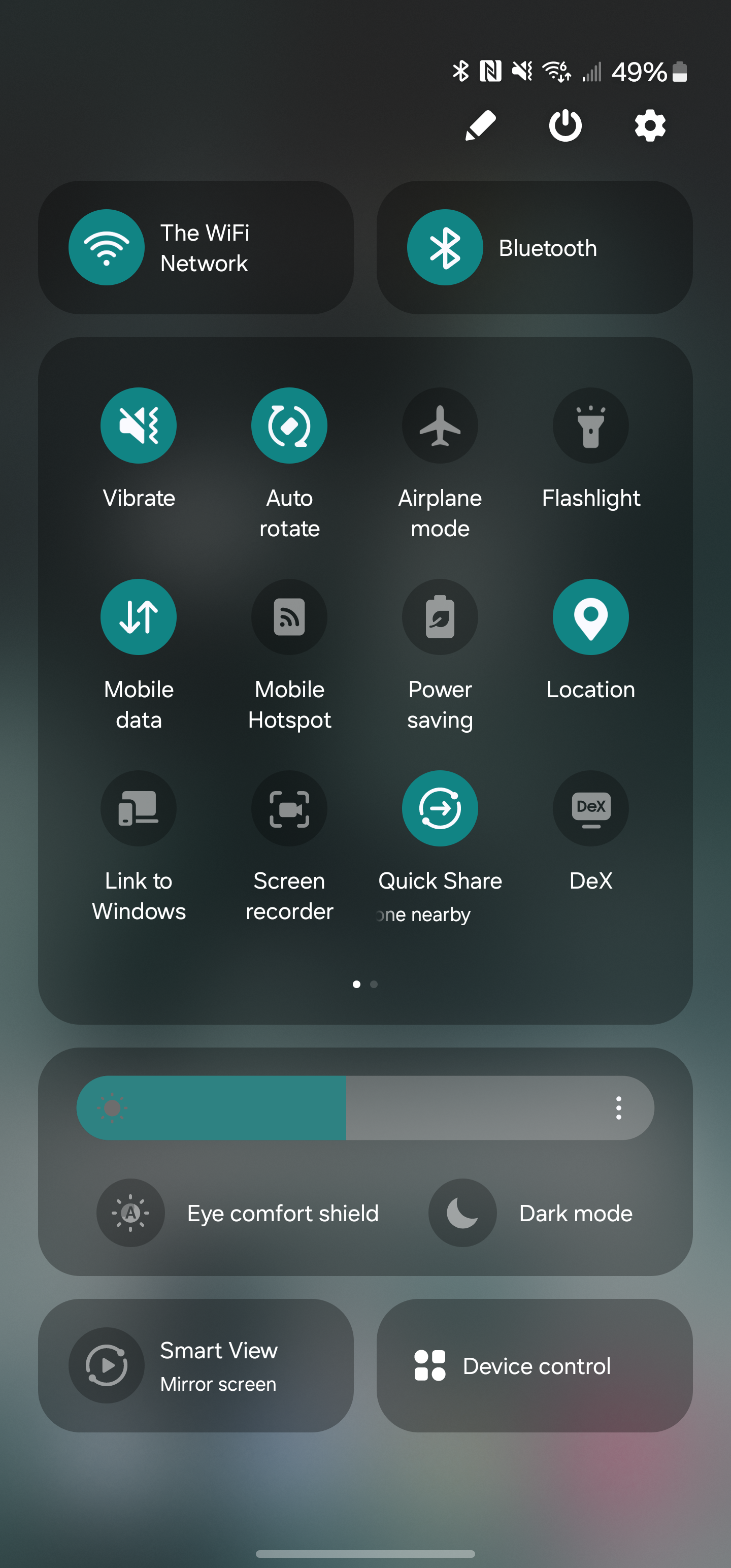
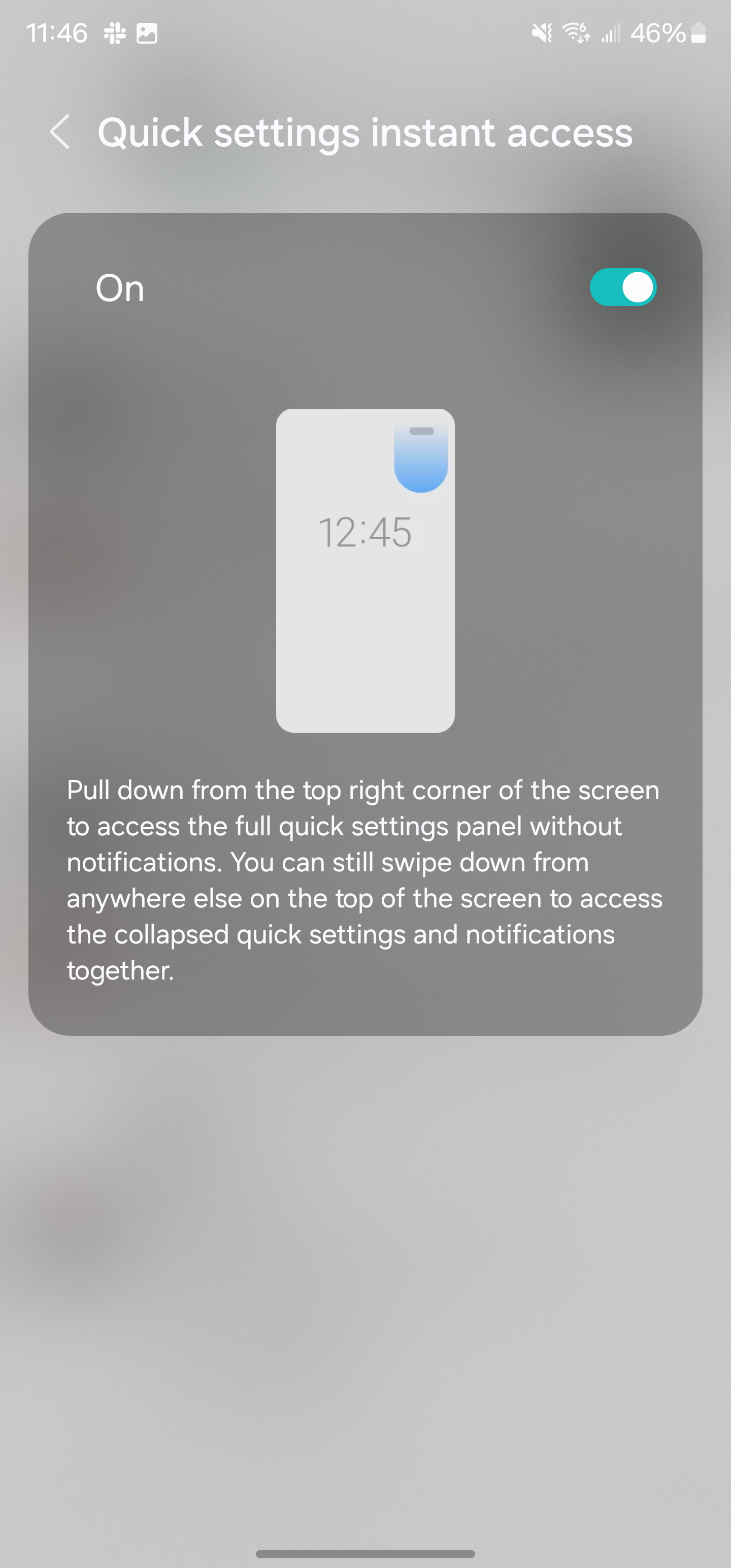
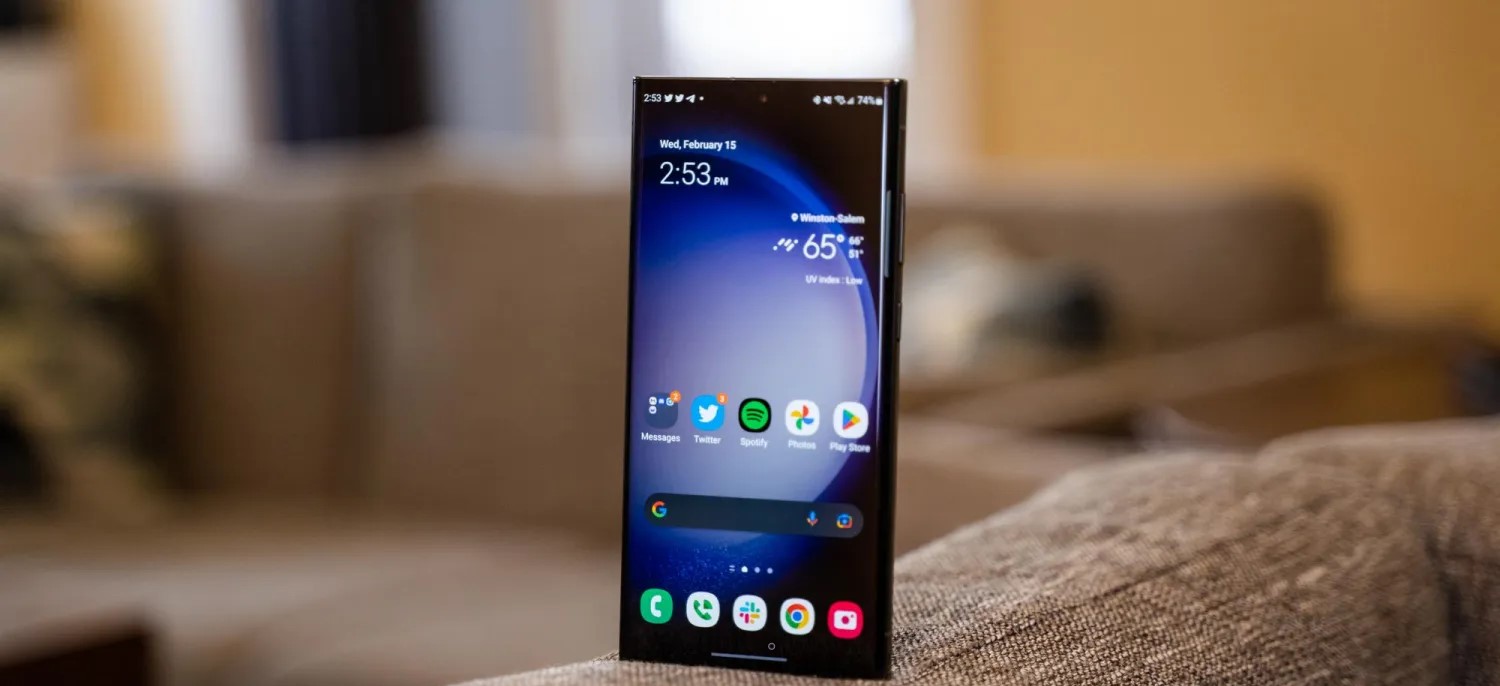
The “Quick Panel” is also significantly updated, with new sections throughout. There are two large cards for Wi-Fi and Bluetooth, a large section for quick settings toggles, and then other sections for brightness, screen mirroring, and device controls. In terms of the look, it’s a pretty shameless copy of iOS’ Control Center, as is the new toggle which lets you swipe from the top left of the display to immediately access the Quick Panel. The notification shade, though, is left unchanged.
Samsung is also further doubling down on widgets. There’s a new camera widget that’s fully customizable. The widget opens up the camera app, but can open it to a specific setting as well as saving the image then taken to a specific album. You can customize the widgets title and background, too.
Another updated widget is for weather, with a new “Weather Insights” widget that can show chance of rain amongst other details.
Perhaps my personal favorite change is that Samsung has updated its default font in Android 14. The new font looks much cleaner and modern as opposed to One UI 5’s font which is a bit too thin. That’s all subjective, though, and Samsung will still let you change your system font.
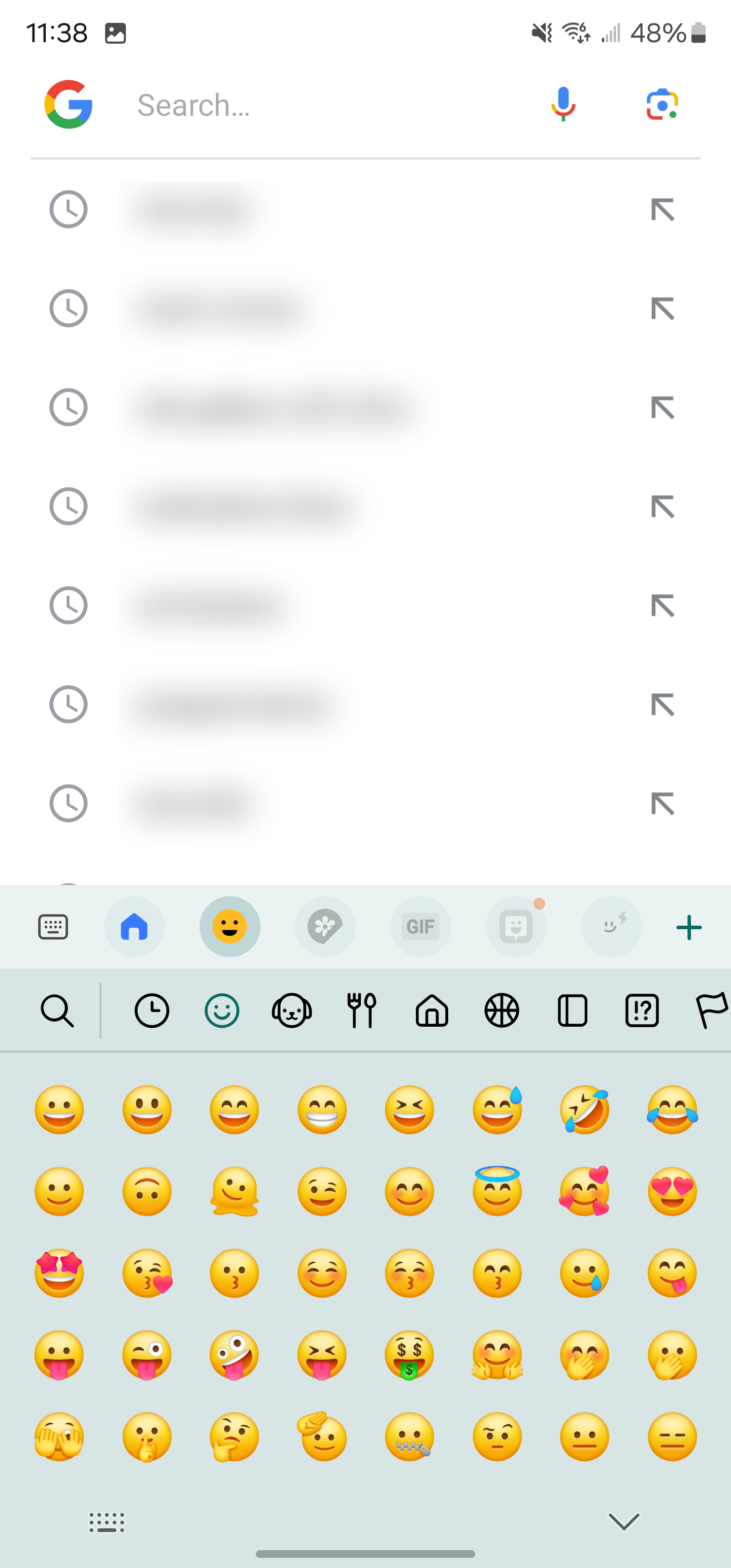
Emojis also get a makeover.
These are some of the most notable changes, but that’s far from everything. Samsung’s full changelog for Android 14 is below with literally dozens of other tweaks and changes that come with One UI 6.0. A few other highlights include:
Level line in camera viewfinder
Resolution settings available in camera viewfinder
“Auto Blocker” security settings
Samsung One UI 6.0/ Android 14 changelog
Quick Panel
New button layout – The quick panel has a new layout that makes it easier to access the features you use most. Wi-Fi and Bluetooth now have their dedicated buttons at the top of the screen, while visual features, like Dark mode and Eye comfort shield, have been moved to the bottom. Other quick settings buttons appear in a customizable area in the middle.
Instantly access the full quick panel – By default, a compact quick panel with notifications appears when you swipe down from the top of the screen. Swiping down again hides notifications and shows the expanded quick panel. If you turn on Quick Settings instant access, you can view the expanded quick panel by swiping just once from the right side of the top of the screen. Swiping down from the left side shows notifications.
Quickly access brightness control – The brightness control bar now appears by default in the compact quick panel when you swipe down once from the top of the screen for quicker and easier brightness adjustments.
Improved album art display – While playing music or videos, album art will cover the entire media controller in the notification panel if the app playing the music or video provides album art.
Enhanced layout for notifications – Each notification now appears as a separate card, making it easier to recognize individual notifications.
Sort notifications by time – While playing music or videos, album art will cover the entire media controller in the notification panel if the app playing the music or video provides album art.
Lock screen
Reposition your clock – You now have more freedom to move your clock to the position of your choice on the Lock screen.
Home screen
Simplified icon labels – App icon labels are now limited to a single line for a cleaner and simpler look. “Galaxy” and “Samsung” have been removed from some app names to make them shorter and easier to scan.
Typeface
New default font – One UI 6 has a new default font with a more stylish and modern feel. You’ll see the new font if the default font is selected in Settings. If you’re using a different font, you’ll still see that font after upgrading to One UI 6.
Multitasking
Keep pop-up windows open – Instead of minimizing pop-up windows when you go to the Recents screen, pop-ups will now remain open after you leave the Recents screen so you can continue what you were working on.
Samsung Keyboard
New emoji design – Emojis that appear in your messages, social media posts, and elsewhere on your phone have been updated with a fresh new design.
Content sharing
Picture and video previews – When you share pictures or videos from any app, preview images will appear at the top of the Share panel to give you one more chance to review the pictures and videos before sharing them.
Extra sharing options – When you share content, additional options may appear on the Share panel depending on the app you share from. For example, when you share a website from the Chrome web browser, you’ll get the option to share a screenshot of the website along with the web address.
Weather
New Weather widget – The Weather Insights widget provides more information about your local weather conditions. You can see when severe thunderstorms, snow, rain, and other events are on the forecast.
More information in the Weather app – Information about snowfall, moon phases and times, atmospheric pressure, visibility distance, dew point, and wind direction is now available in the Weather app.
Interactive map view – Swipe to move around the map and tap a location to view the local weather conditions. The map can help you find weather information even if you don’t know the name of the city.
Enhanced illustrations – Illustrations in the Weather widget and app have been enhanced to provide better information about the current weather conditions. Background colours also change depending on the time of the day.
Camera
Custom camera widgets – You can add custom camera widgets to your Home screen. You can set each widget to start in a specific shooting mode and save pictures in an album of your choice.
More alignment options for watermarks – You can now choose whether your watermark appears at the top or bottom of your photos.
Quick access to resolution settings – A resolution button is now available in the quick settings at the top of the screen in Photo and Pro modes so you can quickly change the resolution of photos you take.
Easier video size options – A pop-up now appears when you tap the video size button, making it easier to see all the options and choose the right ones.
Keep your pictures level – When grid lines are turned on in Camera settings, a level line will now appear in the middle of the screen while using the rear camera in all modes except Panorama. The line will move to show whether your picture is level with the ground.
Apply effects more easily – Filter and face effects now use a dial instead of a slider, making it easier to make precise adjustments with just one hand.
Scan documents easily – The Scan document feature has been separated from Scene Optimizer, so you can scan documents even if Scene Optimizer is turned off. The new Auto Scan lets you scan documents automatically whenever you take a picture of a document. After a document is scanned, you’ll be taken to the edit screen, where you can rotate your document to align it the way you want.
Quality optimization – You can choose between three levels of quality optimization for the pictures you take. Choose Maximum to get the highest quality pictures with the most post-processing. Choose Minimum to reduce the amount of post-processing so you can take pictures as quickly as possible. You can also choose Medium to get the best balance of speed and post-processing.
New Auto FPS settings for videos – Auto FPS can help you record brighter videos in low-light conditions. Auto FPS now has three options. You can turn it off, use it for 30 fps videos only, or use it for both 30 fps and 60 fps videos.
Gallery
Save clipped images as stickers – When you clip something from an image, you can easily save it as a sticker that you can use later when editing pictures or videos.
Enhanced story view – While viewing a story, a thumbnail view appears when you swipe up from the bottom of the screen. In thumbnail view, you can add or remove pictures and videos from your story.
Drag and drop with two hands – Touch and hold pictures and videos with one hand, then use your other hand to navigate to the album where you want to drop them.
Quick edits in detail view – While viewing a picture or video, swipe up from the bottom of the screen to go to detail view. This screen now provides quick access to effects and editing features you can immediately apply.
Photo Editor
Adjust decorations after saving – You can now make changes to drawings, stickers, and text that you’ve added to a photo even after saving.
Undo and redo – Don’t worry about making mistakes. You can now easily undo or redo transformations, filters, and tones.
Enhanced layout – The new Tools menu makes it easier to find the editing features you need. Straighten and Perspective options have been combined in the Transform menu.
Draw on custom stickers – When creating custom stickers, you can now use drawing tools to make your stickers even more personal and unique.
New text backgrounds and styles – When adding text to a photo, you can choose from several new backgrounds and styles to help you get the perfect look.
Calendar
Your schedule at a glance – The new schedule view provides your upcoming events, tasks, and reminders all together in chronological order.
View your reminders in Calendar – You can now view and add reminders in the Calendar app without opening the Reminder app.
Reminder
Refined reminder list view – The main list view has been redesigned. You can manage categories at the top of the screen. Below the categories, your reminders will be shown organized by date. The layout for reminders containing images and web links has also been enhanced.
New reminder categories – The Place category contains reminders that alert you when you’re in a specific place, and the No Alert category contains reminders that don’t provide any alerts. More options for creating reminders: When sharing content to the Reminder app, you’ll get full editing options before your reminder is created. You can also take pictures using the camera when creating a reminder.
Create all-day reminders – You can now create reminders for an entire day and customize the time when you want to be alerted about them.
Samsung Internet
Play videos in the background – Keep playing video sound even if you leave the current tab or leave the Internet app completely.
Enhanced tab list for large screens – When using the Internet on a large screen, such as a tablet in landscape view or Samsung DeX, your tab list will be shown in 2 columns so you can see more tabs on the screen at the same time.
Smart select
Resize and extract text from pinned content – When you pin an image to the screen, you can now resize it or extract text from it.
Magnified view – When selecting an area of the screen, a magnified view will appear so you can start and end your selection at the perfect spot.
Bixby text call
Customize your greeting – You can now edit the greeting that Bixby says when you answer using Bixby text call.
Switch to Bixby during a call – You can switch to a Bixby text call at any time, even if the call is already in progress.
Modes and Routines
Unique Lock screens depending on your mode – Set up different Lock screens with their own wallpaper and clock style for when you’re driving, working, exercising, and more. When you start editing the Lock screen while a mode is on, you’ll edit the Lock screen for that mode.
New conditions – You can now start a routine when an app is playing media.
New actions – Your routines can now do more than ever before. Change your Lock screen, change Samsung Keyboard settings, and more. Smart suggestions
New look and feel – The Smart Suggestions widget has been redesigned with a layout that better aligns with other icons on your Home screen.
More customization – You can now adjust transparency and choose between a white or black background. You can also set apps to exclude from suggestions.
Finder
Quick actions for apps – When an app appears in your search results, you can touch and hold the app to get quick access to actions you can perform using the app. For example, if you search for the Calendar app, buttons for adding an event or searching your calendar will appear. App actions will also appear in search results on their own if you search for the name of the action instead of the app.
My Files
Free up storage space – Recommendation cards will appear to help you free up storage space. My Files will recommend deleting unnecessary files, give you tips for setting up cloud storage, and also let you know which apps on your phone are using the most storage space.
Settings
Smarter Airplane mode – If you turn on Wi-Fi or Bluetooth while Airplane mode is on, your phone will remember. The next time you use Airplane mode, Wi-Fi or Bluetooth will remain on instead of turning off.
Easier access to battery settings – Battery settings now have their own top-level settings menu, so you can easily check your battery usage and manage battery settings.
Block security threats – Get an extra level of protection for your apps and data. Auto Blocker prevents unknown apps from being installed, checks for malware, and blocks malicious commands from being sent to your phone using a USB cable.
Accessibility
New magnification options – Customize how your magnification window appears. You can choose full screen, or partial screen, or allow switching between the two.
Customize cursor thickness – You can now increase the thickness of the cursor that appears while editing text so that it’s easier to see.
Learn more about accessibility – A link to the Samsung Accessibility web page has been added to Accessibility settings so you can learn more about accessibility features and our efforts to make our products accessible to everyone.
One UI 6 will likely be released sometime in November or December, and if last year is any indication, it will probably roll out to many devices very quickly. If you have a Galaxy S23 and want to try it early, though, it’s available now in beta.
One UI 6 is now available to the public in beta form, which means those with certain Samsung Galaxy devices will be able to install the new version of One UI and dive into everything new. Here’s how to install One UI 6 beta on your device.
Samsung’s One UI 6 beta is finally here, open for users to install and take for a spin before the full release a few months from now. Similar to the previous version of One UI, users will be able to sign up for the beta version and receive access to an update that will carry the latest OS to their Galaxy device.
One UI 6 is based on Android 14 and offers some exciting new features. The most forward-facing change is the new adjusted UI, which simplifies the overall look of One UI’s overall design language. The Quick Settings panel is now sectioned off into cards. Individual cards house Wi-Fi, Bluetooth, and Quick Settings controls that feature a 4×3 layout with multiple pages.
The simplified approach is reminiscent of existing Android operating systems like ColorOS from Oppo. It could also be likened to an iOS-type UX with how transparent the cards are to what lays behind the control panel. Either way, it’s a divisive change that will get its fair share of exploration now that a beta version is available.
How to sign up and install the One UI 6 beta
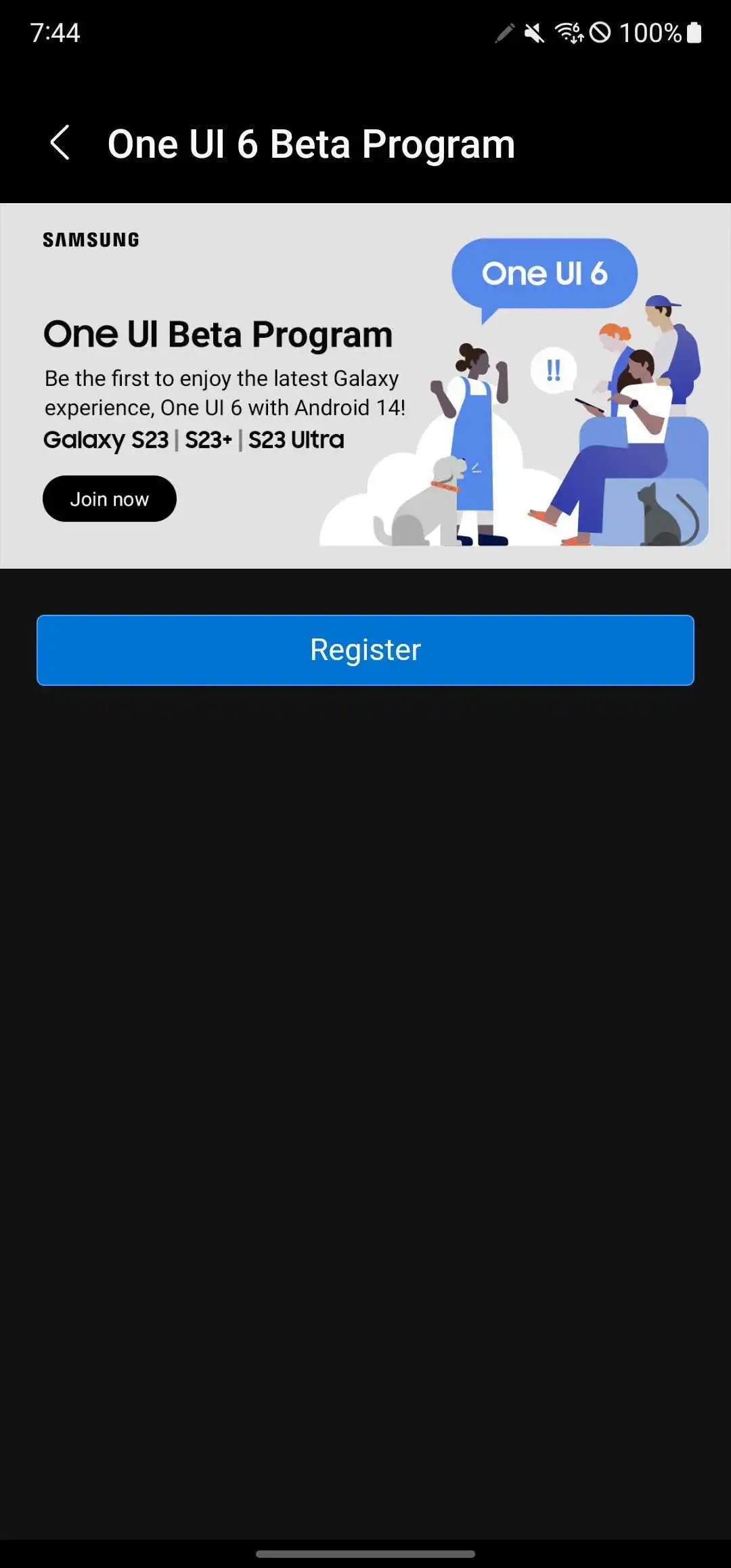
Samsung’s approach to distributing the One UI 6 beta is extremely user-friendly. You simply need to sign up via the Samsung Members app on your Galaxy device and wait for an update to push to your phone. Make sure the Samsung Members app is installed on your device and you have an account set up.
In the Samsung Members app, swipe through the top banner and find the card that reads One UI Beta Program. Tap it.
Tap Register.
Agree to the terms listed by taping Enroll and then Agree.
Note: A pop-up may appear, letting you know you are enrolled.
Head to the settings by swiping down once and tapping the settings cog.
Scroll to the bottom and tap Software update.
Tap Download and install.
Your device will start downloading One UI 6 beta.
Once you finish the above process, you’ll see One UI 6 begin its installation procedure. That generally takes about 10 minutes, with some extra waiting time for the app optimization segment.
Once your Galaxy device is finished, you should be up and running with One UI 6 beta.
What devices are supported?
At this time, there are only a couple of devices supported. Currently, Samsung is limiting the One UI 5 beta to the Galaxy S23 series including:
Galaxy S23
Galaxy S23+
Galaxy S23 Ultra
Samsung may also have plans to bring the beta to more devices down the road, including the Galaxy Z Fold 4, Flip 4, and more.
Where can I use the One UI 6 beta?
Samsung has officially announced that the One UI 6 beta will be available first in just three countries:
United States
Germany
South Korea
This limited list is likely only temporary, though. In years past, Samsung has offered the beta on an almost global scale, and there’s no reason to expect we won’t see it expand in time with this latest iteration.
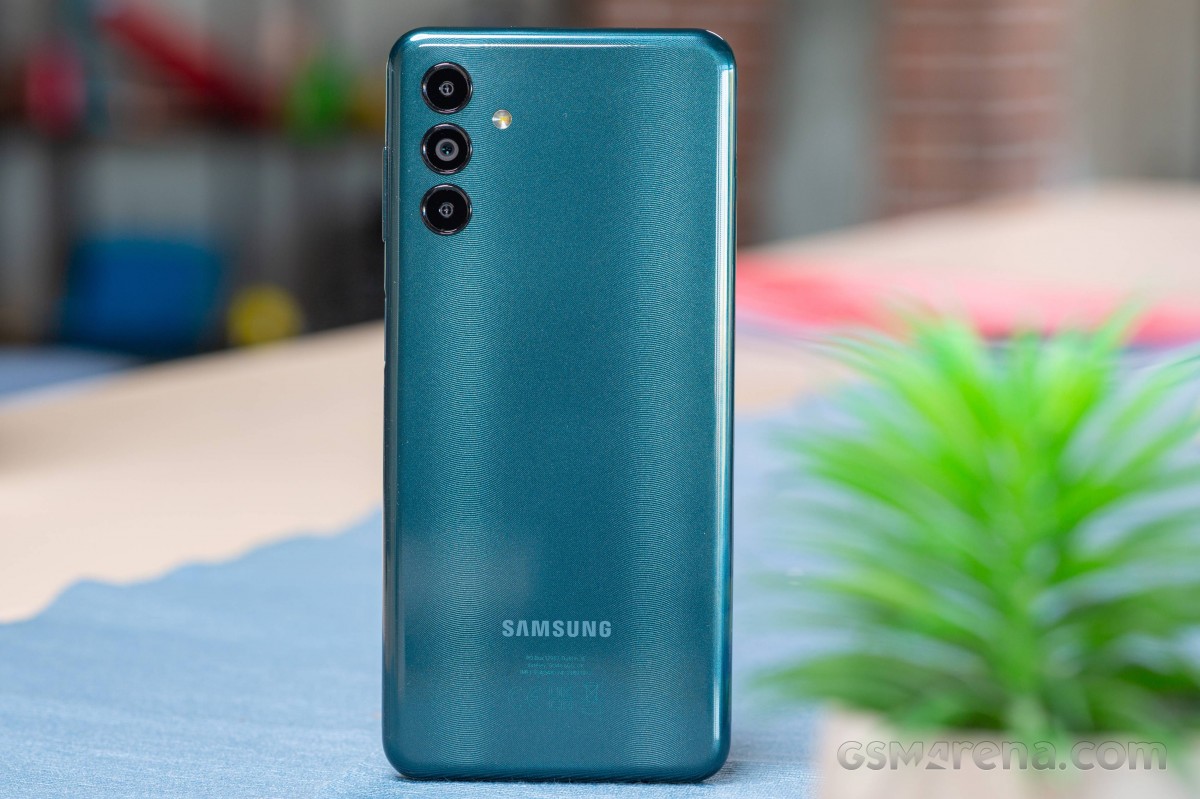
Looking for a Samsung experience on the cheap? The Galaxy A04s is as low as it gets in the Samsung hierarchy. But being inexpensive does not always mean something is good value, so it’s worth having a closer look at this popular entry-level device.
Surprisingly, we also found that Samsung is also offering another model – the Galaxy M13 – which is almost identical with some minor differences in the camera department. The Indian version of the Galaxy M13 is essentially the same phone as the Galaxy A04s but with an even bigger battery. The Galaxy A13 is another phone released earlier this year that almost completely matches the A04s specs.
We won’t blame you if you are confused, but the key takeaway is that the Galaxy A04s probably offers the same user experience as the two M13s. So for all intents and purposes, you can use this review as a reference point for the M13 and M13 (India) as well.
Disclaimer. We can not guarantee that the information on this page is 100% correct.
In any case, the Galaxy A04s runs on a low-end Exynos 850 SoC paired with 3GB of RAM and 32GB of internal storage with a microSD card expansion slot. It’s evident that we are talking about a mid-€100 phone, but we were surprised to see a display with a high refresh rate. The 6.5-inch IPS display is 90Hz, albeit with 720 x 1600px resolution.
Since the Exynos 850 chipset relies on a power-efficient CPU with eight low-power Cortex-A55 cores, we expect great battery endurance in our tests. The 5,000 mAh battery will last you quite a bit, although it will also take more than an hour to fully charge.
Lastly, the device runs on a lightweight version of Samsung’s user interface called One UI Core 4, which in turn is based on Android 12.
Unboxing the Samsung Galaxy A04s
The device ships in a small retail box containing just the user manuals and a pin for the SIM card tray.
Unfortunately, Samsung didn’t include a charger or protective case. But you do get a USB-C to USB-C cable, though.
Competition
An entry-level smartphone, the Samsung Galaxy A04s has simple hardware meant to carry out simple tasks. The phone doesn’t stand out with anything in particular, but you get a decent camera performance in good lighting conditions and dependable battery life. Samsung’s matured, and customizable One UI 4.1 Core is also an advantage, albeit being a toned-down version of the original One UI.
Popular phone manufacturers don’t have that many entry-level models on offer, so in our comparative market research for this review, we found few worthy alternatives. Most competitors in this price bracket, such as the Realme C31, C3 or the C25Y, are hard to recommend due to using inferior Unisoc chipsets.
At the time of reviewing, the Samsung Galaxy A04s has a retail price of around €150 for its 32GB/3GB version. If you are going to use your phone’s camera and messaging features frequently, we’d recommend going for a 64GB model as you would find yourself running out of storage on the 32GB model way before the phone’s warranty has run out.
The Xiaomi Redmi Note 11 falls in the same price category, asking around €160 and running a much more competent Snapdragon 680 chipset along with a standard 4GB/64GB memory configuration. It also impresses with stereo speakers, a 90Hz OLED panel with Gorilla Glass 3 on top, a more versatile camera setup and, of course, faster charging and longer battery life. The Gorilla Glass 3 and IP53 certification against water splash and dust is a nice bonus. It’s hands-down the better smartphone, and the only reason you might want to go for the Galaxy A04s is Samsung’s brand name.
Xiaomi Redmi Note 11 • Realme 9i
If you decide to go up the price ladder by a little, you might want to consider Realme 9i. It asks €170-180, but it’s also running a more capable Snapdragon 680 chip, a better display with higher resolution, faster charging and a nicer selfie camera. Stereo speakers are also on the menu, and Realme’s UI is smoother on the Snapdragon 680 SoC. It may cost a few bucks more, but you are getting a better value for the money.
Now it’s time for some homegrown competition. The Galaxy A04s, Galaxy A13 and Galaxy M13 are priced similarly and have similar hardware and features, with all four having equally sized LCDs and the same Exynos 850 chipset. In fact, the Galaxy A13 is slightly cheaper than the A04s in Europe, while the Indian M13 version is cheaper and at the same time, has a larger 6,000 mAh battery.
There are a few key differences, though, and they do not favor the most recently released Galaxy A04s. The A13 and M13 offer ultrawide cameras, better selfie sensors and higher-resolution displays. Sure, the Galaxy A04s has a 90Hz display, but the frequent lag when navigating the One UI on the underpowered Exynos 850 defeats the purpose of having a smoother display. And in 2022, a 720p resolution screen doesn’t sit well. Additionally, the M13 starts at 4GB/64GB, whereas the A04s settles for a 3GB/32GB standard configuration, which is an inadequate level of storage.
The same goes for the Indian M13 variant – it just makes the A04s obsolete at launch. There’s no reason to go for the A04s when you have an M13 on the shelves.
And then, there’s last year’s Galaxy A13 5G that launched in December 2021. It runs on the twice as powerful MediaTek Dimensity 700 chipset, its base configuration is 64/4GB, and it’s priced at around €170. It’s essentially the same device with more horsepower and support for 5G connectivity, so if you are dead set on getting a Samsung phone, we believe the extra €20 for the Galaxy A13 5G can go a long way towards getting you a better smartphone experience.
Verdict
The Samsung Galaxy A04s is a cheap entry-level device – quite possibly the cheapest Galaxy smartphone you can get. It has a high-refresh-rate screen, an okay primary camera, and very good battery life, so it is a solid upgrade to last year’s Galaxy A03s. Unfortunately, this is hardly enough to tilt the scales in its favor.
The phone’s performance is subpar, and the storage space provided by the base memory configuration is inadequate. It could work for someone who is mainly interested in staying in touch by mostly making calls and the occasional messaging. But for more demanding use cases, we find the A04s hard to recommend. With a low max brightness and low resolution, laggy software experience, and slow charging, there are better options out there – some even coming from Samsung’s own camp.
Pros
Good battery life.
The daylight camera quality is solid, selfies are decent. Video capture is also good, despite the 1080p resolution cap.
One UI 4.1 Core on top of Android 12 is customizable, mature and has plenty of features.
3.5mm jack, microSD, NFC.
Cons
Subpar performance, lag and slowdowns are frequent.
Display is only 720p, while the smooth 90Hz refresh rate is pointless with so much UI lag.
Virtual proximity sensor can be inconsistent, lack of ambient light sensor means brightness adjustment is suboptimal.