Facebook was one of the main companies affected by Apple’s new privacy policies, which now require iOS apps to ask users if they want to be tracked by third parties. During the Q4 2021 earnings report on Wednesday, CEO of Meta (Facebook’s parent company) Mark Zuckerberg said that Facebook is “rebuilding” its ads infrastructure due to the iOS changes.
According to Zuckerberg, Facebook’s ad infrastructure is being rebuilt so that the company can continue to deliver “high-quality personalized ads” to iOS users.
Ever since Apple implemented App Tracking Transparency in iOS, Facebook has been openly criticizing Apple as the social network’s revenue relies heavily on advertisements that are based on data collected from users. However, that’s not the only thing that worries Zuckerberg.
As regulators around the world are investigating Facebook for privacy concerns, the company has been forced to change how it delivers ads based on user data. Earlier this year, lawmakers in the European Parliament voted to ban online advertising platforms from showing content based on “intimate information” such as health, religion, or sexual orientation.
Zuck: "With Apple's iOS changes and new regulation in Europe, there's a clear trend where less data is available to deliver personalized ads….So we're rebuilding a lot of our ads infrastructure so we can continue to grow and deliver high quality personalized ads."
As reported by CNBC, Facebook shares dropped more than 20% after the announcement of last quarter’s results due to “disappointing” results. The company reported revenue of $33.67 billion, which was above expectations of $33.4 billion for the quarter. However, the number of monthly active users was 2.91 billion, down from the previously predicted 2.95 billion users.
While Meta insists heavily on the “metaverse,” the company continues to lose money on the segment. The Reality Labs division, which is responsible for the Meta Quest virtual reality headset, lost more than $10 billion in 2021. Executives at Meta have already said that it may take more than 15 years before the metaverse business becomes profitable, but it’s hard to imagine that investors will wait that long.
The full transcript of Meta’s investor call can be found here.
Headlined by new Face ID improvements while wearing masks and Universal Control on iPadOS, iOS 15.4 beta 1 is a noteworthy update that will surely catch the interest of even casual iPhone users. Watch our hands-on video walkthrough as we explore some of the best iOS 15.4 beta 1 changes and features.
What’s new in iOS 15.4 beta 1?
Face ID while wearing a mask
One of the most frustrating aspects of using an iPhone during the COVID-19 era involves authenticating with Face ID. Apple tried to address this issue by implementing support for Apple Watch unlock, but not everyone owns an Apple Watch, and the implementation wasn’t as fast or as capable as regular Face ID. Hands-down, the most practical change to appear in iOS 15.4 beta 1 is the ability to unlock your iPhone using Face ID while wearing a mask, no Apple Watch required.
iOS 15.4 beta 1 addresses the mask issue by ushering in periocular support for Face ID. Instead of relying on the whole face for authentication, which hindered Face ID’s capabilities while wearing a mask, new periocular support authenticates using the area surrounding your eyes.
After the initial face scan, a new Use Face ID With a Mask splash screen appears. There, you’ll find two primary options: Use Face ID With a Mask and Don’t Use Face ID With a Mask. If you opt to skip using Face ID with a mask, the initial scan is all that’s needed, and you’ll receive a message that Face ID is now set up.
If you select the option to use Face ID with a mask, you’ll be asked to scan your face for a second time. If you’re wearing a mask during this step, iOS will ask to remove the mask when you’re in a safe area to continue setting up Face ID.
Once the second scan is completed, the Face ID setup process is finished… unless you happen to be wearing glasses. If you’re wearing glasses, iOS will ask you to remove your glasses and perform a third scan before the process completes. You can also add additional scans for different pairs of glasses in the Face ID & Passcode preferences.
Unlike the Apple Watch unlock feature in previous versions of iOS, which didn’t work with Apple Pay or third-party apps, mask compatibility in iOS 15.4 provides users with the full Face ID experience. In iOS 15.4 you can make purchases with Apple Pay, or unlock apps like 1Password while wearing a mask.
New auth screen when invoking Apple Pay before unlocking
Double-pressing the Side button on a locked iPhone would previously reveal items stored in your Apple Wallet in preparation for an Apple Pay transaction. Although you’d still need to authenticate with Face ID or a passcode before completing a transaction, wallet items could still be seen without unlocking.
Apple has fixed this potential privacy issue in iOS 15.4. If you invoke Apple Pay before unlocking your iPhone, you will now be presented with a blank page instructing you to use Face ID or a passcode to open the wallet.
Add notes to keychain passwords
After adding the ability to support two-factor authentication in iOS 15, Apple continues to build on keychain features. When you go to Settings → Passwords in iOS 15.4 beta 1, you’ll find a new feature to add notes to keychain passwords. Not only can you add notes, but the notes strings are searchable using the search box.
Emoji 14.0
Last September we got a preview of the new emoji scheduled to hit our phones, and iOS 15.4 is the version of iOS that implements these new emoji 14.0 changes. In all, iOS 15.4 adds over 37 new emoji characters, such as the new peaking face, heart hands, tears of joy, and many more.
Apple Wallet widget
There’s a new Apple Wallet widget that allows users to add their Apple Card balance, spending power, and spending activity on the Home Screen. The widget has one customizable setting that lets you select between a weekly, monthly, or yearly spending activity graph. As of now, the Apple Wallet widget is for Apple Card users only.
Run Shortcuts Automations without notifications
Finally! Apple is letting us run Shortcuts Personal Automations in the background without requiring a pesky banner notification. A new toggle lets you switch off notifications for Personal Automations in iOS 15.4 beta 1.
To disable notifications for automations, opt out of Ask Before Running when creating your automation, and you’ll see a new Notify When Run Option appear. Disable Notify When Run, and your automation will run without the annoying banner notification. Now I can make it so that my wallpaper changes at random whenever connecting to power without ever receiving a notification!
Select camera in Magnifier app
Eligible iPhone models now gain access to two additional camera modes in the Magnifier app. Users can now toggle between auto, telephoto, macro, and selfie cameras in iOS 15.4.
Reset Safari experimental features
Messing around with the experimental Safari settings buried deep within Safari’s preferences can quickly get out of hand if you don’t know what you’re doing. In iOS 15.4, it’s now possible to reset the experimental settings back to default with the tap of a button. Go to Settings → Safari → Advanced → Experimental Features, and scroll all the way down to the bottom of the page where you’ll find the handy new Reset All to Defaults button.
Configure App Store notifications
A new Notifications panel can be found in the App Store after tapping your avatar in the upper right-hand corner. Inside of the Notifications Panel, you’ll find a New Features & Updates and Recommendations & Offers switch.
iCloud Mail preferences consolidation
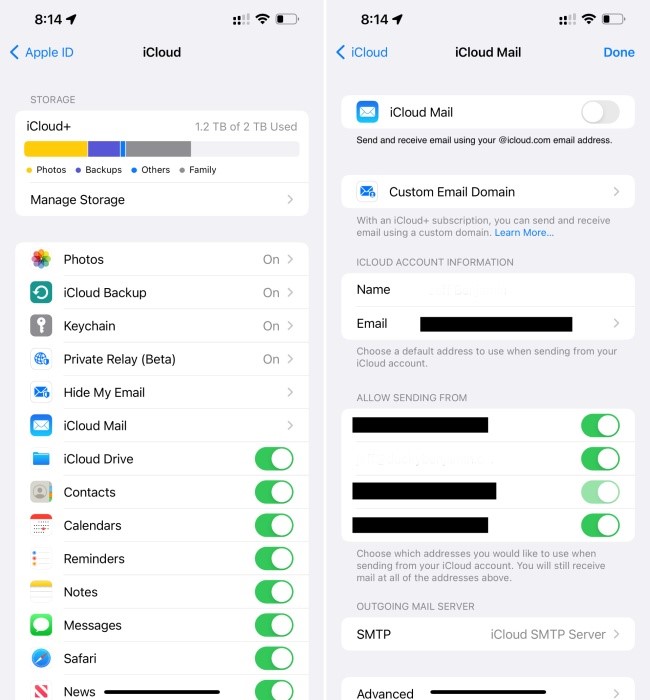
In previous versions of iOS, iCloud preferences featured a Mail toggle switch for enabling or disabling iCloud email. In iOS 15.4, Apple has merged the toggle with iCloud Mail settings, an area previously buried at the bottom of iCloud preferences.
New Custom Email Domain UI in iCloud settings
Apple has begun baking in its iCloud+ custom email domain UI into iCloud Mail settings in iOS. Previously, all such settings were found exclusively on iCloud.com, although Apple still pushes people to iCloud.com to fully configure custom email domains.
Although it doesn’t appear fully operational, Apple has started to lay the groundwork for a provision that will let users disable iCloud.com access for mail, calendar, photos, contacts, notes, reminders, files, and documents. When you visit Settings → iCloud → Password & Security, you’ll see a new Access iCloud Data on Web toggle at the bottom of the page. When you disable the toggle, a panel appears with a Don’t Access button to confirm your decision, but the button doesn’t currently do anything.
Notes and Reminders get Live Text integration
A new Scan Text option appears directly in the Notes and Reminders app, allowing you to quickly add text directly from an image to a note or reminder.
New AirPods Pro accessibility glyph
Instead of a generic headphone glyph, the Accessibility preferences for the AirPods now come with a proper AirPods Pro glyph. It’s all in the details…
Updated AirPods status
When opening AirPods or AirPods Pro near your iPhone, the status window now shows a redesigned (L)/(R) indicator when both buds and case are being shown
TV app Up Next Display
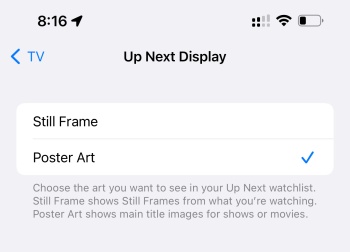
Users can now choose between a still frame or poster art for the Up Next watchlist in the TV app.
Tighter SharePlay integration
SharePlay from ShareSheet
SharePlay albums and songs directly from Music app
Developers can use the new API in iOS 15.4 to initiate FaceTime calls directly from their apps
iPadOS updates
Not to be left out, iPadOS gets several updates, including the most-anticipated public beta arrival of Universal Control.
Notes preferences Corner Gestures
The Notes app preferences gain the same Corner Gestures panel normally found in Settings → General → Gestures. It is here where you can toggle iPadOS corner gestures, which allow you to invoke a screenshot or a Quick Note by swiping diagonally from the bottom-left or right corner of the screen.
Keyboard brightness control toggle
Magic Keyboard users will appreciate having a new Keyboard Brightness shortcut available in Control Center. Once added, you can use the brightness slider to adjust the brightness of the Magic Keyboard. Keep in mind that brightness controls will not be available unless your iPad is in a dark environment, causing the automatic backlight to engage.
Universal Control
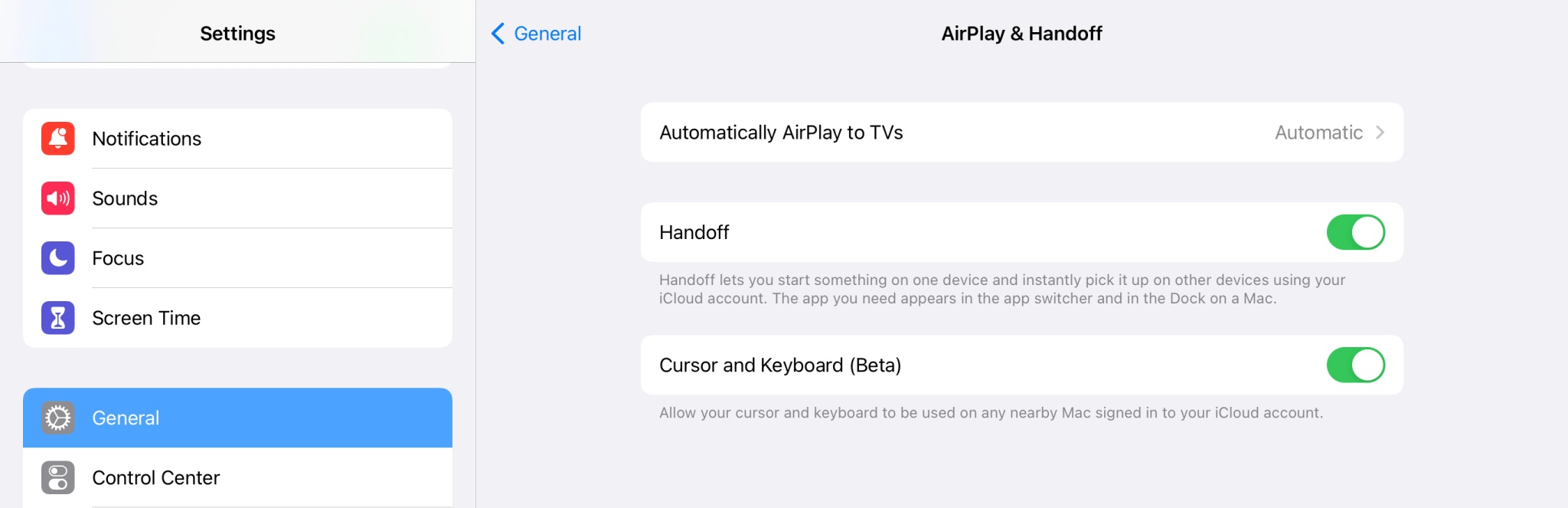
Last, but certainly not least, there is Universal Control, which can be enabled via Settings → General → AirPlay & Handoff. In the iPadOS 15.4 beta, Apple refers to Universal Control as Cursor and Keyboard (Beta). Note: You will need to be running the macOS Monterey 12.3 beta as well.
As its name states, Universal Control is all about control. It lets you control your iPad with the same mouse and keyboard that you use for your Mac. Indeed, using the same mouse and keyboard that I use to navigate Final Cut Pro on my MacBook Pro, I can scroll through my Tweetbot timeline or Apollo on my iPad Pro.
Universal Control is all about controlling two or more separate devices with the same input hardware. Thus, it doesn’t cause your iPad to function as an external display, where you can move a Mac app to your iPad, and vice versa, although the iPad is capable of doing that as well with Sidecar. But Universal Control does allow you to drag and drop files between macOS and iPad OS, which can prove to be handy in some circumstances.
iOS 15.3 arrived with crucial security updates, but relatively little in the way of user-facing features. iOS 15.4 is the substantial mid-cycle software update for iPhone that we’ve been waiting for, and it doesn’t disappoint. Practical features, like Face ID support while wearing masks, will appeal to the masses, but smaller updates, like the ability to silence notifications for shortcuts automation, will surely please a sizable swath of iPhone power users.
But if there’s one feature that worth’s upgrading for, it’s Universal Control. Similar to Apple SVP Craig Federighi’s demo back at WWDC, Universal Control is dead-simple to use, and that’s one of the things that makes it brilliant.
Following the release of iOS 15.2.1 earlier this month, Apple on Thursday stopped signing iOS 15.2 for all iPhone, iPod Touch, and iPad models. This means that users can no longer downgrade their devices to iOS 15.2.
iOS 15.2 was released to the public on December 13, 2021, with a few notable changes, which include Apple Music Voice Plan, new App Privacy Report in the Settings, safety alerts for children using Messages, Digital Legacy, and more.
iOS 15.2.1 came a month later on January 20 to fix a CarPlay bug and also a security exploit found in HomeKit that could cause iPhone or iPad to repeatedly crash.
Reverting to older iOS builds is often used by those who jailbreak their iPhones. Restoring an iPhone or iPad to a previous version of iOS can also sometimes be helpful for users who experience significant bugs after upgrading to the latest version of iOS.
If you have experienced any serious issues with iOS 15.2.1, unfortunately, you’ll now have to wait until a future update rather than downgrading to iOS 15.2. Users running the iOS 15.3 beta can no longer downgrade to iOS 15.2 either.
Apple confirms it is ramping up efforts to get more iOS 14 users to update to iOS 15 [U]
Update:Apple reached out and pointed out a support page from September 2021 saying the company intended to offer “important security updates” for iOS and iPadOS 14 users for “a period of time.”
Last week, reported that Apple wasn’t letting users stay on iOS 14 with security updates as it had removed the ability to update to iOS 14.8.1. Now, the company confirmed its efforts to make the iPhone userbase update to iOS 15 instead.
While it was once rumored that it could be a bug, Apple told Ars Technica that it didn’t intend to let users stay forever on iOS 14. In fact, the company wanted this to be only a “temporary” option.
Apple told Ars that it always intended the iOS 14 security update option to be temporary. Essentially, people could have a short grace period while Apple worked out the worst of the new operating system’s early bugs, but you would always eventually have to upgrade to stay patched.
This statement from Apple is very different from what we heard during WWDC21. At the time, the company was very serious about giving users the option to stay in an old version of iOS while still giving users occasional security patches.
As a matter of fact, this was the first time Apple had spoken about continuing to support an old version of its iPhone operating system, as the company had released security patches for iOS 12 and even older software versions every now and then.
Last year, even before Apple announced the possibility to stay on iOS 14 during WWDC21, 9to5Mac had discovered that the company was planning that during the beta tests of iOS 14.5:
A new section added to the iOS software update menu indicates that Apple will provide standalone security updates for iPhone and iPad users. Users would be able to choose whether they want to install only security updates or full iOS updates.
Although we don’t yet have more details about this change, macOS already offers a similar method of updates. When you have a Mac running an older version of the operating system, such as macOS Mojave, Apple delivers separate security updates so that users can get security patches and bug fixes without having to install the latest macOS version available.
With this change of mind, Apple is pushing users to update to iOS 15, as they can take advantage of security patches and new features, which includes the ability to find the iPhone even when turned off, using Focus Mode settings, and more.
It’s a weird decision Apple has made. Coincidence or not, just last week the company said iOS 15 adoption was lower than usual. According to Apple, iOS 15 is currently installed on 72% of iPhones released in the last four years, which is lower than previous iOS updates.
Here is the current breakdown of iOS adoption among “devices introduced in the last four years,” according to Apple:
72% iOS 15
26% iOS 14
2% Earlier
When comparing to iOS 14 numbers shared by the end of 2020, 81% of all iPhones in the last four years were already running the operating system, while, this time, Apple took more time to provide its first update on iOS 15 adopters and with fewer users running the latest software available.
Of course, you can still take advantage of your iPhone with iOS 14, but it doesn’t mean you’ll be as secure as someone running the latest version of iOS 15.
After over a month of beta testing, Apple has made the iOS 15.2 Release Candidate available to developers. Head below for the full release notes on everything new in this update, which will be released to the public as soon as next week.
Update: Now available to public beta testers as well.
Today’s new release of iOS 15.2 RC is available to developers via an over-the-air update in the Settings app. As usual, if the update does not immediately appear for download, keep checking, as it sometimes takes a few minutes to roll out to all registered developers. The build number of iOS 15.2 RC is 19C56.
As a refresher, iOS 15.2 brings a few notable changes for iPhone and iPad users. Most notably, it adds the full “App Privacy Report” feature to the Settings application. With this, users can now see the data accessed by applications, including third-party apps and Apple apps.
Below are the full release notes, directly from Apple.
iOS 15.2 adds Apple Music Voice Plan, a new subscription tier that provides access to music using Siri. This update also includes the App Privacy Report, new safety features for children and parents in Messages, and other features and bug fixes for your iPhone.
Apple Music Voice Plan
Apple Music Voice Plan is a new subscription tier that gives you access to all songs, playlists, and stations in Apple Music using Siri
Just Ask Siri suggests music based on your listening history and likes or dislikes
Play it Again lets you access a list of your recently played music
Privacy
App Privacy Report in Settings lets you see how often apps have accessed your location, photos, camera, microphone, contacts and more during the last seven days, as well as their network activity
Messages
Communication safety setting gives parents the ability to enable warnings for children when they receive or send photos that contain nudity
Safety warnings contain helpful resources for children when they receive photos that contain nudity
Siri and Search
Expanded guidance in Siri, Spotlight, and Safari Search to help children and parents stay safe online and get help with unsafe situations
Apple ID
Digital Legacy allows you to designate people as Legacy Contacts so they can access your iCloud account and personal information in the event of your death
Camera
Macro photo control for switching to the Ultra Wide lens to capture macro photos and videos can be enabled in Settings on iPhone 13 Pro and iPhone 13 Pro Max
TV app
Store tab lets you browse, buy, and rent movies and TV Shows all in one place
CarPlay
Enhanced city map in Apple Maps with road details like turn lanes, medians, bike lanes, and pedestrian crosswalks for supported cities
This release also includes the following enhancements for your iPhone:
Hide My Email is available in the Mail app for iCloud+ subscribers to create unique, random email addresses
Find My can locate iPhone for up to five hours when in Power Reserve
Stocks allows you to view the currency for a ticker and see year-to-date performance when viewing charts
Reminders and Notes now allow you to delete or rename tags
This release also includes bug fixes for your iPhone:
Siri may not respond while VoiceOver is running and iPhone is locked
ProRAW photos may appear overexposed when viewing in third-party photo editing apps
HomeKit scenes that include a garage door may not run from CarPlay when your iPhone is locked
CarPlay may not update Now Playing information for certain apps
Video streaming apps may not load content on iPhone 13 models
Calendar events may appear on the wrong day for Microsoft Exchange users
Google is rolling out a trio of productivity updates to its iPhone and iPad productivity apps. Notably, Gmail will get a homescreen widget, while iOS Picture-in-Picture is now available for Google Meet.
Gmail is getting another widget on iOS after the original was quietly removed sometime in the past year. The screenshot Google shared today shows your inbox with three recent emails that note the sender and subject.
What account they originate from is highlighted in the top-left corner by your profile picture, while there’s a compose FAB at the left. Functionality-wise, it’s identical to the Android version, which is due for a Material You overhaul. The iOS widget will be available in Gmail over the “next few weeks.”
Meanwhile, Google recently added Picture-in-Picture support to Meet. It’s a fairly standard implementation with the ability to resize the window. A PiP is also coming to the integrated video calling experience in mobile Gmail over the “next few weeks.”
For example, you might want to forward an email, share a document or just look something up while you’re chatting. Simply navigate out of the Google Meet app, and your meeting will be minimized in a window that you can move around your Home Screen.
The last upcoming update will see Google Sheets add support for shortcuts — hold down the command key to see a list of available ones:
Shortcuts make it easier to complete common and advanced tasks on Google Sheets using a small keyboard — like selecting a whole row or finding and replacing certain values.
One of the features Apple announced for iOS 15 is Legacy Contacts, a way to ensure that your digital life outlives you – if you would like it to.
The company hasn’t yet launched it, saying only that it is “coming in a software update to iOS 15,” but there are signs that Apple is preparing for its introduction …
Background
As we store more and more data digitally, a growing concern is that all of it could be lost in the event of our death. We’ve outlined in the past the risk to family photos in particular.
We’ve previously detailed some steps you can take today, including leaving device passwords and Apple ID credentials with a lawyer, alongside a copy of your will.
First of all, you may want to think about including your device passwords in a letter with a will. Without that, all the data on them may be rendered inaccessible. That could well include things with huge sentimental value, like family photos or that novel you’ve been working on […]
Your Apple ID also holds the key to everything you’ve ever bought from iTunes. Think about that. In the old days, your family could continue to enjoy your music, books and movies simply by reaching onto the shelf for a CD, paperback or DVD. But every app, every piece of music, every TV show, every movie, every book or audiobook you ever bought through iTunes is inaccessible to them without your Apple credentials. That’s a huge volume of valuable assets they can’t easily access.
But Apple is aiming to make the process a little easier with a new feature called Legacy Contacts.
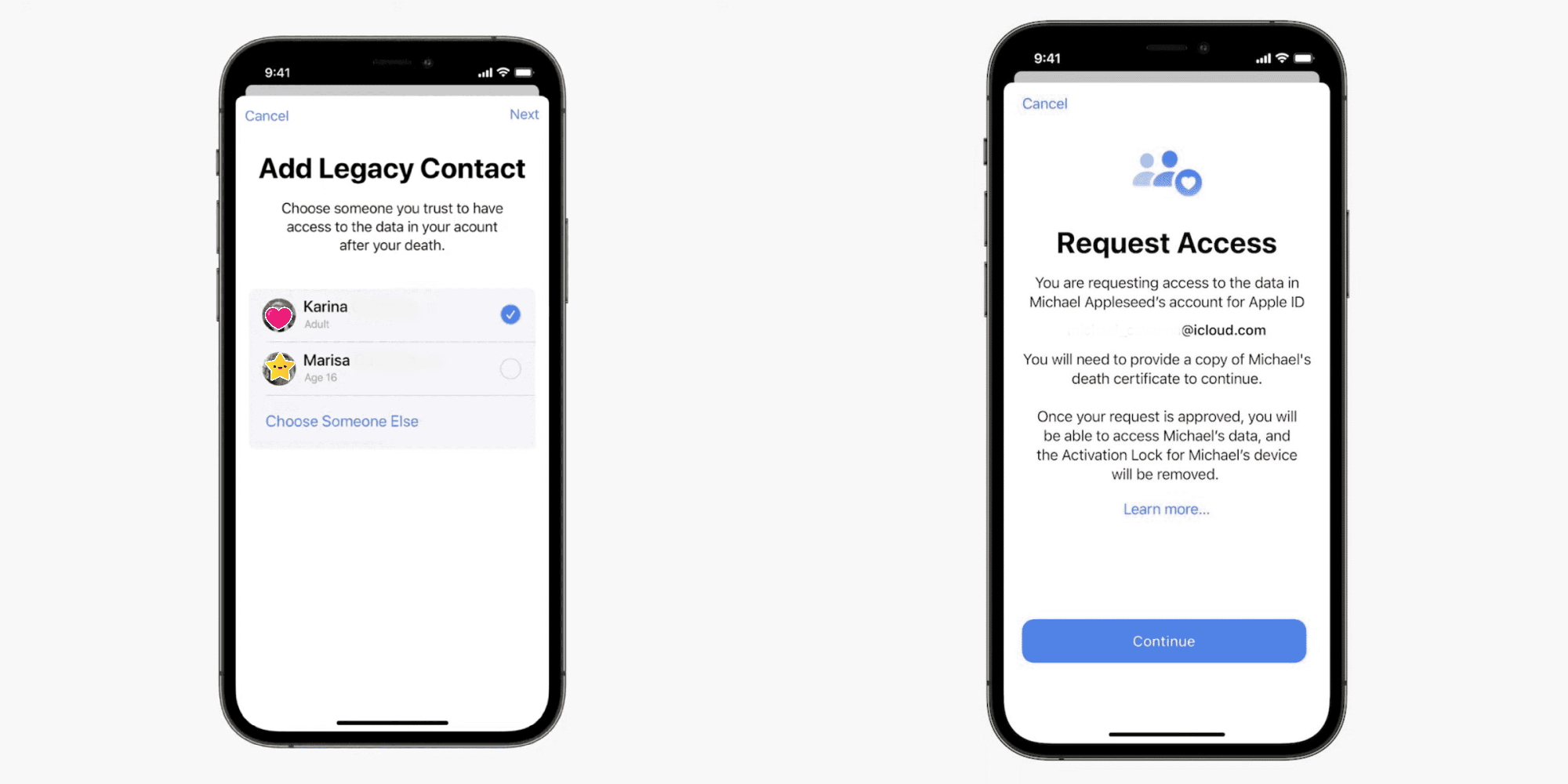
The Digital Legacy programme allows you to designate people as Legacy Contacts so they can access your account and personal information in the event of your death.
The way the feature will work is this. If you want one or more friends or family members to be able to access your iCloud data after your death, you will be able to name them, and provide them with a security key. The key will not be usable while you are alive – Apple will only activate it if supplied with proof of your death, which would normally be a copy of your death certificate.
It’s worth noting that not all of your data will be accessible, as some of it is protected with end-to-end encryption. This includes Apple Card transactions, health data, keychain entries, and browser history.
Macworld spotted two signs of readiness for launch. First, the company has updated the iCloud usage agreement.
With Digital Legacy, you can choose to add one or more contacts to access and download certain data in your account after your death.
If your designated contacts provide proof of death to Apple and have the required key, they will automatically obtain access to that certain account data and activation lock will be removed from all your devices. Thus, it is your responsibility to keep your Digital Legacy contacts up to date.
Second, Apple has a microsite for Legacy Contacts to request access to your account and devices after your death.
Request access to a deceased friend or family member’s account. If you are the legacy contact for a deceased person, you can request access to their account and have the activation lock removed from their devices.
There are links there to two support documents, but these currently redirect to the main support page.
Every year, new iOS releases arrive with headline-grabbing features like SharePlay and Focus. Likewise, every year, iOS includes under-the-radar improvements that aren’t likely to generate headlines. In this hands-on video I consider the top hidden iOS 15 features that I’ve stumbled upon.
While a few of these low-key features were demonstrated in my top iOS 15 features overview, the majority are enhancements that I haven’t yet showcased for the public version of iOS 15. Here’s a full list of all of the sleeper features covered in this video, along with a brief commentary on why I think each feature is beneficial.
Return of the editing loupe
The editing loupe was a staple feature of iOS for years, but was inexplicably removed. The loupe magnifies the immediate area around the cursor to help with precise movement. Needless to say, it’s an iOS 15 features that I welcome back with open arms.
Mute notifications for individual apps
You can now mute notifications via Notification Center on a per-app basis. Simply swipe on the notification, select Options, and mute for 1 hour or for the entire day.
Reorder Home Screen pages
You can now quickly reorder Home Screen pages by going into edit mode and tapping the page dots to enter the page editor.
Delete Home Screen pages
Within the page editor, it’s now possible to outright delete hidden Home Screen pages, sending all of its apps to the App Library.
Drag and drop support
iPadOS has enjoyed true drag and drop support for several years now, and iPhone users can now join in on the fun. Try dragging an image from the Photos app to a Messages app thread, or drag a URL directly from Safari into Notes.
Live Text shortcut
Live Text is one of the headline features in iOS 15, and if you tap in a text field to open the copy paste menu, you’ll see a new capture text shortcut to quickly insert live text from anywhere.
Reduce Bass on HomePod
If you’re an apartment dweller, this is a feature that you’ll surely appreciate. Open the Home app, invoke your HomePod, and flip the Reduce Bass switch.
Background sounds
I often listen to ambient sounds on Apple Music at night to help me sleep. With iOS 15, ambient background sounds are built right into iOS. Simply go to Accessibility → Audio/Visual → Background Sounds.
Voice memos skip silence and adjust playback speed
iOS 15 lets you speed through voice memos with the adoption of skip silence and playback speed adjustments.
Shazam history
Long-press on the Shazam shortcut in Control Center to access Shazam listening history.
Playback speed with default video player
Press the ellipsis button in the bottom right-hand corner of the default video player to access awesome new playback speed options.
Zoom in with Quick Take
When taking a video with Quick Take, slide up or down to zoom in and out.
New QR code UI
A new AR-centric QR code UI appears in the stock camera app when a QR code appears in the viewfinder.
Photo picker order
iOS 15 will now respect the order of your selections when picking photos via the Photo picker.
Markup immediately available when editing photos
No longer are the markup options hidden behind a menu when editing photos in the Photos app.
iCloud Backup Over Cellular
Users on fast cellular connections now have the option to perform backups even when not connected to Wi-Fi. This option is perfect for those connected to speedy 5G cellular service.
Prepare for new iPhone on reset
iOS 15 helps you get ready for the iPhone 13 with a new Prepare for New iPhone checklist.
iCloud Data Recovery service
This service can help you recover data that is not yet end-to-end encrypted, such as photos, notes, and reminders.
Account Recovery Contact
It’s a good idea to establish an account recovery contact just in case you forget your device passcode and Apple ID password.
Use Groups with Files app
You can now group files in the Files app by Kind, Date, and Size.
Hybrid Time Picker
iOS 15 lets you cycle through the time picker old school style, complete with haptic feedback, but it also allows for direct time input with just a tap.
Updated AirPrint interface
An updated AirPrint UI comes with a new presets panel and the ability to select media and quality.
Built-in OTP authenticator
Finally! iOS 15 now supports one-time-passcodes for two-factor authentication. It will also auto-fill your one-time-passcodes for a totally seamless login experience. To set up one-time-passcodes, go to Settings → Password.
Pull to refresh in Safari
Safari gets tons of new additions like Tab Groups, and a new bottom address bar with built-in swipe gestures. But Safari gets an additional swipe gesture by finally bringing support for pull-to-refresh to Apple’s default browser for the first time.
Safari extensions
Definitely don’t sleep on Safari’s new extensions capability, which lets users integrate apps and utilities such as Apollo or 1Password like never before. To activate available extensions, open Safari, tap the ‘Aa’ button, and click Manage Extensions.
Per-app accessibility settings
In the past, enabling an accessibility setting like Smart Invert would apply to iOS as a whole. In iOS 15, it’s now possible to apply accessibility settings on a per-app basis. Simply visit Settings → Accessibility → Per-App Settings.
Keyboard search
If you’re multi-lingual, you’ll no doubt enjoy being able to search through all available keyboards in Settings → General → Keyboard → Keyboards → Add New Keyboard.
Download from Spotlight
A refreshed UI allows you to download apps from Spotlight directly without invoking the App Store.
Modified App Store search results for installed apps
If your App Store search results include apps that you already have installed, iOS 15 will present a minimized view of the app icon with no corresponding screenshots.
Spotlight web image search
You can now easily search the web for images via Spotlight.
Lock Screen access for Spotlight search
You can also access Spotlight search directly from the Lock Screen on an unlocked iPhone.
Uninstall apps via Spotlight
In iOS 15, it’s now possible to search for an app via Spotlight, long-press on the result, and delete the app right from Spotlight.
Continuous Siri dictation
iOS 15 affords users the ability to continually dictate text well beyond the limits of previous versions of iOS.
Share On Screen items with Siri (Screenshot)
You can ask Siri to share on-screen content with a friend.
Control Smart Home Devices at a Specific Time
You can also ask Siri to control Smart Home devices at a certain time, which will create an automation within the Home app.
Find My after power off
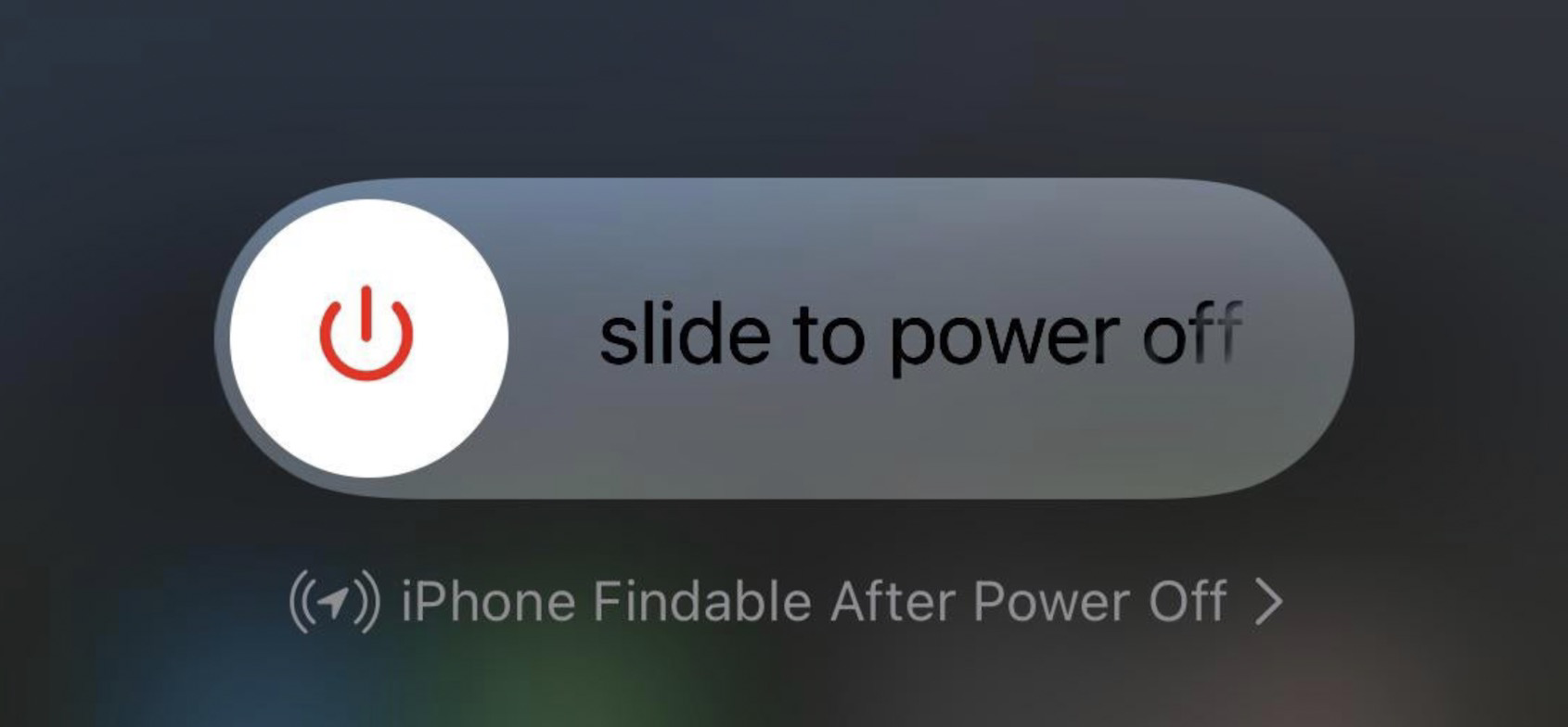
Finally, for devices logged in to the Find My network, you can now find your iPhone running iOS 15, even if the device has been powered off.
iOS 15 introduces Live Text using on-device intelligence, redesigned notifications, upgrades to Maps, and more.
iOS 15 introduces new ways to stay connected, powerful updates that help users focus and explore, and intelligent features to get more done with iPhone. FaceTime updates provide more natural video calls, Focus helps users reduce distraction, new features like Live Text use on-device intelligence to surface useful information, upgrades to Maps provide brand new ways to navigate the world, and much more. iOS 15 is available today as a free software update.
Enhancements for More Natural FaceTime Calls
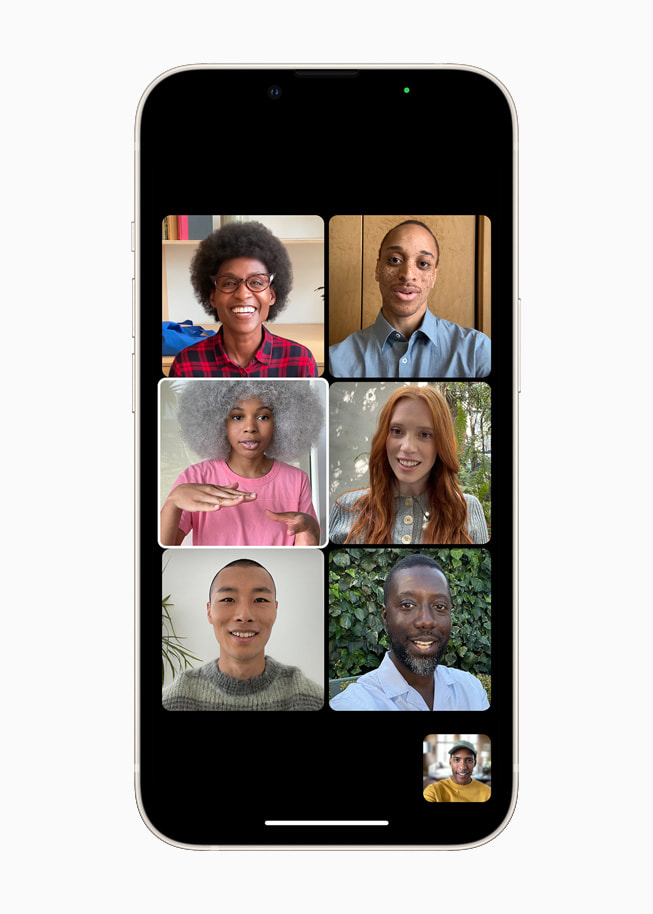
FaceTime is more essential than ever, giving users a way to easily connect with the people who matter most. Powerful updates to FaceTime audio and video features make calls feel more natural and lifelike. With spatial audio, voices in a Group FaceTime call sound like they’re coming from the direction in which the person is positioned on the screen.1 Voice Isolation, a new microphone mode, uses machine learning to eliminate background noise and prioritize the user’s voice, while Wide Spectrum allows for every bit of background sound to come through. Inspired by the stunning portrait photos taken on iPhone, Portrait mode in FaceTime blurs a user’s background and puts them at the focus.2 Voice Isolation, Wide Spectrum, and Portrait mode can also be used with third-party apps, such as Webex, Zoom, and WhatsApp. Group FaceTime gives the option to display participants in same-size tiles in a new grid view.
With iOS 15, Group FaceTime displays participants in same-size tiles in a grid view.
FaceTime calls now extend beyond Apple devices, so people using an Android or Windows device can join from their web browser. FaceTime calls on the web remain end-to-end encrypted so privacy is not compromised. To initiate the call, iPhone, iPad, and Mac users simply create a FaceTime link and share it through Messages, Calendar, Mail, or third-party apps, making it easier than ever to connect with friends and family.
Later this fall, SharePlay will deliver a new way for users to share experiences with friends and family while on a FaceTime call, such as listening to songs together, watching a TV show or movie, completing a workout together, or sharing their screen to view apps. SharePlay will work with apps like Apple Music, Apple TV+, and Apple Fitness+, as well as Disney+, ESPN+, HBO Max, Hulu, MasterClass, Paramount+, Pluto TV, SoundCloud, TikTok, Twitch, and many others. SharePlay can be accessed through iPhone, iPad, and Mac, and with shared playback controls, anyone in a SharePlay session can play, pause, or jump ahead. SharePlay even extends to Apple TV, so users can watch shows or movies on a big screen.
More Ways to Stay Connected with Messages
Shared with You is a new section that appears in Photos, Safari, Apple News, Music, Apple Podcasts, and the Apple TV app that displays the photos, articles, music, and other content shared by friends and family in Messages. Shared with You automatically displays shared photos in the Photos app, news stories in Apple News, and other relevant content in the corresponding app. The Shared with You section shows who sent the content, and makes it easy to view the associated message and restart the conversation.
In iOS 15, Memoji brings even more ways for users to express themselves with multicolored headwear, more glasses styles, and new accessibility options including cochlear implants, oxygen tubes, and a soft helmet. Memoji stickers can be customized with more than 40 outfit options and nine new sticker poses including a shaka, hand wave, and light bulb moment.
The Shared with You section in Photos displays the photos shared by friends and family in Messages.
Powerful Tools to Find Focus in the Day
iOS 15 introduces Focus, a new way to help users reduce distraction by filtering notifications based on what a user wants to focus on in that moment. For example, the Work Focus can be set during work hours to only allow notifications from coworkers and apps that are used for work, the Personal Focus can be used when taking a break with friends and family, or the Fitness Focus can help a user stay in the zone while completing a workout. Users can create a custom Focus or select a provided Focus, which uses on-device intelligence to suggest which notifications from people and apps are allowed. To further extend the ability to focus, users can create dedicated Home Screen pages with relevant apps and widgets to match a specific Focus.
While using Focus, a status is automatically displayed to contacts in Messages and supported third-party communication apps like Slack, so they know not to interrupt. Users will even receive suggestions to turn on a Focus based on factors like time of day or location, and when Focus is set on one Apple device, it automatically applies to all of a user’s Apple devices.
Focus helps users filter notifications to reduce distractions, using a custom Focus or a suggested Focus like Work or Fitness.
A Fresh New Look for Notifications
Notifications have been redesigned, adding contact photos for people and larger icons for apps that make them even easier to identify. The notification summary is a collection of notifications delivered each day at scheduled times determined by the user. Using on-device intelligence, the summary is arranged by priority, with the most relevant notifications rising to the top based on how a user interacts with apps. Time-sensitive notifications, messages, and phone calls will be delivered immediately, so users won’t miss timely alerts, and it’s easy to temporarily mute any app or messaging thread for an hour or for the day.
iOS 15 introduces the notification summary, a collection of notifications delivered each day at the times selected by the user.
On-Device Intelligence Delivers Live Text, Advanced Spotlight Search, and Memories
Live Text makes text in photos interactive. Using on-device intelligence, Live Text recognizes text in photos across the entire system including the web, and allows users to take action, such as copy and paste, look up information, and translate. Users can even tap the image of a phone number to make a call, or the image of a web address to open a page in Safari. With the power of the Neural Engine, the Camera app can also quickly recognize and copy text in the moment, such as the Wi-Fi password displayed at a local coffee shop. With Visual Look Up, users can learn more about popular art, landmarks, and books, plants and flowers found in nature, and breeds of pets.
Spotlight is the universal way to start searches on iPhone and now it can be accessed directly from the Lock Screen, and includes the ability to search photos by location, people, scenes, or objects. Using Live Text, Spotlight can find text and handwriting in photos.
iOS 15 delivers the biggest update ever to Memories. With a fresh new look, interactive interface, and integration with Apple Music that uses on-device intelligence to suggest music tracks, new cinematic Memories makes it easier to relive favorite or forgotten moments.
Live Text uses on-device intelligence to identify text and enhance the photos experience.
Spotlight now searches photos by location, people, scenes, and objects.
Redesigned Browsing with Safari
Safari introduces a newly designed browsing experience that makes controls easier to reach. By default, the new tab bar is positioned at the bottom of the screen, so users can easily swipe between tabs with one hand. Tab Groups allow users to organize tabs and easily access them at any time across iPhone, iPad, or Mac, and a customizable start page and web extensions on iOS make Safari more powerful and personal than ever.
Safari is redesigned with a new tab bar and Tab Groups for an even better browsing experience.
Navigate and Explore with Apple Maps
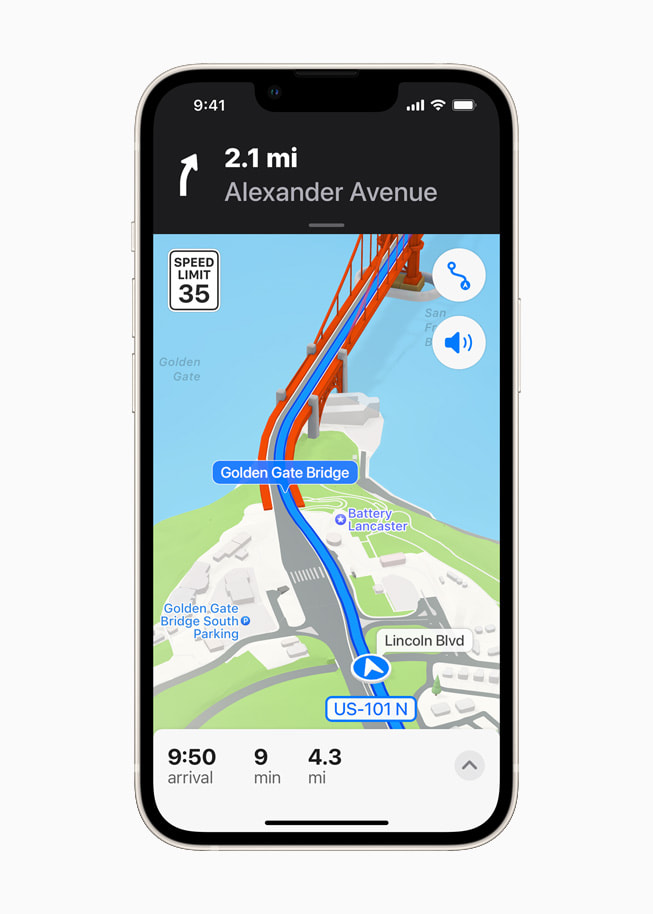
Maps in iOS 15 introduces a whole new way of looking at the world. A visually stunning map offers unprecedented levels of detail for neighborhoods, commercial districts, buildings, as well as custom-designed landmarks, and a new night-time mode with a moonlit glow. Navigation features a new three-dimensional driving view with road details that help users more easily identify turn lanes, medians, crosswalks, and sidewalks. The enhanced map is available in Los Angeles, New York, and San Francisco, with more to come. A beautifully designed interactive globe provides rich detail for mountain ranges, deserts, rainforests, and bodies of water.
Transit riders can get one-tap access to all departures near them and pin their favorite lines. Maps automatically follows along with a selected transit route, notifying users when it’s nearly time to disembark, and riders can even keep track on Apple Watch. By simply holding up iPhone, users can receive detailed walking directions in augmented reality.
Maps automatically follows along a selected transit ride and now notifies users when they are nearing their desired stop.
A three-dimensional city navigation and exploration experience comes to Apple Maps with more realistic and colorful details.
With iOS 15, users can access even more places with just a tap of their iPhone with new home, hotel, office, and car keys in Wallet. Digital car keys get even better with support for Ultra Wideband technology, so users can securely lock, unlock, and start their supported vehicle without removing their iPhone from a pocket or bag. iPhone can also be used to unlock a user’s home, office, or even a hotel room — all through keys stored in Wallet. Additionally, users will be able to add eligible state IDs and driver’s licenses to Wallet on iPhone as this option becomes available in their state in the future.
House and hotel room keys as well as ID cards come to Wallet for a simple tap-to-unlock experience for everyday places.
Redesigned Weather Experience
Weather includes an all-new design with full-screen maps, graphical displays of weather data, and dynamic layouts that change based on conditions. Beautifully animated backgrounds more accurately reflect sun position, clouds, and precipitation, and notifications indicate when rain or snow is about to start or stop.
The Weather app has been redesigned to include full-screen maps and dynamic layouts that change based on weather conditions.
Organize and Collaborate in Notes
Notes adds user-created tags that make it easy to quickly categorize notes and mentions that allow members of shared notes to notify one another of important updates. An all-new Activity view shows the recent history of a shared note, and Highlights reveals details on who made the changes. Quick Notes created on Mac and iPad can be viewed and edited in Notes.
Notes adds user-created tags that make it easy to quickly categorize notes in line with relevant content.
More Privacy Controls
New privacy features provide even more transparency and control over the data users provide to apps. Mail Privacy Protection prevents senders from learning whether an email has been opened, and hides IP addresses so senders can’t learn a user’s location or use it to build a profile on them. Siri’s protection of user privacy goes even further with on-device speech recognition as users’ audio requests are now processed entirely on device by default, enabling more personalization, offline requests, and faster performance.6
Additional Features
Siri adds Announce Notifications on AirPods and the ability for users to share what’s on their screen just by asking. Siri can now be enabled in third-party HomeKit accessories, so HomePod and HomePod mini users can easily and securely ask Siri to send a message, set a reminder, or broadcast an Intercom message to the family from more devices in the home.7
iCloud+ combines everything users love about iCloud with new premium features, including Hide My Email, expanded HomeKit Secure Video support, and an innovative new internet privacy service, iCloud Private Relay.8 Current iCloud storage subscribers will be upgraded to iCloud+ automatically at no additional cost. All iCloud+ plans can be shared with people in the same Family Sharing group, so everyone can enjoy the new features, storage, and elevated experience that comes with the service.
The Health app gets a new sharing tab that lets users share their health data with family, caregivers, or a care team, trends give users a way to focus attention on meaningful changes in personal health metrics, and Walking Steadiness is a new metric that empowers people to proactively manage their fall risk. Users also have the ability to store verifiable COVID-19 vaccination or test result records directly in the Health app, so they can easily access them at any time.
Translate adds a new Auto Translate feature that automatically detects when a user begins speaking and translates speech without tapping the microphone button, allowing for conversation across languages to flow more naturally. Systemwide translation makes it possible to translate text anywhere on iPhone by selecting it and tapping Translate.
New iPhone setup makes it more seamless than ever to get started with iPhone. Existing iPhone users can temporarily back up data to iCloud — even without a subscription — to easily transfer their data to a new iPhone.9 For those moving to iPhone for the first time, an improved Move to iOS experience easily transfers photo albums, files, folders, and Accessibility settings, so iPhone feels personal right from the start.
Accessibility features include the ability to explore people, objects, text, and tables within images in more detail with VoiceOver, and new background sounds play continuously in the background to mask unwanted environmental or external noise. Sound actions customize Switch Control to work with mouth sounds, and users can customize display and text size settings on an app-by-app basis. Apple is also bringing support for recognizing imported audiograms — charts that show the results of a hearing test — to Headphone Accommodations.
Hide My Email lets users share unique, random email addresses that forward to their personal inbox any time they wish to keep their personal email address private.
Trends in the Health app enables users to easily see how a given health metric is progressing over time.
Translate goes systemwide, allowing users to translate text anywhere on iPhone.
Pricing and Availability
iOS 15 is a free software update that is available starting today for iPhone 6s and later. For more information, visit apple.com/ios/ios-15. Some features may not be available in all regions or all languages.
Apple today released iOS 15 and iPadOS 15 beta 5 to developers. These updates don’t include as many changes as the previous betas did, but they do include a handful of smaller tweaks. Head below as we roundup everything knew in iOS 15 and iPadOS 15 beta 5.
With the fifth betas of iOS 15 and iPadOS 15, Apple is focusing more on refinement than major changes. There are no major changes to the controversial Safari redesign in this beta, unlike the previous releases.
iOS 15 beta 5 features the build number of 19A5318f. Developers can update from beta 4 via the Settings app. Open the Settings app, choose General, then choose Software Update.
iOS 15 is also available to public beta users, but no new beta has been released to those users this week. It’s possible that the next iOS 15 public beta build is released later today or tomorrow, but a release next week is not out of the question. Apple has also not released new betas of macOS Monterey or watchOS 8.
What’s new in iOS 15 beta 5?
The Weather app has a new icon that adds depth, making it similar to the Maps icon in iOS 15
New onboarding screens for the Maps, Home, and Photos applications
In iPadOS 15 beta 5, Apple has made a small change to the Safari interface, so the address bar is now outlined instead of filled in
Safari
iPadOS 15 beta 5 also brings a new “Use Large Icons” setting to the “Home Screen & Dock” area of the Settings app. This was previously located in the “Display & Brightness” settings area
In the Settings app under Safari then Accessibility, there is a new option for “Show Color in Top and Bottom Bars”
New tappable message for “iPhone Findable After Power Off”
Tweaks to the “Notifications while in Focus” design in Notification Center
According to Apple’s release notes: “Legacy Contacts has been removed from iOS & iPadOS 15 beta 5 and will return in a future release.”
New indicator in the App Store for when you have a TestFlight beta version of an app installed
After England’s NHS app brought support to a COVID-19 passport last week, the Australian government is doing the same via Express Plus Medicare for its iPhone users. Starting now in Australia, anyone that received two shots of Pfizer or AstraZeneca vaccines is eligible to add a digital certificate to the Apple Wallet.
According to the website, there are two methods to add the COVID-19 digital certificate into the Apple Wallet: the first one is to access my.gov.au, tap on “Go to Medicare” in the COVID-19 vaccination status area, and then under the PDF link, you’ll find an “Add to Apple Wallet” button.
The other option is to download the Medicare app, log in with your myGov account, tap on “Immunization History,” and “View COVID-19 digital certificate.”
The digital certificate has your name, date of birth, document number, and when it started to be valid.
“This certificate shows your COVID-19 immunisation details as reported to the Australian Immunisation Register by your vaccination provider.”
With that, Australia is another country to give easier ways for its citizens to show that they are fully vaccinated against COVID-19. The European Union also has a “COVID passport” that allows EU citizens to travel across the participating countries when they’re fully vaccinated.