Apple is continuing to fix some of the early bugs affecting iOS 16 as well as the iPhone 14 and iPhone 14 Pro. The company is now rolling out iOS 16.0.3, which includes additional bug fixes and performance improvements for notifications, the Camera app, and more.
You can update your iPhone to iOS 16.0.3 by heading to the Settings app, choosing General, then choosing Software Update. The build number for today’s update is 20A392. It’s available for any iPhone that is capable of running iOS 16, which includes the iPhone 8 and newer.
Incoming call and app notifications may be delayed or not delivered on iPhone 14 Pro and iPhone 14 Pro Max.
Low microphone volume can occur during CarPlay phone calls on iPhone 14 models.
Camera may be slow to launch or switch between modes on iPhone 14 Pro and iPhone 14 Pro Max.
Mail crashes on launch after receiving a malformed email.
Today’s update comes after Apple released iOS 16.0.2 toward the end of September. This update addressed the annoying copy-and-paste alerts, the camera shaking problem for iPhone 14 Pro, and more. Apple is also continuing to beta test iOS 16.1 with developers and public beta users, primarily focusing on new features.
One of the biggest things we’re watching for is whether or not iOS 16.0.3 addresses the battery life complaints that are currently flooding in from many iPhone users. As we detailed a couple of weeks ago, iOS 16 has significantly impacted battery life for the majority of iPhone users, including the new iPhone 14 and iPhone 14 Pro models.
iOS 16 has been available for just about two weeks, and users are continuing to complain that the update has destroyed their iPhone’s battery life. While a temporary hit to battery life is normal after a software update, something different seems to be going on this time around, with iPhone users still complaining two weeks later…
iOS 16 battery life
When you update your iPhone to a new version of iOS, there’s usually a temporary hit to your battery life immediately after installing that update. This is because iOS is doing things in the background like reindexing files, photos, apps, and more. This type of hit to your iPhone’s battery is especially notable with Apple’s yearly flagship software releases, like iOS 16, because they are such massive updates.
In general, this leads to a flood of battery life complaints immediately after a new software version is released. But once all of the background reindexing is complete, the complaints usually subside. This year, however, the complaints have not subsided and many users are convinced that iOS 16 has completely destroyed their iPhone’s battery life.
A quick search on any social media platform, including Reddit, TikTok, and Twitter, will unearth thousands of complaints from iPhone users. These users all say that their iPhone battery life has taken a significant hit since installing iOS 16 two weeks ago. And of course, there are a number of conspiracy theories about Apple purposefully reducing battery life on older iPhones to drive iPhone 14 sales.
In a poll of 63% of iPhone users said their battery life is worse after installing iOS 16. This seems to broadly line up with public sentiment regarding iOS 16’s battery life impact. On Reddit, one user writes:
My battery drain is hugely more than i usually had. I work in the office and dont use my 13 PM that much during the day, nothing has changed in my behaviour. On iOS 15 I mostly came home with between 85% – 90% left. With iOS 16 its between 65% – 75%. That’s in my opinion quite A LOT when almost not using my phone.
Another user:
Battery on 13 pro max drains like crazy. It went from 11-12hrs SOT to just 7hrs and it lags like hell when I do facetime or PiP, it just lags in general. I do know it takes a few days for the phone to be normal again but it’s already been almost a week. I’m contemplating on going back to 15.7 but I might need some opinions first.
Apple hasn’t yet commented on these battery life concerns from iOS 16 users. The company has released iOS 16.0.2 to the public with no mention of battery life improvements. iOS 16.1 is also currently in beta testing.
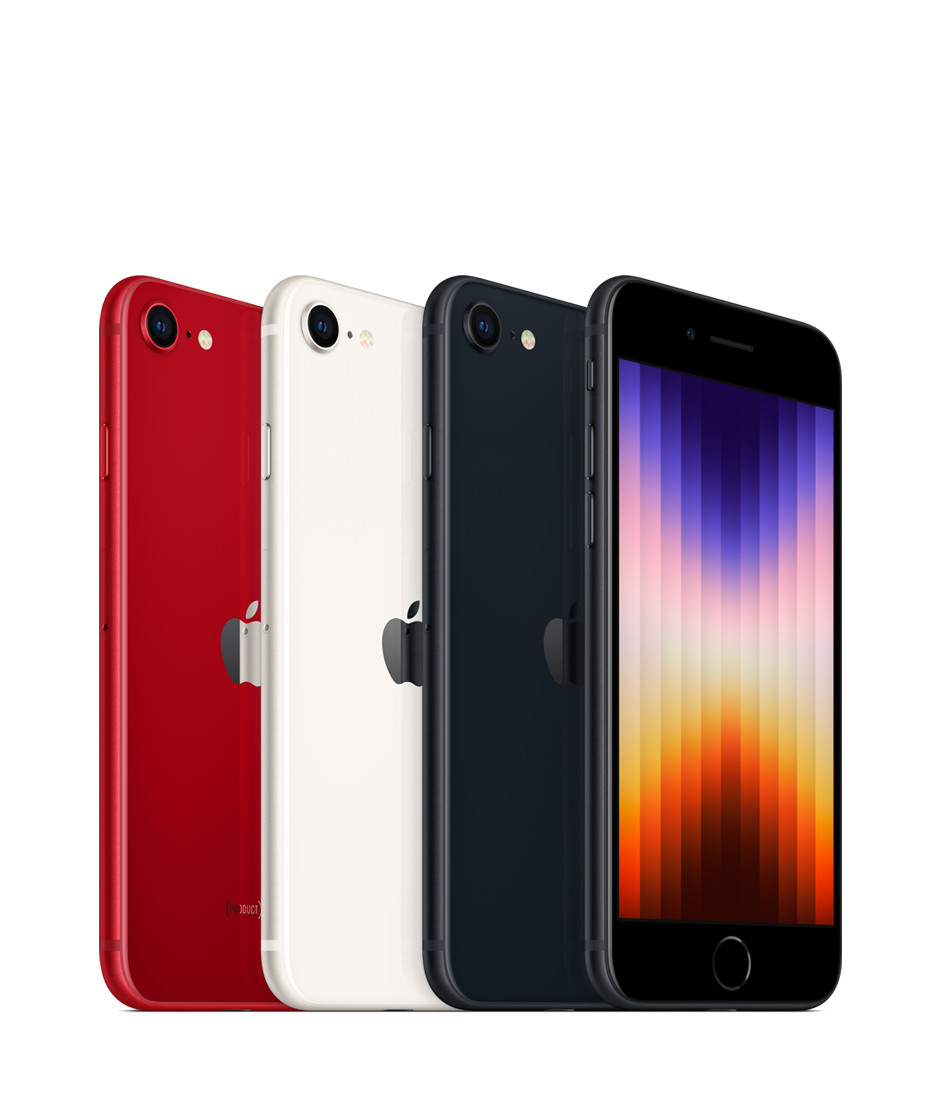
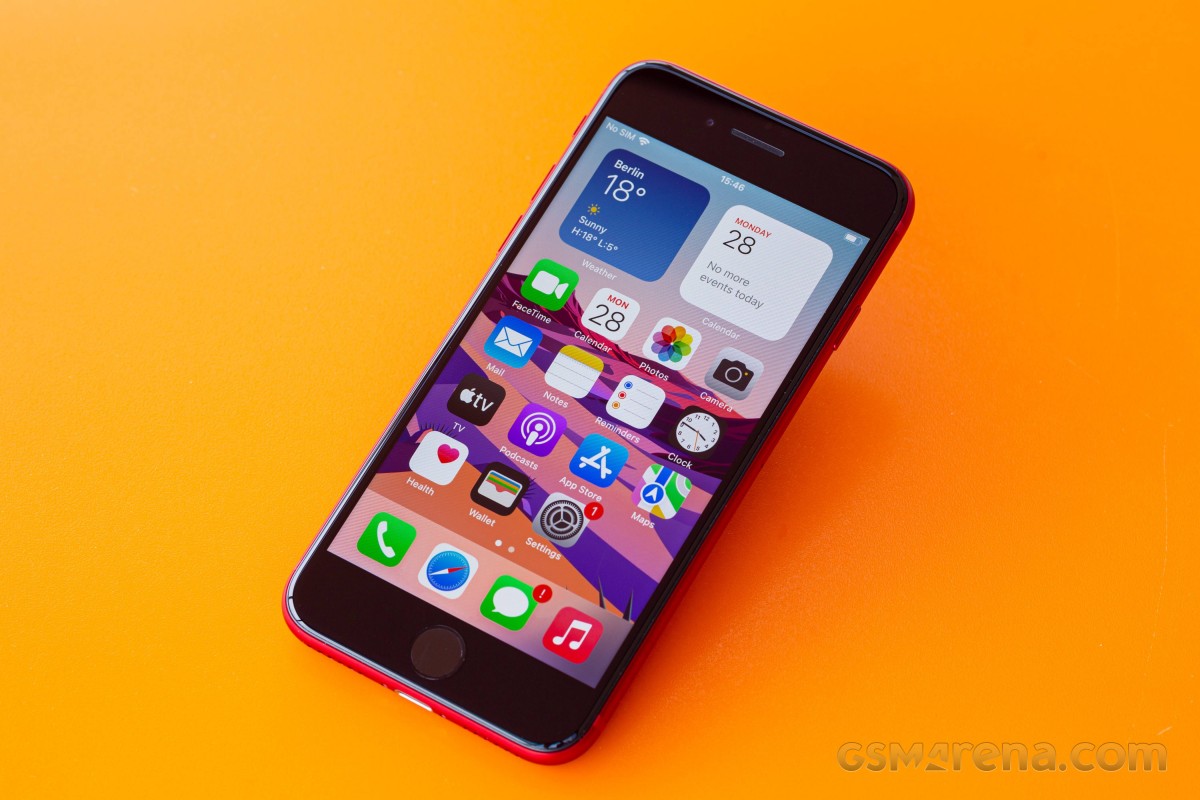
The Special Edition iPhone, also known as the cheapest iPhone, or the retro one, has been refreshed, and is now available for purchase. It’s a very minor refresh of the phone with the same name from 2020, most upgrades stemming from the new chipset and its accompanying 5G modem.
Apple really likes recycling. It is proud of its eco-friendly assembly line, recycled materials, PVC-free packaging, thin retail boxes, smaller and smaller e-waste footprint. But it’s also clearly very keen on recycling design as the third-generation iPhone SE has the same exterior as the second-generation iPhone SE from 2020, and the iPhone 8 from as far back as 2017.
The iPhone SE (2022) also keeps the 4.7-inch Retina LCD screen with 60Hz refresh rate from its predecessors. This means large thick bezels on the top and bottom, but also a Home key and an integrated Touch ID fingeprint sensor.
What’s new in the iPhone SE (2022) is the chipset – it uses the same Apple A15 Bionic as the iPhone 13 flagship line. This probably makes the iPhone SE (2022) the most powerful smartphone in the entire world when considering its small display with fewer pixels than any other high-end or mid-range smartphone. There is more RAM, too, now it’s 4GB, up from 3GB on the previous SE model.
The new chipset has enabled 5G connectivity, more computational power for iOS, and Deep Fusion for the front and rear cameras. It came short of adding night mode, however, perhaps for reasons beyond its control.
The iPhone SE (2022) also comes with a slightly larger battery – it’s now 2,018mAh instead of 1,821mAh. Wireless charging is available, just like before and because the battery capacity is so small it tops up pretty quickly even if the phone’s supported charging speeds are far from the highest on the market.
The rest of the iPhone SE (2022) specs are identical to the 2020 model – there is a 12MP OIS camera at the back and a 7MP camera at the front. You also get stereo speakers, Apple Pay support and IP67 rating for dust and water resistance.
Here’s the iPhone SE (2022) cheat sheet.
Apple iPhone SE (2022) specs at a glance:
Body: 138.4×67.3×7.3mm, 144g; Glass front, glass back, aluminum frame; IP67 dust/water resistant (up to 1m for 30 mins), Apple Pay (Visa, MasterCard, AMEX certified).
Video capture:Rear camera: 4K@24/30/60fps, 1080p@30/60/120/240fps, OIS, stereo sound rec; Front camera: 1080p@30/120fps; gyro-EIS.
Battery: 2018mAh; Fast charging 18W, 50% in 30 min (advertised), Qi wireless charging.
Misc: Fingerprint reader (front-mounted); NFC.
The Apple A15 Bionic is among the most powerful chips in the world and it feels wasteful to pair it to such a small, low-res screen that can’t exceed 60Hz. It’s like putting a Ferrari engine into a VW Polo. But we guess Apple needed to refresh the SE with 5G connectivity and it was just easiest to use the chip it already manufactures in the largest quantities.
Still, we would have preferred a larger OLED screen, even if 60Hz. And MagSafe should have been present, too, in fact we were surprised not to see it on this new SE.
Apple is promising 5 years of updates for the SE, just like on its premium iPhones, so that’s another possible reason why it needed to use the current best chipset.
Enough teasing let’s unbox this iPhone and get this review started.
Unboxing the iPhone SE (2022)
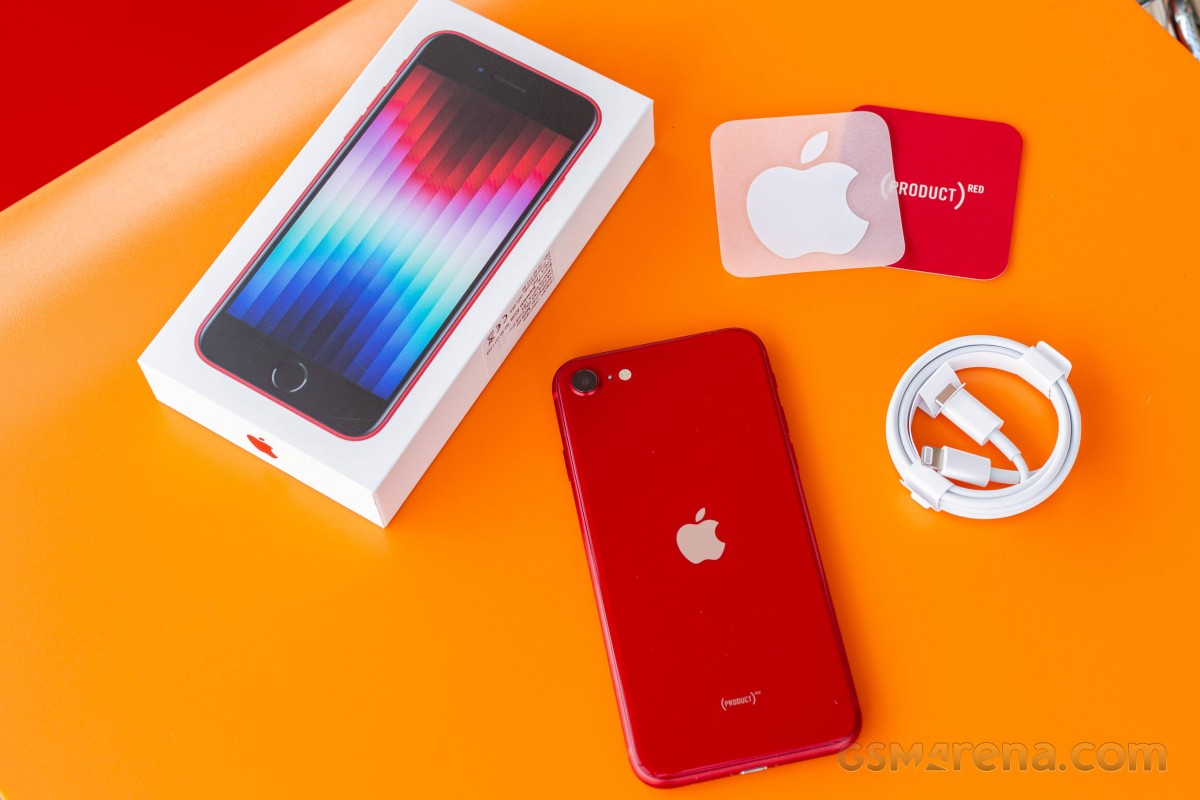
The Apple iPhone SE (2022) has the same box as the flagship iPhones – meaning it’s thin, small and lightweight and it contains the iPhone and a USB-C-to-Lightning cable.
The iPhone SE (2022) supports 20W charging, so if you already have the 20W Apple Power adapter, or a similar USB-C PD one, you should be fine.
And while Apple has dropped most of the box contents, you still get one Apple sticker that most people with throw right away. Not that eco-friendly, is it?
The competition
The iPhone SE (2022) is the cheapest iPhone you can buy from Apple and that’s all that matters to a certain group of buyers. We are not sure those are the people to care about the addition of 5G pr a faster chipset, but it is what they will be getting anyway. The new SE model keeps the iconic even if dated design, it is quite lightweight and waterproof, and offers commendable experience across the board.
Of course, the iPhone SE (2022) is a very minor upgrade over the iPhone SE (2020) so we doubt anyone will be looking to upgrade. In fact, the only major change is the chipset swap and the resulting 5G connectivity. If you do not need 5G, then you’d be perfectly fine with the second-generation iPhone SE. It is literally the same phone, even the color options are identical.
So, while stocks last the previous iPhone SE is the first model to consider. Apple has discontinued the model from its website, but the SE (2020) is still available for purchase across various retailers worldwide. And it costs about €260, which is half the iPhone SE (2022) price, making it incomparably better value.
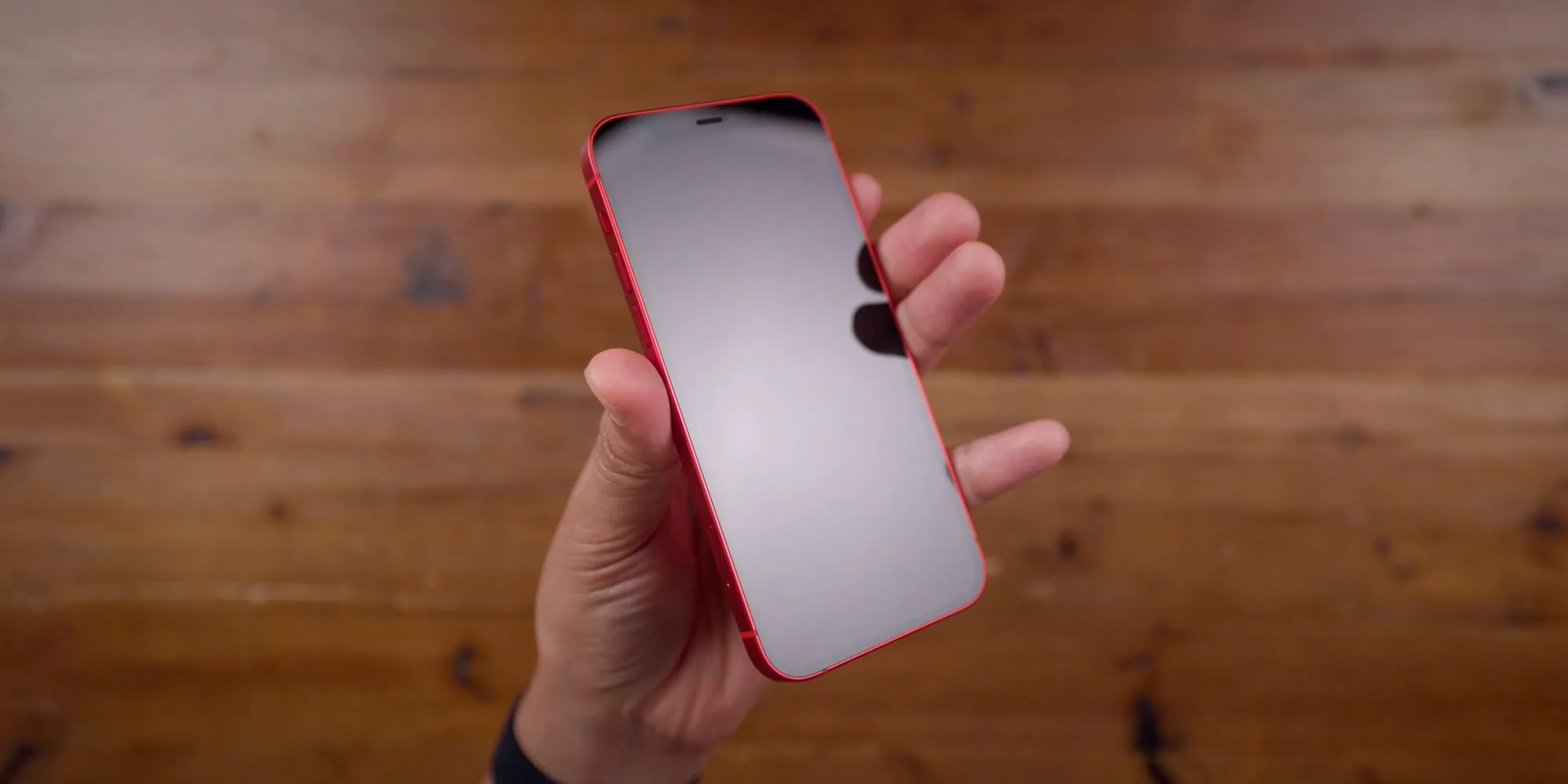
The iPhone 12 mini is officially available, and its base model can be found at about €680 or €180 more expensive than the iPhone SE (2022). It is a smaller phone yet has a larger OLED screen with faster touch response time, which makes operations look smoother. The 12 mini offers Ceramic Shield glass, it has an extra 12MP ultrawide camera on the back and a better 12MP front camera with 4K video capturing. There is also Face ID and better battery life to consider. If you can stretch your budget that far and care about the user experience we really think the mini is the far better value for money.
We are not including the iPhone 13 mini as it is a further €120 more expensive and doesn’t offer nearly enough upgrades to justify that. Unless perhaps you are looking for 128GB of storage, which is the base for the 13 mini, but an expensive upgrade on the SE (2022) and the 12 mini.
If Apple‘s ecosystem is not a must, maybe you will like the compact Asus Zenfone 8. It is about €100 more expensive than the iPhone SE (2022), but it comes with a 5.9-inch AMOLED with 120Hz refresh rate and a superb dual-camera system on the back. Its front camera is also an excellent choice for its 12MP sensor and AF capabilities.
Finally, last year’s Samsung Galaxy S21 5G is also a good choice for its compact shape, a great 6.2-inch Dynamic AMOLED 2X with 120Hz refresh, powerful hardware, and a triple camera with an ultrawide and a telephoto in addition to the main shooter. It has much better battery life, too, and Samsung’s ecosystem and line of accessory has become as good as Apple’s. The S21 5G is about €80 more expensive than the iPhone SE (2022), still reasonably compact but with a much larger screen.
Apple iPhone SE (2020) • Apple iPhone 12 mini • Asus Zenfone 8 • Samsung Galaxy S21 5G
Our verdict
If you are dead set on buying an iPhone, but want to spend as little as possible the iPhone SE (2022) is your default option and nothing this review says will change your mind. Then again you probably won’t be reading reviews in the first place.
Apple‘s sequels rarely change much to make you jump on the next generation and the iPhone SE (2022) is just another example of that. Despite taking two years to arrive it only has the newer Apple A15 chip with a 5G modem to show for it. The rest is the same, in fact – similar to what the iPhone 8 had back in 2017.
It is not a phone you’ll hate to use, don’t get us wrong. A good if tiny display, excellent speakers, reliable camera, and a very compact body.
The iPhone SE (2022) can do a lot of things well and that might be enough to justify its €520 base price in the eyes of many people.
Of course, it looks retro, and it has a small display of low resolution and slow refresh with huge black bezels. There’s only a single camera on the back and one that hasn’t had a sensor or lens update since 2017 – hence the lack of Night Mode.
So this really is a phone for two groups of people. The first one wants the cheapest entry into the iOS ecosystem. The second are those looking for a powerful compact phone with the same requirement of spending as little as possible. If you fall in either of those the iPhone SE (2022) will perform reliably enough so you won’t regret getting it. In any other case you should either stretch you budget to an iPhone 12 mini or explore the endless Android market instead.
Pros
Solid glass build, IP67-rated, very compact body
Good brightness, decent contrast screen, great color accuracy
Loud stereo speakers, good audio quality
The screen on battery endurance is actually okay
The most powerful chipset; does not throttle much
Dependable photo and video cameras
5G
Touch ID
Cons
Very few upgrades over the iPhone SE (2020), but costs more
No Night Mode.
The display is too small for a lot of tasks
60Hz screen refresh, 60Hz touch sampling rate
No charger in the box
iOS (with its limitations) remains a love it or leave it affair
Curious which iPhones have eSIM support or if your current iPhone has an eSIM you can take advantage of? Read along for a look at the complete iPhone eSIM list for which models have the embedded digital SIM and which ones have dual eSIM support.
iPhone has used a variety of SIMs (subscriber identity modules) over the years. Apple first started iPhone with mini SIM, then moved to micro SIM with iPhone 4 and 4S, and it moved to the nano SIM size with iPhone 5 until today.
However, a convenient option in recent years has been the addition of an eSIM (embedded SIM). This makes it easier for customers to connect with carriers and use two different lines with one iPhone. With it being digital, you don’t need to replace a physical card when changing carrers. Some providers like T-Mobile even let you instantly start a trial with eSIM.
You can quickly check if your iPhone has an eSIM by heading to Settings > Cellular > Add eSIM or Add Cellular plan.
Ok, here’s the full iPhone eSIM list…
iPhone eSIM list: Which models have it?
Note: An Apple News bug may cause the information below to display incorrectly.
iPhone 13 Pro Max eSIM support?
Yes ✅ – eSIM + nano SIM and dual eSIM support (full specs)
iPhone 13 Pro eSIM support?
Yes ✅ – eSIM + nano SIM and dual eSIM support (full specs)
iPhone 13 eSIM support?
Yes ✅ – eSIM + nano SIM and dual eSIM support (full specs)
iPhone 13 mini eSIM support?
Yes ✅ – eSIM + nano SIM and dual eSIM support (full specs)
iPhone SE 3rd gen eSIM support?
Yes ✅ – eSIM + nano SIM and dual eSIM support (full specs)
iPhone battery mAh list: How much capacity does each iPhone model have?
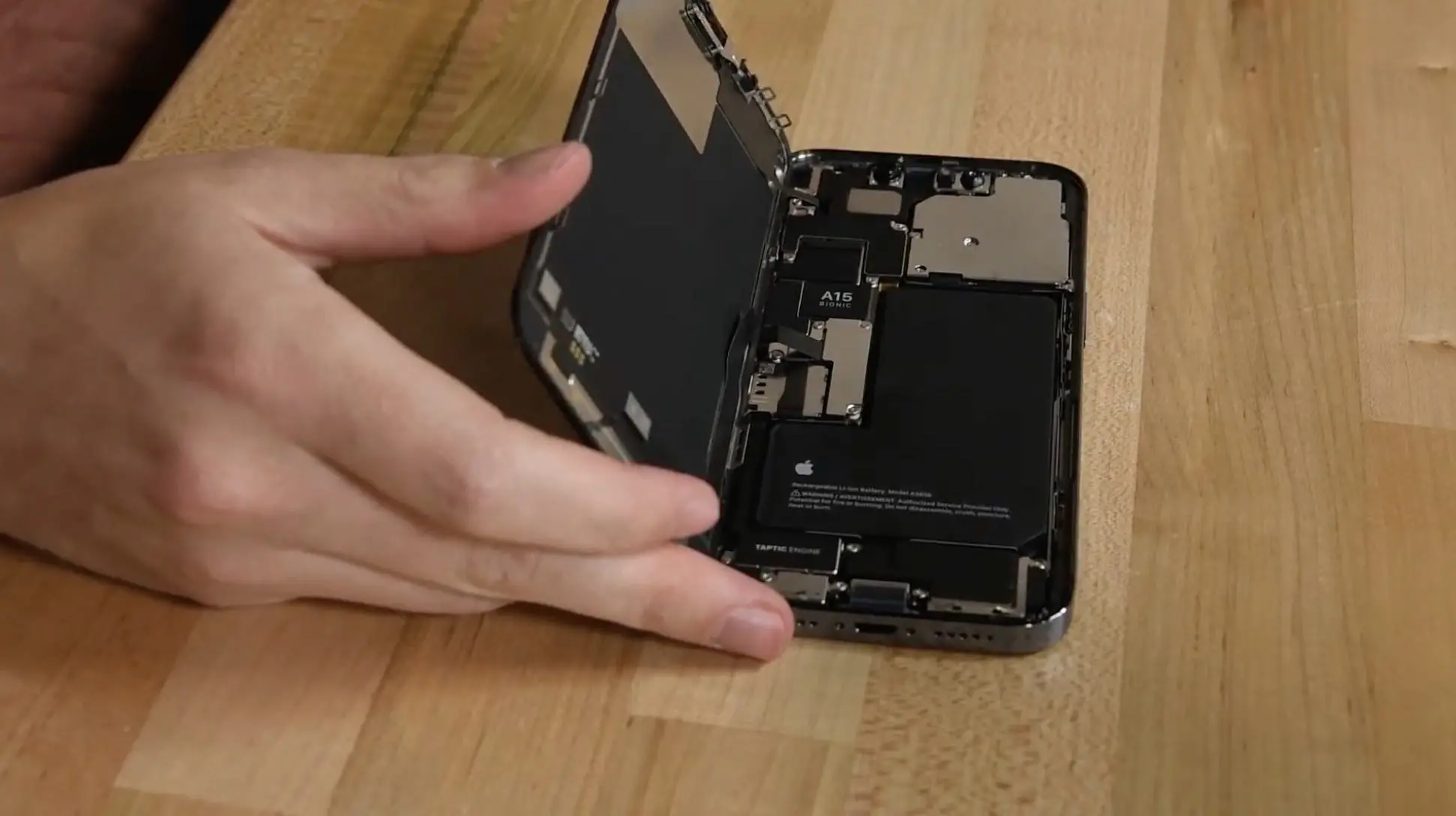
Ever wonder how much battery capacity Apple has put in its iPhones over the years or what size battery your current iPhone has? While the company doesn’t publicly share the information, battery details eventually surface in teardowns. Join along for a look at the complete iPhone battery mAh list for how much battery capacity comes with every iPhone model.
One of the main reasons Apple doesn’t share iPhone battery capacity is iPhone battery life can often outperform the competition like Android phones with a smaller battery capacity. Apple is able to do that as it makes both the hardware and software and precisely fine tunes its devices to perform as efficiently as possible.
Said another way, Apple focuses on what its iPhones can do rather than the specs powering them.
One example of that is sometimes a newer iPhone model has come with a smaller battery capacity than its predecessor as new chips have brought better efficiency.
Before checking out the specs below, can you guess how much battery capacity the original iPhone had? 😁
Ok, here’s the full iPhone battery mAh capacity list…
iPhone battery mAh list: Battery capacity for every iPhone
Note: An Apple News bug may cause the information below to display incorrectly.
iPhone 13 Pro Max battery mAh capacity?
4352 mAh – 16.75 watt-hour
iPhone 13 Pro battery mAh capacity?
3095 mAh – 11.97 watt-hour
iPhone 13 battery mAh capacity?
3227 mAh – 12.41 watt-hour
iPhone 13 mini battery mAh capacity?
2406 mAh – 9.57 watt-hour
iPhone SE 3rd gen battery mAh capacity?
2018 mAh – 7.82 watt-hour
iPhone 12 Pro Max battery mAh capacity?
3687 mAh – 14.13 watt-hour
iPhone 12 Pro battery mAh capacity?
2815 mAh – 10.78 watt-hour
iPhone 12 battery mAh capacity?
2815 mAh – 10.78 watt-hour
iPhone 12 mini battery mAh capacity?
2227 mAh – 8.57 watt-hour
iPhone SE 2nd gen battery mAh capacity?
1821 mAh – 6.96 wat-hour
iPhone 11 Pro Max battery mAh capacity?
3969 mAh – 15.04 watt-hour
iPhone 11 Pro battery mAh capacity?
3046 mAh – 11.67 watt-hour
iPhone 11 battery mAh capacity?
3110 mAh – 11.91 watt-hour
iPhone XR battery mAh capacity?
2942 mAh – 11.24 watt-hour
iPhone XS Max battery mAh capacity?
3174 mAh – 12.08 watt-hour
iPhone XS battery mAh capacity?
2658 mAh – 10.13 watt-hour
iPhone X battery mAh capacity?
2716 mAh – 10.35 watt-hour
iPhone 8 Plus battery mAh capacity?
2691 mAh – 10.28 watt-hour
iPhone 8 battery mAh capacity?
1821 mAh – 6.96 watt-hour
iPhone 7 Plus battery mAh capacity?
2900 mAh – 11.10 watt-hour
iPhone 7 battery mAh capacity?
1960 mAh – 7.45 watt-hour
iPhone SE battery mAh capacity?
1624 mAh – 6.21 watt-hour
iPhone 6S Plus battery mAh capacity?
2750 mAh – 10.45 watt-hour
iPhone 6S battery mAh capacity?
1715 mAh – 6.55 watt-hour
iPhone 6 Plus battery mAh capacity?
2915 mAh – 11.1 watt-hour
iPhone 6 battery mAh capacity?
1810 mAh – 6.91 watt-hour
iPhone 5S battery mAh capacity?
1560 mAh – 5.92 watt-hour
iPhone 5C battery mAh capacity?
1510 mAh – 5.73 watt-hour
iPhone 5 battery mAh capacity?
1440 mAh – 5.45 watt-hour
iPhone 4S battery mAh capacity?
1432 mAh – 5.3 watt-hour
iPhone 4 battery mAh capacity?
1420 mAh – 5.25 watt-hour
iPhone 3GS battery mAh capacity?
1219 mAh – 4.51 watt-hour
iPhone 3G battery mAh capacity?
1150 mAh – 4.12 watt-hour
Original iPhone battery mAh capacity?
1400 mAh – 5.18 watt-hour
iPhone RAM list: Here’s how much memory each iPhone model has
Curious how much RAM Applehas put in its iPhones over the years or how much memory your current iPhone has? While the company doesn’t publicly share the information, memory details surface in teardowns and from other sources like Apple’s supply chain. Read along for a look at the complete iPhone RAM list for how much memory comes with every iPhone model.
Apple doesn’t publish or put any focus on iPhone RAM for a number of reasons. One of the biggest is iPhone performance outpaces the competition like Android phones with less RAM. Apple is able to do that as it makes both the hardware and software and precisely fine tunes its devices to perform as efficiently and powerfully as possible.
So in the big picture, Apple focuses on what its iPhones can do rather than the specs powering them.
One example was in 2019 when the iPhone 11 Pro Max with 4GB RAM beat out the Samsung Galaxy Note 10+ which has 12GB RAM in a speed test. That’s right, the tight integration between iPhone hardware and iOS made up more than an 8 GB memory difference. The same is usually true for iPad and Mac vs Android tablets and PCs too.
Before you look, can you guess how much RAM the original iPhone had? 😁
Ok, let’s dig into the full iPhone RAM list…
iPhone RAM list: Memory specs for every iPhone
Note: An Apple News bug may cause the information below to display incorrectly.
iPhone 13 Pro and 13 Pro Max RAM?
6 GB (LPDDR4X)
iPhone 13 and 13 mini RAM?
4 GB (LPDDR4X)
iPhone SE 3rd gen RAM?
4 GB (LPDDR4X)
iPhone 12 Pro and 12 Pro Max RAM?
6 GB (LPDDR4X)
iPhone 12 and 12 mini RAM?
4 GB (LPDDR4X)
iPhone SE 2nd gen RAM?
3 GB (LPDDR4X)
iPhone 11 Pro and 11 Pro Max RAM?
4 GB (LPDDR4X)
iPhone 11 RAM?
4 GB (LPDDR4X)
iPhone XR RAM?
3 GB (LPDDR4X)
iPhone XS and XS Max RAM?
4 GB (LPDDR4X)
iPhone X RAM?
3 GB (LPDDR4X)
iPhone 8 Plus RAM?
3 GB (LPDDR4X)
iPhone 8 RAM?
2 GB (LPDDR4X)
iPhone 7 Plus RAM?
3 GB (LPDDR4)
iPhone 7 RAM?
2 GB (LPDDR4)
iPhone SE RAM?
2 GB (LPDDR4)
iPhone 6S and 6S Plus RAM?
2 GB (LPDDR4)
iPhone 6 and 6 Plus RAM?
1 GB (LPDDR3)
iPhone 5S RAM?
1 GB (LPDDR3)
iPhone 5C RAM?
1 GB (LPDDR2)
iPhone 5 RAM?
1 GB (LPDDR2)
iPhone 4S RAM?
512 MB (LPDDR2)
iPhone 4 RAM?
512 MB (LPDDR)
iPhone 3GS RAM?
256 MB (LPDDR)
iPhone 3G RAM?
128 MB (LPDDR)
Original iPhone RAM?
128 MB (LPDDR)
iPhone display list: Size, resolution, ppi, brightness for every model
Curious what display Apple has put in its iPhones over the years or the specs your current iPhone display has? Follow along for a look at the complete iPhone display list for the size, resolution, pixels per inch (ppi), brightness, and more that’s found on the screen of every iPhone model.
iPhone has seen quite the evolution over the years when it comes to displays. While Apple initially resisted using larger screens on its smartphones that were more difficult to use one-handed, it followed Samsung and gave everyone what they asked for, larger and larger displays.
And with the iPhone 14 lineup, we’re expecting to see the largest smartphone screens from Apple yet.
Before checking out the specs below, do you know the display size of the original iPhone? 😁
Note: An Apple News bug may cause the information below to display incorrectly.
iPhone 13 Pro Max display?
6.7-inch – 2778 x 1284 resolution – 458 ppi – 1,000-1,200 nits – Super Retina XDR OLED with ProMotion
iPhone 13 Pro display?
6.1-inch – 2532 x 1170 resolution – 460 ppi – 1,000-1,200 nits – Super Retina XDR OLED with ProMotion
iPhone 13 display?
6.1-inch – 2532 x 1170 resolution – 460 ppi – 800-1,200 nits – Super Retina XDR OLED
iPhone 13 mini display?
5.4-inch – 2340 x 1080 resolution – 476 ppi – 800-1,200 nits – Super Retina XDR OLED
iPhone SE 3rd gen display?
4.7-inch – 1334 x 750 resolution – 326 ppi – 625 nits – Retina HD LED-backlit LCD
iPhone 12 Pro Max display?
6.7-inch – 2778 x 1284 resolution – 458 ppi – 800-1,200 nits – Super Retina XDR OLED
iPhone 12 Pro display?
6.1-inch – 2532 x 1170 resolution – 460 ppi – 800-1,200 nits – Super Retina XDR OLED
iPhone 12 display?
6.1-inch – 2532 x 1170 resolution – 460 ppi – 625-1,200 nits – Super Retina XDR OLED
iPhone 12 mini display?
5.4-inch – 2340 x 1080 resolution – 476 ppi – 625-1,200 nits – Super Retina XDR OLED
iPhone SE 2nd gen display?
4.7-inch – 1334 x 750 resolution – 326 ppi – 625 nits – Retina HD LED-backlit LCD
iPhone 11 Pro Max display?
6.5-inch – 2688 x 1242 resolution – 458 ppi – 800-1,200 nits – Super Retina HD OLED
iPhone 11 Pro display?
5.8-inch – 2436 x 1125 resolution – 458 ppi – 800-1,200 nits – Super Retina HD OLED
iPhone 11 display?
6.1-inch – 1792 x 828 resolution – 326 ppi – 625 nits – Liquid Retina HD LED-backlit LCD
iPhone XR display?
6.1-inch – 1792 x 828 resolution – 326 ppi – 625 nits – Liquid Retina HD LED-backlit LCD
iPhone XS Max display?
6.5-inch – 2688 x 1242 resolution – 458 ppi – 625 nits – Super Retina HD OLED
iPhone XS display?
5.8-inch – 2436 x 1125 resolution – 458 ppi – 625 nits – Super Retina HD OLED
iPhone X display?
5.8-inch – 2436 x 1125 resolution – 458 ppi – 625 nits – Super Retina HD OLED
iPhone 8 Plus display?
5.5-inch – 1920 x 1080 resolution – 401 ppi – 625 nits – Retina HD LED-backlit LCD
iPhone 8 display?
4.7-inch – 1334 x 750 resolution – 326 ppi – 625 nits – Retina HD LED-backlit LCD
iPhone 7 Plus display?
5.5-inch – 1920 x 1080 resolution – 401 ppi – 625 nits – Retina HD LED-backlit LCD
iPhone 7 display?
4.7-inch – 1334 x 750 resolution – 326 ppi – 625 nits – Retina HD LED-backlit LCD
iPhone SE display?
4-inch – 1136 x 640 resolution – 326 ppi – 500 nits – Retina HD LED-backlit LCD
iPhone 6S Plus display?
5.5-inch – 1920 x 1080 resolution – 401 ppi – 500 nits – Retina HD LED-backlit LCD
iPhone 6S display?
4.7-inch – 1334 x 750 resolution – 326 ppi – 500 nits – Retina HD LED-backlit LCD
iPhone 6 Plus display?
5.5-inch – 1920 x 1080 resolution – 401 ppi – 500 nits – Retina HD LED-backlit LCD
iPhone 6 display?
4.7-inch – 1334 x 750 resolution – 326 ppi – 500 nits – Retina HD LED-backlit LCD
iPhone 5S display?
4-inch – 1136 x 640 resolution – 326 ppi – 500 nits – Retina HD LED-backlit LCD
iPhone 5C display?
4-inch – 1136 x 640 resolution – 326 ppi – 500 nits – Retina HD LED-backlit LCD
iPhone 5 display?
4-inch – 1136 x 640 resolution – 326 ppi – 500 nits – Retina HD LED-backlit LCD
iPhone 4S display?
3.5-inch – 960 x 640 resolution – 326 ppi – Retina HD LED-backlit LCD
iPhone 4 display?
3.5-inch – 960 x 640 resolution – 326 ppi – Retina HD LED-backlit LCD
iPhone 3GS display?
3.5-inch – 480 x 320 resolution – 163 ppi – LCD
iPhone 3G display?
3.5-inch – 480 x 320 resolution – 163 ppi – LCD
Original iPhone display?
3.5-inch – 480 x 320 resolution – 163 ppi – LCD
iPhone camera list: Here are the lenses found in every model
Curious what cameras Apple has put in its iPhones over the years or what cameras your current iPhone has? Read along for a look at the complete iPhone camera list for what camera system comes with every iPhone model.
iPhone has seen an impressive evolution over the years when it comes to cameras. Apple doesn’t focus as much on the tech specs of its cameras for marketing but spends more energy on helping customers know what they can do with them.
And with the iPhone 14 lineup, we’re expecting to see some big improvements to the camera system, particularly the front-facing TrueDepth lens
Before checking out the specs below, do you know the camera that came with the original iPhone? 😁
Ok, here’s the full iPhone camera list…
iPhone camera list: Lens specs for every model
Note: An Apple News bug may cause the information below to display incorrectly.
iPhone 13 Pro Max cameras?
12 MP wide ƒ/1.5, ultra wide ƒ/1.8, and telephoto ƒ/2.8 rear lenses, 12 MP TrueDepth ƒ/2.2 front camera (full camera specs)
iPhone 13 Pro cameras?
12 MP wide ƒ/1.5, ultra wide ƒ/1.8, and telephoto ƒ/2.8 rear lenses, 12 MP TrueDepth ƒ/2.2 front lens (full camera specs)
iPhone 13 cameras?
12 MP wide ƒ/1.6 and ultra wide ƒ/2.4 rear lenses, 12 MP TrueDepth ƒ/2.2 front lens (full camera specs)
iPhone 13 mini cameras?
12 MP wide ƒ/1.6 and ultra wide ƒ/2.4 rear lenses, 12 MP TrueDepth ƒ/2.2 front lens (full camera specs)
iPhone SE 3rd gen cameras?
12 MP wide ƒ/1.8 rear lens and 7 MP ƒ/2.2 front lens (full camera specs)
iPhone 12 Pro Max cameras?
12 MP wide ƒ/1.6, ultra wide ƒ/2.4, and telephoto ƒ/2.2 rear lenses, 12 MP TrueDepth ƒ/2.2 front lens (full camera specs)
iPhone 12 Pro cameras?
12 MP wide ƒ/1.6, ultra wide ƒ/2.4, and telephoto ƒ/2.0 rear lenses, 12 MP TrueDepth ƒ/2.2 front lens (full camera specs)
iPhone 12 cameras?
12 MP wide ƒ/1.6 and ultra wide ƒ/2.4 rear lenses, 12 MP TrueDepth ƒ/2.2 front lens (full camera specs)
iPhone 12 mini cameras?
12 MP wide ƒ/1.6 and ultra wide ƒ/2.4 rear lenses, 12 MP TrueDepth ƒ/2.2 front lens (full camera specs)
iPhone SE 2nd gen cameras?
12 MP wide ƒ/1.8 rear lens and 7 MP ƒ/2.2 front lens (full camera specs)
iPhone 11 Pro Max cameras?
12 MP wide ƒ/1.8, ultra wide ƒ/2.4, and telephoto ƒ/2.0 rear lenses, 12 MP TrueDepth ƒ/2.2 front lens (full camera specs)
iPhone 11 Pro cameras?
12 MP wide ƒ/1.8, ultra wide ƒ/2.4, and telephoto ƒ/2.0 rear lenses, 12 MP TrueDepth ƒ/2.2 front lens (full camera specs)
iPhone 11 cameras?
12 MP wide ƒ/1.8 and ultra wide ƒ/2.4 rear lenses, 12 MP TrueDepth ƒ/2.2 front lens (full camera specs)
iPhone XR cameras?
12 MP wide ƒ/1.8 rear lens and 7 MP TrueDepth ƒ/2.2 front lens (full camera specs)
iPhone XS Max cameras?
12 MP wide ƒ/1.8 and telephoto ƒ/2.4 rear lenses, 7 MP TrueDepth ƒ/2.2 front lens (full camera specs)
iPhone XS cameras?
12 MP wide ƒ/1.8 and telephoto ƒ/2.4 rear lenses, 7 MP TrueDepth ƒ/2.2 front lens (full camera specs)
iPhone X cameras?
12 MP wide ƒ/1.8 and telephoto ƒ/2.4 rear lenses, 7 MP TrueDepth ƒ/2.2 front lens (full camera specs)
iPhone 8 Plus cameras?
12 MP wide ƒ/1.8 and telephoto ƒ/2.8 rear lenses, FaceTime 7 MP ƒ/2.2 front lens (full camera specs)
iPhone 8 cameras?
12 MP wide ƒ/1.8 rear lens and FaceTime 7 MP ƒ/2.2 front lens (full camera specs)
iPhone 7 Plus cameras?
12 MP wide ƒ/1.8 and telephoto ƒ/2.8 rear lenses, FaceTime 7 MP ƒ/2.2 front lens (full camera specs)
iPhone 7 cameras?
12 MP wide ƒ/1.8 rear lens and FaceTime 7 MP ƒ/2.2 front lens (full camera specs)
iPhone SE cameras?
12 MP wide ƒ/2.2 rear lens and FaceTime 1.2 MP ƒ/2.4 front lens (full camera specs)
iPhone 6s Plus cameras?
12 MP ƒ/2.2 rear lens and FaceTime 5 MP ƒ/2.2 front lens (full camera specs)
iPhone 6s cameras?
12 MP ƒ/2.2 rear lens and FaceTime 5 MP ƒ/2.2 front lens (full camera specs)
iPhone 6 Plus cameras?
8 MP ƒ/2.2 rear lens and FaceTime 1.2 MP ƒ/2.2 front lens (full camera specs)
iPhone 6 cameras?
8 MP ƒ/2.2 rear lens and FaceTime 1.2 MP ƒ/2.2 front lens (full camera specs)
iPhone 5s cameras?
8 MP ƒ/2.2 rear lens and FaceTime 1.2 MP ƒ/2.4 front lens (full camera specs)
iPhone 5c cameras?
8 MP ƒ/2.4 rear lens and FaceTime 1.2 MP front lens (full camera specs)
A handy new feature Apple is bringing with iOS 16 is iPhone battery percentage in the status bar that shows at all times on the Home screen, app pages, in apps, and more. However, there are a few caveats, read on for what to do if the iOS 16 iPhone battery percentage isn’t showing on your device.
Interestingly, the iOS 16 iPhone battery percentage feature didn’t arrive until beta 5 (public beta 3). While some users have seen it turned on by default when installing the latest beta, you may have to manually enable it on your iPhone.
This marks the first time the battery percentage has been in the status bar on modern iPhones since it was dropped with the iPhone X back in 2017.
iOS 16 iPhone battery percentage: How to enable on your device
iOS 16 is currently available as a free public or paid developer beta. Learn more about installing iOS 16 in our full guide.
Make sure you’re running iOS 16 beta 5 (or public beta 3)
Open the Settings app on your iPhone (see below for compatible models)
Swipe down and tap Battery
At the top, tap the toggle next to Battery Percentage
If it’s not showing, you either aren’t running iOS 16 beta 5 (public beta 3) yet or the feature isn’t compatible with your iPhone
Here’s how those steps look:
Compatible iPhones
Currently in the iOS 16 beta 5/public beta 3, these are the models that appear to work with the new feature:
iPhone 13, 13 Pro, and 13 Pro Max
iPhone 12, 12 Pro, and 12 Pro Max
iPhone 11 Pro and Pro Max
iPhone XS and XS Max
iPhone X
For now, that means it’s not available for iPhone 13 and 12 mini, iPhone 11, or iPhone XR.
A few other details about the iOS 16 iPhone battery percentage:
When your iPhone is not charging, you’ll see the normal battery icon but with the percentage number inside (it will show fully white with the number until it’s below 20%)
If your iPhone is in low power mode, the battery icon turns yellow but still shows the percentage
When charging, you’ll see the percentage with a small charging icon
If your iPhone is below 20%, you’ll see the icon turn red with the percentage number
One of the new features of iOS 16 is Lockdown Mode, which helps users protect themselves against targeted cyber attacks by disabling multiple device features. Among everything Lockdown Mode changes, it also restricts web browsing – and now software engineer Alexis Lours details how exactly that happens.
Lours shared on his personal blog how he ran multiple tests to find out which web features are disabled when Lockdown Mode is turned on. Thanks to Modernizr, a JavaScript library that detects features available in a web browser, the engineer has obtained a list of WebKit features that can potentially be used to spy on users.
Lockdown Mode’s impact on web browsing
The first thing noticed by the engineer is that Lockdown Mode disables just-in-time JavaScript compilation (JIT), which compiles code on the fly during its execution. Without JIT enabled, web browsing performance drops by up to 95% based on benchmark tests. This results in longer loading times and even higher battery consumption.
Lockdown Mode in iOS 16 disables also disables WebAssembly. WASM a powerful binary code format that enables high-performance apps on web pages. However, it can also be used to create a digital “fingerprint” of users, which helps third parties track people across websites and apps.
Interestingly, support for MP3 players on webpages is also disabled with Lockdown Mode. Lours believes that Apple wants to prevent attackers from using MP3 decoding for malicious purposes. Of course, this ends up breaking any website with MP3 playback without a fallback to the AAC or OGG formats.
The Gamepad API, which was created to let users interact with game controllers on websites, doesn’t work with Lockdown Mode enabled. This is because malicious websites can use details like the controller ID to track users. Unsurprisingly, this breaks down web games and platforms that rely on an external game controller.
Previewing files in web browsers is also restricted with Lockdown Mode. For instance, JPEG 2000 images and SVG fonts, which are exclusively supported by Safari, are disabled so websites can’t use these formats to target iOS users. PDF previewing for websites is also disabled, as multiple PDF-related exploits have been found in the past.
Other disabled features include WebGL, Speech Recognition API, and the Web Audio API.
What else does Lockdown Mode restrict?
In addition to restricting web browsing, Lockdown Mode in iOS 16 also blocks most message attachments and link previews in Apple’s Messages app. Users with Lockdown Mode enabled only get FaceTime calls from known numbers and iCloud Shared Albums are removed from the Photos app.
Apple also blocks configuration profiles and access to the device over a wired connection with Lockdown Mode turned on.
Of course, Apple emphasizes that Lockdown Mode is intended for a specific group of users who may be targeted by sophisticated espionage threats. These users include journalists, activists, and members of governments. This came after the company filed a lawsuit against ‘Pegasus’ spyware creator NSO Group last fall.
Lockdown Mode is available as part of iOS 16, which is expected to be released this fall. Developers and users registered in the Apple Beta Software Program can now try out iOS 16 beta.
Curious how much RAM Apple has put in its iPhones over the years or how much memory your current iPhone has? While the company doesn’t publicly share the information, memory details surface in teardowns and from other sources like Apple’s supply chain. Read along for a look at the complete iPhone RAM list for how much memory comes with every iPhone model..
Apple doesn’t publish or put any focus on iPhone RAM for a number of reasons. One of the biggest is iPhone performance outpaces the competition like Android phones with less RAM. Apple is able to do that as it makes both the hardware and software and precisely fine tunes its devices to perform as efficiently and powerfully as possible.
So in the big picture, Apple focuses on what its iPhones can do rather than the specs powering them.
One example was in 2019 when the iPhone 11 Pro Max with 4GB RAM beat out the Samsung Galaxy Note 10+ which has 12GB RAM in a speed test. That’s right, the tight integration between iPhone hardware and iOS made up more than an 8 GB memory difference. The same is usually true for iPad and Mac vs Android tablets and PCs too.
Before you look, can you guess how much RAM the original iPhone had? 😁
One day after seeding iOS 15.6 beta 1 to developers, Apple is now releasing the public beta version to users enrolled in the Apple Beta Software Program. Alongside the first public beta of iOS 15.6, Apple is also making available the new versions of tvOS 15.6, macOS 12.5, and watchOS 8.7.
Today’s iOS 15.6 beta 1 build is 19G5027e. Different from past versions, Apple hasn’t made available any important features so far. This will likely be the latest iOS 15 major update before the release of iOS 16 later in the fall.
Here’s what Apple announced with iOS 15.5 early this week:
Wallet now enables Apple Cash customers to send and request money from their Apple Cash card
Apple Podcasts includes a new setting to limit episodes stored on your iPhone and automatically delete older ones
Fixes an issue where home automation, triggered by people arriving or leaving, may fail.
Alongside iOS 15.6 beta 1, Apple is also seeding macOS 12.5 beta 1 (build 21G5027d), tvOS 15.6 beta 1(build 19M5027c), and watchOS 8.7 beta 1 (build 19U5027c) to public testers.
In a few weeks from now, Apple will hold its WWDC 2022 event, where the company will announce the next milestone for iOS, macOS, iPadOS, tvOS, and watchOS. Rumors so far believe iOS 16 will bring nice improvements.
According to recent rumors, iOS 16 is expected to bring significant improvements to notifications as well as a new interface for iPadOS multitasking. Reported earlier this year that Apple has been working on adding expanded settings for Focus Mode in iOS 16.
After over a month of beta testing, Apple has released iOS 15.5 RC to developers and public beta users. This suggests that the updates could be released to the public as soon as sometime next week. Head below for the full release notes…
iOS 15.5 new features
Apple says that iOS 15.5 makes enhancements to Apple Cash, with support for more easily requesting and sending money from the Apple Cash card in the Wallet app. There’s also a new feature in Apple Podcasts to help preserve your iPhone’s storage space and some bug fixes for HomeKit.
Here are the full release notes for iOS 15.5 according to Apple:
iOS 15.5 includes the following improvements and bug fixes:
Wallet now enables Apple Cash customers to send and request money from their Apple Cash card
Apple Podcasts includes a new setting to limit episodes stored on your iPhone and automatically delete older ones
Fixes an issue where home automations, triggered by people arriving or leaving, may fail
As a reminder, the “Release Candidate” name usually indicates that this will be the final beta of iOS 15.5 before it’s released to everyone. This is why Apple also concurrently publishes the full release notes of the update.
Here are some other changes in iOS 15.5 we’ve spotted so far, not mentioned in Apple’s release notes:
iOS 15.5 beta 1 changes and features: Wallet updates & handy new HomePod feature [Video]
iOS 15.5 includes support for apps with external purchases
iOS 15.5 hints at Bancomat and Bancontact on Apple Pay
Apple to rebrand iTunes Pass in Wallet app with iOS 15.5
iOS 15.5 beta blocks ‘Sensitive Locations’ for Memories in Photos app
iOS 15.5 beta 1 changes and features: Wallet updates & handy new HomePod feature
Apple released iOS 15.5 and iPadOS 15.5 beta to developers, and it’s likely that the public beta release isn’t far behind. While not packed with new features and changes like iOS 15.4, this latest beta release comes with a modest amount of updates and enhancements.
What’s new in iOS 15.5 beta 1?
New Request and Send buttons for Apple Cash in Wallet app.
Physical Apple Card now called ‘Titanium Card’ in Wallet settings.
Apple Pay has been rebranded as ‘Apple Cash’ Messages app.
Rebrand of iTunes Pass as “Apple Account Card” in the Wallet app.
New Wi-Fi signal bars for HomePod connectivity in Home app.
Home app now features a permissions notification for Critical Alerts.
Universal Control on iPadOS 15.5 requires all devices to be updated to latest betas.
Video: iOS 15.5 beta 1 changes and features
iOS 15.5 is largely focused on Wallet app-related enhancements and changes, so there are no huge standout user-facing features to be found here. However, having Wi-Fi signal strength indicators within the Home app for HomePods is a nice improvement. This change could make it easier to decide on how best to arrange a physical network and corresponding HomePod devices scattered around a home. It can also help with troubleshooting HomePods that aren’t properly connecting to the network.
Even if your HomePod is running 15.4, and not the latest 15.5 beta, you can still see the Wi-Fi signal strength within the Home app. Previously, the Wi-Fi network section of the HomePod preferences only showed the SSID. For HomePods in a stereo pair, you’ll have to venture into the Speakers panel to access the settings for each individual HomePod. If there are any connectivity issues, that will be reflected by an exclamation point on the Wi-Fi signal indicator, as shown below.
iOS 15.5 includes support for apps with external purchases to satisfy regulators, code confirms
Apple was recently required to let developers redirect users to third-party payment platforms instead of using the App Store’s in-app purchases system.
The latest beta version of Apple’s operating system has full support for the new entitlement used by apps to indicate that they let users make external purchases. For instance, if the user deletes an app that offers external purchases, iOS will show an alert saying that it is not possible to manage purchases and subscriptions through the App Store.
While the App Store lets users manage all their purchases in a single place, Apple has no control over what users buy outside of its platform – so it’s important to have a reminder to users.
External purchases from [app’s name] may still exist. You cannot manage or cancel any external purchases through the App Store. For more information, contact the developer.
Apple is implementing another alert that will show up when the user opens an app that offers external purchases for the first time. However, it’s worth noting that this feature won’t be available for every app.
The App Store guidelines make it clear that “External Link Account Entitlement” is only available for “Reader apps,” which are apps that offer digital content such as magazines, books, songs, or video. Another requirement is that the app can’t offer in-app purchases using Apple’s platform. Still, each request must be approved by Apple.
In the Netherlands, dating apps can continue to use Apple’s in-app purchases system along with a third-party payment system or an external link due to a requirement from the Dutch regulator.
iOS 15.5 beta 2 hints at Apple Pay support for Bancomat and Bancontact networks
Apple released the second beta of iOS 15.5 to developers, and while the update doesn’t bring any significant new features, it does hint at some changes Apple has been working on under the hood.
For those unfamiliar, Bancomat (an Italian company) and Bancontact (from Belgium) are interbank networks similar to Mastercard and Visa. Right now, cards issued by these networks are not compatible with Apple Pay, but it seems that this is about to change.
Internal codes from iOS 15.5 beta 2 reveal that Apple is working with both networks to make their cards compatible with Apple Pay, which is Apple’s digital payments platform. It’s unclear when exactly support for these cards will be announced to the public, but we assume it will happen sometime after the release of iOS 15.5.
Apple is also working to rebrand iTunes Pass as “Apple Account Card.” This card will be shown in the Wallet app with the balance on the user’s Apple ID, and it can be used for purchases in the Apple Store, App Store, and app subscriptions.
With today’s beta, more code related to the Apple Account Card has been added to the system, which corroborates that this feature will also be introduced soon.
Apple to rebrand iTunes Pass in Wallet app with iOS 15.5
Apple has just released the first beta of iOS 15.5 to developers, and while we’re still looking for what’s new in today’s update, Apple has been working to rebrand iTunes Pass as “Apple Account Card” in the Wallet app with iOS 15.5.
If you buy an Apple Gift Card or add money to your Apple ID, the balance can be used to buy products in the Apple Store as well as apps, songs, movies, and subscriptions.
Currently, users can check this balance by going to the App Store or by adding the iTunes Pass to the Wallet app. At the same time, this pass has a QR Code that can be used to purchase products in Apple Retail Stores. With iOS 15.5, Apple is finally revamping the iTunes Pass.
iTunes Pass will become a new card called “Apple Account.” This card will be displayed in the Wallet app just like the Apple Card and the Apple Cash card. This way, instead of having to show the QR Code when shopping at an Apple Store, the user will be able to complete the purchase using Apple Pay.
Your account balance can be used to buy products, accessories, apps, games and more online or in store with Apple Pay.
Interestingly, the Apple Account card will have a parallax effect in the Wallet app, just like the Apple Card and Apple Cash card. The feature is currently disabled even for beta users, but it will likely be officially announced with the public release of iOS 15.5.
iOS 15.5 beta blocks ‘Sensitive Locations’ for Memories in Photos app
Apple released the third beta of iOS 15.5 to developers, and while the update doesn’t seem to have any significant changes, Apple has made an interesting tweak to its native Photos app. The system will now block “Sensitive Locations” for Memories in the Photos app.
For those unfamiliar, Memories is a feature of the Photos app on iOS and macOS that recognizes people, places, and events in your photo library to automatically create “curated collections” with a slideshow. Since this feature is entirely based on machine learning, Apple has now made some changes to the app to avoid creating some unwanted memories.
The Photos app now has a list of “Sensitive Locations,” so that any photos taken there will never be added to a memory. Interestingly, all the places banned in this version are related to the Holocaust.
Here’s the list of places that are blocked from the Memories feature in the Photos app with iOS 15.5 beta 3:
Yad Vashem Memorial
Dachau concentration camp
US Holocaust Museum
Majdanek concentration camp
Berlin Holocaust Memorial
Schindler Factory
Belzec extermination camp
Anne Frank House
Sobibor extermination camp
Treblinka extermination camp
Chelmno-Kulmhof extermination camp
Auschwitz-Birkenau concentration camp
Each location has latitude, longitude, and radius assigned, so that the Photos app will ignore images taken at these locations when creating new memories. Of course, Apple can update this list with new places with future iOS updates.
iOS 15.5 beta also brings changes to the Wallet app and reveals upcoming changes to Apple Pay.
iPhone and Apple Watch include a wide range of valuable health features and a couple of them that don’t get much attention include measuring ambient and headphone noise levels. Read along for a look at how to protect from hearing loss by checking decibel levels on iPhone and Apple Watch.
In the US, an estimated 37.5 million adults have trouble hearing, and men are believed to be twice as likely to experience hearing loss as women (via the National Institute for Deafness and Other Communication Disorders).
Thankfully, iPhone and Apple Watch feature both ambient (environmental) and headphone decibel monitoring that are quick and easy to use, including noise threshold warnings. That makes it much easier to prevent hearing damage and loss by knowing when to turn down the volume, use ear protection, or leave a loud environment.
How loud is too loud?
So what’s a harmful decibel level? That depends on the amount of time you’re exposed along with the level of noise. Here’s what Apple says:
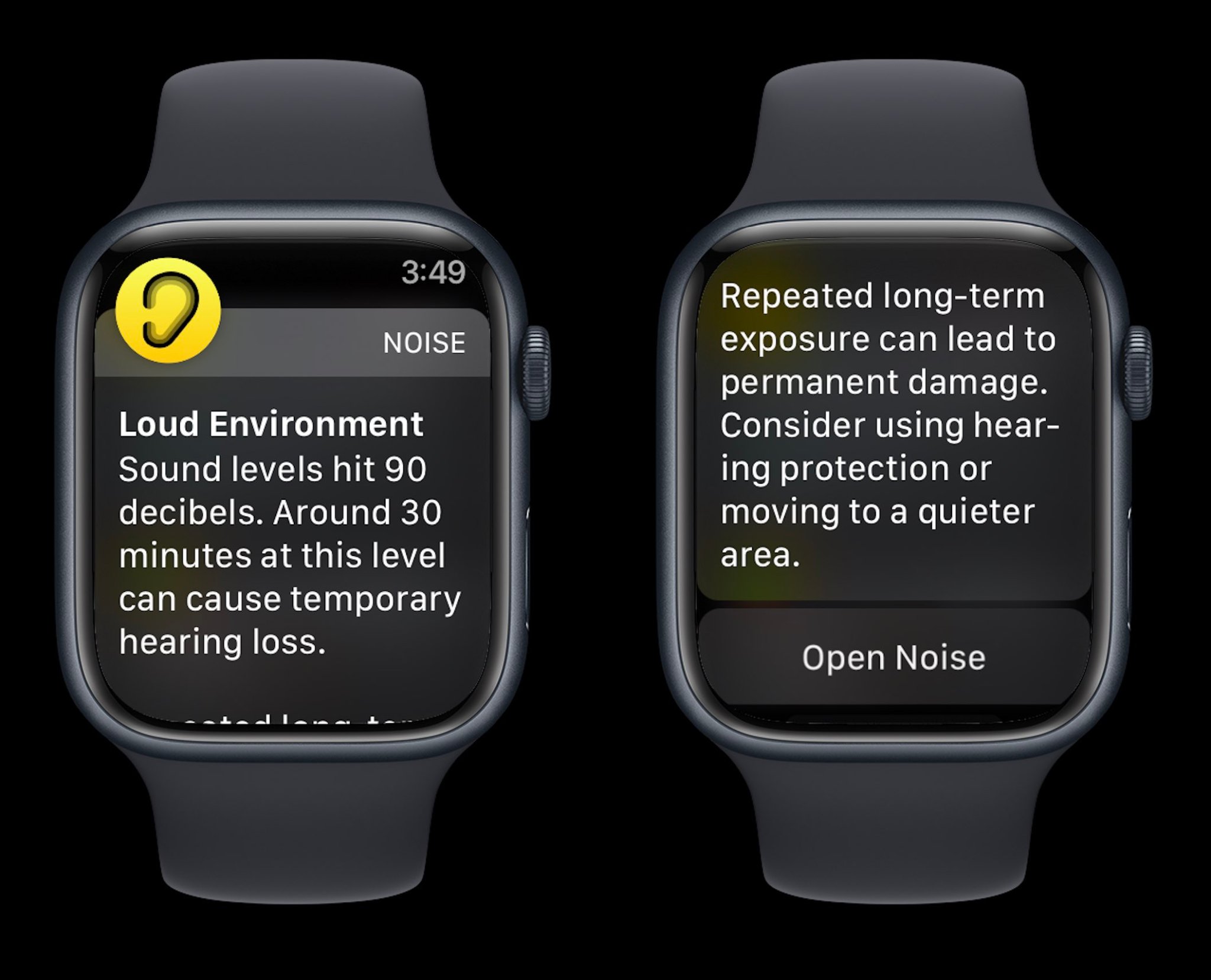
Repeated, long-term exposure to sounds above 80 dB can lead to permanent damage. Consider using hearing protection or moving to a quieter area.
Apple Watch also shares examples of noise levels/time exposure that can lead to temporary hearing loss:
80 db: Around 5 hours and 30 minutes a day
85 dB: Around 1 hour and 45 minutes a day
90 dB: Around 30 minutes a day
95 dB: Just 10 minutes a day
100 dB: Even a few minutes a day
How to check decibel levels with iPhone and Apple Watch
Decibel levels with iPhone and iPad
Interestingly, Apple doesn’t make its watchOS Noise app available on iPhone and iPad, so here’s how to check decibel levels:
Open the Settings app and choose Control Center
If it’s not already showing under the “Included Controls,” swipe below and look for the green + icon next to Hearing
Connect headphones to your iPhone
Now open Control Center (swipe down from the top right corner of your screen) and look for the ear icon to see headphone dB levels
To turn on alerts for loud headphone audio, head to Settings > Accessibility > Audio/Visual > Headphone Notifications and tap the toggle
And you can limit loud sounds in headphones by heading to Settings > Sounds & Haptics > Headphone Safety > toggle on Reduce Loud Sounds
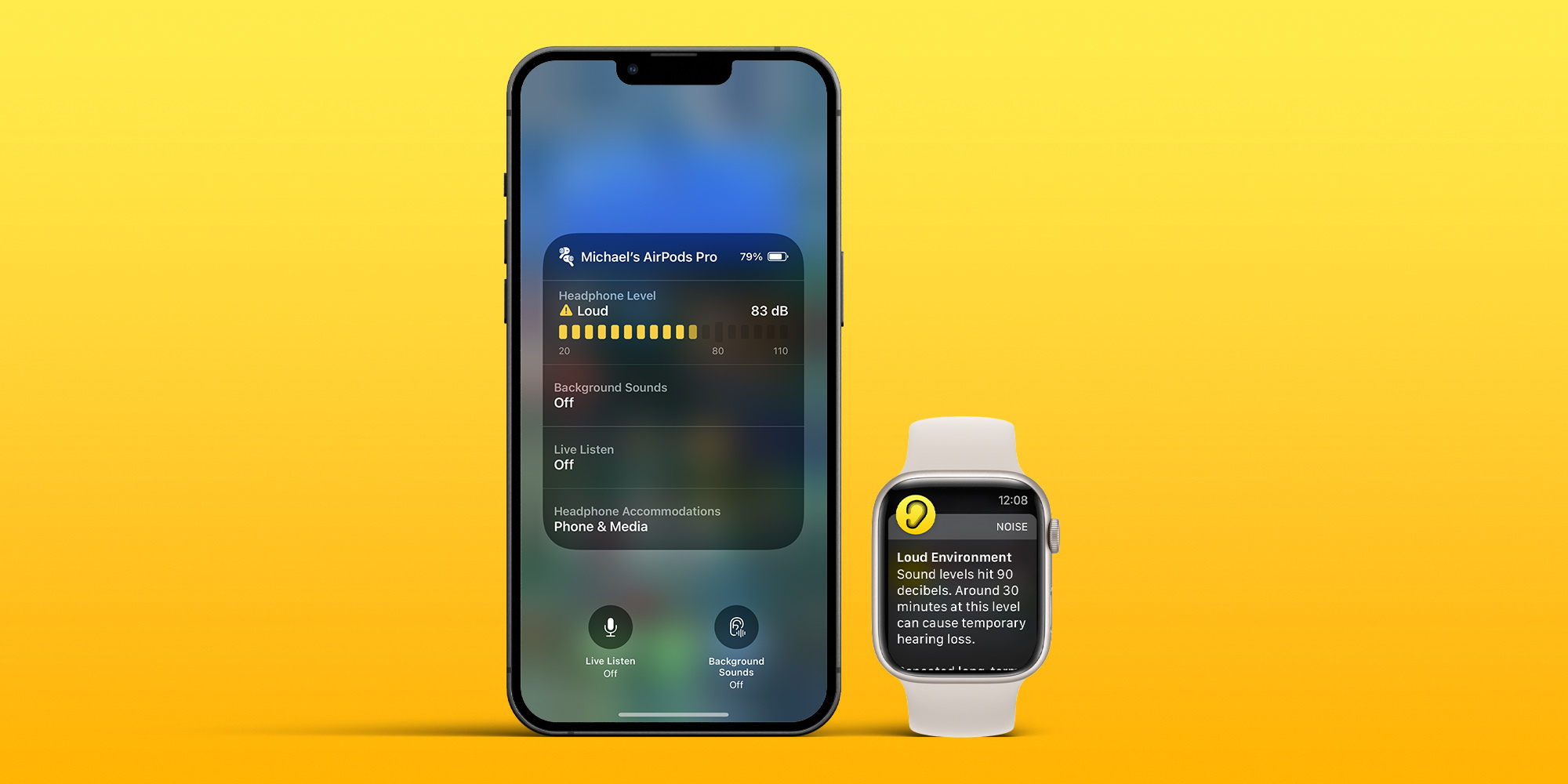
If you’re playing music with headphones connected, you’ll see the decibel meter appear in the Hearing tile in Control Center
Green desinates “OK” levels and yellow marks “Loud” levels that can damage hearing
Tap the Hearing icon to learn more about your headphone noise levels
With music paused, you can use the microphone of your headphones to measure the ambient decibel levels
Tap the microphone icon that says Live Listen in the bottom left corner (or tap the Live Listen rectangle)
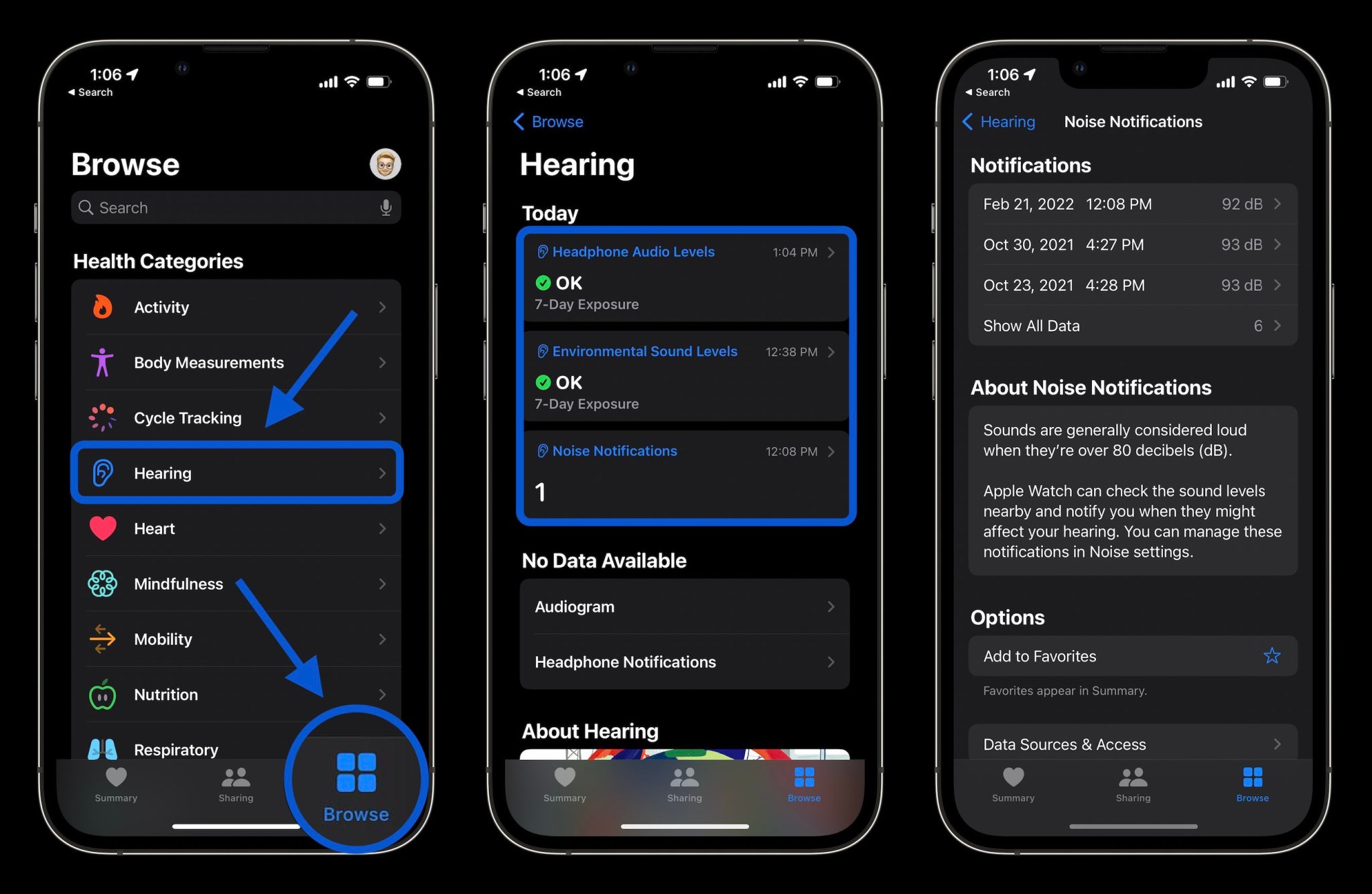
Finally, you can also check your hearing history of both ambient and headphone decibel levels in the Health app
Tap the Browse tab at the bottom
Now choose Hearing
Check decibel levels with Apple Watch
You can measure both ambient and headphone decibel levels with Apple Watch and the former works with the dedicated Noise app. One neat option with the wearable to have quick-access readings is with the Noise app complication.
To check ambient decibel levels, open the Noise app on Apple Watch (you can also turn it on via iPhone in the Apple Watch app > Noise)
If you haven’t used the Noise app before, choose to Enable the feature
You can learn more about the decibel level you’re exposed to by tapping Learn More at the bottom of the Noise app
If you want fast access to decibel levels on Apple Watch, make a watch face with the Noise app compliation
If you don’t enable Noise app notifications when setting up the feature, you can head back to the Watch app on iPhone > Noise > Noise Threshold to change the limit/noise notificiations
To check headphone decibel levels on Apple Watch, open Control Center on your watch (swipe up from the bottom of the screen from your watchface)
Swipe down to the bottom
Tap the ear icon
And here’s a look at how Noise warnings look on Apple Watch: