On the iPhone 15 and iPhone 15 Plus, Apple finally got rid of the Lightning port and replaced it with USB-C. This opens up a whole new world of convenience of connecting accessories and peripherals. The iPhone 15 Pro and iPhone 15 Pro Max go one step further, as the USB-C port on the pro models supports USB-3 speeds, enabling up to 10 Gbps data transfer speeds.
USB-C makes it easy to connect displays, external storage, cameras, and charge using the same cable as all your other devices. Here’s what you can do with your new iPhone and its shiny new port.
Why did Apple change from Lightning?
Apple was fully invested in Lightning port ecosystem on the iPhone. However, it began adopting USB-C across Mac and iPad models since 2015 as a way to modernize PC connectivity. USB-C is versatile, carrying power and data with the same connector. And USB-4 / Thunderbolt offers even higher data transfer speeds.
At the same time, USB-C was becoming increasingly popular on the Android side of the smartphone market. But Apple stuck with Lightning on iPhone, partly because they were still stung from the backlash of 30-pin -> Lightning transition that happened more than a decade ago.
The forcing factor for Apple was the EU commission, who have passed legislation to reduce e-waste by enforcing USB-C as the universal connector for phones. That would mean Apple would at least have to make a special model of iPhone for the European market. That brings its own complications. Instead, Apple chose to just adopt USB-C across the board … and apart from the frustration of customers having to change out all their existing now-defunct Lightning cables, that brings a lot of benefits.
Universal USB-C Charging
Now that you have an iPhone 15, you are probably close to being able to use the same single cable to charge all of your devices. Almost all iPads have a USB-C port, and all Macs have been sporting USB-C for a decade. The newest Macs come with Apple’s MagSafe charger, but they can also be charged by plugging in to one of their USB-C ports too. The latest-generation Apple TV comes with a USB-C remote, and Apple just released new AirPods Pro with a USB-C charging case.
Apple sells its own USB-C charge cables, and the iPhone comes with a nice quality woven cable in the box itself. Unlike Lightning, USB-C is not proprietary. To charge your Apple gear, you can use any USB-C charging cable or accessory on the market. That includes cheaper USB-C cables, and USB-C cables of different styles and lengths. Anker has a very convenient dual 47 watt USB-C power adapter, for example.
To charge your iPhone at full speed, you want to use a 20-watt or 30-watt power adapter. You can safely use a higher wattage power adapter like the one that comes with your MacBook; the phone will automatically manage the power. Learn more about fast-charging iPhone 15 here.
Charge other devices with your iPhone 15 battery
Another cool angle of the USB-C charging story is that you can now use the iPhone to charge other accessories. The iPhone 15 can accept up to 27 watts through the USB-C port, but itself can also output about 4.5 watts. (Lightning could only manage a measly 0.3watts.)
This means you can actually use your spare iPhone battery to power and charge connected accessories. If your AirPods are running low, in a pinch, you can plug them into your phone and your phone will top up the juice in your AirPods case. You could even top up the battery of another person’s iPhone — but just be aware it will take a while.
Easily connect to external displays
With Lightning, you could only connect to external displays via a clunky dongle. With USB-C on iPhone 15, you can output to a screen directly. Use a USB-C to HDMI cable and show your iPhone screen on a 4K TV or monitor, with screen mirroring. If you are watching a movie in a video streaming service app, the film will automatically fill the TV dimensions with playback controls on the touch screen. Easily show off your photo library or conduct a presentation with Keynote by just plugging your phone directly into a projector.
One of the use cases Apple is pushing is positioning iPhone as a portable games console. Using the power of the A17 Pro chip inside, iPhone 15 Pro can run some top-end games with high graphical fidelity. Pair an Xbox or PlayStation game controller, connect your phone to a TV, and start gaming. The Apple USB-C Digital AV adapter is a good choice for this use case, as it allows for HDMI, power output for continuous charging and passthrough USB-C in one convenient dongle.
Expand your local storage with portable USB-C hard drives and SD cards
Connect a USB-C hard drive or SD card reader and browse files directly using the Files app on iPhone. If you go on holiday and take a dedicated camera with you, you can import photos directly from the SD card into your iPhone’s photo library. Then, empty the SD card and keep shooting while you edit and upload the pictures you’ve taken on your phone’s big touchscreen.
The iPhone 15 Pro Camera app allows you to record ProRes 4K at 60 FPS video directly to USB-3 storage. ProRes is uncompressed and the file sizes are huge, consuming gigabytes per minute of recording. But pairing your iPhone with a 1 TB portable SSD, you can record for a while before running out of space. This requires a USB-3 cable (not simply charge cable) to take advantage of the fast 10Gbps transfer speeds possible through the iPhone 15 Pro’s port.
Connect hardware keyboards and wired internet
Sometimes, wireless doesn’t cut it — and you just need to plug in. USB-C on iPhone supports almost any basic accessory you can think of, without the need for special drivers or additional configuration. It’s all plug and play. That means you can connect a hardware keyboard will just work.
Or if you are podcasting on the road, you can record using a mini USB-C microphone. Another possibility is wired internet, using a USB-C to Ethernet adapter. And if you have a MIDI keyboard, you can make a song on the go with an app like GarageBand.
Wired headphones that work with your phone and computer
Since Apple dropped the headphone jack, much of the world has moved on to using Bluetooth wireless headphones like AirPods. But if you still prefer to plug in with a wire, using wired headphones with iPhone has been an inconvenient affair. Lightning earbuds worked with your phone, but nothing else.
Now, it’s all much simpler. iPhone 15 works with any USB-C headphones, including Apple’s new USB-C EarPods. These headphones will work with any computer with a USB-C port, so you can finally use the same wired headphones across your phone, iPad and Mac. An increasing number of high-end headphones and speakers also rely on USB-C connectivity these days.
Connect multi-port hubs
USB-C is very flexible and allows for data and power to travel over the same port. This means you can carry a single dongle, which is a multi-port hub comprising all sorts of IO. These are super convenient as iPad and Mac accessories, and now work with the iPhone too.
For example, this Anker 5-in-1 hub will work with the USB-3 USB-C port on iPhone 15 Pro and enable you to connect to external displays, connect to power, plug in USB accessories and an external display all at the same time.
The only thing you have to keep in mind is that the iPhone can output power to the hub at 4.5 watts. iPad and Mac can offer much higher bus-powered wattage, so if you are using them with the iPhone, you may need to also plug in an external power source.
Some of these capabilities were previously possible with Lightning but necessitated large, clunky, and special purpose adapters for each use case. USB-C is standards-based which means anything you buy will also work with other devices too. You don’t need to carry a special Lightning SD card reader anymore; the same USB-C peripheral will work just as well with your iPhone, iPad, Mac and any Windows PC or Android devices in the family as well. The universal connector life is finally here.
Google has been making its own smartphones since 2016, but it’s really never felt as though the company has really hit the nail on the head. Each model has had some random dealbreaker or quirk that left it just short of really getting it all right. After the Pixel 7 Pro showed that Google was finally pointing itself in the right direction, the Pixel 8 Pro feels like it is the device that brings everything together.
Hardware & display
This feels like a Google phone
Every brand has its own key voice that you feel throughout, and for Google, it’s felt like that vision diminished in the past few years, at least on the hardware and aesthetic level. Where the pre-Tensor Pixel era culminated in the Pixel 4 series, which felt like the ultimate in Google design with its high-contrast colors and quirky design choices, the Pixel 6 and Pixel 7 both felt a little more generic.
With the Pixel 8 Pro, as well as the smaller Pixel 8, Google feels like it is finally letting itself be different.
This starts with the delightful rounded design of these phones. The four corners are less boxy compared to the previous two generations and have bezels that perfectly (at least to my eyes) match those curved corners. The metal rails, which are unfortunately still polished, meld into the camera bar that wraps around to the other side of the phone. It’s a great look, and the “camera bar” is a design that, three years in, is really standing the test of time when it comes to keeping an iconic look despite some big hardware changes.
On the Pixel 8 Pro, Google also steps back into a design trait where, back in 2018, the company was ahead of the curve. The Pixel 3 and Pixel 4 were glass phones with a matte finish, but the Pixel 6 and Pixel 7 both ignored that and went glossy, just in time for literally every other brand to go all-in on matte finishes. The Pixel 8 Pro revives a matte finish, and it’s just delightful. The soft back doesn’t feel as nice as it did on the Pixel 4 (mainly due to the lack of matte side rails), but it feels wonderful in the hand and grippier than some other matte finishes I’ve used.
And, in the color department, Google has something for everyone this year. There is, of course, the typical black, called “Obsidian.” This variant is clean, easy on the eyes, and less boring thanks to the matte textures. “Porcelain” is an off-white and a top pick in my eyes. But the signature “Bay” is a wonderful, if slightly polarizing, blue. The light shade looks great, especially in less intense lighting and really sticks out in a world that is otherwise full of pastels (Apple’s “blue” on the iPhone 15 is literally just white). But, some folks don’t seem to like it, and I think it just boils down to personal preference.
I’m a huge fan of the blue here, but if you’re not, the black and white colors are equally great this time around.
This is the best display in a smartphone (at least here)
The other big new hardware change on the Pixel 8 Pro is the new “Super Actua” display. Google’s branding for the LTPO AMOLED display is meant to stand out, and I think it genuinely does. The display tops out at a massive 2,400 nits, which beats every other smartphone sold in the US market. It’s a wild change for Google, which has, in years past, tended to shy away from beating out the competition on specs.
Of course, like any other very bright display, you’ll only see that peak when viewing HDR content. This happens when viewing pictures taken by the Pixel 8 Pro through Google Photos, for instance, with the app taking advantage of Android 14’s Ultra HDR support. This leads to the occasional jarringly-bright image on the display, but Google’s implementation feels less aggressive compared to the iPhone 15 Pro I used recently. You won’t really see this used in a lot of places outside of Google Photos, though. Netflix uses it on select content, and it looks great, as Max Weinbach tells me. I think that I also saw HDR active on a couple of Reels on Instagram, but it was definitely showing less frequently than on the iPhone.
“Super Actua” also tops out at 120 Hz but can move between 1 Hz and 120 Hz as needed. I still don’t feel like Android takes full advantage of this, but in day-to-day use, all you’ll see is a smooth display.
The panel’s overall quality is also quite stunning beyond its brightness. Colors are vibrant but not oversaturated, and this display feels sharper than past Pixels. Where the Pixel 6 Pro and Pixel 7 Pro both almost felt like there was more space between the glass and the actual display panel, the Pixel 8 Pro feels more like “paper.” For lack of a better comparison, it feels on par with the iPhone or a Galaxy S23 series device and is the first Pixel I’ve felt has managed that feeling since the Pixel 4/XL.
Genuinely, I’d argue that this is the best display you can get in a smartphone in North America today, both in terms of its raw specs and how it performs in real life. You can do better internationally, but right here, right now, this is as good as it gets in the US market.
The 6.7-inch size of the Pixel 8 Pro feels familiar compared to the Pixel 7 Pro and 6 Pro and very much fits with the rest of the flagship smartphone space. But, as more and more time on foldables has shown me, I also really love using smaller smartphone displays. The Pixel 8 seems like the obvious answer there, but I do feel that Google has struck a decent balance on its Pro device. It’s not so unwieldy that I don’t want to use it (which happened with Galaxy S23 Ultra over time) but also not so small that I feel like it’s not big enough.
It’s a flat display, finally
While the quality of Google’s panel really speaks for itself in person, an even more practical benefit this year is to the display’s hardware. Not only are the bezels smaller and symmetrical, but Google has finally ditched the stupid curved glass trend and has a flat display in place on the Pixel 8 Pro.
Of course, like many devices, the glass isn’t totally flat, with a very slight curve on the very edges of the screen. But this, importantly, doesn’t impact screen protectors or anything else. It’s purely an ergonomic choice, as the curve feels a little nicer under the finger.
That said, I immediately slapped a screen protector on this device. It cost me $10, and I did it out of pure principle for the literal hundreds of dollars I’ve spent trying to keep a good screen protector on Pixel 6 Pro and Pixel 7 Pro.
Curved screens are dumb.
Software & performance
Android 14 is a great update, treated as a vehicle for Google AI
Android is a very mature operating system, so I’ve largely not expected much from its yearly updates for a while now. That said, the Android 14 update feels like one that’s actually rather good. My favorite change year-over-year is to the lockscreen, which I can now customize with more clock faces. It’s not nearly approaching the flexibility that iOS currently offers in this area, but I think that’s in part because the lockscreen serves two entirely different purposes across Android and iOS.
The rest of Android 14 is less impactful but just welcome on the whole. I like that the new back gesture is more visually apparent, that the system share menu has become more capable and, in turn, more widely used by apps, and that I can now have the system automatically unlock when I enter my PIN (as long as it’s six digits long). I also love that my little notification shade shortcut to open the clock app (by tapping the time), has finally returned.
We’ve got a full breakdown of what’s new in Android 14 over on YouTube. Overall, though, I think the update really just boils down to a lot of quality-of-life changes that make for a more polished Android experience, and I’m all here for it.
On Pixel, though, Android 14 really just acts as the delivery method for a heaping helping of Google AI.
That includes existing applications of this, like Google Assistant. While many long-time Android users have started to feel like Google Assistant is losing its touch, it’s easy to forget that, if you’re coming from an iPhone and Siri, Google Assistant is actually incredibly accurate and intelligent, and AI is just making it even more useful.
A good example of this is the “Summarize” feature in Google Assistant. This feature, with the help of Chrome, can create a bulleted summary of a webpage. It’s a neat little trick that in theory can save time, but I don’t trust it enough to use it on anything remotely important. The feature gets most things right but can occasionally get little details wrong, or just be missing really important context.
The one thing I really want the feature to do is summarize a recipe thanks to the annoying trend of appending a novel to every recipe for butter chicken. But, really, “Summarize” is just not good at this. Some pages don’t work at all, and the ones that do give me a summary that’s of minimal help. For instance, on a butter chicken recipe, the summary tells me a few ingredients and how the chicken is cooked, but what I’d actually want to know here is what ingredients are used and what cooking tools I’d need.
“Summarize” is a genuinely great idea in theory, but right now, I don’t think we’re quite there. An AI specific to the topic at hand will likely be better at generating these summaries, because it can change to better suit the specific needs. And, while I’m certainly biased, I think a good source that you can trust is still a far better way to get information than using AI when it comes to news.
Another feature I’ve quite enjoyed is AI wallpapers. Using generative AI, you can now create custom wallpapers directly from the Pixel Launcher, and it’s low-key my favorite use of generative AI to date. Google’s wallpaper generator isn’t as limitless as something like ChatGPT or Bard on the text side, or Dall-E or Midjourney on the image side, but it gives you some preset styles, patterns, and ideas that you can choose from to create a unique look for your wallpaper. It works fairly quickly, and the results are consistently pretty stellar. I think that’s the advantage to having some restrictions – you can’t really screw this up.
And really, this is just scratching the surface. We’ll get into the camera stuff later, but Google also has way more features coming over the next few months, including the arrival of Bard in the Google Assistant.
Tensor G3 seems good, but only time will tell
What has really been the make or break point for Pixel phones since the Tensor reboot of 2021 has been that chip, Google Tensor. The customized chip had a strong foundation, but it’s become very clear that its first two generations were not really up to par. Heat issues were by far the biggest problem, but poor modem performance has also been a problem, as has a bit of a deficit when it comes to more GPU-intensive applications, such as games.
Tensor G3, though, really steps it up on a hardware level.
The new chip is based on a 4 nm process and has hardware that’s comparable to the Snapdragon 8 Gen 2, at least on paper. At the helm is a Cortex-X3 core, backed up by eight other cores – four Cortex-A715 cores and four Cortex-A510 cores. While these cores from Arm are just a few months from being a generation behind, they’re a massive step up (especially on the power-efficient cores) compared to Tensor and Tensor G2.
But, how does this hold up in actual use?
Thankfully, things are looking bright in the first few days I’ve been using the Pixel 8 Pro. In normal use, the phone doesn’t get hot, which is a big step up from the past couple of years. My Pixel Fold especially showed just how insanely hot Tensor could get – I literally can’t recommend the phone as a result. But the Pixel 8 Pro feels more on par with everything else I’ve used this year. It gets a little warm from time to time, just like the Galaxy S23 Ultra, Flip 5, OnePlus 11, and iPhone 15 Pro have, but only when the situation made reasonable sense. For instance, playing a few matches in Rocket League Sideswipe left the phone feeling a little warm but not to the same extent as on previous Tensor-powered Pixels. And other casual games I’ve tried have been roughly the same. However, at the same time, other reviewers I’ve spoken to have seen random issues with heat in other games, so your results may vary.
Overall, though, thermals on Pixel 8 Pro and Google Tensor G3 seem to be a considerable improvement.
I think perhaps the biggest testament to that, for me at least, has been in wireless charging while under load. I had the Pixel 8 Pro in my car on a wireless charger while running wireless Android Auto for almost two hours, and it didn’t break a sweat. My Pixel 7 Pro in that same use once had me legitimately worried it might shut down due to the heat being generated.
Where I think you’ll still see thermals struggle is on cellular networks. Any time I have felt the phone get unexpectedly warm, it’s been while on LTE or 5G.
How’s the performance? It feels roughly the same. Everything is smooth and fluid for the most part, but thanks to the seemingly better thermal situation, I don’t find myself running into dropped frames like I commonly found on the Pixel Fold. But, as expected, Tensor isn’t going to really hold up to something like the Snapdragon 8 Gen 2. Rocket League Sideswipe wasn’t running very smoothly for me, but I suspect that may simply be an optimization problem. Little Big Workshop is a console port I’ve really enjoyed playing on Android but which struggled on Tensor G2. On both Pixel Fold and Pixel Tablet, I had to drop the game to low settings to keep it playable. On Tensor G3, things are noticeably better, with medium settings running the game without any issues.
But, really, it’s hard to talk about this when I’ve only used the phone for six days and when those six days have included some of the coldest temperatures in my area in a while. Over the next few weeks, I want to do a lot more day-to-day testing to see how Tensor G3 holds up.
Seven years of Android
The most unexpected but most impactful thing about the Pixel 8 series is that Google is going to support these phones for seven years – through 2030. And that’s not just security patches; it’s OS upgrades and new features, too. It’s unprecedented in the mobile industry, beating even Apple, and that’s something that I think people should care about.
Some folks have brought out concern that Google is going to go back on its promise of delivering seven years of support. I vehemently disagree because, frankly, Google would be on the losing end of that battle. Google kills products over money, not this malicious intent that so many people truly seem to believe the company has against the products you love. The backlash and literal lawsuits that would come from pulling the rug on this promise outweigh any benefit that might come from not delivering a couple of OTA updates.
2030 is a long time away. Could Google kill the Pixel in that time? Maybe. I can’t say that’s impossible. But even if it did, I don’t think that would result in Google suddenly ending updates for existing devices.
I think the far bigger question people should be asking is how the hardware will actually hold up to seven years of use. I recently ditched my iPhone X, a device I kept around for just occasional use, and six years later, it was running slow even though I’d barely used it. With Tensor G3’s lower ceiling on performance, I’m far more worried that the hardware won’t physically be up to the task of running whatever Android looks like in 2030. But, genuinely, there’s no way to get an answer to that question any time soon.
Battery life & charging
On par with any other modern flagship
Something that Google has always struggled with on Pixel phones is battery life, which can vary wildly from user to user. In my testing so far on Pixel 8 Pro, Google isn’t exactly making drastic steps here, but it’s also not getting worse.
Generally speaking, the 5,050 mAh battery in Pixel 8 Pro has been enough for about a day of use.
My average day runs from around 8 a.m. to 11 p.m., give or take, with lots of messaging, social media, and other tasks thrown in throughout the day, mostly but not entirely on Wi-Fi. On Pixel 8 Pro, I’ve been able to comfortably get to about 4-5 hours of screen time in that use and about 25% left by bedtime.
Heavier days when I’m out more have also been well within my expectations. A Saturday spent outdoors brought me up to around four hours of screen time with about 15% left by bedtime.. a very busy Sunday running from 6 a.m. to 1 a.m. with lots of photography and videos, messaging, maps, social media, browsing, and more left me with around 5.5 hours of screen time and 30% left by bedtime, but that also included about 15 minutes on a USB-C charger after the battery dipped to 25% by 5 p.m. and about 25 more minutes on a wireless charger while running Android Auto wirelessly. It’s one of the heaviest days I’ve put a smartphone through in a while, and I’ve got to say, I’m pleased overall with how the Pixel held up.
The Pixel 8 Pro by no means has even remotely the best battery life on a smartphone right now. I think the Galaxy Z Fold 5, OnePlus 11, and Galaxy S23 Ultra all beat it out on the Android side of things. But, I do think Google is at least in the same ballpark as Apple right now. I don’t have an iPhone 15 Pro Max to compare, but the results I saw this week on the Pixel 8 Pro felt pretty close to what I was seeing on my iPhone 15 Pro. In my eyes, that’s an overall win.
Charging speeds won’t exactly blow you away, either. Pixel 8 Pro tops out at 30W, up from 22W last year, which is fine. I’ve never felt like this is slow, but it’s also not crazy fast like you see in a device from OnePlus. Nine times out of ten, though, I’m usually charging via Qi on the Pixel Stand 2.
Camera
The Pixel legacy continues
Google Pixel phones have staked their legacy mainly on the camera, and not to beat around the bush, that legacy just continues to get better. But this year’s focus is clearly on AI over all else.
To start, let’s talk about the basics.
The updated 50 MP main sensor isn’t all that different from last year, and the results are still absolutely stunning. Google isn’t breaking any new ground here. The average shot feels, for the most part, about equal to what I was getting on last year’s Pixel 7 Pro.
New features on the Pixel 8 Pro include the option to shoot in “High-Res,” which turns off pixel binning and exports a 50 MP image. This results in better fine details, but it’s often a bit of a struggle to handle camera shake. It also means you’ll be eating up a lot more storage, whether that’s on the phone itself or on Google Photos. It is something I appreciated a lot more than I expected, though.
Google is also adding “Ultra HDR” this year, which provides a noticeable pop to pictures, at least when you view them in Google Photos, but unfortunately, we can’t show them here on our website. You can, however, view our full-size samples on Google Photos, and any supported devices will give you the full HDR experience.
The new 48 MP ultrawide sensor is also solid, though I can’t say I’ve noticed too much of a difference. I’m not much of an ultrawide guy anyway, though.
What remains my favorite part of Google’s camera hardware suite is the 5x telephoto, which is capable of some truly stunning shots. I had the pleasure of putting the Pixel 8 Pro’s camera through its paces during the US Disc Golf Championship this past weekend, and the 5x lens came in handy for getting in closer to get shots.
Another new feature on the Pixel 8 Pro is support for manual controls. You can now adjust shutter speed, ISO, and focus to your heart’s desire, which is certainly handy for occasional tricky shots. That said, I think this somewhat defeats the purpose of the Pixel camera, which is so good because the computational side of it is so trustworthy. But, really, there’s no harm in adding this – only benefits.
Video is also extremely solid on the Pixel 8 Pro but still not hard to trip up. If I captured video from the main lens, it was generally very good and I had no complaints. However, when moving to the telephoto lens, I often felt like focus could drift off of the subject easily, and I had a lot of trouble with jarring movements at anything over 10x. Overall, though, I remain quite happy with the Pixel video experience, and I can’t wait to try out “Video Boost” later this year to see how it makes further improvements.
One last thing I will add is that, both in video and photos, Google has done a great job in smoothing out the experience of switching lenses. It’s still not perfect, but it’s also not at all bad. The most jarring change is usually just when the feed turns over to a new lens, with a difference in quality noticeable especially when zooming in quickly.
Did you know this camera had AI?
But the real focus, as mentioned, is on AI features that come in after the shot has been taken.
That includes some longtime Pixel AI features, such as Top Shot and facial recognition, as well as Real Tone, which can also help adjust skin tones in video this year.
The headliner is Best Take, which can detect multiple photos that were shot around the same time and of the same people and use AI to replace faces to create the group shot you actually wanted.
While this feature makes some folks uncomfortable, I think it’s going to be a huge point of attraction for families. Really, I just compare it to a good wedding photographer. Taking multiple shots means you can fix mistakes, and any good wedding photographer has probably pulled this exact trick without you knowing it. The Pixel can just help you do it now, and a whole lot faster.
The results, though, tend to be a mixed bag.
As people move their heads, their bodies also move, which can make some face replacements look a little unnatural. This is mainly a problem if the subjects move between shots. Burst mode can go a long way to fix this, but that also slightly defeats the purpose. That said, if you never saw the original, you’d be hard-pressed to actually notice if a shot was edited with Best Take. And, sometimes, the AI just can’t fix the shot, resulting in some weird artifacting.
Magic Editor is Google’s other big flashy feature and, honestly, I just don’t get it. The pitch here is basically AI-powered Photoshop, but on your phone. And that’s a good pitch. But the implementation leaves a lot to be desired. The UI just tells you to circle the object you want to interact with, but fails to give you any further control. Google has mentioned changing the sky on a few occasions, but the generative AI just does it on its own. You have little to no control over what the results are.
But, beyond that, I just didn’t find myself wanting to use this. Some of Google’s demos, like moving someone further into the frame, seem useful, but everything else just seems like a party trick, or something better handled by other tools. Half the time, it feels like Magic Editor just wants to be Magic Eraser, and it’s not like it’s any better at that job. Magic Editor feels like a solution to an obvious problem, but a solution that skips a lot of the steps in between.
There are also new AI features in video, such as Audio Eraser. This allows you to effectively mute other sounds in your video that aren’t the focus of the clip. And it works rather well, as least from my very limited testing. More to come on that when this review gets finalized in the weeks to come.
The selfie camera is a big step up
On a hardware level, Google is really stepping up the selfie camera on Pixel 8 Pro. The 10.5 MP sensor now has autofocus, a feature that’s been revived five years after it first showed up on 2018’s Pixel 3 series. The quality of the camera feels much better as a result, at least in the main camera app, but 9to5Google’s resident selfie camera expert, Max Weinbach says that third-party apps have taken a hit.
Max explains:
The selfie camera on the Pixel 8 is a good improvement over the Pixel 7; it fixes the issues with a fixed focal length while keeping the quality of a Pixel camera. The issue remains in lower than perfect lighting and third party apps. In lower than perfect lighting there is a slight dark tint.
Year over year, the quality of Pixel selfie camera has decreased in apps like Snapchat, Instagram, and TikTok. Rather than getting pictures that look like they’re from the default camera app, like we saw from Pixel 2-4, it now looks like any other Android phone. This is likely due to Snapchat tuning for performance rather than quality, but still ends up with a not appealing end result. It’s inconsistent, but if you’re outside on a nice day, you can almost assume every shot will be great.
That new selfie camera is also being used for better Face Unlock, which this year works with payment apps. You can see more about that in our initial review of the smaller Pixel 8.
Tidbits
Fingerprint sensor & Face Unlock
The fingerprint sensor hardware on Pixel 8 Pro is unchanged from the Pixel 7 Pro and feels roughly the same. I’ve noticed maybe a 10% boost in accuracy, but the speed feels identical (both through screen protectors). In my eyes, it’s fine. I’d rather see Google move over to an ultrasonic sensor like Samsung uses, or at least get closer to OnePlus when it comes to speed, but it hasn’t taken any enjoyment out of my experience. Your results, of course, may vary because that’s just how things have gone with Pixel fingerprint sensors.
On the other hand, there’s Face Unlock. As mentioned, Abner Li took a closer look at this in our Pixel 8 review, but the short story is this. Face Unlock is a welcome addition, and it’s definitely better on Pixel 8 Pro than it was during the Pixel 7 generation. The best part of the whole system is that you can run face and fingerprint in parallel because, when acting as each other’s redundancies, the unlocking experience feels pretty much instant.
Haptics
The vibrations on Pixel 8 Pro also feel roughly identical to the Pixel 7 Pro, which is to say they’re pretty solid. The haptic motors feel tight and precise, and the Pixel version of Android 14 does a good job in showing off those motors. Just don’t go in expecting any improvements here. And, since I have a point of context in the iPhone 15 Pro, I do think Apple’s haptics are stronger, but not inherently better than what Google is using.
Signal performance
And then there’s the signal performance. Cellular connections have been a major pain point of Pixel phones powered by Tensor, and that’s largely due to using Samsung modems. Pixel 8 Pro continues with a Samsung modem, the Exynos 5300. The firmware on that modem has reportedly been updated (the review has been updated to correct that only firmware has changed) from when it debuted on Tensor G2, and in theory, the hardware and software both should be more mature, given the Pixel 7 series was running that modem before Samsung formally released it.
The short version here after six days of use is that the signal is mostly fine. Connection strength was as expected in all of my normal areas, and I was getting solid speeds on Verizon’s C-Band while at the US Disc Golf Championship at Winthrop University in Rock Hill, SC. That faster connection didn’t seem to push the modem to generate more heat or suck up more power, either, a flaw I’ve noticed in the past. In more rural areas, the same applied, but I wasn’t able to do any side-by-side testing of actual signal strength and speed.
We’re hoping to do that test in the weeks to come, much like we did on Google Tensor G2, so stay tuned!
The thermometer is kind of stupid
There’s one thing about the Pixel 8 Pro we’ve not talked about thus far, and it’s the built-in thermometer. The reason we haven’t talked about it is because, well, it’s pretty dumb in its current form.
The infrared thermometer can quickly grab the surface temperature of nearby objects through a simple app. It does work rather well, but, honestly, I just cannot even begin to understand the point of it. Google has pitched the idea on multiple occasions of using the sensor to see the temperature of a pan on the stove, which is something I’ve literally never had the impulse to do or have even heard of someone trying to do. I tried it, just for fun, and yeah, it works. However, I have no idea what to do with that information. Have you ever heard of a recipe saying to heat your pan to 300 degrees? I sure haven’t. Measuring my pan to learn it’s 227 degrees isn’t helpful information without context.
Another use case was the temperature of a baby bottle, which is a decent idea, but the 2-inch distance for an accurate temperature makes that one seem a little tough in practice.
Honestly, I can’t think of a single genuinely useful application of this feature. It’s a neat party trick that I’m sure will come in handy for someone out there, but if this survives to the Pixel 9 Pro, I’d be absolutely shocked.
Google is working to get FDA clearance to use this for getting the temperature of the human body, but even that seems like an insanely niche use case. I guess it might be kind of nice to have a body thermometer just on hand, but I think the added cost of the sensor in the phone outweighs its usefulness. As 9to5’s Seth Weintraub says, it’s absolutely a gimmick, and this slot would have been better used by a Flir-style heat mapping camera, or just using a 3D LiDAR camera like Apple’s Pro phones use.
For me, if we’re going to get a kind of pointless gimmick, I’d rather just see Google bring back the IR blaster instead. At least that could come in handy from time to time.
The verdict, so far
It sounds like a cliche at this point, but the Pixel 8 Pro is genuinely Google’s best phone yet and the culmination of the entire Pixel series thus far.
It takes the camera and AI legacy of the first few Pixel phones and mixes that with the improved hardware that’s come from everything after the Tensor reboot, as well as finally (probably, maybe, hopefully) getting that chip right. Throw in that the Pixel ecosystem is getting much stronger and that this phone is potentially going to have better resale value thanks to its seven-year update promise, and you’ve got a pretty compelling device in my opinion.
I’ve enjoyed every minute with the Pixel 8 Pro so far, and I can’t wait to keep running it daily. I don’t think anyone who picks up a Pixel 8 Pro will regret it.
Pixel 8 Pro is the biggest leap Google has taken in smartphones since the first Pixel device, and really for the first time in years, this is a device that feels like it’s not just waiting on a better future but is ready for customers today.
Where to buy the Pixel 8 Pro
You can buy the Google Pixel 8 Pro from most major retailers and carriers in the US. Below, we’ve linked some of the main places to buy. And, if you’re buying before October 12, you can take advantage of getting a free Pixel Watch 2.
new features, it fixes a bug that had been causing some iPhone models (especially the iPhone 15 Pro) to overheat more than usual. However, iOS 17.0.3 also comes with two important security fixes, including a fix for a breach that had been actively exploited.
iOS 17.0.3 patches two exploits
According to a document published by Apple on its website, iOS 17.0.3 and iPadOS 17.0.3 fix a Kernel exploit found in versions prior to iOS 16.6. The company explains that an attacker with access to the device could elevate their privileges to run malicious code. “The issue was addressed with improved checks,” Apple details.
But that’s not the only exploit fixed by today’s update. It also fixes a WebRTC exploit where attackers could use a buffer overflow to execute code arbitrarily. The discovery of the exploit was attributed to Bugzilla, a bug monitoring platform developed by the Mozilla Project.
iOS 17.0.3 and iPadOS 17.0.3 are available for every iPhone and iPad model compatible with iOS 17 and iPadOS 17. This includes iPhone XR and later, and every iPad with an A10X chip or later. Keeping your device up-to-date is important to keep it safe from hackers and malware.
Here’s how to update your iPhone or iPad:
Open the Settings app
Tap the General menu
Select Software Update
Wait until the update shows up and tap Update Now
We recommend backing up your device before installing software updates.
Seven native Apple Watch apps have been overhauled with watchOS 10, one of which is the World Clock app that’s received a beautiful new aesthetic. Follow along for what’s new with the World Clock Apple Watch app in watchOS 10.
watchOS 10 brings a big overhaul for the Apple Watch experience with a new widgets UI, mental health features like mood tracking, new watch faces, and redesigns coming with native apps like Weather, Stocks, Maps, Messages, Heart Rate, Home, and World Clock.
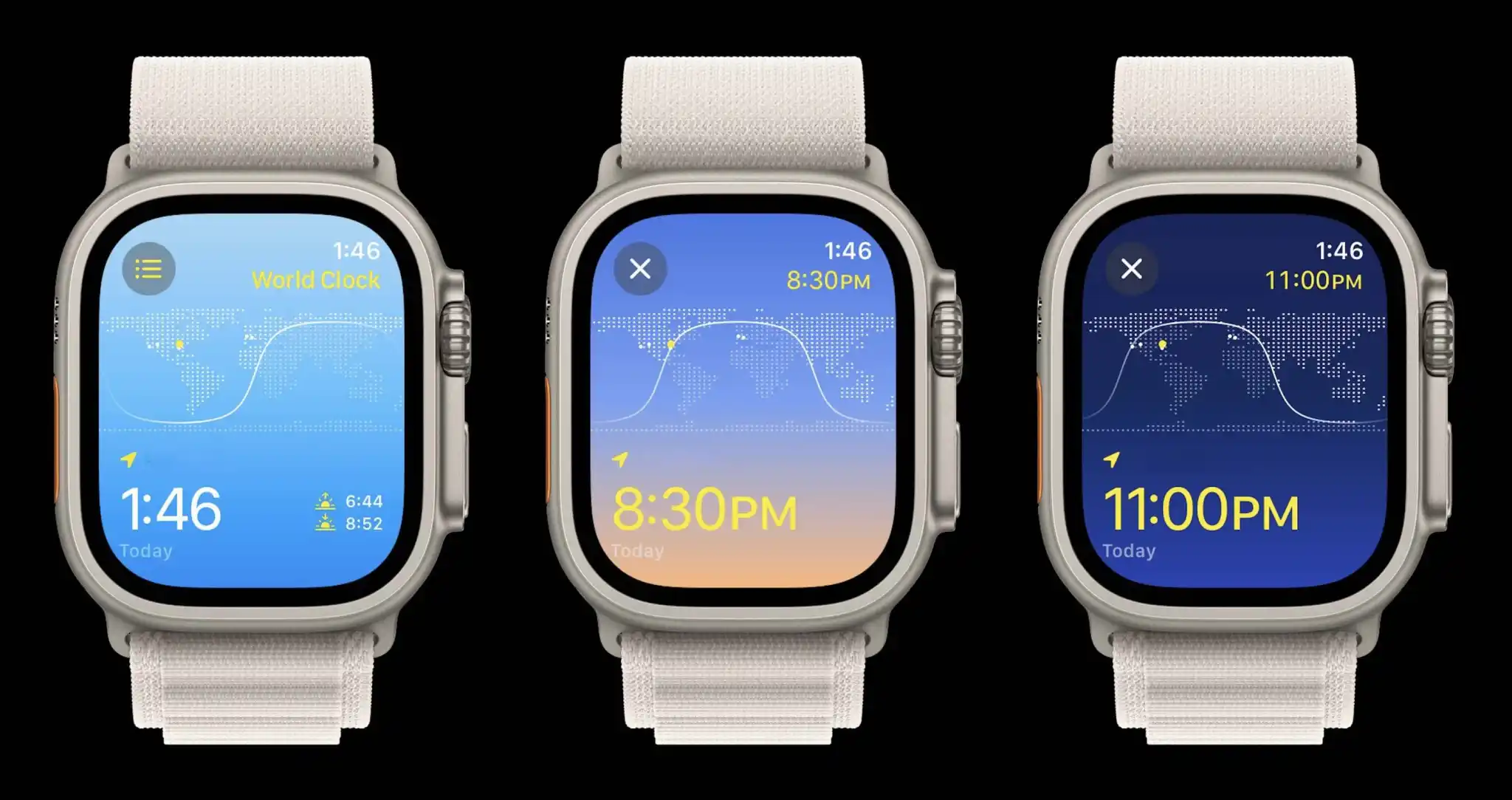
Shown above, the new watchOS 10 World Clock features a dynamic blue, white, and yellow theme that changes based on the time of day.
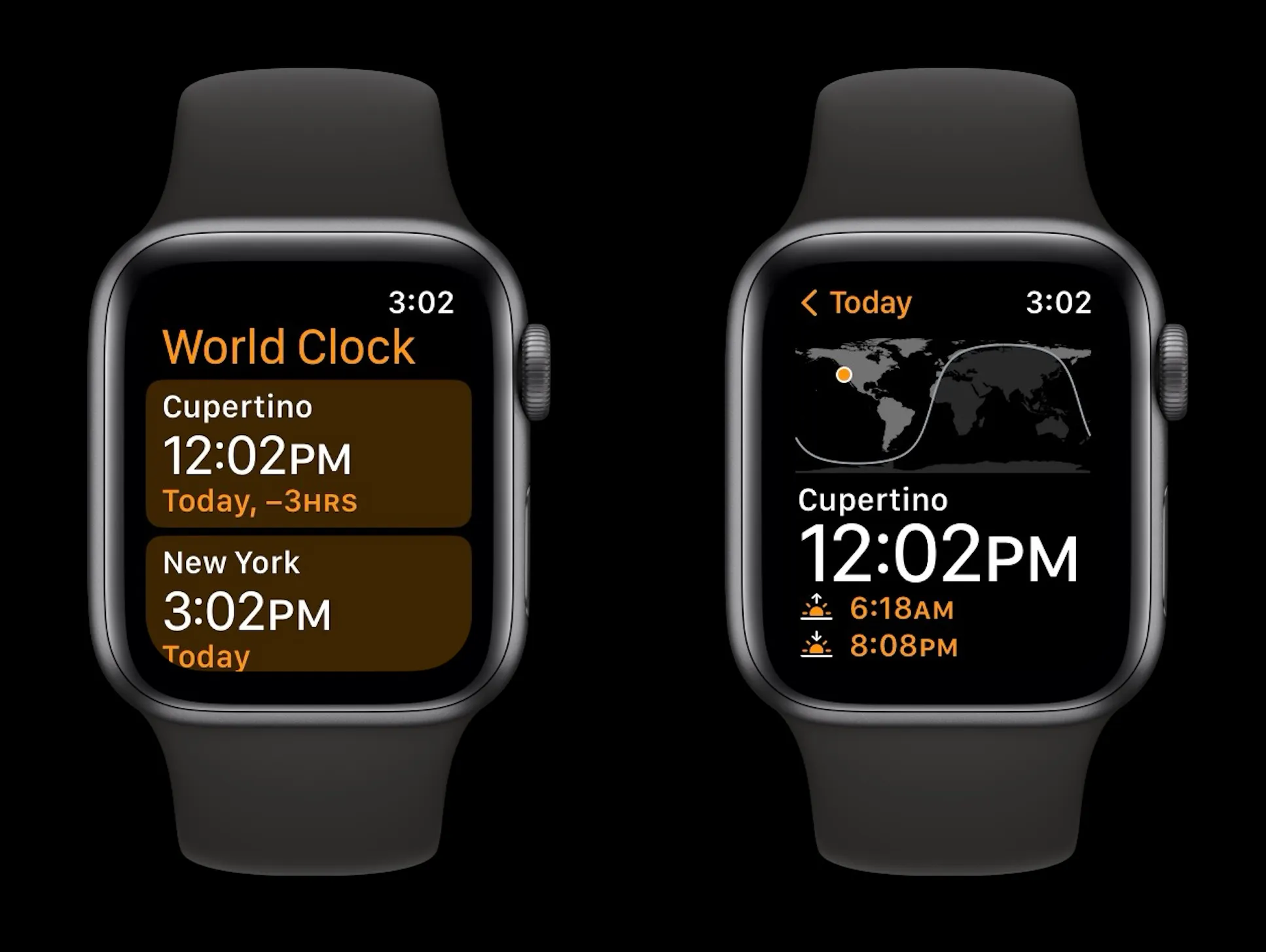
As a refresher, here’s the watchOS 9 World Clock app with the simple black and orange design:
The new World Clock Apple Watch app offers a new functionality when scrolling with the Digital Crown and also makes it easier to check the time difference between your current location and other places around the world.
What’s new with the World Clock Apple Watch app in watchOS 10?
If you’ve allowed location access for the Clock app on iPhone/Apple Watch you’ll see your current location when you launch the World Clock
The current time is shown in the bottom left (and top right) with the sunrise and sunset in the bottom right corner
Scrolling with the Digital Crown now gives you a visual look at how daylight turns to night for the location you’re looking at based on the time
The UI moves from a light blue to a sunset gradient to a dark blue
Tap the X in the top left corner to return to the current time
Tap the three-line icon in the top left to see all of your saved locations
You can quickly rearrange locations by long-pressing and dragging them into a new order
Locations are synced between iPhone and Apple Watch, but you can add locations at the bottom of the list view
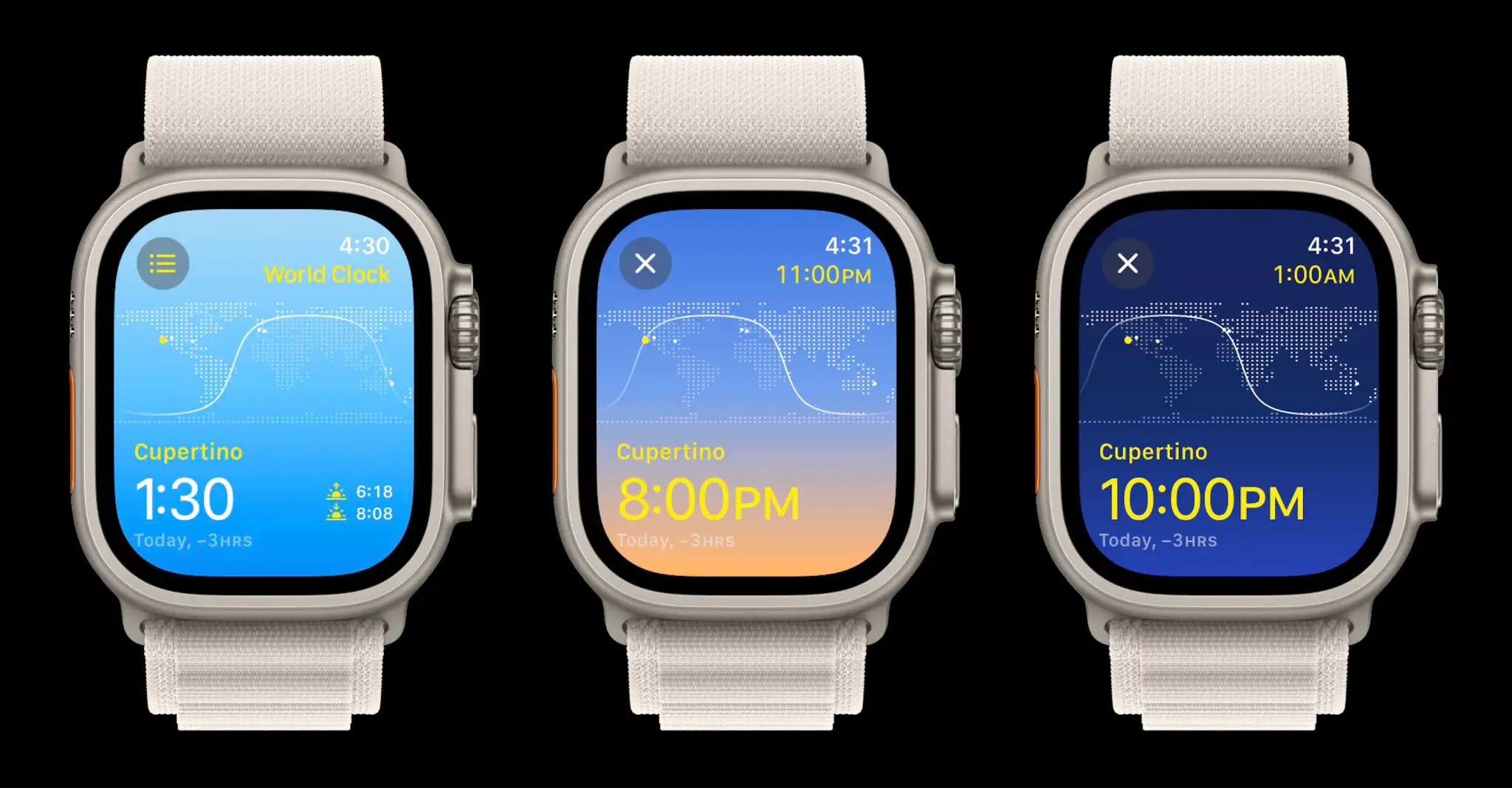
Now when you look at a location different from your current location, the relative time of your current location will show in yellow in the top right corner with the time of the location you’re viewing in the bottom left corner
The time zone offset will also appear in the bottom left corner
As it happens, the new World Clock UI is unique to watchOS 10 – the old black and orange UI remains on iPhone with iOS 17.
watchOS 10 widgets: How the new Apple Watch UI works
The new watchOS release comes with some big changes headlined by a new smart and customizable widget-based UI. Follow along for a closer look at how to use the Apple Watch widgets, edit them, and more in watchOS 10.
Apple sees watchOS 10 as “a milestone update” with a focus on bringing “users a fresh approach to quickly view information with redesigned apps, a new Smart Stack to show relevant widgets right when they’re needed, and delightful new watch faces.”
A couple of neat things about the new widget UI are that they’re quickly accessible from any watch face and the widgets automatically reorder to “display timely information that adapts to the user’s context.”
The widgets take up half the screen of the Apple Watch and there are two types, the first uses the whole widget for one app and the second widget type can be customized with three app complications.
Even though the widgets are a Smart Stack, you can manually “pin” widgets you’d like to stay put.
How to use Apple Watch widgets in watchOS 10
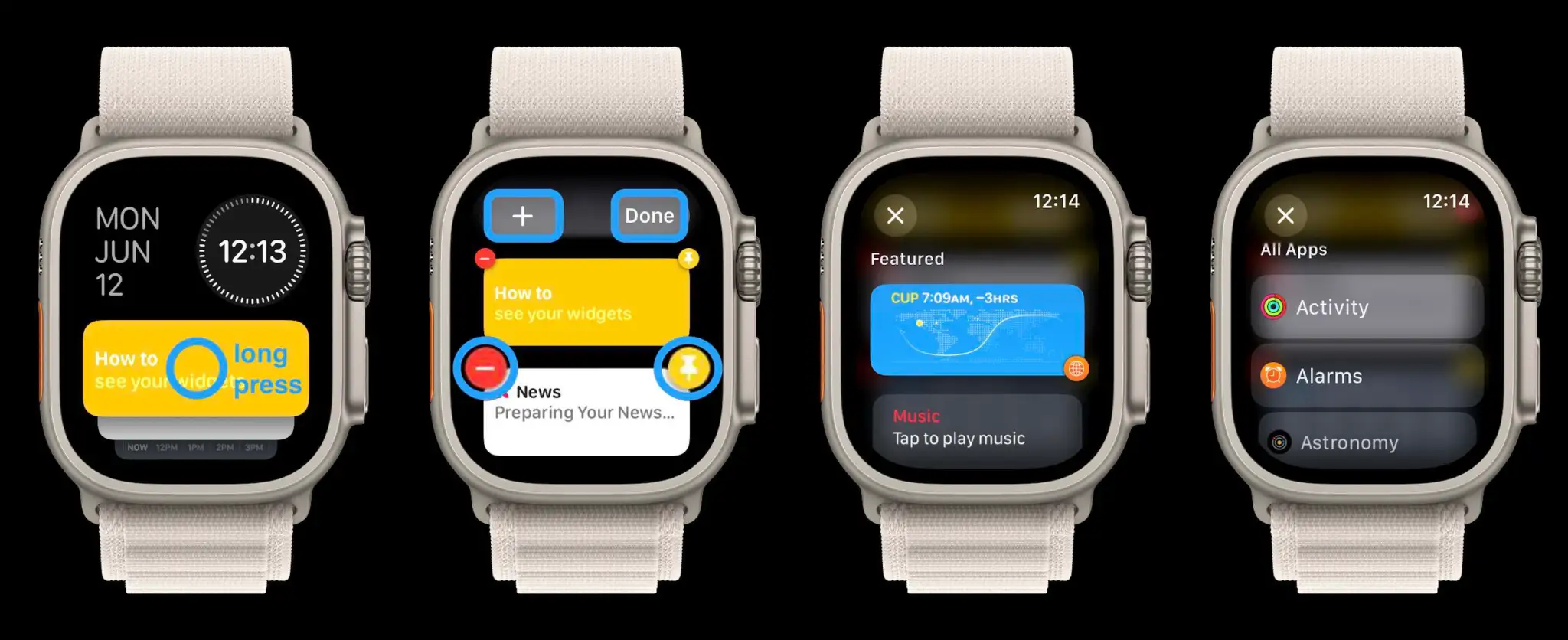
On Apple Watch running watchOS 10, scroll up on your Digital Crown or swipe up on your screen (Control Center now opens with the side button in watchOS 10)
Now you’ll see the new widget UI
Swipe or scroll to see all of the widgets in your Smart Stack (you can also tap the yellow widget to get a little walkthrough)
Long press a widget to edit them
Tap the red – icon to remove widgets and tap the + icon at the top to add new ones
The widgets are a “Smart Stack” and will automatically change through the day depending on context – but manually reordering/pinning is possible with the yellow pin icon that moves widgets to the top of the list and keeps them there
At the bottom is a triple complication widget that’s customizable
At the very bottom is a button to see “All Apps” (you can either tap it or keep scrolling or swiping to see all apps)
The date and time at the top of the widget UI are not customizable – for now at least. Once you long press on a widget to edit them, you’ll see the main options to customize them with the + up top and the remove and pin icons on each widget.
When adding a new widget, you’ll see featured choices up top with all apps below.
The triple complication widget at the bottom can be customized and also pinned if you want to move it to the top of your Smart Stack.
The 50 MP main camera sensor on the Pixel 8 and Pixel 8 Pro has been a bit of a mystery, but it seems we might finally have an answer.
Ahead of the Pixel 8 launch, early rumors claimed that Google would switch to the Samsung ISOCELL GN2 camera sensor. But, as the launch approached, that seemed less and less likely. Most notable was a spec leak that lined up much more closely with the ISOCELL GN1 from Pixel 6 and Pixel 7 than it did the ISOCELL GN2.
During the Made by Google event earlier this week, Google directly said that Pixel 8 and Pixel 8 Pro use a “new main sensor” that has up to 21% better performance in low-light scenarios but still at the same 50 MP as the Samsung GN1 sensor that was used in Pixel 6 and Pixel 7. However, Google neglected to mention what that sensor actually was.
We did ask Google what sensor the Pixel 8 series is using earlier this week, but the company wouldn’t comment on specifics. Google lists Pixel 8’s main camera sensor with a 1/1.31-inch sensor, 1.2 μm pixel width, and f/1.68 aperture.
According to Ben Sin of XDA-Developers, though, the most likely answer to the question of what camera sensor the Pixel 8 series is using is the Samsung ISOCELL GNV, not the GN2.
The ISOCELL GNV is another 50 MP sensor, but one that Samsung doesn’t publicize. However, it has been used on multiple Android devices over the past couple of years. Most notably, it was found in the Vivo X80 Pro, which launched in mid-2022. Kimovil, a smartphone comparison website, also mentions this sensor for Pixel 8 and 8 Pro, but it’s unclear where that’s being sourced from.
Officially, we still don’t know for a fact what sensor the Google Pixel 8 and Pixel 8 Pro are using. That said, with Google having explicitly confirmed that there is a new sensor being used and the specs not pointing to GN2, Samsung ISOCELL GNV seems like the most likely explanation. We’ll likely find out more in the inevitable teardowns.
Google will provide 7 years of repair parts for Pixel 8 and Pixel 8 Pro, too
One of the biggest new features of the Google Pixel 8 and Pixel 8 Pro is the new update commitment – seven years of software support including Android OS upgrades. And, to further sweeten that commitment, Google also says that it will provide spare repair parts for Pixel 8 and Pixel 8 Pro for seven years.
Google’s new update schedule for Pixel phones is quite literally unprecedented, as the highest promise prior to this came from Samsung. The company’s commitment came with four years of OS upgrades and five years of security patches, which in itself was and still is quite good. But Google’s new commitment blows even Apple out of the water – iPhone X, for instance, was just killed off after six years of software support.
But, what’s all that software support worth if the hardware can’t keep up? Everyone still has plenty of questions on how Tensor G3 will hold up to seven years of use, but the physical hardware is also going to be tested to its limits in that time.
Google has confirmed to Android Authority that, through the full seven years of software support, the company will also provide spare repair parts for Pixel 8 and Pixel 8 Pro.
Google explains:
Parts will be available for seven years. That’s part of our commitment as we go to the seven years (sic) that we need to make our parts available so you can keep your hardware alive for that long.
The parts will presumably be available through Google’s partner, iFixit, which carries existing Pixel parts and also publishes in-depth guides to detail how to actually perform the repairs. Google also briefly touted that partnership during the Pixel 8 launch event.
Hands-on: Pixel 8 and Pixel 8 Pro are Google’s most promising phones yet, but it all depends on Tensor G3
Google has seen moderate success with its reboot of the Pixel series in the “Tensor” era, but Pixel 6 and Pixel 7 series phones ultimately ended up earning a less-than-stellar reputation for issues such as overheating and signal. But with the new Pixel 8 and Pixel 8 Pro, Google is debuting what are easily the most promising Pixel phones since the original, but it all rests on whether Tensor G3 is actually the improvement it claims to be.
Pixel 8: A more well-rounded flagship for everyone
The first device we’ll talk about is the smaller Pixel 8, which continues in the legacy of being a more affordable device with the same flagship chip, but a trimmed-down experience otherwise. And, this year more than any other, I think Google has really nailed the balance.
Pixel 8 brings a few really key upgrades to the table, starting with the display. The “Actua” display is a fancy marketing word for a 120Hz panel – an overdue upgrade for sure. The 6.1-inch panel is compact and truly a delight to hold, and the quality of the display is truly wonderful despite its 1080p status. The bezels are also noticeably smaller this year, in an improvement even I, as someone who doesn’t really care about bezels, can appreciate. Something I appreciate a lot less is the continued use of glossy rear glass but, honestly, I don’t really mind at this point, especially because I know fully well that almost everyone who owns this device is going to use a case.
And, something else that’s changed this year is just the look. The Pixel 8 and Pixel 8 Pro look practically identical from the front, which I think is a good move on Google’s part. The Pixel 6 and Pixel 7 both had clear inspiration from the Pro, but they always felt very different, and not in a good way. Pixel 8, from any angle, really does feel like it’s the “little brother” to the Pro, rather than a completely separate entry in the series.
On the camera front, the new camera sensor will have to prove its worth in a full review, but things feel more on par with the Pro here in terms of hardware than we’ve seen in a while. The Pro gets a telephoto camera and Pro features, but the regular phone has the same main sensor and the addition of auto-focus on the ultrawide, which opens the door to macro photography.
Pixel 8 feels like not just an upgrade, but a better phone than Pixel 7
The upgrades on Pixel 8 just make it feel like a more well-rounded device, rather than being a clear step down. It does, however, just throw an even bigger wrench in the whole $300 price difference.
But, let’s talk more about the other end of that spectrum.
Pixel 8 Pro: Finally earning its ‘Pro’ name
The Pixel 8 Pro. This one… it feels special.
Google’s latest Pro device brings a pretty surprising number of upgrades and exclusive features. Let’s do a quick rundown.
5x telephoto camera
48MP ultrawide camera
Auto-focus & secure face unlock for the selfie camera
Manual camera controls
50MP mode for camera
“Super Actua” display with 1-120Hz variable refresh rate
Gorilla Glass Victus 2
Up to 1TB of storage
Coming: “Video Boost” processing
That’s a pretty good list of features that separate the Pro from its “little brother.” Are some of these still a little less hardware dependant than they should be? Of course. Pro controls especially seems like a weird thing to just block entirely from the smaller phone, but at the same time, I’m still not convinced Pixels should have this anyway – an unpopular opinion I’m sure.
But, all of that said, what is it actually like to use?
I only spent a small amount of time with the Pixel 8 Pro, but I was happy with every second of it. The updated hardware with its matte back, rounded design, and long overdue flat glass “Super Actua” display feels like some of the most compelling Android hardware I’ve used in quite some time. It also feels like the most “Google-y” hardware the company has done since the Pixel 4 series. The matte glass here isn’t quite as good as it was on the Pixel 4 series, but it’s extremely close.
And, to close out, let’s spend a brief moment on the colors of the Pro. The Pixel 8 Pro comes in fairly tame “Obsidian” and “Porcelain” colors (both are pretty crowd-pleasing) but also the apparently divisive “Bay.”
The fairly vibrant blue is striking in person, and hard to translate to pictures. It’s a unique color for a smartphone, and one that I immediately fell in love with. It’s also one that stands out in any lighting conditions, and will absolutely have me questioning if I want to use a case.
Oh, and it has a thermometer. No, you shouldn’t care about that at all.
Symmetrical bezels and way better displays
Another aspect that both Pixel 8 and Pixel 8 Pro share is their general display design. The bezels across both devices are symmetrical across the sides and top and bottom. It’s a design trait that enthusiasts love and the iPhone has fully embraced and, while it’s not all that important in terms of functionality, it looks aesthetically great.
More important is the display itself. Google is launching new “Actua” displays on the Pixel 8 series, which is a fancy marketing term for just better overall displays. The panel has the same clean look that you seen on iPhones and Galaxy phones, but not as much on Pixels. The regular Pixel 8 is smaller and lacks variable refresh rate, but it’s 120Hz and is 40% brighter than Pixel 7. The Pixel 8 Pro, meanwhile, has a variable refresh rate at up to 120Hz and the same size as previous Pros, but this time with flat glass on top – finally.
As mentioned, we’ve only spent a little bit of time with the Pixel 8 and Pixel 8 Pro, but I walked away with a great impression of the displays.
The Android phone that’s finally matching iPhone on updates
Both Pixel 8 devices are seeing $100 upcharges over their predecessors, but if the new hardware doesn’t make you feel that extra cost is worthwhile, the extended software support might.
Google is providing Pixel 8 and 8 Pro with a whopping seven years of security, Feature Drop, and Android OS upgrades. That’s unprecedented in the Android space in terms of a concrete promise, blowing the Pixel’s previous 3-year/5-year promise, and even Samsung’s 4-year/5-year promise, out of the water. It also comes up to Apple’s typical support timeline, as iPhones tend to get iOS updates for around 6-8 years depending on the model and, well, how Apple feels about updating that device. In any case, it’s a major point in Pixel’s corner, and could have lasting benefits.
Even if you don’t plan to use your phone for that long – I really don’t think many people should – this extended update policy leaves the chance for Google to keep selling its phones for longer (like Apple does) and, maybe, drive up resale value by ensuring that Pixels will still have a life after they’ve been sold to someone else.
How a Pixel actually ages over seven years, we’ll have to wait and see, but this is an ambitious promise on Google’s part.
Really, it just all comes down to Tensor G3. If Google can finally get the chip right, I think Pixel 8 and Pixel 8 Pro will easily be the best Android phones on the market. But that’s a huge if.
Tensor’s legacy thus far has been plagued with issues, heat, and just tons of problems. I genuinely hope that the underlying upgrades – Google’s won’t share specifics aside from “ARM v9” – actually stick the landing, especially given the lifecycle of these devices.
What do you still want to know about Pixel 8 and Pixel 8 Pro?
Google has pre-orders open now for Pixel 8 and Pixel 8 Pro, with prices landing at $699 and $999 respectively. Stay tuned for our full reviews right around the corner but, in the meantime.
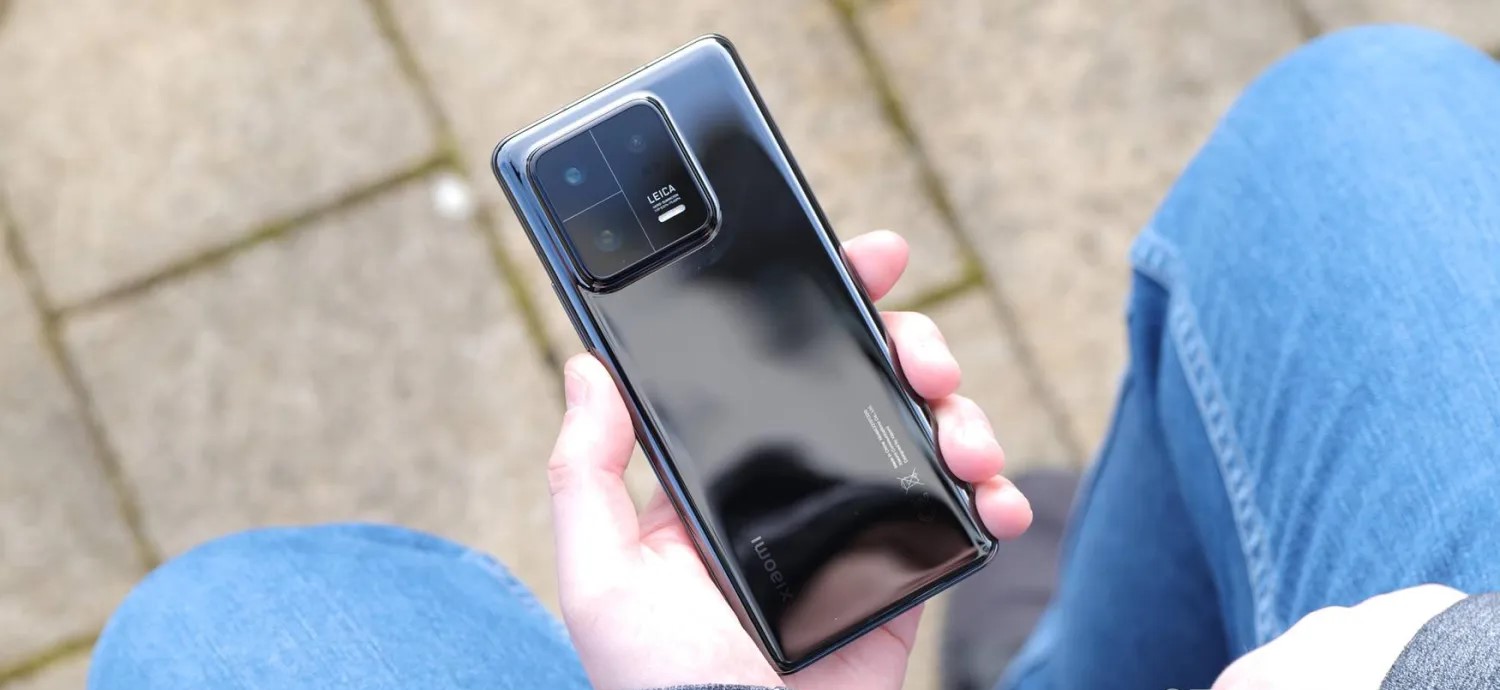
Google just launched Android 14 for Pixel devices this week alongside the launch of the update in AOSP, and that’s opening the floodgates for more OEMs to release their implementations. Xiaomi is among the first, with the company starting its rollout of Android 14 this week with select devices.
As spotted by XiaomiUI, the first Android 14 updates from Xiaomi are starting to show up on select global devices. Specifically, Xiaomi 13, 13 Pro, and Xiaomi 12T users are seeing the update go live.
The update, of course, comes with Xiaomi’s usual MIUI skin, and arrives following a limited beta rollout recently. But, while this is sort of a “stable” update, Xiaomi notes that it isn’t quite a final one. XiaomiUI says that the company is notifying users that the update is still undergoing development and testing to further refine the final product, so users might notice some bugs or other quirks. Xiaomi expert @kacskrz and Mishaal Rahman describe the update as a “Beta Stable” or release candidate.
Notably, our Max Weinbach hasn’t yet seen the update land on his global Xiaomi 13 series devices, but the update is said to be rolling out already.
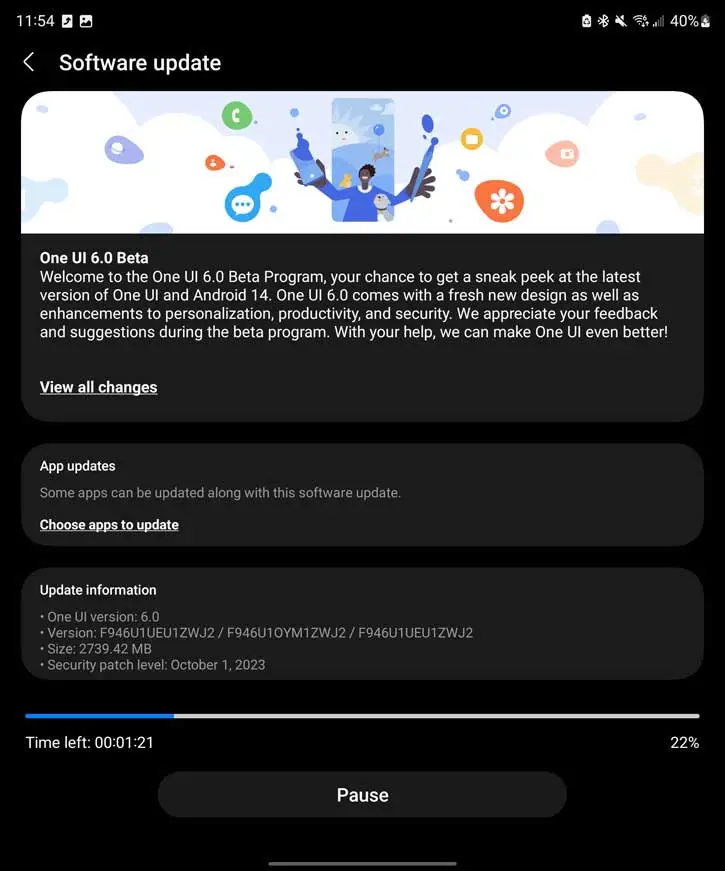
After being next in line for quite some time, the Galaxy Z Fold 5 and Flip 5 are both eligible for the One UI 6 beta.
One UI 6 beta has been available for well over a month. Galaxy lineups like the S23 series and even some A series devices have already been included in that beta, which brings a refinement of the previous version with general improvements made in Android 14.
For some time after the initial release, it was thought that the Galaxy Z Fold 5 and Z Flip 5 would see One UI 6 beta sooner than others, but that hasn’t been the case. At least, until today.
One UI 6 for the Fold 5 has officially rolled out first (via SamMobile). The beta for the Flip 5 was later spotted on Reddit. The beta rollout looks to be coming to the Fold 5 in the US and India, whereas it isn’t entirely clear where the Flip 5 is seeing the new beta version. We were able to pull the beta card up in the Members app on the Fold 5.
Both devices will see One UI 6 beta version 1, which comes with the version number F946BXXU1ZWJ2 for the Fold 5 and F73U1EU1ZWJ2 for the Flip 5. Each also includes the October security patch.
Samsung hasn’t detailed a timeframe for other phones in its foldable lineup. Considering it took this long to bring the One UI 6 beta to the Fold 5 and Flip 5, it could be a little longer. Even still, One UI 6’s stable release isn’t far away.
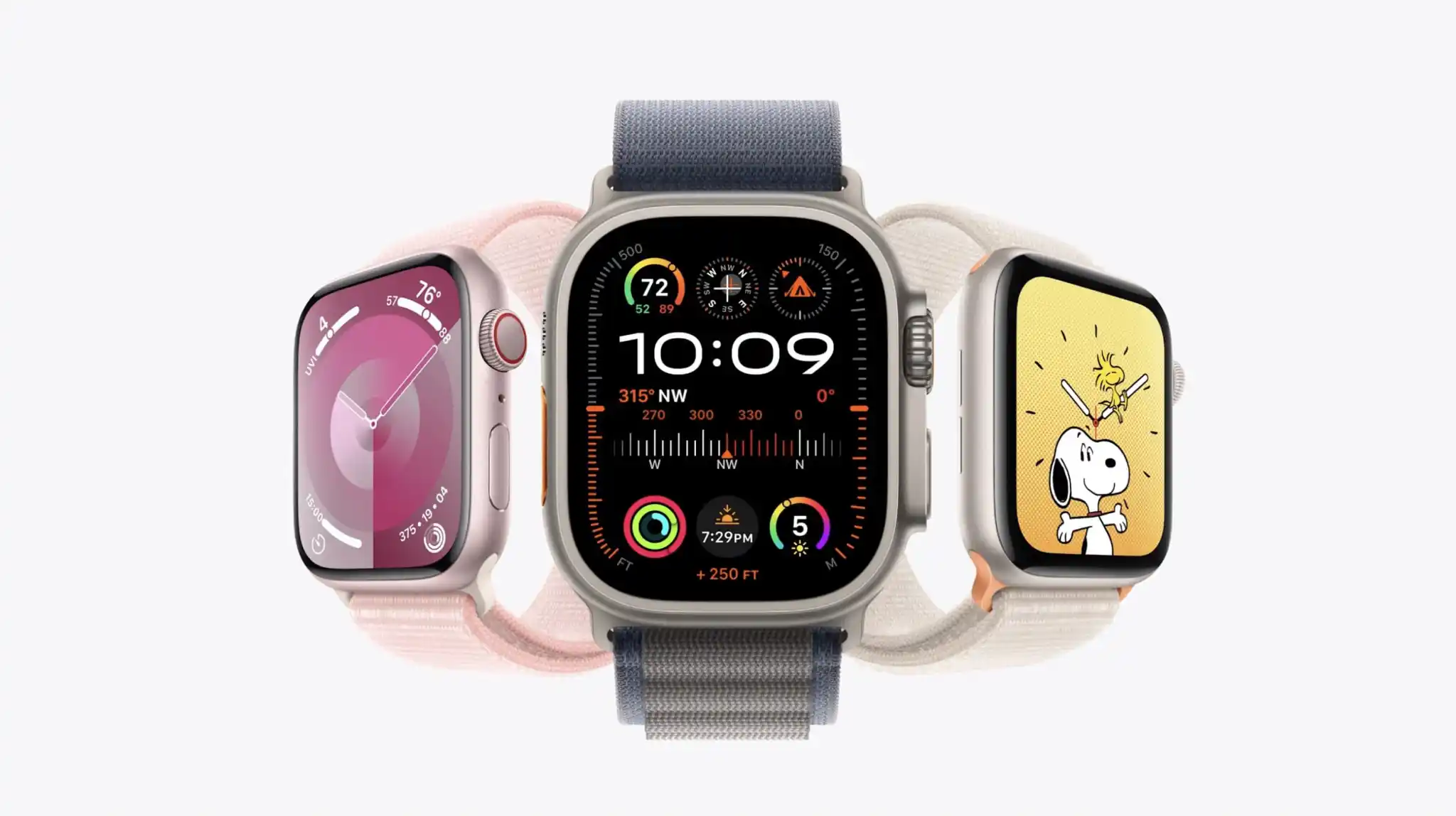
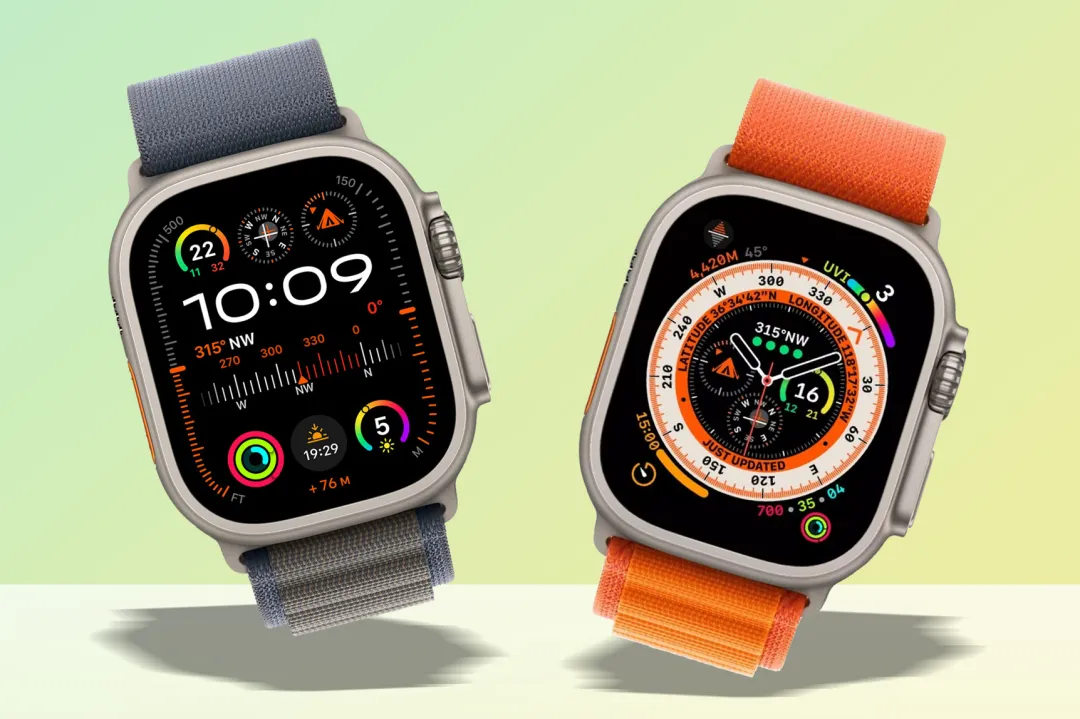
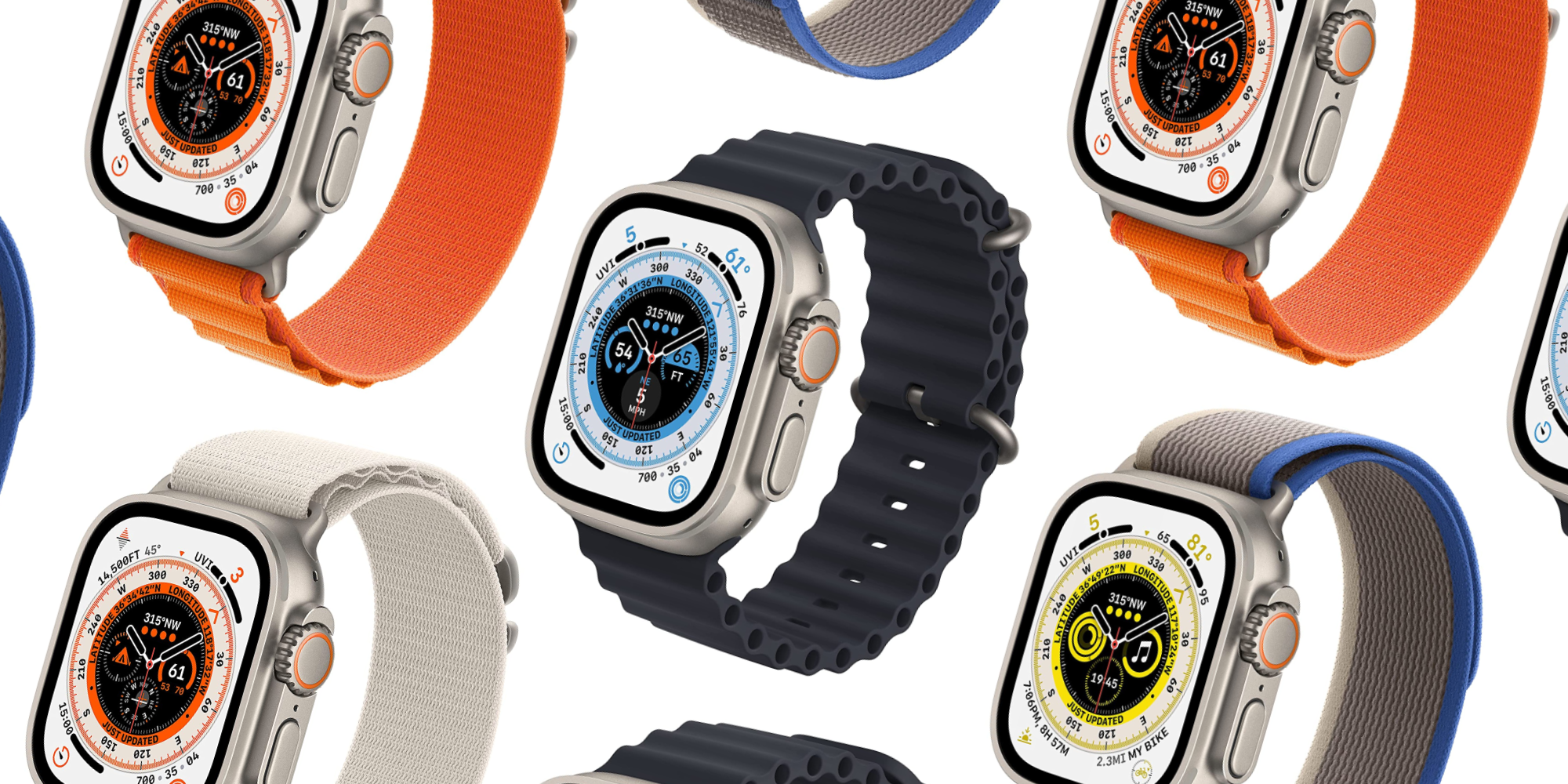
Apple Watch Ultra 2 has an identical physical design to the original Ultra and many of the core features and capabilities remain the same. But what sets them apart? Read along for a look at what’s different between Apple Watch Ultra 2 vs 1.
To be fair, the Pam “same thing” meme only applies to the exterior as there are a number of differences between the Ultra 2 and Ultra 1 when it comes to features, the SoC, and more.
But how meaningful those differences are in real-world use could end up feeling inconsequential for many people.
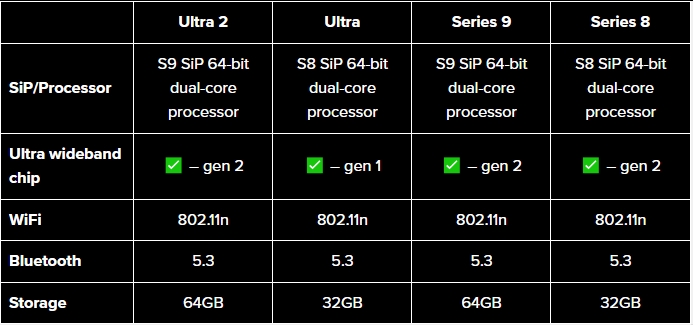
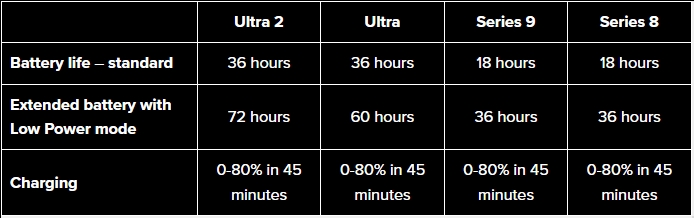
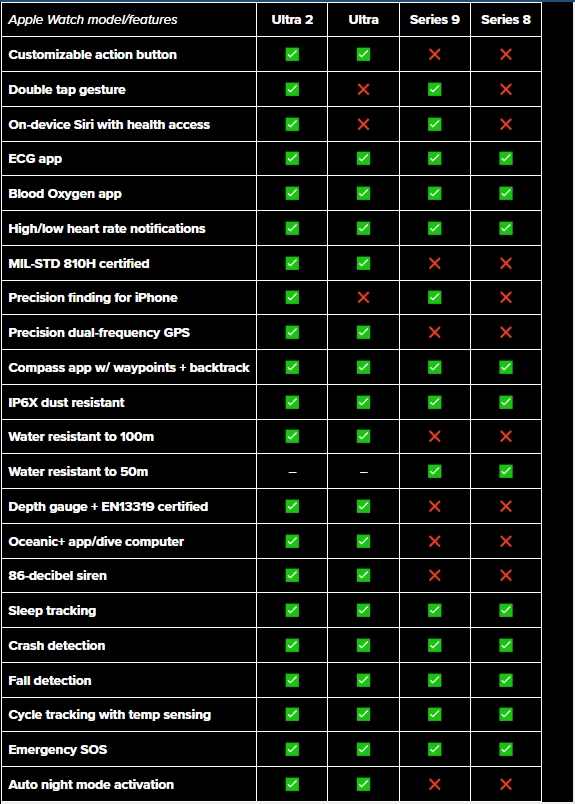
We’ll dig into all the nitty gritty details below. And to give the best perspective on the differences between all the recent models, we’ve included Apple Watch Ultra 2 vs 1 as well as Series 9 and 8 in all the charts.
Apple Watch Ultra 2 vs 1 and more
Processor, storage, more
Last year, Apple used the S8 64-bit dual-core processor in the Ultra and Series 8 which wasn’t that different from the S7 or S6 in the previous Apple Watches.
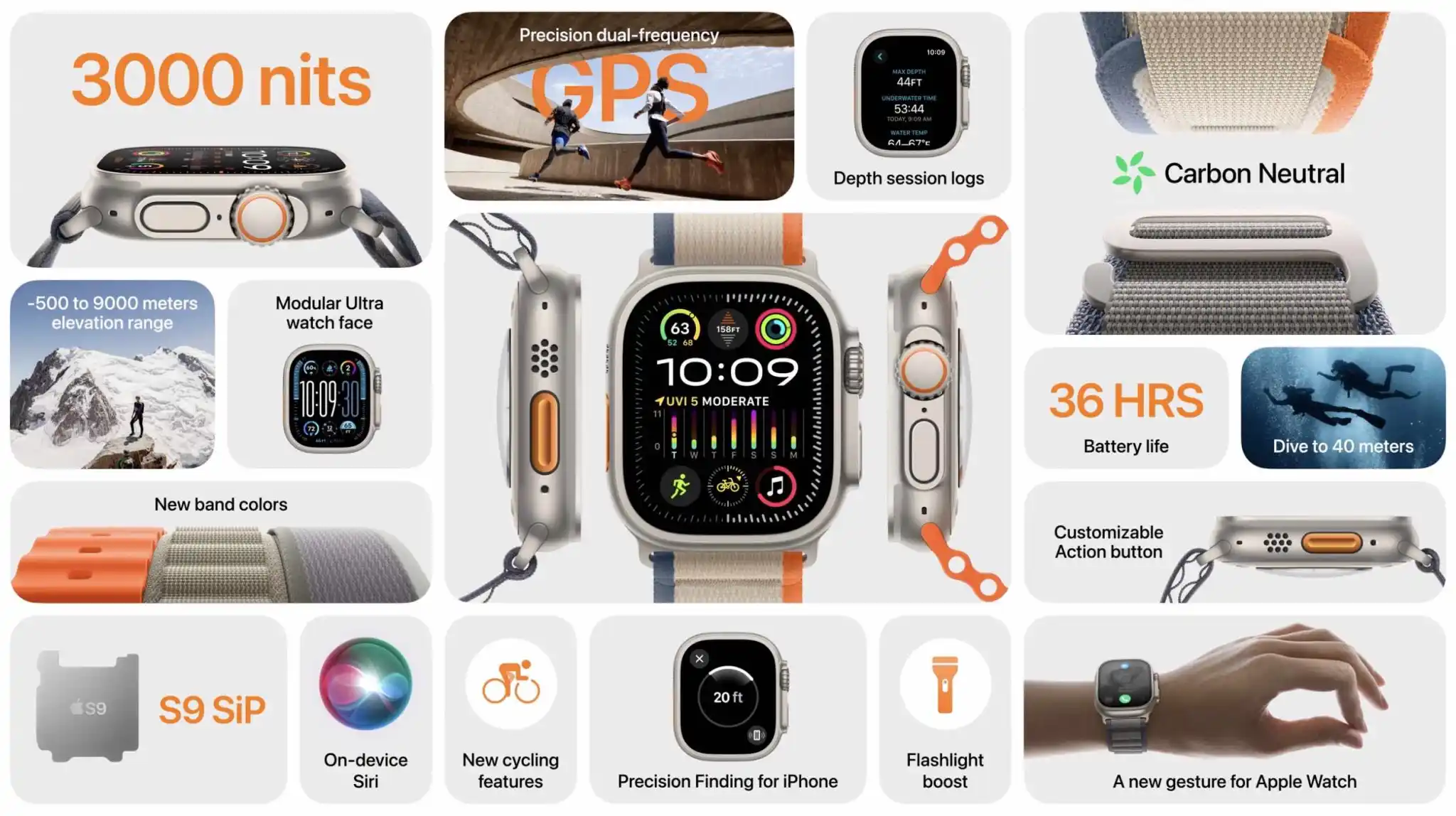
But with Series 9, Apple says the S9 SiP brings notable improvements across the CPU, GPU, and Neural Engine.
Apple didn’t share a specific measure of how much faster the CPU of the S9 is compared to S8, but it features 5.6 billion transistors – up 60% from S8.
For the S9 GPU, Apple says it’s 30% faster than the S8 and the Neural Engine is twice as fast.
Another benefit if you’re coming from a previous generation Apple Watch is a boost to 64GB of storage.
Case and display
Apple Watch Ultra 2 has the same 49mm case as its predecessor with an identical 410 x 502 display resolution. Apple says it’s 27% bigger than the display on Series 4-6/SE. However, now it’s 50% brighter at an impressive 3,000 nits.
Meanwhile, Apple Watch Series 9 carries on with the same sizes that launched with Apple Watch Series 7. That’s 45 and 41mm cases and a larger display that’s 20% bigger than Series 4-6/SE and 50% larger than the Series 3 display.
Apple Watch band compatibility
When it comes to bands, any of them designed for 49, 45, and 44mm Apple Watches will work with Apple Watch Ultra 2 and vice versa.
With no changes to the band connection, that means all previous and new bands work with Series 9 and all older Apple Watches.
Battery life and charging
A major change with Apple Watch Ultra 1 was the biggest battery ever for the lineup. That was 36 hours of standard battery life and up to 60 hours of extended use with Low Power mode.
While Apple Watch Ultra 2 delivers the same 36 hours of standard use, it can give up to 72 hours with Low Power mode.
Notably, the Low Power mode is also available for Apple Watch Series 4 and later and doubles the battery life from 18 to 36 hours.
First introduced with Apple Watch 7 and continued with Apple Watch Ultra 2 and Series 9 is 33% faster charging than Series 6 and earlier. That means going from 0-80% in 45 instead of around 60 minutes for the other models.
If you’re interested in using Apple Watch Ultra 2/Ultra, Series 9, 8, or 7 for sleep tracking, you also get 8 hours worth of use from an 8-minute charge.
Apple Watch Ultra 2 vs 1 – Key features
The main new features you get with Ultra 2 are:
Double tap gesture support
On-device Siri with health access
Precision finding for iPhone
While the new Double Tap feature for Apple Watch Ultra 2 and Series 9 is neat, it turns out a similar capability is available for Series 3 and later.
Price
Apple Watch Ultra 2 is priced from $799 (Apple and more)
Series 9 starts from $399/$429 and up (Apple and more)
Apple Watch Ultra 2 vs Ultra 1 wrap-up
While Apple Watch Ultra 2 is an incredible wearable, it’s probably not different enough to be enticing for those who already have the predecessor.
However, if you’re thinking of upgrading from an Apple Watch Series 8 or earlier that may be a different story. You get a larger display, on-device Siri, the longest battery life in an Apple Watch, all of the latest and greatest health features, Action button, Double Tap gesture, and more.
Following this morning’s announcement, Android 14 is now rolling out to the following Pixel devices: 4a 5G, 5, 5a, 6, 6 Pro, 6a, 7, 7 Pro, 7a, Tablet, and Fold.
There are 26 security issues resolved in the Android 14 October patch dated 2023-10-01, 26 for 2023-10-05, and one for 2023-10-06. Vulnerabilities range from high to critical. The dedicated bulletin for Google devices has 28 additional security fixes.
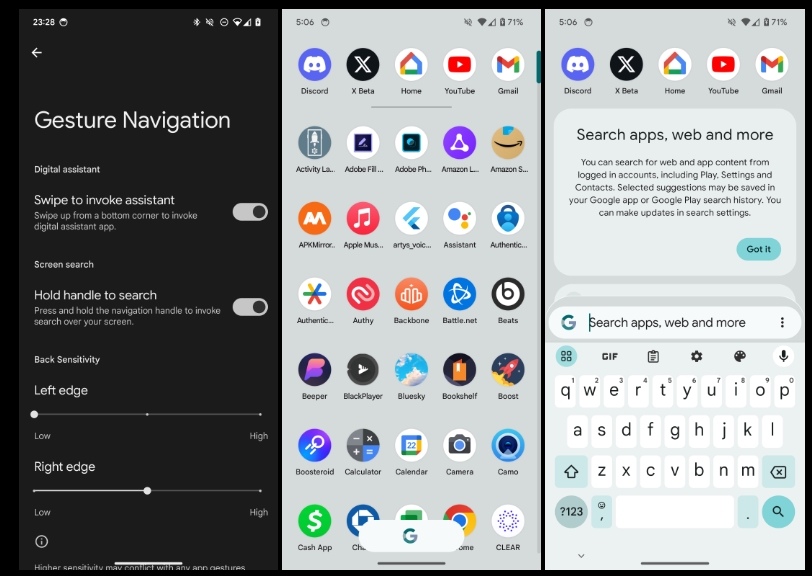
Google’s first preview of Android 14 QPR1 is now available and we are diving into the Beta 1 release to find what new features have been introduced.
Over the coming hours, we’ll dive into all of Android 14 QPR1 Beta 1’s new features and every single change. (The newest updates will be at the top of this list. Be sure to check back often and tell us what you find in the comments below.) Android 14 Beta 5.3 screenshots appear on the left and QPR1 Beta 1 at the right.
Google should release two more betas before the Pixel launch in December. If you want to quickly install the Android 14 QPR1 Beta 1 on your compatible Pixel 5a, Pixel 6, Pixel 6 Pro, Pixel 6a, Pixel 7, Pixel 7 Pro, Pixel 7a, Pixel Tablet, and Pixel Fold.
Audio Device Type in Bluetooth settings
Toast message on Screen saver
On Android 13, the “Fingerprint not recognized” message appears on the lockscreen. It shows up as a message bubble in 14 QPR1.
<string name=”repair_mode_summary”>Secure environment for device repair</string>
More distinctive Quick Settings background
New particle effect when changing wallpapers
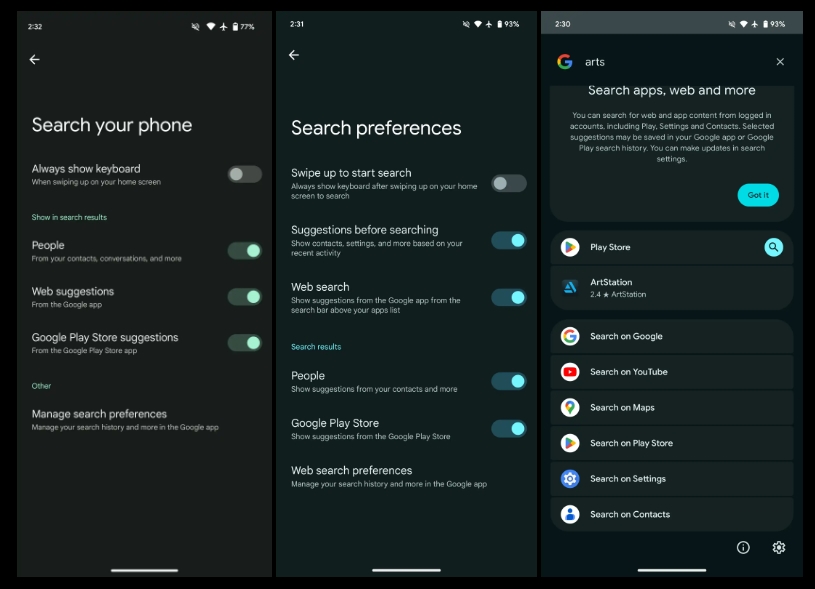
Pixel Launcher Search preferences
Tweaked settings toggles
New “Suggestions before searching” preference
Shortcut to settings at the bottom of Pixel Launcher search
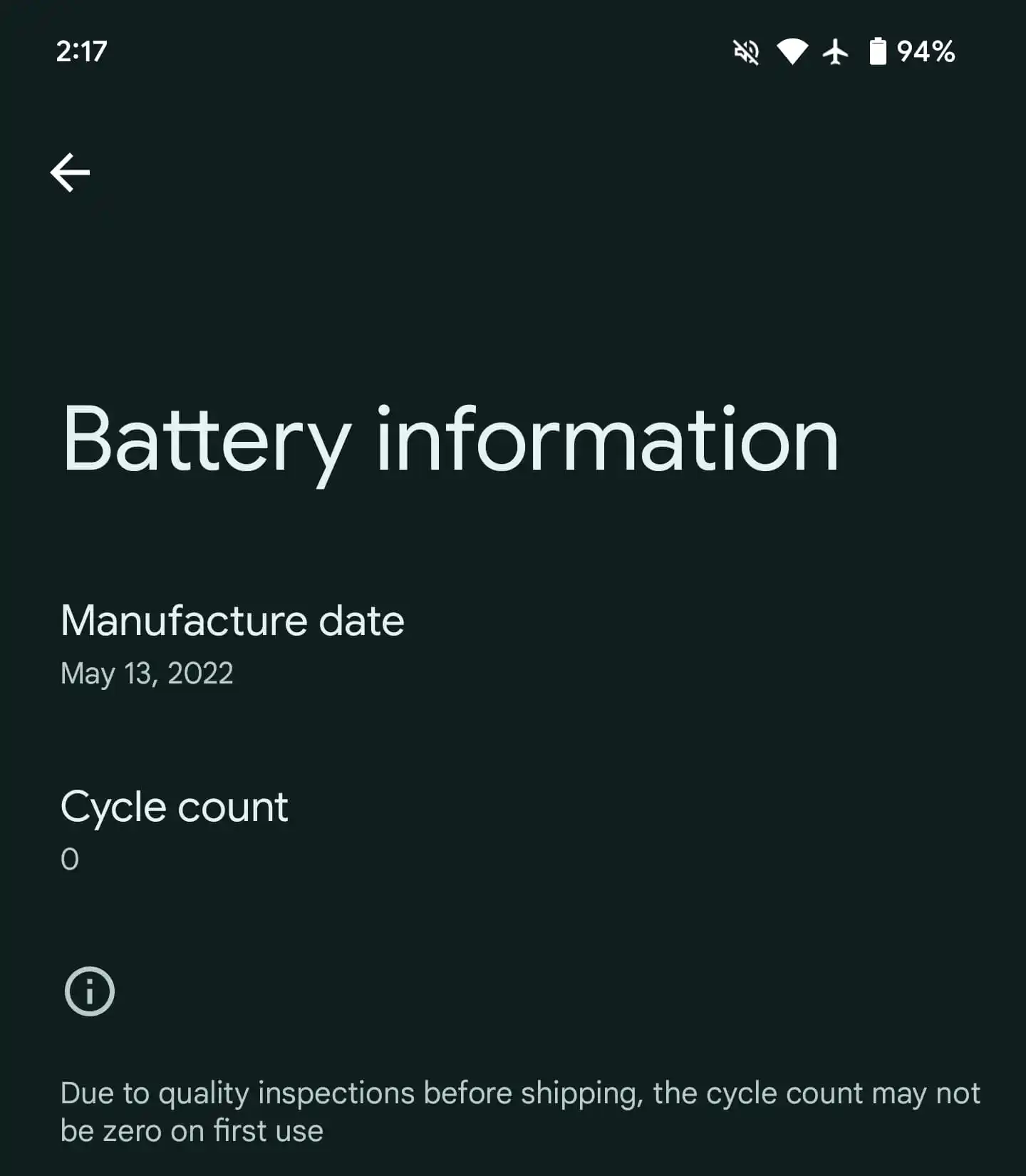
Settings > About phone > Battery information
New Metro clock
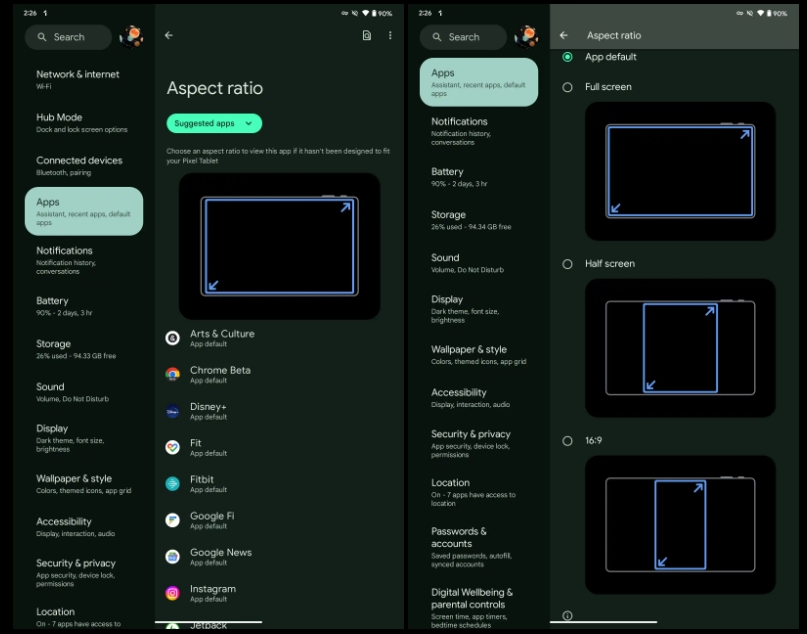
Large screen user per-app overrides
Settings > Apps > Aspect ratio
Options include: App default, Full screen, Half screen, 16:9
“Device original equipment manufacturers (OEMs) apply overrides to selected apps on specific large screen devices. Android 14 QPR1 introduces user overrides, which enable users to apply overrides to apps through device settings.”