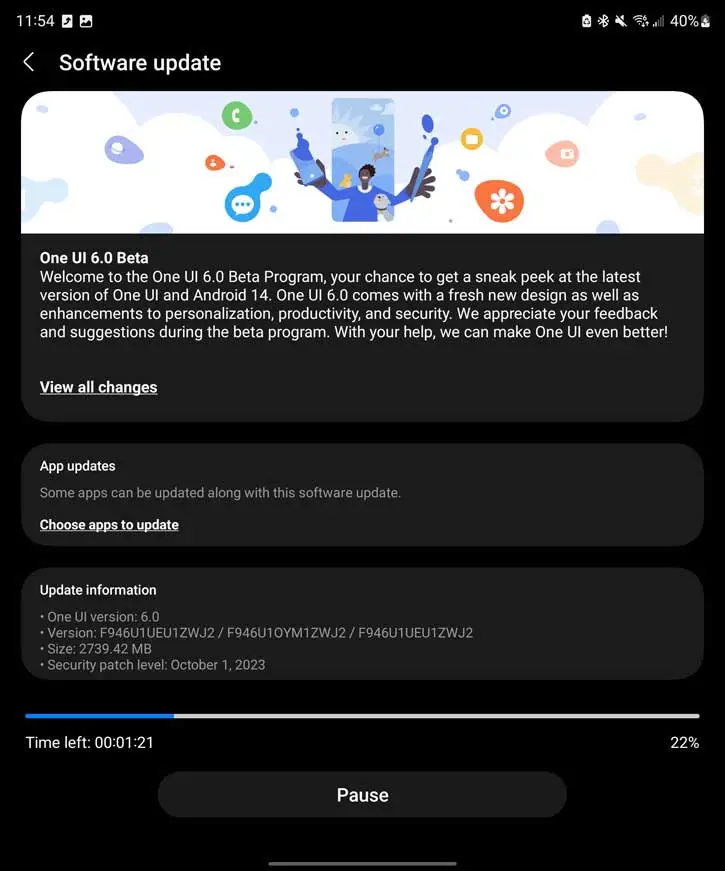
After being next in line for quite some time, the Galaxy Z Fold 5 and Flip 5 are both eligible for the One UI 6 beta.
One UI 6 beta has been available for well over a month. Galaxy lineups like the S23 series and even some A series devices have already been included in that beta, which brings a refinement of the previous version with general improvements made in Android 14.
For some time after the initial release, it was thought that the Galaxy Z Fold 5 and Z Flip 5 would see One UI 6 beta sooner than others, but that hasn’t been the case. At least, until today.
One UI 6 for the Fold 5 has officially rolled out first (via SamMobile). The beta for the Flip 5 was later spotted on Reddit. The beta rollout looks to be coming to the Fold 5 in the US and India, whereas it isn’t entirely clear where the Flip 5 is seeing the new beta version. We were able to pull the beta card up in the Members app on the Fold 5.
Both devices will see One UI 6 beta version 1, which comes with the version number F946BXXU1ZWJ2 for the Fold 5 and F73U1EU1ZWJ2 for the Flip 5. Each also includes the October security patch.
Samsung hasn’t detailed a timeframe for other phones in its foldable lineup. Considering it took this long to bring the One UI 6 beta to the Fold 5 and Flip 5, it could be a little longer. Even still, One UI 6’s stable release isn’t far away.
Following this morning’s announcement, Android 14 is now rolling out to the following Pixel devices: 4a 5G, 5, 5a, 6, 6 Pro, 6a, 7, 7 Pro, 7a, Tablet, and Fold.
There are 26 security issues resolved in the Android 14 October patch dated 2023-10-01, 26 for 2023-10-05, and one for 2023-10-06. Vulnerabilities range from high to critical. The dedicated bulletin for Google devices has 28 additional security fixes.
Google’s first preview of Android 14 QPR1 is now available and we are diving into the Beta 1 release to find what new features have been introduced.
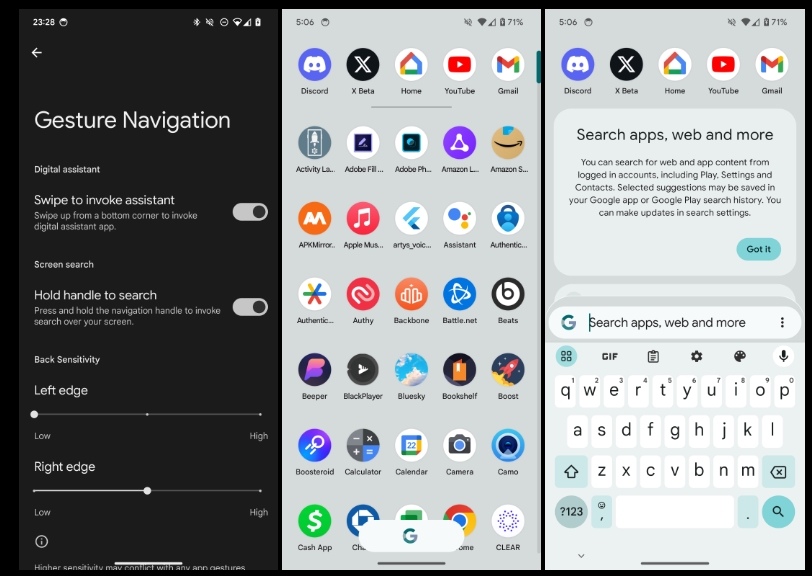
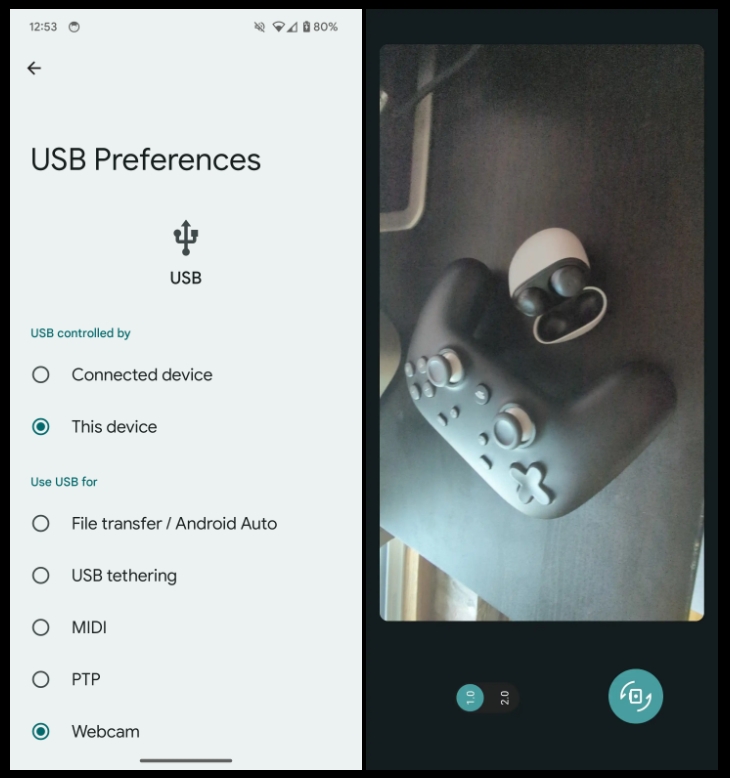
Over the coming hours, we’ll dive into all of Android 14 QPR1 Beta 1’s new features and every single change. (The newest updates will be at the top of this list. Be sure to check back often and tell us what you find in the comments below.) Android 14 Beta 5.3 screenshots appear on the left and QPR1 Beta 1 at the right.
Google should release two more betas before the Pixel launch in December. If you want to quickly install the Android 14 QPR1 Beta 1 on your compatible Pixel 5a, Pixel 6, Pixel 6 Pro, Pixel 6a, Pixel 7, Pixel 7 Pro, Pixel 7a, Pixel Tablet, and Pixel Fold.
Audio Device Type in Bluetooth settings
Toast message on Screen saver
On Android 13, the “Fingerprint not recognized” message appears on the lockscreen. It shows up as a message bubble in 14 QPR1.
<string name=”repair_mode_summary”>Secure environment for device repair</string>
More distinctive Quick Settings background
New particle effect when changing wallpapers
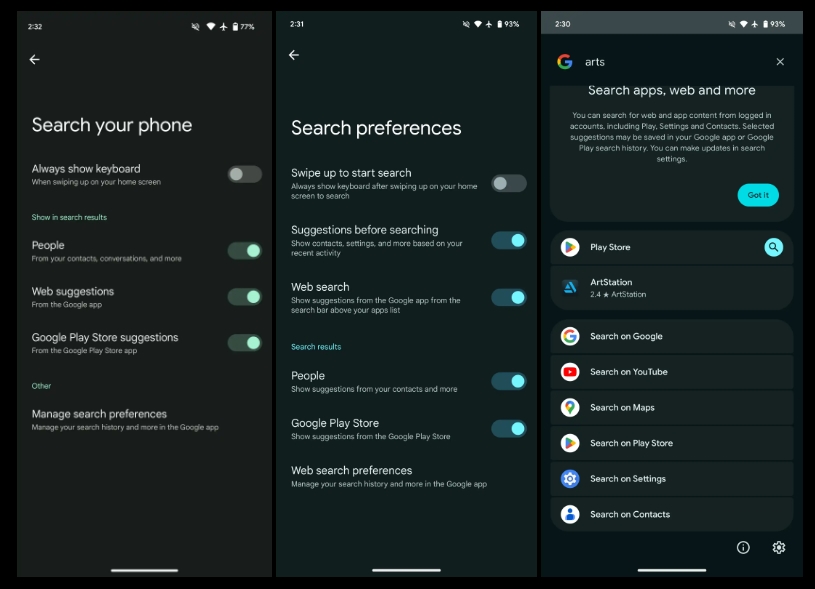
Pixel Launcher Search preferences
Tweaked settings toggles
New “Suggestions before searching” preference
Shortcut to settings at the bottom of Pixel Launcher search
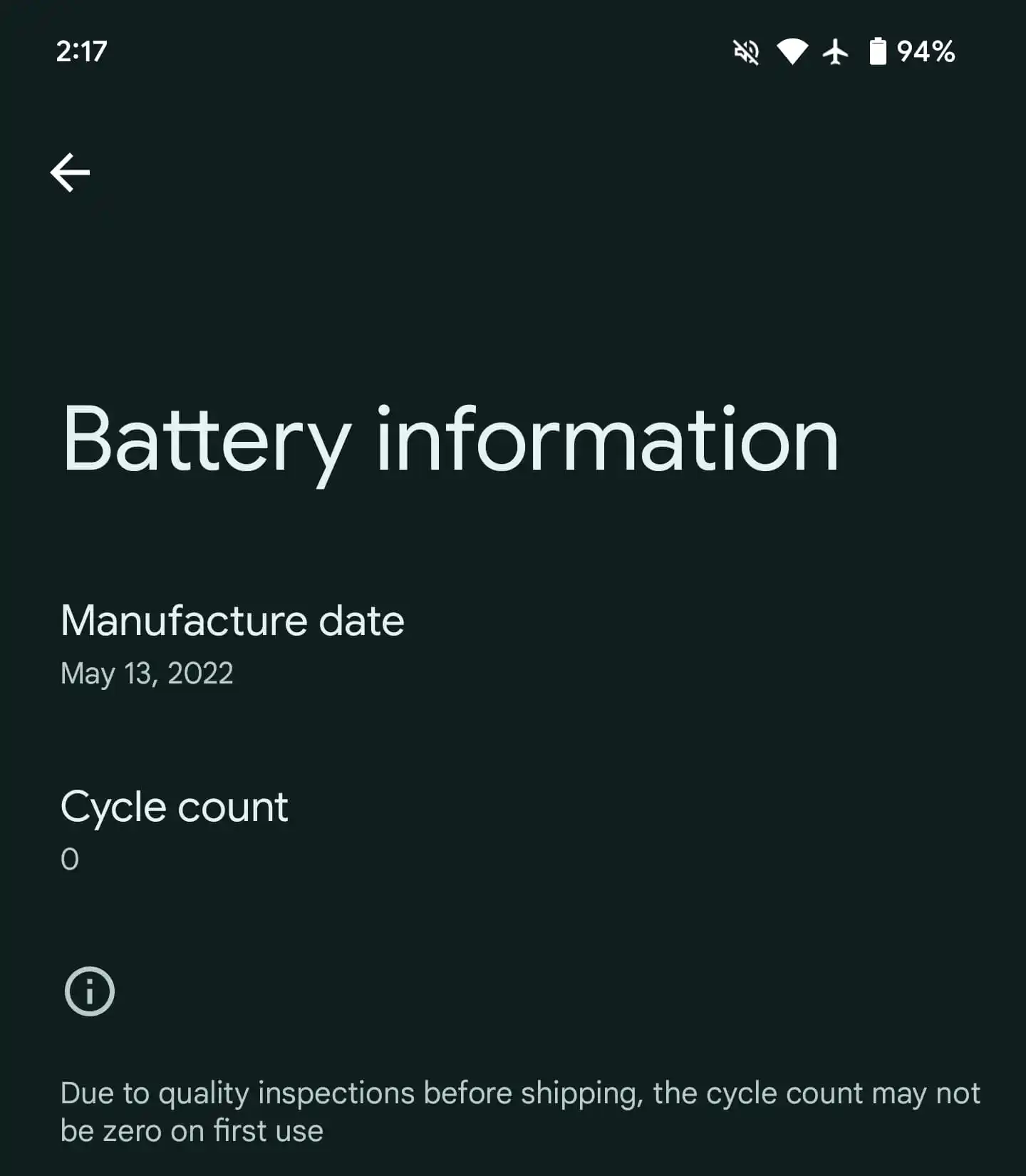
Settings > About phone > Battery information
New Metro clock
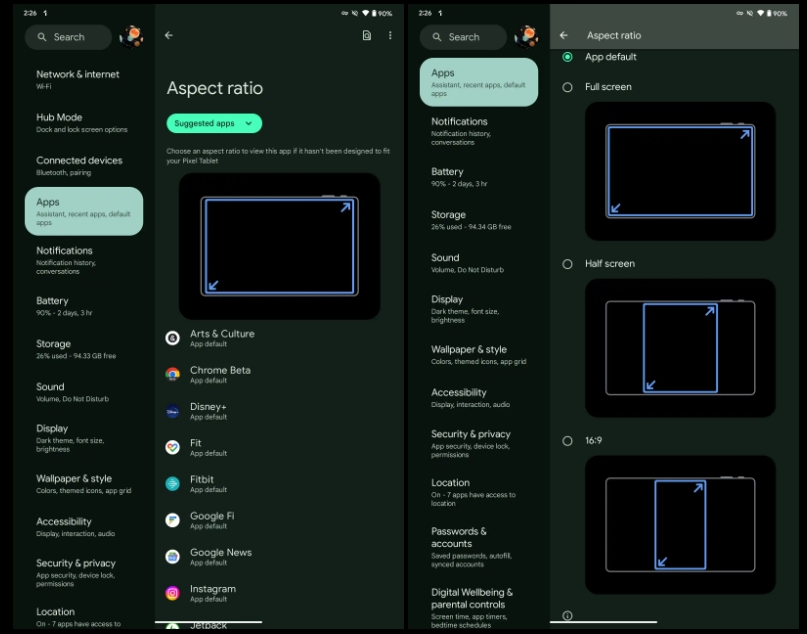
Large screen user per-app overrides
Settings > Apps > Aspect ratio
Options include: App default, Full screen, Half screen, 16:9
“Device original equipment manufacturers (OEMs) apply overrides to selected apps on specific large screen devices. Android 14 QPR1 introduces user overrides, which enable users to apply overrides to apps through device settings.”
In a repeat of the schedule from two years ago, Google looks to be rolling out Android 14 on the same day as the Pixel 8 launch event.
According to Telus, “Android U” has an “Approx date” of Wednesday, October 4. The Canadian carrier says this update is coming to the Google Pixel 7a, Pixel 7 Pro, Pixel 7, Pixel 6a, Pixel 6 Pro, Pixel 6, Pixel 5, Pixel 4a (5G), and Pixel 4a.
Everything about the last device on that list is correct. The Pixel 4a is no longer getting OS updates and was never eligible for the Android 14 Beta. The carrier says “All dates are approximate and subject to change,” and that to “Please note posted dates reflect when the update is targeted for release but can take a few weeks to roll out to all devices.”
This Software Update Schedule list was updated on September 29.
Many expected the upcoming OS to hit stable in early September. Instead, Google looks to be rolling out Android 14 on the same day it unveils the Pixel 8 and 8 Pro. The last time this happened was with Android 12 and the Pixel 6. That update with a Material You overhaul warranted the later release. From what we have today, Android 14 is not that big of a release and doesn’t feature major changes.
Announcing new phones and software on the same day is somewhat overwhelming from a news perspective, but does give existing owners something to immediately experience.
Android 14 Beta 5.3 was the last preview on September 6 before Google started testing Android 14 QPR1. Even though the stable release is not out yet, Google has to start testing the next Quarterly Platform Release in order to hit a December launch.
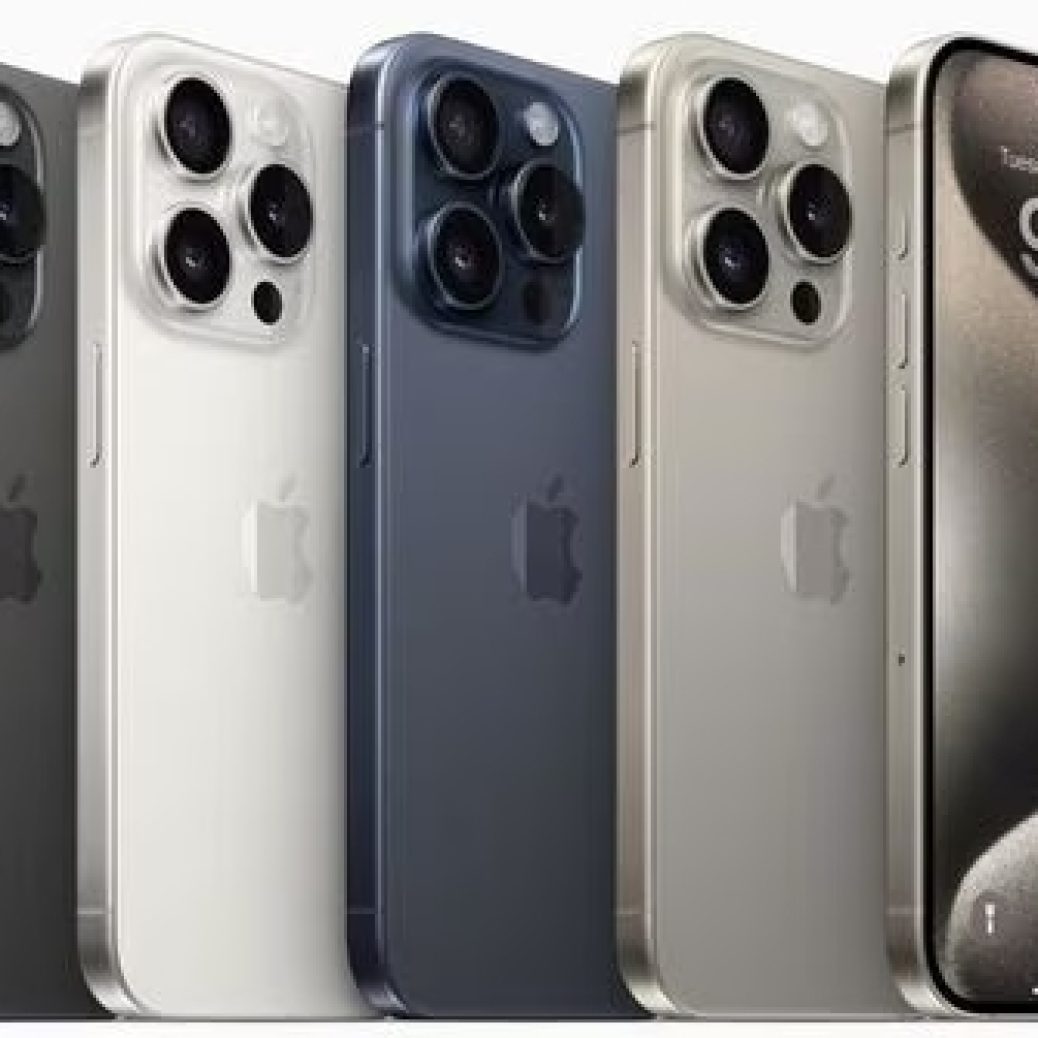
Over the last week, a number of iPhone 15 and iPhone 15 Pro users have complained of their new devices overheating and running at abnormally high temperatures. In response to those complaints, Apple has announced that a software update is on the way to remedy the problems.
Notably, Apple confirmed to 9to5Mac that the new titanium design of the iPhone 15 Pro is not the cause of any overheating problems.
The company also says that the software update coming to iOS 17 does not in any way reduce performance to address iPhone temperature concerns.
iPhone 15 overheating fix coming soon
In a statement first sent to Forbes and also shared with 9to5Mac, Apple pointed out that it’s normal for an iPhone to run hotter than usual during the first several days. As we’ve explained in the past, this is due to iOS indexing photos, searches, and more in the background.
Apple also says that it’s identified a bug in iOS 17 that makes the overheating problem worse for iPhone 15 and iPhone 15 Pro users. This problem will be “addressed in a software update,” the company says.
Furthermore, Apple tells 9to5Mac that recent updates to certain third-party apps are causing them to overload the system. The company says it’s working directly with those developers to fix the issues. According to Apple, some of the apps overloading the iPhone CPU and causing devices to overheat are Asphalt 9, Instagram, and Uber. Instagram issued a fix for the problem on September 27, Apple says.
We have identified a few conditions which can cause iPhone to run warmer than expected. The device may feel warmer during the first few days after setting up or restoring the device because of increased background activity.
We have also found a bug in iOS 17 that is impacting some users and will be addressed in a software update. Another issue involves some recent updates to third-party apps that are causing them to overload the system. We’re working with these app developers on fixes that are in the process of rolling out.
Apple also confirmed to 9to5Mac that the titanium design of the iPhone 15 Pro is not to blame for any overheating problems, contrary to what some reports stated earlier this week. The company says the new design actually leads to better heat dissipation than previous iPhones with stainless steel. This is likely because of the new internal aluminium sub structure.
iPhone 15 Pro design once again blamed for causing some units to overheat
The iPhone 15 Pro is now in the hands of many consumers around the world, and since then, we’ve seen multiple complaints about overheating problems. Earlier this week, analyst Ming-Chi Kuo suggested that these problems may be caused by design compromises, and new reports from Bloomberg and WSJ reveal that the problem may be worse than it seems.
iPhone 15 Pro overheating
As we previously reported, there are many iPhone 15 Pro and iPhone 15 Pro Max users complaining about how the new devices get extremely hot after using them for a while, even with basic things like web browsing. Although a number of people claim not to be affected by the problem, it’s easy to find posts on social media about iPhone 15 Pro models overheating.
A test run with an iPhone 15 Pro Max shared on a Chinese video platform revealed that downloading the popular game Genshin Impact on a 5G network caused the phone to heat up to 122ºF. The iPhone remained at a similar temperature while running the game in high-resolution mode.
A few days ago, YouTube channel TheRelaxingEnd shared a video showing how the iPhone 15 Pro suddenly started freezing and slowing down while running Genshin Impact, which could be a result of overheating. Of course, this is quite intriguing given that Apple has been marketing the new iPhone as the first capable of running AAA games thanks to the A17 Pro chip.
Apple suggests it’s a normal condition caused by software
Officially, Apple has refused to comment on the matter. But Bloomberg has heard from sources that Apple technicians have been dealing with a lot of customers complaining about iPhone 15 Pro overheating issues. Technicians are telling users to follow the instructions from an old support article found on Apple’s website about what to do when the iPhone gets too hot.
The article doesn’t include any specific instructions for the iPhone 15 Pro. Instead, it only suggests that the iPhone may get hotter than normal after the first setup, being restored from a backup, being wirelessly recharged, or when running graphics-intensive or processor-intensive apps.
While this is true, there’s a group of users who believe that the iPhone 15 Pro is heating up more than usual even under normal conditions, days after being set up or without running 3D games. And they may be right.
It could be caused by a design flaw
The Wall Street Journal heard from “people familiar with the iPhone’s design” that the overheating problems are being caused by design flaws in the iPhone 15 Pro. For instance, Apple removed the SIM tray from iPhone 14 models sold in the US, but every other country still relies on a physical SIM-compatible version of the iPhone.
Because of this, the US version of the iPhone 14 has a plastic piece to fill the gap where the SIM tray is located in the global version of the phone. With the iPhone 15, Apple has redesigned the logic board to remove this gap. But since the eSIM-only iPhone remains exclusive to the US, the rest of the world relies on an iPhone with a different logic board.
“Adding a slot to the phone’s already-cramped interior creates additional challenges for heat dissipation,” the WSJ sources reported.
But that’s not all. Similar to what Kuo said earlier this week, the sources who spoke to the WSJ mentioned that titanium also contributes to overheating, since the material has “less mass to absorb the heat” compared to stainless steel. These two factors combined with a more powerful chip make the iPhone 15 Pro overheat.
Will Apple address the iPhone 15 Pro overheating problems?
It’s unclear at this point whether Apple will do anything to address these problems. The easiest solution would probably be releasing a software update that reduces CPU and GPU performance in certain situations in order to keep the device’s internal temperature under control.
Another alternative would be to change the engineering design of the iPhone 15 Pro, which sounds more unlikely as this would require announcing a recall program for affected customers.
Oppo K7 5G is the company’s first K series phone to support 5G. Oppo K7 is the successor to Oppo K5. Adding more about the phone, Oppo K7 5G includes a 6.4-inch full-HD+ AMOLED display. Under the hood, the phone has Snapdragon 765G SoC coupled with 8GB of RAM and 128GB of onboard storage. Oppo K7 5G is backed by a 4025mAh battery with a 30W fast charger out of the box. Let’s read more about Oppo K7 5G in detail and see how the phone stands against its competitors.
Disclaimer. We can not guarantee that the information on this page is 100% correct.
Display and Camera
Oppo K7 5G is fitted with a 6.4-inch color AMOLED multitouch display with a waterdrop notch. The panel has a Full HD+(1080×2400) resolution which amounts to 411 PPI. The aspect ratio of the phone is 20:9 which means you get a decent screen size to treat your eyes. Biometrics features include an in-display fingerprint sensor and face unlock. Also, the display has a protective layer of Gorilla Glass5.
Oppo K7 5G has vertically aligned quad-rear cameras. It features a 48MP primary sensor coupled with an 8MP ultrawide lens and two 2MP’s of B/W sensor and a depth sensor with autofocus. It does offer a wide variety of popular lenses that you can experiment with to capture decent photographs. As far as the recording is concerned, you can record UHD 4K videos @30fps using the rear cameras. For selfies and video calls, it has a 32MP camera with f/2.0 aperture.
Performance and Battery
Oppo K7 5G runs on Android 10 based on color OS7. The phone has Qualcomm’s mid-range gaming Snapdragon 765G SoC coupled with 8GB of RAM. This ample size of RAM is likely to handle multitasks smoothly and help run demanding applications. To meet the graphic demands it houses Adreno620 GPU which is capable of rendering high-end graphics to give a stable performance. These specifications can be appealing to gamers looking for a performance gaming phone.
Oppo K7 5G is backed by a 4025mAh Li-Po battery which may last a day depending upon your usage. Also, it supports a 30W flash charge out of the box which means you can charge it quickly.
Storage and Connectivity
Oppo K7 5G has 128GB of internal storage capacity which is enough to store in your pictures, photos, videos, music, and documents. However, the phone lacks any external sd-card slot which limits the storage capacity.
Oppo K7 5G has the usual sets of connectivity options that includes 3G 4G VoLTE that enables HD voice and video calls on supported Jio networks, WiFi, Bluetooth v5.1, USB v2.0 with Type C connectivity, NFC for sharing small amounts of payloads. Online constellations like GPS with A-GPS, QZSS, Glonass, Galileo, and BDS are supported.
The Galaxy S23 is getting its fifth One UI 6 beta update, which could only mean One UI 6 based on Android 14 is getting closer to public release.
After a rocky start, the Galaxy S23 and a few other devices have been included in the One UI 6 beta program. So far, it’s gone through five different versions of the OS, each addressing bugs and issues common to beta versions and including new features.
Now, Samsung is releasing version 5 of the One UI 6 beta, and the Galaxy S23 is the first to see it (via SamMobile). This variant ends ZWIK and is being pushed to the Galaxy S23, S23+, and S23 Ultra – Samsung’s flagship devices.
This version of One UI 6 seems to have one purpose – fix issues introduced in previous versions. While other versions included new features, One UI 6 beta 5 only mentions hotfixes.
Bugs that have been fixed
Fixed the problem of not being able to record during a call
Fixed no touch at the bottom of the screen or ghost touch issue
Fixed the issues of stuck after entering camera, forced termination, and not being able to take pictures
Fixed the problem of not being able to use Motion Photo
Fixed infinite rebooting problem when entering Maintenance Mode
Many other improvements
Some of these fixes address experience-ending issues, like not being able to register touch input at the bottom of the screen. Another urgent fix takes on the infinite boot loop some have experienced in Maintenance Mode. The changelog seems to infer that this version brings a much more stable version of One UI 6, as the “Many other improvements” entry suggests.
This version of the One UI 6 beta was first spotted in the UK but is likely going to expand to other regions in a very short amount of time. You can keep an eye out in the Samsung Members app. A One UI 6 beta card should appear at the top if your device is eligible.
Galaxy A53 sees first One UI 6 update
As the Galaxy S23 lineup is seeing its fifth iteration of One UI 6, the Galaxy A53 is finally getting its first. We’ve seen One UI 6 make its way to the Galaxy A54 and A34, but doubling down on budget device betas with a previous generation is a great move from Samsung.
This year the company started prioritizing not only its flagship lineup but budget models as well, which make up a huge portion of the market. By requesting feedback from beta versions on these devices, it’s likely Samsung is able to round out the experience a little better for all users.
The Galaxy A53 should see the new update in the Samsung Members app under the version number A536EXXU7ZWIA.
Along with the new Action button on the iPhone 15 Pro comes an interesting addition to the status bar – a silence mode icon next to the time. Fortunately, Apple has included a way to hide silent bell icon on iPhone 15 Pro and Pro Max, here’s how.
The Action button sits in the same place as the side switch on previous iPhone models and works with a long press.
The default is set to turn silent mode on and off. But even if you customize the Action button to control something else, a new silent bell icon shows in the iPhone 15 Pro status bar right next to the time.
Spotted by MKBHD, the good news is there’s a quick fix in Settings to remove the silent mode icon.
PSA for everyone who leaves their phones on silent and is about to get an iPhone 15 Pro: You can turn off the annoying permanent silent indicator in settings. You’re welcome pic.twitter.com/FcOT8mnQMT
Open the Settings app on your iPhone 15 Pro or Pro Max
Choose Sounds & Haptics near the top
Tap the second toggle down next to Show in Status Bar to hide silent bell
Here’s how it looks to hide the silent bell icon on iPhone 15 Pro:
And if you haven’t customized your Action button yet, navigate to Settings > Action button. Here are the options for the new button:
Silent mode (default)
Focus mode
Camera
Flashlight
Voice Memo
Shortcut
Accessibility features like magnifier and more
No Action
Translate will arrive with an update “later this year”
If you change the Action button to activate something other than silent mode, you can turn silent on/off from Control Center or Settings > Sounds & Haptics.
iOS 17 iPhone StandBy: How to use and customize the smart display feature
One of the headlining new features with iOS 17 is a smart landscape display mode for iPhone when it’s charging. Coming with different clock faces, widgets, access to photos, and more, here’s how to use and customize the iOS 17 iPhone Standby display.
iOS 17 comes with a number of changes across Messages, FaceTime, the Phone experience, and much more.
But one of the most attention-grabbing features will likely be the new iPhone StandBy view that turns the smartphone into a mini smart display.
Here’s how StandBy works.
iOS 17 iPhone StandBy: How to use and customize
Make sure you’re running iOS 17
With your iPhone screen locked, place it in landscape on an upright charger (the mode won’t work on flat or low-angle chargers or when your screen is unlocked – and it must be charging)
iPhone StandBy will automatically appear – the feature is enabled by default
StandBy works on any iPhone that can run iOS 17 but you’ll need to tap the screen to see the clock, widgets, photos, etc. – iPhone 14/15 Pro/Pro Max with always-on will always show the StandBy display
The classic analog clock plus calendar widget on the right is the default StandBy view, swipe up on either to change them
Press and hold on either one to add or remove widgets
On the first StandBy view, do a big swipe from right to left to change views
Press and hold on the other StandBy views to customize them
iOS 17 iPhone StandBy supports Live Activities, Siri, incoming calls, and larger notifications
StandBy remembers your “preferred view” and dims to red and night
You can tweak StandBy settings by heading to Settings > StandBy
Check out our round-up of the latest third-party apps to include StandBy widget support
Here’s how iOS 17 iPhone StandBy looks in use:
The first time you place your locked iPhone horizontally on an upright charger, you’ll see a welcome splash screen.
Now you’ll see this as the default StandBy view:
Swipe up on either the clock face or calendar to get more options (the calendar is a smart stack suggestion by default):
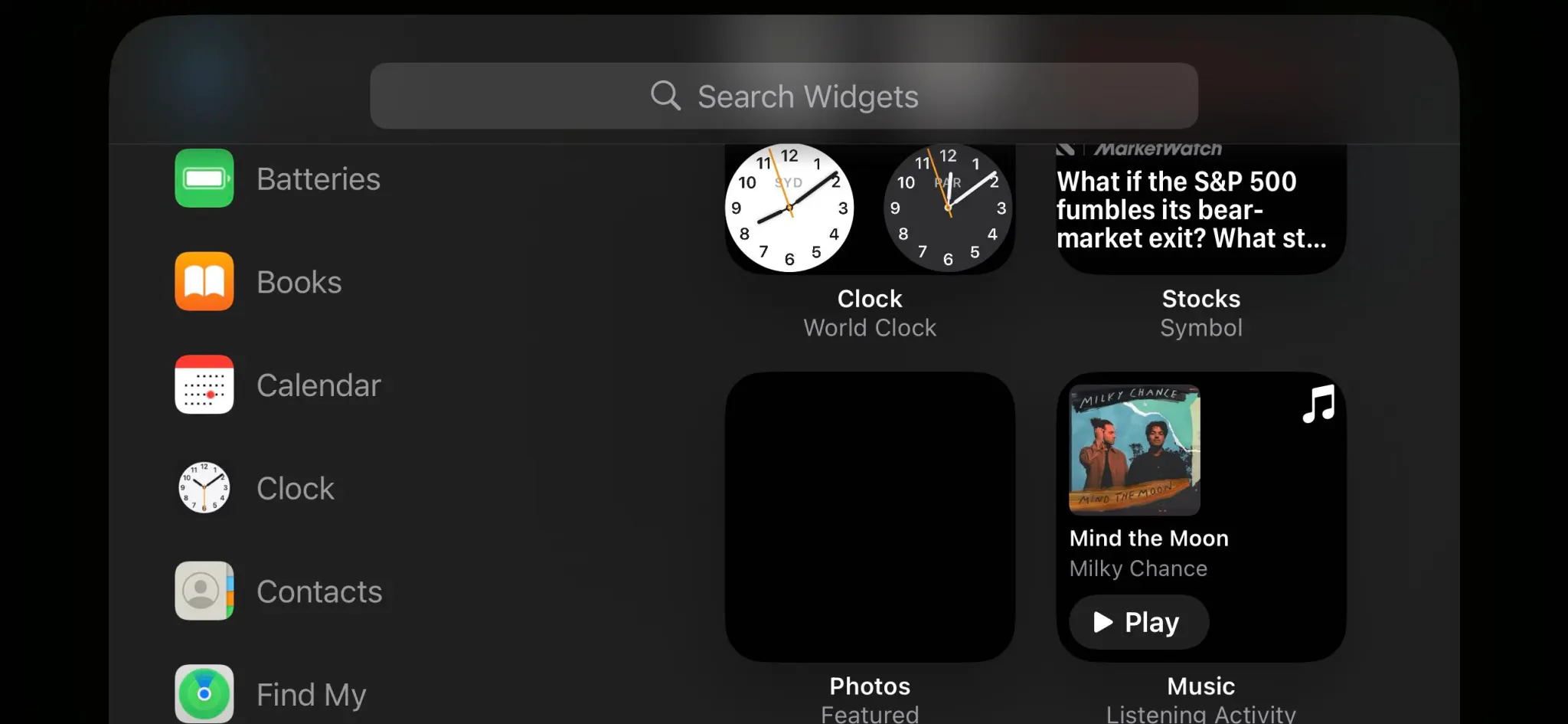
To customize this StandBy screen further, press and hold on the left or right widget. Now you can remove options or tap the + icon in the top left to add widgets:
From the first StandBy clock/widget view, you can swipe from right to left to get to the Photos StandBy view:
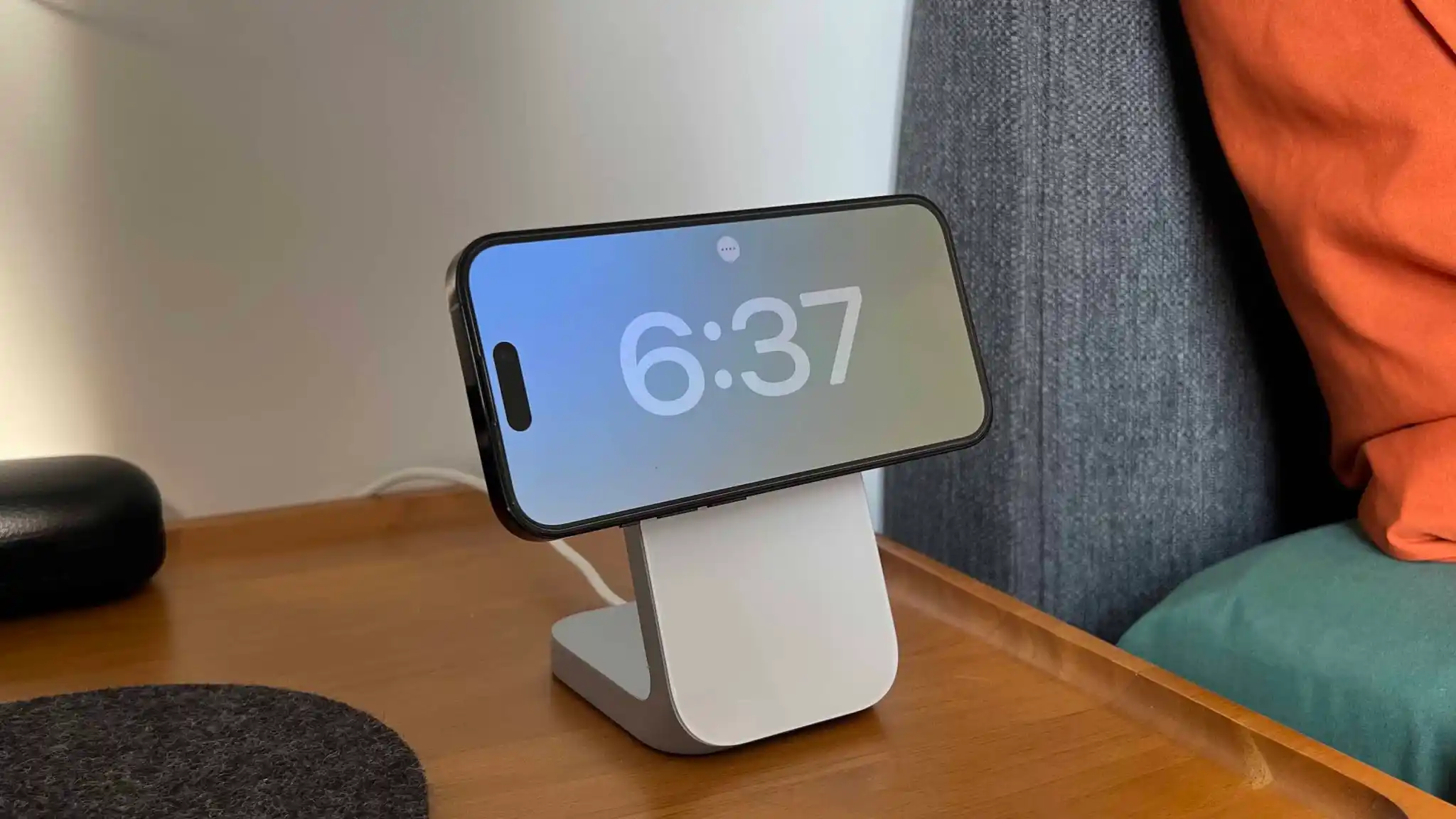
And swipe again to get different the last view that features different customizable clock faces:
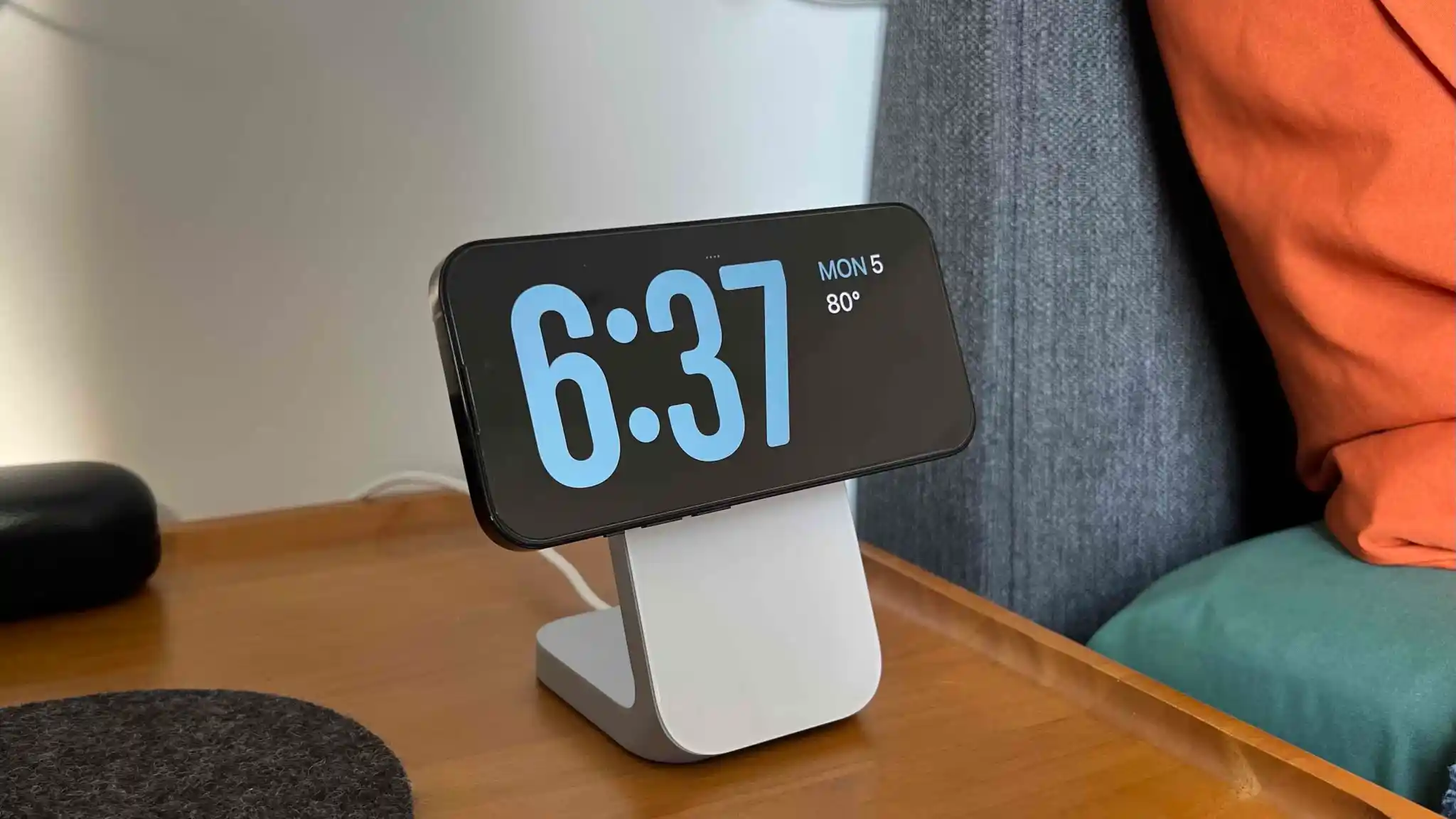
iPhone StandBy on Nomad Stand One MagSafe Charger
Press and hold on any of these to customize their color schemes but you can’t add widgets to these clock faces.
But you can tap the “….” icon in the top center to access music at any time which presents a nice media UI:
And so it doesn’t disturb sleep, iPhone StandBy for those with always-on displays will automatically dim to red at night:
iPhone 15 Pro Max back glass cracks within seconds in new durability test
The iPhone 15 Pro and iPhone 15 Pro Max feature an all-new chassis design made out of what Apple says is grade 5 titanium. A drop test video yesterday raised early concerns about the durability of this new design, particularly as related to the new curved edges.
Now, JerryRigEverything has posted his annual durability test with the iPhone 15 Pro and iPhone 15 Pro Max, and he has some concerns…
Throughout the durability test, we can see the new grade 5 titanium put through scratch testing, heating testing, sandpaper, and more. As expected, the titanium does indeed scratch when you take a knife to it. The matte back glass, however, is far more scratch resistant.
The display also fares quite well during the scratch testing as well, as do the three camera covers on the back of the iPhone 15 Pro. But things get more interesting pretty quickly.
“It’s time to see if the new blended aluminum titanium grafted hybrid structure compromises the structural integrity of the iPhone 15 Pro Max,” JerryRigEverything says as he starts to put pressure on the device. Within just a few seconds, you hear a snap and the back glass has completely shattered.
“I did not see that one coming,” he says. “You’ve been watching me durability test smartphones for about 11 years now, and most phones do not break. iPhones especially do not break, like ever. And [the iPhone 15 Pro Max’s] snap was abnormally quick.”
Internally, the iPhone 15 Pro Max survives the test. The screen and frame of the device are also both unscathed. It’s just the back glass that succumbs to the pressure.
JerryRigEverything speculates that this could be due to the titanium having five times the amount of tensile strength as aluminum, leading to the glass back not being able to withstand even small amounts pressure and flex. On the bright side, Apple has made it far cheaper to replace the iPhone 15 Pro’s back glass this year.
You can check out the video below for the full details. It’s a fascinating look at the iPhone 15 Pro’s new design, but also with some interesting tidbits about titanium itself.
In David Guetta’s hit song “Titanium” from 2011, Sia sang: “You shoot me down, but I won’t fall. I am titanium.” It looks like the same can’t be said for Apple’s version of titanium in the iPhone 15 Pro.
iPhone 15 Plus takes the crown in battery life test, beating all previous iPhone models
Following the iPhone 15 release on Friday, the first battery test results are coming in. Apple touted the efficiency of the 3nm A17 Pro chip, so anticipation was high for the iPhone 15 Pro and Pro Max to take the top spot.
Indeed, the Pro Max outlasted all previous iPhones in Mrwhosetheboss’s test. But it was actually bested by the 15 Plus, which racked up more than 13 hours screen on time, and now holds the title of longest iPhone battery life on record.
Apple’s own tech specs page reports battery life in terms of longevity for continuous audio playback and video playback sessions. According to Apple’s numbers, the iPhone 15 Pro Max lasts the longest on streaming video playback with 25 hours compared to 20 hours for iPhone 15 Pro and iPhone 15 Plus.
However, on audio playback, the Max is rated for 95 hours while the Plus hits triple digits at 100 hours. Apple’s numbers give a decent benchmark to compare across models, but it’s hard to deduce real-world battery life times from them, as day-to-day phone usage is usually more taxing than just watching video or playing music.
Mrwhosetheboss attempts to simulate a more realistic daily usage pattern, cycling through power draining activities like watching TikTok videos, Zoom video chat, recording video in the camera, and playing games. The phone screen stays on the entire time until the battery is depleted and it turns off.
The previous title holder was the iPhone 13 Pro Max, as battery life dipped a little with the 14 series. As seen in the video, all iPhone 15 models beat out their previous-generation counterpart.
Of the newest generation phones, the iPhone 15 Pro died first, followed by the iPhone 15. The 15 Pro lasted for 9 hours and 20 minutes. The base iPhone 15 endured another half an hour, clocking in at just under 10 hours of runtime.
The 15 Pro Max easily lapped the field, staying alive for another hour and a half of battery life, hitting 11 hours and 41 minutes. The 15 Plus almost beat the Max by the same margin though, achieving a staggering 13 hours and 19 minutes in the test.
The previous best performer, the 13 Pro Max, managed 11 hours and 19 minutes in contrast.
Apple has identified an iOS 17 bug which may affect the iPhone 15 upgrade experience today. During iPhone setup, the Transfer from another iPhone option may fail and leave your new iPhone in a state where it is stuck booting on the Apple logo black screen. Here’s what to do if that happens to you.
The bug affects iPhone 15 and iPhone 15 Pro as these phones ship with iOS 17 preinstalled. However, it may also affect anyone switching phones that are running iOS 17 and use the transfer data option.
If you encounter the bug, during the transfer of apps and data, the new iPhone will get stuck in a boot loop on the Apple logo screen.
To resolve the issue, Apple says that you need to put the device into DFU mode and restore it using a computer.
To do this, connect your iPhone to a PC or Mac using a cable. Press the volume up, press the volume down, and then press and hold the side button. Keep holding the side button while iPhone reboots until it displays an icon on the screen that represents a computer and cable. It will look similar to this:
After you get the iPhone into DFU state, it will then show on your computer through the Finder, or through iTunes if you are connecting to a Windows PC (or older version of macOS). In Finder/iTunes, you will be able to Restore or Update; press the Restore button to reset the phone.
After the phone has been restored, you can start the setup process again. There may be an additional software update available.
Finally, you can try again. If you are upgrading to an iPhone 15 or iPhone 15 Pro, you can set up using transfer data or iCloud backup. The aforementioned software update will have fixed the iOS 17 bug, so you can safely transfer data again and finish new iPhone setup.
However, if you are upgrading to an iPhone model earlier than the 15 series, a fix for the transfer data glitch is not yet available.
So, Apple recommends that you update using iCloud Backup instead. Make sure your previous iPhone has a recent iCloud backup complete (you can force this by going to Settings -> [your name] -> iCloud -> iCloud Backup -> Back Up Now). Then, on your new iPhone, start iPhone set up and choose the ‘From iCloud Backup’ option when it asks how you want to transfer your data to your new phone. Your iPhone should then finish setup successfully.
These steps are described in an Apple support document, which first revealed the existence of this iOS 17 glitch.