Apple has officially announced the dates for its annual WWDC event and keynote. This year, the event will take place entirely virtually from June 6 through June 10. This year at WWDC, we expect Apple to announce the future of its operating systems including iOS 16, watchOS 9, and macOS 13. Head below for all of the details on WWDC 2022.
WWDC 2022 is official!
Here’s what Apple says we can look forward to at WWDC 2022:
Apple today announced it will host its annual Worldwide Developers Conference (WWDC) in an online format from June 6 through 10, free for all developers to attend. Building on the success of the past two years of virtual events, WWDC22 will showcase the latest innovations in iOS, iPadOS, macOS, watchOS, and tvOS, while giving developers access to Apple engineers and technologies to learn how to create groundbreaking apps and interactive experiences.
Susan Prescott, Apple’s vice president of Worldwide Developer Relations and Enterprise and Education Marketing, added:
“At its heart, WWDC has always been a forum to create connection and build community. In that spirit, WWDC22 invites developers from around the world to come together to explore how to bring their best ideas to life and push the envelope of what’s possible. We love connecting with our developers, and we hope all of our participants come away feeling energized by their experience.”
Despite Apple’s “all-online” headline, Apple also says WWDC 2022 will include a small in-person component:
In addition to the online conference, Apple will host a special day for developers and students at Apple Park on June 6 to watch the keynote and State of the Union videos together, along with the online community.
Apple adds that space will be limited, and details about how to apply to attend will be provided on the Apple Developer site and app soon.
Compared to the past two years of virtual WWDC events, Apple adds that this year it will offer “more information sessions, more cutting-edge learning labs, more digital lounges to engage with attendees, and more localized content to make WWDC22 a truly global event.”
What to expect
WWDC 2022 will include Apple’s State of the Union and Apple Design Award events, online sessions, one on one labs for developers, and numerous ways for developers to interact with Apple engineers and designers.
As usual, we expect Apple to focus heavily on its software platforms at WWDC this year. This will likely include the announcement of iOS 16, iPadOS 16, watchOS 9, macOS 13, and tvOS 16. The company will also likely release developer betas of these new operating systems then as well.
This year, it’s also possible that WWDC includes new hardware announcements targeted at developers. Bloomberg’s Mark Gurman has reported that Apple could announce its next round of Apple Silicon-powered Macs for May or June. It certainly seems plausible that these new Macs are announced during WWDC in June.
Apple says that it will share additional program information in advance of WWDC22 through the Apple Developer app, on theApple Developer website, and via email. We’ll be sure to share the latest details right here on 9to5Mac as they become available.
Apple has officially announced its newest event will be broadcast worldwide on March 8. With the event having been rumored for weeks, we’re excited to see what’s lined up.
Read on for a roundup of what Apple could announce at its spring event next week, including an iPhone SE 3, iPad Air 5, and more. The Cupertino company has a great deal planned for 2022.
Apple spring event highlights
Apple has held its first-half-of-the-year events in March or April fairly regularly for some time. While spring doesn’t include a full-fledged new iPhone lineup, the events generate quite the excitement among Apple fans. Here are some highlights of spring events over the last few years:
April 2021: “Spring Loaded” event introduced colorful 24-inch iMacs, iPad Pro, purple iPhone 12, Apple TV 4K, and AirTag
March 2020: Apple introduced iPad Pro 4 and iPhone SE 2
March 2019: Apple held a different kind of event, introducing new services Apple TV+, Apple News, Apple Arcade, Apply Card, and Apple Pay
Apple March 2022 event details
Apple will officially hold its spring event on March 8 at 10:00 a.m. PT/1:00 p.m. ET. Once again the event will be virtual, broadcasting from Apple Park in Cupertino, California. Apple is teasing the event with the headline “Peek Performance.”
You can watch the March 8 event live stream from Apple’s website, on its YouTube channel, and on the Apple TV app. We will share more details on this as they come.
So, what’s on the docket for the event? Head below for all of the details.
iPhone SE 3
The 3rd Generation iPhone SE is rumored to to remain at the $399 price point. Apple Analyst Ming-Chi Kuo notes it’ll have the same design but with two main upgrades – 5G and a better processor.
Mark Gurman of Bloomberg suggests Apple should drop the price of the existing iPhone SE 2 to $199. This would be perfect for people looking to spend less and would offer a larger lineup of budget iPhones to choose from, but it’s unclear if it’s a strategy Apple will actually implement.
iPad Air 5
Rumors are anticipating the 5th Generation iPad Air will take after the current iPad mini 6. We could see it include the A15 processor, 5G capabilities, four speakers versus two, and Center Stage support for video calls.
Camera improvements seem to be the biggest changes of all. We may finally see support for 1080p video recording in 25fps and 30fps. The iPad Air 5 is expected to have standard wide- and ultra-wide-angle camera lenses like on iPhone 13. However, sources claim the camera won’t include a LiDAR scanner like the iPad Pro.
iOS 15.4 release date
Apple released the fifth beta of iOS 15.4 this week, and the update should arrive by mid-March. It’s very likely to release around the time of the spring event.
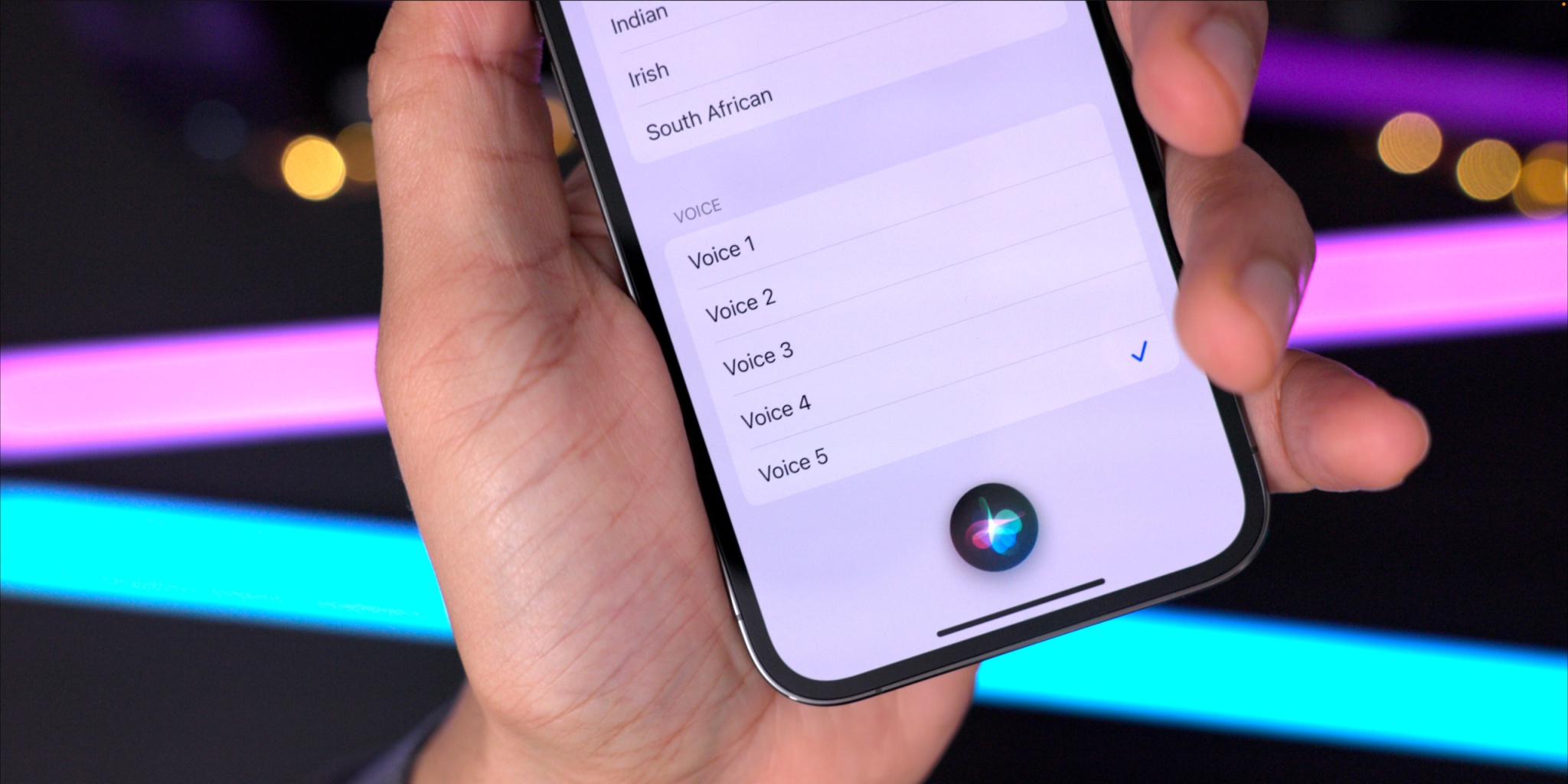
iOS 15.4 includes new features like Face ID support with a mask, a non-binary voice for Siri, new emojis, and more.
New Apple Silicon machines: ‘Mac mini Pro’
Mark Gurman of Bloomberg listed seven new Apple Silicon Macs to expect this year in his Power On newsletter recently. Additionally, a few weeks ago, Apple registered three new Macs in the Eurasian regulatory database. The appearance of Apple devices in the Eurasian database has been an accurate indicator of new models in the past, but it’s unclear when these machines will see the light of day.
2021 reports from Bloomberg suggest a higher-end Mac mini will include the same Apple Silicon as the current MacBook Pros. It further claims it’ll see a redesign featuring more ports than its current version. Bloomberg also states we’ll see an M2 Mac mini sometime this year.
An entry-level MacBook Pro with an M2 chip
Mark Gurman also offered his insights on a new MacBook Pro featuring an all-new M2 chip. This laptop is going to be sold alongside the 2021 MacBook Pro lineup, meant to replace the current 13-inch MacBook Pro.
It won’t include the Touch Bar, a miniLED display, or ProMotion technology like other MacBooks. The M2 will be more powerful than the M1 but less powerful than the M1 Pro and M1 Max chips.
A redesigned MacBook Air with an M2 chip
MacBook Air hasn’t had a new release since 2020, so it seems inevitable that we’ll see a redesign announced at some point this year, but it’s unlikely this will happen next week.
The new design will follow the 24-inch iMacs with white bezels and come in a variety of colors. It doesn’t seem likely we’ll gain any additional ports on this model, but it has been reported that it will charge via MagSafe.
A 27-inch iMac with Apple Silicon replacement and Mac Pro?
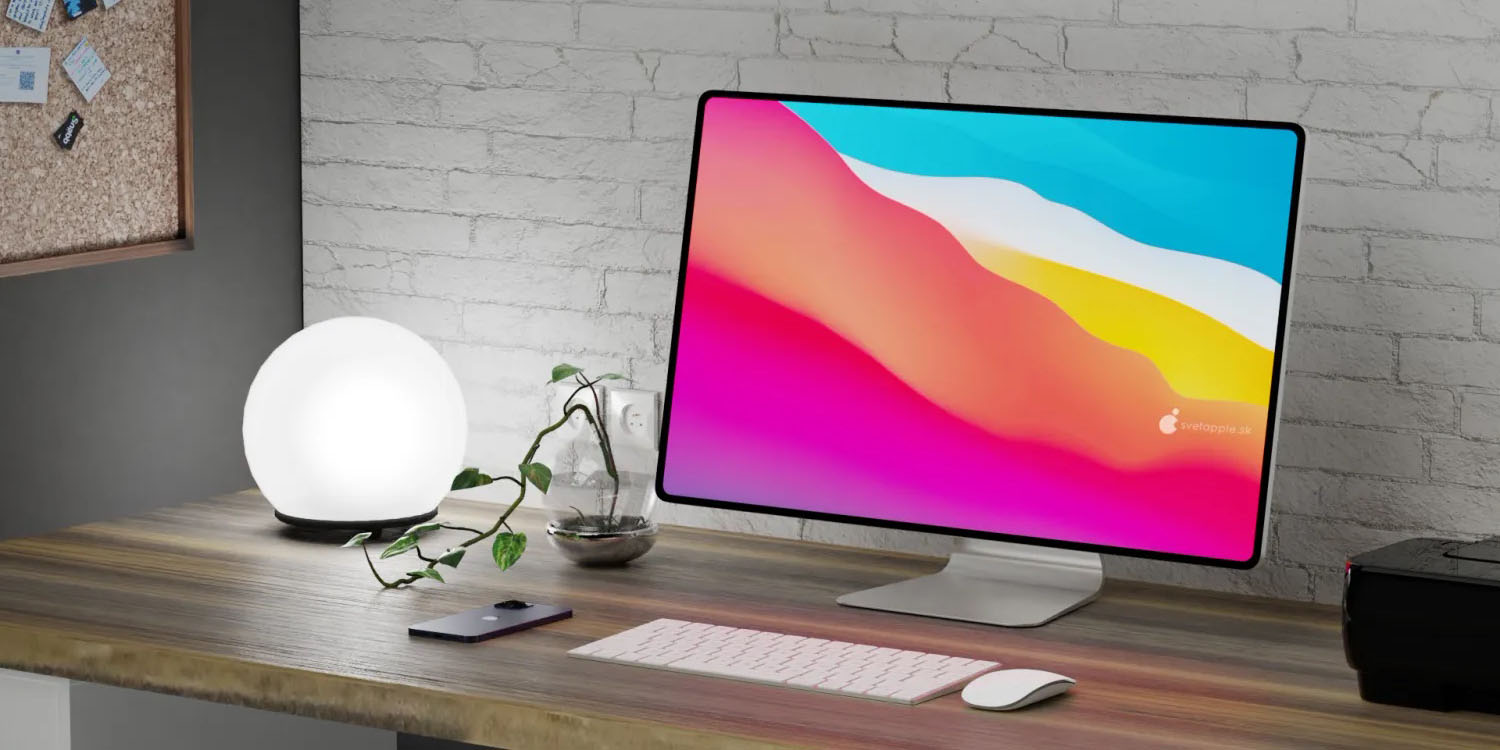
Current 27-inch iMacs have yet to follow the Apple Silicon route, but that’s anticipated to change. Reports have shown it’ll offer a miniLED display with ProMotion technology. M1 Pro and M1 Max chip options will power these devices, just like the 2021 MacBook Pro lineup. These may be called iMac Pro or stick with the 27-inch iMac name.
The new iMacs are highly sought after as many users are looking for a desktop with the specs of the MacBook Pros. Last spring’s event saw the first generation of Apple Silicon iMacs with colorful 24-inch displays.
Apple is also reportedly working on a new version of the Mac Pro, but at this point it’s unclear whether these higher-end machines will be announced now or later.
What we won’t see at this Apple event
Apple is working on numerous products right now to release throughout 2022. As this is a spring event, we don’t expect to see the rumored Apple Watch Series 8 or the iPhone 14 until the fall. It is also a reality that some of the Macs in the pipeline may be releasing later in the year. There haven’t been many updates on a new iPad Pro, so that is expected to be announced another time this year as well.
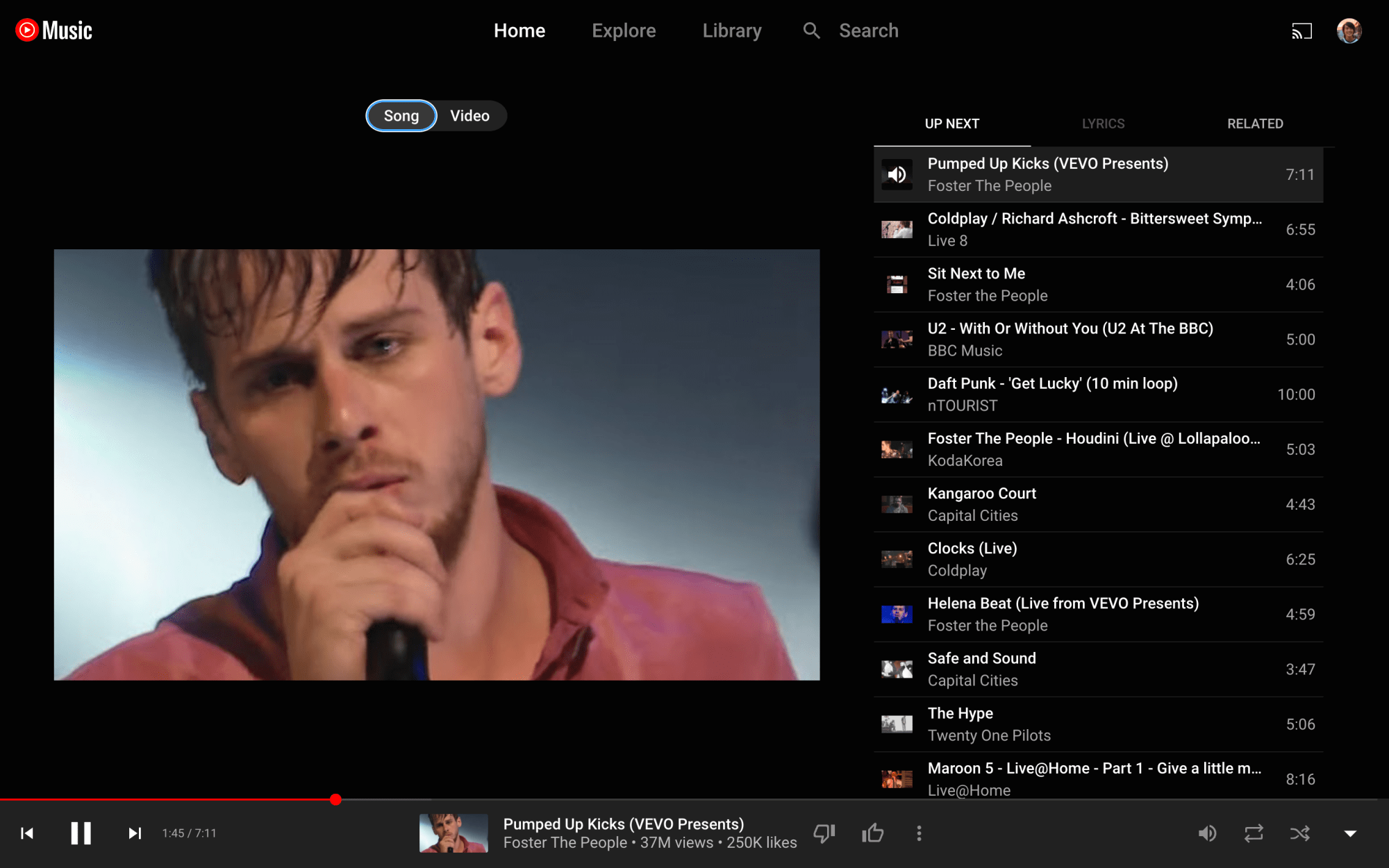
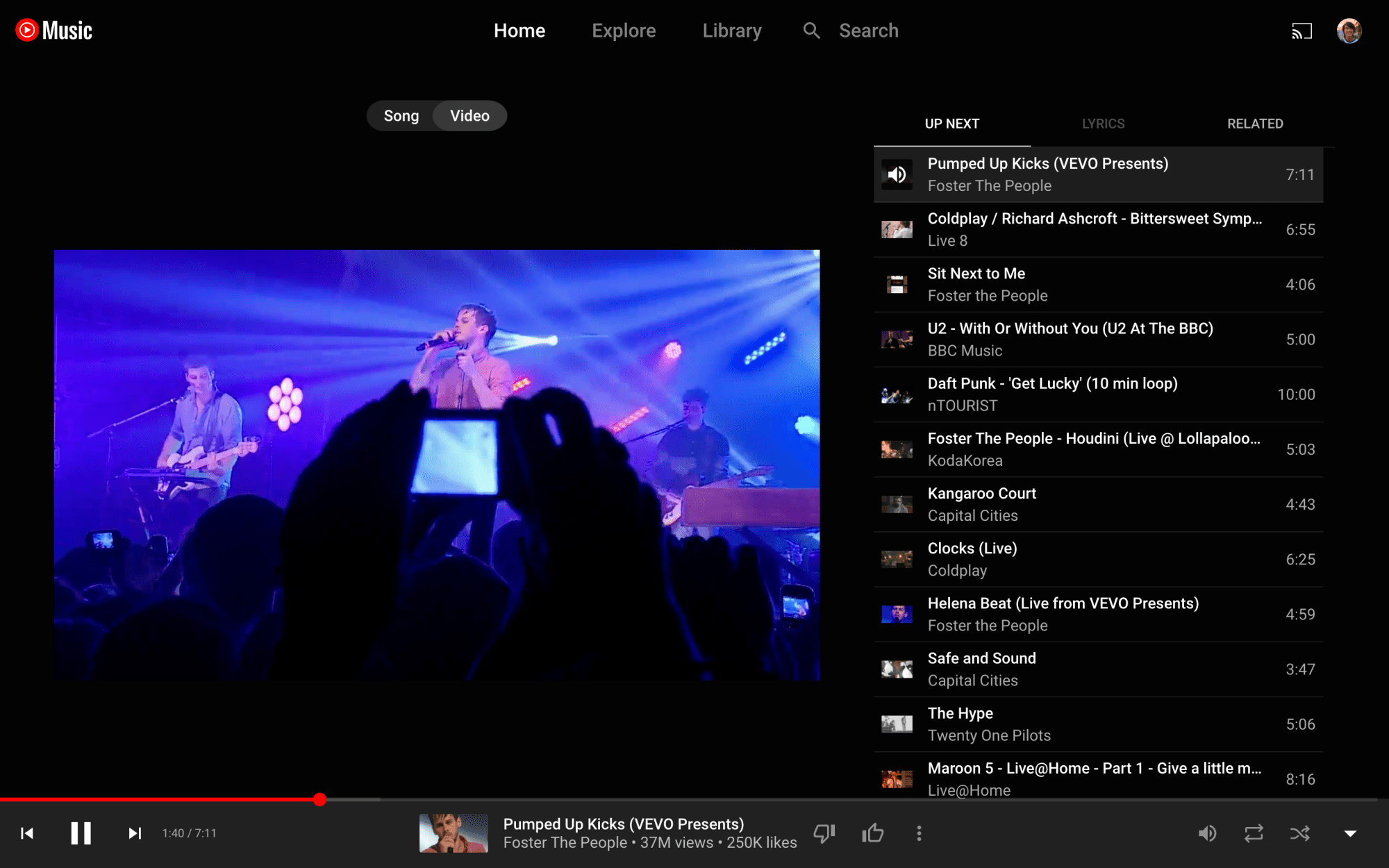
After testing for some time, YouTube Music is finally bringing the song/video switcher to the Now Playing UI of the web client.
Just above cover art is the Song and Video switcher that has been a staple of the Now Playing screen on Android and iOS.
There are two primary use cases for this switcher. The first is switching between the official music video and the album version of a song, as evidenced by cover art appearing in the latter instance. Your playback position is retained when switching. The switcher appears grayed out when songs aren’t available as videos.
The other use is disabling the video aspect of a live recording, which just uses the thumbnail as cover art. It’s useful for those that just want to listen to audio, with users previously resorting to minimizing Now Playing at the expense of being able to see the Up Next queue.
YouTube Music has been testing the switcher for some time on the desktop, but it looks to be widely rolled out today. It’s another example of the web client getting feature parity with the mobile apps, while the Related tab was introduced in recent months.
Google should also theme the background of Now Playing to album art instead of defaulting to just a dark background. This was previously spotted but never widely rolled out.
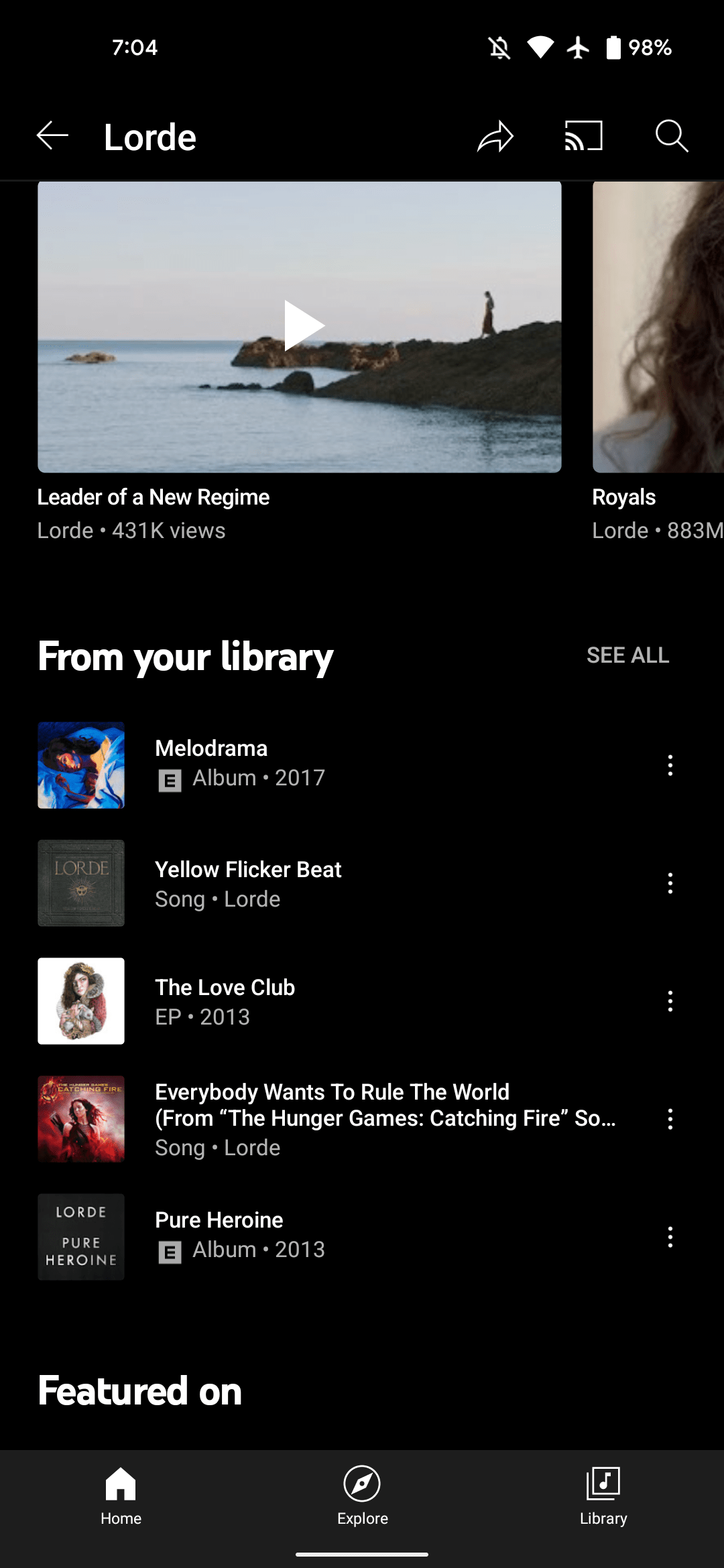
YouTube Music artist pages now list songs and albums ‘From your library,’ like Play Music
After rolling out a redesigned “Add to playlist” UI, YouTube Music is adding a “From your library” section to artist pages that is similar to something that was found in Google Play Music.
It’s third from the bottom and just below the “Videos” carousel. Up to five songs or albums are listed with “See all” in the top-right corner. That button takes you to a list of just tracks. There’s a convenient “Shuffle all” button, while sort options include Release date, Recently added, A to Z, and Z to A.
YouTube Music’s Library essentially lets you save media for quicker access, but it does not include songs you’ve manually uploaded. This new grouping joins the Albums, Songs, and Artists views, while “From your library” also exists as a carousel in the Home tab.
The From your library section in artist pages is widely rolled out today on YouTube Music for Android and iOS. However, it’s not currently found on the web, and would ideally be ranked higher up in the page. In all, this new feature is similar to “My Library” in Google Play Music.
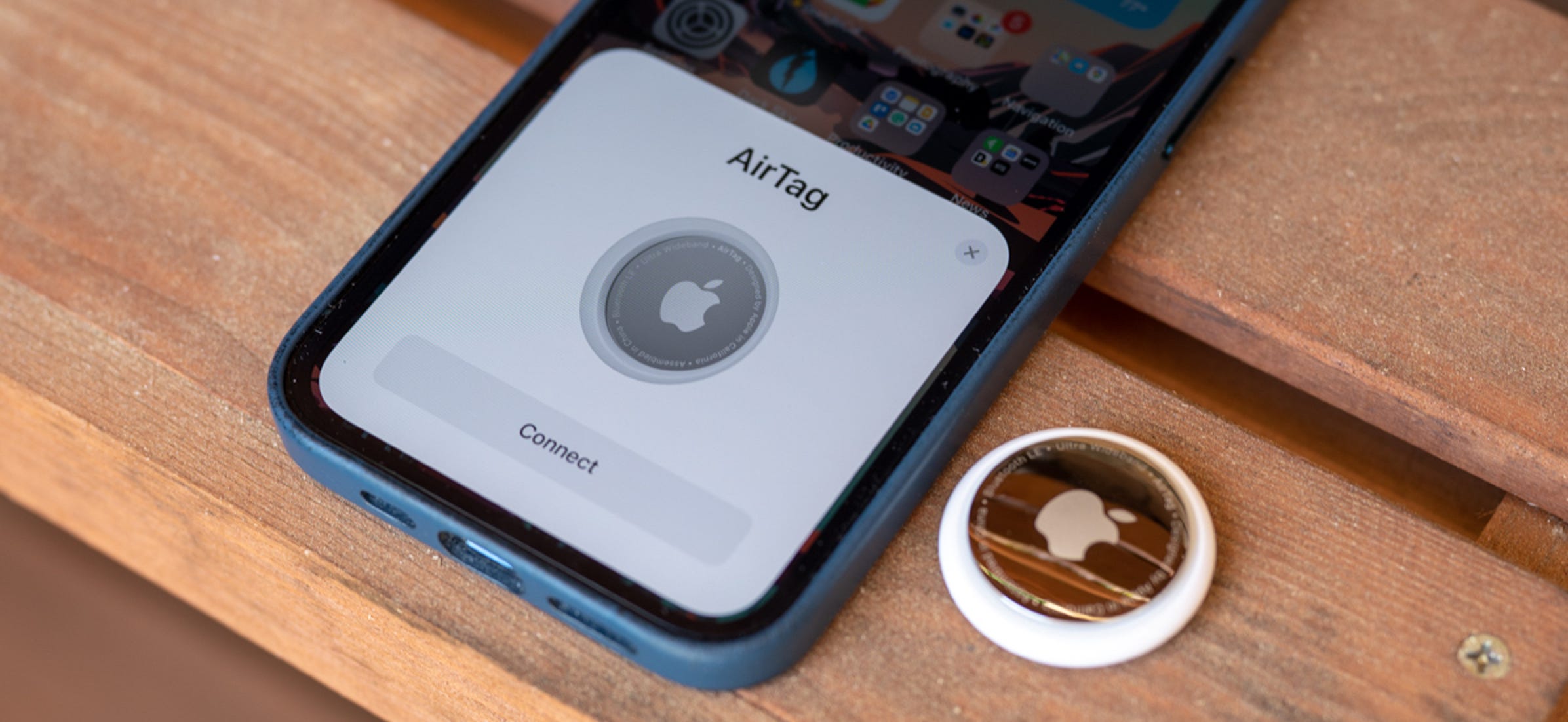
APPLE STATEMENT: AirTag lets users keep track of personal items like their keys, wallet, purse, backpack, luggage, and more through the Find My app. Since AirTag’s launch last April, users have written in to share countless stories of AirTag being instrumental in reuniting them with the things they value. Thanks to AirTag and the Find My app, a customer who lost his wallet on the subway was able to track it down at a station across town. With the help of an AirTag placed inside a medical kit, a parent whose child lost critical medicine on the bus was later able to find it.
AirTag was designed to help people locate their personal belongings, not to track people or another person’s property, and we condemn in the strongest possible terms any malicious use of our products. Unwanted tracking has long been a societal problem, and we took this concern seriously in the design of AirTag. It’s why the Find My network is built with privacy in mind, uses end-to-end encryption, and why we innovated with the first-ever proactive system to alert you of unwanted tracking. We hope this starts an industry trend for others to also provide these sorts of proactive warnings in their products.
We’ve become aware that individuals can receive unwanted tracking alerts for benign reasons, such as when borrowing someone’s keys with an AirTag attached, or when traveling in a car with a family member’s AirPods left inside. We also have seen reports of bad actors attempting to misuse AirTag for malicious or criminal purposes.
Apple has been working closely with various safety groups and law enforcement agencies. Through our own evaluations and these discussions, we have identified even more ways we can update AirTag safety warnings and help guard against further unwanted tracking.
Working with Law Enforcement
We have been actively working with law enforcement on all AirTag-related requests we’ve received. Based on our knowledge and on discussions with law enforcement, incidents of AirTag misuse are rare; however, each instance is one too many.
Every AirTag has a unique serial number, and paired AirTags are associated with an Apple ID. Apple can provide the paired account details in response to a subpoena or valid request from law enforcement. We have successfully partnered with them on cases where information we provided has been used to trace an AirTag back to the perpetrator, who was then apprehended and charged.
Law enforcement has shared their appreciation for the assistance we’ve provided in helping them find the source of unwanted tracking. We’ve identified additional improvements we can make in the information we share and the educational resources we provide, and we will be taking action, including making updates to our law enforcement documentation.
Advancements Coming to AirTag and the Find My Network
The following updates represent important steps Apple is taking:
New privacy warnings during AirTag setup: In an upcoming software update, every user setting up their AirTag for the first time will see a message that clearly states that AirTag is meant to track their own belongings, that using AirTag to track people without consent is a crime in many regions around the world, that AirTag is designed to be detected by victims, and that law enforcement can request identifying information about the owner of the AirTag.
Addressing alert issues for AirPods: We’ve heard from users who have reported receiving an “Unknown Accessory Detected” alert. We’ve confirmed this alert will not display if an AirTag is detected near you — only AirPods (3rd generation), AirPods Pro, AirPods Max, or a third-party Find My network accessory. In the same software update, we will be updating the alert users receive to indicate that AirPods have been traveling with them instead of an “Unknown Accessory.”
Updated support documentation: Today Apple is updating its unwanted tracking support article on apple.com to communicate the safety features built into AirTag, AirPods, and Find My network accessories. This page now includes additional explanations of which Find My accessories may trigger an unwanted tracking alert, more visuals to provide specific examples of such alerts, and updated information on what to do after receiving an alert, including instructions for disabling an AirTag, AirPods, or Find My network accessory. There are also links to resources individuals can use if they feel their safety is at risk, such as the National Network to End Domestic Violence and the National Center for Victims of Crime.
We’re also investigating a series of updates that we plan to introduce later this year, including:
Precision Finding: This capability allows recipients of an unwanted tracking alert to locate an unknown AirTag with precision. iPhone 11, iPhone 12, and iPhone 13 users will be able to use Precision Finding to see the distance and direction to an unknown AirTag when it is in range. As an iPhone user moves, Precision Finding fuses input from the camera, ARKit, accelerometer, and gyroscope to guide them to the AirTag through a combination of sound, haptics, and visual feedback.
Display alert with sound: When AirTag automatically emits a sound to alert anyone nearby of its presence and is detected moving with your iPhone, iPad, or iPod touch, we will also display an alert on your device that you can then take action on, like playing a sound or using Precision Finding, if available. This will help in cases where the AirTag may be in a location where it is hard to hear, or if the AirTag speaker has been tampered with.
Refining unwanted tracking alert logic: Our unwanted tracking alert system uses sophisticated logic to determine how we alert users. We plan to update our unwanted tracking alert system to notify users earlier that an unknown AirTag or Find My network accessory may be traveling with them.
Tuning AirTag’s sound: Currently, iOS users receiving an unwanted tracking alert can play a sound to help them find the unknown AirTag. We will be adjusting the tone sequence to use more of the loudest tones to make an unknown AirTag more easily findable.
Apple design there products to provide a great experience, but also with safety and privacy in mind. Across Apple’s hardware, software, and services teams, we’re committed to listening to feedback and innovating to make improvements that continue to guard against unwanted tracking.
iPhone and Apple Watch include a wide range of valuable health features and a couple of them that don’t get much attention include measuring ambient and headphone noise levels. Read along for a look at how to protect from hearing loss by checking decibel levels on iPhone and Apple Watch.
In the US, an estimated 37.5 million adults have trouble hearing, and men are believed to be twice as likely to experience hearing loss as women (via the National Institute for Deafness and Other Communication Disorders).
Thankfully, iPhone and Apple Watch feature both ambient (environmental) and headphone decibel monitoring that are quick and easy to use, including noise threshold warnings. That makes it much easier to prevent hearing damage and loss by knowing when to turn down the volume, use ear protection, or leave a loud environment.
How loud is too loud?
So what’s a harmful decibel level? That depends on the amount of time you’re exposed along with the level of noise. Here’s what Apple says:
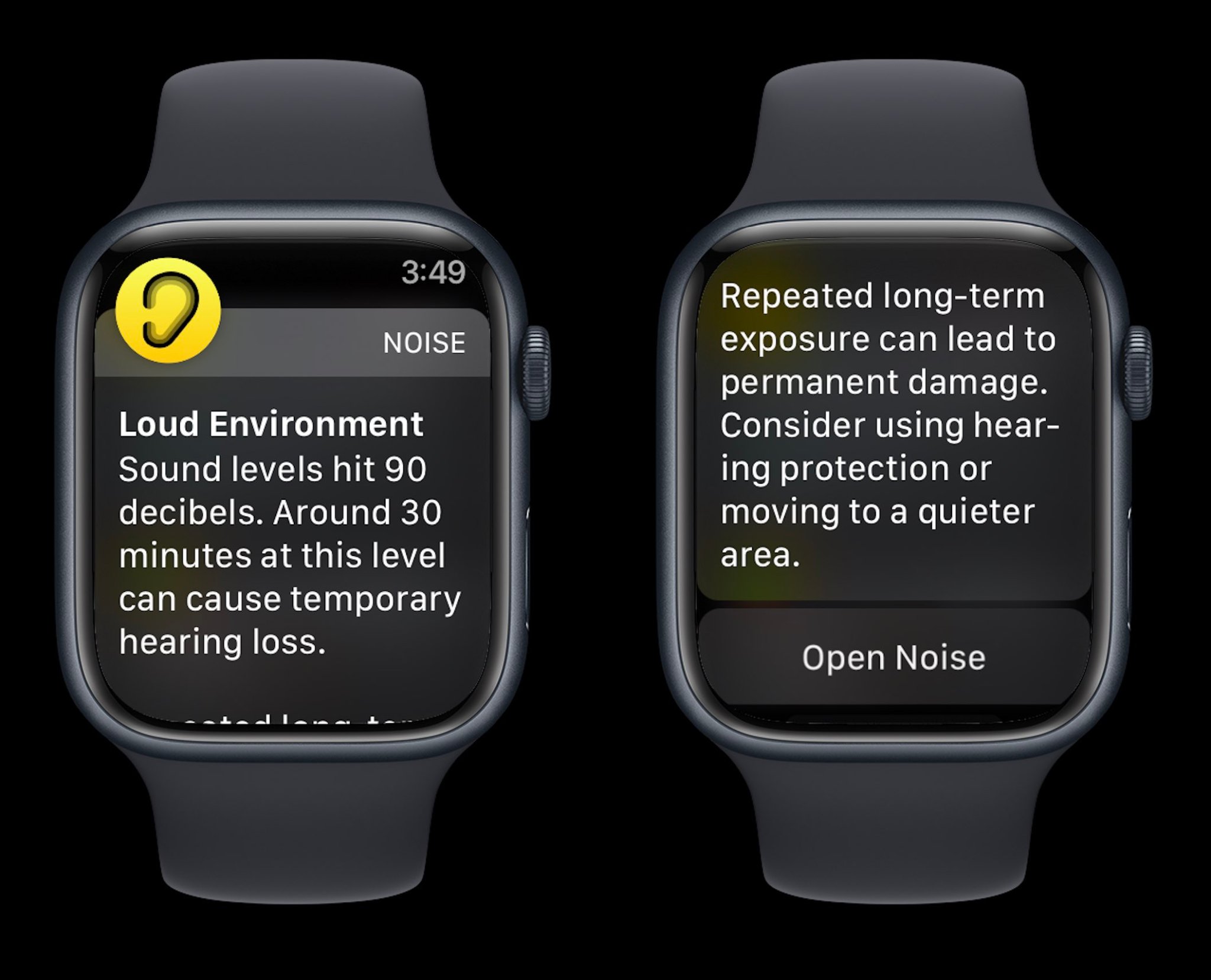
Repeated, long-term exposure to sounds above 80 dB can lead to permanent damage. Consider using hearing protection or moving to a quieter area.
Apple Watch also shares examples of noise levels/time exposure that can lead to temporary hearing loss:
80 db: Around 5 hours and 30 minutes a day
85 dB: Around 1 hour and 45 minutes a day
90 dB: Around 30 minutes a day
95 dB: Just 10 minutes a day
100 dB: Even a few minutes a day
How to check decibel levels with iPhone and Apple Watch
Decibel levels with iPhone and iPad
Interestingly, Apple doesn’t make its watchOS Noise app available on iPhone and iPad, so here’s how to check decibel levels:
Open the Settings app and choose Control Center
If it’s not already showing under the “Included Controls,” swipe below and look for the green + icon next to Hearing
Connect headphones to your iPhone
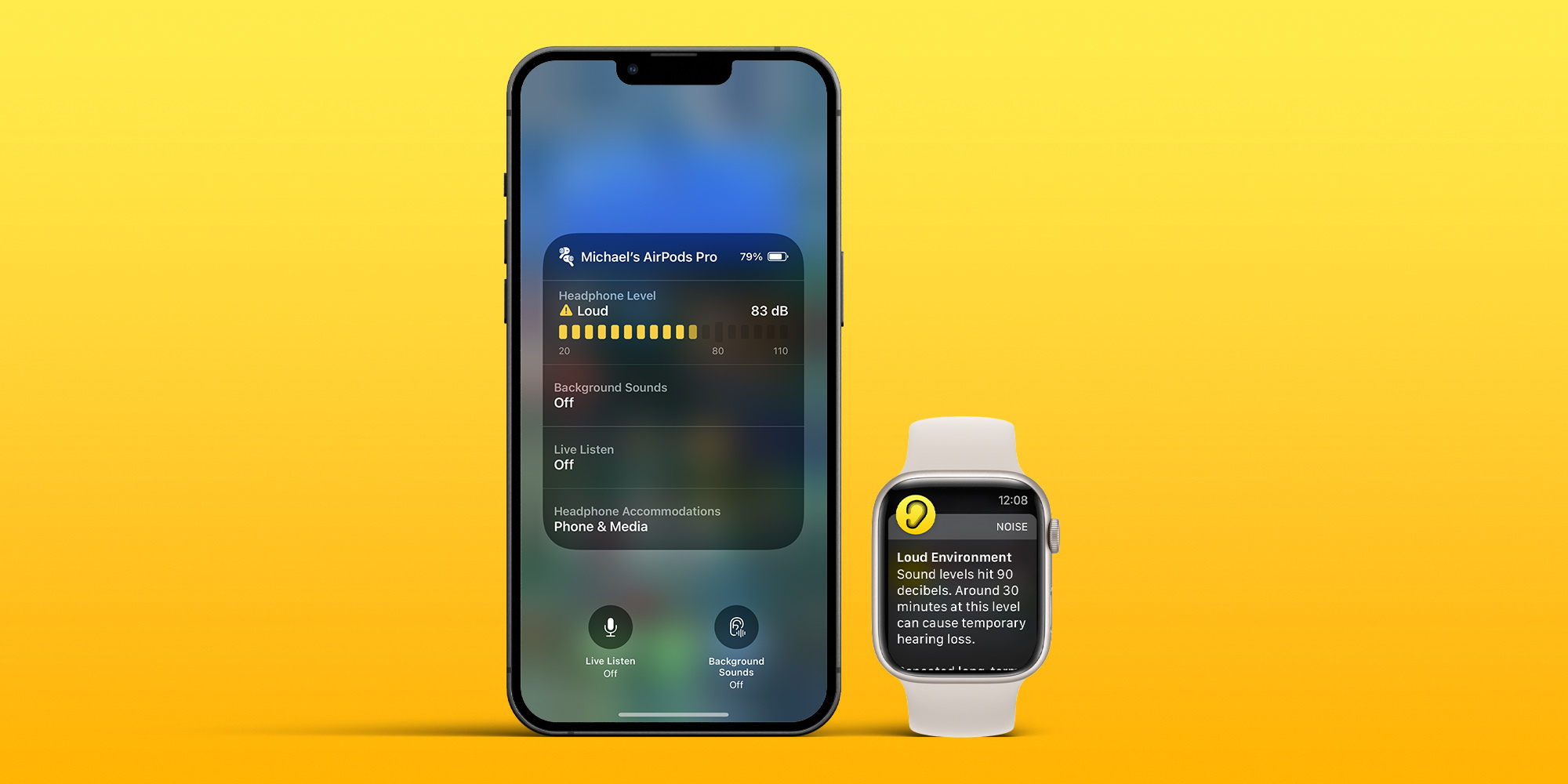
Now open Control Center (swipe down from the top right corner of your screen) and look for the ear icon to see headphone dB levels
To turn on alerts for loud headphone audio, head to Settings > Accessibility > Audio/Visual > Headphone Notifications and tap the toggle
And you can limit loud sounds in headphones by heading to Settings > Sounds & Haptics > Headphone Safety > toggle on Reduce Loud Sounds
If you’re playing music with headphones connected, you’ll see the decibel meter appear in the Hearing tile in Control Center
Green desinates “OK” levels and yellow marks “Loud” levels that can damage hearing
Tap the Hearing icon to learn more about your headphone noise levels
With music paused, you can use the microphone of your headphones to measure the ambient decibel levels
Tap the microphone icon that says Live Listen in the bottom left corner (or tap the Live Listen rectangle)
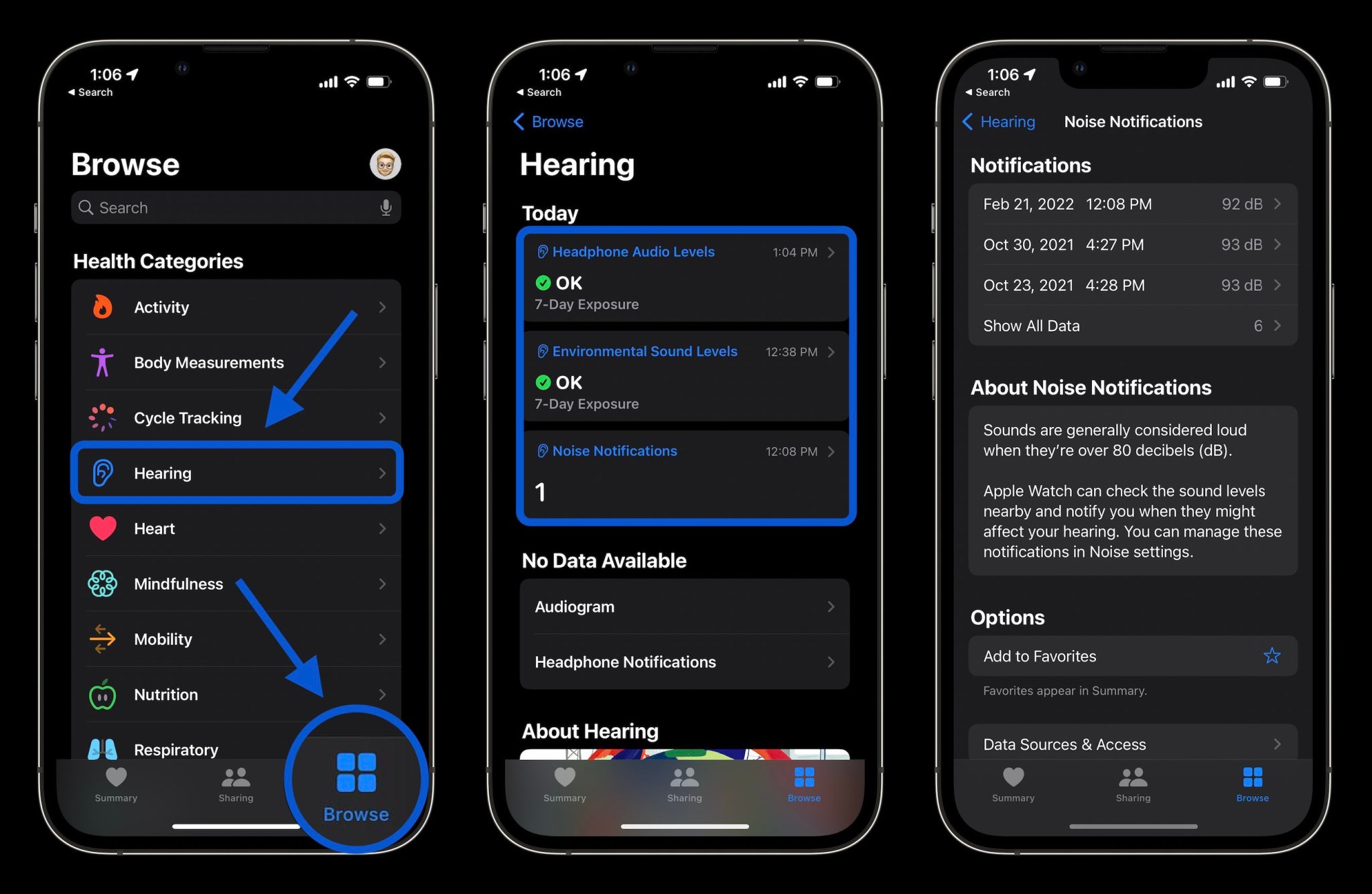
Finally, you can also check your hearing history of both ambient and headphone decibel levels in the Health app
Tap the Browse tab at the bottom
Now choose Hearing
Check decibel levels with Apple Watch
You can measure both ambient and headphone decibel levels with Apple Watch and the former works with the dedicated Noise app. One neat option with the wearable to have quick-access readings is with the Noise app complication.
To check ambient decibel levels, open the Noise app on Apple Watch (you can also turn it on via iPhone in the Apple Watch app > Noise)
If you haven’t used the Noise app before, choose to Enable the feature
You can learn more about the decibel level you’re exposed to by tapping Learn More at the bottom of the Noise app
If you want fast access to decibel levels on Apple Watch, make a watch face with the Noise app compliation
If you don’t enable Noise app notifications when setting up the feature, you can head back to the Watch app on iPhone > Noise > Noise Threshold to change the limit/noise notificiations
To check headphone decibel levels on Apple Watch, open Control Center on your watch (swipe up from the bottom of the screen from your watchface)
Swipe down to the bottom
Tap the ear icon
And here’s a look at how Noise warnings look on Apple Watch:
Apple could very well never adopt the Touch ID sensor on its flagship iPhones again, but since the pandemic started more than two years ago, rumors about this possibility ramped up. Now, with iOS 15.4 set to be released in a few weeks now, Apple shows how it could focus on Face ID for the indefinite future.
Don’t get me wrong, Touch ID was a breakthrough feature when it launched with the iPhone 5s: fast, secure, and easy to use, but everything changed when Apple introduced Face ID with the iPhone X.
At the time, the company said it was two years ahead of the competition, but five years since the iPhone X launched, it still looks like Apple is, at least, half a decade ahead of its competitors about facial recognition.
Sure, the embedded fingerprint sensor has gotten better, but the easiest – and the safest – way to unlock your device is by looking at it. And although Apple took a while, it’s finally launching a simple solution that makes Face ID usable again with eye recognition.
It’s funny to think that while iOS 14.5 was a big update to iPhone users – as it brought the ability to unlock the iPhone with the Apple Watch – it’s once again launching an important software feature as. a mid-year release. This upcoming operating system will give users the ability to unlock their iPhones while wearing a mask, without the need for an Apple Watch or other device in addition to your iPhone.
As Apple explains, the TrueDepth system tries to “recognize the unique features around the eye to authenticate” your face. With the Apple Watch unlock feature, on the other hand, the TrueDepth system recognizes someone is wearing a mask, that the Apple Watch is near, and then the iPhone is unlocked. Since it only recognizes a mask and not the person, this is why you couldn’t authenticate third-party apps or pay with Apple Pay before.
Face ID with a mask works – and it’s great
Now, with the beta version of iOS 15.4, You can use Face ID again on the street. You can access email app, WhatsApp, and other apps that require facial recognition with ease. Not only that, but I can also pay with Apple Pay again using my phone.
Of course, in the perfect world, Apple still recommends you use full facial recognition, but as we still have to wear masks everywhere, it’s very convenient to have the TrueDepth system scanning your eyes.
The new Face ID function continues to be as reliable as always. No one can unlock your iPhone by mistake, and the TrueDepth system usually recognizes your eyes rapidly.
It finally looks like Apple found the right approach to deal with Face ID and masks.
Touch ID rumors will die. Even though it was reported that Apple tested an embedded fingerprint scanner on the iPhone 13, Face ID is one of the functions that makes Apple shine when compared to its competitors.
Not only that, but the company keeps pushing for Face ID recognition. Rumors for the iPhone 14 show that Apple is planning a new notch by hiding some TrueDepth sensors. It shows that the company is indeed improving its facial recognition method as the only way for iPhone users to securely unlock, pay, and store information on their devices.
With iOS 15.4 being released a few weeks from now, users that don’t like to update their iPhones with beta versions will see how much this operating system makes our everyday tasks seamless again, as we shouldn’t have to worry whether we’ll be able to unlock our iPhones as fast as we used to.
Facebook was one of the main companies affected by Apple’s new privacy policies, which now require iOS apps to ask users if they want to be tracked by third parties. During the Q4 2021 earnings report on Wednesday, CEO of Meta (Facebook’s parent company) Mark Zuckerberg said that Facebook is “rebuilding” its ads infrastructure due to the iOS changes.
According to Zuckerberg, Facebook’s ad infrastructure is being rebuilt so that the company can continue to deliver “high-quality personalized ads” to iOS users.
Ever since Apple implemented App Tracking Transparency in iOS, Facebook has been openly criticizing Apple as the social network’s revenue relies heavily on advertisements that are based on data collected from users. However, that’s not the only thing that worries Zuckerberg.
As regulators around the world are investigating Facebook for privacy concerns, the company has been forced to change how it delivers ads based on user data. Earlier this year, lawmakers in the European Parliament voted to ban online advertising platforms from showing content based on “intimate information” such as health, religion, or sexual orientation.
Zuck: "With Apple's iOS changes and new regulation in Europe, there's a clear trend where less data is available to deliver personalized ads….So we're rebuilding a lot of our ads infrastructure so we can continue to grow and deliver high quality personalized ads."
As reported by CNBC, Facebook shares dropped more than 20% after the announcement of last quarter’s results due to “disappointing” results. The company reported revenue of $33.67 billion, which was above expectations of $33.4 billion for the quarter. However, the number of monthly active users was 2.91 billion, down from the previously predicted 2.95 billion users.
While Meta insists heavily on the “metaverse,” the company continues to lose money on the segment. The Reality Labs division, which is responsible for the Meta Quest virtual reality headset, lost more than $10 billion in 2021. Executives at Meta have already said that it may take more than 15 years before the metaverse business becomes profitable, but it’s hard to imagine that investors will wait that long.
The full transcript of Meta’s investor call can be found here.
Headlined by new Face ID improvements while wearing masks and Universal Control on iPadOS, iOS 15.4 beta 1 is a noteworthy update that will surely catch the interest of even casual iPhone users. Watch our hands-on video walkthrough as we explore some of the best iOS 15.4 beta 1 changes and features.
What’s new in iOS 15.4 beta 1?
Face ID while wearing a mask
One of the most frustrating aspects of using an iPhone during the COVID-19 era involves authenticating with Face ID. Apple tried to address this issue by implementing support for Apple Watch unlock, but not everyone owns an Apple Watch, and the implementation wasn’t as fast or as capable as regular Face ID. Hands-down, the most practical change to appear in iOS 15.4 beta 1 is the ability to unlock your iPhone using Face ID while wearing a mask, no Apple Watch required.
iOS 15.4 beta 1 addresses the mask issue by ushering in periocular support for Face ID. Instead of relying on the whole face for authentication, which hindered Face ID’s capabilities while wearing a mask, new periocular support authenticates using the area surrounding your eyes.
After the initial face scan, a new Use Face ID With a Mask splash screen appears. There, you’ll find two primary options: Use Face ID With a Mask and Don’t Use Face ID With a Mask. If you opt to skip using Face ID with a mask, the initial scan is all that’s needed, and you’ll receive a message that Face ID is now set up.
If you select the option to use Face ID with a mask, you’ll be asked to scan your face for a second time. If you’re wearing a mask during this step, iOS will ask to remove the mask when you’re in a safe area to continue setting up Face ID.
Once the second scan is completed, the Face ID setup process is finished… unless you happen to be wearing glasses. If you’re wearing glasses, iOS will ask you to remove your glasses and perform a third scan before the process completes. You can also add additional scans for different pairs of glasses in the Face ID & Passcode preferences.
Unlike the Apple Watch unlock feature in previous versions of iOS, which didn’t work with Apple Pay or third-party apps, mask compatibility in iOS 15.4 provides users with the full Face ID experience. In iOS 15.4 you can make purchases with Apple Pay, or unlock apps like 1Password while wearing a mask.
New auth screen when invoking Apple Pay before unlocking
Double-pressing the Side button on a locked iPhone would previously reveal items stored in your Apple Wallet in preparation for an Apple Pay transaction. Although you’d still need to authenticate with Face ID or a passcode before completing a transaction, wallet items could still be seen without unlocking.
Apple has fixed this potential privacy issue in iOS 15.4. If you invoke Apple Pay before unlocking your iPhone, you will now be presented with a blank page instructing you to use Face ID or a passcode to open the wallet.
Add notes to keychain passwords
After adding the ability to support two-factor authentication in iOS 15, Apple continues to build on keychain features. When you go to Settings → Passwords in iOS 15.4 beta 1, you’ll find a new feature to add notes to keychain passwords. Not only can you add notes, but the notes strings are searchable using the search box.
Emoji 14.0
Last September we got a preview of the new emoji scheduled to hit our phones, and iOS 15.4 is the version of iOS that implements these new emoji 14.0 changes. In all, iOS 15.4 adds over 37 new emoji characters, such as the new peaking face, heart hands, tears of joy, and many more.
Apple Wallet widget
There’s a new Apple Wallet widget that allows users to add their Apple Card balance, spending power, and spending activity on the Home Screen. The widget has one customizable setting that lets you select between a weekly, monthly, or yearly spending activity graph. As of now, the Apple Wallet widget is for Apple Card users only.
Run Shortcuts Automations without notifications
Finally! Apple is letting us run Shortcuts Personal Automations in the background without requiring a pesky banner notification. A new toggle lets you switch off notifications for Personal Automations in iOS 15.4 beta 1.
To disable notifications for automations, opt out of Ask Before Running when creating your automation, and you’ll see a new Notify When Run Option appear. Disable Notify When Run, and your automation will run without the annoying banner notification. Now I can make it so that my wallpaper changes at random whenever connecting to power without ever receiving a notification!
Select camera in Magnifier app
Eligible iPhone models now gain access to two additional camera modes in the Magnifier app. Users can now toggle between auto, telephoto, macro, and selfie cameras in iOS 15.4.
Reset Safari experimental features
Messing around with the experimental Safari settings buried deep within Safari’s preferences can quickly get out of hand if you don’t know what you’re doing. In iOS 15.4, it’s now possible to reset the experimental settings back to default with the tap of a button. Go to Settings → Safari → Advanced → Experimental Features, and scroll all the way down to the bottom of the page where you’ll find the handy new Reset All to Defaults button.
Configure App Store notifications
A new Notifications panel can be found in the App Store after tapping your avatar in the upper right-hand corner. Inside of the Notifications Panel, you’ll find a New Features & Updates and Recommendations & Offers switch.
iCloud Mail preferences consolidation
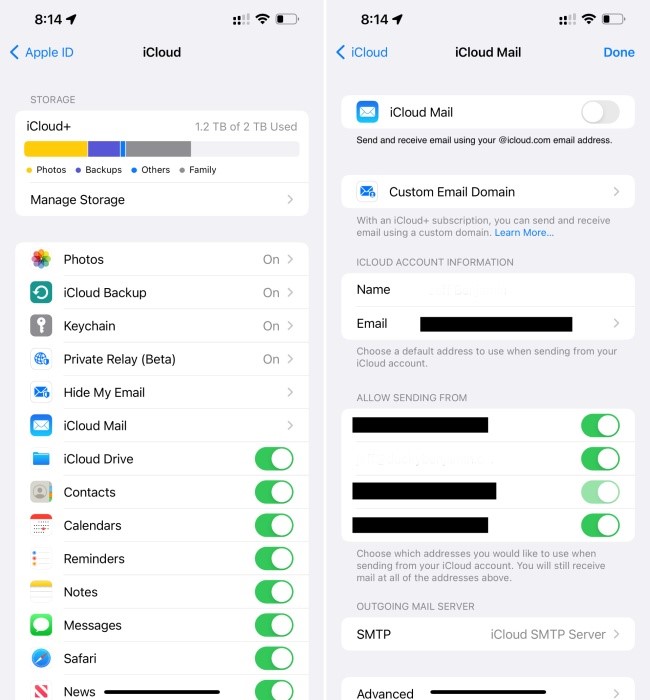
In previous versions of iOS, iCloud preferences featured a Mail toggle switch for enabling or disabling iCloud email. In iOS 15.4, Apple has merged the toggle with iCloud Mail settings, an area previously buried at the bottom of iCloud preferences.
New Custom Email Domain UI in iCloud settings
Apple has begun baking in its iCloud+ custom email domain UI into iCloud Mail settings in iOS. Previously, all such settings were found exclusively on iCloud.com, although Apple still pushes people to iCloud.com to fully configure custom email domains.
Although it doesn’t appear fully operational, Apple has started to lay the groundwork for a provision that will let users disable iCloud.com access for mail, calendar, photos, contacts, notes, reminders, files, and documents. When you visit Settings → iCloud → Password & Security, you’ll see a new Access iCloud Data on Web toggle at the bottom of the page. When you disable the toggle, a panel appears with a Don’t Access button to confirm your decision, but the button doesn’t currently do anything.
Notes and Reminders get Live Text integration
A new Scan Text option appears directly in the Notes and Reminders app, allowing you to quickly add text directly from an image to a note or reminder.
New AirPods Pro accessibility glyph
Instead of a generic headphone glyph, the Accessibility preferences for the AirPods now come with a proper AirPods Pro glyph. It’s all in the details…
Updated AirPods status
When opening AirPods or AirPods Pro near your iPhone, the status window now shows a redesigned (L)/(R) indicator when both buds and case are being shown
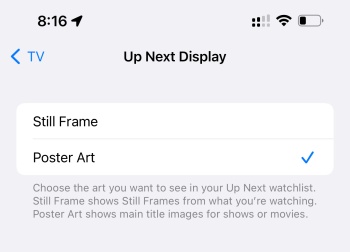
TV app Up Next Display
Users can now choose between a still frame or poster art for the Up Next watchlist in the TV app.
Tighter SharePlay integration
SharePlay from ShareSheet
SharePlay albums and songs directly from Music app
Developers can use the new API in iOS 15.4 to initiate FaceTime calls directly from their apps
iPadOS updates
Not to be left out, iPadOS gets several updates, including the most-anticipated public beta arrival of Universal Control.
Notes preferences Corner Gestures
The Notes app preferences gain the same Corner Gestures panel normally found in Settings → General → Gestures. It is here where you can toggle iPadOS corner gestures, which allow you to invoke a screenshot or a Quick Note by swiping diagonally from the bottom-left or right corner of the screen.
Keyboard brightness control toggle
Magic Keyboard users will appreciate having a new Keyboard Brightness shortcut available in Control Center. Once added, you can use the brightness slider to adjust the brightness of the Magic Keyboard. Keep in mind that brightness controls will not be available unless your iPad is in a dark environment, causing the automatic backlight to engage.
Universal Control
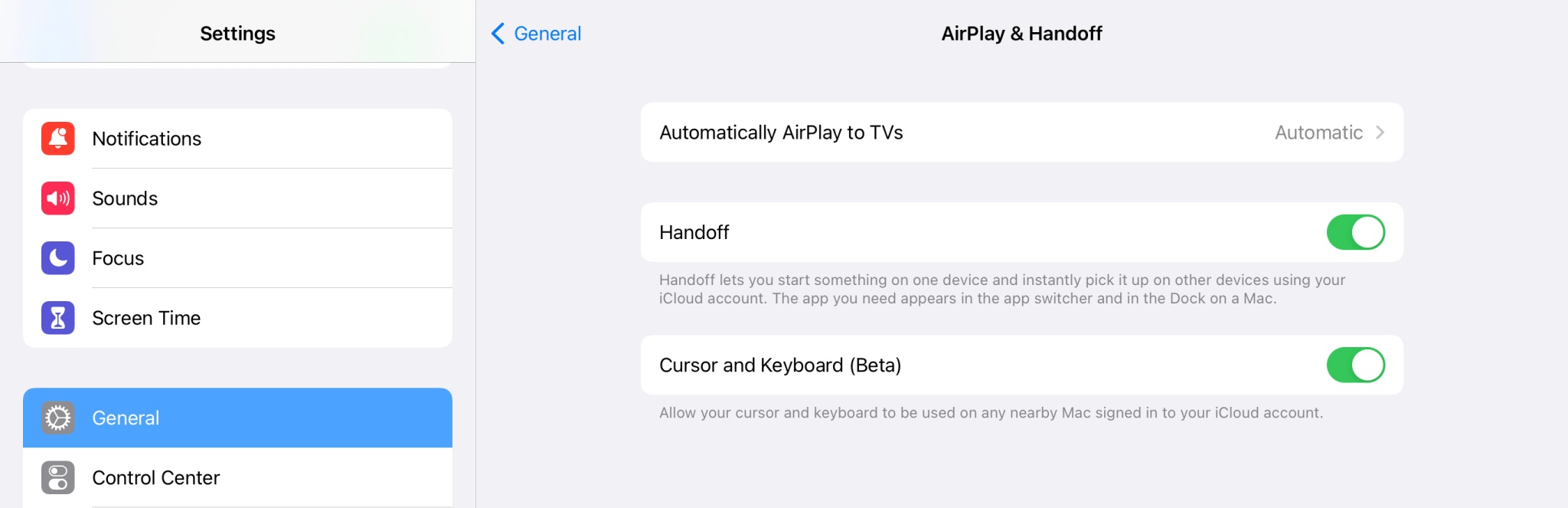
Last, but certainly not least, there is Universal Control, which can be enabled via Settings → General → AirPlay & Handoff. In the iPadOS 15.4 beta, Apple refers to Universal Control as Cursor and Keyboard (Beta). Note: You will need to be running the macOS Monterey 12.3 beta as well.
As its name states, Universal Control is all about control. It lets you control your iPad with the same mouse and keyboard that you use for your Mac. Indeed, using the same mouse and keyboard that I use to navigate Final Cut Pro on my MacBook Pro, I can scroll through my Tweetbot timeline or Apollo on my iPad Pro.
Universal Control is all about controlling two or more separate devices with the same input hardware. Thus, it doesn’t cause your iPad to function as an external display, where you can move a Mac app to your iPad, and vice versa, although the iPad is capable of doing that as well with Sidecar. But Universal Control does allow you to drag and drop files between macOS and iPad OS, which can prove to be handy in some circumstances.
iOS 15.3 arrived with crucial security updates, but relatively little in the way of user-facing features. iOS 15.4 is the substantial mid-cycle software update for iPhone that we’ve been waiting for, and it doesn’t disappoint. Practical features, like Face ID support while wearing masks, will appeal to the masses, but smaller updates, like the ability to silence notifications for shortcuts automation, will surely please a sizable swath of iPhone power users.
But if there’s one feature that worth’s upgrading for, it’s Universal Control. Similar to Apple SVP Craig Federighi’s demo back at WWDC, Universal Control is dead-simple to use, and that’s one of the things that makes it brilliant.
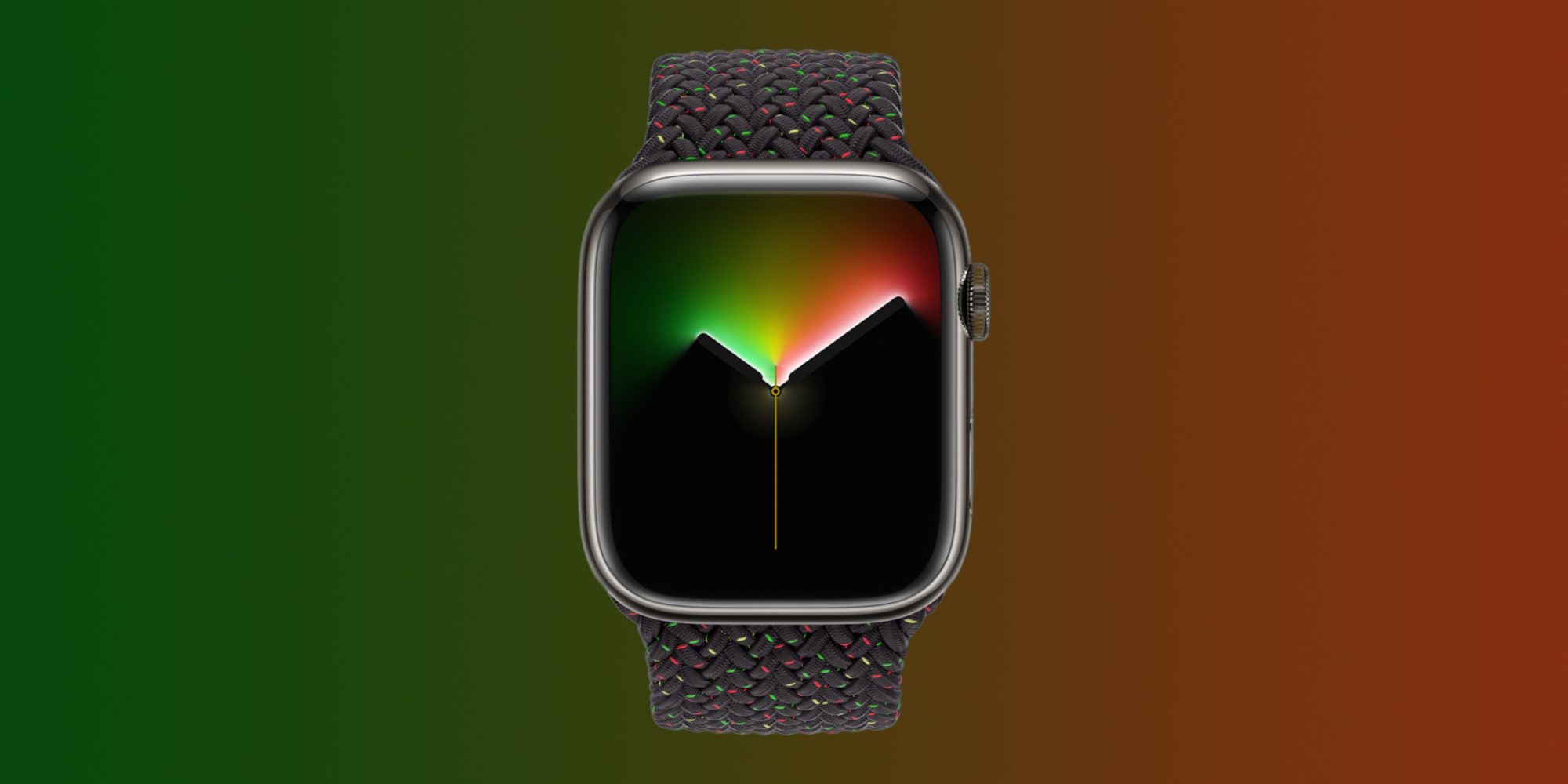
Apple has announced that it is celebrating Black History Month with a number of different initiatives this year. One of the most notable announcements is a new-edition Apple Watch Black Unity Braided Solo Loop and matching Unity Lights watch face, which Apple says are inspired by Afrofuturism.
Here’s how Apple describes the new Apple Watch Braided Solo Loop:
Designed by members and allies of the Black creative community at Apple to celebrate Black history and culture, the Apple Watch Black Unity Braided Solo Loop and matching Unity Lights watch face honors generations of Black people across the African diaspora. This design symbolizes a communal belief in the necessity for a more equitable world. The vibrant red and green colors of the Pan-African flag appear like speckled light across the black band.
To complement the band, Apple has also launched a new Unity Lights watch face for Apple Watch users everywhere. Apple says that this face has been designed “using 2D ray tracing, a technology never before implemented for a watch face.”
Apple explains that this means every pixel on the Apple Watch screen “simulates the light and shadow falling across it and the movement of the clock hands simultaneously reveal and hide the light, changing dynamically throughout the day.” There are a handful of different customization options here, including the option to choose between a full screen or circular dial, black and white color options, tick marks, compilations, and more.
Apple also says it will soon make Afrofuturism-inspired wallpapers available for iPhone, iPad, and Mac via Apple.com.
The Black Unity Braided Solo Loop is available today from Apple’s website and in the Apple Store app. It will also launch in select Apple Store locations on Tuesday, February 1. The band sells for $99. The Unity Lights watch face is available now in the Apple Watch app on your iPhone.
Apple is also planning a wide array of content for Black History Month in Apple Podcasts, Apple Music, and more. You can learn more in the full press release right here.
Following the release of iOS 15.2.1 earlier this month, Apple on Thursday stopped signing iOS 15.2 for all iPhone, iPod Touch, and iPad models. This means that users can no longer downgrade their devices to iOS 15.2.
iOS 15.2 was released to the public on December 13, 2021, with a few notable changes, which include Apple Music Voice Plan, new App Privacy Report in the Settings, safety alerts for children using Messages, Digital Legacy, and more.
iOS 15.2.1 came a month later on January 20 to fix a CarPlay bug and also a security exploit found in HomeKit that could cause iPhone or iPad to repeatedly crash.
Reverting to older iOS builds is often used by those who jailbreak their iPhones. Restoring an iPhone or iPad to a previous version of iOS can also sometimes be helpful for users who experience significant bugs after upgrading to the latest version of iOS.
If you have experienced any serious issues with iOS 15.2.1, unfortunately, you’ll now have to wait until a future update rather than downgrading to iOS 15.2. Users running the iOS 15.3 beta can no longer downgrade to iOS 15.2 either.
Apple confirms it is ramping up efforts to get more iOS 14 users to update to iOS 15 [U]
Update:Apple reached out and pointed out a support page from September 2021 saying the company intended to offer “important security updates” for iOS and iPadOS 14 users for “a period of time.”
Last week, reported that Apple wasn’t letting users stay on iOS 14 with security updates as it had removed the ability to update to iOS 14.8.1. Now, the company confirmed its efforts to make the iPhone userbase update to iOS 15 instead.
While it was once rumored that it could be a bug, Apple told Ars Technica that it didn’t intend to let users stay forever on iOS 14. In fact, the company wanted this to be only a “temporary” option.
Apple told Ars that it always intended the iOS 14 security update option to be temporary. Essentially, people could have a short grace period while Apple worked out the worst of the new operating system’s early bugs, but you would always eventually have to upgrade to stay patched.
This statement from Apple is very different from what we heard during WWDC21. At the time, the company was very serious about giving users the option to stay in an old version of iOS while still giving users occasional security patches.
As a matter of fact, this was the first time Apple had spoken about continuing to support an old version of its iPhone operating system, as the company had released security patches for iOS 12 and even older software versions every now and then.
Last year, even before Apple announced the possibility to stay on iOS 14 during WWDC21, 9to5Mac had discovered that the company was planning that during the beta tests of iOS 14.5:
A new section added to the iOS software update menu indicates that Apple will provide standalone security updates for iPhone and iPad users. Users would be able to choose whether they want to install only security updates or full iOS updates.
Although we don’t yet have more details about this change, macOS already offers a similar method of updates. When you have a Mac running an older version of the operating system, such as macOS Mojave, Apple delivers separate security updates so that users can get security patches and bug fixes without having to install the latest macOS version available.
With this change of mind, Apple is pushing users to update to iOS 15, as they can take advantage of security patches and new features, which includes the ability to find the iPhone even when turned off, using Focus Mode settings, and more.
It’s a weird decision Apple has made. Coincidence or not, just last week the company said iOS 15 adoption was lower than usual. According to Apple, iOS 15 is currently installed on 72% of iPhones released in the last four years, which is lower than previous iOS updates.
Here is the current breakdown of iOS adoption among “devices introduced in the last four years,” according to Apple:
72% iOS 15
26% iOS 14
2% Earlier
When comparing to iOS 14 numbers shared by the end of 2020, 81% of all iPhones in the last four years were already running the operating system, while, this time, Apple took more time to provide its first update on iOS 15 adopters and with fewer users running the latest software available.
Of course, you can still take advantage of your iPhone with iOS 14, but it doesn’t mean you’ll be as secure as someone running the latest version of iOS 15.