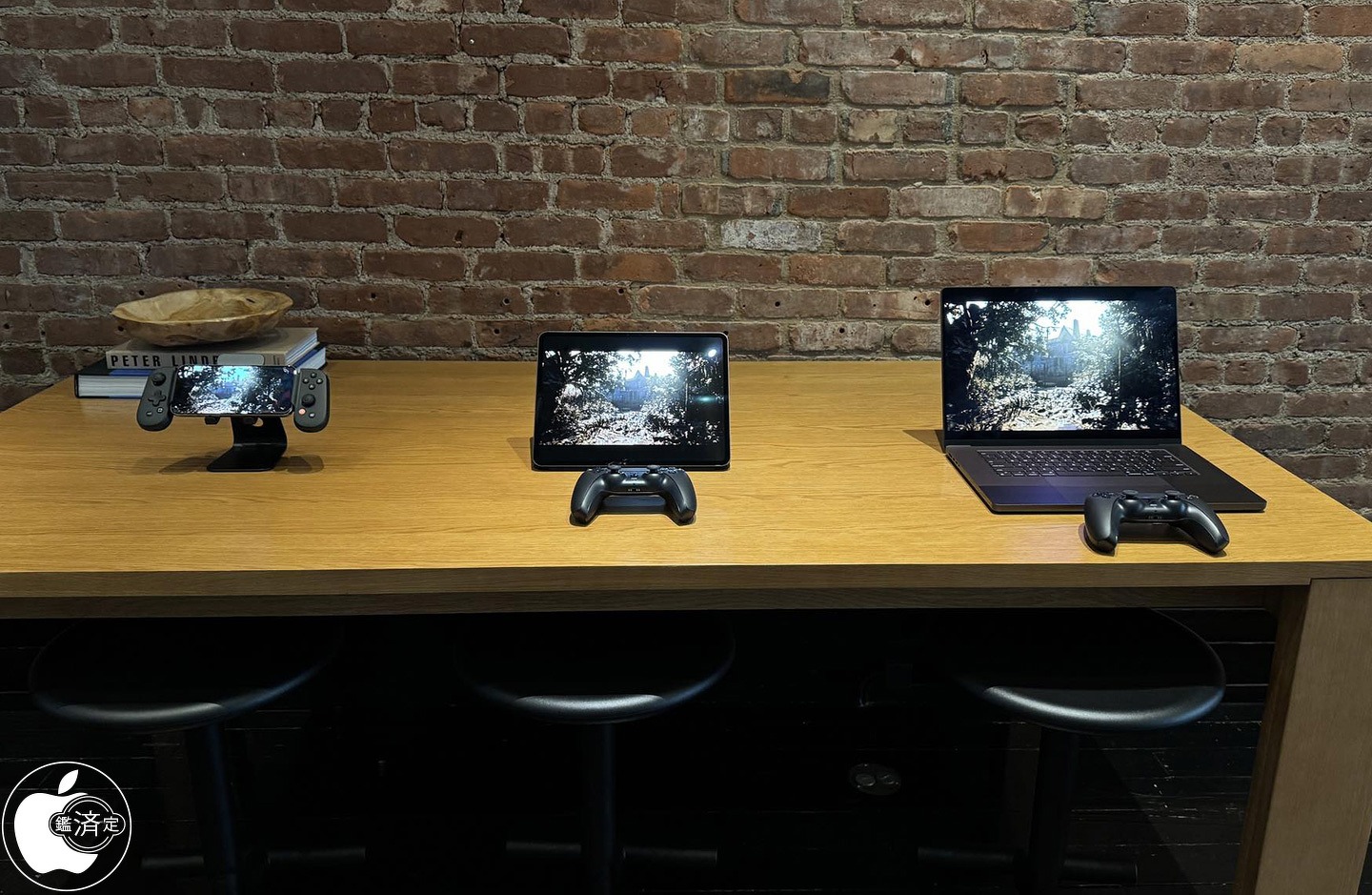
Apple this week quietly held a gaming-focused media event in New York City. The event is said to have focused on showing off things like Game Mode in iOS 18, the new M4 iPad Pro performance, and more.
Macotakara detailed the event, which was held on July 10, in a blog post today. On display at the NYC event were the iPhone 15 Pro Max, M4 iPad Pro, MacBook Pro, MacBook Air, and iMac. Some of the iPhone 15 Pro Max was demo units were paired with controllers from Backbone. There were also PlayStation DualSense controllers from Sony available for Mac and iPad gaming demos as well.
Among the games shown off by Apple during this event were:
Rseident Evil 7 Biohazard
Valheim
Assassin’s Creed Mirage
Diablo Immortal
Zenless Zone Zero
Palworld
The event also focused on the new gaming features coming as part of iOS 18, iPadOS 18, and macOS 15 this year. iOS 18, for example, brings Game Mode to the iPhone for the first time. Apple’s Game Porting Toolkit is also now available to let developers port macOS games to iOS. iOS 18 expands AirPods Personalized Spatial Audio with dynamic head tracking to gaming with reduced audio latency.
Apple held a similar event for members of the press and influencers last year, offering a look at games coming to iPhone, iPad, Apple TV, and Mac. Following last year’s event, there were a number of articles and social media posts from those in attendance. So far, this story from Macotaka is the only write up from this year’s event.
Over the last several years, particularly with the advent of Apple silicon for the Mac, Apple has ramped up its emphasis on gaming across all of its platforms.
Apple on Wednesday began rolling out the second betas of iOS 17.3, macOS Sonoma 14.3 and other software updates to developers. The first betas of these versions were released on December 14, before the holiday break. The company is now resuming the beta program – and we’re about to find out what’s new in today’s updates.
iOS 17.3 beta brings Secure Device Protection and more
iOS 17.3 is a major update. The first beta introduced Secure Device Protection, which is an “additional layer of security” that protects users’ data in case someone steals their phone and gets their password. When Secure Device Protection is enabled, you can only access saved passwords using Face ID or Touch ID, for example.
This feature also makes it harder for crooks to change the Apple ID password of the owner of that device. There’s also a delay in removing Find My from an iPhone with Secure Device Protection enabled. In addition to this feature, iOS 17.3 also re-enables collaborative Apple Music playlists, now with emoji reactions.
Today’s build number is 21D5036c, compared to the number 21D5026f of the first build. Developers can update their devices by going to Settings > General > Software Update.
It’s worth noting that although iPadOS 17.3 is also available for iPads, Secure Device Protection is an exclusive feature for iPhones at this point.
macOS 14.3 and more
In addition to iOS 17.3 beta 2, the second betas of macOS 14.3, watchOS 10.3, and tvOS 17.3 are now available to developers. The first beta of these updates had no significant changes apart from potential bug fixes.
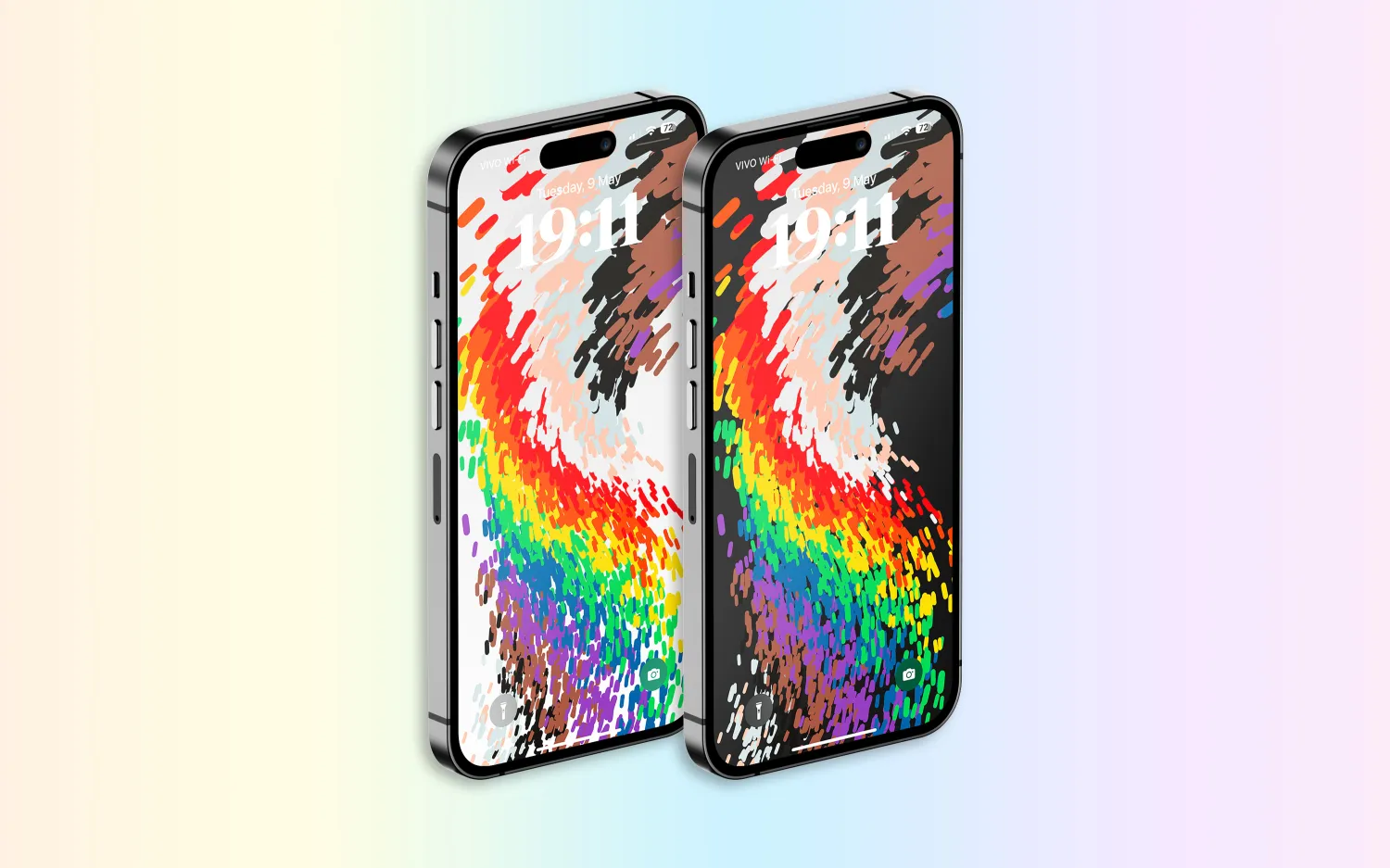
Following over a month of beta testing, iOS 16.5 is now available to the general public. This update includes changes to Apple News, the addition of a new “Pride Celebration” wallpaper, and more. Head below for the full release notes with details on bug fixes, new features, and more.
What’s new in iOS 16.5?
Here are Apple’s official release notes on iOS 16.5 new features and bug fixes. The build number for today’s update is 20F66.
A new Pride Celebration wallpaper for the Lock Screen to honor the LGBTQ+ community and culture
Sports tab in Apple News gives easy access to stories, scores, standings, and more, for the teams and leagues you follow
My Sports score and schedule cards in Apple News take you directly to game pages where you can find additional details about specific games
Fixes an issue where Spotlight may become unresponsive
Addresses an issue where Podcasts in CarPlay may not load content
Fixes an issue where Screen Time settings may reset or not sync across all devices
Earlier iOS 16.5 betas included the addition of a new Siri command for starting and stopping a screen recording. Apple removed this feature in subsequent iOS 16.5 betas, and it’s not included in the final version of the update.
iOS 16.5 will be the final major point-release update to iOS 16 before WWDC in June. This is where Apple will debut iOS 17 and release the first developer betas.
Apple is, however, expected to continue releasing updates to iOS 16 through the summer and likely even alongside iOS 17. iOS 16.6 is expected to enter beta testing soon.
You can update your iPhone by going to the Settings app, choosing General, then choosing Software Update.
watchOS 9.5 debuts with new Pride Celebration watch face
Alongside iOS 16.5, Apple has also released watchOS 9.5 for Apple Watch users today. The headlining change in this update is an all-new Pride Celebration watch face to honor the LGBTQ+ community and culture.
What’s new in watchOS 9.5?
watchOS 9.5 is rolling out now to all users. You can update your Apple Watch by going to Settings, choosing General, then choosing Software Update. You can also install the update via the Apple Watch companion app on your iPhone.
Here are Apple’s release notes for watchOS 9.5:
watchOS 9.5 includes new features, improvements and bug fixes, including a new Pride Celebration watch face to honor the LGBTQ+ community and culture.
And some more details on the new Pride Celebration watch face:
Inspired by multiple pride flags, this new watch face combines colors to represent the strength and mutual support of the LGBTQ+ movement. Mirroring the woven loops of the Sport Loop, each strand of vibrant thread contributes to the overall composition of the watch face. The colorful threads move as the Digital Crown on Apple Watch is rotated, the display is tapped, or the user’s wrist is raised.
The new Pride Celebration face included in watchOS 9.5 pairs with the similarly-designed wallpaper for iPhone users. The new wallpaper is included with iOS 16.5, which is also available starting today.
macOS Ventura 13.4 with new sports-related features
After months of beta testing, Apple has finally released macOS Ventura 13.4 to the public. The update, which is now available for macOS users, comes with new sports-related features, as well as a new system for installing beta software. Read on as we detail what’s new with macOS Ventura 13.4.
One big change coming with macOS Ventura 13.4 is the new system for installing betas that was introduced with iOS 16.4. The operating systems now asks for the Apple ID to show and download beta software updates.
macOS checks whether the account is associated with a developer or user registered in the public beta program. It then shows the beta update available for that program. With this change, regular users will no longer be able to install developer betas, for example.
macOS 13.4 full release notes
Sports feed in the sidebar of Apple News gives easy access to stories, scores, standings, and more, for the teams and leagues you follow
My Sports score and schedule cards in Apple News take you directly to game pages where you can find additional details about specific games
Resolves an issue where Auto Unlock with Apple Watch does not log you into your Mac
Fixes a Bluetooth issue where keyboards connect slowly to Mac after restarting
Addresses a VoiceOver issue with navigating to landmarks on webpages
Fixes an issue where Screen Time settings may reset or not sync across all devices
You can install macOS Ventura 13.4 by going to the Software Update menu in the System Settings app. It may take a while before the update shows up on your computer; make sure that your Mac is compatible with macOS Ventura.
The update build number is XXXXX.
OpenAI launches free ChatGPT for iPhone app with Whisper support and more
OpenAI has announced that it is releasing a dedicated iPhone app for its ChatGPT service. The app, which is available via the App Store, gives users the ability to use ChatGPT through a native app on their iPhone. The app is free to download and includes no ads. It’s currently only available in the United States, but OpenAI says availability will expand “in the coming weeks.”
ChatGPT for iPhone now available
As announced by OpenAI in a blog post, ChatGPT for iPhone will offer the same set of features as the web version of the service. This will include ChatGPT Plus support, which lets users subscribe to pay for more advanced versions of the service.
The app will also sync your ChatGPT history across all your devices, including the web. It also includes support for Whisper, OpenAI’s open-source speech-recognition system. This integration with Whisper enables voice input for the ChatGPT app on iPhone. The ChatGPT app is also completely ad-free.
As ChatGPT has gained popularity over the last six months, a number of copycat and scam apps have surfaced on the App Store. Apple has cracked down on these apps, in part by blocking apps that use “GPT” in their name. By releasing its own version of ChatGPT for iPhone, OpenAI hopes to directly control the experience of using the service on an iPhone.
Additionally, Microsoft’s Bing app for iPhone has seen a major boost in popularity since it added ChatGPT integration.
ChatGPT for iPhone is rolling out starting today to users in the United States. OpenAI availability will “expand to additional countries in the coming weeks.”
As part of a flurry of new accessibility improvements announced by Apple, the company says that Made for iPhone hearing aids can pair directly with Macs for the first time. Previously, pairing was only available with an iPhone, iPad, or iPod Touch.
Compatible products already support pairing with more than one Apple device, so this move should make it much easier for people who use both Macs and iOS devices …
Made for iPhone hearing aids
Made for iPhone (MFi) hearing devices effectively combine the functionality of hearing aids and AirPods. They allow people with hearing impairment to switch seamlessly from listening to their environment, to listening to their devices. Phone calls, FaceTime, Music, Siri, and other content is all supported.
In some cases, MFi hearing aids will switch automatically from ambient listening to your Apple device, such as when you receive an incoming call on your iPhone, or starting to play a movie on an iPad.
Settings allow you to configure your MFi hearing devices on your iPhone, and now on your Mac. This includes choosing an audio preset, adjusting volume levels, and turning on Live Listen.
MFi pairing with Macs
Apple doesn’t provide much detail on this, including just a single bullet point in its accessibility news release:
Deaf or hard-of-hearing users can pair Made for iPhone hearing devices directly to Mac and customize them for their hearing comfort
However, the reference to the “customizing” feature does suggest that connecting to a Mac will allow greater control over the audio experience. While an iPhone allows you to choose between different audio presets, this wording indicates the ability to fine-tune the audio output to your own needs and preferences.
We’ll need to wait for further details on M1 Mac support.
Hearing device compatibility
Around 200 devices are supported, from 40 different brands.
Those marked with an asterisk additionally support bidirectional streaming, which allows users to talk hands-free through their hearing aid microphones. This feature requires iOS 15.2 and later on iPhones and iPads; Macs will require some version of Ventura.
Advance
RIC, RIC LI
SlimRIC
AGXO
FX00*
GX00 S
GX00 SC
Amplifon
Ampli-connect B
Ampli-connect PO*
Ampli-connect R 13
Ampli-connect R 312
Ampli-easy B
Ampli-energy B*
Ampli-energy B R
Ampli-energy I*
Ampli-energy I R WL
Ampli-energy PO*
Ampli-energy R*
Ampli-energy R R
Ampli-energy R R-D
Ampli-mini 312 AS
Ampli-mini PO*
Ampli-mini R 312
Aquitis
AEBB3D
AF2 B
AF2 E
AMBB3D
AMRB2D
AMRR2D
Audibel
A3i
A4i
A4i iQ
Arc AI*
Via*
Via AI*
Via Edge AI*
Audibene
HORIZON ITC-R
HORIZON RIC
HORIZON RIC-R
HORIZON RIC-S
Audifon
Lewi
Risa
Audigy
AGXsevo AI*
AGXsevo AIAGXsp
AGXsliv*
AGXsliv AI*
AGXsliv Edge AI*
AGXsp 2
AGXsp iQ
AGXwE-F2
Audigy AGXwM
B-F2
Audika / Audika France
First
FX00*
GX00
GX00 S
GX00 SC
Legend
PG X0
AudiLab
Aligo*
Altena
Capto
Coral
Audio Service
DUO LI G5
DUO LI G6
Duo G5
ENERGY 4PLUS BLUE
FDH RIC
HP LI G6
Ida BT G5
ITC LI 7
ITE LI 7
Mood G5
Mood G5 Li-Ion
MOOD G6
MOOD LI G6
OZ BTE
OZ RIC
P G5
P LI G6
R LI 7
R S 7
SR LI 7
STILINE BT
Sun G5
AudioSync
A3i
A4i
A4i iQ
Arc AI*
Via*
Via AI*
Via Edge AI*
Audix
Lewi
Risa
Auris
Øre
Beltone
Beltone Amaze
Beltone Boost
Beltone Boost Max
Beltone Boost Plus
Beltone Boost Ultra
Beltone First
Beltone Imagine*
Beltone Legend
Beltone Silk
Beltone Rely
Beltone Trust
Bernafon
Aligo*
Alpha*
Altena
Capto
Coral
Leox
Viron
Viron A
Zerena
Cochlear
Baha 5
Baha 5 Power
Baha 5 SuperPower
Kanso 2 Sound Processor
Nucleus 7 Sound Processor
Cochlear Limited
Kanso 2 Sound Processor
Nucleus 7 Sound Processor
Concept
Complete
Coselgi
Effect EBB3D
Effect F2
Mojo MBR3D
Mojo MRB2D
Mojo MRBB3D
Mojo MRR2D
Danalogic
Ambio Smart
Danavox
Alya
Anthe
Barani
Danavox Aio
Danavox Gala
Danavox Logar
Klar
EarLens
EarLens Processor
EarQ
EarQ
FX0*
GX0
GX0 S
eMeritus
eMeritus
GPL
Aligo*
Altena
Capto
Coral
Grand Audition
GF2 B
GF2 E
HCS
HCS BTE, BTE LI
HCS Custom ITC/HS, ITE
HCS RIC, RIC LI
HCS SR LI
Hearbuy
Vogue E
Hear.com
HORIZON ITC-R
HORIZON RIC
HORIZON RIC-R
HORIZON RIC-S
HearFocus
HearFocus
HHM
FX00*
GX00
GX00 S
GX00 SC
PG X0
PG X0 C
Hoerluchs
ICP BTE
ICP RIC
Hörex
Aligo*
Capto
Coral
Serie 2*
Serie 2+*
Serie 2PLUS X*
Hormann
Natural
Spatial
iBelieve
MOOD LI-ION
Incognito
IC RIC 312
IC RIC LI
Intela-Hear
Atom
Interton
Interton Centro
Interton Ready
Move
Jabra
Enhance Pro
Enhance Pro PM
Kind
KINDakira XD10
KINDakira KD20*
KINDduro KD20*
KINDduro XD10
KINDduro XD20
KINDevo*
KINDnido
KINDvitalo*
KINDvitalo 10*
KINDvitalo 20*
KINDwings
Kirkland Signature
KS 6.0
KS 8.0
KOJ
FX00*
Lisound
Aligo*
Altena
Capto
Coral
Lively
Lively
Lucid
Lucid U series
Maico
Aligo*
Altena
Capto
Coral
Med-EL
AudioStream
MediTrend
Aligo
FX00*
GX00
GX00 S
SoniTon AO*
SoniTon CO
SoniTon CZ
MicroAudio
Aligo*
Altena
Capto
Coral
Microaudio
MicroTech
Kinnect
Kinnect 2
Kinnect iQ
Esentia AI*
Esentia*
Envy AI*
Esentia Edge AI*
Mimitakara
goHearing R1
goHearing R2
goHearing R3
Miracle-Ear
IRHYTHM ME
ME Custom
ME DS BTE
ME DS RIC 13
MECONNECT R 312
MEENERGY B
MEENERGY I
MEENERGY iR
MEENERGY R
MEENERGY RF
MEMINI R 312
MK
MK2 CHARGE NX-M
MK2 CHARGE NX-P
Mosaic
Mosaic M 8C
Mosaic P 8C
MultiOpticas
FX00*
GX00
GX00 S
NationsHearing
Peak Pro 9
Peak 7
NuEar
iSDS
iNOW
iNOW iQ
Circa AI*
Circa*
Circa Edge AI*
Savant AI*
Optima
Deuce
Optimus
INSYNC
INSYNC R
Oticon
FX00*
Opn
Opn S
Opn Play
More*
Play PX*
Ruby
Zircon*
Optim
Siya
Xceed
Xceed Play
Oticon Medical BAHS
Ponto 4
Ponto 5
Sentio 1
Oton
FX00*
GX00
GX00 S
Ouiezen
OZ RIC 312
OZ RIC LI
OZ SLIM
OZ TINI
Persona Medical
Sombra
Philips
HearLink
HearLink 000
HearLink 010
HearLink 020
HearLink 030*
Politec
Aligo
Pro Akustik
Aligo
iPro.5*
iPro.5 AI*
ipro.6 AI*
ipro.7 AI*
pro+2 CO
pro+3 CZ
pro+4 AO*
ReSound
ReSound Cala
ReSound ENZO
ReSound ENZO2
ReSound ENZO 3D
ReSound ENZO Q
ReSound Forte
Resound Key
ReSound Lancio
ReSound LiNX
ReSound LiNX Quattro
ReSound LiNX TS
ReSound LiNX2
ReSound LiNX 3D
ReSound One*
ReSound Preza
ReSound Sola
ReSound SOUSA Fine
ReSound Up Smart
ReSound Vida
Rexton
ADORE
BICORE CUSTOM LI
BICORE R-LI
BICORE R312
BICORE SR
EMERALD M
EMERALD S
M-CORE B-LI
M-CORE R-LI
M-CORE R312
M-CORE SR
MOSAIC M
MOSAIC P
STELLAR M
STELLAR RIC
STERLING ITC
STERLING ITE
SES
FX00*
GX00
GX00 S
GX00 SC
Signia
Active
Active Pro
Insio C&G ITC
Insio C&G ITE
Insio ITC (BT)
Insio ITE (BT)
Motion 13
Motion 13P
Motion C&G
Motion C&G P
Motion C&G SP
Motion CHARGE&GO
Pure Charge&Go Nx
Pure Charge&Go X
Pure 13
Pure 312
Pure C&G
Pure C&G T
Pure Charge&Go
Stretta HP
Stretta M
Stretta M-R
Stretta RIC
Stretta UP-R
Styletto
Styletto Connect
Sonic
Captivate
Enchant
Radiant*
Trek
Soniton
COMF 10
ECO 8
HDO 13 LI
INSIDE
RIC 312 SPIRIT
RIC LI SPIRIT
SLIM LI STIL
Specsavers
Advance
Starkey
Evolv AI*
Halo
Halo 2
Halo iQ
Livio AI*
Livio*
Livio Edge AI*
Sympatico
SYMPATICO DUO
SYMPATICO MOOD
TruHearing
Flyte
Flyte 770
Flyte 990
TH BTE, BTE LI
TH Canal/ITE, ITC/HS/ITE LI
TH RIC, RIC LI
TH SR LI
Udisens
Udisens
Udio Finissimo
Udito Finissimo
VIO
VIO E
VIO E LI
VIO E STYLE
Widex
Beyond Fusion 2
EarQ Beyond Fusion 2
EarQ EBB2D
EarQ EBB3D
EarQ ERB2D
EarQ Fusion 2
EarQ MRB2D
EarQ MRR2D
Effect EBB3D
Enjoy E-F2
Enjoy EBB3D
Enjoy EBB2D
Evoke EBB2D
Evoke EBB3D
Evoke ERB2D
Evoke Fusion 2
Magnify MBR3D
Magnify MRB2D
Magnify MRB3D
Magnify MRR2D
Moment MBB3D
Moment MBR3D
Moment MRB2D
Moment MRR2D
Apple previews iOS 17 accessibility features: Assistive Access, Personal Voice and Live Speech, more
Ahead of WWDC in June, Apple today has announced a range of new accessibility features coming to iPhone and iPad this year. The new features include a new “Assistive Access” interface option, Live Speech, Personal Voice Advance Speech, and more.
The first new feature announced by Apple today is called Assistive Access, and the company says this feature is meant to support users with cognitive disabilities.
Assistive Access uses innovations in design to distill apps and experiences to their essential features in order to lighten cognitive load. The feature reflects feedback from people with cognitive disabilities and their trusted supporters — focusing on the activities they enjoy — and that are foundational to iPhone and iPad: connecting with loved ones, capturing and enjoying photos, and listening to music.
Assistive Access includes a customized experience for Phone and FaceTime, which have been combined into a single Calls app, as well as Messages, Camera, Photos, and Music. The feature offers a distinct interface with high contrast buttons and large text labels, as well as tools to help trusted supporters tailor the experience for the individual they support. For example, for users who prefer communicating visually, Messages includes an emoji-only keyboard and the option to record a video message to share with loved ones. Users and trusted supporters can also choose between a more visual, grid-based layout for their Home Screen and apps, or a row-based layout for users who prefer text.
Next up, Apple has announced a new feature called Live Speech. This allows iPhone, iPad, and Mac users to type what they want to say to have it be spoken out loud during phone and FaceTime calls as well as in-person conversations. Users can also save commonly used phrases to chime in quickly during lively conversation.
There’s also a new component to this feature called Personal Voice for users who are at risk of losing their ability to speak. Apple says that this feature is a “simple and secure way to create a voice that sounds like them.”
For users at risk of losing their ability to speak — such as those with a recent diagnosis of ALS (amyotrophic lateral sclerosis) or other conditions that can progressively impact speaking ability — Personal Voice is a simple and secure way to create a voice that sounds like them.
Users can create a Personal Voice by reading along with a randomized set of text prompts to record 15 minutes of audio on iPhone or iPad. This speech accessibility feature uses on-device machine learning to keep users’ information private and secure and integrates seamlessly with Live Speech so users can speak with their Personal Voice when connecting with loved ones
Apple is also expanding the Detection features in the Magnifier app:
Point and Speak in Magnifier makes it easier for users with vision disabilities to interact with physical objects that have several text labels. For example, while using a household appliance — such as a microwave — Point and Speak combines input from the Camera app, the LiDAR Scanner, and on-device machine learning to announce the text on each button as users move their finger across the keypad.
Point and Speak is built into the Magnifier app on iPhone and iPad, works great with VoiceOver, and can be used with other Magnifier features such as People Detection, Door Detection, and Image Descriptions to help users navigate their physical environment.
Other new Accessibility announcements today from Apple:
Deaf or hard-of-hearing users can pair Made for iPhone hearing devices directly to Mac and customize them for their hearing comfort.
Voice Control adds phonetic suggestions for text editing so users who type with their voice can choose the right word out of several that might sound alike, like “do,” “due,” and “dew.”Additionally, with Voice Control Guide, users can learn tips and tricks about using voice commands as an alternative to touch and typing across iPhone, iPad, and Mac.
Users with physical and motor disabilities who use Switch Control can turn any switch into a virtual game controller to play their favorite games on iPhone and iPad.
For users with low vision, Text Size is now easier to adjust across Mac apps such as Finder, Messages, Mail, Calendar, and Notes.
Users who are sensitive to rapid animations can automatically pause images with moving elements, such as GIFs, in Messages and Safari.
For VoiceOver users, Siri voices sound natural and expressive even at high rates of speech feedback; users can also customize the rate at which Siri speaks to them, with options ranging from 0.8x to 2x.
Apple says that all of these new software features are coming later this year.
How to improve hearing by turning iPhone and AirPods into remote microphones
AirPods are great fully wireless earphones, and they can also be used as a sort of hearing aid device with iPhone as a remote microphone. Follow along for how to improve hearing by turning iPhone and AirPods into remote microphones with the iOS Live Listen feature.
Live Listen support for AirPods came with iOS 12 and even users on the beta software noted how useful the feature is.
Nick Dawson, founder of the Sibley Innovation Hub at Johns Hopkins University, documented his mother’s use of Live Listen on Twitter.
First, she used AirPods while watching a movie. Dawson says the film was at normal volume and he placed an iPhone near the TV speakers while his mother wore AirPods so she could watch and listen with them.
Other valuable use cases can be at the dinner table, or environments with higher levels of ambient noise.
How to improve hearing by turning iPhone and AirPods into remote microphones
Open Settings on your iPhone or iPad
Swipe down and tap Control Center, then Customize Control Center
Now swipe down and tap the + next to Hearing, tap Back and exit Settings
Open Control Center (swipe down from top right corner on iPhone X and later, swipe up from the bottom of your screen on iPhone 8/8 Plus and earlier
Tap the ear icon
Tap Live Listen to turn it on
Here’s how the process looks:
Now open Control Center and tap Live Listen to to turn it on. Place your iPhone closer to the audio source you’d like to hear better.
If you have trouble, turning on the feature like this:
Double check that AirPods are connected in Settings → Bluetooth. It may also help to play audio on AirPods first, then try to turn on Live Listen.
Apple is continuing to push into health care, this time striking a deal with Epic Systems for a Mac-friendly version of its health records app. As reported by Axios,the deal will see Epic Systems create a version of its health records tool that “is easier to run on Apple devices.”
Apple had reportedly pushed for Epic to create a “native version of the service” for Apple devices, but the two companies settled on this compromise of a version that is “easier to run on Apple devices” instead. Apple hasn’t acknowledged this deal, but Axios says it was confirmed by a “source inside Epic.”
The deal comes despite previous disagreements between Epic and Apple over health records and data sharing, Axios explains. Apple has pushed for easing health record sharing requirements, something that Epic is firmly opposed to. Epic argued that rule changes focused on “interoperability” will be “overly burdensome on our health system and will endanger patient privacy.”
Epic Systems is the largest electronic health records vendor in the United States, with “roughly half the population’s medical records” being stored in a system powered by Epic software and technology. The lack of well-developed Mac, iPad, and iPhone software from Epic has put inhibited Apple’s ability to tap further into the health records industry.
Given the pace at which things in the healthcare industry move — especially around medical records technology — it’ll likely be awhile before we see any results of this new deal. None the less, it could end up being good for the industry and consumers, particularly if it improves data integration with other Apple platforms and services.
Microsoft is working to make your and your family’s online experience safer. Today the company is launching its new Defender security dashboard for 365 subscribers. Users on iPhone, Mac, Windows, and Android devices have access to the Microsoft Defender security app that utilizes existing antivirus software or other protections.
Microsoft Defender is simplified online security that meets you and your family where you are by bringing multiple protections together into a single dashboard. It provides online protection across the devices you and your family use. It offers tips and recommendations to strengthen your protection further. And, as you grow your digital footprint by adding family members and devices, Defender grows with you and keeps your defenses up-to-date using trusted technology.
According to The Verge, Microsoft Defender’s features will vary by which platform. For instance, on iPhone and iPad, Microsoft Defender users won’t have antivirus protection. However, they’ll have some phishing protections alongside their dashboard that features alerts for their other devices.
Additionally, the new app includes security alerts for your devices to ensure maximum protection. While not on iPhone, you can also view Microsoft Defender’s cybersecurity tips on your Mac or Windows computer.
This is just the start. As we look forward, we will continue to bring more protections together under a single dashboard, including features like identity theft protection and secure online connection. Microsoft Defender is simplified online security that grows with you and your family to help keep you safe.
One day after seeding iOS 15.6 beta 1 to developers, Apple is now releasing the public beta version to users enrolled in the Apple Beta Software Program. Alongside the first public beta of iOS 15.6, Apple is also making available the new versions of tvOS 15.6, macOS 12.5, and watchOS 8.7.
Today’s iOS 15.6 beta 1 build is 19G5027e. Different from past versions, Apple hasn’t made available any important features so far. This will likely be the latest iOS 15 major update before the release of iOS 16 later in the fall.
Here’s what Apple announced with iOS 15.5 early this week:
Wallet now enables Apple Cash customers to send and request money from their Apple Cash card
Apple Podcasts includes a new setting to limit episodes stored on your iPhone and automatically delete older ones
Fixes an issue where home automation, triggered by people arriving or leaving, may fail.
Alongside iOS 15.6 beta 1, Apple is also seeding macOS 12.5 beta 1 (build 21G5027d), tvOS 15.6 beta 1(build 19M5027c), and watchOS 8.7 beta 1 (build 19U5027c) to public testers.
In a few weeks from now, Apple will hold its WWDC 2022 event, where the company will announce the next milestone for iOS, macOS, iPadOS, tvOS, and watchOS. Rumors so far believe iOS 16 will bring nice improvements.
According to recent rumors, iOS 16 is expected to bring significant improvements to notifications as well as a new interface for iPadOS multitasking. Reported earlier this year that Apple has been working on adding expanded settings for Focus Mode in iOS 16.
Headlined by new Face ID improvements while wearing masks and Universal Control on iPadOS, iOS 15.4 beta 1 is a noteworthy update that will surely catch the interest of even casual iPhone users. Watch our hands-on video walkthrough as we explore some of the best iOS 15.4 beta 1 changes and features.
What’s new in iOS 15.4 beta 1?
Face ID while wearing a mask
One of the most frustrating aspects of using an iPhone during the COVID-19 era involves authenticating with Face ID. Apple tried to address this issue by implementing support for Apple Watch unlock, but not everyone owns an Apple Watch, and the implementation wasn’t as fast or as capable as regular Face ID. Hands-down, the most practical change to appear in iOS 15.4 beta 1 is the ability to unlock your iPhone using Face ID while wearing a mask, no Apple Watch required.
iOS 15.4 beta 1 addresses the mask issue by ushering in periocular support for Face ID. Instead of relying on the whole face for authentication, which hindered Face ID’s capabilities while wearing a mask, new periocular support authenticates using the area surrounding your eyes.
After the initial face scan, a new Use Face ID With a Mask splash screen appears. There, you’ll find two primary options: Use Face ID With a Mask and Don’t Use Face ID With a Mask. If you opt to skip using Face ID with a mask, the initial scan is all that’s needed, and you’ll receive a message that Face ID is now set up.
If you select the option to use Face ID with a mask, you’ll be asked to scan your face for a second time. If you’re wearing a mask during this step, iOS will ask to remove the mask when you’re in a safe area to continue setting up Face ID.
Once the second scan is completed, the Face ID setup process is finished… unless you happen to be wearing glasses. If you’re wearing glasses, iOS will ask you to remove your glasses and perform a third scan before the process completes. You can also add additional scans for different pairs of glasses in the Face ID & Passcode preferences.
Unlike the Apple Watch unlock feature in previous versions of iOS, which didn’t work with Apple Pay or third-party apps, mask compatibility in iOS 15.4 provides users with the full Face ID experience. In iOS 15.4 you can make purchases with Apple Pay, or unlock apps like 1Password while wearing a mask.
New auth screen when invoking Apple Pay before unlocking
Double-pressing the Side button on a locked iPhone would previously reveal items stored in your Apple Wallet in preparation for an Apple Pay transaction. Although you’d still need to authenticate with Face ID or a passcode before completing a transaction, wallet items could still be seen without unlocking.
Apple has fixed this potential privacy issue in iOS 15.4. If you invoke Apple Pay before unlocking your iPhone, you will now be presented with a blank page instructing you to use Face ID or a passcode to open the wallet.
Add notes to keychain passwords
After adding the ability to support two-factor authentication in iOS 15, Apple continues to build on keychain features. When you go to Settings → Passwords in iOS 15.4 beta 1, you’ll find a new feature to add notes to keychain passwords. Not only can you add notes, but the notes strings are searchable using the search box.
Emoji 14.0
Last September we got a preview of the new emoji scheduled to hit our phones, and iOS 15.4 is the version of iOS that implements these new emoji 14.0 changes. In all, iOS 15.4 adds over 37 new emoji characters, such as the new peaking face, heart hands, tears of joy, and many more.
Apple Wallet widget
There’s a new Apple Wallet widget that allows users to add their Apple Card balance, spending power, and spending activity on the Home Screen. The widget has one customizable setting that lets you select between a weekly, monthly, or yearly spending activity graph. As of now, the Apple Wallet widget is for Apple Card users only.
Run Shortcuts Automations without notifications
Finally! Apple is letting us run Shortcuts Personal Automations in the background without requiring a pesky banner notification. A new toggle lets you switch off notifications for Personal Automations in iOS 15.4 beta 1.
To disable notifications for automations, opt out of Ask Before Running when creating your automation, and you’ll see a new Notify When Run Option appear. Disable Notify When Run, and your automation will run without the annoying banner notification. Now I can make it so that my wallpaper changes at random whenever connecting to power without ever receiving a notification!
Select camera in Magnifier app
Eligible iPhone models now gain access to two additional camera modes in the Magnifier app. Users can now toggle between auto, telephoto, macro, and selfie cameras in iOS 15.4.
Reset Safari experimental features
Messing around with the experimental Safari settings buried deep within Safari’s preferences can quickly get out of hand if you don’t know what you’re doing. In iOS 15.4, it’s now possible to reset the experimental settings back to default with the tap of a button. Go to Settings → Safari → Advanced → Experimental Features, and scroll all the way down to the bottom of the page where you’ll find the handy new Reset All to Defaults button.
Configure App Store notifications
A new Notifications panel can be found in the App Store after tapping your avatar in the upper right-hand corner. Inside of the Notifications Panel, you’ll find a New Features & Updates and Recommendations & Offers switch.
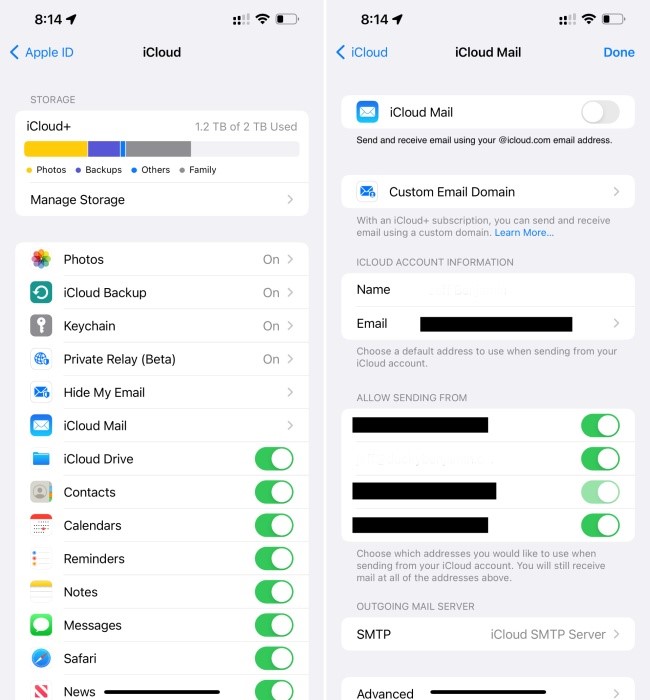
iCloud Mail preferences consolidation
In previous versions of iOS, iCloud preferences featured a Mail toggle switch for enabling or disabling iCloud email. In iOS 15.4, Apple has merged the toggle with iCloud Mail settings, an area previously buried at the bottom of iCloud preferences.
New Custom Email Domain UI in iCloud settings
Apple has begun baking in its iCloud+ custom email domain UI into iCloud Mail settings in iOS. Previously, all such settings were found exclusively on iCloud.com, although Apple still pushes people to iCloud.com to fully configure custom email domains.
Although it doesn’t appear fully operational, Apple has started to lay the groundwork for a provision that will let users disable iCloud.com access for mail, calendar, photos, contacts, notes, reminders, files, and documents. When you visit Settings → iCloud → Password & Security, you’ll see a new Access iCloud Data on Web toggle at the bottom of the page. When you disable the toggle, a panel appears with a Don’t Access button to confirm your decision, but the button doesn’t currently do anything.
Notes and Reminders get Live Text integration
A new Scan Text option appears directly in the Notes and Reminders app, allowing you to quickly add text directly from an image to a note or reminder.
New AirPods Pro accessibility glyph
Instead of a generic headphone glyph, the Accessibility preferences for the AirPods now come with a proper AirPods Pro glyph. It’s all in the details…
Updated AirPods status
When opening AirPods or AirPods Pro near your iPhone, the status window now shows a redesigned (L)/(R) indicator when both buds and case are being shown
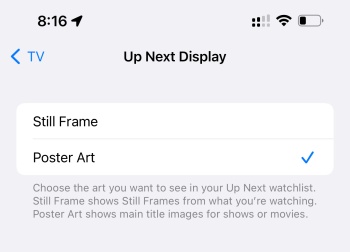
TV app Up Next Display
Users can now choose between a still frame or poster art for the Up Next watchlist in the TV app.
Tighter SharePlay integration
SharePlay from ShareSheet
SharePlay albums and songs directly from Music app
Developers can use the new API in iOS 15.4 to initiate FaceTime calls directly from their apps
iPadOS updates
Not to be left out, iPadOS gets several updates, including the most-anticipated public beta arrival of Universal Control.
Notes preferences Corner Gestures
The Notes app preferences gain the same Corner Gestures panel normally found in Settings → General → Gestures. It is here where you can toggle iPadOS corner gestures, which allow you to invoke a screenshot or a Quick Note by swiping diagonally from the bottom-left or right corner of the screen.
Keyboard brightness control toggle
Magic Keyboard users will appreciate having a new Keyboard Brightness shortcut available in Control Center. Once added, you can use the brightness slider to adjust the brightness of the Magic Keyboard. Keep in mind that brightness controls will not be available unless your iPad is in a dark environment, causing the automatic backlight to engage.
Universal Control
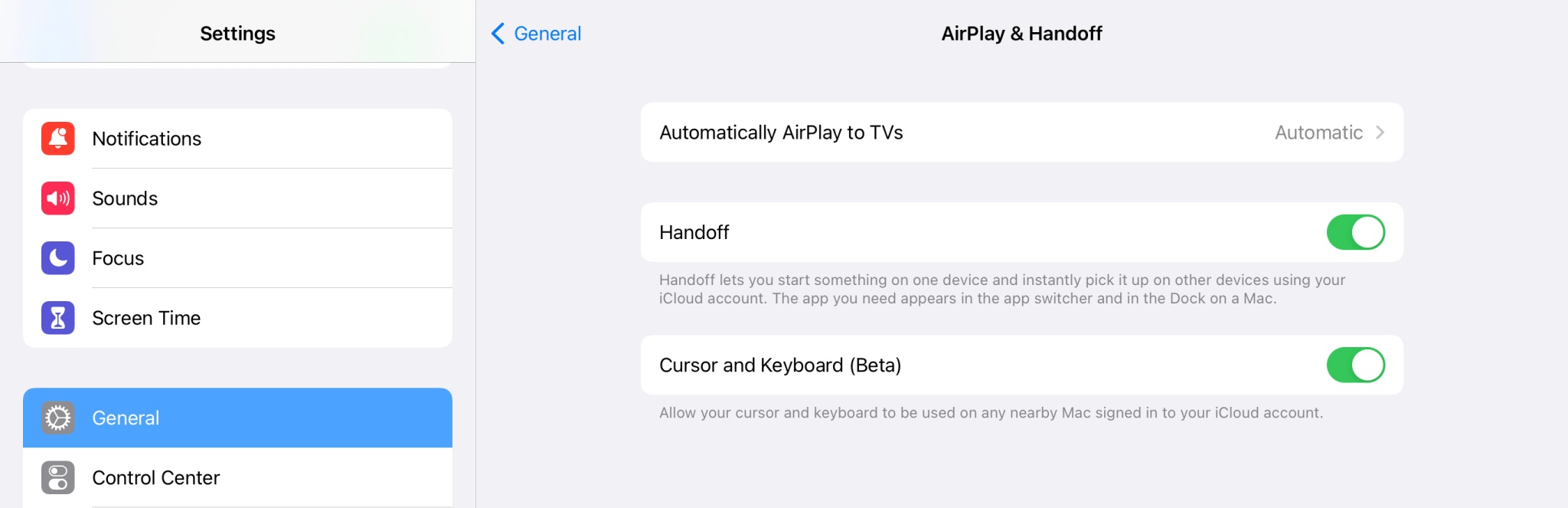
Last, but certainly not least, there is Universal Control, which can be enabled via Settings → General → AirPlay & Handoff. In the iPadOS 15.4 beta, Apple refers to Universal Control as Cursor and Keyboard (Beta). Note: You will need to be running the macOS Monterey 12.3 beta as well.
As its name states, Universal Control is all about control. It lets you control your iPad with the same mouse and keyboard that you use for your Mac. Indeed, using the same mouse and keyboard that I use to navigate Final Cut Pro on my MacBook Pro, I can scroll through my Tweetbot timeline or Apollo on my iPad Pro.
Universal Control is all about controlling two or more separate devices with the same input hardware. Thus, it doesn’t cause your iPad to function as an external display, where you can move a Mac app to your iPad, and vice versa, although the iPad is capable of doing that as well with Sidecar. But Universal Control does allow you to drag and drop files between macOS and iPad OS, which can prove to be handy in some circumstances.
iOS 15.3 arrived with crucial security updates, but relatively little in the way of user-facing features. iOS 15.4 is the substantial mid-cycle software update for iPhone that we’ve been waiting for, and it doesn’t disappoint. Practical features, like Face ID support while wearing masks, will appeal to the masses, but smaller updates, like the ability to silence notifications for shortcuts automation, will surely please a sizable swath of iPhone power users.
But if there’s one feature that worth’s upgrading for, it’s Universal Control. Similar to Apple SVP Craig Federighi’s demo back at WWDC, Universal Control is dead-simple to use, and that’s one of the things that makes it brilliant.
Apple has officially unveiled the next-generation Apple Silicon chip. Dubbed the M1 Pro and M1 Max, the Apple says that these chips were created for the next-generation MacBook Pro by scaling up M1’s architecture to create a “far more powerful chip.”
Here are the specs of the M1 Pro, as announced by Apple’s Johnny Srouji during today’s event:
200GB/s memory bandwidth
Up to 32GB of unified memory
ProRes
2x more transistors than M1
70% faster than M1
Up to 10-core CPU
Up to 16-core GPU
Neural Engine
Thunderbolt 4
Support for up to 2 external displays
And for the M1 Max:
400GB/s memory bandwidth
32-core GPU
57 billion transistors
Up to 64GB of unified memory
Up to 70% less power consumption
ProRes
Neural Engine
Thunderbolt 4
Support for up to four external displays
Apple says that these new chips will power the future of the “Pro” lineup among the Mac…still waiting for details on that, though.
Is there an old out-of-date Mac that you desperately miss using? Well, you’re in luck because it’s incredibly easy to install a modern version of Chrome OS on old Intel Macs for free. CloudReady isn’t a new product by any stretch, but I had always been itching to try it out. Just last year, Google acquired Neverware, the company behind CloudReady. This means that Google offers an officially sanctioned way of reviving old computers with Chrome OS. Here’s how to get CloudReady up and running on an old Mac.
I was able to get CloudReady running on a 2014 Mac mini and a 2012 13″ MacBook Pro. Both of these machines have run-of-the-mill specs for their time. Each of these Macs had 4GB of RAM and much older Intel processors. Neither run recent versions of macOS particularly well, and they certainly aren’t good for power-hungry tasks. The MacBook Pro model that I used for this experiment only runs macOS up to Catalina, so it’s already out-of-date. The Mac mini that I used can run Big Sur, but it’s severely underpowered, being seven years old and not physically upgradeable.
You can install CloudReady on virtually any Intel Mac from 2007 on. CloudReady will not work on PowerPC Macs, so sadly, you can’t revive your sunflower iMac G4 or your blueberry iBook. Compatibility with CloudReady technically begins with Macs from 2006, but it’s not recommended. CloudReady has officially only certified 11 Mac models, but it’s likely you’ll be able to get the OS up and running on non-certified Intel machines as well. CloudReady requires at least 2GB of RAM, at least 16GB of storage, and graphics components made during or after 2007. There are a few specific Intel graphics cards that don’t play nicely with CloudReady, including the GMA 500, 600, 3600 and 3650.
MacBook Air 6,1 (13″ Core i5 or Core i7 Mid 2013-Early 2014)
MacBook Pro 5,5 (13″ Core 2 Duo Mid 2009)
MacBook Pro 9,2 (13″ Core i5 or Core i7 Mid 2012)
Macs that should work with CloudReady but aren’t officially certified include:
Any aluminum iMac from mid 2007 with more than 2GB of RAM
Any white or silver Mac mini from mid 2007 with more than 2GB of RAM
Any white or black MacBook from mid 2007 with more than 2GB of RAM
Any non-unibody or unibody MacBook Pro from mid 2007 with more than 2GB of RAM
Any MacBook Air model (all models have at least 2GB of RAM)
Any tower or trash can Mac Pro from mid 2007 with more than 2GB of RAM
What you’ll need
You may need to upgrade the RAM on a particularly old model before installing CloudReady. Luckily that’s quite easy on old Mac models. I upgraded my 2012 MacBook Pro with 8GB of RAM and a new 240GB SSD for around $70. But getting at least 2GB of RAM is quite cheap these days.
Once you’ve got the Mac you want to install CloudReady on, good to go, you’ll need a flash drive with at least 8GB of storage on it. Make sure not to use a Sandisk flash drive; Neverware says that they don’t work properly with the installer.
The application is only around 48MB and will help you turn your flash drive into a CloudReady installer. You can create the physical installer with any computer; it doesn’t have to be the one you plan to put CloudReady on. I built my CloudReady flash drive with a Windows 11 PC, for example.
2. Connect your flash drive to your selected Mac, then press and hold option as you turn it on
Your Mac will ask you which drive you want to boot from. Choose the CloudReady flash drive that you created. It’s likely going to be represented by an orange drive. The name can vary.
3. Boot into CloudReady
Once you select CloudReady, it will boot into the Chrome OS set up system.
4. Install Chrome OS on your Mac
Click on the clock in the lower right corner and select “Install OS” from the menu that pops up. This will launch the installer and allow you to replace your existing system with CloudReady. Keep in mind that if you choose to install CloudReady on your Mac, it will erase macOS and anything else on the drive. If you don’t want to do that, you can run CloudReady off of the flash drive. Just continue through the setup process without installing the operating system.
Once CloudReady is installed on your Mac, you are good to go. You can connect to wifi or ethernet, sign in to your Google account, and you are up and running. Chrome OS runs incredibly well on old Macs and frankly breathes new life into them.
Limitations of Neverware’s version of Chrome OS
Neverware’s variant of Chrome OS has a few limitations that you should keep in mind. It is based on Chromium rather than Chrome. That’s why you’ll see blue icons rather than Googley multi-colored ones. You cannot install Android apps on CloudReady like you can on an official Chrome OS computer. It can only run Chrome apps, progressive web apps, and websites. CloudReady does come with a few other native apps like a simple files app and wallpaper picker, but that’s about it. Another thing to keep in mind is how often you’ll get updates. CloudReady doesn’t get updated in tandem with the shipping version of Chrome OS. However, it does get regular updates and runs a secure version of Chrome OS that supports the modern web.
Using CloudReady
Once you have CloudReady installed, you can use it as you would a Chromebook. You can set a custom wallpaper or choose one from Google’s excellent collection of pre-installed ones. The shelf at the bottom of the screen can be customized with only the apps and sites you use frequently. You can also click on the circle button in the far left corner to see everything installed on your device or search its contents.
You can head over to the Chrome web store to find Chrome apps for your device, although many apps aren’t up-to-date and likely won’t be supported much longer. To get services you want to use installed on your computer, head over to their websites. Let’s say you want to install Slack as an app. Just go to the Slack website, sign in to your workspace, click the three dots in the top right corner of the window, select tools, and then select install or add shortcut. You’ll then get an icon in the launcher that you can add to your shelf. If you right-click the icon, you can change the website to open in a dedicated window rather than a new tab.
Conclusion
There are lots of beloved old Mac models that we’d love to bring back from the dead. CloudReady makes it possible to use old Macs today with modern websites and web apps. It also performs great even on low-powered machines with mediocre specs.