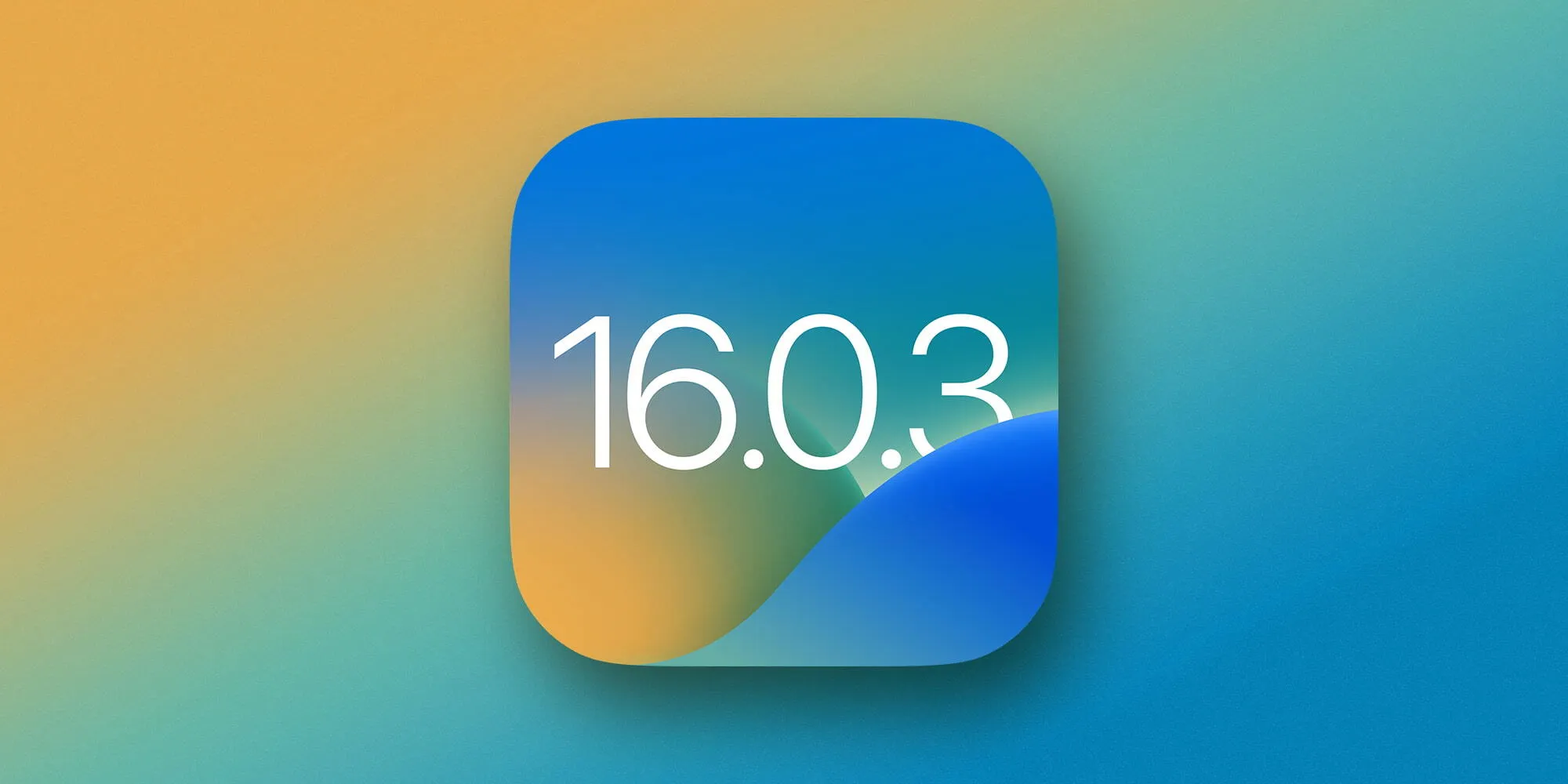
Apple is continuing to fix some of the early bugs affecting iOS 16 as well as the iPhone 14 and iPhone 14 Pro. The company is now rolling out iOS 16.0.3, which includes additional bug fixes and performance improvements for notifications, the Camera app, and more.
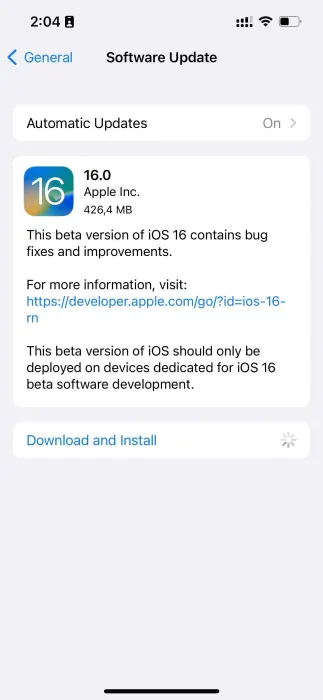
You can update your iPhone to iOS 16.0.3 by heading to the Settings app, choosing General, then choosing Software Update. The build number for today’s update is 20A392. It’s available for any iPhone that is capable of running iOS 16, which includes the iPhone 8 and newer.
Incoming call and app notifications may be delayed or not delivered on iPhone 14 Pro and iPhone 14 Pro Max.
Low microphone volume can occur during CarPlay phone calls on iPhone 14 models.
Camera may be slow to launch or switch between modes on iPhone 14 Pro and iPhone 14 Pro Max.
Mail crashes on launch after receiving a malformed email.
Today’s update comes after Apple released iOS 16.0.2 toward the end of September. This update addressed the annoying copy-and-paste alerts, the camera shaking problem for iPhone 14 Pro, and more. Apple is also continuing to beta test iOS 16.1 with developers and public beta users, primarily focusing on new features.
One of the biggest things we’re watching for is whether or not iOS 16.0.3 addresses the battery life complaints that are currently flooding in from many iPhone users. As we detailed a couple of weeks ago, iOS 16 has significantly impacted battery life for the majority of iPhone users, including the new iPhone 14 and iPhone 14 Pro models.
Samsung is on a roll as of late with device updates for a number of handsets. The October 2022 security update is even rolling out for a number of Samsung Galaxy phones and even a few tablets.
Samsung October 2022 security update – here’s what’s new:
No details have been released for the latest Android Security Update Bulletin, but we expect that to change over the coming days as Pixel devices catch up – usually on the first Monday of the month. Samsung has yet to update their own tracker for Galaxy smartphones, but that too will likely be updated very soon.
Some Samsung Galaxy devices are part of the One UI 5.0 beta program, which means that the Android 13 stable should be right around the corner.
Devices with the Samsung October 2022 security update
As is often the case, the Korean tech giant has a fairly consistent approach to updates. It’s usually the latest and greatest Galaxy devices such as the S series get updated first. While it’s not always the case, this seems to be true.
This list will include a note on where the update first debuted and if it is also available in the United States. As usual, the latest additions will be marked in bold.
Galaxy S series
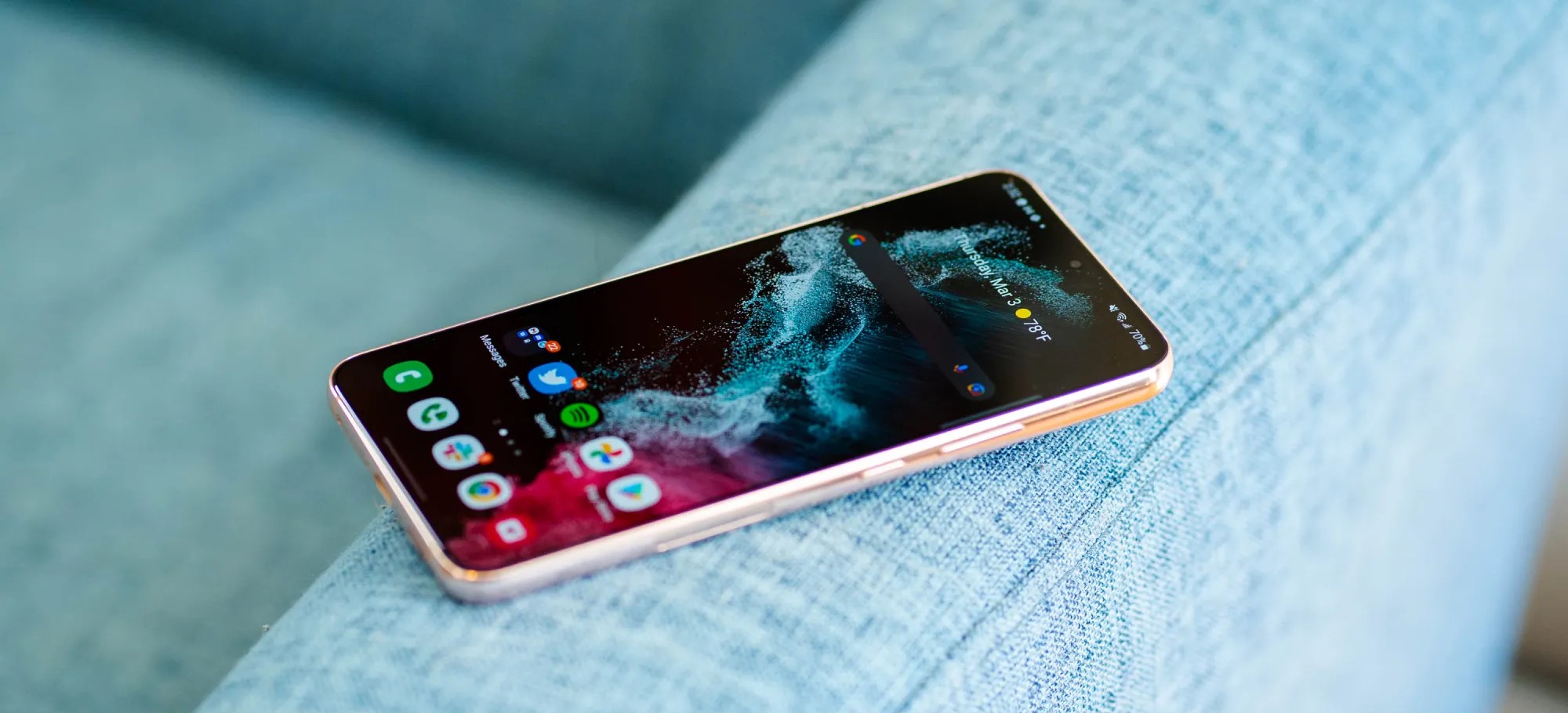
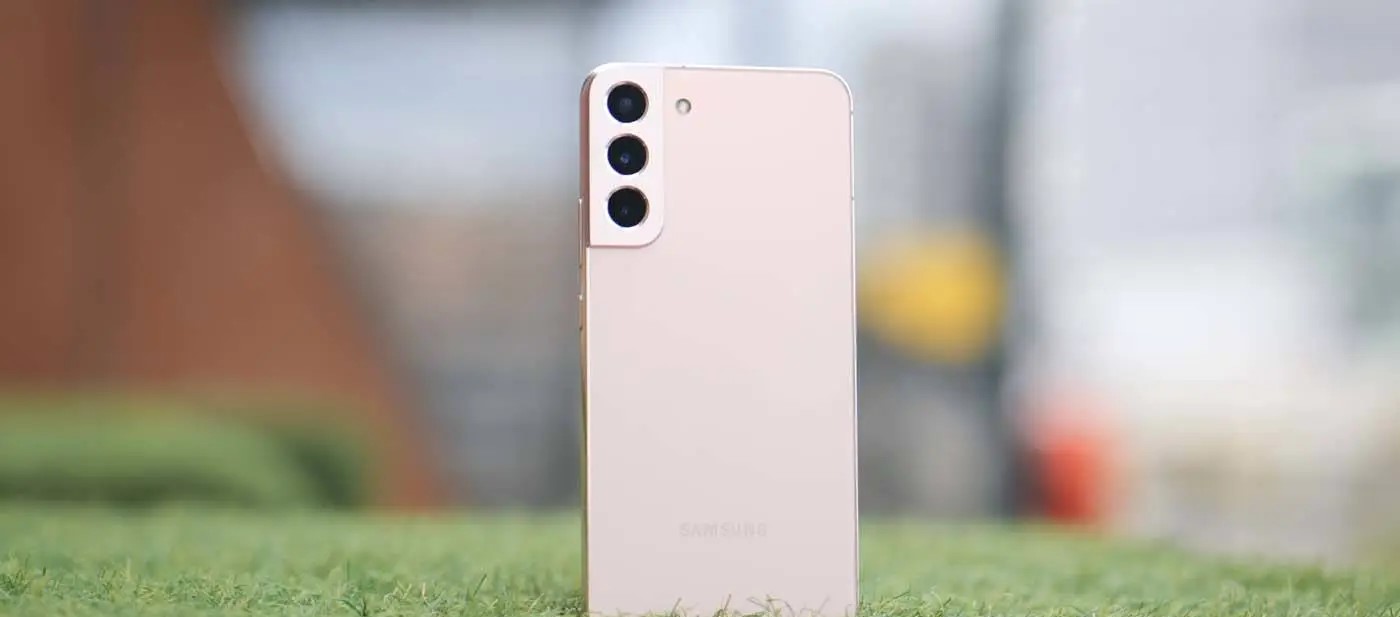
It should come as absolutely no surprise that the Samsung Galaxy S22 series was the very first to receive the October 2022 security update. As Samsung’s flagship non-foldable smartphone, it was expected and likely anticipated. Right at the very end of September, Samsung released the latest security patch for the S22 series in limited regions. The update is likely to head out in more regions as we reach October proper.
Just a few days later carrier-locked versions of the Galaxy S21 series began to be updated. The October 2022 security patch is already hitting Verizon handsets in the United States. Often the latest patches arrive in global markets, so this is a nice change of pace. Those on Xfinity Mobile are also starting to see the Samsung October update on the entire Galaxy S21 series according to SamMobile.
Although technically part of the S21 series, the Galaxy S21 FE was launched just a month before the S22. This means it’s in a strange position of being part of the 2022 cohort while still having a foot in the previous generation. That said, it is still updated promptly with Indian models now starting to get the most recent patch.
Galaxy S21 / S21+ / S21 Ultra — G991USQS5CVI8 (Released first in US)
Galaxy S21 FE — G990EXXU3CVI8 (Released first in India)
Galaxy S22 / S22+ / S22 Ultra — S90xBXXS2AVI7 / S908EXXS2AVI7 (Released first in Europe/Asia)
How to check for the latest OTA on your Galaxy device
If your Samsung device is slated to have been updated already, but the October patch hasn’t arrived for you personally, you can try updating manually. Simply open the Settings app, tap “Software update,” and choose “Download and install.”
iOS 16 beta 6 now available as Apple finalizes features ahead of September launch
iOS 16 beta 6 and iPadOS 16 beta 6 are now rolling out to developers, one week after the fifth beta was released. iOS 16 brings a number of changes, including updates to the Lock Screen, new wallpaper options, and more. iOS 16 beta 6 will continue refining these new features…
Update: Also now available to public beta testers.
Each new iOS 16 beta usually includes a number of changes, bug fixes, and even new features. Apple keeps a keen eye on the feedback it receives from iOS 16 beta testers, and each subsequent beta aims to address complaints, bug reports, and performance issues.
Notably, Apple has switched to a one-week cycle with this beta, indicating it is ramping up beta testing ahead of next month’s public release.
One thing we’ve learned recently that Apple is planning to delay releasing this update to the public. iPadOS 16 was initially slated to launch in September alongside iOS 16, but it’s now scheduled for sometime in October.
iOS 16 beta 5 was released last week with the notable addition of a new battery percentage icon for the menu bar.
iOS 16 beta 5 finally adds the battery percentage to the status bar
Find My has a new sound alert with iOS 16 beta 5, here’s how it sounds
iOS 16 beta 5 adds ‘Copy and Delete’ option for sharing screenshots without clutter
watchOS 9 beta 6 is now available to developers
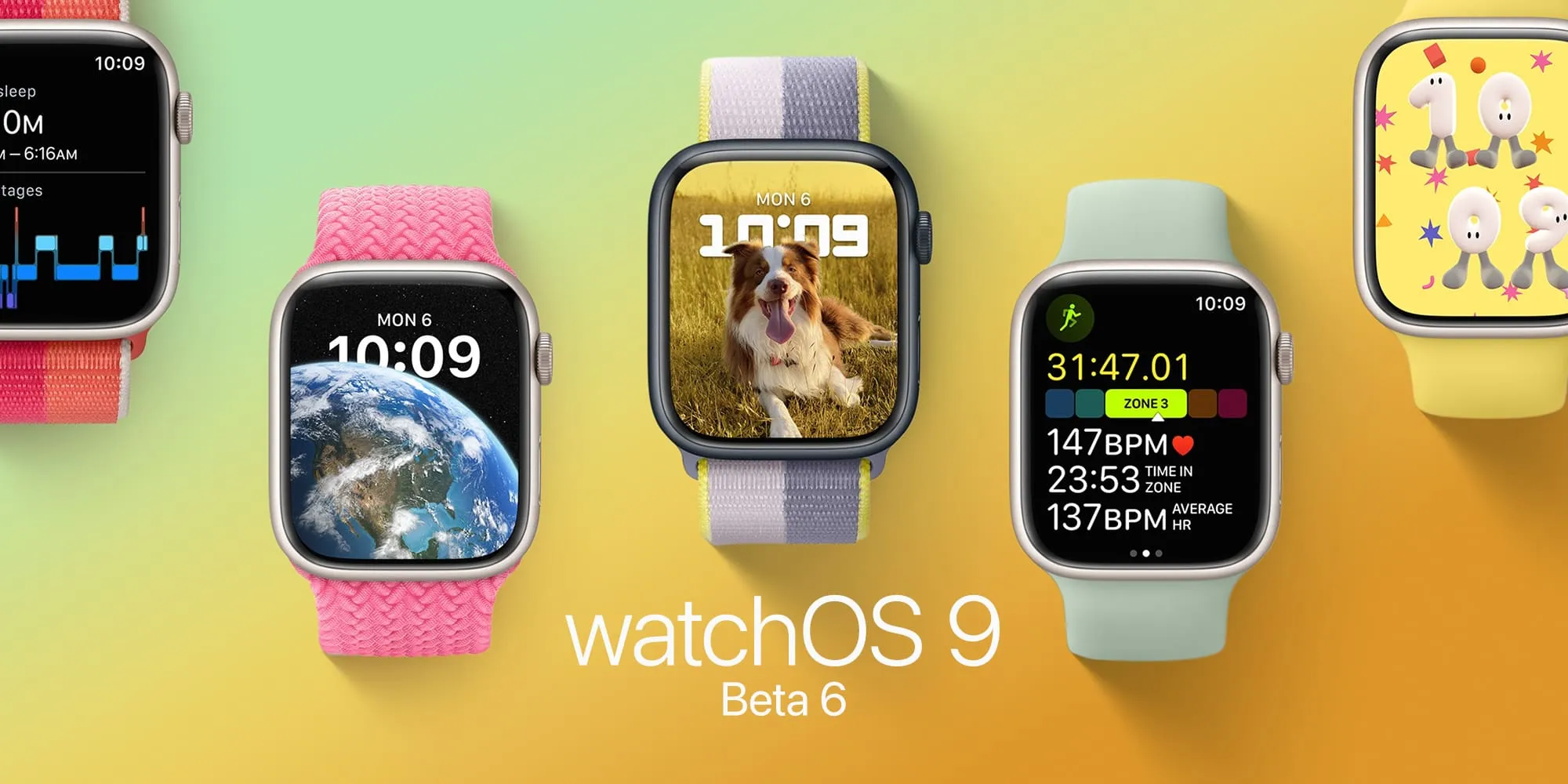
watchOS 9 beta 6 is here. As Apple polishes the Apple Watch’s upcoming operating system after more than two months of beta testing, the company seems to be getting ready for the launch of watchOS 9 in September. Here’s everything new with it.
Today’s build is 20R5353a. watchOS 9 is the biggest update on the Apple Watch software in years and beta testers can take advantage of the features before everyone else.
Now that watchOS 9 doesn’t support Apple Watch Series 3 anymore, the operating system will revamp old Watch Faces, while adding four new ones. With these new faces, Apple makes them look better on bigger displays. In addition, the company is adding QWERTY keyboard support for more languages for the Apple Watch Series 7 and new QuickType technology with watchOS 9.
watchOS 9 beta version also brings a significant update to the Workout app with a lot of new features for people who love to exercise. For runners, there’s a new Workout Views where they just need to turn the Digital Crown in order to see lots of metrics, which are available during the run:
Activity rings
Heart Rate Zones
Power
Elevation
Apple is also improving the Sleep app with watchOS 9, which beta testers can now take advantage of. It now brings more sleep data and there’s a new Medications app that helps you track all the pills and vitamins you take every day.
Alongside watchOS 9 beta 6, Apple is seeding iOS 16 beta 6, iPadOS 16 beta 6, and tvOS 16 beta 6
In a report by Bloomberg, the publication says Apple will likely delay the launch of iPadOS 16 by a month, which could mean this software will be available closer to the launch of macOS Ventura, also expected for October. watchOS 9 and iOS 16, on the other hand, are expected to launch next month.
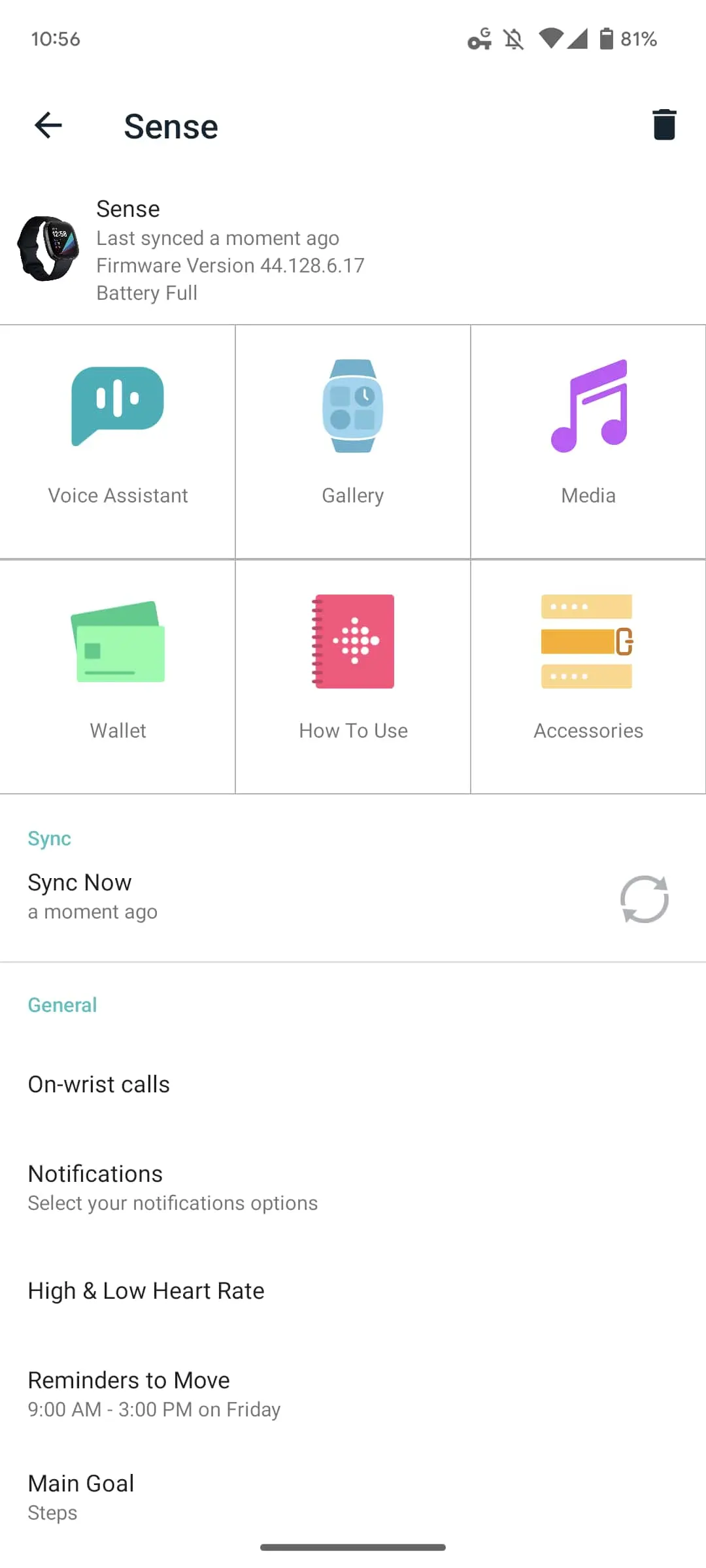
Following the Charge 5 and Luxe trackers last month, Fitbit is rolling out an update to the Sense and Versa 3 smartwatch.
The Fitbit Sense is going from 44.128.6.12 to 44.128.6.17, while the Versa 3 jumps 36.128.6.12 to 36.128.6.17. This versioning suggests an incremental patch and the Fitbit OS update list says as much.
What’s changed in the latest Fitbit OS update?
Updates to Fitbit OS provide new features, improvements, and bug fixes for your Fitbit watch.
Fitbit OS 5.3.1 (Sense and Versa 3 only)
This release includes bug fixes, improvements, and an important security update. For more information about security updates, see How do I update my Fitbit device?
Fitbit OS 4.2.3 (Versa, Versa 2, and Versa Lite Edition only)
This release includes bug fixes and improvements.
Fitbit OS 5.3 (Sense and Versa 3 only)
Status indicators on your smartwatch let you know when your device’s battery is critically low, the do not disturb or sleep mode setting is on, or your device isn’t connected to your phone. For more information, see How do I navigate my Fitbit device?
An additional 6 languages are now available on your watch: Brazilian Portuguese, Czech, Indonesian, Polish, Romanian, and Russian.
To access the control center on your watch, swipe down from the top of your screen. After your notifications appear, swipe down again to open the control center. For more information, see How do I navigate my Fitbit device?
WHAT’S FIXED
This release includes bug fixes and improvements.
Fitbit OS 4.1.3
This release includes bug fixes and improvements.
Fitbit OS 4.1.2 (Ionic, Versa, and Versa Lite Edition only)
(Versa Lite Edition only) This release fixes an issue where some customers may have been unable to update Versa Lite Edition after completing a factory reset. If you factory reset your device and your watch is on version 38.6.1.1, see Why can’t I update my Fitbit device?
This release includes bug fixes and improvements.
Fitbit OS 4.1.1 (Versa 2 only)
We optimized the algorithm used to track your heart rate on Versa 2 to complement our latest hardware.
Avoid being awoken while in deep sleep. Set an alarm with our new Smart Wake feature to wake up feeling refreshed. For more information, see What should I know about Fitbit sleep stages?
Access additional options when you press the shortcut button on the left side of your Fitbit device. For more information, see How do I navigate my Fitbit device?
On Fitbit Versa 2, you can now use the Fitbit skill to ask Alexa to open the Exercise app and start a workout for you. These commands are currently available in English and German.
You now access Alexa through the Alexa app on Versa 2.
This release includes other bug fixes and improvements.
Fitbit OS 4.0.2
This release includes bug fixes and improvements.
Fitbit OS 4.0.1
To update Versa Lite Edition, let the Fitbit app run in the background on your phone. When the update is ready, you’ll see a notification in the Fitbit app. For more information, see How do I update my Fitbit device?
Your alarms and timers now alert you even when your Fitbit device is locked.
WHAT’S FIXED
This release includes other bug fixes and improvements.
Fitbit OS 2.1.1
This release includes bug fixes and improvements.
Fitbit OS 2.1
WHAT’S NEW
Introducing quick replies. Send customized responses to text messages and messages from select messaging apps with your Fitbit watch. Note that this feature is currently only available on watches paired to an Android phone. For more information, see How do I respond to messages with my Fitbit device?
WHAT’S FIXED
This release includes other bug fixes and improvements.
Fitbit OS 2.0
WHAT’S NEW
Fitbit Today
Introducing Fitbit Today, an updated on-device dashboard that keeps you informed about all of your health and fitness data. Receive action-oriented and personalized content with daily and weekly health and fitness stats, historical activity, exercise summaries, and tips and tricks for using the Fitbit platform. Swipe up from the clock face to open the Fitbit Today dashboard.
Ionic users, your daily stats have moved from the Today app to Fitbit Today.
We improved the way we track your distance when you’re tracking a run with GPS.
WHAT’S FIXED
We fixed an issue where some customers’ clocks didn’t update after switching time zones.
We fixed an issue where some customers experienced syncing issues after interrupting clock face installation.
We fixed an issue where some customers noticed the Exercise app crashed after double tapping an exercise.
This release also includes bug fixes and stability improvements.
Fitbit OS 1.1
NEW FEATURES
This release delivers a more personalized experience for Fitbit Ionic customers. Read on for details.
New apps and clock faces
This Fitbit OS update provides access to new apps and clock faces from Fitbit, Fitbit Labs, popular brands, and developers. The apps span a range of categories such as Flipboard, The New York Times, and Yelp. New apps and clock faces will be added frequently. Browse the available apps in the Fitbit Gallery.
We’re introducing Fitbit Labs, which develops experimental apps and clock faces for Ionic. Install an app or clock face to motivate you to stay active, help track and interpret your behavior, and provide intelligent feedback. Choose to adopt a virtual pet and use your steps to keep them fed and happy with one of the FitPet interactive clock faces, or install the Think Fast app and test your ability to rapidly and accurately switch between tasks. Check back often for new apps.
Fitbit Pay
Now you can add up to 6 credit and debit cards to Fitbit Pay on Ionic and choose which card you want to use for each transaction. When you’re ready to pay, swipe right on your watch’s screen to scroll through your cards.
Note this feature is coming soon to the Fitbit app for Windows 10.
This release includes other bug fixes and improvements.
However, the new changelog entry for an update that’s “Sense and Versa 3 only” is misidentified as Fitbit OS 4.2.3. That was a previous update from March for the Versa, Versa 2, and Versa Lite Edition, with the Sense and Versa 3 notably running Fitbit OS 5.x. That said, the contents are clearly new and should be accurate:
That error has been addressed and the update is now referred to as Fitbit OS 5.3.1:
This release includes bug fixes, improvements, and an important security update. For more information about security updates see How do I update my Fitbit device?
The emphasis is on an “important security update,” with Fitbitrecommending that “you apply an important update immediately”:
The security update patches a vulnerability that, if exploited, could compromise data security, potentially allowing access to confidential or sensitive data but stopping short of full code execution.
Past releases only noted bug fixes and improvements. This update is rolled out to a Fitbit Sense we checked this morning. In our brief usage, we’ve yet to spot any other user-facing changes.
Update: Meanwhile, there’s also new firmware for the Charge 4 (1.100.76), Inspire 2 (1.124.76), and Ace 3 (1.134.76) this afternoon that addresses “bug fixes, improvements, and a critical security update.”
The security update patches a vulnerability that, if exploited, could allow attacker-supplied code to gain unrestricted access and potentially go undetected by the customer.
We recommend that you apply a critical update immediately.
A handy new feature Apple is bringing with iOS 16 is iPhone battery percentage in the status bar that shows at all times on the Home screen, app pages, in apps, and more. However, there are a few caveats, read on for what to do if the iOS 16 iPhone battery percentage isn’t showing on your device.
Interestingly, the iOS 16 iPhone battery percentage feature didn’t arrive until beta 5 (public beta 3). While some users have seen it turned on by default when installing the latest beta, you may have to manually enable it on your iPhone.
This marks the first time the battery percentage has been in the status bar on modern iPhones since it was dropped with the iPhone X back in 2017.
iOS 16 iPhone battery percentage: How to enable on your device
iOS 16 is currently available as a free public or paid developer beta. Learn more about installing iOS 16 in our full guide.
Make sure you’re running iOS 16 beta 5 (or public beta 3)
Open the Settings app on your iPhone (see below for compatible models)
Swipe down and tap Battery
At the top, tap the toggle next to Battery Percentage
If it’s not showing, you either aren’t running iOS 16 beta 5 (public beta 3) yet or the feature isn’t compatible with your iPhone
Here’s how those steps look:
Compatible iPhones
Currently in the iOS 16 beta 5/public beta 3, these are the models that appear to work with the new feature:
iPhone 13, 13 Pro, and 13 Pro Max
iPhone 12, 12 Pro, and 12 Pro Max
iPhone 11 Pro and Pro Max
iPhone XS and XS Max
iPhone X
For now, that means it’s not available for iPhone 13 and 12 mini, iPhone 11, or iPhone XR.
A few other details about the iOS 16 iPhone battery percentage:
When your iPhone is not charging, you’ll see the normal battery icon but with the percentage number inside (it will show fully white with the number until it’s below 20%)
If your iPhone is in low power mode, the battery icon turns yellow but still shows the percentage
When charging, you’ll see the percentage with a small charging icon
If your iPhone is below 20%, you’ll see the icon turn red with the percentage number
One of the new features of iOS 16 is Lockdown Mode, which helps users protect themselves against targeted cyber attacks by disabling multiple device features. Among everything Lockdown Mode changes, it also restricts web browsing – and now software engineer Alexis Lours details how exactly that happens.
Lours shared on his personal blog how he ran multiple tests to find out which web features are disabled when Lockdown Mode is turned on. Thanks to Modernizr, a JavaScript library that detects features available in a web browser, the engineer has obtained a list of WebKit features that can potentially be used to spy on users.
Lockdown Mode’s impact on web browsing
The first thing noticed by the engineer is that Lockdown Mode disables just-in-time JavaScript compilation (JIT), which compiles code on the fly during its execution. Without JIT enabled, web browsing performance drops by up to 95% based on benchmark tests. This results in longer loading times and even higher battery consumption.
Lockdown Mode in iOS 16 disables also disables WebAssembly. WASM a powerful binary code format that enables high-performance apps on web pages. However, it can also be used to create a digital “fingerprint” of users, which helps third parties track people across websites and apps.
Interestingly, support for MP3 players on webpages is also disabled with Lockdown Mode. Lours believes that Apple wants to prevent attackers from using MP3 decoding for malicious purposes. Of course, this ends up breaking any website with MP3 playback without a fallback to the AAC or OGG formats.
The Gamepad API, which was created to let users interact with game controllers on websites, doesn’t work with Lockdown Mode enabled. This is because malicious websites can use details like the controller ID to track users. Unsurprisingly, this breaks down web games and platforms that rely on an external game controller.
Previewing files in web browsers is also restricted with Lockdown Mode. For instance, JPEG 2000 images and SVG fonts, which are exclusively supported by Safari, are disabled so websites can’t use these formats to target iOS users. PDF previewing for websites is also disabled, as multiple PDF-related exploits have been found in the past.
Other disabled features include WebGL, Speech Recognition API, and the Web Audio API.
What else does Lockdown Mode restrict?
In addition to restricting web browsing, Lockdown Mode in iOS 16 also blocks most message attachments and link previews in Apple’s Messages app. Users with Lockdown Mode enabled only get FaceTime calls from known numbers and iCloud Shared Albums are removed from the Photos app.
Apple also blocks configuration profiles and access to the device over a wired connection with Lockdown Mode turned on.
Of course, Apple emphasizes that Lockdown Mode is intended for a specific group of users who may be targeted by sophisticated espionage threats. These users include journalists, activists, and members of governments. This came after the company filed a lawsuit against ‘Pegasus’ spyware creator NSO Group last fall.
Lockdown Mode is available as part of iOS 16, which is expected to be released this fall. Developers and users registered in the Apple Beta Software Program can now try out iOS 16 beta.
With rumors of the official One UI 5 beta starting soon and internal previews already underway, people are getting excited to see what Samsung has up its sleeve for Android 13. Luckily, I’ve managed to get my hands on the latest One UI 5 beta before the public beta even starts. Let’s take a look at everything that’s new in One UI 5.
To provide some context, this build was provided by a source and is not one that Samsung has released publicly, so it might not provide a complete picture of One UI 5 given the initial nature. It is an early beta that unfortunately does not have a changelog, so everything new below has been from using One UI 5 and comparing to One UI 4.
Tweaked notification design
The notification design has been slightly tweaked between One UI 4 and One UI 5. There are new icons for notifications along with an updated design style. The notification shade and quick settings also have a slight tweak to opacity. Neither of these changes are major, but they do bring an overall different feel to the notification shade as a whole in usage.
Stock Android permission dialogs
One big surprise with One UI 5 is Samsung’s choice to use the default Android permission dialogs. This is by no means a bad thing, and it is very similar to how Google does it. This could have been to help speed up the update process by not changing things that don’t need to be changed in Android, or it could just be so early Samsung hasn’t gotten to changing it in One UI 5 yet. We’ll find out soon enough in future betas.
OCR in Gallery and insert text from image in keyboard
Samsung has now added OCR (Optical Character Recognition) that lets you copy text from images to the Gallery app and keyboard. When the device detects text in a photograph, it will now have a button at the bottom of the gallery letting you pull text from the image. This used to be part of Bixby Vision, but was turned into its own feature in One UI 5.
Keyboard OCR works the same way it does on iOS. In any text field, you can select extract text and hold the camera up to anything to grab text from it and insert it. The UI on Samsung’s version is incredibly similar to iOS as well.
Security and privacy hub
One UI 5 Security and Privacy Hub
The security and privacy hub is a Samsung proprietary version of what Google made for Pixel on Android 13. It places all your accounts, passwords, security, and privacy features into one screen, thus allowing for easy access to everything. It will also scan for anything that might be abusing app permissions or a security setting that isn’t enabled and recommend you enable it for all around better security.
Unfortunately, there is nothing new in the hub. All of the settings and features here were also found in One UI 4, but it is good to see Samsung making access to all of this easier and being proactive about warning those who are less tech-savvy.
New multitasking gestures
In Labs, there are now two options for multitasking and accessing the feature. You’ll now be able to swipe up from the bottom of the screen with two fingers to access split view or swipe in from the top right corner to make a popup window. Neither currently work in this build, but they should by the time it launches.
Miscellaneous changes
Collaboration in Samsung Notes
Currently active app in quick settings
About phone page now shows image of device
UWB toggle in settings
At the end of the day, there really isn’t much new in One UI 5. It has minor improvements across the board with an upgrade to animations. This isn’t a bad thing. It seems like Samsung is focusing on update speed, seeing as the beta is likely starting a month earlier with a planned release also being a month earlier.
Focusing on getting Android updates out there fast then bringing newer features with later updates that launch alongside new devices allows for more devices to get updates and for Samsung to focus on new features later. With promises of four years of OS updates, this is a good thing to see and a good start for the Galaxy S22s. We’ll have to see how things go for Samsung’s Z foldables, A line of phones, and Tab series of devices.
With Android 13 on the horizon, OnePlus is now finally offering OnePlus 7 and OnePlus 7T series owners the opportunity to install Android 12 with the launch of the OxygenOS 12 Open Beta.
Announced in twoseparate posts on the OnePlus Forums, OxygenOS 12 Open Beta 1 can now be sideloaded on OnePlus 7/ OnePlus 7 Pro and OnePlus 7T/ OnePlus 7T Pro units. The divisive update certainly bears a striking resemblance to Oppo’s ColorOS, that is despite protestations from OnePlus that the “unified platform” will not be coming after all.
Aesthetically, you’d be hard-pressed to tell the difference between OxygenOS 12 on OnePlus 7 series devices and ColorOS or Realme UI on Oppo and Realme devices. However, a new software update is important and Android 12 offers a number of improvements to the core OS that will undoubtedly improve the daily experience you’ll have with a OnePlus 7 or OnePlus 7T series handset.
One caveat is that to install OxygenOS 12 Open Beta 1 on your OnePlus 7, OnePlus 7 Pro, OnePlus 7T, or OnePlus 7T Pro you will need to already be running OxygenOS 11.0.71 or 11.0.8.1 before proceeding. These builds contain prerequisites that are not contained within the OxygenOS 12 Open Beta ZIP files that are required for Android 12 to run correctly.
Both builds for the 7 and 7T series contain the June 2022 security patch, which means you’re up-to-date — at least for now. You can check out the full changelog below:
System
Newly added Smart Battery Engine, a feature that prolongs your battery life based on smart algorithms and biomimetic self-restoration technology
Redesigns app icons using new materials to give more depth and a greater sense of space and texture to the icons
Revamps the page layout based on the principle of reducing visual noise and optimizes the presentation of text and color to make key information stand out
Optimized desktop icons with improved textures, by using a design inspired by brand-new materials and uniting lights and layers
Optimized spam block rules: Adds a rule for blocking MMS messages
Games
Newly added the HyperBoost end-to-end frame rate stabilizer
Newly added Voice effect preview to allow you to record your voice effect or check your voice effect in real time
Dark mode
Dark mode now supports three adjustable levels, bringing a more personalized and comfortable user experience
Shelf
New additional style options for Cards, making data contents more visual and easier to read
Newly added access to OnePlus Scout in Shelf, allowing you to search multiple contents on your phone, including Apps, Settings, Media Data, etc
Work Life Balance
Work Life Balance feature is now available to all users, allowing you to effortlessly switch between Work and Life mode via quick settings
WLB 2.0 now supports automatic Work/Life mode switching, based on specific locations, Wi-Fi network, and time, also bringing customized App notification profiles according to the personalization
Gallery
Gallery now allows you to switch between different layouts with a two-finger pinch gesture, intelligently recognizing the best-quality pictures, and cropping the thumbnail based on the content, making the gallery layout more pleasing
Canvas AOD
Canvas AOD brings you new diverse styles of lines and colors, for a more personalized lock screen experience with inspiring visuals
Newly added multiple brushes and strokes and support for color adjustment
Optimized software algorithm and improved face recognition to better identify the features and skin color of different figures
Accessibility
Optimized categorization of functions by grouping them into vision, hearing, interactive actions, and general
TalkBack supports more system apps including Photos, Phone, Mail, and Calendar
Of course, before attempting to install, ensure you have at least 30% battery remaining and 4GB of onboard storage free. This process should not wipe any personal data on your device, but we would highly recommend backing up any important files and photos before joining the beta program. Downgrading or rolling back to Android 11 will cause you to lose device data if you are not happy with OxygenOS 12 and Android 12 on your OnePlus 7 or OnePlus 7T series handset.
Google has yet to finalize Android 13, but it seems more updates are coming up quick. Some new evidence points to the Android 13 beta coming soon for the Samsung Galaxy S22 series.
Samsung Android 13 beta seems to be coming up soon
Recently, Google released the third beta update for Android 13 which delivered a few tweaks and fixes as the platform refresh moves towards its final release. As it appears right now, Google should release Android 13 to the public sometime in August or September, well ahead of last year’s schedule.
As highlighted by the folks over at TizenHelp, it seems Samsung is ready to start testing out its own flavor of Android 13 in a beta update.
Firmware version S906NKSU2ZVF6 popped up in Samsung’s home country of South Korea, which is believed to be the first Android 13 build for a Galaxy S22 series device. The update has yet to roll out to anyone, but development is well underway.
As is usually the case, the update will likely be available first for the Galaxy S22, S22+, and S22 Ultra, Samsung’s current flagships. Foldables and the Galaxy S21 series will likely follow closely behind.
What will Android 13 bring to Samsung’s devices? “One UI 5.0” is still largely a mystery at this point, but we have some hints that it will improve some animations and other small tweaks, but larger changes remain to be seen. With One UI 4.0, Samsung adopted a form of Material You to bring accent colors to its Android skin based on a user’s wallpaper.
It was previously reported that Samsung would release its Android 13 beta in July. Last year, Samsung released the Android 12 beta in September, so this would be far ahead of schedule.
This continues Samsung’s speedy track record
Samsung has become a shining example of what Android updates should look like, delivering some of the longest support timelines and the fastest updates.
In 2021, Samsung beat Google’s Pixel by delivering four years of security updates to its Galaxy smartphones, and doubled down on that in 2022. Now, new Galaxy devices get four years of major Android updates and five years of security updates.
Samsung is, right now, quite literally the best brand for Android updates. Only Google’s Pixel 6 series rivals it, and even then, it falls a bit behind.
Everything you need to know about Android updates on Samsung Galaxy devices
Updates are crucial to the health and overall performance of your Samsung Galaxy phone, no matter when it was made. This complete guide will give you all the information you need about Samsung’s Android and security updates, timelines, and more.
How to check for updates on Galaxy devices
Most of the time, updates are pushed automatically to your Galaxy phone. You’ll know one is ready if you see a little notification that says “Update ready to install.” All that’s required to start the update is a password entry or verification that you want to initiate the update. The problem with this system is that it takes a little while for these updates to automatically push to your device.
The solution? By manually checking for updates on your Samsung Galaxy phone, you’ll be able to discover updates earlier, meaning you get the latest security patch or new OS even sooner. Here’s how to check for updates on your Samsung Galaxy phone:
Head into settings on your Samsung Galaxy device.
Scroll all the way to the bottom and look for Software update. Tap it.
Tap Download and install.
Your device will start looking for new updates. If one is available, your device will prompt you to either install it or schedule an install time. You can schedule the update to install during the night so it won’t disturb your routine.
After the installation starts, it should only take about 10 minutes or so to completely install a security update. If it’s a larger Android update, you may want to schedule it to initiate at night, since it may take a good amount of time.
Can I sideload on Samsung phones?
Android devices are built on the idea of being able to configure them to your liking. This includes being able to push new updates to your device before they’re officially available. This is called sideloading, and it takes a little more than just a few taps on your device. You’ll usually need a computer and added software.
Sideloading involves using a computer to manually send a file image to your device – usually in developer or recovery mode, depending on the method used – and having the computer use a series of tools to install the new OS on your device. Samsung devices make this a little tricky compared to Google’s Pixel line since Google has a lot of support available for Android sideloading.
While it’s absolutely possible to do, it isn’t an ideal process for the average user. There are a lot of things that can go wrong in this process that could critically damage your device. So, unless you absolutely know what you’re doing, sideloading should be a last resort when it comes to updates on your Samsung device. Waiting for the built-in update tool to get the update is safer and much easier.
How often does Samsung release security updates?
Samsung has a few different schedules when it comes to updates, but the company is one of the best in the industry for Android updates and security patches. Some devices get monthly security updates, some get quarterly, and some phones are only updated twice a year.
Generally, the older the device is, the more sparse the updates are. Devices like the Galaxy S8 Lite and some A-Series phones only get biannual security updates since they were released before 2019. Newer devices like the Galaxy Z Fold 3 get monthly security updates and likely will for a while.
Some Samsung devices slow down in update frequency as they age, moving from a monthly schedule to a quarterly schedule. For example, the Galaxy Note 9 launched with monthly updates but now has a quarterly schedule. To check the status of your device, check here.
How long will my Samsung device get Android updates?
There are two different types of updates for your Samsung Galaxy phone. The first is security updates, which keep your device up to date with the newest cybersecurity precautions Samsung can offer. The other is system updates, otherwise known as Android updates. These are software updates meant to fix bugs and add features like those found in Android 12.
Samsung’s security update schedules
Recently, Samsung announced that phones sold in 2019 and later would receive four years of security updates. This means after four years of owning your device, you can rest assured knowing that the latest update for your phone is still keeping you safe. Here are the devices that will get four years of security updates:
In 2022, Samsung made an even better promise than in 2019. The company decided to improve it and begin offering five years of security updates for certain new devices, like the S22 line. Products that will be getting five years of security updates are:
Samsung provides up to five years of security updates to certain devices that are a part of the company’s Enterprise lineup as well.
Android system updates
In terms of system updates, Samsung promises three years of Android updates for phones sold in 2019 or later, as well as a couple of other select devices. In essence, this means these devices get to see three different versions of Android in their lifetime, a new precedent previously unheard of from Samsung. Here are the devices eligible for three years of Android updates:
Galaxy S10
S10, S10 +, S10e, S10 5G, S10 Lite
Galaxy S20
S20 5G, S20 + 5G, S20 Ultra 5G, S20 FE 5G
Galaxy Note 20
Note 20 5G, Note 20 Ultra 5G
Galaxy Note
Note10, Note10 +, Note10+ 5G
Galaxy Foldables
Fold, Z Fold 2 5G, Z Flip 5G
Galaxy A
A51 5G, A52 5G, A71 5G, A72, A90 5G
With the release of the Galaxy S22, S22+, S22 Ultra, and Tab S8 Samsung has pushed the limit even further. Those who purchase these devices will be looking at a whole four years of Android updates! This also extends to “select” future A series devices as well, with those getting five years of security updates and four years of Android system updates. Here are the devices looking at four years of Android system updates:
When three years were promised for some Galaxy devices, we initially thought this was a great move and an impressive one at that. With the newest Android system update guarantee for S22 devices, we’re even more blown away with the commitment to these phones. At this point, Google has no excuses to limit updates to three years.
This is the most that Samsung has ever offered in the way of making sure your device stays up to date for a long time. With that being the case, don’t be afraid to check for updates every once in a while since they take a bit to get pushed to your Samsung Galaxy device.
For a patch, Android 13 Beta 3.2 contains many more changes than expected and we’re diving into everything new as a result.
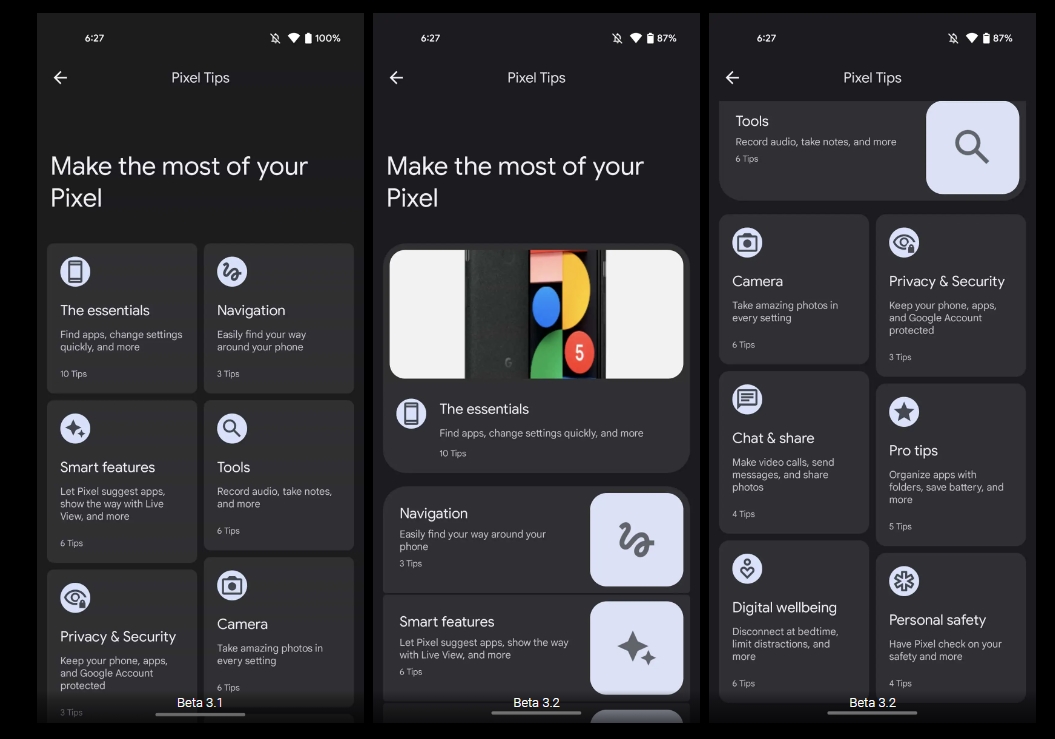
Over the coming hours, we’ll dive into all of Android 13 Beta 3.2’s new features and every single change. (The newest updates will be at the top of this list. Be sure to check back often and tell us what you find in the comments below.) Beta 3.1 screenshots appear on the left and Beta 3.2 at the right.
Prep towards new Easter Egg
Tweaked Pixel Tips layout: More prominent highlights
Tweaks to Clipboard
Sharing is now done via the bottom-left corner overlay.
The share button is no longer in the full-screen editor. After making any edits and tapping “Done,” you’re taken back to the previous screen with the corner overlay still visible.
Pixel Launcher: ‘Always show keyboard’ in app drawer
Updated Google Lens icon
Google rolls out Android 13 Beta 3.2 to Pixel with several bug fixes
Following a patch last Friday, Google is back with Android 13 Beta 3.2 today to fix more issues on Pixel phones.
Google usually does not release more than one patch in-between major previews, but Beta 3.1 was required as a more pressing fix — coming only two days after Beta 3 — given the unavailability of the Beta Feedback app for new users.
At a high-level, Beta 3.2 includes the “latest bug fixes and improvements to stability and performance.” Five Android 13 issues are specifically addressed with this update:
Fixed an issue where the back gesture wasn’t working in some apps.
Fixed an issue where the At a glance settings page would collapse inconsistently when scrolling.
Fixed an issue where some apps would crash instantly on opening.
Fixed an issue where the microphone would turn on and off unexpectedly during unrelated use of the device.
Fixed an issue where the Google Photos app would crash frequently.
These problems are particularly application and user-facing, though we have not seen widespread reports of them.
Factory images for Android 13 Beta 3.2 build TPB3.220610.004 (versus TPB3.220513.017.B1 previously) are available now. On a Pixel 4a, the OTA comes in at 238MB.
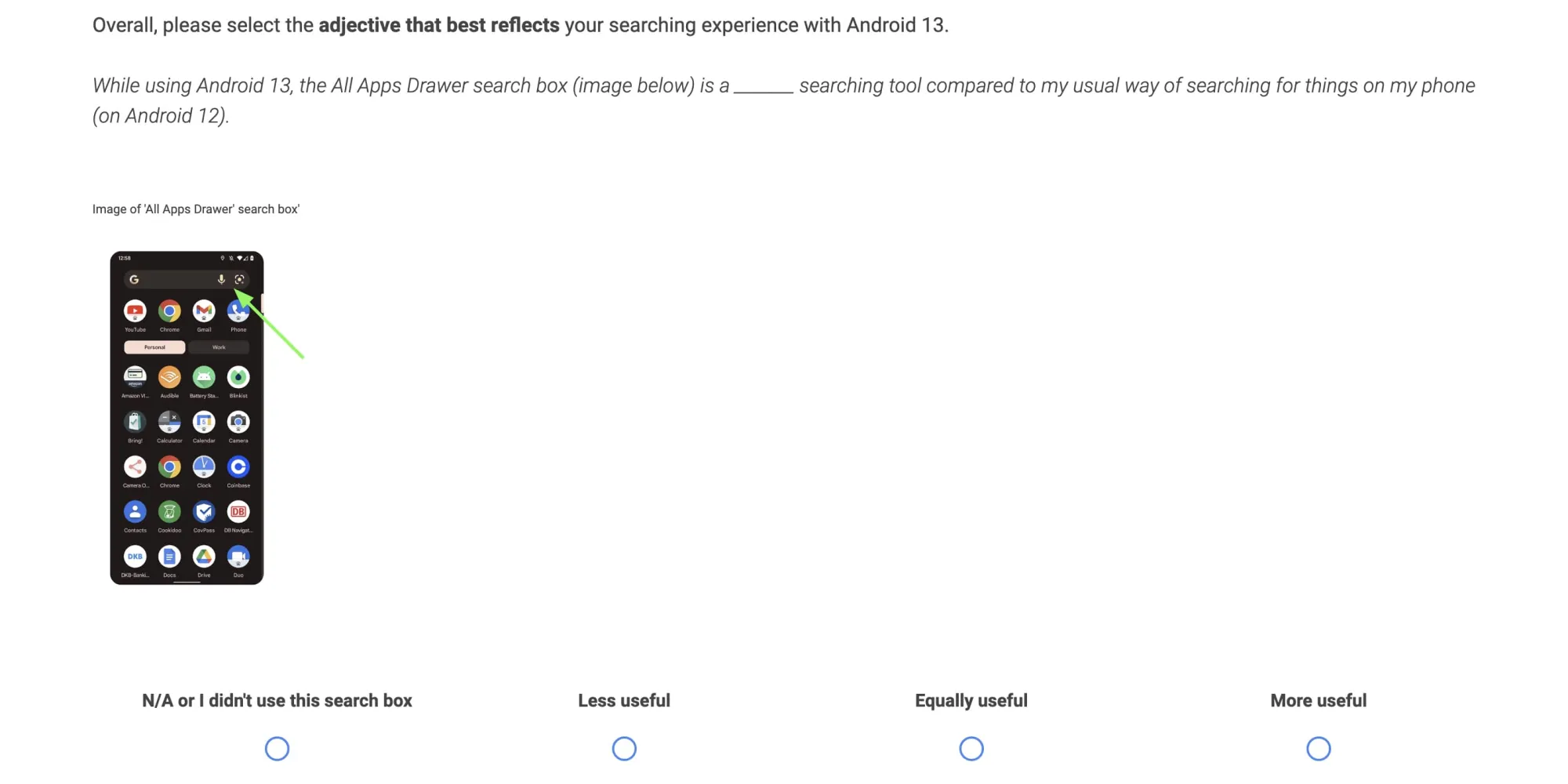
After the main release and two patches, Google is now asking for feedback on Android 13 Beta 3 in a survey that’s slightly different from past versions by focusing on the search experience.
For starters, the survey is hosted on Qualtrics instead of Google Forms and asks for demographic information (age and occupation). It opened today and ends on June 28 at 5 p.m. PT.
This survey should take no longer than 10 minutes to complete. Please keep in mind that all questions and content within this survey are confidential and should not be shared with anyone.
This Android 13 Beta 3 survey is not limited to Pixel with various OEMs, including those that have not announced preview programs yet, listed:
Realme, Momo, Oppo, Samsung, Microsoft, Google Pixel, OnePlus, Motorola, Sony, and Nokia
After specifying the current build on your device, Google asks which “search box did you primarily use since using your device on Android 13”: Search widget on the home screen or All Apps Drawer search box. You’re able to select “Both.” Google wants to know whether Android 13 has changed your usage compared to Android 12. Listed capabilities include:
Apps not yet installed (i.e. Google Play store apps)
Settings
Apps (installed on your phone)
Google Assistant
Pixel Tips
Contacts
Content within Apps
Quick app actions (i.e. shortcuts)
Web content (e.g. websites, Google search results page)
Screenshots
There’s then a question about “how easy or difficult was it to find what you were searching for in the search box” with the ability to expand further via written responses; Google then asks you to compare the two search fields.
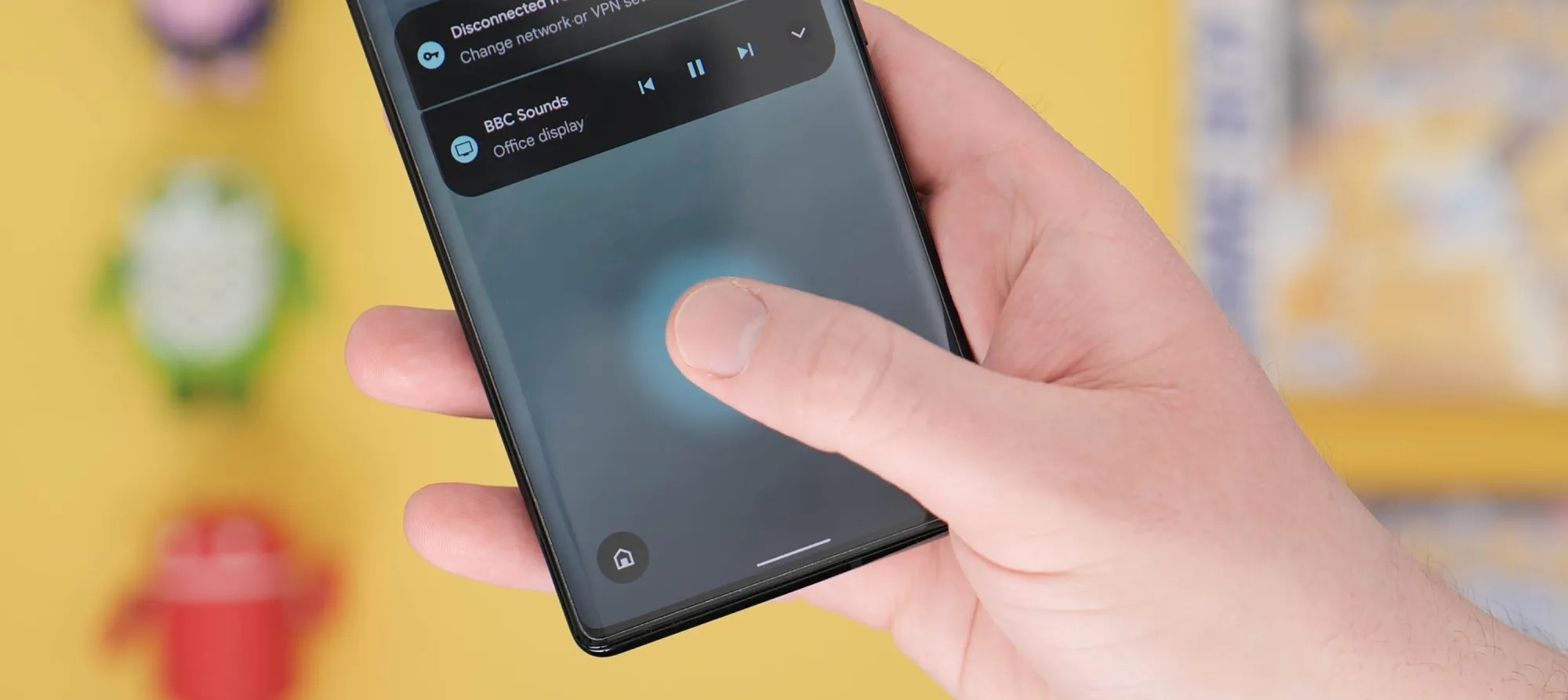
Likely to help improve the process of registering your fingerprint on devices with in-display readers, Android 13 Beta 3 has gained a new enrolment UI.
Of course, with the Pixel 6a and Pixel 7 series yet to be officially available, that means the new UI is currently limited to the Pixel 6 and 6 Pro. If you update a device which already has pre-registered biometric data, you may never actually see this new UI. However, when enrolling a fingerprint or thumbprint, during the latter stages of this process in Android 13 Beta 3, you will see a new animation and guides to help you get a better reading of your finger.
Given the bad press that the Pixel 6 and 6 Pro in-display fingerprint scanners have received, it’s likely that this new guidance and improved UI have been added to ensure better registration processes for all users. We do know that the upcoming Pixel 6a will utilize a different in-display scanner, but it remains to be seen if this new change will help alleviate the Pixel 6 series issues.
By adding a new fingerprint enrolment UI within Android 13, it makes it more obvious just when to begin adjusting your finger and add the extremities or edges. In Android 12, a text prompt alongside guide brackets are currently used, which are actually not entirely visible when pressing your finger on-screen.
Making this change to the fingerprint enrollment section within Android 13 could have major benefits for the upcoming Pixel 7 series, but could also help those with problems with their existing Pixel 6 series handset and ensure better unlock times when using the new unlock method.








 Fitbit OS 5.3.1 (Sense and Versa 3 only)
/Bison%204.2/exercise_app.png) to track outdoor activities like kayaking, skiing, and more. For more information, see
to track outdoor activities like kayaking, skiing, and more. For more information, see /Bison%204.2/Clocks%20app.png) on your smartwatch, press and hold your finger on your current clock face. For more information, see
on your smartwatch, press and hold your finger on your current clock face. For more information, see /Bison%205.0+/today%20app.png) . For more information, see
. For more information, see /Bison%205.0+/Google%20Assistant%20app%20icon.png) on your watch, your voice assistant responds through the watch’s speaker. For more information, see
on your watch, your voice assistant responds through the watch’s speaker. For more information, see /Bison%204.2/find%20phone.png) to locate it. For more information, see
to locate it. For more information, see /Bison%204.2/agenda%20app.png) . For more information, see
. For more information, see /Bison%204.2/icon_AlexaBlueLogo.png) on Versa 2.
on Versa 2.