TOP 5 PHONE REPAIRS You Can DIY to Save Money and Time
Introduction: Why DIY Phone Repairs Are Becoming Popular
In today’s world, smartphones aren’t just communication devices—they’re essential tools for work, school, banking, and entertainment. But what happens when your phone suddenly develops a problem? Many people immediately think of rushing to a repair shop, but the rise of DIY phone repairs is changing the game.
From YouTube tutorials to affordable repair kits, users are realizing that fixing certain issues themselves can save hundreds of dollars. Whether it’s a cracked screen, weak battery, or a clogged charging port, knowing how to handle small repairs can keep your phone running longer and reduce e-waste.
That being said, DIY repairs require patience, the right tools, and an understanding of the risks involved. This article will cover the top 5 phone repairs you can confidently do at home, along with detailed guides, common mistakes to avoid, and professional tips to ensure success.
DIY repairs come with both perks and potential downsides.
Cost Savings Compared to Professional Repairs
Professional phone repairs can cost anywhere between $150–$400 depending on the issue. By buying parts online and using repair kits, you could reduce costs by up to 70%. For example, a DIY battery replacement may only cost $40–$60, compared to $150+ at a service center.
Common Risks to Watch Out For
However, not every repair should be attempted at home. Risks include:
Damaging internal components if you use too much force
Losing water resistance when seals aren’t properly replaced
Voiding warranty if you tamper with brand-new devices
Using counterfeit parts which may cause more harm
The key is knowing which repairs are safe for beginners and when to call the pros.
Before diving into DIY, it’s crucial to have the right tools.
Screwdrivers, Spudgers, and Pry Tools
Most phones use pentalobe, Torx, or Phillips screws. A precision screwdriver set is essential. Plastic spudgers and pry tools help you open the device without scratching it.
Adhesives and Heat Tools
Phones today are glued shut with strong adhesives. A heat gun or hairdryer can soften the glue, making it easier to lift the screen or back cover safely.
Safety Gear You Shouldn’t Skip
Don’t underestimate the importance of anti-static gloves, a magnetic screw mat, and protective glasses. These prevent accidents and help you stay organized.
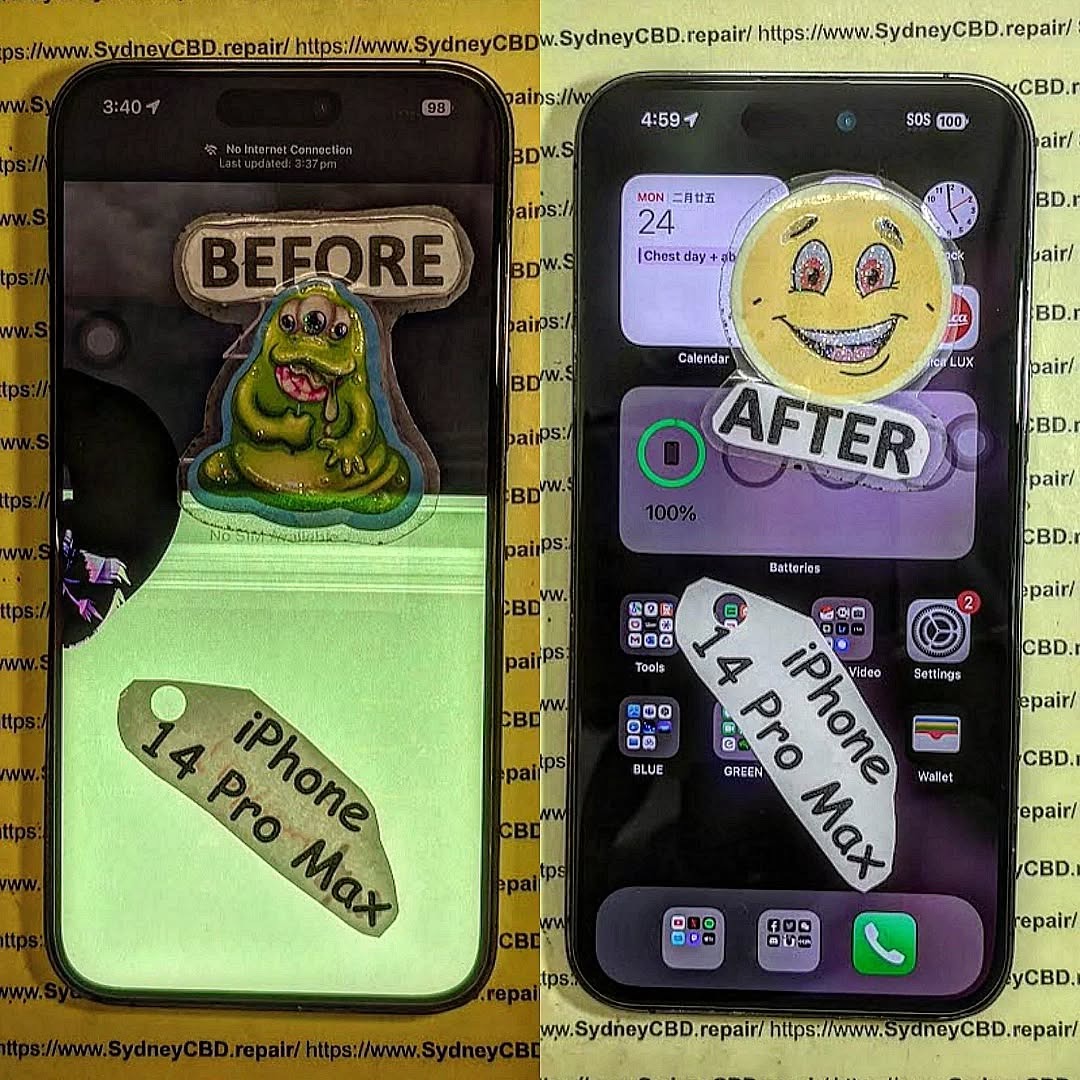
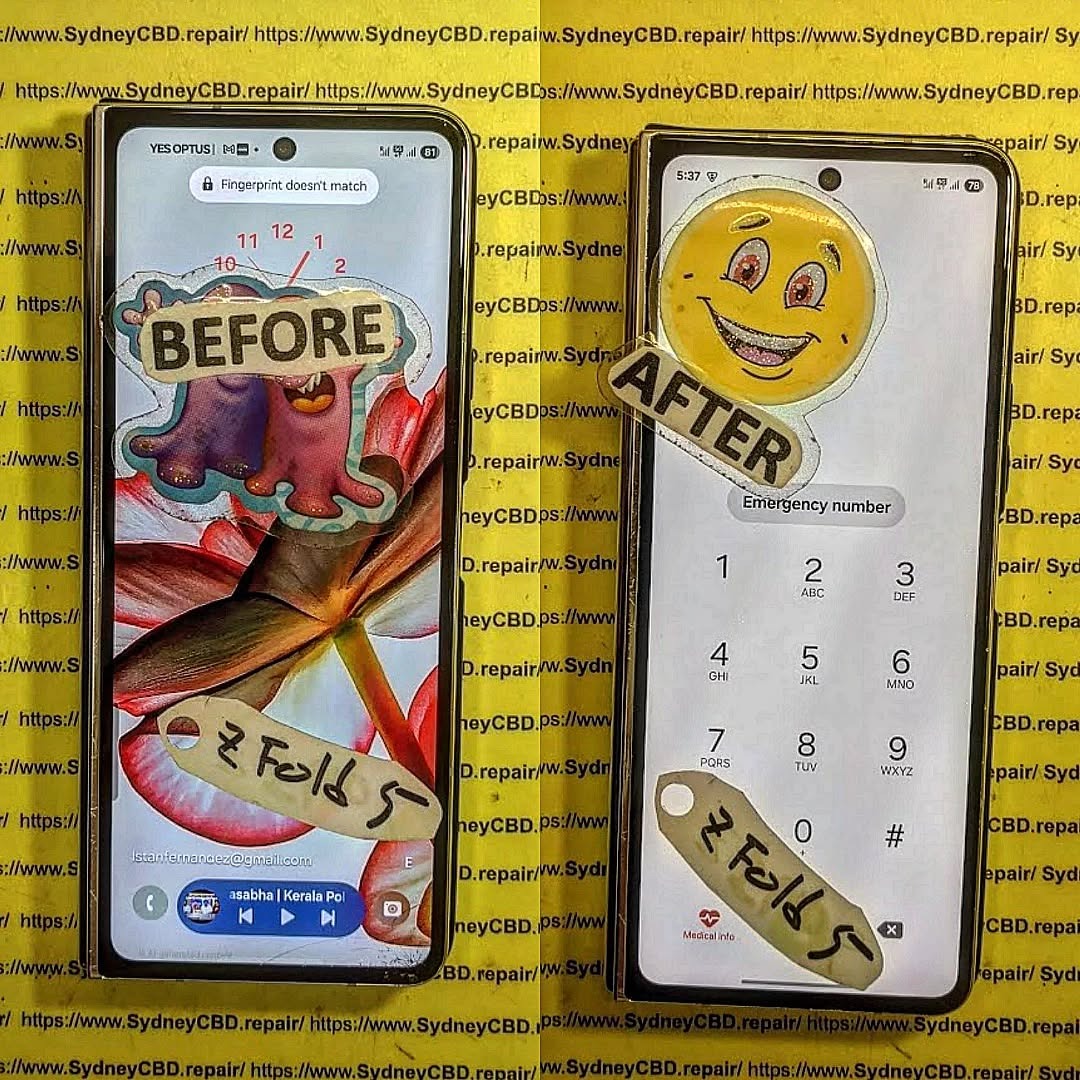
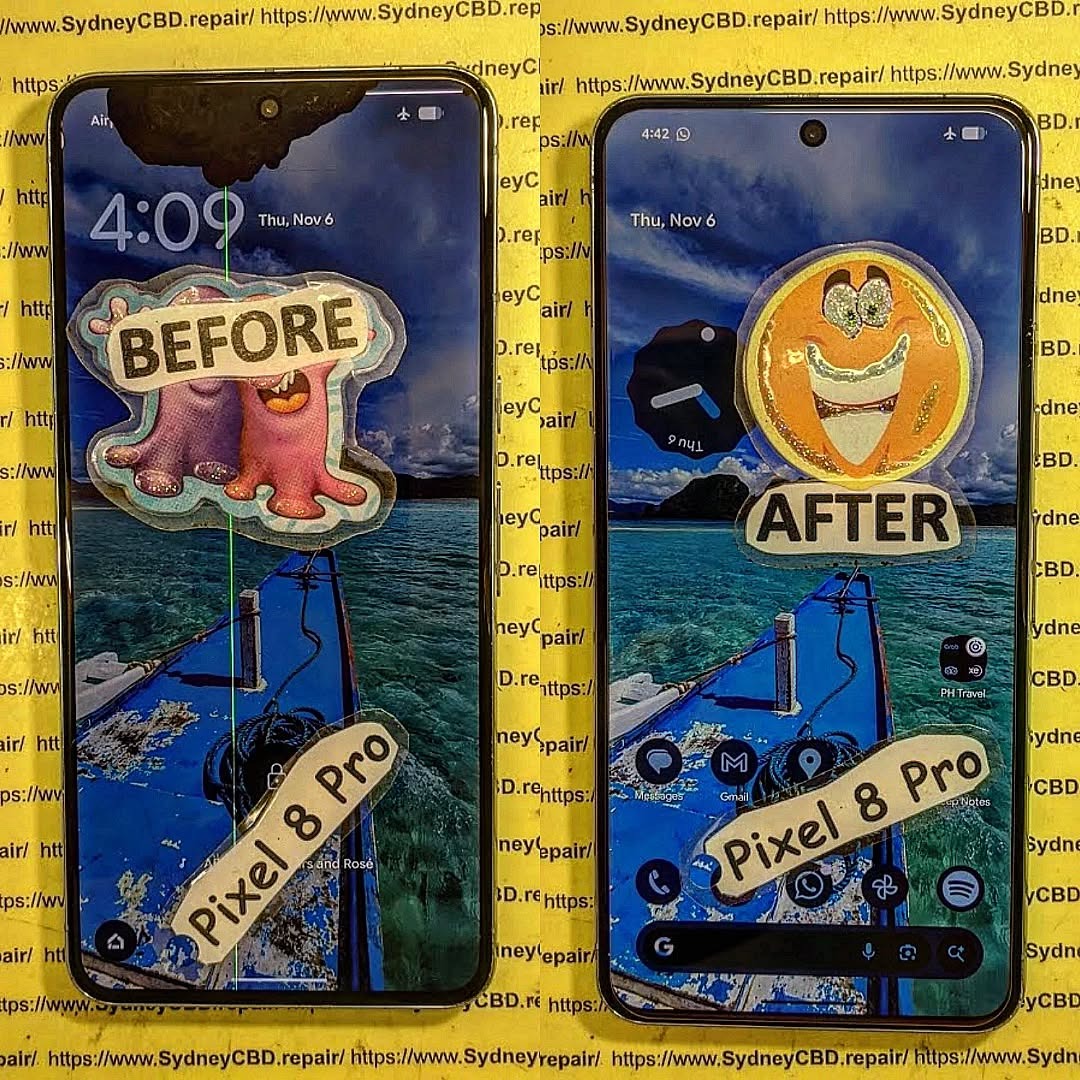
Repair #1: Cracked Phone Screen Fix
Signs Your Screen Needs Replacement
Visible cracks or shattered glass
Unresponsive touch screen
Black spots or lines on display
Step-by-Step Guide to Screen Replacement
Power off your phone completely.
Heat the edges to soften the adhesive.
Use suction cups and pry tools to lift the glass carefully.
Disconnect display cables inside the device.
Install the new screen, reconnect the cables, and secure it back with adhesive.
Mistakes to Avoid During Screen Repair
Applying too much heat, which can damage internal components
Using low-quality replacement screens that break easily
Forgetting to test the screen before sealing the phone back up
Repair #2: Battery Replacement
When to Replace Your Battery
Your phone battery may need replacing if:
It drains too fast
It swells or bulges
It only charges up to a certain percentage
Step-by-Step Battery Swap Guide
Power off your device.
Remove the back cover or screen (depending on design).
Disconnect the old battery connector.
Use isopropyl alcohol or adhesive remover to loosen glue under the battery.
Insert and connect the new battery.
Extending the Lifespan of Your New Battery
Avoid overcharging overnight
Keep your phone away from extreme heat
Use original chargers
Repair #3: Charging Port Repair
Diagnosing Charging Port Problems
Charger wiggles loosely inside
Phone only charges at certain angles
No charging at all despite working cable
How to Clean and Replace Charging Ports
Use a toothpick or compressed air to remove dust and lint.
If cleaning doesn’t work, carefully desolder the old port (for advanced users) and replace it with a new one.
Preventing Future Charging Issues
Keep your phone away from moisture
Avoid using cheap, loose-fitting charging cables
Regularly clean the port
Repair #4: Power and Volume Button Fix
Symptoms of Button Malfunction
Buttons feel stuck or unresponsive
Power button doesn’t wake the device
Volume buttons trigger the wrong response
DIY Guide for Button Repairs
Open the phone carefully.
Locate the button flex cable.
If debris is blocking it, clean with isopropyl alcohol.
If the cable is damaged, replace it with a compatible flex cable.
When to Seek Professional Help
If your phone is water-damaged or the button is integrated into the motherboard, professional repair is recommended.
Repair #5: Speaker and Microphone Cleaning
Identifying Audio Problems
Muffled sound during calls
Distorted music playback
People can’t hear you on calls
Cleaning vs. Replacing Components
Use a soft brush or compressed air to clean dust.
For deeper clogs, a tiny needle can carefully scrape debris.
If audio still doesn’t improve, replace the speaker or mic component.
Boosting Audio Quality with Simple Fixes
Keep your phone in a clean case
Avoid using it in dusty or wet environments
Perform regular cleanups every few months
FAQs: Everything You Need to Know About DIY Phone Repairs
1. Is it safe to repair my phone at home?
Yes, but only if you use proper tools, genuine parts, and follow instructions carefully.
2. Will DIY phone repair void my warranty?
Most likely yes, if your phone is still under official warranty.
3. Where can I buy genuine replacement parts?
Trusted online stores like iFixit or official brand outlets. Avoid cheap knockoffs on random sites.
4. How long does a DIY repair usually take?
Most repairs, like battery or screen replacements, take 30–90 minutes for beginners.
5. What’s the hardest repair to do at home?
Motherboard-level repairs (like IC replacements) should never be attempted by beginners.
6. Should I always choose DIY over professional repairs?
Not always. DIY is best for small fixes. For complex or expensive devices, it’s often safer to go professional.
Conclusion: Should You DIY or Go Pro?
DIY phone repairs are empowering, cost-effective, and environmentally friendly. With the right tools and patience, you can easily fix cracked screens, replace batteries, clean charging ports, repair buttons, and restore speakers. However, if you’re dealing with water damage, motherboard issues, or new flagship models, professional repair services remain the smarter choice.
And if you’re in Sydney, the most reliable place to get professional repairs is right here:
About Sydney CBD Repair Centre
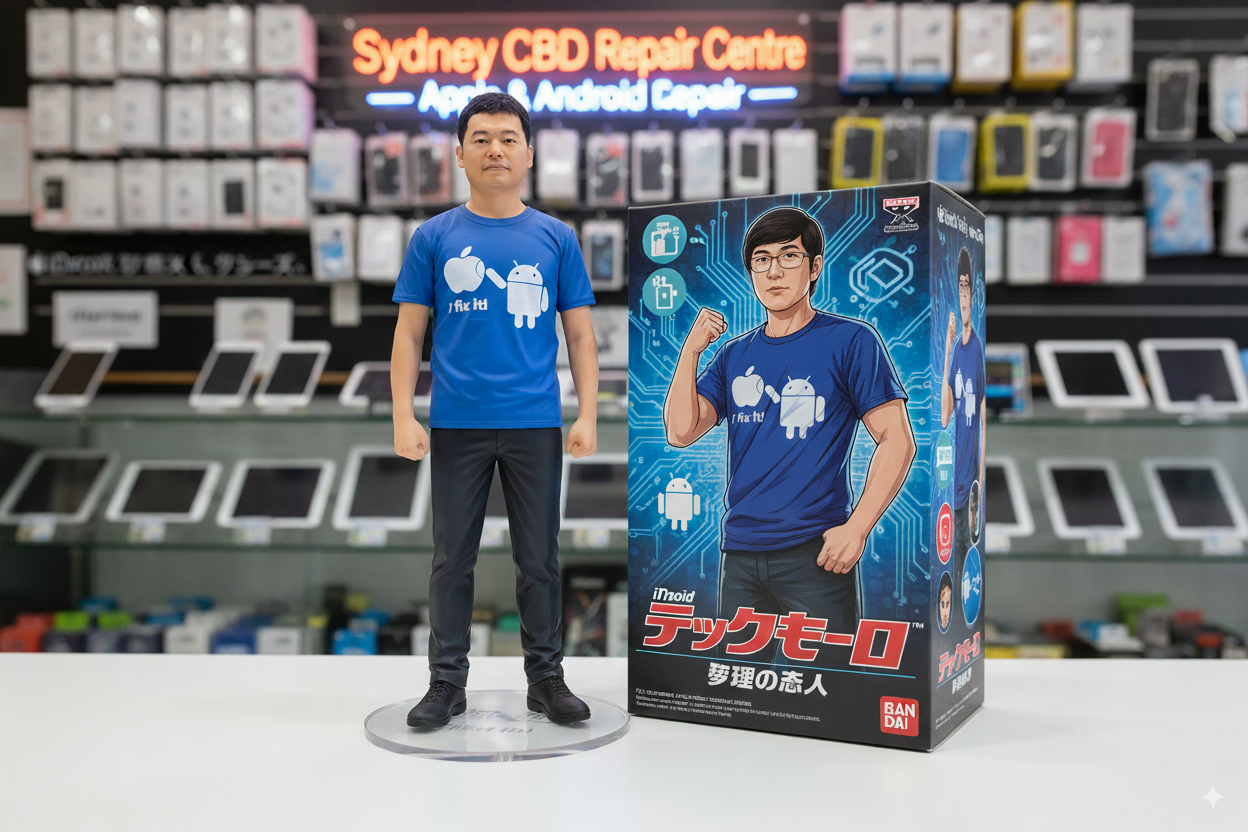
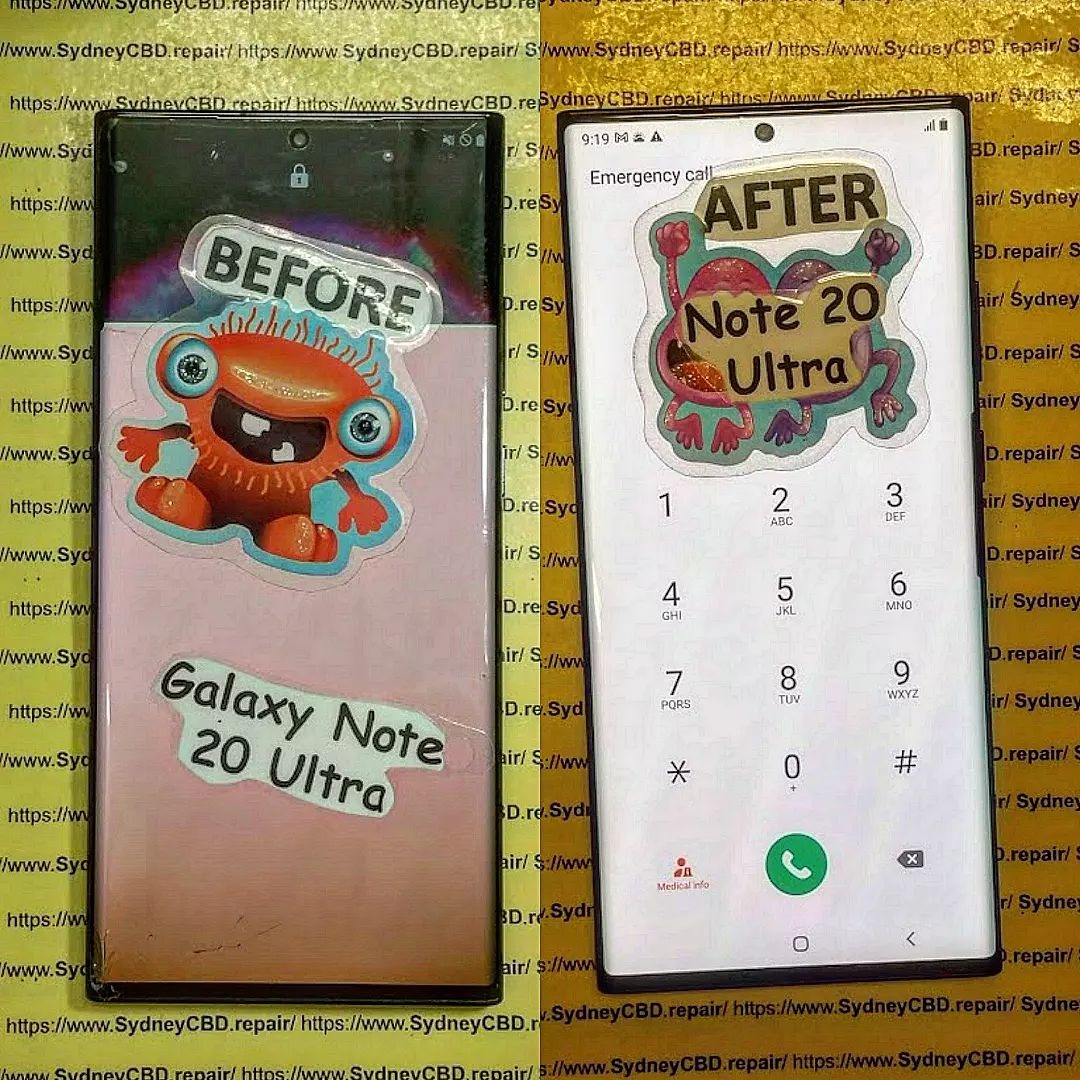
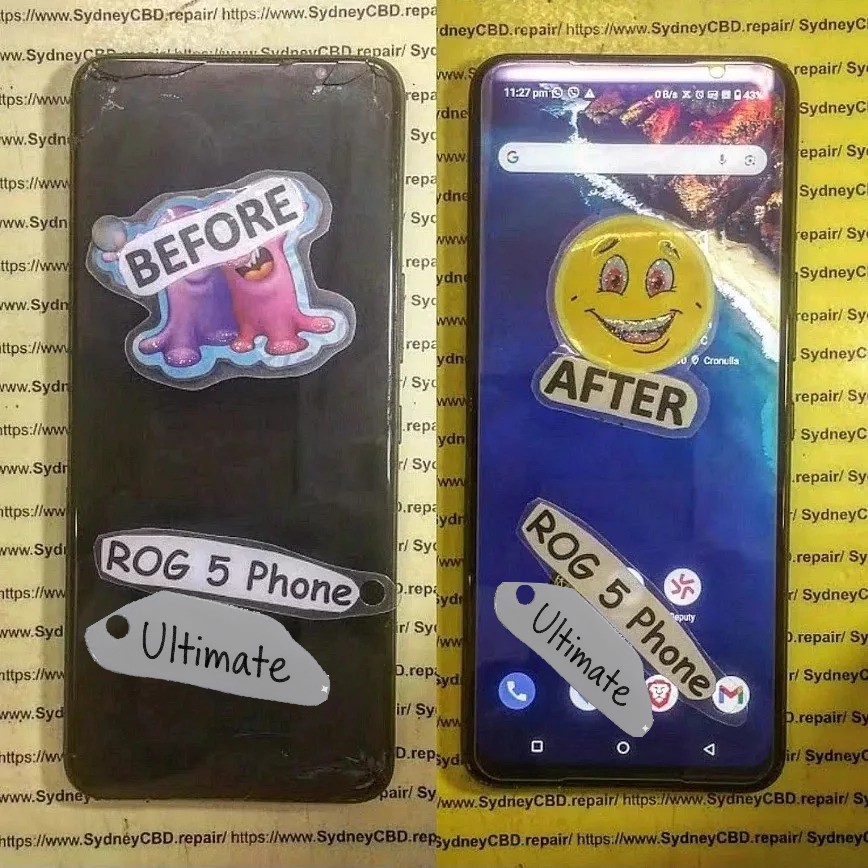
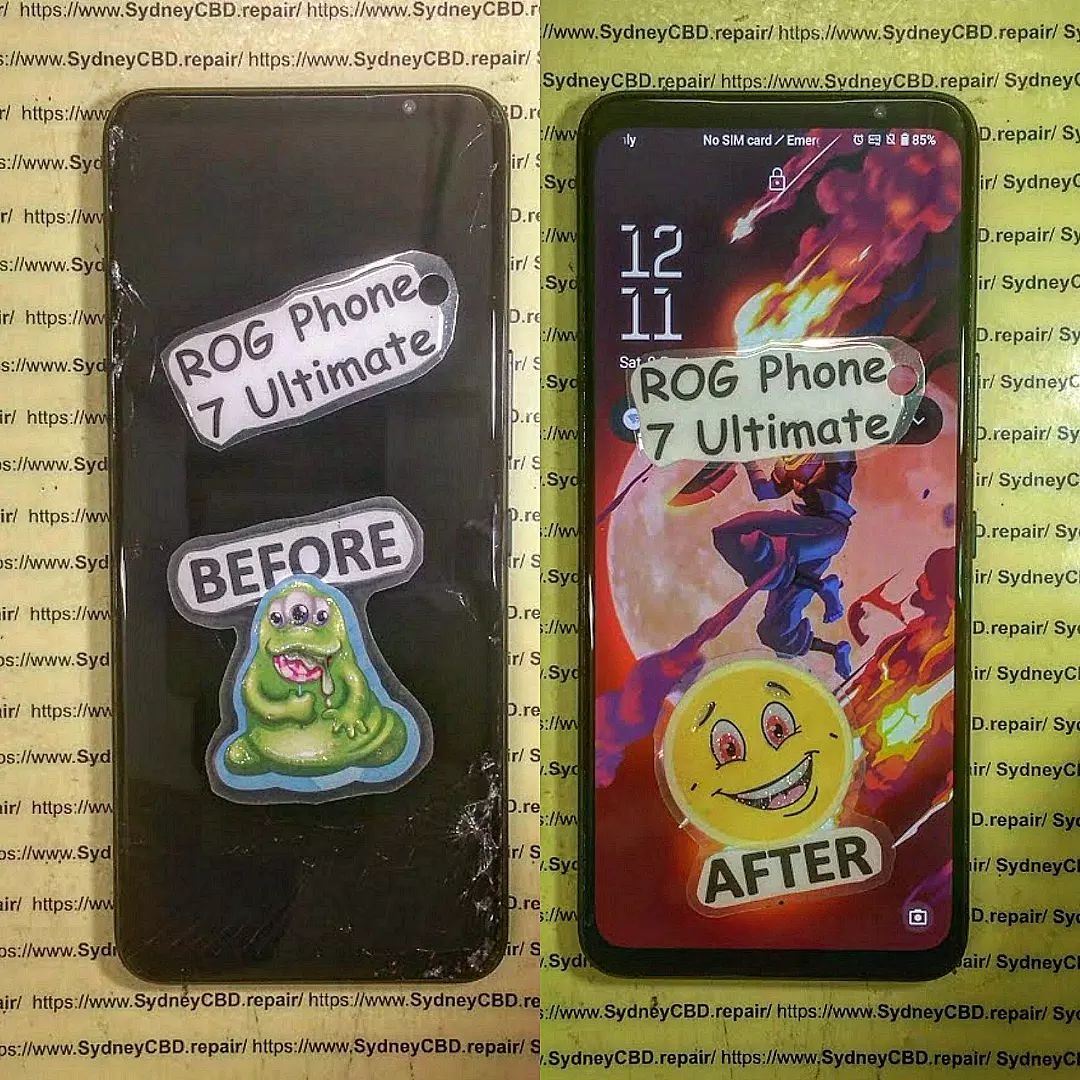
David from Sydney CBD Repair Centre – The Best place to fix mobile phones as 6 Years In A Row! Top Mobile Phone Repair In Sydney. More than 2000 Positive Reviews on Google and same-day repairs.
We pride ourselves on delivering expert services for Apple, Samsung, Google, and other major brands. Using only genuine parts, we back every repair with a 90-day warranty.
✓ Same Day Express Repairs
✓ Genuine Parts Guarantee
✓ Professional Technicians
✓ Competitive Pricing
✓ 2000+ 5-Star Google Reviews
✓ 6-Time Award Winner for Best Phone Repairs
Sydney CBD Repair Centre – Where Quality Meets Reliability.
The Best Tools and Techniques for Phone Screen Repair – Top 15 Expert Tips for Flawless Results
📱 Introduction
Cracked or shattered phone screens are an unfortunate reality in today’s smartphone world. But whether you’re an aspiring DIYer or a technician, the tools and techniques you use can make or break the repair. In this guide, we’ll explore the best tools and professional tips to ensure your phone screen replacement is a success.
Here are the core tools every screen repair should include:
✅ Precision Screwdriver Set
Modern smartphones use tiny screws like pentalobe, tri-point, and Phillips #000. A quality screwdriver kit allows you to open the device without stripping screws.
✅ Plastic Pry Tools and Spudgers
These non-metal tools help you separate the screen from the frame without damaging internal components.
✅ Suction Cup Tool
Used to gently lift the screen after loosening adhesive. This is especially helpful for iPhones and Samsung models.
✅ Heat Gun or Hair Dryer
Softens adhesive holding the screen in place. A temperature-controlled heat gun is safer for delicate devices.
✅ ESD-Safe Tweezers
Great for handling small components like display cables and connectors without static damage.
✅ Anti-Static Wrist Strap
Protects sensitive internal circuits from electrostatic discharge during the repair process.
✅ Magnetic Work Mat
Keeps screws and components organized, which is essential when reassembling the phone.
✅ Replacement Adhesive Strips
Used to reattach the screen securely and ensure dust/water resistance is maintained.
🧪 Advanced Tools for Professionals
At Sydney CBD Repair Centre, we use state-of-the-art equipment to perform safe and efficient repairs.
🔥 Laser Separator Machine
Used to separate glass from OLED displays without damaging delicate layers—ideal for high-end devices.
🌀 OLED Laminating Machine
Rebonds replacement glass and digitizer to the OLED for a factory-level finish.
📲 Choosing the Right Replacement Screen
Whether you’re using an OEM or high-grade aftermarket screen, compatibility and quality are non-negotiables.
Pro Tip: Always check your phone’s model number and screen technology (LCD vs OLED) before ordering.
🔍 Key Techniques for Safe and Clean Removal
Power off the device before starting.
Use a heat gun to soften the adhesive.
Apply gentle prying motion with a plastic spudger.
Use a suction cup for clean lifting—never use sharp force.
Disconnect battery before removing display connectors.
🧩 Tips for Installing the New Screen Correctly
Test the new screen before sealing the phone back up.
Apply even pressure while connecting ribbon cables.
Use precise adhesive placement for dust resistance.
Avoid over-tightening screws—this can crack new glass.
⚠️ Common Mistakes to Avoid During Repairs
Using metal tools inside the phone
Skipping heat application before prying
Not organizing screws properly
Touching screen internals with bare fingers
Reusing old adhesives
🧑🔧 Should You Attempt DIY or Go to a Pro?
Factor
DIY
Professional
Cost
Lower
Higher
Risk
High
Low
Quality
Variable
Guaranteed
Time
2–4 hrs
30–60 mins
Tools Needed
Yes
No
Warranty
No
Yes (e.g. 90 days at Sydney CBD Repair Centre)
🛡 Safety Precautions to Follow
Wear an anti-static strap
Always power off the phone
Don’t work on a carpeted surface
Keep liquids and magnets away
Watch out for battery punctures
🧠 Professional Tips from Sydney CBD Repair Centre
“We’ve repaired thousands of screens over the past decade. Our advice? Don’t compromise on tools. Cheap kits lead to costly damage. We only use OEM-quality parts, and every repair is backed by our 90-day warranty.”
— David, Head Technician, Sydney CBD Repair Centre
❓ FAQs
1. Can I repair a screen with household tools?
No. Using improper tools like kitchen knives or screwdrivers can severely damage your phone.
2. Is a heat gun necessary?
Yes, especially for iPhones and newer Androids. It helps loosen adhesive without cracking the display.
3. How long does screen replacement take?
DIY can take hours. Professionals like Sydney CBD Repair Centre finish most repairs in under an hour.
4. Are aftermarket tools safe to use?
If purchased from a reputable source, yes. However, cheap kits often break easily and can damage your phone.
5. Do I need adhesive strips to reattach the screen?
Absolutely. Using glue or tape instead can lead to dust ingress and screen separation.
6. Where can I find professional repair help in Sydney?
Screen repair is more than just swapping glass—it’s a technical process requiring precision, the right tools, and a deep understanding of phone internals. Whether you’re a DIY enthusiast or prefer professional help, investing in proper tools or expert service is key to a lasting repair.
📞 Call to Action – Trust Sydney CBD Repair Centre
Don’t risk your phone with untrained hands or cheap tools.
📍 Sydney CBD Repair Centre – Where Quality Meets Reliability
🛠️ Same Day Repairs | 90-Day Warranty | OEM Parts
🌟 2000+ 5-Star Google Reviews | 6-Time Award Winner
How to Find the Right Replacement Screen for Your Phone – The Ultimate 17-Step Guide to Saving Money & Stress
🧭 Introduction
If you’ve cracked your phone screen—or worse, shattered it—you know how frustrating and inconvenient it can be. But not all screen replacements are created equal. Whether you want to DIY or visit a professional like Sydney CBD Repair Centre, this guide will help you choose the right replacement screen while saving money, time, and headaches.
Your screen is the face of your phone. A poor-quality replacement can lead to:
Touchscreen lag
Colour distortion
Decreased brightness
Poor durability
That’s why choosing the correct screen is crucial for long-term performance and usability. You want to get as close to the original quality as possible—without paying a premium unnecessarily.
Understanding the types of screens available will help you make the best decision for your device and usage.
LCD Screens
Liquid Crystal Display (LCD) is common in budget and mid-range phones. It provides decent brightness and color but is less vibrant compared to newer tech.
Pros:
Affordable
Readable in sunlight
Cons:
Lower contrast
Less battery efficient
OLED Screens
Organic Light-Emitting Diode (OLED) screens are self-lighting and offer vibrant colors with deep blacks. Common in flagship phones like iPhones and Samsung Galaxy models.
Pros:
Better contrast and brightness
More energy-efficient
Cons:
Expensive
More delicate
AMOLED Screens
A more advanced OLED version found in high-end Samsung and OnePlus phones.
Pros:
True blacks
Thin and flexible
Faster response time
Cons:
Costlier
Risk of burn-in
⚠️ Signs Your Screen Needs Replacing
If you notice any of the following, it might be time for a screen replacement:
Cracks or chips
Touchscreen unresponsiveness
Ghost touches
Discoloration
Flickering or lines
🏷 OEM vs Aftermarket Screens
OEM (Original Equipment Manufacturer) screens are made by the same company that made your phone’s original screen.
Aftermarket screens are third-party alternatives.
Feature
OEM Screen
Aftermarket Screen
Quality
High
Varies
Price
High
Low to Medium
Compatibility
Guaranteed
Might have fit issues
Availability
Limited
Widely Available
If you’re not on a tight budget, go for OEM. Otherwise, research reputable aftermarket brands or trust a professional repair service like Sydney CBD Repair Centre.
🛍 Where to Buy Replacement Screens
Authorized Retailers
These vendors offer genuine parts and often provide warranties. Great for peace of mind, but expect higher prices.
Online Marketplaces
Amazon, eBay, AliExpress—you’ll find everything, but beware of fakes. Check reviews and ratings before purchase.
Local Repair Shops
Shops like Sydney CBD Repair Centre offer walk-in service, verified genuine parts, and same-day repairs.
🔎 How to Identify Your Phone’s Model and Screen Type
Check your phone’s settings or backplate. Common ways:
Settings > About Phone
IMEI Lookup tools
Manufacturer’s website
Physically inspecting model number
This step ensures you get a compatible screen.
❌ Common Mistakes to Avoid
Buying the wrong screen type
Ignoring touch sensitivity ratings
Choosing lowest-price option blindly
Skipping compatibility checks
Using poor-quality tools
🧰 Tools You’ll Need for Screen Replacement
If you go DIY, make sure you have:
Screwdriver kit
Pry tools
Suction cup
Heat gun or hairdryer
ESD-safe gloves
Quality tools reduce the risk of damage during installation.
🧑🔧 DIY vs Professional Screen Replacement
Choosing between doing it yourself and hiring a professional depends on your skills, budget, and tolerance for risk.
DIY Screen Replacement
DIY might seem appealing, especially for the tech-savvy. You can find numerous tutorials online, and kits are available for most phone models.
Pros:
Cheaper (initially)
Good learning experience
Can be done at your convenience
Cons:
Risk of damaging internal components
Voids manufacturer warranty
Time-consuming
No quality guarantee
DIY is ideal only if you have prior experience or if the phone is old and not worth the cost of professional repair.
Professional Screen Replacement
Professional repair centers like Sydney CBD Repair Centre offer expertise, speed, and reliability.
Pros:
Done by trained technicians
Use of high-quality or OEM parts
Repairs done within the same day
Covered under a warranty (e.g., 90 days at Sydney CBD Repair Centre)
Zero risk of causing more damage
Cons:
More expensive than DIY
You might need to leave your phone for a few hours
If you value peace of mind and time efficiency, going pro is the way to go.
💰 Cost Comparison: DIY vs Professional Services
Cost Factor
DIY
Professional
Screen
$30 – $150
$100 – $400
Tools
$15 – $50 (if not already owned)
Included
Time
2–4 hours
30 mins – 1 hour
Risk
High (if inexperienced)
Low
Warranty
None
Yes (e.g., 90 days at Sydney CBD Repair Centre)
Bottom Line: DIY might save you money upfront, but professional repairs give you long-term value and confidence in your device’s performance.
🧑⚖️ What to Look for in a Repair Service Provider
Not all phone repair shops are equal. When selecting a provider, keep these key factors in mind:
Experience: Look for providers with a proven track record. Sydney CBD Repair Centre has been voted top repairer 6 years in a row.
Parts: Only use shops that install genuine or high-grade OEM screens.
Warranty: A 90-day warranty is ideal—it shows the shop stands by their work.
Reviews: Thousands of positive reviews (like Sydney CBD’s 2000+ 5-star reviews) are a strong trust signal.
Speed: Same-day repairs are a massive plus, especially for working professionals.
✅ Warranty and Quality Assurance
Always ask about:
Part warranties (minimum 30–90 days)
Service warranties
Return or re-repair policies
Shops like Sydney CBD Repair Centre provide peace of mind with a 90-day warranty and same-day repair, so you don’t have to worry.
🌱 Environmental Impact of Screen Replacements
Replacing your phone screen instead of buying a new device is eco-friendly. It reduces e-waste and the need for new raw materials.
To be extra responsible:
Ask your repair shop if they recycle old screens
Choose local repair options to reduce shipping emissions
Support businesses using sustainable practices
🔒 How to Extend the Life of Your New Screen
Here are some practical tips to protect your investment:
Install a tempered glass protector
Use a shockproof phone case
Avoid putting your phone in the same pocket as keys or coins
Clean your screen with microfiber cloths only
Don’t overheat your phone
Preventative care means fewer future repairs—and more savings.
❓ Frequently Asked Questions (FAQs)
1. Can I replace my phone screen myself?
Yes, but it requires the right tools, patience, and confidence. It’s best for older models or if you have prior experience.
2. Is it worth repairing a cracked screen?
Absolutely—especially if the device is still under contract or has good performance. Replacing the screen is far cheaper than buying a new phone.
3. How long does professional screen replacement take?
Most services take 30 minutes to 1 hour, especially if you choose Sydney CBD Repair Centre, which offers same-day express repairs.
4. What’s the difference between OEM and aftermarket screens?
OEM screens are original, while aftermarket ones vary in quality. Reputable shops often use high-grade aftermarket parts if OEMs aren’t available.
5. Do repaired screens affect touch sensitivity or display quality?
If done correctly with high-quality parts, there should be no difference in touch or display performance.
6. Where’s the best place to get my screen replaced in Sydney?
Sydney CBD Repair Centre – with over 2000 5-star Google reviews, genuine parts, and express same-day service.
🏁 Conclusion: Make the Smart Screen Choice
Your phone screen is more than glass—it’s your gateway to communication, productivity, and entertainment. Choosing the right replacement involves understanding screen types, knowing where to buy, and recognizing the value of expert repair services.
If you’re in Sydney, don’t risk DIY mistakes or dodgy shops. Visit Sydney CBD Repair Centre, where quality meets reliability.
📞 Call to Action – Trust Sydney CBD Repair Centre
Sydney CBD Repair Centre
🔧 Over 2000+ 5-Star Google Reviews
🏆 6-Time Award Winner for Best Phone Repairs
📍 Located in the heart of Sydney
🛠 Same Day Repairs | Genuine Parts | 90-Day Warranty
The OnePlus 13 is an impressive smartphone, packed with high-end specs and a gorgeous AMOLED display. But like any other flagship device, it’s not immune to accidental drops and screen cracks. If you’re stuck with a shattered display, don’t panic! This OnePlus 13 screen replacement tutorial will walk you through the process in 7 simple steps, helping you decide whether to DIY or opt for expert repair.
Whether you’re confident with tools or considering Sydney CBD Repair Centre’s same-day service, we’ve got you covered.
Follow these 7 steps carefully for a successful replacement. If you’re unsure about any step, seeking professional help is always a safe bet.
Step 1: Power Down and Remove SIM Tray
Start by turning off your device completely. Then, remove the SIM tray to avoid damage during the disassembly.
Step 2: Loosen Adhesive Using Heat
Apply moderate heat around the edges using a heat gun or hair dryer for about 2–3 minutes. This softens the adhesive holding the back panel in place.
Step 3: Carefully Pry Open the Back Panel
Use a plastic pry tool and suction cup to lift the back cover. Gently slide the tool around the edges to release the adhesive. Take your time—this step is delicate.
Step 4: Disconnect Battery and Display Connectors
After opening the back, use a spudger to disconnect the battery, then carefully unplug the display connector. This ensures there’s no power flowing while you work.
Step 5: Remove the Broken Screen
Heat the front of the device to soften the screen adhesive. Use the suction cup to gently lift the screen while sliding a pry tool underneath. Detach the screen carefully.
Step 6: Install the New Screen
Align the replacement screen and connect the display cable. Test the display before sealing the device completely to ensure everything functions.
Step 7: Reassemble and Test
Reconnect the battery, reattach the back panel, and power up the phone. Test all functions—touch response, brightness, and display clarity.
DIY vs Professional Repair: Which Should You Choose?
Factor
DIY
Professional Repair
Cost
Lower (parts only)
Higher (labor + parts)
Risk
High
Low
Time
1–2 hours (if experienced)
30–60 minutes
Tools
Must own or buy
Included in service
Warranty
None (unless self-sourced)
90-day guarantee at Sydney CBD Repair Centre
If you’re confident in your skills, DIY can save money. Otherwise, let the pros handle it.
Common Mistakes to Avoid During Screen Replacement
Skipping power-down before disassembly
Using metal tools that can damage internal components
Forgetting to disconnect the battery
Rushing adhesive removal
Not testing the new screen before sealing the phone
These errors can turn a simple repair into a costly disaster.
How Much Does OnePlus 13 Screen Replacement Cost in Sydney?
The cost varies depending on whether you choose a third-party repair or official service. Here’s a general breakdown:
DIY Replacement Kit: AUD $180 – $250
Third-Party Repair (Sydney CBD Repair Centre): Starting at AUD $289
Official OnePlus Service: AUD $350 – $450 (may include longer wait times)
Note: Prices may vary depending on part availability and model specifications.
Tips to Extend the Life of Your New Screen
Always use a high-quality screen protector
Install a durable shock-proof case
Avoid exposing your phone to moisture or heat
Be mindful when placing your phone in pockets or bags with keys
Don’t ignore minor cracks—they worsen over time
Why Choose Sydney CBD Repair Centre for OnePlus 13 Repairs?
David and the expert team at Sydney CBD Repair Centre have built a reputation for excellence:
✅ Over 2000 Five-Star Google Reviews
✅ Same-Day Screen Replacement Service
✅ Only Genuine OEM OnePlus Parts
✅ Affordable Pricing with 90-Day Warranty
✅ Located conveniently in the heart of Sydney CBD
✅ 6-Time Award-Winner for Best Mobile Phone Repairs in Sydney
Cracked screens are frustrating—but they don’t have to be the end of your OnePlus 13. With this comprehensive guide, you can either take the DIY route or trust the experienced hands at Sydney CBD Repair Centre. We promise fast, reliable, and affordable repairs with guaranteed genuine parts. Don’t wait—give your OnePlus 13 the care it deserves.
Cracked your screen? Battery dying too fast? It’s tempting to turn to YouTube tutorials and give DIY phone repair a go. But is it really that simple—or even safe?
In this article, we break down the pros and cons of fixing your own phone, explore which repairs are doable at home, and explain when it’s smarter to visit a trusted repair professional like Sydney CBD Repair Centre.
What seems like a budget-friendly option can end up more expensive:
Item
Estimated Cost
Tools (basic kit)
$50–$100
Replacement screen
$80–$200
Shipping delays (online parts)
Varies
Extra parts due to mistakes
$50+
Time invested
2–5 hours
Professional repair after failure
$100–$300
Suddenly, that “cheap DIY fix” doesn’t look so cheap anymore.
📞 When It’s Better to Call the Pros
DIY may work if:
You’re fixing older phones
You’re technically experienced
You’re okay risking the device
But professional help is a must if:
You use the phone for work
It’s under warranty
You have newer models (Face ID, Foldables, etc.)
The issue involves internal components
🏆 What Sets Sydney CBD Repair Centre Apart
Why risk your phone when you can have it fixed:
By certified experts
Using genuine parts
With a 90-day repair warranty
In as little as 1–2 hours
Sydney CBD Repair Centre has been voted Top Mobile Phone Repair in Sydney for 6 years running. We’ve repaired thousands of Apple, Samsung, and Google devices with over 2000 5-star Google reviews.
No, but doing so can void your warranty or damage your device if done improperly.
2. Can I fix my phone with household tools?
Unlikely. Precision tools are essential to avoid internal damage.
3. Will Apple or Samsung still service my phone after a DIY repair?
Not always. If you’ve used non-OEM parts or damaged internal components, they may refuse future support.
4. Is DIY repair ever worth it?
If you’re confident, have the tools, and the phone is out of warranty—it might be. Otherwise, it’s risky.
5. Can I sell a phone I’ve repaired myself?
Yes, but buyers may ask for proof of quality parts or question the repair’s reliability.
6. What’s the safest DIY repair I can try?
Battery swaps on older models and port cleaning are relatively low-risk.
✅ Conclusion
DIY phone repair is possible—but it’s not for everyone. Between fragile parts, hidden risks, and long-term damage, it’s often safer (and smarter) to trust the experts.
Need professional help fast? Visit Sydney CBD Repair Centre and experience the difference.
DIY Phone Repair: Replacing Only the LCD Screen – What You Need to Know Before You Begin
📱 Introduction
Got a blank screen but an otherwise working phone? If your touchscreen doesn’t display anything or shows weird colours, you may be dealing with a damaged LCD. While full screen replacements are common, some DIYers wonder: “Can I replace just the LCD?”
In this guide, we’ll break down DIY phone repair focused on replacing only the LCD screen. You’ll learn the process, the tools required, and the risks—plus when it’s better to visit professionals like Sydney CBD Repair Centre.
🧠 What is the LCD Screen and Why Replace Only It?
Understanding Phone Display Layers
Most smartphones have three display components:
Glass (Digitizer): The outermost layer you touch
Touch Sensor: Detects finger movement
LCD (or OLED): Displays images, colours, and brightness
If the LCD is damaged but the glass and touch still work, you may be able to replace just the LCD panel.
Many older or mid-range phones (especially LCD-based models) allow for separate replacements.
When Full Screen Replacement is Better
Modern phones (especially iPhones, Samsung AMOLED, or flagship models) use a fused screen assembly. Trying to separate layers often causes more damage. In such cases, it’s safer—and often more cost-effective—to replace the entire screen unit.
🧰 Tools & Materials You’ll Need
Replacement LCD panel (specific to your phone model)
Precision screwdriver set
Plastic pry tools / spudger
Heat gun or hairdryer (for softening adhesive)
Suction cup (to lift screen)
Tweezers
Anti-static wrist strap (recommended)
Microfiber cloth and isopropyl alcohol
Magnetic mat (optional but helpful)
🛠️ Step-by-Step Guide to Replacing the LCD Screen
⚠️ Note: Proceed only if you’re confident and the LCD is not fused. This process varies depending on your phone model.
1. Power Off and Disassemble the Device
Turn off the phone
Remove SIM tray and screws (usually near charging port)
Use a suction cup and pry tool to separate the screen from the frame
Be cautious of fingerprint sensors or ribbon cables
2. Remove the Broken LCD
Carefully detach ribbon connectors using a spudger
Remove any shielding plates or adhesive layers
Gently lift out the damaged LCD panel
3. Install the New LCD Panel
Align the new LCD properly
Reconnect ribbon cables
Secure it back into the frame
Apply new adhesive (if needed)
4. Reassemble and Test the Phone
Put everything back together
Power on the device
Test the display, touch, brightness, and screen responsiveness
⚖️ Pros and Cons of DIY LCD Replacement
✅ Pros:
Lower upfront cost (just parts and tools)
Learn a new skill
Can be done at home (if confident)
❌ Cons:
High risk of permanent damage
No warranty
May void manufacturer or insurance cover
Complex for modern smartphones with fused displays
⚠️ Common Mistakes and How to Avoid Them
Mistake
How to Avoid It
Damaging internal components
Use plastic tools and work gently
Choosing the wrong screen
Double-check model number
Forgetting to disconnect battery
Always remove power first
Skipping re-adhesion
Use new adhesive to avoid loose fit
Not testing before reassembly
Power on to test before closing the phone
👨🔧 When to Call a Professional Instead
You’re not comfortable handling electronics
Your screen is glued or fused
Your phone has multiple issues (e.g., battery, motherboard)
You want a warranty-backed repair
In these cases, save yourself the stress and visit an expert like Sydney CBD Repair Centre.
🌟 Why Sydney CBD Repair Centre is the Smart Alternative
1. Is it really possible to replace only the LCD screen?
Yes—but only if the screen is not fused. Most modern phones use fused assemblies, so this is usually an option for older or budget models.
2. How do I know if my LCD is fused?
Search your phone model online or consult a technician. You can also check teardown videos to confirm.
3. Will replacing only the LCD affect phone performance?
If done correctly with a compatible part, no. But improper installation can cause ghost touch or brightness issues.
4. Is it cheaper to replace only the LCD?
Yes, but it’s harder to do, and not always possible. Whole screen assemblies are often more practical.
5. Can I damage my phone during DIY repair?
Absolutely. Incorrect tools or too much pressure can damage the logic board, battery, or other internal components.
6. Do you offer LCD-only replacement at Sydney CBD Repair Centre?
We always inspect devices first. If only the LCD needs replacing and it’s not fused, we’ll perform the most cost-effective and safest repair.
✅ Conclusion
Replacing just the LCD screen on your phone can be a rewarding DIY project—but it’s not without risks. If your device allows separate LCD replacement and you’re confident in your skills, it may save money. But if you’re unsure, or using a flagship model, professional repair is the best route.
At Sydney CBD Repair Centre, we ensure your device gets top-tier service, fast turnaround, and peace of mind through genuine parts and warranty. Don’t take chances—get it done right the first time.
✅ Introduction: The Power of DIY Smartphone Repair
In a world where smartphones are essential, even a minor issue can throw your whole day off. But here’s the good news: you don’t always need to rush to a technician for a fix. Many common smartphone problems can be solved right at home with the right tools, guidance, and patience.
Whether your phone’s screen is cracked, the battery is draining faster than ever, or your apps are constantly crashing, this comprehensive DIY repair tutorial will walk you through every major issue—and help you decide when it’s time to get expert help.
Let’s dive into 15 of the most frequent smartphone issues, learn how to troubleshoot them like a pro, and take control of your mobile life again.
Cracked screens are the most common smartphone repair issue worldwide. Whether it’s a minor scratch or a full spiderweb across your screen, dealing with screen damage promptly is crucial—not only for aesthetics but also to prevent internal component damage and injury.
⚠️ Safety First: Handling Broken Glass
Before attempting any repair, make sure to protect yourself:
Turn off the device to avoid short-circuiting.
Use gloves to prevent cuts from shards of glass.
Apply packing tape or a screen protector over the cracks if you’re delaying the repair.
🧰 Tools Needed for Screen Replacement
You’ll need a few essentials:
A heat gun or hairdryer (to loosen adhesive)
Plastic spudger or opening tools
Small Phillips and pentalobe screwdrivers
Suction cup
Replacement screen (make sure it’s compatible with your exact model)
ESD-safe tweezers and gloves
Pro Tip: Always opt for genuine parts to avoid touchscreen sensitivity issues and compatibility errors.
🛠 Step-by-Step DIY Screen Replacement
Follow these general steps. Exact procedures vary by model (e.g., iPhones differ from Samsungs), so check a model-specific video tutorial first.
Power off your phone.
Heat the screen edges gently with a heat gun.
Use a suction cup to lift the screen, then slide a plastic spudger around the edge to loosen the adhesive.
Disconnect battery cable first after removing the backplate or display.
Carefully detach display connectors.
Install the new screen, reconnect cables, and test functionality before sealing it.
Reapply adhesive, close the device, and power on.
Note: If you’re unsure about your skills, seek professional repair. Poor installation can result in a non-functional device or void warranties.
If you’re based in Sydney, check out Sydney CBD Repair Centre — experts in screen replacements using genuine parts and same-day service.
If all else fails, your best bet is a diagnostic test from a certified technician. For Sydney locals, David and his expert team at Sydney CBD Repair Centre offer precise diagnostics and same-day power issue repairs.
🔋 3. Battery Draining Too Fast? Here’s Why
Short battery life is a daily frustration for many users. While some degradation is natural over time, excessive battery drain can be fixed.
🔄 Calibrating Your Battery
Battery calibration helps your phone measure remaining power more accurately.
Use your phone’s Battery Usage settings to spot offenders and limit their background activity.
🔁 When to Replace Your Battery
Look out for these signs:
Swollen battery
Sudden power drops (e.g., 40% to 5%)
Overheating while charging
You can replace most smartphone batteries yourself with the right tools, though newer models make it tricky. If you’re not confident, trust a repair centre like Sydney CBD Repair Centre, which uses original batteries and provides a 90-day warranty.
🔥 4. Phone Overheating – How to Cool It Down
A hot phone isn’t just annoying—it can damage components and reduce battery life. Here’s how to keep it cool.
🔍 Identifying Heat Sources
Common culprits include:
Heavy gaming or video streaming
Charging while using device
Hot environments
App glitches or malware
❄️ Cooling Techniques for Android and iPhone
Close all background apps.
Switch to Airplane Mode to cut down processing.
Remove phone case to let heat escape.
Turn off Bluetooth, GPS, and NFC if not in use.
🛡 Preventative Measures
Avoid long gaming sessions in hot environments.
Keep your software updated.
Avoid third-party chargers and cables.
Don’t leave your phone in direct sunlight (e.g., car dashboards).
If overheating continues, it might be due to internal hardware faults. Professional diagnostics may be necessary.
🐢 5. Slow Performance and Lag Fixes
Nothing’s more frustrating than a slow smartphone—especially when you’ve invested a lot in it. Whether it’s laggy scrolling, delayed app launches, or freezing, these issues are often easy to fix with a few tweaks.
🧹 Clearing Cache and Bloatware
First things first—your phone needs a digital cleanup.
Clear cached data from apps via your phone’s storage settings.
Uninstall or disable bloatware—preinstalled apps you don’t use.
Use tools like Google Files or CCleaner (Android) for regular cleanup.
iPhone users can offload unused apps while retaining their data via Settings > iPhone Storage.
🔄 Software Updates & Factory Reset Tips
An outdated OS can cause compatibility issues, so ensure:
You’re running the latest system version.
You regularly update your apps.
Still lagging? Try a factory reset, but back up your data first:
Android: Settings > System > Reset > Factory data reset
iPhone: Settings > General > Transfer or Reset > Erase All Content and Settings
A reset can eliminate hidden bugs or malware causing sluggishness.
🧠 Upgrading Internal Storage or RAM (for some models)
If your phone allows expandable storage (like many Android models):
Move photos and apps to an SD card.
Delete old backups and files.
For rooted devices, some users opt for virtual RAM increase, but this isn’t for beginners.
For newer flagship devices with non-expandable memory, freeing up space and managing background apps is your best option.
💥 6. Apps Crashing? How to Stop It
Apps crashing randomly? You’re not alone. App instability can stem from various reasons, including bad updates, corrupted cache, or even insufficient memory.
🔄 App Conflicts and Compatibility Issues
If crashes began after installing a new app, there may be a conflict. Try:
Uninstalling the most recent apps.
Disabling unnecessary background apps.
Apps may also misbehave if your OS is outdated or if the app isn’t fully compatible with your phone model.
🔧 Update or Reinstall Troublesome Apps
A quick fix that works:
Go to App Settings > Storage > Clear Cache & Data.
Uninstall and reinstall the app from Google Play or App Store.
This often solves issues caused by corrupted app data.
📲 OS Compatibility Check
Make sure both your app and OS are updated. Developers push updates to match new Android or iOS versions. If your phone is too old, some newer apps may not run properly.
If you’re unsure, a technician at Sydney CBD Repair Centre can help determine if your phone needs a system update or full reset.
🌐 7. Wi-Fi or Data Connection Problems
Struggling with unstable connections or mobile data? It’s a common problem, but often very fixable without heading to a technician.
🧪 Diagnosing Network Settings
Check these first:
Airplane Mode isn’t enabled.
Wi-Fi and Data are turned on.
Router is working (try another device on the same network).
Then:
Forget the network and reconnect.
Restart your phone and router.
🔁 Resetting Network Configurations
For a deeper fix:
Android: Settings > System > Reset > Reset Network Settings
iPhone: Settings > General > Reset > Reset Network Settings
This clears saved Wi-Fi passwords and cellular settings, so have those on hand.
📶 Router vs. Phone Issue
Test with a different Wi-Fi or SIM. If other devices work fine on the same network, it’s your phone. If none do—it’s the router or signal provider.
🔇 8. No Sound or Microphone Not Working
Whether during calls or media playback, sound issues usually stem from hardware blockage or software misconfiguration.
🧼 Cleaning Speaker and Mic Ports
Dust and lint clogging the mic/speaker grill are surprisingly common.
Use a soft toothbrush or compressed air.
Avoid sticking metal objects inside ports.
Pro Tip: If water got in, don’t blow air forcefully—it might push liquid deeper. Let it dry thoroughly first.
⚙️ Software Troubleshooting
Ensure Do Not Disturb isn’t enabled.
Try Safe Mode to see if third-party apps are interfering.
Test mic/speaker via Voice Recorder app or YouTube.
🧩 Replacing Audio Components
If the issue persists after cleaning and software resets, the speaker or mic might be damaged.
Replacement parts are inexpensive.
Many models allow DIY mic/speaker swaps.
Seek expert help for soldered or glued-down components—Sydney CBD Repair Centre offers mic and speaker repair with OEM parts.
📸 9. Camera Not Working or Blurry Images
A smartphone’s camera is one of its most-used features, so any issue here is frustrating. Whether it’s not focusing, crashing, or showing a black screen, here’s how to fix it.
✨ DIY Lens Cleaning Tips
First, clean the lens gently using:
A microfiber cloth
A small dab of lens cleaner
Avoid paper towels or rubbing alcohol (they can scratch)
Sometimes it’s just smudges causing blurriness.
🔧 Resetting Camera App Settings
Go to App Settings > Camera > Clear Cache & Data
Reopen the app and try again
On iPhones, resetting settings via Settings > General > Reset > Reset All Settings can help too.
📷 Replacing Camera Modules
Still blurry or no image?
The camera module may be loose or damaged.
DIY camera replacements are possible on many Android models using a toolkit and YouTube guide.
iPhones require more care due to Face ID and TrueDepth sensors.
Pro Tip: Only trust genuine camera modules—cheap parts often fail quickly.
🖐️ 10. Touchscreen Not Responding? Here’s What to Check
A frozen or unresponsive touchscreen can render your phone almost useless. Luckily, there are several ways to troubleshoot before resorting to a screen replacement.
🧪 Screen Calibration and Sensitivity Settings
For Android:
Use apps like Touchscreen Repair or MultiTouch Tester.
Navigate to Settings > Display > Touch Sensitivity (on supported models).
For iPhone:
Restart the device.
Update iOS to the latest version.
Remove screen protectors or cases that might interfere with touch recognition.
📦 Removing Case or Screen Protector
Sometimes, screen protectors or rugged cases reduce touch sensitivity. Try:
Removing any tempered glass or plastic screen guard.
Testing touch response afterward.
🛠 When to Replace the Digitizer
If none of the above works:
Your digitizer (touch sensor) may be damaged.
This component often comes fused with the display—meaning you may need a full screen replacement.
For safe, same-day service with OEM parts, consider Sydney CBD Repair Centre. Their expert team ensures your touchscreen functions like new.
💧 11. Water Damage Recovery Steps
Water and electronics don’t mix. If your smartphone takes a dive into the sink, toilet, or pool, time is of the essence.
⏱ Immediate Actions After Exposure
Turn off the phone immediately.
Don’t press any buttons—this could push water deeper.
Remove the SIM, SD card, and battery (if removable).
Wipe it dry with a lint-free cloth.
Place the device in a sealed bag with silica gel packets for at least 24–48 hours.
Avoid rice—it’s less effective and can introduce dust or starch particles.
🧰 Disassembling for Drying
If you’re confident:
Open the back cover and unscrew internal components.
Disconnect the battery.
Use isopropyl alcohol (90%+) and a soft brush to clean corrosion.
Let it dry fully before reassembling.
🔧 What Parts May Need Replacing
Common casualties of water damage include:
Battery
Screen/digitizer
Motherboard or charging port
Speakers or mic
Sydney CBD Repair Centre specializes in water-damaged devices and can professionally diagnose and repair these components—with a high success rate.
🧲 12. Charging Port Issues and Fixes
Is your phone not charging properly or showing “Accessory Not Supported”? Your charging port might be dirty, damaged, or loose.
🧼 Cleaning the Port Safely
Turn off your phone.
Use a toothpick or ESD-safe brush to gently remove lint or dust.
Avoid using metal objects or blowing forcefully into the port.
⚙️ Software vs. Hardware Charging Faults
If cleaning doesn’t help:
Test with a new cable and adapter.
Try wireless charging if supported.
Boot in Safe Mode to rule out rogue apps.
If still no charge, your port may be physically worn out or disconnected internally.
🔧 When to Replace the Charging Port
Charging ports wear out over time due to daily plugging/unplugging. For many phones, it’s a standalone module and can be replaced easily. iPhones and USB-C Android phones often require:
Micro-soldering (for integrated ports)
Precision parts alignment
For a reliable and fast fix, Sydney CBD Repair Centre replaces charging ports using original-grade replacements—often within 1–2 hours.
📵 13. SIM Card Not Detected
A “No SIM” or “Invalid SIM” error is common and usually easy to resolve.
🔄 Cleaning and Re-inserting SIM
Power off your device.
Remove the SIM card.
Gently clean it with a microfiber cloth.
Re-insert it properly and restart the device.
🧰 Software Fixes
Try:
Airplane Mode toggle
Network settings reset
Carrier settings update (iPhone)
Still no luck? Try another SIM. If it works, the issue is with your card—not your phone.
🔧 SIM Tray or Reader Replacement
If the SIM reader pins are bent or the tray is damaged, professional repair is needed.
Sydney CBD Repair Centre offers quick SIM tray and reader replacements—restoring full signal functionality without hassle.
⚠️ 14. Error Messages and Boot Loops
Stuck on the Apple logo or Android boot screen? These software errors can often be solved without hardware repair.
🛠 Common Errors and What They Mean
iPhone: “Support.apple.com/iphone/restore” – typically iOS corruption
Android: “No command” or “System UI has stopped” – system crash
🔄 Safe Mode and Recovery Options
iPhone:
Use iTunes or Finder to force restore
Try DFU Mode for deeper-level repair
Android:
Enter Recovery Mode and wipe cache partition
Use ADB (Android Debug Bridge) for advanced troubleshooting
⚙️ When to Flash New Firmware
If system files are corrupt, reinstalling the firmware may help. This requires:
OEM software tools (e.g., Odin for Samsung)
Backup of your data (as it will be erased)
Or, let Sydney CBD Repair Centre handle it for you with data preservation and clean firmware flashing.
🆙 15. Software Update Failed
Failed updates are more than annoying—they can leave your device unusable.
🧰 Identifying the Problem
Common reasons include:
Insufficient storage
Low battery during update
Poor Wi-Fi or interrupted download
Jailbroken/rooted device
🔧 iOS vs. Android Update Fixes
iPhone:
Use iTunes or Finder to restore or update
Clear space by deleting unused apps or media
Android:
Use recovery mode to apply update from ADB or SD card
Flash firmware using tools like Odin (Samsung) or SP Flash Tool (MediaTek)
🧩 Tips for Successful Updates
Charge to 100% before starting
Ensure Wi-Fi is strong and stable
Clear space (at least 5–10 GB recommended)
Avoid jailbreaking or rooting for smoother updates
❓ FAQs
1. Is it safe to repair a phone at home?
Yes, basic repairs like battery or screen replacement are safe if you follow instructions, use the correct tools, and power down your device. However, repairs involving micro-soldering or motherboard components are best left to professionals.
2. What’s the most common smartphone issue?
Cracked screens and battery degradation are the most common. They account for over 50% of repairs handled by shops like Sydney CBD Repair Centre.
3. How long does a typical phone repair take?
It depends on the repair type. Screen and battery replacements take 30–90 minutes. Water damage diagnostics may require up to 48 hours.
4. Does DIY repair void my warranty?
If your phone is under manufacturer warranty, DIY repairs can void it. Using authorized repair services or those that use OEM parts—like Sydney CBD Repair Centre—can protect your device and warranty.
5. What’s the best way to protect my phone?
Use a shock-absorbent case, apply a tempered glass screen protector, avoid overcharging, and handle software updates promptly.
6. My phone has multiple issues. Should I still repair it?
Yes, a professional technician can often bundle repairs. At Sydney CBD Repair Centre, you can get discounted pricing for multiple issues repaired in one visit.
✅ Conclusion: Don’t Panic—Most Smartphone Issues Are Fixable!
Modern smartphones are robust, but not immune to damage. Whether you’re dealing with cracked glass, power issues, water damage, or performance slowdowns—there’s almost always a fix.
DIY repairs can save you money if done right, but for complex issues or guaranteed results, trust experts who have the right tools, parts, and experience.
🔧 Need Reliable Smartphone Repairs in Sydney?
David from Sydney CBD Repair Centre and his expert team have been the trusted choice in mobile repairs six years in a row!
We take pride in delivering exceptional repair services for all major phone brands including Apple, Samsung, Google, and more. Our expert technicians use only genuine parts and offer a 90-day warranty on repairs. Located in the heart of Sydney CBD, we’re your one-stop solution for all mobile device repairs.
Visit us for:
✓ Same Day Express Repairs
✓ Genuine Parts Guarantee
✓ Professional Technicians
✓ Competitive Pricing
✓ 2000+ 5-Star Google Reviews
✓ 6-Time Award Winner for Best Phone Repairs