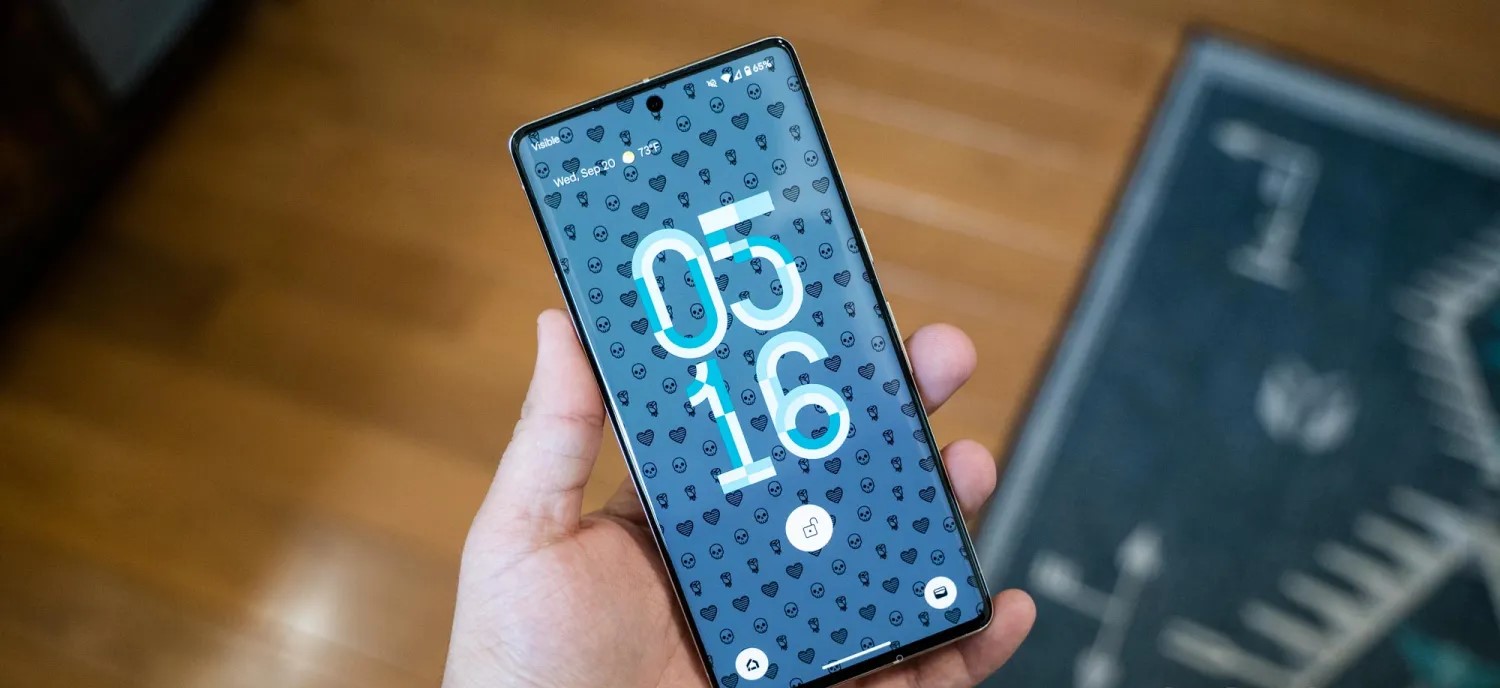
One UI 6 is finally available for some users in full, bringing a list of changes to the OS. One change is the addition of a new security tool called “Auto Blocker” which acts as additional security for Samsung Galaxy phones.
According to Samsung, Auto Blocker is intended to be somewhat of an expansion of additional and optional security tools at your disposal. Heading into the settings with bring you to a new page with a suite of options that are entirely a matter of preference, similar to how some would use malware protection on a computer.
One security option on this page is the familiar “Block app installation from unauthorized sources” feature. Normally, that option would be on a different page, but has since moved with One UI 6/ The option is now also off by default, which is a big change from previous versions of One UI where the first time users tried to sideload an app, it was blocked.
Now, users can sideload as much as they want with the knowledge that it’s not always entirely safe. The option will act as a prevention tool whenever apps are not being sideloaded intentionally.
Auto Blocker also brings app security checks to keep third-party programs in check, as well as a blocker for USB commands. Turning Samsung’s Auto Blocker on with the toggle at the top of that page looks to enable all three of these features at the same time. Below is an “Advanced” section with more tools that can be turned on and off individually, like Message Guard, to protect users from Zero Click attacks and malicious code in direct messages.
Auto Blocker is available for every Samsung Galaxy device running One UI 6, which is rolling out globally now.
Samsung confirms a list of over 20 Galaxy smartphones that will get Android 14
Earlier today Samsung officially announced that its Android 14 update is now rolling out to the Galaxy S23 series, and the company has also confirmed the first few Galaxy smartphones that will be eligible for Android 14 in the coming months.
Android 14 for Samsung devices comes in the form of One UI 6.0, an update that delivers platform improvements from Google as well as updates to Samsung’s skin. Those updates include a bunch of new camera features, updated emoji, and more. But, to start, it’s all exclusive to the Galaxy S23 series which is getting the update now.
What comes next?
According to a small list that Samsung has provided, other Galaxy smartphones getting Android 14 will begin with the past few years of flagships, foldables, and a couple of A-Series devices.
In talking about the new features coming to “Enhance-X,” Samsung also confirmed over 20 devices that will be updated to One UI 6.0, many of which come as no surprise. That initial list includes devices released in 2020 and newer, starting with Galaxy S series devices.
Galaxy S23 series
Galaxy S22 series
Galaxy S21 series
Galaxy S20 series
Beyond that, almost every Samsung foldable is going to get One UI 6.0 except for the original Galaxy Fold.
Galaxy Z Fold 5
Galaxy Z Fold 4
Galaxy Z Fold 3
Galaxy Z Fold 2
Galaxy Z Flip 5
Galaxy Z Flip 4
Galaxy Z Flip 3
Galaxy Z Flip 5G
Galaxy Z Flip
And, finally, Samsung has also confirmed that Galaxy Note 20, Galaxy A54, and Galaxy A53 will all be eligible, as well as some M-series devices.
Galaxy Note 20 series
Galaxy A54
Galaxy A53
Galaxy A34
Galaxy A33
Galaxy M54
Galaxy M53
Galaxy M34
Galaxy M33
Update: To address the elephant in the room, the Galaxy S20 series, Note 20 series, Flip/5G, and Fold 2 were not expected to get One UI 6.0, but Samsung’s wording here is pretty clear. The quote below is a footnote on Samsung’s blog post and refers to a new camera feature which requires One UI 6.0 or higher, meaning that the devices listed would need to be getting the update.
Available on Galaxy S23 series, S22 series, S21 series, S20 series, Note20 series, Z Fold5, Z Flip5, Z Fold4, Z Flip4, Z Fold3, Z Flip3, Z Fold2, Z Flip 5G and Z Flip LTE, A54, A53, A34, A33, M54, M53, M34, M33 devices operating on One UI 6.0 or above.
We have reached out to Samsung for comment on the status of 2020 device updates.
These devices will all get One UI 6.0 in time, and likely pretty quickly if last year’s Android 13 rollout serves as any indication. For now, though, we’re still waiting on Samsung to release Android 14 to the Galaxy S23 series in the US, which is coming “soon.”
This initial list, notably, is by no means complete. Samsung’s current policy for software updates means that many more smartphones and tablets will be updated to Android 14, but the company has not officially confirmed anything outside of this initial list.
Depending on the device, this issue can result in the primary user being unable to access media storage. Alternatively, the issue can reboot the device with a “Factory data reset” message. If this message is accepted, data that is not backed up can be lost, and if it is declined, the device repeatedly reboots with the “Pixel is starting” message.
Google starts by saying that this storage issue impacts the “Pixel 6 and later models” that “have both received the Android 14 update and have multiple users (other than the primary user) set up.” This includes “users, guests, restricted profiles, and child users,” but not simply having more than one Google Account signed in “within the primary user or work profiles.”
The company has already rolled out a Google Play system update to “help prevent this issue from being triggered on additional devices.” To install, open Settings > Security & privacy > System & update > Google Play system update. The latest version we’re seeing today is October 1, 2023.
For those currently “unable to access media storage,” Google is working on a system update that “will repair the issue and restore access to media files without requiring a factory reset.”
Google is also “investigating methods that may be able to recover some data” for devices in a “Pixel is starting” boot loop. However, this seems more tentative: “We’ll provide more information as soon as it is available.”
For all other users, including those that factory reset their device, Google says to avoid “creating or logging into a secondary user on the device until the OTA update is available.”
Google ends with an apology:
We’re sorry for the inconvenience this has caused, and we appreciate your patience.
Android 14 breaks storage on Pixel 6 phones with multiple user profiles
Android 14 is a solid update to Google’s smartphone OS, but the update does seem to be causing some significant issues regarding user profiles on Pixel 6 series devices.
Following the update to Android 14 that rolled out earlier this month, some Google Pixel 6, Pixel 6 Pro, and Pixel 6a owners are seeing some considerable issues with their devices, specifically around storage becoming unusable. A growing number of users across Google’sforums, Reddit, and elsewhere reporting that their Pixel 6 and Pixel 6 Pro devices are drastically hindered, to the point of breaking most tasks users would perform on their devices.
The storage problem takes effect if the user, before installing Android 14, had multiple profiles on the device.
Following the installation of Android 14, the main profile on a Pixel 6 series device seems to lose access to storage, which prevents users from taking photos or videos, downloading files, and both installing or uninstalling applications. However, on the second profile, things seem to work as expected.
Other limitations include that apps report the device as having no available storage, Google Photos can’t refresh a user’s library (only showing low-quality previews), and files can’t be accessed via USB from a connected PC, as one of our readers explained in an email.
Given that Android’s user profiles are more of a niche feature on smartphones (primarily used for personal and work profiles), this issue doesn’t appear excessively widespread, but the symptoms of the problem are affecting users pretty consistently.
Google has, so far, not offered any solution for this issue or public statement.
Earlier this month, Bloomberg’s Mark Gurman reported that Apple has been developing a new system that will allow its employees to install software updates on sealed iPhones without taking them out of the box.
Apple can now wirelessly update sealed iPhones
According to Gurman, the new system is being developed so that Apple can wirelessly update sealed iPhones to deliver them to customers with the latest software available. The company reportedly decided to invest in this system after being forced to release a day-one update for iPhone 15 models to fix a major bug during setup.
Interestingly, the iOS 17.2 beta SDK that comes with the latest Xcode 15.1 beta pretty much corroborates this report. There are three new internal frameworks named FactoryOTALogger, FactoryOTANetworkUtils, and FactoryOTAWifiUtils that enable wireless OTA firmware updates by using a special external device.
This is in line with what Gurman reported, as the journalist described the system as a “proprietary pad-like device that the store can place boxes of iPhones on top of.” The feature is not intended for end users and is clearly marked as internal in the codes seen by 9to5Mac. In the future, this will allow Apple to avoid major day-one bugs by installing iOS updates on sealed iPhones.
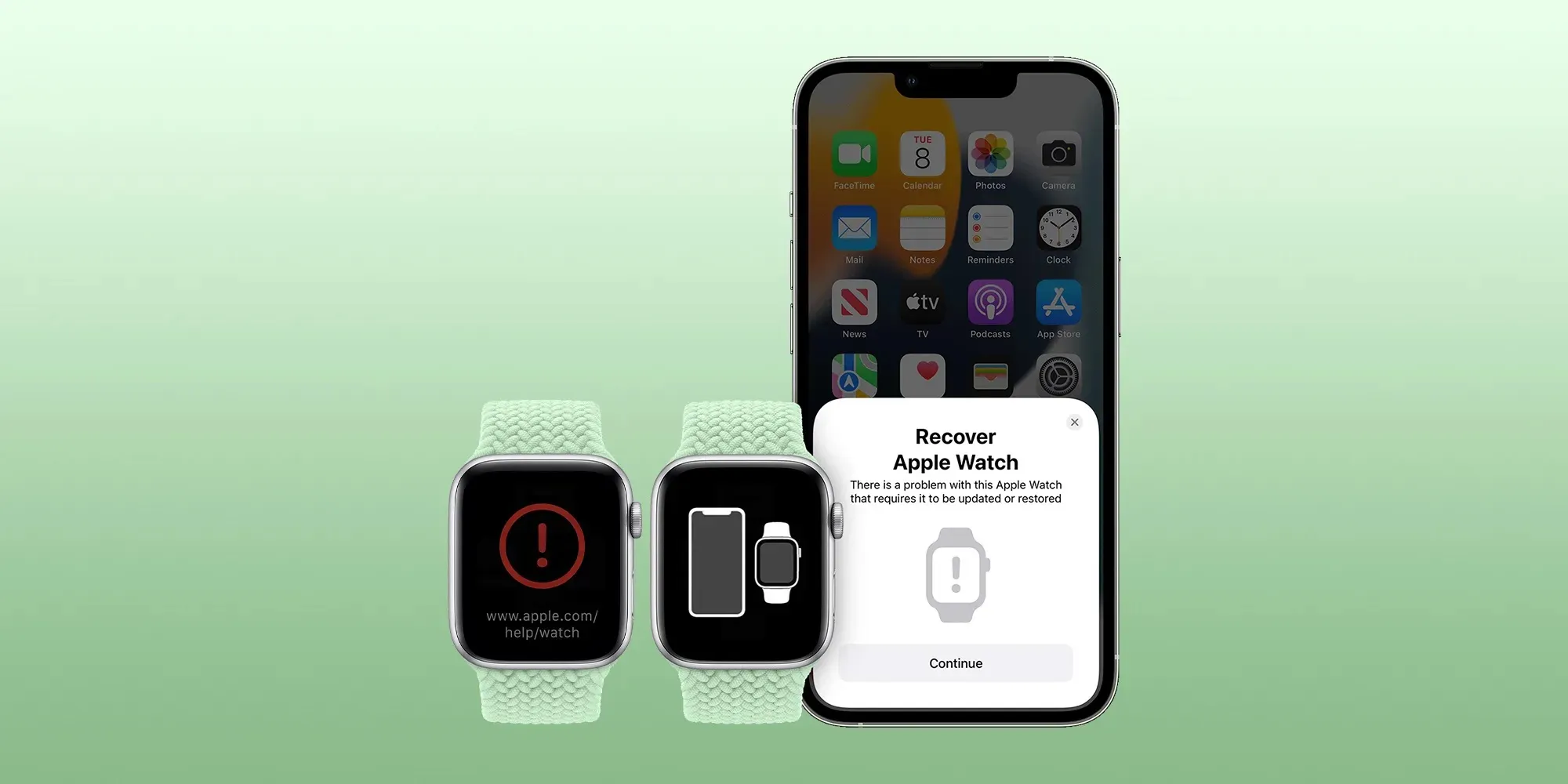
This system could also be useful in helping Apple to restore the firmware of iOS devices without the need for a cable. In recent years, Apple has been working on new technologies to help users restore devices such as the Apple Watch and Apple TV when they get stuck since these devices can’t be connected to a computer.
More about iOS 17.2
iOS 17.2 brings some new features for Apple Music subscribers, such as collaborative playlists and a new “Favorites” playlist that is automatically generated based on the songs you’ve marked as favorites. In addition, the update comes with the Journal app, a new Translate option for the Action Button, and some new Home Screen widgets.
The update is now available as a beta to developers and is expected to be released to the public by the end of the year.
iOS 17.2 adds one more function to the Action button on iPhone 15 Pro
When Apple unveiled the iPhone 15 Pro, it shared 10 customization options for the new Action button. One of those options, however, was described as coming later. With iOS 17.2, it has arrived.
Starting with iOS 17.2, iPhone 15 Pro and iPhone 15 Pro Max lets you assign Translate as the Action button task. The new option slots in between Voice Memo and Magnifier in the Action button section of the Settings app.
When assigned to Translate, pressing the Action button invokes a translation session from the Dynamic Island. No need to launch the Translate app.
Apple introduced its built-in Translate app as part of iOS 14 in 2020. Translation on iOS relies on the iPhone’s Neutral Engine to keep everything on-device. That means translations can work offline and do not need to rely on a network connection or server.
iOS 17.2 now includes these 10 options for the Action button on iPhone 15 Pro and later:
Silent mode: Turn Silent mode on or off.
Focus: Turn a specific Focus on or off.
Camera: Open the Camera app to quickly take a photo, selfie, video, portrait, or portrait selfie.
Flashlight: Turn the flashlight on or off.
Voice Memo: Start or stop recording a voice memo.
Translate: Translate phrases or have a conversation with someone in another language.
Magnifier: Open the Magnifier app.
Shortcut: Open an app or run your favorite shortcut.
Accessibility: Quickly access your favorite accessibility feature.
No action: Do nothing.
Apple debuts iMessage Contact Key Verification with iOS 17.2 beta
Apple has enabled the testing of a new security feature with the first iOS 17.2 beta. For use with iMessage, Contact Key Verification gives users more certainty they’re messaging with the people they’re intending.
Apple detailed the new iMessage Contact Key Verification feature in the release notes for iOS 17.2 beta 1. As it happens, there are three levels for how to verify contacts. Here’s the first:
With iMessage Contact Key Verification, users can choose to further verify that they are messaging only with the people they intend. Contact Key Verification uses Key Transparency to enable automatic verification that the iMessage key distribution service returns device keys that have been logged to a verifiable and auditable map. When a user enables Contact Key Verification, they will be notified about any validation errors directly in the Messages conversation transcript and Apple ID Settings.
However, for those in situations where stricter security is needed, iMessage Contact Key Verification can be used “in person, on FaceTime, or a through another secure call.”
Apple highlights users can also “choose to create or edit a contact and save a public key to turn on CKV with that person.”
To test out iMessage Contact Key Verification, you’ll need to have all devices connected to your iCloud account updated to the iOS 17.2 Beta, macOS 17.2 Beta, or watchOS 17.2 Beta or “sign out of iMessage on these devices in order to enable contact key verification.”
Then you can head to iPhone Settings > your name > Contact Key Verification (very bottom) > toggle it on.
While Apple has never seen an attack like this, Contact Key Verification is another security feature that will give peace of mind to those who may be highly targeted individuals.
Even though a very small percentage of iPhone users may need security of this level, the neat part is turning it on doesn’t reduce the functionality of your iPhone or iMessage – so it could end up being more widely used than something like Lockdown Mode.
Apple has launched its first major update for all users since debuting iOS 17 in September. iOS 17.1 comes with a range of security patches and none of them were identified as exploited in the wild ahead of the fixes.
Per usual, Apple shared the details of the latest vulnerability fixes on its security page.
Patches range from fixing security bugs in Contacts, Find My, Kernel, Passkeys, Photos, Siri, Weather, WebKit, and more.
Fortunately, there were no known reports of any of the security flaws being actively exploited ahead of Apple releasing the fixes.
Here are the full security fix notes for iOS 17.1:
Contacts
Available for: iPhone XS and later, iPad Pro 12.9-inch 2nd generation and later, iPad Pro 10.5-inch, iPad Pro 11-inch 1st generation and later, iPad Air 3rd generation and later, iPad 6th generation and later, and iPad mini 5th generation and later
Impact: An app may be able to access sensitive user data
Description: A privacy issue was addressed with improved private data redaction for log entries.
CVE-2023-41072: Wojciech Regula of SecuRing (wojciechregula.blog) and Csaba Fitzl (@theevilbit) of Offensive Security
CVE-2023-42857: Noah Roskin-Frazee and Prof. J. (ZeroClicks.ai Lab)
CoreAnimation
Available for: iPhone XS and later, iPad Pro 12.9-inch 2nd generation and later, iPad Pro 10.5-inch, iPad Pro 11-inch 1st generation and later, iPad Air 3rd generation and later, iPad 6th generation and later, and iPad mini 5th generation and later
Impact: An app may be able to cause a denial-of-service
Description: The issue was addressed with improved memory handling.
CVE-2023-40449: Tomi Tokics (@tomitokics) of iTomsn0w
Find My
Available for: iPhone XS and later, iPad Pro 12.9-inch 2nd generation and later, iPad Pro 10.5-inch, iPad Pro 11-inch 1st generation and later, iPad Air 3rd generation and later, iPad 6th generation and later, and iPad mini 5th generation and later
Impact: An app may be able to read sensitive location information
Description: The issue was addressed with improved handling of caches.
CVE-2023-40413: Adam M.
ImageIO
Available for: iPhone XS and later, iPad Pro 12.9-inch 2nd generation and later, iPad Pro 10.5-inch, iPad Pro 11-inch 1st generation and later, iPad Air 3rd generation and later, iPad 6th generation and later, and iPad mini 5th generation and later
Impact: Processing an image may result in disclosure of process memory
Description: The issue was addressed with improved memory handling.
CVE-2023-40416: JZ
IOTextEncryptionFamily
Available for: iPhone XS and later, iPad Pro 12.9-inch 2nd generation and later, iPad Pro 10.5-inch, iPad Pro 11-inch 1st generation and later, iPad Air 3rd generation and later, iPad 6th generation and later, and iPad mini 5th generation and later
Impact: An app may be able to execute arbitrary code with kernel privileges
Description: The issue was addressed with improved memory handling.
CVE-2023-40423: an anonymous researcher
Kernel
Available for: iPhone XS and later, iPad Pro 12.9-inch 2nd generation and later, iPad Pro 10.5-inch, iPad Pro 11-inch 1st generation and later, iPad Air 3rd generation and later, iPad 6th generation and later, and iPad mini 5th generation and later
Impact: An attacker that has already achieved kernel code execution may be able to bypass kernel memory mitigations
Description: The issue was addressed with improved memory handling.
CVE-2023-42849: Linus Henze of Pinauten GmbH (pinauten.de)
Mail Drafts
Available for: iPhone XS and later, iPad Pro 12.9-inch 2nd generation and later, iPad Pro 10.5-inch, iPad Pro 11-inch 1st generation and later, iPad Air 3rd generation and later, iPad 6th generation and later, and iPad mini 5th generation and later
Impact: Hide My Email may be deactivated unexpectedly
Description: An inconsistent user interface issue was addressed with improved state management.
CVE-2023-40408: Grzegorz Riegel
mDNSResponder
Available for: iPhone XS and later, iPad Pro 12.9-inch 2nd generation and later, iPad Pro 10.5-inch, iPad Pro 11-inch 1st generation and later, iPad Air 3rd generation and later, iPad 6th generation and later, and iPad mini 5th generation and later
Impact: A device may be passively tracked by its Wi-Fi MAC address
Description: This issue was addressed by removing the vulnerable code.
CVE-2023-42846: Talal Haj Bakry and Tommy Mysk of Mysk Inc. @mysk_co
Passkeys
Available for: iPhone XS and later, iPad Pro 12.9-inch 2nd generation and later, iPad Pro 10.5-inch, iPad Pro 11-inch 1st generation and later, iPad Air 3rd generation and later, iPad 6th generation and later, and iPad mini 5th generation and later
Impact: An attacker may be able to access passkeys without authentication
Description: A logic issue was addressed with improved checks.
CVE-2023-42847: an anonymous researcher
Photos
Available for: iPhone XS and later, iPad Pro 12.9-inch 2nd generation and later, iPad Pro 10.5-inch, iPad Pro 11-inch 1st generation and later, iPad Air 3rd generation and later, iPad 6th generation and later, and iPad mini 5th generation and later
Impact: Photos in the Hidden Photos Album may be viewed without authentication
Description: An authentication issue was addressed with improved state management.
CVE-2023-42845: Bistrit Dahla
Pro Res
Available for: iPhone XS and later, iPad Pro 12.9-inch 2nd generation and later, iPad Pro 10.5-inch, iPad Pro 11-inch 1st generation and later, iPad Air 3rd generation and later, iPad 6th generation and later, and iPad mini 5th generation and later
Impact: An app may be able to execute arbitrary code with kernel privileges
Description: The issue was addressed with improved memory handling.
CVE-2023-42841: Mingxuan Yang (@PPPF00L), happybabywu and Guang Gong of 360 Vulnerability Research Institute
Siri
Available for: iPhone XS and later, iPad Pro 12.9-inch 2nd generation and later, iPad Pro 10.5-inch, iPad Pro 11-inch 1st generation and later, iPad Air 3rd generation and later, iPad 6th generation and later, and iPad mini 5th generation and later
Impact: An attacker with physical access may be able to use Siri to access sensitive user data
Description: This issue was addressed by restricting options offered on a locked device.
CVE-2023-41982: Bistrit Dahla
CVE-2023-41997: Bistrit Dahla
CVE-2023-41988: Bistrit Dahla
Status Bar
Available for: iPhone XS and later, iPad Pro 12.9-inch 2nd generation and later, iPad Pro 10.5-inch, iPad Pro 11-inch 1st generation and later, iPad Air 3rd generation and later, iPad 6th generation and later, and iPad mini 5th generation and later
Impact: A device may persistently fail to lock
Description: The issue was addressed with improved UI handling.
CVE-2023-40445: Ting Ding, James Mancz, Omar Shibli, an anonymous researcher, Lorenzo Cavallaro, and Harry Lewandowski
Weather
Available for: iPhone XS and later, iPad Pro 12.9-inch 2nd generation and later, iPad Pro 10.5-inch, iPad Pro 11-inch 1st generation and later, iPad Air 3rd generation and later, iPad 6th generation and later, and iPad mini 5th generation and later
Impact: An app may be able to access sensitive user data
Description: A privacy issue was addressed with improved private data redaction for log entries.
CVE-2023-41254: Cristian Dinca of “Tudor Vianu” National High School of Computer Science, Romania
WebKit
Available for: iPhone XS and later, iPad Pro 12.9-inch 2nd generation and later, iPad Pro 10.5-inch, iPad Pro 11-inch 1st generation and later, iPad Air 3rd generation and later, iPad 6th generation and later, and iPad mini 5th generation and later
Impact: Processing web content may lead to arbitrary code execution
Description: The issue was addressed with improved memory handling.
WebKit Bugzilla: 259836
CVE-2023-40447: 이준성(Junsung Lee) of Cross Republic
WebKit
Available for: iPhone XS and later, iPad Pro 12.9-inch 2nd generation and later, iPad Pro 10.5-inch, iPad Pro 11-inch 1st generation and later, iPad Air 3rd generation and later, iPad 6th generation and later, and iPad mini 5th generation and later
Impact: Processing web content may lead to arbitrary code execution
Description: A use-after-free issue was addressed with improved memory management.
Available for: iPhone XS and later, iPad Pro 12.9-inch 2nd generation and later, iPad Pro 10.5-inch, iPad Pro 11-inch 1st generation and later, iPad Air 3rd generation and later, iPad 6th generation and later, and iPad mini 5th generation and later
Impact: Processing web content may lead to arbitrary code execution
Description: A logic issue was addressed with improved checks.
WebKit Bugzilla: 260173
CVE-2023-42852: an anonymous researcher
WebKit Process Model
Available for: iPhone XS and later, iPad Pro 12.9-inch 2nd generation and later, iPad Pro 10.5-inch, iPad Pro 11-inch 1st generation and later, iPad Air 3rd generation and later, iPad 6th generation and later, and iPad mini 5th generation and later
Impact: Processing web content may lead to a denial-of-service
Description: The issue was addressed with improved memory handling.
We would like to acknowledge Bahaa Naamneh for their assistance.
libxml2
We would like to acknowledge OSS-Fuzz, Ned Williamson of Google Project Zero for their assistance.
Power Manager
We would like to acknowledge Xia0o0o0o (@Nyaaaaa_ovo) of University of California, San Diego for their assistance.
VoiceOver
We would like to acknowledge Abhay Kailasia (@abhay_kailasia) of Lakshmi Narain College Of Technology Bhopal India for their assistance.
WebKit
We would like to acknowledge an anonymous researcher for their assistance.
Information about products not manufactured by Apple, or independent websites not controlled or tested by Apple, is provided without recommendation or endorsement. Apple assumes no responsibility with regard to the selection, performance, or use of third-party websites or products. Apple makes no representations regarding third-party website accuracy or reliability. Contact the vendor for additional information.
Exactly two weeks after the previous release, Android 14 QPR1 Beta 2.1 is rolling out today with a handful of bug fixes, but the Pixel 8 and 8 Pro aren’t getting updated right away.
There are just three fixes for Pixel devices, which are getting U1B2.230922.010 today with the October 2023 security patch:
Fixed issues with biometric authentication, such as an issue that sometimes prevented the under-display fingerprint sensor from activating while always-on display features were enabled.
Fixed an issue where, in some cases after swapping SIM cards on a device, the device couldn’t connect to cellular service.
Fixed various issues that were impacting system stability and performance.
Google says the “Pixel 8 and 8 Pro will receive this update at a later time.” The initial Beta 2 update rolled out a week ago.
The OTA and factory images are now available, while the on-device OTA is also rolling out immediately (66MB on the Pixel Fold and 7 Pro).
Google wants every Android version to be ‘higher quality than the previous release’
Dave Burke, VP of Engineering for Android, was interviewed during The Android Show today and shared a lot of interesting tidbits, especially around quality and performance.
In the context of Android releases, Burke considers quality the “number one feature” given how much we use our phones:
If you think about how much we depend on our devices and how much we use them [in] a day, it’s just really important that the device runs really, really well. Really, really reliably. The highest performance, highest fidelity.
The Android team has a “pledge” internally to “ensure that every release was higher quality than the previous release by a set of expanding metrics that we measure in the lab and in the field.”
We’ve been holding ourselves to that. It’s difficult, I can tell you, because you’re only as good as the weakest metric. So you’ve got to chase everything down, but it’s really causing us to force the bar higher and higher.
Burke described one way the team is doing that:
Even internally, we’re looking at actually changing some of our developer practices in 2024 where rather than sort of go[ing] off for a year and work[ing] on a release for a very long time, we break that up into chunks internally so that we sort of keep the branch green as we go.
From the description we have today, this just seems to be an internal change rather than anything that would impact the yearly cycle.
On Android 14, Burke highlighted expression (gen AI wallpapers, lockscreen clocks, and shortcuts) and performance as the big tentpoles. Burke said the team “may not have talked enough” about performance. (Frankly, Google should have discussed it on-stage at I/O in May.)
We’ve done a ton of work to reduce CPU activity of background apps, and the result is that there’s 30% less cold starts now on Android 14. Cold starts are when you have to literally read the code pages off the flash and read them into memory before you execute them. A 30% reduction is pretty dramatic, and you feel that as a user.
This involved increasing the number of cached processes, but doing so risks increased CPU usage and, therefore, battery drain. Android 14 does a better job of properly freezing the processes.
Burke also mentioned how large-screen-related work, like the transient taskbar, was originally part of Android 14 but moved up into Android 13 (QPR2) as Google worked to be more competitive in the space and to support foldables.
Google Assistant’s Wear OS tile is now available with customizable shortcuts
After we spotted it in development earlier this year, Google has rolled out a new tile for Google Assistant that allows for custom shortcuts on Wear OS.
On both Wear OS 3 and Wear OS 4 watches, the Google Assistant tile provides access to the Assistant with a swipe, but the useful element here is instead the ability to add custom shortcuts that are accessible without an audible voice command or typing.
The tile, which first showed up on Pixel Watch 2 last week for us and is now appearing on the original Pixel Watch as well (still on Wear OS 3), has two slots for custom shortcuts. These can do virtually anything, from a simple request for the day’s weather to even handling smart home controls. Google lists out a bunch of suggested actions:
Set an alarm for 7 a.m.
Send a message
Set a 5 minute timer
What’s on my calendar?
Turn off the lights
Alternatively, you can set a fully custom request or question using voice or the QWERTY keyboard.
The actions themselves work almost instantly, with a command for turning off the lights taking about 10 seconds to process and actually shutting down my Philips Hue lights. But once the actions are set, you have to fully remove the tile to set new actions.
As mentioned, this appears to have been rolling out for a week or so at least. It works across Wear OS 3 and 4 and should work on Pixel Watch, Galaxy Watch, and any other modern watches. Assistant on Wear OS 2 was taken offline over the summer.
Wear OS 4 says it has a built-in internet browser, but you can’t really use it
On Google’s Pixel Watch series, the Wear OS 4 upgrade is now showing that the platform has a built-in internet browser, but it’s actually a bit more complicated than that.
Wear OS 4 brings only a handful of user-facing perks to the Android-based smartwatch platform, such as the ability to “transfer” a watch between devices. In the Settings, another new feature is the ability to set a default internet browser for the system.
Of course, Wear OS has pretty infamously lacked browser apps for a while. There’s Samsung’s internet browser and a few other options, but Google Chrome isn’t offered.
With Wear OS 4, though, “Wear OS” now appears as the default system browser unless you swap it for something else. That “browser” doesn’t really seem to do anything, though, and isn’t even showing up for all users. Our Dylan Roussel says that, even on Wear OS 4, “Wear OS” doesn’t appear under the list of browser apps at all on his watch.
And, beyond that, the “app” doesn’t appear anywhere else. It’s not in the app drawer, and appears to only work to accept clickable links from other apps that are intended to be opened in a browser.
Our best theory at the moment is that this “browser” might be used to just redirect links over to a paired smartphone, but we haven’t been able to prove it just yet.
But, this ultimately isn’t all that important.
It’s exceedingly rare for Wear OS apps to feature clickable URLs. Even the Gmail app automatically forces you to use links from the app on your phone. So whatever functionality there is here, it won’t be used often, if ever. The bigger perk, it seems, is support for setting a default browser for the entire system, as those who do wish to use a browser on their wrist will be more easily able to interact with any links they do encounter with the browser of their choice.
Google rolling out Wear OS 4 to the original Pixel Watch
With this year’s model less than a week old, Google is now rolling out Wear OS 4 to the original Pixel Watch.
The 2022 Pixel Watch has not seen an update yet this month, with TWD4.2301005.002 also bringing the October security patch. Google’s previous “later this year” timeline suggested Wear OS 4 was not coming this soon.
Google is highlighting six tentpole features of Wear OS 4 in addition to “numerous bug fixes, battery improvements and performance updates for Pixel Watch users.”
Backup and restore — with Google One — preserves watch faces, Tiles, data, and other settings if you’re getting a new watch or have to reset an existing one for whatever reason. It goes hand-in-hand with watch transfer:
When you upgrade your Pixel phone, you can now easily transfer your Pixel Watch to your new phone without having to factory reset it. Your devices will be synced and ready to go.
Meanwhile, Google Calendar is pre-installed and should replace the Wear OS 3 “Agenda” experience. You’ve been able to download it from the Play Store since last week. There’s also Google Tasks integration, Tiles, and complications.
In terms of Personal Safety features, you get Safety Check, Emergency Sharing, and Emergency Info. Open the app to set things up, with the latter accessible by holding down on the crown.
Keep your most important medical info easily accessible on your wrist or sent to participating emergency services(2) in the event of an emergency with Medical ID Info. Have peace of mind when you’re walking home alone at night, on an early morning run, or in any other situation where you need a little safety net, with Safety Check and Emergency Sharing.”
There’s also Accessibility & customization and Enhanced notifications:
“New and improved customization capabilities, like a new text-to-speech engine supporting a faster, a more reliable TalkBack experience on your watch, bold text, new and improved magnification, and audio balance to adjust intensity of sound between right and left audio channels.”
“Notifications come with smart link recognition of phone numbers and addresses, allowing you to tap to call, message, or get directions. Embedded media previews let you quickly view images and GIFs without leaving the notification shade. These enriched alerts provide more information upfront so you can take action faster.”
Google says the “rollout will continue over the coming weeks in phases depending on carrier and device.” As of Tuesday afternoon, repeatedly tapping “Your watch is up to date” does not pull down the update.
Google and Qualcomm working on RISC-V chip for Wear OS
RISC-V is an open-source alternative to ARM and x86 that’s getting a big boost today with a Google-Qualcomm partnership to develop a “RISC-V Snapdragon Wear platform that will power next-generation Wear OS solutions.”
Qualcomm refers to its chips as platforms and sums up the benefit of RISC-V as such:
As an open-source instruction set architecture (ISA), RISC-V encourages innovation by allowing any company to develop completely custom cores. This allows more companies to enter the marketplace, which creates increased innovation and competition. RISC-V’s openness, flexibility, and scalability benefits the entire value chain – from silicon vendors to OEMs, end devices, and consumers.
Not having to be an ARM licensee for its cores and other designs would be the big appeal. Qualcomm describes this move as an “important first milestone to bring RISC-V compatible CPUs to the Android Ecosystem,” with Google picking Wear OS as the best place to start.
Both are touting “custom CPUs that are low power and high performance.” Work by the Wear OS team and Qualcomm is already underway, but “commercial product launch of the RISC-V wearable based solution timing will be disclosed at a later date.” The two want to “ensure that applications and a robust software ecosystem for RISC-V will be available for commercial launches.”
“Qualcomm Technologies have been a pillar of the Wear OS ecosystem, providing high performance, low power systems for many of our OEM partners,” said Bjorn Kilburn, GM of Wear OS by Google. “We are excited to extend our work with Qualcomm Technologies and bring a RISC-V wearable solution to market.”
In the meantime, Qualcomm says it will “continue to invest in Snapdragon Wear platforms as the leading smartwatch silicon provider for the Wear OS ecosystem,” so it sounds like the successor to the 2022 Snapdragon Wear W5 and W5+ will presumably still be ARM-based.
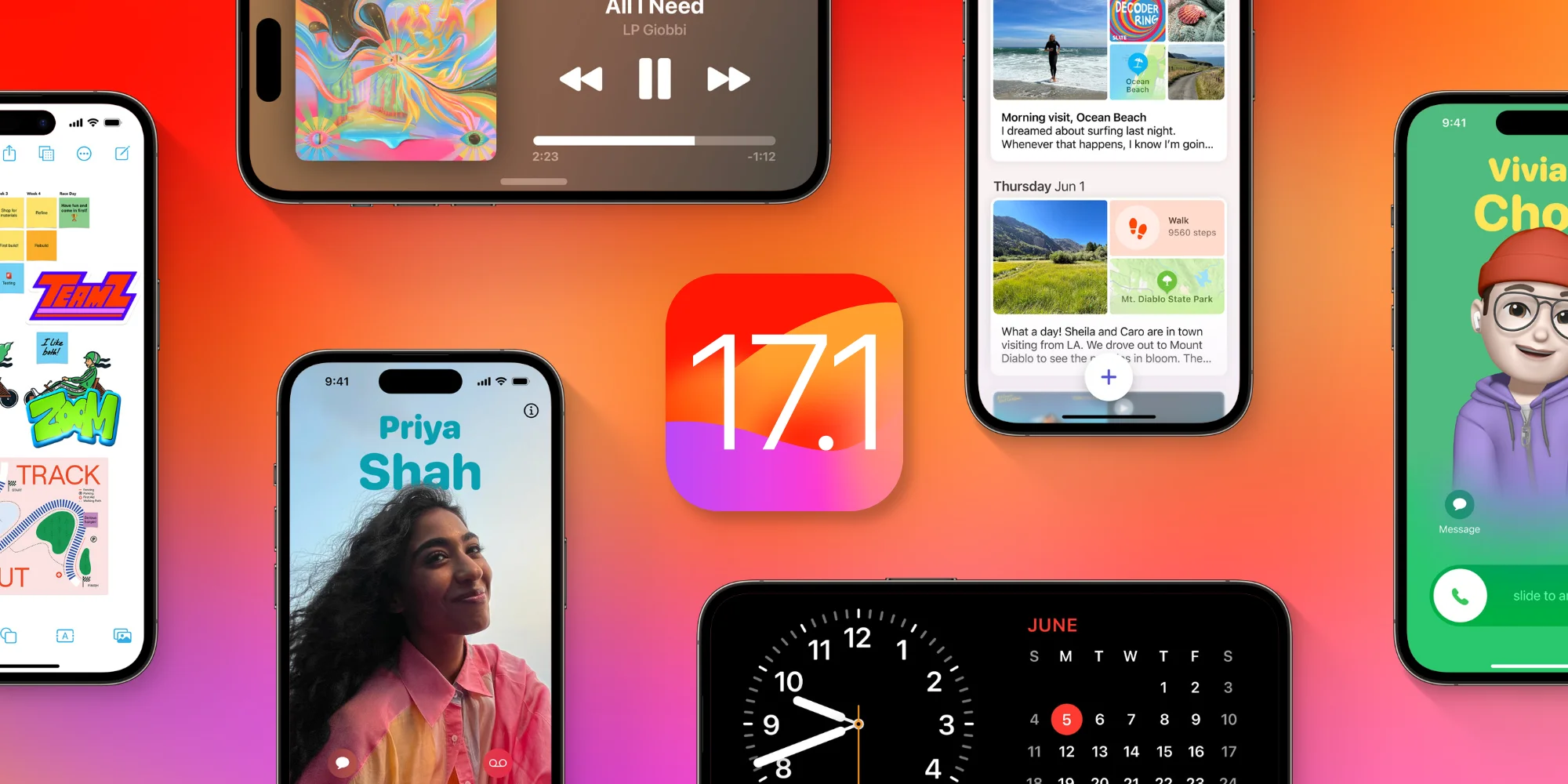
Apple on October 17, 2023 released iOS 17.1 RC (Release Candidate) to both developers and beta testers. The update brings some new features, including AirDrop over the internet and new options for Apple Music users. But according to Apple, the update also makes the keyboard snappier and more responsive while fixing a bug that could cause image retention on the iPhone.
iOS 17.1 comes with multiple bug fixes
Since the first betas of iOS 17, there have been a number of users complaining about how the keyboard became unresponsive after the update, especially on older iPhone models. Still, some users reported having issues with the keyboard, even with the latest iPhone 15 Pro models when typing long text messages.
The release notes for iOS 17.1 acknowledge this problem and say that the bug has been fixed with the update. “Fixes an issue that may cause the keyboard to be less responsive,” Apple said.
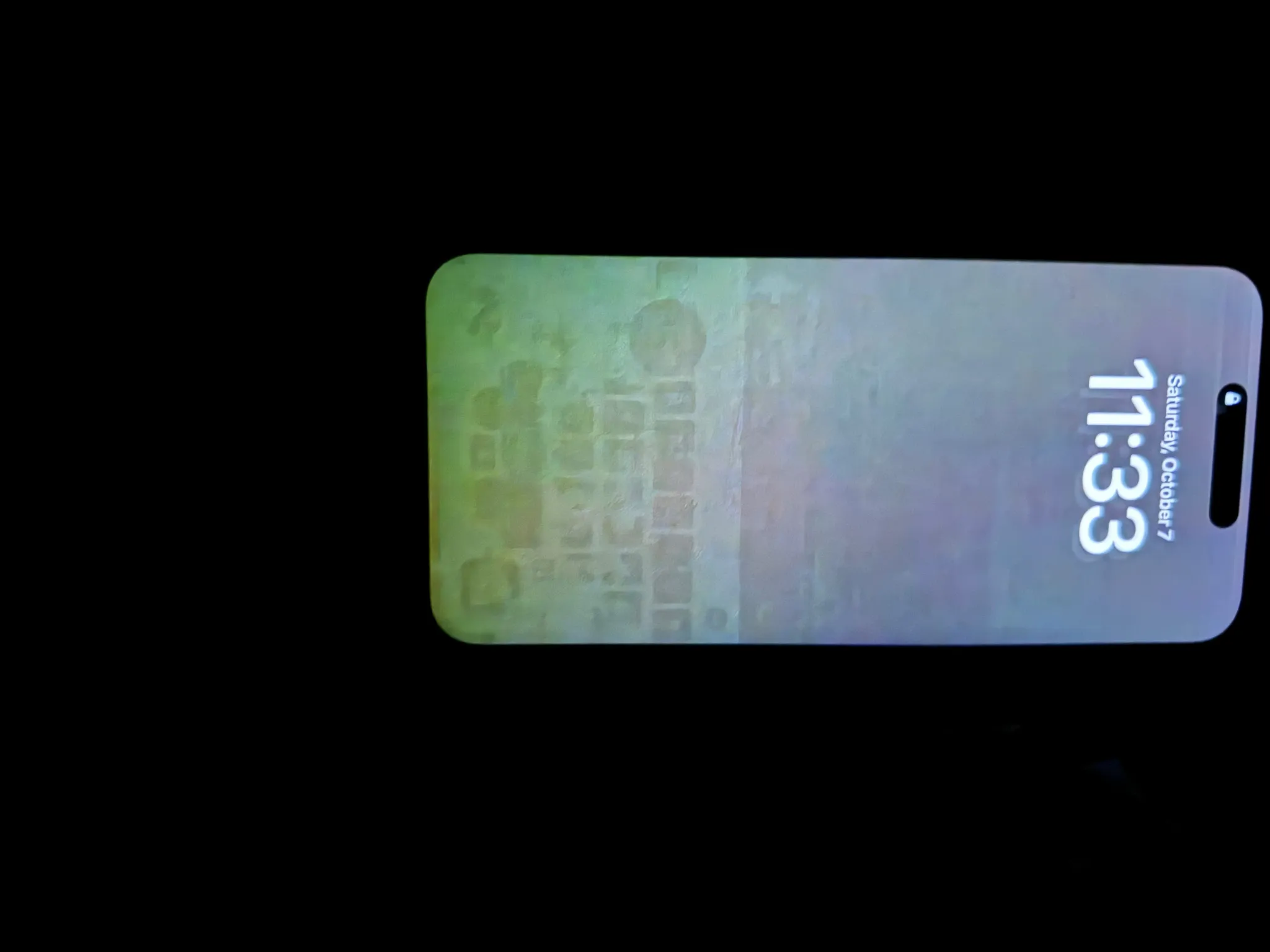
There was another bug affecting many iPhone 15 Pro and iPhone 15 Pro Max users (and we’re not talking about the overheating issues). It’s easy to find reports on Reddit and Apple Discussions forums about burn-in and image retention on these models, even though they were launched only a month ago.
Apple also acknowledged that there was a problem that “may cause display image persistence” on iPhone and that it has now been fixed with iOS 17.1.
New features
When it comes to new features, iOS 17.1 will allow users to finish sending files via AirDrop using the internet connection when you or another person leaves AirDrop’s range. The file will be silently uploaded to Apple’s servers and then downloaded to the other person’s device.
Apple Music subscribers will find a new button to favourite songs, albums, and playlists so that they can then filter these contents in the library. There are also song suggestions at the bottom of each playlist and a new way to create artwork for your personal playlists.
iOS 17.1 is expected to be released to the public next week, on October 24. For those running the beta version, the RC build is now available for download.
iOS 17.1 finally lets you pick the album to use for the Photo Shuffle lock screen
Last year, iOS 16 introduced a whole new world of dynamic lock screens to personalize your iPhone experience.
One of these options was the Photo Shuffle lock screen, which randomly cycled through images from your photo library. However, it was missing a critical point of customization that made it hard to use for most people. But thankfully, this functionality gap has now been filled with iOS 17.1 …
Since the launch of iOS 16, the Photo Shuffle wallpaper let you choose from several categories, based on the types of images detected in your Photos app library and camera roll. You could choose to shuffle images of People, Nature or Pets.
The problem was these automatic collections were often incomplete, and could not be edited – you couldn’t add or remove photos other than filtering out particular detected faces altogether in the People collection. This made the lock screen often useless as it would surface images that weren’t necessarily relevant or interesting, and no real way to fine tune it.
As of iOS 17.1, there’s a new option when you create a Photo Shuffle lock screen: the ability to choose a specific album. This gives you the control to choose what images you want to see on your lock screen, by curating a specific album or simply using the Favorites album.
The iOS system will still analyze the content of the album to find the most suitable pictures, such as portraits to apply the overlapping subject over the time effect. But it means you will only ever see the photos that you want to see. Point it at a hand-crafted album of holiday or baby pictures and it will now dutifully oblige.
iOS 17.1 is currently in developer and public beta. It will be available as a free update for all iPhone and iPad users later this month.
How to create a Photo Shuffle lock screen
Long-press on your current lock screen to open the gallery view.
Press the blue ‘Add’ button at the bottom of the screen.
Press Photo Shuffle at the top of the Add New Wallpaper panel.
Press the new Album option and choose your album.
Select Shuffle Frequency to customize how frequently you will see a different photo.
Press ‘Use Album’ button to confirm and optionally choose a color filter by swiping side-to-side, like black and white.
Finally, press Add button in the top-right corner of the screen to start using your new lock screen.
iOS 17.1 changes how the Action Button behaves when iPhone 15 Pro is in your pocket
iPhone 15 Pro and iPhone 15 Pro Max come with a new Action Button, which lets users set things like muting the phone, turning on the flashlight, and even running shortcuts when the button is pressed. Users can press the Action Button even when the screen isn’t on, but now with iOS 17.1, Apple is changing how the button behaves when the iPhone is in your pocket.
Action Button has a new behaviour with iOS 17.1
Code in the third beta of iOS 17.1, which was released on Tuesday to developers, reveals that Apple is tweaking how the Action Button on the iPhone 15 Pro behaves in some specific situations.
The update introduces a new feature that basically detects when the iPhone is in the user’s pocket (using the proximity sensors) to change the behaviour of the Action Button. In this case, users will need to press the button for longer to trigger the action. The idea is to avoid unintentional triggers when the phone is in your pocket.
The whole feature works invisibly to users, and there are no settings for it. Still, the feature seems to be enabled for everyone who has installed the latest beta of iOS 17.1 on an iPhone 15 Pro or iPhone 15 Pro Max.
More about iOS 17.1
iOS 17.1 brings some new features to the iPhone. Apple Music users will notice a new button to favorite songs, as well as options to customize the artwork of a playlist. The update also adds a new option to turn off the display in StandBy mode after 20 seconds. There’s also a new toggle in Settings that lets you opt to use cellular data to complete these AirDrop transfers.
According to Apple, iOS 17.1 is expected to be released to the public later this month, although a specific date is yet to be announced.
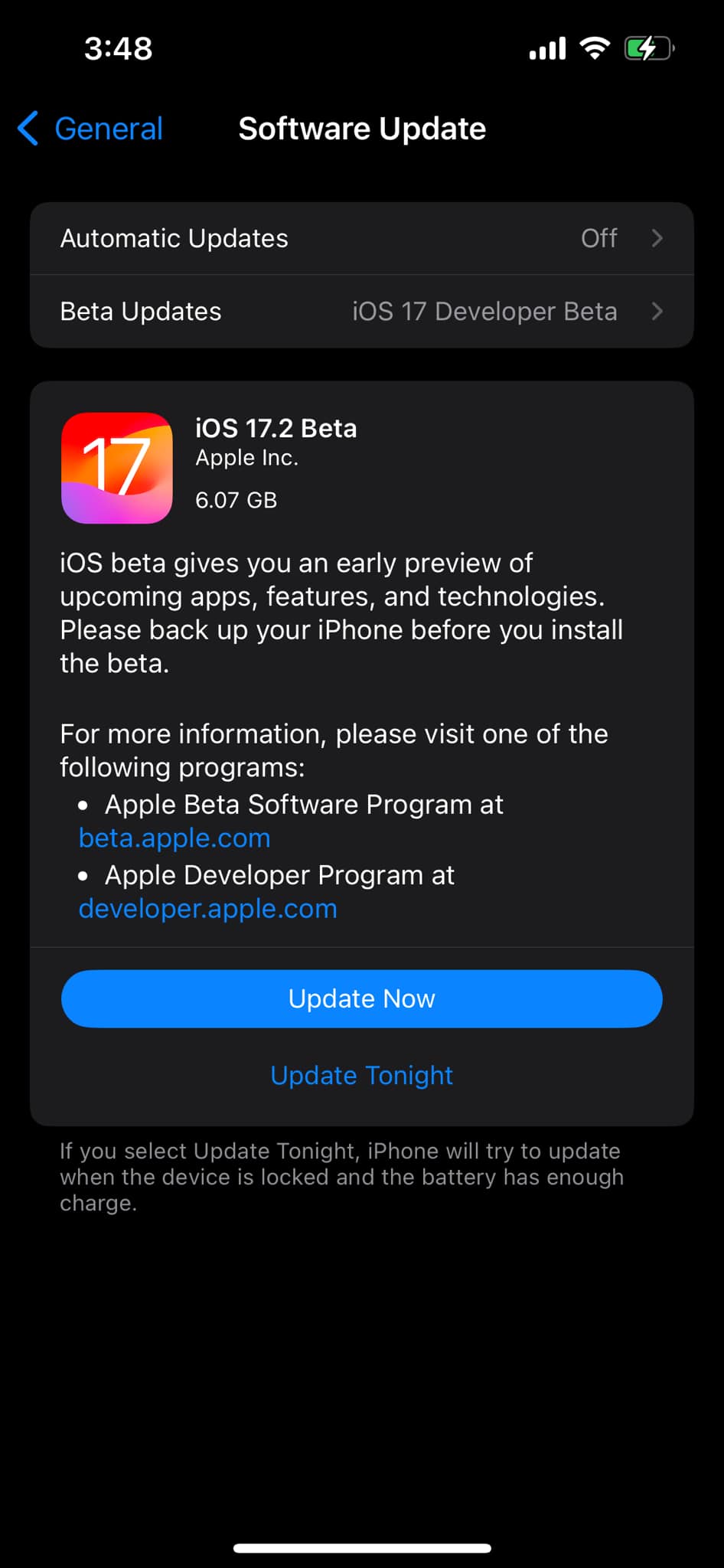
Developers can install the beta by going to Settings > General > Software Update on their iPhone. iOS 17.1 is also available for devices enrolled in the Apple Beta Software Program.
iOS 17.1 brings Dynamic Island flashlight indicator to iPhone 14 Pro and iPhone 15
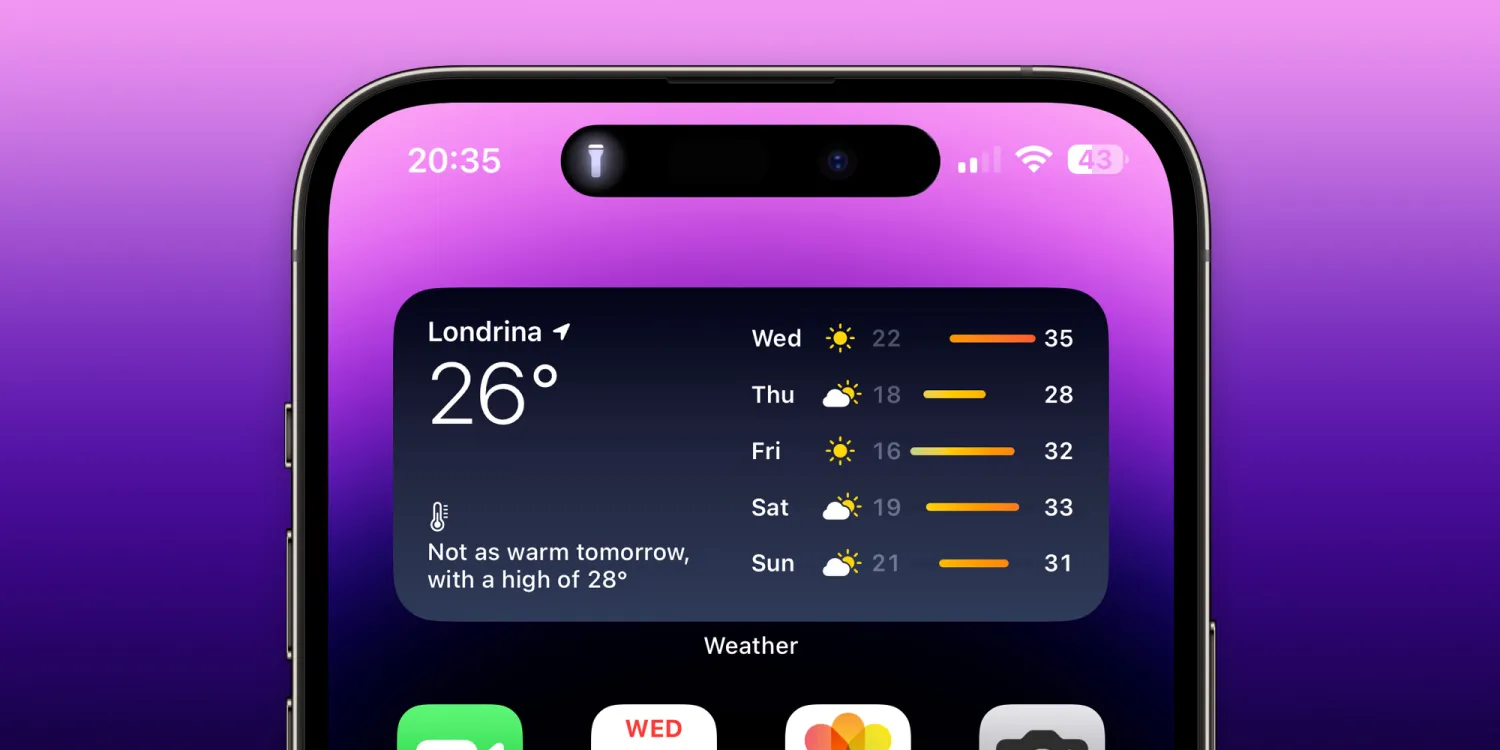
On Wednesday, Apple released the first beta of iOS 17.1 to developers, as the company promised to bring some new features later this year. We’ve already covered most of what’s new in the iOS 17.1 beta here, but there’s another interesting change. With the update, Apple is bringing the flashlight indicator that appears on Dynamic Island to the iPhone 14 Pro and iPhone 15.
Flashlight indicator on the iPhone’s Dynamic Island
If you have no idea what this flashlight indicator is, it’s something that Apple has added to the new iPhone 15 Pro and iPhone 15 Pro Max. For some reason, only these models show an indicator on the Dynamic Island to tell you when the flashlight is on. This is very useful when you forget to turn off the flashlight after using it or when you accidentally press the flashlight button.
There didn’t seem to be any technical reason for Apple to keep this indicator exclusive to the new 15 Pro models, and now we know that to be true. With iOS 17.1 beta 1, every iPhone model with Dynamic Island will show the flashlight indicator when appropriate.
This means the feature is now coming to the iPhone 14 Pro, iPhone 14 Pro Max, iPhone 15, and iPhone 15 Plus. Previous iPhone models will have no indicator other than the button on the Lock Screen, as they don’t have Dynamic Island. Although unusual, this is not the first time that a software update has brought features from a new iPhone to previous ones.
Last year, with iOS 16, Apple added a battery percentage indicator for iPhone X and later. However, the iPhone mini and iPhone models with an LCD display were left out. With iOS 16.1, Apple decided to enable the battery percentage indicator on all iPhone models compatible with the update.
Apple added the flashlight to the Dynamic Island for all devices in iOS 17.1! 🔦
Some cool features are coming with iOS 17.1. Users can now favorite songs and albums in Apple Music, and the app will generate playlists with those songs. There’s also a new option to create artwork for your playlists right from the Apple Music app.
iOS 17.1 also enables AirDrop via cellular data when the other device moves out of Wi-Fi range. Plus, it shows the balance and full transaction history of bank accounts in the Wallet app for users in the UK. The update will be released to the public in October.
With Android 14 and Wear OS 4 both now fully released, this month’s Google System Updates showcase a few other improvements coming for our phones, tablets, and smartwatches, including the ability to connect a Wear OS watch to “multiple phones.”
Aside from the major annual updates to Android, Wear OS, and Google TV, devices based on Android also receive numerous monthly upgrades delivered through the Play Store. Core components of Android can be updated through “Play System updates,” while new versions of Google Play Services, Android System Webview, and the Play Store keep even older phones feeling fresh.
Google rounds up the various improvements to these apps/services – collectively called the “Google System” – each month and publishes the patch notes. The company will often add new details throughout the month, and we do our best to keep track and explain the most important ones here.
The easiest way to check whether you need to update Google Play Services on your phone is to follow a direct link to the app’s Play Store listing and update from there, if available. To update the Play Store, tap your avatar in the corner, then “Settings.” Under the “About” section, you’ll see an option to “Update Play Store.” Meanwhile, Google Play system updates can be found through the Settings app, under About phone > Android version > Google Play system update.
Updating Google Play Services
Updating Play Store
Updating Play Store
Updating Play System
Updating Play System
Thus far, many of the patch notes for October 2023 have been fairly minor, but a few key details have stuck out to us. For starters, Google notes that Play Services version 23.39 enables the ability to connect a Wear OS watch to “multiple phones seamlessly.” We currently assume that this is referring to Wear OS 4’s ability to transfer your watch from one phone to another without needing to reset the watch.
Meanwhile, Play Services 23.40 is set to tweak where the files you receive via Nearby Sharing are saved. Before the change, incoming files and photos are saved to a dedicated “Nearby Share” folder inside your Downloads folder. The company doesn’t specify where files will now be saved, and this version has not yet been rolled out to our devices.
In the Play Store, as of version 37.8, there will be a “new design on the app details page,” which Google says will make it easier to “discover and learn about” apps for your other Android devices, like your watch, tablet, gaming handheld, etc.
Android WebView
Improvements to security and privacy and updates for bug fixes.
New developer features for Google & 3rd party app developers to support functionality related to displaying web content in their apps.
Developer Services
[Phone] New developer features for Google and third party app developers to support Utilities related processes in their apps.
Device Connectivity
[Phone] Support to connect your watch to multiple phones seamlessly.
[Phone] Content received over Nearby Share is stored in a new location.
[Phone] New developer features for Google and third party app developers to support Device Connectivity related processes in their apps.
Google Play Store
[Phone] New design on the app details page to help you discover and learn about apps for your non-phone devices.
[Phone] You’ll be able to add apps to your Google Play library directly when apps ask Google Play to download new content or functionality.
[Phone] Payments legal documents being shown on a dedicated acceptance screen that the user must accept to proceed with the purchase.
Wallet
[Phone] Route Google Wallet notifications through the Google Wallet app, if present.
System Management
[Auto, PC, Phone, TV, Wear] Updates to system management services that improve Stability.
[Phone] Updates to system management services that improve Device Connectivity, Network Usage, Security, Stability, and Updatability.
[Phone] Bug fixes for System Management & Diagnostics related services.
new features, it fixes a bug that had been causing some iPhone models (especially the iPhone 15 Pro) to overheat more than usual. However, iOS 17.0.3 also comes with two important security fixes, including a fix for a breach that had been actively exploited.
iOS 17.0.3 patches two exploits
According to a document published by Apple on its website, iOS 17.0.3 and iPadOS 17.0.3 fix a Kernel exploit found in versions prior to iOS 16.6. The company explains that an attacker with access to the device could elevate their privileges to run malicious code. “The issue was addressed with improved checks,” Apple details.
But that’s not the only exploit fixed by today’s update. It also fixes a WebRTC exploit where attackers could use a buffer overflow to execute code arbitrarily. The discovery of the exploit was attributed to Bugzilla, a bug monitoring platform developed by the Mozilla Project.
iOS 17.0.3 and iPadOS 17.0.3 are available for every iPhone and iPad model compatible with iOS 17 and iPadOS 17. This includes iPhone XR and later, and every iPad with an A10X chip or later. Keeping your device up-to-date is important to keep it safe from hackers and malware.
Here’s how to update your iPhone or iPad:
Open the Settings app
Tap the General menu
Select Software Update
Wait until the update shows up and tap Update Now
We recommend backing up your device before installing software updates.
Seven native Apple Watch apps have been overhauled with watchOS 10, one of which is the World Clock app that’s received a beautiful new aesthetic. Follow along for what’s new with the World Clock Apple Watch app in watchOS 10.
watchOS 10 brings a big overhaul for the Apple Watch experience with a new widgets UI, mental health features like mood tracking, new watch faces, and redesigns coming with native apps like Weather, Stocks, Maps, Messages, Heart Rate, Home, and World Clock.
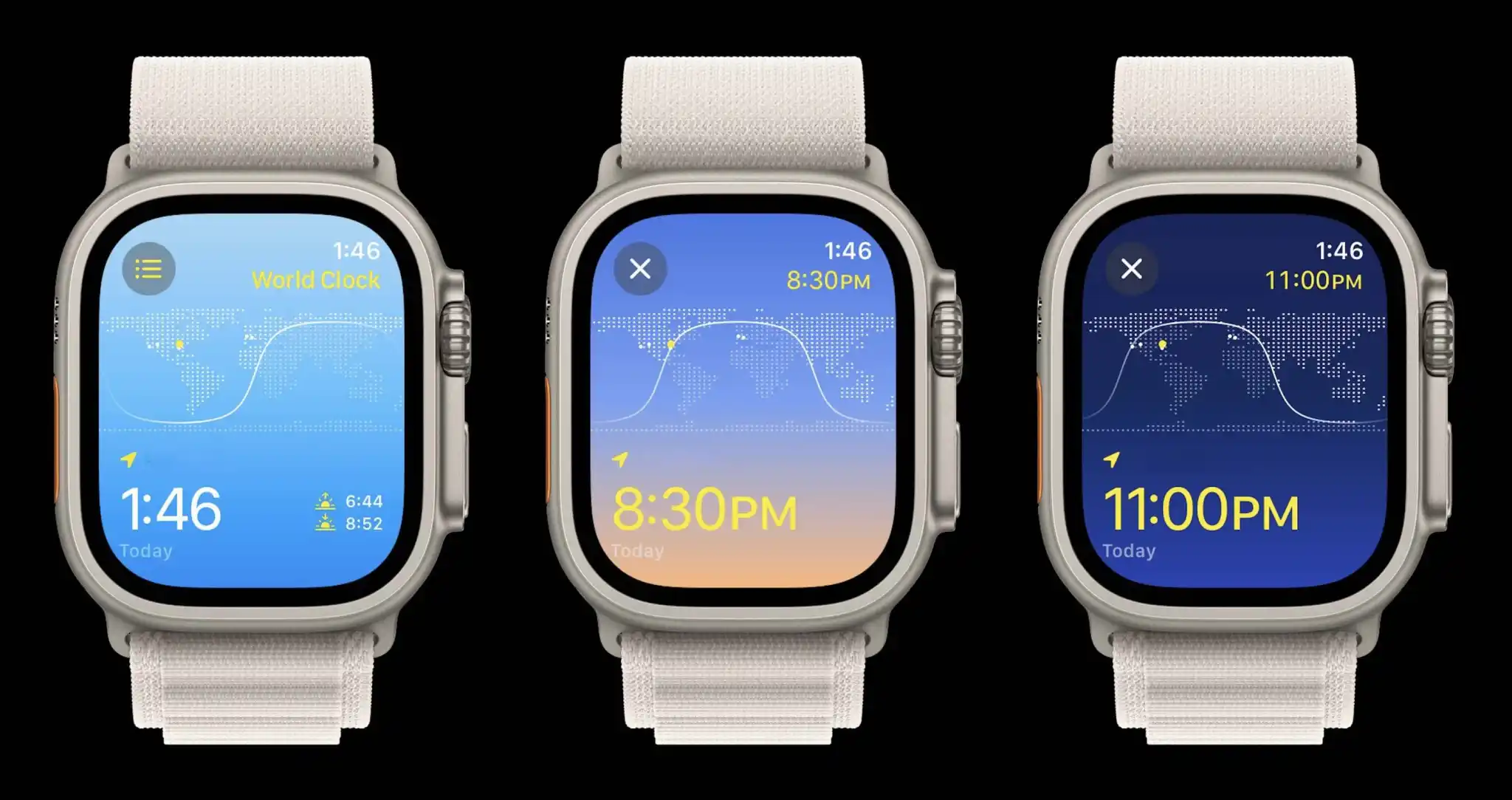
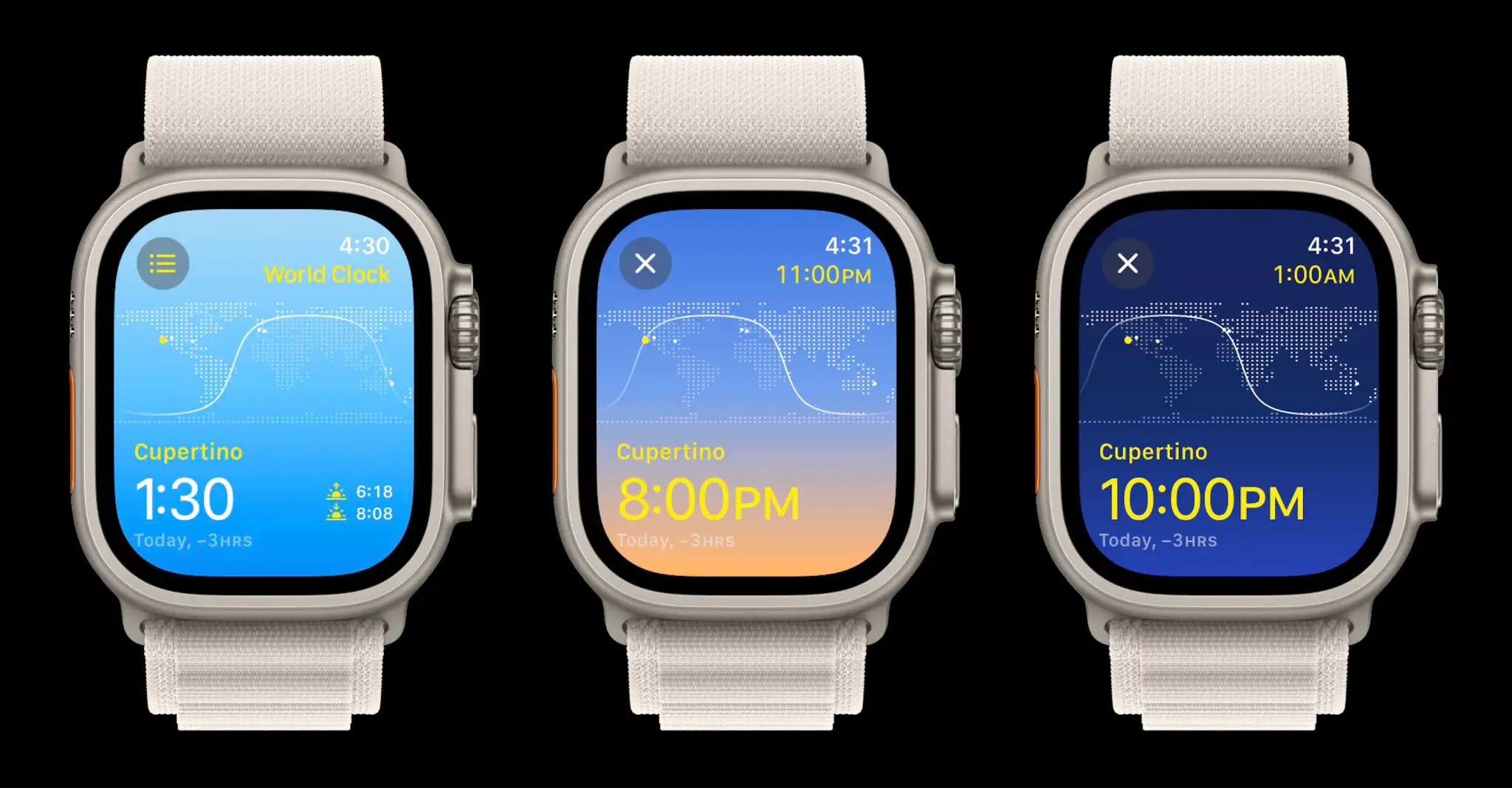
Shown above, the new watchOS 10 World Clock features a dynamic blue, white, and yellow theme that changes based on the time of day.
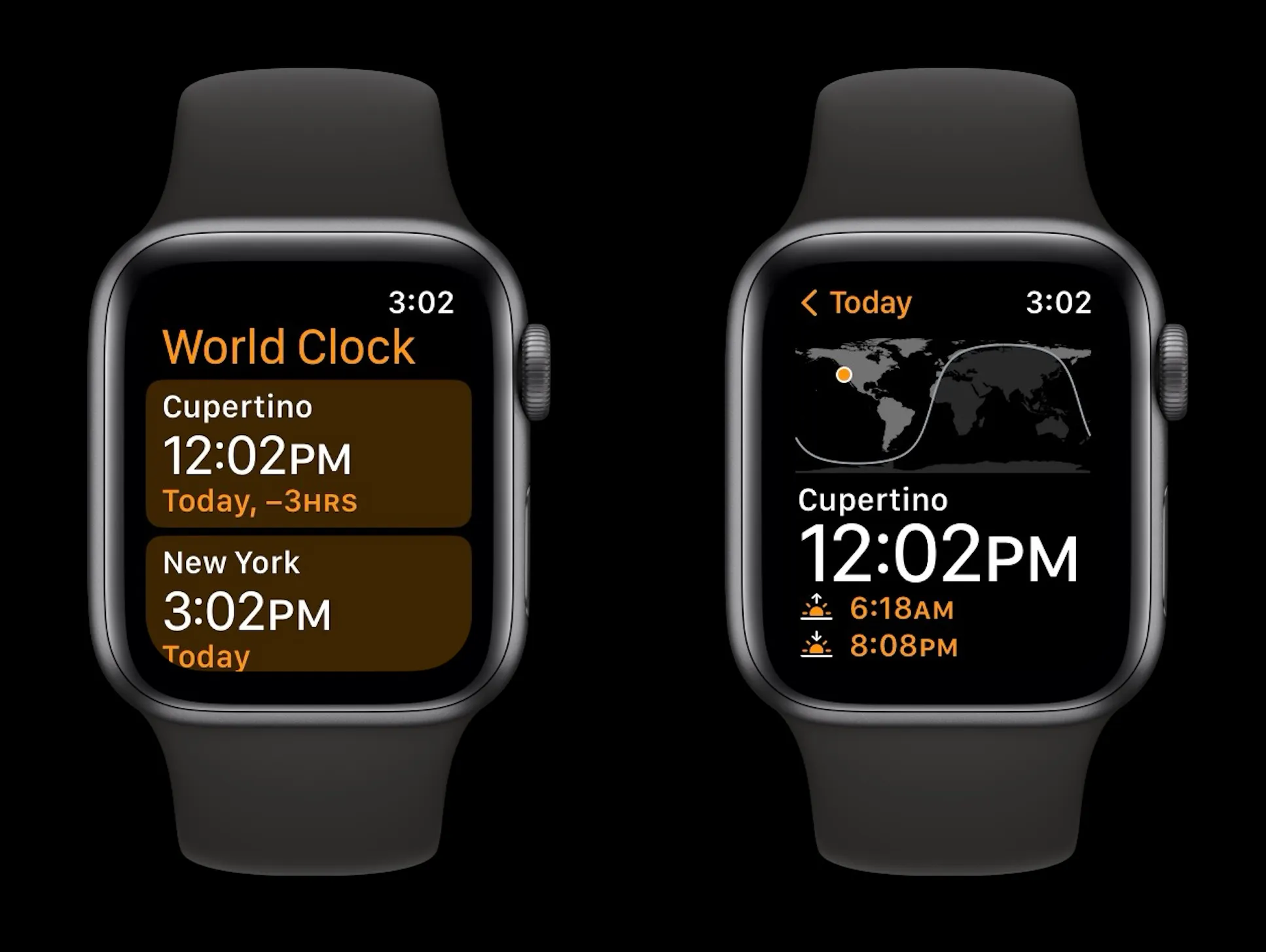
As a refresher, here’s the watchOS 9 World Clock app with the simple black and orange design:
The new World Clock Apple Watch app offers a new functionality when scrolling with the Digital Crown and also makes it easier to check the time difference between your current location and other places around the world.
What’s new with the World Clock Apple Watch app in watchOS 10?
If you’ve allowed location access for the Clock app on iPhone/Apple Watch you’ll see your current location when you launch the World Clock
The current time is shown in the bottom left (and top right) with the sunrise and sunset in the bottom right corner
Scrolling with the Digital Crown now gives you a visual look at how daylight turns to night for the location you’re looking at based on the time
The UI moves from a light blue to a sunset gradient to a dark blue
Tap the X in the top left corner to return to the current time
Tap the three-line icon in the top left to see all of your saved locations
You can quickly rearrange locations by long-pressing and dragging them into a new order
Locations are synced between iPhone and Apple Watch, but you can add locations at the bottom of the list view
Now when you look at a location different from your current location, the relative time of your current location will show in yellow in the top right corner with the time of the location you’re viewing in the bottom left corner
The time zone offset will also appear in the bottom left corner
As it happens, the new World Clock UI is unique to watchOS 10 – the old black and orange UI remains on iPhone with iOS 17.
watchOS 10 widgets: How the new Apple Watch UI works
The new watchOS release comes with some big changes headlined by a new smart and customizable widget-based UI. Follow along for a closer look at how to use the Apple Watch widgets, edit them, and more in watchOS 10.
Apple sees watchOS 10 as “a milestone update” with a focus on bringing “users a fresh approach to quickly view information with redesigned apps, a new Smart Stack to show relevant widgets right when they’re needed, and delightful new watch faces.”
A couple of neat things about the new widget UI are that they’re quickly accessible from any watch face and the widgets automatically reorder to “display timely information that adapts to the user’s context.”
The widgets take up half the screen of the Apple Watch and there are two types, the first uses the whole widget for one app and the second widget type can be customized with three app complications.
Even though the widgets are a Smart Stack, you can manually “pin” widgets you’d like to stay put.
How to use Apple Watch widgets in watchOS 10
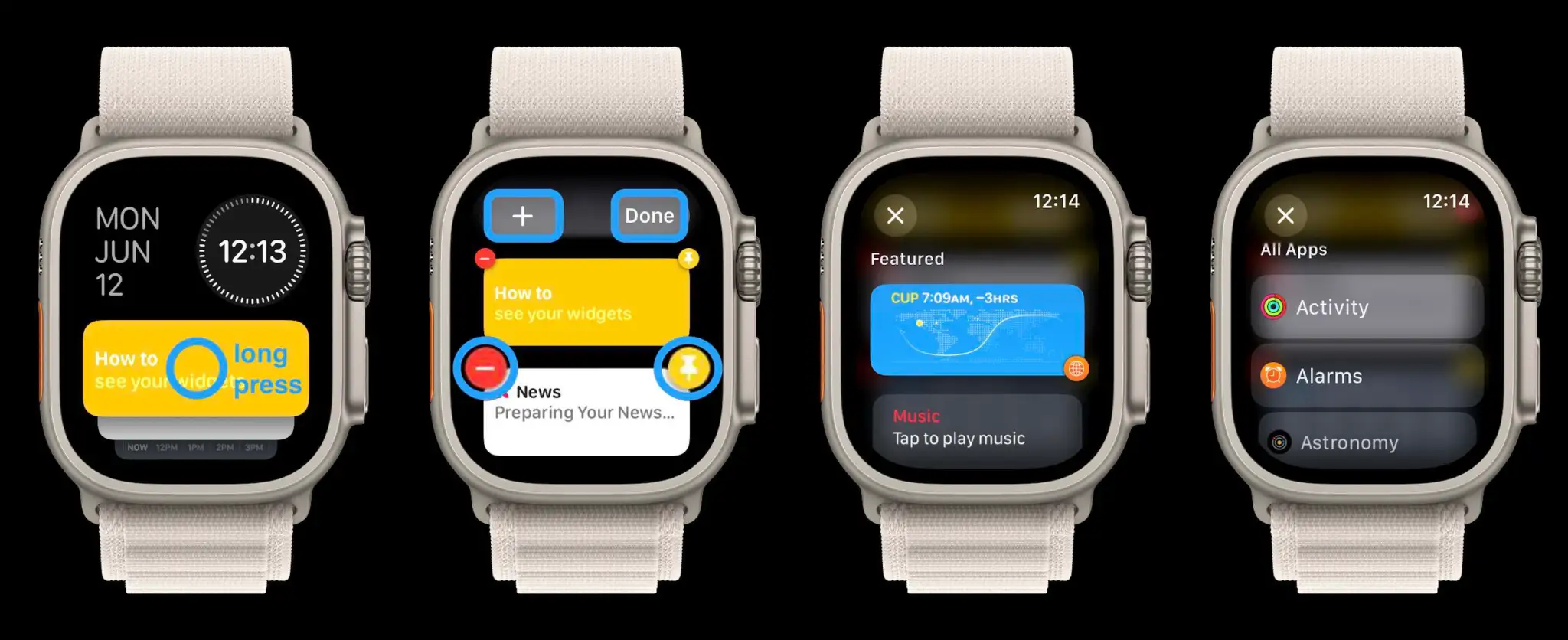
On Apple Watch running watchOS 10, scroll up on your Digital Crown or swipe up on your screen (Control Center now opens with the side button in watchOS 10)
Now you’ll see the new widget UI
Swipe or scroll to see all of the widgets in your Smart Stack (you can also tap the yellow widget to get a little walkthrough)
Long press a widget to edit them
Tap the red – icon to remove widgets and tap the + icon at the top to add new ones
The widgets are a “Smart Stack” and will automatically change through the day depending on context – but manually reordering/pinning is possible with the yellow pin icon that moves widgets to the top of the list and keeps them there
At the bottom is a triple complication widget that’s customizable
At the very bottom is a button to see “All Apps” (you can either tap it or keep scrolling or swiping to see all apps)
The date and time at the top of the widget UI are not customizable – for now at least. Once you long press on a widget to edit them, you’ll see the main options to customize them with the + up top and the remove and pin icons on each widget.
When adding a new widget, you’ll see featured choices up top with all apps below.
The triple complication widget at the bottom can be customized and also pinned if you want to move it to the top of your Smart Stack.