After launching a big overhaul of the Apple Support app in May and expanding it to Vietnam, Apple has released a small but useful update for the app today that brings more details about nearby locations.
Along with performance improvements and bug fixes, the new feature is store hours, accesssibility details, and specialty services showing up for nearby locations.
Apple Support 5.1 release notes:
Added helpful information about nearby locations, including store hours, accessibility details, and specialty services available
Performance enhancements and bug fixes
This release follows Apple Support 5.0 which launched in May with a new UI, the ability to browse nearby Apple service providers, improvements to managing calls, chats, reservations, and more.
Apple Support app overhauled with new layout, quicker access to nearby providers, more
Apple is rolling out a notable update to the Apple Support app for iPhone and iPad today. The update brings a revamped layout that makes it easier to manage your activity, expands the app to new regions, and more. Head below for the full details.
Apple says that the revamped Apple Support app layout streamlines the process of viewing and managing your support account, including calls, chats, reservations, and more. There’s also a new feature that allows customers to easily browse the providers in their area to find the quickest way to get support and service for their devices.
Today’s update to the Apple Support app also brings the app to Vietnam and adds Vietnamese as a supported language. In total, Apple says the app is now available in 32 languages and 174 regions.
Here is the full changelog:
Browse the providers in your area to see what’s nearby.
New layout makes it easier than ever to view and manage your calls, chats, reservations, and other activity.
Expanded region availability to Vietnam and added Vietnamese as a supported language. The Apple Support app is now available in 32 languages and 174 regions.
Performance enhancements and bug fixes.
The Apple Support app is a useful resource for finding help for any problem you might face with your Apple hardware or your Apple ID. You can download it on the App Store for free. Today’s new update is still rolling out, so you might not see it right away in the App Store on your device.
The most important questions to ask about the Apple Watch Series 7 aren’t about the Apple Watch Series 7, they’re about the Apple Watch you may already have.
That’s a gentle way of saying that if there’s nothing wrong with your current watch, there’s nothing in the Series 7 that should compel you to upgrade. If you’ve been waiting for some key features before buying your first Apple Watch.
The Apple Watch Series 7 is great. The larger screen and faster charging are the two headline features and both are welcome. The Apple Watch is in a class entirely of its own right now. Nothing else is as good for iPhone users and nothing like it is available for Android users.
Apple Watch design and screen
The Apple Watch Series 7 didn’t get a major redesign when launched. Instead, it looks almost identical to previous Apple Watches and maintains compatibility with all previous Apple Watch straps, although there are incredibly subtle changes in its overall size and curves.
There are new colour options available, including midnight (which apparently has a hint of blue in it), starlight (a cross between silver and gold), and dark green. Apple sent me the green one and in most light, it just looks grey — but every now and then it’ll pop and look visibly green.
The biggest change is the screen; it’s 20 per cent larger than the last few iterations of the Apple Watch. It does the thing all screen upgrades tend to do: make the older screen with its larger bezels look small.
When Apple first made the screen bigger way back on the Apple Watch Series 4, Some thought it made an appreciable difference in the experience and would even be worth upgrading for. Here, on the Series 7, Some just think the screen is really nice and looks better, but isn’t enough to justify an upgrade.
Apple has kept the always-on screen and says that it is brighter in ambient mode when indoors. That is: the overall max brightness hasn’t changed, but when you’re inside, the screen should look a little less dim.
The other design change on the Series 7 is that it’s more durable. The front crystal on all models is thicker and stronger against cracking. (It’s also more refractive, so you can catch a glimpse of some pixels at extreme angles.) The whole watch adds IP6X dust resistance for the first time and maintains the same water resistance to 50 meters.
Apple didn’t add any new health sensors to the Series 7. It still tracks heart rate and has a blood oxygen monitor and EKG. None of these sensors should be used for diagnostic purposes as the Apple Watch is not a medical device.
Apple Watch charging and battery
Apple is still targeting 18 hours of battery life on the Apple Watch Series 7. It’s enough to get through a day — maybe two if you turn off the always-on screen and don’t work out. In my tests, those numbers are borne out. I need to charge the Series 7 only a little less often than I need to charge my old Series 5 (which is starting to lose its battery capacity a bit).
Wish Apple had done more to improve battery life on the Series 7, especially since this is technically a redesign. Would have even taken the same size screen as last year’s model if it had meant getting longer battery life instead. There’s nothing wrong with the Apple Watch’s battery life, but I do wish that it aimed higher like the new iPhones did this year.
Instead, we got faster charging thanks to a redesigned charging puck that also uses USB-C. Lots of people have those wall adapters but may need to pick up a second one (or a multi-charger) since it’s not included in the box. (As an aside, the actual plug part of the Apple Watch charger is longer now, which Apple says is to manage heat.)
The charging is faster. Apple claims it’s 33 percent faster than the older cable and that sounds right to me. I have been able to juice up 20 per cent in just ten minutes several times and it has been easier to top off to a full charge in the morning while I putter around with coffee and breakfast. It makes it slightly more convenient to use the watch for sleep tracking since it’s easier to fit a quick charging session in.
Still and all, We would have preferred standard Qi charging to faster charging (if we had to choose). Qi charging mats are cheap and plentiful now, but integrating an Apple Watch charger adds cost and complexity. Older Apple Watch chargers will work just fine with the Series 7 but at a slightly slower charging speed.
WatchOS 8
There are a few features in WatchOS 8 that are exclusive to the Series 7, ostensibly because its larger screen makes them possible. The watch can fit just a little more text when reading a message, for example.
The two watch faces custom to the Series 7 are called “Contour” and “Modular Duo.” The former just put numbers out on the edges of the screen and would apparently look bad on screens with larger bezels, while the latter allows you to have two full-width complications stacked instead of just one.
The larger screen also allows for a new text-entry option: a miniature keyboard. You can tap or swipe on it and as long as autocorrect is doing its thing correctly, it works fine. It’s about as good as any smartwatch keyboard I’ve used, but still, others prefer dictating messages via Siri whenever possible.
Those are the Series 7-specific features, but WatchOS 8 has a few more things worth covering. It’s able to auto-detect outdoor bike workouts — and in testing, it managed to do that very well, even when I was hitting stoplights at every block. Wish Apple would make it easier to integrate the Watch’s workout data with cadence or power sensors on a bike, but cyclists are still on their own to figure out how to do that.
Apple says it’s also adjusting your calorie metrics if the watch believes you’re riding an e-bike. There’s no setting for it, it just detects if your heart rate is suspiciously low and your speed is remarkably high as you cruise up a hill. There’s also no indicator in your results if your calorie metrics were adjusted.
WatchOS 8 has a redesigned photos app and lets you send photos directly from the watch. It has an updated “Mindfulness” app with a “Reflect” feature that gives you some kind of prompt to meditate on, like “Recall a challenge you’ve overcome” and “Think about what sparks your creative energy.” As you can probably tell from the unnecessary scare quotes in the previous sentence, I don’t like it. I think meditation is a deeply personal — and for many people spiritual or religious — thing, and so I recoil whenever I see tech companies reducing the practice down to anodyne apps.
I’ve left the best for last: the Apple Watch lets you set multiple timers. You can set them in the timer app. You can set them with Siri. You can use Siri to name each timer. You can see all your timers stacked one after the other. It’s magical. It’s wonderful. It’s hilarious that it took until 2021 to make this happen and even more hilarious that the iPhone itself still can’t do it.
Seriously, though, multiple timers on the Apple Watch are great, especially for cooking. It means I don’t need to stay within earshot of the smart speaker in my kitchen if I’ve got something in the oven.
As what have said this every year for several years now because it’s true every year: the Apple Watch is the best smartwatch for iPhone users, by far. There are fitness trackers that fulfil niches not filled by the Apple Watch like Garmins for more serious athletes or Fitbits for people who want something simpler. But as a general computer-on-your-wrist, the Apple Watch Series 7 is challenged only by older Apple Watches.
If you have one of those older Apple Watches, I don’t think there’s anything here that should compel an upgrade. All the new features are very nice but not necessary. If there is something that’s bothering you about your current watch, then by all means go for it if you can afford it. Also, while the Series 3 is still kicking around for cheap, I don’t think it’s a great buy anymore. The Apple Watch SE is a better value.
There’s no reason that we should have an expectation of major year-on-year updates for the Apple Watch. These smaller iterations might not be what we’ve been hoping for — a big redesign with much more battery — but that doesn’t make the Series 7 bad on its own merits.
It’s a great watch — again, the best smartwatch. If it’s time for you to replace your watch (or buy your first one), you’ll love it. If it’s not time to replace your watch, it’s not time to replace your watch.
Apple released watchOS 9.6.1 for Apple Watch users on Tuesday but without an accompanying iOS 16.6.1 update. A new rumor today suggests that Apple isn’t planning iOS 16.6.1 and is instead planning to jump all the way to iOS 16.7. Simultaneously, Apple has also started ramping up iOS 17.1 testing.
watchOS 9.6.1 addresses a bug in Apple’s Movement Disorder API that had prevented access to that data by researchers and third-party applications.
Typically (but not always), when Apple releases an update for one of its platforms, it releases accompanying updates for other platforms. This is especially true for watchOS, with Apple generally trying to keep lock-step between watchOS and iOS when possible.
That being said, a new rumor today from a previously accurate source on Twitter suggests that Apple is instead planning to jump to iOS 16.7 with its next update. The company reportedly isn’t planning to release iOS 16.6.1.
There’s no word on when Apple might release iOS 16.7 to the public, and the update is not actively being beta tested with developers. Last year, the first and only iOS 15.7 beta was released alongside the final iOS 16 beta. The stable iOS 15.7 update for everyone was released alongside iOS 16 on September 12, with a handful of bug fixes and security improvements.
In recent years, Apple has allowed users to remain on a previous year’s iOS release instead of immediately updating to the new version. For example, Apple actively encouraged users to update to iOS 15.7 rather than iOS 16 on day one last year.
iOS 17.1 testing ramps up
As of right now, there’s no evidence of iOS 16.7. This will likely change as we inch closer to a release sometime next month.
Interestingly, there has been a subtle uptick in iOS 17.1 users on over the last several weeks. iOS 17.1 could potentially add some of the features that aren’t included in the iOS 17 initial release, such as the new Journal app, additional AirDrop improvements, and collaborative playlists in Apple Music.
Last year, iOS 16.1 was released on October 24 with new features including iCloud Shared Photo Library, Live Activities for third-party apps, key sharing in the Wallet app, and more.
Apple releases watchOS 9.6.1 update for Apple Watch users
Apple is rolling out a new software update to Apple Watch users ahead of watchOS 10’s launch in September. Starting today, watchOS 9.6.1 is rolling out with a fix for the Movement Disorder API.
This update includes a fix for an issue that prevents access to motion data for apps that use the Movement Disorder API to track tremors and symptoms associated with Parkinson’s disease.
The Movement Disorder API was first launched in 2018 as a way for developers to offer passive, all-day monitoring via an Apple Watch. The API is able to monitor two common symptoms of Parkinson’s, including Tremors, indicated by shaking and quivering detected by the Apple Watch. The API can also monitor for Dyskinesia, a side-effect of treatments for Parkinson’s that causes fidgeting and swaying motions in patients.
The bug in watchOS 9.6 prevented third-party apps from accessing this data. Apple says the issue has been rectified with today’s release of watchOS 9.6.1.
You can update your Apple Watch by going to the Apple Watch companion app or to the Settings app on the Apple Watch itself. The build number for watchOS 9.6.1 is 20U80.
As of right now, there’s no sign of other updates from Apple, including iOS 16 and macOS Ventura. We’ll be sure to let you know if any other updates are released today.
Some companies ended up making these briefcase monitor-type accessories, but they were bulky, finicky, and always expensive. But thanks to an update to iPadOS 17, it looks like your iPad can now solve that problem. Here is how to get it done.
How is this possible?
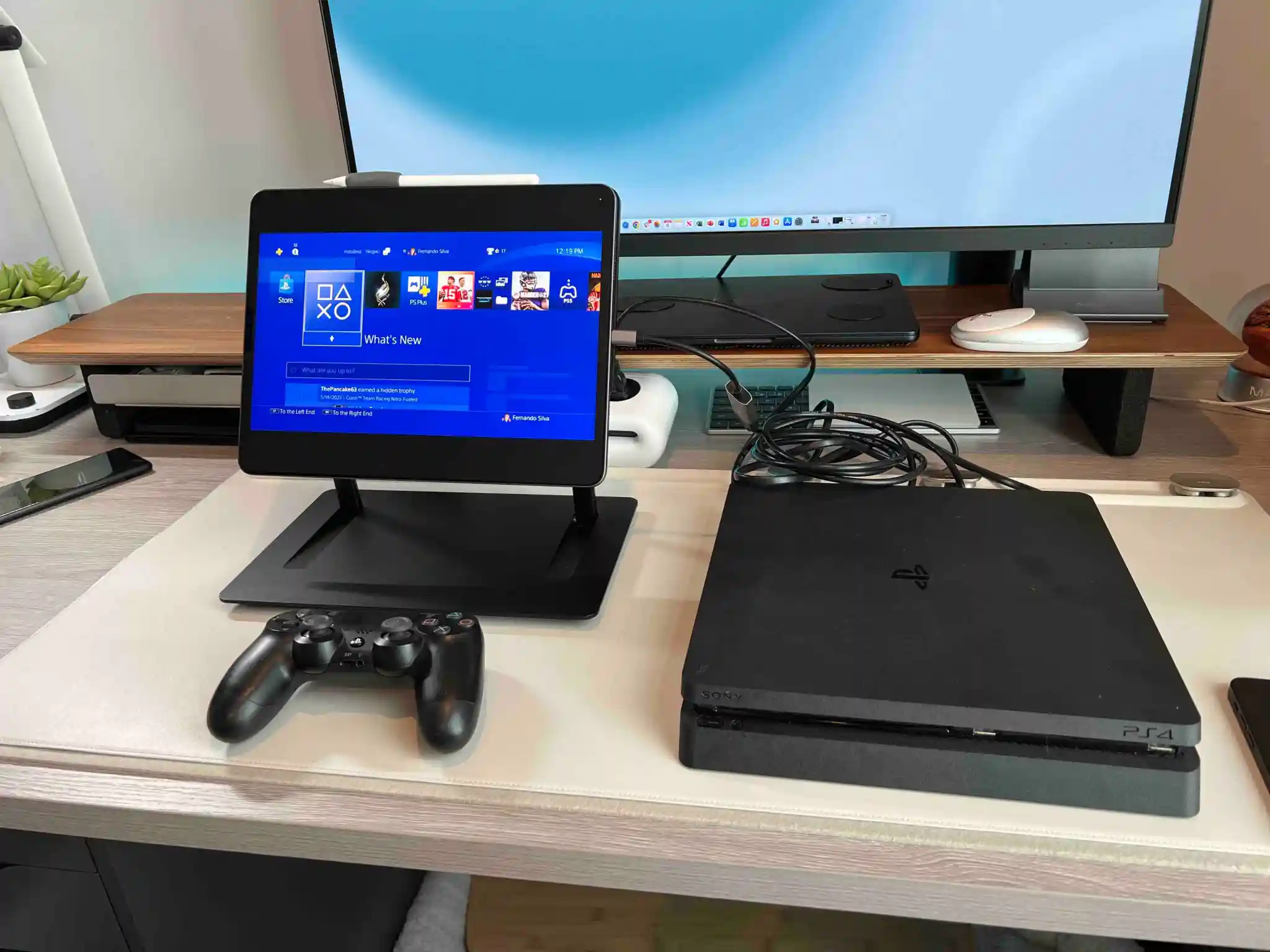
Firstly, the reason this is possible is that one of the new features of iPadOS 17 gives you the ability to use an external camera as a webcam for your iPad. Again this is on iPadOS 17 and it is still in beta, but should be released in mid-September. The way this works is by using an external camera or webcam and basically “playing” it on your iPad, and the result is the ability to use it as your camera instead of the built-in FaceTime camera. Right now this feature only works in the FaceTime app but should become more available in third-party apps like Zoom, Slack, and Teams. Wesley Hilliard, from AppleInsider, wrote that this new camera support also applies to capture cards, which can be used to turn anything into an HDMI in. That is where the magic happens.
What you need
The setup for this is actually extremely simple. It will work with any video game console as long as it has an HDMI out. As tested it with my PS4 and my Nintendo Switch, and it worked amazingly. But below are the software and items needed to get this going.
Any iPad with a USB-C port (does not work with lightning port iPads)
Must be on iPadOS 17
Video Capture Card
Video game console of choice
Capture Pro App (currently in testflight but free to sign up to use)
Optional: USB-C hub to charge your iPad and use Capture Card
As mentioned, the iPad needs to be on iPadOS 17 to support this feature. You also need to make sure to download the Capture Pro App. It is currently in testing, so just hit this link, make sure to download Testflight, and then you can sign up to test Capture Pro for free, and it works immediately. It will eventually make it onto the regular app store once iPadOS 17 goes live to the public.
How to use your iPad as a game console display
Now that we have all the hardware we need, we can start to set this up. As stated, this is the easy part. Just connect your console to power, and run the plug the capture card into the HDMI cable. Plug the HDMI side to the console, and the capture card side to the iPad. Turn on the console, open the Capture Pro app, tap the “reload” button, and you are live!
What You will love about this is also just how well it works! The audio of the video game defaults to the iPad Pro speakers, which is outstanding! There is also ZERO latency. Since this isn’t remote play or cloud gaming, you are directly connected to the console which allows for no latency while playing. On top of all of this, since you are using an App to display this through the Capture Pro App, it supports stage manager. So you could have the gameplay in one window and have Twitter or some walkthrough website up in another window while playing. Be sure to watch the hands-on video to see this in real-time.
Wrap-up
I think this is a very cool feature, and I can’t wait to see what this could mean for portable consoles in the future. It is not unheard of to put your Xbox, iPad, and controller in a bag for a week-long trip. You would be able to get some series gaming done. Combine that with the amazing iPad Pro ProMotion display, and you will be gaming at 120FPS on the go.
This is still in beta but so far I have had zero issues at all. If you want to give it a try, all you really need to do is buy that capture card if you don’t have one, and you should have everything you need.
Apple’s Shortcuts app has evolved a lot since the company acquired Workflow in 2017. For those unfamiliar, it lets users create a series of automated processes on iPhone, iPad, Mac, and even Apple Watch. And with iOS 17, Apple is adding even more functionality to the app, which now supports Camera app actions.
Camera app shortcuts coming to iOS 17
As noted by Matthew Cassineli, the latest iOS 17 beta available to developers and public beta testers adds new Shortcuts actions to open specific camera modes in the Camera app. With the new “Open Camera” action, users can choose between different camera modes and “immediately open any preset using Shortcuts.”
There are up to nine different modes available, which vary depending on the device you have:
Photo
Selfie
Video
Portrait
Portrait Selfie
Cinematic
Slo-Mo
Time-Lapse
Pano
These shortcuts can be very useful for a lot of things, like creating voice commands to use Siri to open the Camera app in a specific mode. You can also add icons to quickly access a specific mode right from your Home Screen.
ChatGPT for iOS adds Siri & Shortcuts support, and proper iPad app
This shortcut brings deep ChatGPT integration to native iOS features and apps
Workflow cofounder and Shortcuts engineering manager departs Apple
More about iOS 17
iOS 17 comes with a bunch of new features for the iPhone. These include enhancements to FaceTime and Messages, a new StandBy mode, interactive Home Screen widgets, NameDrop, and smarter keyboard suggestions. For the iPad, the update brings a brand new customizable Lock Screen, plus support for microphones and USB webcams.
iOS 17 beta is currently available through the Apple Developerand Apple Beta Softwareprograms. The official release to the public is expected this fall.
Apple acquires powerful iOS automation app Workflow, makes it available for free
Apple way back 2017 acquired popular iOS tool Workflow, which allows users to combine the functionalities of various apps together to automate normally complex processes. According to TechCrunch, Apple finalized the deal today but financial details are not yet available.
In a statement, Workflow developer Ari Weinstein said that the team is thrilled to be joining Apple and remarked on how amazing of a journey it has been going from the company’s beginnings to today:
“We are thrilled to be joining Apple,” said Weinstein in a statement. “We’ve worked closely with Apple from the very beginning, from kickstarting our company as students attending WWDC to developing and launching Workflow and seeing its amazing success on the App Store. We can’t wait to take our work to the next level at Apple and contribute to products that touch people across the world.”
Apple has also confirmed the acquisition. The company said in a statement that Workflow’s use of iOS accessibility features is something that really makes the app standout out from other services. In 2015, the app won an Apple Design Award, something Apple attributes to those accessibility features in today’s statement:
“The Workflow app was selected for an Apple Design Award in 2015 because of its outstanding use of iOS accessibility features, in particular an outstanding implementation for VoiceOver with clearly labeled items, thoughtful hints, and drag/drop announcements, making the app usable and quickly accessible to those who are blind or low-vision.”
Workflow is based around the idea of transforming a process that would normally take a handful of interactions with iOS into a single tap. The goal is to “hide” a complex set of commands under a single, instant tap of a button.
What’s somewhat unusual about Apple’s acquisition of Workflow is that the app will remain on the App Store and has transformed into a free offering today. It’s unclear at this point how the Workflow team will be integrated into Apple, but the acquisition is good news for pro users who have called on Apple to make iOS more powerful, as well as good news for those who have called the iOS interface overly complicated.
iOS 17 beta 4: Here’s what new
iOS 17 beta 4 is here, and it includes a handful of small changes and new features for iPhone and iPad users. Head below as we round up everything that’s changed ahead of iOS 17 being released to the general public in September.
The first beta of iOS 17 was released following the WWDC on June 5, and beta two was released two weeks later on June 21. iOS 17 beta 2 included updates to AirDrop, changes to the Settings app, crossfade support in Apple Music, and more. iOS 17 beta 3 was released on July 5 and brought more in-depth credits to the Music and more.
Since the release of iOS 17 beta 3, Apple also released the first iOS 17 public beta. We expect a new iOS 17 public beta build to be released sometime later this week or early next week.
What’s new in iOS 17 beta 4?
Ahead of Photo Stream being shut down this week, iOS 17 beta 4 removes the feature entirely.
iOS 17 beta 4 includes a new toggle in the Settings app that allows users to disable the ability to initiate AirDrop transfers by bringing two devices close together.
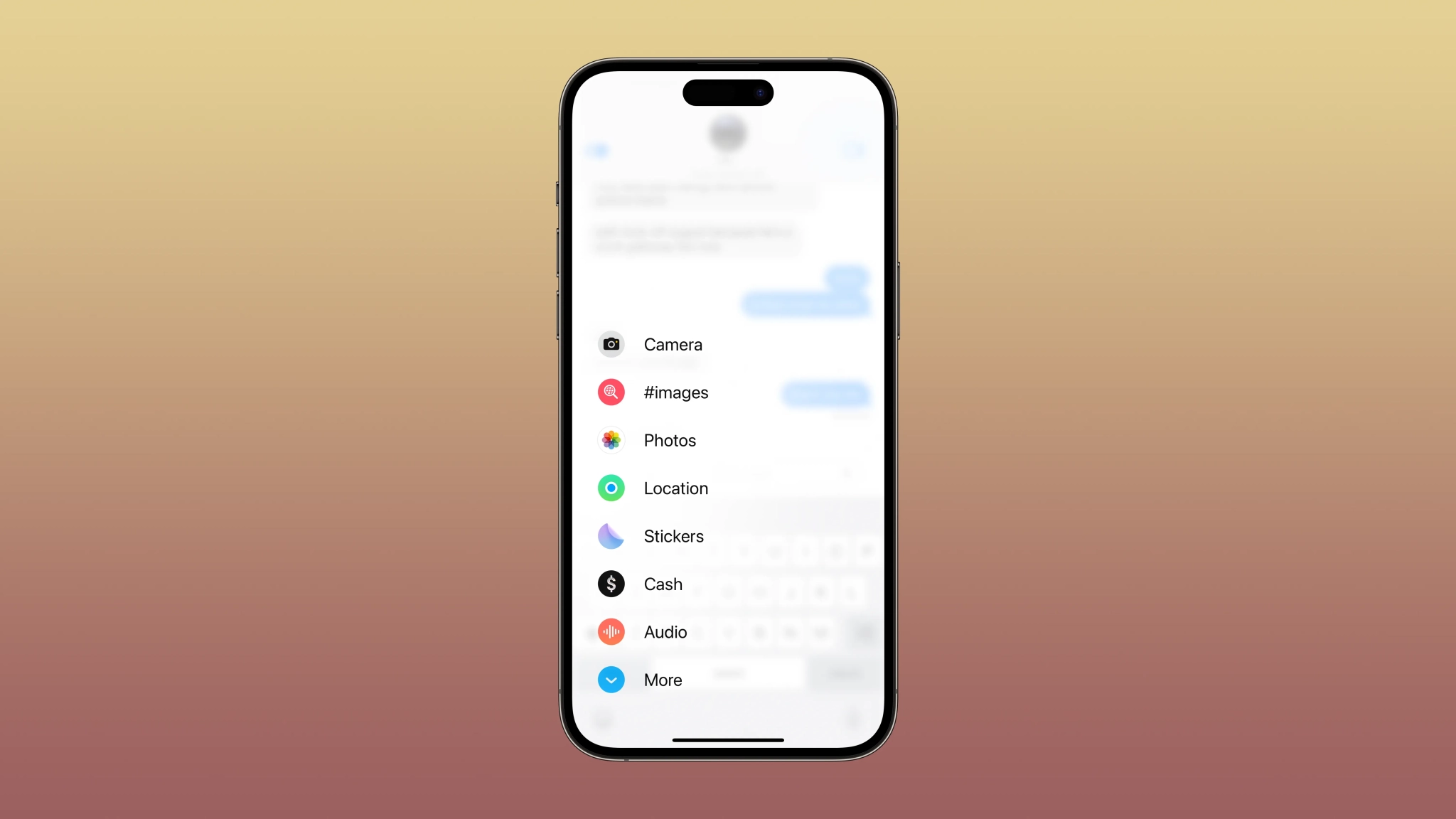
In the Messages app, Apple has tweaked the layout and icons for Messages apps in iOS 17 beta 4.
As spotted by Hidde Collee on Twitter, iOS 17 beta 4 includes a slightly tweaked design for buttons in the TV app.
There’s also a new AirPlay picker animation included in iOS 17 beta 4:
Google at I/O 2023 announced that it would leverage the over 1 billion Android devices in use to find your lost items. The Find My Device (FMD) network was originally supposed to launch this summer, but Google is now delaying it.
Back in May, Google said Bluetooth trackers from Tile, Pebblebee, and Chipolo would be compatible with the Find My Device network. The two latter brands already opened pre-orders, but Chipolo communicated a delay two weeks ago.
Google announced today that it’s delaying the launch of the Find My Device network. It comes down to unknown tracker alerts that automatically warn you if somebody is monitoring your location with a nefariously placed tag. While Google already said that all Bluetooth tags compatible with the FMD network will support Android’s unknown tracker alerts, the iPhone does not have similar detection capabilities.
Google is not launching the Find My Device network “until Apple has implemented protections for iOS.” By making sure iPhone owners can find FMD-compatible trackers, this should hopefully reduce and help prevent the Google network from being used to track Apple devices without awareness from their owners. That would reflect badly on the FMD network and associated products, which is an ongoing occurrence for AirTags.
Notably, Google confirmed to us that the unwanted AirTag tracker alerts that Android is rolling out starting today are based on a custom implementation that is different from the upcoming spec. Android is implementing the alerts now to allay customer concerns since the Apple tracker is widely available.
In terms of when the Find My Device network will launch, Google only mentions the expected end of 2023 finalization of the spec. There will presumably be another waiting period for Apple to update iOS.
What is the Find My Device network
Today, Find My Device can locate lost phones and watches that are connected to the internet. (There’s also support for some Bluetooth headphones based on their last known connection to your phone/tablet.)
The new Find My Device network can “locate devices that are offline or that don’t have location capabilities.” This works by having the 1+ billion Android devices in the world periodically check for nearby devices to crowdsource the location of missing ones.
Behind the scenes, Google says “location data crowdsourced from the network is end-to-end encrypted, and that it “can’t see or use it for any other purposes.” The Find My Device network can locate phones and tracker tags, as well as headphones, including Pixel Buds, as well as those from Sony and JBL.
From a functionality and usability standpoint, smartwatches shouldn’t be miniature phones. Interactions should last seconds, with UI elements large and information highly glanceable, given the very physical constraints of a small screen size. One way modern apps abide by those tenets is in keeping to a single scrollable feed of content, while earlier apps opted for side-by-side windows/feeds that were roughly analogous to bottom bar tabs.
Wear OS 3 does a good job following those principles, and it’s very simple to use and pick up. In comparison, the Apple Watch tried to pack in too much, and it’s felt quite crufty for several generations now.
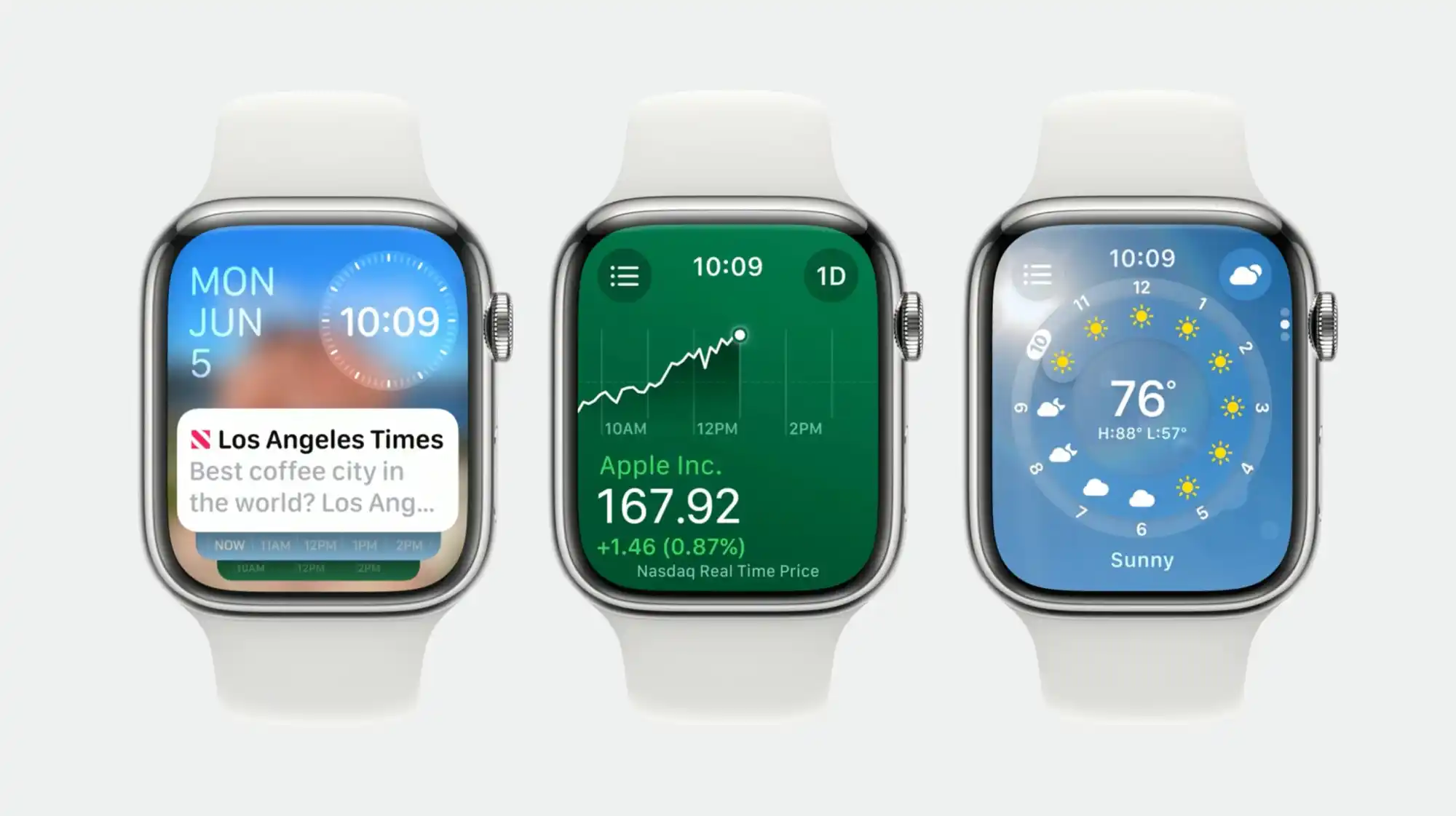
With watchOS 10, Apple has done a thorough redesign and created a design system for wearable apps. Info-dense applications don’t feel cramped, and it’s very obvious where to press. It works so well that I’m rethinking my expectations for what a watch app can be.
This layout/template works because it uses all the available space. It comes down to the Apple Watch being a rectangle and Wear OS watches being circular. The circle, while iconic and a point of pride for Google in designing the Pixel Watch, is constrained in terms of text layout and button placement.
The only Wear elements that really curve are the time and maybe watch faces that mimic analog clocks. Within the circular container, something like text and other graphics can only be placed in a square to ensure nothing gets cut off. The semicircle endcaps of a pill-shaped card do take up the left and right of the screen, but there’s no information placed there.
With watchOS 10, you’re able to place two in the top-left (back button or new message button) and right corners (now playing, etc.), while some apps even have FABs. It’s highly efficient, and the consistency trains users on where to tap.
Wear OS buttons cannot be placed in non-existent corners. For example, Messages’s Start chat button takes up a full line and is given equal importance to a conversation. The solution there would be a smaller button, like the one used for search by the Play Store. Another idea would be for apps to place vertical versions of those pill-shaped buttons on the left and right sides.
Meanwhile, the Apple Watch’s upcoming widget system is remarkably dense. In Wear OS, Tiles take up your entire screen and usually just show one piece of information. On watchOS 10, you can view two cards per screen, including heart rate with history, activity, sunset/sunrise, audio controls, timers, a compass, and much more.
This approach is so much better and is in large part due to Apple making it so that a swipe up from the watch face gives you widgets. Previously, that gesture took you to Control Center, which is now a side button press. (It’s annoying, as I think physical button presses are much less immersive.)
On Wear OS, Tiles are left/right swipes that eventually return you to the watch face. A swipe up on Google’s platform takes you to a notifications feed.
I think the approach Apple arrived at is so good that Google should consider changing its own. It makes more sense for notifications to be fullscreen, like Tiles currently, to show as much information as possible before you have to open it. An upward swipe for multiple widgets and/or mini-Wear OS Tiles would be highly glanceable.
Meanwhile, Wear OS could even consider placing circular complications here. The clever thing Apple has done with widgets always being a swipe up away is that you can set anything as your watch face. Fun options there include Mickey and Minnie Mouse, Snoopy, and fullscreen digital and analog clocks. Previously, I opted for something with a lot of complication slots, but now I just place the info I need in the widget feed.
The Apple Watch has always done more than Wear OS, but it was presented in an overwhelming manner. Now, it’s been thoroughly refined to fit elegantly. In comparison, what Wear OS has going for it is simplicity. That’s far from bad, but it might get old fast as we inevitably come to expect more from our wearables.
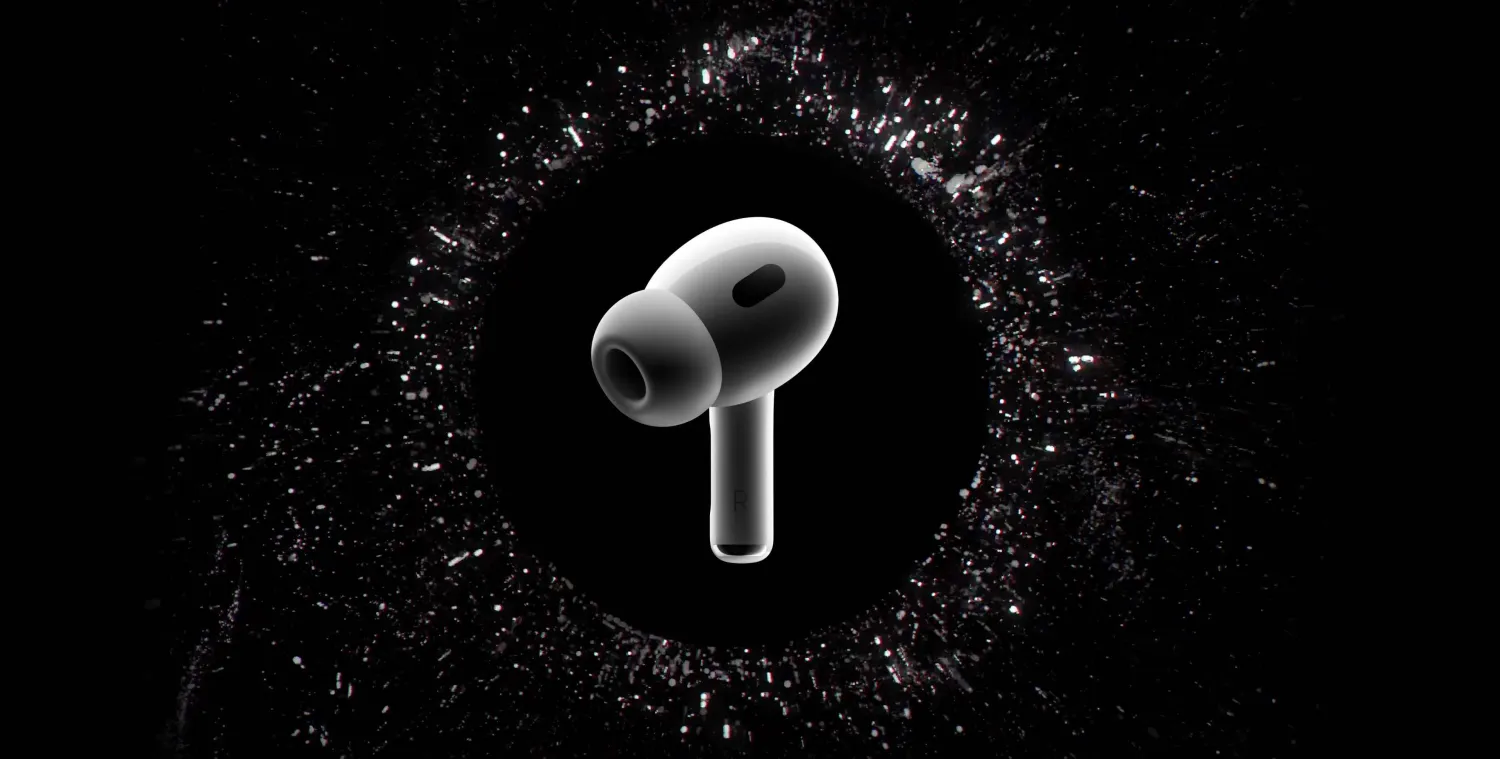
Apple delivered a solid update to its best wireless earbuds last fall with the launch of AirPods Pro 2. Now Apple is turning it up to 11 with five all-new features coming to the gen-two AirPods Pro – no hardware upgrade required.
Adaptive Audio
AirPods Pro 2 currently have three modes of noise control. Noise Cancellation effectively mutes the world around you. Transparency pipes in sounds around you while your ears are plugged. And off… off is what in-ear headphones sounded like before AirPods Pro. Damp and muffled. You’re probably in Noise Cancellation or Transparency.
Enter Adaptive Audio. You may never need the other two modes again.
Adaptive mode “dynamically blends Transparency mode and Active Noise Cancellation together based on the conditions of a user’s environment to deliver the best experience in the moment,” says Apple.
And it works like a charm.
Adaptive Audio lets you enjoy the presence of Transparency while you’re doing dishes then seamlessly adjust to Noise Cancellation when you turn on the vacuum cleaner. You won’t even realize mode switching occurred because audio playback just sounds consistent. The return of ambient sounds around you will wow you when you notice what just happened.
Conversation Awareness
From the very first version in 2017, AirPods have always been great at letting you stop the audio and tune in to the world. With Auto-Pause, you just remove an AirPod from your ear and playback stops. Slick.
Conversation Awareness is a new take on a similar idea.
If you speak with Conversation Awareness turned on, AirPods Pro 2 will be able to automatically lower your volume and enhance the voices of people speaking in front of you. While this is happening, Conversation Awareness will actively reduce background noise behind you.
In other words, it might finally be possible to have a conversation in a bar. What? I’m not tuning you out, I’m doing this because I care! But seriously, this will make jamming to music and saying hello to someone passing by possible without ever touching your AirPods.
Mute or Unmute
Mute or Unmute may not sound as mind-blowing as Adaptive Audio and Conversation Awareness, but it’s just as convenient if you ever use your AirPods Pro 2 on a phone call. Starting later this fall, you’ll be able to easily mute yourself during any call through your AirPods by pressing the stem. Press again to unmute. No need to pull out your phone.
But wait, there’s more. Personalized Volume is a new feature that will rely on machine learning to let AirPods “understand environmental conditions and listening preferences over time to automatically fine-tune the media experience.”
Automatic Switching is a feature for moving between Apple devices that exists today. An update to the feature will see the “connection time between a user’s Apple devices is significantly faster and more reliable,” according to Apple.
So that’s what we have to look forward to with AirPods Pro 2 later this year. Adaptive Audio, Conversation Awareness, Mute or Unmute, Personalized Volume, and Automatic Switching improvements will be available through a free software update starting this fall.
Conversation Awareness on AirPods Pro interrupting your music? Here’s why you may want to turn it off
Adaptive Audio in iOS 17 for AirPods Pro 2 brings multiple improvements with one of the new features automatically switching the headphones to transparency mode and lowering the volume when it hears you talking. While the capability works very well, there are some situations where it’s not helpful. Here’s how to turn off Conversation Awareness on AirPods Pro 2.
Apple highlights three features make up the new Adaptive Audio capabilities for AirPods Pro 2 with iOS 17.
“Adaptive Noise Control” is what “dynamically adjusts the external noise you are exposed to.” “Personalized Volume” adjusts your media’s volume “in response to your environment,” and there’s “Conversation Awareness” which switches to transparency mode and lowers your media volume when you start talking.
While the automatic nature of these three features and how seamlessly AirPods dynamically adjust feels like magic, fortunately, Apple has included separate controls for using Adaptive Noise Control and Conversation Awareness (and Personalized Volume too). That means Adaptive Audio isn’t an all-or-nothing feature.
What can interrupt music and videos with Conversation Awareness?
I’ve been very impressed with Conversation Awareness so far and often, I leave it turned on. However, there are a couple of scenarios where you’ll probably want to turn it off:
If you want to sing along with your music, you’ll find Conversation Awareness isn’t a good fit
Laughing can also trigger it, but in my testing, the feature ignores whistling and humming
A slick aspect of Conversation Awareness is it knows when you’re talking with someone versus being near others who are talking.
That means your AirPods only switch to transparency mode and lower your volume when you join a conversation. So you can leave the feature on for things like public transit, close workspaces, etc. without it interrupting your music/content.
How to turn off Conversation Awareness on AirPods Pro 2
Adaptive Audio is only available with AirPods Pro 2. You’ll need the iOS 17 betaon your iPhone along with the AirPods beta installed. With this being a developer beta, install it at your own risk.
Open Control Center on your iPhone (pull down from the top-right corner)
Long press on the volume/AirPods slider (make sure your AirPods are connected)
Tap Conversation Awareness to toggle it off/on
Alternatively, you can head to iOS Settings > AirPods > swipe down and under Audio, tap Conversation Awareness
Here’s how it looks to turn off Conversation Awareness:
How to turn on AirPods Pro Adaptive Audio, how it works, more
AirPods Pro 2 get several impressive upgrades alongside iOS 17 with the headlining new capability allowing them to automagically adjust between noise-cancellation and transparency modes, change volume, and make it easier to hear voices. Follow along for how to turn on AirPods Pro Adaptive Audio, how it works, and more.
How AirPods Pro Adaptive Audio works
Apple says that Adaptive Audio is made up of three different automatic features.
First, Adaptive Audio includes “Adaptive Noise Control” which is what “dynamically adjusts the external noise you are exposed to.” Second, “Personalized Volume” adjusts your media’s volume “in response to your environment,” and third there’s “Conversation Awareness” which switches to transparency mode when you start talking and lowers your media volume.
Its been very impressed with how those three aspects of Adaptive Audio combine to offer a slick experience that feels seamless and magical.
I think a lot of that is thanks to a crossfade-like effect which means it doesn’t abruptly switch between modes, it’s a really smooth adjustment/transition between noise cancellation, transparency, and lowering/raising volume.
How to turn on AirPods Pro Adaptive Audio
Adaptive Audio is only available with AirPods Pro 2. You’ll need the iOS 17 beta on your iPhone along with the AirPods beta installed . With this being a developer beta, install it at your own risk.
After installing the AirPods beta, look for a splash screen asking if you’d like to turn on Adaptive Audio when using your AirPods Pro 2
If you don’t see that, you can manually turn the feature on
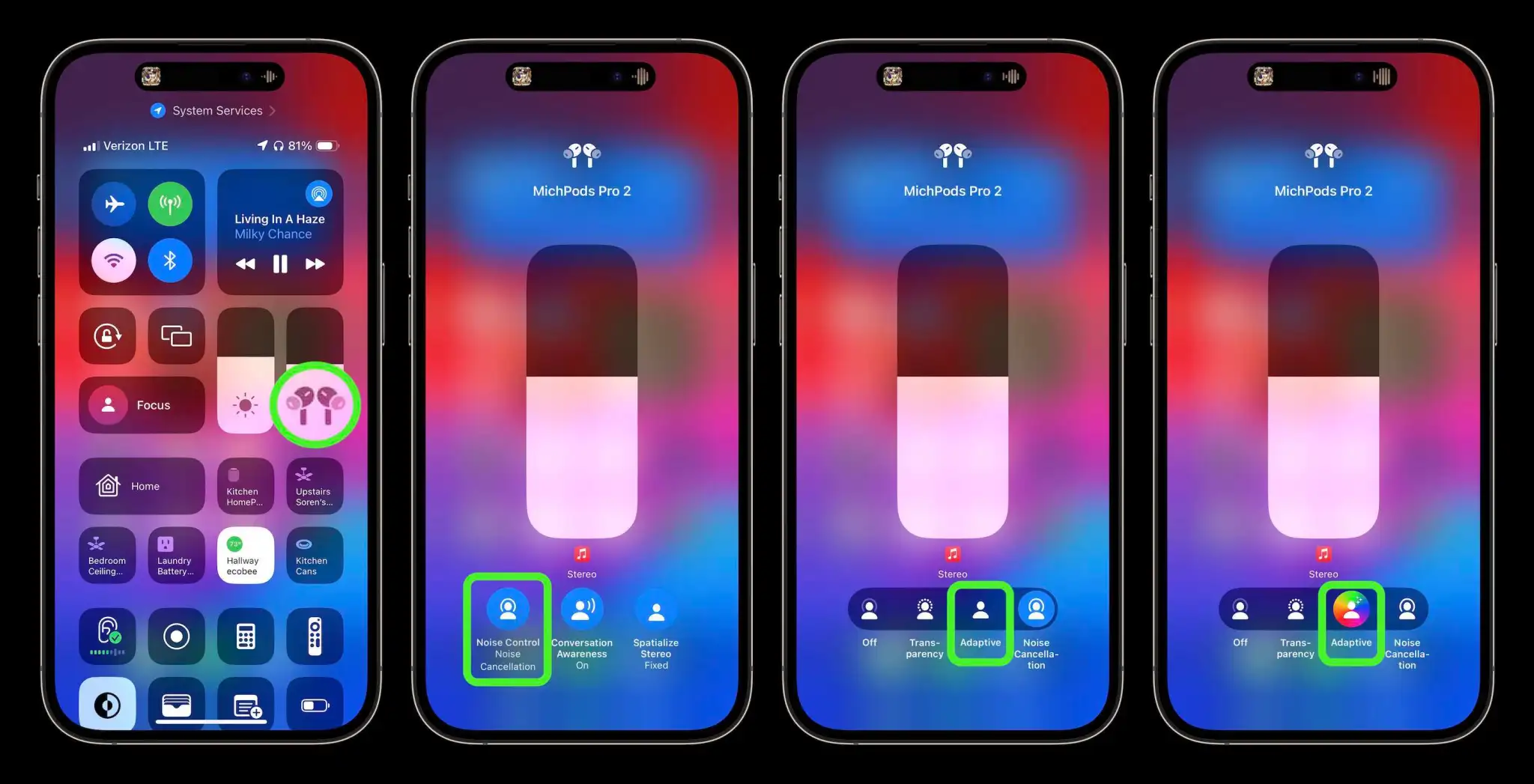
Open Control Center on your iPhone (pull down from the top-right corner) and long press on the volume/AirPods slider (make sure your AirPods are connected)
Tap the Noise Control button
Choose Adaptive
Now your AirPods Pro 2 will now automatically move between noise cancellation and transparency
You can also customize your AirPods Pro 2 controls
With your AirPods connected, open the Settings app on your iPhone > tap your AirPods at the top
Under Press and Hold AirPods > tap Left or Right (or whichever one says Noise Control)
The default appears to have AirPods Pro stem presses switch between Adaptive Audio and noise cancellation
You can add transparency and off to the mix of controls that long presses on your AirPods stem(s) will cycle through
You can turn off Conversation Awareness while leaving Adaptive Audio turned on
Alternatively, in iOS Settings > AirPods > swipe down and under Audio, tap Conversation Awareness, Personalized Volume, or Loud Sound Reduction to turn any of them off
Here’s how it looks to turn on AirPods Pro Adaptive Audio:
There’s a new unique sound effect that confirms Adaptive Audio is on and you’ll see the color wheel behind the Adaptive icon.
If you leave the AirPods Noise Control settings up while using Adaptive Audio, you can watch it smoothly switch between the different Noise Control modes as sound in your environment changes, you talk to people, etc.
You can also select Adaptive Audio in iPhone Settings > select your AirPods Pro along with customizing what long presses on your stems do:
But in my experience, Adaptive Audio auto adjustments work so well that I don’t need to switch between the audio modes manually anymore – and also means I don’t have to pull an AirPod out of my ear to hear or talk with someone.
Apple introduced a bunch of new capabilities for web apps with iOS 16.4, including access to push notifications and permission for third-party apps to add web apps to the iPhone and iPad Home Screen. Now popular web browser Google Chrome is taking advantage of these new features, as its latest update lets users add their favourite websites to the iOS Home Screen.
You can now add web apps to your iPhone or iPad using Google Chrome
As noted by Chris Messina, the latest update to Google Chrome for iOS provides an option that lets users add web apps to the Home Screen. This means that anyone can now save a website for quick access on the Home Screen without having to leave Chrome and use Safari. Previously, this option was restricted to Apple’s web browser.
“You can now add URLs or Progressive Web Apps to your home screen,” the release notes for this week’s update said. Of course, this requires the latest version of Google Chrome for iOS and also a device running iOS 16.4 or later – as previous versions of the operating system don’t have this API.
When a web app is added to the iOS Home Screen, you can open and use it as if it were a regular app, which means you won’t be redirected to open it in Safari, Google Chrome, or another web browser. With iOS 16.4 or later, these web apps can also provide you with push notifications, just like native apps.
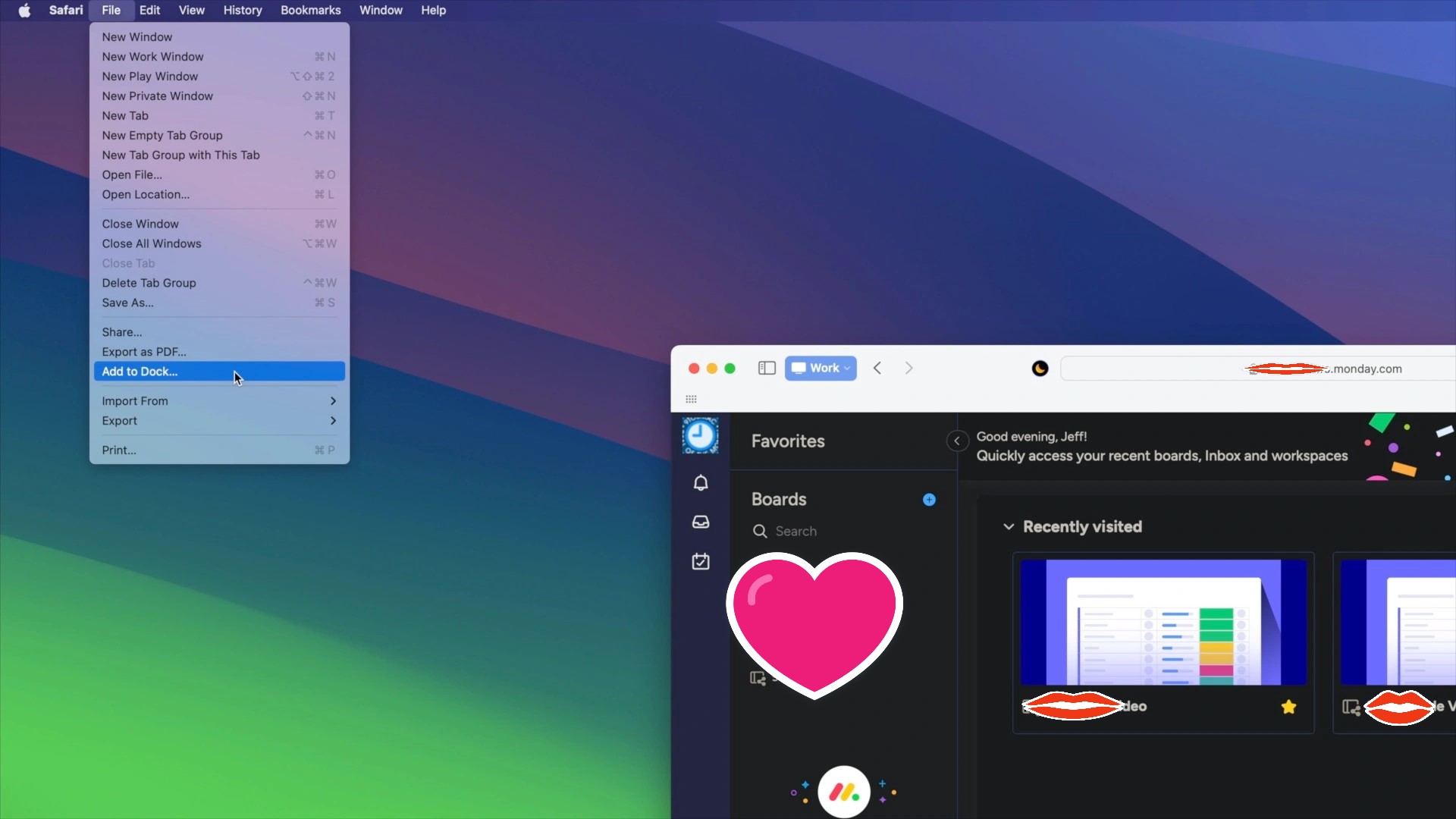
Apple has been putting a lot of effort into finally embracing web apps. With macOS Sonoma, which is available as beta software and will be officially released later this year, Mac users can also save websites as web apps using Safari. Some believe these changes are an attempt by Apple to dodge accusations of anti-competitive practices when it comes to the App Store.
iCloud Passwords for Chrome are no longer only on Windows
macOS Sonoma’s best-kept secret is really no secret at all, and it’s something Chrome browser users are going to love.
For the longest time, Apple has supported iCloud Keychain for both Safari and Chrome users. The only catch is that Chrome users needed to use Windows. iCloud Keychain was a Safari-only party on the Mac.
That’s about to change with macOS Sonoma. The new version of macOS will be the first to expand iCloud Keychain support beyond Safari.
The existing iCloud Passwords extension for Chrome has been updated to version 2.0.5 on July 12,2023, and it works great on Chrome for macOS 14.
Chrome extensions aren’t just limited to Google’s Chrome browser either. They work on Chromium-based browsers, too, including the Browser Company’s interesting new Arc browser. So does the iCloud Passwords extension.
iCloud Passwords for the Microsoft Edge macOS browser also reached version 2.0.5 today, and iCloud Keychain on macOS Sonoma is fully compatible.
This lets you easily enter usernames, passwords, and authentication codes from iCloud Keychain without copying and pasting from System Settings on the Mac. The iCloud Passwords extension makes these browsers just as compatible as Safari.
macOS Sonoma was announced last month and is currently in developer and public beta. Apple released the first public beta version of macOS 14 July 12,2023.
Do Not Disturb mode lets you work or have fun without distractions from your iPhone.
When you want to work or watch a movie without distractions, turn on Do Not Disturb on your iPhone. A new Apple video shows how to activate this mode.
The activation process is simple enough that this Apple Support video mostly serves as a reminder that Do Not Disturb is available.
How to turn on Do Not Disturb with a couple of taps
Our iPhones keep us in constant contact with the world, but sometimes what we need from our handsets is peace and quiet. Whether it’s because you’re in a meeting, napping or having a heart-to-heart with a loved one turn on Do Not Disturb mode to hush your iPhone.
Activating it takes only a couple of steps. The button you need is in the Control Center, so start by swiping down from the top-right corner of the screen on iPhone (or iPad).
Open the Control Center and then a couple of taps is all it takes.
Once the Control Center is open, tap on the Focus button, then tap the Do Not Disturb button, which features a moon, to activate the feature immediately.
When you’re finished with your meeting or movie, reopen the Control Center and you’ll see the Focus button has been replaced by the Do Not Disturb button. Tap this to deactivate the mode.
With Do Not Disturb active, all audible alarms are silenced, and your handset won‘t vibrate. Also, the screen won’t come on whenever a notification comes in. Your iPhone is saving all these up for when the mode is deactivated.
Put your iPhone into Do Not Disturb mode and all your other Apple computers switch themselves to the same mode.
Tap on the section with three dots on the Do Not Disturb button to display options for automatically turning the mode off. It can be active for an hour, until evening or — perhaps most usefully — until you leave your current location.
Use Do Not Disturb with Focus on your iPhone or iPad
With Focus in iOS 15 and iPadOS 15 or later, you can use Do Not Disturb to silence calls, alerts, and notifications that you get while your device is locked. You can also schedule Do Not Disturb and allow calls from certain people.
When you have Do Not Disturb turned on, a crescent moon icon appears in the status bar and on your Lock Screen.
Turn on Do Not Disturb
Go to Settings > Focus.
Tap Do Not Disturb.
Under Turn on Automatically, set Do Not Disturb to turn on automatically at a certain time, location, or while using a certain app.
If you don’t want to be disturbed at a certain time, you can set a schedule and change other Do Not Disturb features to help you concentrate.
Go to Settings > Focus.
Tap Do Not Disturb.
You can select allowed or silenced notifications from people and apps, connect your Lock Screen or Home Screen, have this Focus turn on automatically, and add Focus filters.

















 appears in the status bar and on your Lock Screen.


