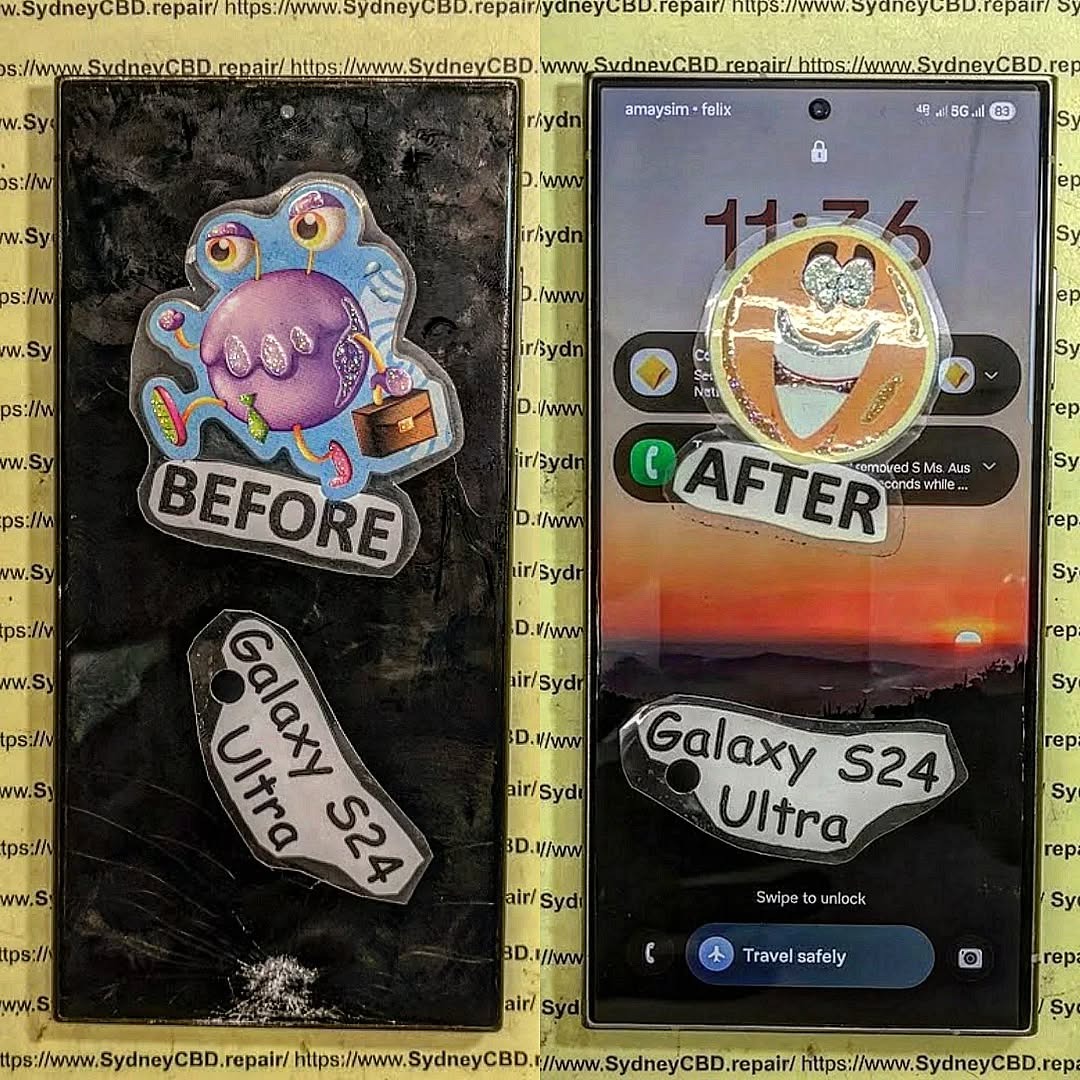
Salvaging Data From a Smashed Samsung S24 Ultra With a Blacked Out Display

Salvaging Data From a Smashed Samsung S24 Ultra With a Blacked Out Display – Ultimate Guide 2026
📱 Introduction to Data Recovery Challenges
Salvaging data from a smashed Samsung S24 Ultra with a blacked out display can feel like trying to read a book in the dark—frustrating, uncertain, and sometimes overwhelming. The good news? Your data is often still intact even when the screen is completely dead.
Modern flagship devices like the Samsung Galaxy S24 Ultra are built with robust internal storage systems. So while the display may be shattered or unresponsive, your photos, contacts, and files are usually safe inside the device.
Still, recovering that data isn’t always straightforward. Without a working screen, basic navigation becomes tricky. You can’t simply tap your way through menus. Instead, you’ll need alternative methods—some simple, others more technical.
In this guide, we’ll walk you through everything you need to know. From quick DIY solutions to advanced recovery techniques, we’ll help you retrieve your data safely and efficiently.
🔍 Understanding the Samsung S24 Ultra Hardware
📱 Display vs Motherboard Damage
Before jumping into recovery methods, it’s important to understand what’s actually broken.
If you’re dealing with:
- A blacked-out display
- No touch response
- Visible cracks
…there’s a good chance the motherboard is still functioning perfectly.
That’s great news. Why? Because your data is stored on the internal memory chip, not the screen.
However, if your phone:
- Doesn’t vibrate
- Won’t charge
- Doesn’t show signs of life
…then the issue may go deeper.
💾 Storage Architecture Explained
The Samsung S24 Ultra uses UFS (Universal Flash Storage). This type of storage is:
- Fast
- Secure
- Soldered directly to the motherboard
Unlike older phones, you can’t just remove the storage chip easily. That’s why most recovery methods rely on accessing the phone while it’s still functional.
⚡ Immediate Steps After Screen Damage
❌ What Not to Do
Let’s get this straight—what you don’t do is just as important.
Avoid:
- Restarting repeatedly
- Charging with damaged ports
- Attempting random unlock patterns
These actions could:
- Lock your device
- Trigger security protections
- Reduce recovery chances
⚠️ Safety Precautions
Instead:
- Power off the phone if possible
- Keep it dry and clean
- Avoid further physical damage
Taking these precautions can preserve your chances of successful data recovery.
📡 Can You Still Access Data Without a Display?
🔎 Signs Your Phone Is Still Alive
Here’s how to check:
- Vibrates when pressing power
- Makes notification sounds
- Shows up on a computer when connected
If yes—you’re in luck. You can proceed with recovery methods.
🔌 Method 1: Using USB-C to HDMI (Screen Mirroring)
One of the easiest ways of salvaging data from a smashed Samsung S24 Ultra with a blacked out display is screen mirroring.
🧰 Required Tools
- USB-C to HDMI adapter
- External monitor or TV
- USB mouse (optional)
🪜 Step-by-Step Process
- Connect your phone to the adapter
- Plug into a monitor
- Use a mouse to navigate
- Unlock your phone
- Transfer files
This method works because Samsung supports DeX mode, allowing desktop-like interaction.
💻 Method 2: Using Samsung Smart Switch
Samsung’s official tool makes recovery easy—if your phone can still connect.
👉 External resource: https://www.samsung.com/smart-switch/
🔗 PC Connection Guide
- Install Smart Switch on your PC
- Connect your phone via USB
- Wait for detection
- Backup all data
Even without a display, the software may auto-detect your device.
🧑💻 Method 3: Using ADB (Android Debug Bridge)
This method is more technical but powerful.
⚙️ Requirements & Risks
You’ll need:
- USB debugging enabled (before damage)
- A computer with ADB installed
Steps include:
- Connecting via command line
- Pulling files manually
⚠️ Not beginner-friendly, but very effective.
☁️ Method 4: Cloud Backup Recovery
If you’ve used:
- Google Drive
- Samsung Cloud
Then your data might already be safe.
Simply:
- Log into your account on another device
- Restore backups
This is often the fastest method.
🛠️ Method 5: Professional Data Recovery Services
If all else fails, professionals can help.
Technicians may:
- Replace the display temporarily
- Access motherboard directly
- Use specialized tools
This is the safest route for critical data.
⚠️ Common Challenges & Fixes
| Problem | Solution |
|---|---|
| Phone not detected | Try different cable/port |
| Locked screen | Use known PIN pattern |
| No HDMI output | Check adapter compatibility |
| Water damage | Seek professional help |
💰 Cost Breakdown of Recovery Options
| Method | Cost Range |
|---|---|
| HDMI Adapter | $20–$50 |
| Smart Switch | Free |
| ADB | Free |
| Professional Repair | $100–$500+ |
🔐 Preventing Data Loss in the Future
Let’s be honest—accidents happen. But you can prepare:
- Enable automatic backups
- Use cloud storage
- Invest in screen protection
- Handle your phone with care
A little prevention goes a long way.
❓ FAQs
1. Can I recover data if my screen is completely black?
Yes. If the phone is still functioning, salvaging data from a smashed Samsung S24 Ultra with a blacked out display is possible using HDMI, software tools, or professional services.
2. Does screen damage mean data loss?
No. Data is stored separately from the display, so it’s usually safe.
3. What is the easiest recovery method?
Using a USB-C to HDMI adapter is often the simplest solution.
4. Can I recover data without unlocking the phone?
It depends. Some methods require unlocking, especially for security reasons.
5. Is professional recovery worth it?
Yes, especially for important data like business files or personal memories.
6. How long does recovery take?
Anywhere from minutes (cloud restore) to days (professional service).
🏁 Conclusion

Salvaging data from a smashed Samsung S24 Ultra with a blacked out display might seem daunting, but it’s far from impossible. Whether you choose a DIY approach like HDMI mirroring or rely on professional services, there’s almost always a path to recovery.
The key is acting quickly, avoiding risky actions, and choosing the right method based on your situation. With the right approach, you can retrieve your valuable data and move forward without major loss.
David from Sydney CBD Repair Centre – The Best place to fix mobile phones as 7 Years In A Row! Top Mobile Phone Repair In Sydney. More than 2000 Positive Reviews on Google and Same Day Repairs.
We take pride in delivering exceptional repair services for all major phone brands including Apple, Samsung, Google, and more. Our expert technicians use only genuine parts and offer 90days warranty on repairs. Located in the heart of Sydney CBD, we’re your one-stop solution for all mobile device repairs.
Our commitment to excellence has earned us the trust of thousands of satisfied customers. Whether it’s a cracked screen, battery replacement, or water damage repair, we handle it all with professional care and expertise. Walk in today and experience why we’re Sydney’s #1 choice for mobile phone repairs.
Visit us for:
✓ Same Day Express Repairs
✓ Genuine Parts Guarantee
✓ Professional Technicians
✓ Competitive Pricing
✓ 2000+ 5-Star Google Reviews
✓ 7-Time Award Winner for Best Phone Repairs
Sydney CBD Repair Centre – Where Quality Meets Reliability.
Call : +61280114119
Website: https://SydneyCBD.repair/locate-us