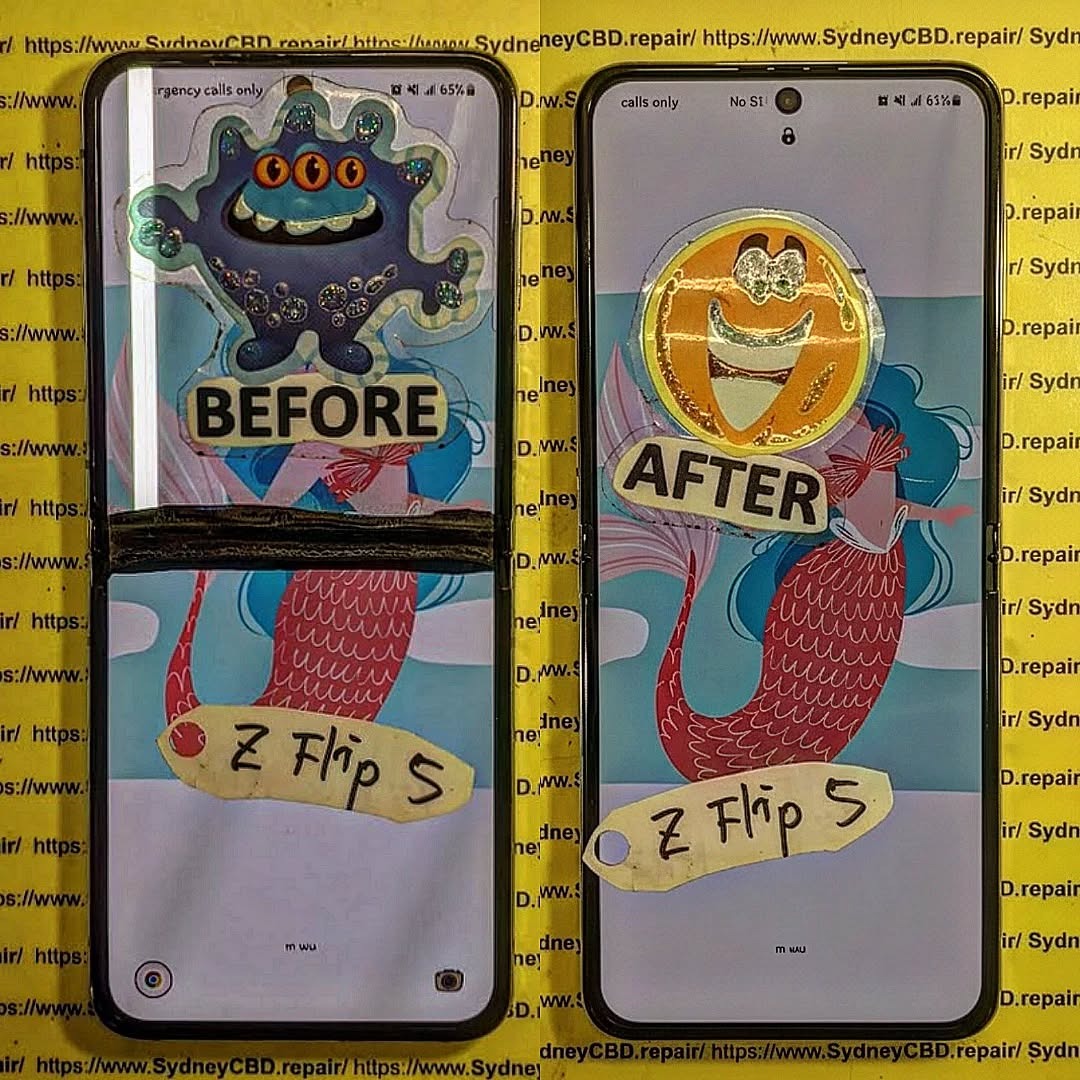
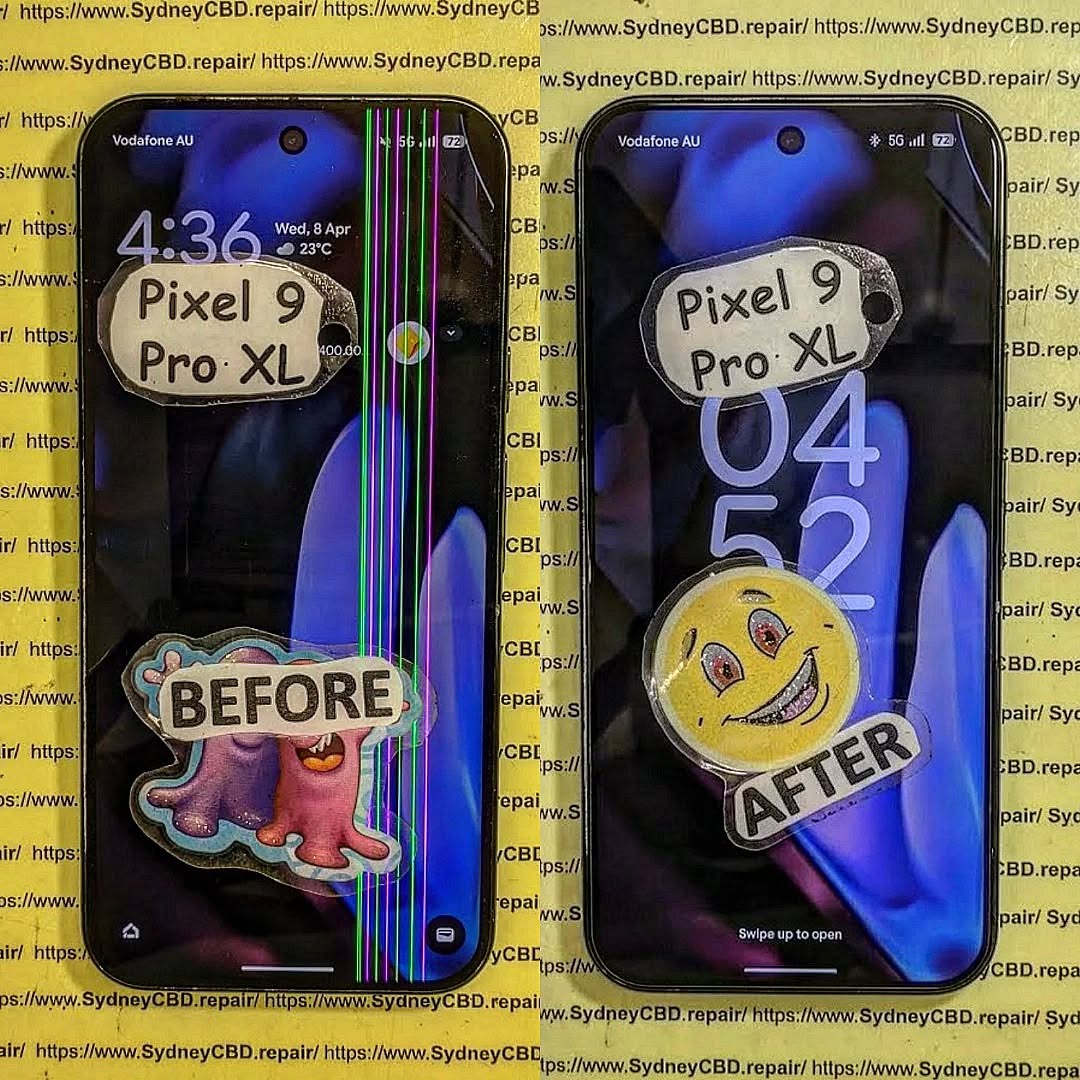
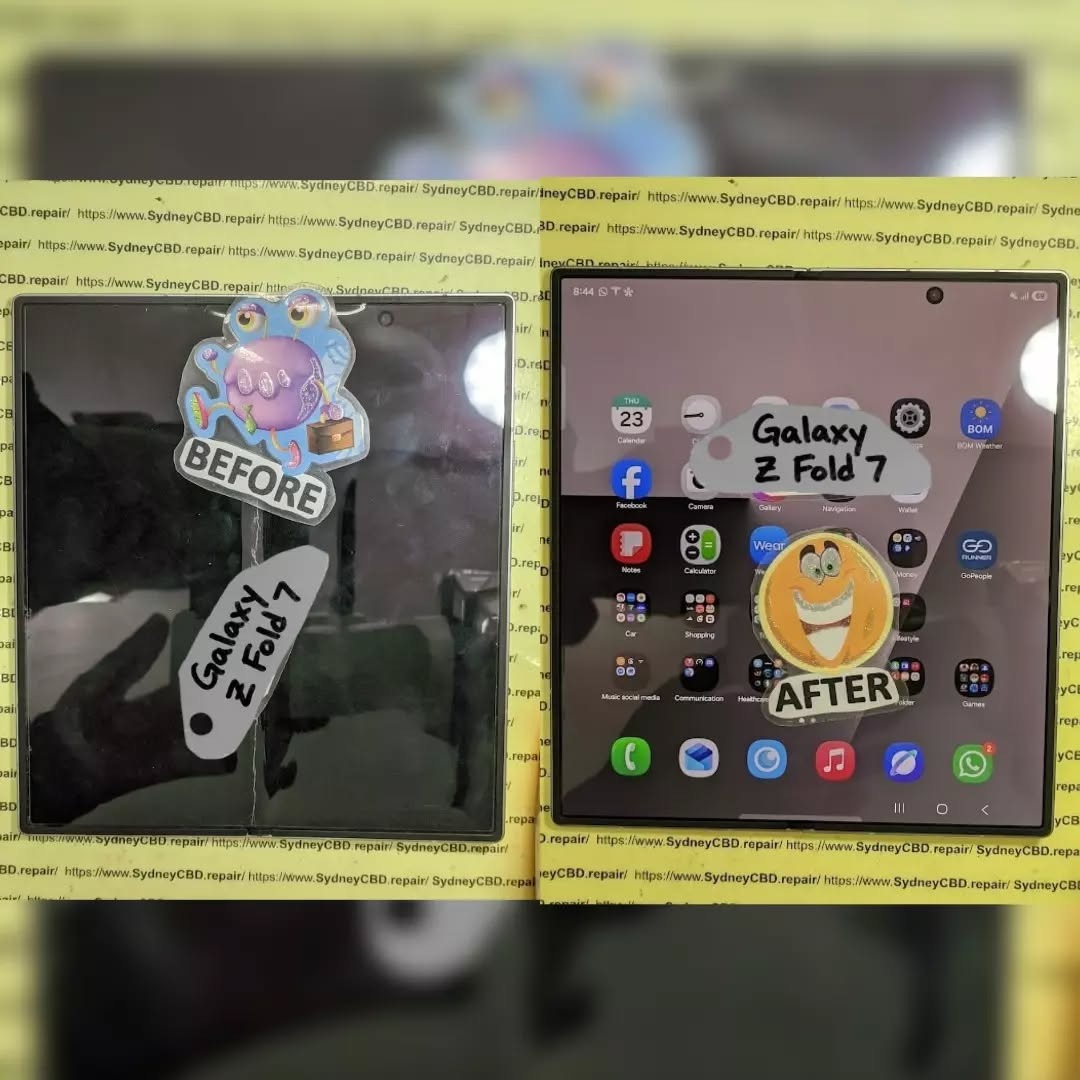
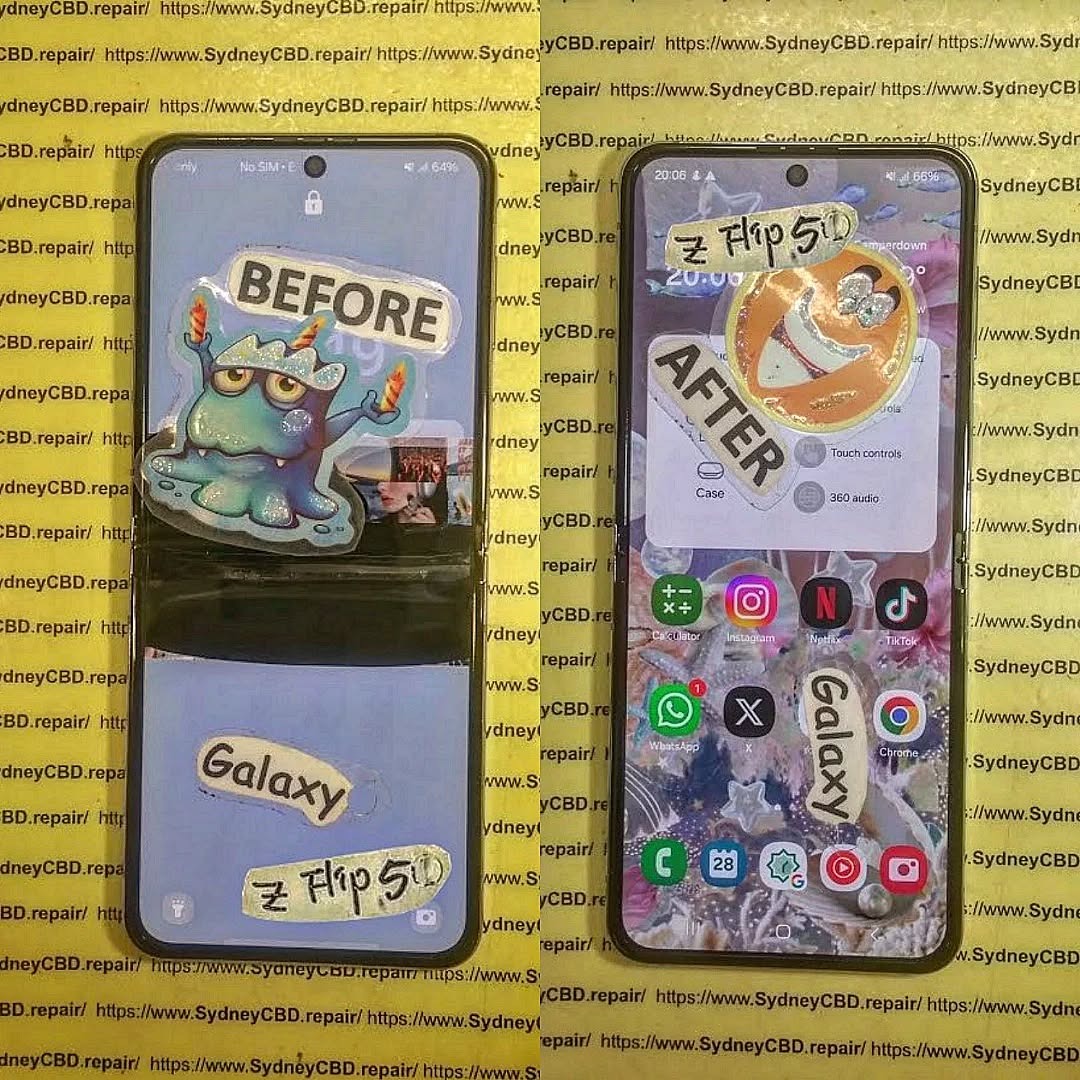
FIX THE FOLDABLE! Samsung Galaxy Z Flip 5 Hinge Repair That Lasts – 2025 Guide
Introduction: Why the Samsung Z Flip 5 Hinge Matters
The Samsung Z Flip 5 represents the pinnacle of foldable smartphone innovation, merging cutting-edge technology with sleek design. However, the heart of its functionality—the hinge—is also its most delicate component. The hinge allows the phone to fold and unfold seamlessly, giving it its signature versatility. When it fails, the entire device’s usability and display integrity are compromised.
At Sydney CBD Repair Centre, specialists have seen an increasing number of Z Flip 5 owners struggling with hinge stiffness, grinding noises, and misaligned screens. If you’re experiencing these symptoms, a professional hinge repair isn’t just a fix—it’s a rescue for your phone’s longevity and usability.
Understanding Common Hinge Problems in the Samsung Z Flip 5
Hinge Stiffness or Looseness
Over time, the hinge may become too stiff or too loose due to wear and debris buildup. A stiff hinge can strain the internal flex cable, while a loose one compromises the folding angle and stability. This issue often signals that internal tension springs or lubricants need servicing.
Cracking Sounds and Folding Resistance
If you hear cracking or clicking sounds while folding, it’s a red flag. These noises could indicate fractured hinge components or misaligned gear teeth inside the mechanism. Ignoring it could worsen the problem, leading to hinge lockup or display separation.
Screen Crease and Misalignment
A visible crease or uneven alignment between the two halves of the screen often stems from hinge distortion. The Z Flip 5’s hinge works in tandem with the flexible AMOLED display, so any mechanical misalignment directly affects screen performance.
Samsung introduced its “Flex Hinge” system to reduce the visible gap between folded halves, enhancing durability and water resistance. The hinge contains multiple interlocking plates and micro-gears, offering a balance between flexibility and firmness.
Materials and Mechanism Explained
The Z Flip 5’s hinge utilizes a combination of aluminum alloy, stainless steel, and high-grade lubricants to ensure smooth movement. However, constant folding over time (up to 200,000 folds, per Samsung’s claim) can degrade these materials, making expert maintenance essential.
Does your phone close unevenly or make strange sounds? This could mean internal misalignment or a cracked hinge plate. Early detection can prevent further damage to the display and frame.
Screen Gap or Lifting Edge
If the screen edge lifts slightly or doesn’t sit flush, it’s a classic symptom of hinge fatigue. Ignoring it can lead to display delamination or moisture intrusion.
Why You Shouldn’t Delay Hinge Repair
Delaying a hinge repair may seem harmless at first, but over time, it accelerates wear on both the screen and frame. The stress caused by a malfunctioning hinge can lead to irreversible display damage—often more expensive than the hinge repair itself.
A prompt visit to Sydney CBD Repair Centre ensures your device is inspected by certified technicians who specialize in Samsung foldable devices. They’ll provide a quick, accurate diagnosis and restore your phone to factory condition.
Professional vs DIY Hinge Repair: Which Is Better?
DIY Challenges and Risks
Online tutorials may make hinge repair look simple, but the Z Flip 5 hinge system is incredibly intricate. Attempting DIY fixes can result in torn display cables, broken seals, or even total device failure.
Why Professional Repair Is Worth It
At Sydney CBD Repair Centre, technicians use genuine Samsung hinge assemblies and precision tools to maintain structural integrity. Repairs are completed on the same day, ensuring minimal downtime. Each hinge replacement comes with a 90-day warranty—a testament to their confidence in quality.
The Samsung Z Flip 5 Hinge Repair Process at Sydney CBD Repair Centre
Step 1: Initial Diagnosis
Technicians conduct a full diagnostic test to check hinge alignment, screen tension, and internal cable condition.
Step 2: Genuine Part Replacement
The old hinge assembly is carefully removed, and a genuine Samsung hinge is installed. This ensures perfect compatibility and smooth folding action.
Step 3: Calibration and Testing
After installation, the device undergoes calibration and multiple fold tests to confirm proper alignment and tension.
Cost of Samsung Z Flip 5 Hinge Repair in Sydney
At Sydney CBD Repair Centre, hinge repair costs vary depending on the extent of damage but generally range between AUD $299 to $399. This includes genuine parts, labor, and testing—offering far greater value than unauthorized repair shops.
Most hinge repairs are completed within the same day, thanks to their express service. Walk-in customers can usually pick up their phones in under two hours, depending on part availability and device condition.
Warranty and Quality Assurance
Every hinge repair at Sydney CBD Repair Centre includes a 90-day warranty covering workmanship and parts. The use of genuine Samsung components ensures that the repair meets or exceeds original factory standards.
Tips to Extend the Life of Your Z Flip 5 Hinge
Proper Folding Habits
Avoid snapping the phone shut quickly.
Always fold along the center axis without pressure on corners.
Avoiding Heat and Moisture Exposure
Keep the device away from direct sunlight and humid environments.
Avoid using the phone while charging for extended periods—it generates excess heat.
Why Choose Sydney CBD Repair Centre
2000+ 5-Star Reviews and 6-Time Award Winner
Sydney CBD Repair Centre has earned the trust of thousands of customers through consistency and quality. With 2000+ Google reviews and six consecutive awards for “Best Phone Repair in Sydney,” the reputation speaks for itself.
Same Day Repairs and Genuine Parts
Their same-day repair service, professional technicians, and genuine parts guarantee make them Sydney’s most reliable choice for Samsung Z Flip 5 hinge repairs.
FAQs About Samsung Z Flip 5 Hinge Repair
Q1: How do I know if my Z Flip 5 hinge is damaged?
A: Watch for stiffness, cracking noises, or uneven folding. These are early signs your hinge may need repair.
Q2: Can I still use my phone if the hinge feels loose?
A: It’s risky. Continued use can damage the internal display and cables, leading to costly repairs.
Q3: Does hinge repair affect my Samsung warranty?
A: Only authorized service centers like Sydney CBD Repair Centre use genuine parts and processes that maintain warranty compatibility.
Q4: Is hinge repair covered under warranty?
A: It depends on Samsung’s assessment of physical damage. If not covered, Sydney CBD Repair Centre offers affordable options.
Q5: How long will a new hinge last?
A: With proper care, a professionally replaced hinge can last several years, supporting over 200,000 folds.
Q6: Can I get the hinge replaced on the same day?
A: Yes, most hinge repairs are completed within hours at Sydney CBD Repair Centre.
Conclusion: Restore the Fold. Restore the Magic.
Your Samsung Z Flip 5 is more than a phone—it’s a technological marvel. Don’t let a faulty hinge compromise its beauty and performance. At Sydney CBD Repair Centre, certified experts ensure your foldable returns to its original form and function, with quality you can trust and service you can rely on.
Sydney CBD Repair Centre – Where Quality Meets Reliability.
📞 Call: +61280114119
🌐 Visit Us
Beyond Phone Screens: Fixing Your Phone’s Charging IC – 7 Proven Ways to Bring Your Device Back to Life
Understanding the Charging IC
The charging IC (Integrated Circuit) is the brain behind your smartphone’s power management system. It regulates voltage and current from the charger, ensuring your battery charges safely and efficiently. A faulty IC can lead to charging failures, overheating, and even complete shutdowns.
In modern phones like iPhones, Samsung Galaxy, and Google Pixels, the charging IC is directly soldered onto the motherboard, making it a delicate yet critical component. Without it, your device simply won’t charge — no matter how many cables or chargers you try.
If your phone takes longer than usual to charge or doesn’t charge at all despite using different cables and adapters, it’s a major sign your charging IC could be failing. This problem often appears after a drop, moisture exposure, or power surge.
Device Overheating During Charge
Another red flag is excessive heat during charging. The IC is responsible for regulating temperature, and when it malfunctions, it can overwork, causing dangerous heat buildup that affects nearby components like capacitors and resistors.
Power fluctuations from unstable sockets or cheap chargers can burn out the IC’s tiny transistors. Always use genuine, manufacturer-approved chargers to avoid this common issue.
Liquid Damage and Corrosion
Even a drop of water inside your phone can corrode the IC’s connection points. Over time, this corrosion can lead to short circuits and irreversible board damage — a major cause of IC replacement in repair shops.
How Technicians Diagnose Charging IC Problems
Visual Inspection
Experts start with a microscopic inspection of the motherboard. Burn marks, corrosion, or lifted pads are strong indicators of IC failure.
Multimeter and Power Supply Testing
Technicians then use a multimeter or a DC power supply to test for irregular voltages. If power doesn’t flow to the battery despite correct input, the charging IC is confirmed faulty.
Fixing Your Charging IC: 7 Proven Methods
1. IC Replacement
Replacing the IC is the most reliable method. Skilled technicians desolder the faulty chip, clean the area, and install a new, genuine IC using precision tools. This process requires steady hands and advanced soldering skills.
2. Reballing the IC
Sometimes, the IC itself isn’t dead — it’s just poorly connected. Reballing involves removing the IC, replacing its solder balls, and reattaching it to the board. It’s an intricate task but can fully restore function.
3. Connector Cleaning and Rework
Charging problems might come from oxidized or broken connectors. Cleaning or re-soldering the charging port ensures proper contact with the IC, improving power flow.
4. Using a Heat Gun Properly
Controlled reflow with a heat gun can fix minor cracks or cold joints. Professionals carefully heat the IC area to re-establish connections without damaging adjacent chips.
5. Board-Level Repair Techniques
If traces or pads under the IC are damaged, micro-jumpering or track rebuilding can restore continuity. This is where experience truly matters — even one wrong connection can fry the entire board.
6. Firmware and Software Restoration
Sometimes, a software glitch mimics IC failure. Flashing the firmware or restoring system power controls can solve these without hardware replacement.
7. Full Board Replacement
If the IC and its surrounding circuits are too damaged, replacing the entire motherboard might be the only viable option. Though expensive, it ensures long-term stability.
DIY vs Professional IC Repair
While it’s tempting to attempt a DIY fix, IC repair is not a beginner-friendly task. It involves microscopic soldering and complex circuit knowledge. At Sydney CBD Repair Centre, professionals use advanced rework stations and genuine parts to ensure safe, lasting results — all backed by a 90-day warranty.
How Sydney CBD Repair Centre Fixes Charging ICs
At Sydney CBD Repair Centre, the repair process is precise and efficient:
Comprehensive Diagnosis – Identifying the root cause before any action.
Professional IC Rework – Using industry-grade soldering tools.
Genuine Component Replacement – Only original IC chips are used.
Post-Repair Testing – Ensuring the phone charges and discharges normally.
Same-Day Repairs – Most IC issues are resolved in under 3 hours.
Their reputation — 6-time award winners and 2000+ 5-star Google reviews — speaks volumes about their service quality.
Prevention Tips for a Healthy Charging IC
Avoid overnight charging. Continuous power inflow strains the IC.
Use genuine accessories. Cheap chargers can cause voltage instability.
Keep your phone dry. Moisture is the IC’s worst enemy.
Regular maintenance. Have professionals clean and inspect your device periodically.
FAQs
1. What is a charging IC in a phone?
It’s a chip that controls how your phone charges and distributes power across components.
2. Can I repair a damaged charging IC myself?
Not recommended. IC repair requires special tools and micro-soldering skills.
3. How much does it cost to replace a charging IC in Sydney?
Prices vary, but Sydney CBD Repair Centre offers competitive rates depending on model and damage severity.
4. What are the signs my charging IC needs replacement?
Slow charging, no charging, overheating, or your phone turning off when unplugged.
5. How long does charging IC replacement take?
Most repairs are completed same-day, typically within 2 to 3 hours.
6. Does replacing the IC affect phone performance?
No — if done professionally using genuine parts, your device will function like new.
Conclusion
A faulty charging IC doesn’t mean your phone is beyond repair. With the right expertise and equipment, it can be restored to full functionality. For reliable, professional repairs, visit Sydney CBD Repair Centre — where quality meets reliability.
📍 Sydney CBD Repair Centre
🕓 Same-Day Repairs | Genuine Parts | 90-Day Warranty
🌐 https://SydneyCBD.repair/locate-us
📞 Call: +61280114119
🧩 Reasons Why Phone Frames Matter in Screen Repairs: 10 Crucial Reasons You Shouldn’t Ignore
Introduction: The Hidden Hero Behind Every Screen Repair
When people talk about screen repairs, most think of glass and display panels — but there’s an unsung hero that determines how well the new screen fits and performs: the phone frame.
Without a stable frame, even the highest-quality replacement screen won’t last long. Whether it’s an iPhone, Samsung Galaxy, or Google Pixel, the integrity of your phone frame plays a major role in repair success and long-term durability.
At Sydney CBD Repair Centre, with over 2000 positive Google reviews and a 6-year winning streak as Sydney’s best mobile phone repair shop, we’ve seen how overlooked frames lead to recurring repair problems.
Let’s explore why phone frames matter more than most people realize.
The Frame as the Foundation of Your Phone’s Integrity
Think of your phone frame as the skeleton of your device. It provides structural support to hold the screen, battery, logic board, and internal components in precise alignment.
A minor bend, dent, or warp in the frame can cause uneven pressure on the display — leading to cracks, screen lift, or unresponsive touch zones.
Materials Used in Modern Smartphone Frames
Today’s smartphones use a mix of aluminum alloys, stainless steel, and polycarbonate materials. Each offers a balance between strength, weight, and flexibility.
Apple’s iPhone models, for example, use aerospace-grade aluminum or surgical stainless steel, while Samsung often uses reinforced aluminum mid-frames for improved resilience.
However, these materials can still deform under impact — making proper frame alignment and correction vital before installing a new screen.
During screen replacement, even a 0.5mm bend in the frame can prevent the new display from sitting flush.
A professional technician ensures that the frame is straightened and level, allowing proper adhesive contact and preventing screen lift or light bleed around edges.
Preventing Internal Damage During Repairs
Frame issues don’t just affect the outer structure. Misalignment can stress internal components such as the battery or motherboard. Skilled repair shops like Sydney CBD Repair Centre use frame molds and alignment tools to safeguard your phone’s inner parts while ensuring perfect screen installation.
Common Frame-Related Issues Affecting Screen Repairs
Bent or Warped Frames: A Hidden Obstacle
Drops, pressure, or even pocket stress can bend a phone frame slightly — enough to ruin your next repair if left unchecked.
A bent frame may cause uneven contact between the screen and chassis, leading to lifted edges or touch sensitivity issues.
Cracked or Damaged Corners: Risk to Screen Stability
Corner impacts are common. A cracked corner not only weakens the phone’s structure but also creates a weak point where the screen may crack again soon after repair.
Professionals often reshape or replace damaged frame corners before reattaching a screen.
How Technicians Assess Frame Integrity Before Repairs
Visual Inspection vs. Precision Measuring Tools
Expert technicians start with a visual inspection, but they don’t stop there. Using digital calipers and alignment boards, they verify that every corner and edge sits within factory specifications.
Using Alignment Jigs for Accuracy
Shops like Sydney CBD Repair Centre employ frame jigs and molds to hold devices securely during screen replacement. This guarantees that your new screen bonds correctly — with no lifting or misalignment.
The Impact of Frame Damage on Touch and Display Performance
Misaligned Screens and Ghost Touches
A bent or uneven frame can distort screen contact layers, causing ghost touches or delayed responsiveness.
Inconsistent pressure also increases the risk of screen flex damage over time.
Gaps, Dust, and Water Ingress After Poor Repairs
When a frame isn’t perfectly aligned, gaps around the display allow dust and moisture to seep in.
This not only affects screen clarity but can also compromise internal circuits — reducing the lifespan of your device.
Why Ignoring Frame Damage Can Cost You More Later
The Risk of Screen Replacements Failing Prematurely
Installing a new screen on a damaged frame is like putting a fresh coat of paint on a cracked wall.
You might save money now, but the screen can fail again in weeks — costing you more in the long run.
Compromised Device Safety and Longevity
A warped frame can make your phone less resistant to drops and water exposure. Over time, this accelerates wear and internal stress, shortening your phone’s usable life.
Benefits of Professional Frame Correction During Repairs
Restoring Factory Precision
Professional repair shops use calibration tools to restore the phone frame’s original factory angles. This ensures every component — from the battery to the display — fits perfectly, minimizing repair complications.
Enhancing Overall Device Durability
Once the frame is corrected, your phone becomes structurally sound again, ensuring better screen adhesion, longer part life, and smoother user experience.
DIY Screen Repairs vs. Professional Frame Handling
Why Frame Tools and Techniques Matter
DIY kits rarely include the tools or expertise needed to assess frame damage. Without alignment fixtures, you risk reinstalling a screen on an uneven surface — guaranteeing early failure.
Mistakes DIYers Commonly Make
Ignoring small bends or warps
Over-tightening screws that crack corners
Using poor-quality adhesives
Failing to clean debris before screen fitting
That’s why professional technicians are worth every cent — they see what most DIYers miss.
Sydney CBD Repair Centre’s Expertise in Frame-Integrated Repairs
Genuine Parts and Expert Technicians
At Sydney CBD Repair Centre, our team uses only genuine OEM parts and precision repair tools. Every repair includes a frame inspection to ensure a perfect fit for your new screen.
6-Time Award Winner for Best Phone Repairs
Voted Sydney’s Best Phone Repair Shop for six consecutive years, we’ve earned over 2000 five-star reviews by consistently delivering flawless results.
Step-by-Step: How Sydney CBD Repair Centre Handles Frame Issues
Frame Inspection – We assess every phone under magnification and laser alignment tools.
Precision Adjustment – Bent or cracked areas are corrected using professional jigs.
Final Calibration and Testing – We reassemble your phone, test for screen fit, and ensure full functionality.
This process guarantees that your screen replacement performs like new — with factory-level precision.
How to Know If Your Phone Frame Needs Attention
Visible Signs of Frame Damage
Uneven screen edges
Gaps around display corners
Misaligned buttons or charging ports
Subtle Clues Affecting Performance
Ghost touches
Screen flex when pressed
Display flickering or detachment
If you notice these, it’s time to visit a trusted repair centre before more damage occurs.
FAQs About Phone Frames and Screen Repairs
Q1. Can a slightly bent frame be repaired?
Yes. Skilled technicians use specialized straightening tools to restore alignment without replacing the frame entirely.
Q2. Why is my new screen lifting on one side?
This often indicates frame warping or uneven adhesive bonding. A technician can fix it by realigning the frame.
Q3. Does Apple or Samsung warranty cover frame damage?
No. Physical damage from drops or pressure typically voids manufacturer warranties.
Q4. Can I replace the screen myself if the frame is fine?
You can, but professional repair ensures dust-free bonding, perfect fit, and warranty coverage.
Q5. How do technicians fix cracked phone corners?
They use precision sanding or frame replacement depending on severity, ensuring a secure foundation for your new screen.
Q6. Is it safe to use a phone with a bent frame?
Not really. It can strain internal parts and cause screen detachment or motherboard damage over time.
Conclusion: Strong Frames, Strong Repairs
A screen repair is only as good as the frame beneath it. Ignoring frame issues leads to costly repeat repairs and compromised performance.
When you trust professionals like Sydney CBD Repair Centre, you ensure that your phone not only looks new but performs at its best — safely, reliably, and durably.
About Sydney CBD Repair Centre
David from Sydney CBD Repair Centre
📍 Located in the heart of Sydney
💬 More than 2000 Positive Google Reviews
🏆 6-Time Award Winner for Best Phone Repairs
We provide:
✓ Same-Day Express Repairs
✓ Genuine Parts Guarantee
✓ Professional Technicians
✓ Competitive Pricing
✓ 90-Day Warranty
The Smartphone Repair Tips For Beginners: 15 Essential Steps You Can’t Miss
📱 Introduction
Smartphones are essential tools in modern life, and when they break, it can feel like everything comes to a halt. The good news? With the right guidance, even beginners can handle basic smartphone repairs. This guide will walk you through 15 essential steps to repair your phone safely and effectively.
Whether it’s a cracked screen, fading battery, or speaker issue, knowing how to troubleshoot and fix common problems will save you money and extend your phone’s life. So grab your toolkit and let’s get into the essentials.
💡 Always cross-check part numbers and ensure warranty terms are provided.
❌ 14. Common Mistakes to Avoid
Rushing the process
Using the wrong tools
Not disconnecting the battery first
Skipping screen tests before final assembly
Forgetting screws or mixing them up
Take your time and double-check each step.
🧑🔧 15. Benefits of Professional Repair Services
Sometimes, DIY isn’t the best option. Professional repair services offer:
Genuine parts with warranties
Trained technicians with specialized tools
Faster turnaround times
Better diagnostics for deep hardware issues
📍 If you’re in Sydney, visit David at Sydney CBD Repair Centre—trusted by over 2000 customers and 6-time award winner for best phone repair!
❓ FAQs
1. Is it safe to repair my phone at home?
Yes, if you follow safety procedures and use proper tools. Avoid complex motherboard repairs unless you’re trained.
2. What’s the hardest part of smartphone repair?
Handling delicate parts like flex cables and reassembling the phone without damaging components.
3. Will DIY repair void my warranty?
Yes. Once the device is opened, most manufacturers void the warranty.
4. Can I repair a water-damaged phone myself?
Minor water damage can sometimes be fixed, but extensive corrosion requires professional care.
5. How do I know if my battery needs replacement?
If your phone shuts off randomly, charges slowly, or the battery swells, it’s time to replace it.
6. Where can I get quality phone parts in Sydney?
Sydney CBD Repair Centre sources genuine parts and offers 90-day warranties on repairs.
✅ Conclusion
Smartphone repairs may seem intimidating, but with the right knowledge and tools, you can handle many common issues yourself. Whether you’re replacing a screen, fixing a charging port, or recovering from water damage, always proceed with care.
However, for more complex problems, trusting professionals like Sydney CBD Repair Centre ensures your device gets the expert attention it needs.
Is the Samsung Galaxy A54 Still Worth Repairing? Cost-Benefit Analysis for Sydney Users + Ultimate Guide 2026
Introduction to Galaxy A54 Repair Considerations
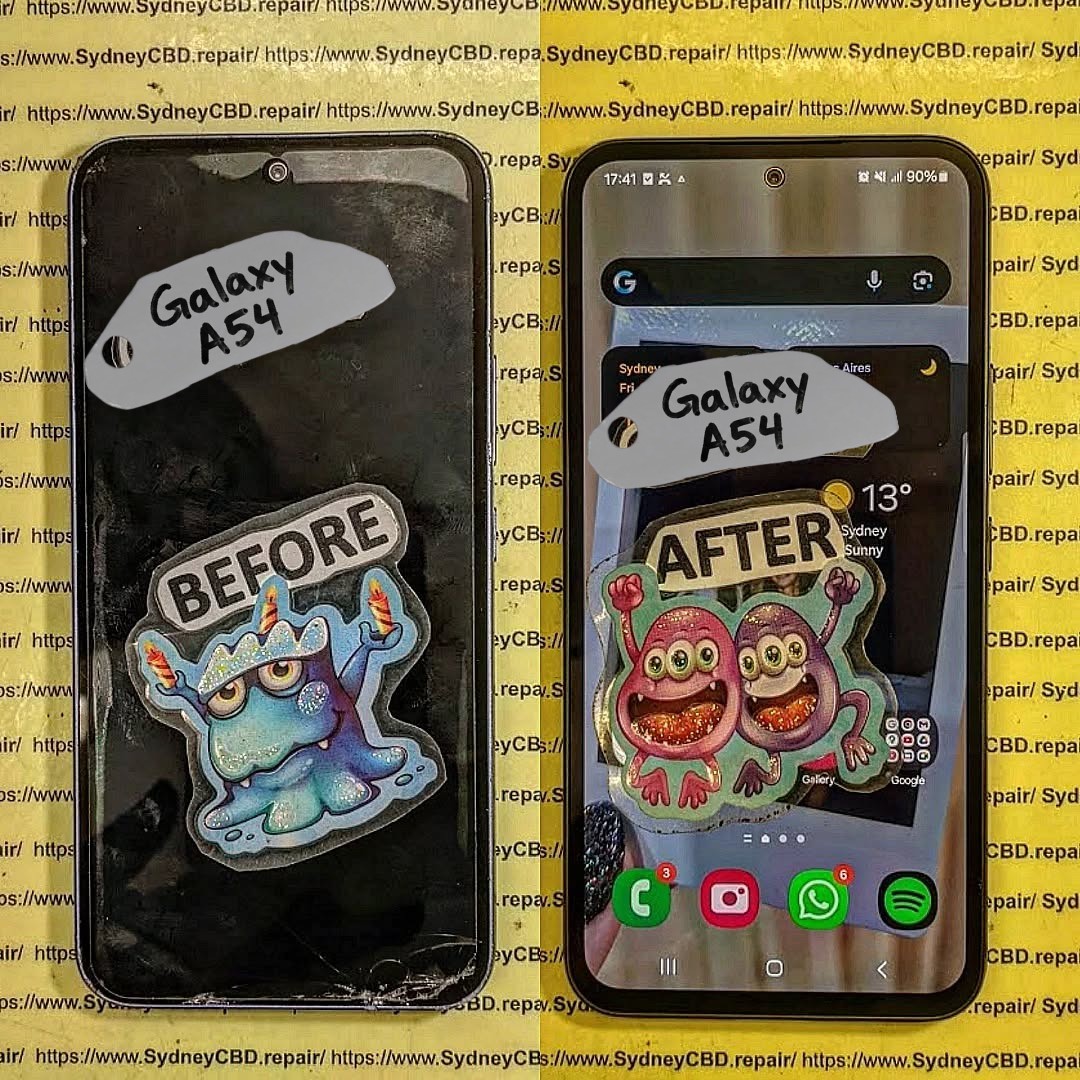
The Samsung Galaxy A54, a mid-range powerhouse, has remained popular among Sydney users for its high-quality AMOLED display, solid camera system, and reliable battery life. However, like all devices, it is prone to damage over time. Whether it’s a cracked screen from a slip on the pavement or a battery that drains faster than it should, deciding whether to repair or replace your Galaxy A54 requires careful consideration.
When thinking about repairs, Sydney users need to factor in:
Repair cost vs. replacement cost
Device longevity post-repair
Availability of genuine parts
Service quality and warranty
In this guide, we’ll provide a deep dive into each factor, helping you decide if your Galaxy A54 is worth repairing or if it’s smarter to consider a replacement or trade-in.
Understanding the typical issues your Galaxy A54 may face is the first step in evaluating repair feasibility.
Screen Damage and OLED Repairs
Screen damage is by far the most common repair reason. The Galaxy A54 features a 6.4-inch Super AMOLED panel known for vibrant colors and crisp visuals. Unfortunately, a single drop can lead to:
Cracks or shattered glass
Dead pixels or discoloration
Touchscreen unresponsiveness
Backlight bleeding or flickering
Replacing the OLED screen is usually the costliest repair. In Sydney, professional replacement ranges from $250–$400 AUD, depending on whether you choose genuine Samsung parts or third-party options.
Pro Tip: Genuine OLED replacements maintain display clarity, touch responsiveness, and resale value, while third-party panels may compromise performance.
Battery Performance and Replacement
Another common issue is battery degradation. Even the Galaxy A54’s 5000mAh battery can show signs of wear after 18–24 months. Typical symptoms include:
Rapid battery drain
Phone shutting down unexpectedly
Longer charging times
Device overheating
Battery replacement restores performance and extends device longevity. Sydney users can expect $120–$180 AUD for a genuine Samsung battery swap.
Charging Port and Connectivity Issues
Heavy usage may also damage the charging port or impact connectivity. Common problems include:
Loose USB-C ports
Non-functioning fast charging
Wireless charging not working
Intermittent data connection issues
Repairing these issues usually costs between $80–$150 AUD, depending on complexity and service provider.
Before committing to a repair, it’s critical to weigh the financial implications against replacement options.
Screen Replacement Costs in Sydney
Service Type
Price Range (AUD)
Notes
Genuine OLED Replacement
$350–$400
High performance, warranty included
Third-Party Replacement
$250–$300
Slight risk of reduced color accuracy
DIY Kits
$150–$200
Risky, potential device damage
Battery Replacement Costs
Service Type
Price Range (AUD)
Lifespan Impact
Genuine Samsung Battery
$120–$180
Restores 12–18 months of battery life
Third-Party Battery
$70–$100
Lower lifespan, potential safety issues
Labor Costs and Service Quality
Labor costs in Sydney typically range from $50–$80 AUD, depending on repair complexity. Choosing a reputable technician ensures:
Proper installation of delicate components
Avoiding accidental damage
Maintaining device performance and warranty
Overall Cost Comparison
Option
Approx.
Cost (AUD)
Considerations
Screen + Battery Repair
$470–$580
Restores device almost like new
New Galaxy A54
$550–$650
Latest device with warranty
Refurbished Galaxy A54
$400–$500
Lower cost, may include minor wear
Insight: Minor repairs like battery replacement are highly cost-effective. Major screen damage may make replacement or refurbished purchase more attractive.
Performance Longevity Post-Repair
Once repaired with genuine parts, a Galaxy A54 can continue delivering reliable performance for 2–3 years, depending on usage. Screen replacements restore visual experience, battery swaps prevent unexpected shutdowns, and other repairs ensure smooth operation. Devices maintained with genuine components also retain higher resale value.
Tip: Avoid non-genuine parts; short-term savings often result in long-term problems.
Warranty and Genuine Parts Importance
Using genuine Samsung parts is crucial. Benefits include:
Manufacturer-backed warranty (typically 90 days)
Optimized performance and longevity
Maintained resale value
Reduced risk of overheating, swelling, or system errors
Third-party parts may save money upfront but often compromise these benefits.
DIY Repairs: Risks and Considerations
DIY repairs might seem tempting to save costs, but they carry risks:
Screen damage: OLED panels are delicate; improper installation can crack them.
Battery hazards: Incorrect installation can lead to fire or device damage.
Warranty void: Manufacturer or professional warranties are often voided after DIY repairs.
Hidden costs: Mistakes may require professional repair, doubling costs.
Professional repair remains the safest, most reliable choice for Sydney users.
Alternatives to Repairing Your Galaxy A54
Sometimes, repair isn’t the best financial decision. Alternatives include:
Trade-in Programs
Sell your broken device for partial value. Samsung and carriers in Sydney offer trade-in options. Samsung Australia Trade-In
Refurbished Devices
Buying a refurbished Galaxy A54 can be more economical than major repairs. These devices are often inspected and restored to near-new condition.
Upgrade
Consider newer models for improved cameras, faster processors, and software support. Factor in resale value of your current Galaxy A54.
Environmental and Financial Benefits of Repair
Repairing instead of replacing reduces e-waste and carbon footprint. Environmentally conscious consumers in Sydney benefit by:
Reducing demand for new electronics
Conserving raw materials and energy
Lowering landfill contributions
Financially, repairs extend device life without the premium cost of new purchases.
Where to Get Your Galaxy A54 Repaired in Sydney
Choosing a reliable repair center ensures quality work, warranty coverage, and peace of mind.
Sydney CBD Repair Centre Overview
Sydney CBD Repair Centre is a trusted service provider with:
1. Is repairing the Galaxy A54 worth it in 2026?
Yes, especially for battery replacement or minor screen cracks. Major damage should be weighed against refurbished or new device costs.
2. How long will my Galaxy A54 last after a professional repair?
With genuine parts, 2–3 additional years of reliable performance is typical.
3. Can I use third-party parts safely?
Possible, but they may reduce performance, longevity, and void warranties.
4. How fast can repairs be done in Sydney?
Reputable centers like Sydney CBD Repair Centre offer same-day repairs for most common issues.
5. Does repairing maintain resale value?
Yes, especially when using genuine parts and certified technicians.
6. Are DIY repairs recommended?
Not generally. Risks include permanent damage, battery hazards, and warranty voiding.
7. What is the average cost of screen and battery repair?
Combined repair can range from $470–$580 AUD, depending on parts and labor.
8. Are there eco-friendly reasons to repair?
Yes, repairs reduce e-waste, conserve resources, and lower carbon footprint compared to purchasing new devices.
Conclusion: Making the Smart Choice
The Galaxy A54 remains a strong contender in 2026, and repairing it can be financially and environmentally sensible. Minor issues like battery replacement are almost always worth repairing, while major screen damage requires careful cost-benefit evaluation. Choosing a reputable Sydney repair center using genuine parts ensures safety, performance, and longevity.
Repairing your Galaxy A54 isn’t just a financial decision—it’s an investment in performance, sustainability, and peace of mind.
David from Sydney CBD Repair Centre – The Best place to fix mobile phones as 7 Years In A Row! Top Mobile Phone Repair In Sydney. More than 2000 Positive Reviews on Google and Same Day Repairs.
We take pride in delivering exceptional repair services for all major phone brands including Apple, Samsung, Google, and more. Our expert technicians use only genuine parts and offer 90days warranty on repairs. Located in the heart of Sydney CBD, we’re your one-stop solution for all mobile device repairs.
Our commitment to excellence has earned us the trust of thousands of satisfied customers. Whether it’s a cracked screen, battery replacement, or water damage repair, we handle it all with professional care and expertise. Walk in today and experience why we’re Sydney’s #1 choice for mobile phone repairs.
Visit us for:
✓ Same Day Express Repairs
✓ Genuine Parts Guarantee
✓ Professional Technicians
✓ Competitive Pricing
✓ 2000+ 5-Star Google Reviews
✓ 7-Time Award Winner for Best Phone Repairs
Google Pixel 9 Pro XL Cracked Super Actua OLED Screen Replacement Guide: 11 Essential Steps for a Safe Repair
Introduction
A cracked display can turn an otherwise excellent smartphone into a frustrating daily problem. If you’ve dropped your Google Pixel 9 Pro XL and the glass is shattered, the touchscreen is unreliable, or black spots have appeared across the panel, a Google Pixel 9 Pro XL cracked Super Actua OLED screen replacement may be necessary.
The Pixel 9 Pro XL uses a 6.8-inch Super Actua LTPO OLED display with a 1344 × 2992 resolution and a 1–120Hz Smooth Display. Google lists the panel at up to 2,000 nits for HDR and up to 3,000 nits peak brightness, making the display an important part of the phone’s premium experience.
Because the screen is more than just a piece of glass, replacement isn’t simply a matter of removing the broken surface and installing another panel. The display assembly, touch layer, frame adhesives, connectors, sensors, and calibration all need appropriate attention.
This detailed guide explains what you should know before arranging a repair and how to approach the process safely.
A small crack may seem harmless at first. However, cracks can spread with everyday pressure, temperature changes, or another minor impact.
More importantly, the damage isn’t necessarily limited to the outer glass.
You may eventually notice:
Touchscreen areas that don’t respond.
Random or ghost touches.
Black or purple OLED blotches.
Green, pink, or white lines.
Flickering.
Uneven brightness.
Dead pixels.
Display discoloration.
Reduced visibility in bright environments.
Glass fragments becoming loose.
Moisture entering through damaged areas.
If the phone still works, backing up your important data should be one of your first steps.
Google specifically recommends backing up your data before repair and provides a Repair Mode designed to make servicing easier while helping protect personal information.
Glass Damage vs. OLED Damage
Not every cracked screen has the same level of damage.
Cracked Cover Glass
If the image remains perfect and every area of the touchscreen works correctly, the damage may appear primarily cosmetic.
However, a cracked cover doesn’t automatically mean that only the glass can be replaced economically or safely. The construction of modern OLED assemblies means professional repair providers often replace the complete display assembly.
Damaged OLED Panel
OLED damage is more serious.
Look for:
Black patches.
Colored vertical or horizontal lines.
Flickering.
Missing sections of the image.
Severe brightness changes.
Permanent discoloration.
These symptoms generally indicate that the display assembly itself has been compromised.
Touchscreen Damage
Another common failure is a working image with unreliable touch input.
For example, you may be able to see everything clearly but find that taps or swipes fail in one section.
This is particularly inconvenient because even a phone that “turns on normally” can become difficult or impossible to use.
Signs You Should Replace the Display
A Google Pixel 9 Pro XL cracked Super Actua OLED screen replacement becomes more urgent when the damage affects functionality.
Consider arranging professional service if:
The touchscreen has stopped responding.
The OLED has developed black spots.
Lines appear across the display.
The screen flickers.
Glass is falling away from the display.
The crack reaches the edge of the screen.
The phone registers touches you didn’t make.
The display becomes difficult to read.
The damage continues spreading.
You can see internal components through the damaged area.
If the phone is still usable, don’t assume that means the damage won’t become worse.
What to Do Before Screen Replacement
Preparation can make the repair safer and reduce the risk of losing important information.
1. Back Up Your Data
Back up:
Photos.
Videos.
Contacts.
Messages.
Documents.
App data where applicable.
Important authentication information.
Google recommends backing up the device before repair.
2. Enable Repair Mode
Where supported, Google recommends using Repair Mode before servicing. This can help technicians diagnose the phone without requiring the normal repair workflow to expose your personal data.
3. Record the Phone’s Condition
Take photographs of the phone before handing it over.
Capture:
Front.
Rear.
Frame.
Camera area.
Existing scratches.
Cracks.
Any other damage.
This creates a simple record of the device’s condition before service.
4. Check Warranty and Repair Eligibility
Don’t immediately assume you’ll have to pay the full repair price.
Google states that accidental damage generally isn’t covered by its standard warranty, while repair options and coverage depend on location, warranty status, and the type of damage.
Google also currently has an Extended Repair Program for eligible Pixel 9 Pro and Pixel 9 Pro XL devices. The program can provide display replacement at no charge for qualifying devices, subject to eligibility and inspection.
The 11 Essential Stages of a Professional Screen Replacement
A professional technician normally approaches a damaged OLED repair methodically rather than simply swapping parts as quickly as possible.
Stage 1: Initial Inspection
The phone should be examined before opening.
A technician should check:
Display condition.
Touch response.
Frame condition.
Rear glass.
Cameras.
Charging.
Buttons.
Signs of liquid damage.
Previous repairs.
This is important because another damaged component can change the repair requirements.
Stage 2: Data and Device Preparation
The phone should be prepared for service.
Important steps include backing up data and using appropriate repair/privacy features where available.
The technician may also document the device condition.
Stage 3: Power Down
The device should be powered down before internal work begins.
Working around electronic components while the phone remains powered can introduce unnecessary risks.
Stage 4: Opening the Device
Modern smartphones use strong adhesives and tightly fitted components.
Opening a Pixel 9 Pro XL therefore requires appropriate tools and controlled technique.
Trying to force the phone open with an unsuitable tool can damage:
The frame.
Internal components.
Cables.
Seals.
The replacement assembly.
Stage 5: Disconnecting the Battery and Display
Once access is obtained, internal connections need to be handled carefully.
The goal is to isolate the damaged display and prevent accidental electrical damage during the replacement.
Stage 6: Removing the Damaged Assembly
The damaged display is separated from the phone.
This stage can be difficult when the glass has shattered extensively because fragments may remain attached to adhesive.
Technicians need to avoid unnecessary force.
Stage 7: Cleaning the Mounting Surface
The old adhesive and debris should be removed from the relevant mounting area.
A clean surface is important because leftover fragments can prevent the replacement assembly from sitting correctly.
Stage 8: Installing the Replacement Display
The replacement screen is positioned carefully.
Alignment matters because a poorly positioned display can create uneven edges, pressure points, or cosmetic problems.
Stage 9: Reconnecting Components
Internal connections are restored before the device is fully closed.
This provides an opportunity to test the replacement before completing the final assembly.
Stage 10: Functional Testing
A professional repair should include testing.
Check:
Touch sensitivity.
Brightness.
Color reproduction.
Refresh-rate behavior.
Proximity-related functions.
Front-facing components.
Charging.
Cameras.
Speakers.
Microphones.
Buttons.
Stage 11: Final Inspection
Finally, the phone should be inspected for:
Display alignment.
Gaps.
Adhesive issues.
Cosmetic damage.
Touch performance.
General functionality.
Only after these checks should the repair be considered complete.
Why Professional Repair Can Be Safer
Replacing a modern OLED assembly requires more than basic screwdriver skills.
There are several reasons to use an experienced technician.
Specialized Tools
A repair center can use appropriate opening tools, inspection equipment, adhesive materials, and diagnostic equipment.
Reduced Risk
An experienced technician understands how to work around delicate internal components.
Better Testing
Professional repair centers can test the phone before returning it.
Appropriate Replacement Parts
A reputable provider should be able to explain whether the replacement is an original, authorized, or compatible component and what warranty applies.
Repair Documentation
A professional service may also document the repair and provide warranty information.
If you want to review Google’s official repair options, use its Pixel phone repair support page before choosing a repair route. Google notes that available repair methods vary according to country and device circumstances.
Can You Replace the Pixel 9 Pro XL Screen Yourself?
Technically, self-repair is possible for people with appropriate experience, tools, documentation, and a controlled workspace.
However, there’s an important difference between “possible” and “practical.”
DIY repair can introduce risks such as:
Damaging internal components.
Breaking connectors.
Damaging the frame.
Installing the display incorrectly.
Creating touch problems.
Introducing dust beneath the screen.
Using unsuitable adhesive.
Losing water-resistance performance.
Damaging another component during disassembly.
If you’ve never opened a modern flagship smartphone, professional repair is generally a more controlled approach.
A cracked screen isn’t worth turning into a damaged motherboard.
How to Choose a Pixel 9 Pro XL Screen Replacement
Not all replacement screens should be treated as identical.
Ask the repair provider these questions before approving the work:
Question
Why It Matters
Is the part specifically for Pixel 9 Pro XL?
Prevents incompatible parts
What type of display is being installed?
Helps establish expected quality
Is the part new or refurbished?
Affects condition and longevity
Is there a repair warranty?
Provides protection after service
Will the phone be tested afterward?
Confirms functionality
Will existing damage be documented?
Clarifies repair condition
Is the final price all-inclusive?
Helps avoid surprises
Will you explain any additional damage?
Prevents unnecessary work
A good technician should be comfortable answering these questions.
How Much Does Pixel 9 Pro XL Screen Replacement Cost?
There isn’t one universal price.
The final cost can depend on:
Location.
Parts availability.
Part quality.
Labor.
Warranty status.
Type of damage.
Additional internal damage.
Repair provider.
For that reason, be cautious of websites advertising one extremely low price without explaining what part is included.
A very cheap screen can become expensive if poor quality causes additional problems.
Likewise, a higher quote doesn’t automatically prove superior service.
The better approach is to compare the part, warranty, technician experience, testing procedure, and total repair price.
Important Repair Risks to Understand
No repair is completely risk-free.
Water Resistance
A phone’s original seals may not provide exactly the same protection after opening and reassembly.
Therefore, don’t assume that a repaired phone has identical resistance to water exposure.
Additional Hidden Damage
A drop strong enough to crack the display can also damage the frame or internal components.
Poor-Quality Replacement Parts
Low-quality panels can have differences in:
Brightness.
Color.
Touch response.
Refresh behavior.
Viewing angles.
Power consumption.
Frame Damage
If the aluminum frame is bent, a replacement display may not seat correctly.
Existing Liquid Damage
Liquid exposure can complicate repair and may affect eligibility under certain repair programs.
Google’s Extended Repair Program information specifically notes that eligibility can be affected by damage such as cracked displays or liquid damage.
Testing Your Phone After the Repair
Don’t simply turn on the phone, see the Google logo, and walk away.
Run a complete test.
Display Test
Open images containing:
White.
Black.
Red.
Green.
Blue.
Look for dead pixels, uneven illumination, discoloration, or strange lines.
Touch Test
Swipe across the entire screen.
Try:
Typing.
Pinching to zoom.
Dragging icons.
Scrolling.
Multi-touch gestures.
Pay particular attention to the corners and edges.
Brightness Test
Increase brightness gradually and check whether the display changes smoothly.
Also test the phone in a bright environment.
Refresh-Rate Test
Use normal scrolling and animation to make sure the display behaves smoothly.
The Pixel 9 Pro XL’s Super Actua display supports a 1–120Hz range, so smooth motion is an important part of its intended experience.
Proximity and Front-Sensor Checks
Make a test call and place the phone near your face.
The screen should behave appropriately when the phone is used during a call.
General Phone Test
Also check:
Wi-Fi.
Bluetooth.
Mobile connectivity.
Cameras.
Speakers.
Microphone.
USB-C charging.
Fingerprint functionality.
Buttons.
Testing everything before leaving the repair shop can save a return visit later.
What to Do if Your Screen Is Cracked but Still Works
You might be tempted to keep using the phone indefinitely.
If the crack is minor, you may be able to continue temporarily, but take sensible precautions.
Use a protective case and avoid putting additional pressure on the damaged area.
Keep the phone away from moisture.
Most importantly, back up your information.
If the screen begins developing lines, black spots, touch problems, or rapidly spreading cracks, arrange a repair rather than waiting for complete failure.
When You Should Stop Using the Phone Immediately
Some damage deserves faster attention.
Stop using the phone and arrange professional assessment if:
The display is lifting away from the frame.
You smell something unusual.
The phone becomes abnormally hot.
The battery appears swollen.
The frame is severely bent.
Internal components are exposed.
The screen has sharp loose fragments.
Liquid has entered the phone.
Don’t press a damaged or lifting display back into place.
If you suspect battery damage, professional inspection is especially important.
Pixel 9 Pro XL Screen Replacement: Professional vs DIY
Factor
Professional Repair
DIY Repair
Tools
Professional equipment
Must be purchased
Experience
Technician-led
User dependent
Repair risk
Lower when properly performed
Higher for inexperienced users
Diagnostics
Usually available
Limited unless equipped
Warranty
May be included
Usually dependent on parts/provider
Convenience
High
Lower
Cost
Labor included
Potentially lower upfront
Troubleshooting
Technician support
User handles problems
The right choice depends on your experience, equipment, location, and tolerance for repair risk.
For many owners, professional service offers a simpler path because it combines parts, labor, testing, and troubleshooting.
Frequently Asked Questions
1. Can a cracked Pixel 9 Pro XL screen be replaced?
Yes. The display assembly can be replaced through appropriate repair channels. The exact repair process and available options depend on your location, warranty status, and device condition.
2. Does a cracked screen always mean the OLED is damaged?
No. The cover glass can crack while the image and touch functions continue working. However, cracks can also damage the OLED or touch layer, so a technician should inspect the phone.
3. Is the Pixel 9 Pro XL screen OLED?
Yes. Google identifies the Pixel 9 Pro XL display as a 6.8-inch Super Actua LTPO OLED panel with a 1344 × 2992 resolution.
4. Should I back up my Pixel before screen replacement?
Yes. Google recommends backing up your data before repair. Repair Mode is also available on supported Pixel devices to assist with servicing.
5. Can I repair the Pixel 9 Pro XL myself?
Self-repair may be possible for experienced technicians or users with suitable tools and documentation. However, opening the phone introduces risks, so inexperienced owners may prefer professional service.
6. Will a replacement screen look exactly like the original?
The result depends on the replacement component and repair quality. A properly matched, high-quality display should preserve the expected visual and touch experience much better than a low-quality incompatible part.
7. Does screen replacement restore water resistance?
You shouldn’t assume that it does. Opening and repairing a phone can affect its original seals, so repaired devices should be treated cautiously around water.
8. Does Google offer repair options for the Pixel 9 Pro XL?
Yes. Google provides repair pathways depending on location and device circumstances. It also currently lists an Extended Repair Program covering eligible Pixel 9 Pro and Pixel 9 Pro XL devices, including display replacement for qualifying devices.
9. How long does screen replacement take?
Timing varies by repair provider, parts availability, and the extent of damage. Walk-in services may sometimes be completed the same day, while mail-in services can take longer. Google notes that repair availability and timing depend on location and service type.
10. What should I test after replacing the screen?
Test the entire display, touch response, brightness, scrolling, cameras, speakers, microphone, charging, connectivity, buttons, and other major functions. A comprehensive check helps identify problems before you leave the repair provider.
Conclusion
A Google Pixel 9 Pro XL cracked Super Actua OLED screen replacement is a specialized repair, but it doesn’t necessarily mean the end of your phone.
The most important steps are straightforward: back up your data, check warranty and repair-program eligibility, identify the actual extent of the damage, choose an appropriate replacement part, and use a technician with the right experience and equipment when professional service is the safer option.
The Pixel 9 Pro XL’s 6.8-inch Super Actua LTPO OLED display is a major part of the phone’s user experience. A quality repair should therefore focus not only on making the cracks disappear but also on restoring reliable touch, brightness, image quality, and everyday functionality.
Before committing to a repair, ask about the replacement part, total price, warranty, testing process, and any additional damage discovered during inspection. A little homework can prevent a lot of headaches later.
If you’re considering an official repair route, Google provides current repair and authorized-partner information through its Pixel support resources.
David from Sydney CBD Repair Centre – The Best place to fix mobile phones as 7 Years In A Row! Top Mobile Phone Repair In Sydney. More than 2000 Positive Reviews on Google and Same Day Repairs.
We take pride in delivering exceptional repair services for all major phone brands including Apple, Samsung, Google, and more. Our expert technicians use only genuine parts and offer 90days warranty on repairs. Located in the heart of Sydney CBD, we’re your one-stop solution for all mobile device repairs.
Our commitment to excellence has earned us the trust of thousands of satisfied customers. Whether it’s a cracked screen, battery replacement, or water damage repair, we handle it all with professional care and expertise. Walk in today and experience why we’re Sydney’s #1 choice for mobile phone repairs.
Visit us for:
✓ Same Day Express Repairs
✓ Genuine Parts Guarantee
✓ Professional Technicians
✓ Competitive Pricing
✓ 2000+ 5-Star Google Reviews
✓ 7-Time Award Winner for Best Phone Repairs
Sydney CBD Repair Centre – Where Quality Meets Reliability.
Call : +61280114119
Website: Sydney CBD Repair Centre
Google Pixel 10 Pro XL Cracked Screen Replacement And Display Repair Guide: 11 Powerful Repair Tips
Introduction: Why Google Pixel 10 Pro XL Screen Repair Matters
The Google Pixel 10 Pro XL cracked screen replacement process is worth understanding before you hand your phone to a repair shop or attempt a repair yourself. A damaged display isn’t just an eyesore. Cracks can interfere with touch input, create sharp glass edges, expose internal components to dust and moisture, and eventually turn a small problem into a much larger repair.
The Pixel 10 Pro XL has a large 6.8-inch Super Actua LTPO OLED display with a 1344 × 2992 resolution, 486 pixels per inch, and a variable 1–120 Hz refresh rate. Google also lists Gorilla Glass Victus 2 as the cover glass, with brightness reaching up to 3,300 nits at peak.
That’s an impressive screen, but premium glass is still glass. One unlucky drop onto concrete, a sharp impact against a table edge, or pressure inside a bag can cause damage.
The good news? A cracked Pixel 10 Pro XL doesn’t automatically mean the entire handset is finished.
Depending on the damage, a technician can inspect the display assembly and determine whether a complete screen replacement is appropriate. Genuine replacement assemblies are available for the Pixel 10 Pro XL, and iFixit’s current parts documentation identifies genuine Google display assemblies compatible with model variants G45RY, GUL82, and GYPW4.
However, there’s an important distinction between screen glass damage and display assembly damage. A phone can have a visible crack while the OLED and touch layer still function. In other cases, the impact damages the display underneath, resulting in black spots, coloured lines, flickering, dead pixels, or unresponsive areas.
So, before jumping straight into a repair, it’s worth understanding what you’re actually dealing with.
The Pixel 10 Pro XL uses a sophisticated OLED display assembly rather than a simple glass panel. Google lists the screen as a 6.8-inch LTPO OLED Super Actua display with Smooth Display technology supporting 1–120 Hz.
The display assembly also involves several interconnected components. These can include the visible cover glass, OLED panel, touch digitizer, display flex cable, adhesive, and related sensor components.
This is why professional screen repair isn’t simply a matter of removing cracked glass and sticking a new piece on top.
In many cases, the practical repair solution is replacement of the complete screen assembly. A genuine Pixel 10 Pro XL screen assembly listed by iFixit includes the display and digitizer, with the integrated fingerprint reader included in the assembly.
That matters because an unsuitable replacement can cause problems such as:
Poor colour reproduction
Reduced brightness
Touch-response problems
Uneven screen illumination
Display flickering
Fingerprint-reader issues
Poor adhesive alignment
Premature failure
A quality repair should restore the phone’s everyday usability rather than merely make the front glass look new.
Not every crack requires exactly the same repair. Look for these symptoms after an accident.
1. Visible Spiderweb Cracks
Multiple cracks spreading from an impact point usually indicate significant cover-glass damage.
2. Black Spots
Black or dark patches can indicate OLED panel damage beneath the glass.
3. Vertical or Horizontal Lines
Persistent lines may indicate damage to the display panel or its circuitry.
4. Flickering
A display that flashes, flickers, or intermittently goes black may have internal panel or connection damage.
5. Unresponsive Touch
If parts of the screen don’t respond to taps or swipes, the digitizer may be damaged.
6. Ghost Touch
When the phone registers touches you aren’t making, the damaged digitizer can become unreliable.
7. Green, Pink, or Other Colour Distortion
Unexpected colour changes can be a warning that the OLED panel has suffered impact damage.
8. Screen Separation
If the display begins lifting away from the frame, stop pressing it back into place. The cause needs to be professionally inspected.
9. Sharp Glass Edges
Even if everything still works, broken glass can injure your fingers.
10. Brightness Problems
If one area appears noticeably darker or behaves differently from the rest, the OLED assembly may have been affected.
11. Multiple Symptoms After a Drop
Cracked glass combined with touch failure, lines, flickering, or black areas strongly suggests that a complete display assembly repair may be necessary.
Cracked Glass vs Damaged Display: What’s the Difference?
This is one of the most important questions in any Pixel 10 Pro XL display repair.
Cover-glass damage may leave the image, brightness, and touch response working normally. The phone may remain usable, although the cracked surface still creates safety and durability concerns.
Display assembly damage goes deeper. You may notice:
Symptom
Possible Issue
Crack only
Cover-glass damage
Crack + dead touch area
Digitizer/display damage
Black blotch
OLED damage
Coloured lines
OLED or display connection damage
Flickering
Display/panel connection issue
Ghost touches
Digitizer damage
Display completely black
Panel, connector, or related hardware issue
A technician should diagnose the device before deciding which repair is appropriate.
It’s also worth remembering that modern phone screens are tightly integrated. Trying to separate individual layers without the correct equipment can turn a relatively straightforward component replacement into a more complicated repair.
Professional vs DIY Google Pixel 10 Pro XL Screen Replacement
There are two broad approaches: professional repair and self-repair.
Google’s repair documentation supports the existence of repair procedures, but its Pixel 10 Pro XL repair manual warns about hazards including electric shock, device damage, fire, and personal injury. It also recommends professional assistance and appropriate tools for repair work.
For most phone owners, professional repair is therefore the simpler option.
Professional Repair
A trained technician can:
Inspect the device.
Confirm the exact model.
Test the display.
Check for frame or internal damage.
Remove the damaged screen.
Clean the frame.
Install the replacement assembly.
Reconnect the display.
Test touch and display performance.
Check relevant sensors and cameras.
Perform final quality checks.
DIY Repair
DIY repair is possible for technically experienced users, but it isn’t risk-free.
The iFixit Pixel 10 Pro XL screen guide describes the repair as a moderate procedure taking approximately 1–2 hours. The procedure involves heating the display adhesive, separating the screen from the frame, disconnecting the screen cable, cleaning old adhesive, and installing the replacement.
In other words, this isn’t a five-minute job.
If you don’t have suitable tools or experience working with delicate electronics, professional repair can help avoid accidental damage to the battery, display cable, frame, or other components.
Why Genuine Replacement Parts Matter
A screen replacement is only as good as the component being installed.
Genuine parts are designed for the specific device. iFixit’s current Pixel 10 Pro XL genuine display listing identifies the part as a Google component and states that the assembly includes the integrated fingerprint reader.
A genuine or properly specified replacement can help preserve expected characteristics such as:
Touch sensitivity
Display clarity
Colour accuracy
Brightness
Screen responsiveness
Fingerprint functionality
Correct physical fit
That doesn’t mean every third-party component is automatically poor. However, extremely cheap screens can vary substantially in quality.
Before agreeing to a repair, ask the technician:
Is the replacement part genuine?
Is it an original service part or aftermarket?
Does the repair include new display adhesive?
What warranty is provided?
Will the fingerprint reader be tested?
Will the phone be checked for additional impact damage?
A reputable repairer should be comfortable answering these questions.
Preparing Your Pixel 10 Pro XL Before Repair
Preparation is often overlooked, but it’s one of the easiest ways to make the repair process smoother.
Back Up Your Data
Before handing over the phone, make sure important photos, contacts, documents, messages, and other data are backed up.
Google specifically recommends backing up your data before repair.
Use Repair Mode When Available
Eligible Pixel phones can use Repair Mode to help protect personal data while allowing technicians to perform diagnostics. Google says eligible devices running Android 14 December 2023 update or higher with at least 2 GB of available space may use Repair Mode.
Remove Your SIM Card
If your repair provider asks you to remove the SIM, do so before handing over the device.
Record the Device Condition
It’s sensible to take photographs of your phone before repair. Capture the front, back, frame, camera area, and any existing damage.
Note Existing Problems
Tell the technician about any symptoms you’ve noticed, such as:
Touch failures
Face or fingerprint authentication problems
Charging problems
Camera issues
Random restarts
Screen flickering
This gives the technician useful information during diagnosis.
What Happens During a Professional Screen Repair?
A professional Google Pixel 10 Pro XL cracked screen replacement generally starts with diagnosis rather than immediately opening the device.
The technician checks the display and determines whether the problem is limited to the screen or whether the phone has additional damage.
The damaged display is then carefully separated from the frame. According to the iFixit repair procedure, the screen is secured using adhesive, requiring controlled heating before separation. The display cable must then be disconnected before the old screen can be removed.
The frame is cleaned thoroughly before new adhesive is applied. This step is more important than it might seem.
Old adhesive residue can prevent the replacement screen from sitting correctly. It can also affect the seal between the display and frame.
After the new assembly is fitted, the technician reconnects the display and carries out functional testing.
A proper repair should include more than simply checking whether the screen turns on.
Display Testing After Replacement
Once the replacement has been installed, several tests should be performed.
Touchscreen Test
Swipe across the entire screen and test different areas.
Brightness Test
Check low, medium, and high brightness settings.
Colour Test
Look for unusual colour shifts, lines, patches, or uneven brightness.
Dead Pixel Test
Display solid colours and inspect the panel for abnormal pixels.
Fingerprint Test
Confirm that the fingerprint reader responds correctly after repair.
Camera Test
Check the front camera and make sure there are no obstructions caused by the repair process.
Speaker and Microphone Test
A complete post-repair check should also confirm that normal audio functions remain operational.
Charging Test
Connect the appropriate charger and confirm that the phone charges normally.
Proximity and Other Sensors
During calls, verify that the screen behaves correctly when the phone is brought close to your face.
Testing takes a little extra time, but it’s much better to catch an issue before leaving the repair centre.
Water Resistance After Screen Repair
Here’s an important point that often gets missed: screen repair can affect the phone’s original water resistance.
The iFixit Pixel 10 Pro XL repair guide specifically warns that any repair can compromise water resistance, and that retaining resistance depends on accurate adhesive application and clean mating surfaces.
That doesn’t mean a properly repaired phone will definitely lose all resistance. It means you shouldn’t assume that the factory condition is automatically restored simply because a new screen has been installed.
After repair:
Avoid unnecessary liquid exposure.
Don’t intentionally submerge the phone.
Keep the device away from pools and seawater.
Don’t use high-pressure water near the phone.
Ask the repairer about their sealing procedure.
If your phone has suffered liquid exposure as well as screen damage, tell the technician before repair.
How Much Does Pixel 10 Pro XL Screen Repair Cost?
There isn’t one universal repair price.
The final cost can depend on:
Replacement part quality
Genuine versus aftermarket components
Labour
Repair location
Warranty status
Additional frame damage
Internal damage
Insurance or protection coverage
Availability of parts
Google provides a repair process where customers can enter the device IMEI or serial number and select the damage to obtain a personalised repair option or estimate where available.
As a result, online prices should be treated as general references rather than guaranteed quotes.
If you’re comparing repair shops, don’t look at the headline price alone. Ask what is included.
A repair quoted at a slightly higher price may include a better-quality component, proper adhesive, diagnostics, post-repair testing, and a service warranty.
Should You Repair or Replace the Pixel 10 Pro XL?
A damaged display doesn’t automatically mean replacement of the entire phone is the sensible next step.
Repair may be worth considering when:
The phone otherwise works normally.
The battery is still performing well.
Cameras and charging work correctly.
The frame isn’t severely bent.
The repair cost is reasonable.
Your data and setup are important to you.
Replacement of the handset may become more relevant when there is extensive internal damage, severe frame deformation, liquid damage, or several expensive components requiring attention.
The best approach is to get an inspection and compare the actual repair cost with the condition and remaining value of the device.
Common Mistakes to Avoid
A few simple mistakes can make screen damage worse.
Don’t Keep Using a Severely Cracked Screen
A damaged panel can deteriorate over time.
Don’t Press Loose Glass Back Into Place
Loose glass can break further and create sharp fragments.
Don’t Use Excessive Heat
Heat is used during professional display removal, but uncontrolled heat can damage components.
Don’t Puncture the Battery
Lithium-ion batteries require careful handling. Google’s repair documentation specifically warns against bending, denting, puncturing, or prying the battery.
Don’t Use Random Adhesive
The display requires appropriately fitted adhesive. iFixit lists a custom-cut genuine display adhesive specifically for the Pixel 10 Pro XL.
Don’t Ignore Post-Repair Testing
A phone that powers on isn’t necessarily fully repaired.
How to Protect Your New Pixel 10 Pro XL Screen
Once your new display is installed, prevention is the name of the game.
Consider using:
A quality screen protector
A protective case with raised edges
A case that protects the corners
A secure phone grip
A dedicated pocket instead of placing the phone loose with keys
Don’t keep the Pixel in the same pocket as coins, keys, or other hard objects.
Also, remember that even a good case isn’t magic. Drops onto corners and hard surfaces can still transmit significant force to the display.
A little care goes a long way.
When Should You Seek Professional Help Immediately?
Some damage deserves prompt attention.
Seek professional inspection if:
The screen is lifting from the frame.
The phone becomes unusually hot.
The battery appears swollen.
You smell something unusual.
The phone repeatedly shuts down after impact.
The display suddenly becomes black.
The device was dropped into liquid.
The frame is visibly bent.
The cracked glass is producing loose shards.
Don’t continue experimenting with a damaged battery. Battery damage can create safety risks, and Google’s repair manual provides specific warnings regarding damaged lithium-ion batteries.
Useful Official and Repair Resources
For official repair availability, Google’s Pixel support page explains how to start a repair, check warranty status, and find available mail-in or walk-in options.
Because repair availability varies by country and region, it’s a good idea to check the current options before travelling to a repair centre. Google’s current support documentation lists specific countries for walk-in and mail-in service.
Frequently Asked Questions
1. Can a cracked Pixel 10 Pro XL screen be replaced?
Yes. The Pixel 10 Pro XL has a replaceable display assembly, and genuine replacement parts are available. A technician can inspect the phone and determine whether a screen assembly replacement is appropriate.
2. Can I replace only the cracked glass?
It depends on the repair method and equipment available. If the OLED and digitizer remain functional, some specialist repair processes can address glass separately. However, many practical repairs use the complete screen assembly. A technician should assess the phone before deciding.
3. Will fingerprint unlocking work after screen replacement?
It should be tested after repair. Genuine Pixel 10 Pro XL display assemblies can include the integrated fingerprint reader, and iFixit notes that Google’s software repair tools may be useful for calibrating the fingerprint sensor following repair.
You shouldn’t automatically assume so. Opening a phone can affect its original sealing. iFixit specifically warns that repair can compromise water resistance and that adhesive application and frame cleanliness affect the resulting seal.
5. Should I back up my Pixel before repair?
Absolutely. Google recommends backing up your data before repair. Depending on the device and repair situation, you may also be able to use Repair Mode.
6. Is DIY Pixel 10 Pro XL screen replacement difficult?
The iFixit guide classifies the repair as moderate and estimates approximately 1–2 hours for the procedure. The process involves heating adhesive, separating the screen, disconnecting the display cable, cleaning the frame, and installing new adhesive.
7. How do I know if I need a full display replacement?
Black spots, persistent lines, flickering, dead touch zones, ghost touches, or a completely non-functional display can indicate damage beyond the outer glass. A professional diagnostic check is the safest way to determine the required repair.
8. Does accidental screen damage come under the standard Google warranty?
Generally, accidental damage such as a cracked screen isn’t covered by a standard manufacturer’s warranty. Google advises checking the warranty and repair options for your specific device and region.
9. Can a repair shop fix the phone on the same day?
Some walk-in repair providers can complete repairs the same day, but timing depends on parts availability, workload, device condition, and location. Google recommends contacting the repair centre to confirm availability and repair timing.
10. What should I ask before approving a screen replacement?
Ask about the replacement part, warranty, estimated completion time, adhesive, fingerprint functionality, post-repair testing, and whether additional damage has been found.
Conclusion: A Cracked Pixel 10 Pro XL Doesn’t Have to Mean the End
A damaged Google Pixel 10 Pro XL screen can be frustrating, especially when the rest of the phone works perfectly. Fortunately, screen replacement is a practical repair option when the underlying device remains in good condition.
The key is choosing the correct replacement assembly, using suitable adhesive, handling the battery and internal components safely, and testing the phone thoroughly after installation.
The Pixel 10 Pro XL’s large 6.8-inch LTPO OLED display is an advanced component, so screen repair shouldn’t be treated like a basic glass replacement job.
If you’re considering a repair, start by backing up your data, documenting the damage, checking warranty or protection coverage, and obtaining a clear quote. If you aren’t experienced with smartphone disassembly, a qualified repair technician can handle the delicate parts of the process and reduce the risk of additional damage.
Most importantly, don’t ignore a badly cracked or malfunctioning display. Getting it inspected early can help you understand the problem before it becomes a bigger headache.
David from Sydney CBD Repair Centre – The Best place to fix mobile phones as 7 Years In A Row! Top Mobile Phone Repair In Sydney. More than 2000 Positive Reviews on Google and Same Day Repairs.
We take pride in delivering exceptional repair services for all major phone brands including Apple, Samsung, Google, and more. Our expert technicians use only genuine parts and offer 90days warranty on repairs. Located in the heart of Sydney CBD, we’re your one-stop solution for all mobile device repairs.
Our commitment to excellence has earned us the trust of thousands of satisfied customers. Whether it’s a cracked screen, battery replacement, or water damage repair, we handle it all with professional care and expertise. Walk in today and experience why we’re Sydney’s #1 choice for mobile phone repairs.
Visit us for:
✓ Same Day Express Repairs
✓ Genuine Parts Guarantee
✓ Professional Technicians
✓ Competitive Pricing
✓ 2000+ 5-Star Google Reviews
✓ 7-Time Award Winner for Best Phone Repairs
Sydney CBD Repair Centre – Where Quality Meets Reliability.
Call : +61280114119
Website: Sydney CBD Repair Centre
iPhone 17 Pro Max Screen Replacement Step By Step Display Removal Guide: 55 Essential Steps
Introduction to iPhone 17 Pro Max Screen Replacement
Replacing an iPhone 17 Pro Max display isn’t a simple matter of removing a few screws and installing a new panel. The phone contains delicate display, sensor, battery, and connector components, so careful preparation is essential. This guide explains the iPhone 17 Pro Max screen replacement process in a structured, step-by-step format, based on currently available repair documentation and established repair procedures.
Apple provides an official iPhone 17 Pro Max Repair Manual covering display procedures, safety, tools, diagnostics, and other components.
Important: This is an advanced repair. If you’re not experienced with smartphone disassembly, professional repair is the safer option. Lithium-ion batteries, fragile display cables, and Face ID-related components can be damaged by improper tools or excessive force.
The iPhone 17 Pro Max screen replacement process requires patience, precision, and the right equipment. A damaged display may show cracked glass, black areas, lines, flickering, ghost touches, dead pixels, or complete loss of image. In some cases, however, a screen problem can be caused by a connector or another internal component rather than the display itself.
Apple’s repair documentation for the iPhone 17 Pro Max includes dedicated procedures for the display, battery, front camera, troubleshooting, tools, screws, and safety.
That matters because modern iPhones are tightly integrated. The screen isn’t simply a slab of glass that can be swapped without consequences. Display connectors, sensor assemblies, clips and perimeter adhesive all have to be handled correctly.
The good news is that a careful repair can be approached systematically.
What Does a Screen Replacement Involve?
A complete display replacement generally involves:
Backing up important data.
Powering the iPhone down.
Protecting yourself from broken glass.
Removing the bottom pentalobe screws.
Softening the display adhesive.
Separating the screen from the frame.
Disconnecting the battery.
Disconnecting display and sensor connectors.
Removing the old display.
Transferring components where necessary.
Cleaning the frame.
Installing fresh display adhesive.
Connecting and testing the replacement screen.
Sealing the phone.
Completing software calibration when required.
The current iFixit repair procedure documents this general sequence and contains 55 numbered steps, including display removal, sensor transfer, adhesive installation, testing, and final reassembly.
Before opening the phone, it helps to understand what you’re working with.
The display assembly isn’t only the visible screen. It also interacts with the front sensor system and the phone’s internal electronics through flexible cables and press connectors.
Some replacement displays may arrive with certain components already installed, while others require transferring components from the original display.
Why the Front Sensors Matter
The front sensor assembly is particularly delicate. During a component transfer, excessive force can damage the flexible cable or sensor hardware.
For that reason, the sensor transfer should be treated as a separate operation rather than an afterthought.
If you’re purchasing a replacement display, check exactly what is included before beginning the repair.
Genuine Versus Non-Genuine Displays
Replacement-screen quality varies considerably.
A poor-quality panel can potentially produce differences in:
Brightness
Colour reproduction
Touch responsiveness
Viewing angles
Power consumption
Auto-brightness behavior
True Tone functionality
Long-term reliability
iFixit’s current guide notes that True Tone and auto-brightness may require calibration after replacement, particularly where the replacement display isn’t recognized as genuine.
For a premium phone such as the iPhone 17 Pro Max, using a high-quality replacement component is therefore important.
Before starting, assemble everything. Stopping halfway through a phone repair because you’re missing adhesive is a recipe for frustration.
Essential Tools
A typical display replacement requires tools such as:
P2 pentalobe screwdriver
JIS 00 screwdriver
Y000 tri-point screwdriver
Opening picks
Plastic spudger
Suction handle
Tweezers
Heat source
Safety glasses
Lint-free cloth
High-concentration isopropyl alcohol
Replacement display
Replacement display adhesive
The iFixit guide specifically identifies P2, JIS 00 and Y000 drivers at different stages and recommends replacement screen adhesive.
Recommended Workspace
Work on a clean, flat surface with good lighting.
Keep small screws organized because different screws can look almost identical while having different lengths or positions.
A magnetic project mat or labelled screw tray can make a huge difference.
Safety Preparations Before Starting
Safety should come before speed.
iFixit’s current procedure recommends reducing the battery charge below 25% before starting because a damaged charged lithium-ion battery can present a fire risk.
Also disconnect all external cables and power the iPhone off completely.
Broken Glass Safety
If the display is shattered, tiny pieces of glass can come loose during opening.
Wear eye protection and cover the broken display glass with suitable tape before applying a suction tool. This can help contain loose fragments and improve suction.
Don’t press unnecessarily hard on severely damaged glass.
Heat Safety
Heat is used to soften display adhesive, but excessive heat can damage components.
The iFixit procedure calls for heating individual edges before separating their adhesive.
Use controlled, moderate heat rather than attempting to cook the adhesive loose.
Prepare and Inspect the iPhone
Before opening the device, inspect it carefully.
Check whether:
The display still produces an image.
Touch works.
The phone powers on.
The frame is bent.
The back glass is damaged.
Cameras function.
Face ID works.
Buttons work.
The phone has liquid-damage indicators or signs of moisture.
If the frame is severely bent, installing a replacement display may not solve the underlying problem.
Back Up Your Data
A display replacement normally isn’t intended to erase your data, but repairs always carry some risk.
Create a current backup before opening the phone.
If the device is operational, verify that important photos, contacts and files are synchronized or backed up.
Step 1: Remove the Pentalobe Screws
Begin at the bottom edge of the phone.
The iFixit guide identifies two 7.5 mm pentalobe screws located on either side of the charging port.
Use a suitable P2 pentalobe driver and apply controlled downward pressure.
Avoid slipping because a stripped screw can turn a straightforward repair into a much harder extraction job.
Place both screws in a labelled container.
Step 2: Mark Your Opening Pick
Before inserting an opening pick, limit how deeply it can enter.
The iFixit procedure recommends marking the pick approximately 3 mm from its tip.
This simple preparation is important because deeper insertion can contact internal components or cables.
Think of the pick as a blade with a depth limit: more isn’t better.
Step 3: Heat the Bottom Edge
Apply controlled heat to the bottom edge to soften the adhesive.
The objective isn’t to make the entire phone extremely hot. You’re simply trying to make the adhesive more flexible.
Check the temperature continuously and avoid prolonged heating in one spot.
Step 4: Apply the Suction Handle
Position the suction handle close to the bottom edge.
Apply steady upward force until a small gap forms between the display and frame.
This may require patience.
If the gap doesn’t form, don’t immediately increase force dramatically. Reapply moderate heat and try again.
Step 5: Insert the Opening Pick Carefully
Once the gap forms, insert the opening pick.
The correct insertion point and depth are critical because the display perimeter contains sensitive components and cables.
The iFixit guide specifically warns against inserting the pick deeper than approximately 3 mm.
Step 6: Separate the Bottom Adhesive
Slide the opening pick along the bottom edge.
The goal is to cut through the adhesive rather than pry aggressively against the display.
Keep another pick in the opened section where necessary to prevent the adhesive from resealing.
Step 7: Separate the Right Edge
Heat the right edge before working on its adhesive.
Insert a second opening pick near the bottom-right corner and carefully move it upward.
There are clips around the perimeter, so some resistance is normal.
Don’t force the pick.
If resistance increases unexpectedly, stop and reassess its position.
Step 8: Separate the Top Edge
Apply controlled heat to the top edge.
Move an opening pick along the upper perimeter while staying within the safe working area.
Extra caution is needed around the front sensor area.
The iFixit guide specifically warns that moving too far around the top-left area can damage the ambient-light-sensor cable.
Step 9: Separate the Left Edge
Heat the left edge and use another opening pick.
Move carefully upward, stopping before sensitive button-related areas.
Again, the goal is adhesive separation, not forceful prying.
If the display doesn’t release, don’t assume more pressure is the answer. Reheat and inspect the perimeter.
Step 10: Lift and Prop Up the Display
Once the adhesive and clips are released, the display should separate from the frame.
Lift it carefully.
Don’t yank it away because display cables are still connected.
The iFixit procedure recommends swinging the display over the left side and supporting it so that the cables aren’t strained.
At this stage, the phone should remain stable on your work surface.
Step 11: Remove the Connector Covers
Next, access the internal connector covers.
Keep track of every screw.
Small screws can easily become mixed up, and incorrect screw placement can cause damage.
Use the appropriate driver and remove the screws securing the covers.
Set the covers aside in an organized location.
Step 12: Disconnect the Battery
Disconnecting the battery is an important safety step before manipulating display connectors.
Use a plastic spudger or appropriate non-metallic tool to disconnect the battery press connector.
Avoid slipping across the logic board.
Don’t use excessive force.
Step 13: Disconnect the Display and Sensor Connectors
Once the battery is disconnected, carefully disconnect the display-related press connectors.
Use the appropriate non-metallic tool.
Never force a connector sideways.
A press connector should release from the correct lifting point.
The current iFixit procedure identifies separate screen and front-sensor connectors at this stage.
Step 14: Remove the Old Display
With the connectors disconnected, the old display can be removed.
Place it somewhere safe rather than immediately throwing it away.
If the replacement screen has no front sensor assembly, you’ll need the original sensor hardware for transfer.
This is also a useful opportunity to inspect the inside of the phone for:
Dust
Broken glass
Bent clips
Damaged cables
Adhesive residue
Signs of liquid exposure
Step 15: Transfer the Front Sensor Assembly
This is one of the most delicate parts of the procedure.
If the replacement screen doesn’t already include the required front sensor components, remove the sensor bracket and carefully release the sensor assembly from the old display.
The documented procedure uses a Y000 driver for the sensor screws and controlled heat to soften adhesive.
Take Extra Care
The sensor cable is fragile.
Don’t pry directly against the sensor itself.
Instead, work underneath the appropriate cable or tab and use minimal force.
If the adhesive refuses to release, apply additional controlled heat rather than pulling harder.
Step 16: Install the Front Sensors on the New Display
Position the transferred sensor assembly correctly on the replacement screen.
Ensure the components sit in their designated recesses.
Reinstall the bracket and screws.
The iFixit guide describes securing the front sensor bracket with two 1.0 mm screws.
Before proceeding, visually inspect the sensor cable for folds, tears or incorrect positioning.
Step 17: Clean the iPhone Frame
Old display adhesive must be removed before applying new adhesive.
Use tweezers for larger adhesive pieces and an appropriate plastic tool for residue.
Be careful around grounding clips.
The repair guide recommends high-concentration isopropyl alcohol for stubborn adhesive residue and a lint-free cloth for cleaning.
Why Cleaning Matters
A dirty frame can cause:
Uneven screen seating
Gaps around the display
Poor adhesive bonding
Dust intrusion
Display movement
Reduced sealing performance
Take your time here.
Step 18: Prepare the Replacement Display
Before permanently attaching the replacement display, inspect it.
Check for:
Scratches
Cracks
Damaged flex cables
Missing brackets
Bent clips
Contamination
Incorrect component placement
Never install a visibly damaged replacement panel.
Step 19: Apply New Display Adhesive
Use replacement adhesive designed for the iPhone 17 Pro Max display.
Align it carefully with the frame perimeter.
Don’t rush this stage.
Once pressure is applied to the adhesive, repositioning can be difficult.
The current iFixit procedure specifically notes that correctly aligned adhesive should be pressed into place carefully and that repositioning may require new adhesive.
Step 20: Connect the Replacement Display
Place the new screen beside the phone so its cables reach the logic board without being stretched.
Connect the display connectors carefully.
Press them into position using a finger or the flat side of a suitable spudger.
Don’t force a connector.
If it doesn’t align, lift it and reposition it.
Step 21: Reconnect the Battery
After the display connectors are seated, reconnect the battery.
Make sure the connector is correctly aligned before applying pressure.
A connector that isn’t aligned correctly can potentially damage contacts.
Step 22: Test the Repair Before Sealing
This is one of the most important stages.
Before permanently sealing the display, power on the phone and test it.
Check:
Display image
Brightness
Touch response
Multi-touch
Dead areas
Flickering
Front sensors
Auto-brightness
Face ID-related functionality
Cameras
Earpiece
Proximity behavior
Buttons
Charging
If something doesn’t work, investigate before sealing the phone.
The iFixit procedure explicitly recommends testing the repair before completing final reassembly.
Step 23: Reinstall Connector Covers
Once the replacement display has passed initial testing, reinstall the connector covers.
Ensure each cover sits correctly.
Use the correct screws in their original positions.
Avoid overtightening.
Small electronic-device screws don’t require excessive force.
Step 24: Close the Display
Remove the remaining adhesive liners according to the adhesive layout.
Lower the display carefully, beginning with the appropriate edge and ensuring no cables are trapped.
The display should sit flush against the frame.
If you feel unusual resistance, stop.
A bent perimeter clip or trapped cable can prevent proper seating.
Step 25: Press the Display Into Position
Once correctly aligned, apply even pressure around the display perimeter.
Don’t concentrate all your force on one corner.
The aim is consistent contact between the display and new adhesive.
Step 26: Apply Controlled Heat
Moderate heat can help the adhesive establish a strong bond.
The iFixit guide recommends heating the perimeter after the screen is installed to soften the adhesive and improve bonding.
Don’t overheat the device.
Step 27: Reinstall the Pentalobe Screws
Finally, reinstall the two pentalobe screws beside the charging port.
Confirm that both are correctly seated.
The phone should now have a fully installed replacement display.
Display Calibration and Repair Assistant
Completing the physical installation doesn’t necessarily mean the repair is finished.
Apple provides a Repair Assistant process for supported repairs. The iFixit guide notes that a genuine replacement screen may need calibration through Repair Assistant to restore functions such as True Tone and auto-brightness.
Apple’s official iPhone 17 Pro Max repair documentation also includes diagnostics and display troubleshooting resources.
After installation, check the phone’s Parts & Service History and follow any available on-screen repair-completion instructions.
Common iPhone 17 Pro Max Screen Replacement Problems
Touch Doesn’t Work
Possible causes include:
Display connector not fully seated
Damaged replacement screen
Connector contamination
Cable damage
Disconnect the battery and inspect the connections before repeatedly restarting the device.
Display Is Black
Check:
Battery connection.
Display connector.
Display cable.
Replacement panel.
Signs of internal damage.
Don’t immediately assume the motherboard has failed.
Auto-Brightness Doesn’t Work
Calibration may be required.
Also verify that the relevant front sensor components were transferred correctly.
True Tone Isn’t Available
A replacement display may require Apple’s repair/calibration process.
This is one reason replacement-part quality and post-repair configuration matter.
Screen Sits Unevenly
Inspect for:
Remaining adhesive
Bent clips
Misaligned adhesive
Trapped cables
Debris around the frame
Don’t try to force an uneven display flush with excessive pressure.
Professional Repair Versus DIY Replacement
DIY repair can be appealing, particularly if you already have repair experience.
However, professional repair offers several practical advantages.
DIY Repair
Professional Repair
Lower labor cost
Technician handles disassembly
Requires specialist tools
Professional equipment available
Risk of accidental damage
Controlled repair process
You manage calibration
Repairer can handle post-repair checks
More time required
Often faster
Warranty depends on parts/work
Repair warranty may be available
For a high-value device, the cheapest screen isn’t always the lowest-cost option if it fails shortly afterward.
A professional technician can also identify whether the problem is actually the display before replacing it.
How to Choose a Replacement Screen
When purchasing a replacement display, consider more than price.
Look for:
Correct iPhone 17 Pro Max compatibility
Reliable supplier
Quality display panel
Proper connector configuration
Sensor compatibility
New perimeter adhesive
Warranty
Return policy
Calibration compatibility
Ask whether the replacement is a complete assembly or requires transferring components from your original screen.
That distinction can significantly change the complexity of the repair.
iPhone 17 Pro Max Screen Replacement Checklist
Before finishing, run through this checklist:
Before Opening
Back up data
Power off iPhone
Battery below recommended charge level
Disconnect cables
Wear eye protection
Prepare tools
During Removal
Remove pentalobe screws
Mark opening-pick depth
Apply controlled heat
Separate adhesive carefully
Avoid deep pick insertion
Support display cables
Disconnect battery
Disconnect display connectors
During Installation
Inspect replacement screen
Transfer sensors if necessary
Clean frame
Install new adhesive
Connect display
Reconnect battery
Test before sealing
Install connector covers
Align display
Press perimeter evenly
Reinstall bottom screws
After Repair
Test touch
Test brightness
Test cameras
Test sensors
Test Face ID-related functions
Check charging
Check Parts & Service History
Complete available calibration
Frequently Asked Questions
1. How difficult is an iPhone 17 Pro Max screen replacement?
It’s an advanced repair. The process involves adhesive removal, delicate flex cables, small screws, connector handling and potentially transferring front sensor components. Someone without prior smartphone repair experience may find it challenging.
2. Can I replace the iPhone 17 Pro Max screen myself?
Yes, technically, but the repair requires suitable tools, a compatible replacement assembly and careful handling. Apple’s official repair manual provides documentation for the device, while detailed third-party guides can provide additional visual assistance.
3. Do I need to replace the display adhesive?
Yes. Reusing old display adhesive isn’t recommended when completing a proper screen replacement. A fresh adhesive perimeter helps the replacement display seat correctly.
4. Will Face ID work after screen replacement?
The display replacement itself doesn’t necessarily mean Face ID must stop working. However, the front sensor assembly is delicate, and damage or incorrect transfer of relevant components can cause functionality problems.
5. Why should I disconnect the battery before removing the display?
Disconnecting the battery reduces the chance of accidentally energizing components while manipulating connectors. The documented iFixit procedure disconnects the battery before disconnecting the screen connectors.
6. Why is my replacement display missing True Tone or auto-brightness?
The replacement may require calibration or may not support all original display functions. iFixit specifically notes that True Tone and auto-brightness can require Repair Assistant after replacement.
7. How do I know whether my screen is actually defective?
Look for symptoms such as persistent black areas, broken touch response, lines, flickering, visible physical damage or a display that remains unresponsive after basic troubleshooting. However, connector or logic-board problems can produce similar symptoms, so diagnosis is useful before purchasing a replacement.
8. Can a cracked display be repaired without replacing the whole screen?
That depends on the damage and repair method. A badly damaged display assembly is generally handled by replacing the display assembly rather than attempting a glass-only repair. Glass-only repair requires specialized equipment and is a different procedure.
9. Should I use an aftermarket display?
The decision depends on your priorities and the exact component available. Aftermarket displays can vary significantly in quality and feature compatibility. For a premium device, verify the supplier, warranty, specifications and post-repair functionality before choosing a replacement.
10. What should I do if the new screen doesn’t work?
Don’t seal the phone immediately. Power it down, disconnect the battery and inspect the display connectors for alignment, contamination or damage. If the problem persists with a known-good screen, professional diagnosis may be appropriate.
Conclusion
The iPhone 17 Pro Max screen replacement process is detailed but manageable when approached methodically. The key is not speed. It’s controlling each stage: safely opening the display, protecting internal cables, disconnecting the battery, handling the front sensors carefully, cleaning the frame, applying fresh adhesive and testing the replacement before final sealing.
Apple’s official repair documentation confirms that the iPhone 17 Pro Max has dedicated procedures for display repair, troubleshooting, tools and safety, while current third-party repair documentation provides a detailed 55-step display replacement workflow.
If you’re experienced with electronics repair and have the correct tools, following a structured procedure can make the job much more predictable. If you’re not, professional repair is worth considering because a mistake involving the display cable, battery, sensors or logic board can turn a screen replacement into a much more expensive repair.
Above all, don’t rush. A careful repair today can prevent a costly repair tomorrow.
David from Sydney CBD Repair Centre – The Best place to fix mobile phones as 7 Years In A Row! Top Mobile Phone Repair In Sydney. More than 2000 Positive Reviews on Google and Same Day Repairs.
We take pride in delivering exceptional repair services for all major phone brands including Apple, Samsung, Google, and more. Our expert technicians use only genuine parts and offer 90days warranty on repairs. Located in the heart of Sydney CBD, we’re your one-stop solution for all mobile device repairs.
Our commitment to excellence has earned us the trust of thousands of satisfied customers. Whether it’s a cracked screen, battery replacement, or water damage repair, we handle it all with professional care and expertise. Walk in today and experience why we’re Sydney’s #1 choice for mobile phone repairs.
Visit us for: ✓ Same Day Express Repairs ✓ Genuine Parts Guarantee ✓ Professional Technicians ✓ Competitive Pricing ✓ 2000+ 5-Star Google Reviews ✓ 7-Time Award Winner for Best Phone Repairs
Sydney CBD Repair Centre – Where Quality Meets Reliability. Call : +61280114119 Website: Sydney CBD Repair Centre
Step by Step Samsung Galaxy Z Fold 7 Inner Screen Assembly and Display Replacement: 11 Essential Steps
Introduction
Replacing the inner display on a foldable smartphone is very different from replacing a conventional flat phone screen. The Samsung Galaxy Z Fold 7 inner screen assembly and display replacement process involves a flexible AMOLED panel, precision adhesives, delicate connectors, and a hinge area that requires careful handling.
The Galaxy Z Fold7 features an 8-inch Dynamic AMOLED 2X main display with a 2184 × 1968 resolution and adaptive refresh rate up to 120Hz. Samsung also redesigned the device around a thinner, lighter structure and an updated hinge system.
Because of that construction, an inner-screen replacement should generally be treated as a specialist repair rather than a casual DIY project. The steps below are intended to explain the professional workflow, preparation, inspection, and testing involved. Always use the appropriate manufacturer-approved procedures and replacement components for the exact model.
The Galaxy Z Fold7 isn’t built like a standard slab-style smartphone. Its main screen is a flexible foldable display designed to repeatedly bend around the device’s central hinge. Samsung lists the main display as an 8-inch Dynamic AMOLED 2X panel with 120Hz adaptive refresh.
That construction creates several important repair considerations.
A traditional smartphone screen can often be separated from its frame using controlled heat and appropriate prying techniques. A foldable display, however, has a much more complicated structure. Excessive pressure, incorrect tool placement, contamination, or improper adhesive handling can turn a simple display replacement into additional damage.
The inner screen is also significantly more expensive than many conventional smartphone displays. Samsung’s current U.S. repair pricing page lists separate Fold7 inner-screen repair and inner screen-module replacement prices, illustrating how the selected repair method and component can affect the final cost. Prices vary by region, service type, warranty status, and repair provider.
Key Galaxy Z Fold7 Display Specifications
Feature
Galaxy Z Fold7 Main Display
Display size
8.0 inches
Technology
Dynamic AMOLED 2X
Resolution
2184 × 1968
Refresh rate
Up to 120Hz adaptive
Display type
Foldable/flexible main display
Cover display
6.5-inch Dynamic AMOLED 2X
Main display purpose
Folded/unfolded multitasking and media
These specifications matter because replacement testing shouldn’t stop at simply checking whether the screen turns on. A properly completed repair should also be evaluated for touch response, brightness, color uniformity, folding behavior, refresh behavior, and general display stability.
Diagnosing the Problem Before Replacing the Screen
Before beginning a Samsung Galaxy Z Fold 7 inner screen assembly and display replacement, diagnose the actual failure.
A black screen doesn’t automatically mean that the display assembly is defective. The problem could involve a connector, software issue, board-level fault, physical impact, or another component.
Start with a visual inspection.
Look for:
Cracks or visible damage
Black spots or ink-like spreading
Vertical or horizontal lines
Flickering
Dead pixels
Touch failures
Display discoloration
Brightness abnormalities
Damage around the center fold
Display problems that appear only when folding
If the phone still displays an image, test as many functions as possible before opening it.
Check Touch Response
Open a drawing application or another suitable touch-testing interface and slowly move a finger across the entire inner display.
Pay particular attention to the central folding region and edges.
If certain areas don’t respond, document their location before the repair.
Check the Display While Folding
A foldable display should be assessed in several positions rather than only when completely open.
Observe whether:
The display works while fully open.
The display remains stable while partially folded.
The image changes unexpectedly around the hinge.
Touch input remains consistent.
Flickering occurs during movement.
This information can help determine whether the problem is isolated to the panel or related to another part of the foldable assembly.
Tools and Replacement Components
A professional repair environment should use appropriate precision tools and manufacturer-compatible parts.
Typical equipment may include:
Precision screwdrivers
Plastic opening tools
Approved opening picks
Suction equipment where appropriate
ESD-safe equipment
Tweezers
Magnification
Cleaning materials approved for electronics
Replacement adhesive
Display assembly or appropriate replacement component
Protective work mat
Inspection lighting
The exact tools and disassembly sequence can vary according to the service documentation and replacement assembly being used.
Why Genuine or Approved Parts Matter
The replacement component should match the Galaxy Z Fold7 model and regional variant where required.
Samsung’s Philippine support information states that its authorized service centers use genuine Samsung parts for repairs.
This is particularly important for a foldable phone because the display isn’t simply a piece of glass. Compatibility involves the panel, electronics, flex connections, physical dimensions, adhesives, and interaction with the phone’s software and hardware.
Before opening the device, protect the customer’s data and establish a record of the phone’s condition.
Back up important data whenever the device is operational.
Record:
Existing cracks
Frame damage
Camera condition
Cover-screen condition
Inner-screen condition
Buttons
Charging function
Speakers
Microphones
Cameras
Wireless connectivity
General device condition
If the phone is being handed to a service center, Samsung recommends using Maintenance Mode to restrict access to personal data during repair.
Step 1: Power Down and Secure the Device
The phone should be shut down using the appropriate procedure before internal work begins.
Remove external accessories and keep the work area clean.
Avoid placing unnecessary pressure on the inner display. A foldable screen can be damaged by pressure even when there isn’t obvious external cracking.
A clean, organized workspace also reduces the chance of losing tiny components.
Step 2: Carefully Access the Device
Professional disassembly begins by gaining access to the internal structure using the approved procedure for the Galaxy Z Fold7.
This is where repair technicians need to be especially careful.
The Fold7 is only about 4.2 mm thick when unfolded, excluding the main-screen frame, and 8.9 mm when folded. Samsung lists its weight at 215 grams.
That thin construction leaves less room for careless tool movement.
Never force an opening tool into an unknown area. A tool inserted too deeply can damage internal components, flex cables, or other layers.
Step 3: Disconnect the Relevant Connections
Once the correct internal access point has been reached, the relevant connectors must be identified and handled carefully.
The general principle is simple:
Disconnect power and relevant display connections before attempting to remove the damaged display assembly.
Connectors should be lifted using appropriate tools rather than pulled by their cables.
This is one of those moments where patience pays off. A connector that seems stubborn should be inspected rather than forced.
Step 4: Remove the Damaged Inner Display Assembly
The damaged display assembly is then separated according to the appropriate service procedure.
This is the most delicate stage of the operation.
A foldable display should not be treated like a conventional rigid glass panel. Avoid bending, twisting, puncturing, or applying concentrated pressure to the flexible display layers.
Important Safety Principle
Never use excessive force simply because an assembly isn’t separating.
If a component doesn’t release as expected, stop and identify what is still holding it.
Potential causes include:
Remaining adhesive
A connector
A retaining component
A frame section
An overlooked attachment point
Trying to “muscle through” the process can cause secondary damage.
Step 5: Inspect the Frame and Hinge
Once the damaged assembly has been removed, inspect the supporting structure before installing the replacement.
Look for:
Bent frame sections
Foreign particles
Adhesive residue
Hinge-area damage
Deformation
Liquid contamination
Damaged connectors
Missing or damaged fasteners
Samsung says the Fold7 uses an Armor FlexHinge with a multi-rail structure designed to distribute stress and support the thinner foldable design.
That makes hinge inspection an important part of the repair.
If the underlying structure is damaged, simply installing another display may not provide a reliable long-term repair.
Step 6: Prepare the Replacement Display Assembly
Before installation, compare the replacement assembly with the removed component.
Check:
Model compatibility
Physical dimensions
Connector arrangement
Visible damage
Flex cable condition
Display surface
Frame alignment
Protective films
Adhesive condition
Don’t remove protective material unnecessarily early.
Keeping the replacement component protected until the installation stage reduces the chance of scratches, dust contamination, or accidental handling damage.
Keep the Work Area Dust-Free
Dust is a small problem that can become a big problem beneath a display assembly.
Even a tiny particle can create:
A visible bump
Uneven pressure
Poor adhesive contact
Cosmetic defects
Localized stress
Therefore, cleanliness isn’t just about appearance. It can directly affect the quality of the finished repair.
Step 7: Position and Align the New Display
The replacement display should be positioned carefully according to the appropriate repair procedure.
Alignment is critical.
Before final adhesion or securing, verify that:
Edges are correctly positioned.
The central fold area is correctly aligned.
Connectors can reach their mating points.
The display sits evenly.
No flex cable is trapped.
No debris is underneath the assembly.
Don’t rush this stage.
A few extra minutes spent checking alignment can prevent the need to repeat a complicated repair.
Step 8: Reconnect the Display and Internal Components
After the replacement assembly is correctly positioned, reconnect the required components in the prescribed sequence.
Each connector should sit correctly before pressure is applied.
Never press directly on delicate flex cables.
After connections are restored, inspect the work visually before proceeding with final reassembly.
Connector Inspection Checklist
Check
What to Look For
Connector seating
Fully and evenly seated
Flex cable
No tears, sharp bends, or crushing
Contact area
Clean and free of debris
Routing
Cable follows the intended path
Nearby components
Nothing trapped underneath
Step 9: Test the New Inner Display
Testing before final closure is one of the most valuable steps in any screen replacement.
Power the device using the approved service procedure and test the replacement display.
Check the following:
Image Quality
Display a white, black, red, green, and blue screen if suitable diagnostic tools are available.
Look for:
Dead pixels
Lines
Flickering
Uneven brightness
Color abnormalities
Black spots
Image retention or other unexpected behavior
Touch Response
Test the entire panel.
Move across:
Top edge
Bottom edge
Left edge
Right edge
Center
Fold region
The touch system should respond consistently.
Refresh and Motion
Where applicable, verify smooth scrolling and normal display behavior.
The Fold7 main display supports an adaptive refresh rate up to 120Hz.
Step 10: Reassemble the Device
Once the replacement display has passed preliminary tests, complete the remaining reassembly according to the appropriate service instructions.
Check every component before closing the device.
A good technician doesn’t simply put the screws back and call it a day.
The final inspection should include:
Screw placement
Connector seating
Adhesive positioning
Flex routing
Frame alignment
Hinge movement
Cover display condition
Camera condition
External buttons
Step 11: Perform Final Functional Testing
After complete reassembly, perform another full test.
This second test is important because a device can work before final closure but develop an issue if something is incorrectly positioned during reassembly.
Test:
Inner display
Cover display
Touchscreen
Folding/unfolding
Charging
Cameras
Speakers
Microphones
Wi-Fi
Bluetooth
Cellular connectivity
Buttons
Fingerprint functionality where applicable
Folding Test
Open and close the phone carefully.
Do not repeatedly cycle the hinge unnecessarily. A small number of controlled checks should be enough to confirm normal operation.
Watch the inner screen while changing the device position.
The display should remain stable without unexpected flickering, lines, or touch failures.
Common Samsung Galaxy Z Fold7 Screen Replacement Mistakes
Even experienced technicians need to work carefully on foldable devices.
Here are some common mistakes to avoid.
Using Excessive Heat
Foldable displays contain sensitive components and materials. Excessive heat can create additional problems.
Use only the approved service method and temperature guidance applicable to the specific repair.
Prying Too Deeply
An opening tool should never be inserted farther than necessary.
Deep insertion can damage internal components.
Touching Display Surfaces Unnecessarily
Fingerprints, dust, and oils can complicate final inspection.
Use appropriate clean handling practices.
Ignoring Frame Damage
If the frame or hinge has been damaged by the original impact, installing a new screen alone may not resolve the underlying problem.
Skipping the Pre-Repair Test
Without a baseline test, it can be difficult to determine whether another component developed a problem during the repair.
Skipping the Post-Repair Test
A screen that turns on isn’t necessarily a successful repair.
Touch, brightness, color, folding behavior, connectivity, and other functions should also be checked.
Inner Screen Assembly vs Display-Only Replacement
One important consideration is whether the repair provider is replacing only the screen or an entire display assembly/module.
These approaches can differ in:
Parts availability
Labor requirements
Repair complexity
Price
Warranty terms
Expected turnaround time
Samsung’s published U.S. repair pricing demonstrates that Fold7 inner-screen repairs and inner screen-module replacement can have different prices.
Because prices and service options differ by country, the best approach is to obtain a repair quotation based on the exact damage and model.
How Much Does Galaxy Z Fold7 Inner Screen Repair Cost?
There isn’t one universal worldwide price.
The cost can depend on:
Country
Repair provider
Warranty status
Insurance or protection plan
Display-only versus module replacement
Additional frame or hinge damage
Availability of replacement components
For example, Samsung’s U.S. support page currently lists separate pricing for the Galaxy Z Fold7 inner display repair and inner screen-module replacement.
Those U.S. prices shouldn’t be used as a direct quotation for Australia, the Philippines, or another market.
For an official repair route in the Philippines, Samsung provides a service-center locator and states that its authorized centers use genuine Samsung parts.
Professional Repair vs DIY Replacement
The Galaxy Z Fold7 inner screen is not an ideal beginner repair.
A professional repair is especially worth considering when:
The phone contains important data.
The display has severe physical damage.
The hinge is damaged.
The frame is bent.
The replacement part is expensive.
You don’t have foldable-phone repair experience.
The device may still be under warranty or protection coverage.
You need a repair warranty.
A DIY attempt may appear cheaper initially, but a damaged replacement display, connector, hinge component, or frame can increase the total repair cost.
In short, this is a job where the cheapest approach isn’t always the least expensive approach.
How to Find an Authorized Samsung Repair Center
Samsung Philippines provides an official service-center locator for mobile devices. Its support page states that there are more than 100 authorized service centers across the Philippines and explains how to search by city, town, or postal code.
When requesting service, provide the technician with a clear description of:
What happened
Whether the phone was dropped
Whether the inner display still works
Whether touch works
Whether the cover screen works
Whether the phone has liquid exposure
Whether the hinge feels normal
This information can make diagnosis more efficient.
Samsung Galaxy Z Fold7 Inner Screen Replacement Checklist
Use this checklist when evaluating a completed repair.
Test
Pass Condition
Inner display
Clear image
Touch
Responsive across panel
Brightness
Consistent
Colors
No obvious abnormalities
Pixels
No unexpected dead areas
Fold area
Stable during movement
Hinge
Opens and closes normally
Cover display
Fully operational
Cameras
Working
Speakers
Working
Microphones
Working
Charging
Working
Connectivity
Working
Physical assembly
No gaps or loose parts
Frequently Asked Questions
1. Can the Galaxy Z Fold7 inner screen be replaced?
Yes, the inner display can be serviced, but the procedure is significantly more complicated than replacing a conventional smartphone screen. Samsung provides repair options for the Fold7 inner screen in supported markets.
2. Is Galaxy Z Fold7 inner screen replacement a DIY repair?
It’s possible to find repair procedures and replacement components, but the inner foldable display is delicate. For most users without professional foldable-device repair experience, an authorized or experienced repair technician is the safer option.
3. What size is the Galaxy Z Fold7 inner screen?
The Galaxy Z Fold7 has an 8-inch main display with a 2184 × 1968 resolution and a maximum adaptive refresh rate of 120Hz.
4. Can I replace only the cracked surface layer?
The correct repair method depends on the nature of the damage and the available service parts. A cracked or malfunctioning foldable display may require an appropriate screen or display-module replacement rather than a simple glass replacement.
5. How do I know whether my display or motherboard is damaged?
A complete diagnosis is required. If the phone has image, touch, or connector-related symptoms, a technician should test the display and associated hardware before ordering replacement parts.
6. Does screen replacement restore water resistance?
You shouldn’t assume that a repaired phone has exactly the same water-resistance performance as a factory-sealed device. The outcome depends on the repair method, components, seals, and service procedure. Samsung lists the Galaxy Z Fold7 as IP48-rated, but that rating should not be interpreted as a guarantee after third-party repair.
7. Should I repair the hinge at the same time?
If the hinge or frame has visible damage, it should be inspected before installing a replacement display. A damaged supporting structure may cause problems with a new display.
8. Is the Galaxy Z Fold7 display covered by warranty?
Warranty coverage depends on the market, warranty terms, cause of damage, and condition of the device. Accidental physical damage is often treated differently from manufacturing defects. Check the warranty terms applicable to your country and device.
9. How long does a Fold7 screen repair take?
Turnaround time varies according to the repair provider, part availability, diagnosis, and whether additional components are damaged. Some service providers offer same-day service, while others may require more time.
10. Where can I get official Samsung Fold7 repair support?
Samsung Philippines provides an official service-center locator and repair-support information.
Conclusion
The Samsung Galaxy Z Fold 7 inner screen assembly and display replacement is a precision repair that requires significantly more care than a standard smartphone screen replacement.
The most important principles are straightforward: diagnose the fault before replacing parts, protect the flexible display, use compatible components, keep the work area clean, avoid excessive force, inspect the hinge and frame, and thoroughly test the phone after installation.
The Galaxy Z Fold7 combines an 8-inch flexible Dynamic AMOLED 2X inner display with a thin foldable structure, making careful handling especially important.
For users without professional foldable-phone repair experience, an authorized Samsung service center or qualified specialist can reduce the risk of additional damage. Samsung’s Philippine service network provides an official starting point for customers seeking repair assistance.
A successful repair isn’t simply about making the screen light up again. It’s about restoring reliable display performance, touch response, folding behavior, structural integrity, and overall functionality while protecting the rest of the device.
For professional assistance with Samsung Galaxy Z Fold7 and other mobile-device repairs, Sydney CBD Repair Centre provides repair services for major smartphone brands.
David from Sydney CBD Repair Centre – The Best place to fix mobile phones as 7 Years In A Row! Top Mobile Phone Repair In Sydney. More than 2000 Positive Reviews on Google and Same Day Repairs.
We take pride in delivering exceptional repair services for all major phone brands including Apple, Samsung, Google, and more. Our expert technicians use only genuine parts and offer 90days warranty on repairs. Located in the heart of Sydney CBD, we’re your one-stop solution for all mobile device repairs.
Our commitment to excellence has earned us the trust of thousands of satisfied customers. Whether it’s a cracked screen, battery replacement, or water damage repair, we handle it all with professional care and expertise. Walk in today and experience why we’re Sydney’s #1 choice for mobile phone repairs.
Visit us for:
✓ Same Day Express Repairs
✓ Genuine Parts Guarantee
✓ Professional Technicians
✓ Competitive Pricing
✓ 2000+ 5-Star Google Reviews
✓ 7-Time Award Winner for Best Phone Repairs
Sydney CBD Repair Centre – Where Quality Meets Reliability.
Foldable Phone Screen Failure: Repairing a Samsung Galaxy Z Flip 5 That Shuts Down Suddenly – Ultimate Guide with 9 Proven Fixes
Introduction
Foldable Screen Failure begins with understanding what actually goes wrong inside a foldable device. Foldable screen failure refers to damage or malfunction in the flexible OLED display system, hinge mechanism, or internal flex cables that connect the screen to the motherboard. Unlike traditional smartphones, foldable devices bend hundreds of times per week. Over time, that motion creates stress.
Foldable Screen Failure: Repairing a Z Flip 5 That Shuts Down Suddenly is becoming one of the most common concerns among Samsung foldable users. While the Galaxy Z Flip 5 represents cutting-edge engineering, its innovative foldable OLED display introduces unique vulnerabilities. When your phone shuts down suddenly while folding or unfolding, it’s more than frustrating—it’s alarming.
So what exactly is happening?
Foldable screen failure typically involves damage to the flexible AMOLED panel, internal display cable, hinge mechanism, or even the power management circuitry. Because the Z Flip 5 folds hundreds of times per week, the internal flex cable endures constant stress. Over time, this repetitive motion can lead to microscopic fractures.
Why the Z Flip 5 Is Unique
Unlike traditional smartphones, the Z Flip 5 features:
Ultra-Thin Glass (UTG)
Flexible AMOLED panel
Dual battery configuration
Precision hinge assembly
Internal ribbon flex connectors
These components allow the phone to bend smoothly. However, they also increase repair complexity. Even a minor misalignment can interrupt the power supply to the display, causing random shutdowns.
According to Samsung’s official foldable technology overview, foldables rely on layered structural engineering to distribute bending stress evenly. You can read more about Samsung’s display technology here: https://www.samsung.com/global/galaxy/what-is/foldable-display/
Early Warning Signs
Before complete failure, you may notice:
Screen flickering when folding
Black line along the crease
Touch not responding in the center
Phone shutting down at specific fold angles
Overheating during use
If ignored, these symptoms often escalate. The device may stop powering on entirely.
The good news? Most cases of Foldable Screen Failure: Repairing a Z Flip 5 That Shuts Down Suddenly can be resolved professionally—often the same day.
Understanding the cause is half the solution. When diagnosing Foldable Screen Failure: Repairing a Z Flip 5 That Shuts Down Suddenly, technicians look at both hardware and software triggers.
1. Display Flex Cable Damage
This is the #1 culprit.
Each time you fold the phone, the internal ribbon cable bends. Over time, the copper traces weaken. Eventually, connection loss causes:
Instant black screen
Sudden power cut
Reboot loop
Because the cable is integrated into the screen assembly, replacement typically involves full display replacement.
2. Battery and Power IC Issues
The Z Flip 5 uses dual batteries connected by a power distribution board. If voltage drops unexpectedly:
Device shuts down at 20–40% battery
Phone dies while folding
Random reboots occur
Sometimes it’s not the battery itself—it’s the Power Management IC (PMIC) on the motherboard.
3. Software Corruption
Though less common, firmware glitches can mimic hardware failure. Signs include:
Shutdown during updates
Boot loop after system crash
Device freezing before power off
A professional diagnostic always rules out software before recommending hardware repair.
4. Hinge Pressure Damage
Debris inside the hinge can place pressure on the display from behind. This causes:
Pressure spots
Internal OLED crack
Short circuit triggering shutdown
Because foldables are precision devices, even tiny dust particles matter.
Step-by-Step Diagnosis Process
Professional repair centers follow a structured approach when handling Foldable Screen Failure: Repairing a Z Flip 5 That Shuts Down Suddenly.
Step 1: External Inspection
Technicians check:
Crease integrity
Dead pixels
Frame separation
Impact marks near hinge
Step 2: Angle Testing
The device is opened and closed at multiple angles to identify if shutdown occurs at specific positions. This confirms flex cable damage.
Step 3: Internal Teardown
The Z Flip 5 requires careful heating and panel removal. Inside, experts test:
Display flex continuity
Battery voltage stability
Motherboard integrity
Short circuits
Step 4: Software Scan
Before replacing parts, technicians:
Reflash firmware
Check boot logs
Perform safe mode test
This ensures the correct repair path.
Professional diagnosis prevents unnecessary replacement costs. That’s why experience matters.
Repair Options Explained
When addressing Foldable Screen Failure: Repairing a Z Flip 5 That Shuts Down Suddenly, repair options depend on diagnosis.
Option 1: Genuine OLED Screen Replacement
Most common solution.
Includes:
New AMOLED foldable panel
Integrated flex cable
Fresh adhesive sealing
Benefits:
Restores original brightness
Fixes shutdown issue
Preserves folding mechanism
Maintains durability
Using genuine parts ensures compatibility and longevity.
Option 2: Battery Replacement
If shutdown occurs at random percentages, replacing one or both batteries may solve the issue.
Option 3: Motherboard Micro-Soldering
For advanced cases involving power IC damage, micro-soldering repairs can:
Restore voltage stability
Prevent data loss
Avoid full board replacement
This requires specialized equipment and certified technicians.
Cost of Repairing a Z Flip 5
Repair pricing depends on the fault.
Repair Type
Estimated Cost Range
Screen Replacement
Premium-tier pricing
Battery Replacement
Moderate
Motherboard Repair
Variable
Software Repair
Lower cost
Foldable screens are more expensive than standard displays due to:
Ultra-Thin Glass layer
Integrated flex assembly
Complex installation process
However, professional repair is often significantly cheaper than replacing the entire device.
Preventing Future Foldable Screen Failure
While no foldable lasts forever, you can extend its life.
Maintenance Tips
Avoid snapping the phone shut
Keep hinge clean
Don’t press the crease
Use official screen protector
Avoid extreme temperatures
Smart Charging Habits
Avoid 0% battery drains
Use certified chargers
Don’t overheat device while charging
Handle with Care
Foldables aren’t fragile—but they require mindful use. Think of them like precision laptops rather than rugged bricks.
Why Professional Repair Matters
Repairing a foldable device isn’t DIY territory.
At Sydney CBD Repair Centre, technicians:
Use genuine parts
Offer 90-day warranty
Provide same-day service
Conduct full device diagnostics
With 2000+ 5-star Google reviews and 7 consecutive awards, expertise makes all the difference.
Attempting unofficial repairs may:
Void warranty
Damage hinge alignment
Cause permanent data loss
Professional service ensures safety, reliability, and peace of mind.
Frequently Asked Questions (FAQs)
1. Why does my Z Flip 5 shut down when I fold it?
This usually indicates flex cable damage linked to foldable screen failure.
2. Can software updates fix sudden shutdown?
Only if the issue is firmware-related. Hardware issues require repair.
3. Is it safe to keep using the phone?
Not recommended. Continued folding may worsen damage.
4. How long does repair take?
Most professional repairs are completed same day.
5. Will my data be safe?
Screen replacements do not affect stored data.
6. Is foldable screen failure common?
With heavy use, yes—but professional repair restores full function.
Conclusion
Foldable Screen Failure: Repairing a Z Flip 5 That Shuts Down Suddenly may sound intimidating, but it’s completely manageable with the right expertise. Foldable devices represent the future of smartphones. And like any advanced technology, they require specialized care.
If your Z Flip 5 shuts down unexpectedly, don’t panic. Early diagnosis and professional repair can restore your device to like-new performance.
David from Sydney CBD Repair Centre – The Best place to fix mobile phones as 7 Years In A Row! Top Mobile Phone Repair In Sydney. More than 2000 Positive Reviews on Google and Same Day Repairs.
We take pride in delivering exceptional repair services for all major phone brands including Apple, Samsung, Google, and more. Our expert technicians use only genuine parts and offer 90days warranty on repairs. Located in the heart of Sydney CBD, we’re your one-stop solution for all mobile device repairs.
Our commitment to excellence has earned us the trust of thousands of satisfied customers. Whether it’s a cracked screen, battery replacement, or water damage repair, we handle it all with professional care and expertise. Walk in today and experience why we’re Sydney’s #1 choice for mobile phone repairs.
Visit us for:
✓ Same Day Express Repairs
✓ Genuine Parts Guarantee
✓ Professional Technicians
✓ Competitive Pricing
✓ 2000+ 5-Star Google Reviews
✓ 7-Time Award Winner for Best Phone Repairs